
Introduction
CYPE Gas Supply is a program designed for the analysis, design, checking and automatic sizing of gas supply networks in urban infrastructures, whether they are meshed, branched or mixed.
The objective in the design of these networks is to deliver the gas to each consumption point. For this purpose, the data and positions of the consumption and supply points are defined, as well as the layout of the network. Consumption can be entered as a flow rate or as heating capacity to be installed at each node. In the analysis, the appropriate diameters of the gas pipes are obtained and it is checked whether the installation complies with the imposed design constraints.
| Note: |
|---|
| Together with other urban infrastructure programs such as CYPE Water Supply, CYPE Sewerage and CYPE Electrification, all aspects related to the installation design of housing estates can be solved. |
Work environment
The program has a simple work environment that allows the network design to be carried out quickly by entering and distributing the elements in a single work area on the floor plan.
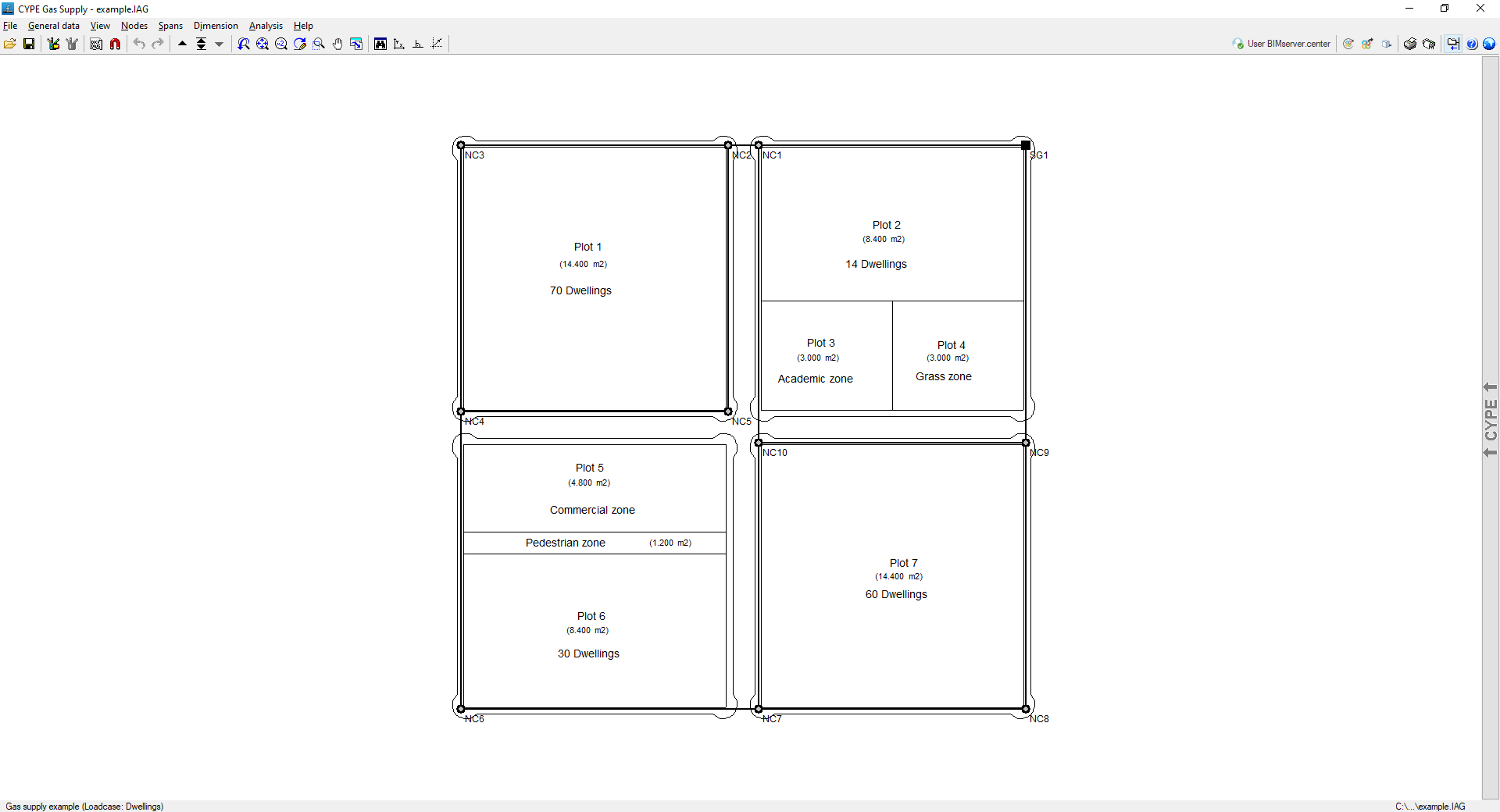
The interface shows the following:
- The menus at the top, where there are tools for:
- accessing the "File" menu;
- configuring the general data;
- controlling the display of the model;
- entering and editing nodes and sections;
- accessing the dimensioning options;
- analysing and designing the network;
- and accessing the "Help" menu.
- The options in these menus also appear in the drop-down options bar, which by default is hidden on the right-hand side.
- An auxiliary horizontal bar, under the menus at the top, where there are tools for:
- accessing the file manager and saving the job;
- accessing the editing resources;
- managing the templates and their snaps;
- undoing and redoing;
- navigating through the different combinations of hypotheses;
- modifying the drawing views;
- viewing the complete drawing map, rotating it, activating orthogonality and controlling the tools for entering by coordinates;
- consulting and managing the connection with BIMserver.center;
- viewing the 3D view of the installation;
- printing the reports and drawings of the job;
- showing or hiding the side drop-down bar of options;
- accessing the available help;
- and accessing the general configuration options.
- Finally, in the central work area, which occupies most of the interface, the elements that make up the network are entered, edited and displayed, as well as the topographic curves, if a model with terrain information has been imported.
Results output
Viewing results on screen
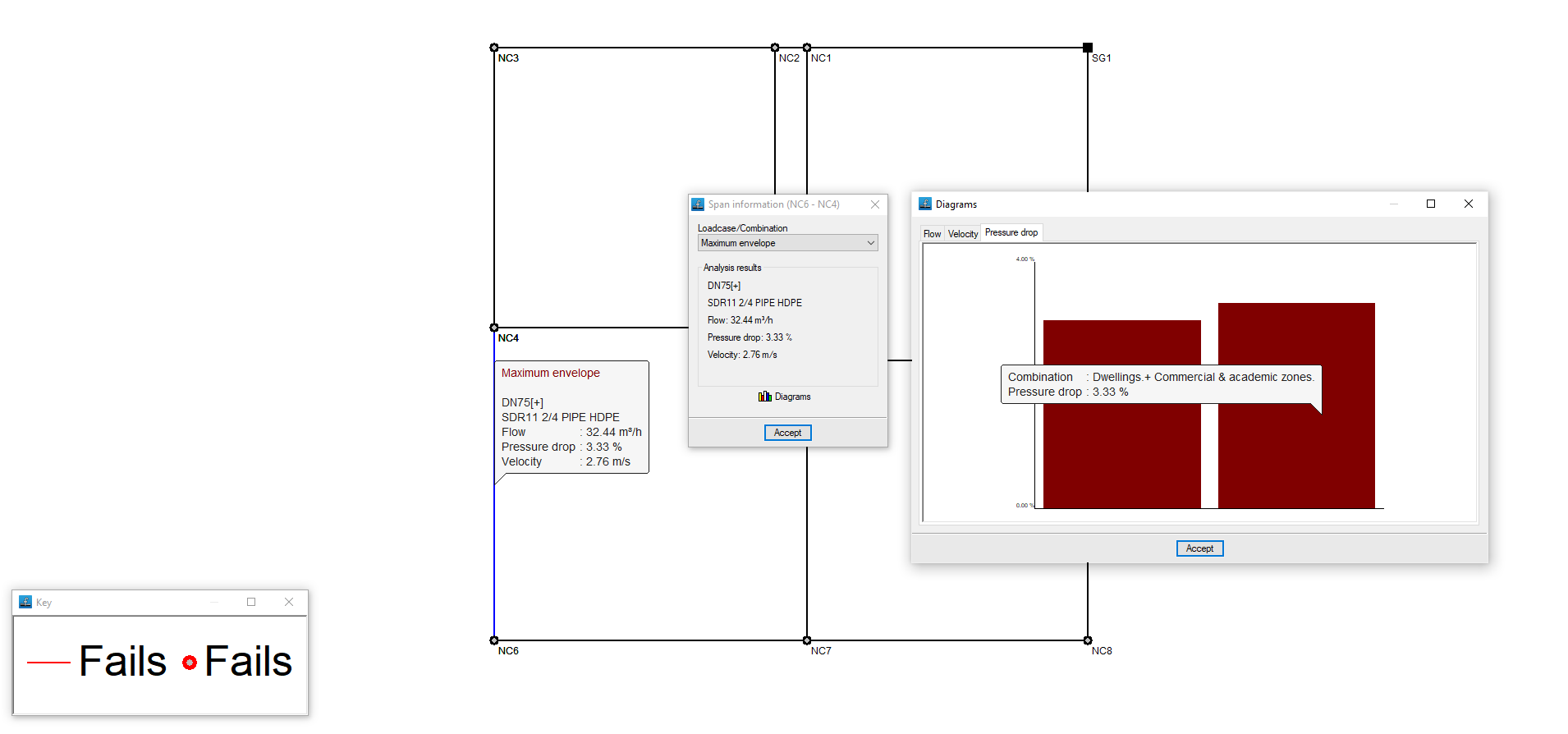
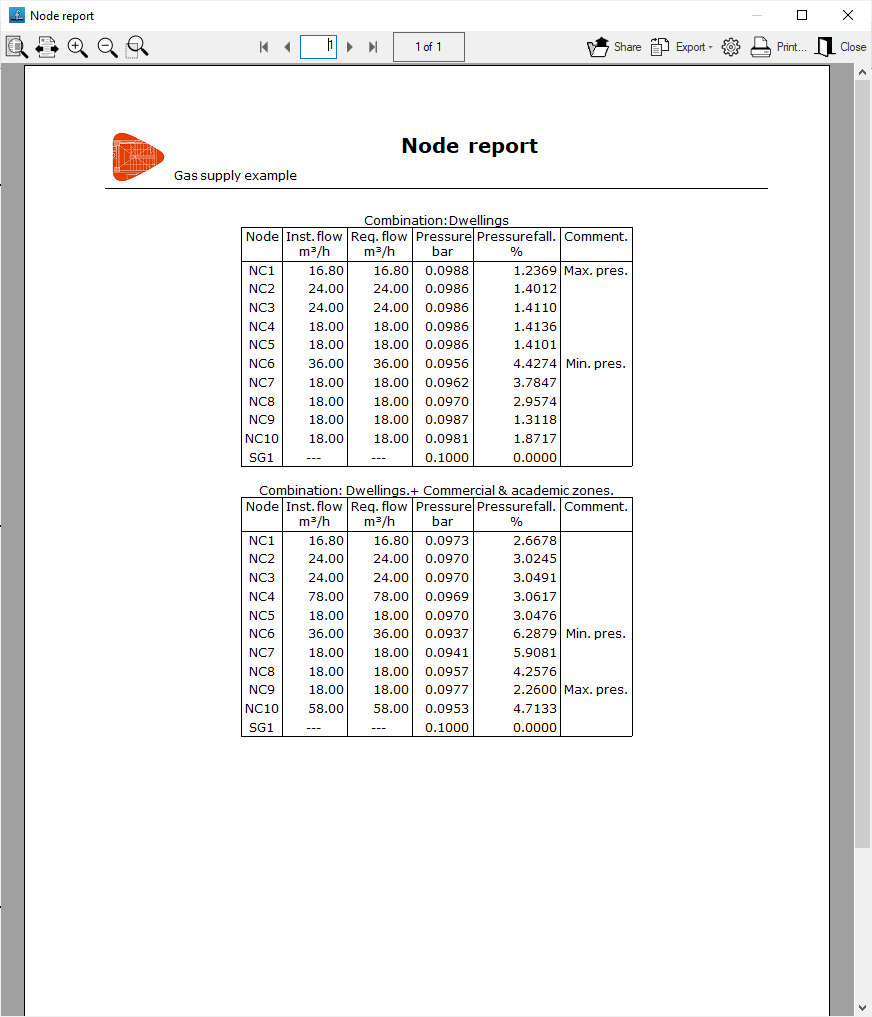
After the analysis, the program displays the results on the screen when selecting an element of the installation via the "Nodes" option, "Information", or via "Sections", "Information".
This includes the analysis data of the nodes and the analysis data of the sections, with results by laodcases, combinations or envelopes.
Reports
The program can be used to print the reports directly or to generate HTML, PDF, TXT, RTF or DOCX files.
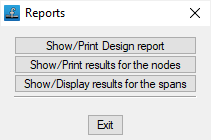
The reports are obtained via the "Reports" option in the "File" menu or from the right-hand side of the top toolbar.
The following reports are available:
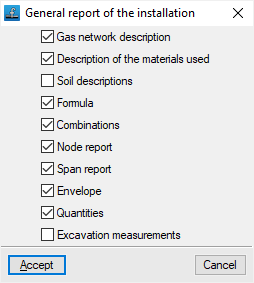
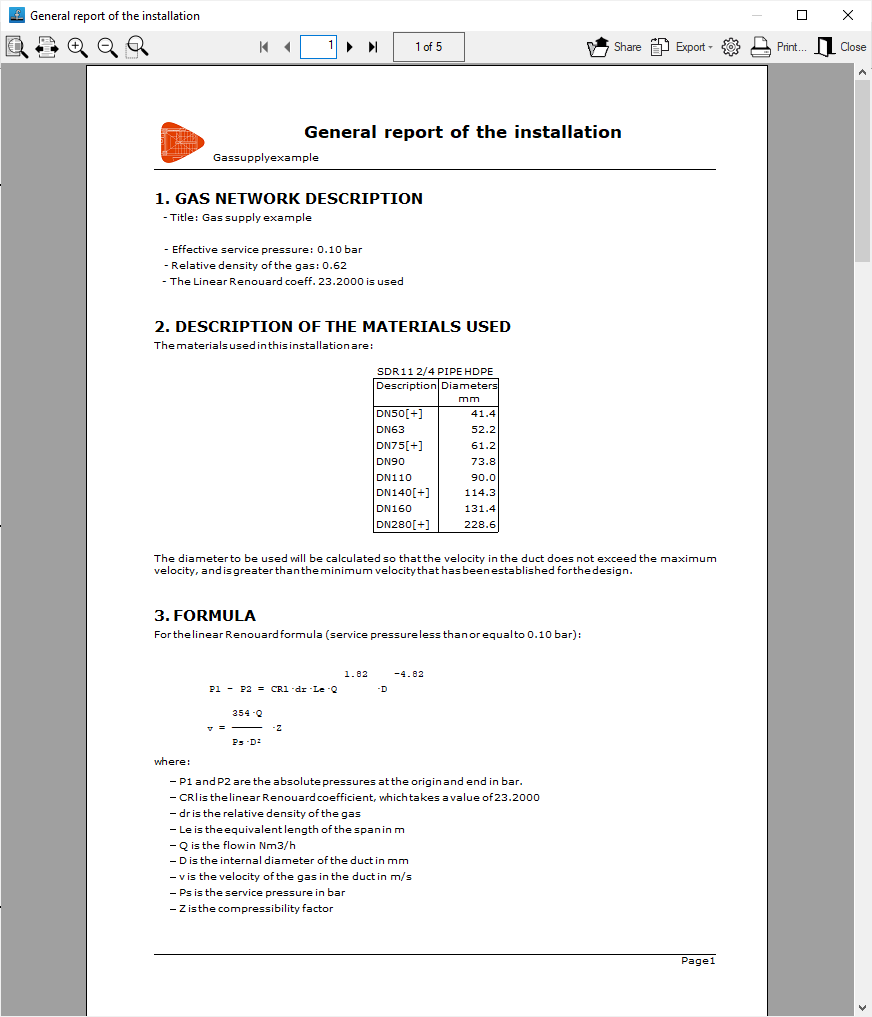
- Calculation report
Prints the general report of the installation. It includes the following sections, which can be activated or deactivated:- Gas network description (optional)
- Description of the materials used (optional)
- Soil descriptions (optional)
- Formula (optional)
- Combinations (optional)
- Node report (optional)
- Span report (optional)
- Envelope (optional)
- Quantities (optional)
- Excavation measurements (optional)
- Node report
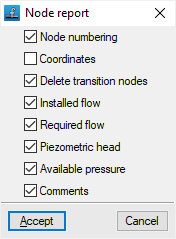
Prints the report of the results in the nodes. It includes the following information, which can be activated or deactivated:- Node numbering (optional)
- Coordinates (optional)
- Delete transition nodes (optional)
- Installed flow (optional)
- Required flow (optional)
- Piezometric head (optional)
- Available pressure (optional)
- Comments (optional)
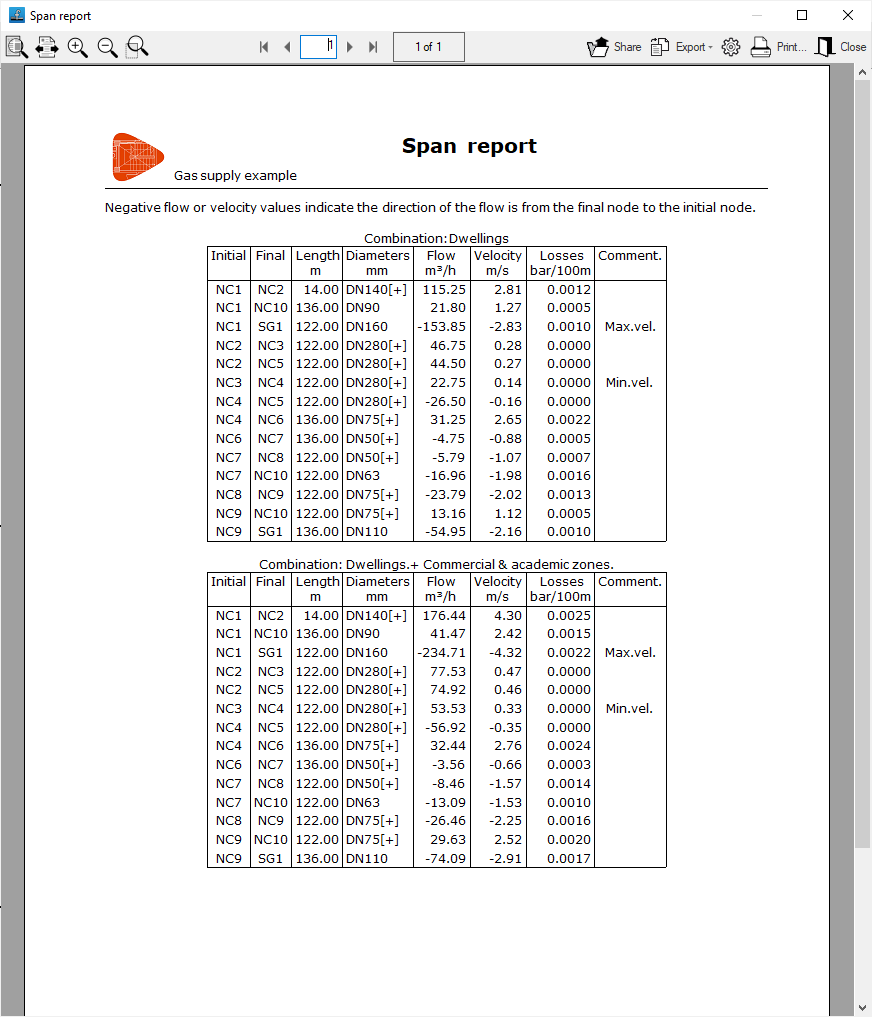
- Span report
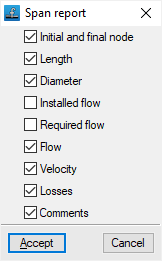
Prints the report of the results in the spans. It includes the following information, which can be activated or deactivated:- Initial and final node (optional)
- Length (optional)
- Diameter (optional)
- Installed flow (optional)
- Required flow (optional)
- Flow (optional)
- Velocity (optional)
- Losses (optional)
- Comments (optional)
Drawings
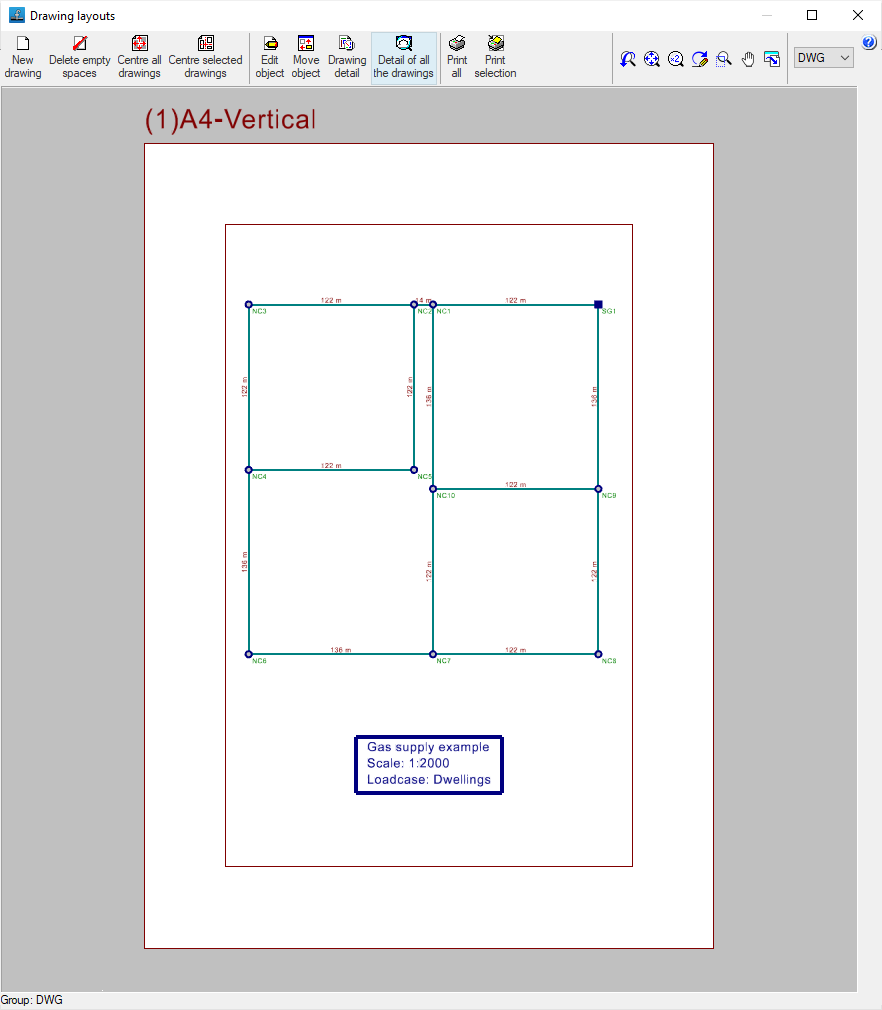
The program can print the drawings of the job on any graphic peripheral configured on the computer, or create DWG, DXF or PDF files.
The drawings are obtained from the "Drawings" option in the "File" menu or from the right-hand side of the top toolbar.
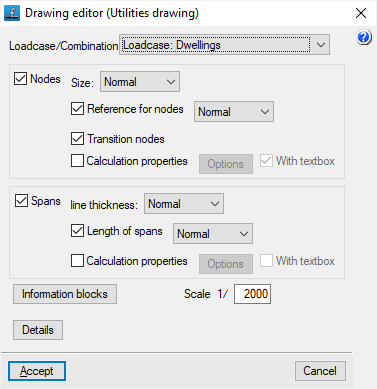
Editing the drawing offers the following options:
- Loadcase/Combination
Selects the loadcase, combination, envelope or oscillation for which data is to be displayed in the drawing. - Nodes (optional)
Displays the input information and analysis results of the nodes:- Size
- Node references (optional)
- Transition nodes (optional)
- Calculation properties (optional)
- Options: Flow (Power), Supply pressure, Elevation, Ground level elevation, Elevation fill, Pressure of the node
- Spans (optional)
Displays the input information and analysis results of the spans:- Line thickness
- Length of spans (optional)
- Calculation properties (optional)
- Options: Dimension, Material, Flow, Pressure drop, Velocity
- Information tables
- General information table (optional)
- Quantities information table (optional)
- Excavation information table (optional)
- Scale
- Details
GLTF file format compatible with BIMserver.center
If the job has been linked to a BIMserver.center project, a 3D model is generated in GLTF format to integrate the system model into the project when it is exported to the platform, allowing it to be visualised:
- on the online platform;
- on the BIMserver.center app for iOS and Android;
- on virtual reality and augmented reality;
- on other CYPE programs.
Integration into the BIMserver.center platform
Many of CYPE's programs are connected to the BIMserver.center platform and allow collaborative work to be carried out via the exchange of files in formats based on open standards.
Please note that, to work on BIMserver.center, users can register on the platform free of charge and create a profile.
When accessing a program connected to the platform, the program connects to a project in BIMserver.center. This way, the files of the projects that have been developed collaboratively in BIMserver.center are kept up to date.

| More information: |
|---|
| For further details related to using CYPE software via the BIMserver.center platform, please click on this link. |