
Introduction
CYPE Gas Supply is a program designed for the analysis, design, checking and automatic sizing of gas supply networks in urban infrastructures, whether they are meshed, branched or mixed.
The objective in the design of these networks is to deliver the gas to each consumption point. For this purpose, the data and positions of the consumption and supply points are defined, as well as the layout of the network. Consumption can be entered as a flow rate or as heating capacity to be installed at each node. In the analysis, the appropriate diameters of the gas pipes are obtained and it is checked whether the installation complies with the imposed design constraints.
| Note: |
|---|
| Together with other urban infrastructure programs such as CYPE Water Supply, CYPE Sewerage and CYPE Electrification, all aspects related to the installation design of housing estates can be solved. |
Workflows supported by the program
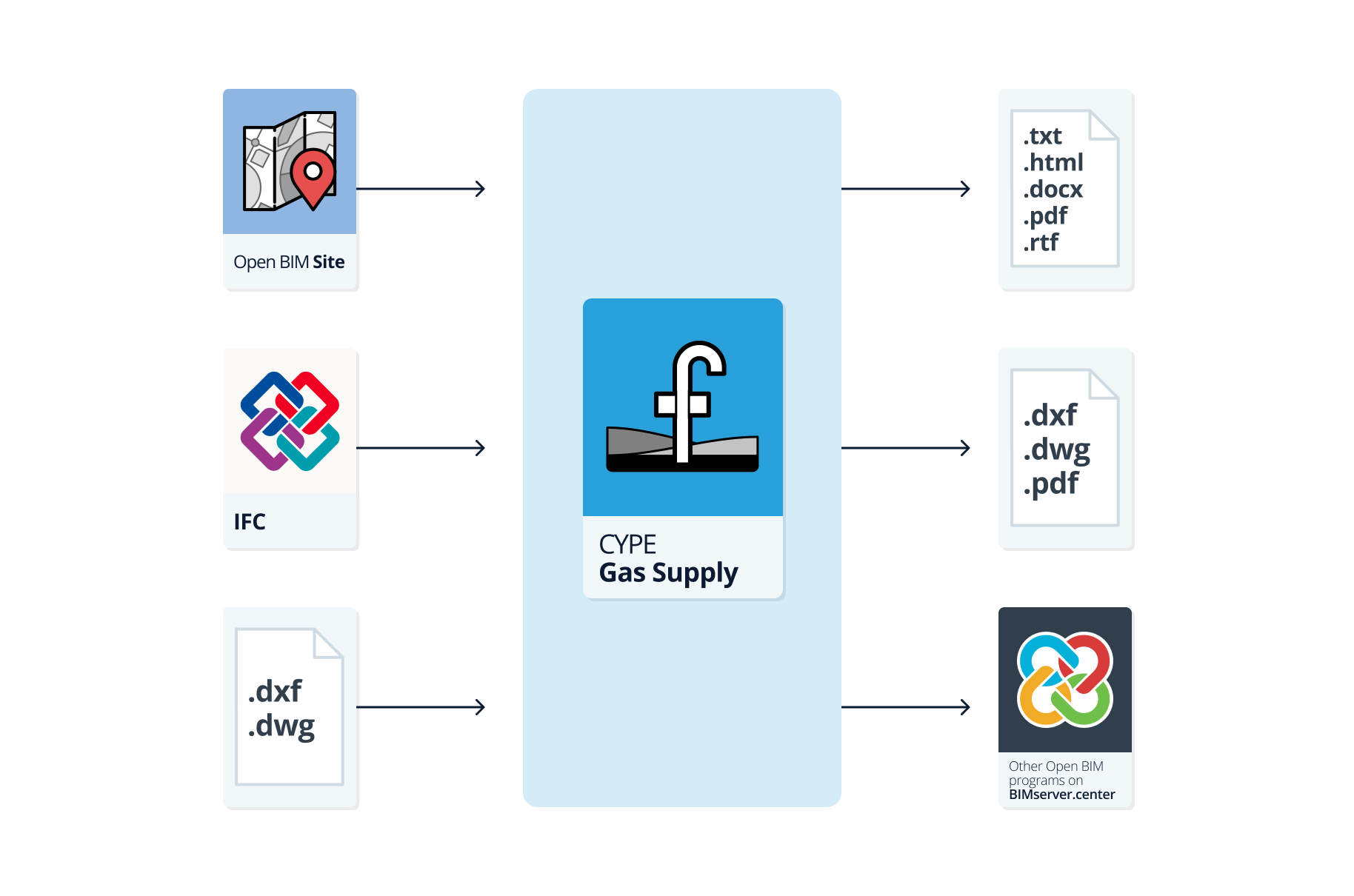
As an Open BIM tool connected to the BIMserver.center platform, CYPE Gas Supply offers a range of options for your workflow.
Data entry
Open design
- Free-form network design by manually entering node coordinates and drawing the sections that make up the installation in CYPE Gas Supply.
- Free-form network design by entering nodes and sections using templates in DXF-DWG or DWF format, or images (.jpeg, .jpg, .bmp, .wmf) imported into CYPE Gas Supply.
Automatic generation of installation geometry from DXF/DWG files
- Importing a DXF or DWG file via the "Import" option under "Geometry", and automatically generating the installation geometry based on the information contained within it. This file must use the metre as its drawing unit, and the grid must be close to the coordinate origin. For this option, only the layers containing the sections you wish to use for the generation should be enabled.
Importing data from BIMserver.center
If you link the CYPE Gas Supply project to a BIM project on the BIMserver.center platform, you can perform the following actions:
- Importing ground topography data if the BIM model contains an IFC file with the appropriate features. This allows you to visualise the topography in the 3D view of CYPE Gas Supply, display contour lines on the plan view in the general interface workspace, and use the imported topography during data entry, automatically identifying the elevation values of new nodes added to it. The available options include the following:
- Importing topographic models in IFC format generated by Open BIM Site.
- Importing topographic models in IFC format generated by other software (such as Aplitop’s TcpMDT apps available on BIMserver.center) and uploaded to the BIMserver.center project via the web platform. The terrain data must be defined as an IfcGeographicElement entity in an IFC4 file.
Data output
- Exporting reports to HTML, DOCX, PDF, RTF and TXT formats.
- Exporting drawings to DXF, DWG and PDF formats.
- Exporting information generated with CYPE Gas Supply to the BIMserver.center platform using IFC and GLTF formats. This allows it to be viewed by authorised project participants.
Work environment
The program has a simple work environment that allows the network design to be carried out quickly by entering and distributing the elements in a single work area on the floor plan.
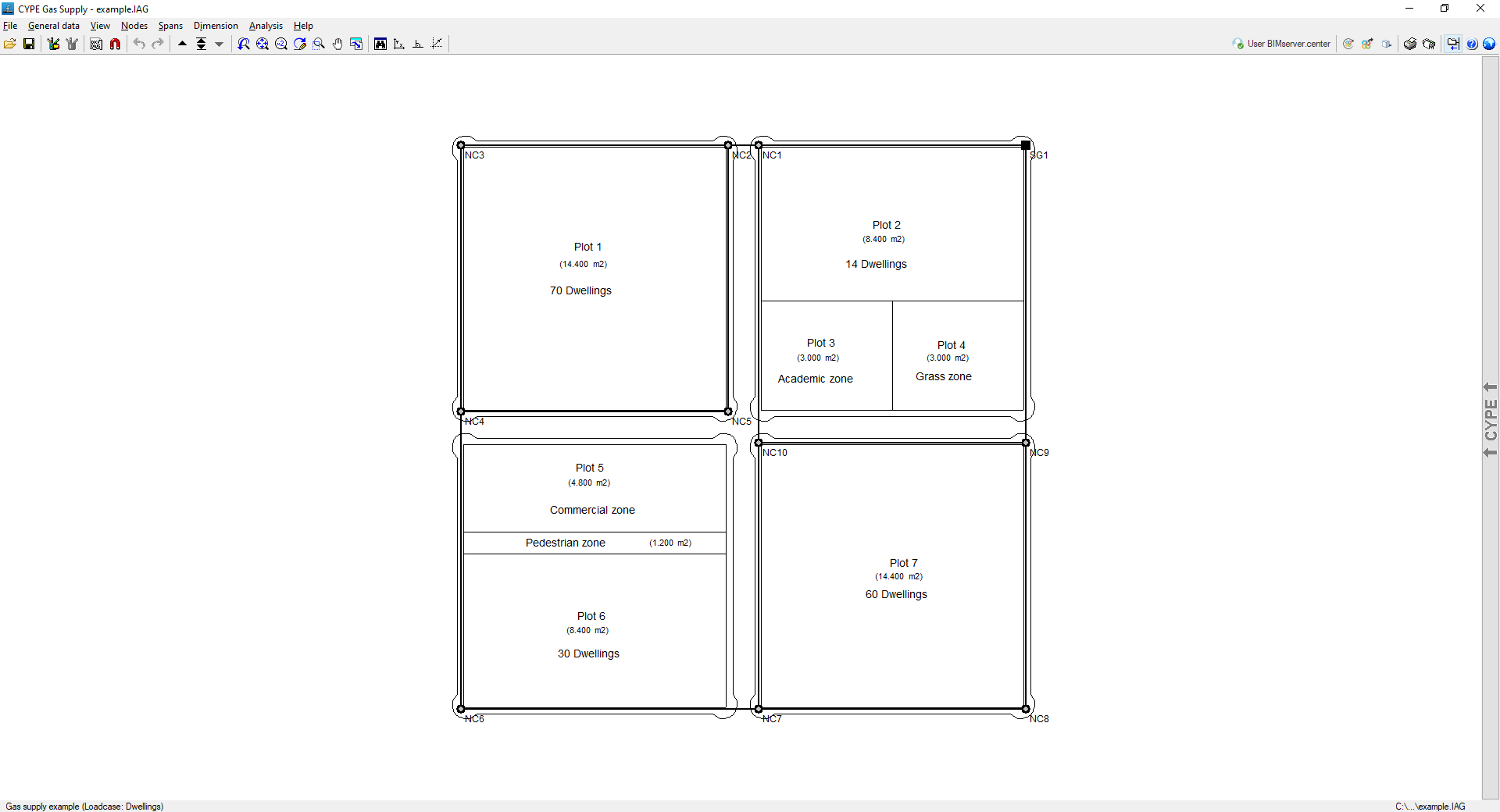
The interface shows the following:
- The menus at the top, where there are tools for:
- accessing the "File" menu;
- configuring the general data;
- controlling the display of the model;
- entering and editing nodes and sections;
- accessing the dimensioning options;
- analysing and designing the network;
- and accessing the "Help" menu.
- The options in these menus also appear in the drop-down options bar, which by default is hidden on the right-hand side.
- An auxiliary horizontal bar, under the menus at the top, where there are tools for:
- accessing the file manager and saving the job;
- accessing the editing resources;
- managing the templates and their snaps;
- undoing and redoing;
- navigating through the different combinations of hypotheses;
- modifying the drawing views;
- viewing the complete drawing map, rotating it, activating orthogonality and controlling the tools for entering by coordinates;
- consulting and managing the connection with BIMserver.center;
- viewing the 3D view of the installation;
- printing the reports and drawings of the job;
- showing or hiding the side drop-down bar of options;
- accessing the available help;
- and accessing the general configuration options.
- Finally, in the central work area, which occupies most of the interface, the elements that make up the network are entered, edited and displayed, as well as the topographic curves, if a model with terrain information has been imported.
Data input and output sequence for the design and analysis of gas supply networks
The design and analysis of a gas supply network can be carried out in the program using the following data input and output sequence:
- Creating a new project (from "File", "New").
- (Optional) Linking to BIMserver.center and importing topographical data from the BIM model.
- Configuring general installation data (in the new project creation wizard or from "General data", "Edit general project data"), including the definition of materials and land types.
- Definition of loadcases and combinations (from "General data", "Edit loadcases", and from "General data", "Edit combinations").
- (Optional) Import of DXF-DWG/DWF templates or images (from "Edit templates").
- Inserting nodes (from "Nodes", "New").
- Inserting spans between nodes (from "Spans", "New").
- Analysing and/or designing of installation (from "Analysis", "Analyse/Design").
- Reviewing the status of compliance with the checks carried out (via the "Next combination/Select combination/Previous combination" options) and the analysis results (via "Nodes", "Information", and via "Spans", ‘"Information").
- Printing reports and drawings of the project (from "File", "Reports/Drawings").
- (Optional) Exporting BIMserver.center (from "BIMserver.center", "Share").
Examples of gas supply networks
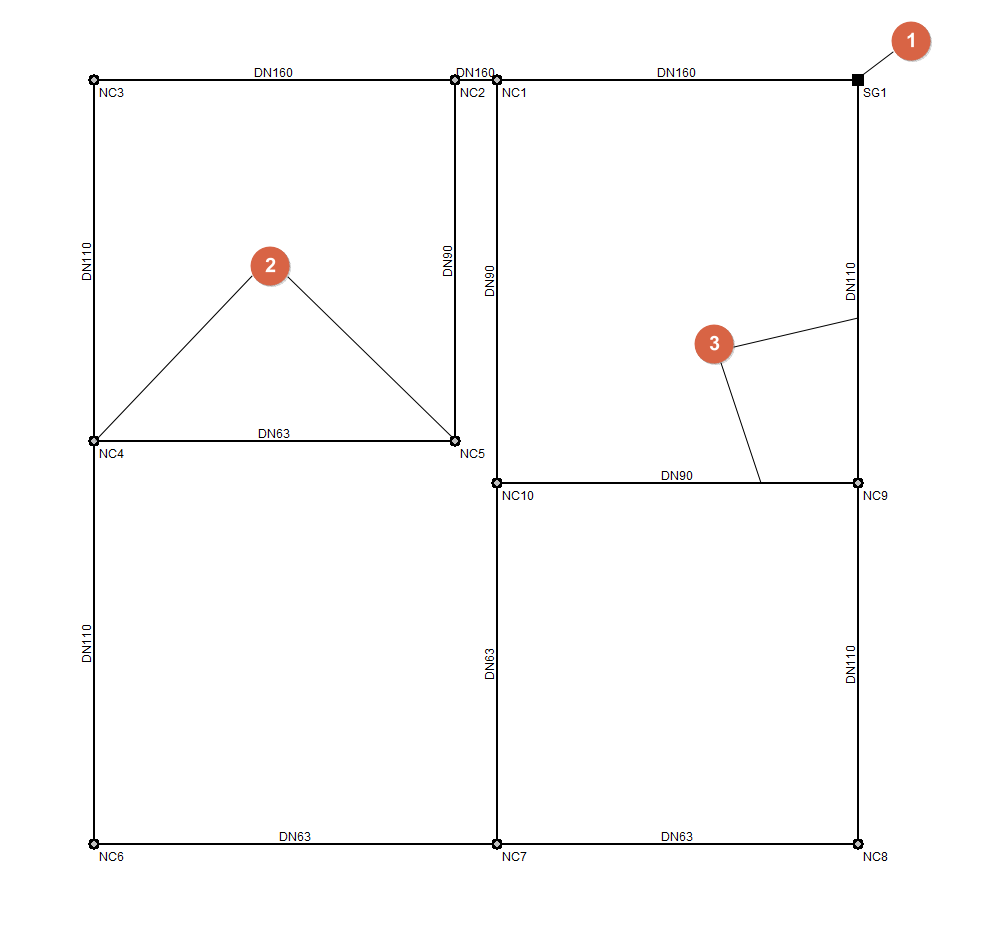
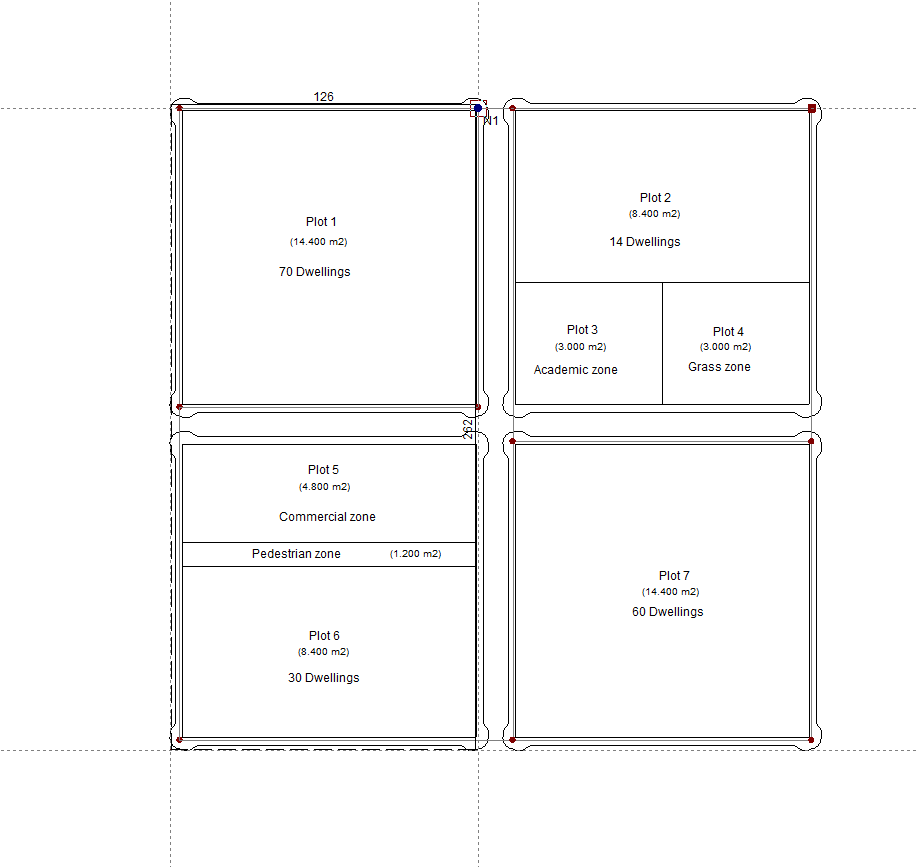
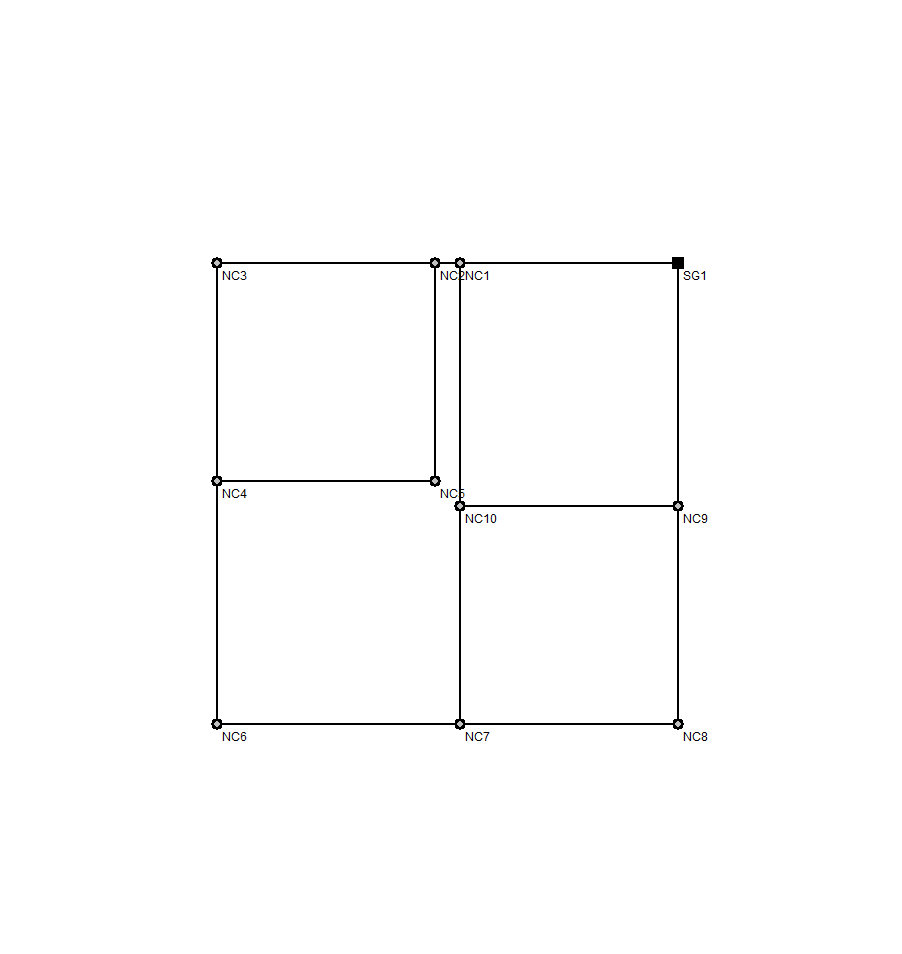
Below is an example of a gas supply network that can be created in the program, showing the layout of the components and the options available for adding them to the model:
Gas supply infrastructure for a residential development and a commercial/educational area
- General supply node (from "Nodes", "New").
- Gas supply points for residential properties and the commercial/educational area (from "Nodes", "New").
- Sections (from "Spans", "New").
In this case, one loadcase is defined for domestic gas consumption and another for gas consumption associated with commercial and educational areas.
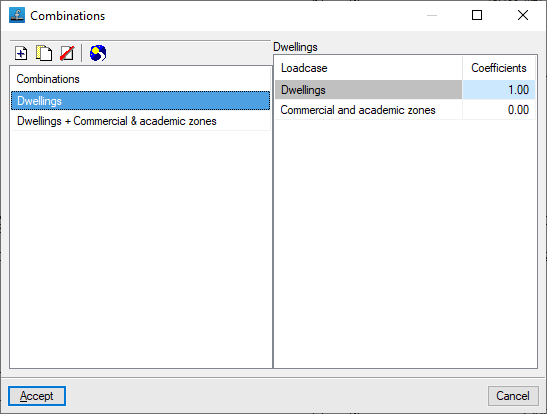
In addition, the following combinations are defined, with the indicated percentage of consumption for each loadcase:
- First combination: 100% residential consumption
- Second combination: 100% residential consumption, 100% consumption in commercial and educational areas
Creating a new project, linking to a project and importing data
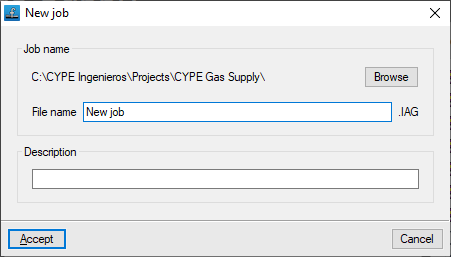
When launching the application and clicking on "New", you are given the option to create a "New project". After entering the "File name" and its "Description", the project can then be added to an existing project on BIMserver.center.
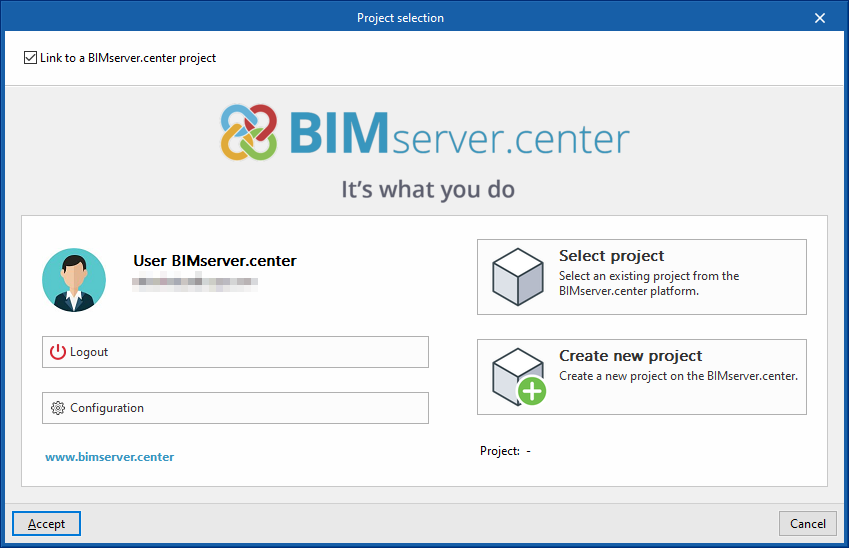
This is done in the "Project selection" window, which offers the following options:
- On the left-hand side, you can log in using a BIMserver.center account.
- On the right-hand side, you will find the "Select project" option to choose an existing project. You also have the option to "Create a new project". In this case, the project you create will be visible on BIMserver.center from that point onwards.
- You have the option to start the project without linking it to the BIMserver.center platform. To do this, simply uncheck the box labelled "Link to a BIMserver.center project", located in the top-left corner.
Importing BIM models
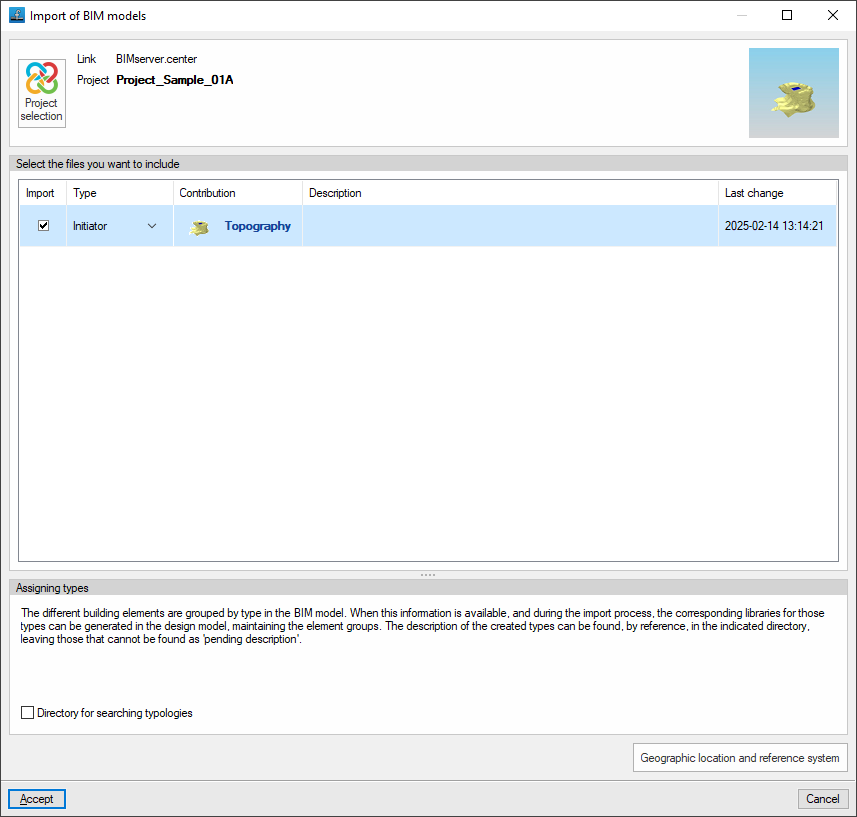
When creating a new project, if you have selected a project hosted on the BIMserver.center platform via "Select project", the "Import BIM models" window will appear, displaying the files contained in that project in IFC format.
To include the information from a specific project file, tick the "Import" box and confirm.
Configuring general installation data
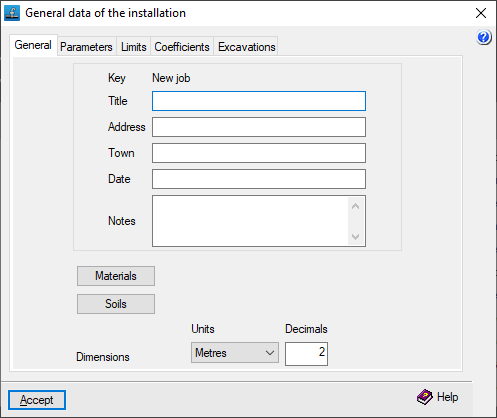
When creating a new project, the program opens the "General installation details" window to ensure this information is entered, including the definition of materials and plots of land.
You can access the settings for this data at any time via the "Edit general project details" option in the "General details" menu at the top.
Once this window is accepted, you are taken to the program’s main interface.
Import results
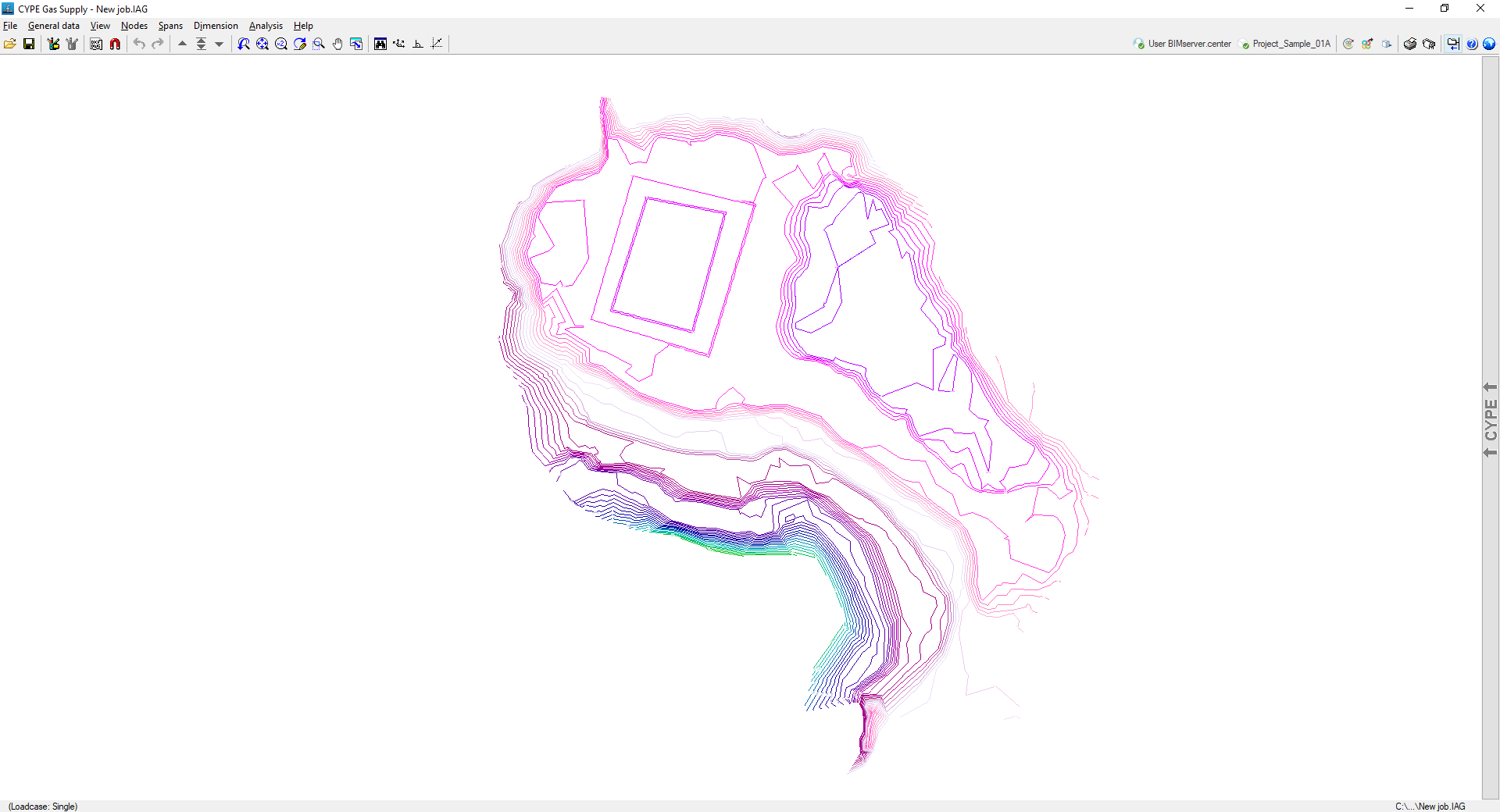
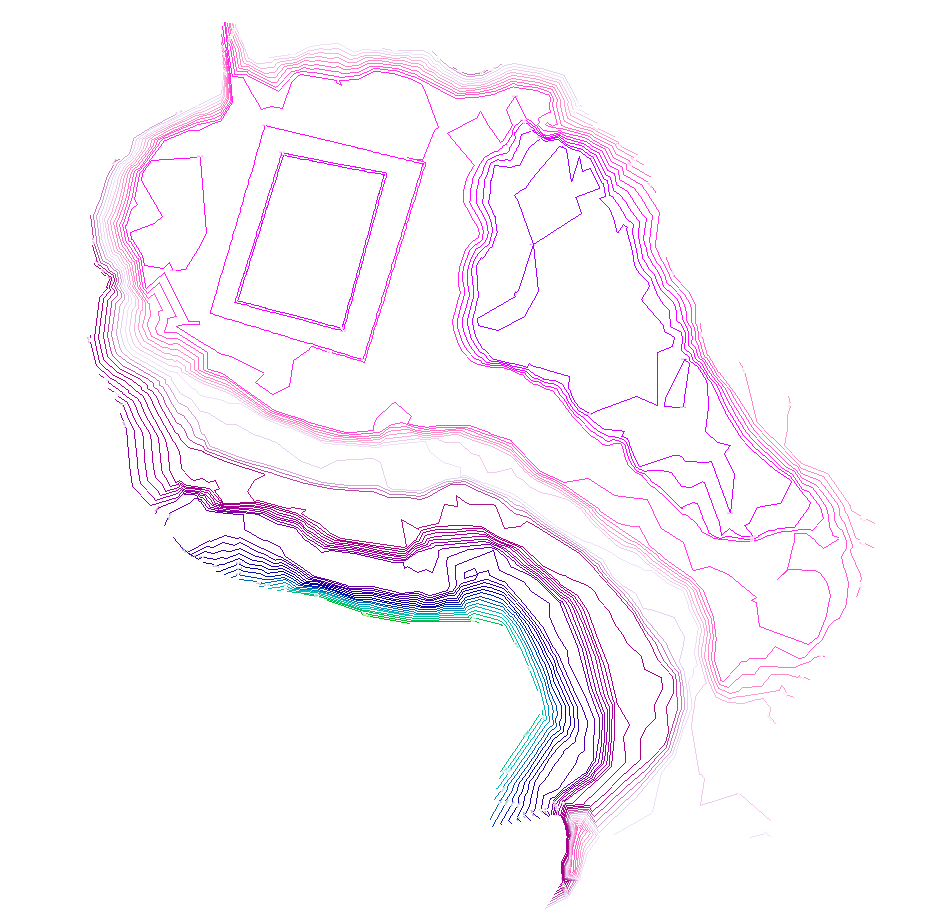
If an IFC file containing terrain data with the appropriate characteristics has been imported during the creation of a new project, the program will display the contour lines on screen (their visibility can be controlled via the "Show/hide topographic profile lines" option in the "View" menu). When nodes are added, the program will use the elevation data of the terrain at their location.
Furthermore, the 3D view will display the models included in the BIM project and imported into the project.
Configuring general project data
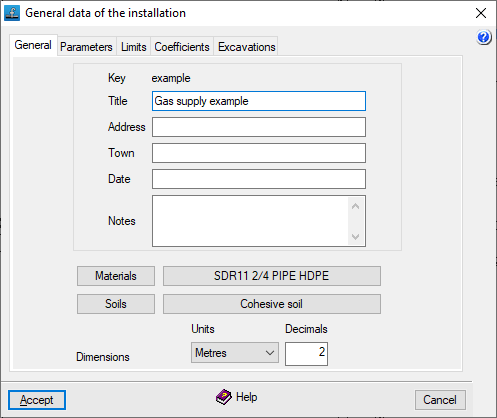
In the "General data" menu at the top, you will find the "Edit general data of the job" option, which allows you to enter general information about the installation, such as materials and ground conditions, the parameters, limits and coefficients used in the analysis, and excavation data.

The options available are as follows:
"General" tab
This allows you to enter the following general details, which will appear in the calculation lists, within the installation description:
- Key
Title of the project. To change it, use the "File" > "Save as" option. - Title
- Address
- Town
- Date
- Notes
In addition, the following options are available:
- Materials
Allows you to manage materials. - Soils
Allows you to manage soils. - Settings
You can configure the "Units" and the number of "Decimals" used.
Materials management
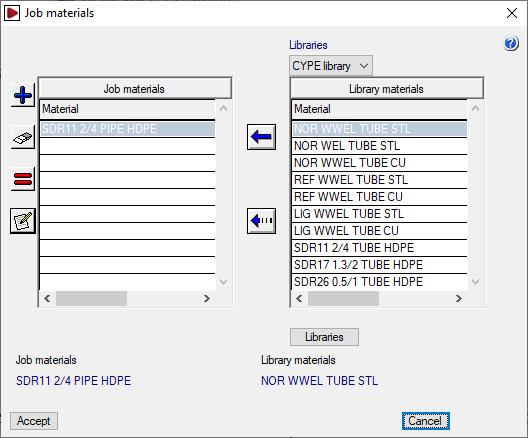
By clicking on the "Materials" button, you can manage the materials used in the site’s pipework, as well as the available material libraries. The window that appears displays two lists:
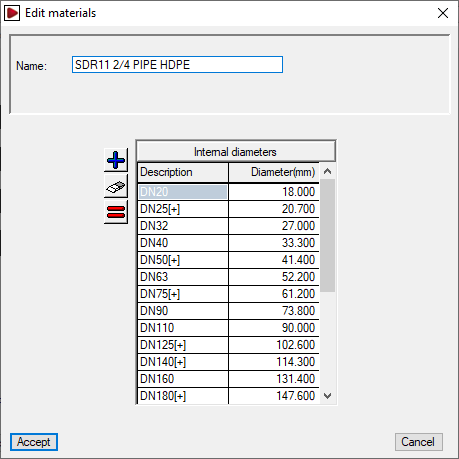
- The list on the left shows the "Project materials". You can create a material manually using the tools on the left, or import it from the library materials. When adding or editing a project material, you must specify the "Name" and the associated "Internal diameters".
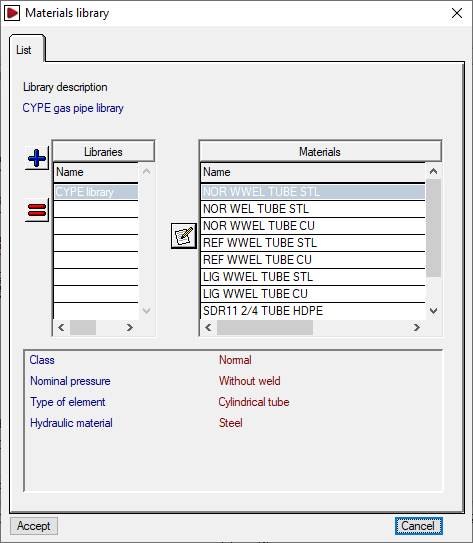
- The list on the right shows the "Library materials". At the top, you can select the library you wish to view. The program includes a default library. You can view the internal data for each library by clicking on the "Libraries" button at the bottom; there, you can define the "Library description", and its "Abbreviation", and for each item included, the "Name" and the associated range of "Internal diameters" are displayed.
The first button between the two lists allows you to create a site material by importing information from one of the materials available in the library. The second button allows you to add the grades of the selected library material (on the right) to the selected site material (on the left).
Soil management
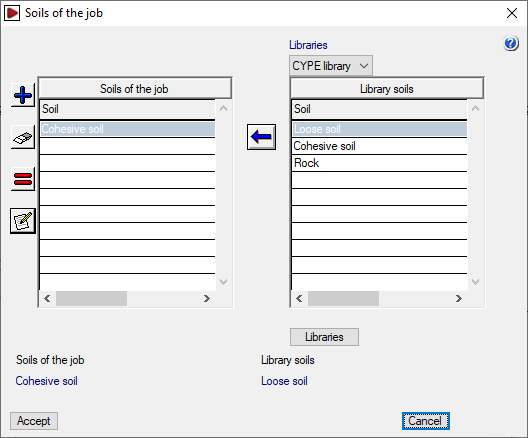
By clicking on the "Soils" button, you can manage the terrains for the project, as well as the available terrain libraries. The window that appears displays two lists:
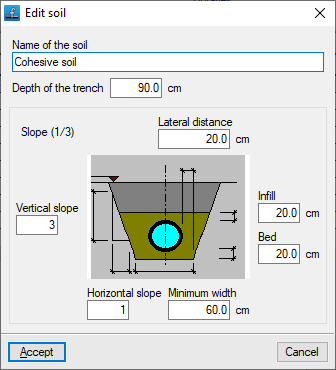
- The list on the left shows the "Soils of the job". You can create a terrain manually using the tools on the left, or import one from the library terrains. When adding or editing a site terrain, the "Name of the soil" and the following geometric parameters are specified: "Lateral distance", "Infill", "Bed", "Minimum width", and "Vertical slope" and "Horizontal slope" (which form the “Slope” ratio shown next to the graph).
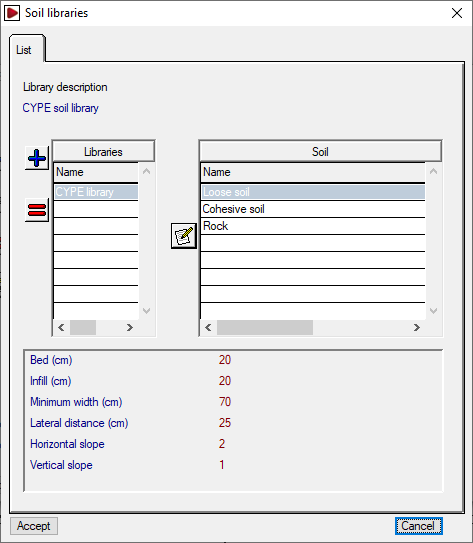
- The list on the right shows the "Library fields". At the top, you can select the library you wish to display. The program includes a default library. You can view the internal data for each library by clicking on the "Libraries" button at the bottom; there, you can define the "Library description", and its "Abbreviation", and for each plot included, the ‘Plot name’ and the aforementioned geometric parameters are displayed.
The first button between the two lists allows you to create a site plan by importing information from one of the site plans available in the library. The second button allows you to add the sections of the site plan selected from the library on the right to the site plan selected on the left.
To continue creating a new project, you must create at least one material and one soil
The materials and sites will be available when editing each section via "Sections", "Edit calculation data".
"Parameters" tab
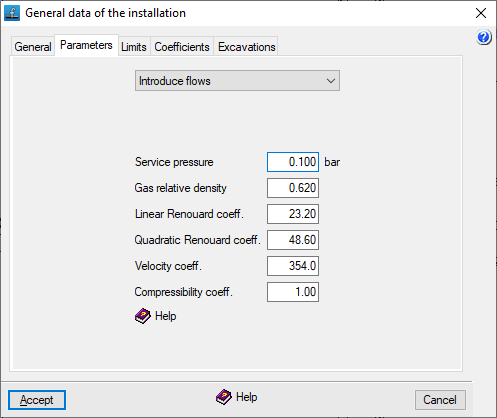
This allows you to define the following parameters for the gas supply system:
- Data entry mode
This drop-down menu allows the user to select how consumption data will be requested.- Enter flow rates
Consumption loads shall be expressed in units of flow rate. - Enter power ratings
Power consumption loads shall be expressed in units of power. In this case, the following data for the fuel gas must be defined:- Higher heating value (GCV)
For natural gas, a GCV of 10,000 kcal/m³ may be assumed. At nodes where the heat input P is entered, the required flow rate Q is obtained by converting the heat input using the GCV, via the expression Q = P / GCV. - Lower heating value (LHV)
For natural gas, the LHV is usually around 90% of the gross heating value (GHV).
- Higher heating value (GCV)
- Enter flow rates
- Service pressure
- Gas relative density
The relative density of the fuel gas. In the case of natural gas, this ranges from 0.55 to 0.66, depending on its composition. - Linear Renouard coefficient The constant factor in the linear Renouard formula. It is the constant factor used in the linear Renouard formula for pressures below 100 mbar. A value of 23.2 is usually taken.
- Quadratic Renouard's coefficient
The constant coefficient in the quadratic Renouard formula. It is the constant factor used in the quadratic Renouard formula for pressures between 100 mbar and 16 bar. It is equal to 48.66 between 100 mbar and 4 bar, and equal to 51.5 between 4 and 16 bar. - Velocity coefficient: A constant in the gas velocity formula. It is usually taken to be between 354 and 378, depending on the pressure.
- Compressibility coefficient
The compressibility coefficient of the gas. It affects the calculation of velocity and takes the value 1 for pressures below 5 bar.
"Limits" tab
This tab is used to set speed and pressure limits within the system.
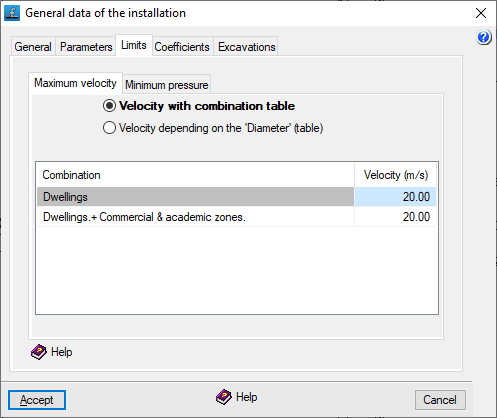
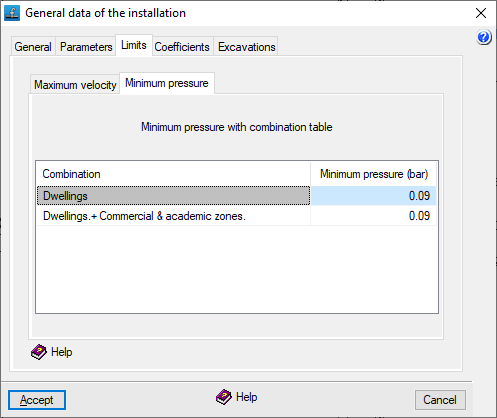
In the various tabs, you define the "Maximum velocity" in the gas conduits (which should not exceed 20 m/s, as the Renouard formula is no longer valid above this velocity) and the "Minimum pressure" at the nodes.
This can be done:
- Via the combination table (for "Maximum speed" and "Minimum pressure")
For each entry, the speed or pressure limit is defined for each combination specified under "General data", "Edit combinations". - Based on 'Diameter' (table) (for "Maximum speed")
Each entry defines the speed limit applied to pipes with diameters equal to or smaller than the specified value. For diameters larger than those specified, the limit for the largest diameter in the table applies.
"Coefficients" tab
Coefficients
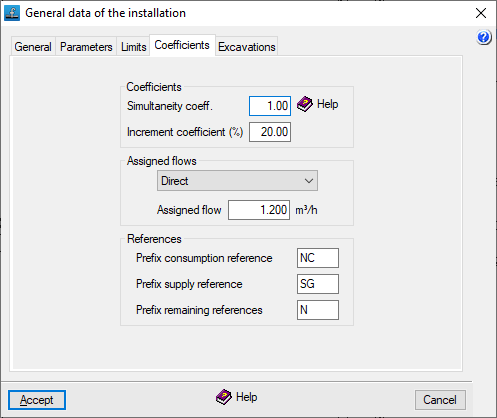
This tab is used to define two coefficients that are applied across the entire project:
- Simultaneity coefficient
This allows you to increase or decrease consumption levels. It is defined as a ratio of one and is applied to gas consumption across all combinations. This makes it possible to simulate operations at different times of the day or seasonal changes. By default, the value is set to one. - Increment coefficient (%)
This acts as an additional percentage applied to the effective length of the sections. This allows for the simulation of pressure drops caused by special components such as valves, bends or branches. The default value is set to 20%.
Assigned flows
This allows you to specify whether the loads on consumption nodes are defined by default directly or via allocation.
- Direct
Consumption will be entered directly in units of flow rate or power. - By rating
Consumption will be calculated based on a flow rate or power rating (corresponding to the value entered in the "Rating" field) and the corresponding number of units.
The load values and their definition type can be edited later in the edit panel for each node.
References
This allows you to set the prefixes that are automatically added to the references of installation nodes when they are added to the workspace, whether they are consumption nodes, general supply nodes or other nodes:
- Prefix: consumption reference
- Prefix: supply reference
- Prefix: remaining references
References can be edited later in the edit panel for each node.
"Excavations" tab
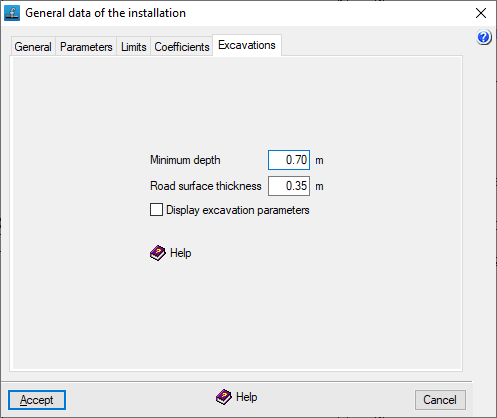
This tab is used to define the following parameters relating to the site's excavations:
- Minimum depth
Allows you to set an alarm that alerts you when any point in the installation falls below this value (in the "Calculation results" report that appears after using the options in the "Calculation" menu). The minimum depth is measured from the ground level to the top edge of the inner face of the duct. - Road surface thickness:
This indicates the default distance between the road surface and the modified ground level. By default, this value is subtracted from the road surface elevation (entered in the "Edit node" panel) to obtain the ground level without the need to enter it manually. Furthermore, if the ground level is changed in that panel, a warning will be displayed if the specified pavement thickness is not met. - Display excavation parameters (optional)
The program allows you to calculate the excavation volumes for the project if at least one site has been defined and elevations and depths have been specified at the nodes. If you do not wish to enter this information or do not want to calculate the excavation, you can disable this option: in this case, the nodes will not require the entry of elevation values.
| Note: |
|---|
| Where there are multiple pavement thicknesses in the project, if the "Road surface thickness" value is changed in this section, any new nodes added from this point onwards will be calculated using the new thickness, but the previous thickness will be retained for nodes added earlier. |
Defining loadcases and combinations
The "General data" menu at the top contains the following options, which allow you to define the project’s loadcases and combinations.

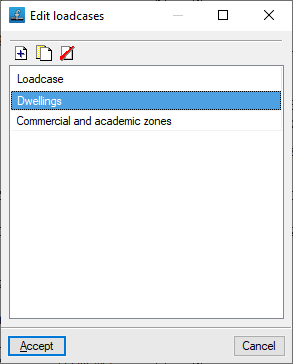
Editing loadcases
This allows you to define the basic parameters of the installation.
To do this, add items to the list and type in their names.
Once the loadcases have been defined, loads can be assigned to each one via the "Nodes", "Edit analysis data" option. The coefficients corresponding to the loadcase combinations must also be defined via the "General data", "Edit combinations" option.
Edit combinations
This allows you to define combinations of loadcases.
To do this, elements are added to the left-hand list and their names are entered. Then, in the right-hand list, the combination coefficients (expressed as fractions) assigned to each loadcase in the selected combination are indicated.
The loadcases must have been entered previously via "General data", "Edit loadcases".
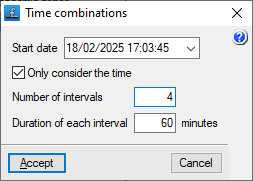
The program also includes a feature for automatically creating "Time combinations" by specifying a particular "Number of intervals" and the "Duration of each interval" from a "Start date". If you select the "Only consider the time" option, only the time—and not the date—is included in the reference for the generated combinations.
Options in the "View" menu
The following options can be accessed from the "View" menu at the top of the interface.

Display options
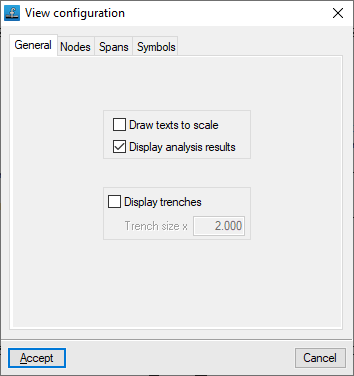
This allows you to control how the diagram elements are displayed on screen. The available options are as follows:
- "General" tab
- Draw texts to scale (optional)
- Display analysis results (optional)
- Display trenches (optional)
- Trench size x (value)
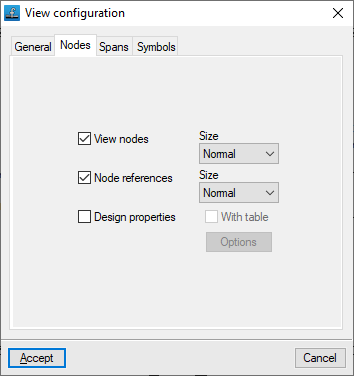
- "Nodes" tab
- View nodes (optional)
- Node references (optional)
- Design properties
- Options: Data to view at nodes
- With table (optional)
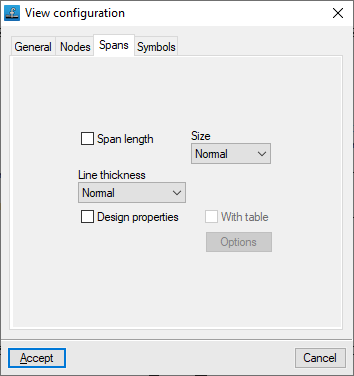
- "Spans" tab
- Span length (optional)
- Line thickness
- Design properties (optional)
- Options: Data to view at spans
- With table (optional)
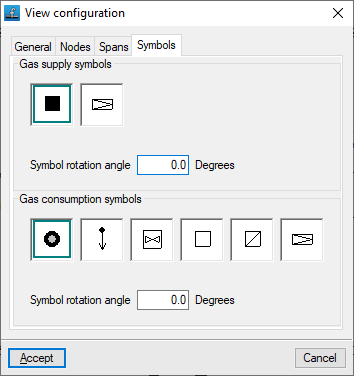
- "Symbols" tab
- Gas supply symbols
- Symbol rotation angle
- Gas consumption symbols
- Symbol rotation angle
- Gas supply symbols
3D view
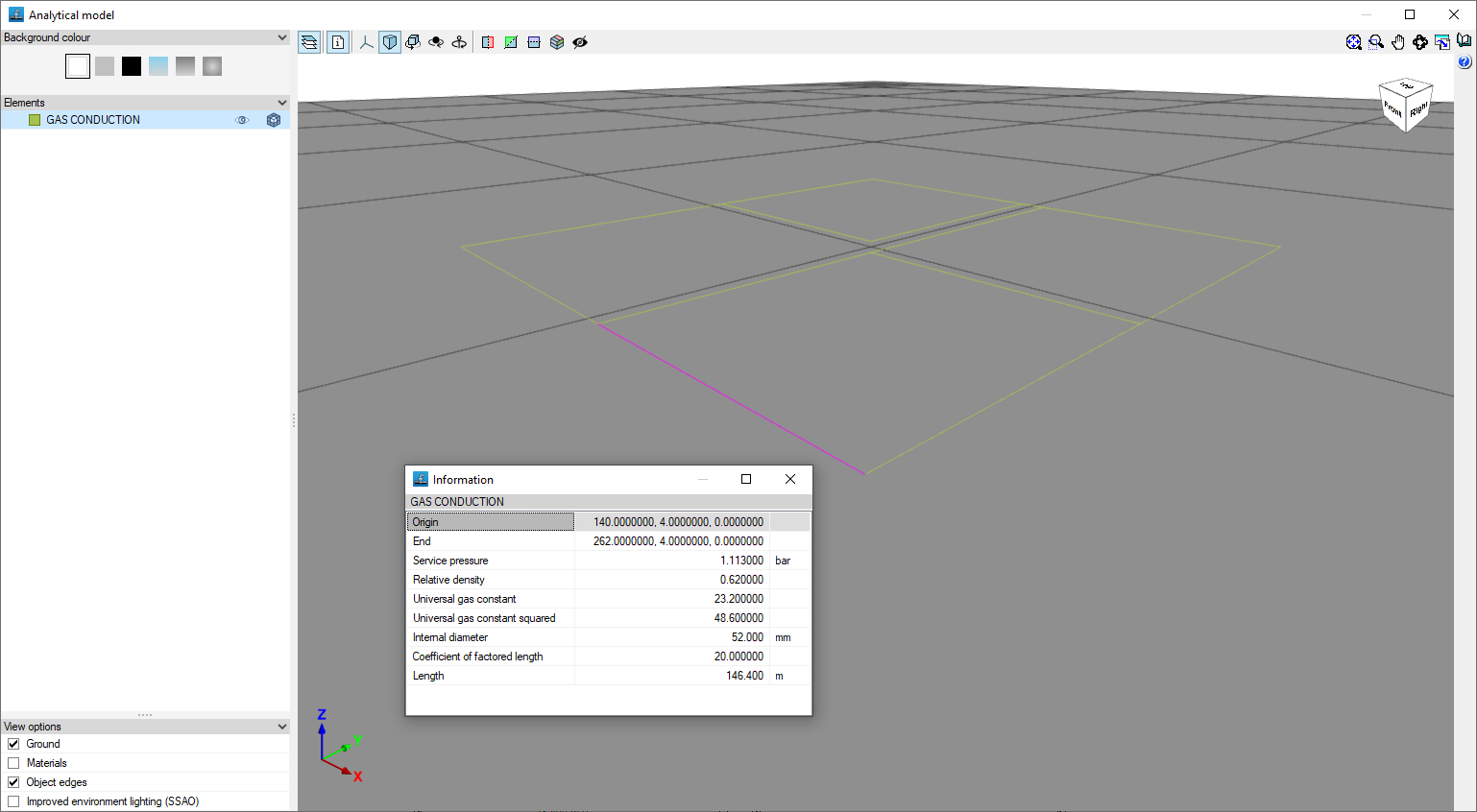
Once the installation has been analysed, this option allows you to open a window displaying a 3D view of the installation. You can also check the geometric characteristics of each section by selecting the "Information" option and clicking on the section.
Show/hide the contour lines
This allows you to show or hide the contour lines generated on screen if you have imported an IFC file containing the terrain model during the project creation process.
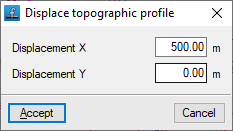
Displacing the topographic profile
This allows you to reposition the generated topographic profile if you have imported an IFC file containing the terrain model during the project creation process.
Entering and editing nodes
The "Nodes" menu at the top of the program interface contains the following options for adding and editing installation nodes.

New
Used to insert nodes in the workspace.
Nodes are created by default as transition nodes, i.e. nodes with no load that allow changes in direction whilst maintaining the section’s unit in the design. They can subsequently be edited via “Nodes”, “Edit analysis data”. If you right-click when entering a new node, you can also access the analysis data editing panel for the node being entered.
There are several ways to position the nodes on the model when using this option:
- By absolute coordinates
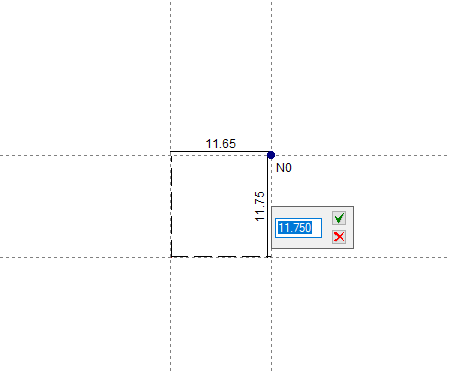
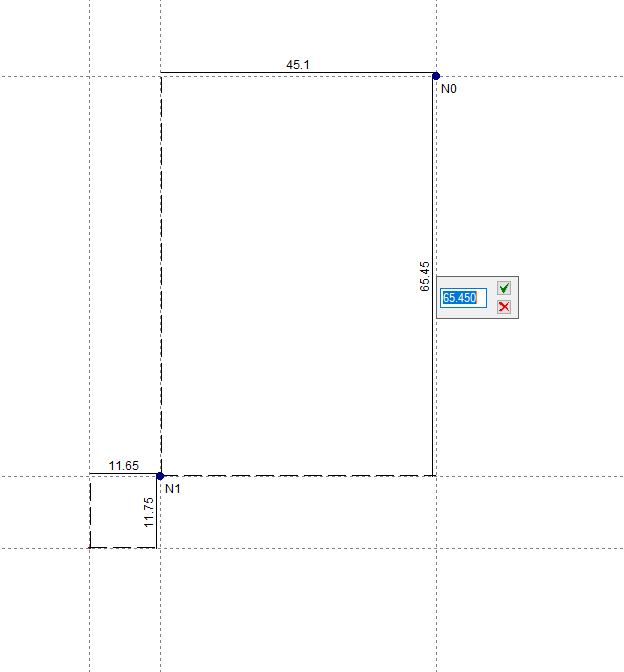
When entering the first node or base node of the installation by left-clicking on the screen, enter the node’s absolute X-coordinate and press "Enter"; then enter the absolute Y-coordinate and press "Enter" again. - By relative coordinates
Starting with a base node, you can then add the remaining nodes using relative coordinates, i.e. by specifying distances relative to other nodes. To do this, left-click on the screen where you want to add the node and enter the relative X and Y coordinates relative to the position of the nearest node. - Importing DXF or DWG files
The options for importing DXF or DWG files can be used to add nodes and segments. - Automatic generation of geometry
From the "File" menu, click on "Import" and then "Geometry" to automatically generate the installation geometry from a DXF or DWG file. This file must use the metre as its drawing unit, and the network must be close to the coordinate origin. In this option, only the layers containing the sections you wish to use for generation should be selected.

Delete
This allows you to delete the selected node. You can use the left mouse button to draw a rectangular selection area on the screen to delete multiple nodes. Furthermore, clicking the right mouse button brings up options to "Select" a single node, perform a "Multiple selection" node by node, or "Search" for a node by its reference.
Move
This allows you to reposition the selected node. After clicking on the node, click on another point to specify the new position.
Edit analysis data
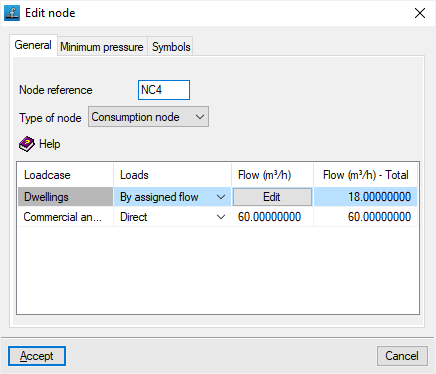
This allows you to edit the selected node. You can use the left mouse button to draw a rectangular selection area on the screen to edit multiple nodes, selecting the fields you wish to edit. Furthermore, clicking the right mouse button brings up options to "Select" a single node, perform a "Multiple selection" node by node, or "Search" for a node by its reference.
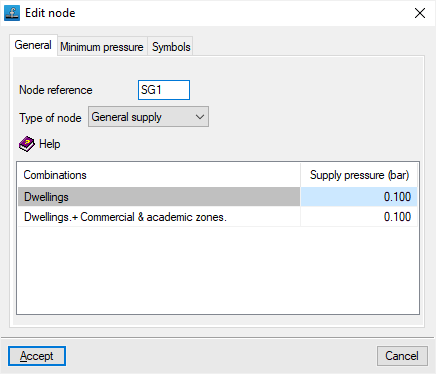
In the edit window that appears, enter the node details:
- "General" tab
- Node reference
- Node
- Consumption node
A node where a gas flow rate or gas heat output is defined for each scenario, depending on the data entry mode specified in the "Parameters" tab, under "General data", "Edit general project data". When selecting this type of node, the program displays a table at the bottom that allows you to define the flow rate for each loadcase. This table displays the following columns:- Loadcase
- Loads
The flow rate or heat output can be defined in two ways:- Direct
- By allocation
- Flow rate / Heat output
The flow rate or heat output is defined by entering the value directly if the "Direct" option has been selected, or by entering a value for "Capacity" and the "Number of units" to be considered, if the "By capacity" option has been selected. - Total flow rate / Total heat output
Displays the total flow rate or total heat output.
- General supply
The supply point for the system. The program allows you to define either a single supply or multiple supplies for the network. When this node type is selected, the program displays a table at the bottom of the screen where you can specify the available pressure value for each combination in the "Supply pressure" column. This allows you to simulate different operating conditions for the system under various supply pressures. - Transition node
A node that does not require any material to be used, allowing changes in direction whilst maintaining the continuity of the section in the design.
- Consumption node
Furthermore, if you have ticked the "Show excavation parameters" box in the "Excavations" tab under the "General data" option and in "Edit general project data", you can edit the following data at the node:
- Ground level elevation
The level reached by the surface after the trenches have been backfilled and the road surface has been laid. - Soil elevation
The level of the modified ground (not the undisturbed ground) from which excavation begins. The difference between the finished ground level and the ground level must be greater than the value for "Sub-base thickness" defined under "General data", "Edit general project data". - Dimension
Dimension of the lower part of the inner surface of the pipe at the node. This is the dimension required for designing the pipes.
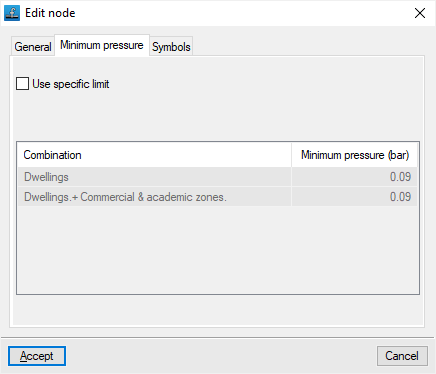
- "Minimum pressure" tab:
This allows you to enter specific minimum pressure limits for the node being edited, for each of the load case combinations shown in the table.- Use specific limit (optional)
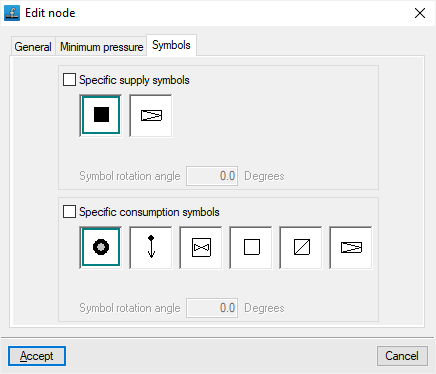
- "Symbols" tab: Allows you to define specific symbols for the node being edited.
- Specific supply symbols (optional)
- Specific consumption symbols (optional)
Assign analysis data
This allows you to assign data to nodes quickly.
When you click on the option, a small window opens in the top-left corner of the screen. At the same time, the node with the lowest reference number will be highlighted in yellow, and you can view and/or edit the node’s data (such as the number of units, flow rate or heat output). You can navigate through all the nodes using the relevant buttons.

Information
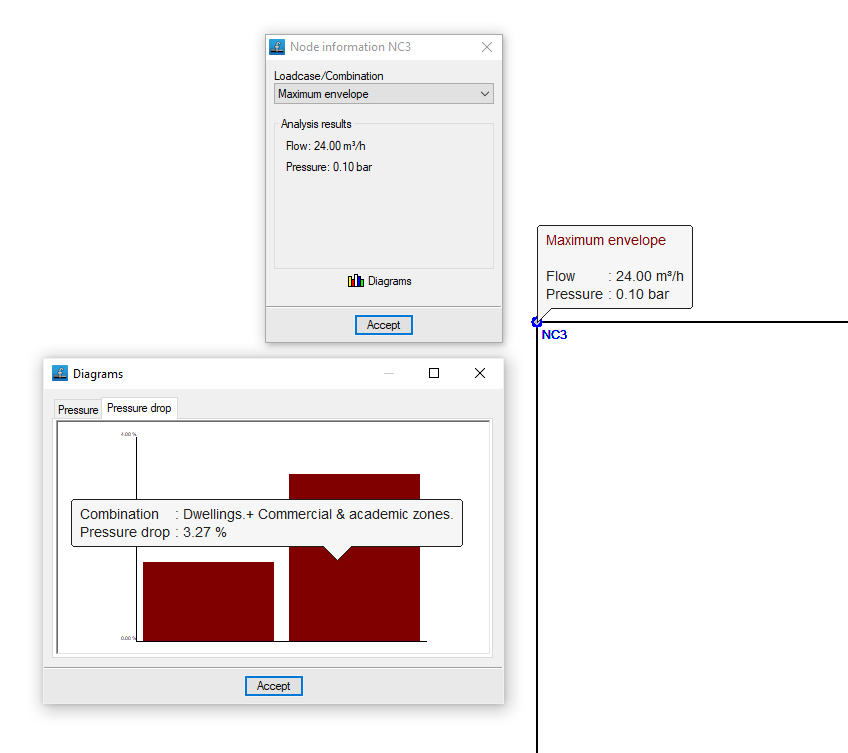
This allows you to view the data entered in the node.
If the structure has been analysed, the analysis results for the node are also displayed for the combination currently selected. Furthermore, clicking on the node opens a window where you can view the results for any loadcase, combination, envelope and oscillation, both analytically and graphically: the "Graphs" button displays the "Pressure" and "Pressure drop" graphs for the different combinations.
Update dimensions
Update the elevations of all nodes based on the terrain topography defined in the BIM model.
Entering and editing spans
The "Spans" menu at the top of the program interface contains the following options for entering and editing the spans in the installation.

New
This allows you to insert a new span into the workspace. This can be done:
- By selecting two previously created nodes from "Nodes", "New",
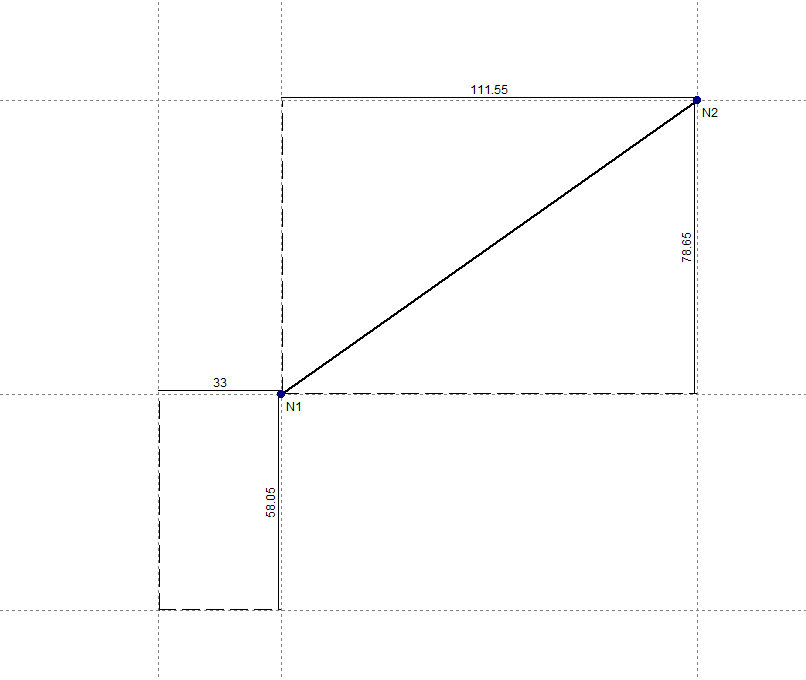
- Or by simply selecting two points on the workspace, which will define the end nodes of the segment. This means there is no need to enter the nodes defining the segment beforehand. When doing this, you must specify the absolute or relative coordinates of each node or capture points from a template, just as you would when adding new nodes.
In addition, the following is taken into account:
- If, when creating a new span, it crosses an existing span, a new node will be created at that intersection.
- If, when you insert a segment, the mouse pointer is positioned over the centre of a node, the end of the segment will be that node. Otherwise, a new node will be created at that point.
- You can also click on a previously entered span to start from there and create a node at the desired point.
The end nodes of the inserted segments are created by default as transition nodes; that is, nodes with no load that allow changes in direction whilst maintaining the segment’s unit in the dimensioning. They can subsequently be edited via “Nodes”, “Edit analysis data”.
| Note: |
|---|
| The installation must be interconnected; in other words, all nodes entered in the project must be connected by spans belonging to the same network. Two separate networks cannot be entered in the same file, but a single network with one or more supply points can be entered. |
Delete
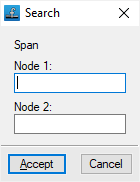
This allows you to delete the selected segment. You can use the left mouse button to draw a rectangular selection area on the screen to delete multiple segments. Furthermore, clicking the right mouse button brings up options to "Select" a single segment, perform a "Multiple selection" segment by segment, or "Search" for a segment using the coordinates of its endpoints.
When a segment is deleted, the end nodes are also removed if they belong solely to the deleted segment.
Edit analysis data
This allows you to edit the selected span. You can use the left mouse button to draw a rectangular selection area on the screen to edit multiple spans, selecting the fields you wish to edit. Furthermore, clicking the right mouse button brings up options to "Select" a single span, perform a "Multiple selection" span by span, or "Search" for a span using the coordinates of its endpoints.
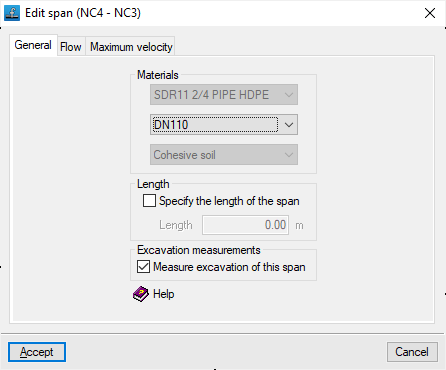
In the edit window that appears, enter the details of the span:
- "General" tab
- Materials
- Span material
Determines the range of diameters available for the span, both for manual selection and for preliminary design. In the latter case, the program will attempt to find a diameter that meets the requirements without changing the span material. - Pipe diameter:
This determines the main design parameters for the pipe span. During preliminary design, the diameter that best fits the existing network is selected from among those defined for the material chosen for the pipe span. - Span terrain:
The terrain where the trench through which the span runs is excavated. This parameter does not appear if no terrain has been selected for the project.
- Span material
- Length
The program allows you to determine the length of the span based on the drawing provided or to enter the value directly. In the first case, the "Specify the length of the span" checkbox remains unchecked, and the length of the span is analysed based on the coordinates of the end nodes (including their elevation). In the second case, the "Specify the length of the span" checkbox is enabled, and the length value used to calculate that span is entered. This option allows you to enter diagrams that do not need to be drawn to scale.- Specify the length of the span (optional)
- Excavation measurements
- Measure excavation of this span (optional)
- Materials
- "Flow rate" or "Maximum velocity" tab
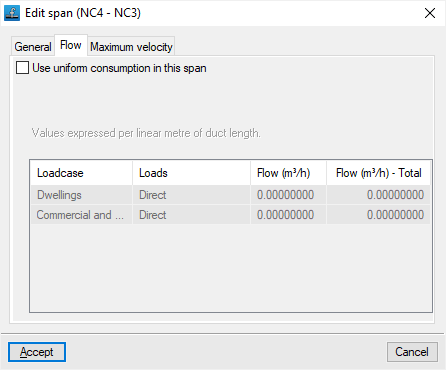
These allow you to define a uniform gas consumption along the span, whether as a flow rate or a heat output, depending on the data entry mode defined in the "Parameters" tab, under "General data", "Edit general project data". The values are expressed per linear metre of pipeline length.- Use uniform consumption for this span (optional)
When this box is ticked, the program displays a table at the bottom that allows you to define the flow rate for each loadcase. This table contains the following columns:- Loadcase
- Loads
Loads can be defined in two ways:- Direct
- By assigned flow
- Flow rate / Power
The flow rate or power per linear metre of pipeline is defined by entering the value directly if the "Direct" option has been selected, or by entering a value for "Rating" and the "Number of units" to be taken into account if the "Per rating" option has been selected. - Total flow rate / Total capacity
Displays the total flow rate or total heat output per linear metre of pipework.
- Use uniform consumption for this span (optional)
- "Maximum velocity" tab
This allows you to enter specific maximum speed limits for the span being edited, for each of the scenario combinations shown in the table.- Use specific limit (optional)

Divide a span into parts
This allows you to select a span and split it into several spans, automatically creating nodes along the span. This can be done by specifying the "Maximum distance between nodes" or the "Number of intermediate nodes".
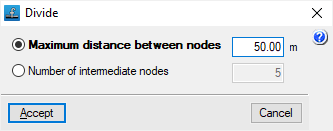
Assign analysis data
This allows you to quickly assign data to spans.
When you click on the option, a small window opens in the top-left corner of the screen. At the same time, the selected span will be highlighted in yellow, starting with the one with the lowest node references. You can review and edit the span’s details (such as length, material and diameter). You can navigate through all the spans using the relevant buttons.

Information
This allows you to view the data entered in the span.
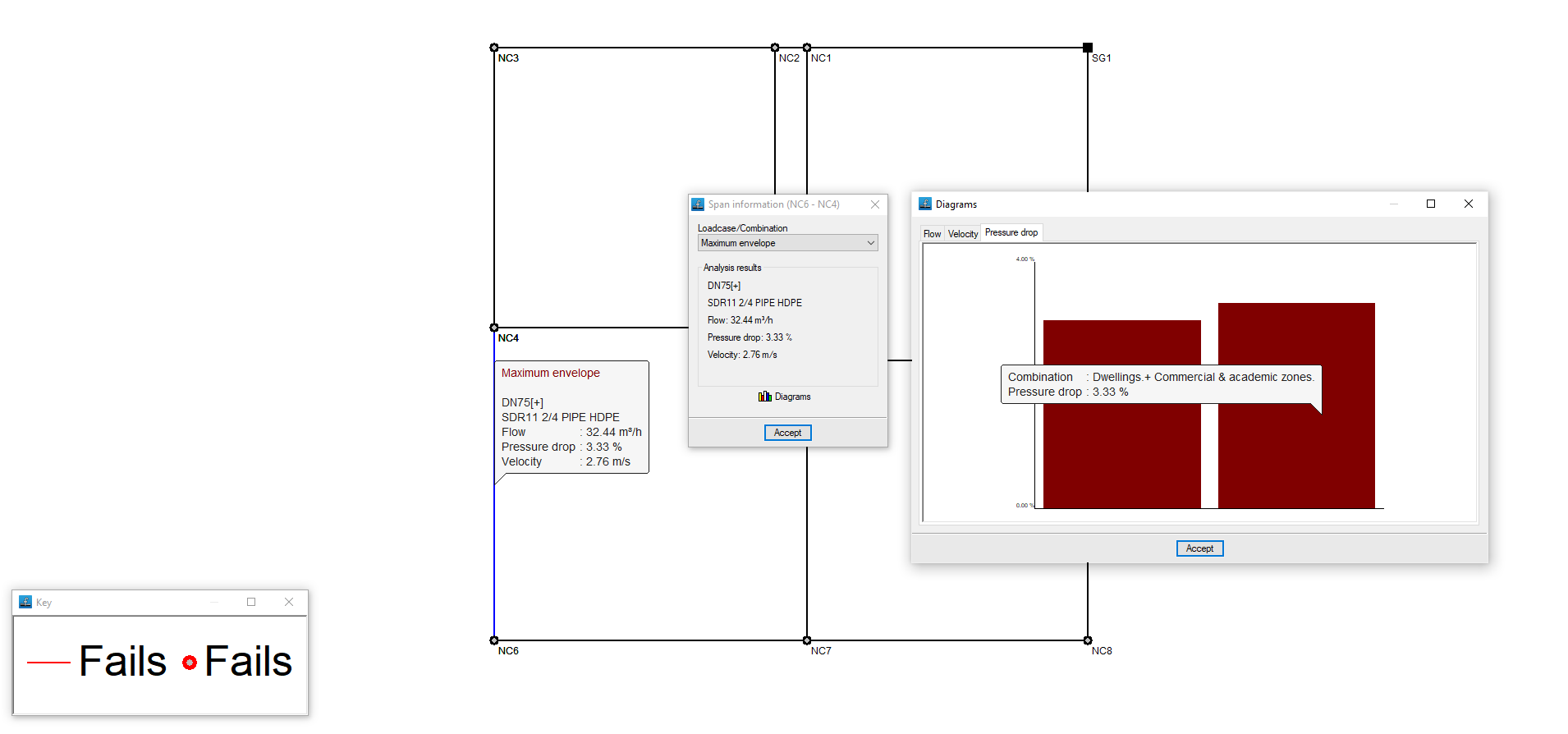
If the structure has been analysed, the analysis results for the span under the currently selected loadcase are also displayed. Furthermore, clicking on the span will open a window where you can view the results for any loadcase, combination, envelope and oscillation, both analytically and graphically: the "Graphs" button displays the "Flow rate", "Velocity" and "Pressure drop" graphs for the different combinations.
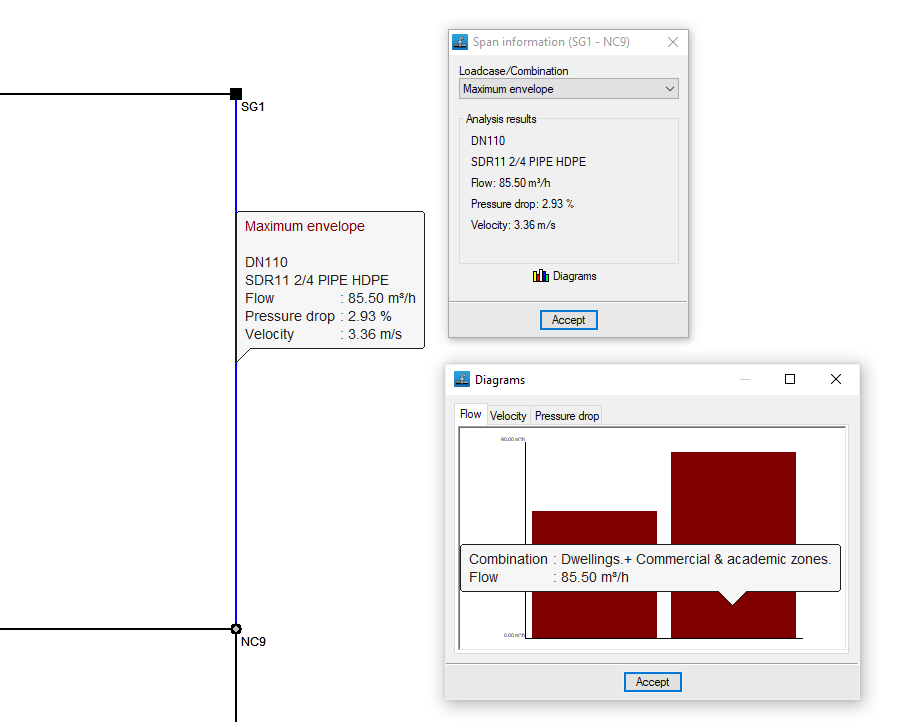
Dimension options
The "Dimension" menu at the top of the program interface contains options for modifying and displaying dimensions and reference lines between node alignments, which define the geometry of the installation.

Change the spacing between rows
You can adjust the distance between node alignments by clicking directly on the dimensions displayed on the screen.
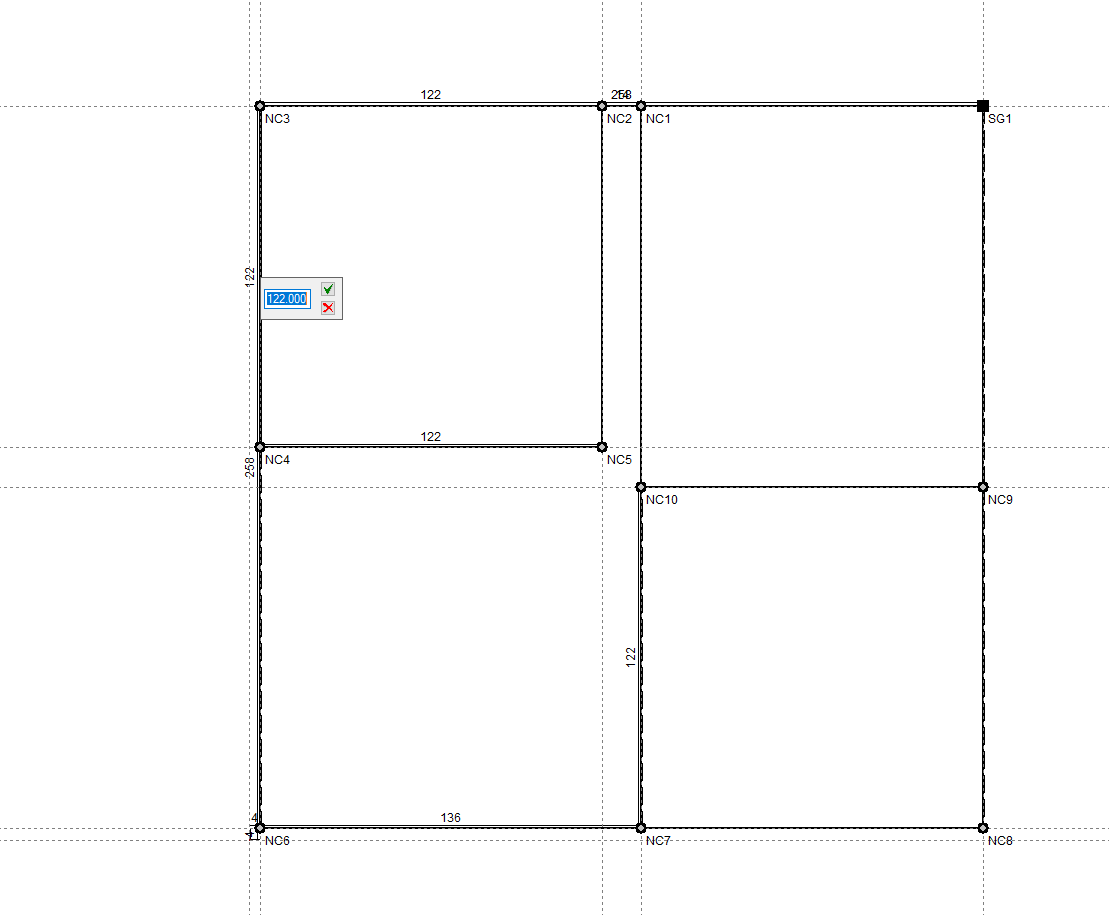
Show/hide guidelines
This allows you to show or hide the dimensions in the workspace and the reference lines passing through the nodes.
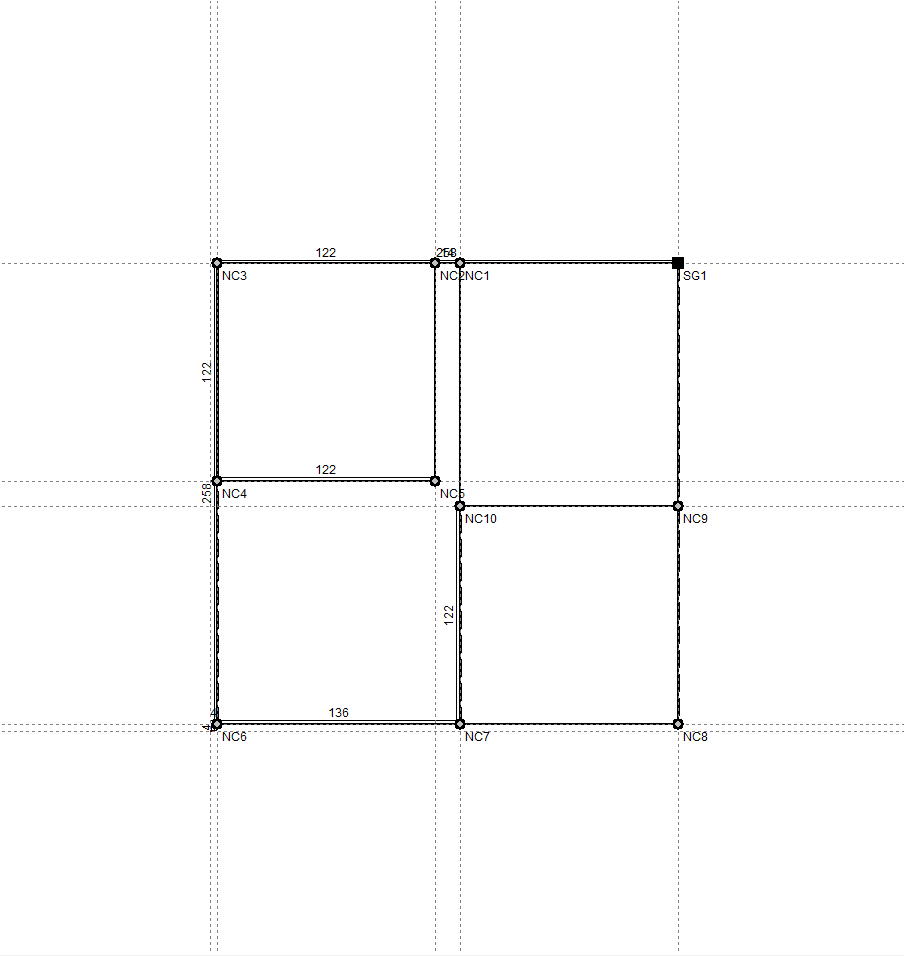
Analyses, checks and designs
The "Analysis" menu at the top of the program interface contains the options for performing analyses, checks and design of the system.

Analysis
This allows you to analyse and check the system using the data entered.
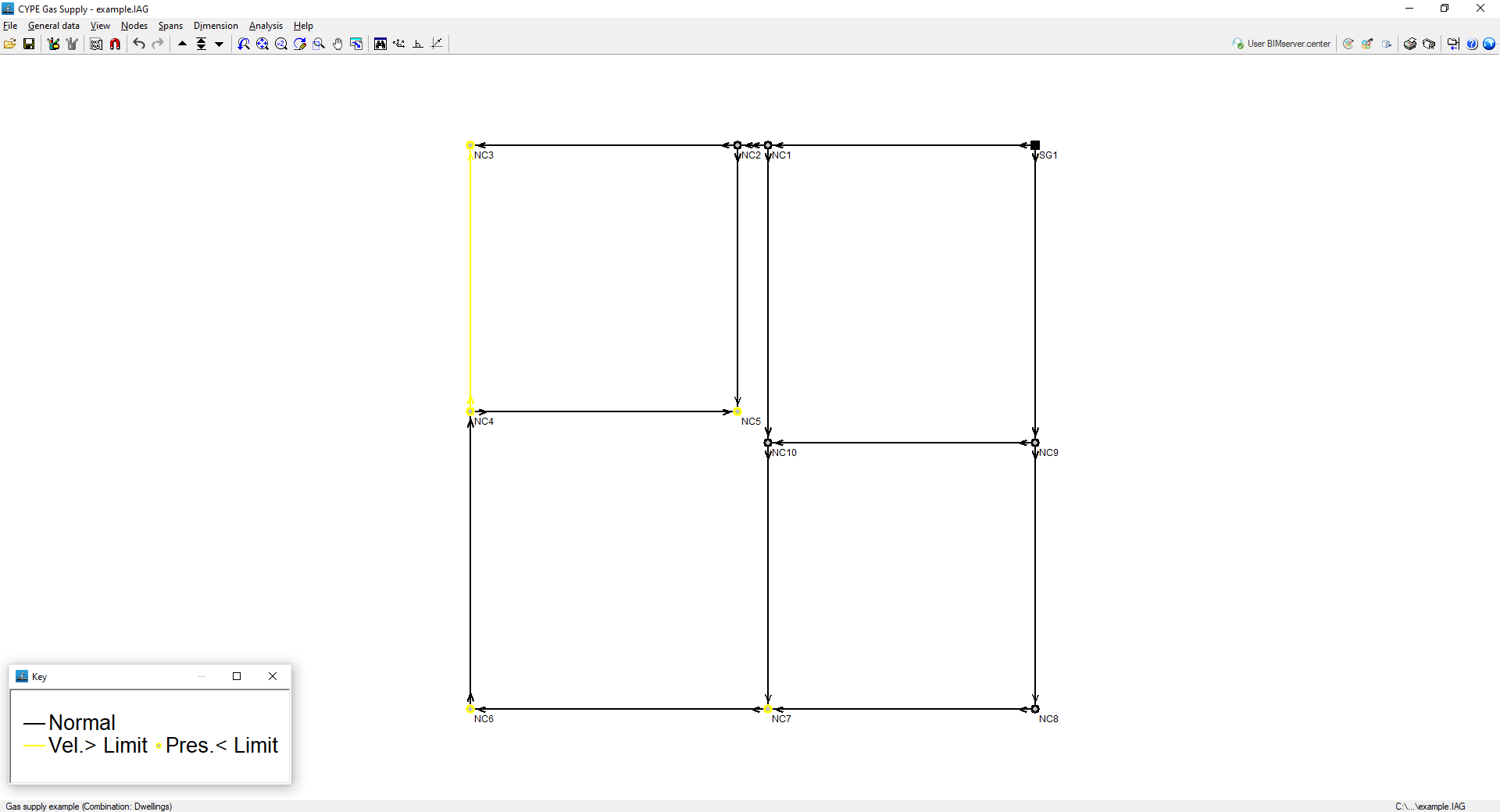
The analysis is based on the types of pipework, diameters, flow rates or heat output required, and the specified supply pressures. The system is checked to ensure it complies with the design constraints regarding minimum pressure and maximum velocity, whilst pressure drops are analysed using Renouard’s formula.
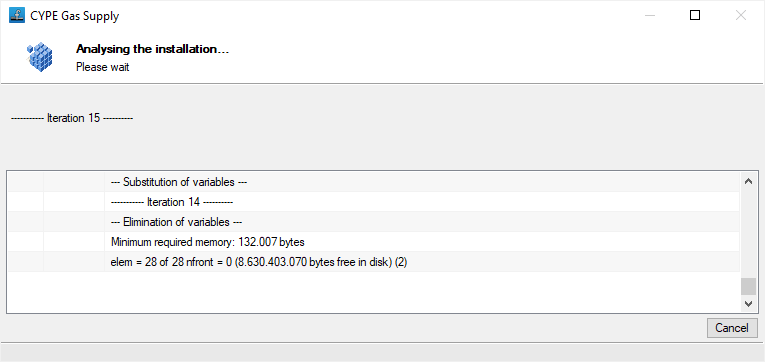
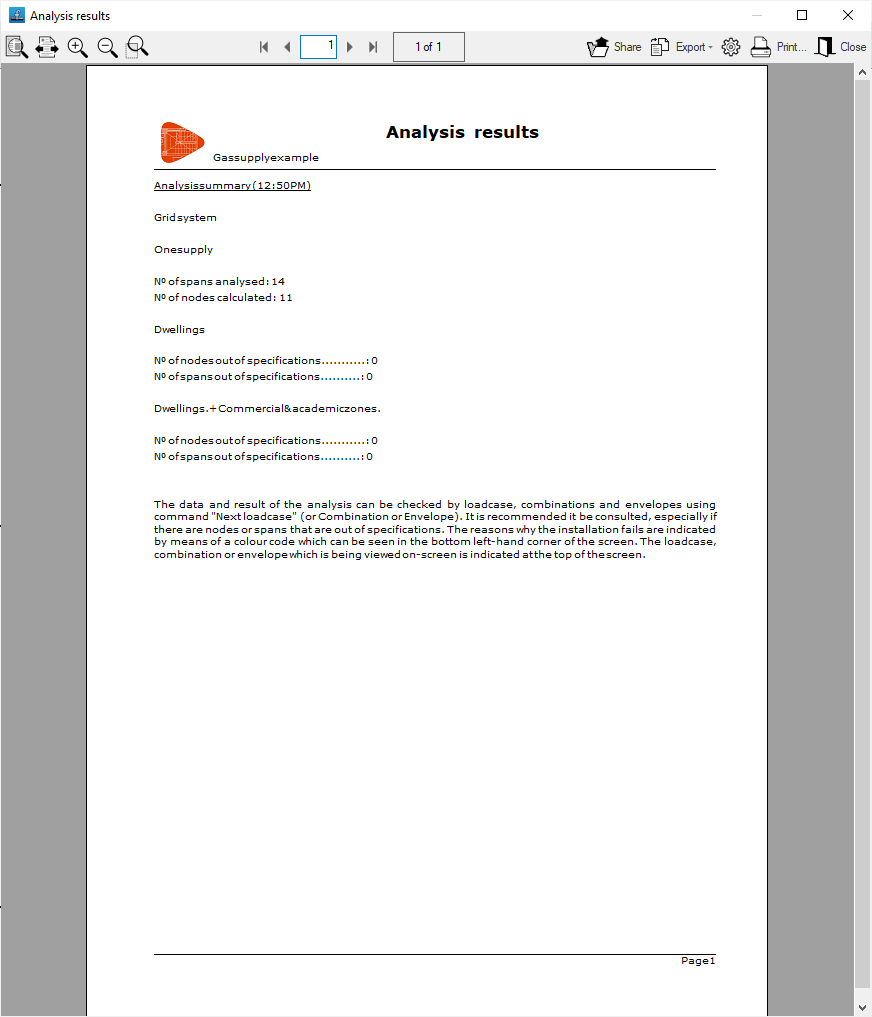
Once the process is complete, a dialogue box appears showing the analysis results.
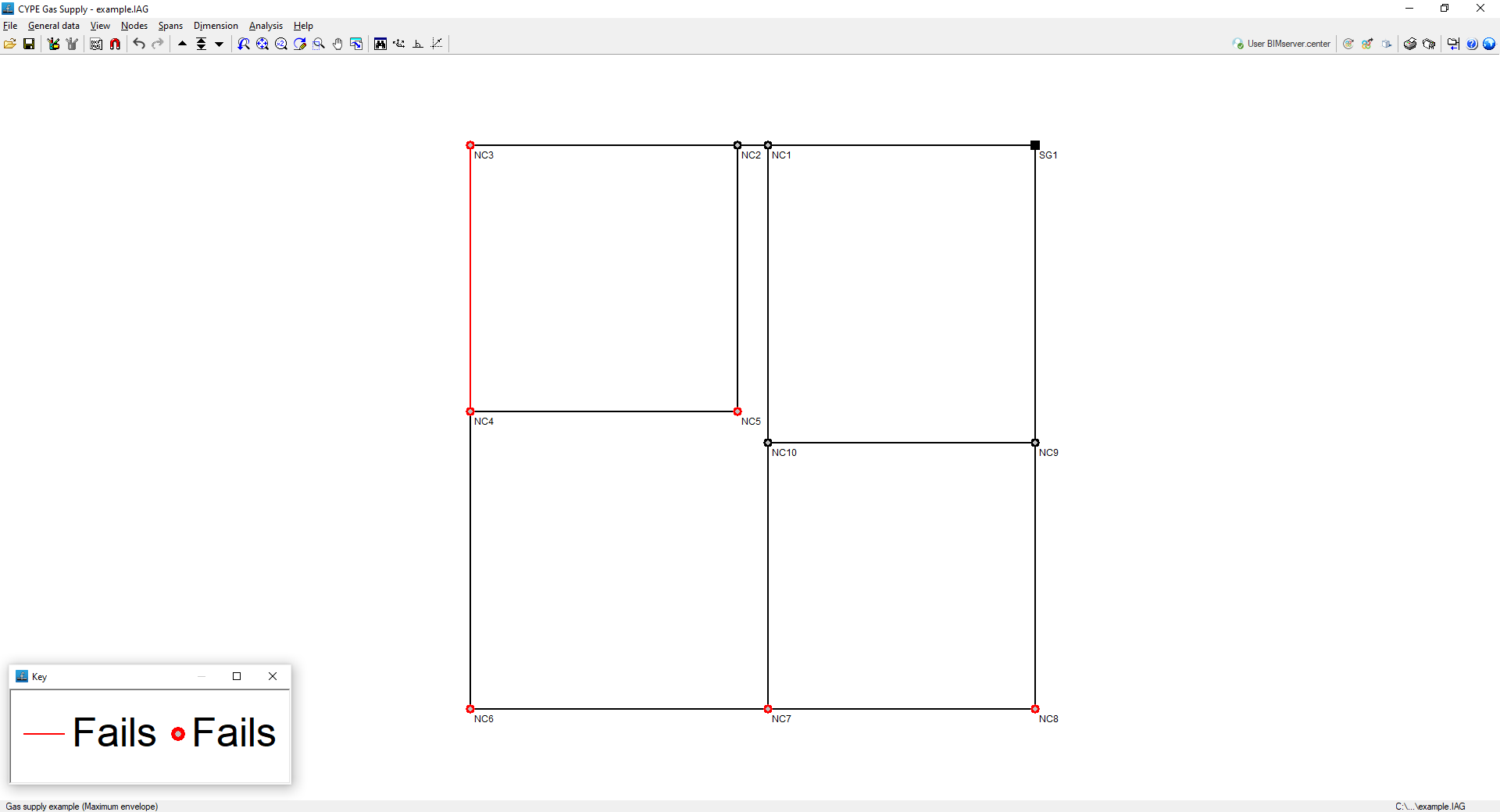
In the workspace, once the analysis has been carried out, any nodes or segments that do not meet a particular constraint will be highlighted in red.
The program will display the "Maximum envelope", the "Minimum envelope" and the "Oscillation", which are added to the list of combinations. The term "Envelopes" refers to the maximum and minimum values at each node or section of all the defined combinations. The oscillation is the difference between the maximum and minimum envelopes.
To view the data and results for the various loadcases, combinations and envelopes, use the "Next combination", "Select combination" and "Previous combination" options at the top of the screen. The envelopes will only indicate whether all constraints are met for that section or not.
To find out why a node or section does not meet the requirements, you must select a combination and check the colour "Legend" that appears in a separate window. The colour code indicates the reasons why the nodes or sections of the installation do not meet the requirements.
In the bar at the bottom of the interface, the label shows the name of the project and the loadcase, envelope or combination currently being displayed on screen.
Design
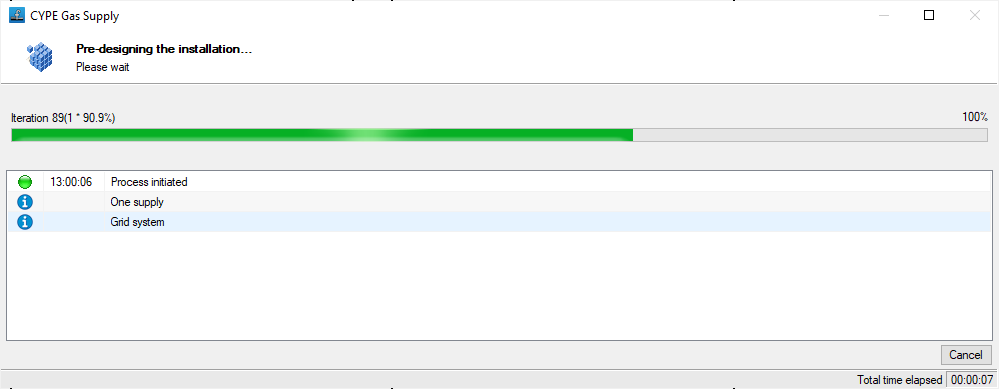
Launch the automatic preliminary design process for the installation. During the preliminary sizing, the program will attempt to optimise the design and select the minimum pipe diameter that meets all velocity and pressure constraints, whilst maintaining the selected material.
You can then assign the preliminary design results to the project and carry out the designs.
Results output
Viewing results on screen
After the analysis, the program displays the results on the screen when selecting an element of the installation via the "Nodes" option, "Information", or via "Sections", "Information".
This includes the analysis data of the nodes and the analysis data of the sections, with results by laodcases, combinations or envelopes.
Reports
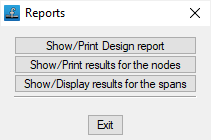
The program can be used to print the reports directly or to generate HTML, PDF, TXT, RTF or DOCX files.
The reports are obtained via the "Reports" option in the "File" menu or from the right-hand side of the top toolbar.
The following reports are available:
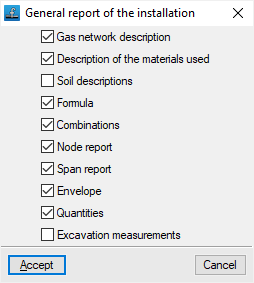
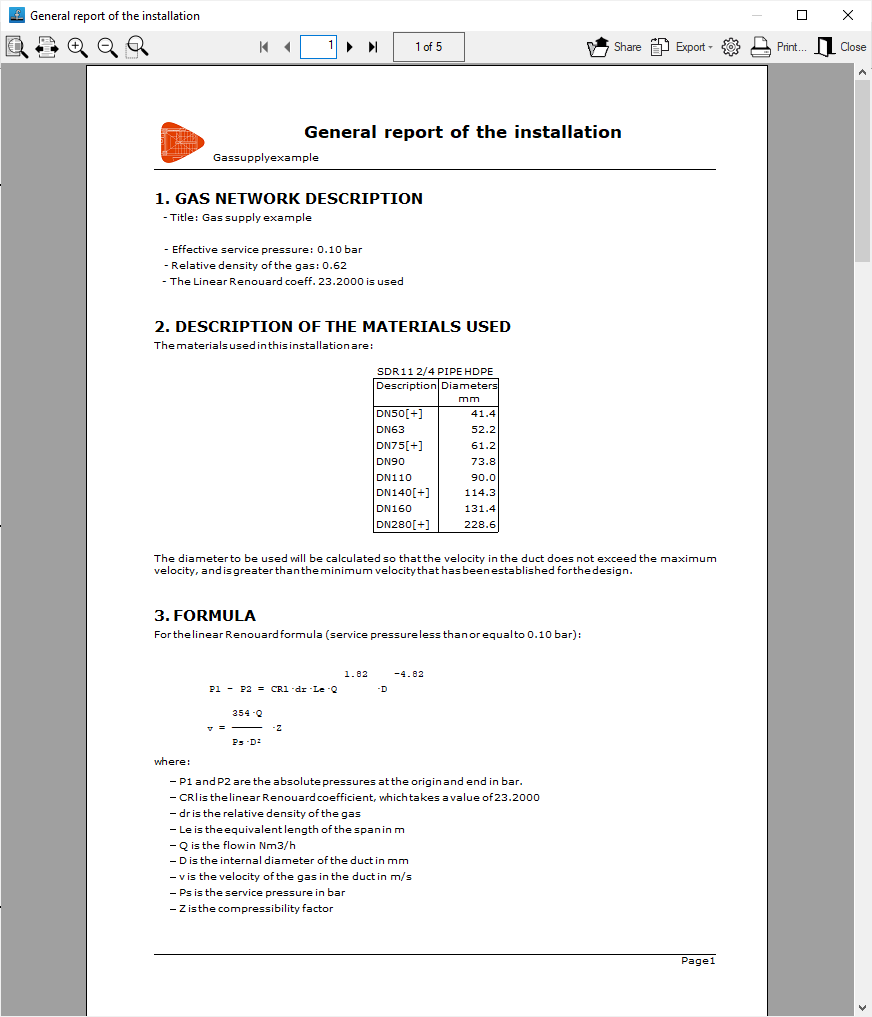
- Calculation report
Prints the general report of the installation. It includes the following sections, which can be activated or deactivated:- Gas network description (optional)
- Description of the materials used (optional)
- Soil descriptions (optional)
- Formula (optional)
- Combinations (optional)
- Node report (optional)
- Span report (optional)
- Envelope (optional)
- Quantities (optional)
- Excavation measurements (optional)
- Node report
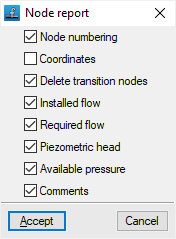
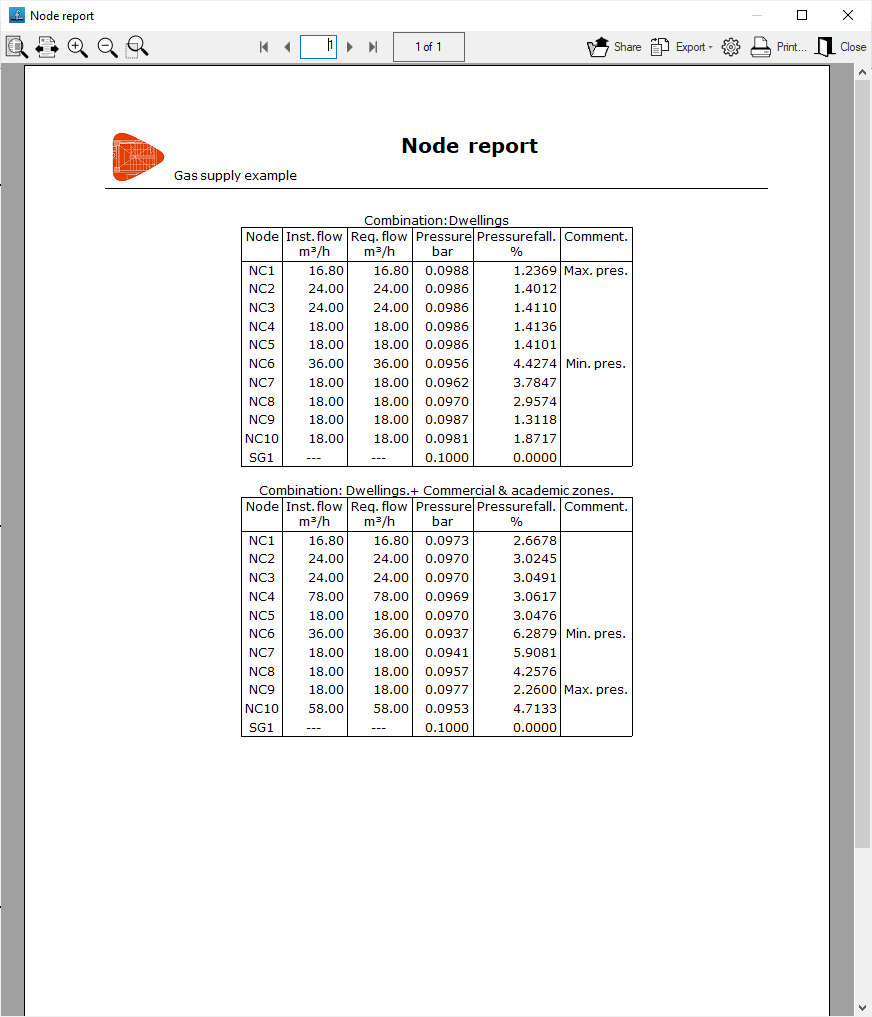
Prints the report of the results in the nodes. It includes the following information, which can be activated or deactivated:- Node numbering (optional)
- Coordinates (optional)
- Delete transition nodes (optional)
- Installed flow (optional)
- Required flow (optional)
- Piezometric head (optional)
- Available pressure (optional)
- Comments (optional)
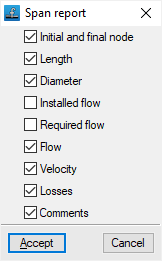
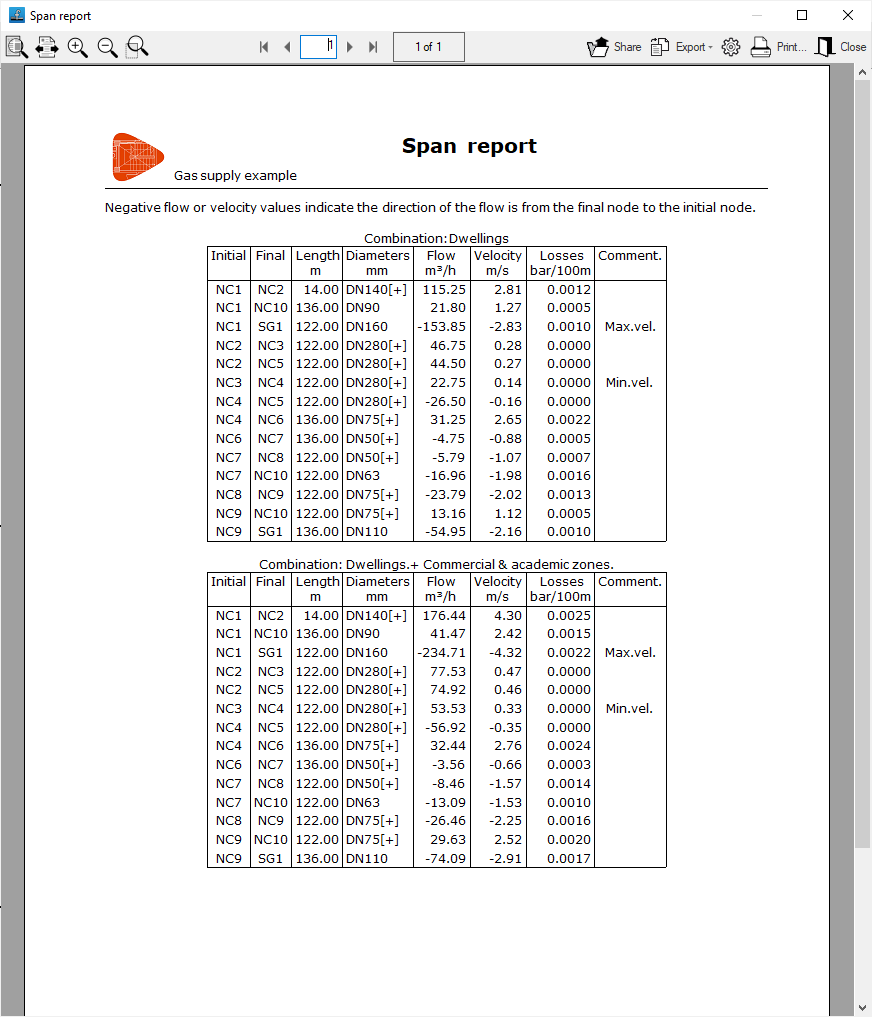
- Span report
Prints the report of the results in the spans. It includes the following information, which can be activated or deactivated:- Initial and final node (optional)
- Length (optional)
- Diameter (optional)
- Installed flow (optional)
- Required flow (optional)
- Flow (optional)
- Velocity (optional)
- Losses (optional)
- Comments (optional)
Drawings
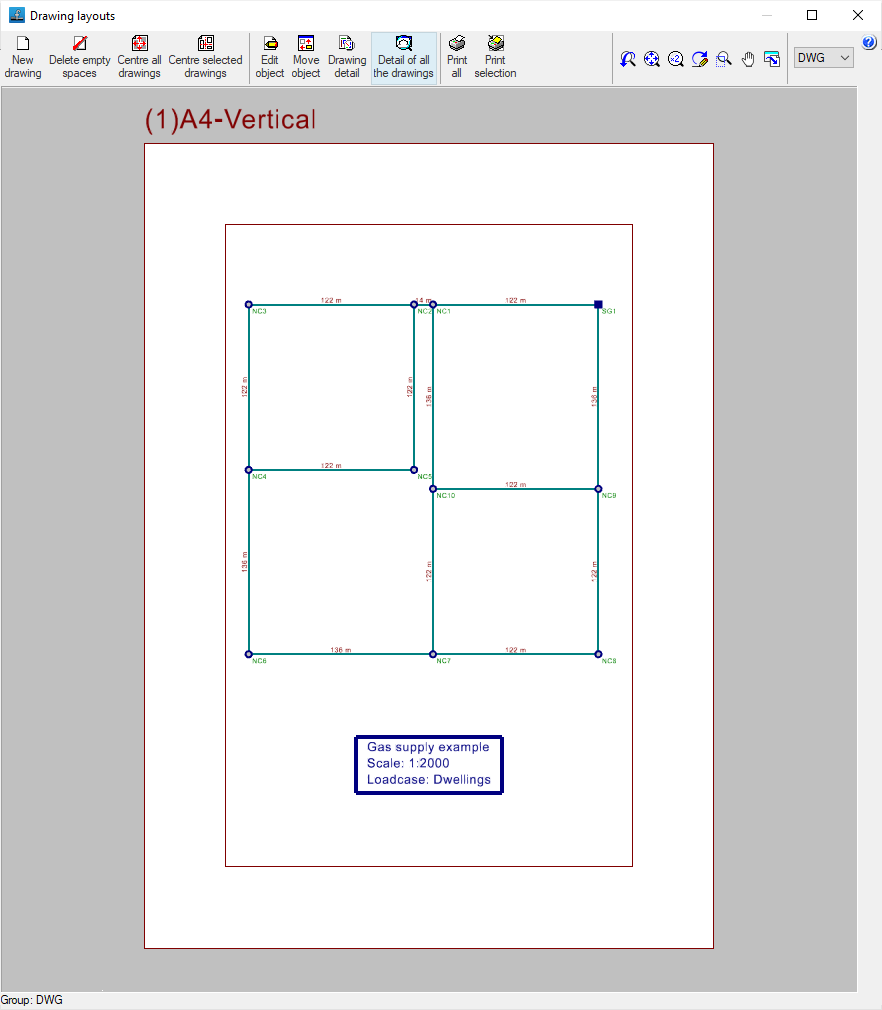
The program can print the drawings of the job on any graphic peripheral configured on the computer, or create DWG, DXF or PDF files.
The drawings are obtained from the "Drawings" option in the "File" menu or from the right-hand side of the top toolbar.
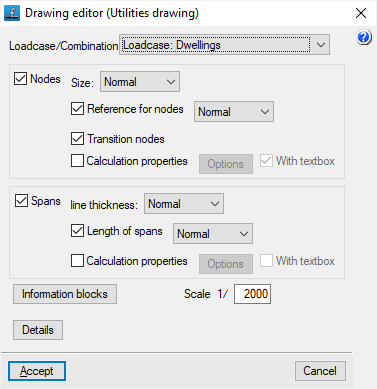
Editing the drawing offers the following options:
- Loadcase/Combination
Selects the loadcase, combination, envelope or oscillation for which data is to be displayed in the drawing. - Nodes (optional)
Displays the input information and analysis results of the nodes:- Size
- Node references (optional)
- Transition nodes (optional)
- Calculation properties (optional)
- Options: Flow (Power), Supply pressure, Elevation, Ground level elevation, Elevation fill, Pressure of the node
- Spans (optional)
Displays the input information and analysis results of the spans:- Line thickness
- Length of spans (optional)
- Calculation properties (optional)
- Options: Dimension, Material, Flow, Pressure drop, Velocity
- Information tables
- General information table (optional)
- Quantities information table (optional)
- Excavation information table (optional)
- Scale
- Details
GLTF file format compatible with BIMserver.center
If the job has been linked to a BIMserver.center project, a 3D model is generated in GLTF format to integrate the system model into the project when it is exported to the platform, allowing it to be visualised:
- on the online platform;
- on the BIMserver.center app for iOS and Android;
- on virtual reality and augmented reality;
- on other CYPE programs.
Integration into the BIMserver.center platform
Many of CYPE's programs are connected to the BIMserver.center platform and allow collaborative work to be carried out via the exchange of files in formats based on open standards.
Please note that, to work on BIMserver.center, users can register on the platform free of charge and create a profile.
When accessing a program connected to the platform, the program connects to a project in BIMserver.center. This way, the files of the projects that have been developed collaboratively in BIMserver.center are kept up to date.

| More information: |
|---|
| For further details related to using CYPE software via the BIMserver.center platform, please click on this link. |
Options available from CYPE Gas Supply
At the top right of the auxiliary horizontal bar are the features required to use the program together with other BIMserver.center tools.

Update
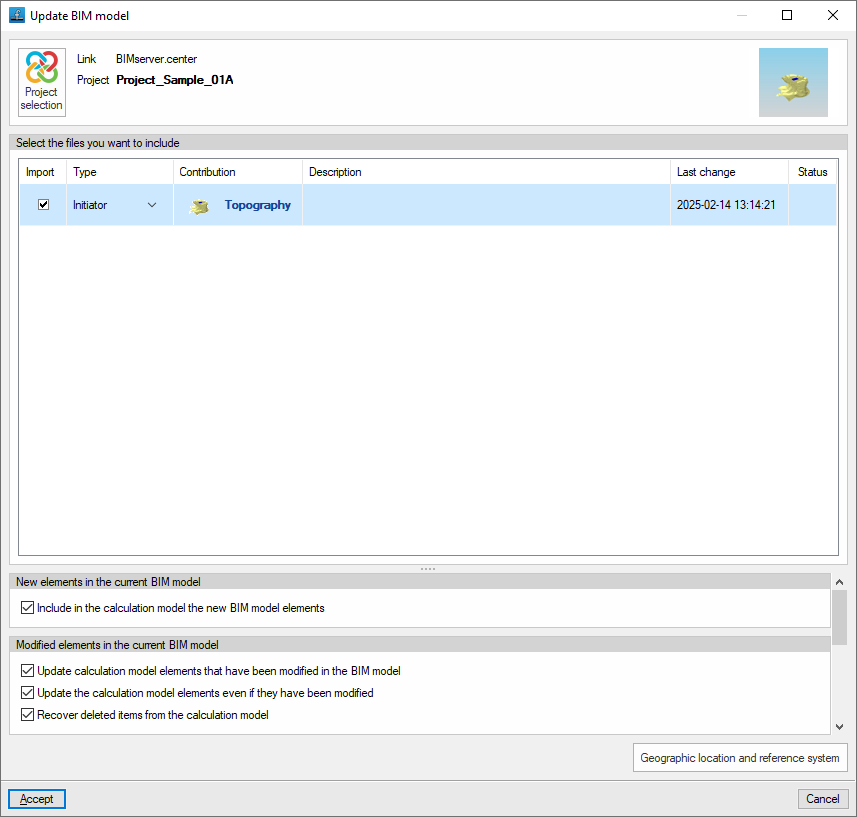
Update the information contained in the files previously imported into the project, or import new files if required.
To do this, at the top, you must "Select the files you want to include".
At the bottom, you can manage the inclusion of new elements or the updating and/or restoration of modified elements in the current BIM model by ticking the relevant boxes in the list.
Export in 'IFC' format
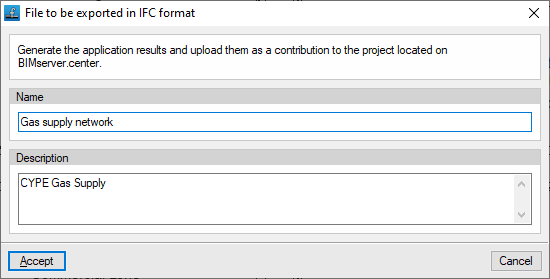
Export the information about the installation created using the program to BIMserver.center so that you can share it with other users.
During the export process, you can specify the details of the IFC file to be exported:
- Name
- Description
3D view
Clicking on this option displays a combined view of the models imported from the BIMserver.center project, alongside the elements specific to the installation drawn in the program.