"File" menu
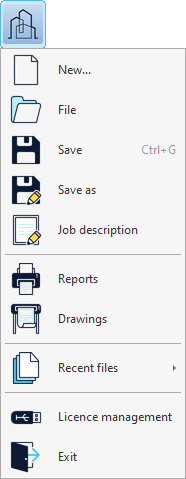
The "File" menu can be accessed by clicking the icon with the program logo in the top-left corner of the program's main interface.
The following options are available:
- New
Creates a new job, closing the job that is already open. The program will also ask if the data of the current job is to be saved.
- File
Opens the file manager, closing any project that is currently open. The program will ask if you want to save the data for the current project. It will then open the "File manager" window, where you can locate files that the program can read and perform operations such as opening, searching for, compressing and sharing existing projects, or loading the examples.
- Save (Ctrl + G)
Saves the current job.
- Save as
Saves the current job by specifying a different file name, save path, and description.
- Job description
Checks and modifies the current job’s description.
- Reports / Drawings
Provides the reports or drawings of the current job.
- Latest files
Checks and opens the latest files opened with the program.
- Licence management
Opens the "Licence management" panel.
- Exit
Exits the app and closes it. The program will ask if you want to save the data for the current project.