
Accessing the "Licence management" panel
The "Licence management" panel is used to activate and view the licence currently in use, as well as review the list of permissions required by each program and included in the licence you are using.
There are several ways to access this panel:
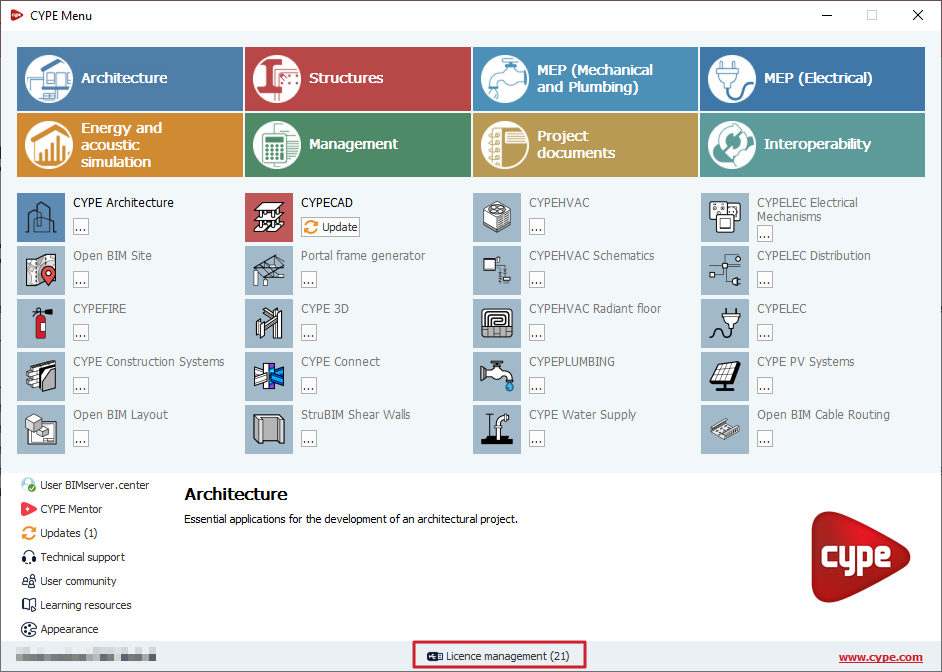
- Via the "Licence management" option at the bottom of the CYPE Menu.
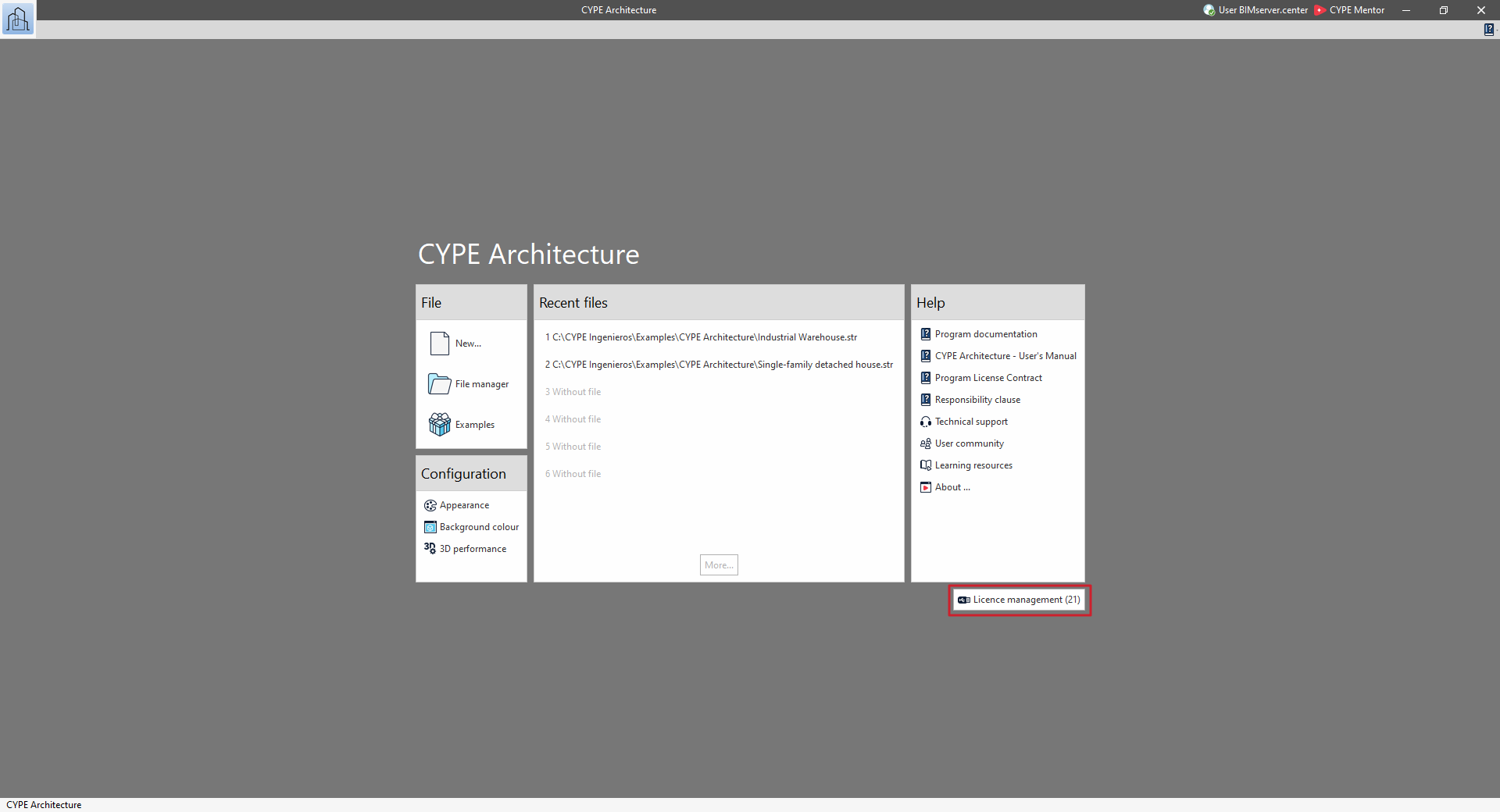
- Via the "Licence management" option in the bottom right-hand corner of the sign-in interface for each CYPE program.
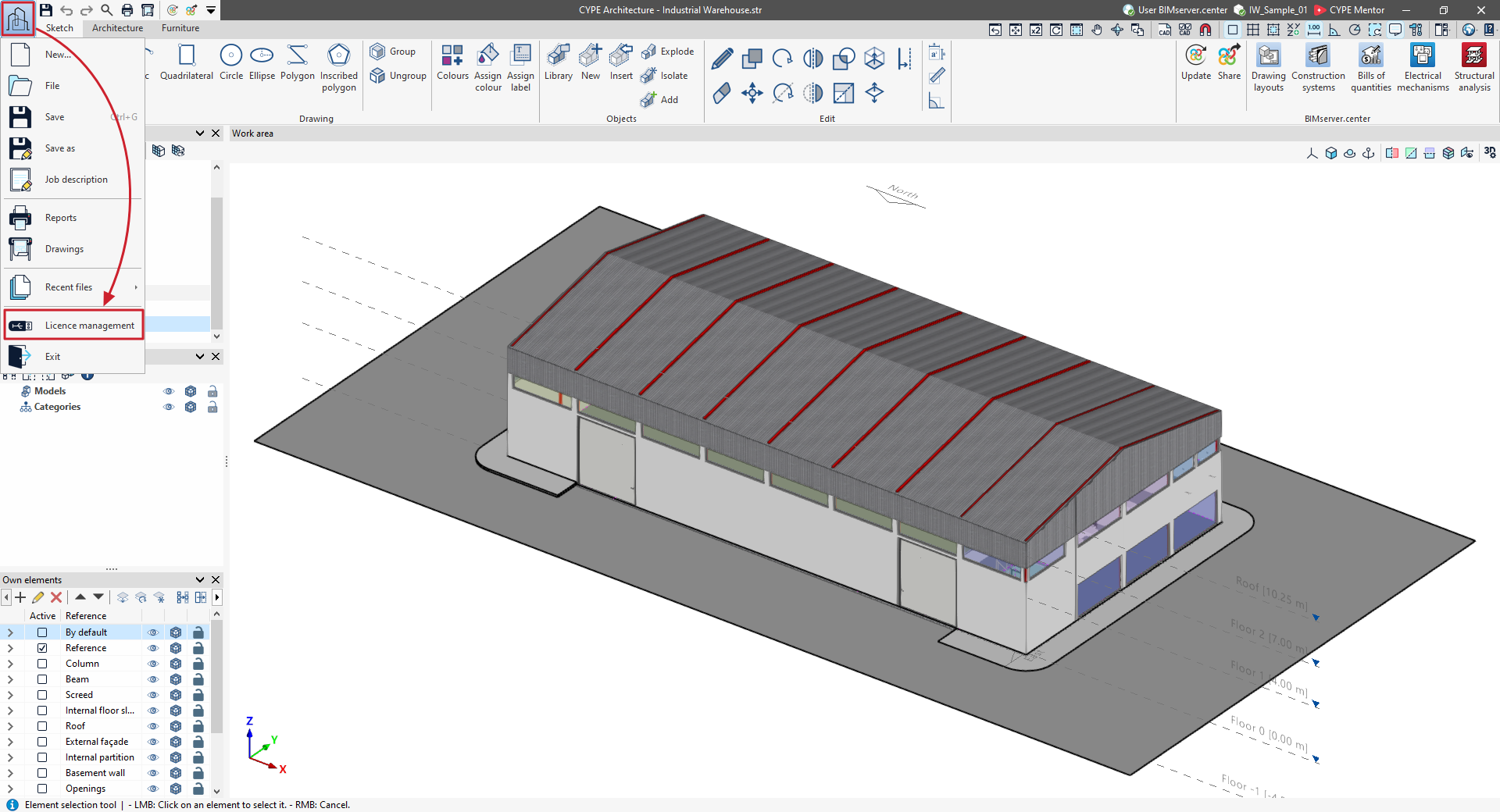
- Via the "Licence management" option in the "File" menu, accessible from the top-left corner of the interface of each CYPE program.
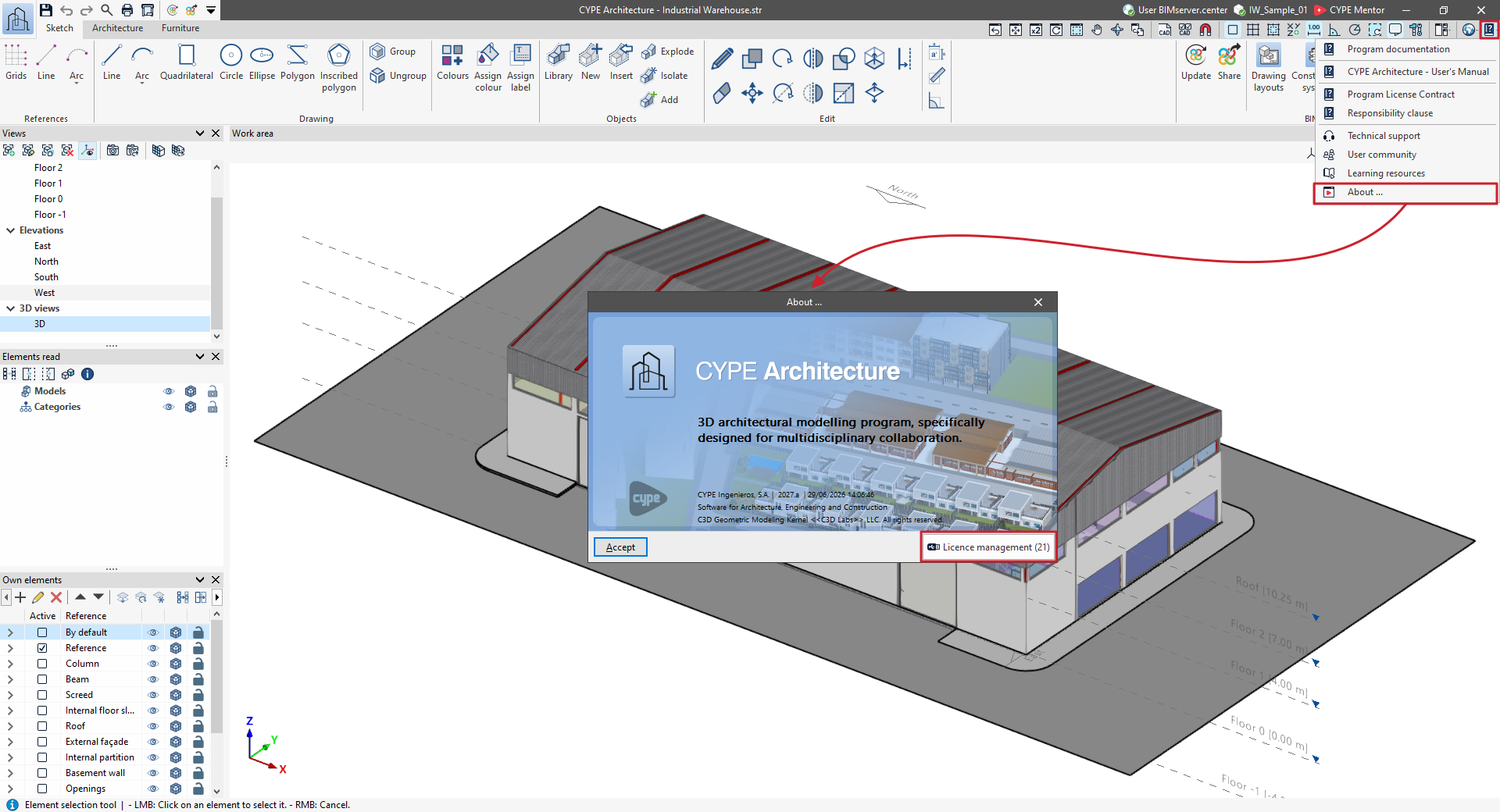
- Via the "Licence management" option in the "About" window, which can be accessed from the "Help" menu in the top right-hand corner of the interface of each CYPE program.
Licence management
The "Licence management" panel can be accessed from the program interface and from the CYPE Menu in several ways.
This window has a unified system for viewing and managing permissions in CYPE apps, divided into the following sections and controls:
Licence type
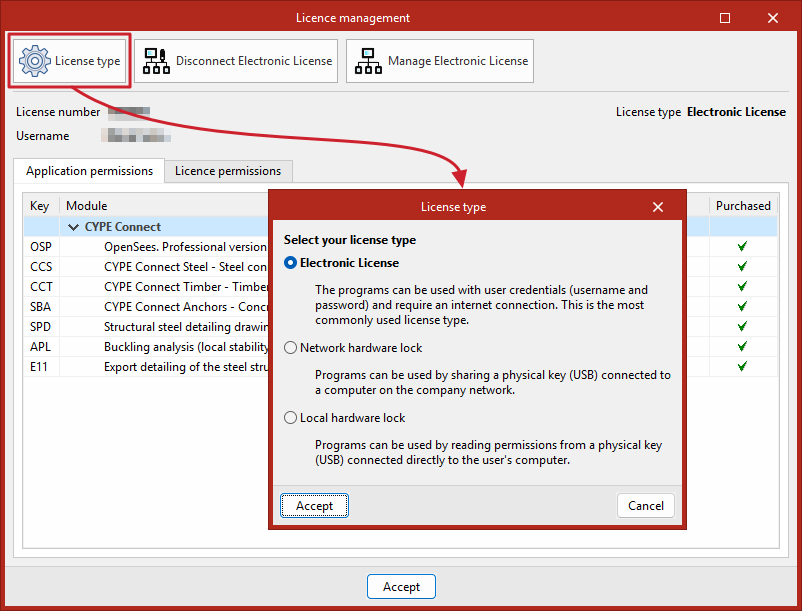
This button, located at the top of the "Licence management" panel, is used to select the "Licence type" from the following options:
- Electronic licence
Users can access the programs by entering their credentials (username and password), and it requires an Internet connection. It is the most commonly used type of licence.
When selecting this option, the "Activate electronic licence" (or "Disconnect electronic licence") and "Manage electronic licence" buttons at the top of the "Licence management" panel interface are activated. - Network hardware lock
Multiple users from the same company can use the permissions associated with a physical USB key connected to one of the computers on the network.
Selecting this option activates the "Network hardlock configuration" button at the top of the "Licence management" panel interface. - Local hardware lock
The programs to be used by reading the permissions from a physical USB stick connected directly to the user's computer.
Selecting a licence type helps speed up the process of checking permissions within the program.
Information about the current licence
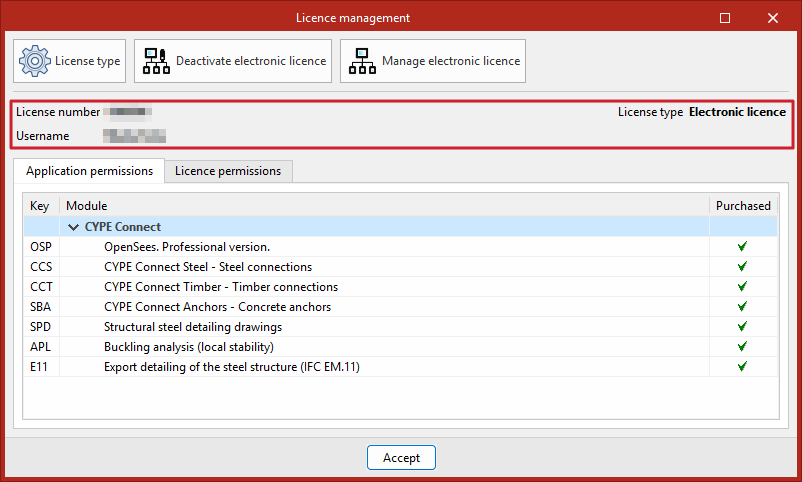
When you select and use a licence, the "Licence number" currently in use, along with the registered "Username" and the "Licence type" currently in use, will be displayed in the centre of the "Licence management" panel.
In addition, the licence number currently in use will be shown in brackets on the "Licence Management" button in the CYPE Menu and in the "About" panel.
App permissions
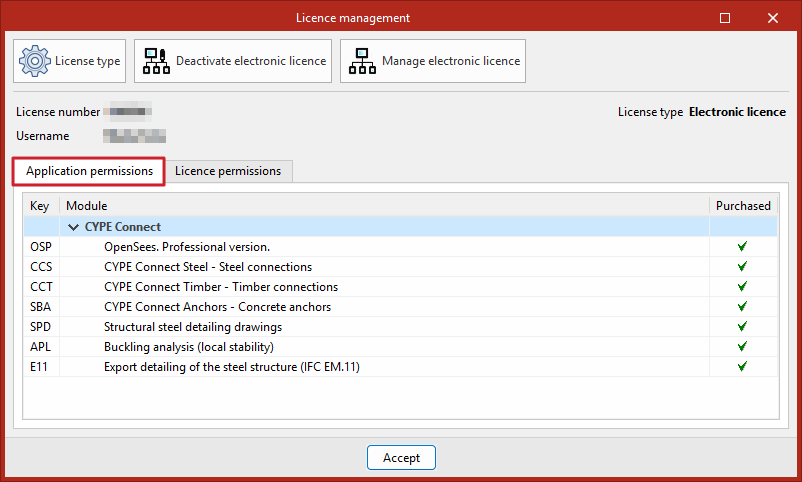
From the "App permissions" tab, you can view the specific permissions required by the app you are using, including its "Key" and the "Module" description, and, in the "Purchased" column, check whether they have been acquired and are included in the licence you are using.
If the app is free, this will be indicated here.
Licence terms
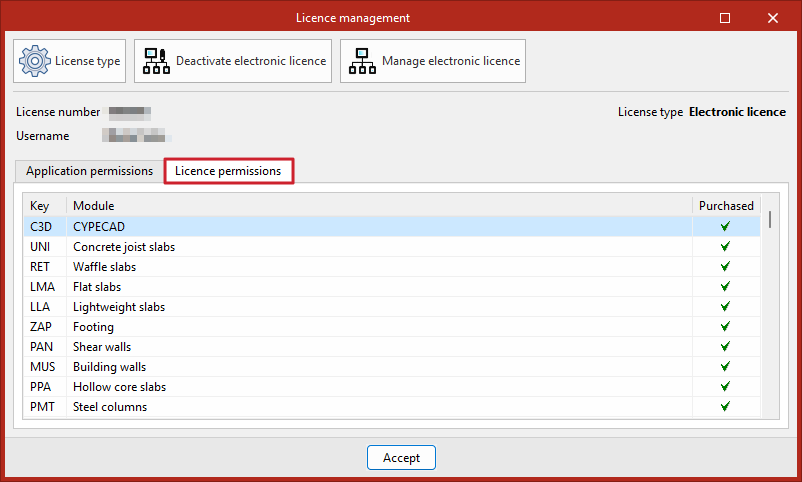
From the "Licence permissions" tab, you can view the full set of permissions available under the current licence. The "Key" and "Module" descriptions are also shown for each permission, and the "Purchased" column indicates whether they have been purchased and are included in the current licence.
Activating and deactivating the electronic licence
The options "Activate electronic licence" or "Deactivate electronic licence" can be found in the "Licence management" panel once you have selected "Electronic licence" under "Licence type".
Activating the electronic licence
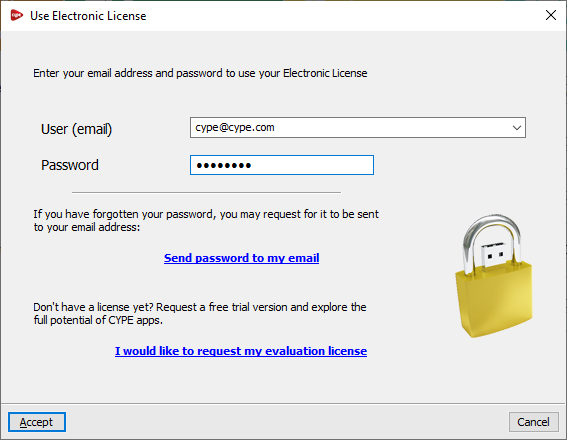
If you have the sign-in details for an electronic licence and wish to use it, you must select the "Activate electronic licence" option and enter your email address and password. If you have forgotten your password, the "Send password to my email" link allows the program to send the password to the email address entered in the relevant field.
Once you have accepted, the licence number currently in use will be displayed in the relevant section.
| Note: |
|---|
| From version 2026.a onwards, this step allows you to enter the credentials for any licence type, including professional, evaluation and campus licences. |
Deactivating the electronic licence
If an electronic licence is currently in use, the "Deactivate electronic licence" appears (instead of "Activate electronic licence").
Clicking on this option deactivates the electronic licence, thereby allowing it to be used on another workstation.
Managing the electronic licence
The "Manage Electronic Licence" option can be found at the bottom of the CYPE Menu window or in the "File" menu of each program.
This option allows you to enter your login details to manage the electronic licence, including your username or email address and password. If you have forgotten your password, the link "Send password to my email" allows the program to send the password to the email address entered in the relevant field.
| Note: |
|---|
| These access credentials are specifically for managing the electronic licence (i.e. those of the licence administrator) and may differ from those required to use the electronic licence (i.e. those of the licence user, who will be using CYPE software). |
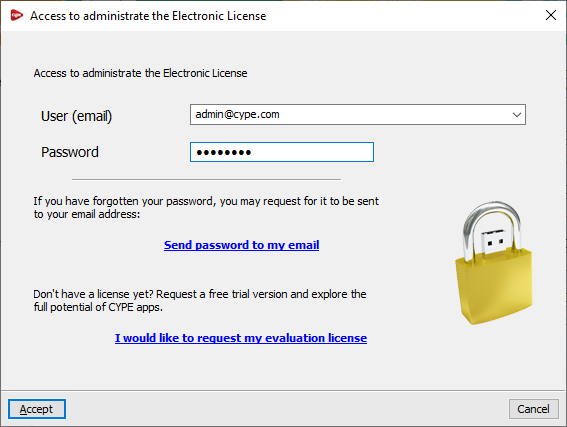
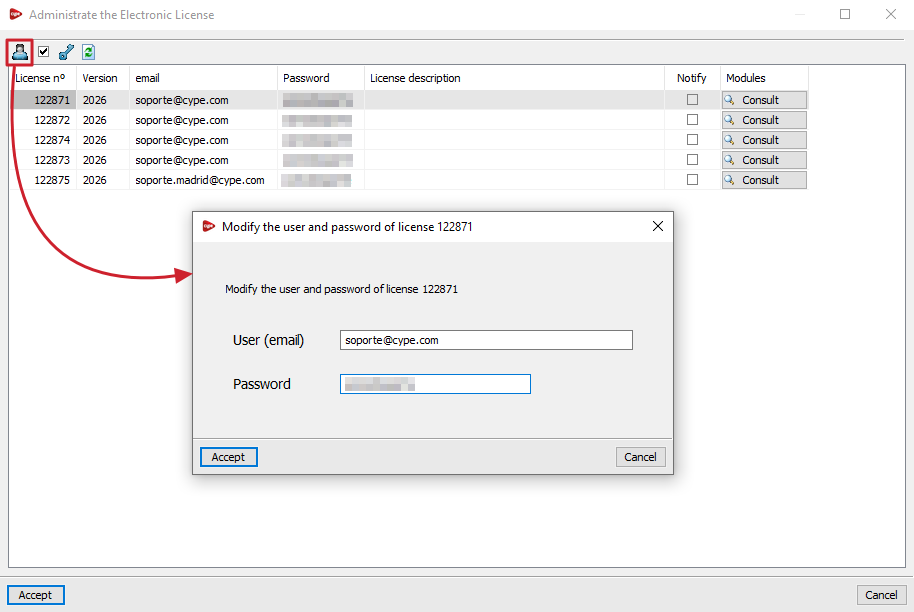
Once you have accepted, the "Manage Electronic Licence" window will open. This displays a table showing all the electronic licences managed by the licence administrator. The following details are shown for each one:
- The licence number ("Licence No.") and the "Version" to which it is updated.
- The "Email" and "Password" required to use each licence (i.e. the user’s access credentials).
- The "Notify" column shows whether the user for each licence is being notified of password changes by email.
- In the last column, you can view a description of the "Modules" included in each licence; these can be "Viewed" and displayed in a list by clicking on the relevant button.
The tools at the top of the table allow the licence administrator to perform the following actions:
- Change the email address and password associated with the electronic licence
This allows you to freely change the login credentials (username or email address and password) for each electronic licence in the table. - Notify the user of password changes via email
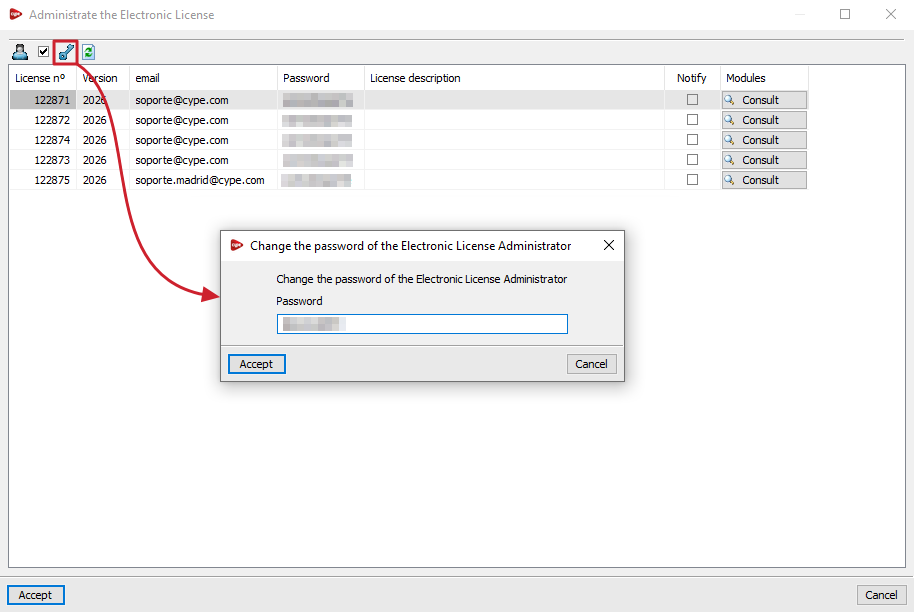
Allows you to enable or disable email notifications to the user regarding password changes made for each licence. - Change the Electronic Licence Administrator password
Allows you to change the password for the login credentials used to manage the electronic licence. - Refresh the displayed information
Refreshes the information displayed in the table if any changes have been made.
Network hardlock configuration
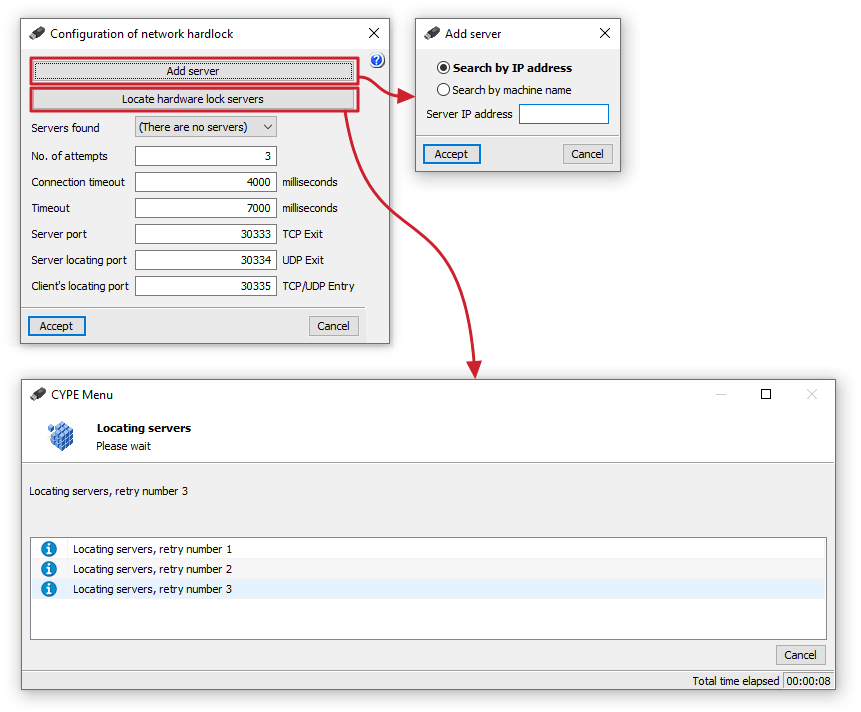
In the "Configuration of network hardlock", which can be accessed from the "Licence management" panel by selecting "Network hardlock" under "Licence type", you can make the following adjustments to ensure a connection with the network token that is providing the necessary permissions to use the program:
- The "Add server" option allows you to specify the hardlock server address directly. You can "Search by IP address" (and enter the "Server IP address") or "Search by machine name" (and enter the "Server name").
- The "Locate hardware lock servers" option allows you to initiate a process to locate tablet servers on the network, up to a specified number of retries.
The following features are shown below:
- Servers found
This drop-down menu displays the IP addresses of the servers that have been added or found via automatic detection. - Number of retries (default: 3)
The number of retries made by a client when searching for active servers. The higher the number of retries, the slower the search will be, but the greater the chance of finding all the servers. - Connection timeout (default: 4000 milliseconds)
Time, in milliseconds, taken by a client to attempt to search for active servers. The longer this time, the slower the search will be, but the greater the chance of finding all the servers. - Timeout (default: 7000 milliseconds)
This value indicates the time, in milliseconds, that the client waits before assuming that the connection to the server has been lost. It may be useful to adjust this value in the event of network delays, whether due to congestion or other reasons. - Server port (default: 30333 TCP Outbound)
This value specifies the communication port that programs will use to connect to the hardlock server. - Server discovery port (default: 30334 UDP Outbound)
This value specifies the communication port that programs will use to detect the hardlock server. - Client port for discovery (default: 30335 TCP/UDP Inbound)
This value specifies the communication port that programs will use to detect the hardlock server.
| Note: |
|---|
| To connect to the server specified using the "Add server" option, you must ensure that the server is running and that its name or address has been entered correctly. If you have a router (router) or a firewall (firewall) on the network, you can try changing the port on the hardlock server, ensuring that you also change all hardlock clients so that they use the same port as the server. Furthermore, the value entered for each communication port must always match the setting configured on the hardlock server being used, and should only be changed if there is a compatibility issue with another installed program that uses the same communication port. If this value is changed, it must be modified both in the hardlock server configuration and in the configuration of all clients using that hardlock server. |
