Licence management
The "Licence management" panel can be accessed from the program interface and from the CYPE Menu in several ways.
This window has a unified system for viewing and managing permissions in CYPE apps, divided into the following sections and controls:
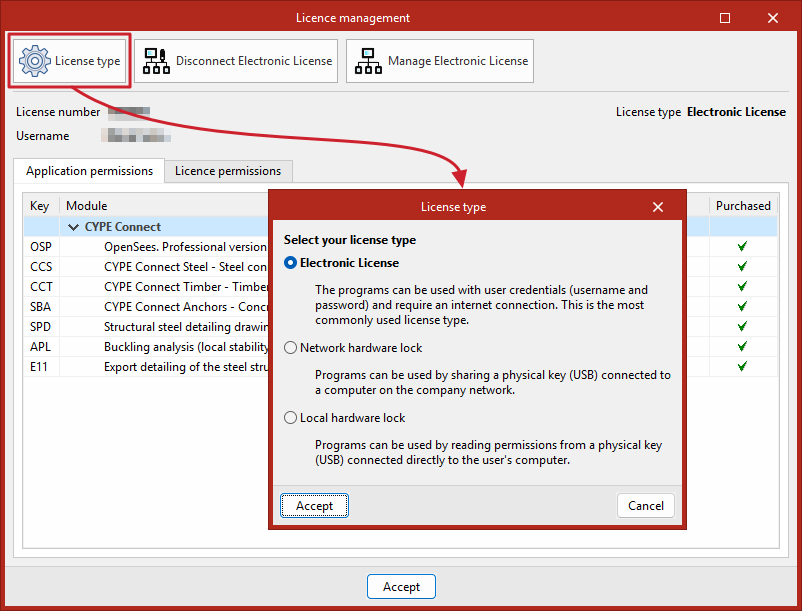
Licence type
This button, located at the top of the "Licence management" panel, is used to select the "Licence type" from the following options:
- Electronic licence
Users can access the programs by entering their credentials (username and password), and it requires an Internet connection. It is the most commonly used type of licence.
When selecting this option, the "Activate electronic licence" (or "Disconnect electronic licence") and "Manage electronic licence" buttons at the top of the "Licence management" panel interface are activated. - Network hardware lock
Multiple users from the same company can use the permissions associated with a physical USB key connected to one of the computers on the network.
Selecting this option activates the "Network hardlock configuration" button at the top of the "Licence management" panel interface. - Local hardware lock
The programs to be used by reading the permissions from a physical USB stick connected directly to the user's computer.
Selecting a licence type helps speed up the process of checking permissions within the program.
Information about the current licence
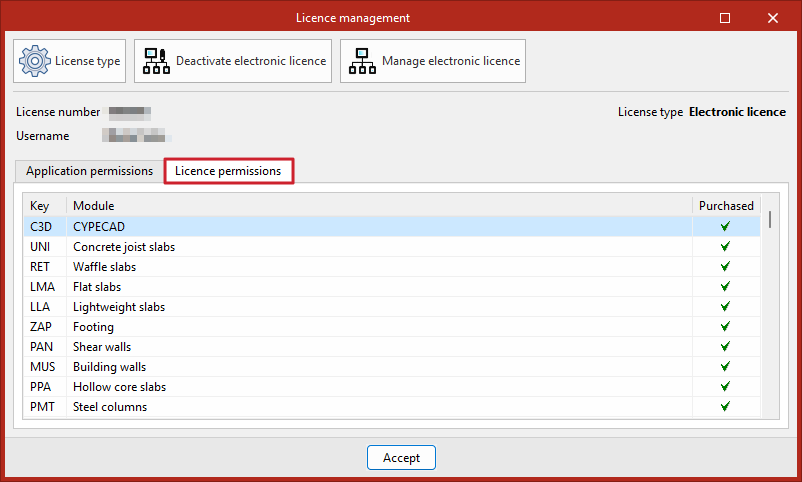
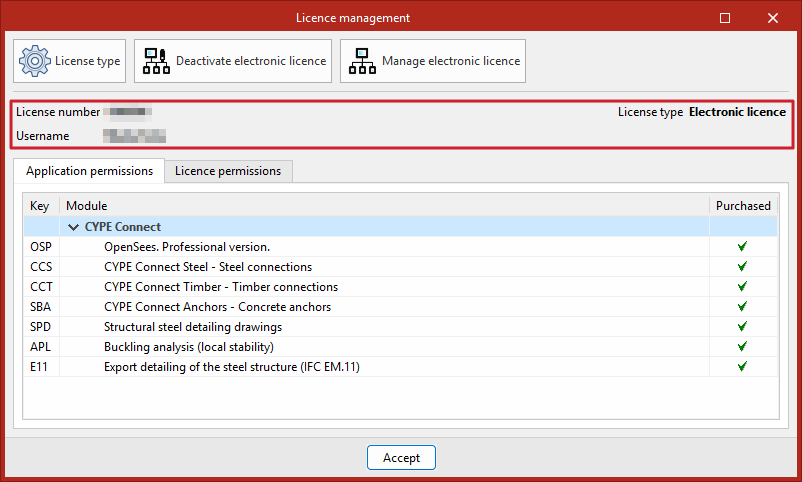
When you select and use a licence, the "Licence number" currently in use, along with the registered "Username" and the "Licence type" currently in use, will be displayed in the centre of the "Licence management" panel.
In addition, the licence number currently in use will be shown in brackets on the "Licence Management" button in the CYPE Menu and in the "About" panel.
App permissions
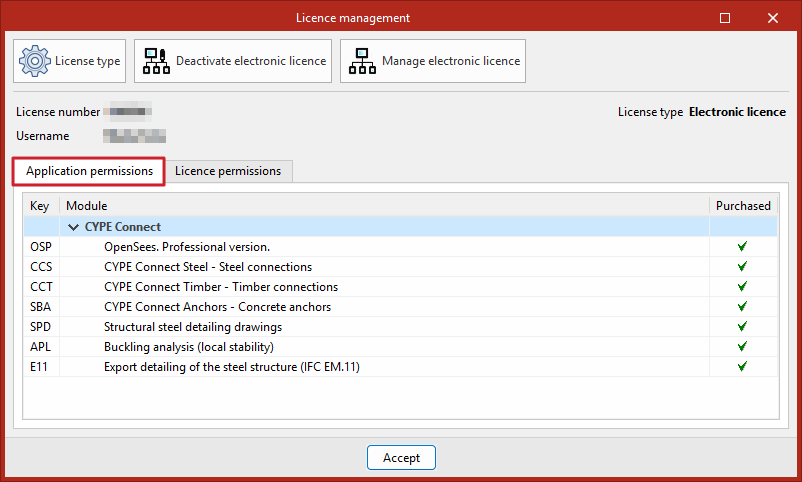
From the "App permissions" tab, you can view the specific permissions required by the app you are using, including its "Key" and the "Module" description, and, in the "Purchased" column, check whether they have been acquired and are included in the licence you are using.
If the app is free, this will be indicated here.
Licence terms
From the "Licence permissions" tab, you can view the full set of permissions available under the current licence. The "Key" and "Module" descriptions are also shown for each permission, and the "Purchased" column indicates whether they have been purchased and are included in the current licence.