Introduction
CYPELUX is a program developed for the lighting design of normal and emergency lighting systems as well as daylight illumination and evaluates them in accordance with the codes from different countries and regions or using checks with customised parameters.
In addition, justification of daylighting requirements for LEED v4 certification can be provided.
The app can import the necessary information extracted from other Open BIM tools, so that the architectural models can be used as the geometrical basis for the development of the lighting system.
The program also includes Radiance software developed by the Lawrence Berkeley National Laboratory.
Workflows supported by the program
As CYPELUX is an Open BIM tool and is connected to the BIMserver.center platform, it offers different workflow options.
Data entry
Free-form modelling/modelling using templates
- Designing the system by entering it freely in CYPELUX.
- Defining the system in CYPELUX based on DXF/DWG, DWF templates or images (.jpeg, .jpg, .bmp, .wmf).
Importing BIM models
If the CYPELUX job is linked to a BIM project on the BIMserver.center platform, the following actions can be carried out:
- Importing the model with the building geometry. This allows users to generate the building’s floor plan and to enter the system’s elements based on this geometry. Users can also import the zones based on the spaces read from the BIM model and the layout of the glazed openings. The following options are available:
- Importing models designed in IFC Builder.
- Importing models designed in CYPE Architecture*.
- Importing models in IFC format with IFC Uploader* (generated by CAD/BIM programs such as Allplan, Archicad and others).
- Importing models designed in Autodesk Revit with the Open BIM - Revit Plugin.
*Only if daylight does not need to be calculated. - If IFC Builder or CYPE Architecture generates the architectural model, users can also import the DXF or DWG templates contained in that model, or those generated by the same program (from the building elements entered) when a model is exported to the BIM project.
- Importing information from georeferenced models, automatically reading the project’s latitude, longitude and orientation data for the purposes of daylight calculation. This ensures a more accurate lighting analysis that is tailored to the building’s actual geographical location:
- Importing models created using Open BIM Site.
Data output
- Exporting reports to HTML, DOCX, PDF, RTF and TXT formats.
- Exporting drawings to DXF, DWG and PDF formats.
- Exporting the bill of quantities to FIEBDC-3 format.
- Exporting the information generated with CYPELEC Electrical Mechanisms to the BIMserver.center platform using IFC and GLTF formats. The information can then be viewed by authorised project participants. The information generated by CYPELUX can be used by the following programs:
- CYPETHERM
This program imports the installed lighting power in the building's spaces. - CYPELEC Distribution
This program imports luminaires and automatically assigns and generates the corresponding receivers in their position. - Autodesk Revit (via the Open BIM - Revit plugin)
- Imports the information generated by CYPELUX for viewing and management in Revit. Optionally, Revit native elements can be generated from the IFC file for luminaires.
- CYPETHERM

Work environment
The CYPELUX interface has three tabs with different work environments: "Installation", "Bill of quantities" and "Sheets". These environments are similar to those of other CYPE tools and have a system of dockable windows that can be customised to adapt the workspace to the needs of the project.
"Installation" tab
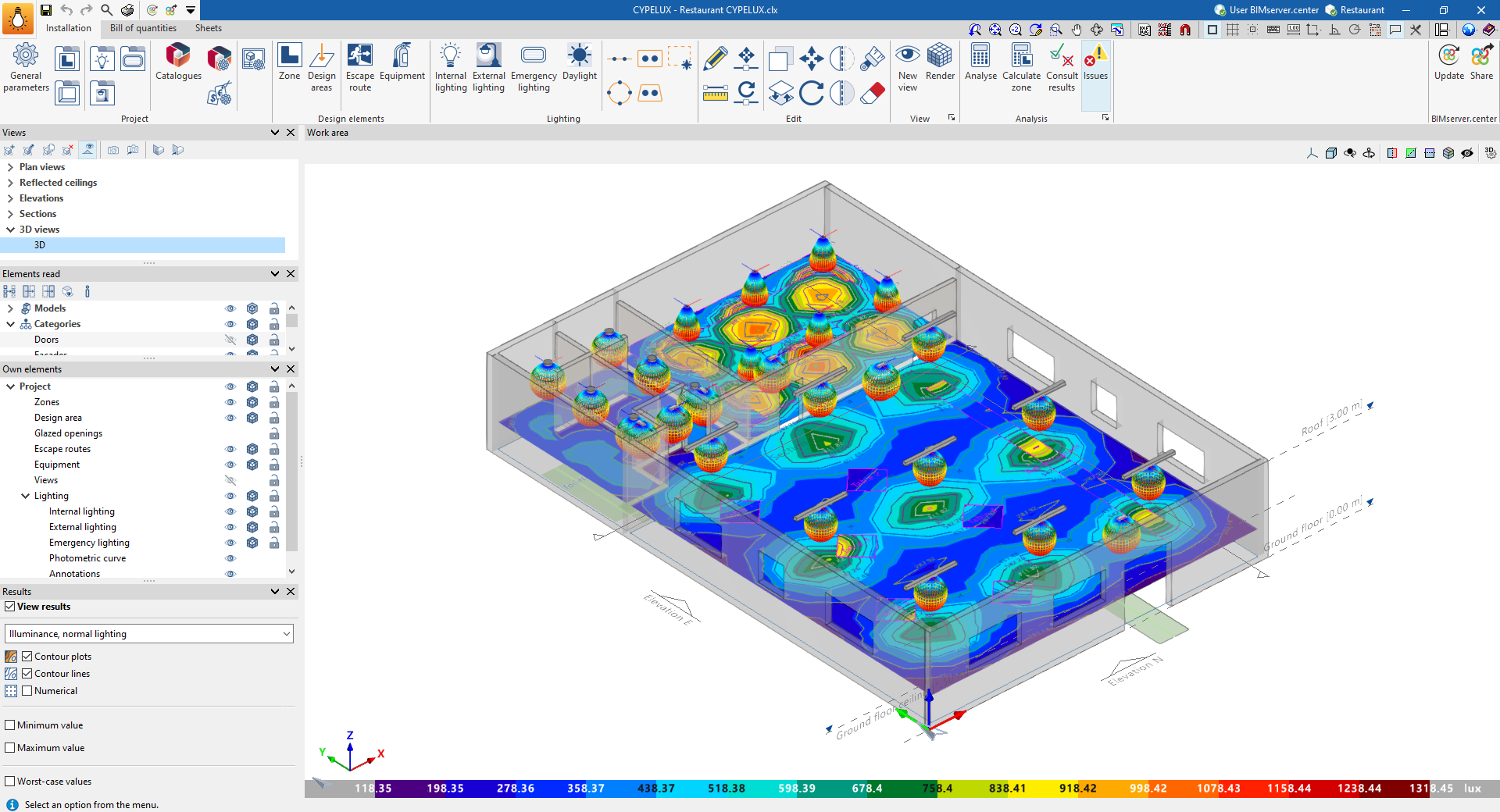
The "Installation" tab has a work environment that allows the design of the installation to be carried out quickly and easily, both in a 3D view and in any type of 2D view (such as floor plans and elevations). As a result, the elements in the system can be entered using the most appropriate view at any given time.
This tab displays the following:
- A top toolbar containing the tools for: managing the project parameters, type libraries and catalogues, and configuring the generation of sheets; entering the spaces, design areas and safety or protection elements to be illuminated; entering and editing the luminaires and configuring the daylight calculation, including the automatic distribution tools; accessing the editing tools; creating views and renderings; and analysing and checking the lighting installation.
- The work area, on the right of the screen, where the above-mentioned elements are entered, edited and displayed.
- Finally, on the left side panel, there are several panels with tools for defining the views of the project, managing the visibility of the elements read and own elements, and activating the display of the analysis results.
"Bill of quantities" tab
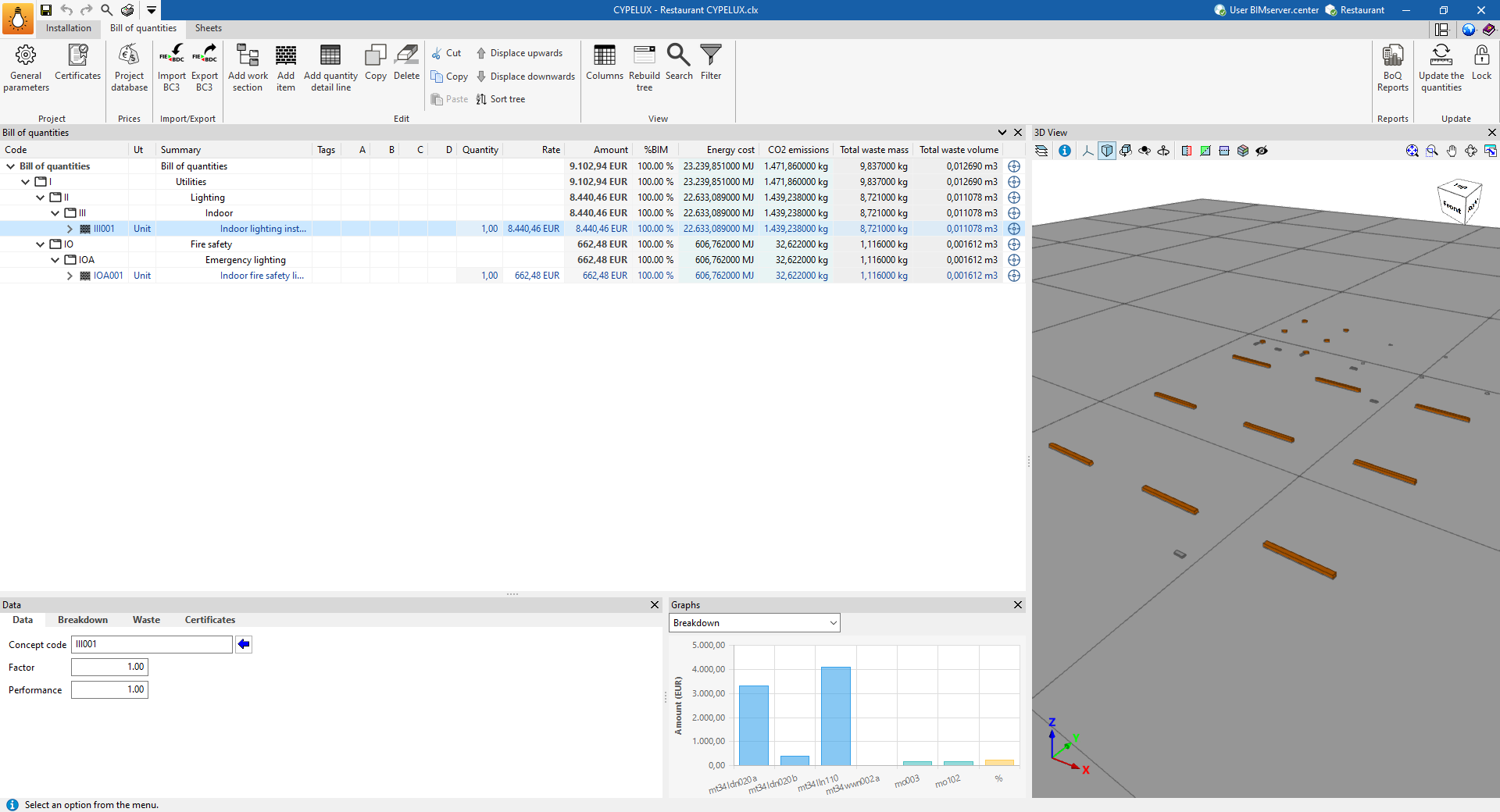
On the other hand, the "Bill of quantities" tab is used to manage the bill of quantities of the lighting installation, and displays the following:
- A top toolbar containing the tools for creating and editing the bill of quantities, as well as those for managing and creating reports.
- A graphic window with its own toolbar, located on the right-hand side, in which it is possible to view the different elements of the job.
- A specific area for structuring the bill of quantities, on the left-hand side.
| Note: |
|---|
| Unlike the implementation of the "Bill of quantities" tab in other CYPE apps, in CYPELUX there is no need to establish a correspondence or mapping between the elements measured on the design model and the bill of quantities concepts. This is because CYPELUX has the capacity to generate job units automatically from the lighting in the Open BIM Database. |
"Sheets" tab
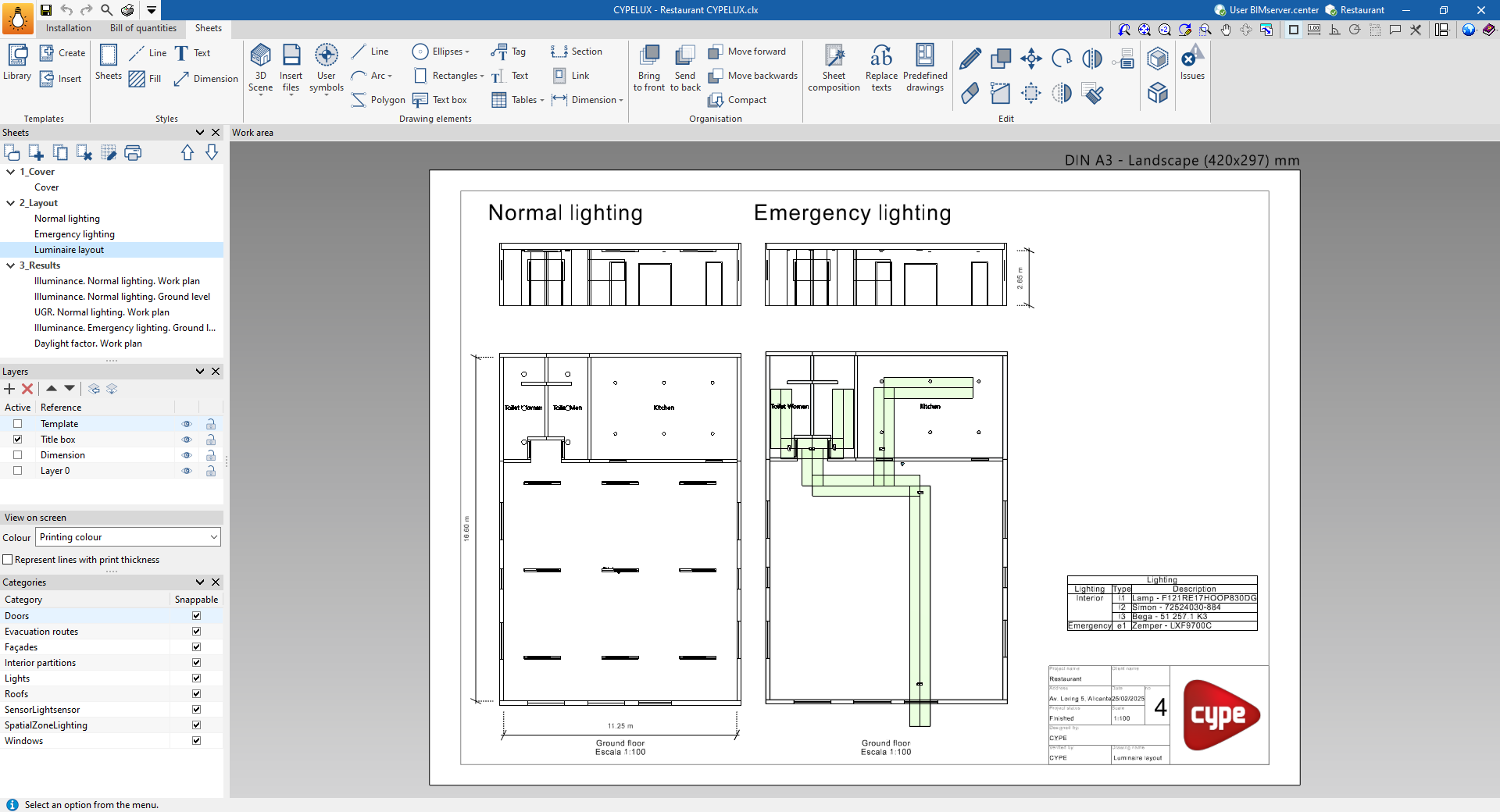
Lastly, the "Sheets" tab can create and manage the drawings of the lighting installation, and displays the following:
- A top toolbar with different features, such as creating and managing templates, editing styles, and entering, editing or ordering drawing elements, among other options.
- The main work area, on the right-hand side of the screen, which displays the composition of each of the sheets.
- On the left-hand side are the main tools for managing the sheets and layers of the project, as well as the on-screen display options and the management of snaps by category.
Examples of lighting installation models
An example of a lighting installation that can be developed in the program is shown below, indicating the layout of the elements and the options that allow them to be entered into the model:
Lighting installation for a tertiary building
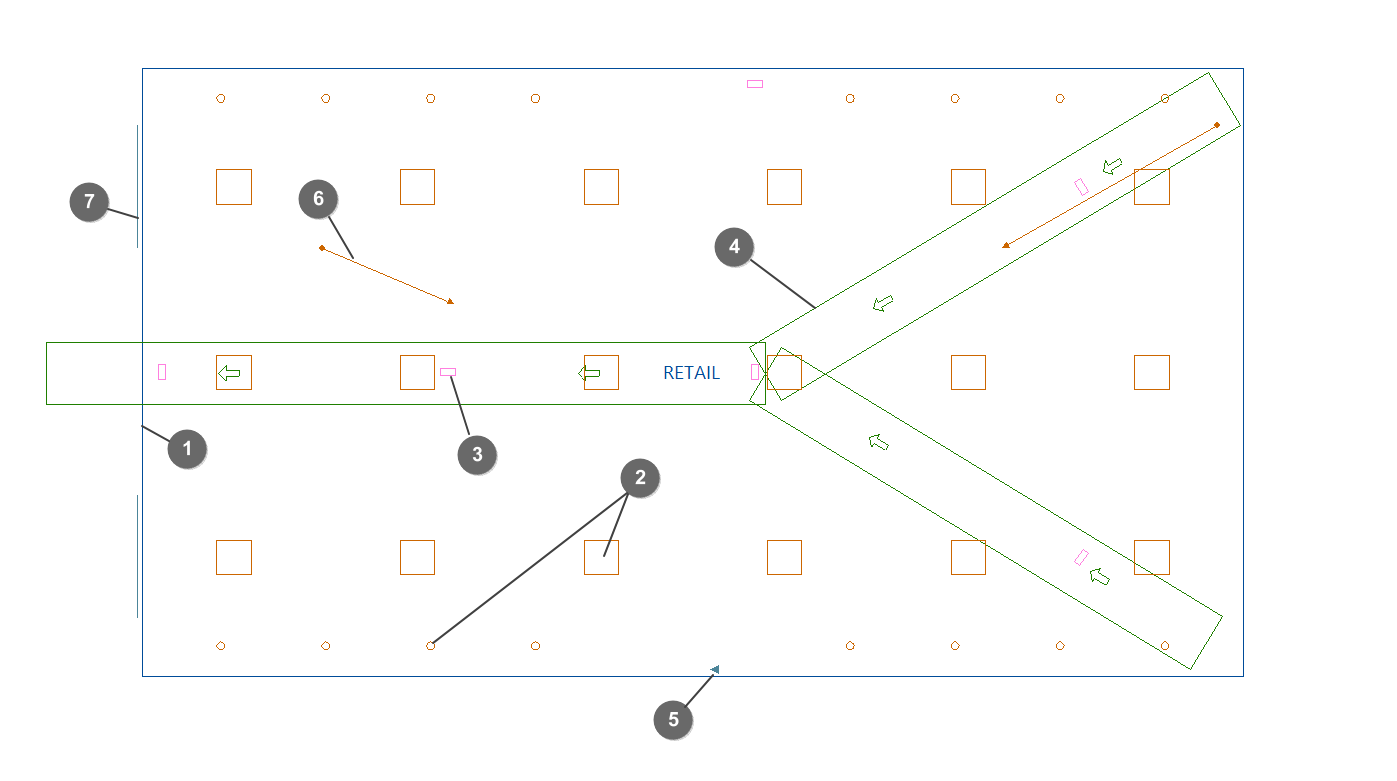
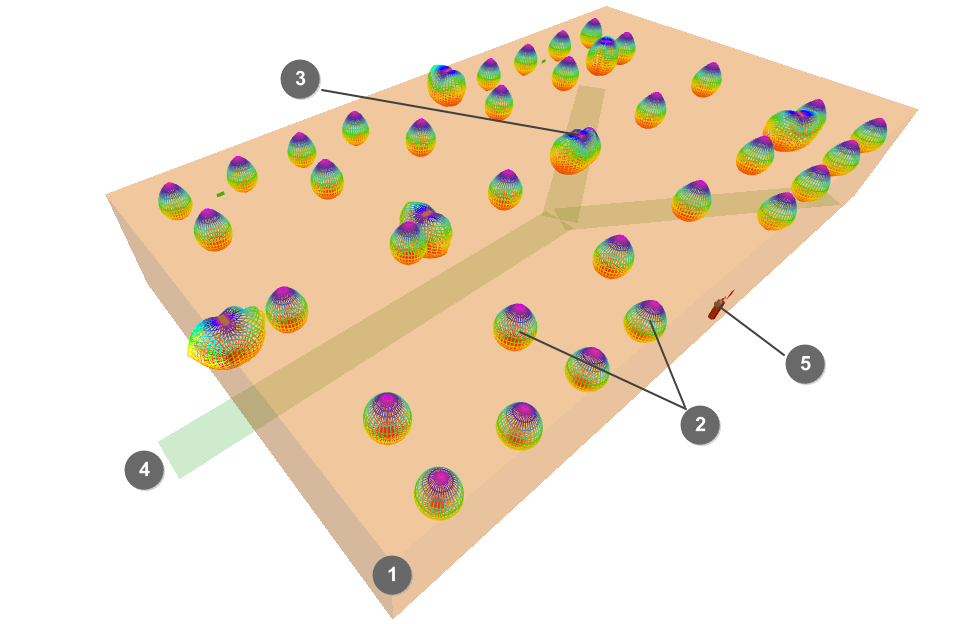
- Zone (imported from the BIM model or entered from "Lighting", "‘Zone").
- Indoor lighting (from "Lighting", "Indoor lighting").
- Emergency lighting (from "Lighting", "Emergency lighting").
- Escape routes (from "Safety/Protection", "Evacuation routes").
- Safety and/or protective equipment (from "Safety/Protection", "Equipment").
- Scene rendering views (from "Visualisation", "New view").
- Glazed openings (imported from the BIM model).
Creating a new job, linking to a project and importing data
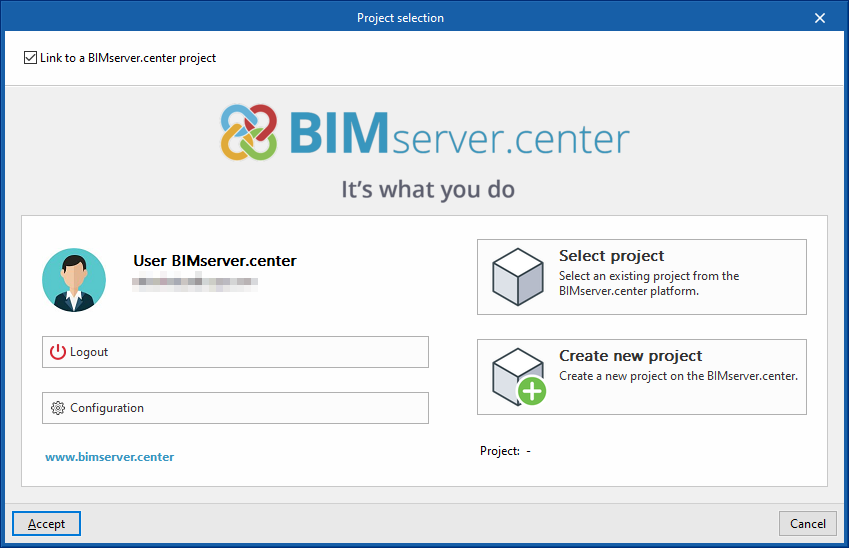
When starting the program and clicking on "New", the program offers users the possibility to create a "New job", which can then be integrated into an existing project in BIMserver.center.
This is done in the "Project selection" window. On the left-hand side, you can log in with a BIMserver.center account.
- On the left-hand side, users can log in with a BIMserver.center account.
- On the right-hand side, the "Select project" option is used to choose an existing project. There is also the possibility to "Create a new project". In this case, the created project will be visible from BIMserver.centre from that moment on.
- The project can also be starting without being linked to the BIMserver.center platform. To do this, simply uncheck the box at the top left, "Link to a BIMserver.center project".
Once the new job has been created, the program interface is accessed, where the graphic window showing the model or models that have been imported stands out. At any time during the project, files can be shared or imported via the "BIMserver.center" group on the top right-hand side.
Importing BIM models
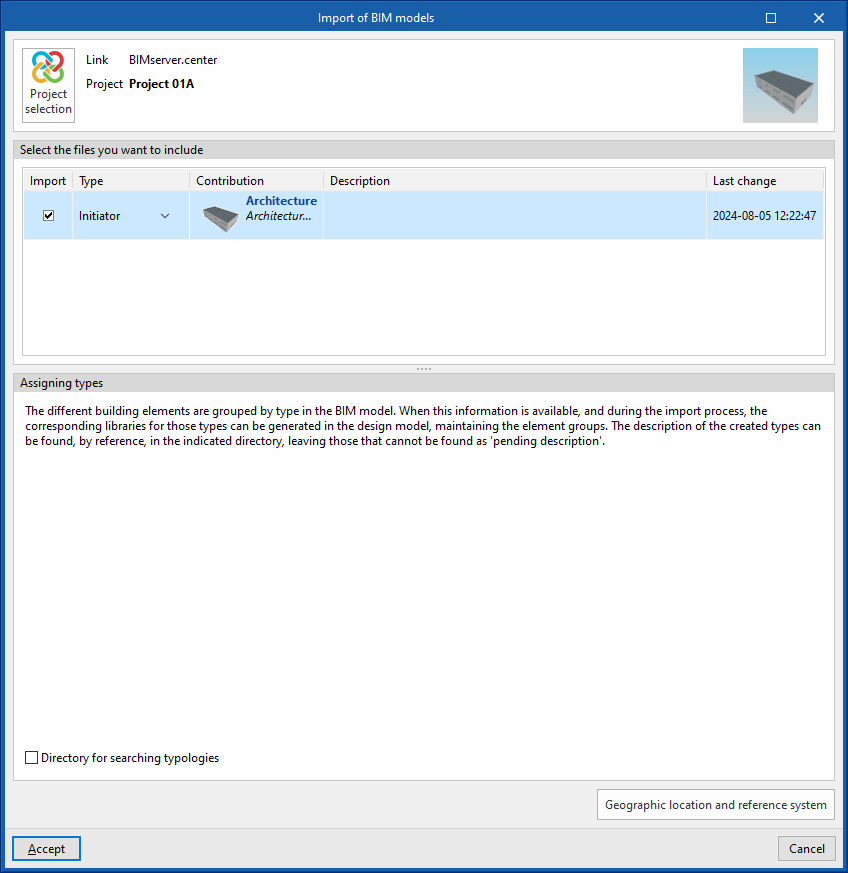
When creating a new job and selecting a project hosted on the BIMserver.center platform from "Select project", the "Import BIM models" window appears, which shows the files contained in that project in IFC format.
The program can include one or more of the existing models in the project. To do this, check the "Import" box and accept it. Users must decide whether the "Type" of each file is "Initiator" or "Additional".
The 3D view of the program will then display the imported models, both from the initiator and additional files. The program can also import the geometry of floors and spaces from the file marked as an initiator using a configuration wizard.
Configuration wizard: selecting standards, downloading catalogues and classifying spaces
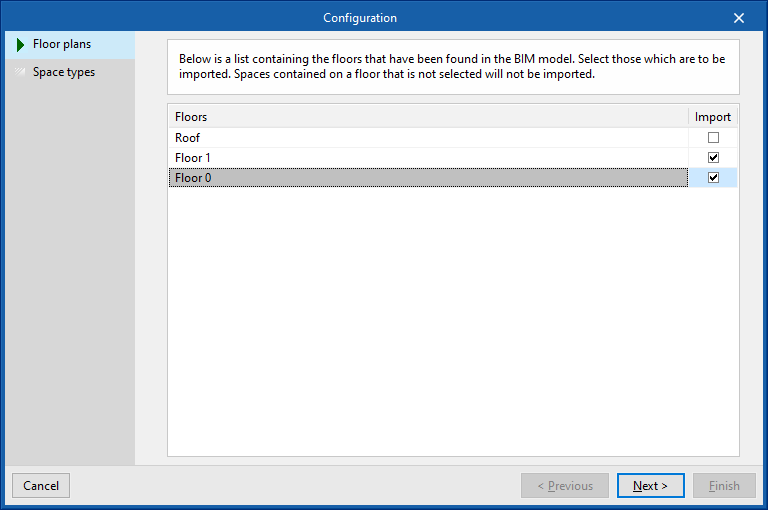
Then, from the "Import BIM Models" window, the program opens the "Configuration" wizard, which consists of the following steps:
- In the first step, a list of the floor plans found in the BIM model is displayed. The floor plans to be imported can be selected here. The spaces included in a floor plan that has not been selected will not be imported.
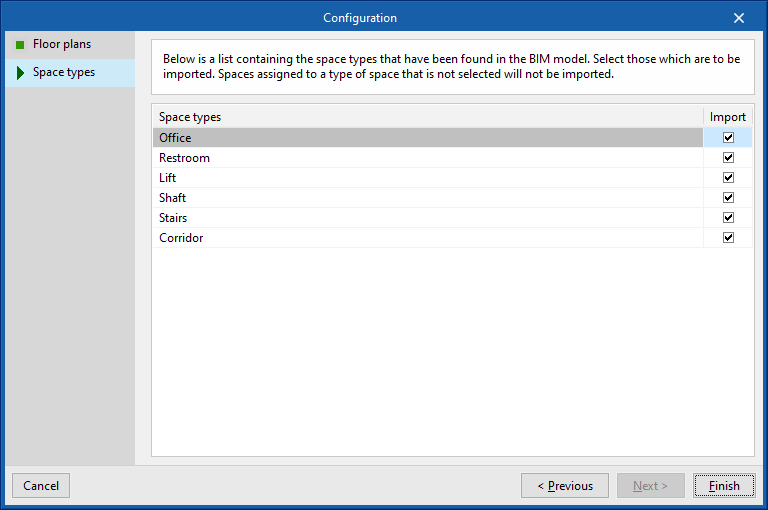
- The next step shows a list of the space types found in the BIM model. Here it is possible to select the space types to be imported. Spaces assigned to an unselected space type will not be imported.
To enter the zones manually, use the "Zone" option in the "Lighting" group of the main toolbar.
- Additionally, the glazed opening types will be imported automatically, and can be reviewed using the "Edit" option in the "Edit" group of the main toolbar on the imported glazed openings entered in the model.
Import results
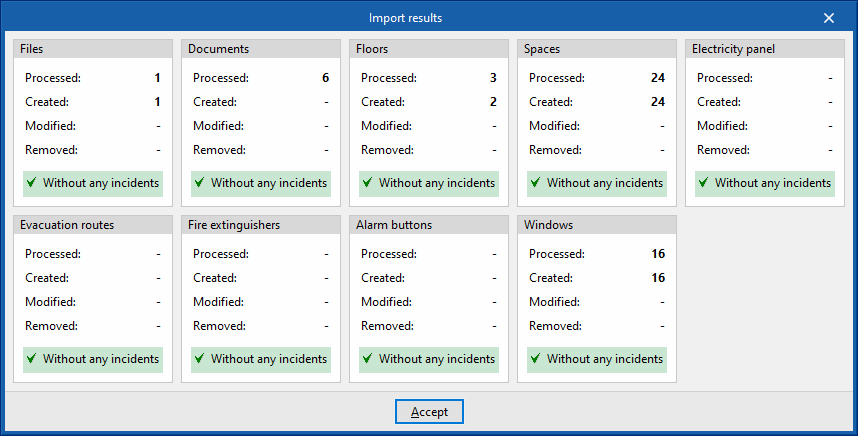
Finally, in the last step, an "Import results" box is displayed with the information of the processed, created, modified or deleted BIM model elements, including those listed in the table on the right.
General parameter configuration
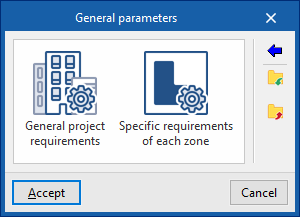
In the "Project" group of the main toolbar on the "Installation" tab, you will find the option to configure the "General parameters" of the project:

General parameters
The available options are as follows:
- General project requirements
- Specific requirements of each zone
Importing code requirements
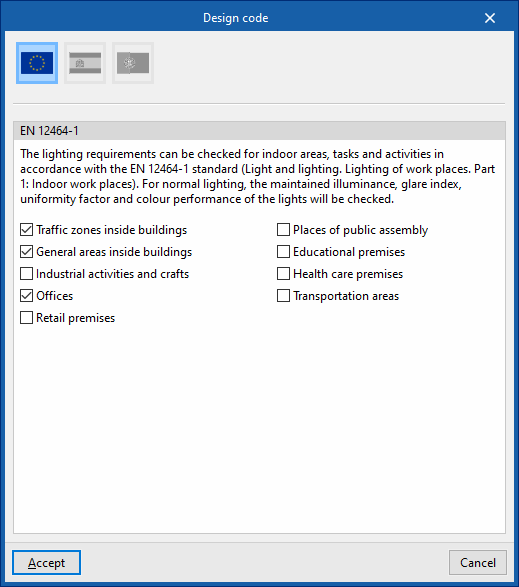
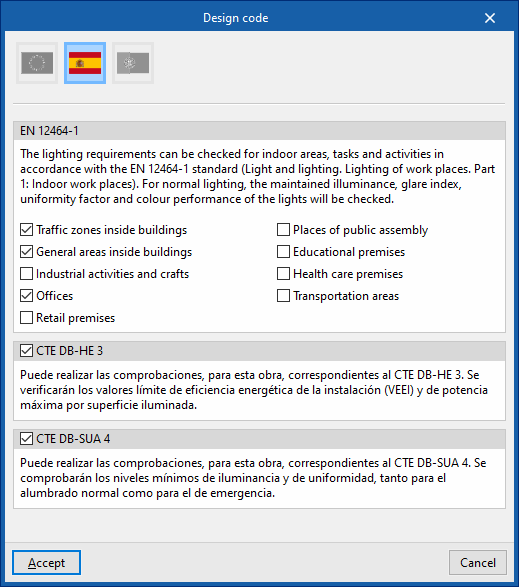
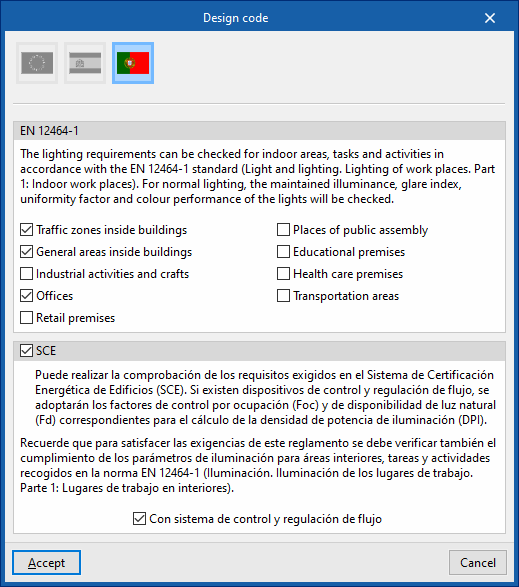
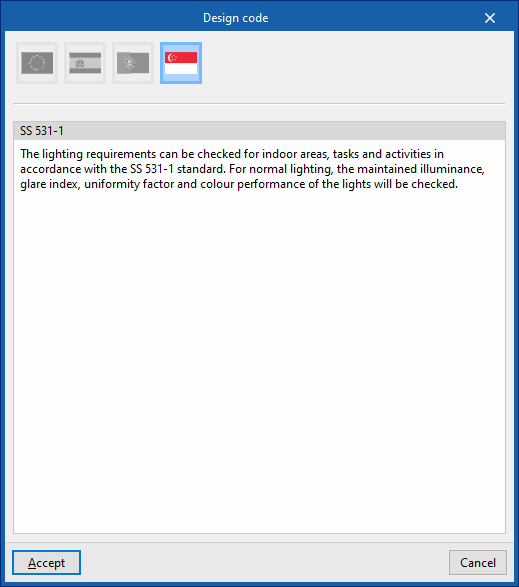
The wizard on the right-hand side of the "General Parameters" window allows you to import requirements from various national and international standards, such as the following:
 Europe
- EN 12464-1
Imports the lighting requirements specified by standard EN 12464-1 ("Light and lighting. Lighting of workplaces. Part 1: Indoor workplaces") for selected indoor areas, tasks and activities.
- EN 12464-1
 Singapur
- SS 531-1
Imports the lighting requirements specified by standard SS 531-1.
- SS 531-1
 Europe
 Singapur
For installations in the rest of the world or to perform specific calculations, checks can be entered and configured manually in a customised manner.
| Note: |
|---|
| If necessary, zone checks can be modified after being imported. If requirements are imported again, the program will not undo these changes if the reference to the zone checks remains unchanged. If the reference has been modified, the program will re-import the corresponding zone check in a different entry. |
| Note: |
|---|
| The codes implemented in CYPE programs can be consulted at the following link. |
Import/export to files on disk
The remaining options in the right-hand column of the "General Parameters" window allow you to import and export the general parameter settings to files on disk.
General project requirements
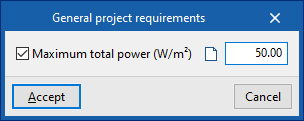
Allows you to configure the check value for the following general project parameter:
- Power
- Maximum total power
Specific requirements of each zone
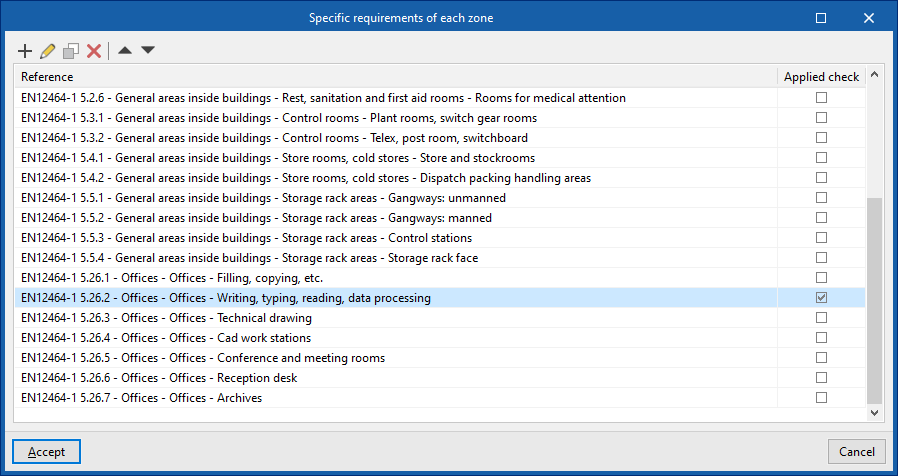
Allows you to configure the checks to be performed on each type of zone. Subsequently, in the "Zone types" library accessible from the "Project" group or from the inserting or editing panel of each "Zone", these checks can be assigned to the desired zone type.
The program shows with marks in the right-hand column whether the checks are being applied.
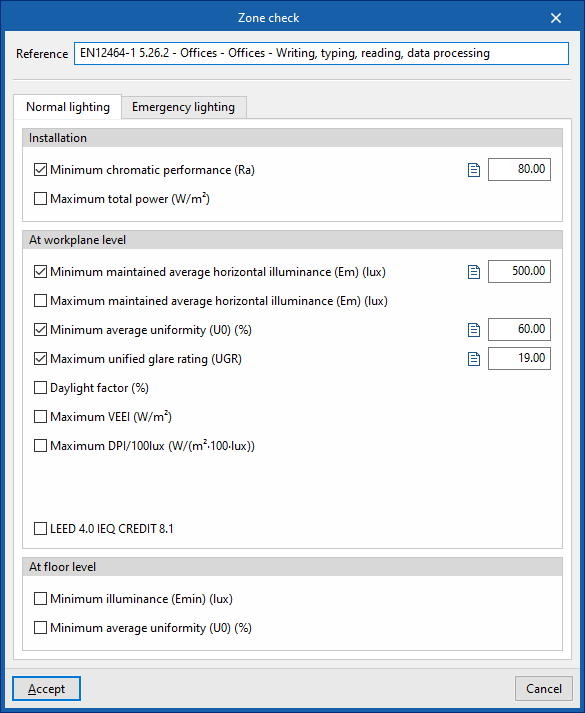
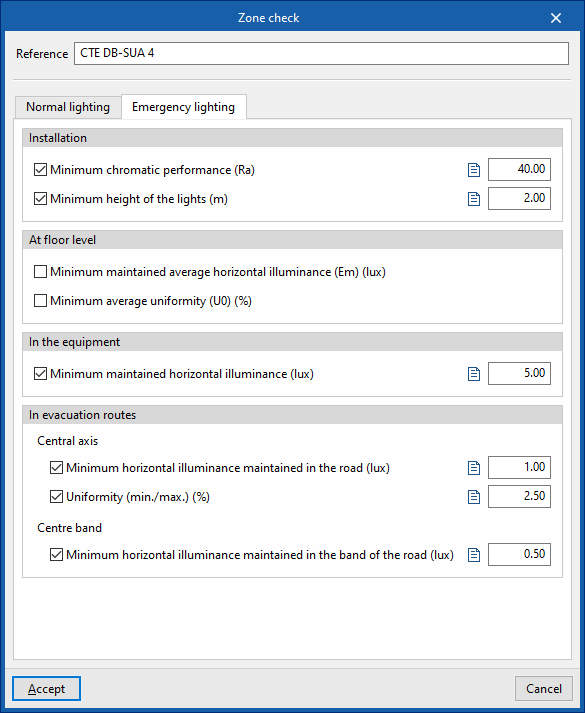
When creating or editing each entry in the table, the "Zone check" window opens with the following options:
- Reference
Zone check reference.
- "Normal lighting" tab
Activates and defines the check values for the following parameters, corresponding to the calculation of normal lighting. In addition, it is possible to add a descriptive text for each check:- Installation
- Minimum chromatic performance (Ra) (optional)
- Maximum total power (optional)
- At workplane level
- Minimum maintained average horizontal average illuminance (Em) (optional)
- Maximum maintained average horizontal illuminance (Em) (optional)
- Minimum average uniformity (U0) (optional)
- Maximum unified glare rating (UGR) (optional)
- Daylight factor (optional)
- Maximum VEEI (optional)
- Maximum DPI/100 lux (optional)
- Occupation dependency factor, FO
- Natural light dependency factor, FD
- LEED 4.0 CAI CREDIT 8.1 (optional)
Verifies compliance with the requirements necessary to obtain LEED 4.0 CAI CREDIT 8.1 (Option 2. Simulation: Illuminance Calculations) certification in this area. To do so, the illuminance levels produced by the effect of natural light inside the premises will be analysed. - At floor level
- Minimum illuminance (Emín) (optional)
- Minimum average uniformity (U0) (optional)
- Installation
- "Emergency lighting" tab
Allows you to activate and define the check values for the following parameters, corresponding to the calculation of emergency lighting. In addition, it is possible to add a descriptive text for each check:- Installation
- Minimum chromatic performance (Ra) (optional)
- Minimum height of the lights (optional)
- At floor level
- Minimum maintained average horizontal illuminance (Em) (optional)
- Minimum average uniformity (U0) (optional)
- In the equipment
- Minimum maintained horizontal illuminance (Em) (optional)
- In evacuation routes
- Central axis
- Minimum horizontal illuminance maintained in the road (optional)
- Uniformity (min./max.) (optional)
- Centre band
- Minimum horizontal illuminance maintained in the band of the road (optional)
- Central axis
- Installation
Generating drawings
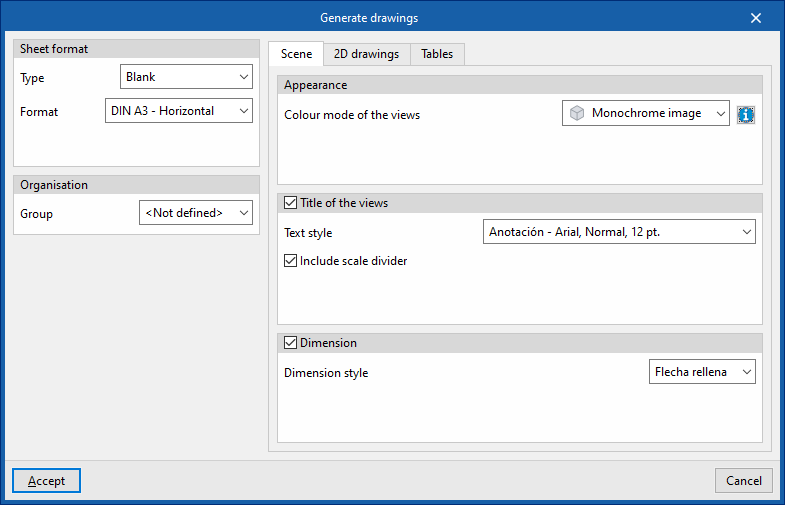
When you access the "Drawings" tab, the app automatically generates drawings based on the views defined in the "Installation" tab. To customise this process, use the "Generate drawings" button within the "Project" section of the "Installation" tab, which allows you to configure the creation of drawings according to the project's requirements.

The available options are as follows:
- Sheet format
Defines the format of the slides generated or, if desired, the template to be used and the layer into which they will be inserted:- Type:
- Empty (Format)
- From a template (Template, Layer)
- Type:
- Organisation
- Group
- "Scenes" tab
Configures the appearance, title and dimension style of scenes inserted into sheets:- Appearance
- Colour mode of the views
- Title of the views (optional)
- Text style
- Include the scale factor (optional)
- Note (optional)
- Include scale divider
- Appearance
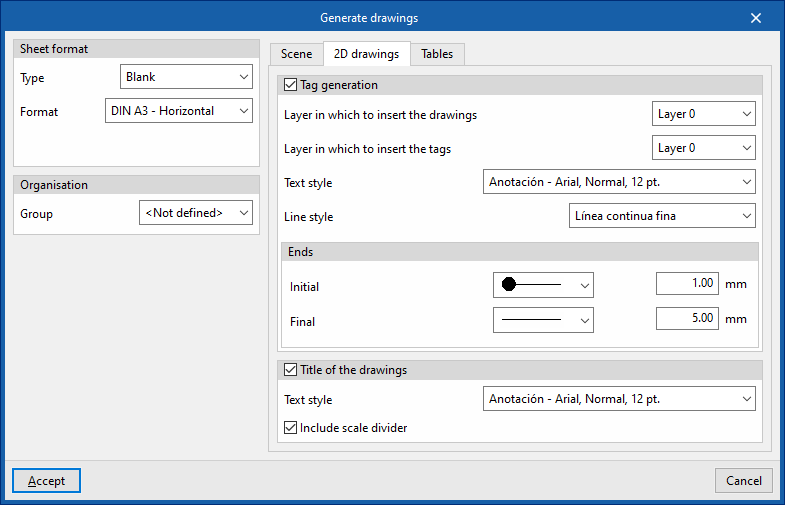
- "2D drawings" tab
Configures the format of the 2D drawing elements included in the sheets:- Tag generation
- Layer in which to insert the drawings
- Layer in which to insert the tags
- Text style
- Line style
- Ends (Start, End)
- Title of the drawings (optional)
- Text style
- Include scale divider (optional)
- Tag generation
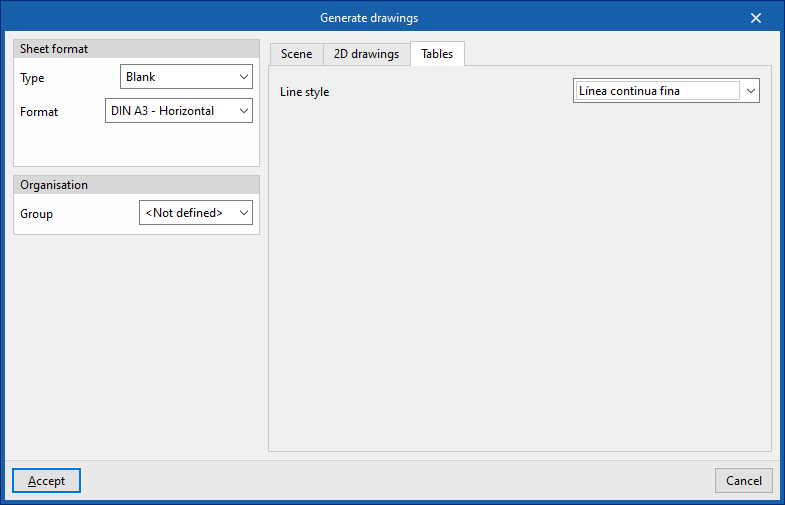
- "Tables" tab
Configures the format of the tables generated in the slides:- Line style
Inserting design areas
In the "Design elements" section of the main toolbar on the "Installation" tab, you will find the "Design areas" option, which allows you to add these elements to the model.
Design areas allow you to define a grid of design points for lighting analysis within a specific area. This makes it possible to assess the level of illuminance or glare in specific areas of a space (such as a work surface, a kitchen worktop, a restaurant bar or a dining table), without needing to consider the entire room.

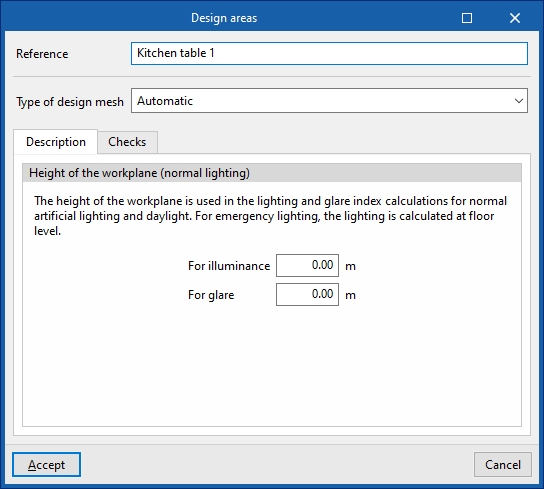
Calculation surfaces inherit certain parameters from the zone in which they are located, such as the maintenance factor and reflectance values, but allow you to adjust the following specific options in their edit panel:
- Reference
Reference for the design area. - Type of design mesh
This allows you to configure the design mesh type for the surface, offering flexibility in the distribution of illuminance measurement points. In this way, you can adjust the accuracy of the lighting designs to suit the project’s requirements, optimising the balance between performance and detail in the lighting assessment. The available options are as follows:- Automatic
The program automatically determines the number of points in the design mesh based on the characteristics of the space. This is the default option. - Quantity
Manually defines the number of points on the X and Y axes, letting the program distribute them evenly across the calculation area. - Distance
Specifies the exact spacing between points on the X and Y axes, providing more precise control over the mesh density.
- Automatic
- "Description" tab
- Height of the workplane (normal lighting)
Defines the height of the surface’s workplane, used for illuminance and glare index calculations for normal artificial lighting and daylight.- For illuminance
- For glare
- Height of the workplane (normal lighting)
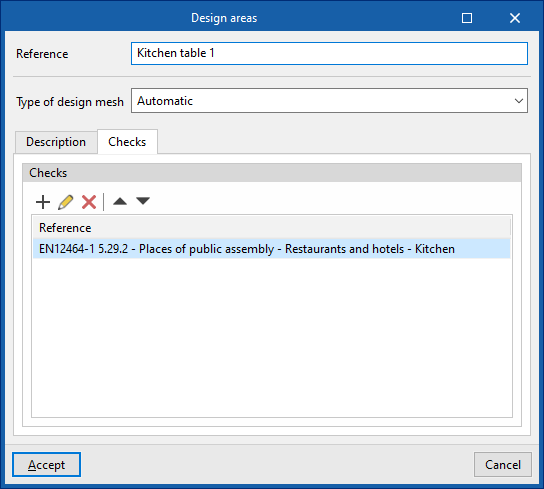
- "Checks" tab
Selects the checks to be applied to the design area. Checks can be created or edited using the "Zone-specific requirements" option in the "General parameters" section of the "Project" group on the main toolbar.
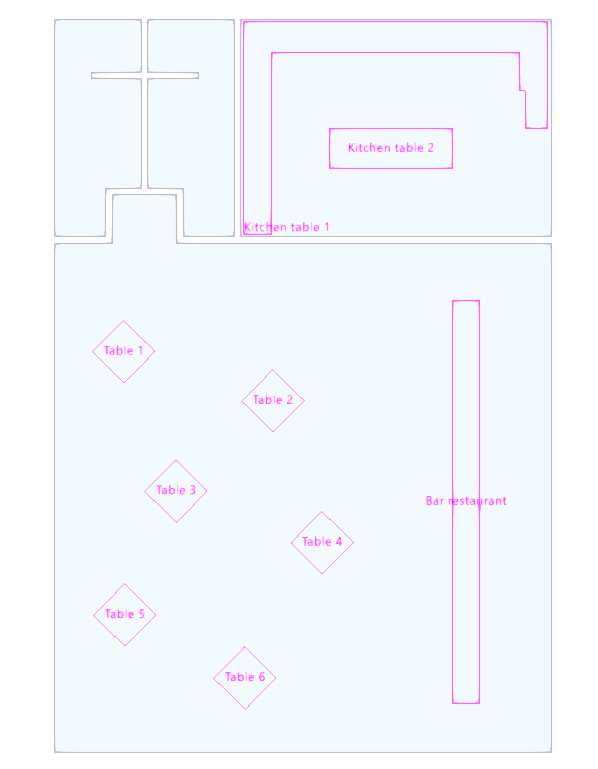
The results obtained in the calculation sheets can be viewed via the "View results" option and are included in the "Calculation appendix" and "Project" reports, thereby improving the documents of the lighting analysis.
Definition of parameters related to daylight calculation
In the "Lighting" group of the main toolbar, there is the "Daylight" option, which is used to define the parameters related to the calculation of daylight in the model:

Daylight supports the installation of normal artificial lighting to meet the lighting requirements of the zones. In addition, some regulations require minimum daylight quotient values, which can be set in the zone checks in the "General parameters".
Daylight
Describes the sky in the scene and defines the parameters related to the daylight calculation, such as the sky type based on the CIE standard, the location of the building and its orientation.
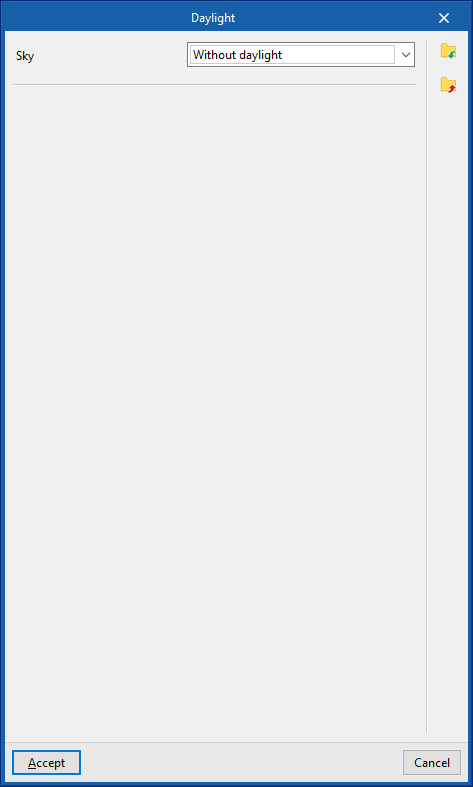
Users must indicate whether they wish to carry out the daylight calculation and, if so, the properties defining the light source of the sky. The sky can be specified based on the date, time and location of the job or by altitude and azimuth. For this purpose, one of the following options can be selected in the "Sky" drop-down menu:
- Without daylight
- Only calculate the daylight factor
- Definition by date, time and location
- Definition by altitude and azimuth
The above options are listed below:
The program can import the types, geometry and layout of the glazed openings read from the BIM model, so it is only necessary to edit each type of glazed opening and define its characteristics.
Without daylight
If this option is selected, the program will not calculate the daylight.
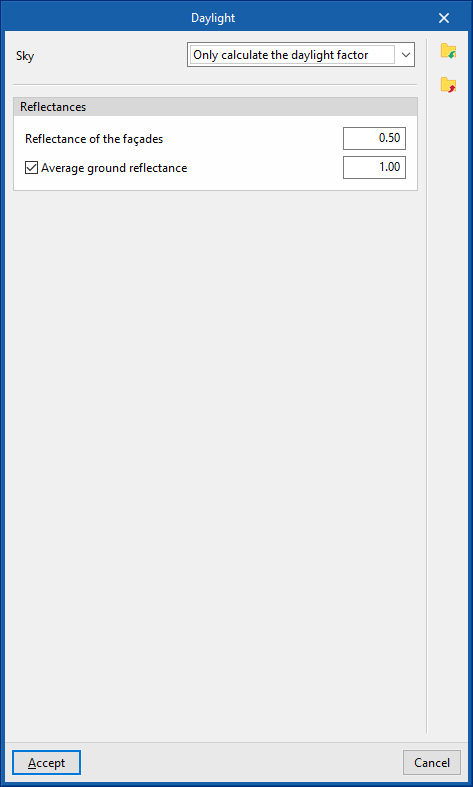
Only calculate the daylight factor
The program will calculate the daylight factor, without including the effect of daylight in the results. The daylight factor expresses the ratio between the illuminance at an indoor point produced by the effect of daylight and the illuminance that would be obtained if there were no obstructions. To calculate it, the program uses a reference CIE cloudy sky that produces a horizontal diffuse illuminance of 10000 lux.
- Reflectance of the façades
Indicates the reflectance value to be used for the external surfaces of the elements in the job. - Average ground reflectance (optional)
By activating this option, the average reflectance value of the ground can be indicated.
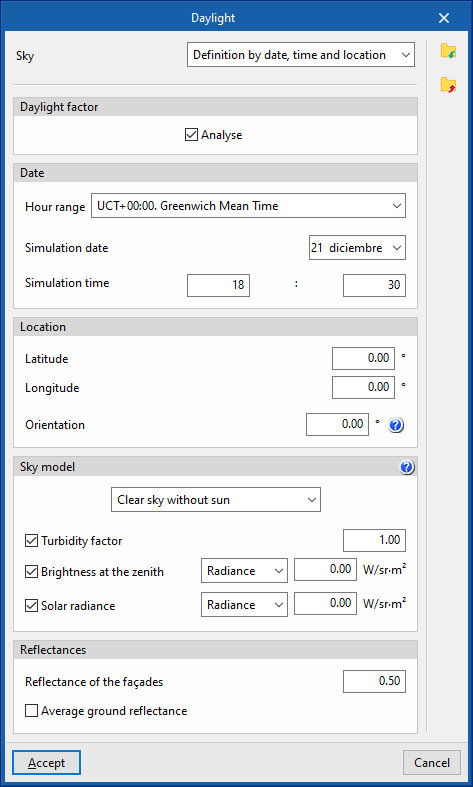
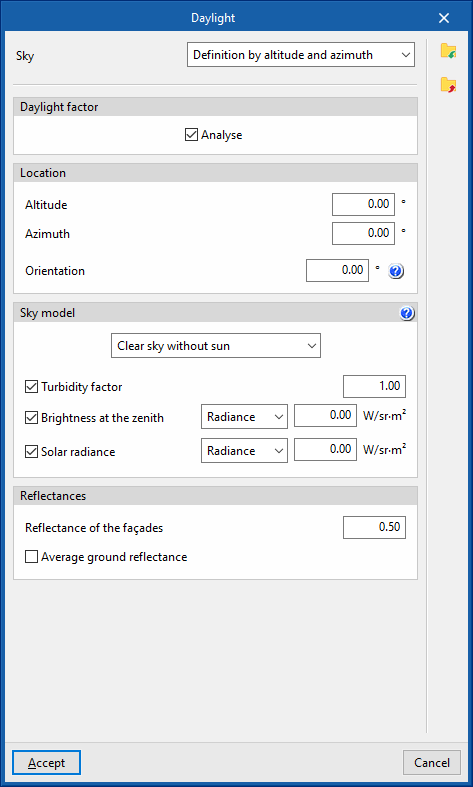
Definition by date, time and location / Definition by altitude and azimuth
In these cases, the following features can be edited in the configuration panel:
- Daylight factor
- Analyse (optional)
When this option is activated, the daylight factor will be calculated, without including the effect of daylight in the results. The daylight factor expresses the ratio between the illuminance at an indoor point produced by the effect of daylight and the illuminance that would be obtained if there were no obstructions. To calculate it, the program uses a reference CIE cloudy sky that produces a horizontal diffuse illuminance of 10000 lux.
- Analyse (optional)
- Date (just in "Definition by date, time and location")
The time zone, the date of the simulation and the time of the simulation are used together with latitude and longitude to determine the solar angles:- Hour range
- Simulation date
- Simulation time
- Location
- Latitude (just in "Definition by date, time and location")
Angular distance from the job location to the equator’s parallel line. - Longitude (just in "Definition by date, time and location")
Distancia angular desde la ubicación de la obra hasta el meridiano de Greenwich. - Altitude (just in "Definition by altitude and azimuth")
Angle formed between the sun and the horizontal line of the scene. - Azimuth (just in "Definition by altitude and azimuth")
Angle formed between the sun and the southern direction of the scene. - Orientation
The orientation of the building is essential when a daylight calculation is carried out and a sunny sky type is assigned. In these cases, in contrast to cloudy skies, the illumination distribution is not symmetrical around the zenith. The angle describing the orientation corresponds to the offset between the direction of the Y-axis of the scene and north, in a counter-clockwise direction.
Thanks to the linking of the job with a BIM model, if the orientation is already specified in an IFC file, this parameter will appear directly with the corresponding value.
- Latitude (just in "Definition by date, time and location")
- Sky model
- Sky model selection
The type of sky model to be used in the daylight simulation can be selected from the following:- Clear sky without sun
Corresponds to the CIE clear sky standard without considering direct sunlight illumination. - Clear sky with sun
Corresponds to the CIE clear sky standard including direct sunlight illumination. - Partially overcast sky without sun
Corresponds to the CIE medium sky standard whose lighting conditions are between those of clear sky and cloudy sky. In this case, direct sunlight illumination is not considered. - Partially overcast sky with sun
Corresponds to the CIE medium sky standard including direct sunlight illumination. - Overcast sky
Corresponds to the CIE cloudy sky standard. The sky brightness increases progressively with altitude from the horizon towards the zenith, but does not vary with respect to azimuth. This sky type is commonly used to determine daylight factors. - Uniformly overcast sky
Represents a sky with completely uniform lighting.
- Clear sky without sun
- Turbidity factor (optional)
By activating this option, the turbidity factor can be defined. The higher the turbidity factor, the greater the atmospheric dispersion. A value equal to 1 indicates an ideal clear atmosphere while values below 1 are physically impossible. - Brightness at the zenith (optional)
Activating this option allows the zenith brightness to be defined. If not directly specified, the zenith radiance is determined from the solar angle and the sky turbidity. The zenith brightness can also be calculated from the horizontal diffuse irradiance. To do so, the corresponding magnitude is selected from the following drop-down menu:- Radiance / Irradiance
- Solar radiance (optional)
By activating this option, solar radiance can be defined. If not specified directly, it is determined from the solar altitude. If a value of 0 is specified, no sun modelling will take place. The solar radiance can also be calculated from the direct horizontal irradiance. To do this, the corresponding magnitude is selected in the following drop-down menu:- Radiance / Irradiance
- Sky model selection
- Reflectances
- Reflectance of the façades
Indicates the reflectance value to be used for the external surfaces of the elements in the job. - Above ground reflectance (optional)
By activating this option, the average reflectance value of the ground can be indicated.
- Reflectance of the façades
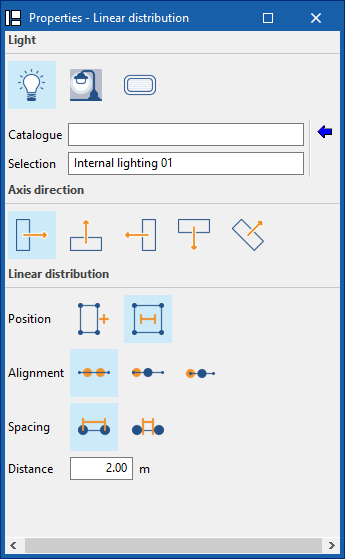
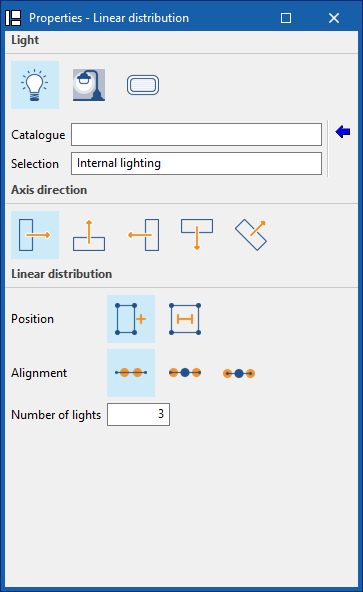
Linear distribution
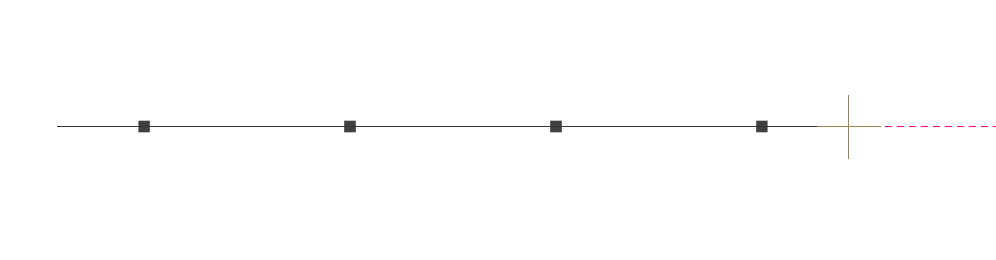
The "Linear distribution" option allows you to position luminaires along a reference line.
To do this, two points are marked in the work area to define the reference line. During the process, the program displays the following dockable window for defining the layout parameters:
- Type of lighting
- Interior
- Exterior
- Emergency
- Luminaires
- Catalogue / Selection
Reference to the manufacturer’s catalogue and luminaire model selection. Using the “Select a luminaire from the library” wizard, available on the right, the program allows you to select luminaires from “Manufacturer catalogues” or the “Generic elements library”. These types of elements can be created and edited via the “Catalogues” and “Indoor luminaire types”, “Outdoor luminaire types” or “Emergency luminaire types” options, respectively, available within the “Project” section of the main toolbar on the main interface.
- Catalogue / Selection
- Axis direction
Defines the orientation of the luminaires by applying an individual rotation about their Z-axis. To do this, you specify whether the horizontal reference plane of the luminaires’ photometric curve is aligned with, or oriented at a specific angle to, the reference line.- Aligned
- Rotated by 90°
- Rotated 180°
- Facing 270 degrees
- With user-defined orientation
- Linear distribution
Adjusts the parameters of the luminaire distribution.- Positioning
Indicates whether the layout of the luminaires is defined by specifying their number or a specific distance between them.- By quantity
Selecting this option sets the total number of luminaires in the linear arrangement. The luminaires will be distributed evenly according to the number specified.- Alignment
Allows you to adjust the position of the luminaires relative to the reference line entered in the model.- Symmetrical
The luminaires are arranged symmetrically along the reference line, maintaining a distance from the ends of the line equal to half the distance between luminaires. - Outer edges
The reference line marks the boundary between the outer edges of the end luminaires. - Centre-centre
The reference line marks the distance between the centres of the end luminaires.
- Symmetrical
- Number of luminaires
Enter the number of luminaires in the linear arrangement.
- Alignment
- By distance
By selecting this option, a fixed spacing is defined between the luminaires in the linear arrangement, measured either between centres or between edges.- Alignment
Allows you to adjust the position of the luminaires relative to the reference line entered in the model.- Symmetrical
The luminaires are arranged symmetrically along the reference line, maintaining a distance from the ends of the line equal to half the distance between luminaires. - Outer edges
The starting point of the reference line marks the outer edge of the first luminaire in the arrangement. - Centre-centre
The starting point of the reference line marks the centre of the first luminaire in the arrangement.
- Symmetrical
- Spacing
Indicates whether the distance measures the spacing "between centres" or "between edges" of luminaires. - Distance
Enter the distance between luminaires.
- Alignment
- By quantity
- Positioning
Once you have confirmed, the program generates and positions the luminaires according to the defined settings. If necessary, the position or properties of the luminaires can be edited individually at a later stage.
Circular distribution
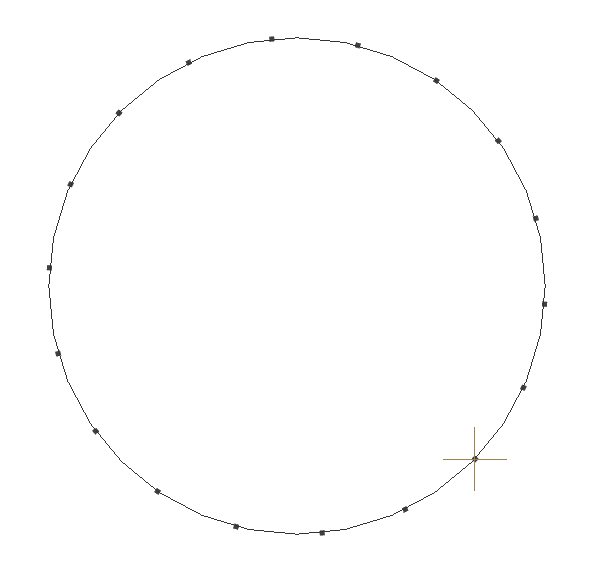
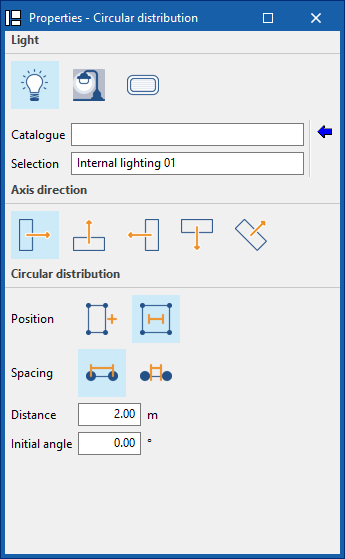
The "Circular distribution" option arranges light fixtures in a circle.
To do this, two points are marked in the work area to define the reference circle. During the process, the program displays the following dockable window for defining the distribution parameters:
- Lighting type
- Interior
- Exterior
- Emergency
- Light fitting
- Catalogue / Selection
Reference to the manufacturer’s catalogue and luminaire model selection. Using the “Select a luminaire from the library” wizard, available on the right, the program allows you to select luminaires from “Manufacturer catalogues” or the “Generic elements library”. These types of elements can be created and edited via the “Catalogues” and “Indoor luminaire types”, “Outdoor luminaire types” or “Emergency luminaire types” options, respectively, available within the “Project” section of the main toolbar on the main interface.
- Catalogue / Selection
- Axis direction
Defines the orientation of the luminaires by applying an individual rotation about their Z-axis. To do this, you specify whether the horizontal reference plane of the luminaires’ photometric curve is aligned with, or oriented at a specific angle to, the reference line.- It faces outwards from the circumference
- It is tangent to the circle, pointing anti-clockwise
- It faces inwards towards the centre of the circle
- It is tangent to the circle, oriented clockwise
- It has a user-defined orientation
- Circular distribution
Adjusts the parameters of the light distribution.- Positioning
Indicates whether the layout of the luminaires is defined by specifying their number or a specific distance between them.- By quantity
The light fittings will be distributed evenly according to the number specified.- Number of luminaires
Enter the number of luminaires in the circular layout. - Initial angle
Enter the angle of the first luminaire in the arrangement.
- Number of luminaires
- By distance
A fixed spacing is set between luminaires, measured either between centres or between edges.- Spacing
Indicates whether the distance measures the spacing "Between centres" or "Between edges" of luminaires. - Distance
Enter the distance between luminaires. - Initial angle
Enter the angle of the first luminaire in the layout relative to the line connecting the two points marked in the workspace when defining the circle.
- Spacing
- By quantity
- Positioning
Once you have confirmed, the program generates and positions the luminaires according to the defined settings. If necessary, the position or properties of the luminaires can be edited individually at a later stage.
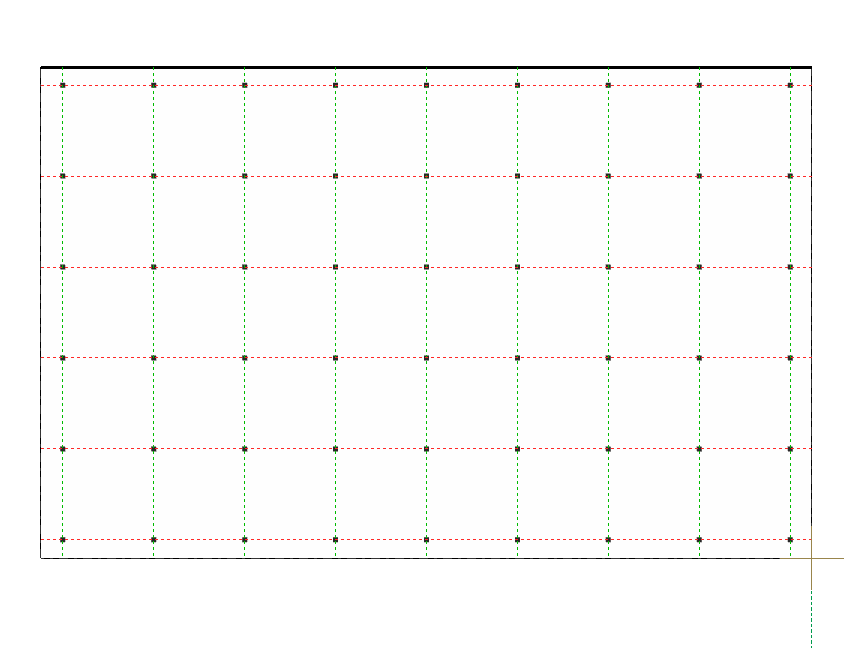
Rectangular layout
The "Rectangular layout" option allows you to enter a grid layout of luminaires covering a rectangular area.
To do this, mark two points in the work area to define one of the sides of the rectangle, and then mark a third point to complete its definition. The program displays the luminaire alignments in the X direction in red, and those in the Y direction in green.
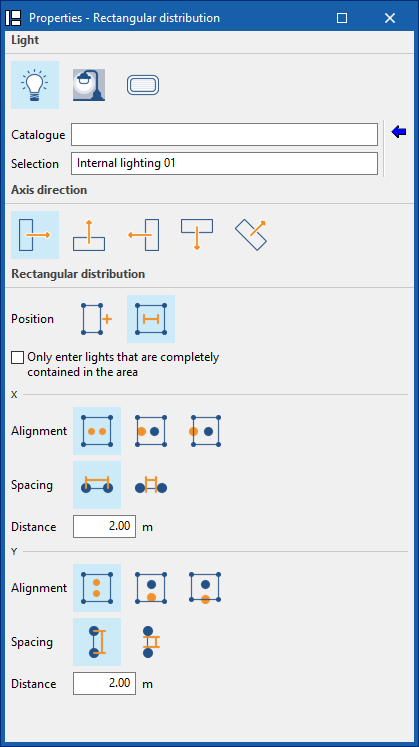
During the process, the program displays the following dockable window for defining the distribution parameters:
- Lighting type
- Interior
- Exterior
- Emergency
- Luminaires
- Catalogue / Selection
Reference to the manufacturer’s catalogue and luminaire model selection. Using the “Select a luminaire from the library” wizard, available on the right, the program allows you to select luminaires from “Manufacturer catalogues” or the “Generic elements library”. These types of elements can be created and edited via the “Catalogues” and “Indoor luminaire types”, “Outdoor luminaire types” or “Emergency luminaire types” options, respectively, available within the “Project” section of the main toolbar on the main interface.
- Catalogue / Selection
- Axis orientation
Defines the orientation of the luminaires by applying an individual rotation about their Z-axis. To do this, you specify whether the horizontal plane of origin of the photometric curve is aligned with, or oriented at a specific angle to, the reference line:- Aligned
- Rotated by 90°
- Rotated 180°
- Facing 270 degrees
- With user-defined orientation
- Rectangular distribution
Adjusts the parameters of the light distribution.- Position
Indicates whether the distribution of luminaires is defined by entering their number or a specific distance between luminaires. The program allows you to "Enter only luminaires that are completely within the area" by ticking the relevant option. This option automatically excludes any luminaires whose geometry lies partially outside the distribution polygon.- By quantity
The luminaires will be distributed evenly according to the specified number.
For each direction (X / Y), the following is specified:- Alignment
Specifies whether the luminaires are arranged "Symmetrically", aligned along their "Outer edges", or with their centres aligned with the sides of the rectangle ("Centre-centre"). - Number of luminaires
Enter the number of luminaires per row.
- Alignment
- By distance
A fixed spacing is set between luminaires, measured between centres or between edges.
For each direction (X / Y), the following is specified:- Alignment
Defines how the luminaires are positioned in relation to the boundaries of the distribution. The luminaires can be arranged "Symmetrically", aligned along their "Outer edges", or with their centres coinciding with the sides of the rectangle ("Centre-centre"). - Spacing
Indicates whether the distance measures the spacing "between centres" or "between edges" of luminaires. - Distance
Enters the distance between luminaires.
- Alignment
- By quantity
- Position
Once you have confirmed, the program generates and positions the luminaires according to the defined settings. If necessary, the position or properties of the luminaires can be edited individually at a later stage.
Polygonal distribution
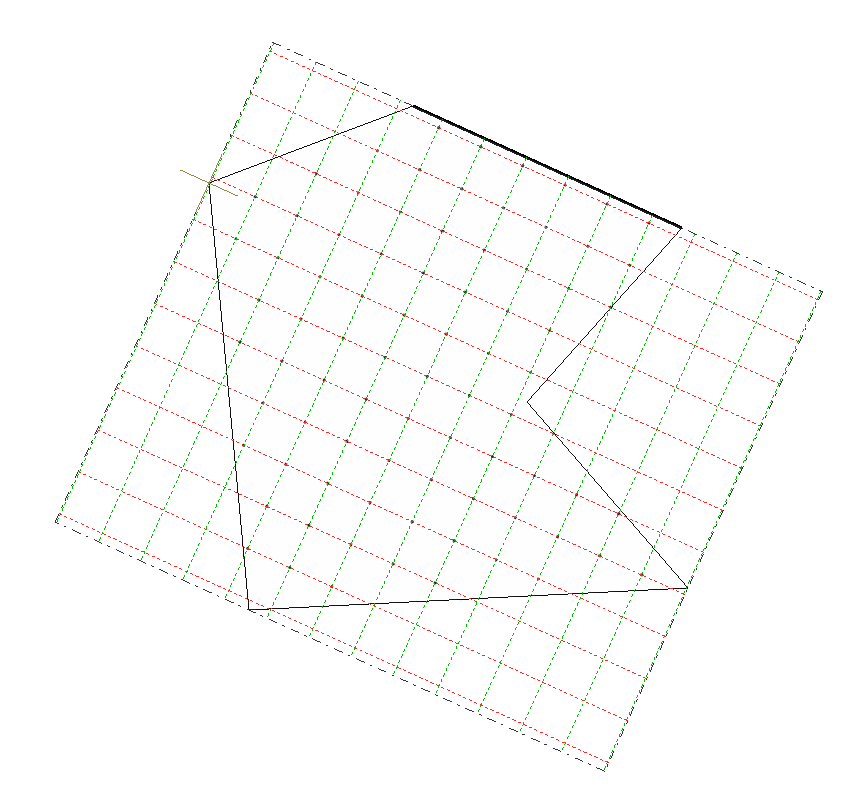
The "Polygonal distribution" option allows you to enter a grid-based luminaire layout covering a polygonal area.
To do this, mark two points in the work area to define one of the sides of the polygon, and then enter the remaining points to complete it. The program displays the luminaire alignments in the X direction in red, and those in the Y direction in green.
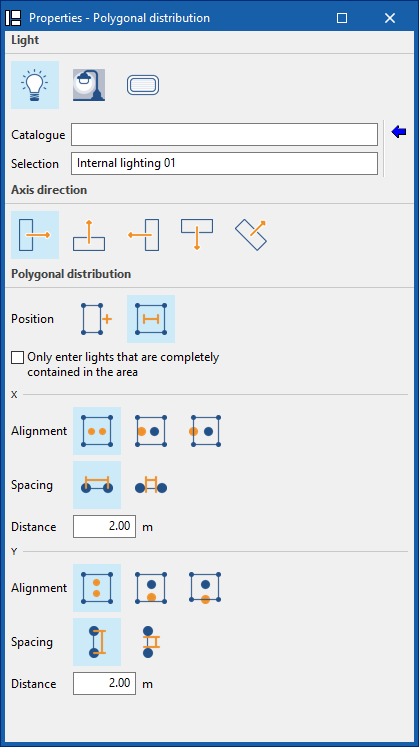
During the process, the program displays the following dockable window for defining the distribution parameters:
- Lighting type
- Interior
- Exterior
- Emergency
- Luminaire
- Catalogue / Selection
Reference to the manufacturer’s catalogue and luminaire model selection. Using the “Select a luminaire from the library” wizard, available on the right, the program allows you to select luminaires from “Manufacturer catalogues” or the “Generic elements library”. These types of elements can be created and edited via the “Catalogues” and “Indoor luminaire types”, “Outdoor luminaire types” or “Emergency luminaire types” options, respectively, available within the “Project” section of the main toolbar on the main interface.
- Catalogue / Selection
- Axis orientation
Defines the orientation of the luminaires by applying an individual rotation about their Z-axis. To do this, you specify whether the horizontal plane of origin of the photometric curve is aligned with, or oriented at a specific angle to, the reference line:- Aligned
- Rotated by 90°
- Rotated 180°
- Facing 270 degrees
- With user-defined orientation
- Polygonal distribution
Adjusts the parameters of the luminaire distribution.- Position
Indicates whether the distribution of luminaires is defined by entering their number or a specific distance between luminaires. The program allows you to "Enter only luminaires that are completely within the area" by ticking the relevant option. This option automatically excludes any luminaires whose geometry lies partially outside the distribution polygon.- By quantity
The luminaires will be distributed evenly according to the specified number.
For each direction (X / Y), the following is specified:- Alignment
Allows you to specify whether the luminaires are arranged "Symmetrically", aligned along their "Outer edges", or with their centres aligned with the sides of the rectangle ("Centre-to-centre"). - Number of luminaires
Enter the number of luminaires per row.
- Alignment
- By distance
A fixed spacing is set between luminaires, measured between centres or between edges.
For each direction (X / Y), the following is specified:- Alignment
Defines how the luminaires are positioned in relation to the boundaries of the distribution. The luminaires can be arranged "Symmetrically", aligned along their "Outer edges", or with their centres coinciding with the sides of the rectangle ("Centre-to-centre"). - Spacing
Indicates whether the distance measures the spacing "between centres" or "between edges" of luminaires. - Distance
Enter the distance between luminaires.
- Alignment
- By quantity
- Position
Once you have confirmed, the program generates and positions the luminaires according to the defined settings. If necessary, the position or properties of the luminaires can be edited individually at a later stage.
Layout by zone
The "Layout by zone" option allows you to enter a grid layout of luminaires covering the area selected by the user.
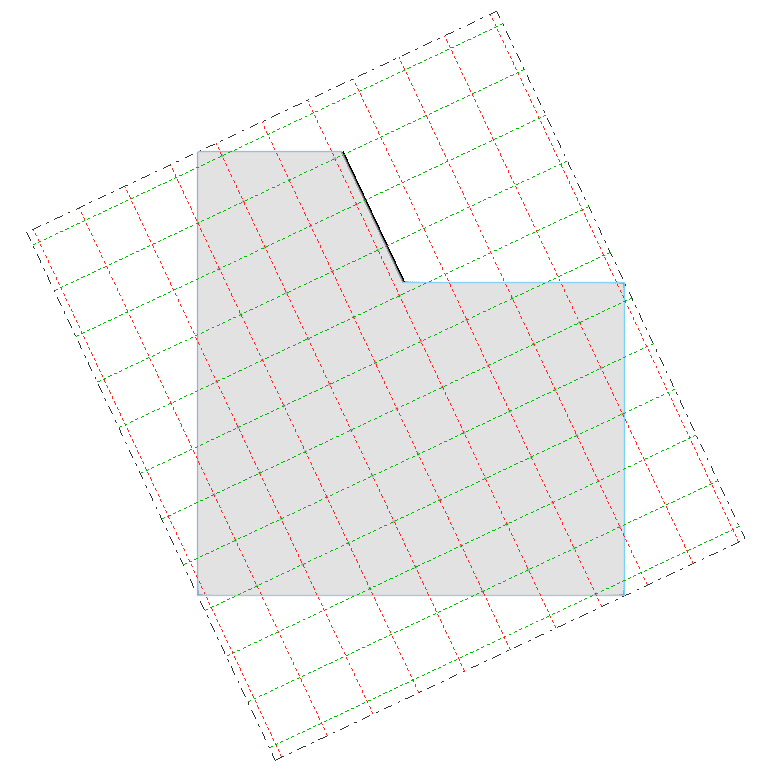
To do this, left-click on one of the zones that have been imported or previously entered into the model. This generates a polygonal layout that fits the zone. The side of the selected zone will determine the orientation of the X-axis of the layout. The program displays luminaire alignments in the X-direction in red and those in the Y-direction in green.
During the process, the program displays the following dockable window for defining the layout parameters:
- Lighting type
- Interior
- Exterior
- Emergency
- Luminaire
- Catalogue / Selection
Reference to the manufacturer’s catalogue and luminaire model selection. Using the “Select a luminaire from the library” wizard, available on the right, the program allows you to select luminaires from “Manufacturer catalogues” or the “Generic elements library”. These types of elements can be created and edited via the “Catalogues” and “Indoor luminaire types”, “Outdoor luminaire types” or “Emergency luminaire types” options, respectively, available within the “Project” section of the main toolbar on the main interface.
- Catalogue / Selection
- Axis orientation
Defines the orientation of the luminaires by applying an individual rotation about their Z-axis. To do this, you specify whether the horizontal plane of origin of the photometric curve is aligned with, or oriented at a specific angle to, the reference line:- Aligned
- Rotated by 90°
- Rotated 180°
- Facing 270 degrees
- With user-defined orientation
- Layout by zone
Adjusts the lighting layout settings.- Position
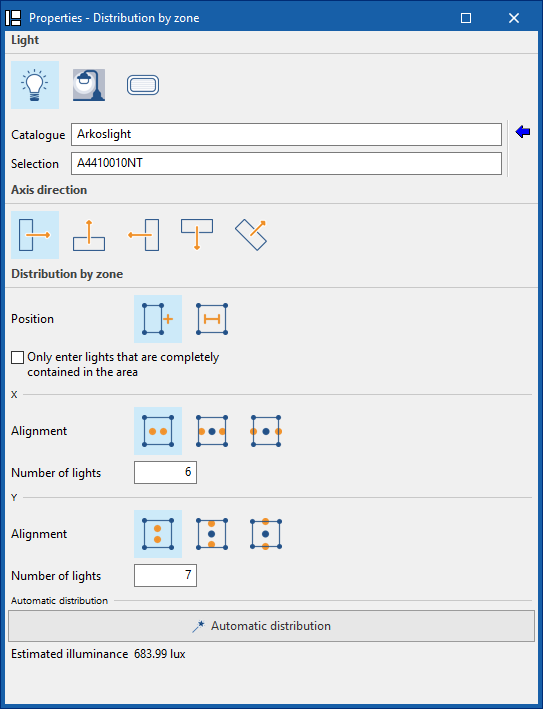
Indicates whether the layout of luminaires is defined by entering their number or a specific distance between luminaires. The program allows you to "Enter only luminaires that are completely within the zones" by ticking the relevant option. This option automatically excludes any luminaires whose geometry lies partially outside the distribution polygon.- By quantity
The luminaires will be distributed evenly according to the specified number.
For each direction (X / Y), the following is specified:- Alignment
Specifies whether the luminaires are arranged "Symmetrically", aligned along their "Outer edges", or with their centres aligned with the sides of the rectangle ("Centre-to-centre"). - Number of luminaires
Enter the number of luminaires per row.
- Alignment
- By distance
A fixed spacing is set between luminaires, measured between centres or between edges.
For each direction (X / Y), the following is specified:- Alignment
Defines how the luminaires are positioned in relation to the boundaries of the layout. The luminaires can be arranged "Symmetrically", aligned along their "Outer edges", or with their centres coinciding with the sides of the rectangle ("Centre-to-centre"). - Spacing
Indicates whether the distance measures the spacing "Between centres" or "Between edges" of luminaires. - Distance
Enter the distance between luminaires.
- Alignment
- By quantity
- Position
- Automatic layout
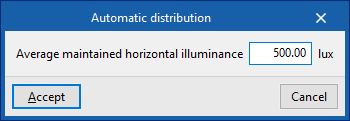
Calculates the optimal number of luminaires required to achieve a target illuminance. To do this, once a luminaire model and a zone have been selected, the program automatically adjusts the layout parameters to approximate an “Average maintained horizontal illuminance”, which must be entered by the user. The “Estimated illuminance” based on the generated parameters is displayed on the panel.
Once you have confirmed, the program generates and positions the luminaires according to the defined settings. If necessary, the position or properties of the luminaires can be edited individually at a later stage.
Automatic layout
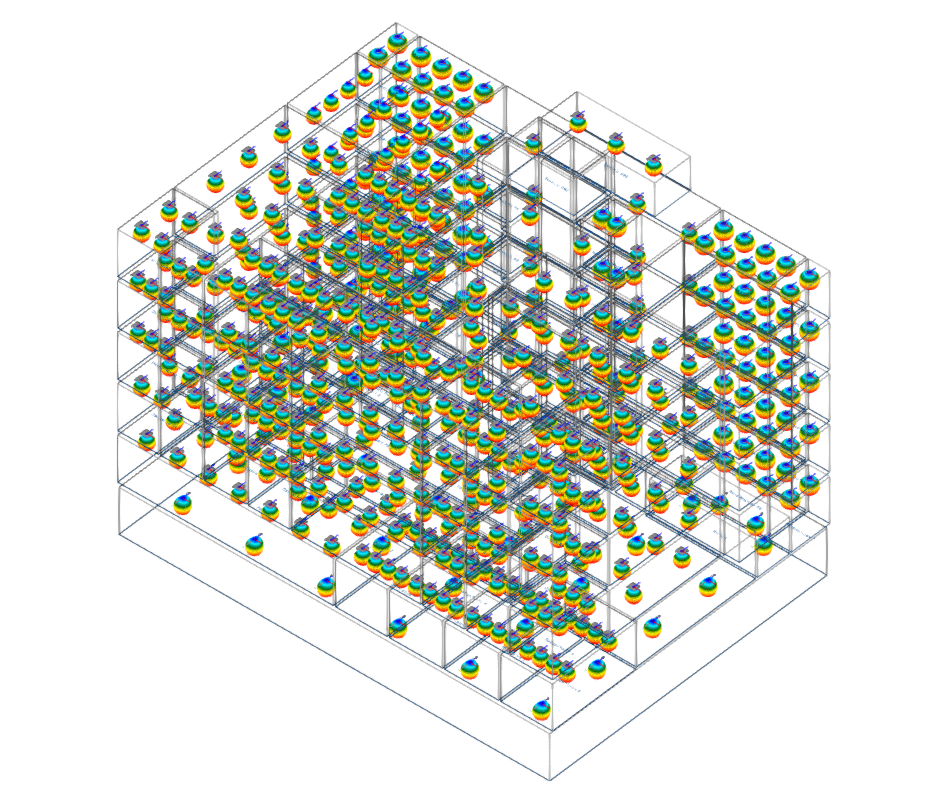
The "Automatic layout" option allows you to automatically generate a lighting layout proposal for all desired areas of the building, for both normal lighting and emergency lighting.
The program generates an optimal layout of luminaires by selecting the product to be used in each type of space, accessing the catalogue of the chosen manufacturer, and defining both the installation height and the average horizontal illuminance maintained.
Follow these steps. When activating the tool, a window opens with two tabs: "Normal lighting", which allows you to configure the generation of indoor and outdoor lighting, and "Emergency lighting", which allows you to configure the generation of emergency lighting.
Each tab displays a list of all the zone types—both indoor and outdoor—defined in the model. Ticking the "Apply" box includes the zone type in the generation; in this case, a marker will appear on the right-hand side of the list indicating that the luminaire model for that zone must be defined.
When you "Edit" each zone type selected from the list using the button on the top toolbar, you can specify:
- The luminaire model, specifying the "Lighting type" (indoor or outdoor), the "Catalogue" and the reference number of the selected luminaire (under "Selection"). Using the "Select a luminaire from the library" wizard, available on the right, the program allows you to select luminaires from "Manufacturer catalogues" or the "Generic elements library".
- The "Reference plane", whether the "Floor" or the "Ceiling", and the "Installation height" relative to it (which allows for the automatic positioning of recessed luminaires in ceilings of different heights).
- The desired "Maintained horizontal average illuminance".
The "Assign" option on the top toolbar allows you to assign the data defined in the selected area to the other areas.
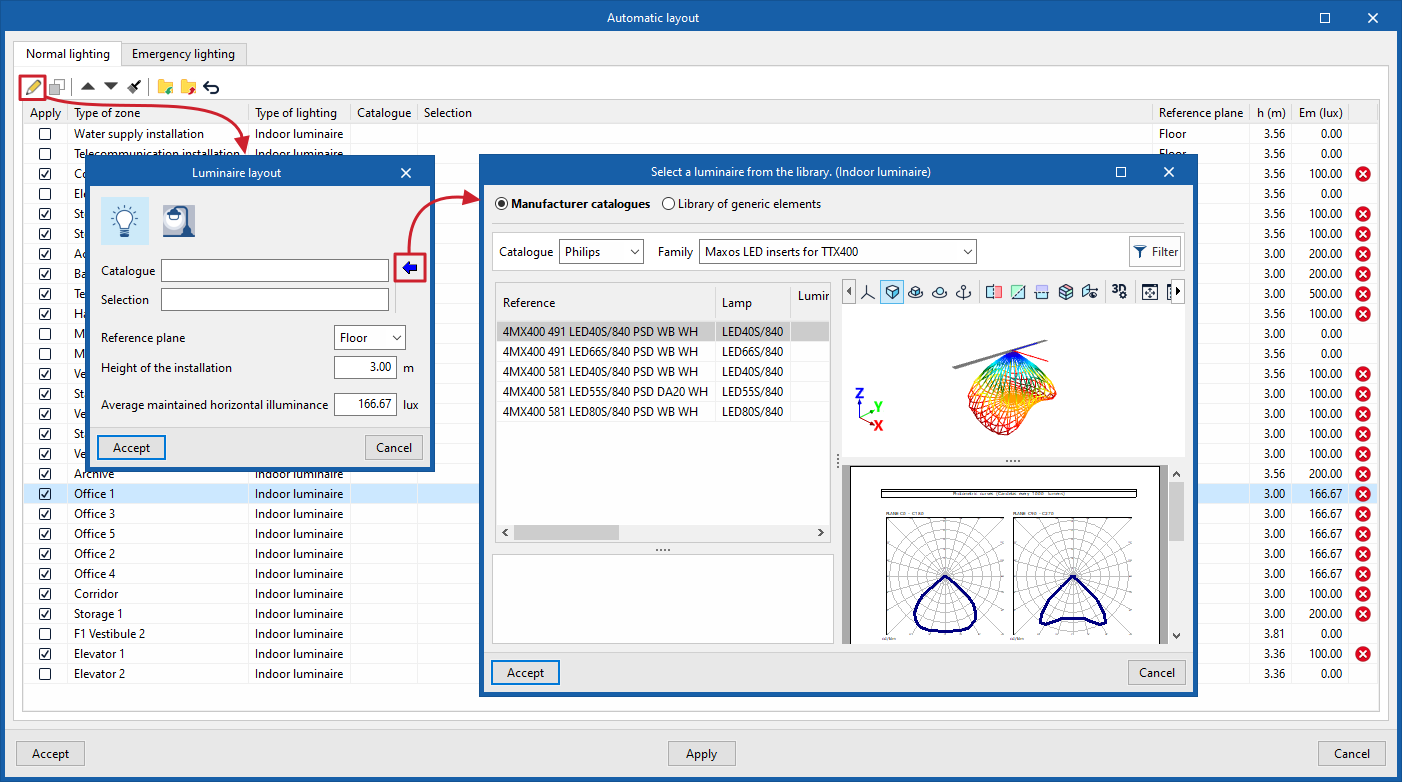
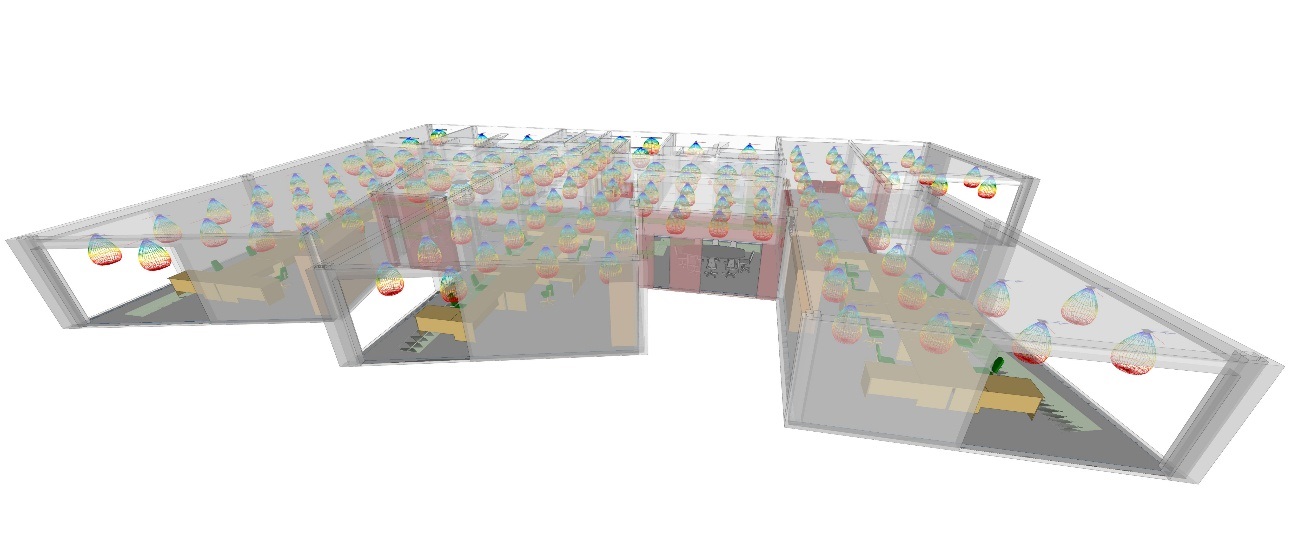
Once these parameters have been configured, clicking "Apply" at the bottom of the window causes the programme to automatically perform a "Layout by zone" of indoor, outdoor and/or emergency luminaires in all the corresponding rooms, applying the criteria defined for each type of zone. All necessary calculations are performed to determine the number of luminaires to be installed per zone, adapting the layout to the geometry and shape of the spaces.
In order to generate both standard and emergency lighting luminaires simultaneously, the program examines the layout of the standard lighting generated and positions the emergency luminaires accordingly so that they do not overlap.
| Note: |
|---|
| The automatic layout of emergency luminaires carried out using this option is intended for the design of open-area (anti-panic) lighting. This tool does not support the automatic placement of emergency luminaires for escape routes or at exits. |
Editing tools
The tools for editing model elements are located in the "Edit" section of the main toolbar on the "Installation" tab.

The tools section of this group allows you to perform the following operations.
 | Edit | Edits the parametric properties of the selected element in the model. |
 | Measure lengths on plan | Measures distances between points defined in the model. If a closed contour is selected, it also calculates the area. |
 | Move | Moves an element or a node within an element. |
 | Rotatae | Rotates an element in the selected plane. |
 | Copy | Create a copy of one or more elements. |
 | Copy between plan views | This creates a copy of the selected elements on the desired floors. After selecting the elements to be copied, tick the boxes for the destination floors where you want the elements to be copied. |
 | Move a group of elements | Moves a group of elements. |
 | Rotate a group of elements | Rotate a group of elements about the centre, with the angle of rotation defined by two points on the plan view. |
 | Symmetry (move) | Rotates a selection of elements symmetrically about an axis defined by two points. |
 | Symmetry (copy) | Copies a selection of elements that are symmetrical about an axis defined by two points. |
 | Match | Matches the parametric properties of the selected element to those of other elements. |
 | Delete | Deletes a previously entered element. |
Rendering scenes
In the "Visualisation" group of the program's main toolbar, there are options for generating and visualising the rendering of scenes:

Thanks to the inclusion of the Radiance analysis engine in the program, these options can be used to represent the effect of lighting produced by the installation of normal or emergency lighting on a space, as well as the effect of natural lighting, creating scene views on the model and generating rendered images of these scenes.
New view
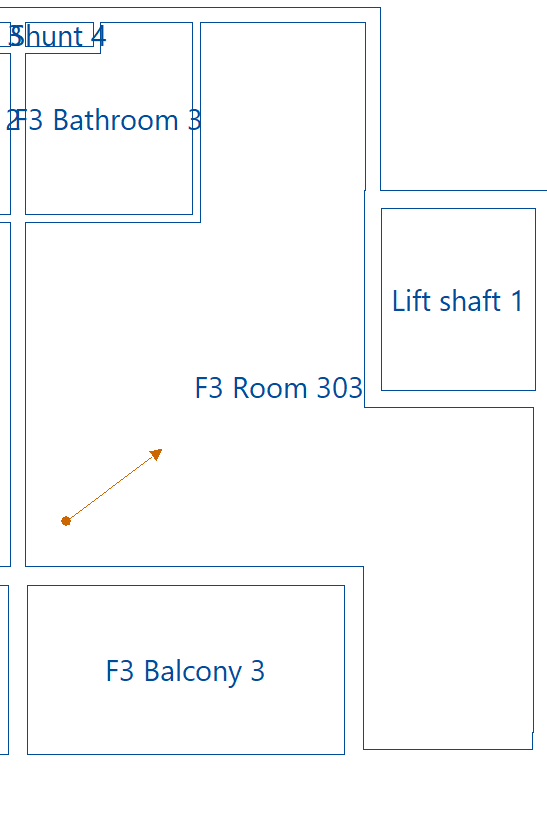
Enters a new view in the model by marking the points that define its position and direction on the plan.
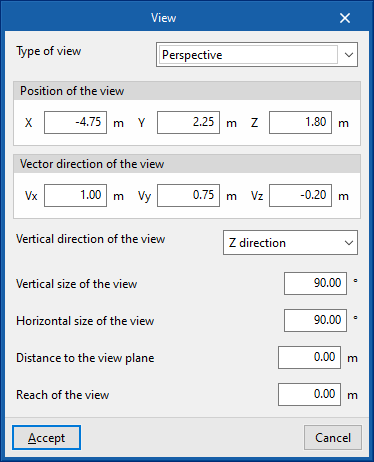
In doing so, the following features are configured:
- Type of view
- Perspective
- Cylindrical
- Hemispheric fisheye
- Angular fisheye
- Ojo de pez planisférica
- Position of the view
Absolute coordinates of the point defining the direction of the view. The program takes these data from the points marked on the plan, but they can be modified:- X, Y, Z
- Vector direction of the view
Components of the vector defining the direction of the view. The program takes these data from the points marked on the plan, but they can be modified:- Vx, Vy, Vz
- Vertical direction of the view
- X direction
- Y direction
- Z direction
- Vertical size of the view
- Horizontal size of the view
- Distance to the view plane
- Reach of the view
These views are represented in the workspace by the symbols of a point and a vector.
Render
Selects a view previously inserted in the model and renders it.
The program will generate the scene with the Radiance analysis engine and display the rendering process and result in a specific window, in which the image is refined through several sweeps.
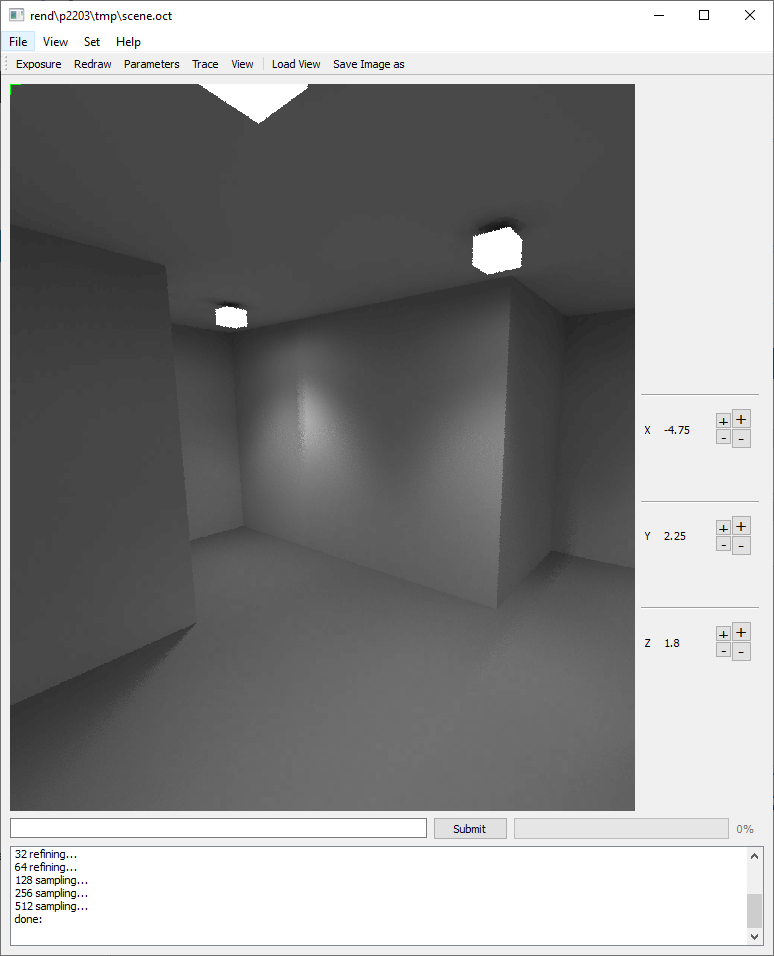
Rendering configuration
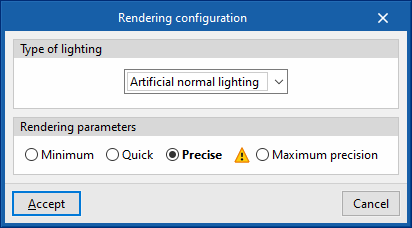
Configures the rendering of scenes.
When rendering, users can choose whether they want to display the scene with normal artificial lighting (interior and exterior), emergency lighting or natural lighting with daylight, as well as the degree of accuracy of the scene.
- Artificial normal lighting / Emergency lighting / Natural lighting
- Rendering parameters (Minimum / Quick / Precise / Maximum precision)
Distribution of calculation points
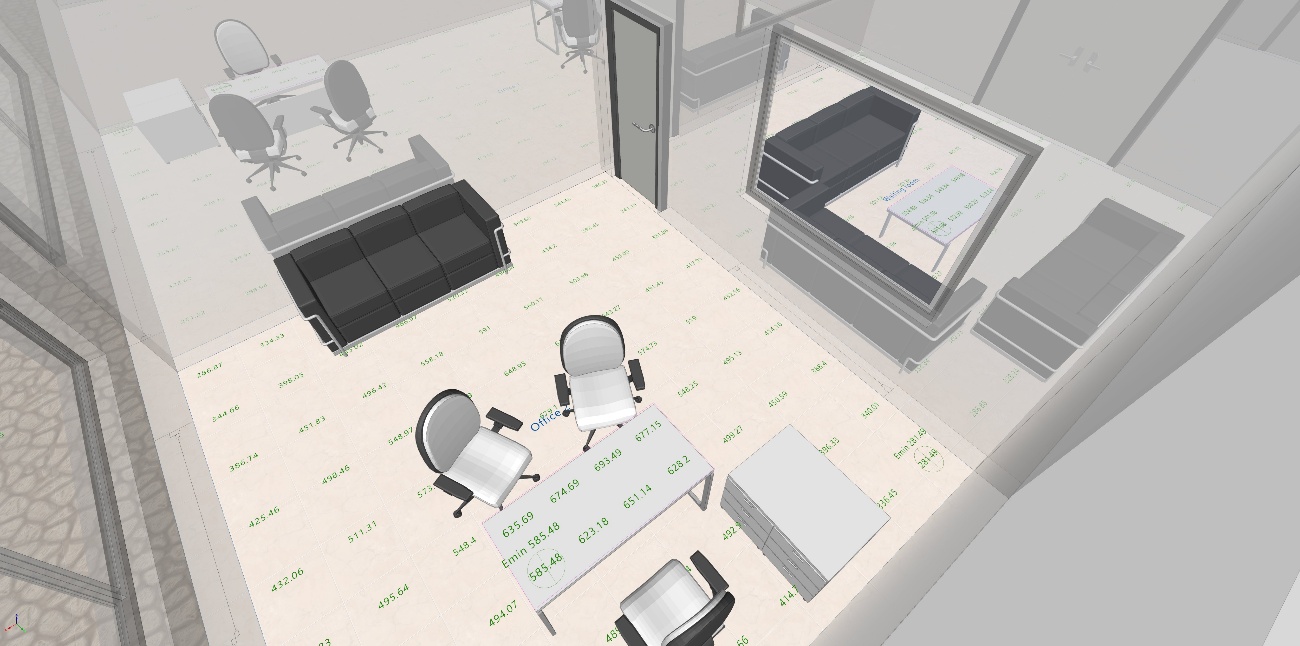
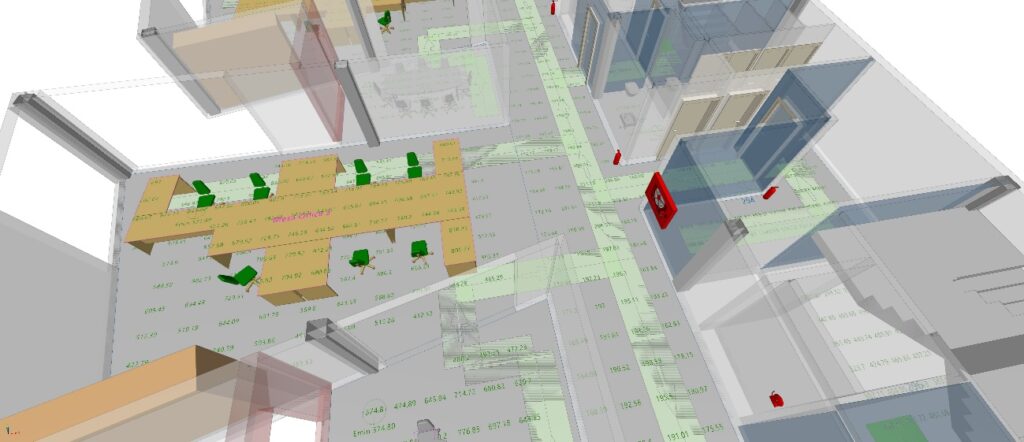
Proper distribution of the calculation points is essential for obtaining reliable and representative illuminance results. For this reason, and in accordance with the guidelines established in standard EN 12464-1, the program implements a positioning of the calculation points adapted to the geometry and characteristics of the premises where the study is carried out.
The final result meets the following criteria:
- Do not exceed the maximum grid cell size.
- In large enclosures, do not exceed a grid size of 10 metres.
- Ensure regular meshing of the calculation points.
Managing the display and snapping of elements
The dockable panels or windows labelled "Elements read" and "Own elements", located on the left-hand side of the "Installation" tab interface, allow you to manage the display and capture of elements read from the BIM model and custom elements in the workspace using a system of layers or categories.
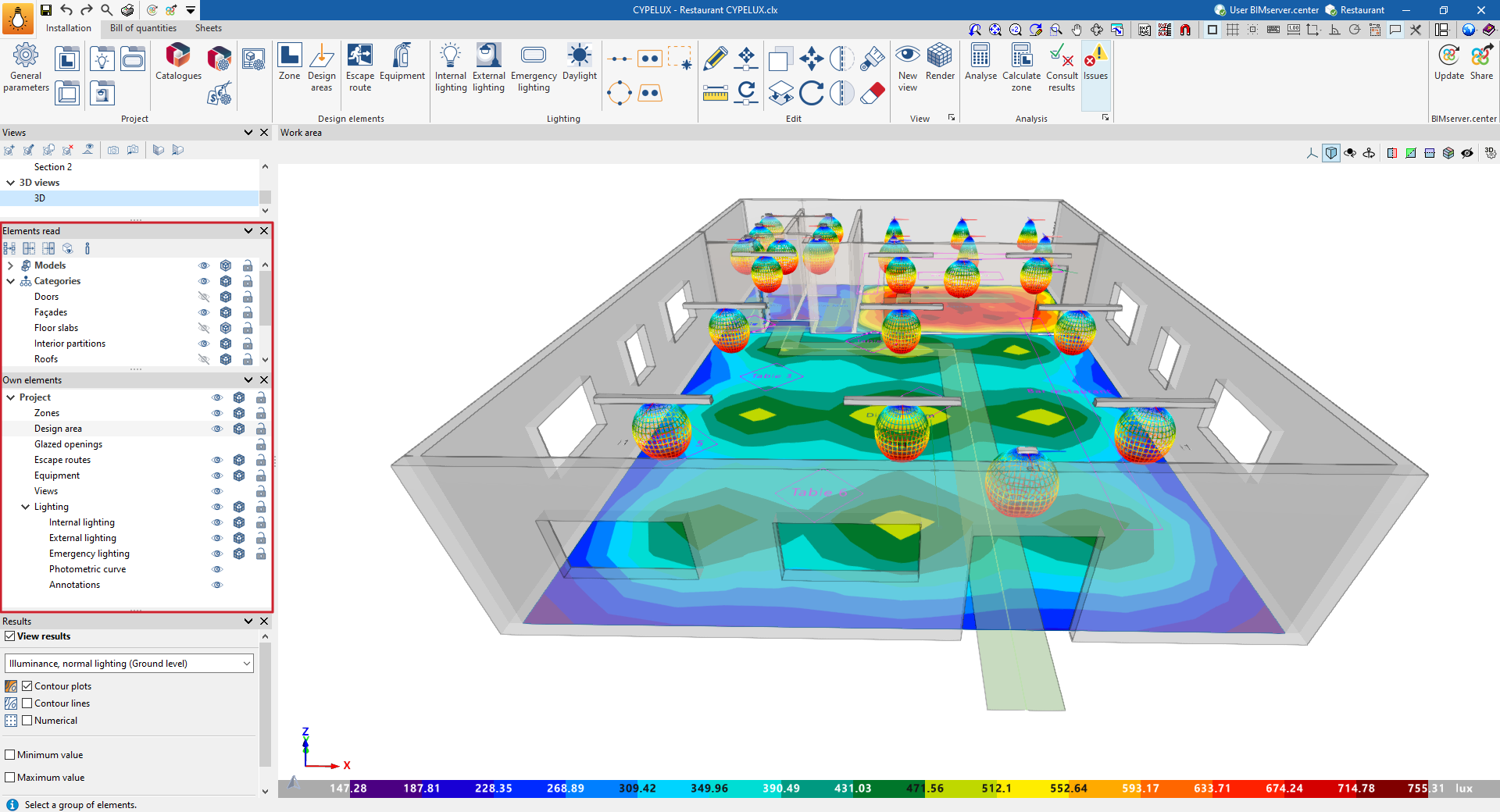
The "Elements read" panel allows you to manage the visibility and capture of elements from other BIMserver.center contributions that have been integrated into the model during the linking process.
The "Own elements" panel manages the visibility and capture of lighting model components inserted into CYPELUX. The available categories are as follows:
- Zones
- Design areas
- Glazed openings
- Escape route
- Equipment
- Views
- Lighting
- Indoor luminaire
- Outdoor luminaire
- Emergency luminaire
- Photometric curve
- Annotations
For each category, the program offers the following controls:
- Visible
Shows or hides the elements in the category. - Transparent
Sets the display of elements in the category to either opaque or transparent. - Capture
Captures elements from the category, including for editing or viewing purposes.
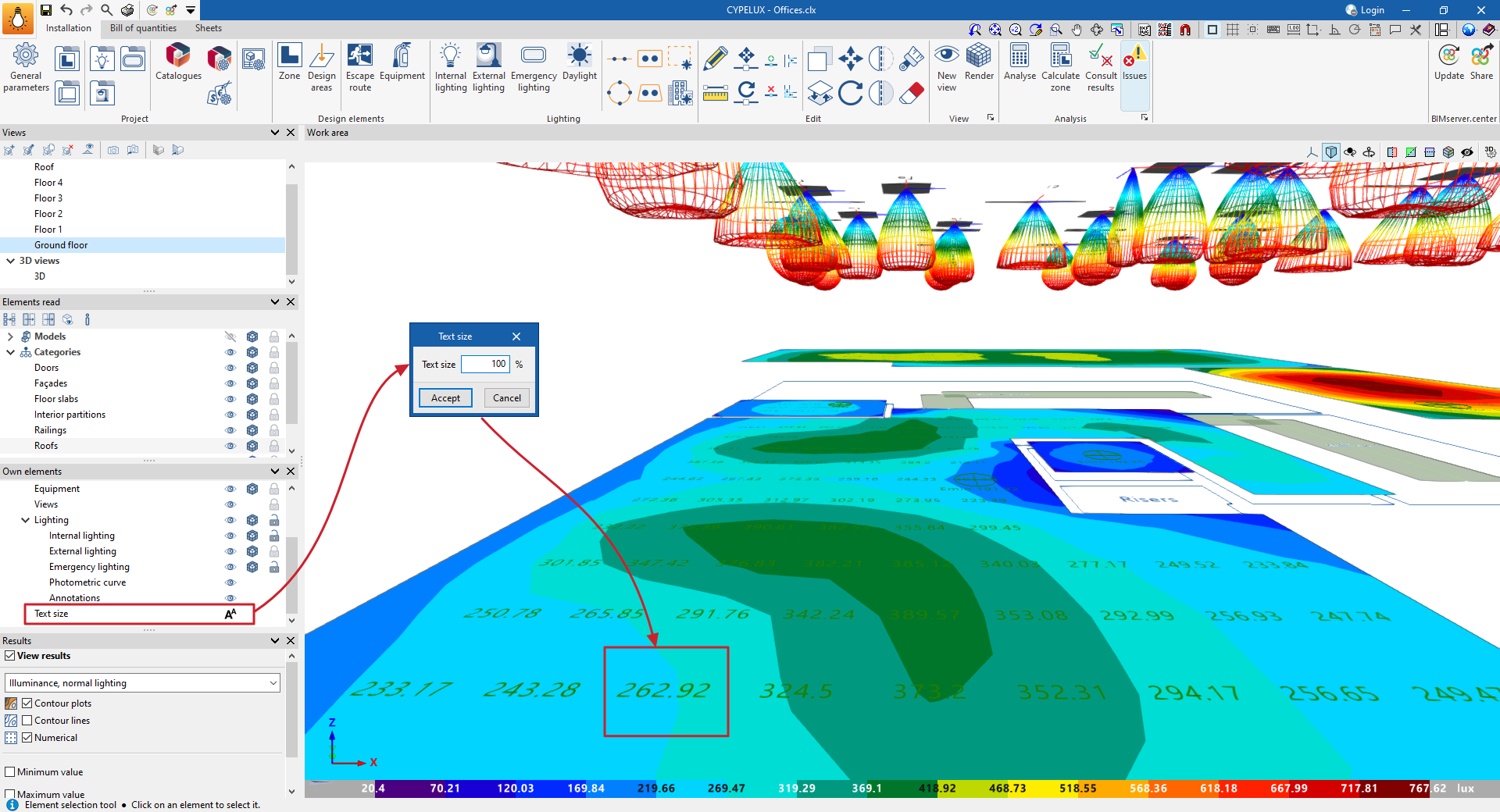
In addition, in the "Custom elements" panel, the program provides a tool for controlling the "Text size".
Text size
Using the "Text size" option in the "Own elements" panel, which is located by default on the left-hand side of the interface, the program allows you to adjust the size of the text displayed in the 3D environment. The size is set by entering a percentage of the original size.
Users can adjust the text size to suit the dimensions of the venue. Thus, in large venues, such as warehouses or industrial halls, the text can be enlarged to improve readability, whilst in smaller venues it can be reduced in size to prevent text from overlapping.
Displaying results on screen
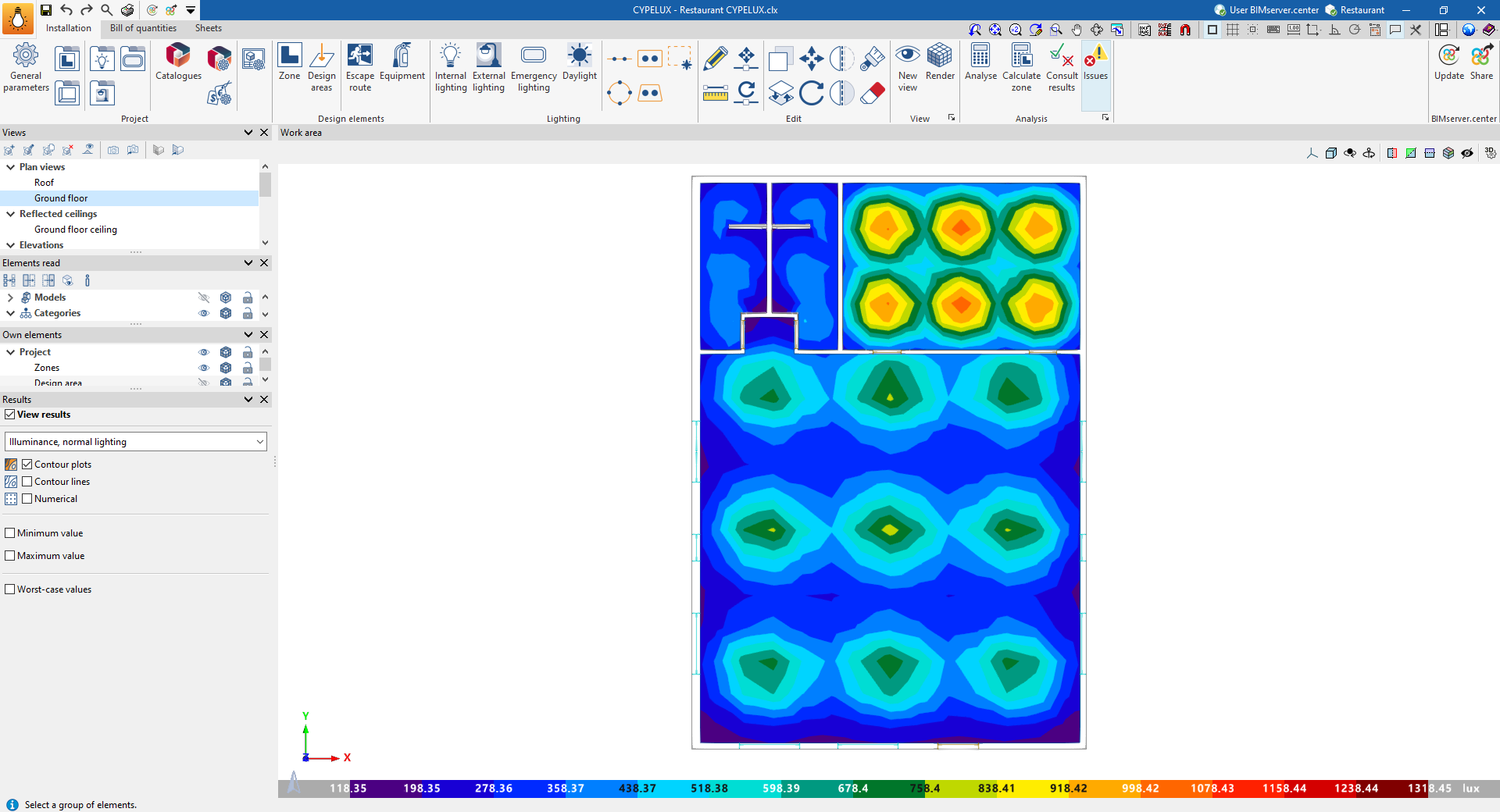
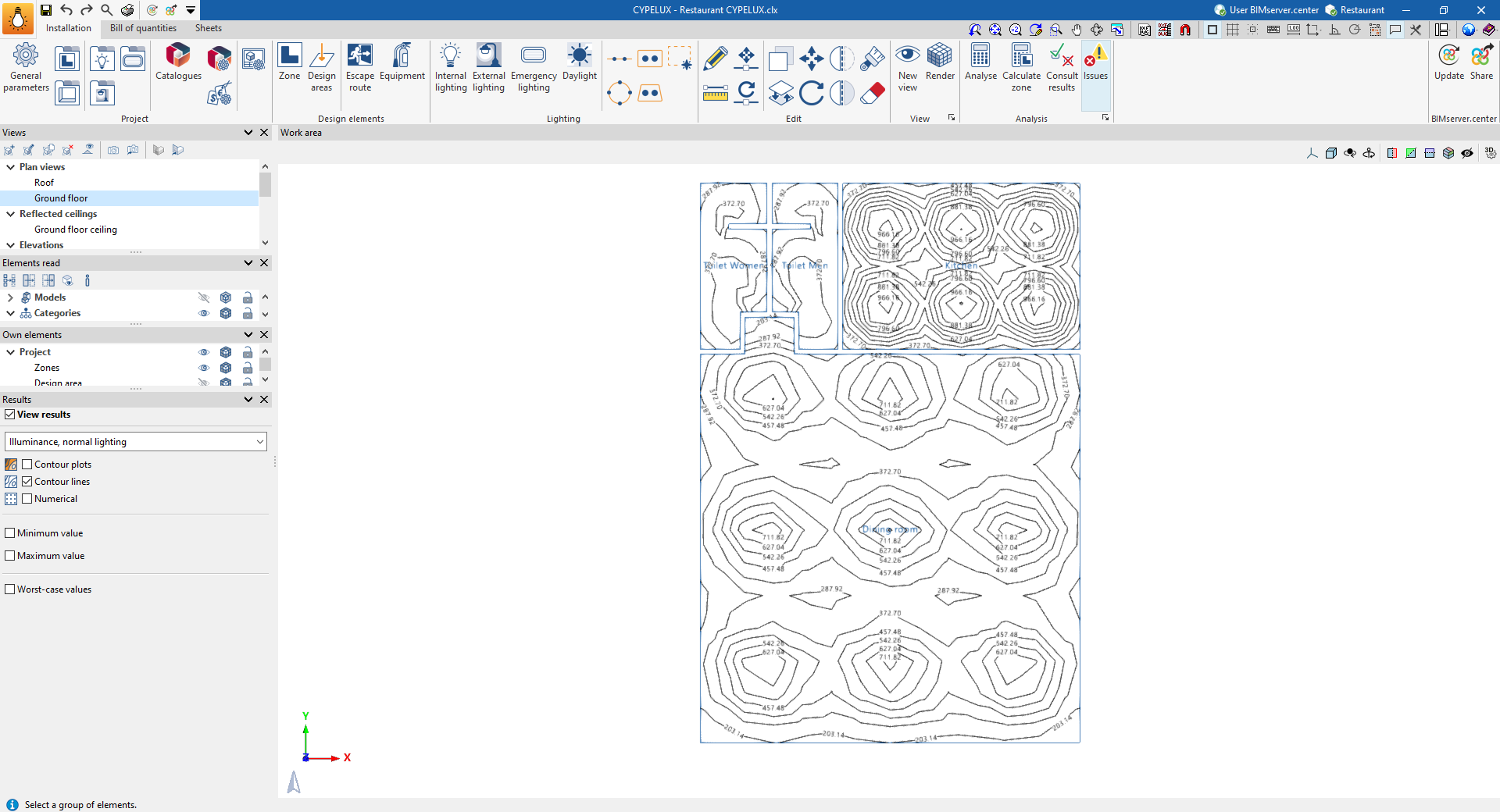
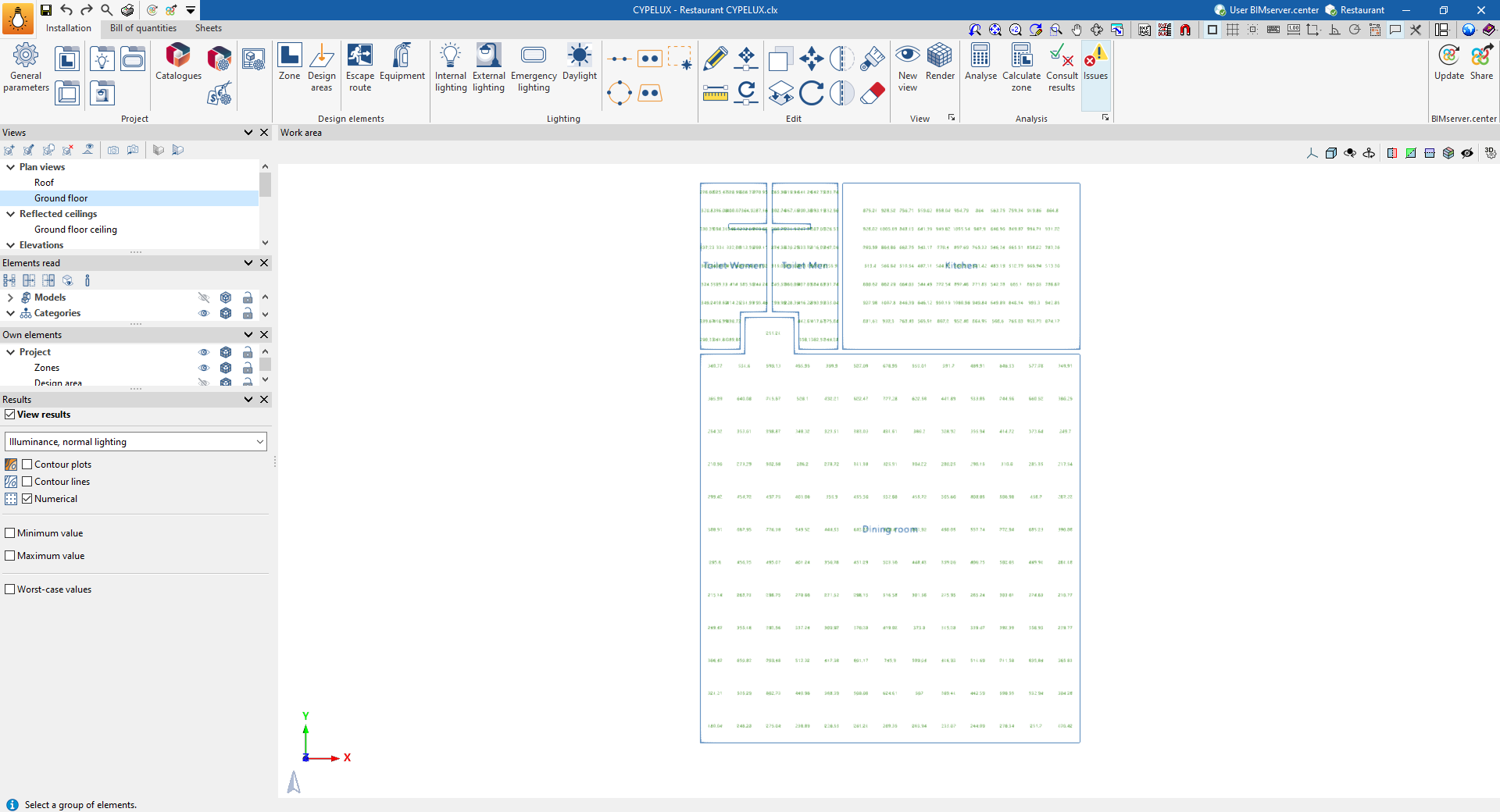
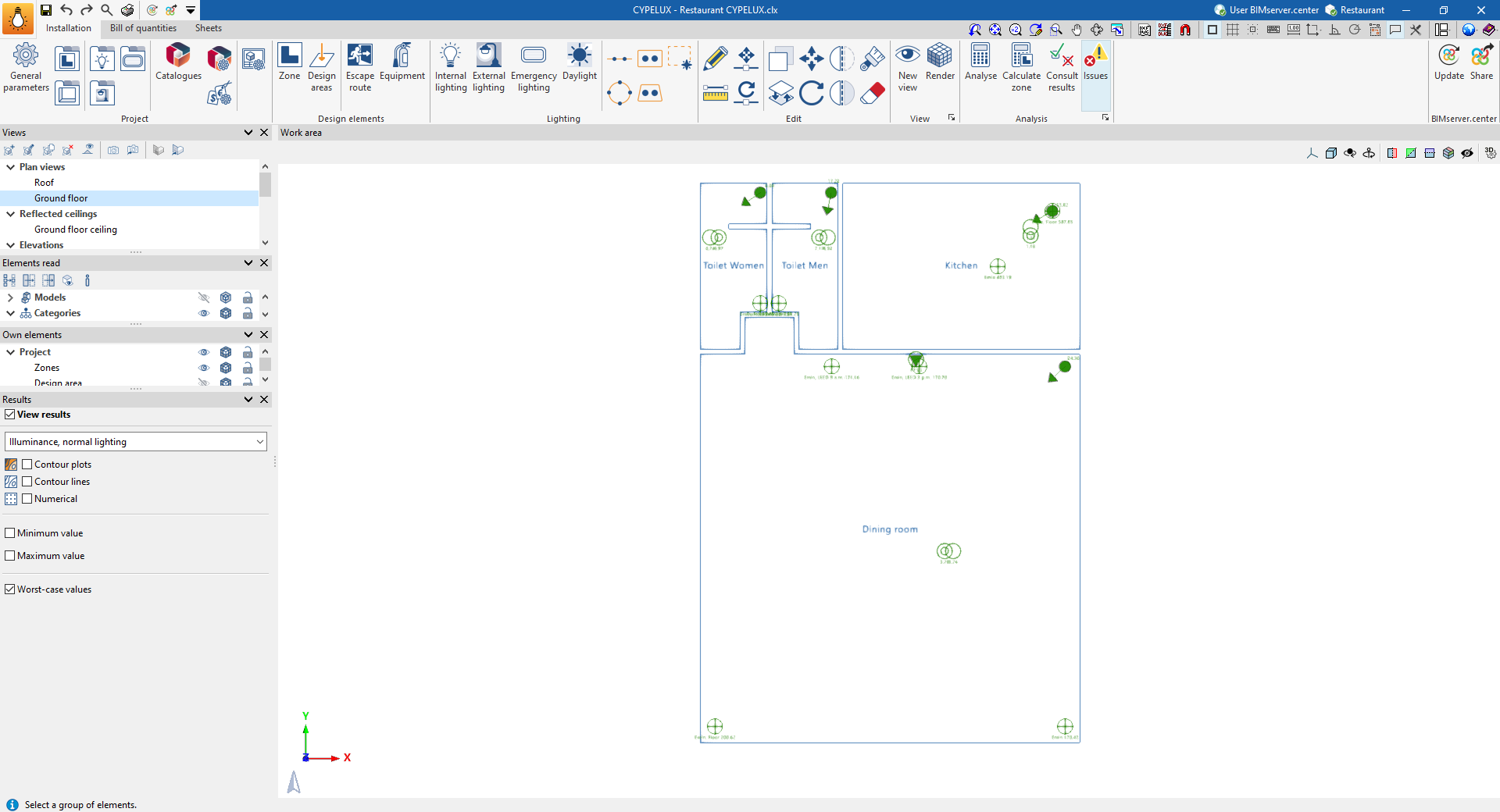
Once the calculation has been performed, the program can display the illuminance (normal and emergency) and glare results for the relevant areas on screen, either using isoline or isovalue graphs, or by showing the numerical values at each point on the floor plan.
To do this, tick the "View results" box in the "Results" panel, located at the bottom of the left-hand side.
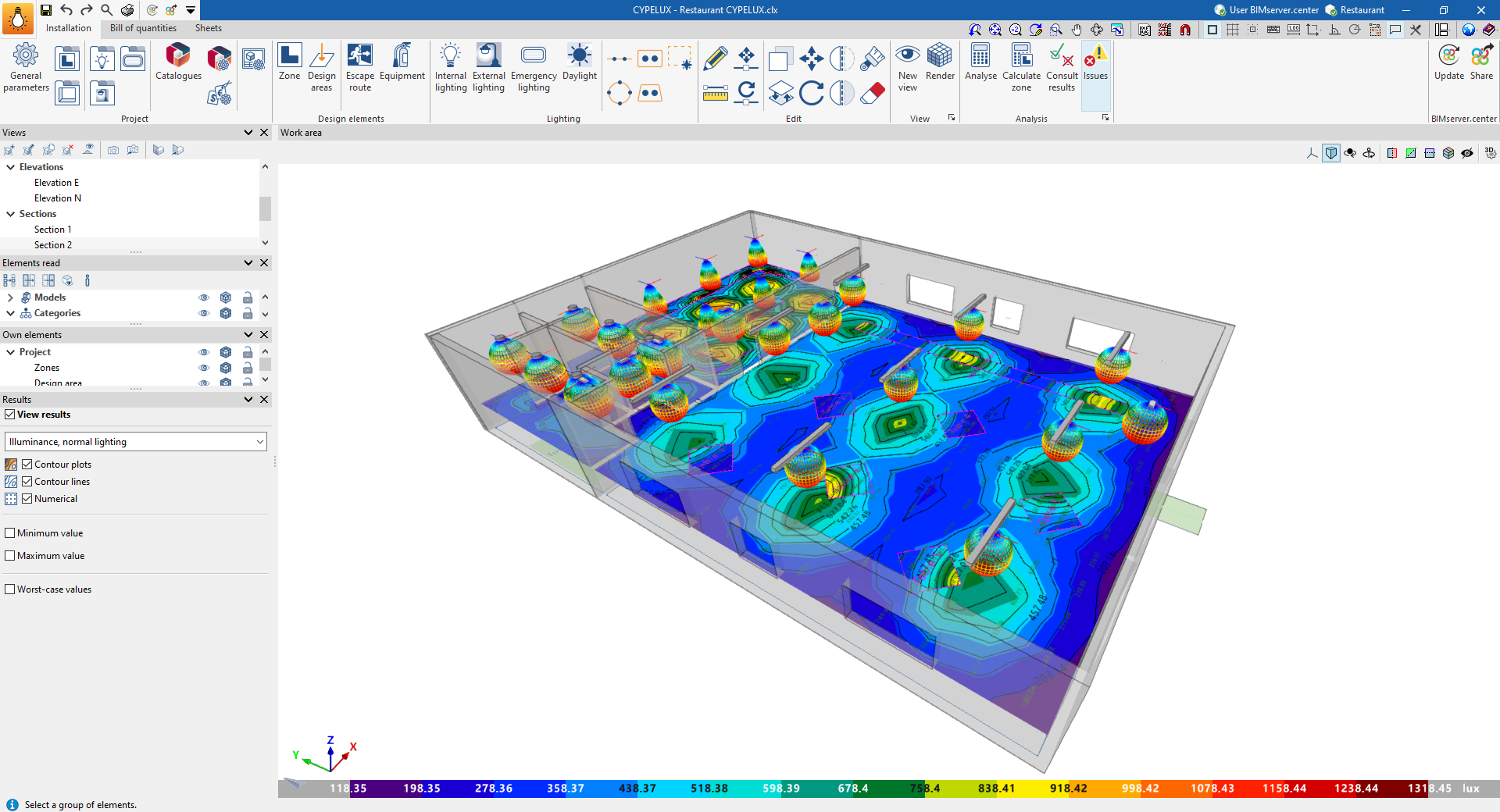
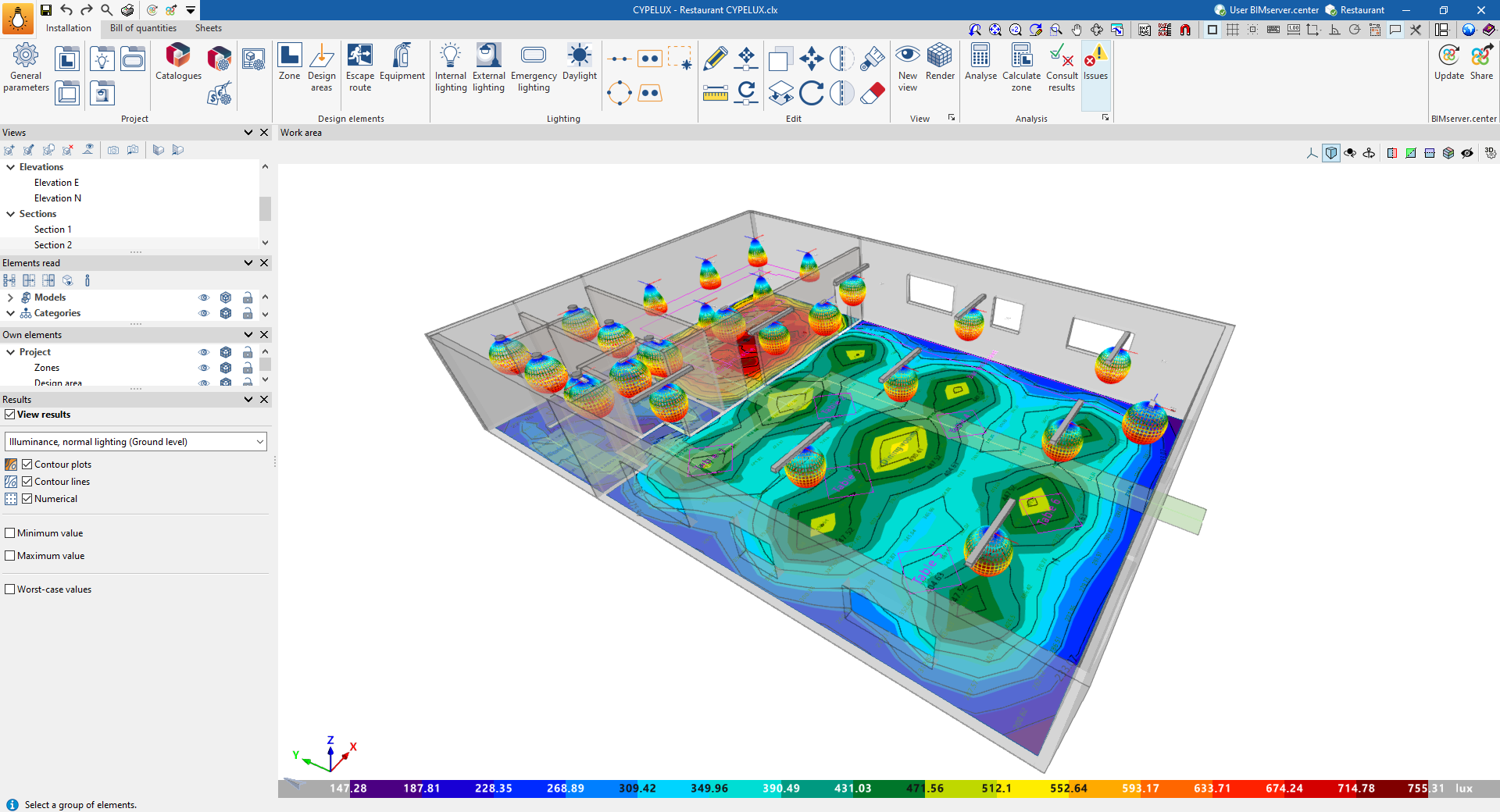
In the first drop-down menu in this section, select the results you wish to view:
- Illuminance levels, normal lighting
- Illuminance levels, normal lighting (at floor level)
- Glare (UGR), normal lighting
- Illuminance levels, normal lighting (if emergency luminaires have been installed)
- Daylight factor (if the relevant calculation has been enabled using the "Daylight" option)
- LEED 4.0 CAI CREDIT 8.1 (Times: 9 am–3 pm) (provided the relevant check has been enabled in the zones)
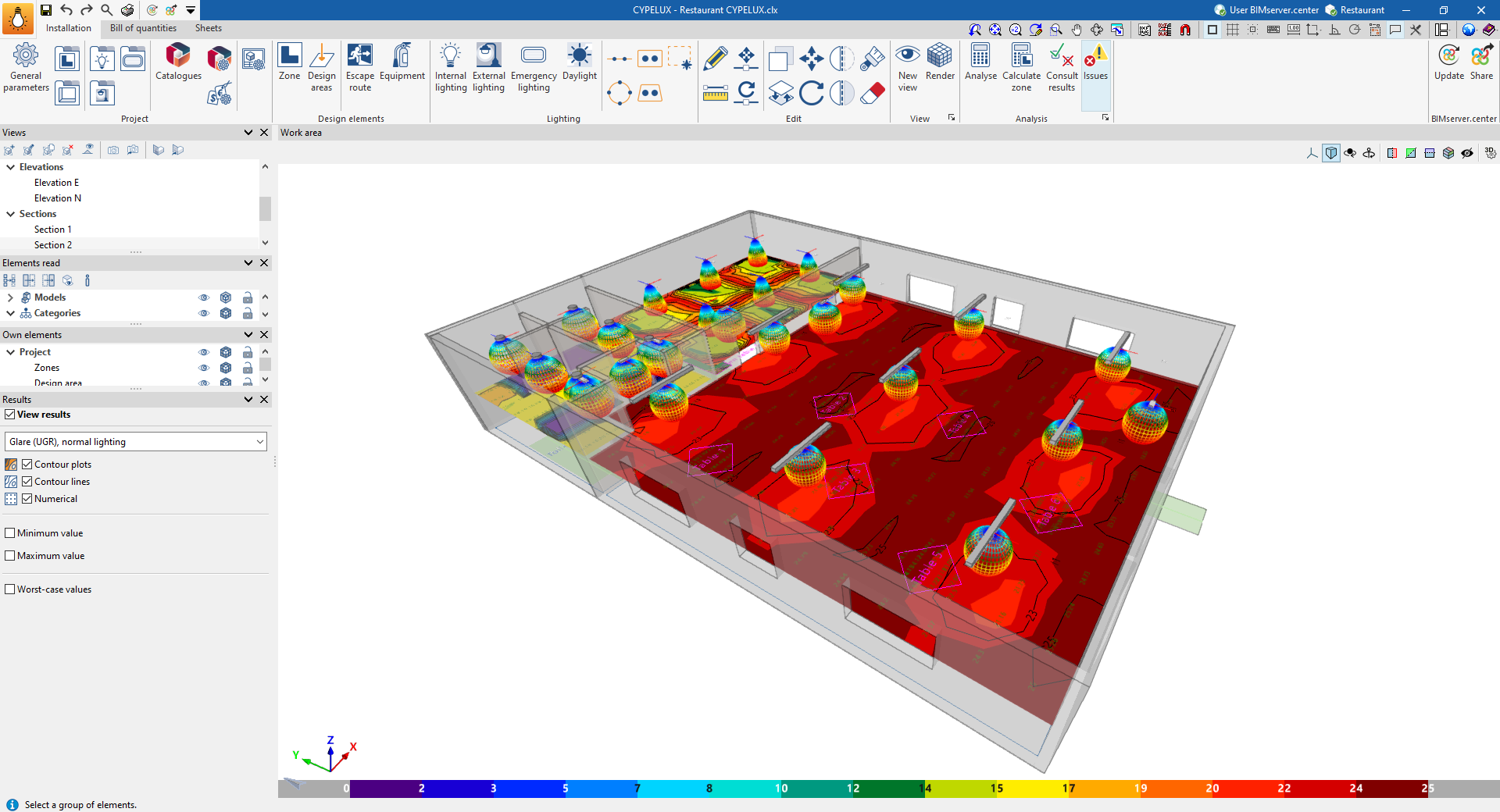
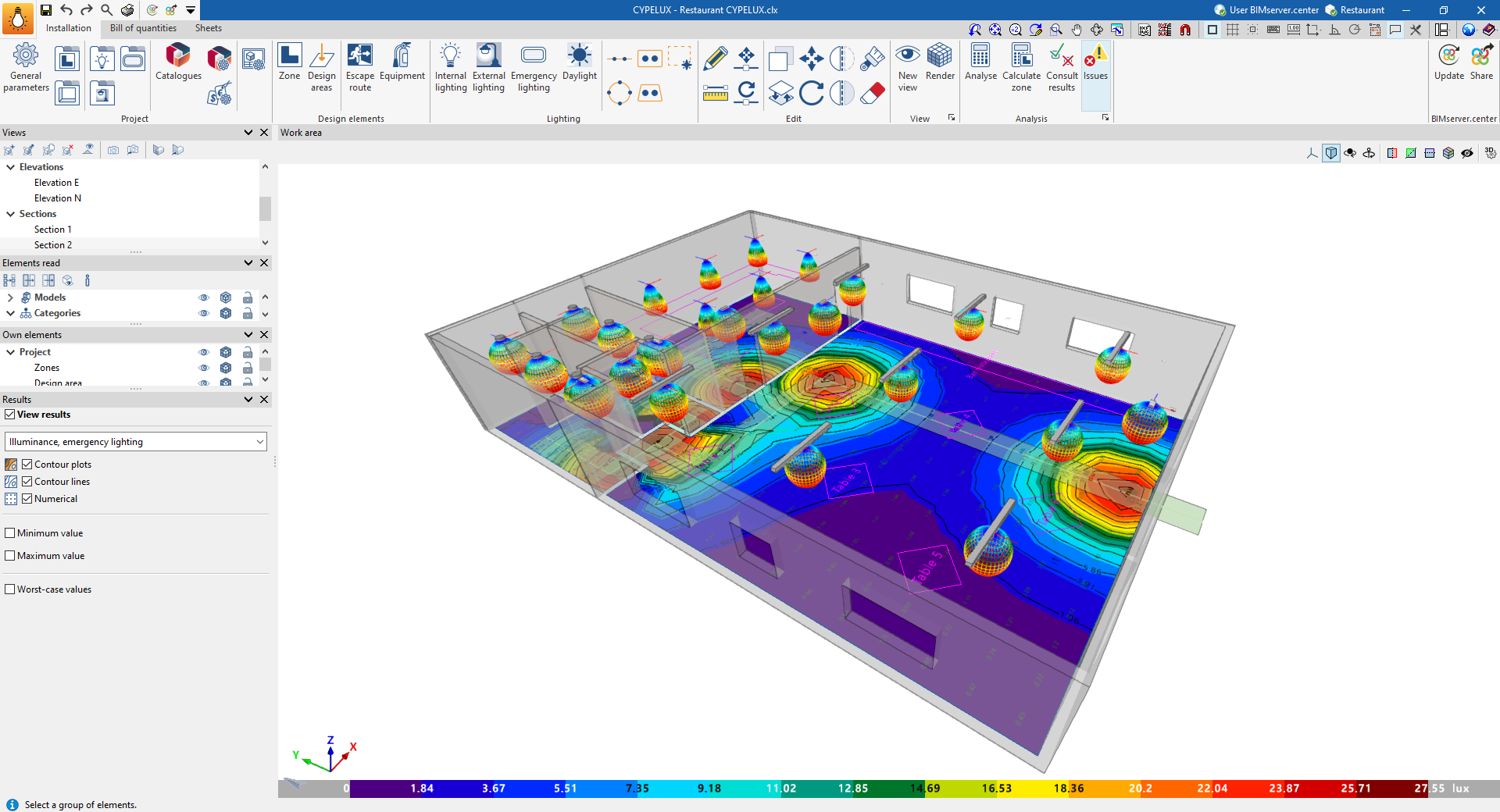
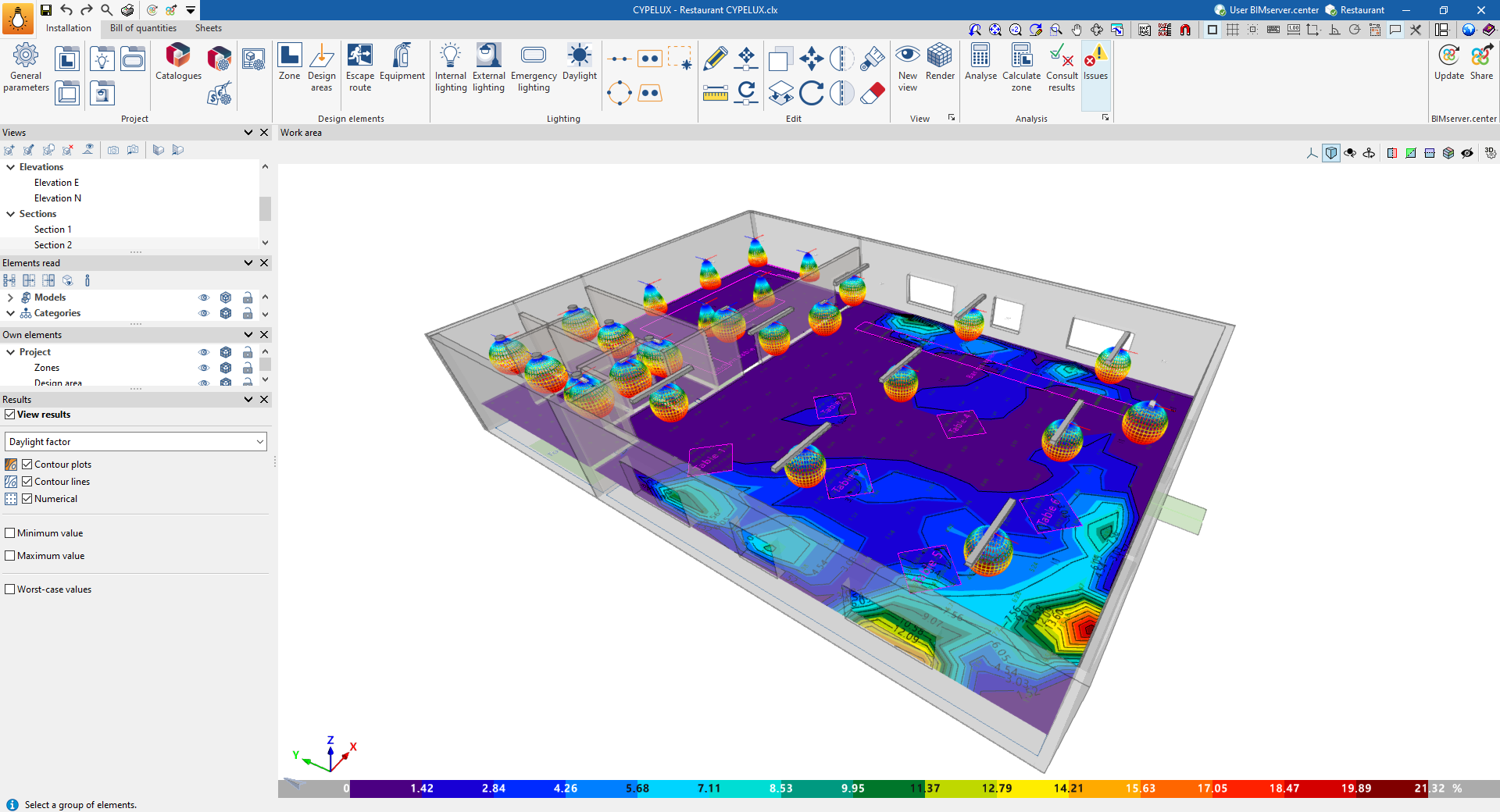
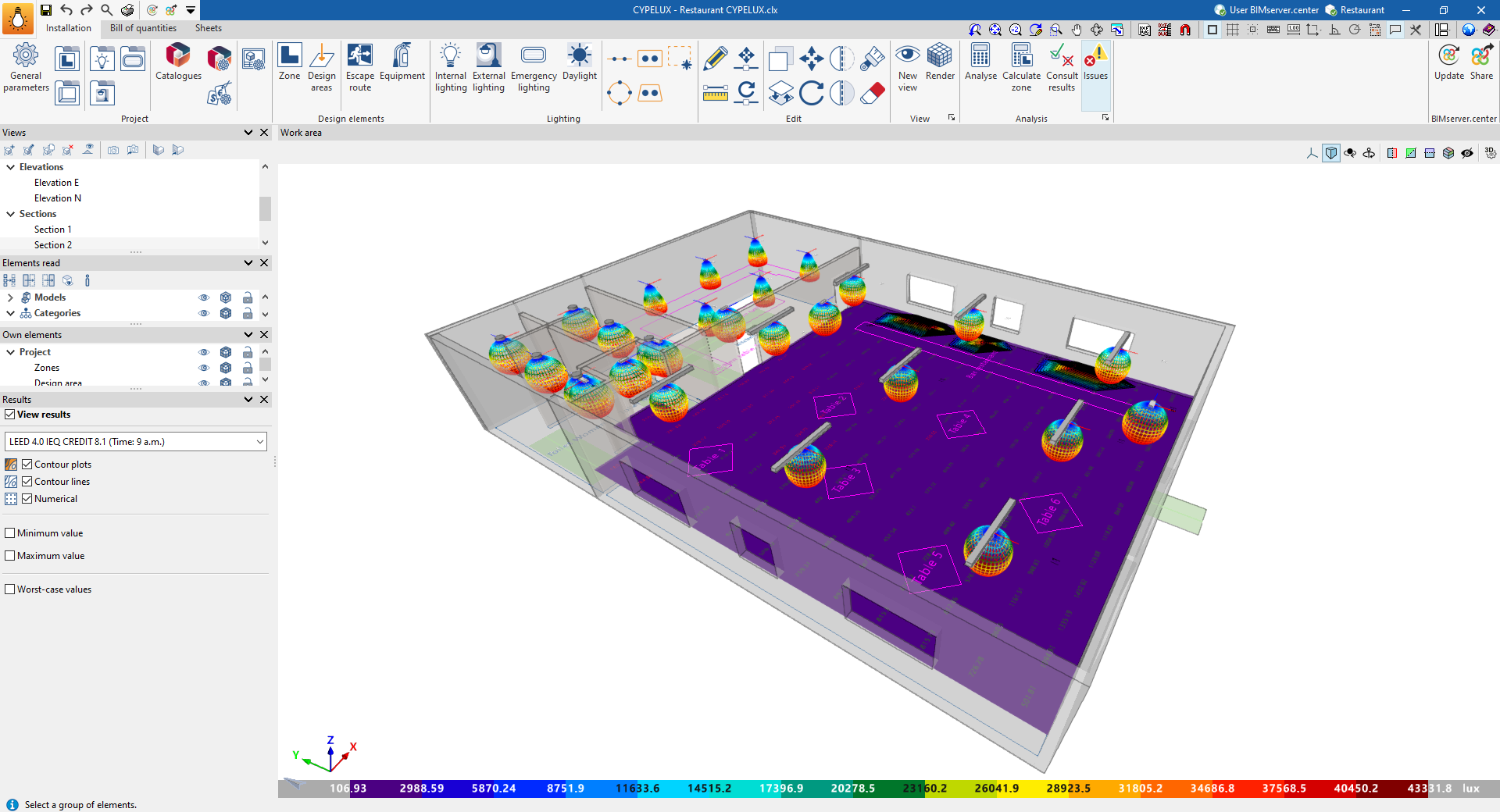
You can then select one or more of the following display modes. Multiple options can be selected and overlaid simultaneously, allowing for a more detailed representation of the results.
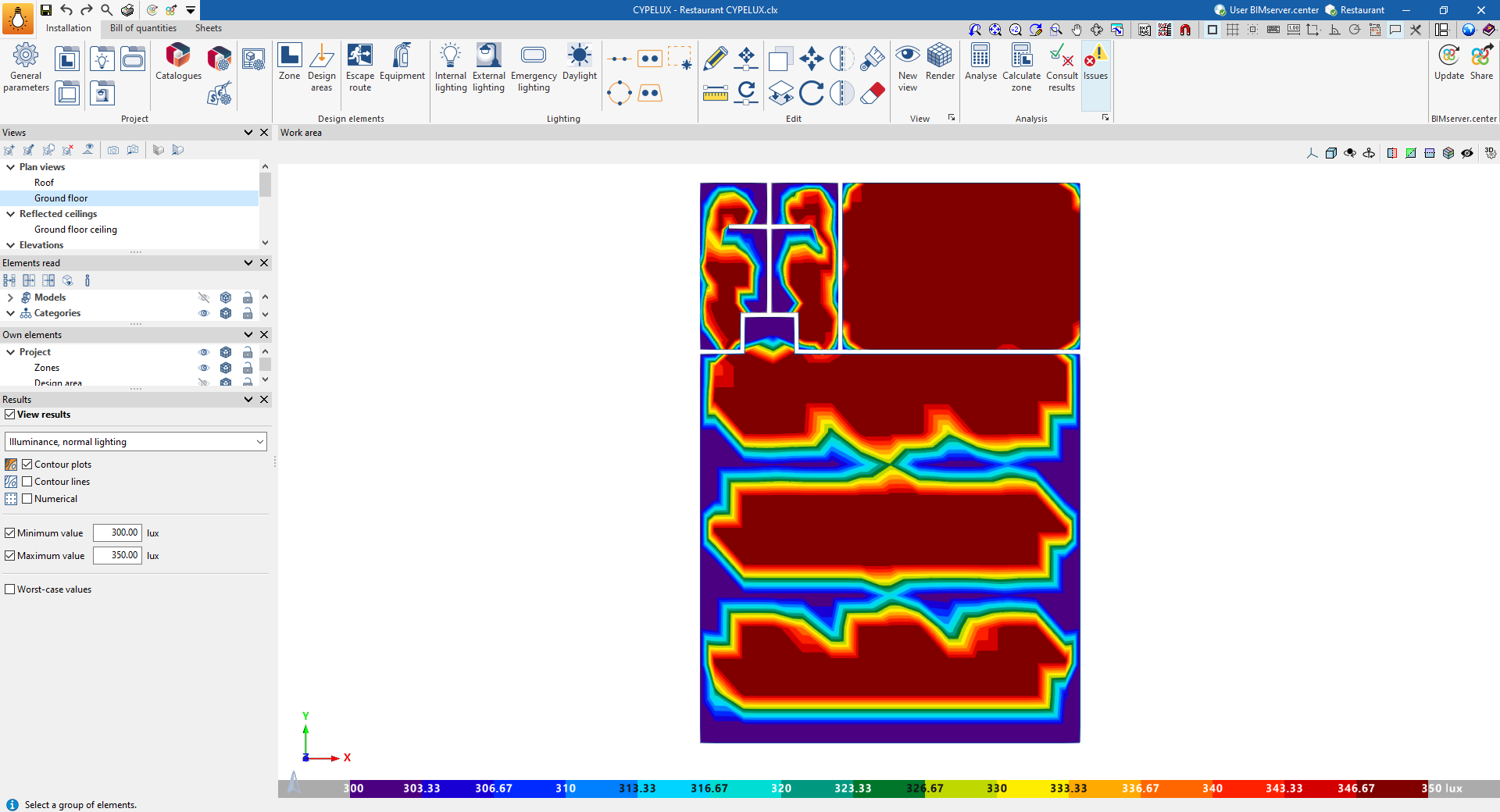
- Contour plots (optional)
Displays the contour plot diagram using a colour gradient on the plan view, showing the calculated values. A legend for the diagram, in the form of a colour scale, is displayed at the bottom of the screen. - Contour lines (optional)
Displays the contour diagram with the values calculated for each contour line. - Numerical (optional)
Displays the calculated numerical values on a grid of points on the plan.
It is also possible to adjust the range of values displayed in the diagrams by entering a "Minimum value" and a "Maximum value" to be plotted, as well as to include the positions of the "worst-case values" obtained in the calculation.
Results output
Viewing results and checks on screen
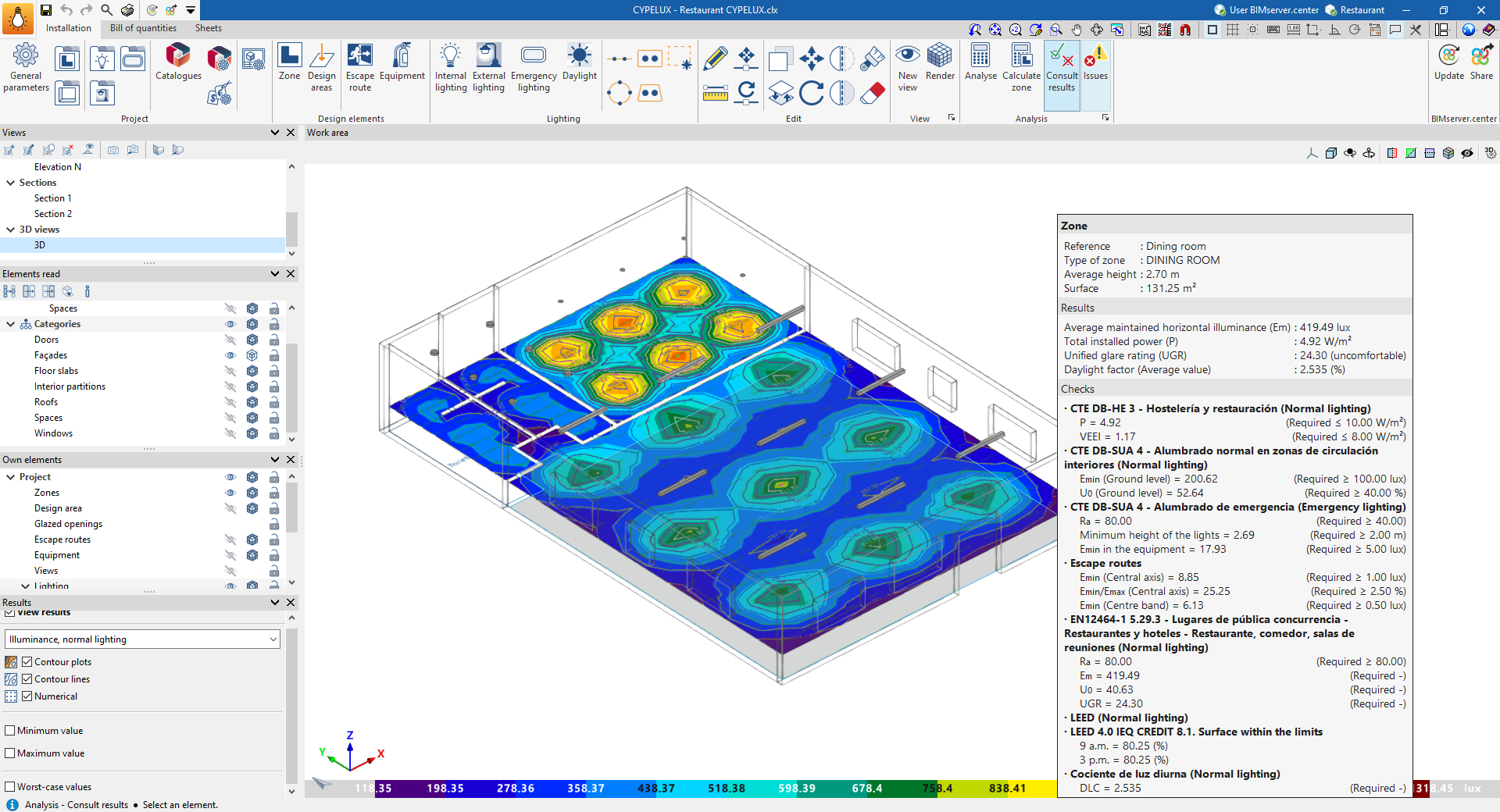
If you hover the cursor over the boundary of an area using the "View results" option, the program displays a text box containing information about the area and parameter values such as the following:
- Maintained average horizontal illuminance
- Total installed capacity
- Installation Energy Efficiency Value (VEEI)
- Unified Glare Index
- Daylight factor (if the calculation has been enabled using the "Daylight" option)
If the option to check for regulatory compliance has been selected in this section, the following information will also be displayed alongside the required values and the compliance check.
For example, for standard EN 12464-1, the following is shown:
- Minimum colour rendering index (Ra) of the installed luminaires
- Minimum maintained illuminance (Em) on the reference surface
- Minimum illuminance uniformity (U0) over the reference surface, for maintained illuminance
- Unified Glare Rating (UGR) limit
Sheets for each zone and calculation area
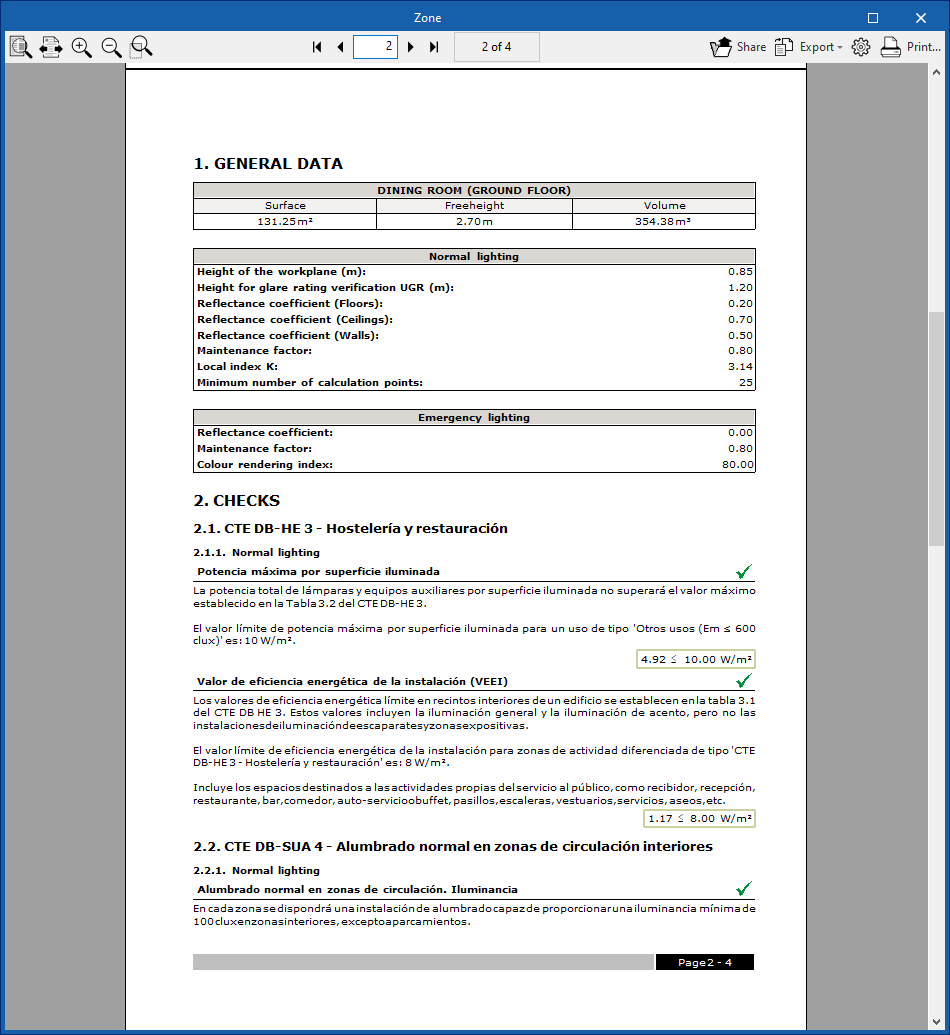
The program generates supporting documents that include general details and the checks it performs for each area or calculation zone.
To view the breakdown for each zone or calculation area, click on it and select the "View results" option.
Job reports
The program allows you to print reports directly or generate HTML, PDF, TXT, RTF or DOCX files.
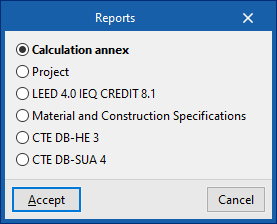
The reports can be accessed via the "Reports" option in the "File" menu or from the toolbar at the top left.
The available reports are as follows:
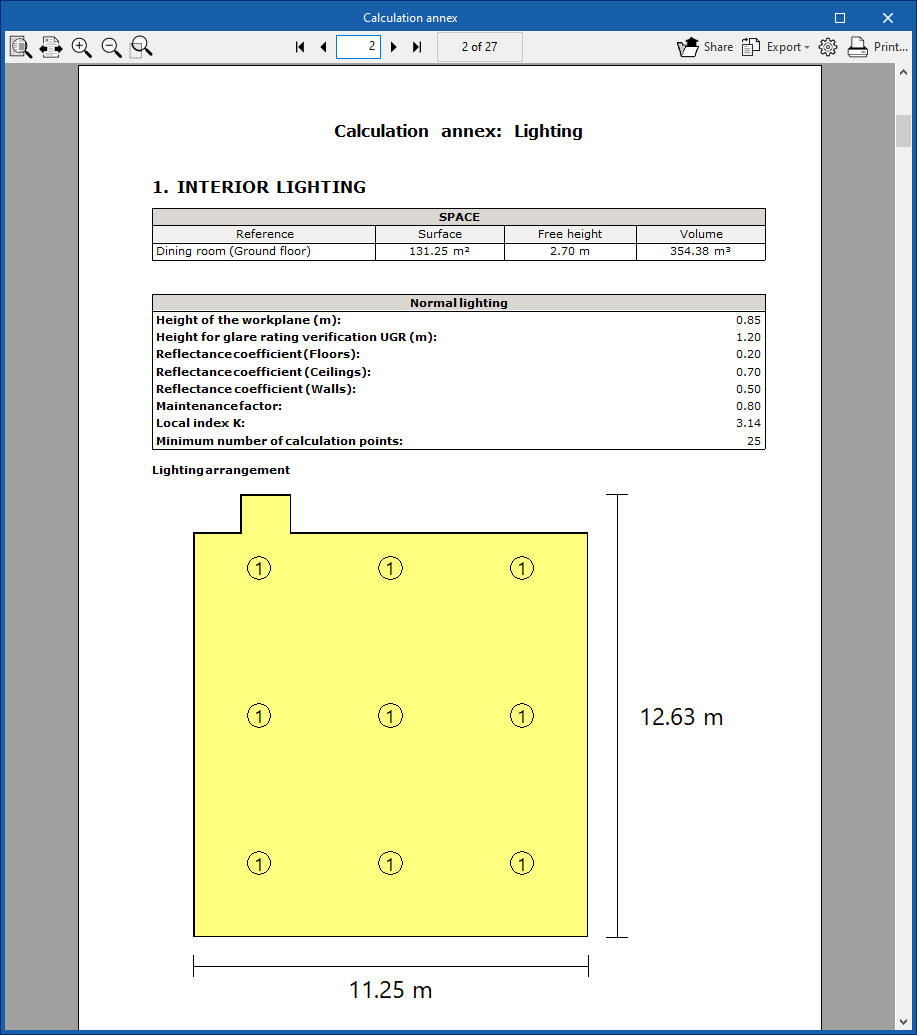
Calculation annex
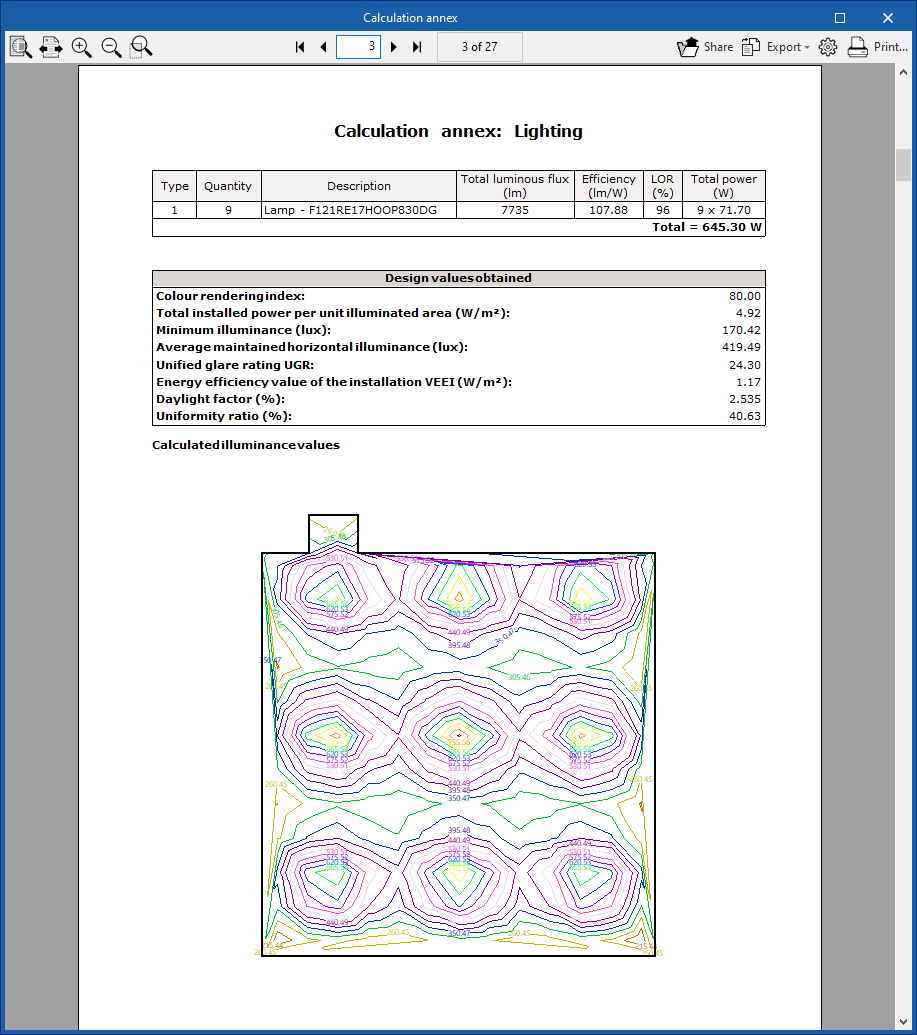
The calculation annex sets out, in addition to the calculated values, the characteristics of the premises together with their standard and emergency lighting systems.
The information collected includes the following:
- Indoor and outdoor lighting
- Layout of the light fittings
- Calculation of illuminance and glare
- Contour map
- Location of the worst-performing stocks
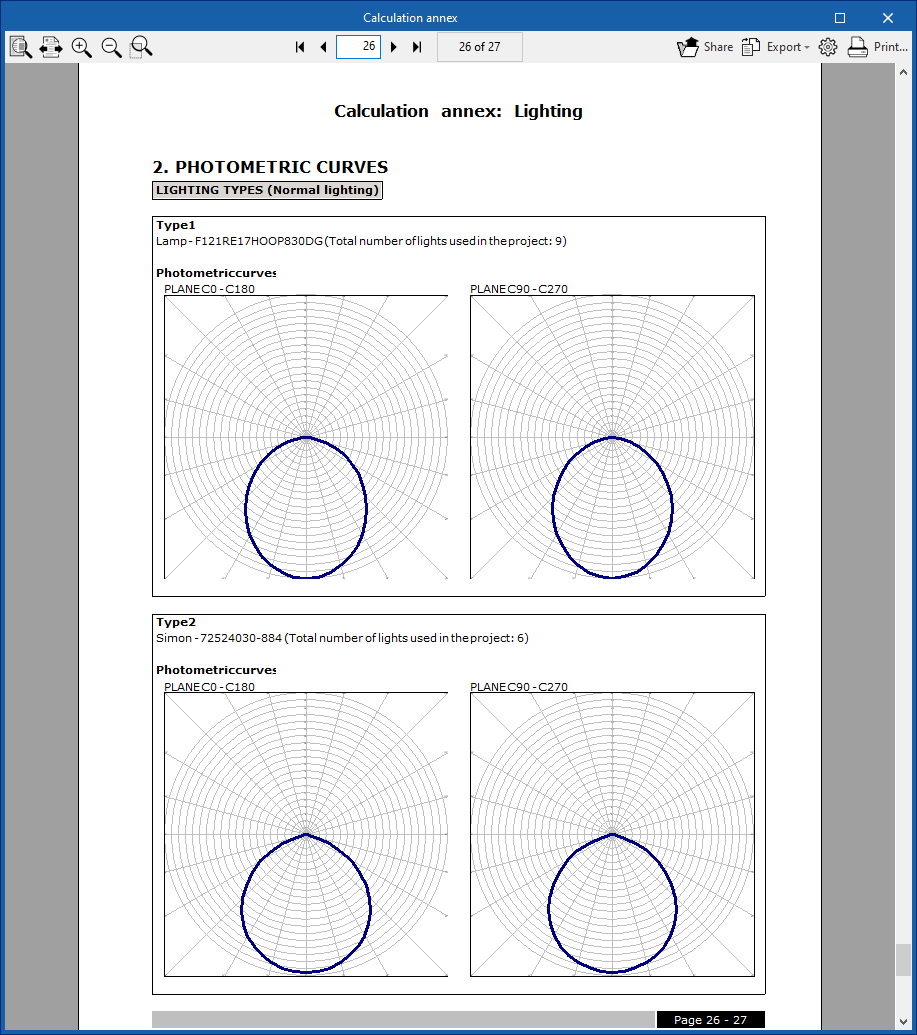
- Photometric curves
Curves in the two photometric planes for the luminaires used in the project.
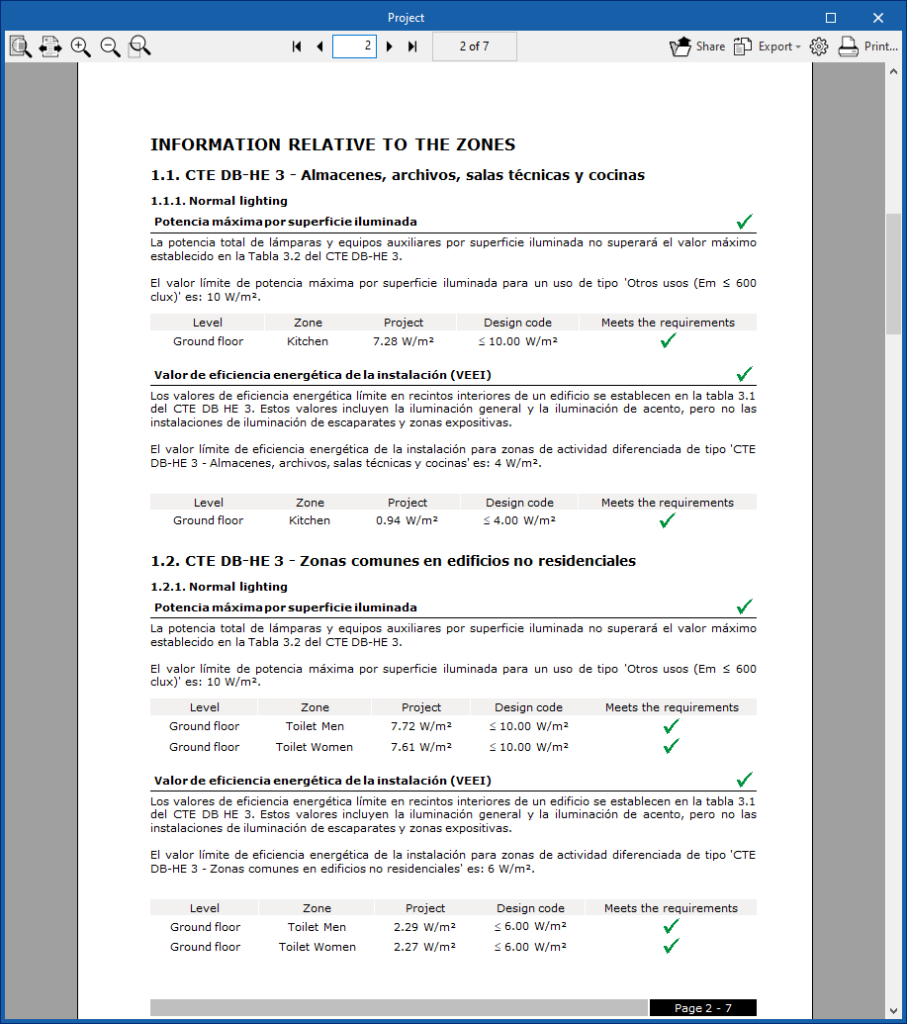
Project report
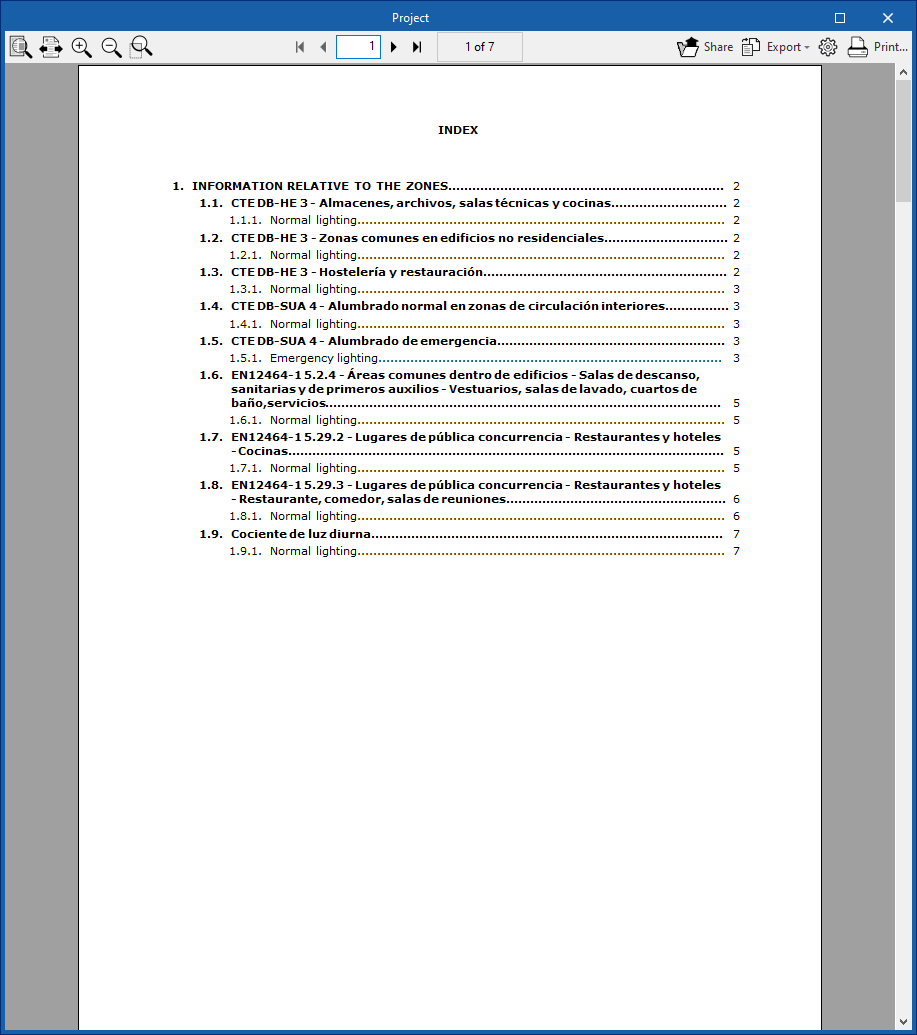
This report provides a summary of the checks carried out across all areas of the project, organised into sections according to each type of check defined.
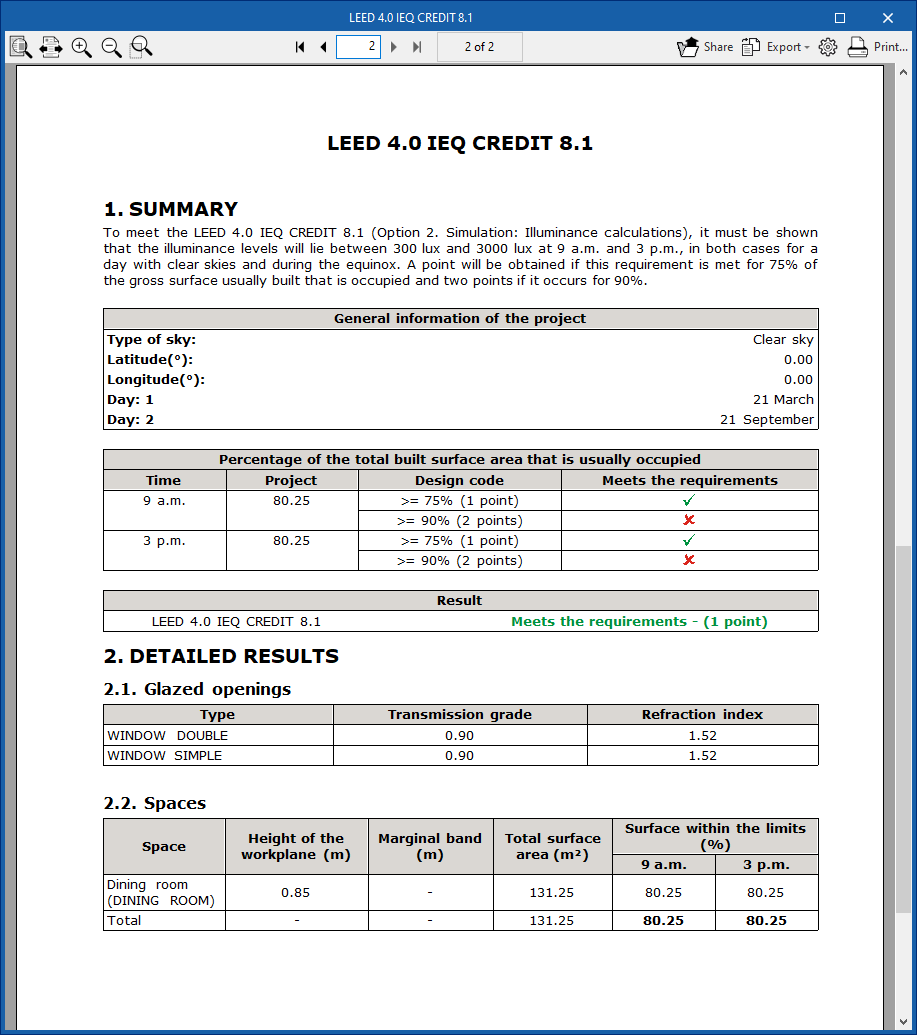
LEED 4.0 CAI Credit 8.1
Thisreport shows the results of the checks carried out to obtain LEED 4.0 CAI CREDIT 8.1 certification (Option 2: Simulation: Illuminance Calculations).
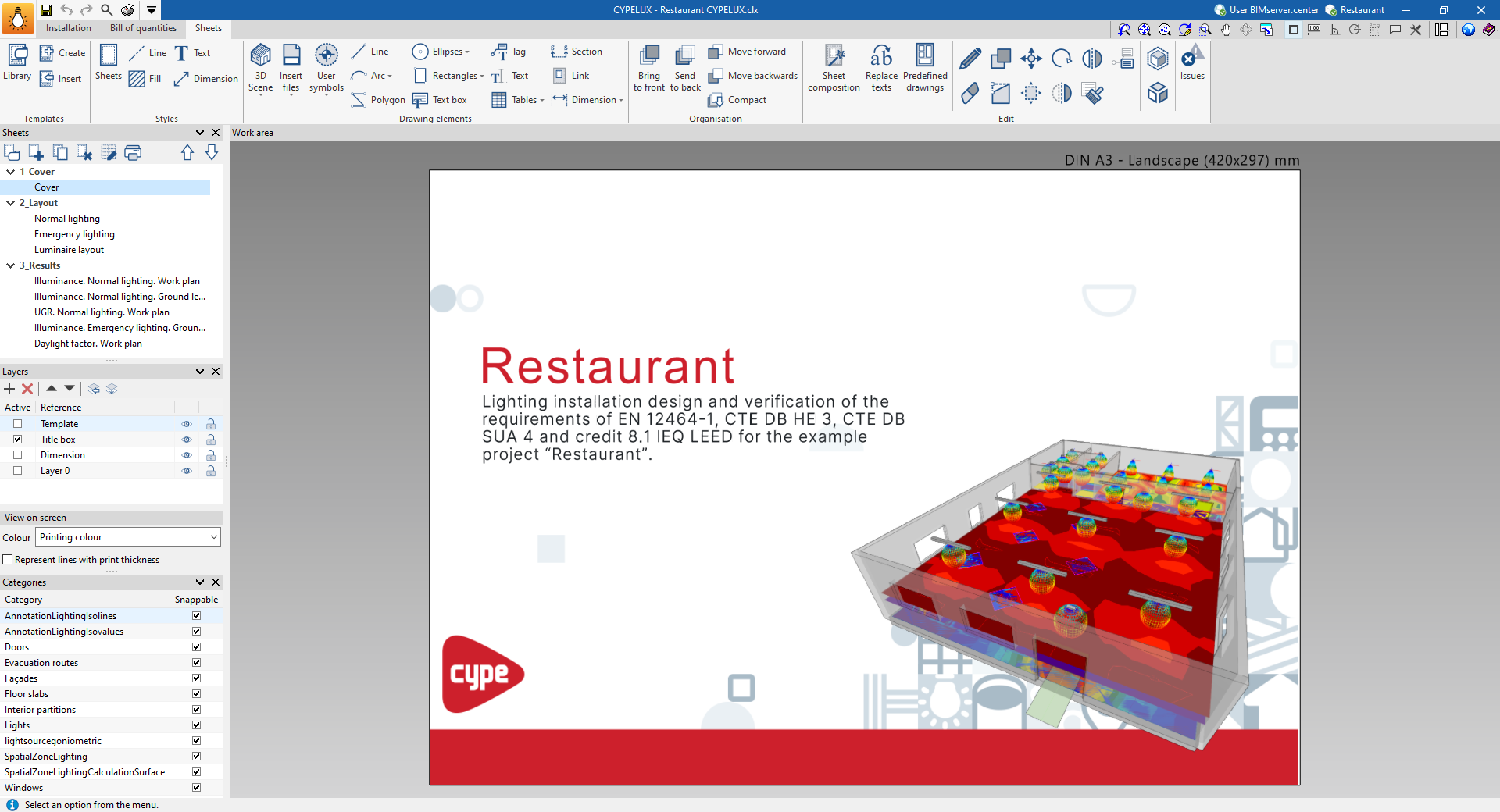
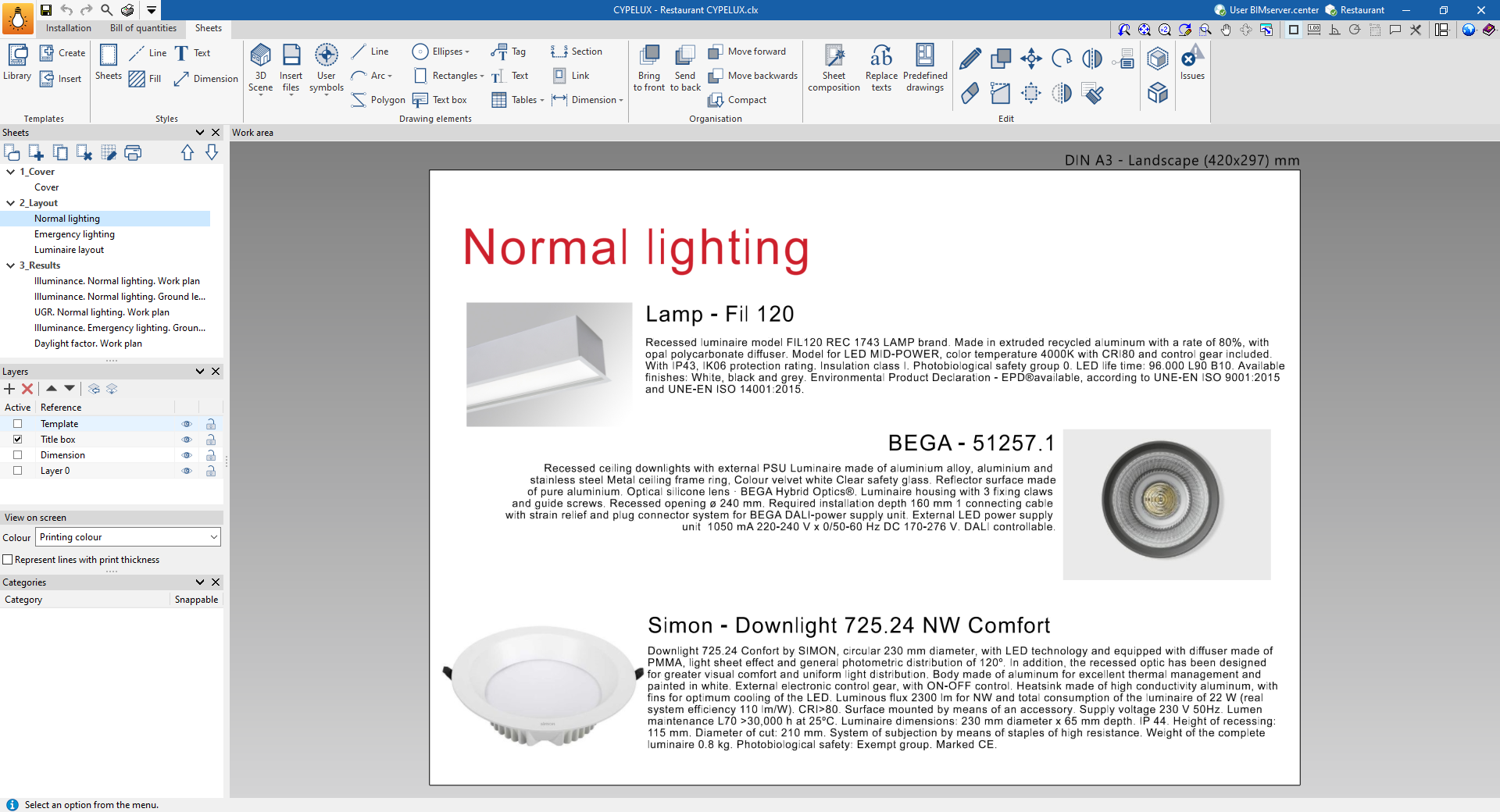
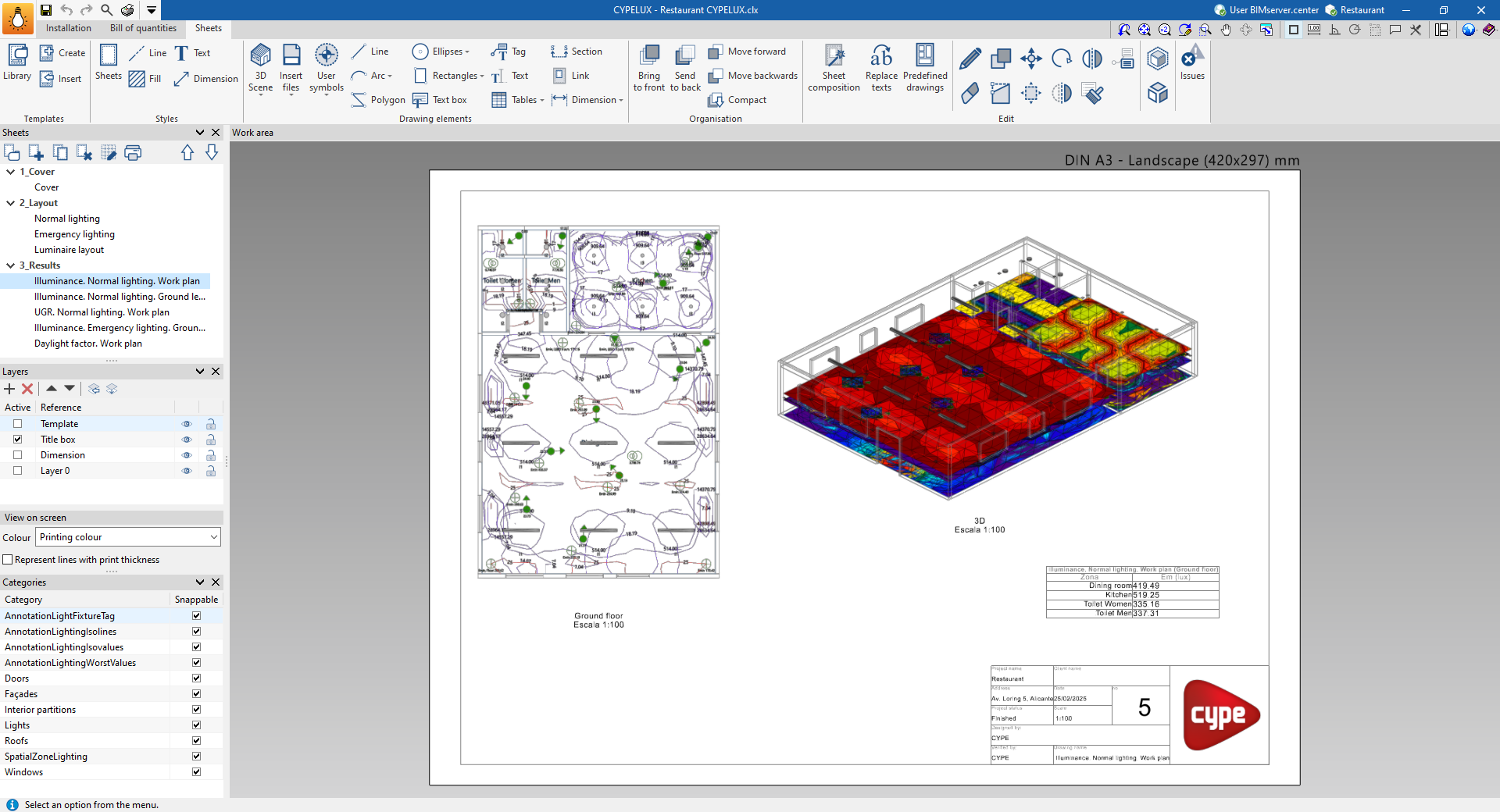
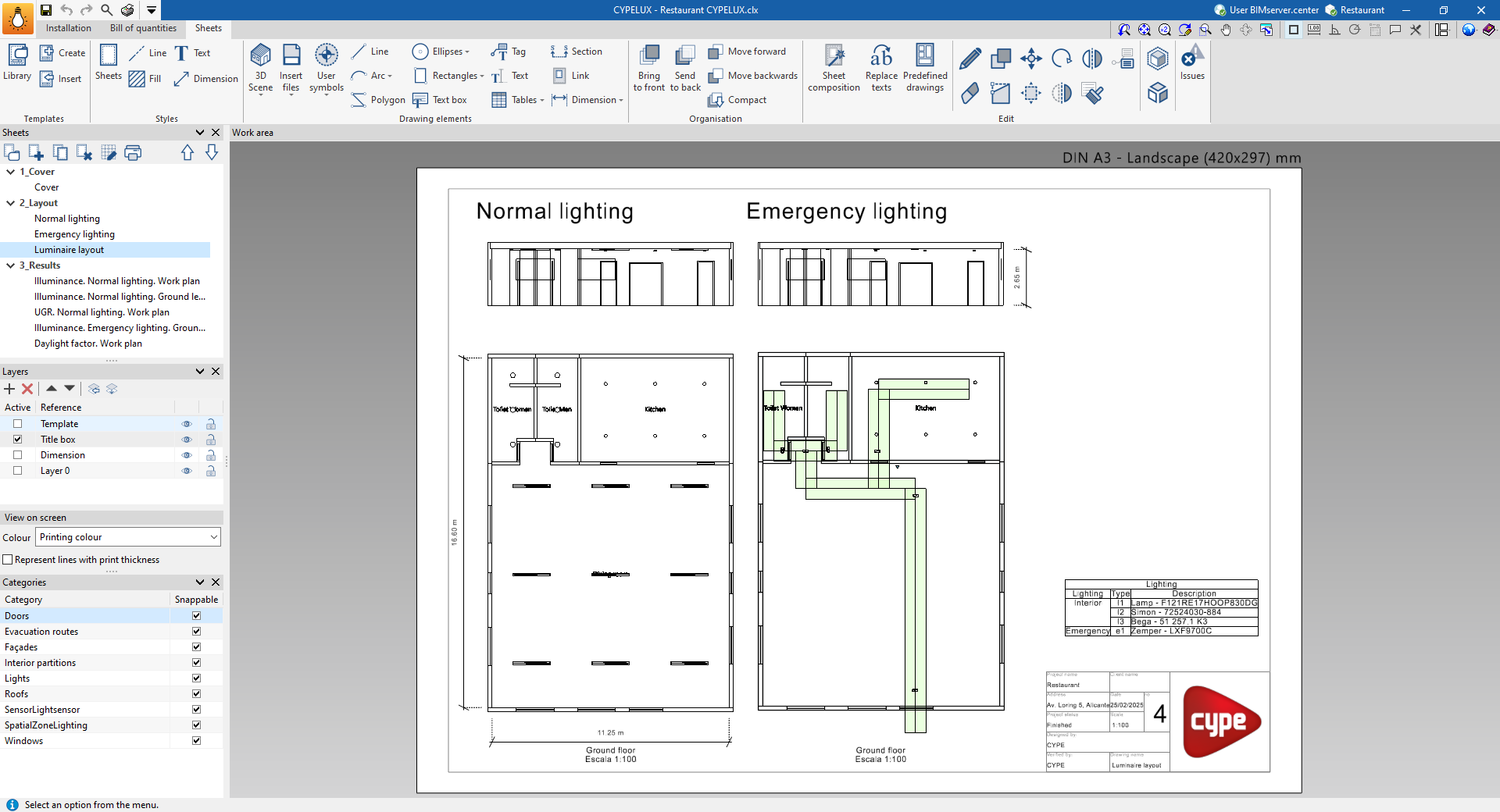
Drawings in DWG, DXF or PDF format
The program allows you to design and generate detailed plans of the lighting installation.
You can print the construction drawings directly on any printer connected to your computer, or create DWG, DXF or PDF files.
Plans can be compiled and printed using the tools available in the "Sheets" tab.
Results from the "Bill of quantities" tab
Once the work has been completed in the "Bill of quantities" tab, the program allows you to generate the following documents:
- Exporting the bill of quantities in FIEBDC-3 (BC3) format
- Bill of quantities reports (in HTML, PDF, TXT, RTF or DOCX format)
File in GLTF format compatible with BIMserver.center
When you export the project to the BIMserver.center platform, a 3D model in GLTF format is automatically exported so that the installation model can be integrated into the Open BIM project, allowing it to be viewed:
- On the online platform;
- In the BIMserver.center app for iOS and Android;
- In virtual reality and augmented reality;
- In other CYPE programs.
Integration into the BIMserver.center platform
Many of CYPE's programs are connected to the BIMserver.center platform and allow collaborative work to be carried out via the exchange of files in formats based on open standards.
Please note that, to work on BIMserver.center, users can register on the platform free of charge and create a profile.
When accessing a program connected to the platform, the program connects to a project in BIMserver.center. This way, the files of the projects that have been developed collaboratively in BIMserver.center are kept up to date.

| More information: |
|---|
| For further details related to using CYPE software via the BIMserver.center platform, please click on this link. |
Options available in CYPELUX
The “BIMserver.center” section of the main toolbar on the “Installation” tab contains the features required to use the program alongside other BIMserver.center tools.

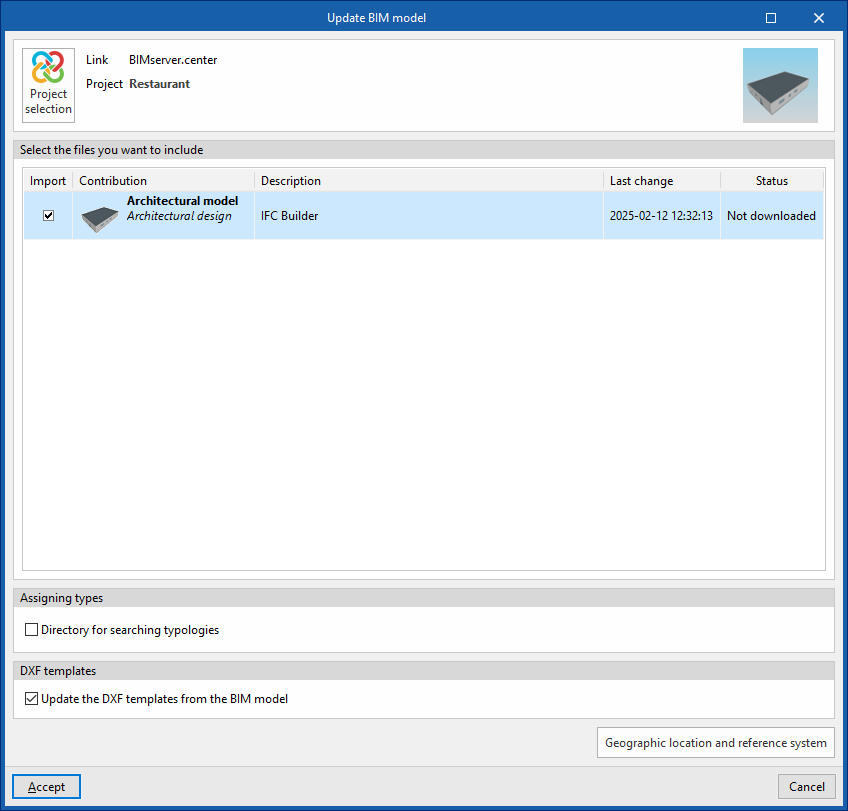
Update
Update the information contained in the models previously imported into the project, or import new models if required.
In addition, in this window, the program offers the following options:
- Assigning types
- Directory for searching by type (optional)
When this option is enabled, you can select a directory on the hard drive that contains the type library files. This allows you to import type libraries previously created in other projects and exported to that directory, and automatically assign them to the zones and glazed openings in the imported model. To do this, the type references in the selected directory must match the element-type references in the imported model.
- Directory for searching by type (optional)
- DXF templates
- Update the DXF templates from the BIM model (optional)
- Geographical location and reference
system
Allows you to open a dialogue box to modify the model’s geographical location and reference system.
Share
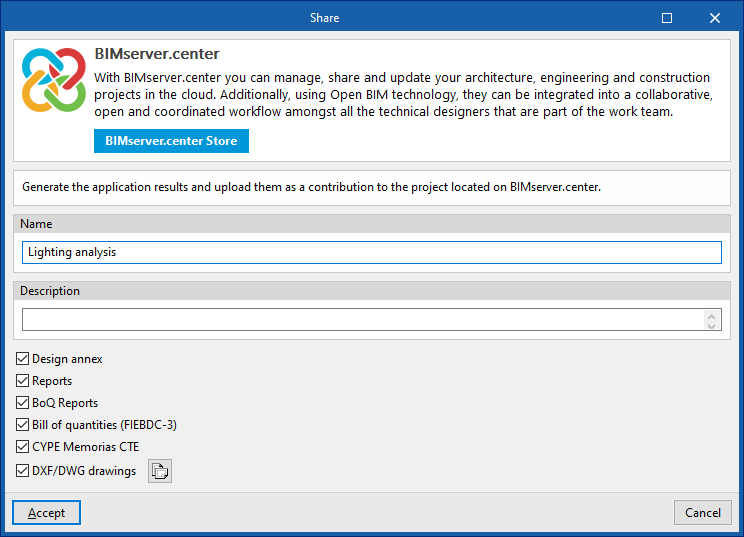
Export the information about the installation created using the program to BIMserver.center so that you can share it with other users.
During the export process, you can specify the details of the .ifc file to be exported and select any additional files you wish to share:
- Name
- Description
- Additional files:
- Design appendix (optional)
- Reports (optional)
- BoQ reports (optional)
Exports the measurement and quotation documentation generated in the "Bill of quantities" tab, organised into various standard reports (Quantities, Price justification, Budgets, Bill of quantities, Summary of the budget). - Bill of quantities (FIEBDC-3) (optional)
- DXF/DWG drawings (optional)
Includes the processed sheets in the "Sheets" tab.