


Views of hollow core slabs
The "Views" option, within the "Hollow core slabs" menu on the "Results" tab, allows you to configure how the data obtained from the analysis of hollow core slab floor structures is displayed.
These include details of the plates used and the available top reinforcement.
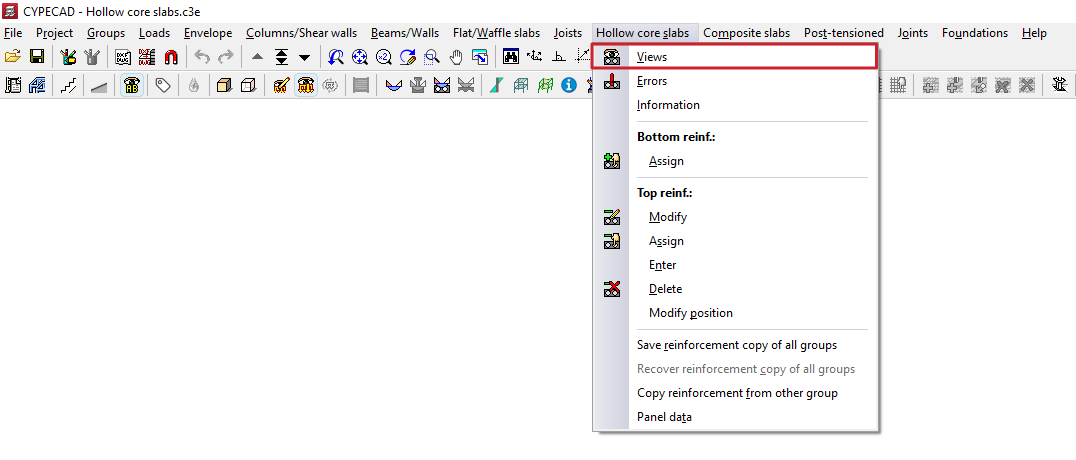
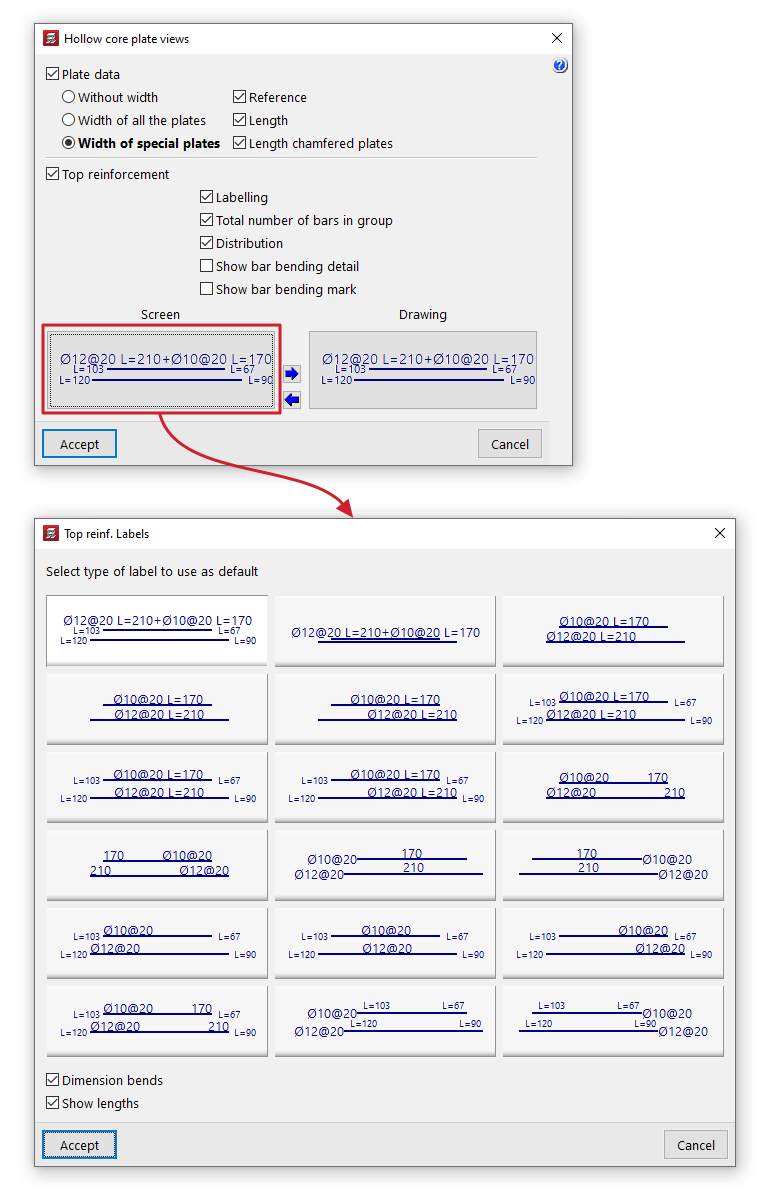
Clicking on this option opens a pop-up window containing the following tools:
- Plate data
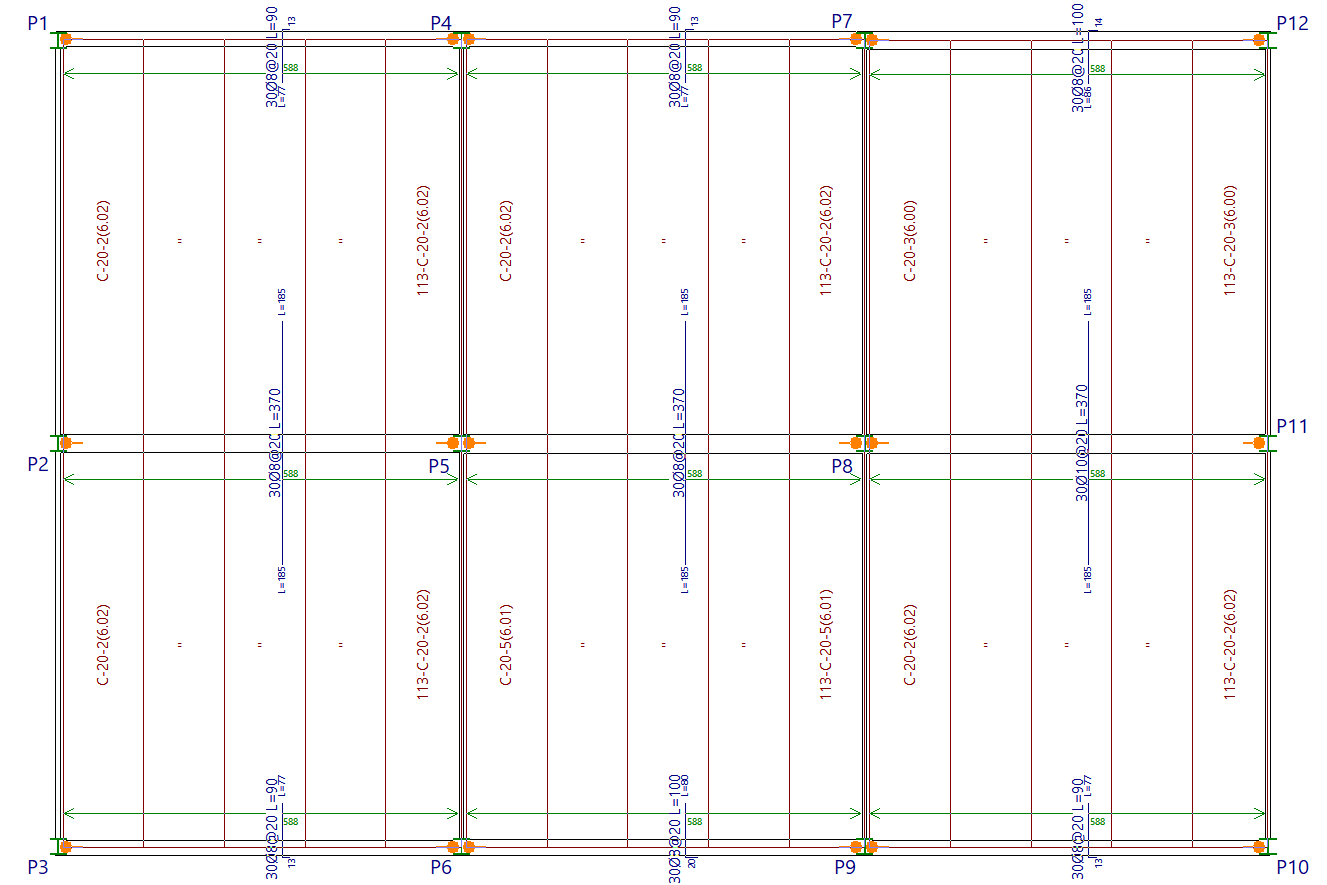
If this option is enabled, the programme adds labels to the simplified plates in their plan view, displaying the following information:- Width representation:
- Without width
The label on the hollow core slabs does not provide any information about their width. - Width of all the plates
The label on the hollow core slab indicates the width of the cross-section in all cases, both for full-width plates and for those narrower than the standard. - Width of special plates
The label on the hollow core slab indicates the cross-sectional width only for special plates, i.e. those that are narrower than the standard width (used in places where a full-width plate will not fit).
- Without width
- Data included:
- Reference
Selecting this option adds the reference for the type of hollow core slab used to the label. - Length
Selecting this option adds the length dimension of each component to the label, including the connection to the beam. - Length chamfered plates
Selecting this option adds the length dimension of each side of the component to the label, including the section where it meets the beam, when the edge is sloped or bevelled.
- Reference
- Width representation:
- Top reinforcement
Selecting this option displays the layout of the top reinforcement for hollow core slab floors. You can also configure the following:- Labelling
When this option is enabled, labels indicating the diameters and lengths of the top reinforcement are displayed. - Total number of bars per group
Include the total number of bars in each group of top reinforcement on your label. - Distribution
Add the length measurement to the green line representing the width over which the top reinforcement is distributed. - View bar bending details
If this option is enabled, a bending diagram is drawn next to the bar in inclined sections. - Show bar bending mark
If this option is enabled, on inclined sections, the bending point is marked with a small line perpendicular to the axis of the bar. - Labelling in "Screen" and in "Plan"
In both cases, the program allows you to select the "default labelling type" for top reinforcement from those available in the pop-up window. It also allows you to specify whether you wish to "Dimension bends" and/or "Show lengths" of bars by ticking the relevant boxes. - Copy label selection
These options allow you to copy the label selection on the screen to the label selection in the drawings, or vice versa.
- Labelling
Errors in hollow core slabs
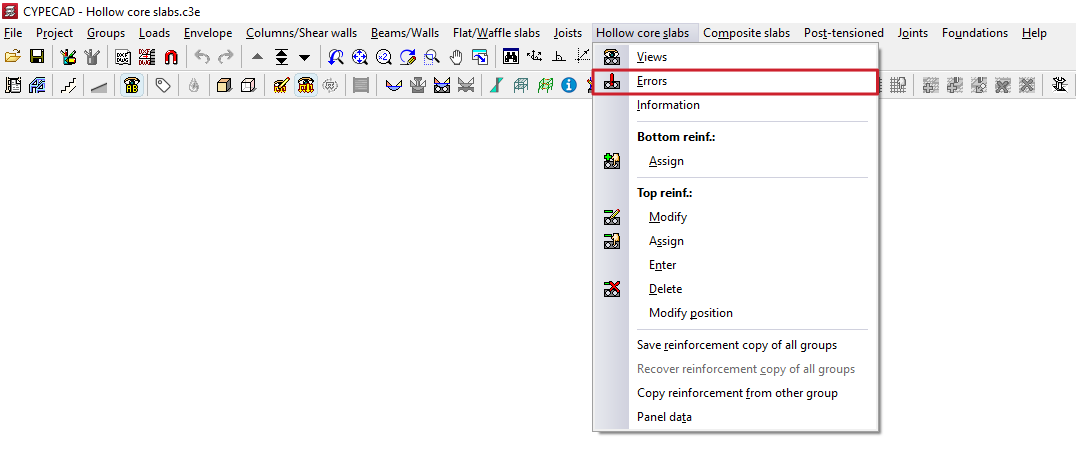
The "Errors" option, within the "Hollow core slabs" menu on the "Results" tab, allows you to view the errors obtained following the analysis for each of the lightweight slab floor panels.
Hollow core slabs with strength defects shall be marked with the label 'Insuf.' in their reference.
For more information about the specific error, left-click on the icon.
The "Previous" and "Next" buttons in the dialogue box allow you to navigate between the other sections of the floor plan that contain errors.
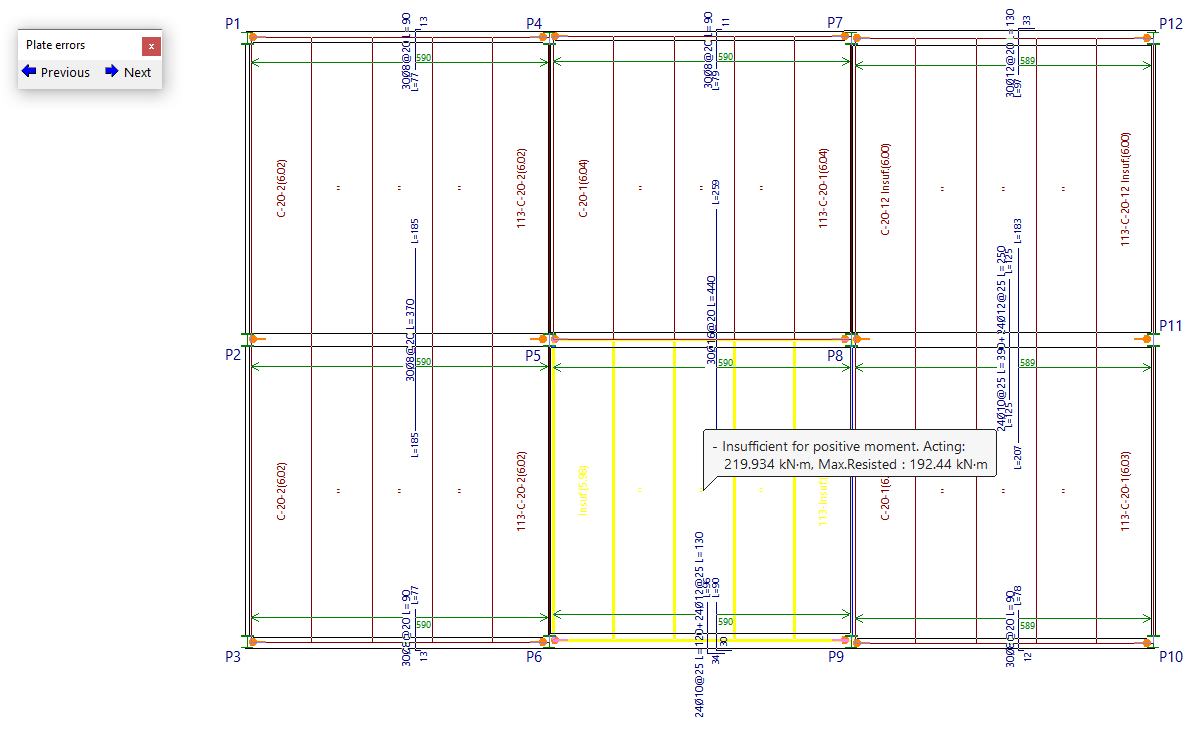
Description and troubleshooting of hollow core slab errors
Below are some of the defects that may occur in hollow core slabs, along with recommended measures to rectify them:
| Error | Description | Solution |
| Does not meet the positive cut-off | The applied shear stress is greater than the shear stress being withstood. | Select a type of hollow core slab with greater strength and/or greater depth, or redesign the structure to reduce the loads. |
| Insufficient positive momentum | The applied positive bending moment is greater than the resisting positive bending moment. | Select a type of hollow core slab with greater strength and/or greater depth, or redesign the structure to reduce the loads. |
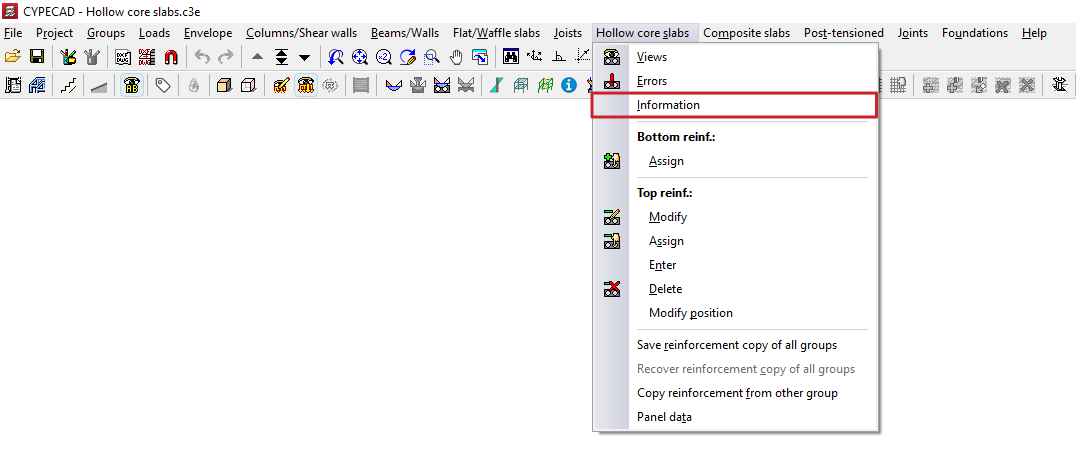
Hollow core slab information
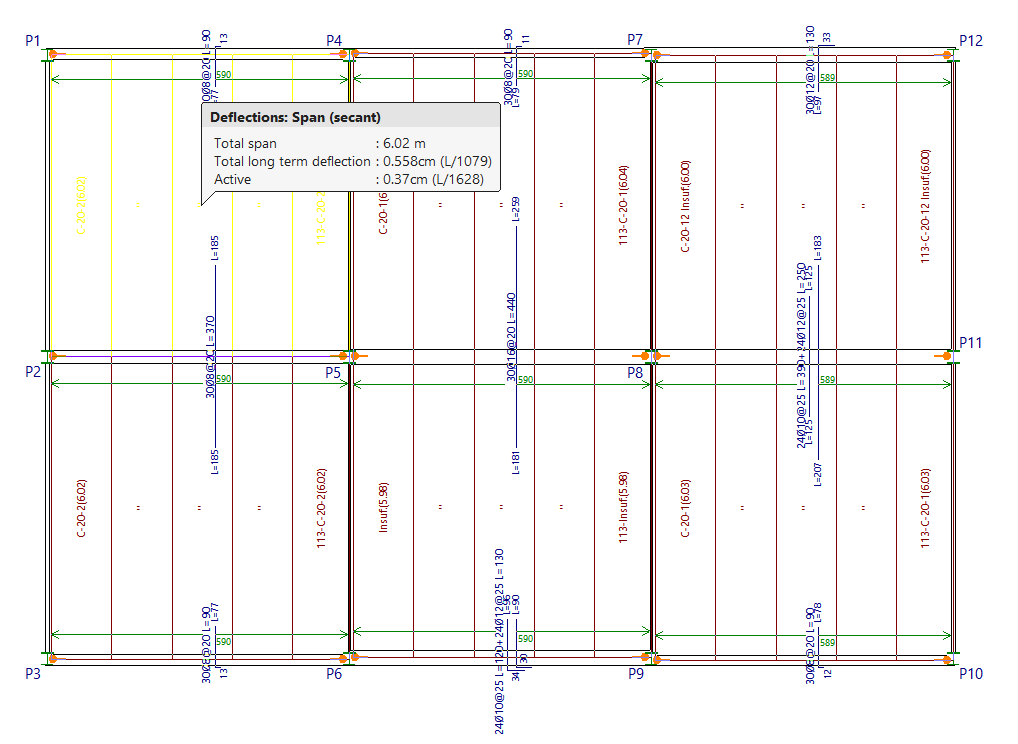
The "Information" option, within the "Hollow core slab" menu on the "Results" tab, allows you to view information on the hollow core slab floor panels on screen following the analysis, including data relating to their deflection.
After selecting this option, clicking on each panel of hollow core slabs displays a box indicating the type of beam (either a "Opening (secant)" or "Cantilever (tangent)”), as well as the “Total span”, the “Total at infinity” deflection and the “Active” deflection. Both absolute and relative values are shown.
If the deflection could not be analysed (for example, due to insufficient data), the message "Deflection not available" will be displayed.
Assigning hollow core slabs
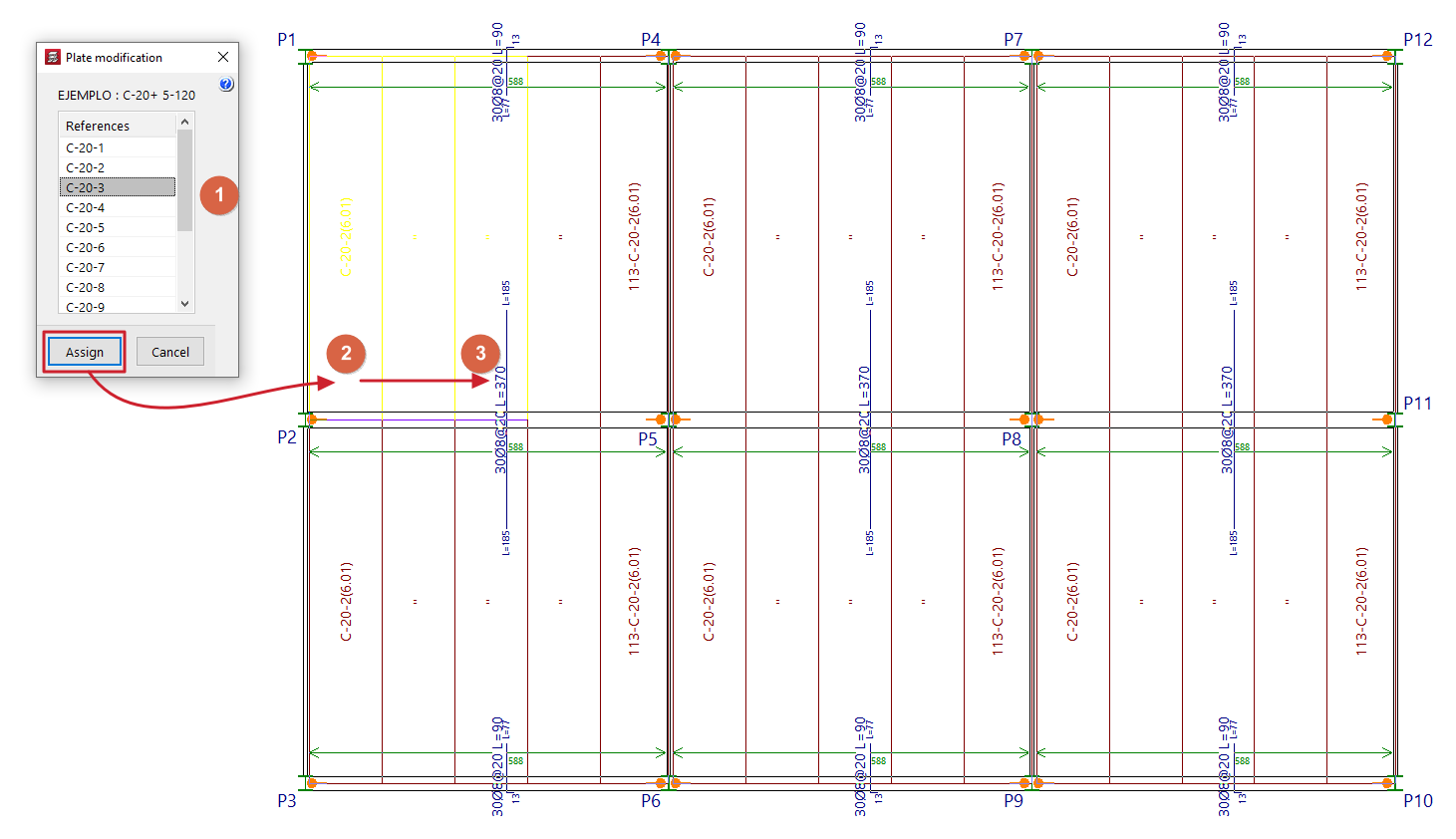
The "Assign" option is located in the "Bottom reinforcement" section of the "Hollow core slabs" menu, within the "Results" tab, and allows you to change the type of plate assigned to a selection of hollow core slabs.
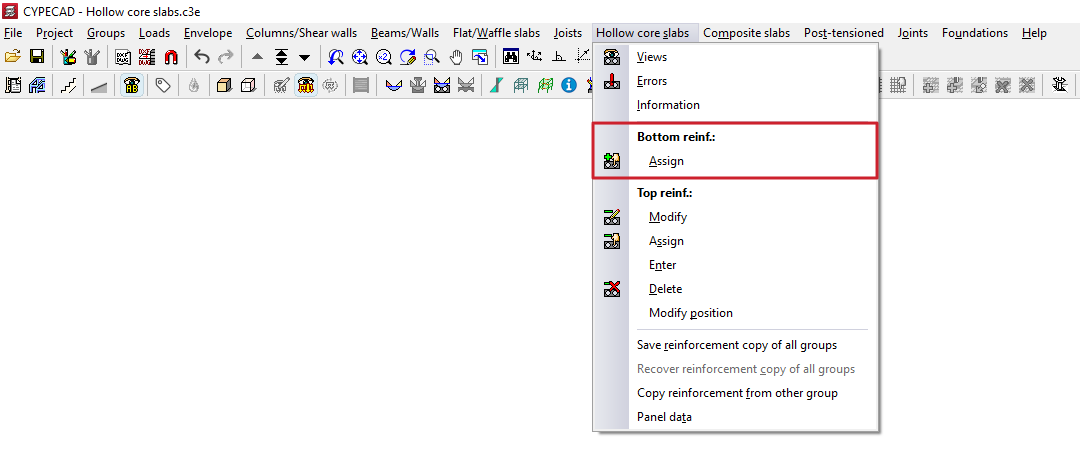
To do this, select the panel to be assigned from the list in the "Edit panels" pop-up window. Then, click on "Assign" and select the panels on the floor plan to which you wish to assign that type (by left-clicking on a point on the panel to select the start panel, and then clicking on another point on the same panel to select the end panel; the selected panels are highlighted in a different colour).
This change can be made either before or after the analysis.
Editing and assigning top reinforcement for hollow core slabs
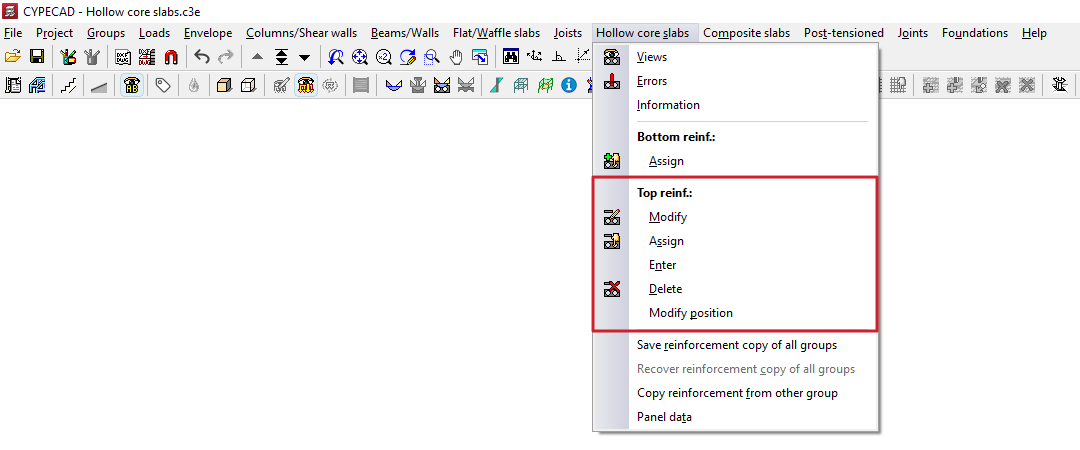
The tools in the "Top reinforcement" section of the "Hollow core slabs" menu, within the "Results" tab, allow you to modify the top reinforcement obtained for hollow core slabs following the structural analysis.
Changes made using the tools in this section are not retained in subsequent redesigns; therefore, they should only be used during the final adjustment stage prior to printing or exporting the data.
Each of the available tools is described below.
Modify
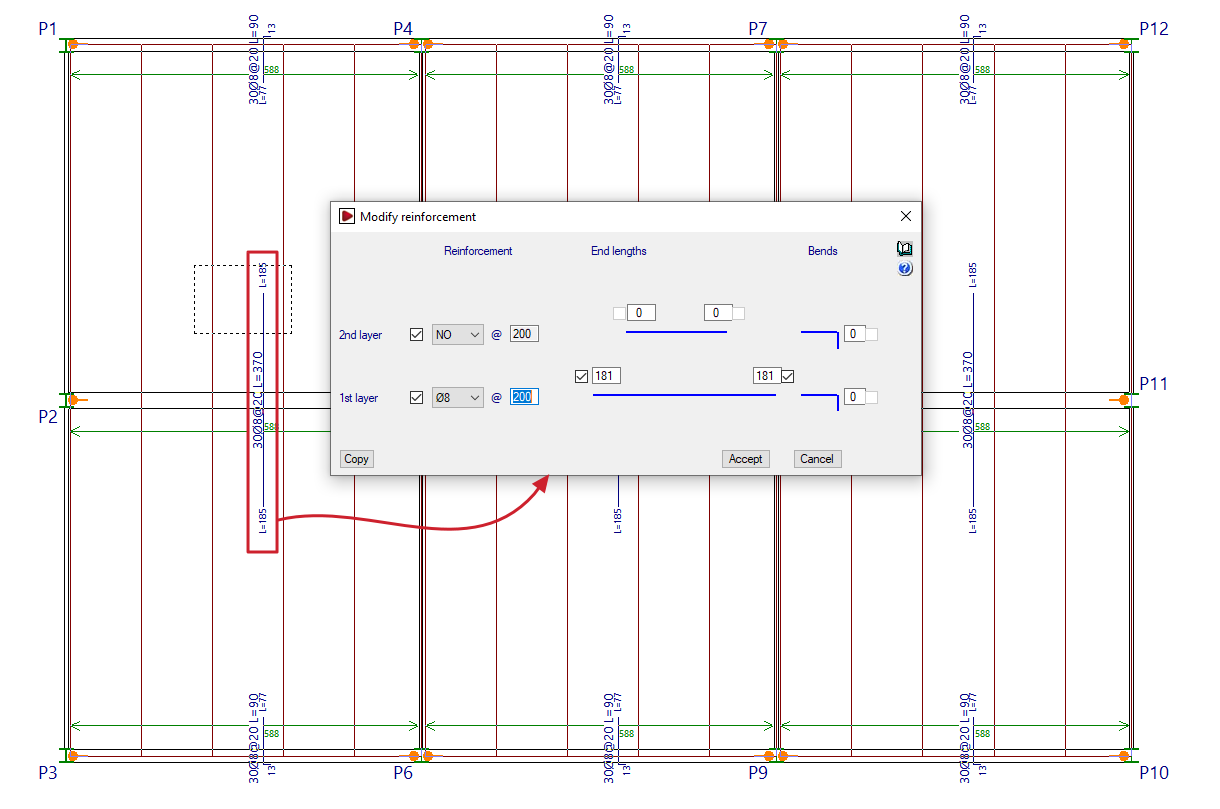
The "Modify" option allows you to change the number, diameter and length of the reinforcement bars in the negative reinforcement. It also allows you to add or remove layers or reinforcement groups.
To do this, select the reinforcement to be modified by drawing a box on the plan view.
In the "Modify reinforcement" window that appears, you can modify the "Reinforcement" in the "1st layer" and "2nd layer" by specifying their number, diameter and spacing. You can also enter the "End lengths" (or the lengths of the reinforcement bars on either side of the beam axis), or the length of the "Extensions" (which the program adds in cases where the top reinforcements meet a slab edge).
The lengths of bars anchored in a straight extension are measured from the nearest beam centreline, whilst the lengths of bars anchored at the end indicate the length from the bend point.
The "Copy" option allows you to extract data from a selected top reinforcement on the floor plan, whilst "Accept" applies the data entered in the window to the reinforcements selected when using the option.
Assign
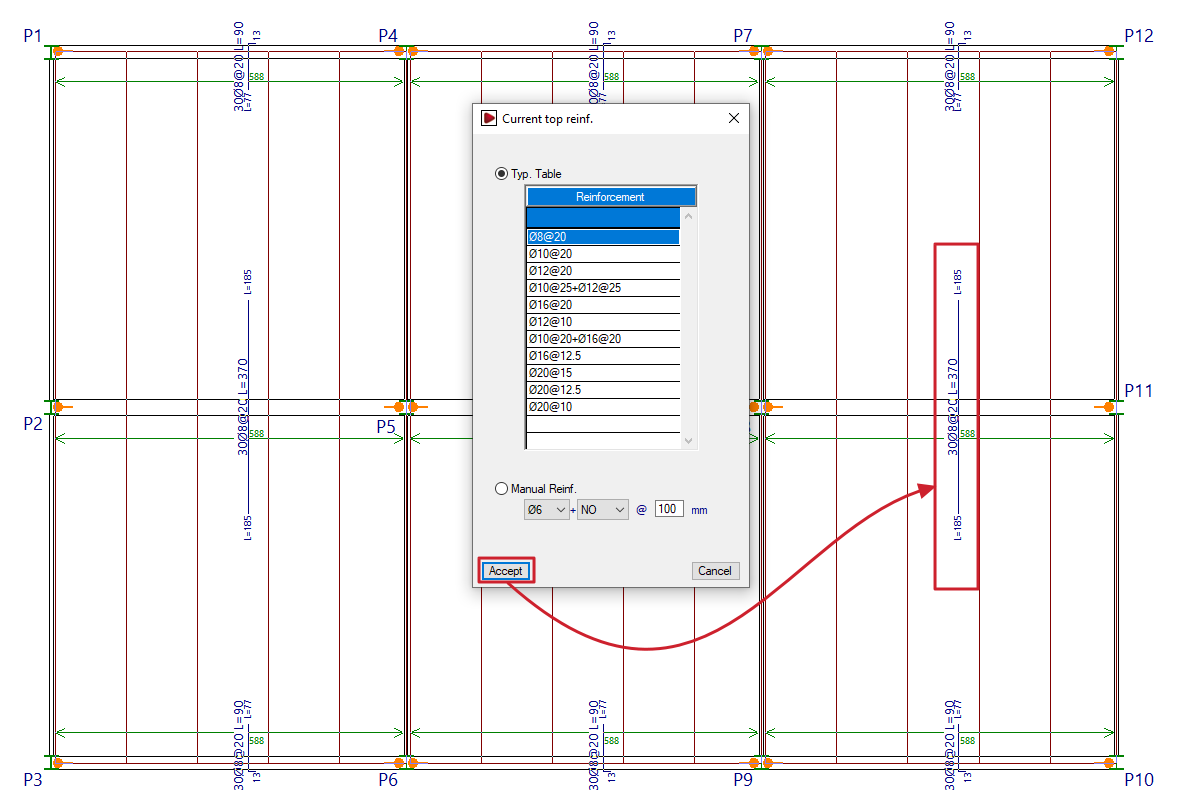
The "Assign" option allows you to change the diameters and spacing of the selected group of top reinforcement.
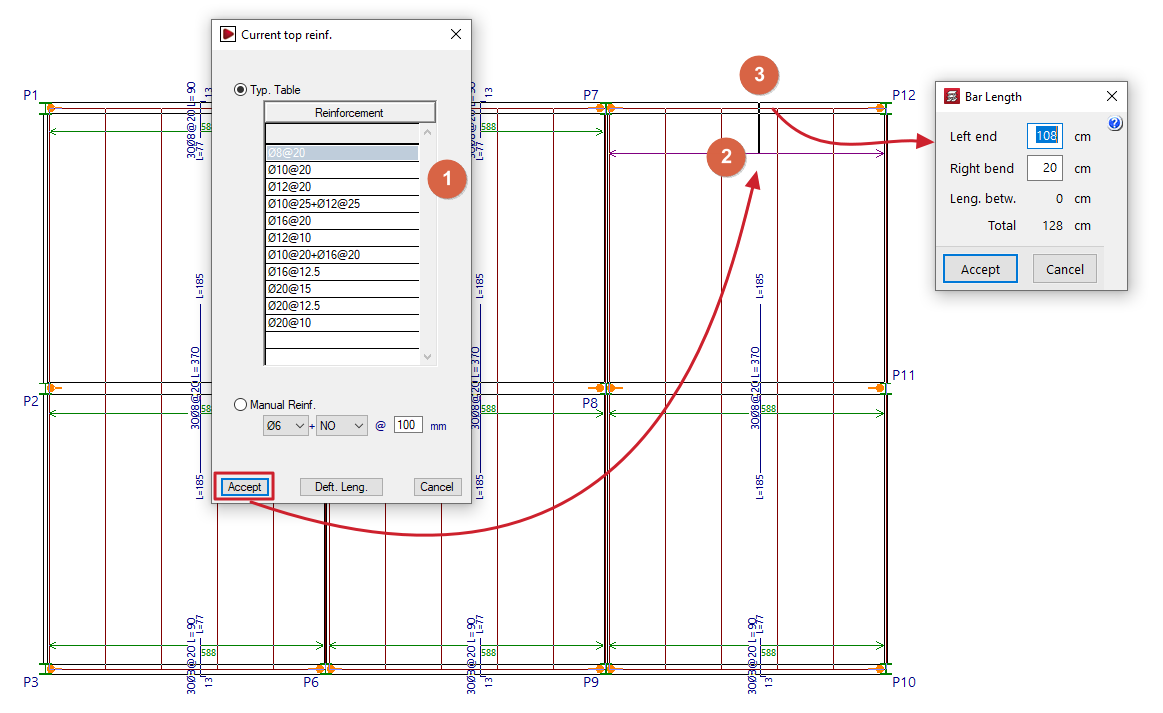
Clicking on this option brings up the "Current top reinforcement" dialogue box, where you can select an existing reinforcement from the "Type table" for the slab itself or define a "Manual reinforcement" (which allows you to enter reinforcements not listed in the table). Once selected, you must accept the dialogue box and mark the reinforcement bars on the plan view that you wish to replace with the selected reinforcement.
Enter
The "Enter" option allows you to insert rebars for top reinforcement on hollow core slabs.
When you click on the option, right-clicking allows you to select the "Current top reinforcement", where you can choose an existing reinforcement from the "Type table" on the sheet itself or define a "Manual reinforcement" (which allows you to enter reinforcements not listed in the table). It is also possible to enter the "Default lengths" for the reinforcement to be laid out, at both the left and right ends, as well as the length of the stirrup.
Next, left-click on two points on the plan view of a hollow core slab to position the reinforcement, either on both sides of an intermediate support (such as a beam), or near an edge support and at another point beyond the edge of the slab. In the box that appears, you will need to confirm the lengths of both ends, or of one of the ends and the length of the stirrup, as appropriate. The parameter "Leng. betw." indicates the distance between beam centres when inserting a continuous top reinforcement in a span. Upon acceptance, the arranged reinforcement will be drawn.
You cannot insert bars where assembly packages have already been defined: in this case, you must use the "Modify" option if you wish to add new bars or edit their data, or first delete the existing top reinforcement groups in order to use the "Enter" option.
Delete
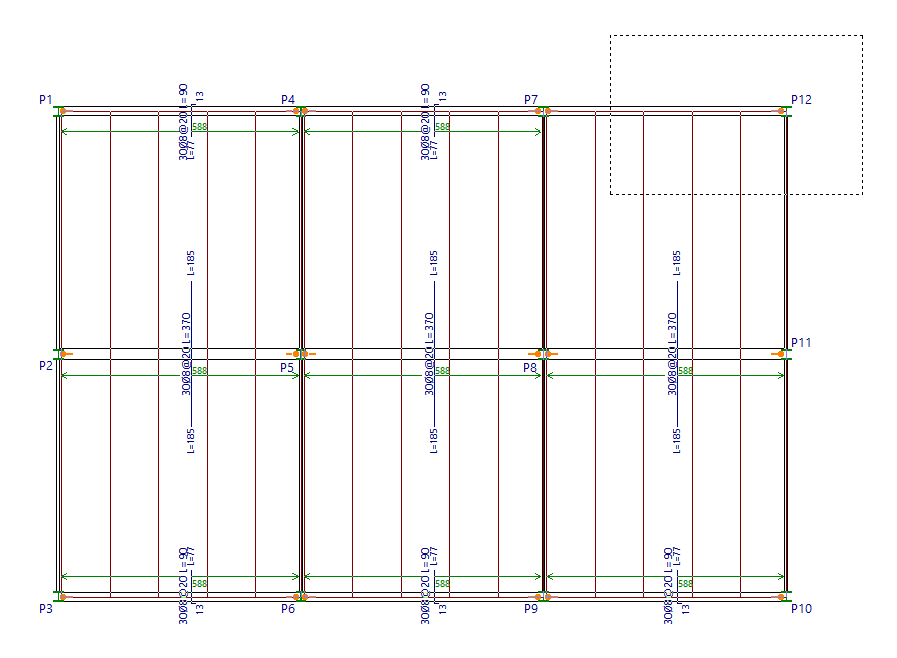
The "Delete" option allows you to remove reinforcement bars from drawings.
To do this, the bars to be removed are selected using a selection box on the plan view.
Modify position
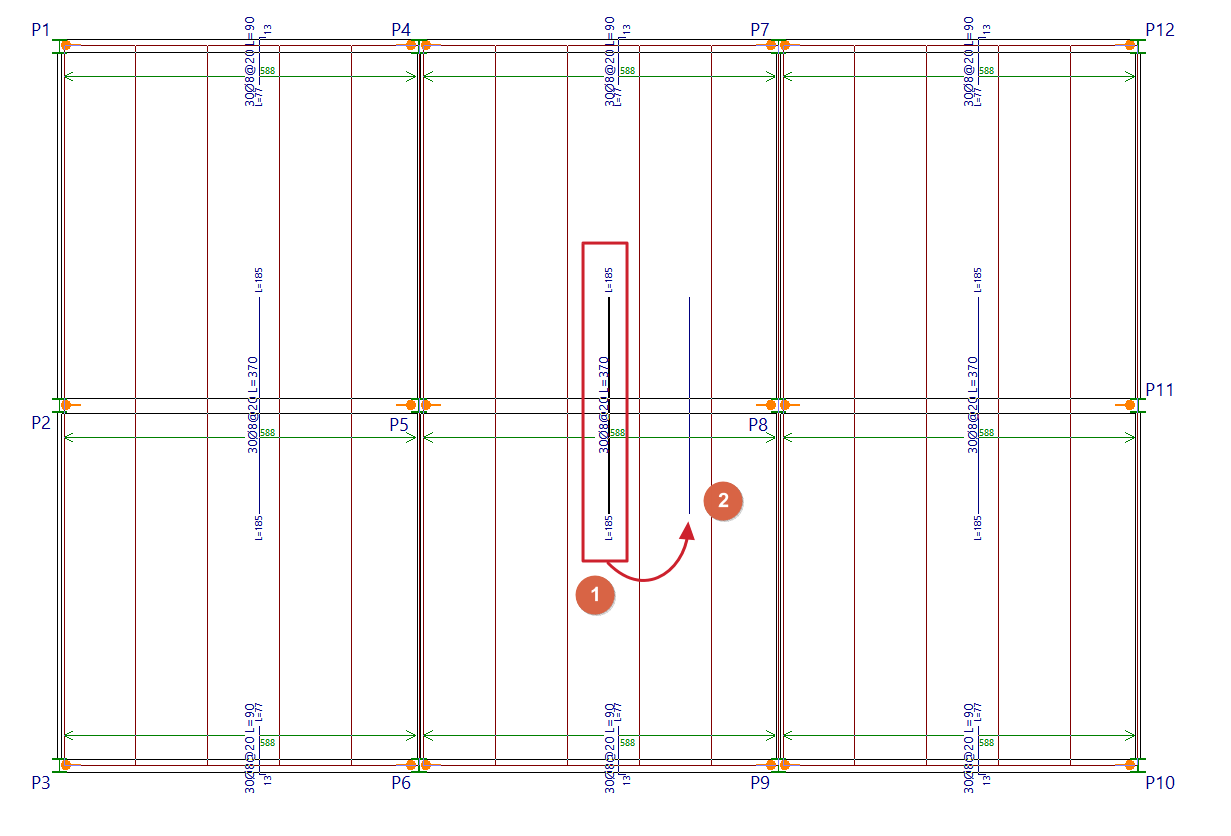
The "Move position" option allows you to move the display of the top reinforcement from one bar to another point within the same bar. This can be useful when the reinforcement label interferes with other text.
To change the position of the display of the reinforcement, click on the label text in the reinforcement panel and then click on a point in the same panel to define its new position.
Options for copying floor slabs
The following options are available in the "Slabs/Waffle slabs", "Joists", "Hollow core slabs" and "Composite slabs" on the "Results" tab, allowing you to save and retrieve copies of the slab reinforcement for all groups, or to copy slab reinforcement from one group to another.
Selecting these options only affects the type of floor slab in the relevant menu where they have been selected.
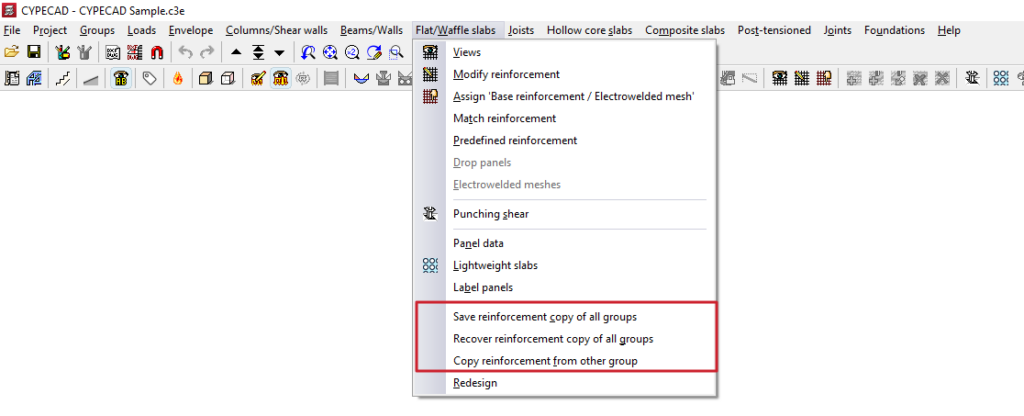
Save reinforcement copy of all groups / Recover reinforcement copy of all groups
These options allow you to save and restore backup copies of the reinforcement layout for the relevant type of floor slab in all groups, should it be necessary to redesign the structure, thereby preventing the loss of work carried out on the reinforcement.
The process is as follows:
- In a previously analysed project, the user makes manual modifications to the reinforcement in the parts of the model that require them.
- The "Save reinforcement copy of all groups" option is used to save the reinforcement with these modifications. Any modifications made to the reinforcement after this copy has been saved will not be saved.
- Subsequently, modifications are made to the projects that require a reanalysis (for example, by adding new elements to the structure).
- The project is reanalysed. During the reanalysis process, the program will have automatically made modifications to the floor structures of all groups, thereby losing the changes made manually.
- At this point, use the "Recover reinforcement copy of all groups" option. In the window that appears, you must specify, for each ‘Current group’, the reinforcement you wish to restore (in the ‘Restore from’ column) from those available in the previous save.
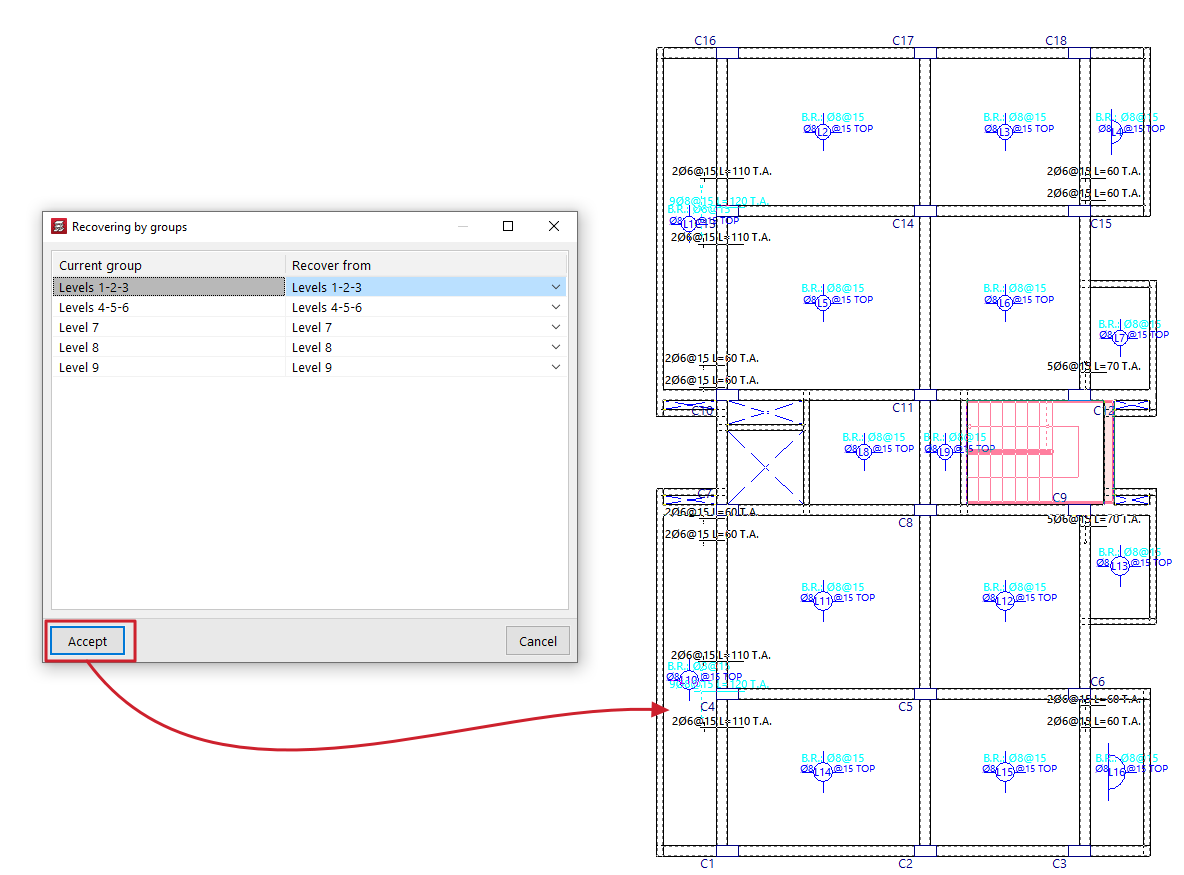
Copy reinforcement from another group
This option allows you to copy the layouts from one group of floors to another.
This is particularly useful in cases where there are floors with identical layouts and loads: you would simply need to make the changes to the reinforcement for one of them, and then copy the reinforcement.
To make a copy, follow these steps:
- Firstly, you need to select the target reinforcement (the reinforcement into which you wish to copy the structure of another reinforcement).
- Next, click on the "Copy reinforcement from another group" option in the relevant menu.
- Next, in the window that opens, select the group of floors from which you wish to copy the layout.
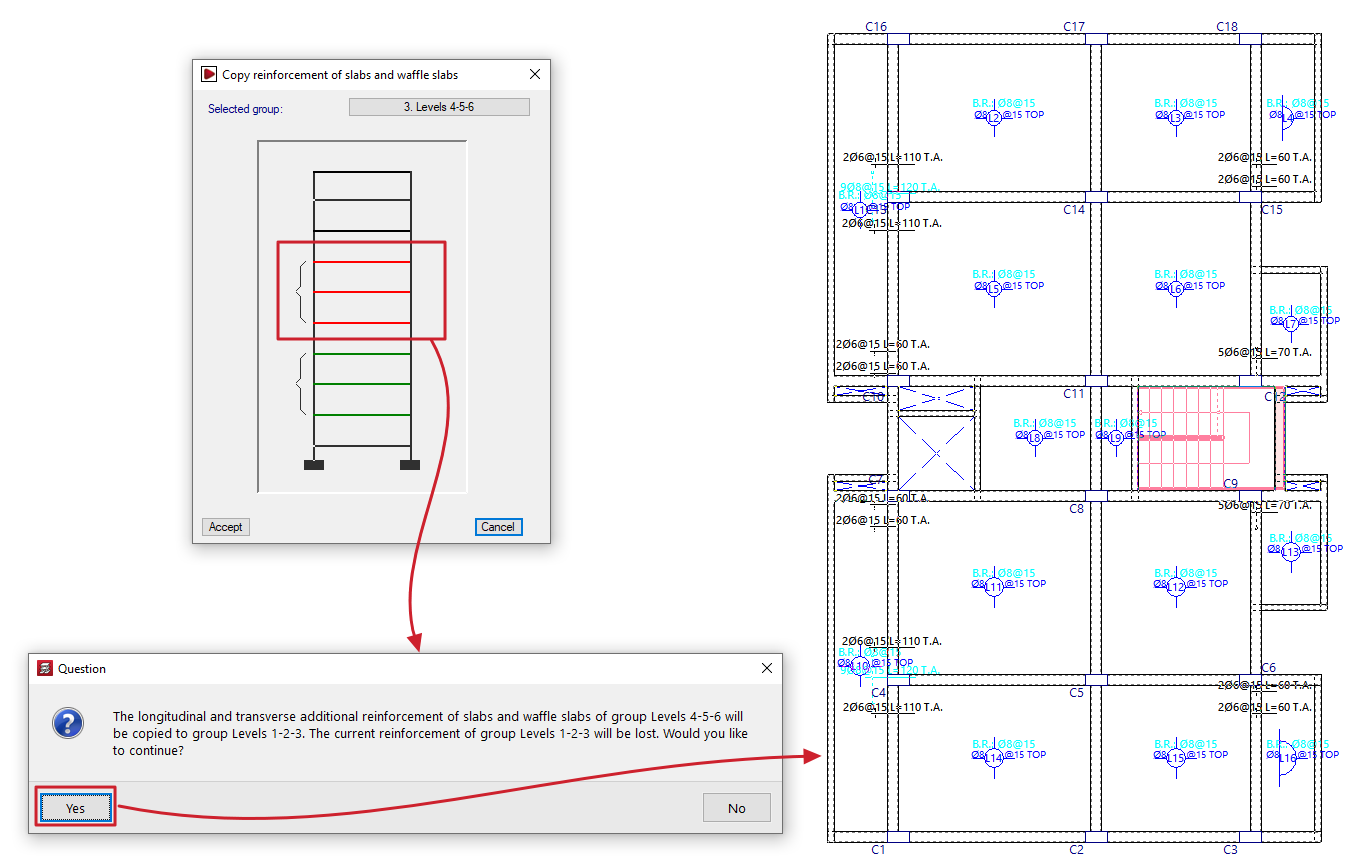
| Note: |
|---|
| If the target floor plan has a different layout from the standard floor plan, the reinforcement will only be copied in areas where there is a floor slab. In openings, the reinforcement is cut off, and no stirrups are placed. Furthermore, both the angle and the intersection point of the mesh must match. For this reason, when defining a group of floors, it is recommended to always copy the immediately preceding group. It is important to check any bars that have been cut, adding the corresponding stirrups or making any other necessary adjustments. |
Table of contents
Complete your tour of CYPECAD by exploring the other available sections:
- Introduction
- Introduction and creating new jobs
- General data configuration
- Defining floors and groups of floors and inserting columns, shear walls and starts ("Column input" tab)
- Inserting beams, walls, floor slabs, foundation elements and special elements, and structural analysis (the "Beam Input" tab):
- Checking analysis results and editing elements (the "Results" tab):
- Options on the "Contour plots" tab
- Printing documents and exporting data
- More information:
- General features of CYPECAD
