In version 2024.c the orthotropic material for shells is implemented in CYPE 3D. This material, for example, is of interest for the analysis of structures with cross-laminated timber panels.
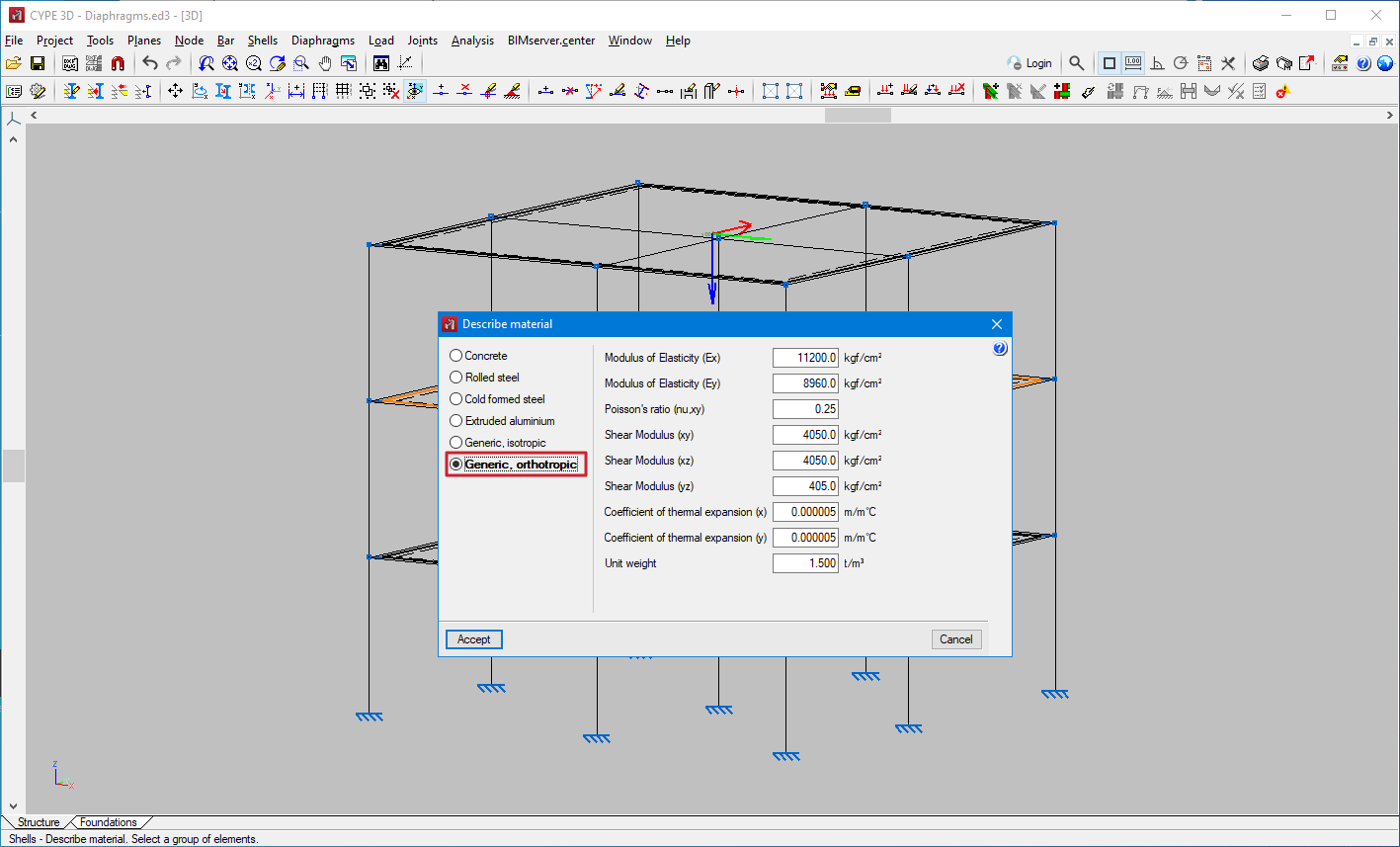


In version 2024.c the orthotropic material for shells is implemented in CYPE 3D. This material, for example, is of interest for the analysis of structures with cross-laminated timber panels.
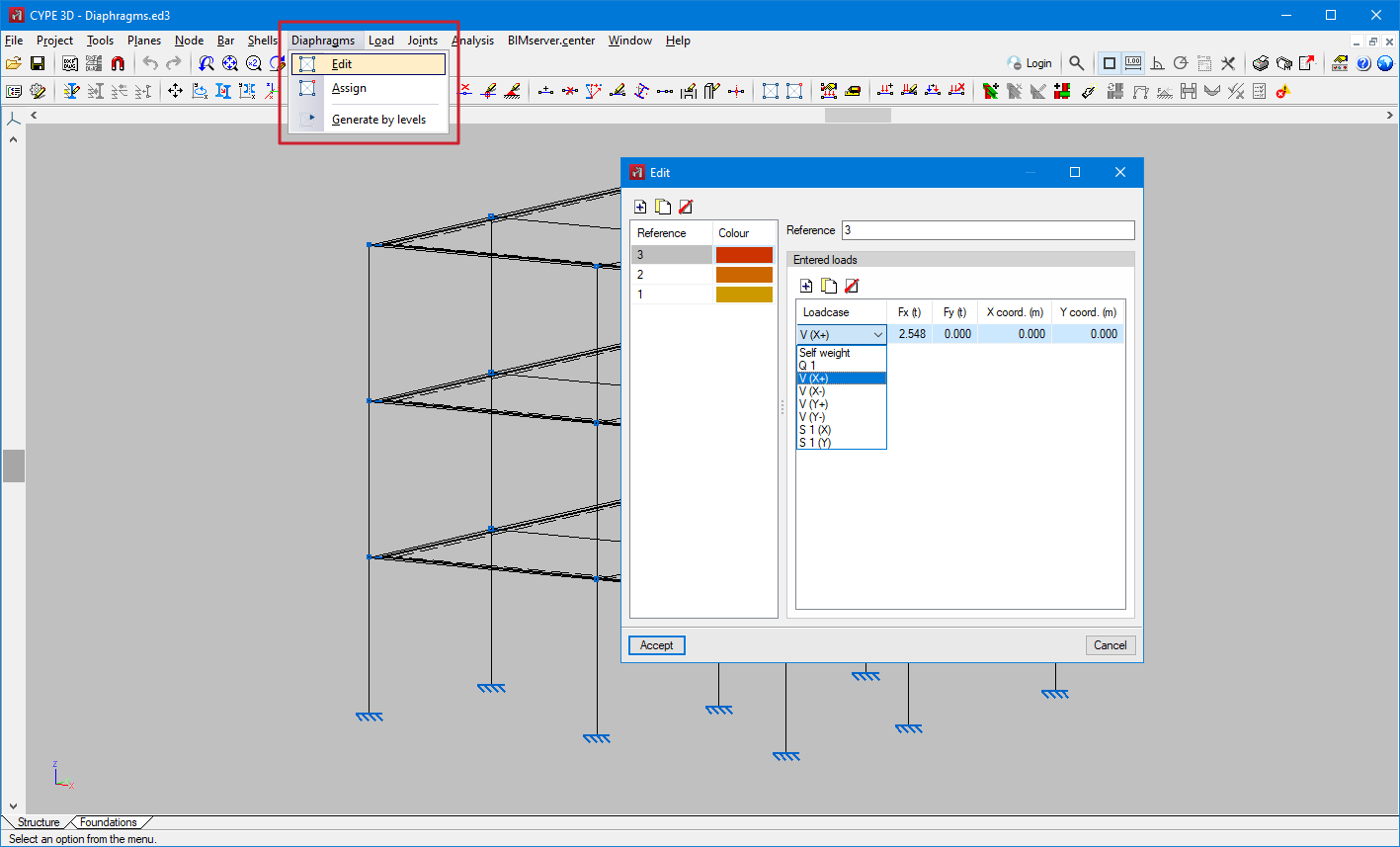
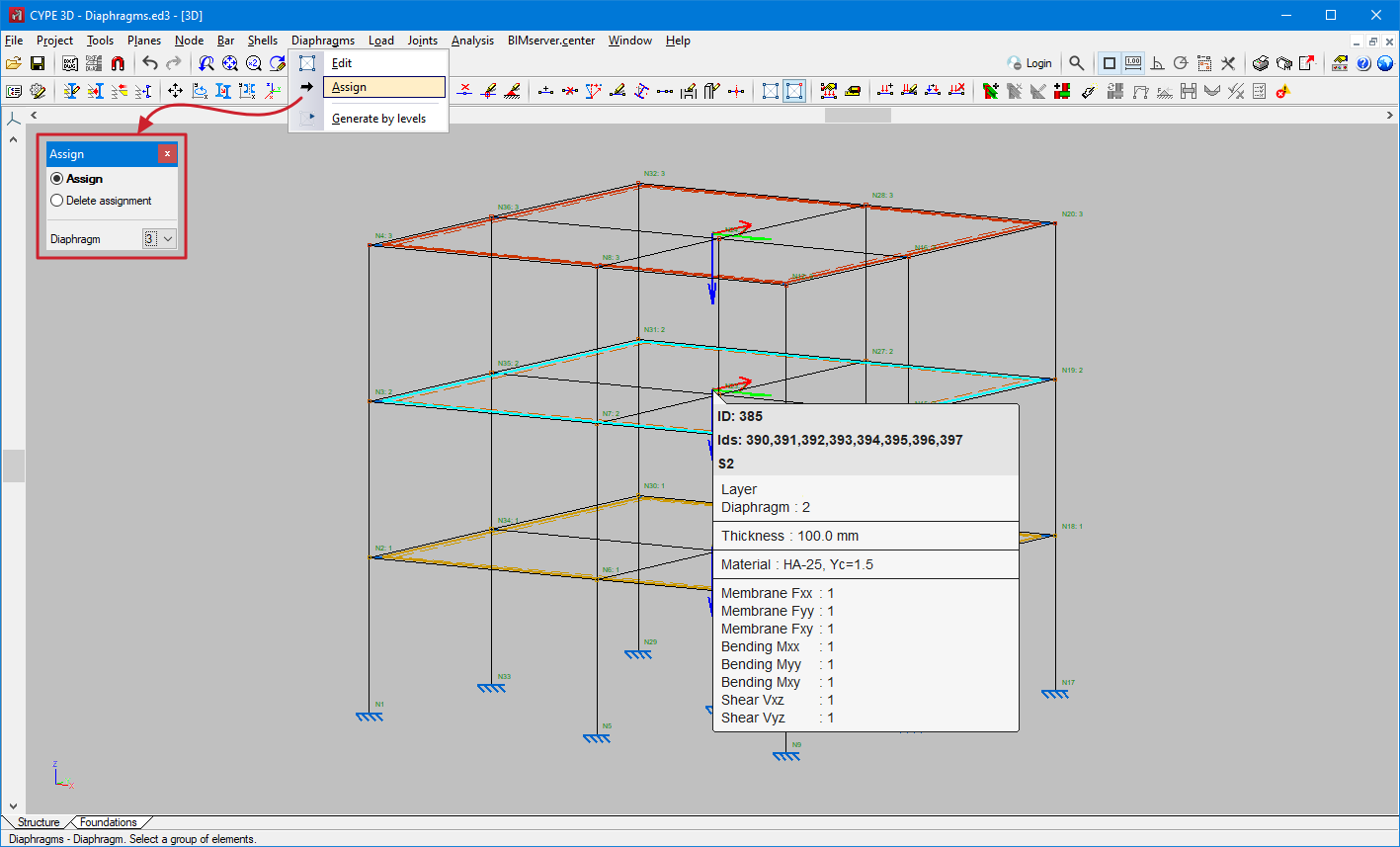
In version 2024.c rigid diaphragms have been implemented in CYPE 3D. The relative displacements between nodes belonging to the same rigid diaphragm are restricted. Therefore, each diaphragm can only rotate and move as a whole.
In the "Diaphragms" menu the following options can be found:
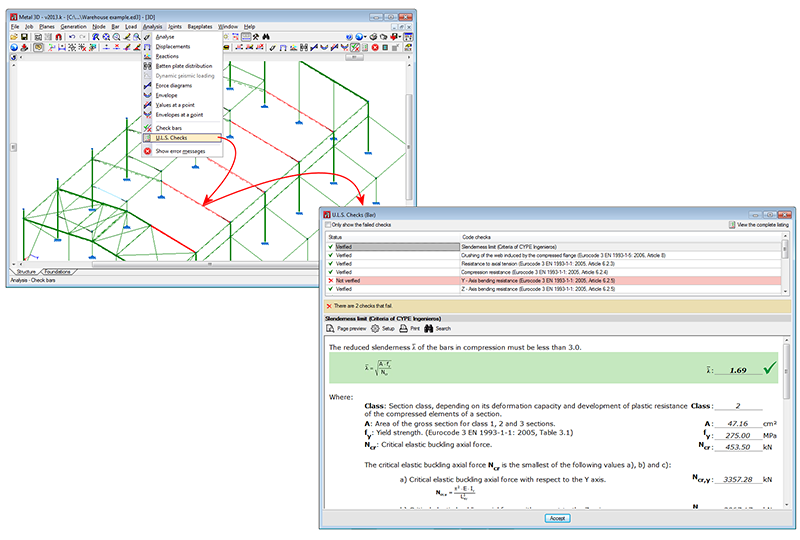
As of previous versions Metal 3D and the integrated 3D structures of CYPECAD generate detailed ultimate limit state check reports for steel (rolled, welded and cold-formed), aluminium and timber bars (Analysis > U.L.S. checks > select a bar). To identify the checks that fail or consult a specific check, users must run through the entire report.
Now, as of the 2013.k version (as has been done for columns and beams in CYPECAD), “Metal 3D” and “Integrated 3D structures of CYPECAD” include a detailed check and specific check for each U.L.S. check, which helps to speed up the verification procedure.
The top-half of the dialogue box that appears when users select the U.L.S. checks option from the Analysis menu, displays a table containing a list of all the checks that have been carried out. Users select the check to be consulted, which is then displayed in more detail in the bottom-half of the screen.
This dialogue box has the same properties as the dialogue box that appears when using the concrete beam editor, explained in detail, in the section on the Advanced beam editor of CYPECAD of this webpage.
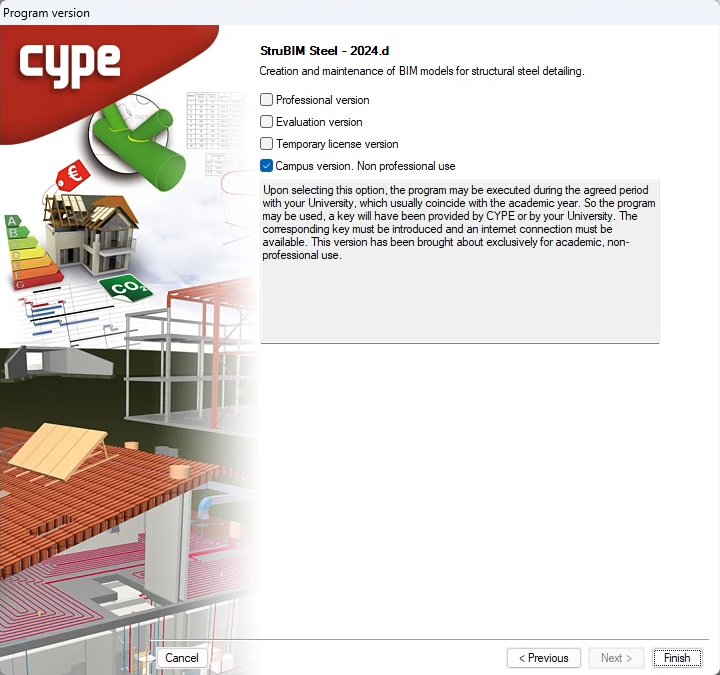
All CYPE programs can be installed in their different versions (Professional Version, Evaluation Version, Campus Version, Temporary License). In previous versions, users could only choose the type of version to be installed from the classic CYPE menu.
As of version 2024.a, the selection of version types has been implemented in all CYPE programs on the BIMserver.center platform.
As of version 2024.d, this selection can be made during the installation of all CYPE programs, regardless of where they are downloaded.
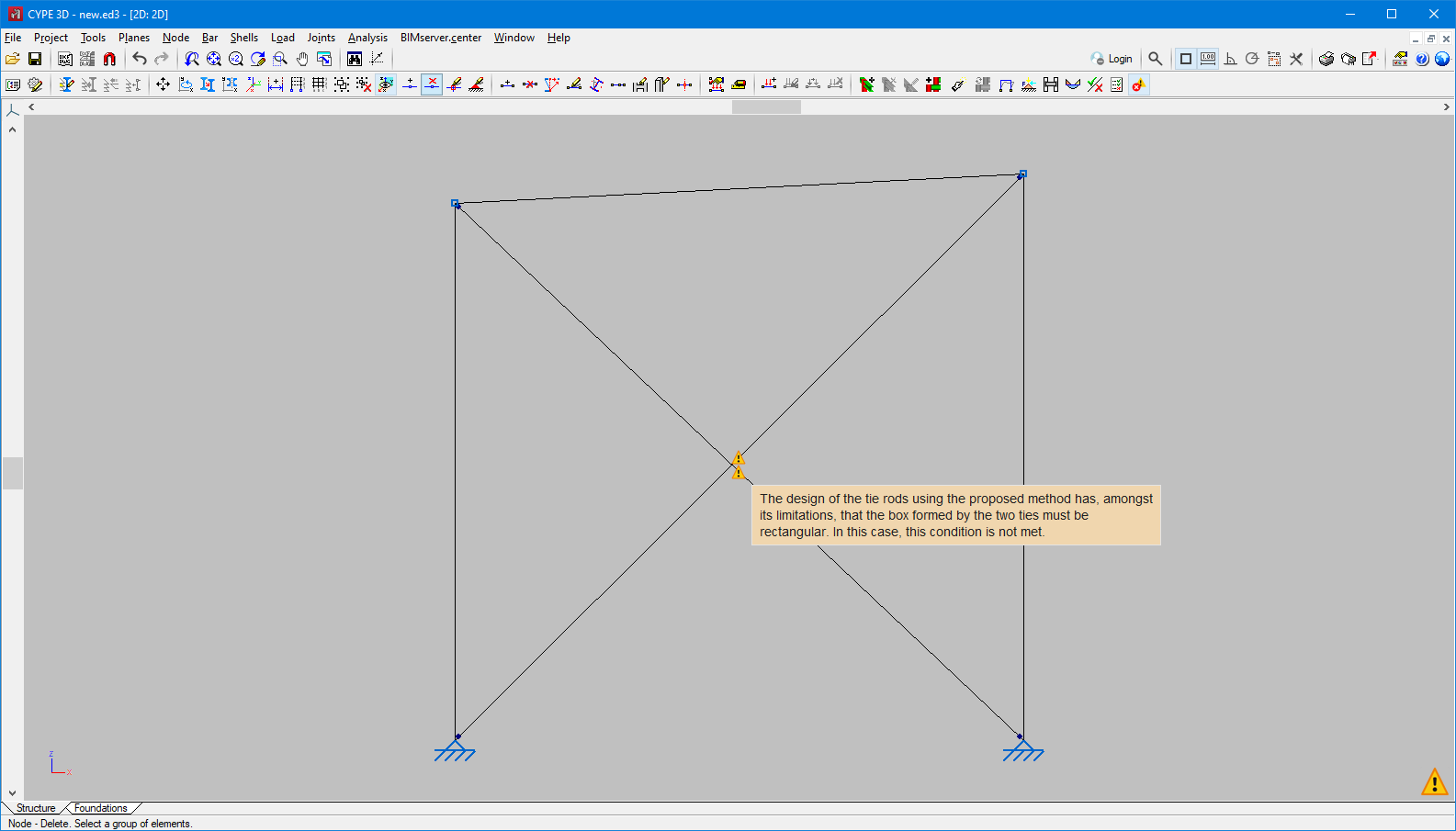
In versions prior to 2024.b, if the braced frame was not rectangular, a warning message was displayed and the job could not be analysed. In the help text on the analysis of tie rods, the method’s validity conditions are listed. Among the conditions, the following is mentioned:
"The diagonal forms part of a braced frame framing the four edges, or three, if the stiffening bars reach two exterior fixities. Additionally, each panel must form a rectangle (the four internal angles being right angles)."
As of version 2024.b, the warning indicating that the braced frame is not rectangular is still displayed, but the job is not prevented from being analysed. The aim is to let users analyse structures even if the frames are not rectangular, but a warning is displayed. When the frames are not rectangular due to slight variations in their angles, the result may be acceptable depending on the structure.
However, if there are very deformed frames, the analysis is still blocked due to this warning. This situation will occur when the cut-off point between the tie rods is further from the midpoint than 10% of the tie rod length, or when the difference in tie rods is greater than 20%.
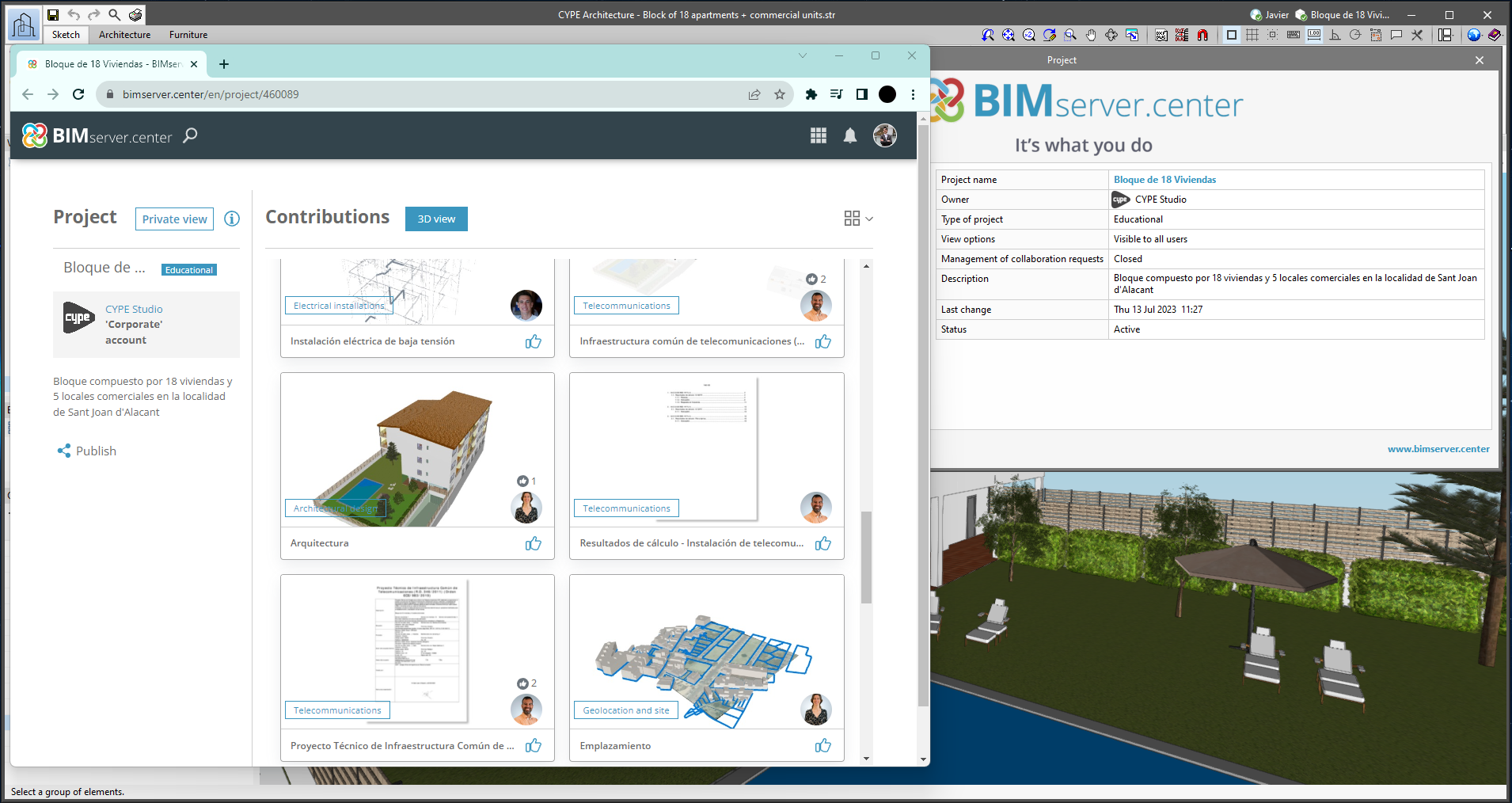
From the BIMserver.center project information window (displayed by clicking on the project name shown in the project information bar - upper right part of the application window) you can access the project page of the BIMserver.center platform via a link that has been inserted in the text indicating the project name.
Likewise, from the information window about the project contributions ("Contributions" option in the project information window), users can access the page of each contribution in the BIMserver.center platform. These links are inserted in the texts indicating the name of each contribution.
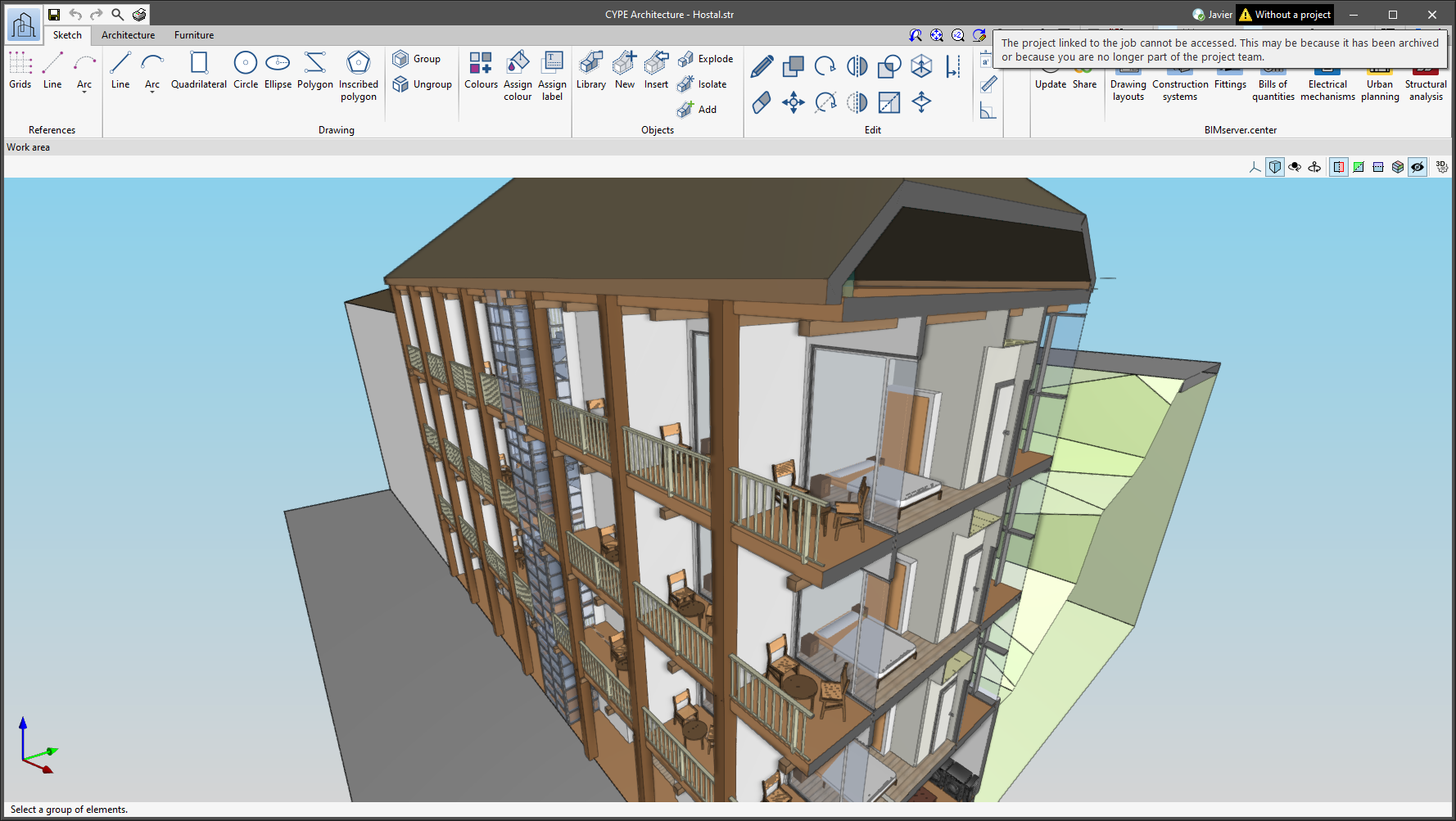
The status information bar of the BIMserver.center project is located at the top right of the window of the programs included in the Open BIM workflow. This bar has been available in the applications since version 2022.e and shows a warning icon when there is a problem with the connection to the project, as well as other things. Now, in version 2024.b, users can obtain more information about the warning by hovering the mouse cursor over the icon.
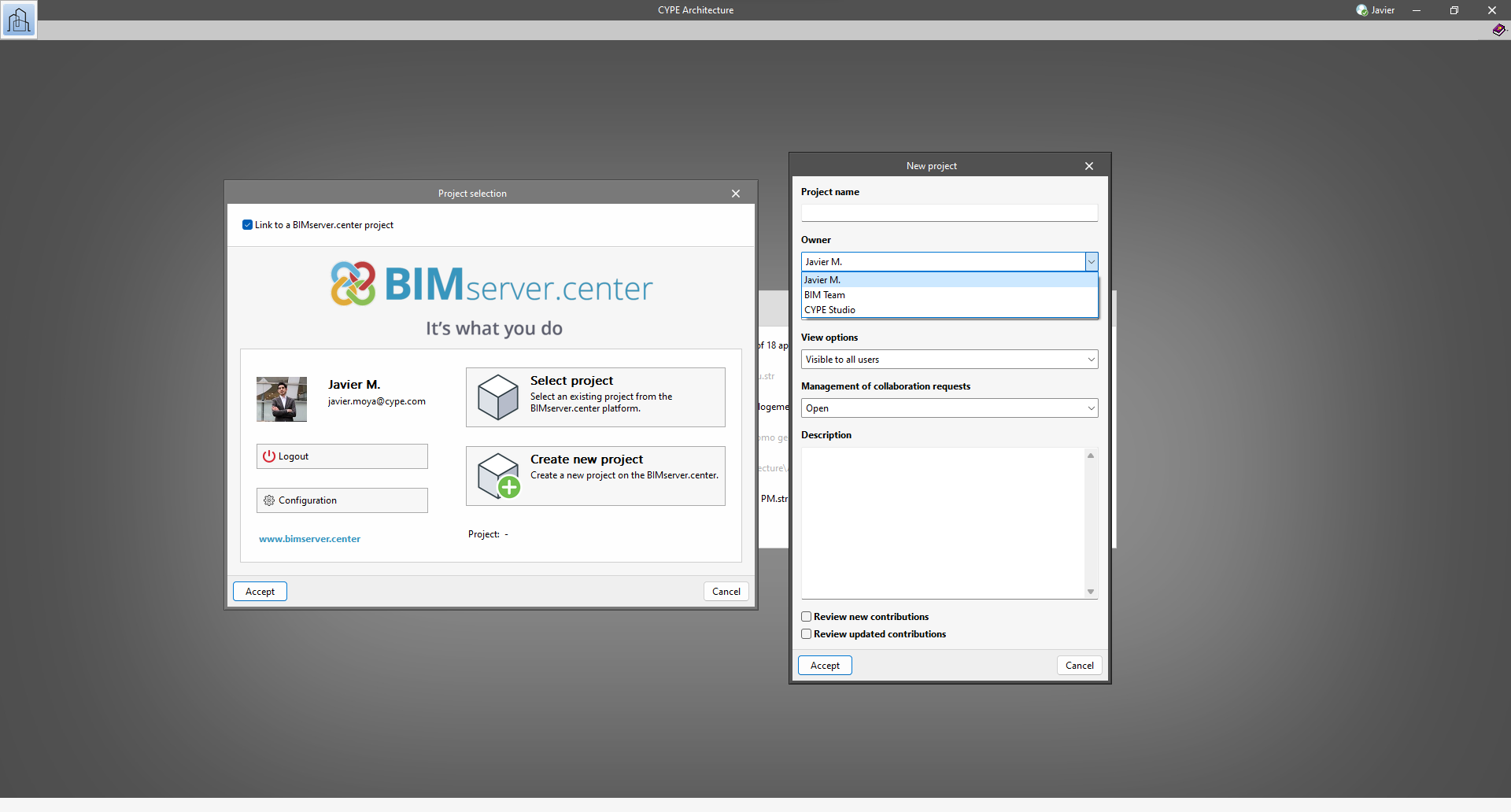
As of version 2024.b, users can create projects associated with a "BIMserver.center Corporate" account from all CYPE applications included in the Open BIM workflow. To do this, the "Owner" field has been added to the window for creating a new project. This is a drop-down menu that includes, as one of the available options, the logged-in BIMserver.center user name along with the "BIMserver.center Corporate" accounts to which it has access. When selecting the user name as the owner, the project will be associated with this personal account, as was the case in previous versions. On the other hand, if a BIMserver.center Corporate account is selected, the project will be associated with that account.