Introduction
CYPEHVAC Radiant Floor is a BIM application for designing radiant floor heating and cooling systems. The program can import architectural models developed in IFC, and can be used to enter the system and design it with the help of different tools. Among the options offered by the program, the automatic entry of the radiant floor circuits, the updating of their layout, taking into account both the obstacles and the spaces, and automatically extracting the quantities of the materials needed for the complete installation of the systems stand out.

| Note: |
|---|
| CYPEHVAC Radiant Floor can be used to design generic radiant floor systems. To design radiant floor systems from a specific manufacturer, different specific applications can be used, such as Open BIM GIACOMINI, Open BIM ORKLI Radiant Floor, Open BIM POLYTHERM, Open BIM ROTH or Open BIM SAUNIER DUVAL. These applications have an interface and options similar to those offered by CYPEHVAC Radiant Floor. |
Workflows supported by the program
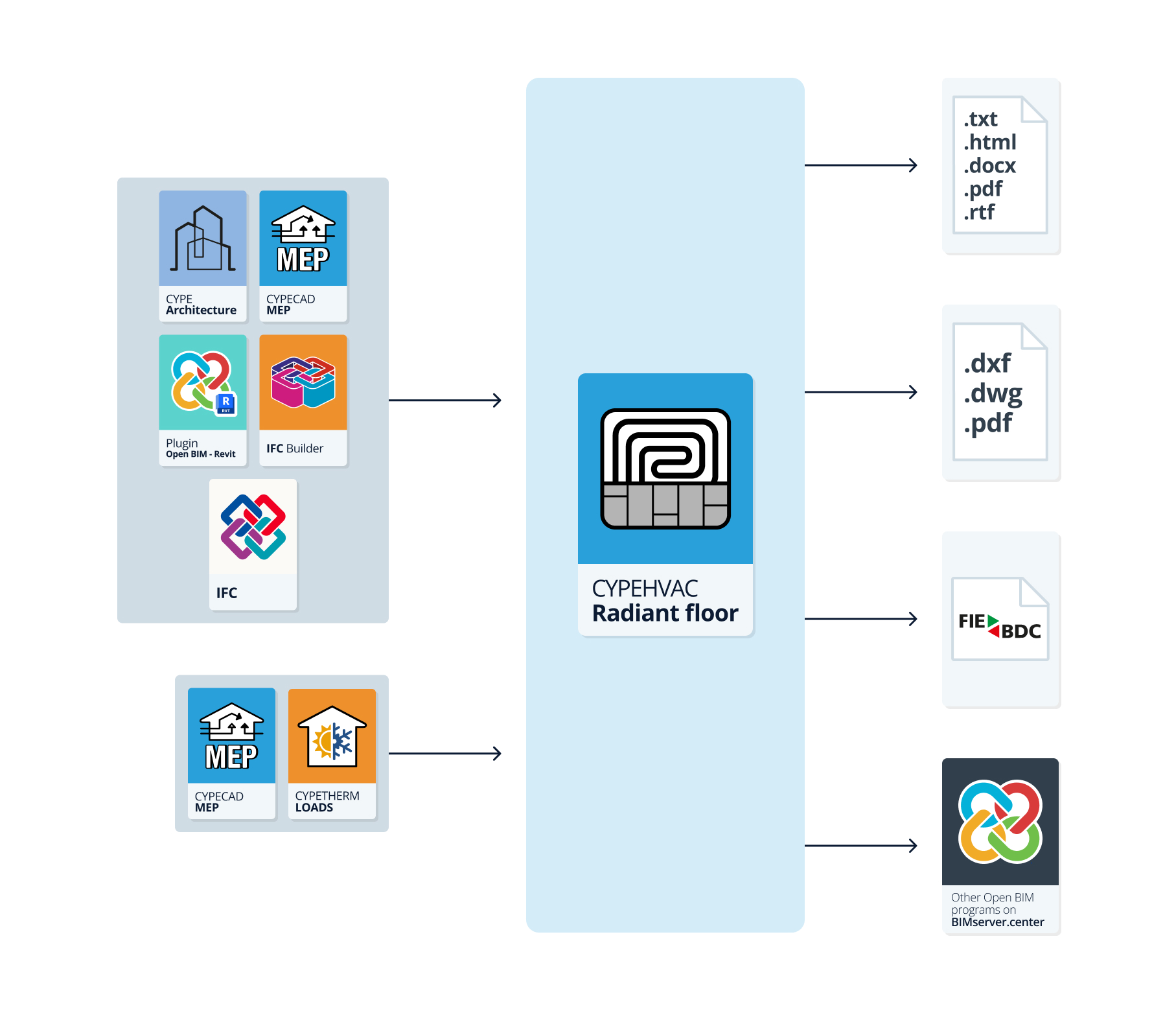
As CYPEHVAC Radiant Floor is an Open BIM tool and is connected to the BIMserver.center platform, it offers different workflow options.
Data entry
Free modelling/with templates
- System design by means of free entry in CYPEHVAC Radiant Floor.
- System design in CYPEHVAC Radiant Floor based on DXF-DWG, DWF, PDF templates or images (.jpeg, .jpg, .bmp, .wmf).
Importing BIM models
If the CYPEHVAC Radiant Floor job is linked to a BIM project from the BIMserver.center platform, the following actions can be carried out:
- Importing the model with the geometry of a building. This generates the floor plan of the building and imports the spaces from the spaces read from the BIM model, as well as generating obstacles from the geometry of elements such as columns. Among the options available are the following:
- Importing models designed in IFC Builder.
- Importing models designed in CYPE Architecture.
- Importing models in IFC format (generated by CAD/BIM programs such as Allplan, ArchiCAD and others) uploaded to the BIMserver.centre project via the web platform.
- Importing models designed in Autodesk Revit with the Open BIM - Revit Plugin.
- If the architectural model is generated by IFC Builder or CYPE Architecture, users can also import the DXF or DWG templates contained in that model, or those that the program itself generates (from the construction elements entered) when a model is exported to the BIM project.
- Importing the results of programs that can analyse thermal loads in order to be able to use them in the sizing of the system.
- Importing thermal loads from CYPETHERM LOADS.
Data output
- Exporting reports to HTML, DOCX, PDF, RTF and TXT formats.
- Exporting drawings to DXF, DWG and PDF formats.
- Exporting measurements to FIEBDC-3 format.
- Exporting the information generated with CYPEHVAC Radiant Floor to the BIMserver.center platform using IFC and GLTF formats. This allows it to be viewed by authorised project participants. The information generated by CYPEHVAC Radiant Floor can be used by the following programs:
- CYPEHVAC
Imports the CYPEHVAC Radiant Floor collectors and completes the modelling of the system.
- CYPEHVAC
Work environment
The program has a simple work environment that ensures that the system design can be carried out quickly, entering the elements in plan views.
The interface displays the folllowing:
- An upper toolbar containing tools for: managing project options; defining enclosures and obstacles; entering and editing the elements of the radiant floor installation, including circuits and peripheral areas, manifolds and connection pipes; inserting annotations; accessing editing tools; performing the analysis and checking of the system; and generating the roll quantities.
- The work area, on the right side of the screen, where the aforementioned elements are entered, edited and displayed.
- Finally, on the left-hand side panel are the tools for defining the different floor drawings of the building and navigating through them, as well as for viewing the 3D view of the system.

Data input and output sequence for designing and analysing radiant floor systems
Radiant floor systems can be defined and analysed in the program by means of the following input and output sequence:
- Creating a new job (from "File", "New").
- (Optional) Linking to BIMserver.center, selection and import of floor plans and enclosure types read from the BIM model.
- Setting the general options (from "Project", "General options"), including revision of libraries of enclosure types and facility elements.
- (Optional) If not read and generated from the BIM model, floor plans must be entered manually using the options in the left side panel.
- (Optional) If they have not been read and generated from the BIM model, the spaces must be entered manually (from "Enclosures", "New") in each floor plan in the work area.
- (Optional) Entry of existing obstacles (from "Enclosures", "Obstacle") in each floor plan in the work area and/or review of the obstacles generated in the process of importing data from the BIM model.
- Entering and laying out the radiant floor circuits in the spaces shown on each floor in the work area. This can be done in two ways:
- Individual input (from "Circuit", "Circuit").
- Automatic generation (from "Circuit", "Generate circuits").
- (Optional) (Optional) If necessary, circuits can be divided to adjust their geometry (from "Circuit", "Divide circuit").
- (Optional) If available, the peripheral areas are defined (from "Circuit", "Peripheral area") on the sides of the circuits.
- Defining the layout of the radiant floor circuits (from "Circuit", "Layout") by clicking on each circuit.
- Laying out the radiant floor manifolds (from "Distribution", "Manifold") on each floor in the work area.
- Entering connection pipes (from "Layout", "Connection pipe") between the circuits and the underfloor heating collectors in each drawing in the work area.
- System analysis, consulting results on screen and in result reports ("Analysis" group).
- (Optional) Managing and generating roll quantities (from "Quantities", "Roll quantities").
- Obtaining reports, drawings and the bill of quantities (from "File", "Reports/Plans/Export").
- Export to BIMserver.center (from "BIMserver.center", "Share").
Examples of radiant floor system models
Below is an example of a radiant floor system that can be developed in the program, indicating the layout of the elements and the options that allow them to be entered in the model:
Installing a radiant floor in a single-family dwelling
- Spaces (imported from the BIM model or entered from "Spaces", "New").
- Obstacles (from "Spaces", "Obstacle").
- Circuits (from "Circuit", "Circuit" and "Layout").
- Peripheral area (from "Circuit", "Peripheral area").
- Collector (from "Distribution", "Collector").
- Connection pipes (from "Distribution", "Connection pipe").


Creating a new job, linking to a project and importing data
When launching the application and clicking on "New", it is possible to create a "New job". After entering the "File name" and "Description", the job can then be integrated into an existing project in BIMserver.center.
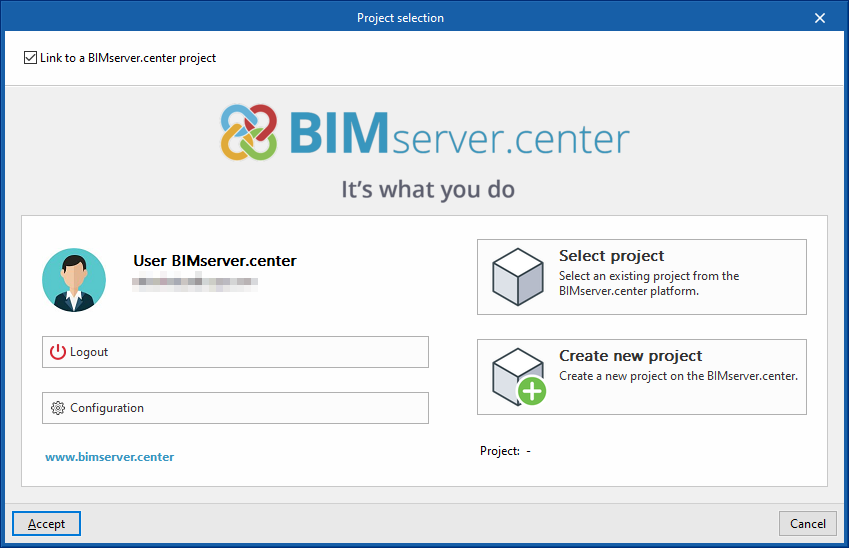
This is done in the "Project selection" window, which has the following options:
- On the left-hand side, users can log in with a BIMserver.center account.
- On the right-hand side there is a "Select project" option to choose an existing project. There is also the possibility to "Create a new project". In this case, the created project will be visible from BIMserver.center from that moment on.
- There is the option to start the project without being linked to the BIMserver.center platform. To do this, simply uncheck the "Link to a BIMserver.center project" box at the top left.
Once the new job has been created, the general interface of the program is accessed, after going through the import wizard, if necessary. At any later time, during the work process, project files can be shared or imported via the "BIMserver.center" group, located at the top right of the general interface.

Importing BIM models
When creating a new job, if a project hosted on the BIMserver.center platform has been selected from "Select project", the "Import BIM models" window appears, which shows the files contained in this project in IFC format.
The application offers users the possibility of including one or more of the existing models in the project. To do so, check the "Import" box and accept it. The “Type” of each file must be set to “Starter” or “Additional”.
Subsequently, the 3D view of the program will display the imported models, both from the initiator and additional files. In addition, the program can import the geometry of floors and spaces from the file marked as the initiator by means of a configuration wizard.

Configuration wizard: selection of floor drawings and space types to be imported
From the "Import BIM models" window, the program opens the "Configuration" wizard, which consists of the following steps:
- In the first step, a report with the floor plans found in the BIM model is displayed. Here, the floor plans to be imported can be selected. The spaces included in a floor plan that has not been selected will not be imported.
| Note: |
|---|
| To modify, enter or delete drawings of the project at a later stage, the options on the left-hand side panel of the general interface can be used. |

- In the next step, a report with the space types found in the BIM model is displayed. Here, the space types to be imported can be selected. Spaces assigned to an unselected space type will not be imported.
| Note: |
|---|
| The imported space types must then be checked from the "Space types" option under the "General options" option in the "Project" group of the main toolbar. To enter the zones manually, use the "New" option in the "Spaces" group of the main toolbar. |

Import results
Finally, in the last step, an "Import results" table is displayed with the information of the processed, created, modified or deleted BIM model elements.

Configuring project options
In the "Project" section of the main toolbar, you will find the "General options" option, which allows you to configure the general project settings and access the management of libraries of building types and installation elements:

- Settings
- Drawing preferences for floor plans
- Drawing options
- Outdoor conditions
- Design options
- Libraries
- Types of space
- Static balancing valve
- Types of pipe
- Types of system
The options in the right-hand column allow you to import and export general settings to files on your hard drive.

Drawing preferences for floor plans
Enables or disables the information you wish to display on floor plans:
- Distribution
- Space (Reference, Type, Cooling sensible cooling load, Heating thermal load, Area, Key)
- Radiant floor heating
- Manifold (Reference, Number of circuits, Key)
- Obstacle (Reference, Key)
- Circuit (Reference, System, Pipe, Pipe spacing, Heating flow, Heating power, Cooling power, Occupied area, Manifold, Total length, Circuit length, Service/connection length, Circuit area, Peripheral area, Cooling flow rate, Key)


Drawing options
Configures the layout of floor plans:
- Floor plans
- Text height
- Scale divider
- Text label
- Shading (optional)

External conditions
Configures the parameters that define the outdoor air:
- Outdoor air
- Altitude
- Summer dry-bulb temperature
- Summer wet-bulb temperature

Design options
Configures the parameters used in calculating the components of the radiant floor system and the requirements for the various checks carried out on them.
- Working fluid
- Specific heat
- Density
- Dynamic viscosity
- Radiant floor manifold
- Maximum flow rate (optional)
- Maximum pressure loss (optional)
- Radiant floor circuit
- Maximum flow rate (optional)
- Check the minimum flow rate (optional)
- Maximum pressure loss
- Maximum pressure loss per unit length
- Cooling calculation
- With dehumidification system (optional)
- Material schedule
Measures the staples and perimeter bands in radiant floor systems, so that they can be included in the material schedule generated by the program.- Staples (optional)
When this option is selected, you can specify the number of staples per square metre of pipe. - Perimeter band (optional)
When this option is selected, the program calculates the perimeter of all rooms with a radiant floor circuit.
- Staples (optional)

Types of space
Configures the space type library. Space types are generated and associated with the rooms in the model during the BIM data import process, and are also selected when adding rooms manually via the "New" option in the "Rooms" panel.
The following parameters are defined for each type of venue:
- Reference
Reference for the space type. - Design parameters
In this section, you select the design parameters to be applied to the spaces of this type. These values will be automatically assigned to the various components of each space’s installation during the results update process, unless they have been locked.- Cooling design parameters (optional)
- Cooling temperature
- Sensitive refrigeration load
- Relative humidity
- Heating design parameters (optional)
- Heating temperature
- Heating load
- Radiant floor (optional)
Defines the parameters to be applied to the radiant floor circuits defined for rooms of this type.- Circuit layout in bathrooms and toilets
When an underfloor heating circuit is used in a bathroom or toilet, this should not be taken into account when selecting the most unfavourable circuit for the same manifold during the design process, unless all the connected circuits are serving rooms of this type.- Consider this type of space as a bathroom or toilet (optional)
- Surface that can be panelled
- Only the active surface of the circuits (optional)
- Heating
- Maximum surface temperature of the occupied area
- Maximum surface temperature of the peripheral area
- Indoor temperature in the lower adjacent space
- Cooling
- Minimum surface temperature in the occupied area
- Minimum surface temperature in the peripheral area
- Internal temperature in the lower chamber
- Thermal resistance of the floor layers
- Floor cover
- Structural base (roof)
- Structural base (plaster)
- Lower adjacent space
- Heated (optional)
- Circuit layout in bathrooms and toilets
- Cooling design parameters (optional)


Types of static balancing valves
Configures the library of static balancing valve types. The static balancing valve type can be selected later when adding manifolds using the "Manifold" option.
The following parameters are defined for each type of static balancing valve:
- Reference
Reference for the type of static balancing valve. - Description
Description of the type of static balancing valve. - Flow coefficient (Kv)
Each row in this table specifies a flow coefficient (Kv) for each model listed.
At the bottom, the program allows you to view information on the pressure drop associated with each flow rate value in a graph showing the relationship between the two variables.


Types of pipe
Configures the pipe type library. The pipe type is selected later when entering underfloor heating circuits using the options in the "Circuit" group.
The following parameters are defined for each type of pipe:
- Reference
Pipe type reference. - description
- Outer diameter
- Thickness
- Radius of curvature
- Thermal conductivity
- Absolute roughness
- Coating (optional)
- Thickness
- Thermal conductivity
- Maximum length (optional)
- Lengths of rolls available
In this section, you can define the available pipe roll lengths by adding rows to the table.

Types of systems
Configures the system type library. The system type is selected later when entering radiant floor circuits using the options in the "Circuit" group.
The following parameters are defined for each type of system:
- Reference
System type reference. - System
Selects the type of radiant floor system from those described in the ISO 11855 standard, namely types A, B, C and E. Different parameters are defined for each system:- Tubes inside the panel (type A and type C)
- Thermal resistance of the insulation panel
- Tubes underneath the panel or wooden floor (type B)
- Thermal resistance of the insulation panel
- Diffuser
- Thickness
- Thermal conductivity
- Width
- Pipes embedded in large concrete slabs (type E)
This type of system allows for the design of active slabs, thermoactive slabs or TABS (Thermo Active Building Systems). The program will determine the system’s heat transfer to both the spaces above and below.- Dimensions of the conductive layer
- Thickness of the conductive layer above the pipe (s1)
- Thickness of the conductive layer below the pipe (s2)
- Thermal conductivity of the conductive layer
- Dimensions of the conductive layer
- Tubes inside the panel (type A and type C)
- Permitted moves
This section defines the moves permitted by the system by adding rows to the table.


Layout of spaces and obstacles
The "Spaces" group in the main toolbar contains the options for inserting and arranging spaces and obstacles in the model:

New
Inserts a space in the work area by drawing its outline on the floor plan. There is no need to enter the spaces manually if they have been read and imported from the BIM model.
When entering a space, the program requires the following parameters to be defined:
- Reference
Space reference. - Type
Selection of the space type. The space types can be created and edited using the options available to the right of the drop-down menu or through the libraries available in "General options", within the "Project" group. - Thermal load
Activates and defines the thermal load of the space. In the case of spaces imported from the BIM model, this data can be read from the information provided in the BIM model.- Sensitive cooling load (optional)
- Heating load (optional)


Obstacle
Inserts an obstacle by drawing its outline on the floor plan. This represents the existence of fixed furniture, columns and other elements that impede the layout of the underfloor heating in certain parts of a space.
The program shall consider the geometry of the obstacle when generating a circuit layout.


Defining radiant floor circuits
The "Circuit" section of the main toolbar contains the options for adding underfloor heating circuits to the model:

Circuit
Adds a radiant floor circuit to the work area by drawing its outline on a floor plan.
When entering a circuit, the program requires the following parameters to be defined. If a value is locked, it will not be altered when the results are updated, but will remain unchanged.
Circuit parameters can be defined locally or inherited from the information entered for the room type (under "General options", then selecting "Libraries" and "Room types").
- Reference
Circuit reference. - System
Selecting panel and pipe types. Libraries for these types can be created and edited via the "Pipe types" and "System types" options available under "General options" in the "Project" section. - Mortar layer
- Defining the following characteristics of the mortar layer:
- Thickness
- Thermal conductivity
- With inserts (optional)
- Thermal conductivity of the components
- Volume proportion of the parts on the board
- "Layout" tab
Specifies the data that defines the circuit layout:- Pipe spacing in the occupied area (Lock/Unlock)
- Pipe spacing in the peripheral area
- Pipe spacing in the service area (Lock/Unlock)
- Surface of the occupied area (Lock/Unlock)
- Surface of the service area (Lock/Unlock)
- Service area surface (Lock/Unlock)
- Circuit pipe length (Lock/Unlock)
- Service pipe length (Lock/Unlock)
- "Space floor" tab
Defines the thermal resistance of the following structural elements:- Floor covering (Lock/Unlock)
- Structural base (roof) (Lock/Unlock)
- Structural base (plaster) (Lock/Unlock)
- "Lower adjacent space" tab
Indicates whether the lower enclosure is heated or not. In Open BIM Systems underfloor heating programs, this option allows you to adjust the calculation by incorporating the necessary material layers in this case. The "Internal temperature of the lower enclosure" is defined using the option mentioned below.- Heated (optional) (Lock/Unlock)
- "Heating" tab
Allows users to view or edit the following heating calculation parameters:- Temperature drop (Lock/Unlock)
- Design indoor temperature (Lock/Unlock)
- Maximum surface temperature in the occupied area (Lock/Unlock)
- Maximum surface temperature in the peripheral area (Lock/Unlock)
- Indoor temperature of the lower adjacent space (Lock/Unlock)
- Supply temperature (manifold) (Lock/Unlock)
- Required capcity (Lock/Unlock) (for type A-C and B systems)
- Higher power requirement (Lock/Unlock) (in E-type systems)
- Lower power requirement (Lock/Unlock) (in E-type systems)
- "Cooling" tab (optional)
Allows users to view or edit the following cooling calculation parameters:- Temperature drop (Lock/Unlock)
- Design indoor temperature (Lock/Unlock)
- Minimum surface temperature of the occupied area (Lock/Unlock)
- Minimum surface temperature of the peripheral area (Lock/Unlock)
- Internal temperature of the lower compartment (Lock/Unlock)
- Supply temperature (manifold) (Lock/Unlock)
- Power required (Lock/Unlock) (for type A-C and B systems)
- Higher power requirement (Lock/Unlock) (in E-type systems)
- Lower power requirement (Lock/Unlock) (in E-type systems)
- Checks
Checks whether the power supplied is greater than or equal to the power required.- Power supplied (in A-C and B-type systems)
- Maximum power input (Lock/Unlock) (in E-type systems)
- Lower power input (Lock/Unlock) (in E-type systems)
- View checks
Access a list of circuit checks, including a summary of results and a description of the calculation. - Automatic circuit step selection
Automatically selects the step for the active and peripheral zones of the circuit (from those available, depending on the system) to perform the checks in accordance with the defined conditions.


Generate circuits
Automatically generates radiant floor circuits and their layout on the visible floor plan or on all floor plans, based on the geometry of the previously defined rooms and the information provided in the edit panels that appear when you click this option.
You can configure circuit generation by enabling the following options:
- Minimum area of the space (optional)
- Maximum area of the space (optional)
- Maximum pipe length (optional)
- Delete existing circuits (optional)
- Delete existing layouts (optional)
- Generate in all the floor plans (optional)
Subsequently, if necessary, the generated circuits and their layout can be modified or adjusted to suit the actual circumstances of the project.


Split circuit
This allows you to split an underfloor heating circuit into several circuits by drawing a line between various points along its perimeter.
| Note: |
|---|
| The use of circuits with a smaller surface area ensures that the circuits do not have excessively long pipework. |

Peripheral area
This allows you to define a peripheral area by selecting the side of a circuit.
Peripheral areas are zones within the building (for example, the part of the building closest to the façade) where the surface temperature and heat transfer differ from those defined in the occupied area.
Concentrating the pipes in the peripheral area makes it possible to increase the power supplied by the circuit within the building.

Layout
This allows you to define the layout of a circuit that has already been entered.
When you select this option, the program requires you to specify the following parameters:
- Layout type
Select the line type from the following:- Automatic
- Serpentine (automatic)
- Clockwise spiral
- Counter-clockwise spiral
- Coil (automatic)
- Clockwise parallel coil
- Counter-clockwise parallel coil
- Perpendicular clockwise coil
- Perpendicular counter-clockwise coil
- Clearance at the edge of the area
Once you have confirmed, define the route by selecting a point on the circuit’s outline in the plan view. At the selected point, you can connect the pipe to the radiant floor system.


Edit layout
This allows you to modify the layout of previously generated underfloor heating circuits.
When using this option, the program allows you to redefine the circuit layout by clicking directly on the desired points on the floor plan.

Update layouts
This allows you to update the layout of underfloor heating circuits that have been previously generated or modified.
When you select this option and click on a circuit whose layout has been modified, the program allows you to choose one of the following options:
- Keep the route
Keeps the route of the selected circuit. - Update the layout
Regenerates the layout of the selected circuit. To do this, the "Layout type" and the "Margin from the edge of the area" are specified again.

Installing manifolds and connecting pipes
The "Layout" section of the main toolbar contains the options for adding manifolds and the pipes connecting the manifolds to the circuits:

Manifold
Defines a manifold and positions it in the workspace by selecting a point on the floor plan.
When you enter a manifold, the program requires you to define the following parameters. If a value is locked, it will not be modified when the results are updated, but will remain unchanged:
- Reference
Manifold reference. - Number of circuits (Lock/Unlock)
Number of circuits associated with the collector. - Pipe length (optional)
Additional pipe length on the manifold. - Flow temperature
Sets the flow temperature for heating and cooling:- Heating
- Refrigeration
- Hydraulic balancing
Selects one of the following:- Static balancing valve
Selects the type of static balancing valve. Valve types can be created and edited using the options available to the right of the drop-down menu or via the libraries available under "General options" within the "Project" group. - Flow meter
- Static balancing valve
- Pressure loss (optional)
- Hydraulic balancing
- Kv
Enters the flow coefficient (Kv) directly. - Equation (ΔP = a·Qm + b·Qn + c·Qk)
This equation is used to define the parameters a, b, c, m, n and k that relate the pressure drop (ΔP) in kPa to the flow rate (Q) in l/h.
- Kv
- Hydraulic balancing


Connection pipe
This allows the connection pipes between the manifold and the connection points of the underfloor heating circuits to be installed.
When entering the connection pipe, the program requires the following parameters to be defined:
- Step
- Radius of curvature

Split the connecting pipe
This allows you to split a previously inserted connection pipe by clicking on the desired points and creating intermediate nodes along its path.

Managing annotations
The "Annotations" group in the main toolbar contains the options to insert annotations such as texts, labels and dimensions on the drawings:

Annotations
The "Annotations" menu has the following options:
- Insert text
Inserts a box on the drawing with the text entered by the user. - Move tag
Moves the circuit or space information tag generated by the program. - Show/Hide tag
Shows or hides the information tag of the circuits or spaces generated by the program. - Insert dimension
Inserts a linear dimension between the two selected points on the drawing. - Measure lengths on plan
- Directly measures the length between two selected points on the drawing.

Editing tools
The "Edit" group in the main toolbar contains the tools for editing the model elements:

The following options are available:
 | Edit | Edits the parametric properties of the selected element in the model. |
 | Delete | Deletes a previously entered item. |
 | Move | Moves an element or a node of an element. |
 | Move a group of elements | Moves a group of elements. |
 | Rotate | Rotates an element on plan. |
 | Rotate a group of elements | Rotates a group of elements with respect to the centre and with the angle of rotation marked by two points on the plan. |
 | Copy | Creates a copy of one or more elements. |
 | Assign | Assigns the parametric properties of the selected element to other elements. |
 | Symmetry (copy) | Copies a selection of elements with symmetry about an axis defined by two points. |
 | Symmetry (move) | Moves a selection of elements with symmetry about an axis defined by two points. |
 | Insert node | Inserts a node at the selected point of a pipe. |
 | Copy onto another floor plan | Creates a copy of the selected elements on the desired floors. After selecting the elements to be copied, check the boxes of the floors where you want the elements to be copied. |
 | Selection of elements | Activates or deactivates the category of items to be edited: - Distribution: Spaces - Radiant floor: Manifolds, Circuits, Layouts, Connection pipes, Obstacles |
Calculations, checks and designs
The "Calculation" section of the main toolbar contains options for calculating, checking and designing model elements in accordance with the user-defined requirements:

Updating results
Perform the installation calculation in accordance with the latest changes, update and modify any unlocked calculated parameters, and verify that they fall within the permitted ranges.
After updating the results, the program displays warning messages for items that contain errors or fail checks; it also allows you to view the results on screen and access the check reports via the "View results and checks" option in the same section of the main toolbar.

Designing
Carries out the system design, updating the results, and also analyses the dimensions of those system components, where this is possible, ensuring they meet the requirements.

Viewing results and checks
Displays the checks carried out during the last analysis carried out on the project. Once you have selected this option, you can hover the cursor over an element to view its results on screen, or click on a circuit or manifold to go directly to the specific list of results for that element.
If you have made any changes to the installation components, you must use the "Update results" option so that the program can update the results displayed.

Issues
Shows or hides the warning symbols that appear after the calculation on elements where an error has occurred. Hovering the cursor over these symbols displays a message describing the error.

Measuring lengths of pipe
In the "Quantities" section of the main toolbar, you will find the option to generate and manage quantities for underfloor heating pipe coils:

Rolls quantities
Specifies the lengths of pipe required for the designed installation, details the circuits they form part of—indicating the room to which they belong—and calculates the excess length of each roll.
The table on the left allows you to add, delete or reorder lengths of pipe. A tool is also provided to automatically optimise the distribution of circuits across lengths of pipe, independently for each floor plan.
When you select each roll on the left-hand side, the table on the right-hand side allows you to specify the circuits assigned to each reel. To do this, you must tick the relevant boxes.
The program therefore displays the remaining length, or "Rest", for each roll, as well as the total amount of remaining material in the bottom-left panel.

Options for 3D viewing
The "3D View" section of the main toolbar contains the options for viewing a 3D representation of the installation you have entered:

3D view
A window opens showing a 3D view of the radiant floor installation model. It is also possible to view the other files included in the project’s BIM model on the BIMserver.center platform.
Redraw
Render the 3D model of the installation if it has been modified.

Results output
The analysis results can be obtained in the following ways:
Viewing results on screen
After carrying out the analysis, by selecting the "Consult results and checks" option in the "Analysis" group, CYPEHVAC Radiant Floor displays the results in the tooltip or information text that appears when the cursor is positioned on an element of the installation, such as the spaces, circuits or collectors, as well as the compliance of the checks carried out on it. To do this, the "Show information texts" option in the top right-hand toolbar must be checked.
Reports of results by element
The corresponding report of results for each element can be accessed by using the "Consult results and checks" option in the "Analysis" group and clicking on the circuits or collectors.
These reports show a summary of the analysis results of the selected element and detail the analysis expressions used, as well as the analysed quantities and the set value limits.

Job reports
The program can print the reports directly or generate HTML, PDF, TXT, RTF or DOCX files.
The reports are obtained via the "Reports" option in the "File" menu or in the top toolbar.
- Overview calculations
This shows a report with the calculation basis, design and quantities of radiant floor systems. It also includes an appendix with the expressions for the calculation of the heat flow from the pipes described in the EN 1264 standard and used by the program.

- Analysis results
Displays information on the results that have been calculated for the system entered, organised in the following sections:- Material schedule
- Summary of results
- Pipe rolls and subdividing in circuits
- Radiant floor circuits, by space
- Manifolds
- Capacities provided by the circuits
- Contribution to the service areas


- Material schedule
Displays the material schedule with the quantities of the elements arranged in the system, such as panels, pipe coils or radiant floor manifolds.

- Drawings
With this option, the program can print the drawings as reports so that they can be printed and exported as another document.

Drawings in DWG, DXF or PDF format
The program can print the drawings of the job on any graphic peripheral configured on the computer, or create DWG, DXF or PDF files.
Editing the drawing allows the following options to be configured:
- Drawing floor plans
- Details
The drawings can be obtained via the "Drawings" option at the top of the interface or via the "Reports" option in the "File" menu.


Bill of quantities in BC3 format
Using the "Export" option and, in turn, "Export in BC3 format", from the "File" menu or from the top toolbar, CYPEHVAC Radiant Floor allows the system bill of quantities to be obtained in FIEBDC-3 (BC3) format.
GLTF file compatible with BIMserver.center
When the project is exported to the BIMserver.center platform, a 3D model is automatically exported in GLTF format to integrate the installation model into the Open BIM project, allowing it to be visualised:
- on the online platform;
- in the BIMserver.center app for iOS and Android;
- in virtual reality and augmented reality;
- in other CYPE programs.
Integration into the BIMserver.center platform
Many of CYPE's programs are connected to the BIMserver.center platform and allow collaborative work to be carried out via the exchange of files in formats based on open standards.
Please note that, to work on BIMserver.center, users can register on the platform free of charge and create a profile.
When accessing a program connected to the platform, the program connects to a project in BIMserver.center. This way, the files of the projects that have been developed collaboratively in BIMserver.center are kept up to date.

| More information: |
|---|
| For further details related to using CYPE software via the BIMserver.center platform, please click on this link. |
Options available in CYPEHVAC Radiant Floor
The “BIMserver.center” section of the main toolbar contains the features needed to use the program alongside other BIMserver.center tools:

Update
Updates the information contained in the models previously imported into the project, or imports new models if required. Floors and spaces are imported using the file marked as "Initiator".

During the update process, just as when creating a new project, it is possible to read and import floor plans and room types from the BIM model.
In this way, the program automatically generates the floor plans and/or layouts, or updates them in line with the latest changes.
Share
Exports the installation data generated by the program to BIMserver.center so that you can share it with other users.
During the export process, you can specify the details relating to the IFC file to be exported:
- Name
- Description