Options available in CYPE Connect
In the "BIMserver.center" section of the main toolbar, both the "Model" and "Documents" tabs contain the features required to use CYPE Connect alongside other BIMserver.center tools.


Update
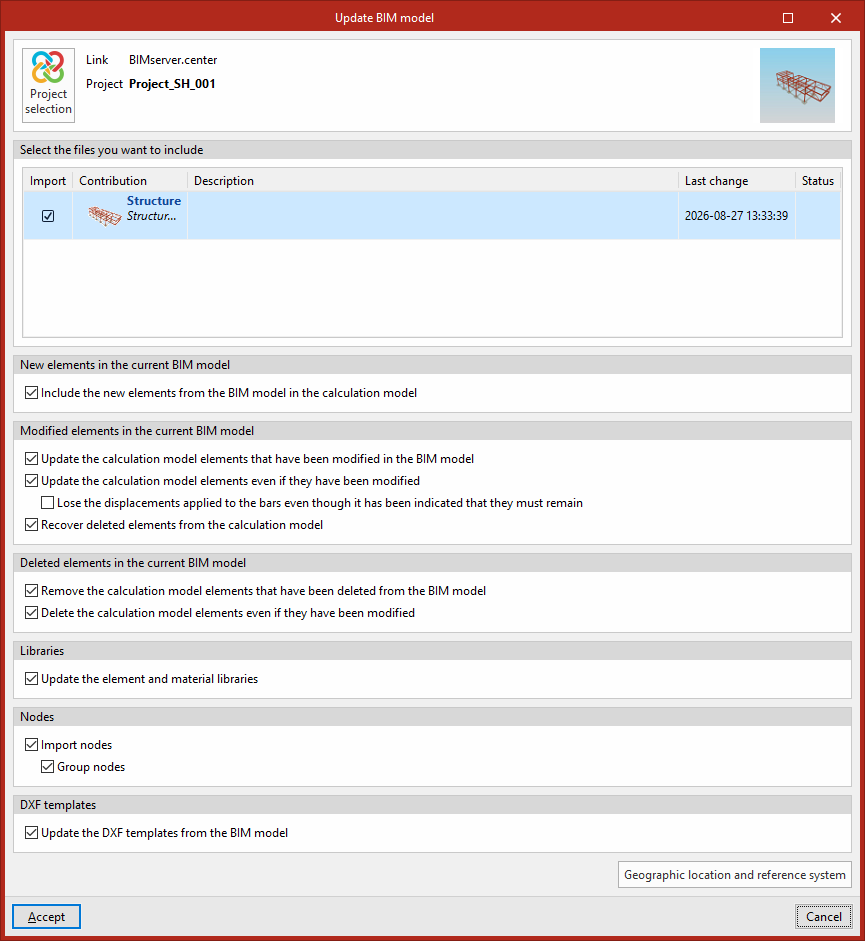
By clicking the "Update" button, you can update the information contained in the models previously imported into the project or import new models if you wish.
Furthermore, in this window, the program offers the following options, which allow you to customise the model import process according to the defined settings, enabling you to choose how new, modified and deleted elements in the BIM model are shared.
You can also update the element and material libraries or re-import the nodes read from the updated model.
- New elements in the current BIM model
- Include the new elements from the BIM model in the calculation model (optional)
- Modified elements in the current BIM model
- Update the calculation model elements that have been modified in the BIM model (optional)
- Lose the displacements applied to the bars, even though they have been set to be retained
- Recover deleted elements from the calculation model (optional)
- Deleted elements in the current BIM model
- Remove the calculation model elements that have been deleted from the BIM model (optional)
- Delete the calculation model elements even if they have been modified (optional)
- Libraries
- Update the element and material libraries (optional)
- Nodes
- Import nodes (optional)
- Group nodes (optional)
- Import nodes (optional)
- DXF templates
- Update the DXF templates from the BIM model (optional)
- Geographical location and reference system
This option allows you to open a dialog box to amend the model’s geographical location and reference system.
Share
By clicking the "Share" option, you can export the information contained in the model created using CYPE Connect to BIMserver.center.
During the export process, you can specify details relating to the identification of the IFC file to be exported (including its "Name" and "Description"), as well as adjust and select any additional files you wish to share:
You can also share the diagrams and the lists of measurements and joint checks:
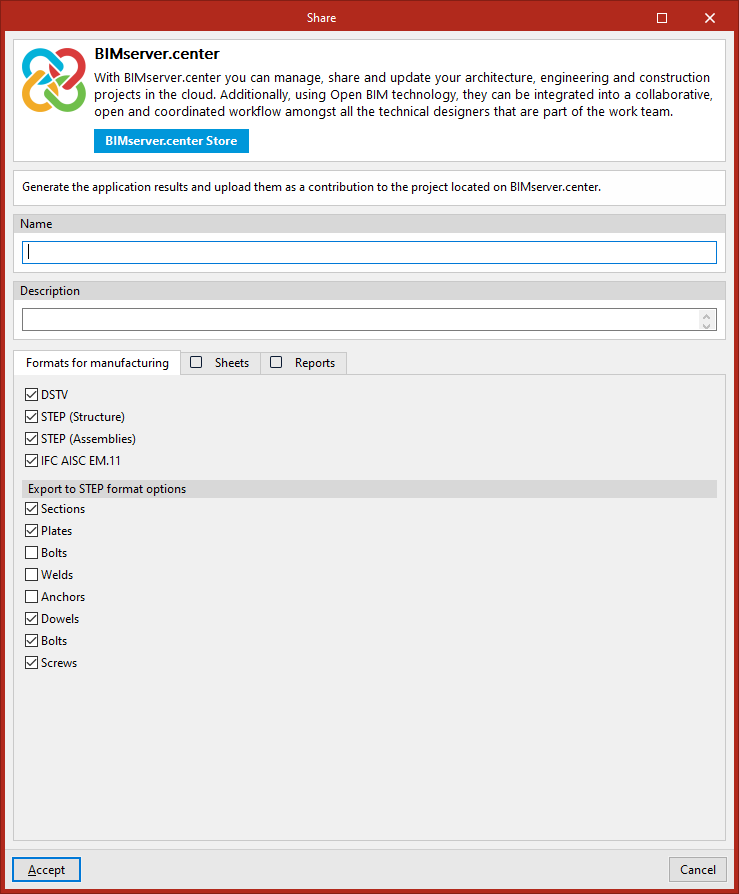
- "Manufacturing formats" tab In this tab, you can select the file types with manufacturing formats that you wish to include in the export. These may include the following:
- DSTV (optional)
- STEP (Structure) (optional)
- STEP (Assemblies) (optional)
- IFC AISC EM.11 (optional)
- STEP format export options
If the export option to STEP files has been enabled, you can configure the elements included in files in this format:- Sections
- Plates
- Bolts
- Welds
- Anchors
- Dowels
- Bolts
- Screws
- "Sheets" tab:
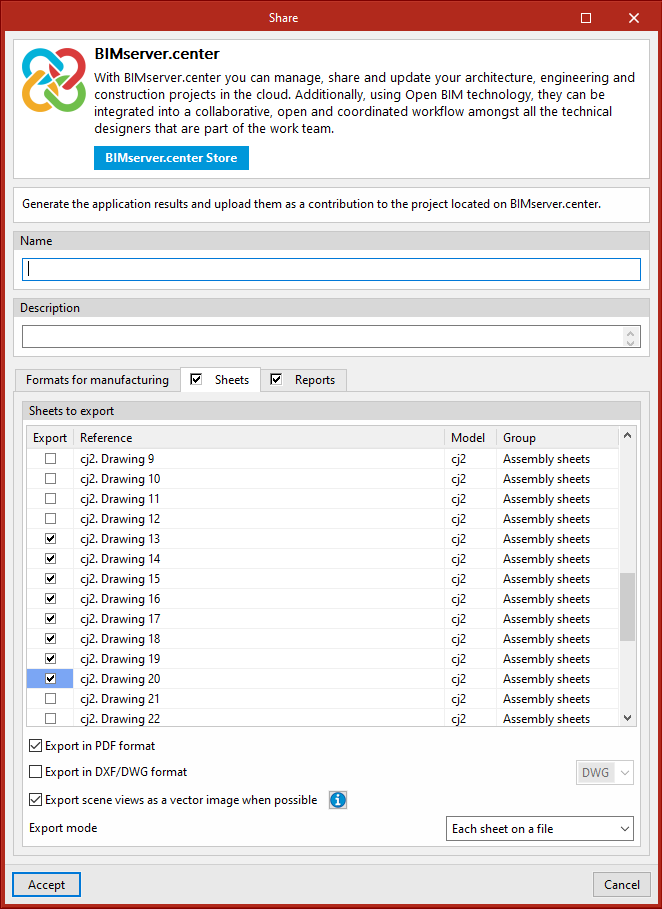
If the "Sheets" tab is selected, the sheets with the "Export" box ticked in the list (which includes, for identification purposes, each sheet’s "Reference", the "Model" reference and the "Group" to which they belong) will be exported in the formats and in the manner indicated below:- Export as PDF (optional)
Export the selected slides as a "PDF" file. - Export in DXF/DWG format (optional)
Export the selected sheets in "DXF" or "DWG" format. - Export scene views as a vector image where possible (optional)
For a scene view to be exported as a vector image, the colour mode must be monochrome. - Export mode
Export "All the sheets on the same file" or "Each sheet on a file".
- Export as PDF (optional)
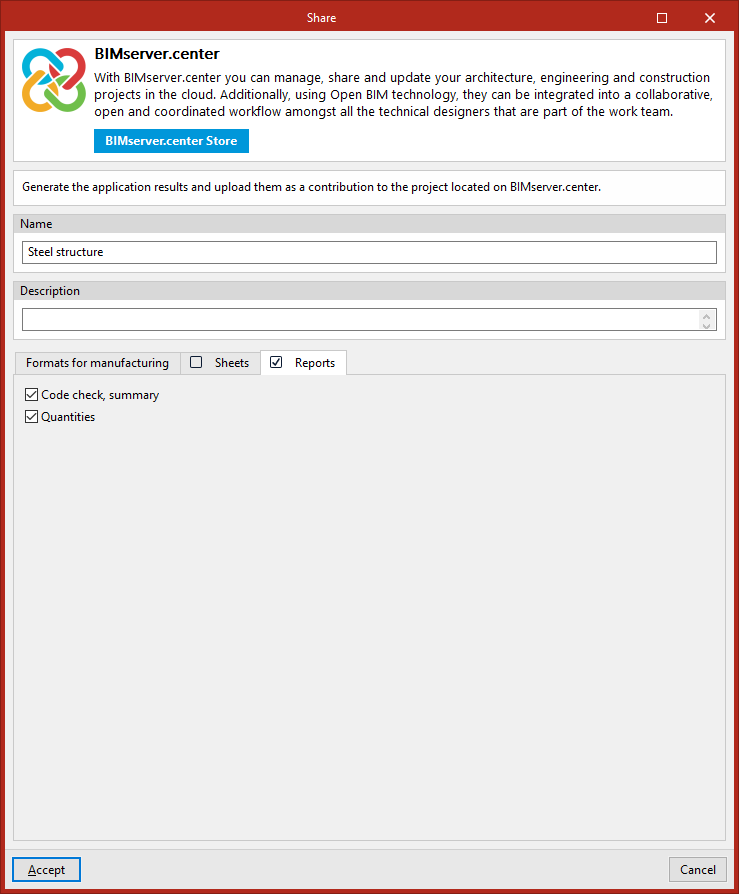
- "Reports" tab
If the "Reports" tab is selected, you can also export the "Code check, summary" list of joints and/or the "Quantities" list.