Predefined joint library
CYPE Connect includes a predefined joint library. This feature is designed to simplify the process of modelling joints by using predefined parametric configurations.
The library is hosted in the cloud, which allows for continuous updates and the gradual addition of new joint types. This means that users always have access to an up-to-date set of solutions without the need for specific local installations or updates.
To use the library of predefined joints, you need to select the "Automatic" or "Import" options, which are available in the "Library" section of the "Model" tab in the joint editor.
| Note: |
|---|
| This library is a work in progress and is gradually expanding its content to include new joints and adapt to different use cases within the field of joint design. |
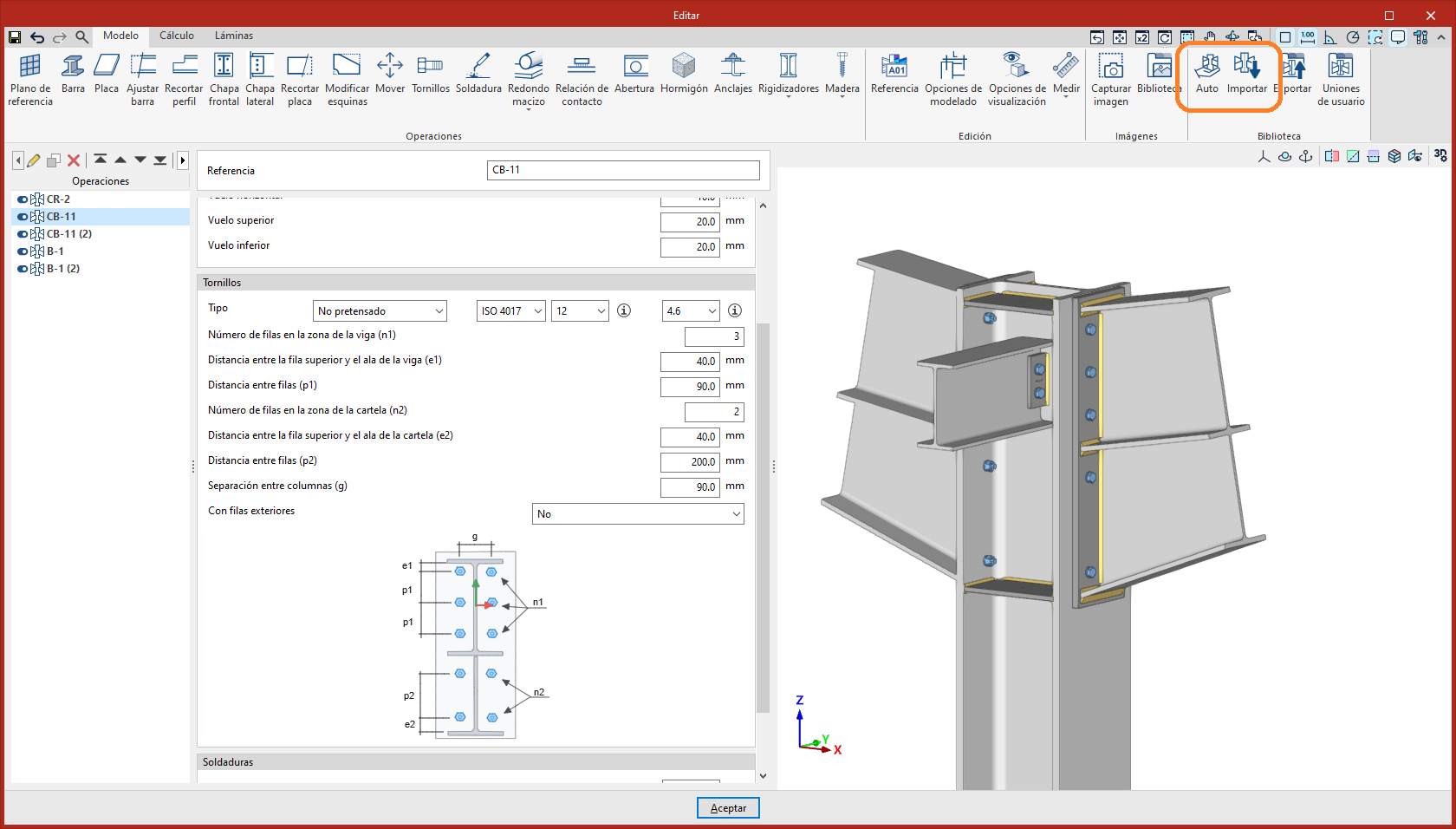
Automatic
This tool automatically defines the joint based on the alternatives available in the user’s joint library and the predefined joint library. The system analyses the existing options and selects the one that best fits the model configuration, applying it directly.
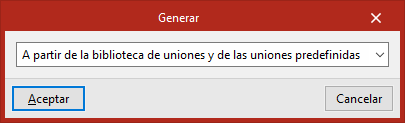
When running this tool, users can choose the scope of the joint search in the "Generate" window that appears. The joint can then be generated in the following ways:
- From the user's joint library
- From the predefined joints
- From both simultaneously
Import
This tool can be used to import a joint from the user’s joint library or from the library of predefined joints. In this case, users must select the joint they want to import.
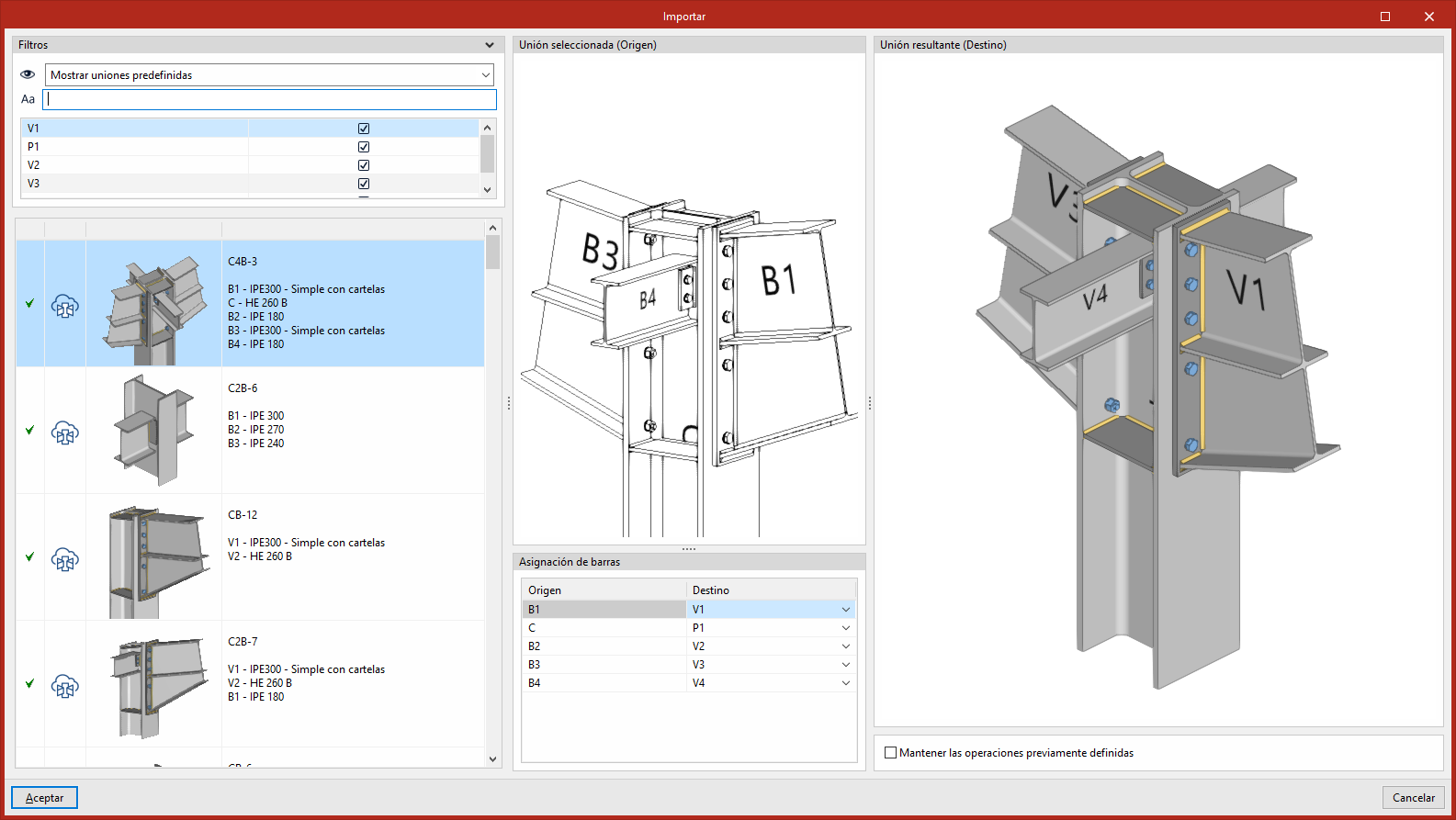
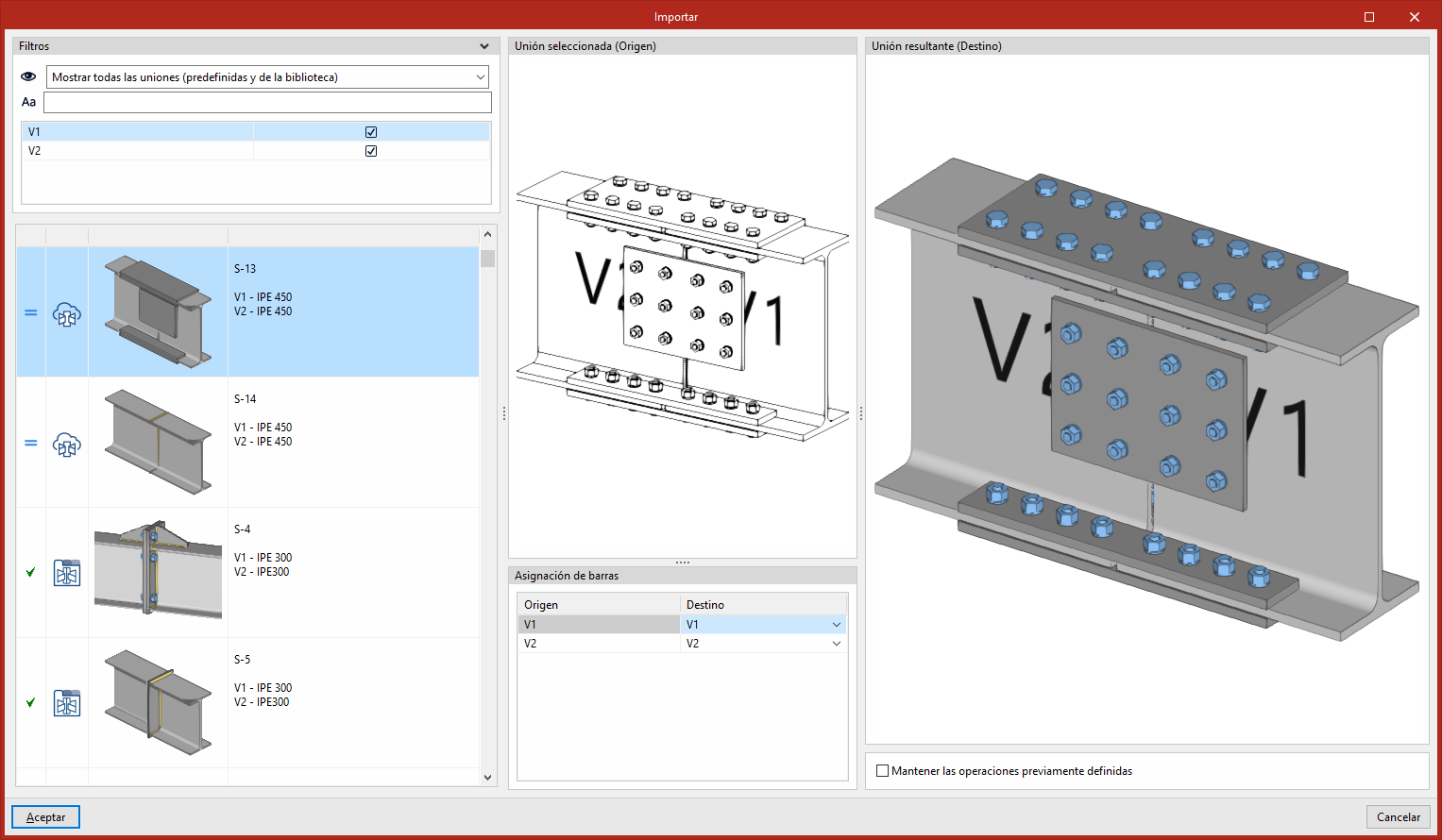
The left-hand column displays the list of joints in the library. At the top, there are "Filters" that can be used to narrow down the joints displayed, either by their origin or by searching for specific text. The list is automatically sorted based on compatibility with the model, placing the joints that best match the existing bar configuration at the top.
In addition, users can select the bars to which the joint is to be applied by enabling or disabling them in the "Filters" panel. This option is particularly useful when users wish to partially resolve a joint, in cases where there is no alternative that resolves the entire set.
The central column displays the 3D view of the joint selected from the library ("Selected joint (Source)"), together with the "Bar assignment". This assignment can be used to define the correspondence between the bars of the library joint and those of the target model.
The right-hand column displays the 3D view of the result of applying the joint ("Resulting joint (Destination)"), along with the "Keep previously defined operations" option.