
Antivirus software affecting the installation or running of CYPE programs
Users may encounter errors when installing or running CYPE programmes because one or more DLL files have been blocked by their antivirus software. Here are some examples:
| Error 1: |
|---|
| Error OPENING file C:\CYPE Ingenieros\Download version 2024.b\cype_architecture\Dlls\sendemail.dll for rb (module: fichmem.c (CYPEIO.DLL), line: 173) Would you like to try again? Will retry in 10 seconds. |
| Error 2: |
|---|
| Warning: A safety check has failed Expression: res != 0 File: cypeio.c (CYPEIO.DLL) Line: 180 Module: Install CYPE Architecture.exe C:\CYPE Ingenieros\Download version 2024.b\cype_architecture\Spanish installation\.. \Dlls\sendemail.dll |
False positives
These warnings are caused by certain antivirus software mistakenly identifying part of the code in CYPE programs as a virus. These are false positives generated by the antivirus software, as the files in CYPE programs do not contain viruses.
In cases where these warnings have appeared, CYPE has already informed the manufacturers of the leading antivirus software. Meanwhile, users can also contact the antivirus support department to report the issue.
Exclusions
To avoid this sort of problem, antivirus programs include a series of exclusions or options in their settings to exclude from scanning any directories or files specified by the user.
Even so, there may be antivirus programs that, when they are updated, or perhaps even at some other time, remove or override the exclusions that the user has configured.
Furthermore, updates to CYPE programs and to antivirus software may cause conditions to change, leading to new false positives in virus detection.
Solution
To resolve these issues as a user, please follow these steps:
1. Temporarily disable the antivirus software.
*If the problem is caused by Windows Defender, you can follow this link to find out how to disable "Real-time protection".
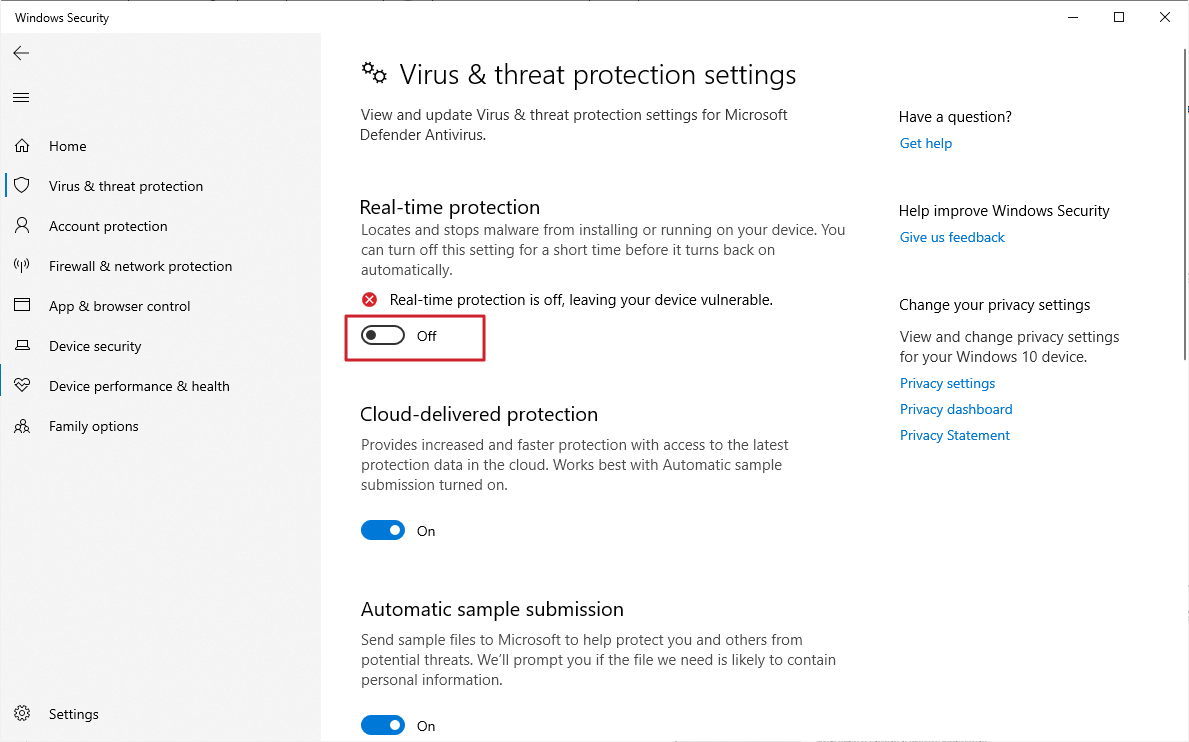
2. Configure the antivirus software to add the folders associated with CYPE programs as exceptions or exclusions.
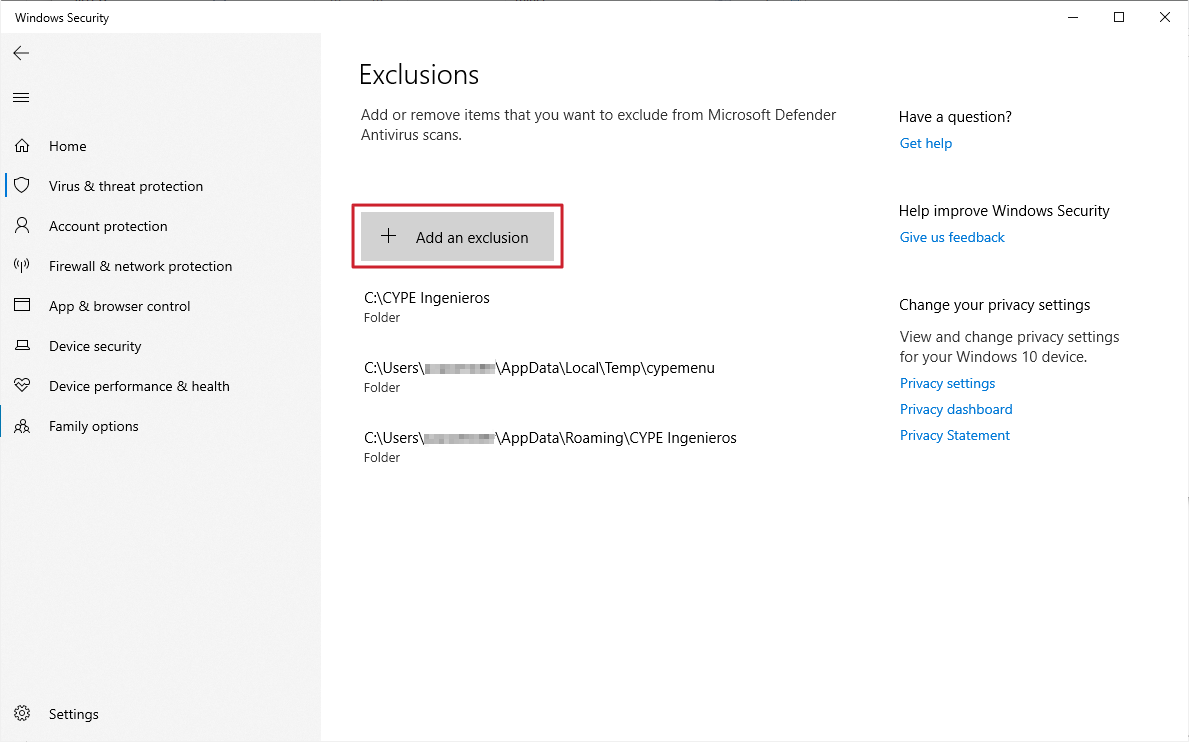
*If the problem is caused by Windows Defender, you can follow this link to find out how to set up ‘exclusions’.
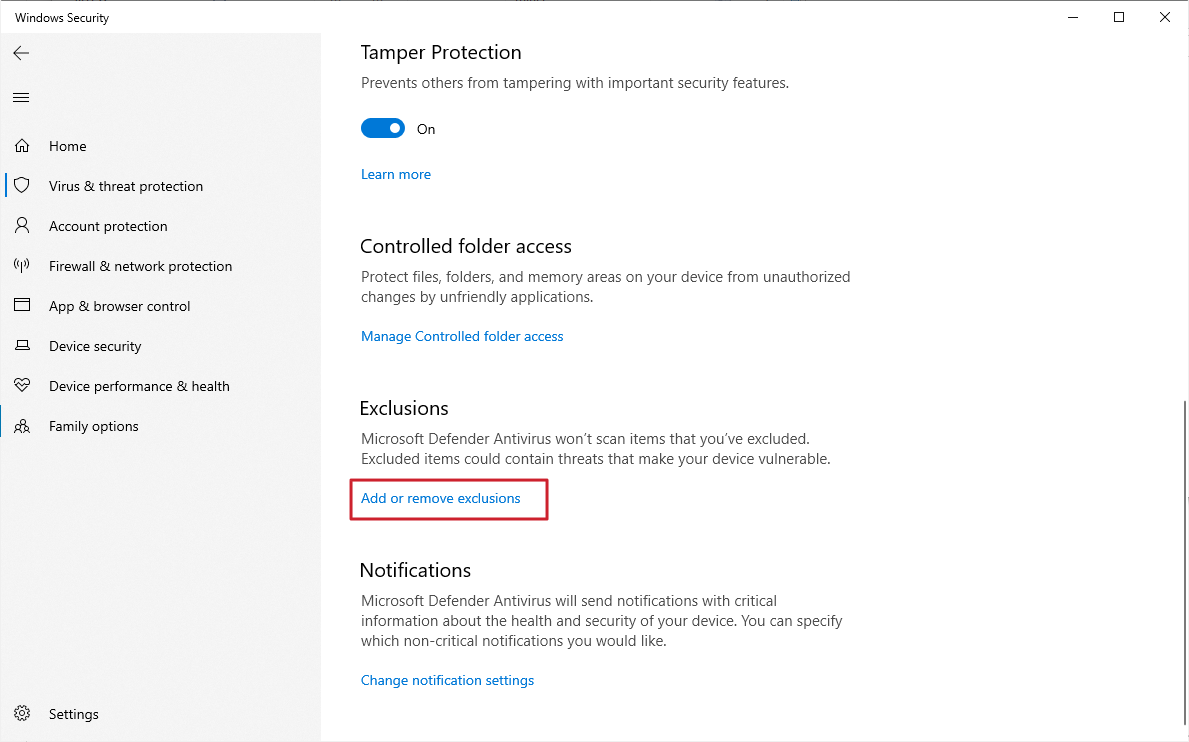
This link describes the folders and files generated by CYPE. The main ones are as follows:
C:\CYPE Ingenieros\
C:\Users\username\AppData\Roaming\CYPE Ingenieros\
C:\Users\username\AppData\Local\Temp\cypemenu\
3. If necessary, the file blocked by the antivirus software must be restored. If this is not possible, with the antivirus software disabled and the exclusions configured, the program must be downloaded and/or installed again to ensure that all the files required for its installation and/or execution are available.
*If the problem is caused by Windows Defender, you can follow this link to find out how to "Restore" a quarantined file.
| Note: |
|---|
| In any case, you can contact the antivirus software's technical support team to find out the exact procedure for disabling it, creating exclusions and/or restoring blocked files. |
4. Reinstall and run the CYPE program again, and check that it is working correctly.
5. Once the program has been installed and the exclusions have been configured, you can reactivate the antivirus protection.
6. Notify the antivirus technical support team of any issues encountered during the installation of CYPE software. Through this process, the antivirus developer should exclude the identified file from the virus database in the next update, ensuring that no further false positives occur whenever the antivirus automatically scans the computer.
| Note: |
|---|
| In some cases, the antivirus software may continue to run in the background even if it is only disabled. If this is the case, you can choose to uninstall the antivirus software completely first, reinstall the CYPE program, and then reinstall the antivirus software and configure the exclusions described above. |
Working with CYPE software and cloud-based file hosting and synchronisation services
As a general rule, we do not recommend working directly on CYPE program files in folders linked to cloud file hosting and synchronisation services such as Dropbox, OneDrive, Google Drive and similar services.
This is because these folders are subject to synchronisation processes which may interfere with the file generation and management processes carried out by CYPE programs in real time on the folder, for example, when calculating, entering data or generating reports.
The solution for working with CYPE software and these cloud-based file hosting and synchronisation services is as follows:
- Use a standard folder to save and work with files from CYPE programs. You can view or configure the path to this working folder via “File > Save as” in the CYPE program interface. By default, this path is C:\CYPE Ingenieros\Projects\program_name. This folder must not be synchronised or linked to cloud-based file hosting and synchronisation services.
- Set up a separate folder that is synchronised with and linked to your cloud storage service. Do not save or work directly in this folder from within CYPE. For instructions on setting up the folder, refer to the information provided by your cloud storage and file synchronisation service provider.
- Regularly save your project in CYPE and close the program. Then, using Windows, manually copy the files you want to keep in your cloud storage service from the working folder to the synced folder.
This means that only periodic backup copies are stored in the folder synchronised with the cloud storage service, whilst the working files remain in the unsynchronised working folder at all times.
