

Budgetary control of the job
The "Budgetary control of the job" module includes tools related to the budgetary control of the job in Arquimedes.
With this module, users can carry out the budgetary control of the job (financial control, purchasing control and cost centre control), accounting and allocation to work sections and items, as well as all the features included in the "Arquimedes" module. Various levels of control can be used. Each level includes the possibilities and checks of the previous one.
Other features
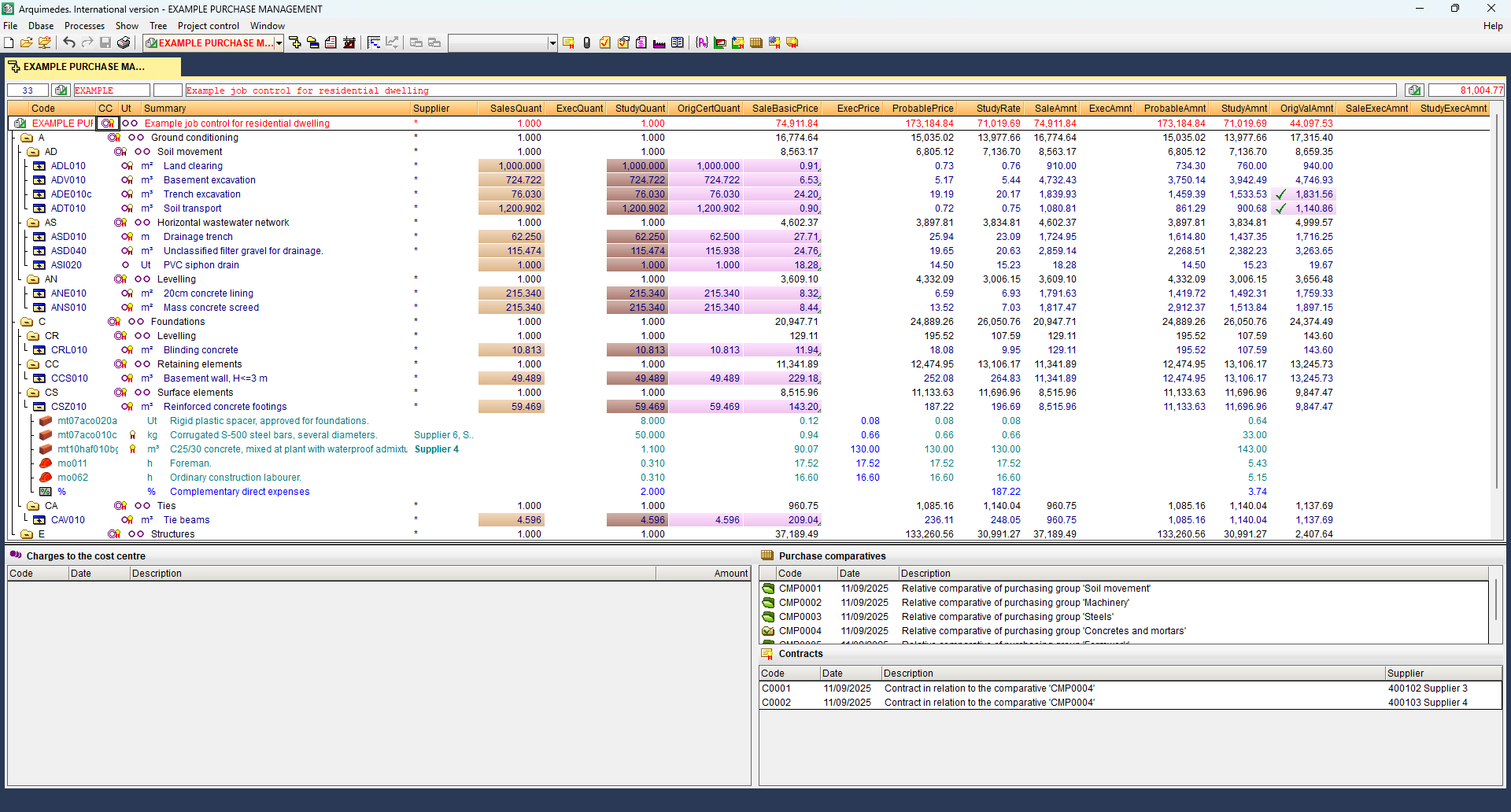
The features of this version of Arquimedes and Job control can be enhanced by adding any of the modules listed on the "Arquimedes modules" page to the user license.
Options in the "Project control" menu
In the top menu bar, you will find the "Project control" menu, which brings together all the tools for the economic, administrative, and financial monitoring of the project. The drop-down menu includes:
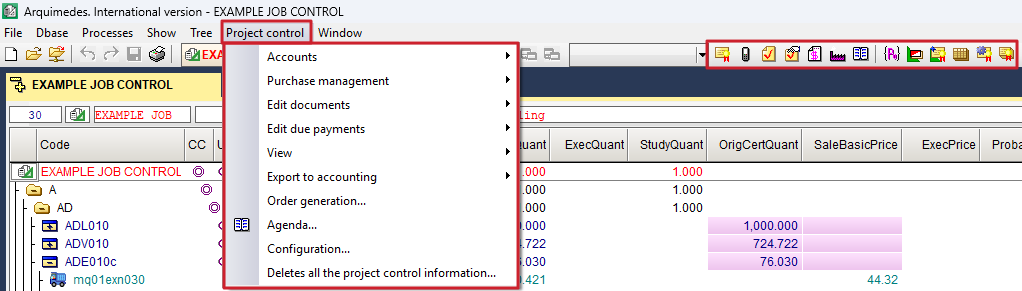
- in the "Accounts" section, the options for defining and managing data on supplier accounts, customer accounts, financial accounts, purchasing accounts, sales accounts, input and output VAT, supplier and customer income tax, and equivalence surcharge;
- in the "Purchase management" section, the options to create purchasing groups and supplies for the project, contract supplies, request and receive bids, view purchasing comparisons, generate contracts, and view project contracts;
- In the "Edit documents" section, you will find options for managing all project documentation: contracts, orders, delivery notes, invoices, and allocations.
- in the "Editing due payments" section, the options for setting the payment or collection deadline for an invoice;
- in the "View" section, the options to check the status of accounts with suppliers and customers, view a comparison of reference prices and supplied prices, view a summary of allocations for the project or items, check payments to subcontractors and suppliers, and view a history of supplies by document;
- in the "Export to accounting" section, the options for exporting to compatible accounting programs;
- the "Order generation" option works automatically;
- the "Agenda" option, to view orders, delivery notes, invoices, and due dates sorted by date, as well as to calculate cash flow;
- the "Settings" option, to edit the project options;
- and the option "Delete site control information", which, as its name suggests, deletes all information related to site control.
In the bar immediately below the menus, there is a set of quick access icons linked to site management, organised into two functional blocks.
- The first block brings together those focused on document management for the project: "Contract editing", "Order editing", "Delivery note editing", "Quick entry of delivery notes against supplier orders ", "Editing invoices received", "Editing suppliers" and "Construction site schedule".
- The second block groups together tools related to purchasing management: "Purchasing groups", "Site supplies", "Contracting supplies", "Purchasing comparisons", "Generating contracts" and "Site contracts".
Purchase management
The "Purchase management" module of Arquimedes allows users to calculate the supplies required to execute a job and foresee invoice payments from suppliers and subcontractors.
Purchase management module options
The options of the "Purchase management" module can be found in "Job Control", "Purchase management":
- Purchasing groups
- Job supplies
- Contract supplies
- Offer requests
- Offer reception
- Purchase comparatives
- Generate contracts
- Job contracts
Payments to subcontractors and other suppliers can be viewed in the Payments to subcontractors and other suppliers option ("Job Control", "View").
Purchasing groups and Job supplies
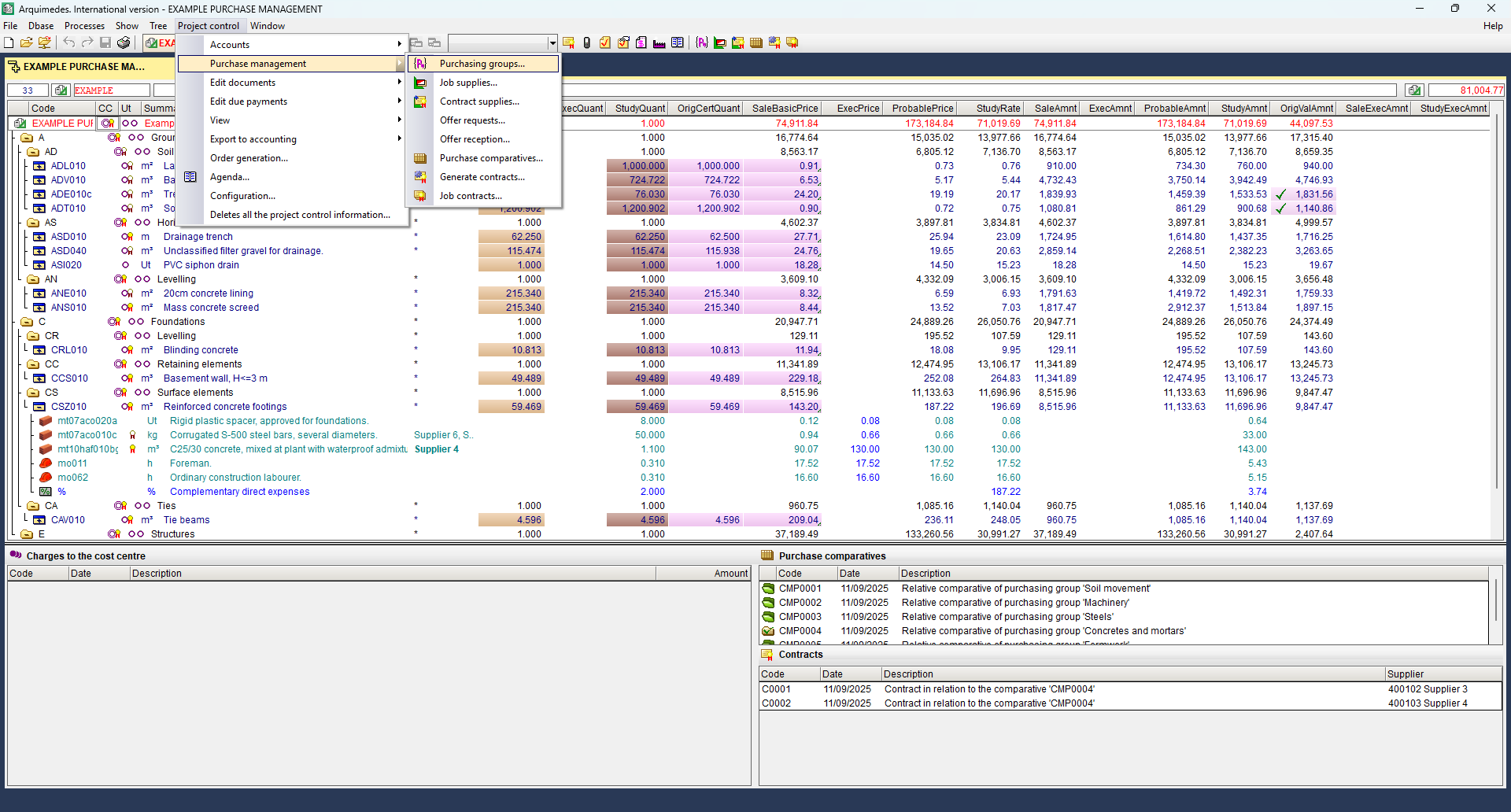
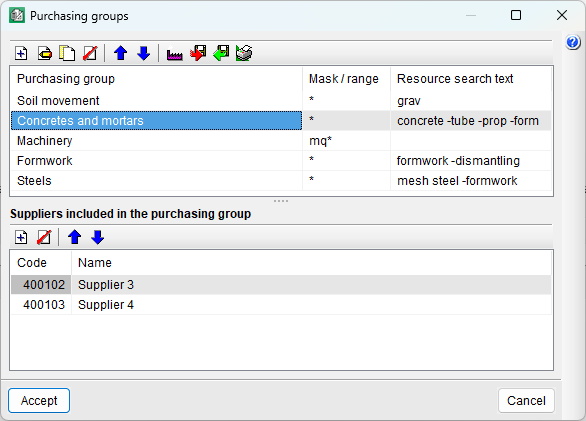
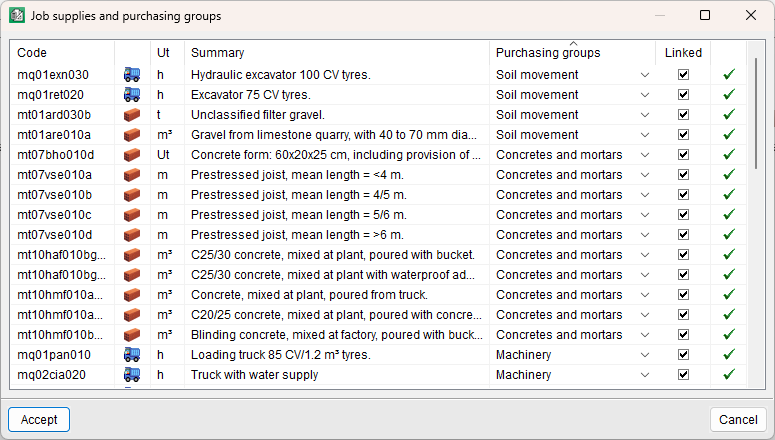
Using the "Purchasing groups" option, the program allows users to create purchasing groups and incorporate, within them, suppliers or subcontractors selected from the suppliers' list of the job. Using the "Job supplies" option, the existing supplies of the job can be linked to each purchasing group.
Generating these groups makes it easier to request offers. For example, when the need to purchase concrete is detected, offers can be requested from the suppliers of the "Concretes and mortars" purchasing group, which will include all the supplies of that purchasing group.
Contract supplies
Using this option, users can select the supplies to be purchased or subcontracted classified into purchasing groups.
Offer requests and Offer reception
The "Offer requests" and "Offer reception" options, provide users with the tools required to control the offers which have been requested and received.
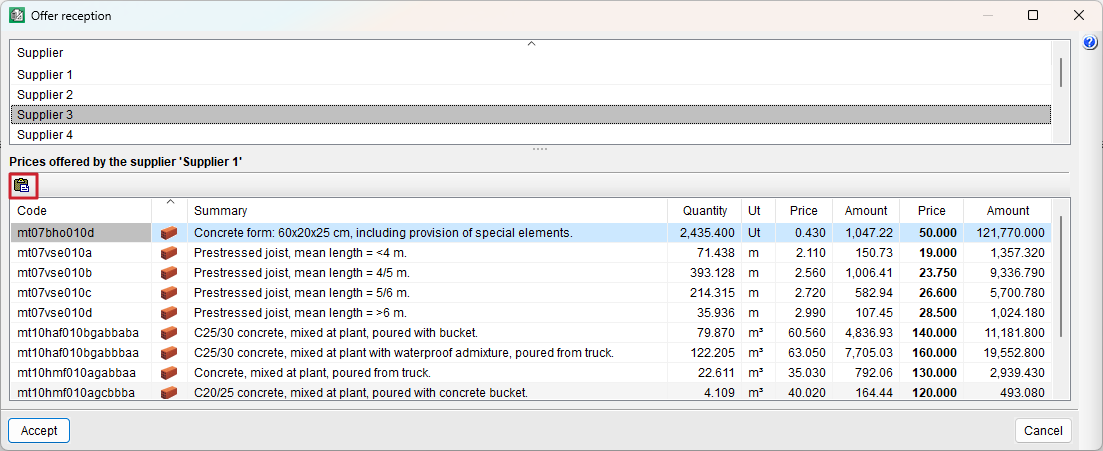
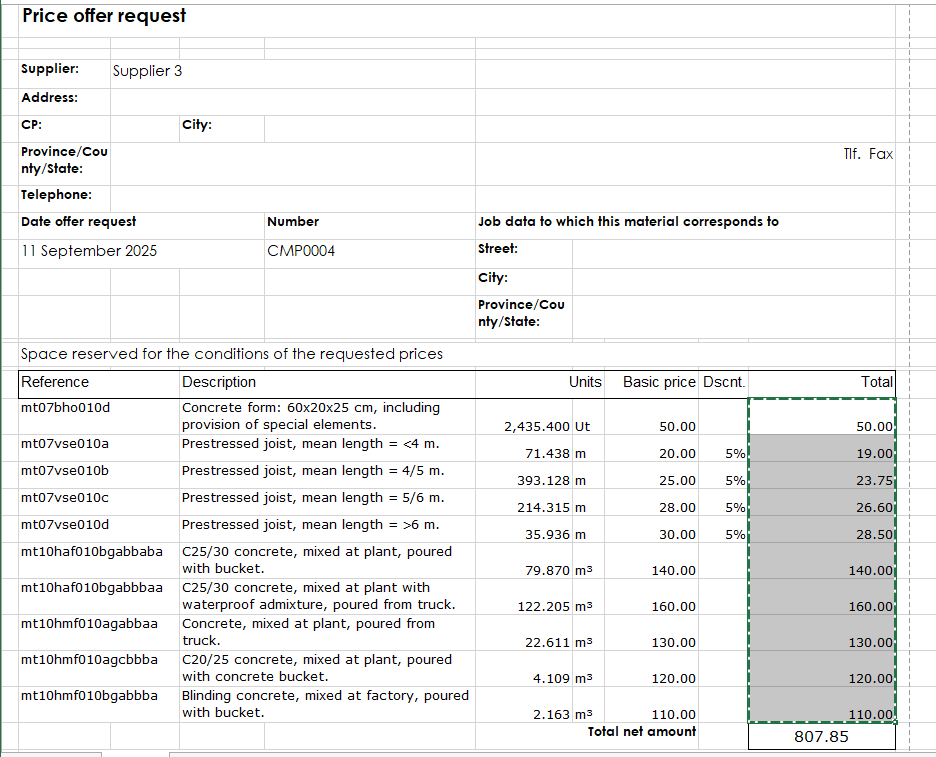
Using the "Paste" option within the "Offer reception" dialogue box ("Job Control", "Purchase management", "Offer reception"), the contents of the clipboard are copied to the offer reception table of the selected supplier. In order for Arquimedes to use the data contained in the Windows clipboard, a table of the document sent by the supplier must first be copied to the clipboard. This table can be copied from any file format used by the suppliers to send their offers (spreadsheet, word processor, PDF, etc.). The procedure to be carried out is as follows:
- Open the document that has been received from the supplier. The information Arquimedes requires from this document are the prices offered by the supplier and their corresponding code.
- In this document, select the table or part of the table containing the prices that are to be pasted in Arquimedes, in such a way that the first column of the selected table contains the concept codes and the last contains the price of each concept. This way, Arquimedes can identify to which concept each price corresponds. Only the prices of concepts that are identified by their code will be taken.
Another option is to only select the column containing the prices. In this case, users must ensure that the order of the prices coincides with the contents of the list.
- Copy the selected data to the clipboard, return to Arquimedes and click on the "Paste" button to import the received prices.
Purchase comparatives
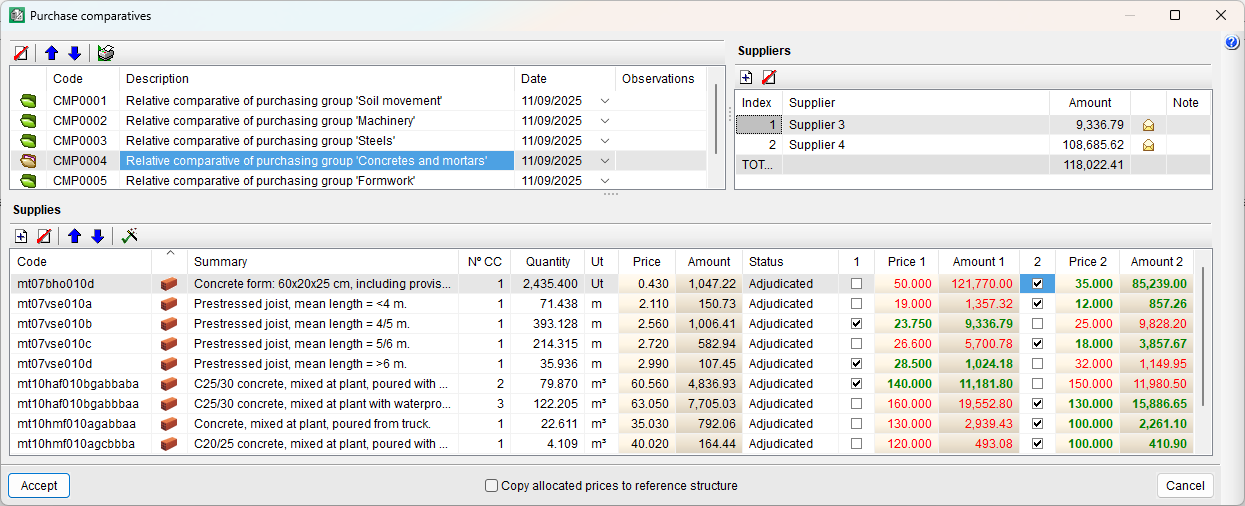
Using the "Purchase comparatives" option, the offers that have been received can be viewed, so the best can be selected and then be able to prepare the contracts. To help users, within the dialogue where the purchase comparative is viewed, the lowest prices are displayed in green and the highest in red. Also displayed are the supplies for each supplier and future contract.
Generate contracts
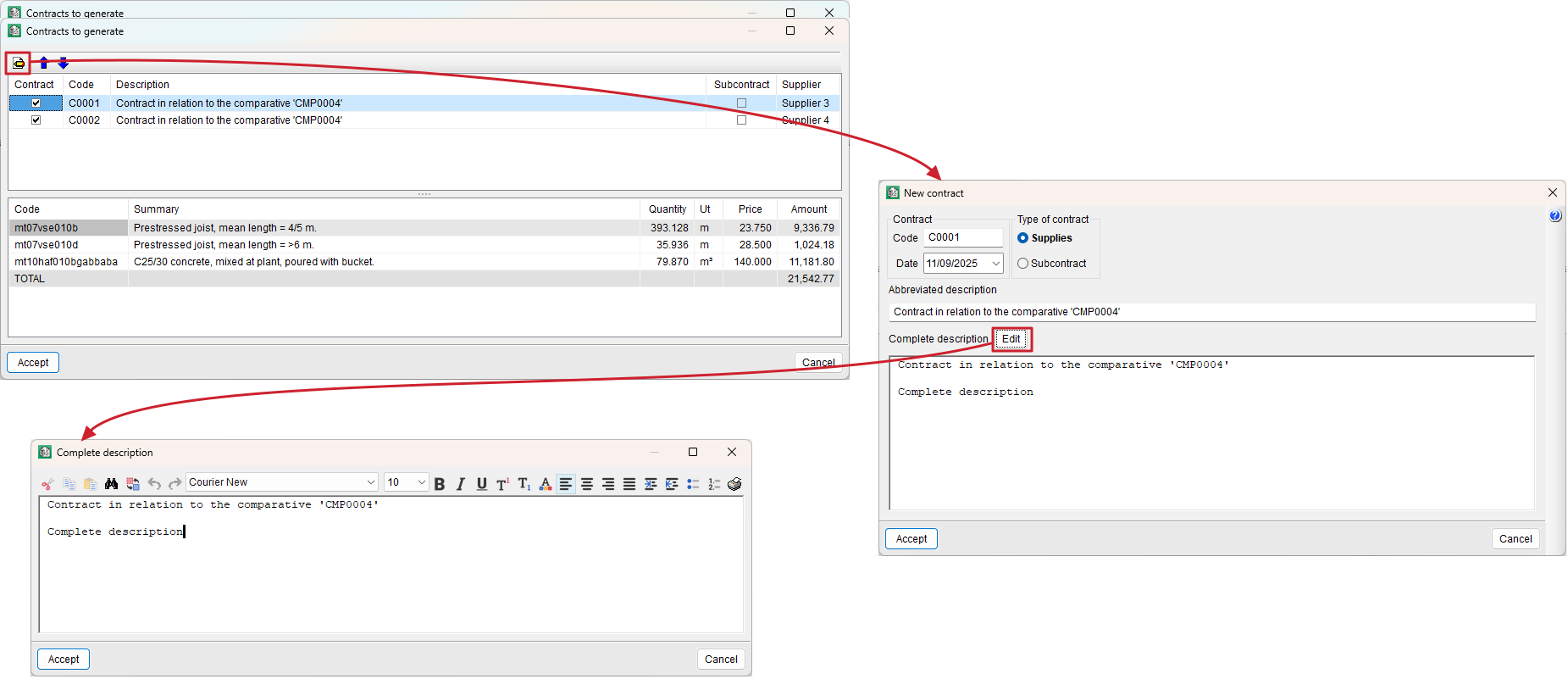
Using the "Generate contracts" option, users can create contracts of the suppliers (supplies or rent) and of the subcontractors (execution contracts) which are awaiting a contract. The "Job contracts" option opens a dialogue box containing a list of the contracts that have been generated so users can view and edit them. When a contract is edited, a text editor opens where users can:
- Manually modify the text
- Cut, copy, paste, search for or substitute texts
- Modify the format (type, font and size of the text, text alignment, paragraph numbering, etc.)
Payments to subcontractors and other suppliers
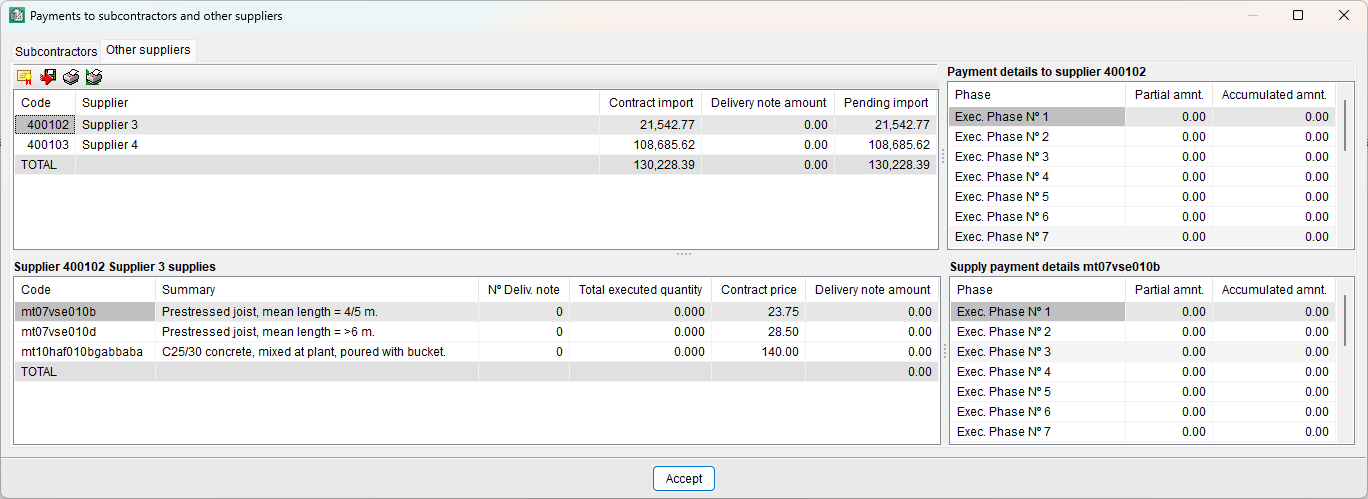
Using the "Payments to subcontractors and other suppliers" dialogue box ("Job control", "View", "Payments to subcontractors" and other suppliers), users can view the foreseen payments to be made to subcontractors and other suppliers, displayed for each supplier and for each execution phase or month. The supplies of each supplier and payment details of each supply can also be consulted.
Consolidation of bills of quantities
The "Consolidation of bills of quantities" module of Arquimedes allows for several existing bills of quantities to be included in a base bill of quantities (which can be empty), and maintain the link between the incorporated items and their original bills of quantities. This way, the base bill of quantities can be updated with the changes which are carried out in the original bills of quantities.
This module is especially useful for managing two bill of quantity elaboration methods: Joining of partial bills of quantities generated by other CYPE programs or Joining of partial bills of quantities carried out by different project collaborators.
How the "Consolidation of bills of quantities" module works
All the units of a job from a bill of quantities or several bills of quantities (linked bills of quantities) can be imported to an existing bill of quantities (which can be empty), referred to as the base bill of quantities. The items that are imported in this way are linked to their original bills of quantities, which allows for the base bill of quantities to be updated after any changes have been undertaken in the linked bills of quantities. The different options to update the bill of quantities are described in the Updating modifications carried out in linked bills of quantities section.
The items that are linked to other bills of quantities have a small triangle in the bottom left-hand corner of the cell containing the quantity ("Decomposition tree view"). This way, they can easily be distinguished from those that are not linked to other bills of quantities. Additionally, the quantities of each linked job contain a details table which includes, within a subtable, the quantities that come from the linked bill of quantities. The quantities table contains a column labelled "Origin". The rows of the subtable linked to another bill of quantities are displayed in this column, with a reference identifying the job from which the quantities originate. The lines in the sub-table linked to another bill of quantities include a reference in the "Origin" column that identifies the job from which the quantities originate.
| More information: |
|---|
| The "Origin" column can be activated in two ways: by double-clicking the column header with the left mouse button and checking the "View" box, or by right-clicking on the column header and selecting "Visible columns..." from the context menu, then checking the "View" box. |
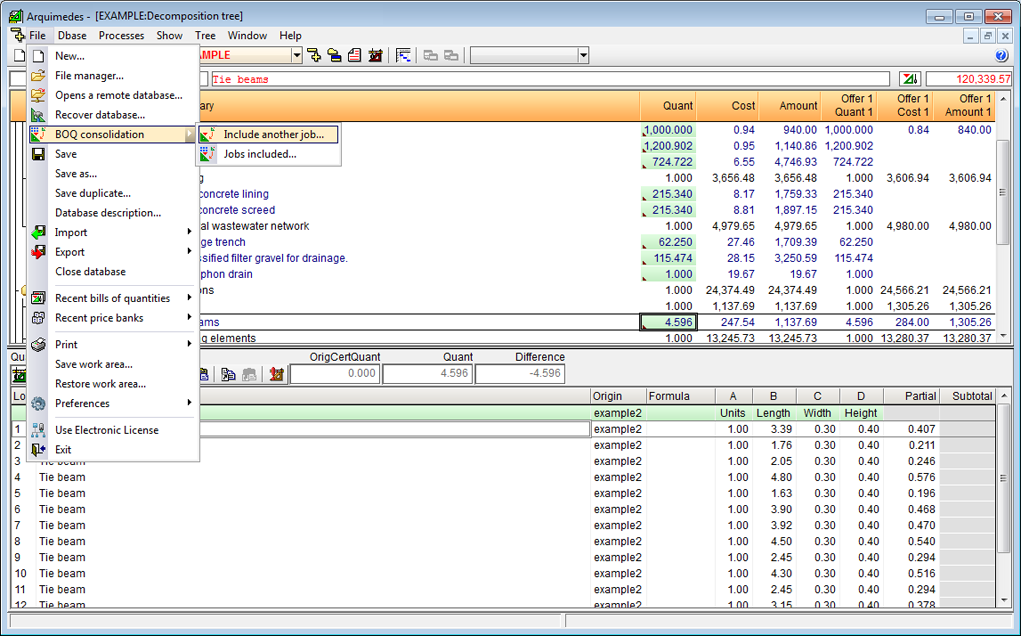
The tools managing the import and linking to other bills of quantities in the base bill of quantities can be activated using the "BOQ consolidation" option within the "File" menu. These are:
- Include another bill of quantities
Using this option, a bill of quantities can be selected so to include it in the current bill of quantities. - Bills of quantities included
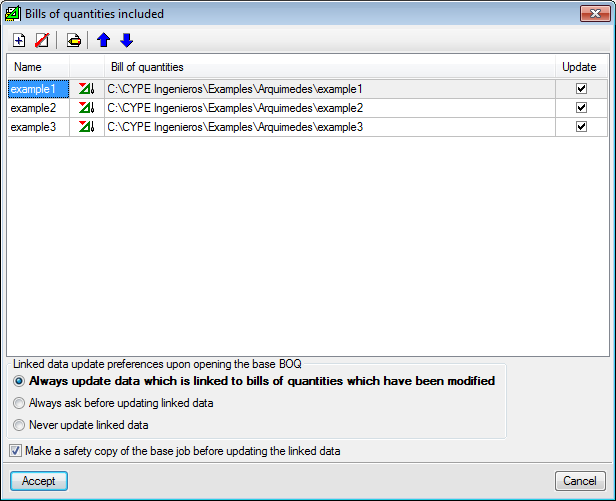
This option opens the "Bills of quantities included" dialogue box. This window displays a list of the bills of quantities included in the current bill of quantities. From this dialogue box, the following operations can be carried out:
- Include another bill of quantities in the current bill of quantities
- Delete the link of the linked bill of quantities selected from the list
- Edit the name and description of the linked bill of quantities selected from the list
- Change the order of the linked bills of quantities of the list
- Update linked data of the current bill of quantities
- Configure the updating preferences of the linked data upon opening the base bill of quantities
- Make a safety copy of the base job before updating the linked data
Updating modifications carried out in linked bills of quantities
If the linked bills of quantities are modified, the items of the base bill of quantities which are linked to those bills of quantities can be updated in two ways:
- Data update when the base bill of quantities is opened
Each time the base bill of quantities is opened, Arquimedes updates the job items linked to other bills of quantities (only from the bills of quantities that have been modified since the last update). This update is carried out in accordance with the option that has been selected in the "Bills of quantities included" dialogue box ("File", "BOQ consolidation", "Jobs included").
These options allow users to carry out the following:
- Always update data which is linked to bills of quantities which have been modified
- Always ask before updating linked data
- Never update linked data
This option is useful for the user to be able to carry out the update only when deemed necessary, using the method detailed below.
- Data update whilst the base bill of quantities is open
Any bills of quantities that are linked to the current base bill of quantities are displayed in the "Included bill of quantities" dialogue box ("File", "BOQ consolidation", "Jobs included"). Each of them has a box ("Update column"), which the user can activate to update the data of the selected bills of quantities, by pressing the "Accept button" of this dialogue box. This update is independent of the options located below the bill of quantities table, which only allow users to configure the update when the base bill of quantities is opened.
Each box of the "Update" column will be activated by default if the corresponding linked bill of quantities has been modified. Users can activate or deactivate these boxes as they wish, allowing them to update only the data of a specific bill of quantities and not of all those present.

Contradiction control between the base bill of quantities and the imported bills of quantities
When a bill of quantities is imported into the base bill of quantities, it is logical that they both have the same configuration, and that the imported concepts come from the same price bank and with the same conditions. In other words, both bills of quantities must have the same number of decimal places and percentages used, repeated unit items (description and cost), and the items that have the same code must also coincide (in their decomposition and in the yield of their unit items).
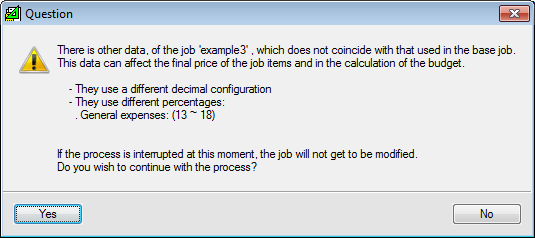
If these indications are not applied, Arquimedes will inform the user of the existing contradictions between the base bill of quantities and the imported bill of quantities. The program will offer the user the possibility of not carrying out the import so to correct the differences. If the user decides to continue with the import, the program elaborates a report detailing all the contradictions, which can be printed or exported to different file formats.
It is also possible that an item that has been imported from the linked bill of quantities already exists in the base bill of quantities. This is not a contradiction. In this case, Arquimedes includes a quantities subtable in the detailed quantities of the base bill of quantities, containing the quantities of the item of the imported bill of quantities. A reference is present within the subtable indicating the linked bill of quantities from which it comes from.
Unlink items from the original bills of quantities
Items that have been imported from other bills of quantities can be unlinked from the base bill of quantities.
- Deleting the link to a bill of quantities for all the items imported from other bills of quantities
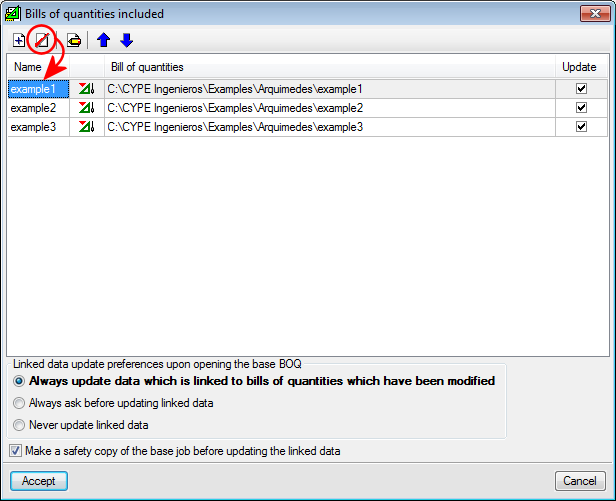
The bill of quantities to be deleted is selected from the list in the "Bills of quantities included" dialogue box, then by clicking on the "Delete selected element from the list" button, the connection to the selected bill of quantities is deleted and all the items imported from that bill of quantities will be unlinked. If one of those items has links to several bills of quantities, only the link to the selected bill of quantities will be deleted.
Before unlinking, the program informs the user that the link of all the items related to the bill of quantities selected from the list is going to be deleted. The user has three options:
- Unlink quantities
The existing reference within the quantities subtable of the selected bill of quantities will be deleted, without altering the quantity details. Therefore, there is no possibility of updating any changes in the base job which occur in the unlinked bill of quantities. - Delete quantities
In addition to eliminating the reference and possibility to update ("Unlink quantities" option), the quantity details related to the selected bill of quantities are also deleted. However, details of other bills of quantities which could be linked or unlinked details are not altered. The job item will not be deleted in any case, even if the total resulting quantity is zero. - Delete quantities and the item without quantities
Deletes the quantity details linked to the selected bill of quantities and the items that have zero quantities.
- Unlink quantities

- Delete the links between an item and all the bills of quantities to which it is linked
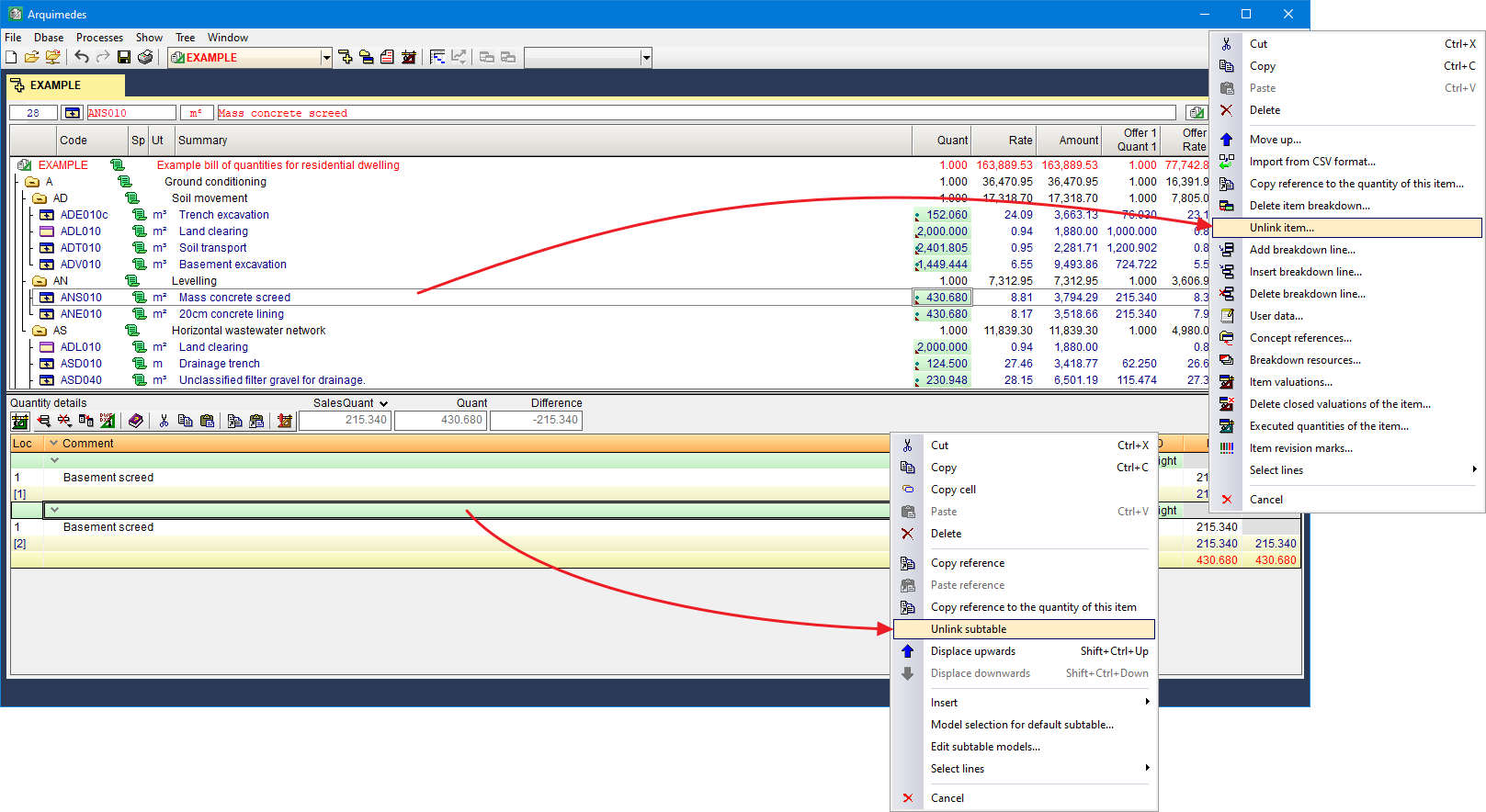
Items that are linked to one or more bills of quantities, when clicked on using the right mouse button in the "Decomposition tree" window, will display a menu containing, amongst other options, "Unlink item". If this option is selected, all the links the chosen job may have with other bills of quantities will be deleted, as well as the reference to each of them which exists in each quantities subtable. Neither the item nor its quantities are deleted. - Delete the link between an item and one of the bills of quantities to which it is linked
A quantities subtable for each linked bill of quantities is present in the quantity details table of an item linked to one or more bills of quantities. By right-clicking the header of one of these subtables, a menu appears containing the "Unlink subtable" option. This option deletes the link and reference to the chosen item with respect to the bill of quantities to which the selected subtable belongs. Neither the item nor its quantities are deleted.
Re-link items
Users have three options to re-link a job to a deleted connection:
- Using the "Undo" option ("Undo" button of the toolbar)
Please note that the "Undo" option only undoes a number of consecutive changes ("File", "Preferences", "Undo/Redo Settings") and only those made since the job was last opened. In other words, if the base bill of quantities is closed after unlinking, and is then re-opened, the "Undo" option cannot be used to re-link the data that has been unlinked before closing the base bill of quantities. - Recover the safety copy
The safety copy that has been carried out before deleting the link can be recovered ("Processes", "Safety copies of the database") if the option: "Make a safety copy of the base job before updating the linked data" within the "Bills of quantities included" dialogue box ("File", "BOQ consolidation", "Jobs included") has not been deactivated. - Re-link the bill of quantities
If the link to a bill of quantities has been deleted using the "Delete the quantities and the item without quantities" option, the bill of quantities can be re-linked correctly using the "Include another job" option or from the "Bills of quantities included" dialogue box ("File", "BOQ consolidation").
Please note that a bill or quantities can always be re-linked, but if the quantities which were previously linked have not been deleted (process which can be carried out automatically using the "Delete the quantities and the item without quantities" option), the quantities of the bill of quantities that is re-linked will be duplicated. It is also recommended that items that have no quantities be deleted before re-linking the bill of quantities, which is also done automatically using the "Delete the quantities and the item without quantities" option.
Creation of the complete bill of quantities of the job based on different partial bills of quantities
The "Consolidation of bills of quantities" module is a very useful tool for managing the elaboration methods of a bill of quantities. It also includes the following:
- Joining bills of quantities carried out by different project collaborators
Several collaborators may be involved in a single project where each person is in charge of providing the documents required for the part of the project they are responsible for (structure, installations, acoustic and thermal performance of the building, etc.). This collaboration implies the existence of several partial bills of quantities for the same project, which should be properly combined.
However, someone must coordinate the creation of the complete bill of quantities by joining the different partial BOQ's that have been created. The person combining these bills of quantities must pay special attention to the configuration options that have been selected for each of them (decimals and percentages) and control any modifications that are made to the partial bills of quantities after the combination has begun.
The "Consolidation of bills of quantities" module controls any possible contradictions between the configuration of the base bill of quantities and the partial bill of quantities, and also allows for the base bill of quantities to be updated at any time after the partial bills of quantities have been modified. These properties make the "Consolidation of bills of quantities" module an essential tool for appropriate coordination when preparing the complete bill of quantities of the project, based on various partial bills of quantities.
