


Examples of structures developed in CYPECAD
CYPECAD is an application specialised in the design and analysis of structures made of different materials (concrete, steel, timber, etc.) with geometry organised in a storey-based layout.
This makes it possible to resolve a wide variety of structural types that adapt to this layout, such as the following:
- framed structures
(frames formed by reinforced concrete, steel, composite or timber columns and beams); - floor slab structures
(one-way slabs, waffle slabs, solid slabs, hollow-core slabs, composite slabs, timber slabs, etc.); - structures with reinforced concrete walls and plane-stress walls
(shear walls, load-bearing walls, basement retaining walls); - structures with masonry walls and concrete block walls;
- and specific structural elements
(shallow and deep foundations, ramps and staircases, etc.).
In addition, thanks to the integration of CYPE 3D, it can resolve mixed structures, consisting of areas with free geometry, usually solved with steel or timber structures (such as pitched roofs, trusses or steel substructures), together with areas organised by storeys, usually solved with concrete structures (frame or wall systems, and floor slabs).
The building types in which these types of structural solutions are common and which, therefore, can be calculated with the program are very varied and include the following:
- residential buildings (single-family dwellings, multi-family residential blocks, apartment buildings, etc.);
- tertiary-use buildings (offices and public or administrative buildings; hotels and residences; shopping centres and commercial spaces; schools, colleges and universities; hospitals and health centres; libraries, cultural centres and museums, etc.);
- industrial buildings with parts of the structure organised by storeys (industrial buildings and warehouses with slabs, office areas and/or basements);
- service and infrastructure buildings (underground or multi-storey car parks, bus or railway stations, airport terminals, etc.);
- and simple civil engineering structures (tanks and water reservoirs, staircases, passages, etc.).
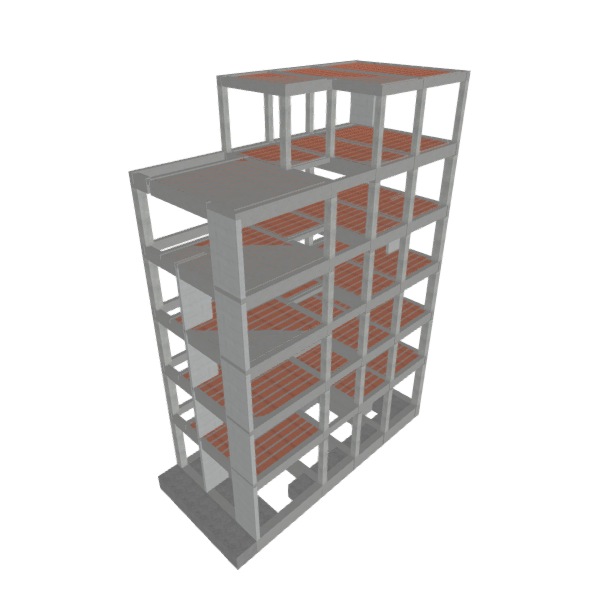
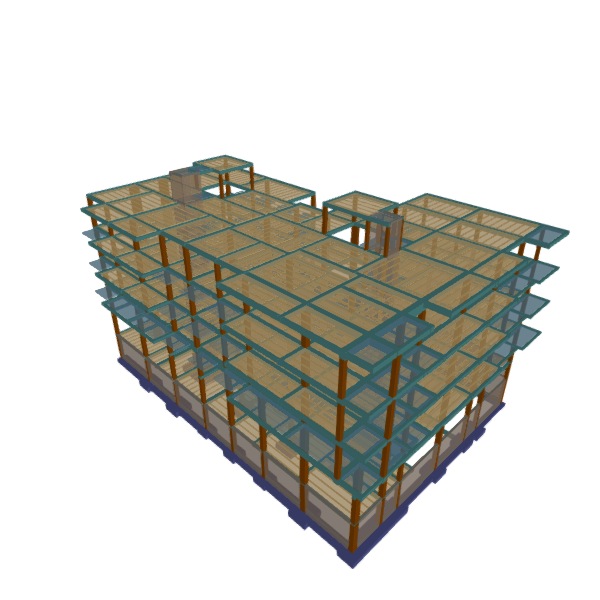
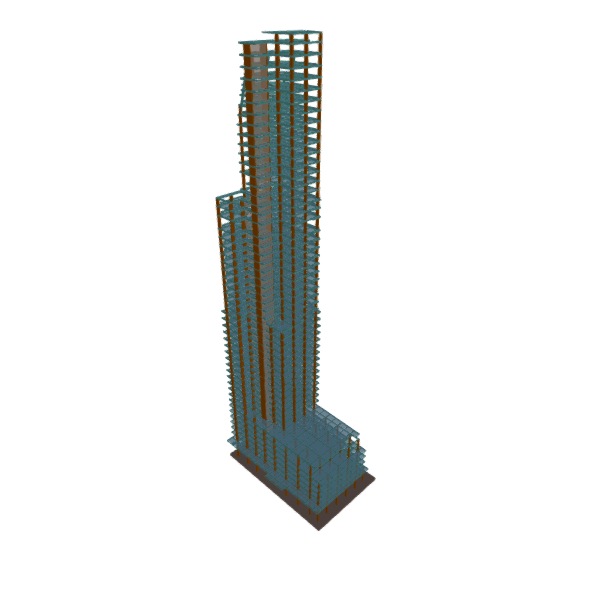
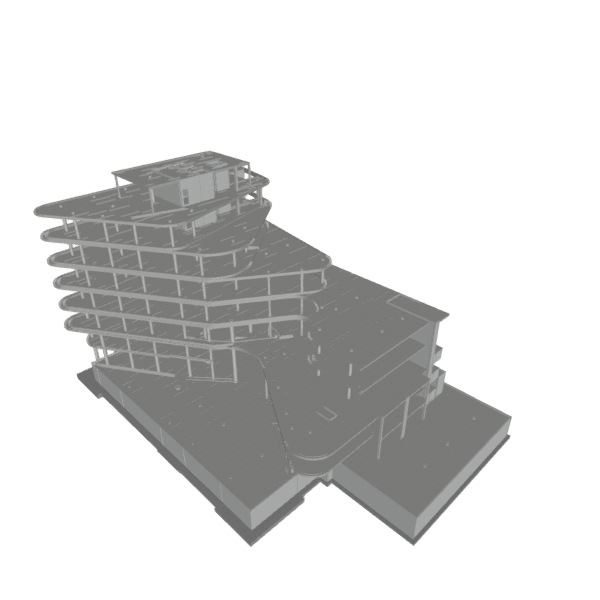
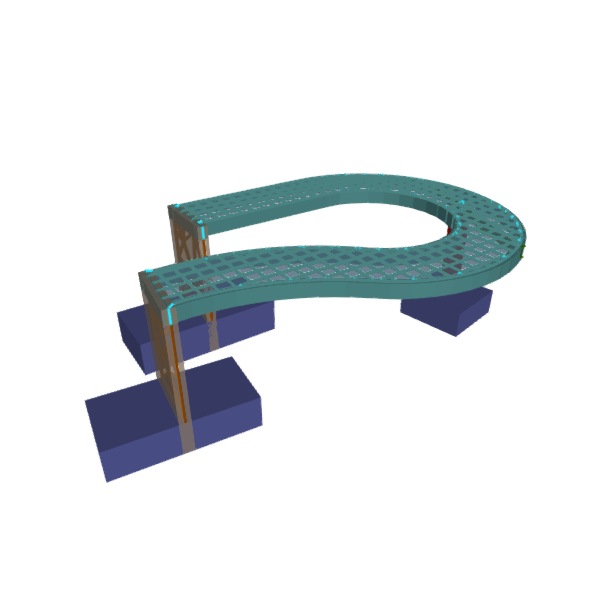
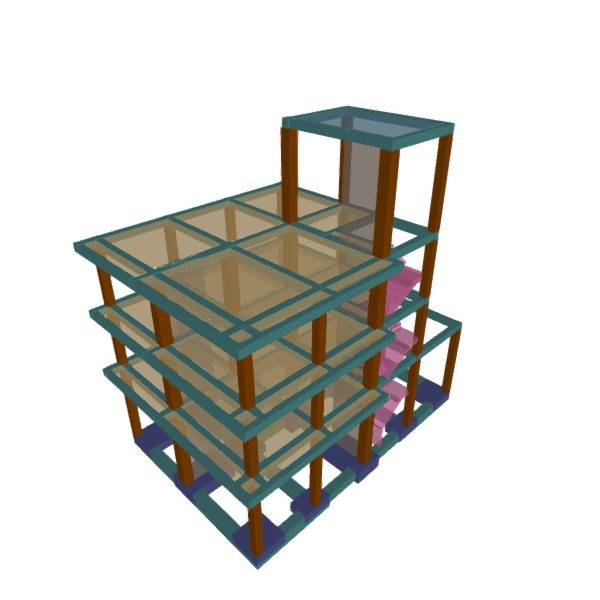
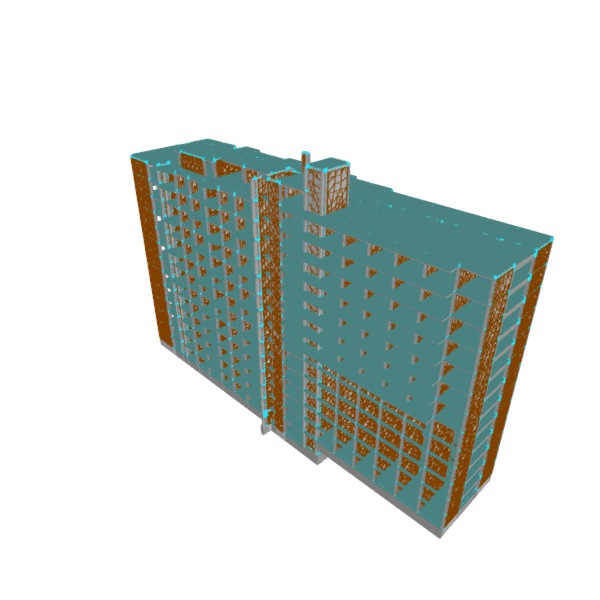
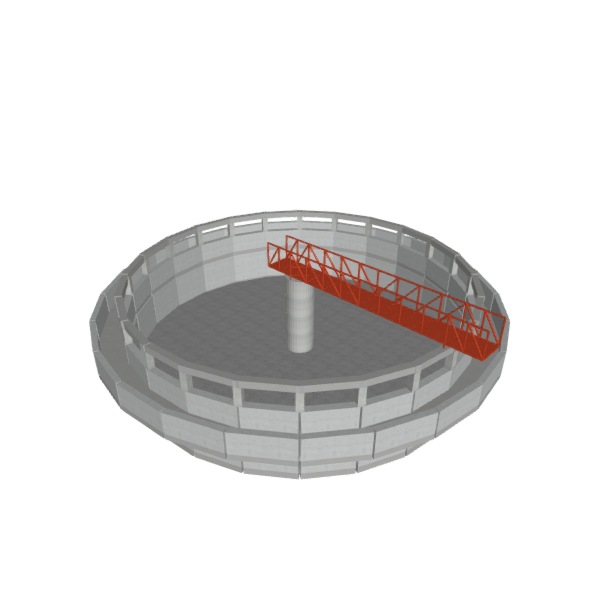
Below are some examples of structural models developed with the program:
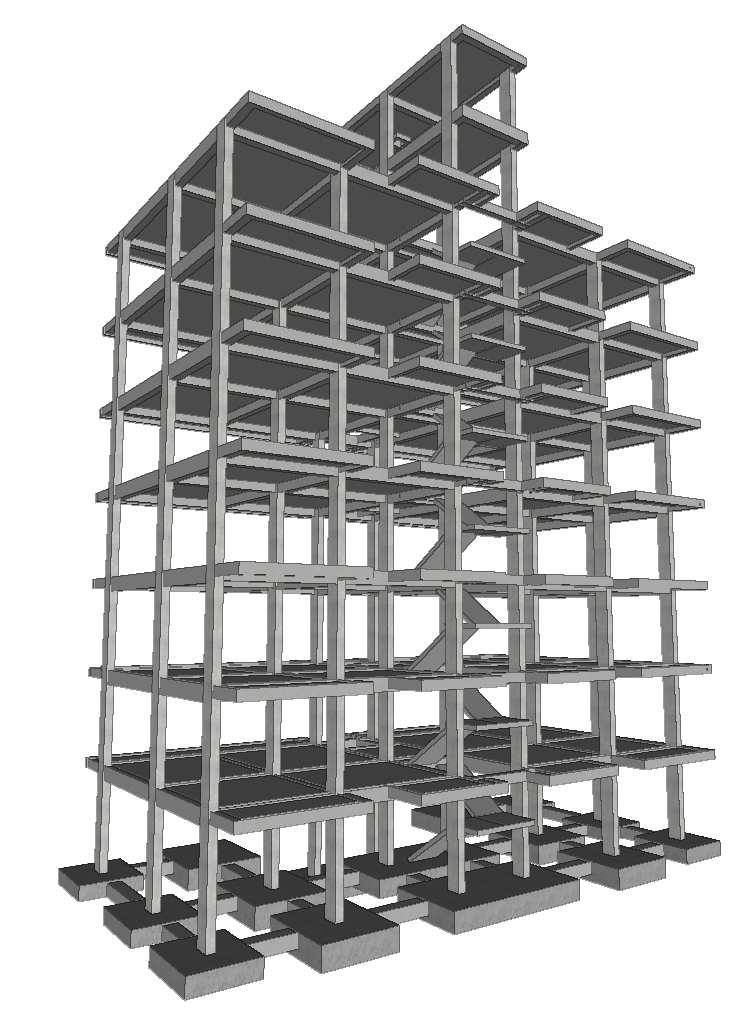
Concrete structures
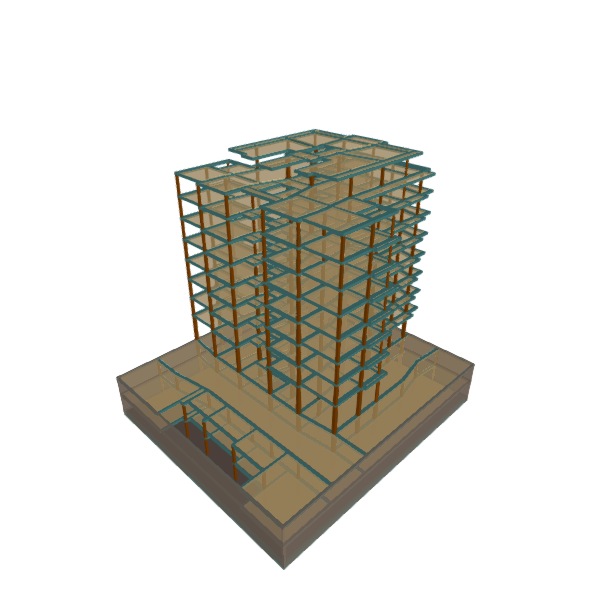
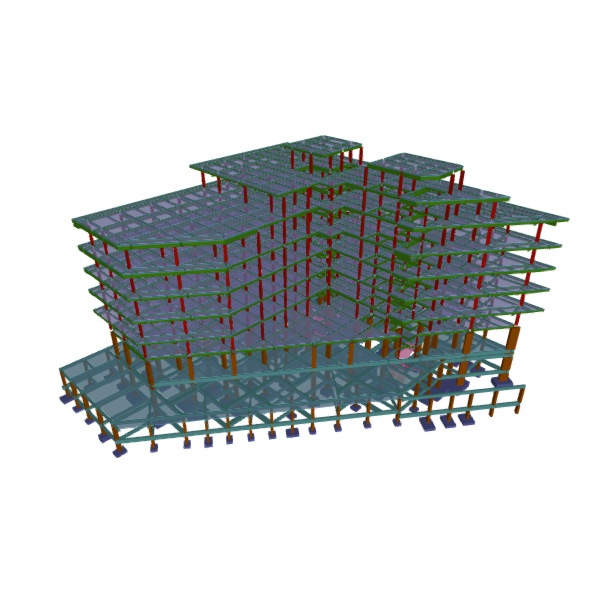
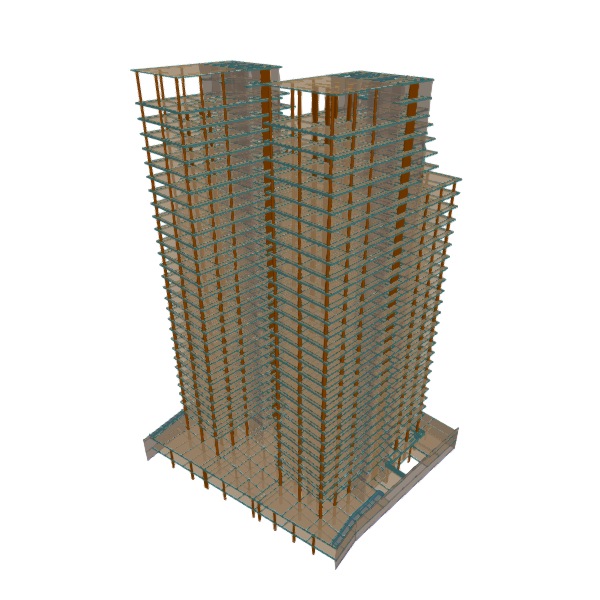
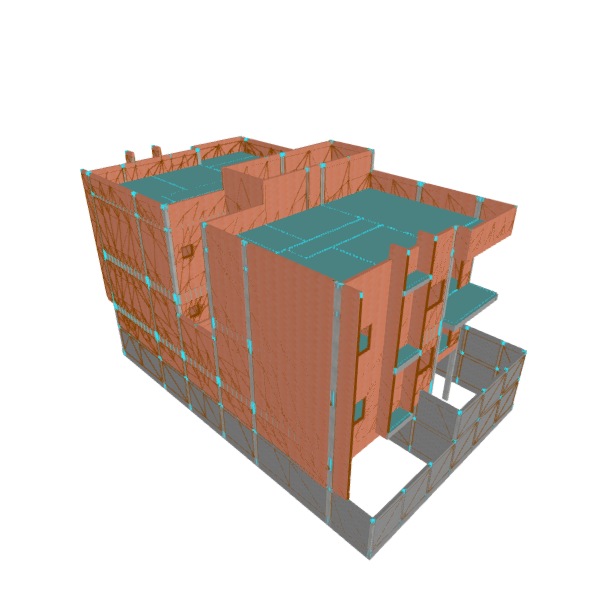
Concrete wall and masonry wall structures
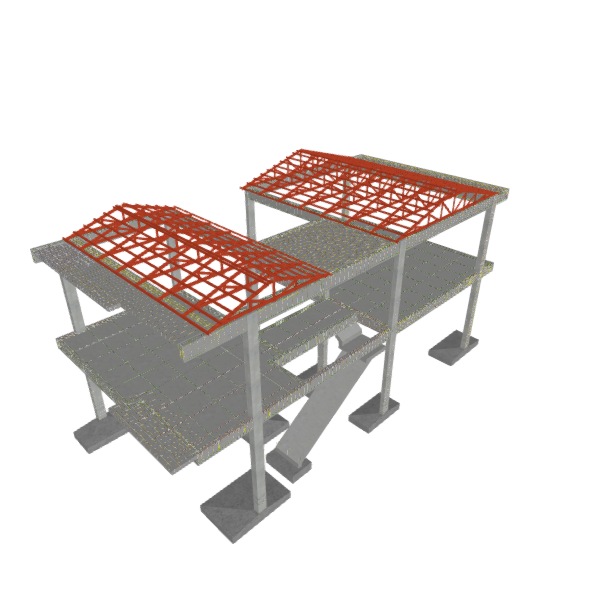
Mixed concrete and steel structures
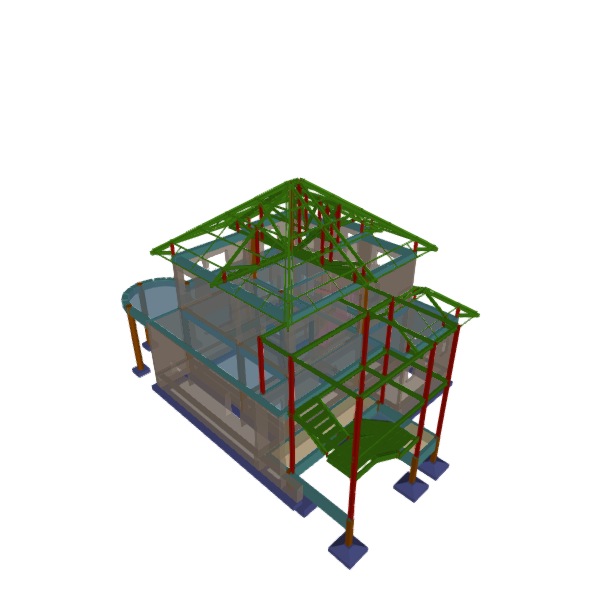
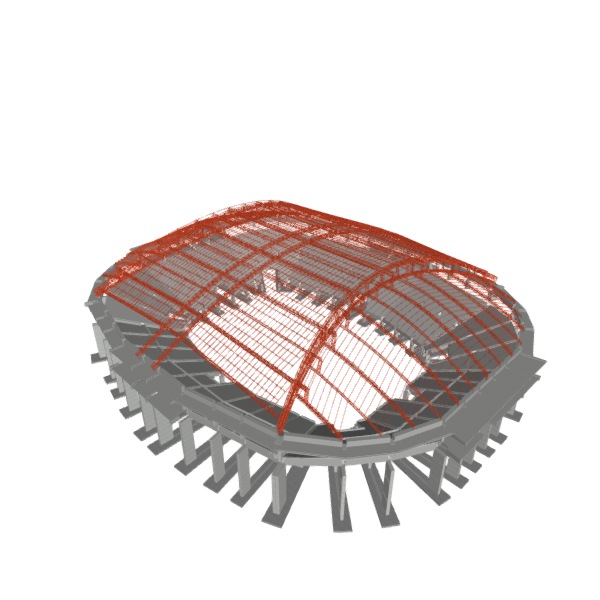
Mixed concrete and timber structures
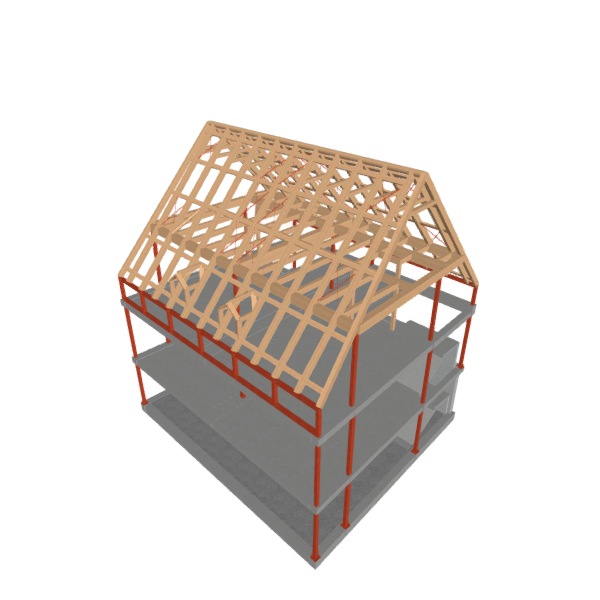
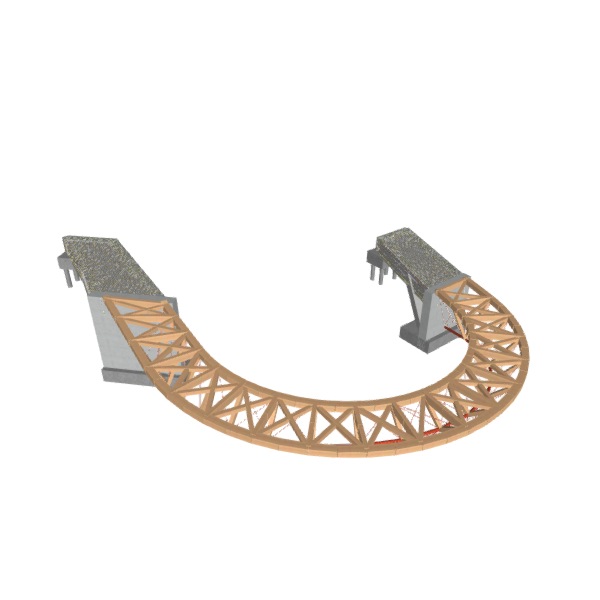
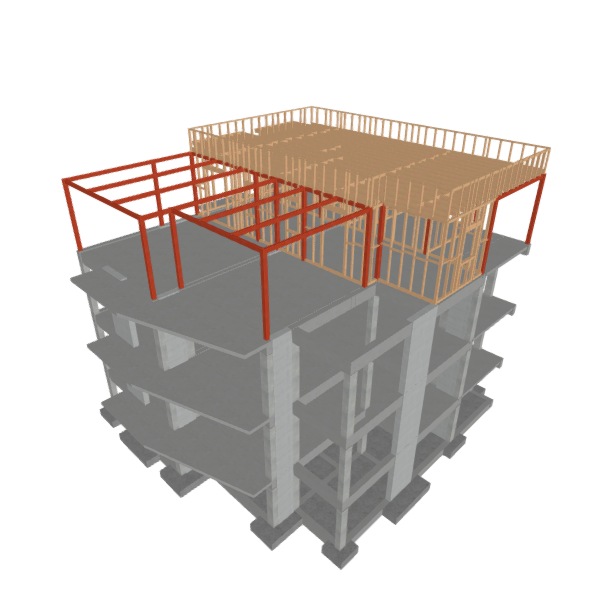
| Note: |
|---|
| Go to this link, to see the gallery of CYPECAD contributions on the BIMserver.center platform. |
Workflows supported by the program
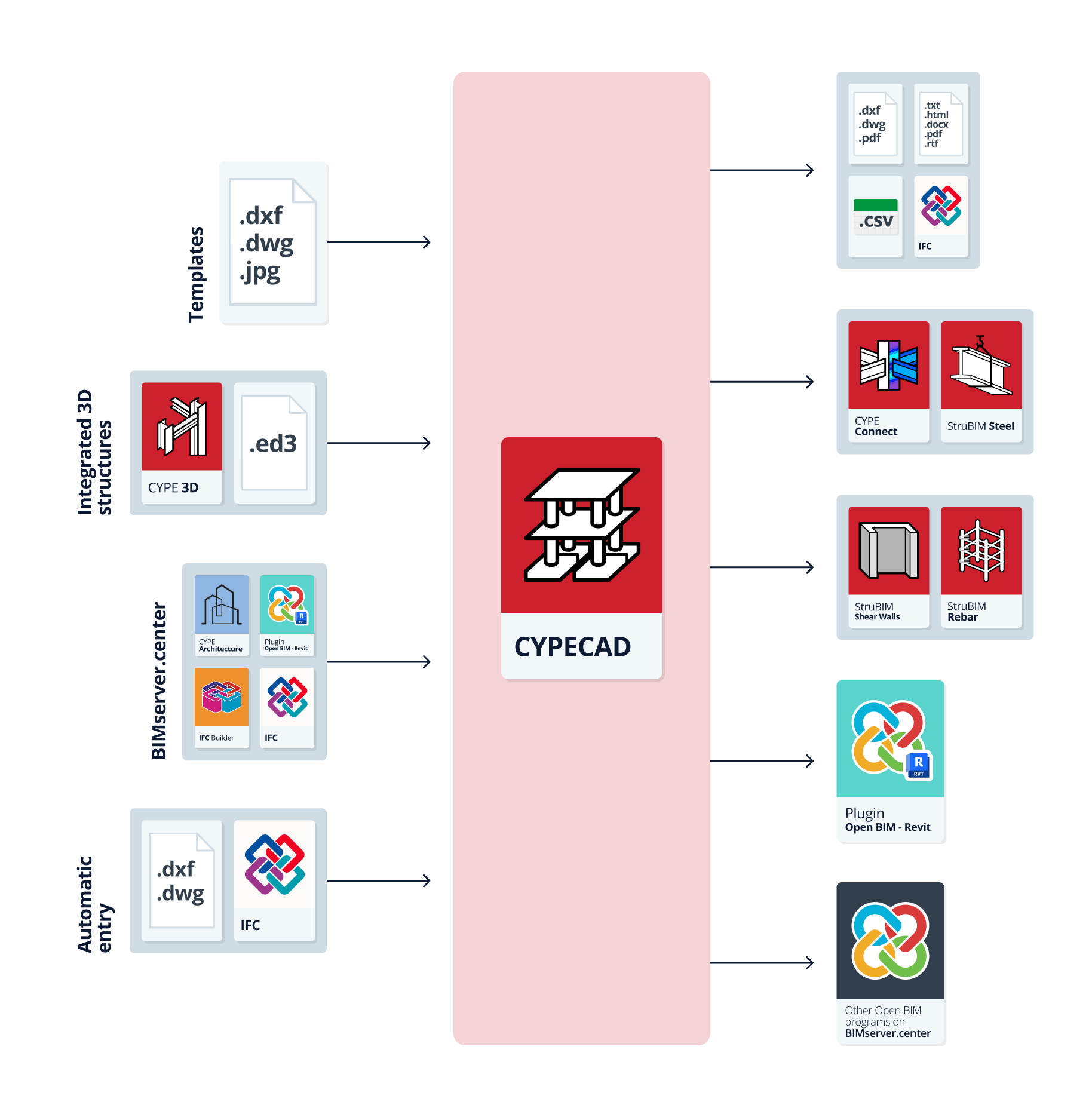
As CYPECAD is an Open BIM tool and is connected to the BIMserver.center platform, it offers different workflow options.
Data entry
Free modelling/with templates
CYPECAD can be used for either free or template modelling of the structure, either from scratch (as an "empty job") or to complete the definition of imported data in other workflows:
- Modelling of the structure by free entry into CYPECAD.
- Modelling of the structure in CYPECAD based on DXF-DWG, DWF, PDF templates or images (.jpeg, .jpg, .bmp, .wmf, .emf, .pcx).
Integrated 3D structures
CYPECAD incorporates structures developed in CYPE 3D for their joint calculation:
- Importing CYPE 3D jobs as integrated 3D structures in .ed3 format.
Importing models from BIMserver.center
If the CYPECAD job is linked to a BIM project on the BIMserver.center platform, the following actions can be carried out:
- Importing the model with the geometry of a building. This makes it possible to generate the floor plans, columns, load-bearing walls, beams and the outline of the floor slabs, as well as to generate the building elements (including their loads) from elements found in the BIM model, such as columns, beams, floor slabs or walls and partitions. The structure can be designed based on the imported geometry of the aforementioned elements, after completing it in CYPECAD. The models can come from various sources:
- Importing models designed in CYPE Architecture.
- Importing models designed in IFC Builder.
- Importing models in IFC format with IFC Uploader (generated by CAD/BIM programs such as Allplan, ArchiCAD and others).
- Importing models designed in Autodesk Revit with the Open BIM - Revit Plugin.
- If the architectural model is generated by IFC Builder or CYPE Architecture, users can also import the DXF or DWG templates contained in that model, or those that the program itself generates (from the building elements entered) when a model is exported to the BIM project.
Automatic entry (without linking to BIMserver.center)
If the job is not linked to BIMserver.center, CYPECAD offers specific options for automatic data input and generation from the following files:
- Automatic entry from DXF or DWG templates of: columns, floor descriptions, general loads, contour beams and beams in internal openings.
- Automatic entry from an IFC format file of: floor plans, columns, contour beams, beams in interior openings and cladding loads.
Other import options
- Importing of ASC (ASCII) files to generate the foundation from these files exported from a spreadsheet or from other programs.
Data output
- Exporting reports to HTML, DOCX, PDF, RTF and TXT formats.
- Exporting drawings to DXF, DWG and PDF formats.
- Exporting to a CSV file format of data such as the forces of columns, screens and walls.
- Exporting the bill of quantities to Arquimedes or to a file in FIEBDC-3 format so that it can be processed by other quantity surveying programs.
- Directly exporting the model to disk files in IFC format.
- Exporting Tekla and CIS/2.
- Exporting the information contained in CYPECAD to the BIMserver.center platform using IFC and glTF formats, ensuring interoperability and efficient exchange of information between different programs. This allows it to be viewed by authorised project participants. The information generated by CYPECAD can be used by the following programs:
- CYPE Connect / StruBIM Steel
Import the steel structure profiles and the forces from CYPECAD to carry out the detailed calculation of joints. - StruBIM Shear Walls
Imports the walls specified in CYPECAD to perform the specific shear wall checks. - Autodesk Revit (via the Open BIM - Revit Plugin)
Imports the information generated by CYPECAD for its visualisation and management in Revit. Optionally, it is possible to generate native Revit elements from the structural IFC.
- CYPE Connect / StruBIM Steel
Basic sequence of data input and output for the design and analysis of structures in CYPECAD
The design and analysis of structures in the program can be carried out using the following basic sequence of data input and output:
- Creating a new project (from "File", "New").
- Setting up general data (when creating a project or from the"Column input" tab, "Project" menu, "General data" option), including defining standards, materials and loadcases.
- Overview of the floor plan and entering columns, shear walls, and starts (the "Column Input" tab):
- Entering floors and groups ("Insertion" menu, "Floors/Groups" option).
- Entering and editing columns, shear walls, and starts ("Insertion" menu, "Columns, shear walls, and starts" option).
- Entering beams, walls, slabs, foundation elements, and the rest of the model's components, and analysing the structure ("Beam input" tab):
- Inserting and editing beams (options in the "Beams" menu).
- Insertion and editing walls (options in the "Walls" menu).
- Inserting and editing slab panels (options in the "Panels" menu).
- Inserting and editing foundation elements (options in the "Foundation" menu).
- (Optional) Inserting and editing integrated 3D structures ("Project" menu, "Integrated structures" option).
- (Optional) Inserting and editing stairs and ramps ("Project" menu, "Stairs" and "Ramps" options).
- (Optional) Defining sloped floor slabs ("Groups" menu, "Sloped floor slabs" option).
- (Optional) Inserting and modifying loads (options in the "Loads" menu).
- Analysis, verification and design of the structure (options in the "Analysis" menu).
- Viewing analysis results on screen ("Analysis" tab):
- (Optional) Viewing internal forces and other analysis results for columns, cores, walls, beams and slab panels ("Envelopes" menu).
- (Optional) Viewing and editing column and core reinforcement (options in the "Columns/Cores" menu).
- (Optional) Viewing and editing beam and wall reinforcement (options in the "Beams/Walls" menu).
- (Optional) Viewing and editing slab reinforcement (options in the "Joists", "Hollow-core slabs", "Composite slabs" and "Post-tensioned slabs" menus).
- (Optional) Viewing analysis results and editing the foundation (options in the "Foundation" menu).
- (Optional) Checking contour plots and the deflection between two points in slabs and waffle floor slabs (options in the "Contour plots" tab).
- Obtaining reports and drawings ("File" menu, "Reports" and "Drawings" options).
- Obtaining quantities and cost estimates ("File" menu, "Export" option).
- Linking and exporting to BIMserver.center (from the BIMserver.center menu).
Creating a new job
To start using the program and create a new job, follow these steps:
Initial interface
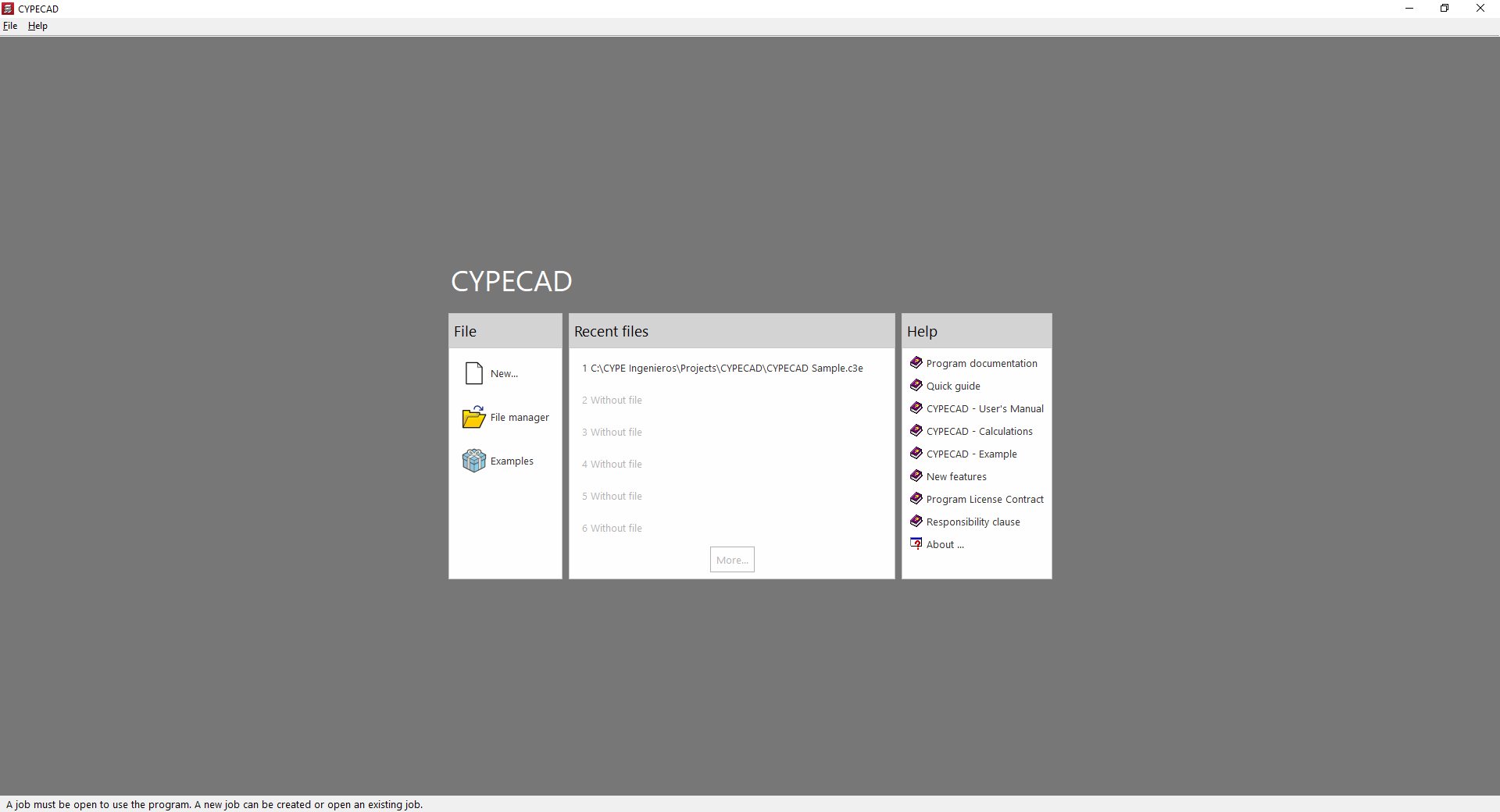
When the program is opened, a window is displayed with the following sections: "File", "Latest files" and "Help".
- On the left, in the "File" section, the following options can be found:
- New
Creates a new job. - File management
Accesses the program's file manager, where it is possible to search for jobs in any folder on the local disk or in the network environment, copy them, delete them, share them via web links or compress them in CYP format, among other options. - Examples
Installs and opens any of the sample jobs that are built into the program by default, overwriting the existing ones.
- New
- In the central part, the "Recent files" section shows a report with the paths of the last jobs worked with the program. Any of them can be opened by clicking on them.
- On the right, the "Help" section offers a series of informative documents and links. From "About" the version of the program and the type and number of the licence used can be found.
The options described above can be accessed at any time from the "File" and "Help" menus at the top of the interface.

New job
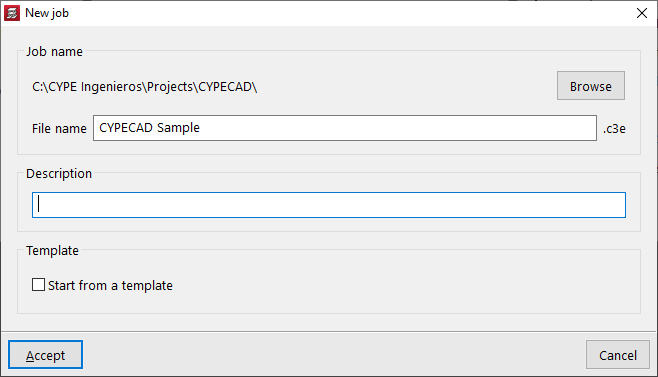
To create a new job, select "New" in the initial interface.
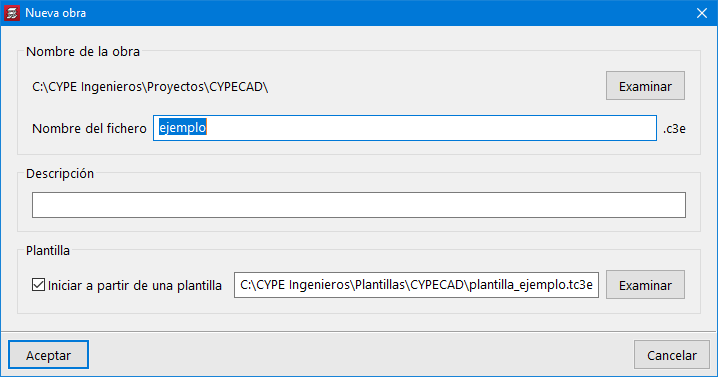
The program opens a dialogue box where you enter the file name and description.
By default, the program hosts the files in the path shown, but this can be changed by clicking on "Browse".
As an advanced feature, the "Start from template" option allows a previously saved template to be used from an existing job. Job templates store the configuration and general data of a job so that they can be used later when creating new jobs.
| Note: |
|---|
| CYPECAD uses a multi-file system for saving the model: - The file with the .c3e extension is the main file and contains the information of the floor and column structure, but it is not the only one. A backup copy with the .c3$ extension is generated next to it. - The program also generates a folder with a .dat extension that includes the rest of the information prior to the analysis, such as the description and geometry of the beams, slabs, stairs, walls and foundation elements, as well as some results. The data for each floor is saved in .pln files stored in this folder. - After the analysis, the program will generate a series of additional folders with the information of the results of the analysis, such as the folders with extension .res and .tmp, which are necessary for obtaining drawings and for reinforcing columns, respectively. In addition, a folder with extension .c3p is generated with the configuration of the drawings generated in the job. To manually move or copy the job information to another location on the disk, users must make sure this is done by including all the files and folders mentioned above. |
Project selection
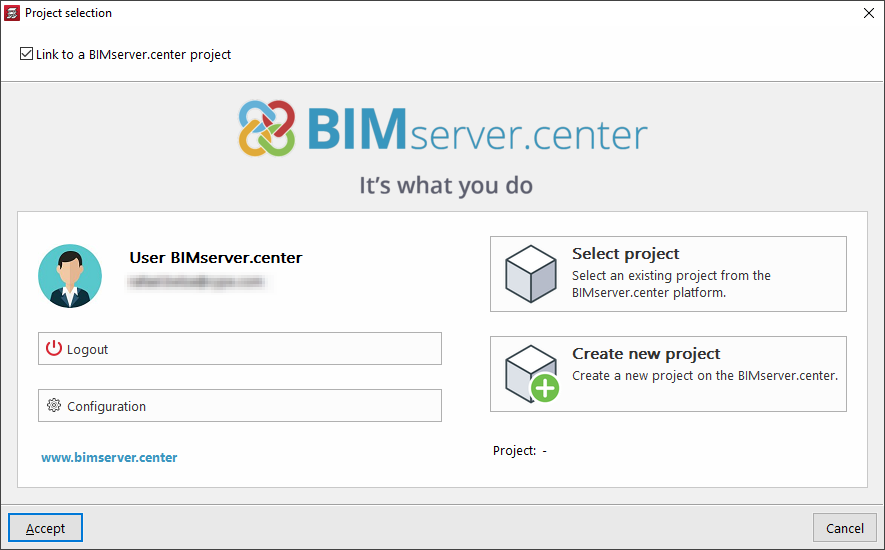
After accepting the dialogue box for creating a new job, there is the option of integrating the job into an existing project in BIMserver.center. This is done in the "Project selection" window, which offers the following options:
- On the left-hand side, you can log in with a BIMserver.center account.
- On the right-hand side, the "Select project" option is used to choose an existing project. Another option is to select "Create a new project". In this case, the created project will be visible from BIMserver.center from that moment on.
- There is the option to start the project without being linked to the BIMserver.center platform. To do this, simply uncheck the "Link to a BIMserver.center project" box at the top left.
| Note: |
|---|
| Linking to a BIMserver.center project results in the automatic import of data from the BIM models contained in the project. |
Empty job/automatic entry
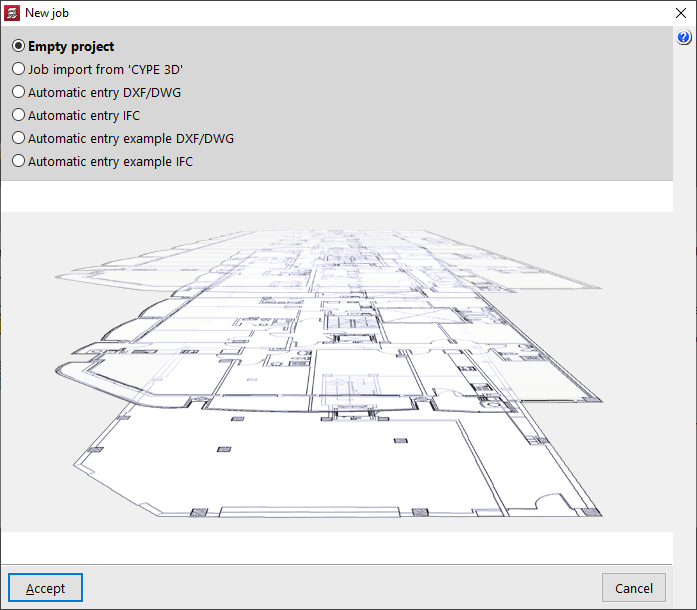
After accepting the project selection window, users are taken to a new window where they can decide whether they want to start with an empty job or import information from other programs:
- The "Empty job" option is used to create a new job in which all the data for floors, groups, columns, beams, slabs and other elements must be entered manually.
- The other options allow the import of information from other programs and in other formats:
- Importing a job from CYPE 3D
Imports a structure developed in CYPE 3D as an integrated 3D structure. From CYPECAD, it is possible to analyse the foundation or complete the structure with other added elements. - Automatic DXF/DWG entry
Imports a .dxf or .dwg file, as well as the automatic generation of columns and beams from their contours. - Automatic IFC entry
Imports an .ifc file, as well as the automatic generation of floors, columns, beams, floor openings, roofs, footings, centring beams and building elements, based on the data contained in the file. - Example of automatic DXF/DWG entry
Gives an example showing the steps of the wizard for automatic data entry from .dxf or .dwg files. - Example of automatic IFC entry
Gives an example showing the steps of the wizard for automatic data entry from .ifc files.
- Importing a job from CYPE 3D
| More information: |
|---|
| CYPECAD can save templates with the configuration and general data of a job for later use in the creation of new jobs. This link provides a detailed explanation. Detailed information on how to enter the structure in CYPECAD can also be found at this link. |
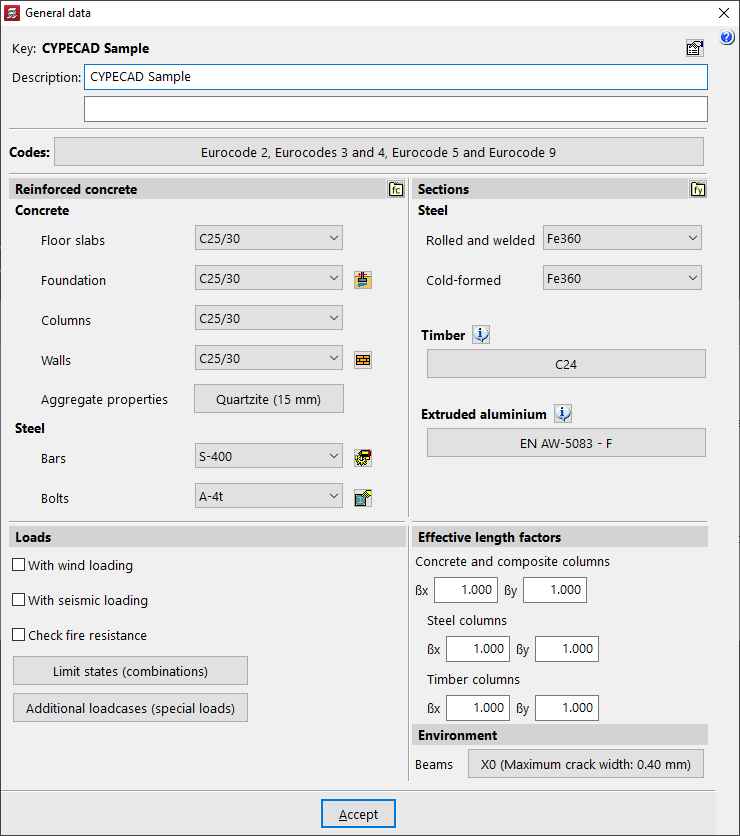
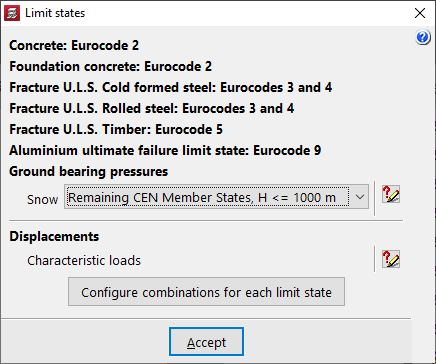
General data and limit states
After accepting the previous window, the panels for defining the "General data" of the job and the "Limit states" are opened, where they are configured:
- Standards to be used
- Selecting materials
- Design options and reinforcement tables
- Defining loads:
Permanent loads, live load, wind, earthquake, fire resistance check, additional loadcases. - Buckling coefficients of columns
- Environment for beams and pile caps
| More information: |
|---|
| In CYPE, users have total control of all the general data that will condition the analysis and dimensioning. The available options are detailed in this link. |
Entering the program's general interface
Finally, after both windows have been configured and accepted, the program opens the general interface via the "Column definition" tab, where model data can start being entered.
IFC entities imported in the "Automatic IFC import" process
CYPECAD allows you to import information contained in IFC files using the "Automatic IFC import" option, available when creating a "New project".
The IFC entities that contain information that can be read by CYPECAD are as follows:
| Building | IfcBuilding |
| Building storeys | IfcBuildingStorey |
| Pad footings | IfcFooting (type: PAD_FOOTING, USERDEFINED, NOTDEFINED) |
| Footing beams | IfcFooting (type: FOOTING_BEAM) or IfcBeam (if they overlap with footing) |
| Concrete columns | IfcColumn (if represented by faces, it will only be interpreted if its section is circular or rectangular) |
| Floor slabs | IfcSlab |
| Roofs | IfcRoof |
| Building envelope loads | IfcWall / IfcWallStandardCase |
If the selected IFC file does not contain these IFC entities, CYPECAD will not be able to generate any information after the import process. If this is the case, you must examine the options available in the program with which you created the IFC in order to incorporate information into the aforementioned IFC entities.
Job templates
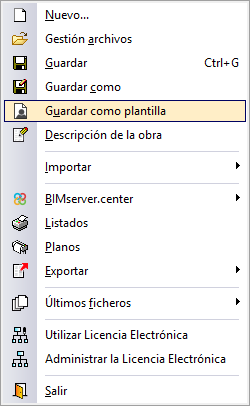
In the "File" menu of CYPECAD, users will find the "Save as template" option.
This option is used to store the configuration and general data of a job in templates to be used later when creating new jobs.
Saved templates can be used when creating a new job by selecting the "Start from a template" option.
Data saved in the CYPECAD templates
General data
All the data defined in “Project”, under “General data", is saved, with the exception of the data per floor corresponding to the wind action and buckling coefficients:
- Code selection
- User material libraries (concrete, steel)
- Material selection
- Limit states
- Additional loadcases and use categories
- Options for starts
- Steel leftovers
- Baseplate options
- Aggregate selection
- Job data for foundation elements with external fixity
- Options for masonry walls (masonry walls, block walls)
- Wind selection
- Earthquake selection
- Effective length factors
- Beam environment
- Options for columns, shear walls, walls and corbels
- Beam options (floor slabs and foundation)
- Strap and tie beam options
- Flat, waffle and joist floor slab options
- Mat foundation options
- Footing options
- Pile cap options
- Staircase options
- Ramp options
- Reinforcement tables
Libraries
The libraries defined for the following element types are saved:
- Piles
- Joist floor slabs
- Forms
- Composite slabs
- Shear studs for composite beams
- Beam environment
- Deflection limit for beams
- Generic aluminium sections
- User punching shear studs (manufacturer's punching shear studs are NOT saved)
- Inclined bars for punching shear
- Beams for punching shear
- Tendons for post-tensioned slabs
- Sections and generic materials of columns
- Concrete blocks
Other data
- Beam definition > Project
- General options
- Beam options
- Floor slab options
- Steel section series
- Joint analysis options
- Post-tensioned tendons options
- Point loads, linear loads and predinfed surface loads
- Layers of the editing resources
- Selection of customisable reports
Table of contents
Complete your tour of CYPECAD by exploring the other available sections:
- Introduction
- Introduction and creating new jobs
- General data configuration
- Defining floors and groups of floors and inserting columns, shear walls and starts ("Column input" tab)
- Inserting beams, walls, floor slabs, foundation elements and special elements, and structural analysis (the "Beam Input" tab):
- Checking analysis results and editing elements (the "Results" tab):
- Options on the "Contour plots" tab
- Printing documents and exporting data
- More information:
- General features of CYPECAD
