Update history
CYPEPLUMBING
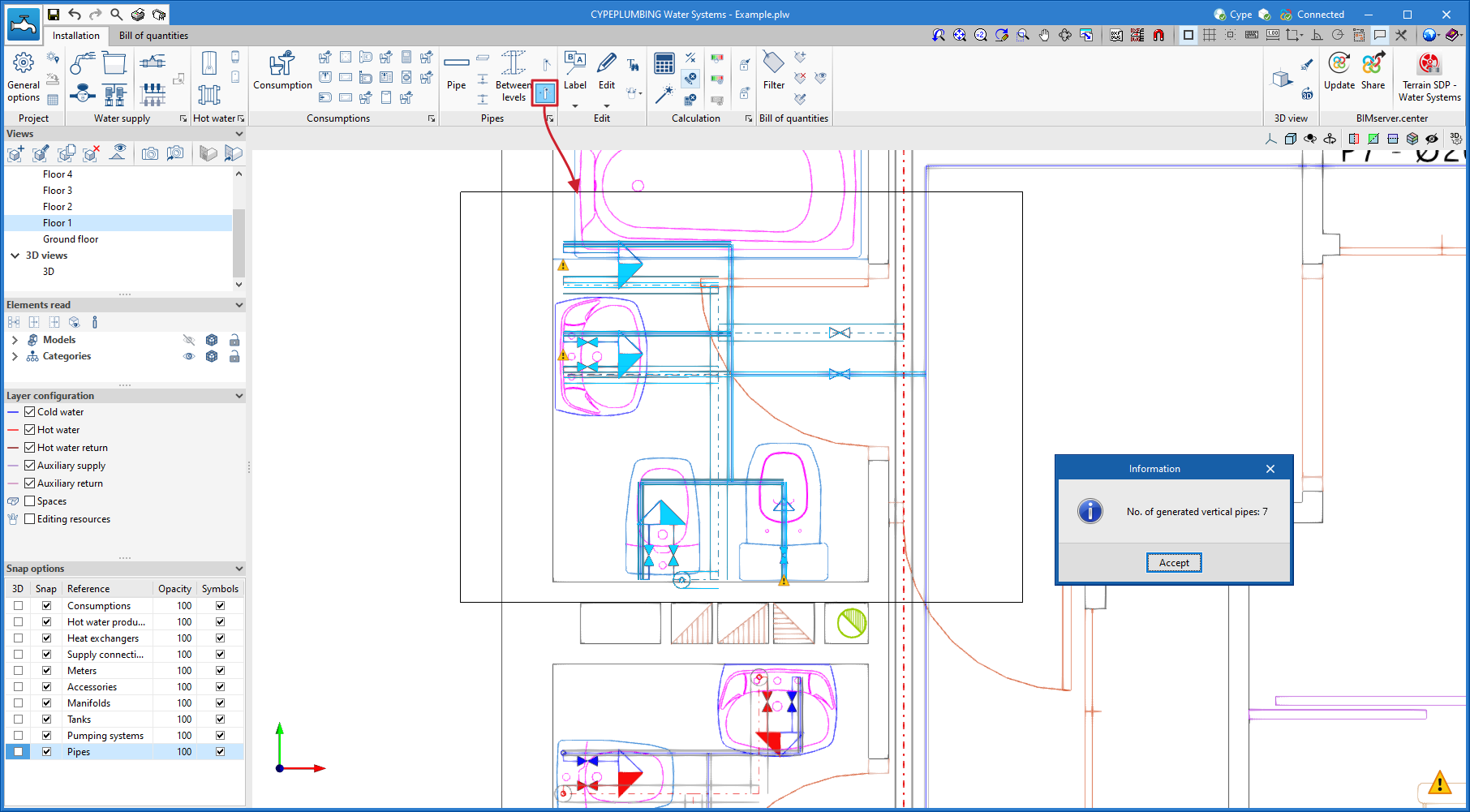
Automatically generating vertical pipes by selecting installation zones
- Published on
- 2023.b
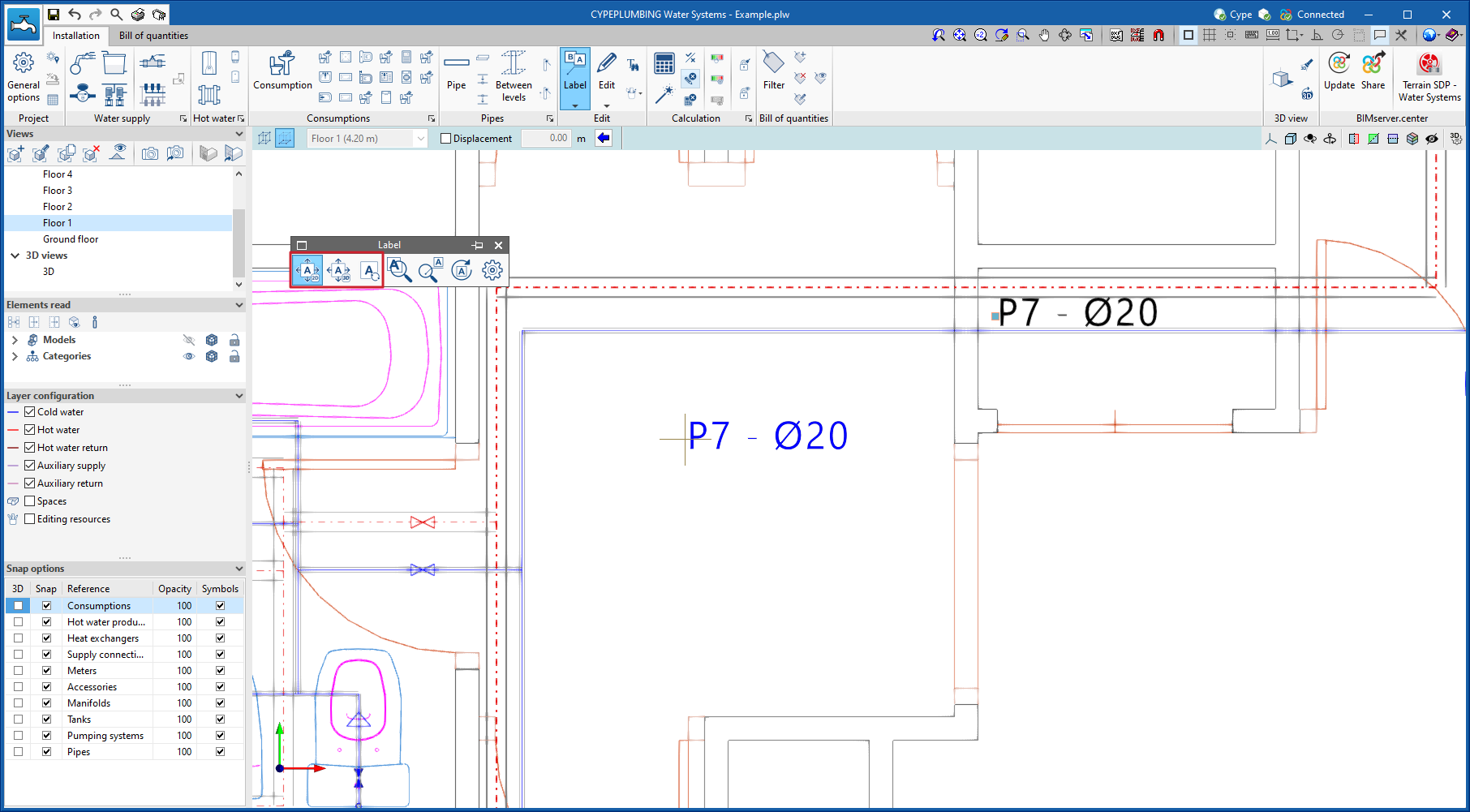
New features in label management
The use of project labels has been improved. For this purpose, the following features have been added:
- Element identification
The item corresponding to the label is highlighted when the label is selected. - Move label in 2D mode
This tool allows users to move the element labels in the installation in the XY plane. - Move label in 3D mode
Allows users to move the element labels in the installation in the XYZ plane. - Move label to initial point
Allows the initial position of the label to be restored after it has been moved.
- Published on
- 2023.b
Automatically generating localised pressure drops in pipe joints
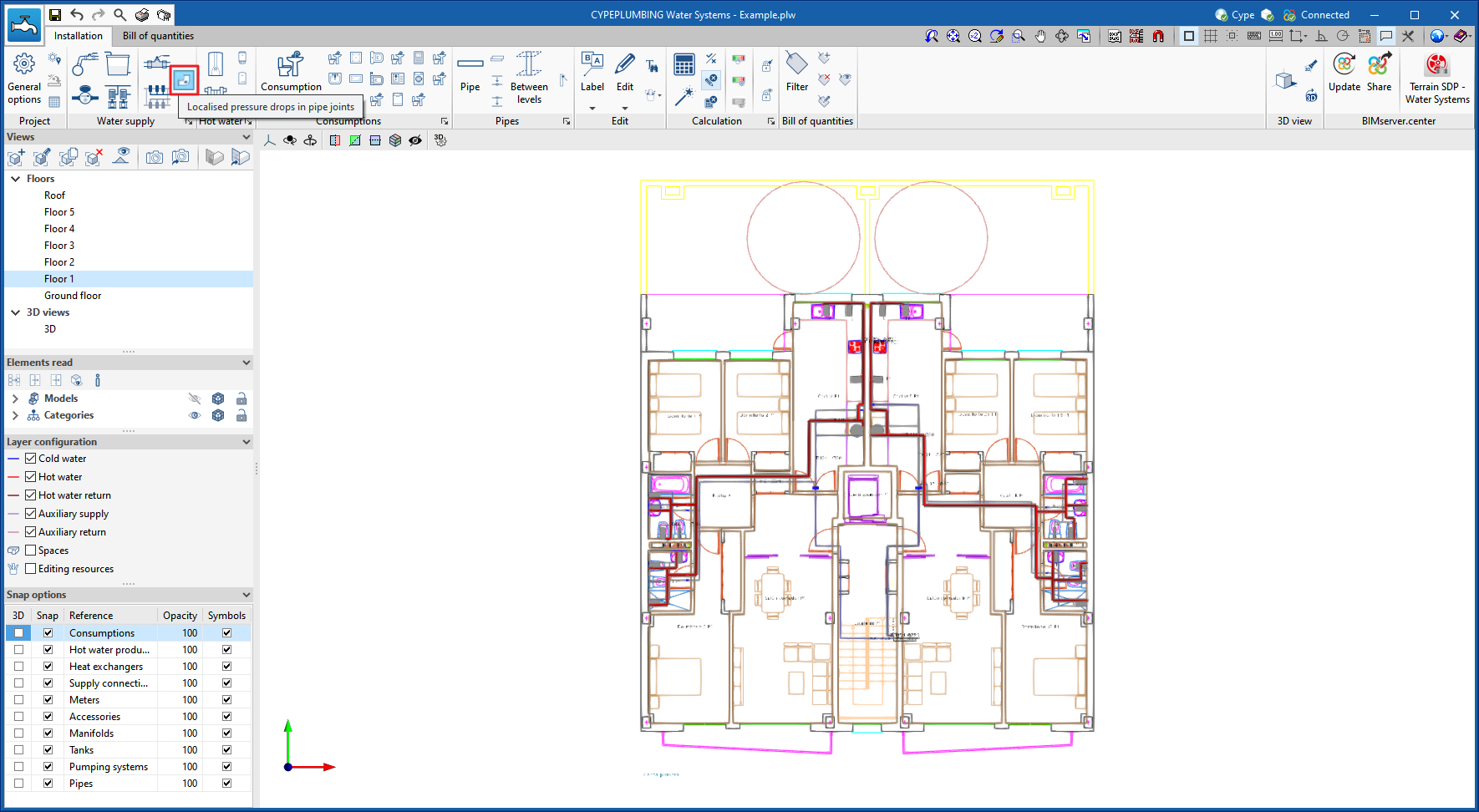
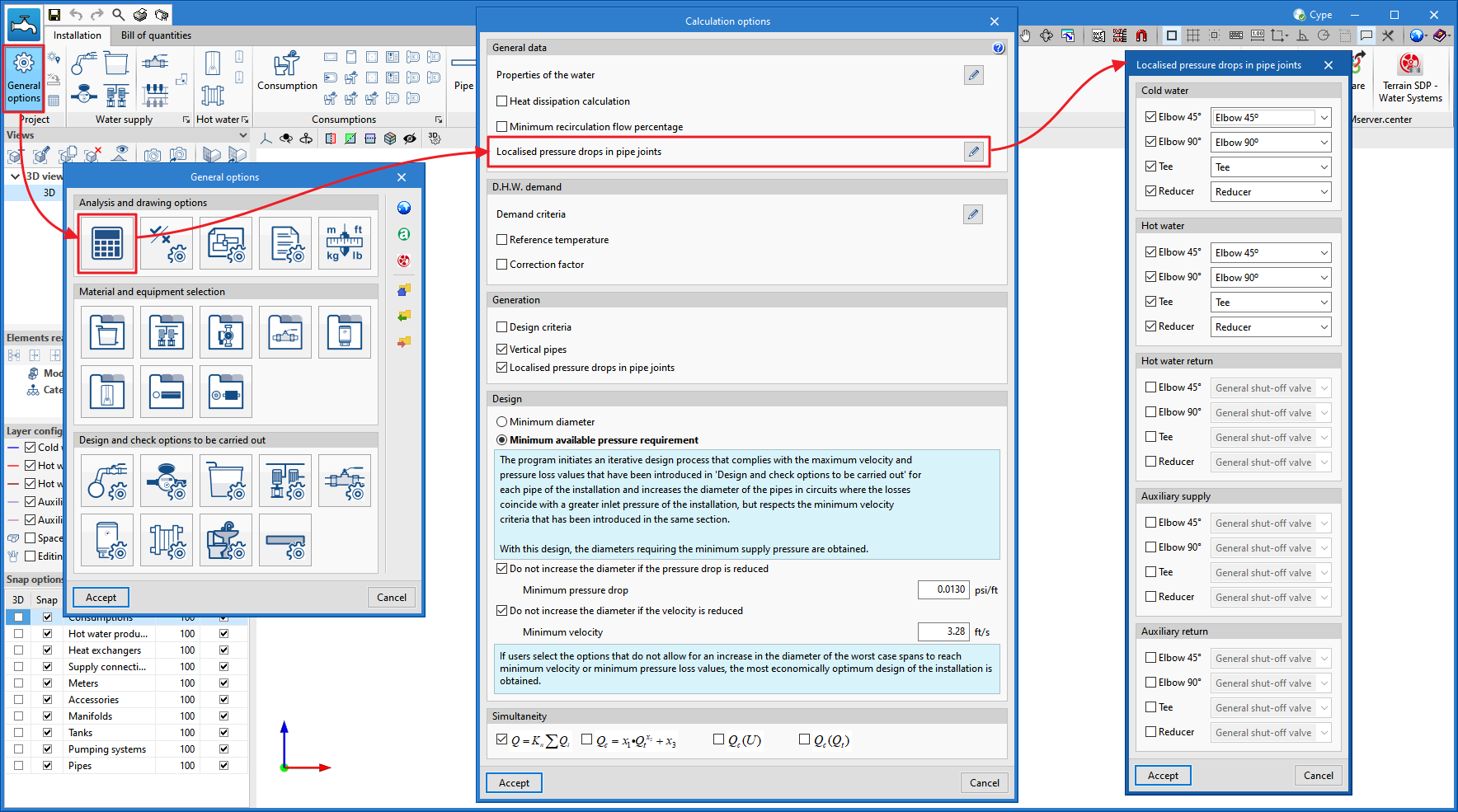
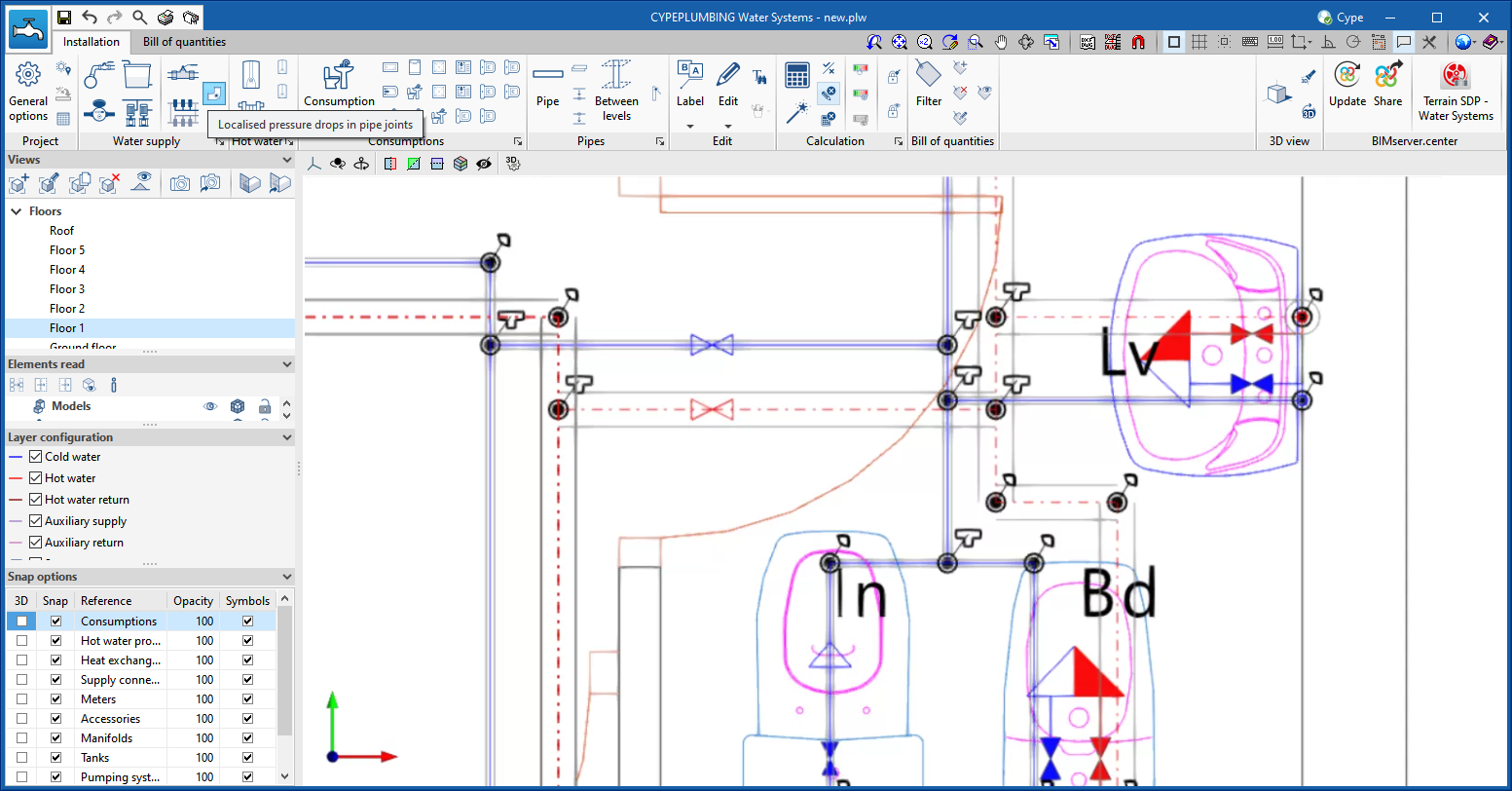
In version 2023.a of CYPEPLUMBING Water System, the "Localised pressure drops in pipe joints" tool has been implemented. This tool allows users to automatically generate the pressure drops that occur throughout the pipe run caused by the following types of joints:
- 45º elbows
- 90º elbows
- Tees
- Diameter reducers
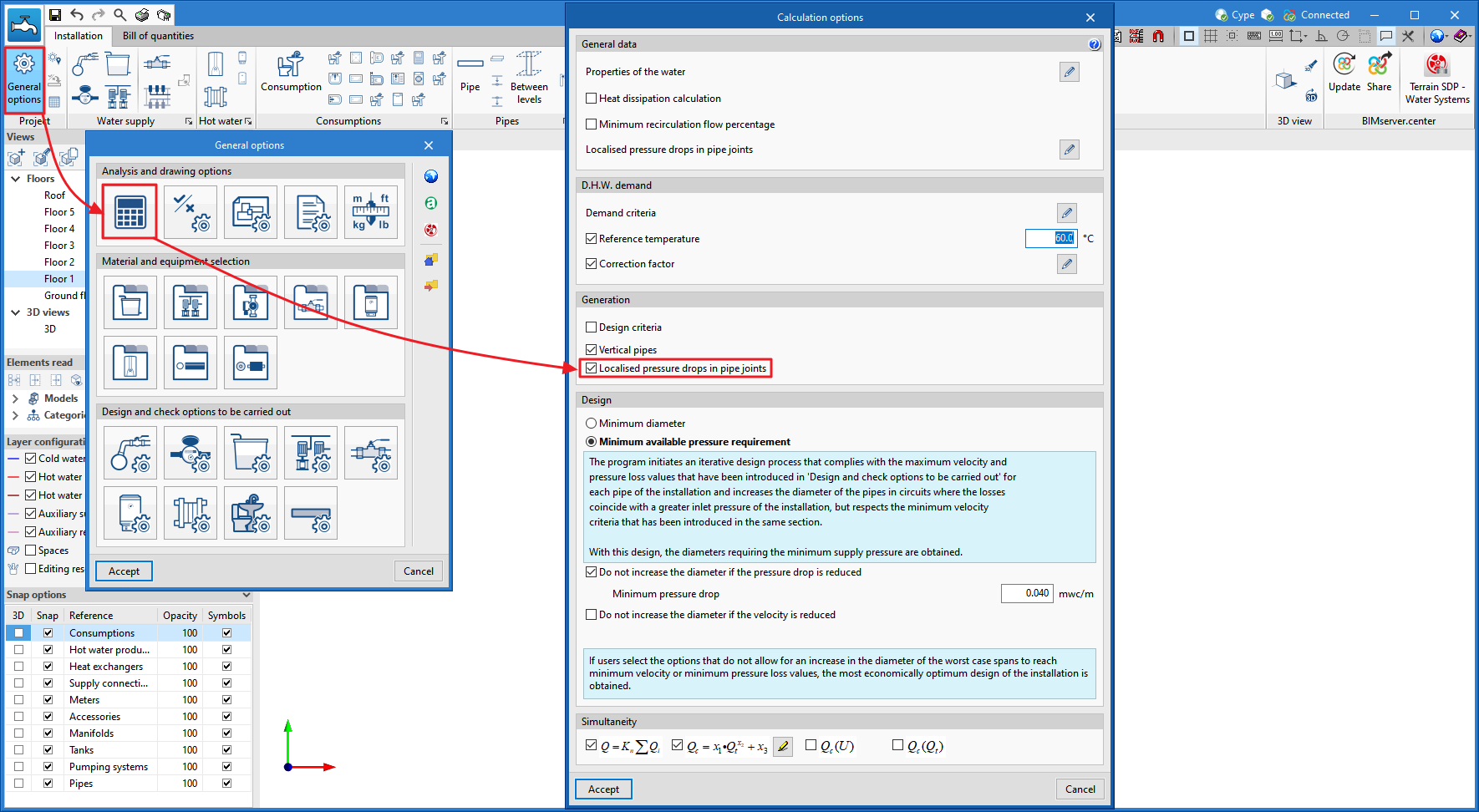
This tool can be activated in two ways:
- From the top toolbar when entering the system
In this case, users can review the generated joints before the analysis.
- From the analysis options
The joints and their pressure drops are generated when the system is analysed.
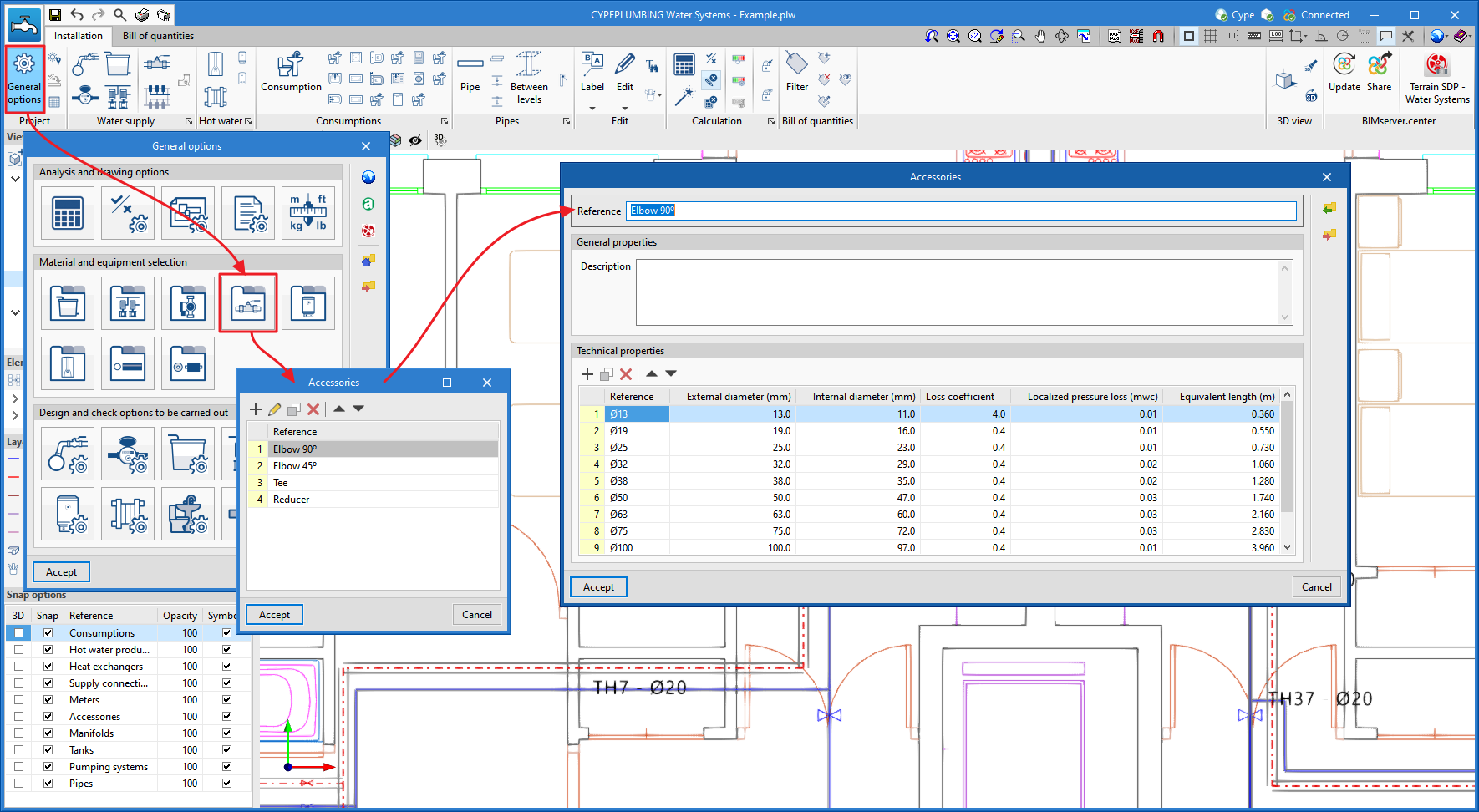
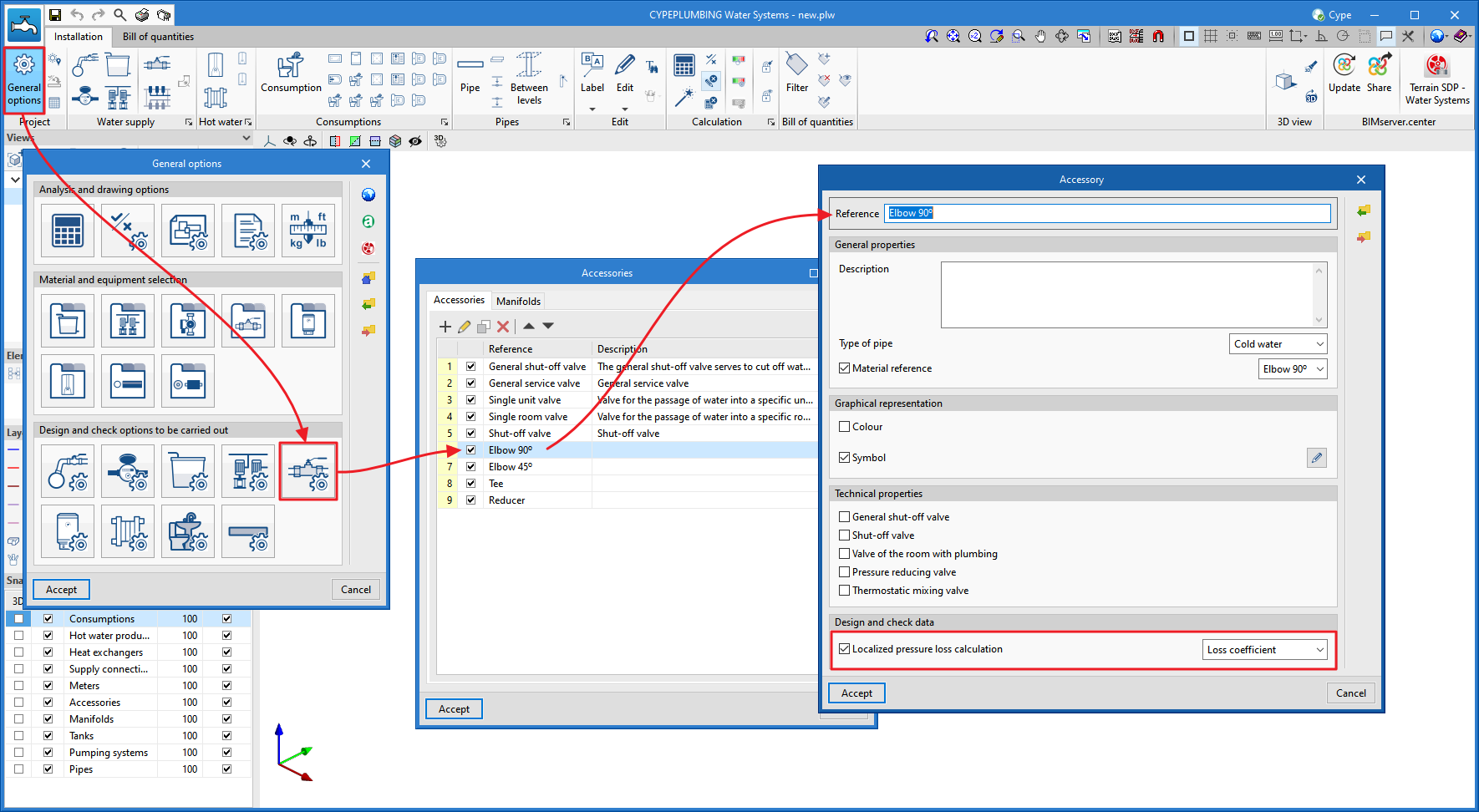
The analysis of these pressure drops is fully configurable and several analysis methodologies can be applied, taking into account the "diameter and equivalent length", "diameter and pressure drop ", or "diameter and kinetic coefficient" ratios.
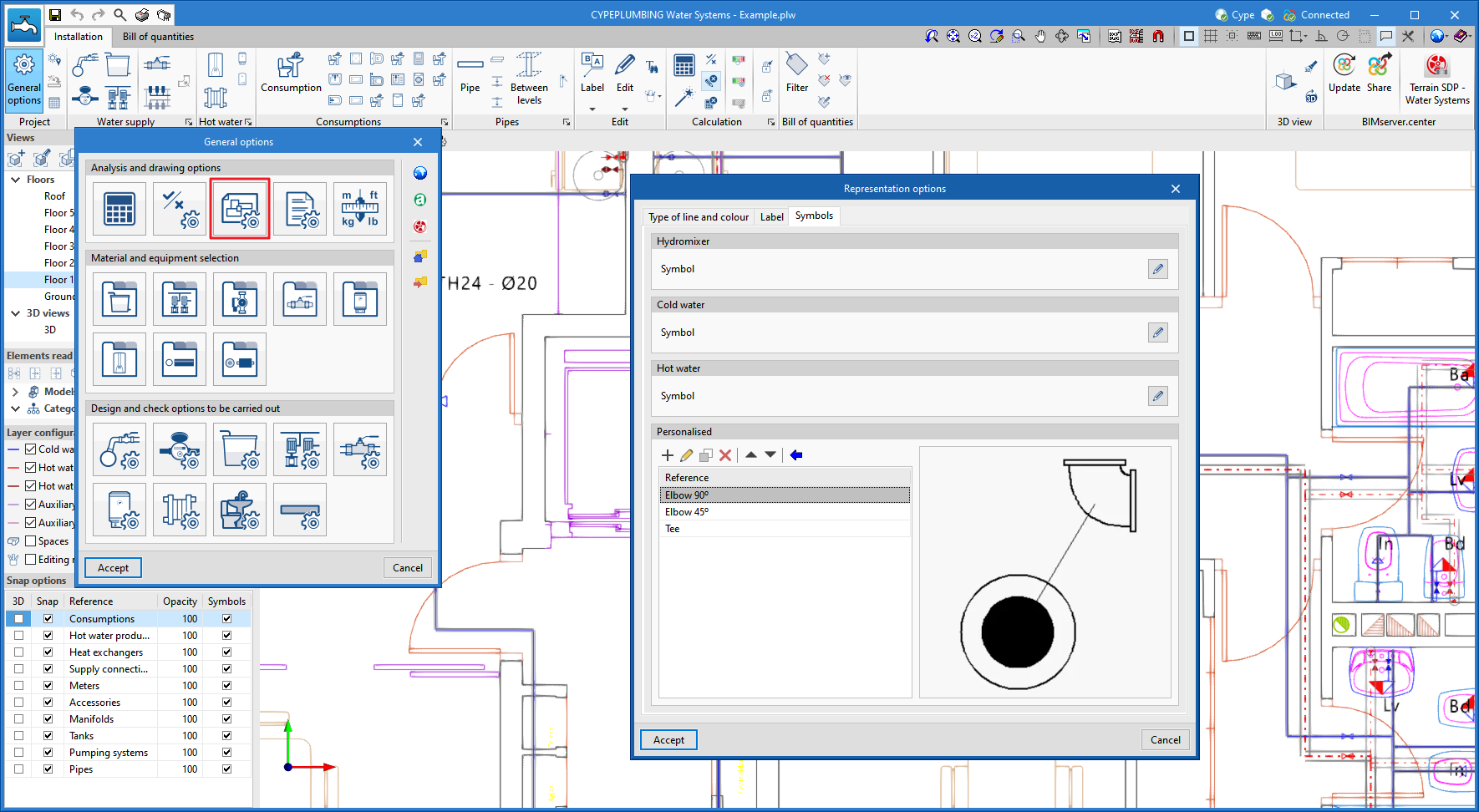
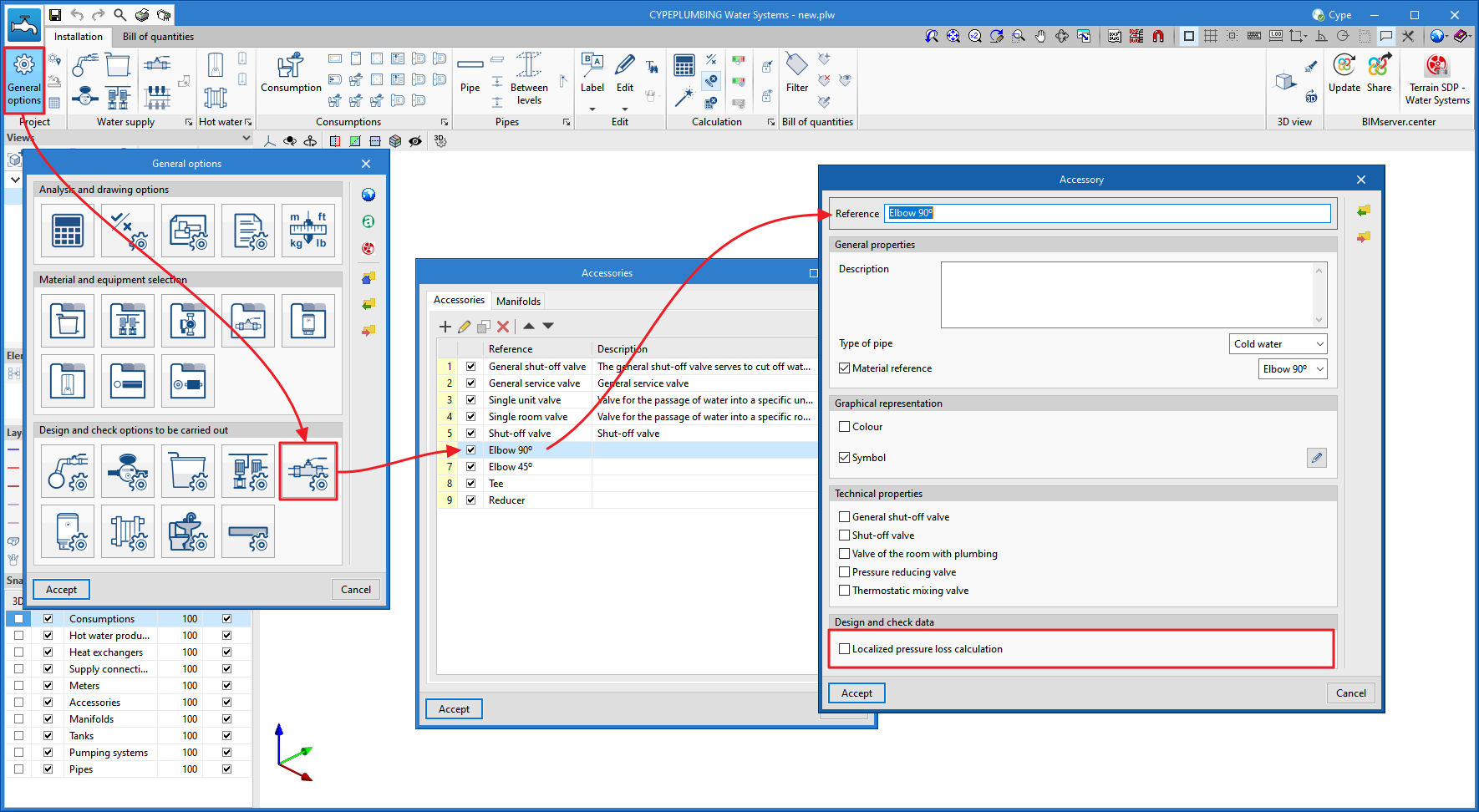
For this purpose, the "Accessories" option is added ("General options" > "Materials and equipment selection") where users can enter these factors, which may be code-based or directly consulted in the manufacturers' technical catalogues (normally in the latter case it is the kinetic coefficient of the type of joint).
In its most basic mode, the "Localised pressure drops in pipe joints" tool can also be used to count only the number of joints according to the indicated types ("45° elbows", "90° elbows", "tees" and "reducers"). To do this, simply deactivate the calculation of the localised pressure drop.
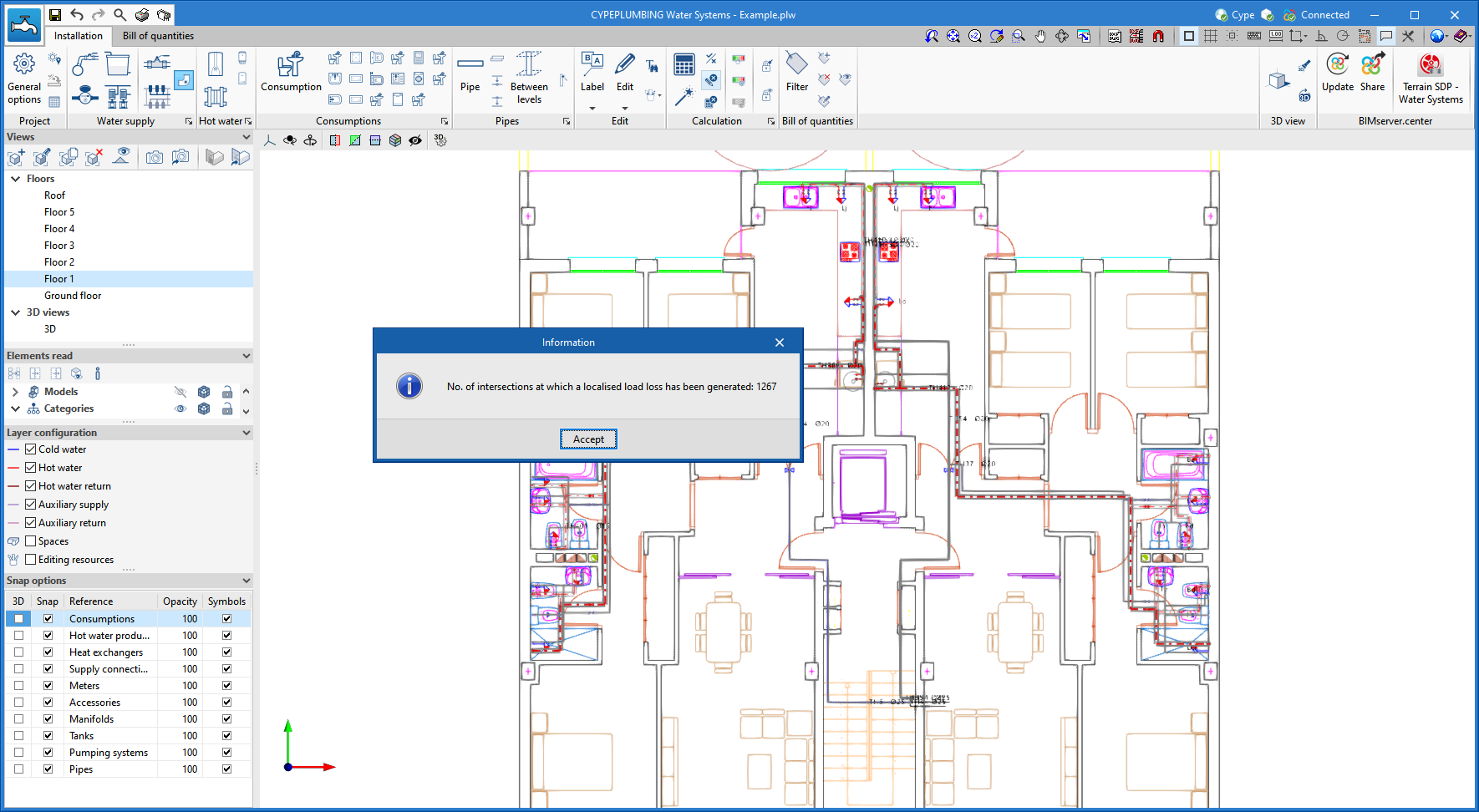
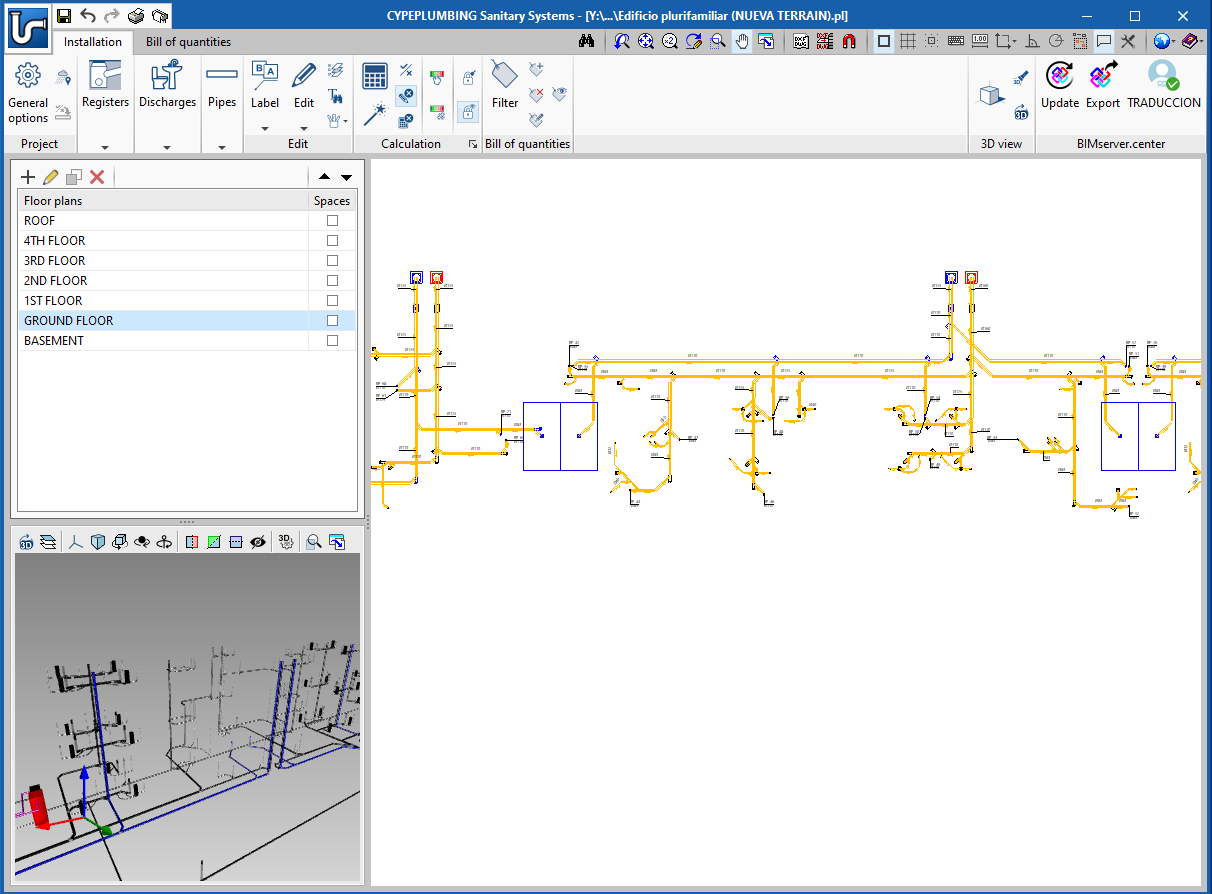
The following images show the number of joints generated in an installation of a 4-storey building with 8 apartments, and the details of an area in this system.
- Published on
- 2023.a
Managing the visibility and object snaps of external elements
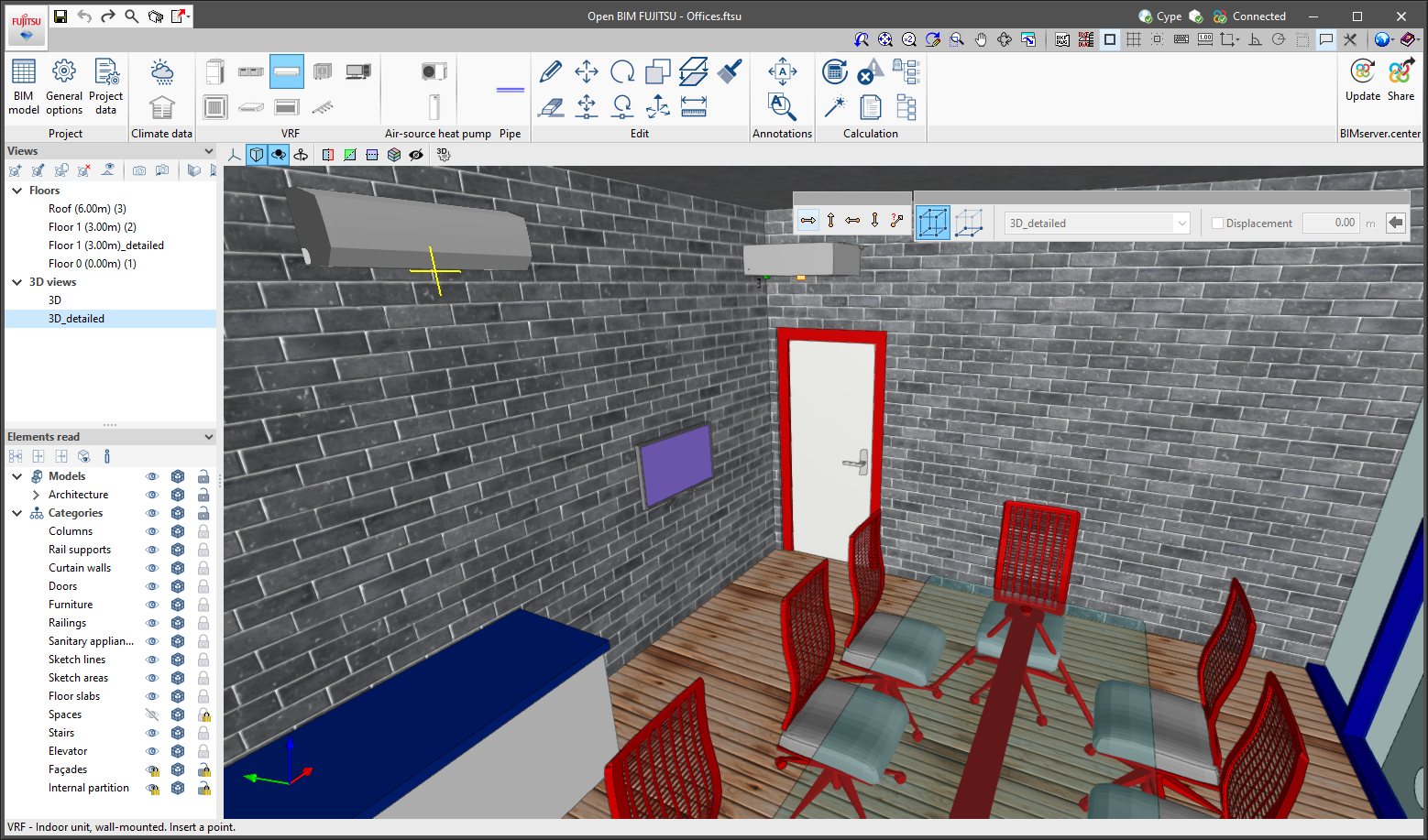
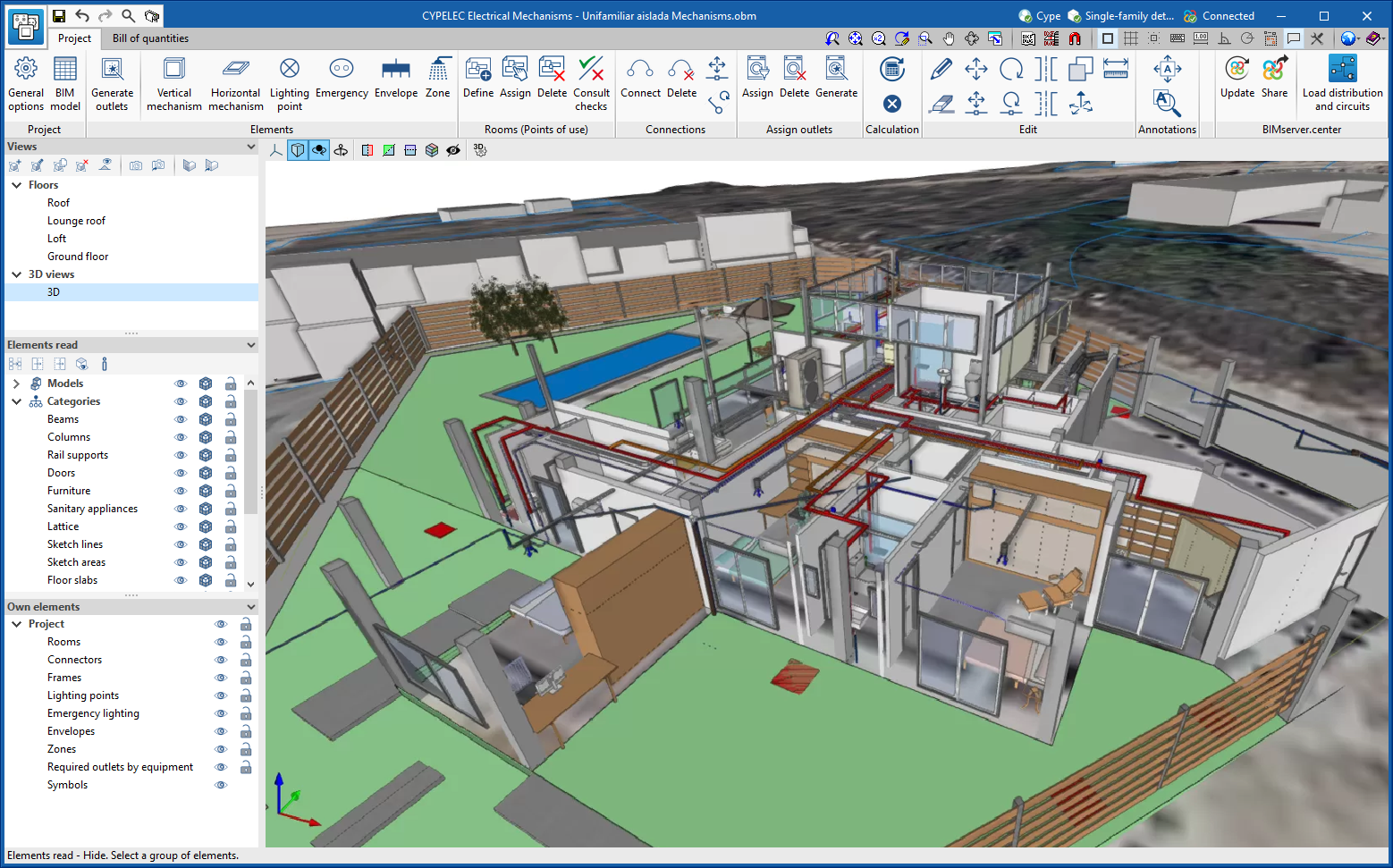
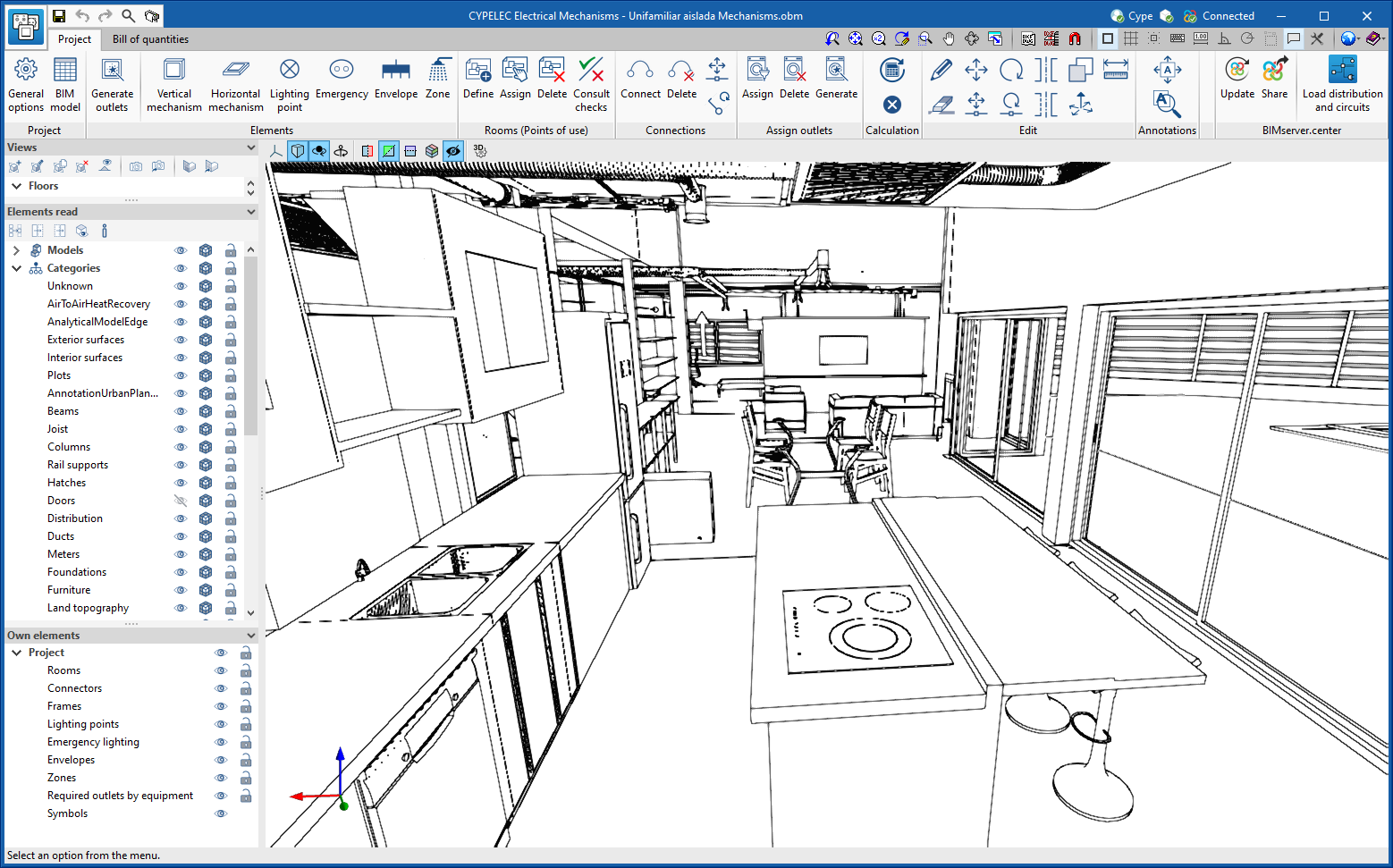
A new tool has been implemented in the user interface that is common in Open BIM applications with a 3D working environment. Now, the management of the elements from the digital model of the building, which comes from the associated BIMserver.center project, is carried out from the "Elements read" menu located in the left sidebar of the application.
The elements read are structured in the form of a tree based on two classification types: "Models" and "Categories". The organisation by "Models" allows users to inspect each contribution linked to the job and each associated 3D model within it. On the other hand, the "Categories" group the "Elements read" into families according to their features. Next to each tree component, three buttons are displayed to control the visibility, the display mode (solid, transparent or wire) and the object snap. It should be noted that the organisational settings applied to the organisation by "Models" prevail over those indicated by "Categories".
Applications can have default visibility and object snap settings when creating a new view. Furthermore, when entering new components with the tools in the program, the application itself can force the activation or deactivation of the visibility and object snaps of certain categories. When this happens, a yellow padlock will be displayed next to the set options. When users finish using the tool, the tree will return to its original state.
In previous versions, the management of the visibility of BIM project models was carried out in the configuration panel of a view. As a consequence of this improvement, editing is now managed from the "Elements read" menu in the left sidebar and has therefore been removed from the previous location. However, in the editing panel of a view users can indicate whether the view should have its own configuration for viewing these elements or whether it should use the general configuration of the job. For this purpose, the "Use a specific view configuration for the view" option has been added. When this option is active, the "View" text will appear in the "Elements read" menu.
In addition to the component tree of the external models, the "Elements read" menu includes a toolbar with a group of buttons that allow the following actions to be carried out:
- Isolate selection
Allows elements from the 3D model to be isolated. Users can select the elements of the 3D model that they wish to isolate and when right-clicking on them, the rest of the elements from the model will disappear. - Hide
Allows the selected elements to be hidden. Users can select the elements from the 3D model that they wish to hide and by right-clicking on them, they will disappear. - Show all
Shows all hidden elements. - Aspect
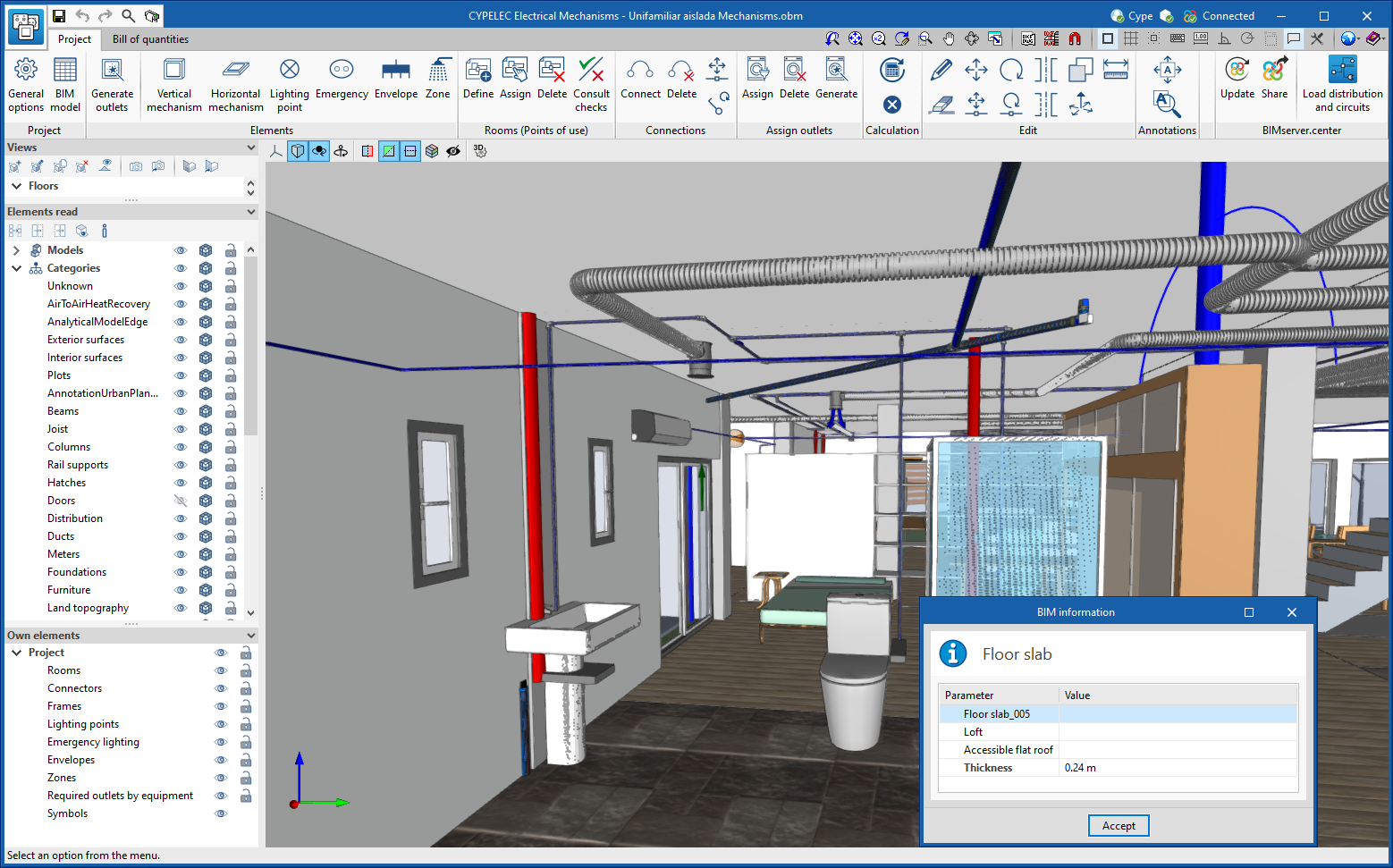
Allows users to choose between normal drawing or monochrome drawing. - BIM information
Displays a panel showing the attributes associated with the selected component.
In version 2023.a, the management of visibility and object snaps of external elements is available in the following CYPE Open BIM applications:
- CYPE Architecture
- CYPELEC Distribution
- CYPELEC Electrical Mechanisms
- CYPELEC PV Systems
- CYPEPLUMBING Water Systems
- CYPETHERM RE2020
- CYPEURBAN
- Open BIM Analytical Model
- CYPE Construction Systems
- Open BIM COVID-19
- CYPE Lightning
- Open BIM Sampling
- Open BIM Site

- Published on
- 2023.a
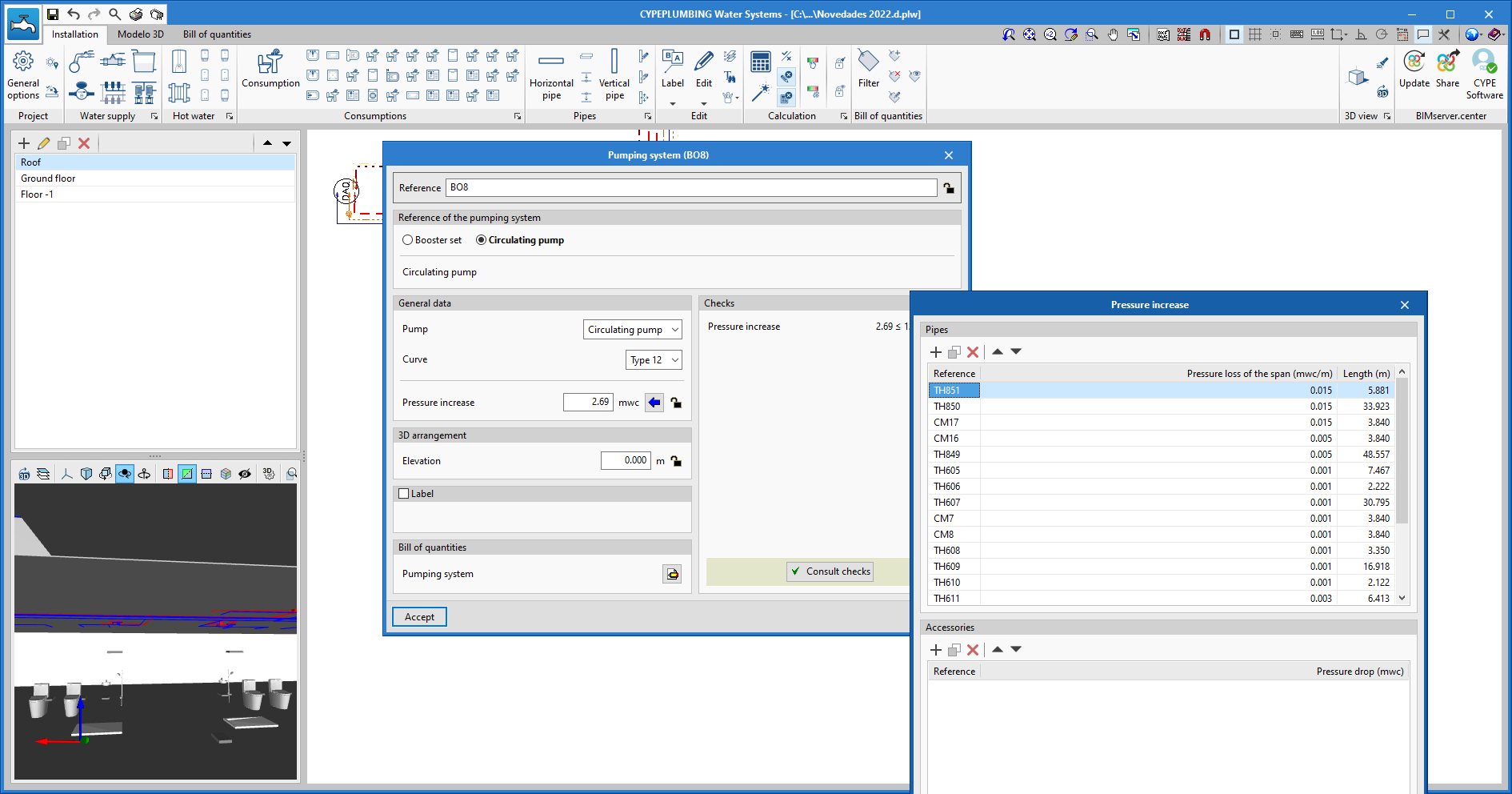
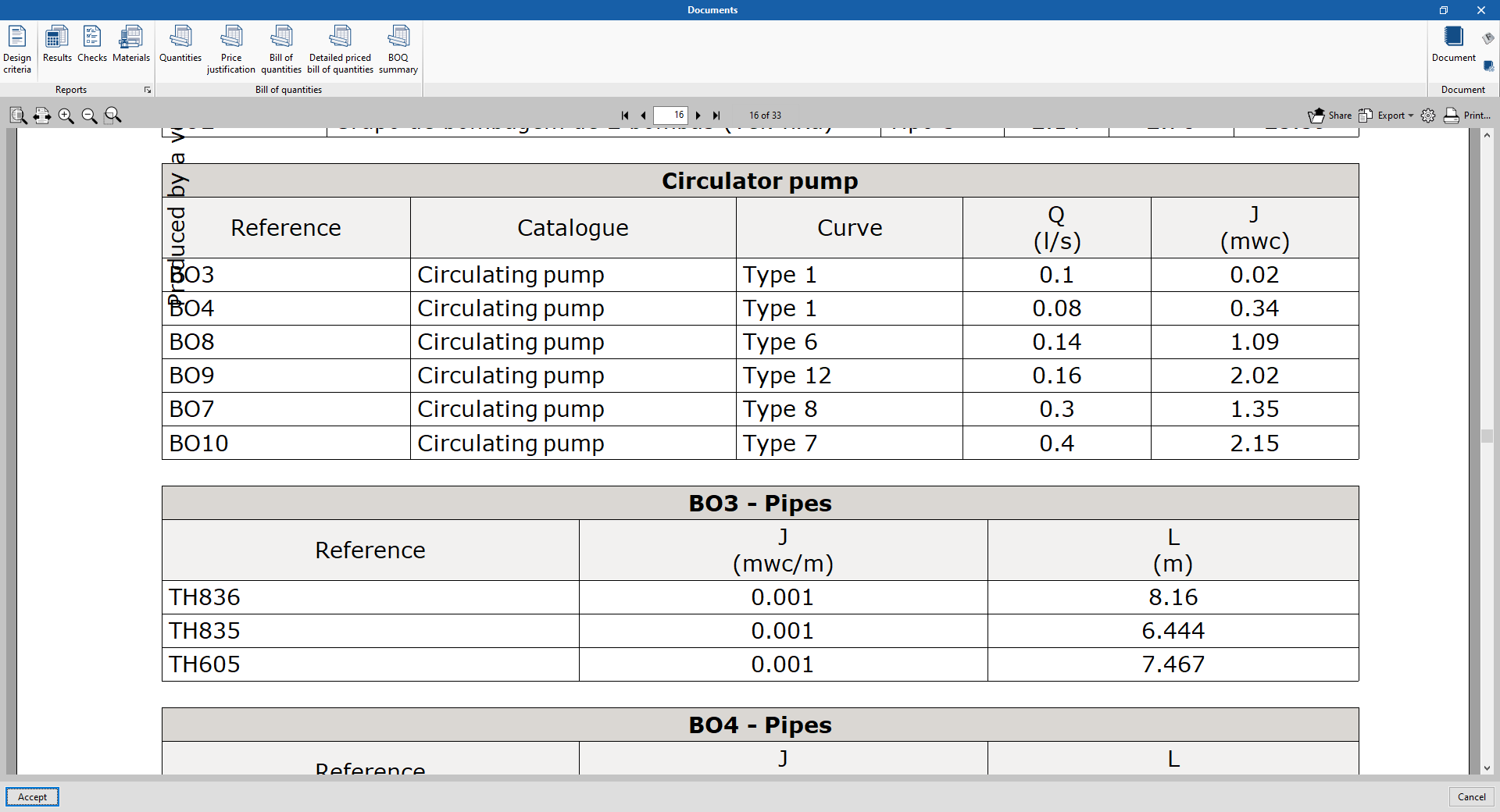
Justification of the analyses for water circulation pumps
- Published on
- 2022.d
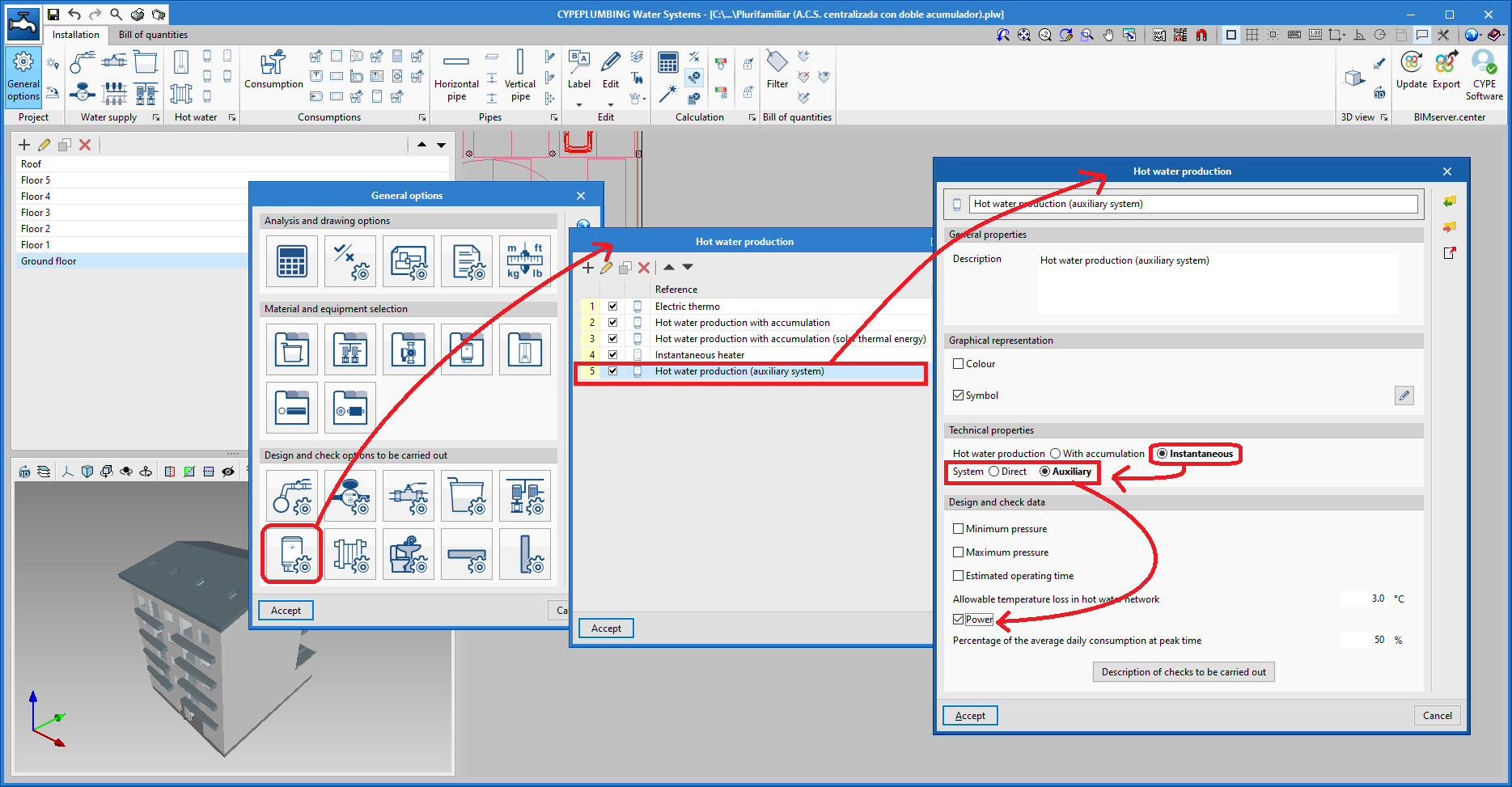
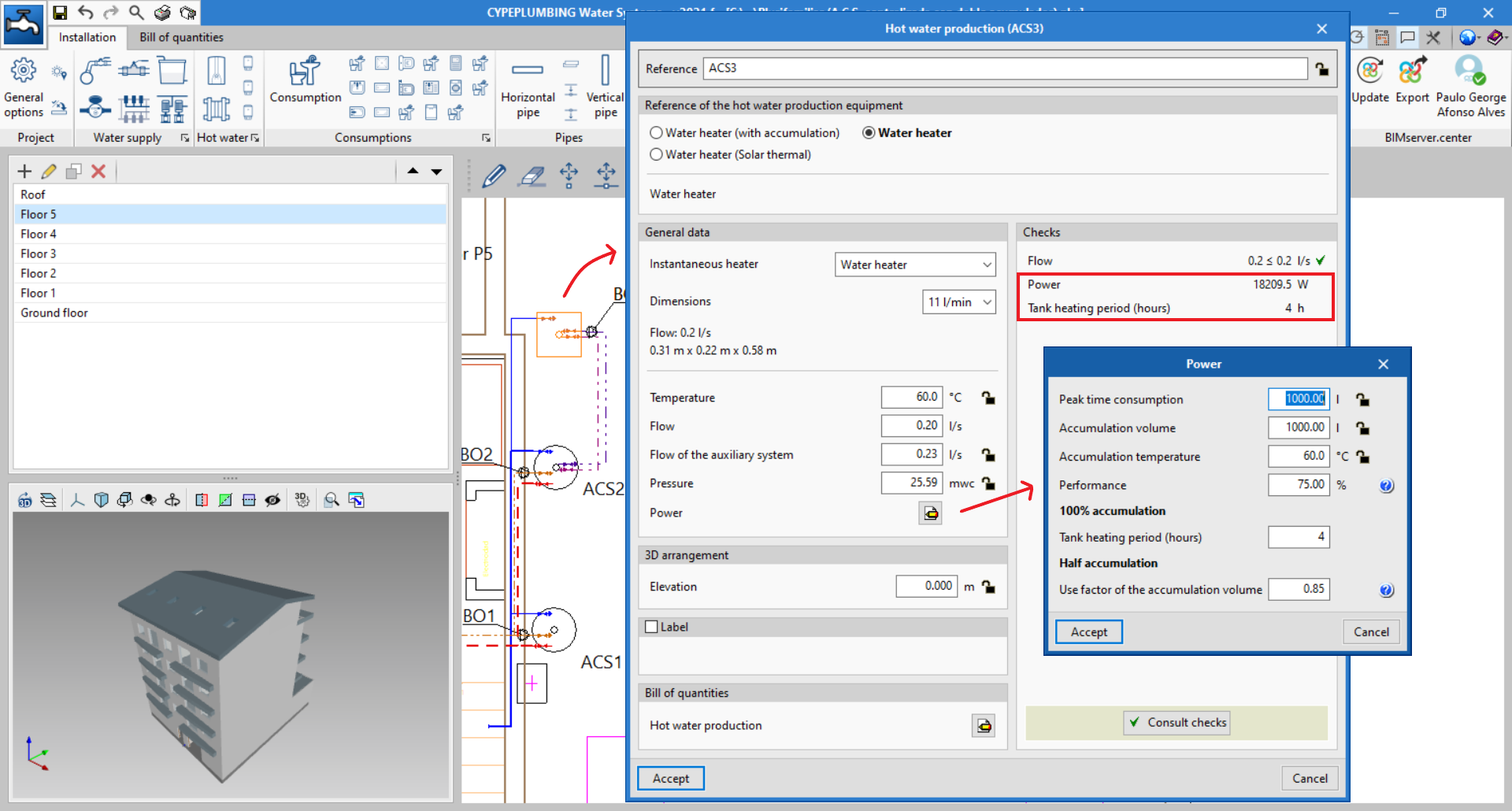
Capacity calculation of instantaneous DHW production equipment in direct and indirect systems
Capacity calculation of instantaneous DHW production equipment for direct consumption supply systems, or supply systems using storage tanks.
For both the direct and auxiliary systems, everything will be managed from the general data in the program.
When the outline for the installation of a DHW production group is carried out, users will receive the information necessary for establishing its power.
Users must enter the performance of the DHW production system (a performance that must consider exchange, accumulation, distribution, and recirculation losses).
For installations where 100% of the demand is accumulated, it is only necessary to add the hours in which the heating of this accumulation is stipulated. For installations with less than 100% accumulation demand, a use factor of the accumulation volume must be defined. This factor depends on the geometry (slenderness) and the number of storage tanks, as inside the tanks is a mixed area of hot and cold water, in which the temperature is lower than that in use so that the tank is equivalent to one with a lower capacity.
- Published on
- 2021.f
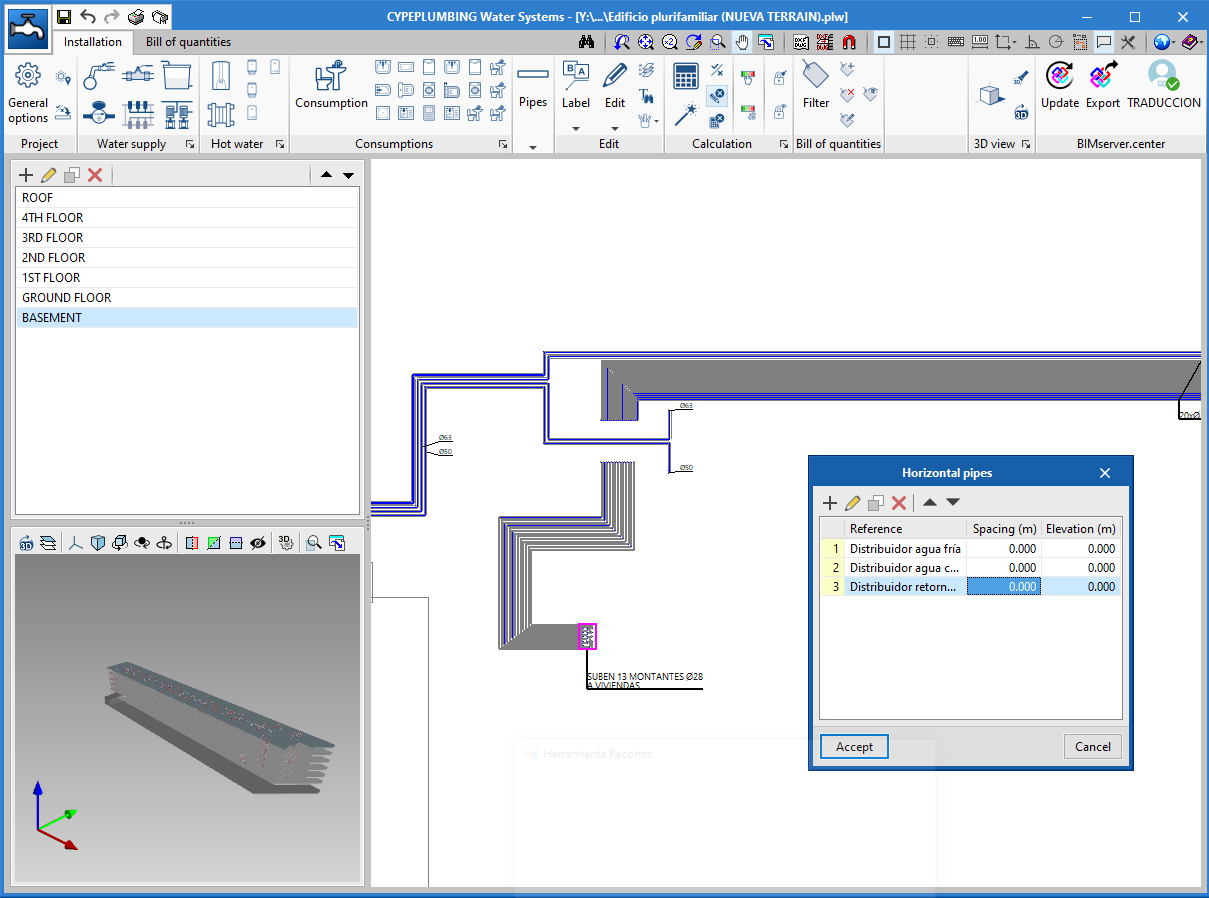
Simultaneous pipe entry
- Published on
- 2021.b
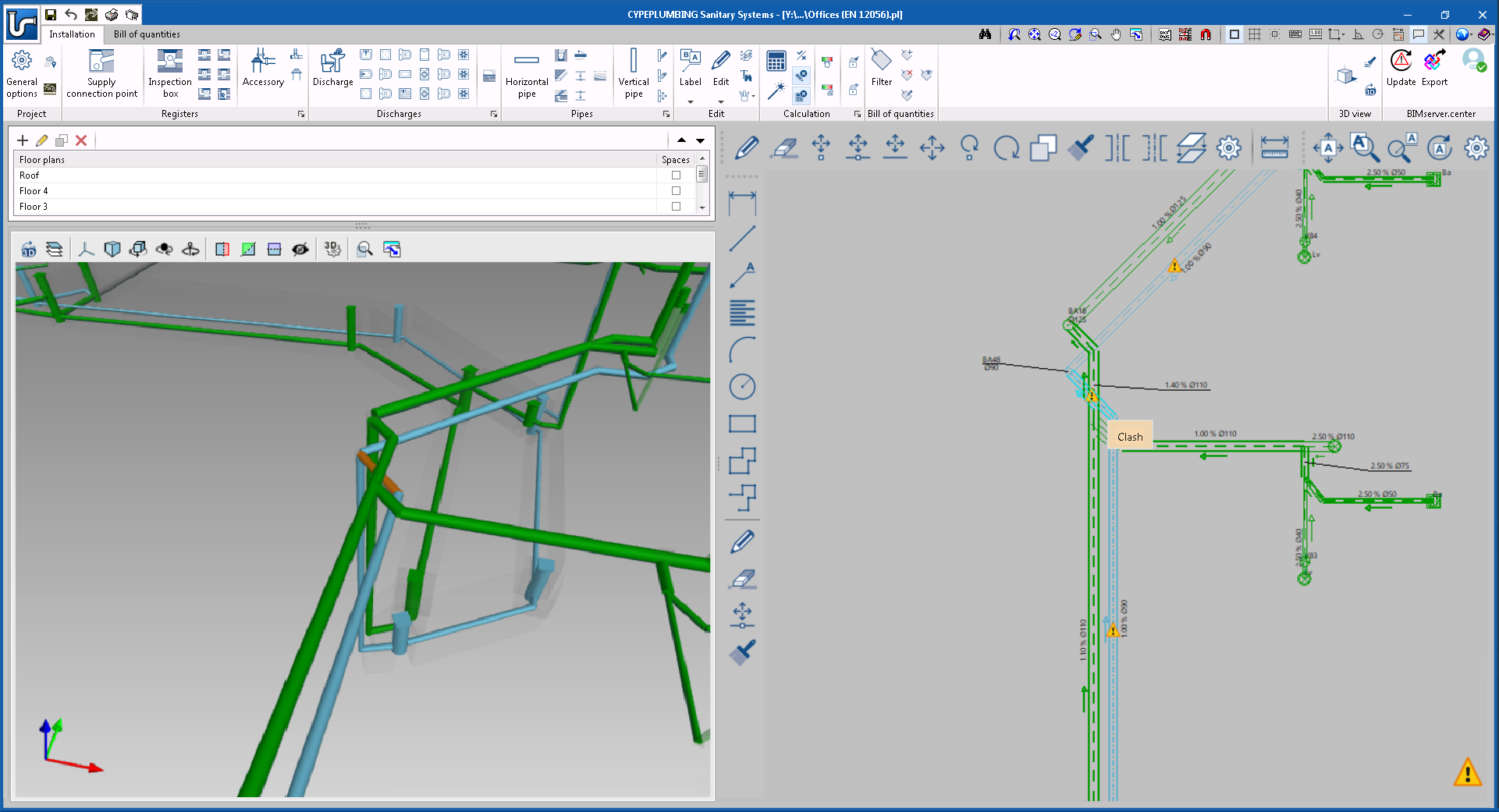
Clash detection of wastewater pipes
- Published on
- 2021.b
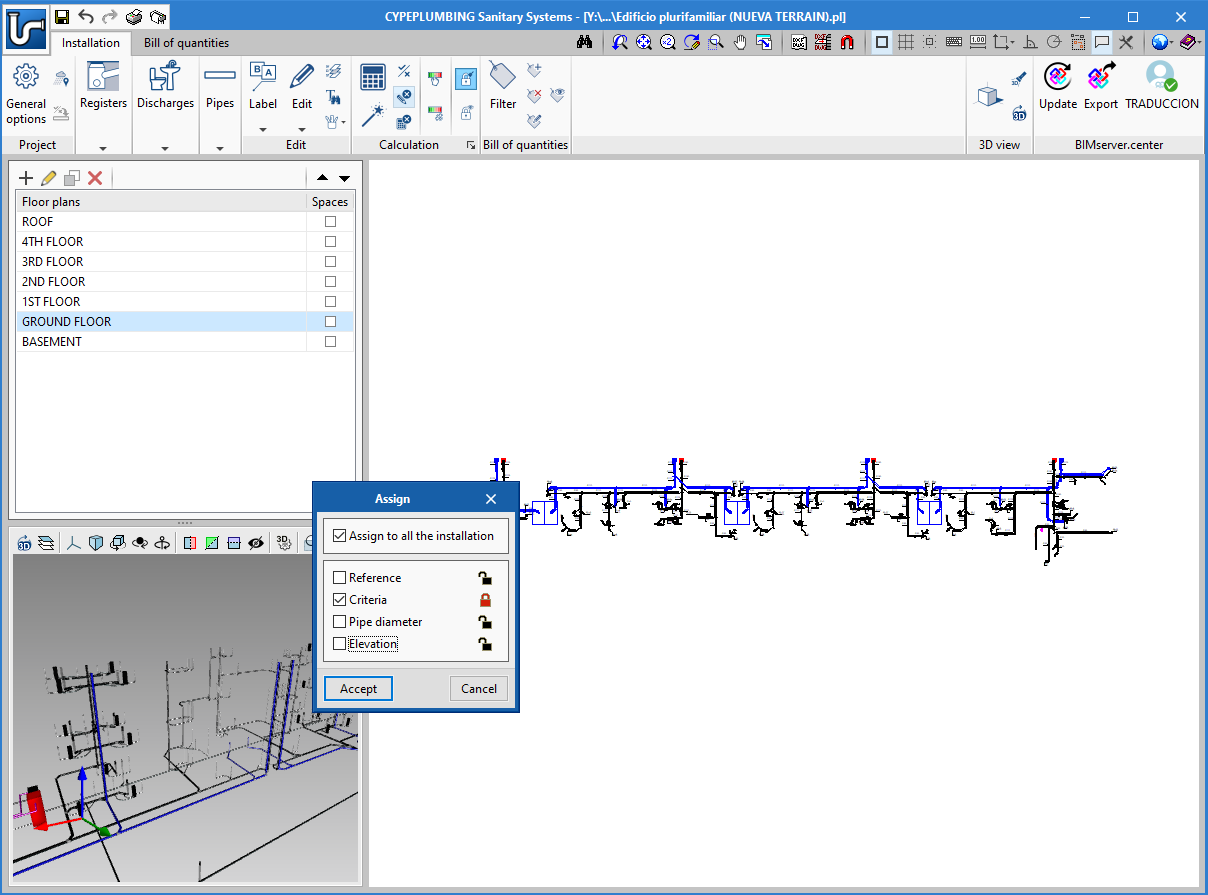
New tools to manage blocked parameters
- Published on
- 2021.b
Calculation of the heat flow in the primary and secondary systems
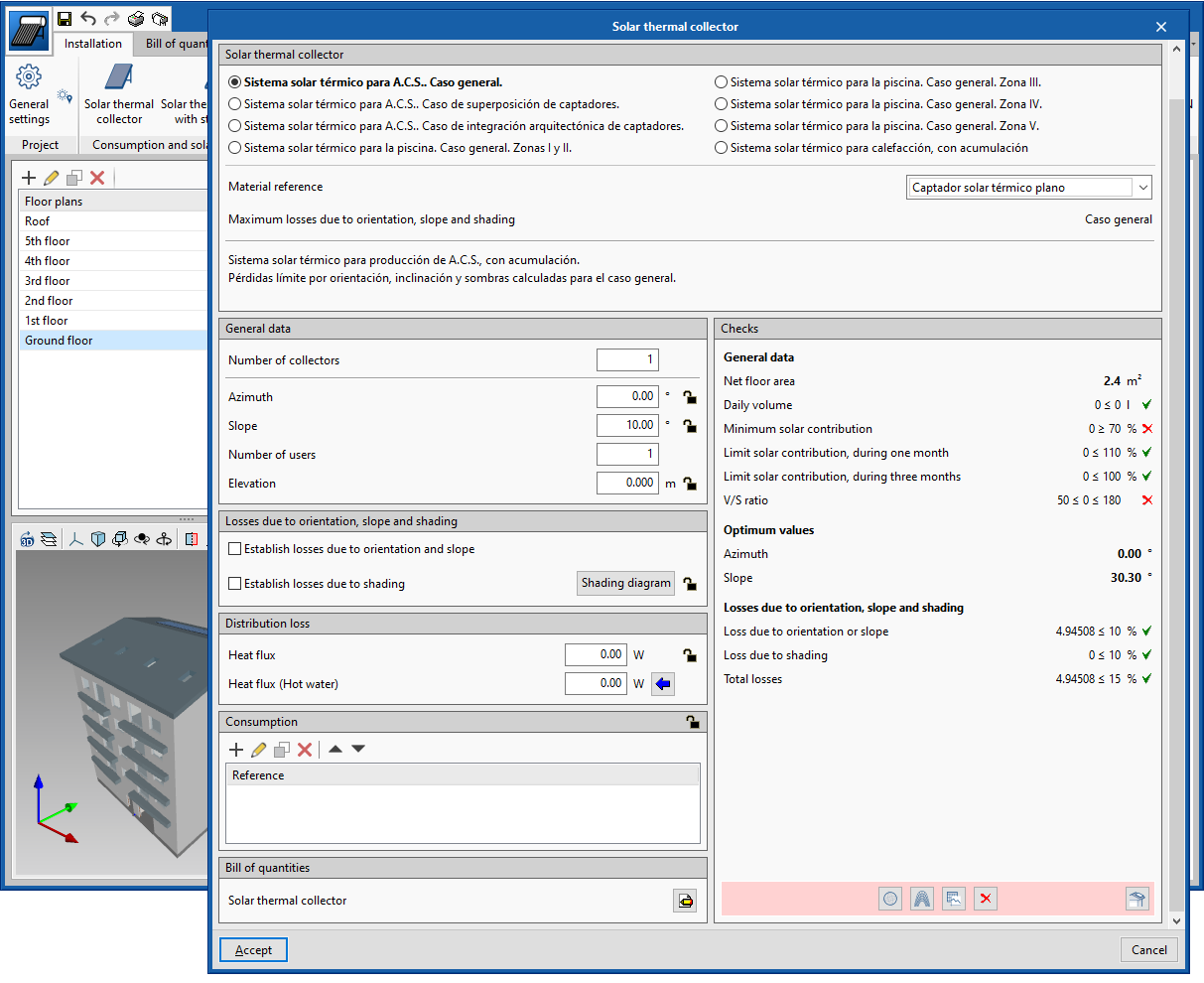
When calculating the heat flow in the primary and secondary system, it is important to account for the energy that is lost along the pipes from the solar collectors to the consumption points, to optimize the sizing of the collection area, which is required to also compensate for that loss of energy.
Up to the 2021.a version, users could contemplate, in a simplified way, the energy that is lost along the length of the pipes from the solar collectors to the accumulators or heat exchangers (primary circuit) and from these to the consumption points (secondary circuit), by considering a global loss coefficient of the circuit or by reducing the performance factor of the circuit.
As of the 2021.a version, "CYPEPLUMBING Solar Systems" calculates the energy loss in these circuits by analysing the path of the pipes and bearing in mind the material, thickness and insulation of these pipes, as well as factors such as temperature, and the discharge and return flow that circulates along them.
- Published on
- 2021.a
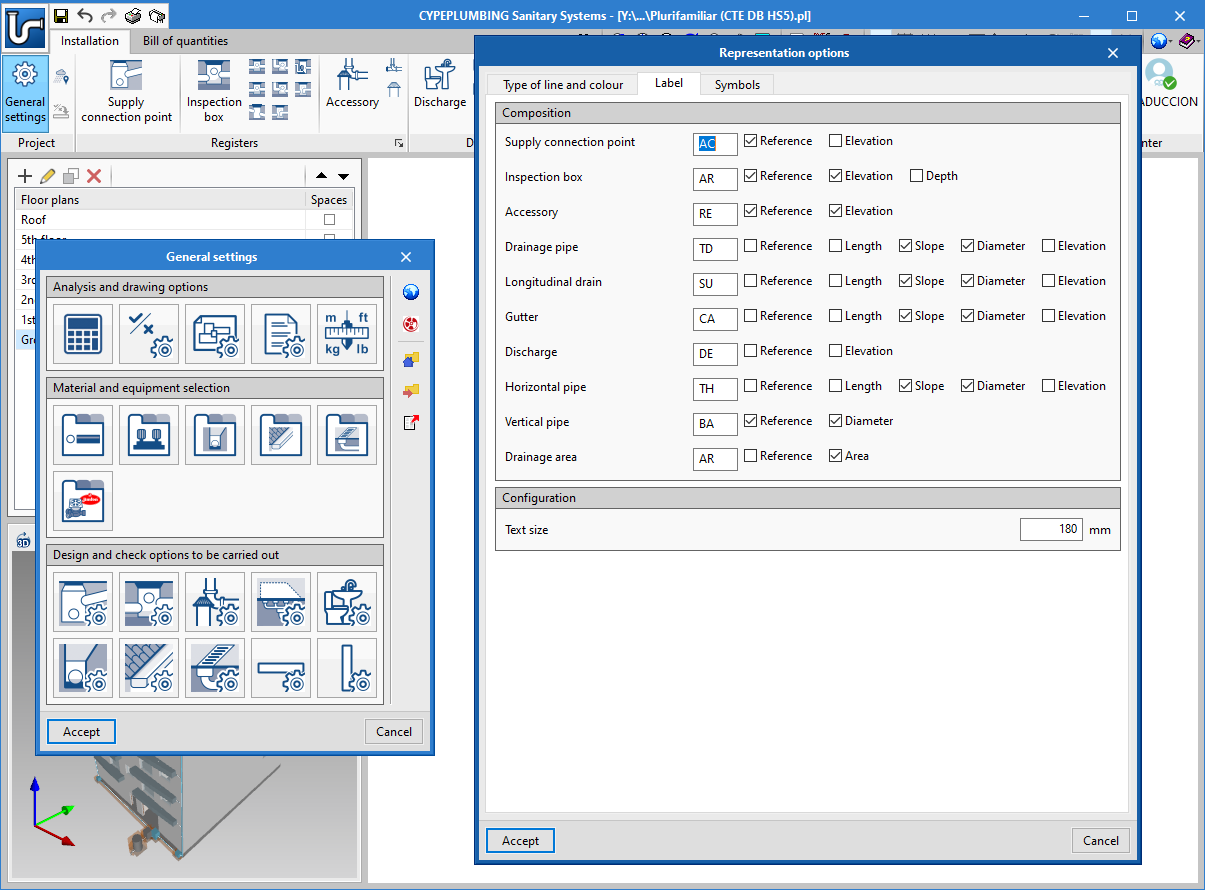
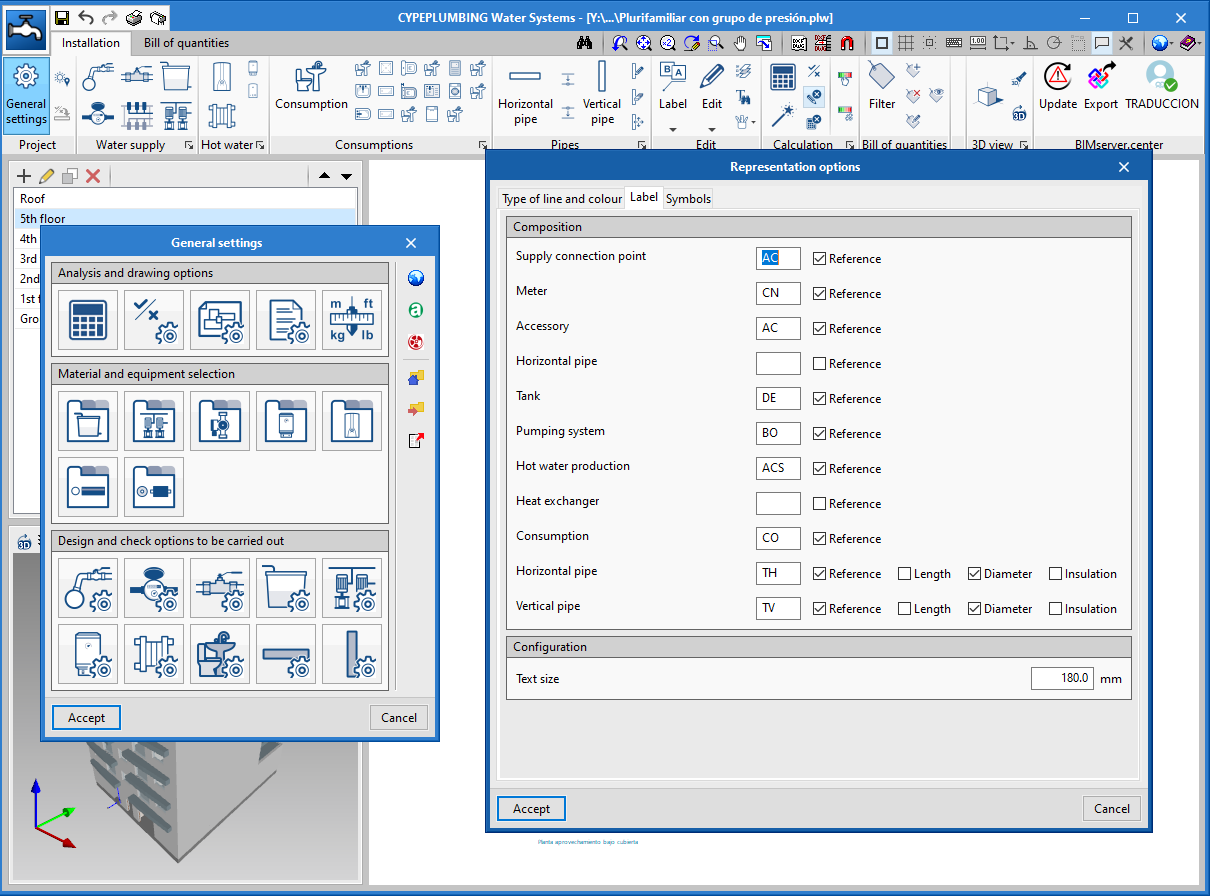
Edit text size of drawing tags
- Published on
- 2021.a
User Coordinate System (UCS)
A tool has been added with which users can modify the coordinate system of the application. This tool is being implemented in several applications. In the 2021.a version, the tool is available in the following applications:
- IFC Builder
- CYPECAD MEP
- CYPEHVAC
- CYPEPLUMBING Sanitary Systems
- CYPEPLUMBING Water Systems
- CYPEPLUMBING Solar Systems
- Open BIM Lighting
- CYPELUX
- CYPELUX CTE
- CYPELUX RECS
- CYPELUX HQE
- CYPELUX LEED
- Published on
- 2021.a