Options in the "Library" group in the joint editor
The "Library" section of the top toolbar, available under the "Model" tabs in the joint editor, offers the following tools for importing and/or exporting data from the joint being edited to the program's joint library:

The available options are as follows:
Automatic
This tool automatically defines the joint based on the options available in the user’s joint library and the predefined joint library. The system analyses the available options and selects the one that best suits the model’s configuration, applying it directly.
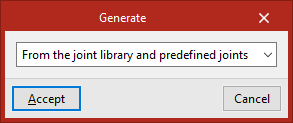
When running this feature, users can select the search area for the joints in the "Generate" window that appears. Joints can then be generated as follows:
- From the user's joint library
- Based on the predefined joints
- Using both at the same time ("From the joint library and predefined joints")
Importing joints
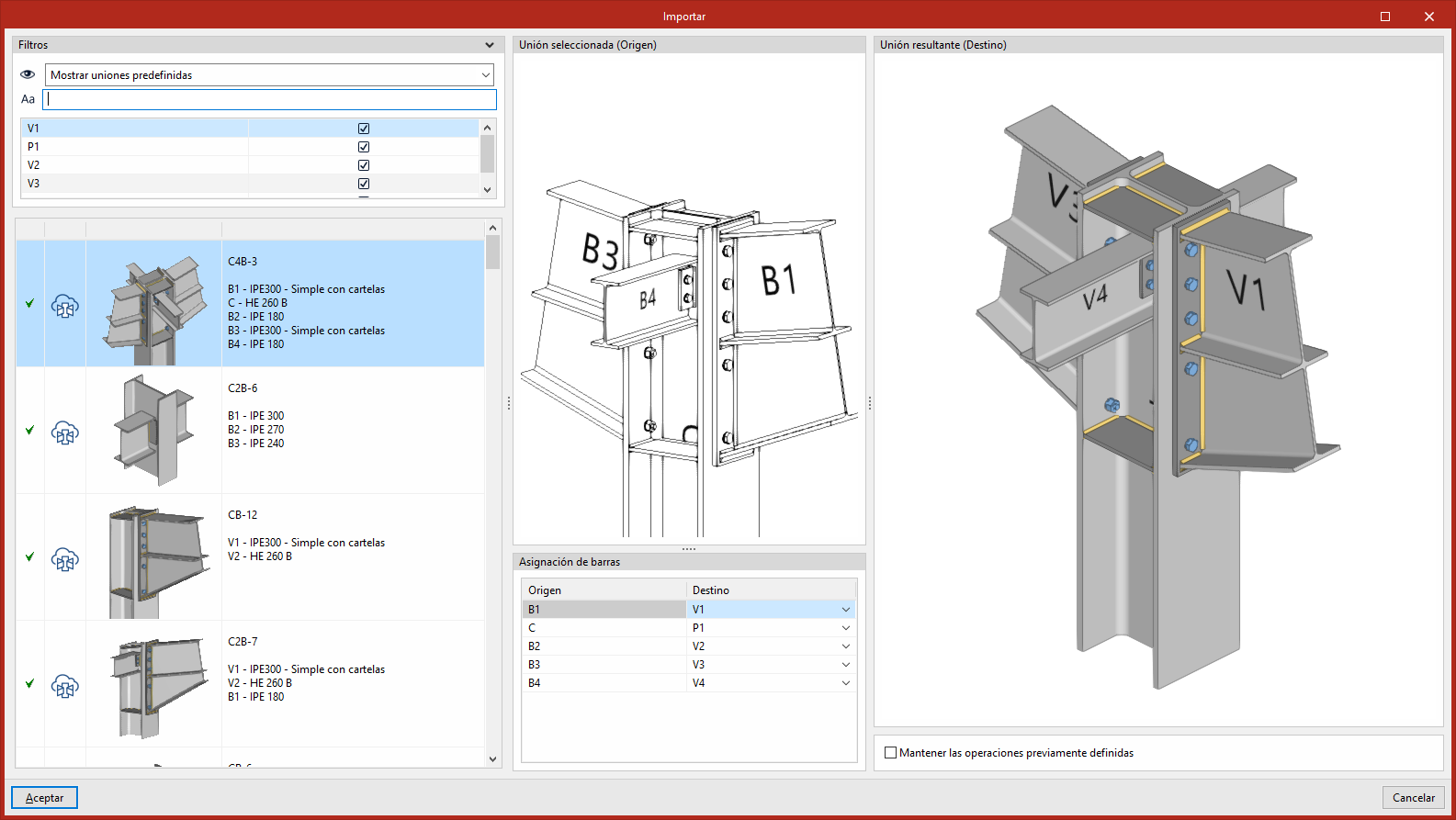
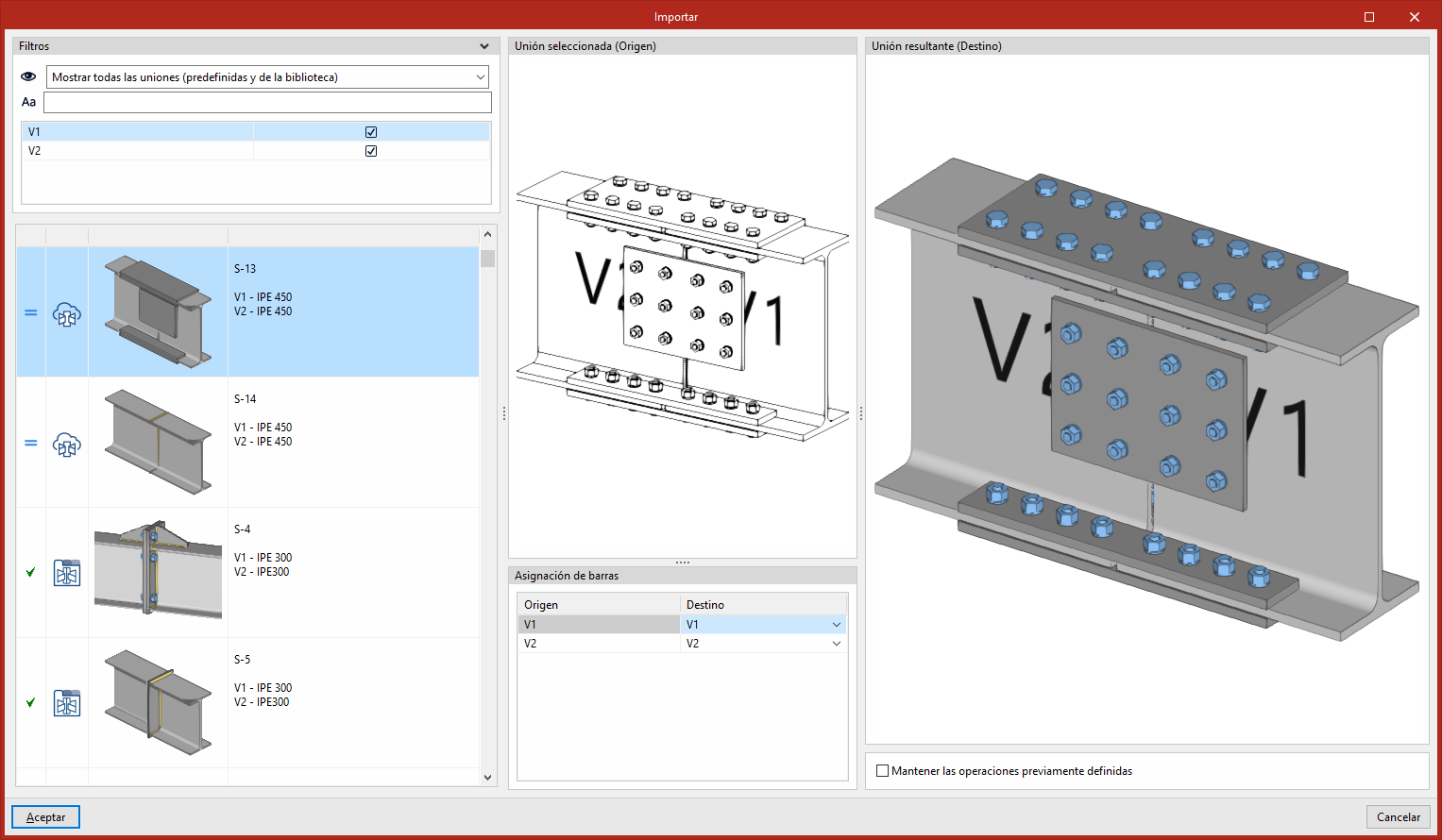
This tool lets you import a joint from your own joint library or from the library of predefined joints. In this case, you must select the joint you wish to import.
The left-hand column displays a list of joints from the library. At the top are "Filters" that let you narrow down the joints displayed, either by their origin or by searching for specific text. The list is automatically sorted according to compatibility with the model, with the joints that best match the existing beam configuration appearing first.
Furthermore, you can select the bars to which you wish to apply the joint by ticking or unticking them in the "Filters" panel. This option is particularly useful when you want to partially resolve a joint, in cases where there is no alternative that resolves the entire assembly.
The central column displays a 3D view of the joint selected from the library ("Selected joint (Source)"), together with the "Assign bars". This assignment allows you to define the correspondence between the bars of the library joint and those of the target model.
The right-hand column shows a 3D view of the result of applying the joint ("Resulting joint (Destination)"), together with the "Keep previously defined operations" option.
Exporting joints
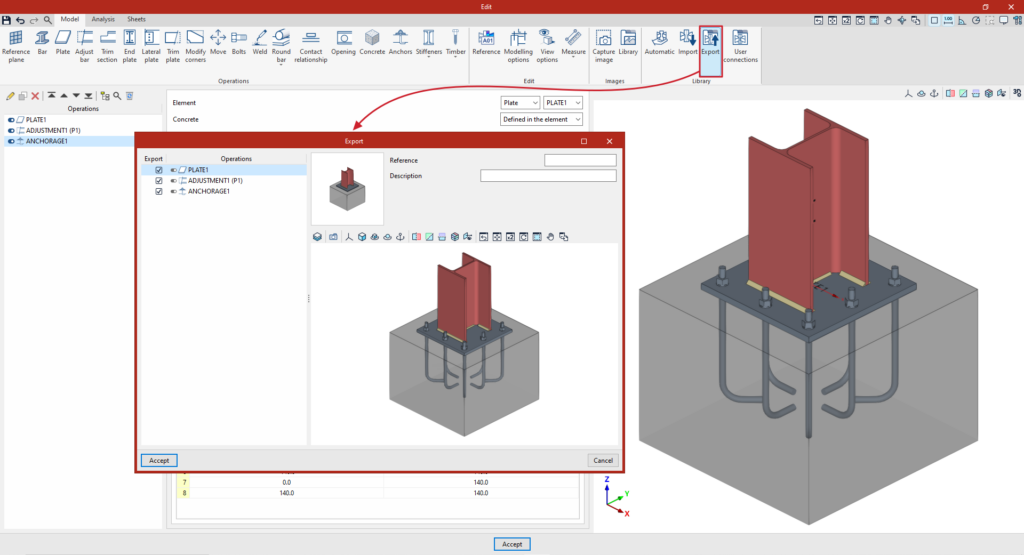
This tool can export the joint you are currently editing to your joint library.
In the window that appears when you click on this option, you can configure the data export:
- In the list on the left-hand side, you can specify which "Operations" you wish to "Export" by ticking the relevant boxes.
- On the right, enter the "Reference" and "Description" under which the joint will appear in the user’s joint library.
- The thumbnail of the joint, which the program generates automatically, is also displayed.
Fittings exported to the fitting library also retain the drawings that have been defined, so that the work involved in creating the fitting’s exploded view can be reused for similar fittings when applying a fitting from the library.
User groups
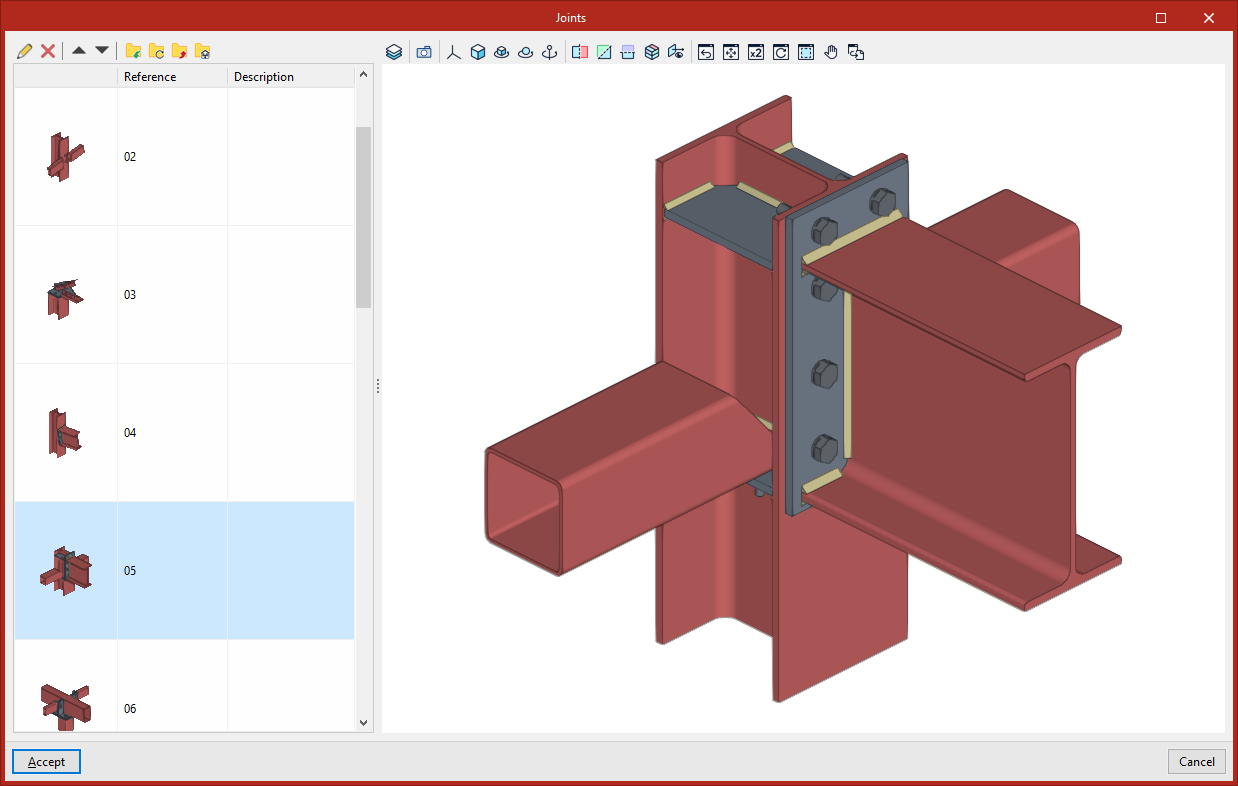
This option allows you to view the user’s joint library.
You can find further information via the following link.