Creating a new job, linking it to a project and importing data
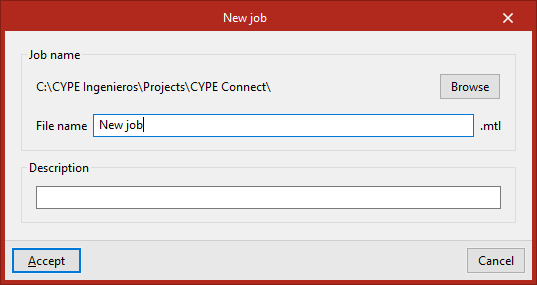
When you launch the app and click on "New", you are given the option to create a "New project". First, enter the "File name" and its "Description".
Selecting the work mode
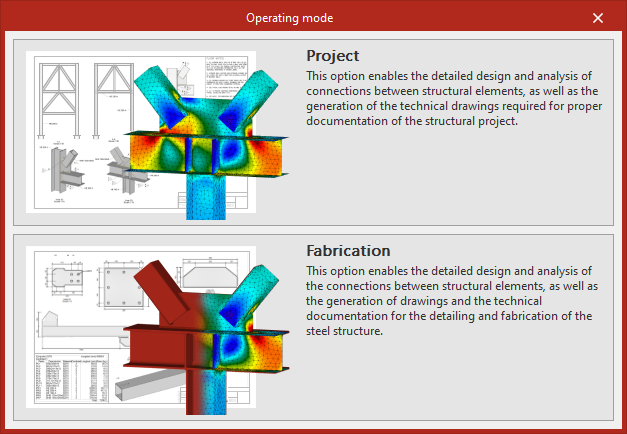
In this step, you must select either "Project" or "Manufacturing" as the work mode.
Each of these work modes is designed for carrying out specific tasks, such as those specified in this link.
Project selection
The project can then be integrated into an existing project on BIMserver.center.
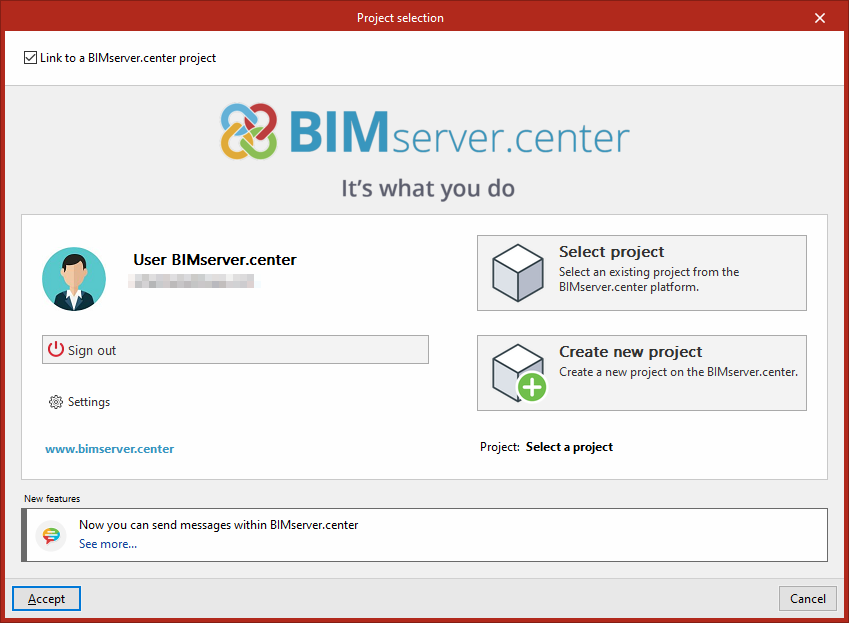
This is done in the "Project selection" window, which offers the following options:
- On the left-hand side, you can sign in using a BIMserver.center account.
- On the right, the "Select project" option is used to choose an existing project. You also have the option to "Create a new project". In that case, the project you create will be visible on BIMserver.center from that point onwards.
- You can start the project without linking it to the BIMserver.center platform. To do this, simply untick the box labelled "Link to a BIMserver.center project", which is located in the top left-hand corner.
At any stage of the project, you can share or import project files via the "BIMserver.center" group, located in the top right-hand corner of the main interface on the "Model" or "Documents" tab.
Importing BIM models
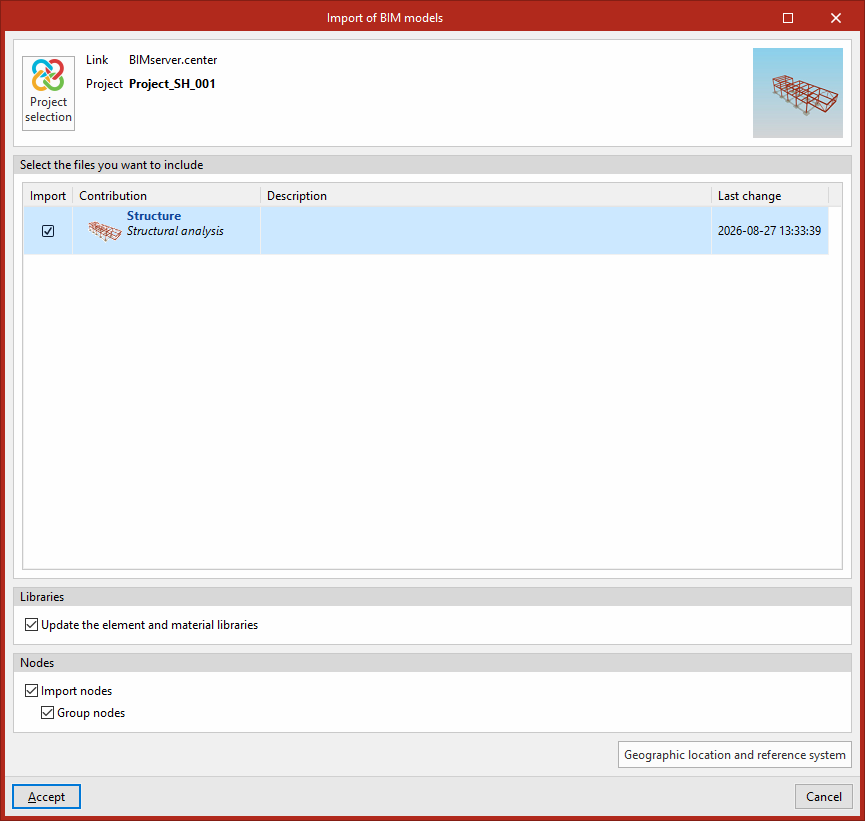
If a project hosted on the BIMserver.center platform has been selected via "Select project", the "Import BIM models" window will then appear, displaying the files contained in that project in IFC format.
The app allows you to include one or more of the existing models in that project. To do this, tick the "Import" box and confirm.
In addition, in this window, the program offers the following options:
- Libraries
- Update the element and material libraries (optional)
When this option is enabled, the program will update the information in the element and material libraries based on the data read from the structural models imported from the BIM model, creating and assigning the corresponding types.
- Update the element and material libraries (optional)
- Nodes
- Import nodes (optional)
Using this option, the program automatically generates connections in their correct positions based on the connections in the structural models imported from the BIM model. The detailed definition of the connections must then be carried out using CYPE Connect's own tools.- Group nodes (optional)
If nodes are imported, this option allows them to be grouped automatically if they share the same characteristics.
- Group nodes (optional)
- Import nodes (optional)
- Geographical location and reference system
This allows you to open a dialog box to amend the model's geographical location and reference system.
BIM model import wizard
This wizard appears when you have selected the option to import a BIM model and allows you to specify the elements you wish to import:
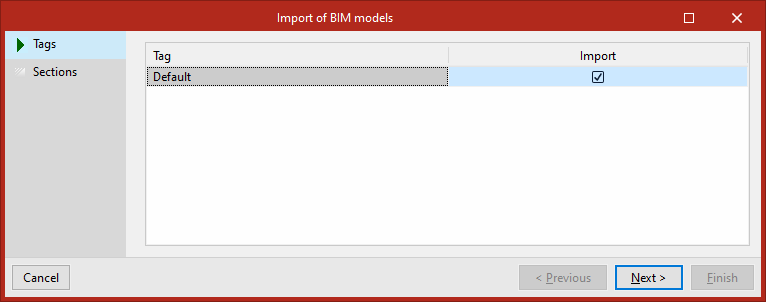
- Tags
This section of the wizard displays a list of the tags into which the BIM model is organised. You can tick the "Import" box next to each tag to import the elements associated with that tag.
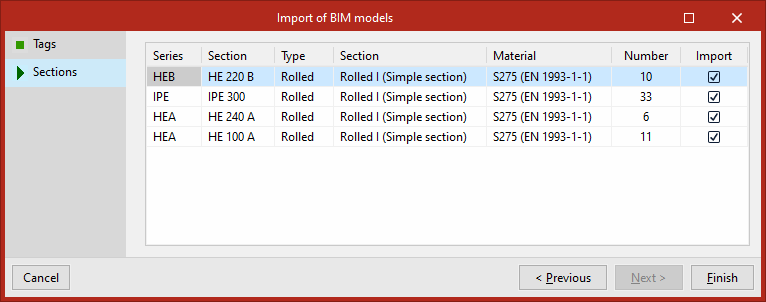
- Sections
This section of the wizard displays a list of section groups from the BIM model, showing their "Series", the specific "Section", and the "Material" of the profiles, as well as the "Number" of section in each group with these characteristics, which can be "Imported" by ticking the relevant box.
To complete the wizard, click on "Finish".
Import results
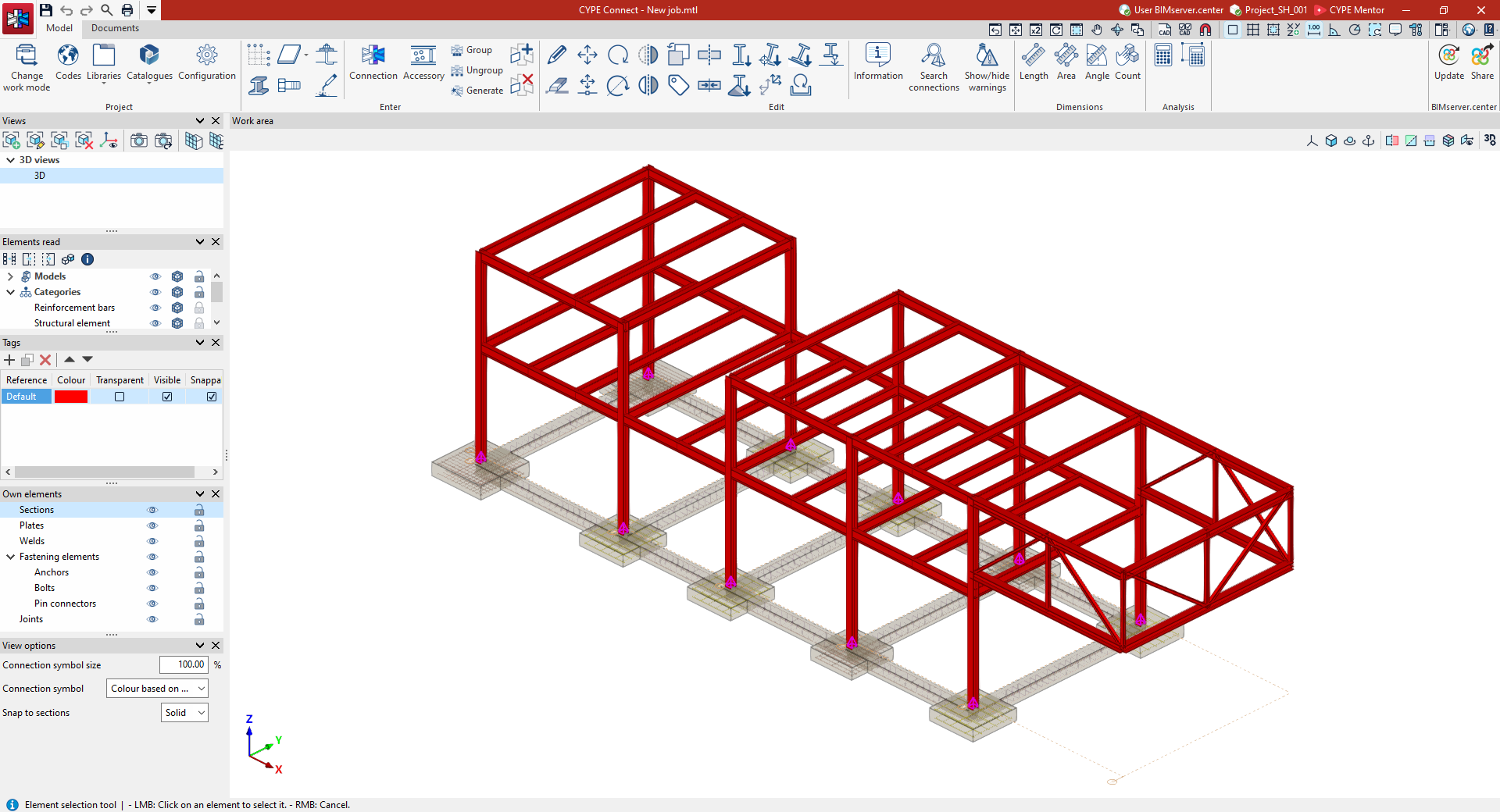
The program will open the main program interface on the "Model" tab.
The elements of the structural models that you have chosen to import will be displayed here, along with the automatically generated connections at the nodes. In addition, the necessary information will have been included in the element and material libraries, as well as the forces in the bars where applicable.
From this point onwards, users can add further elements, modify the imported elements, or continue working by defining and analysing connections, or by preparing the documents that can be generated from the model.