Results output in the "Thermal loads" tab
Viewing results on screen
Viewing results in the project tree
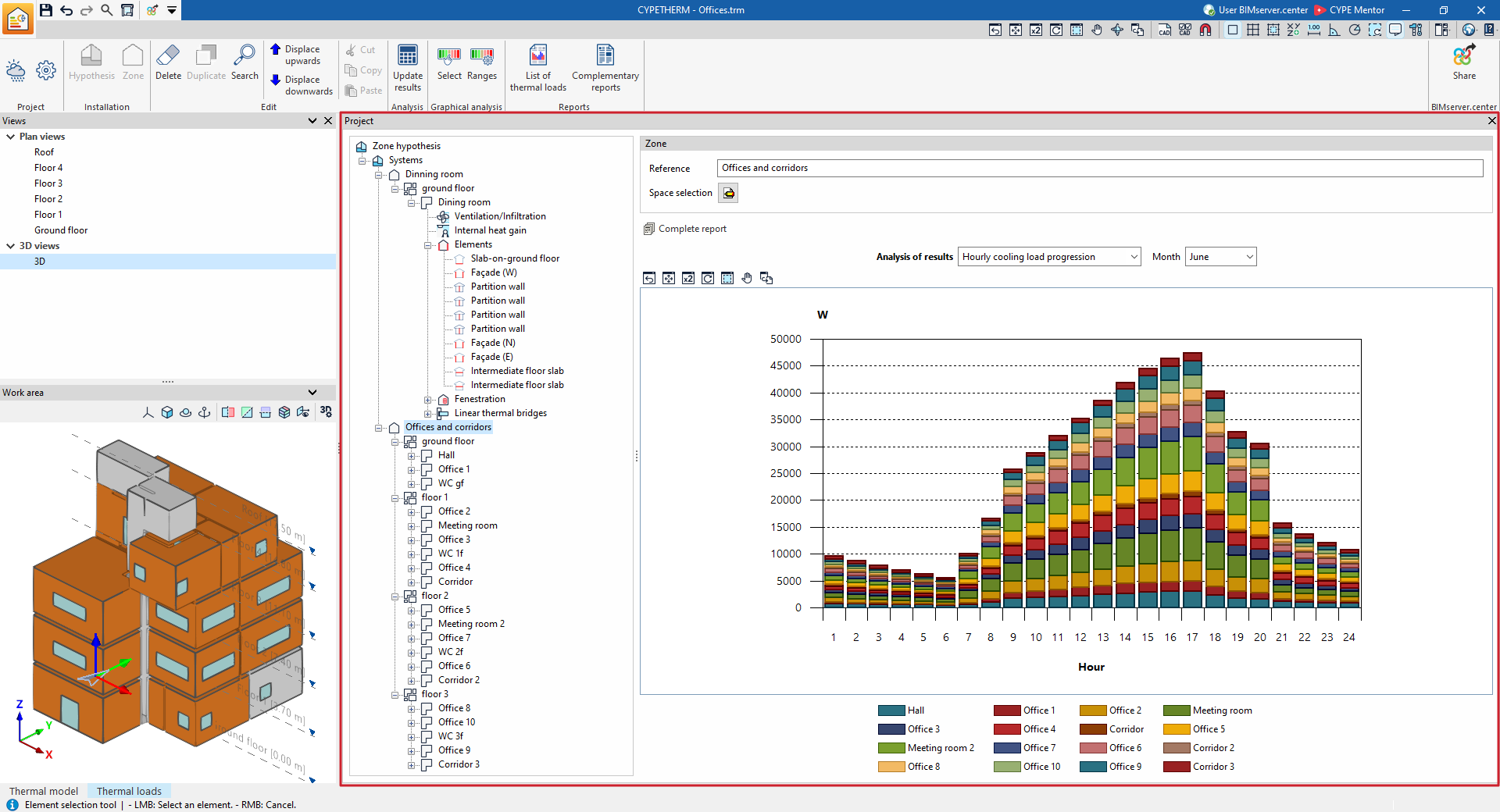
Once the calculation has been carried out, the program allows the results to be viewed on screen within the project tree under the "Thermal loads" tab, including the cooling and/or heating thermal loads for the zones, rooms and each of the associated building elements, as well as a range of information such as graphs and descriptive text explaining the calculation methodology used.
Graphical analysis of results
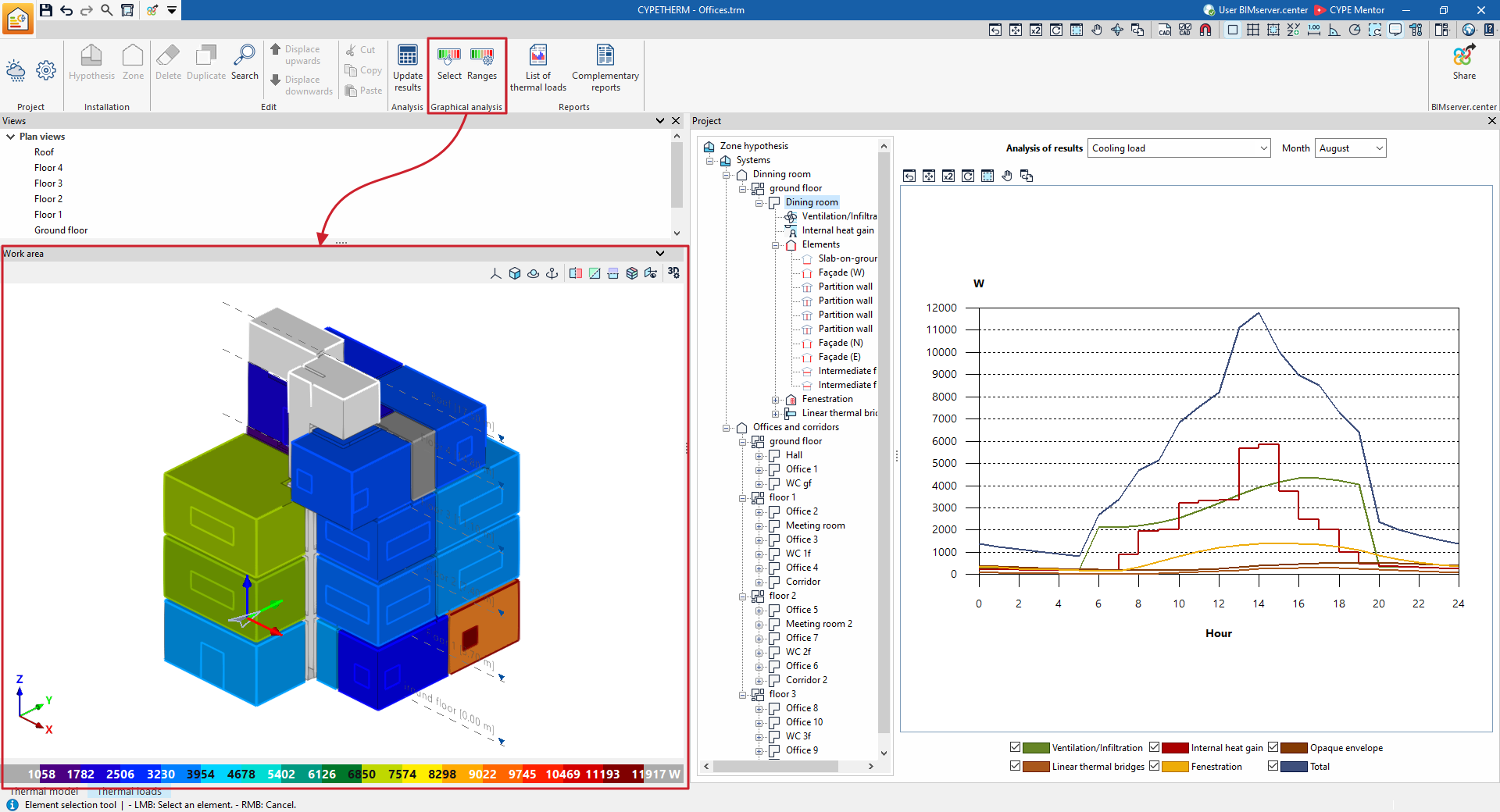
Using the options in the "Graphical analysis of results" group on the main toolbar of the "Thermal loads" tab, you can view the calculated thermal load values in the "View" panel, which is displayed by default in the bottom-right-hand corner. The zones or compartments are colour-coded, and a colour scale is displayed as a legend.
Reports
The program lets you print the following reports directly or generate HTML, PDF, TXT, RTF or DOCX files containing their content:
Reports by hypothesis and zone
The program generates reports on the results for the zone hypotheses and zones, including the data calculated for all the areas included in each of them. To do this, select the relevant level in the project tree on the "Thermal loads" tab – either "Hypothesis" or "Zone" – and click on the "Supplementary reports" option.
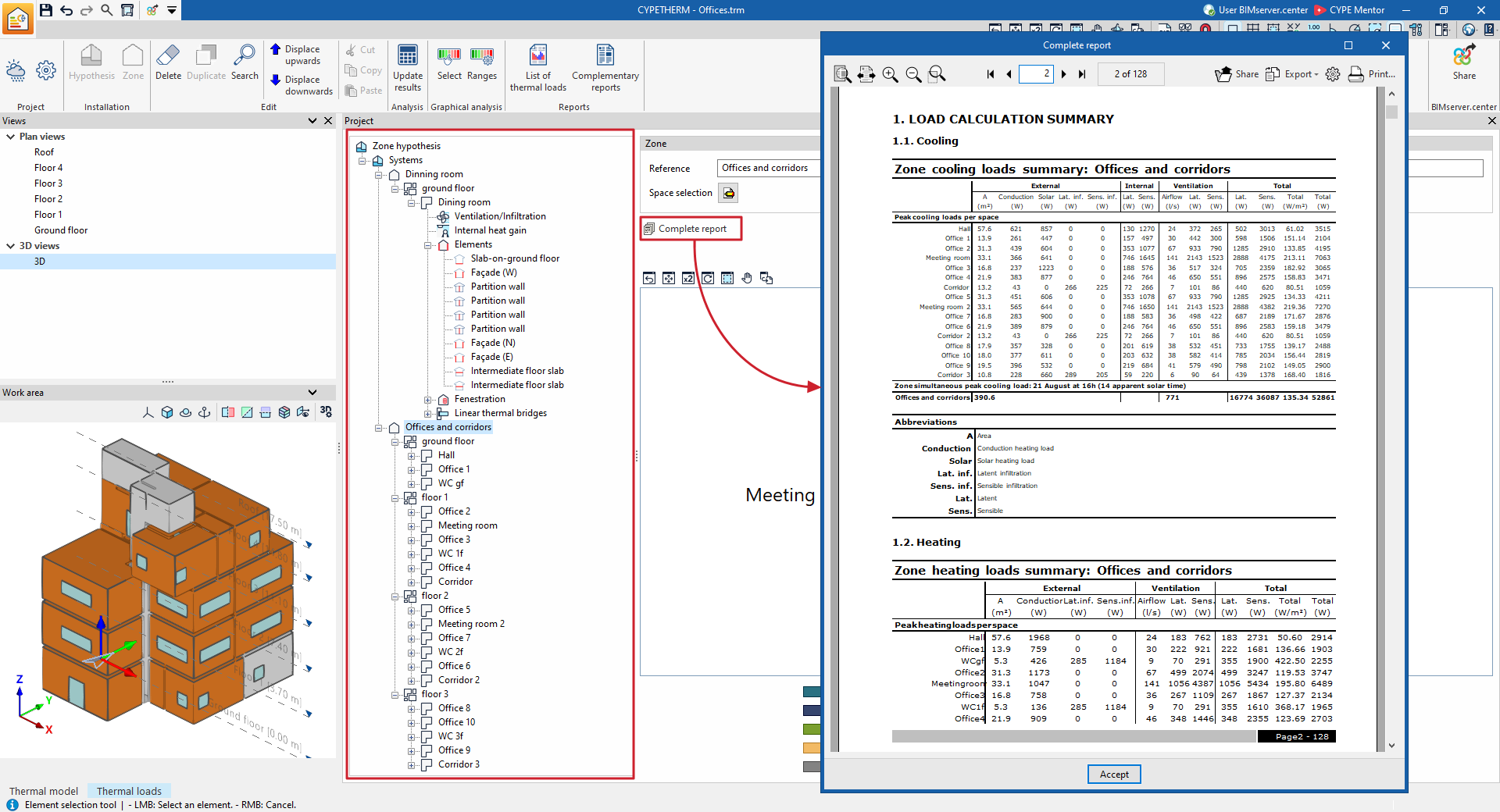
Thermal load report and supplementary reports
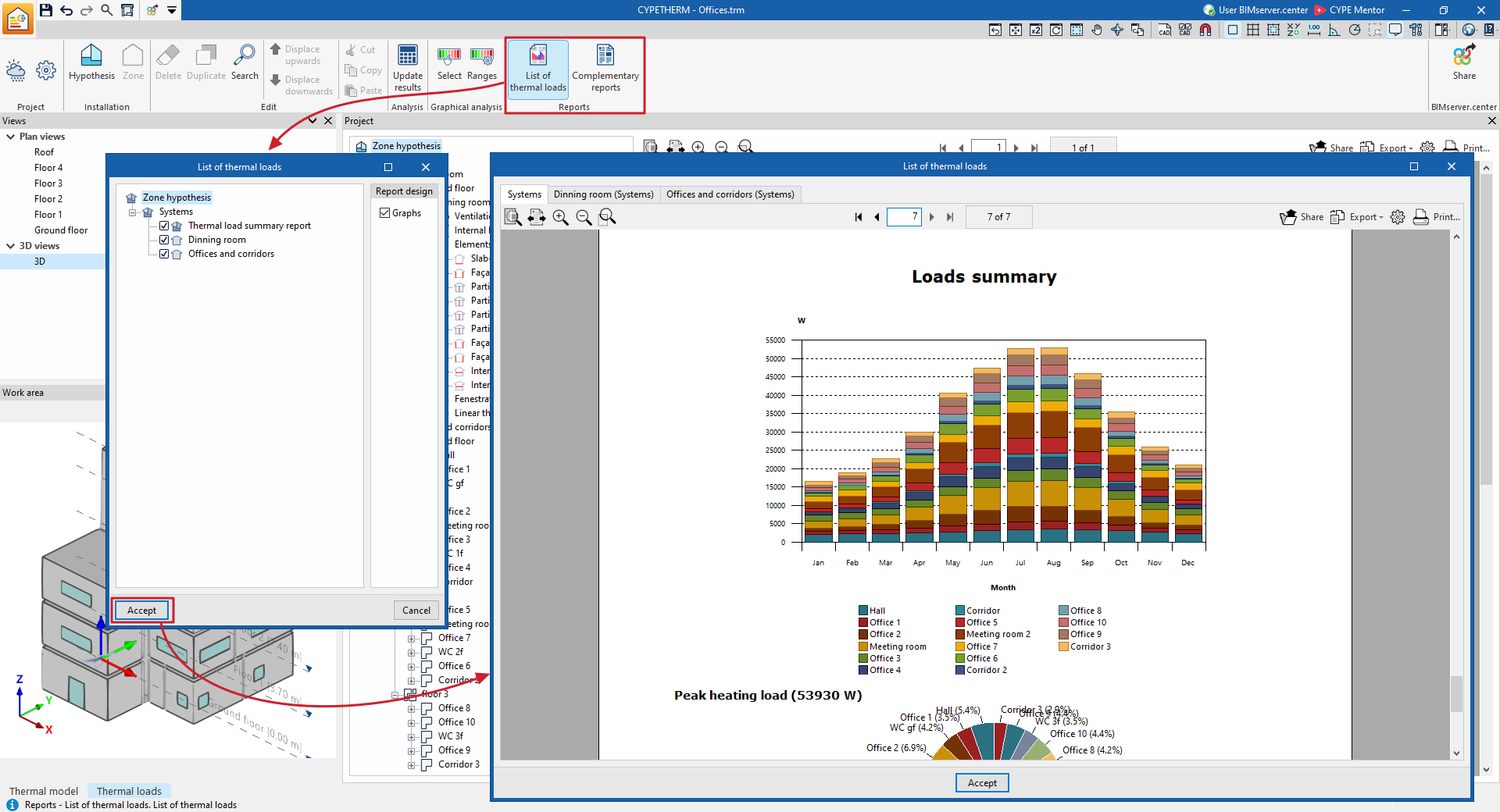
Using the options in the "Reports" section of the main toolbar on the "Thermal loads" tab, you can generate the thermal load report and supplementary reports.
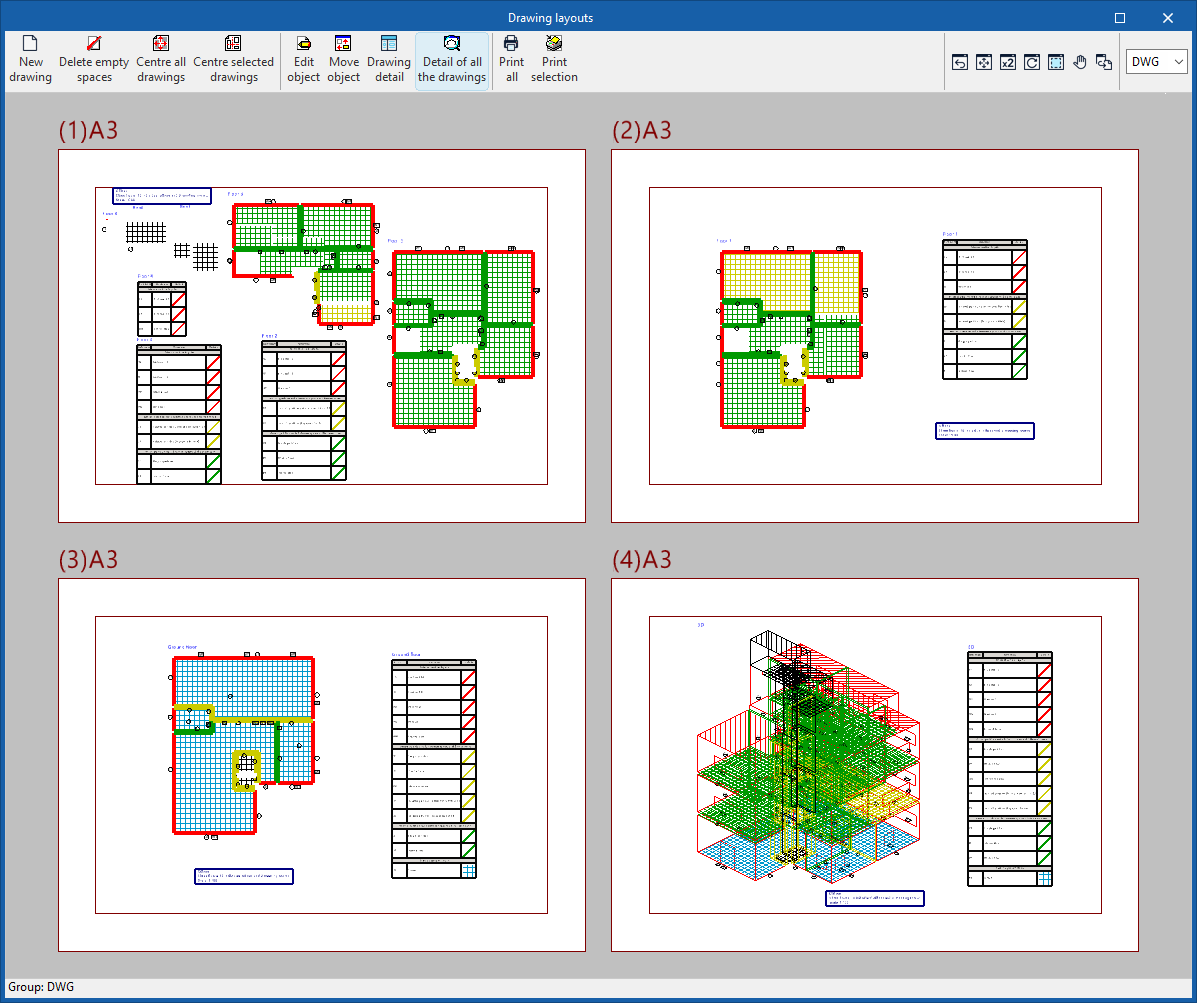
Drawings in DWG, DXF or PDF format
The program lets you print the project drawings on any graphics device set up on your computer, or to create DWG, DXF or PDF files.
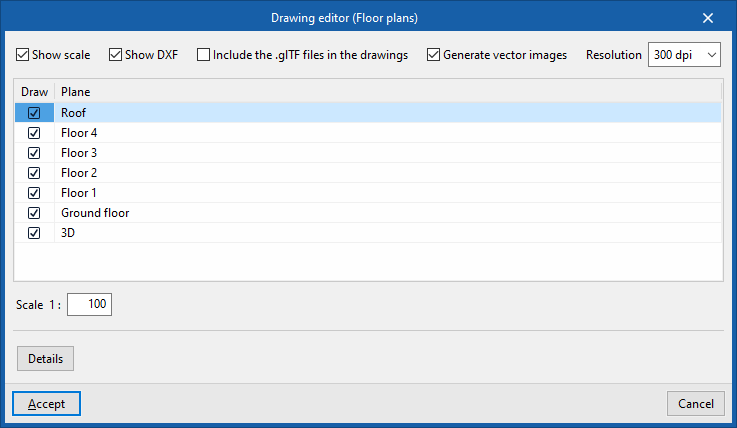
The map editing function lets you configure the following options:
- Show scale (optional)
- Show DXF (optional)
- Include the .glTF files in the drawings (optional)
- Generate vector images (optional)
- Resolution (96 dpi / 150 dpi / 300 dpi / 600 dpi)
- "Draw" "Plane"
- Scale
- Details
Drawings can be accessed via the "Drawings" option at the top of the interface or via the "Drawings" option in the "File" menu, which can be accessed from any tab in the program.