
Work environment of the "Sanitary Systems" tab
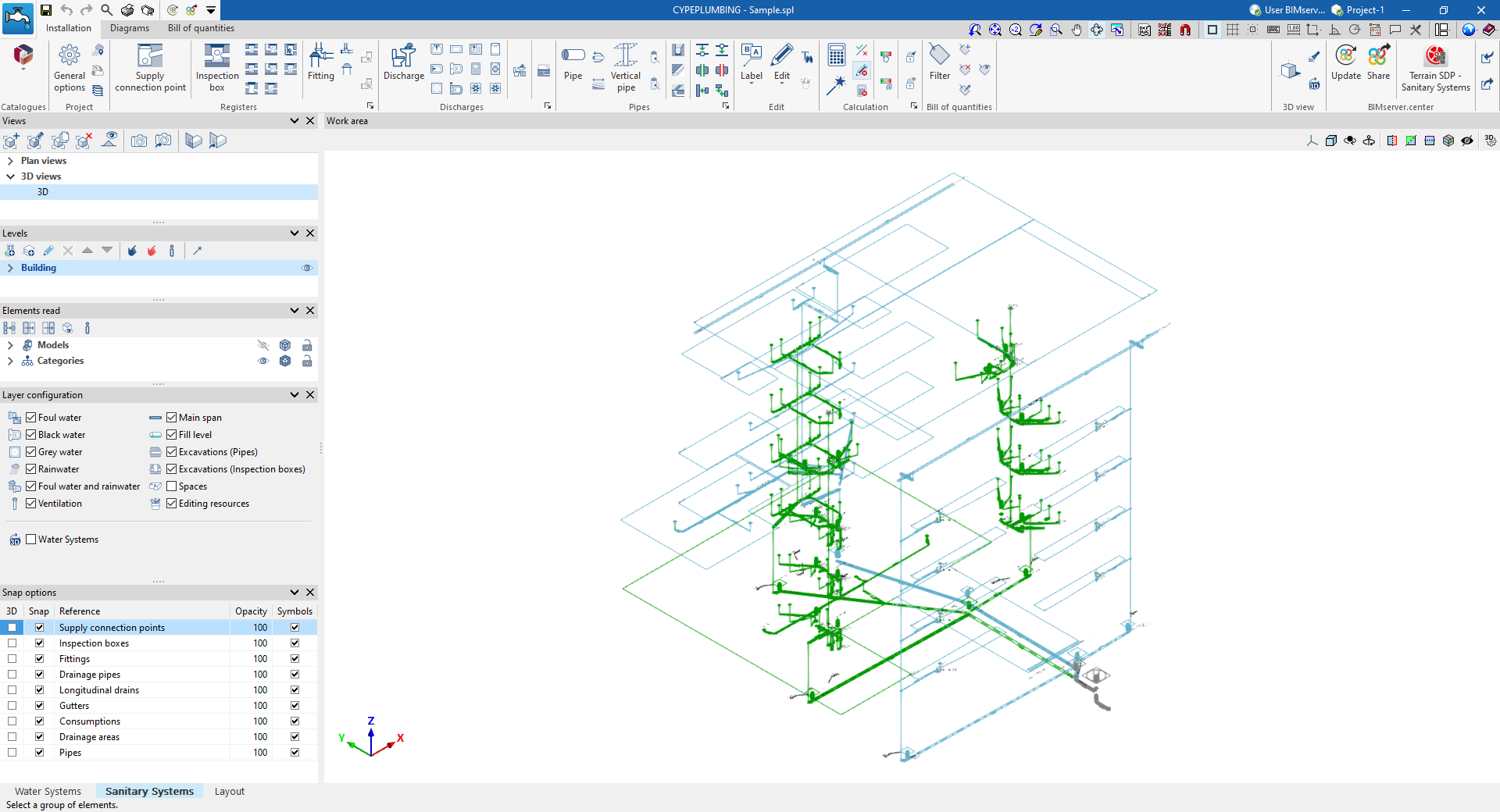
The interface of the "Sanitary Systems" tab of the CYPEPLUMBING program has three tabs at the top with different work environments: "Installation", "Diagrams" and "Bill of quantities". These environments are similar to those in other CYPE tools and have a system of dockable windows that can be customised to adapt the workspace to the project's needs.
"Installation" tab
The "Installation" tab contains a work environment that is used to design the water evacuation system, both in a 3D view and in any type of 2D view (such as floor plans and elevations). This way, the elements in the system can be entered using the most appropriate view at any given time.
This tab displays the following:
- A top toolbar containing the tools for managing the catalogues and project options; entering and editing the elements of the water supply system (supply connection points, manholes, fittings, discharges, drainage areas, pipes, drainage pipes, gutters and longitudinal drains); and analysing, checking and designing the system.
- The work area, on the right-hand side of the screen, where the aforementioned elements are entered, edited and displayed.
- On the left-hand side, several panels with tools for defining the views and levels of the project, managing the visibility of the elements read and configuring the layers and snapping options.
"Diagrams" tab
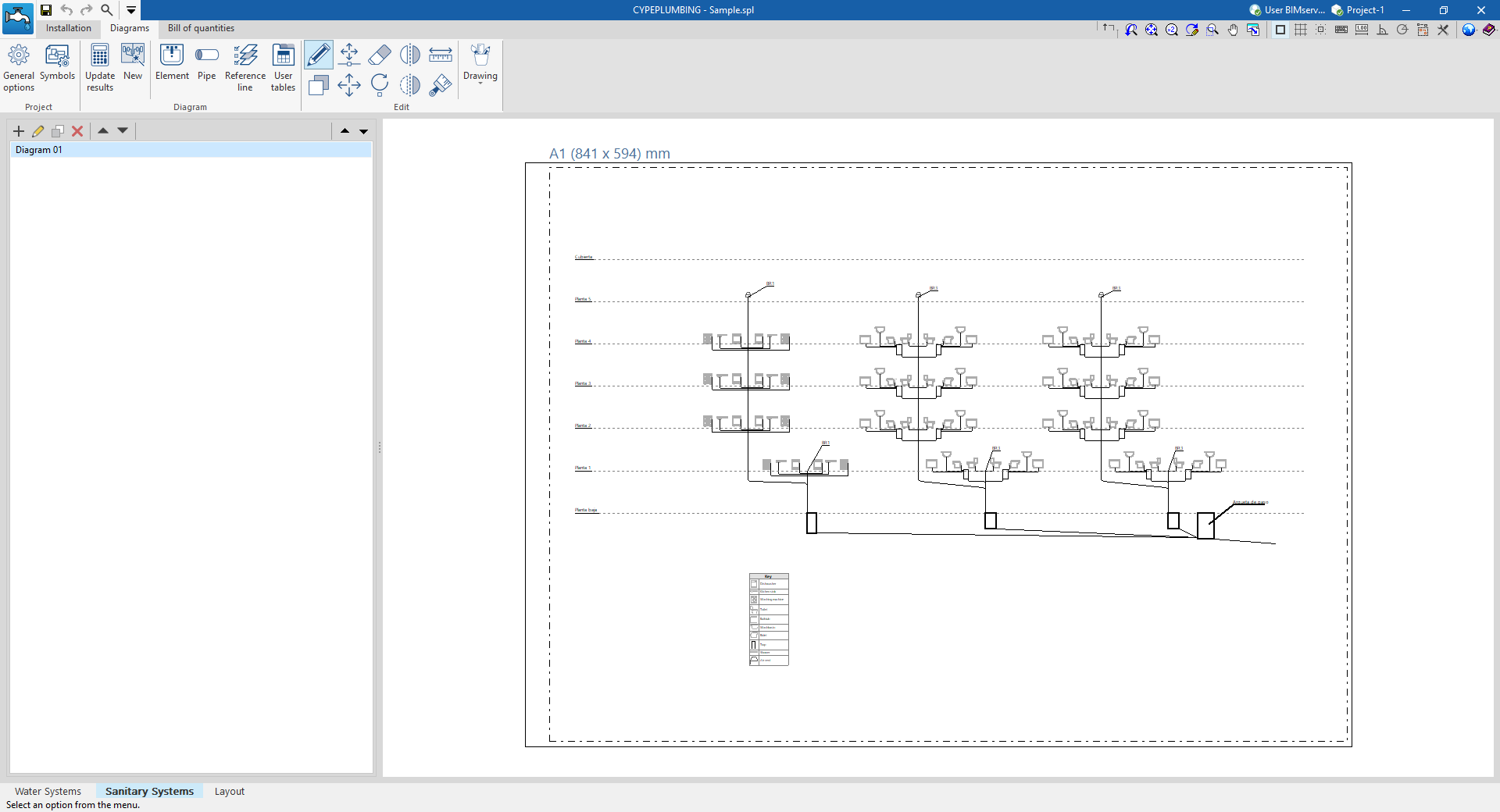
The "Diagrams" tab contains a work environment that is used to generate diagrams of the water supply system and to create them on sheets in the desired formats.
This tab displays the following:
- The top toolbar contains the tools for generating the water supply system diagrams; entering and editing the elements that make up the diagrams; and adjusting and configuring the general options and symbols.
- The workspace, on the right-hand side of the screen, where the system diagrams are entered, edited and displayed.
- On the left-hand side, a navigation panel between the different diagrams created, which are made up of sheets of editable format and scale.
"Bill of quantities" tab
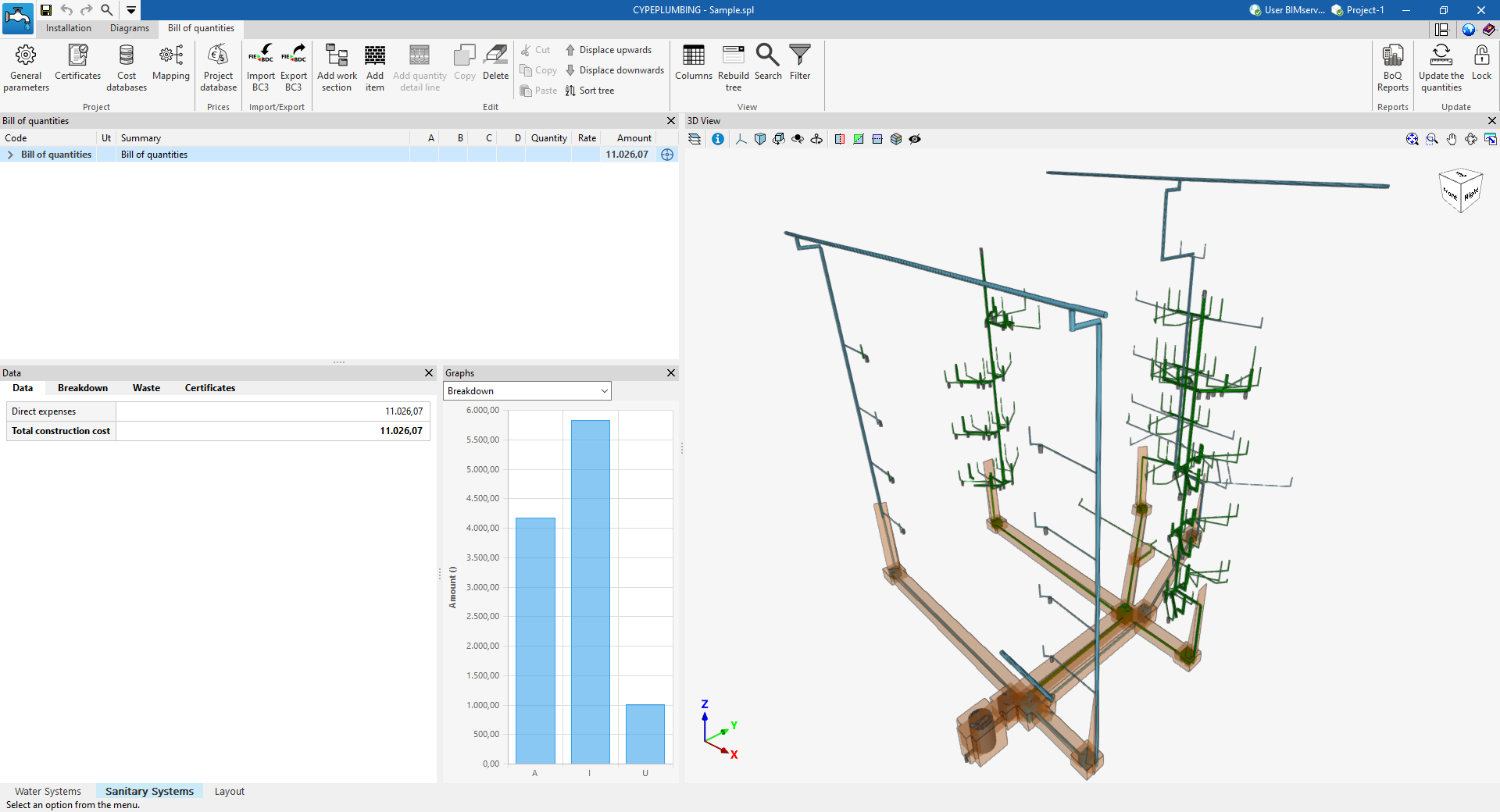
On the other hand, the "Bill of quantities" tab is used to manage the quantities and bill of quantities of the water supply systems, and displays the following:
- A top toolbar containing the tools for creating and editing the bill of quantities as well as those for managing and creating lists.
- A graphic window with its own toolbar, located on the right-hand side, where the different elements in the job can be viewed.
- A specific area for structuring the bill of quantities, on the left-hand side.
Data input and output sequence for the design and calculation of drainage systems
The drainage system can be defined and calculated in the "Sanitary Systems" tab of the program using the following sequence of data input and output:
- Creating a new project (from "File", "New").
- (Optional) Linking to BIMserver.center and importing of the geometric model; definiting the configuration and applicable regulations; importing catalogues; and generating consumption data and downloads based on the sanitary fittings extracted from the BIM model.
- (Optional) Reviewing and configuring manufacturer catalogues (under "Project", "Catalogues").
- Reviewing and configuring general options (under "Project", "General options").
- Defining rainfall intensity (from "Project", "Rainfall intensity").
- (Optional) Defining the floor plans (under "Project", "Floor plans") if they have not been imported from the BIM model.
- Laying out of the drainage outlets in the work area. This can be achieved in several ways:
- Using the data automatically generated from the sanitary fittings read from the BIM model or from the consumption figures entered in the "Water Systems" tab.
- Entering downloads manually (options in the "Downloads" section).
- (Optional) Adding drainage areas to the workspace (from "Drains", "Drainage area") and associated drainage elements (the "Drain pipe", "Gutter" and "Longitudinal drain" options in the "Pipes" group).
- Laying out of manholes in the work area (from "Registers", "Manhole").
- Configuring the connection point for the drainage system in the work area (under "Registers", "Connection point").
- Laying pipes between drains, manholes and the connection point (options in the "Pipes" group).
- Laying out of cleaning vents and ventilation outlets (under "Vents", "Fittings").
- (Optional) Creating fittings such as elbows or tees at pipe junctions (under "Registers", "Fittings").
- Analysing, checking and designing model elements, and viewing results (the "Analysis" group).
- (Optional) Managing and generating installation diagrams (the "Diagrams" tab).
- (Optional) Bill of quantities management and generation (the "Bill of quantities" tab).
- Viewing reports and drawings (via the "Reports" and "Drawings" options on the top menu bar).
- Exporting to BIMserver.center (from "BIMserver.center", "Share").
Examples of water evacuation system diagrams
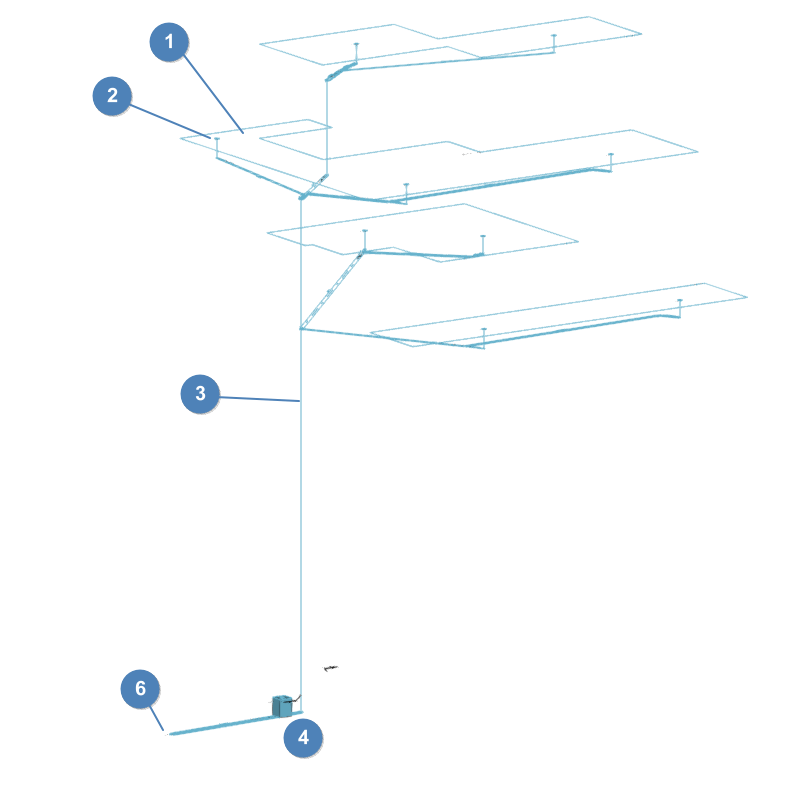
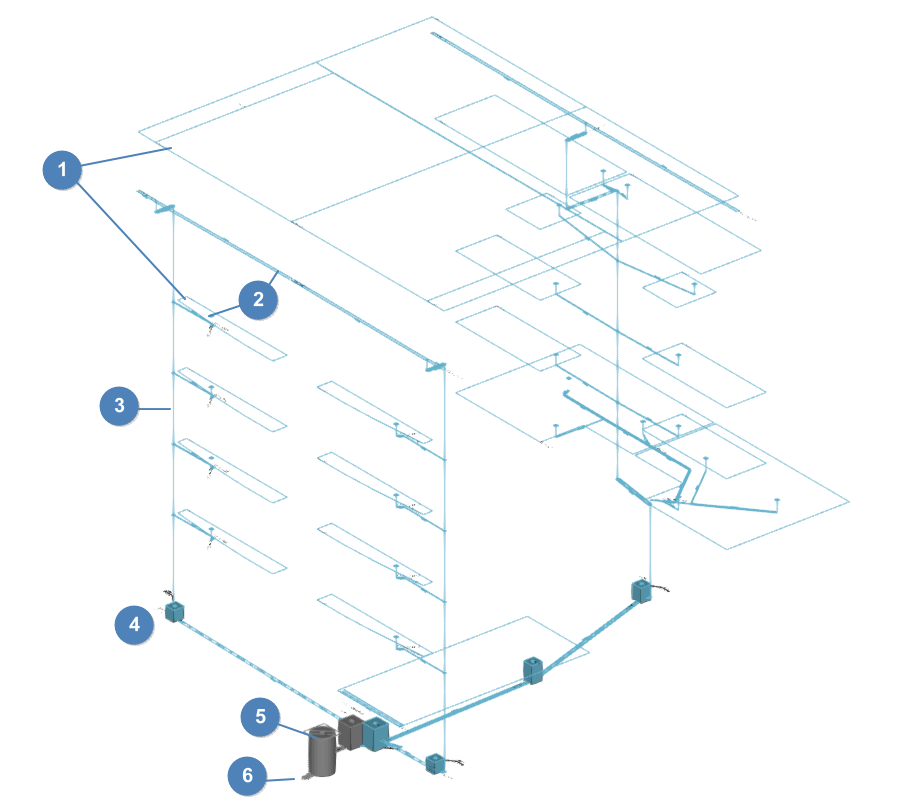
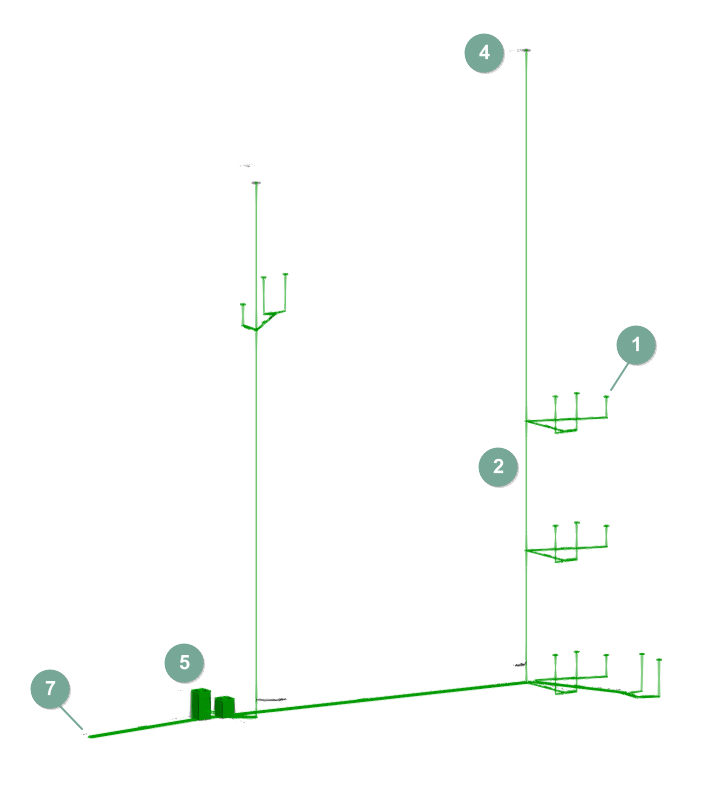
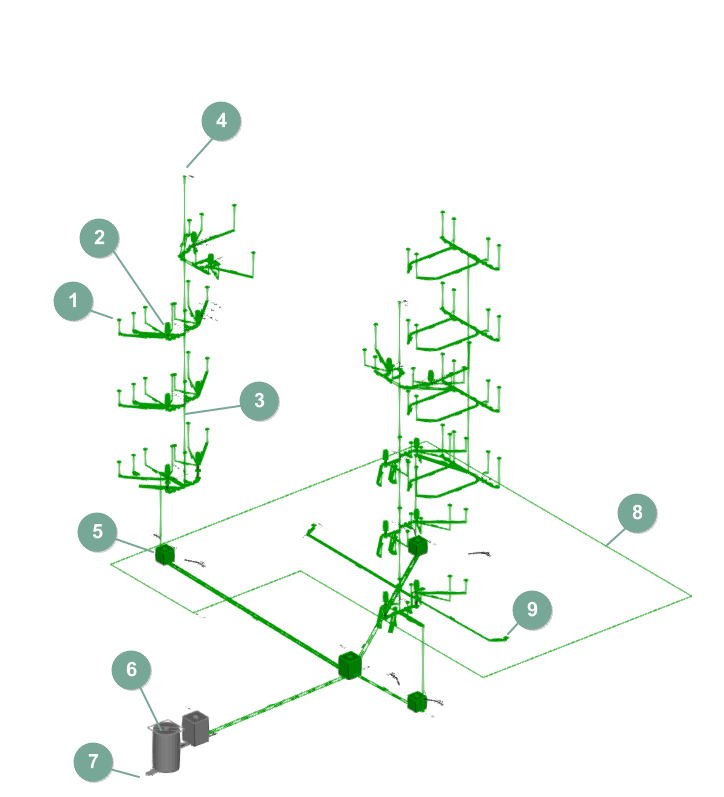
Below are several diagrams of water evacuation systems that can be developed in the program, indicating the layout of the elements and the options that allow them to be entered in the model:
Rainwater drainage system
- Rainwater drainage areas ("Drainage area" option).
- Gutters, longitudinal drains and drains ("Gutter", "Longitudinal drain" and "Drain" options).
- Branches, manifolds and vertical pipes ("Pipe" option).
- Inspection hatch at drainpipe end, Intermediate inspection box ("Inspection box" option).
- Manhole ("Inspection box" option).
- Supply connection point ("Supply connection point" option).
Foul water drainage system
- Discharge area ("Discharge" option).
- Floor trap ("Inspection box" option).
- Branches, manifolds and vertical pipes ("Pipe" option).
- Flue terminal ("Fitting" option).
- Inspection hatch at drainpipe end, Intermediate inspection box ("Inspection box" option).
- Manhole ("Inspection box" option).
- Supply connection point ("Supply connection point" option).
- Waste drainage areas ("Drainage area" option).
- Drain ("Discharge" option).
Creating a new job, linking to a project and importing data
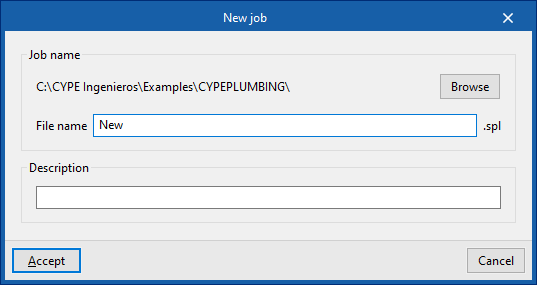
When starting the application and clicking on "New", it offers users the chance to create a "New job", which can then be integrated into an existing project in BIMserver.center.
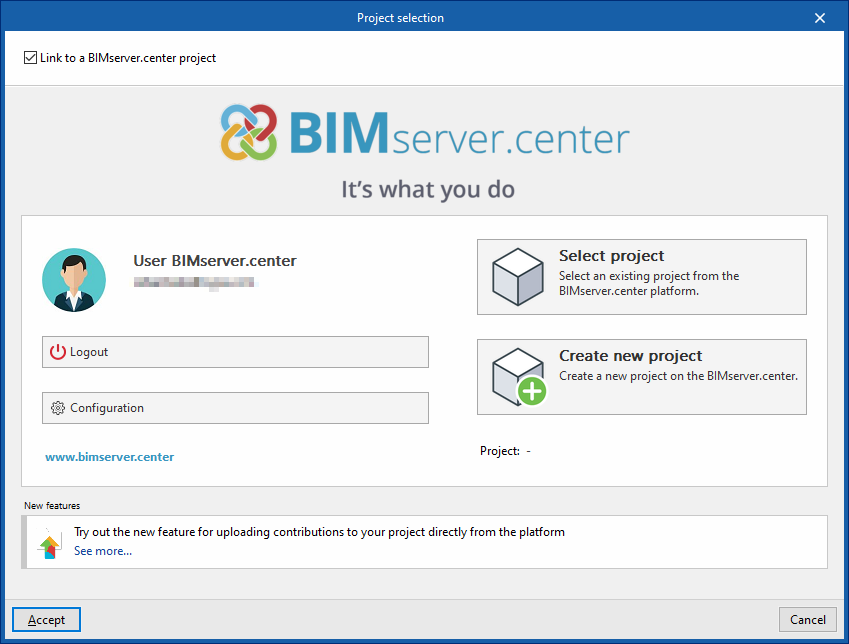
This is selected in the "Project selection" window. On the left-hand side, the user can log in with their BIMserver.center account.
Users can also "Create a new project". In this case, the created project will be visible from BIMserver.center from that moment on.
There is also the option of starting the project without being linked to the BIMserver.center platform. To do this, simply uncheck the box at the top left, "Link to a BIMserver.center project".
Once the new job has been created, the program interface is accessed, which includes a graphic window showing the model or models that have been imported.
At any time during the project, files can be shared or imported via the "BIMserver.center" group at the top right-hand side of the screen.
Importing BIM models
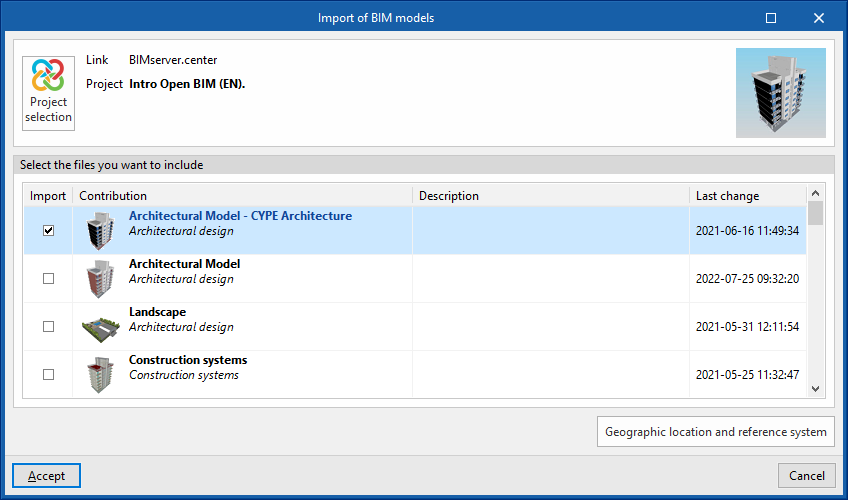
When creating a new job and selecting a project hosted on the BIMserver.center platform from "Select project", the "Import BIM models" window appears, which shows the files contained in that project in IFC format.
The application allows users to include one or more of the existing models in the project. To do this, the "Import" box is checked and accepted.
When accessing the interface, the graphic window will display the imported models. In addition, if they contain this information, it will create the views, levels and floor plans necessary for developing the system model.
Importing configuration
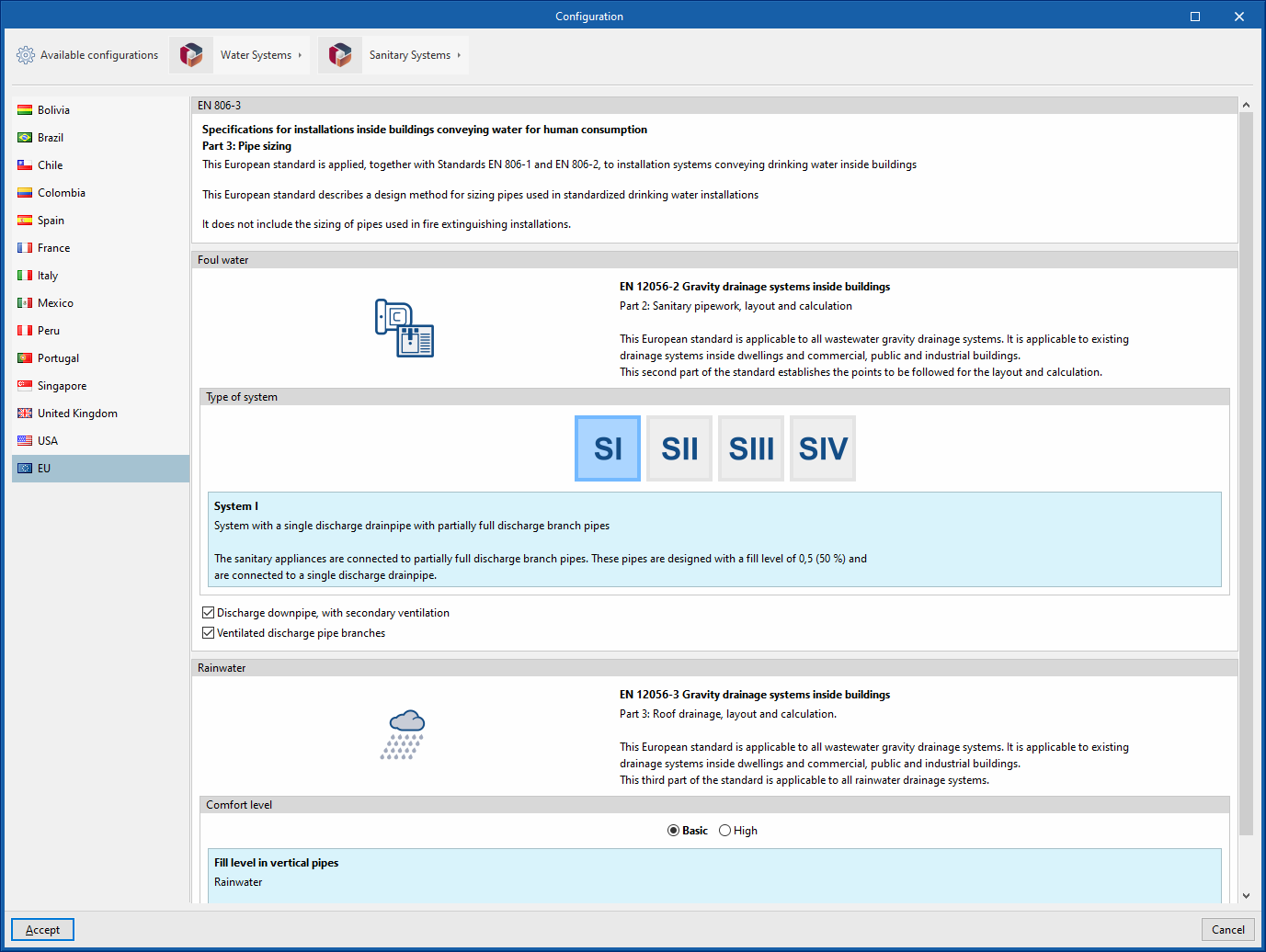
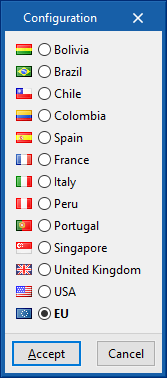
Further on, the program opens the "Configuration" window, which allows the following:
- In the central part, users can select the configuration and the applicable codes from those available for different countries and regions. The selection is made for both the water supply system, developed in the "Water Systems" tab, and the water evacuation system, developed in the "Sanitary Systems" tab.
- The configuration provided by different manufacturers can also be imported via the "Available configurations" menu at the top left.
- Finally, the "Water Systems" and "Sanitary Systems" menus at the top allow the download and management of catalogues of different elements of the water supply and drainage systems.
If this window is closed or cancelled, the program will create the job without importing any settings.
If users wish to subsequently load the configuration or customise it, or manage the job catalogues, they can use the "General options" and "Catalogues" tools in the top toolbar of the "Installation" tab, available in the "Water Systems" and "Sanitary Systems" tabs, respectively.
| Note: |
|---|
| The following link can be consulted for the codes implemented in the program. |
Generating consumptions and discharges from sanitary equipment
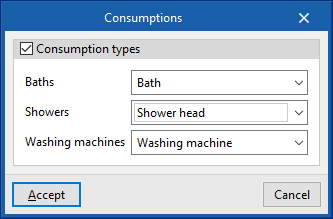
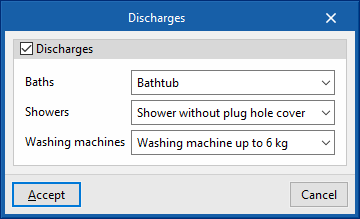
If the BIM model contains information on the sanitary appliances, when creating a new job, the program offers to associate them with the consumption and discharge types defined in the configuration of the building. This automatically generates the consumption and discharge points and arranges them in the model space.
| Note: |
|---|
| The following link can be consulted to learn about entering sanitary equipment and other elements in CYPE Architecture. |
Managing manufacturers' catalogues
In the "Catalogues" group of the main toolbar of the "Installation" tab, either in the "Water Systems" tab or in the "Sanitary Systems" tab, there are tools for managing manufacturers' catalogues in the water supply or water evacuation system, respectively:


Catalogues
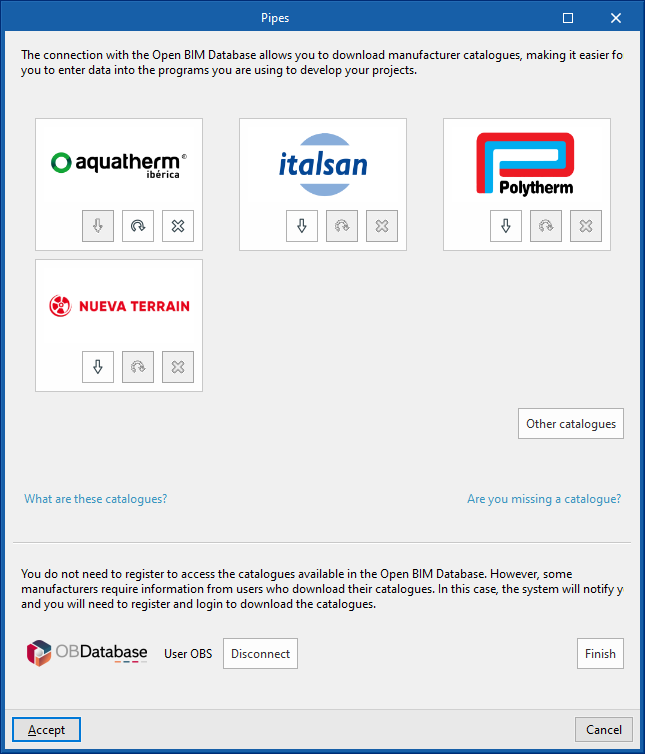
Downloads manufacturers' catalogues using the Open BIM Database connection, making it easier to enter data into the program for the project development.
Clicking on this option opens a menu where the desired element can be selected. When doing this, a window opens with the available manufacturer's catalogues for that element.
Download catalogues
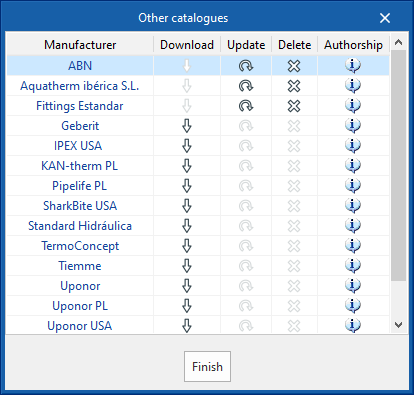
The following options are shown for each manufacturer:
- Download
Download the manufacturer's catalogue. The products in the catalogue will be available in the project. - Update
Updates the selected manufacturer's catalogue to the latest version, deleting the version downloaded in the project. - Delete
Deletes the selected manufacturer's catalogue. The products in the catalogue will no longer be available in the project.
Connection to Open BIM Database
At the bottom of this dialogue box, the program allows users to log in with their Open BIM Database account and password.
Importing catalogue data
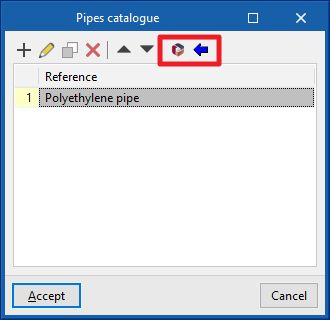
The manufacturers' catalogues downloaded in the project are available when creating materials and equipment for the elements in the system from the different options in the “Material and equipment selection” section of the “General options”, using the “Available manufacturers” button located at the top right of each table.
From here, catalogues can also be downloaded, using the "Catalogues" button next to the one above.
Setting the analysis and drawing options for the water evacuation system
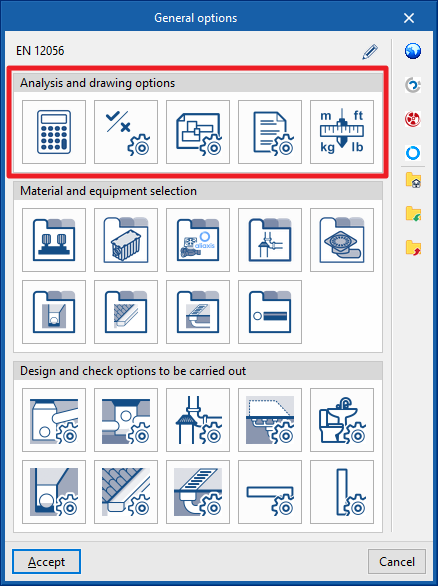
In the "Installation" tab of the "Water Systems" tab, in the "General Options" of the "Project" group in the main toolbar, the "Analysis and drawing options" of the water supply system can be configured:

- Calculation options
- General checks
- Representation options
- Report configuration
- Units
By using the "Import configuration" option, available on the right-hand side of the "General options" panel, this data can be automatically generated for different national and international standards. Similarly, data from different manufacturers can be imported by clicking on the options with their logo.
The other options in the right-hand column are for importing and exporting the complete configuration of the "General options" panel to files on disk, as well as selecting a file with initial values for creating a new job.
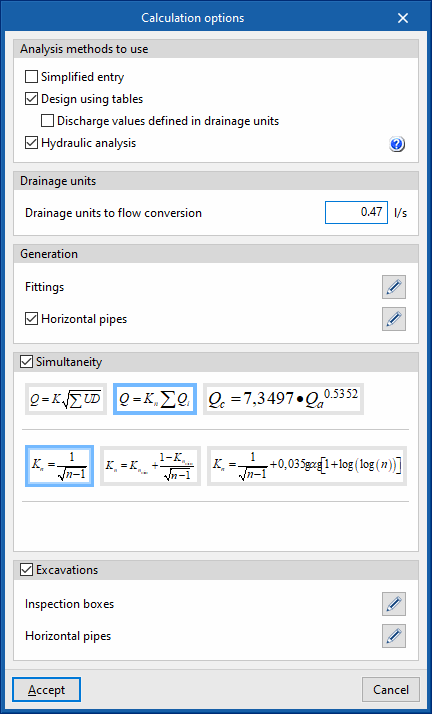
Calculation options
Defines the general data and criteria for the design of the water evacuation system.
- Analysis methods to use
- Simplified entry (optional)
If this option is activated, the panels for entering and editing the elements in the system have a simplified appearance and don't need to be defined by the user. - Design using tables (optional)
PerActivates the design using tables in the system.- Discharge values defined in drainage units (optional)
When this option is activated, the program allows users to enter the drainage units associated with each discharge from "Discharges", in the "Design and check options to be carried out" section of the "General options".
- Discharge values defined in drainage units (optional)
- Hydraulic analysis (optional)
Activates the hydraulic analysis of the system. The help button on the right allows users to consult the expressions used. The diameter of horizontal pipes is checked with the Manning formula, while the diameter of vertical pipes is checked with the Dawson and Hunter formula (for wastewater) and the Wyly-Eaton formula (for stormwater).
- Simplified entry (optional)
- Drainage units
- Drainage units to flow conversion
Defines the conversion factor from drainage units to flow units.
- Drainage units to flow conversion
- Generation
- Fittings (optional)
Selects the type of fitting to be assigned to the pipe joints when using the tools for the automatic generation of fittings available in the "Fittings" group of the main toolbar. The library of fittings can be configured in "Fittings" in the "Design and check options to be carried out" section of the "General options".- Elbow 45º
- Elbow 90º
- Tee 45º
- Tee 90º
- Horizontal pipes (optional)
Selects the type of horizontal pipe that the program assigns to each span of the system during the analysis, in the event that the "Pipe reference" section is kept unlocked in each horizontal pipe entered in the model. The horizontal pipe types can be created in "Horizontal pipes, in the "Design and check options to be carried out" section of the "General options".- Foul water (Discharge, Discharges, Floor trap, Cleanout, Drainpipe, Inspection box, Others)
- Rainwater (Discharge, Discharges, Floor trap, Cleanout, Drainpipe, Inspection box, Others)
- Fittings (optional)
- Simultaneity
Selects and defines the simultaneity analysis methods in the system. If necessary, it is possible to specify a different simultaneity method for each pipe defined in "Horizontal pipes / Vertical pipes" in the "Design and check options to be carried out" section of the "General options".- Q = K (Σ UD)1/2
Defines the simultaneous flow rate (Q) as a function of the sum of discharge units (DU) and the K coefficient. This coefficient can be entered in the box immediately below. The wizard on the right allows importing default values of the K coefficient for different cases of sanitary appliance use. - Q = Kn Σ Qi
Defines the simultaneous flow (Q) as a function of the sum of the instantaneous flows (Qi) and the Kn coefficient. This coefficient depends on the number (n) of discharges and its calculation expression takes different forms, which are shown and selected in this section. - Qc = 7.3497 × Qa0.5352
Defines the simultaneous or calculation flow rate (Qc) as a function of the accumulated flow rate (Qa).
- Q = K (Σ UD)1/2
- Excavations
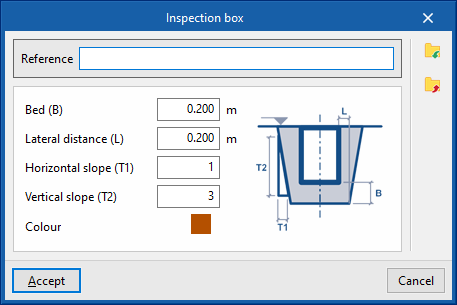
Defines the geometric properties of the transverse sections of the excavation of the following elements in the system, their reference and the colour of the representation. The defined excavation sections can be subsequently selected in the inspection box or horizontal pipe types created in "Inspection boxes / Horizontal pipes", in the "Design and check options to be carried out" section of the "General options".- Inspection boxes (Reference, Bed (B), Lateral distance (L), Horizontal slope (T1), Vertical slope (T2), Colour)
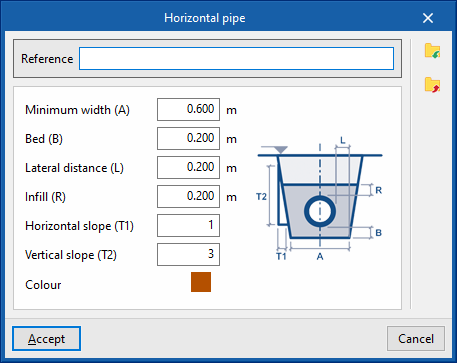
- Horizontal pipes (Reference, Minimum width (A), Bed (B), Lateral distance (L), Infill (R), Horizontal slope (T1), Vertical slope (T2), Colour)
General checks
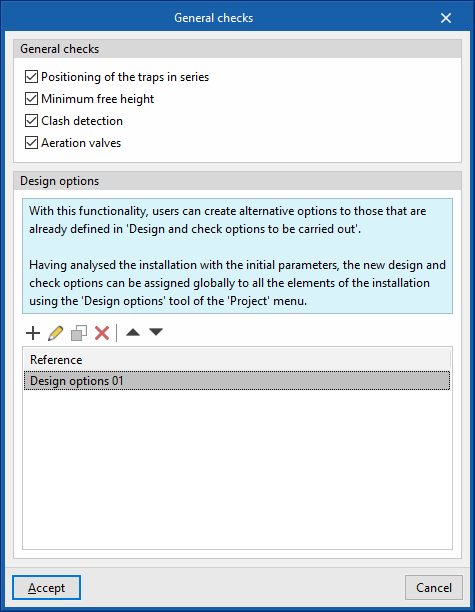
Defines the general checks of the water evacuation system.
- General checks
- Positioning of the traps in series (optional)
Check for the existence of traps arranged in series in the system. - Minimum free height (optional)
Checks that the system complies with the minimum free height defined for each floor. - Clash detection (optional)
Performs clash detection between overlapping elements in the system. - Aeration valves (optional)
Checks the need for aeration valves in the system.
- Positioning of the traps in series (optional)
- Design options
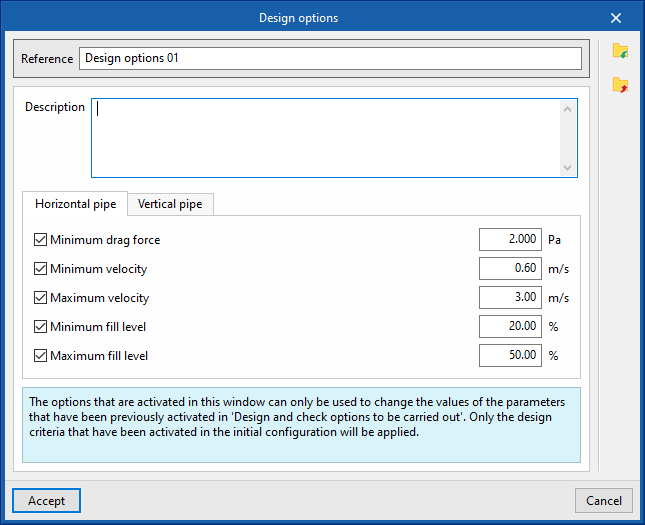
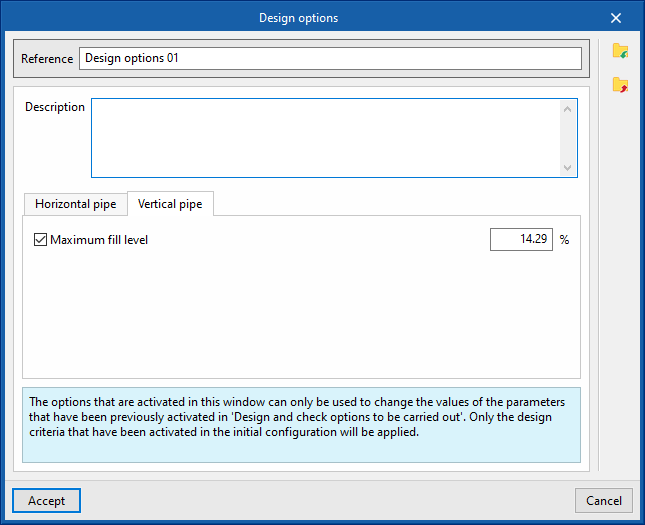
With this feature, users can configure alternative design options globally for all the elements in the system. The parameters activated and entered in this window are only used to change the values of the parameters that are previously activated in each type of element defined in the "General options", from where the "Design and check options to be carried out" are accessed. Furthermore, once defined, these options will not be applied to the design of the system until the user assigns them using the "Design options" option in the "Project" group of the top tool menu in the general interface.- Reference
- Description
- "Horizontal pipe" tab
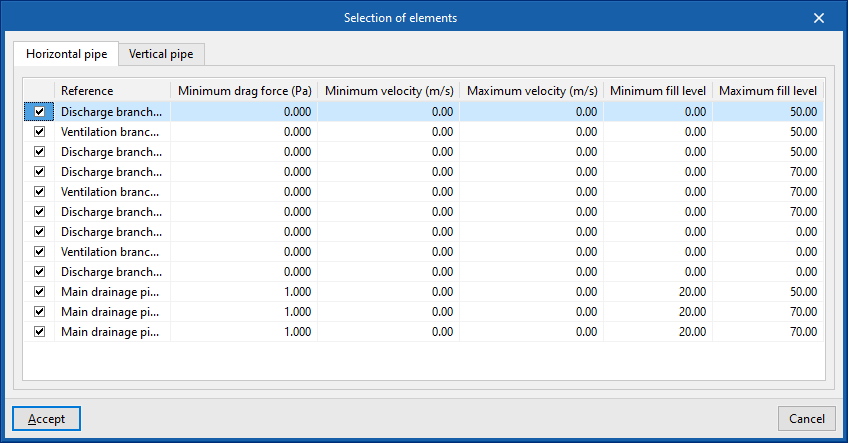
- Minimum drag force (optional)
- Minimum velocity (optional)
- Maximum velocity (optional)
- Minimum fill level (optional)
- Maximum fill level (optional)
- "Vertical pipe" tab
- Maximum fill level (optional)
Representation options
Configures the graphical representation of the elements in the water evacuation system.
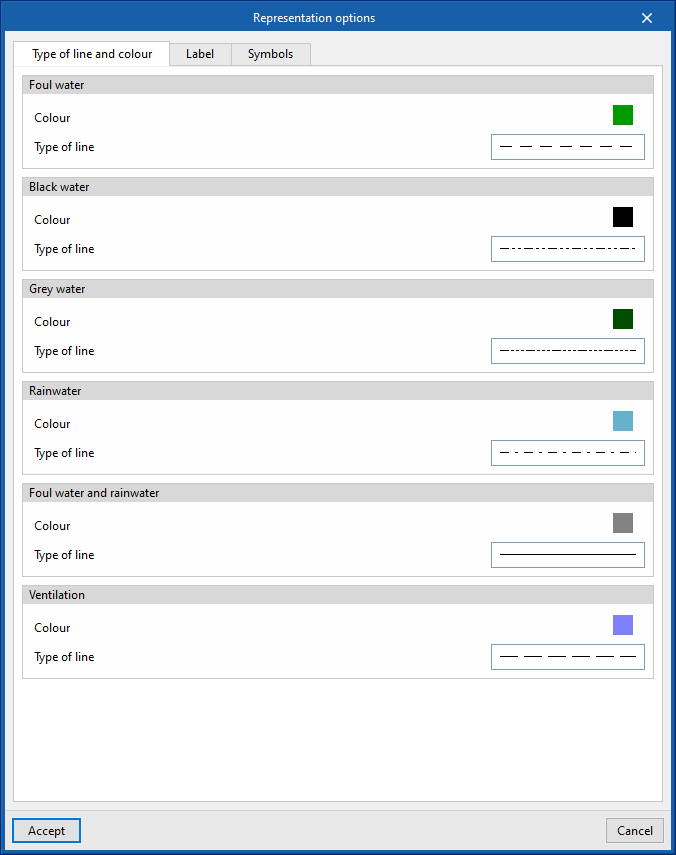
- “Type of line and colour” tab
Modifies the type of line and the colour used in the graphical representation of the different types of pipes.- Foul water (Colour, Type of line)
- Black water (Colour, Type of line)
- Grey water (Colour, Type of line)
- Rainwater (Colour, Type of line)
- Foul water and rainwater (Colour, Type of line)
- Ventilation (Colour, Type of line)
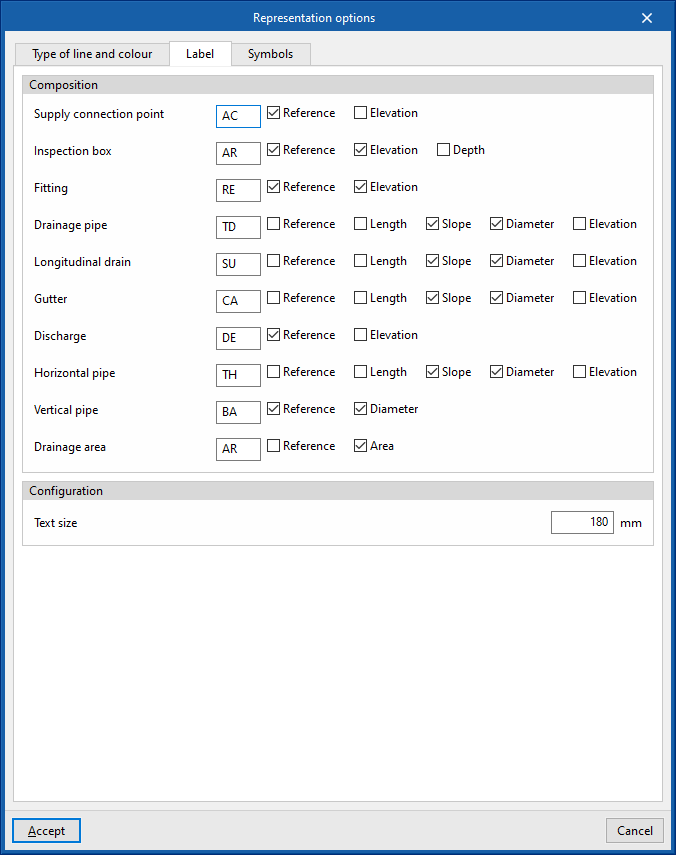
- “Label” tab
Adjusts the information displayed in the labels of the different elements in the water supply system and their text size.- Composition (Supply connection point, Meter, Fitting, Manifold, Tank, Pumping system, Hot water production, Heat exchanger, Consumption, Pipe)
- Configuration
- Text size
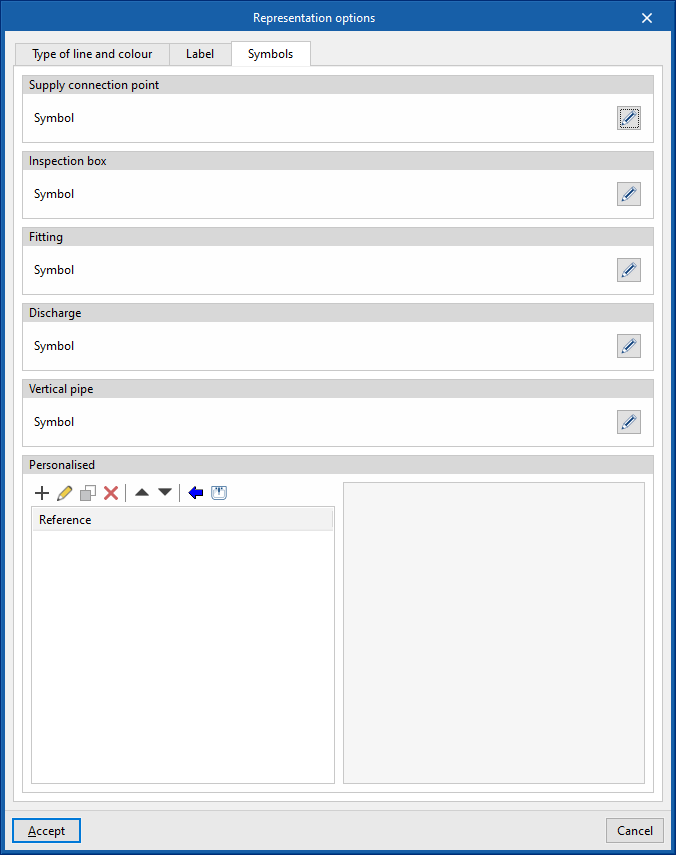
- “Symbols” tab
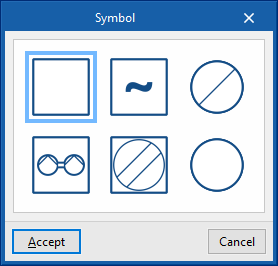
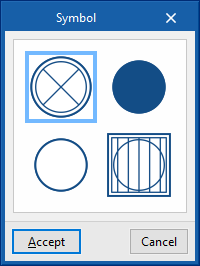
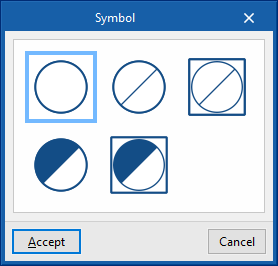
- Punto de acometida (Símbolo), Arqueta (Símbolo), Accesorio (Símbolo), Descarga (Símbolo), Bajante (Símbolo)
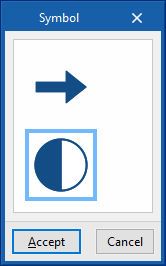
Selects the symbol used in the graphic representation of the elements of the water evacuation installation from the generic symbols available or from the previously created customised symbols. - Personalised
Creates customised symbols using a drawing editor or imports symbols contained in DXF, DWG or DWF files saved on disk.
- Punto de acometida (Símbolo), Arqueta (Símbolo), Accesorio (Símbolo), Descarga (Símbolo), Bajante (Símbolo)
Report configuration
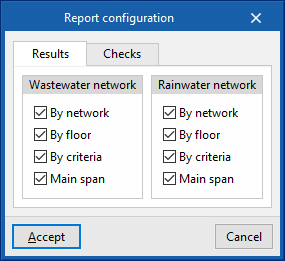
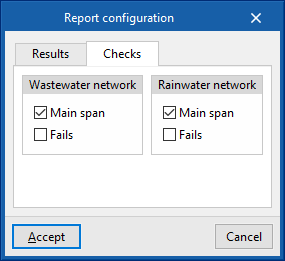
Configures the information that appears in the water supply system reports.
- Results
Configures the information that appears in the results report.- Wastewater network
- By network (optional)
- By floor (optional)
- By criteria (optional)
- Main span (optional)
- Rainwater network
- By network (optional)
- By floor (optional)
- By criteria (optional)
- Main span (optional)
- Wastewater network
- Checks
Configures the information that appears in the check report.- Wastewater network
- Main span (optional)
- Fails (optional)
- Rainwater network
- Main span (optional)
- Fails (optional)
- Wastewater network
Units
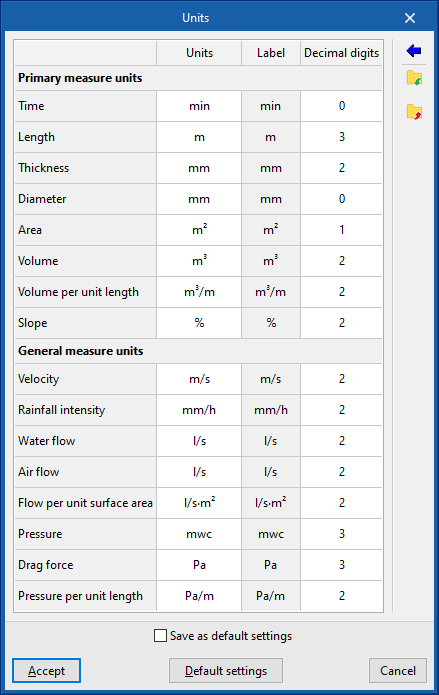
Configures the units, the label and the number of decimal places for each of the magnitudes related to the water evacuation system:
- Primary measure units (Time, Length, Diameter, Absolute roughness, Area, Volume, Liquid volume, Temperature, Temperature difference)
- General measure units (Velocity, Water flow, Pressure, Pressure per unit length, Density, Kinematic viscosity of the water)
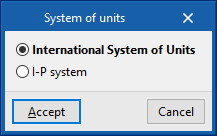
By using the "Import one of the predefined systems of units" option, available on the right-hand side of the panel, one of the following systems of units can be imported:
- International System of Units
Imports the units of the International System of Units. - I-P system
- Imports the units of the I-P (Inch-Pound) or imperial system.
Selecting the materials and equipment for the water evacuation system
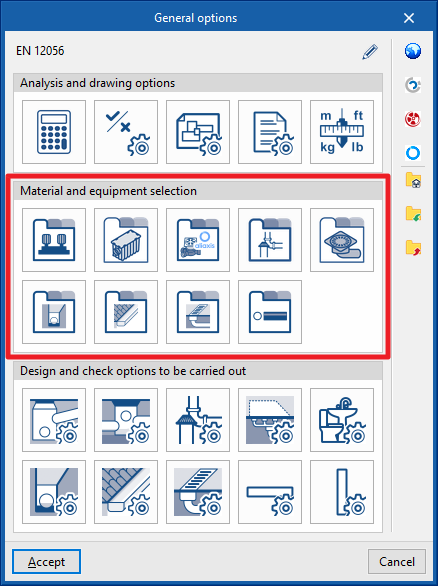
In the "Installation" tab of the "Water Systems" tab, in the "General options" from the "Project" group in the main toolbar, the "Material and equipment selection" of the following elements of the water evacuation system can be carried out:
- Pressure pump catalogue
- Catalogue of grease and hydrocarbon separators and bio-filtration systems
- Inspection box
- Fittings catalogue
- Drains catalogue
- Drainage pipes catalogue
- Gutter catalogue
- Longitudinal drains catalogue
- Pipes catalogue
Si se utiliza la opción "Importar configuración", disponible a la derecha del By using the "Import configuration" option, available on the right-hand side of the "General options" panel, this data can be automatically generated for different national and international codes. It is also possible to import data from different manufacturers by clicking on the options showing their logo.
The other options in the right-hand column can be used to import and export the complete configuration of the "General options" panel to files on disk, as well as to select a file with initial values for creating a new job.
Pressure pump catalogue
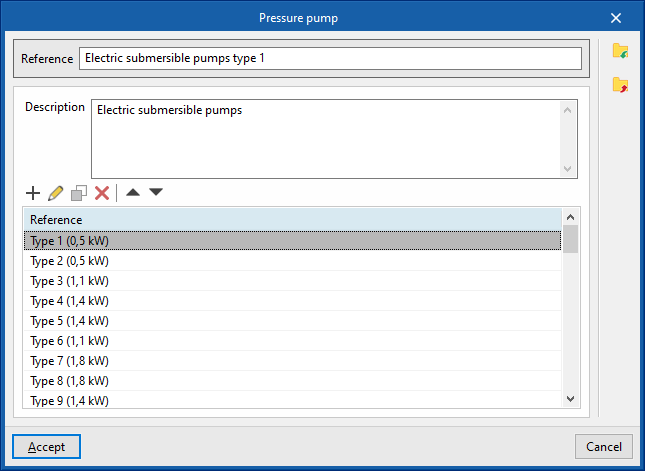
Defines the catalogue of pressure pumps. The subsequent layout in the pumping inspection box model is carried out by means of the inspection box entry options in the "Registers" group of the program's general interface. The program allows users to select one of the pressure pump catalogues created when entering a particular inspection box, so that a type of inspection box must be used with the "Pressure pump" option activated, which is accessed through "Inspection boxes", in the "Design and check options to be carried out" section of the "General options".
When defining the pressure pump catalogues in this section, the following parameters must be specified:
- Reference
Pressure pump catalogue reference. - Description
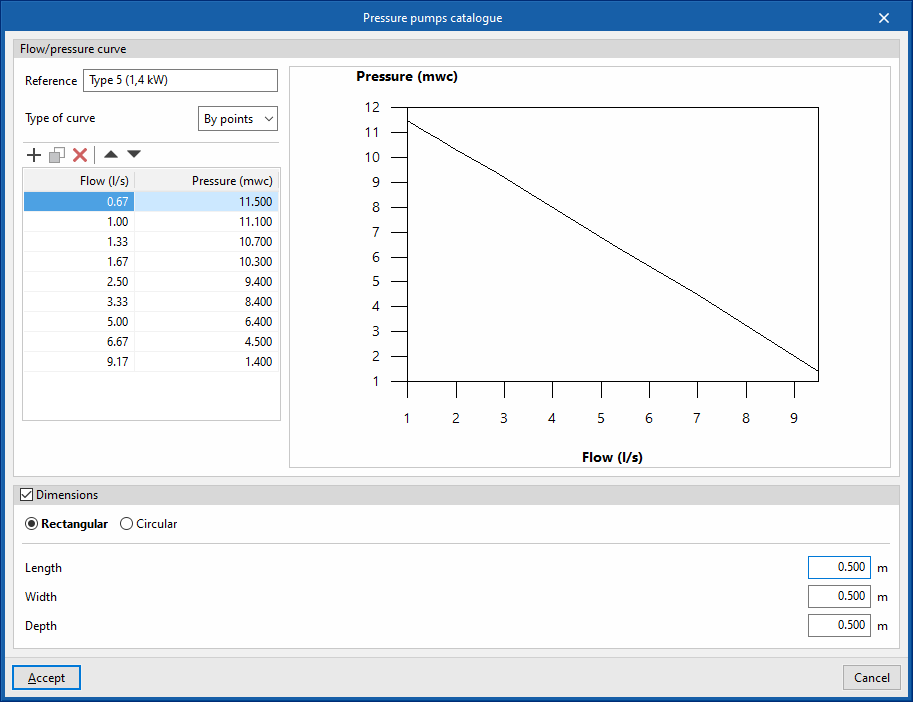
Pressure pump catalogue description. - Flow/Pressure curve
Defines the flow/pressure curves available in the pressure pump catalogue by adding entries in the table.- Reference
Curve reference. - Type of curve
- Midpoint
Enters the values defining the midpoint of the flow/pressure curve and displays a graph with the associated curve.- Flow
- Pressure
- By points
Enters flow/pressure point pairs and display a graph with the associated curve.- Flow
- Pressure
- Midpoint
- Dimensions (optional)
Defines the dimensions of the pressure pump.- Rectangular (Length, Width, Depth)
- Circular (Diameter, Depth)
- Reference
Catalogue of grease and hydrocarbon separators and bio-filtration systems
Defines the catalogue of grease and hydrocarbon separators and bio-filtration systems. The subsequent layout in the pumping inspection box model is carried out by means of the inspection box entry options in the "Registers" group of the program's general interface. The program allows users to select one of the catalogues of grease and hydrocarbon separators and bio-filtration systems created when entering a particular inspection box, so that a type of inspection box must be used with the "Grease separator" option activated in "Inspection boxes", in the "Design and check options to be carried out" section of the "General options".
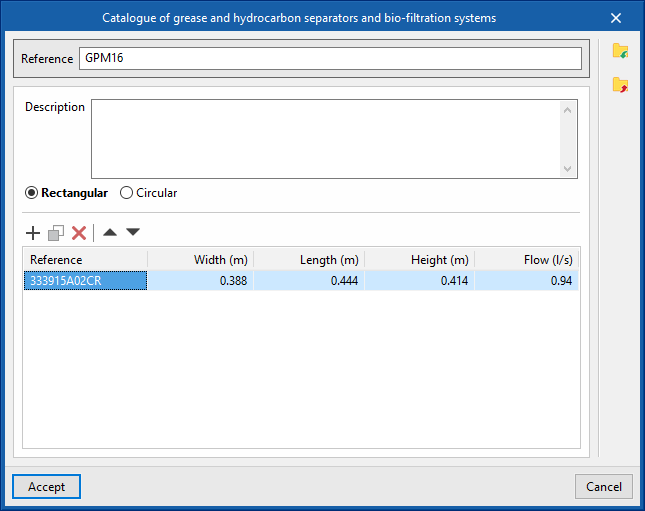
When defining the catalogues of grease and hydrocarbon separators and bio-filtration systems in this section, the following parameters must be specified:
- Reference
Reference of the catalogue of grease and hydrocarbon separators and bio-filtration systems. - Description
Description of the catalogue of grease and hydrocarbon separators and bio-filtration systems. - Type (Rectangular / Circular)
Defines the reference, dimensions and flow rate of each grease and hydrocarbon separator or each bio-filtration system by adding entries in the table, after indicating whether they are rectangular or circular.- Rectangular
- Reference, Width, Length, Height, Flow
- Circular
- Ordering Number, Diameter, Head, Flow
- Rectangular
Inspection box
Defines the inspection boxes of the manufacturer's collection systems. The subsequent selection and layout of these elements in the model can be carried out using the options for entering collection systems in the "Records" group in the program's general interface.
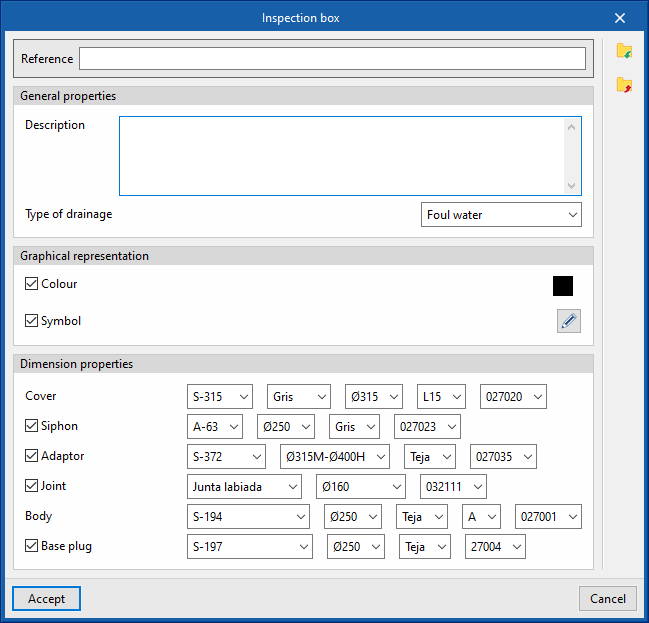
To define the inspection boxes in this section, first it is necessary to download the catalogue of the collection system after logging in to the Open BIM Database. Then, when creating a inspection box in this section, the following parameters must be specified:
- Reference
Inspection box reference. - General properties
- Description
- Type of drainage (Foul water / Black water / Grey water / Rainwater / Foul water and rainwater)
- Graphical representation
- Colour (optional)
- Symbol (optional)
- Dimension properties
Defines the dimension properties of each element by selecting a model from among those available.- Cover
- Siphon (optional)
- Adaptor (optional)
- Joint (optional)
- Body (optional)
- Base plug (optional)
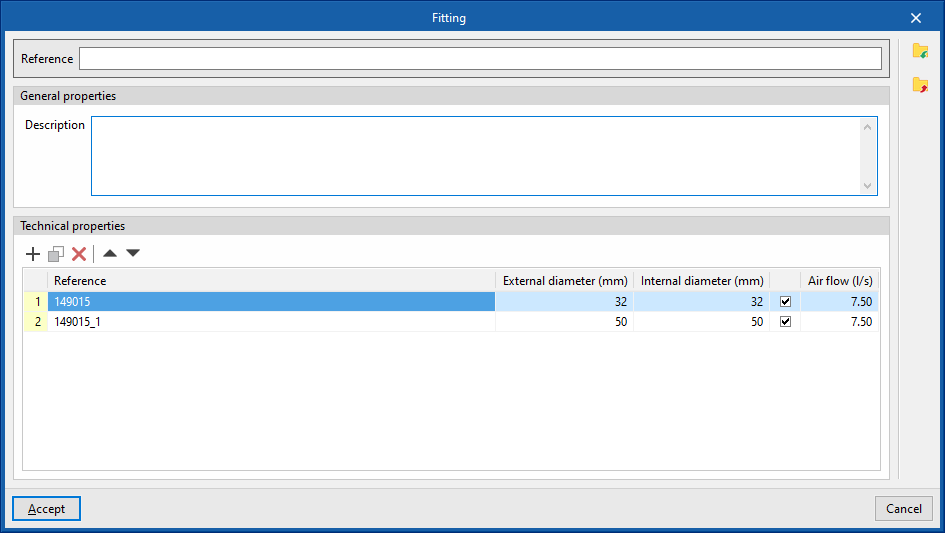
Fittings catalogue
Defines the catalogue of materials . The subsequent layout in the pumping inspection box model is carried out by means of the inspection box entry options in the "Registers" group of the program's general interface. The program allows users to select one of the catalogues of grease and hydrocarbon separators and bio-filtration systems created when entering a particular inspection box, so that a type of inspection box must be used with the "Grease separator" option activated in "Inspection boxes", in the "Design and check options to be carried out" section of the "General options".
Defines the dimension properties of each element by selecting a model from among those available.
- Reference
Material or equipment reference. - General properties
- Description
Material or equipment description.
- Description
- Technical properties
Enters the technical properties of the fitting by adding entries in the table.- Reference
- External diameter
- Internal diameter
- Air flow (optional)
Permissible air flow for aeration valves.
Drains catalogue
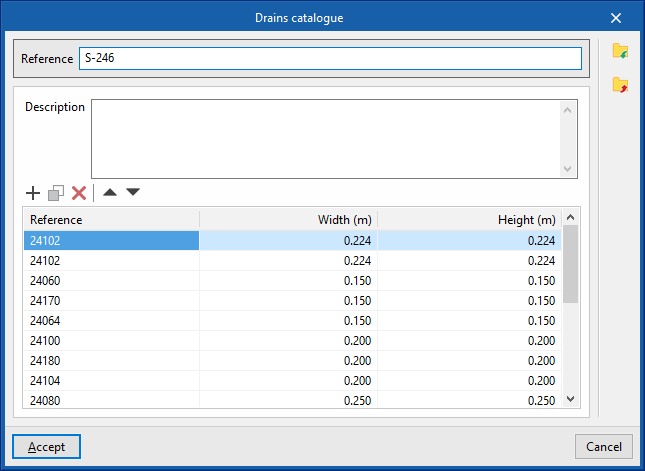
Defines the catalogue of materials corresponding to the drains. The materials defined here can be assigned to the drains created in "Downloads", in the "Design and check options to be carried out" section of the "General options", by activating the "Drain" and "Material" boxes. The subsequent layout of these elements in the model is done via the options in the "Downloads" group in the program's general interface.
When defining the drains in this section, the following parameters need to be specified:
- Reference
Material or equipment reference. - Description
Material or equipment description. - Properties
The properties of each drain in the series can be entered into the program by adding entries in the table.- Reference
- Width
- Height
Drainage pipes catalogue
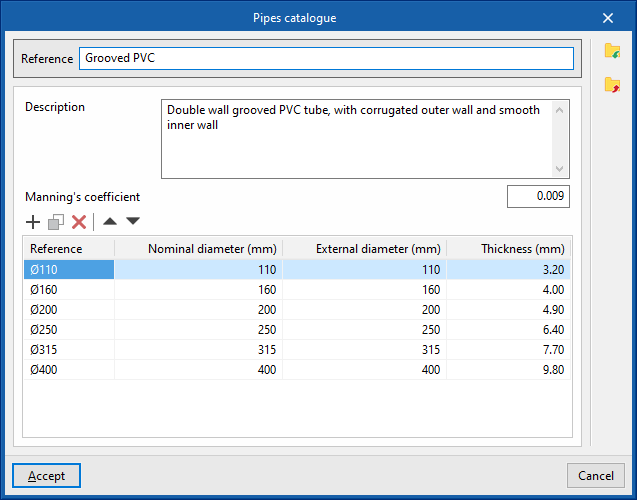
Defines the catalogue of materials corresponding to the drainage pipes. The materials defined here can be assigned to the drainage pipes created in "Drainage pipes", in the "Design and check options to be carried out" section of the "General options". The subsequent layout of these elements in the model is carried out by means of the "Drainage pipes" option in the "Pipes" group in the program's general interface.
When defining the drainage pipes in this section, the following parameters must be specified:
- Reference
Material or equipment reference. - Description
Material or equipment description. - Manning’s coefficient
Coefficient used in Manning's formulation. - Properties
The properties of each drainage pipe in the series can be entered into the program by adding entries in the table.- Reference
- Nominal diameter
- External diameter
- Thickness
Gutter catalogue
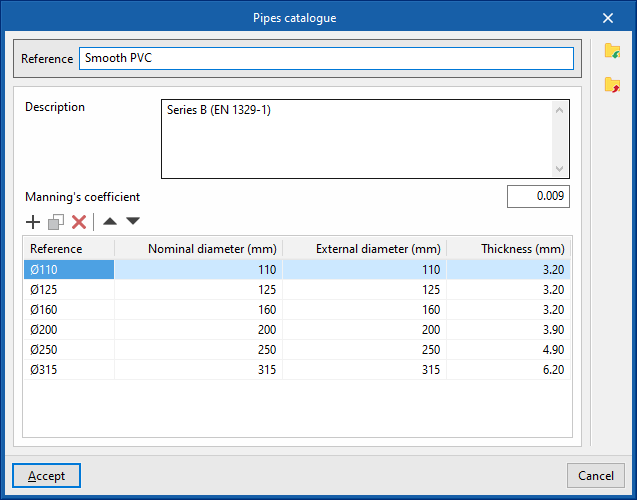
Defines the catalogue of materials corresponding to the gutters. The materials defined here can be assigned to the gutters created in "Gutters", in the "Design and check options to be carried out" section of the "General options". The subsequent layout of these elements in the model is carried out by means of the "Gutter" option in the "Pipes" group in the program's general interface.
When defining the gutters in this section, the following parameters must be specified:
- Reference
Material or equipment reference. - Description
Material or equipment description. - Manning’s coefficient
Coefficient used in Manning's formulation. - Properties
The properties of each gutter in the series can be entered into the program by adding entries in the table.- Reference
- Nominal diameter
- External diameter
- Thickness
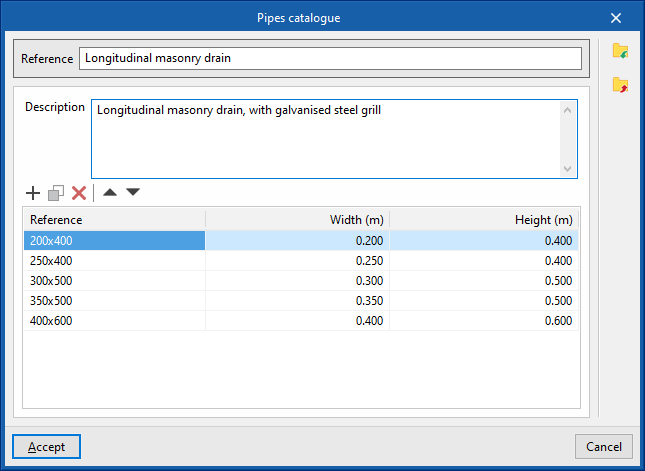
Longitudinal drains catalogue
Defines the catalogue of materials corresponding to the longitudinal drains. The selection and subsequent layout of these elements in the model is carried out by means of the "Longitudinal drain" option in the "Piping" group in the program's general interface.
When defining the longitudinal drains in this section, the following parameters must be specified:
- Reference
Material or equipment reference. - Description
Material or equipment description. - Properties
The properties of each longitudinal drain in the series can be entered into the program by adding entries in the table.- Reference
- Width
- Height
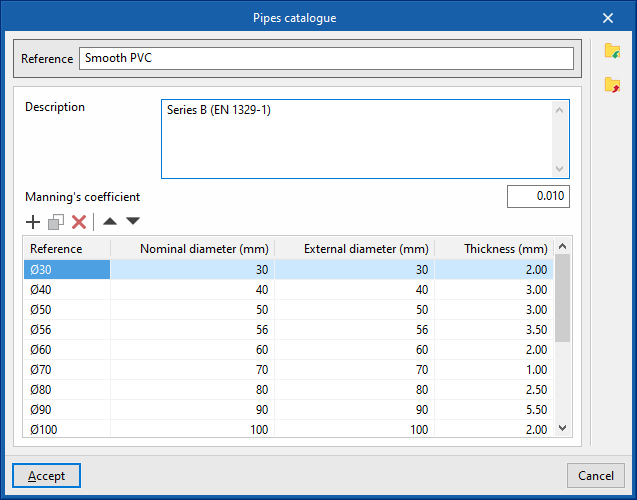
Pipes catalogue
Defines the catalogue of materials corresponding to the pipes. The materials defined here can be assigned to the horizontal and/or vertical pipes created in "Horiztonal pipes / Vertical pipes", in the "Design and check options to be carried out" section of the "General options". The subsequent arrangement of these elements in the model is carried out by means of the corresponding options in the "Pipes" group in the program's general interface ("Pipe", "Vertical pipe").
When defining the pipes in this section, the following parameters must be specified:
- Reference
Material or equipment reference. - Description
Material or equipment description. - Manning’s coefficient
Coefficient used in Manning's formulation. - Properties
The properties of each pipe in the series can be entered into the program by adding entries in the table.- Reference
- Nominal diameter
- External diameter
- Thickness
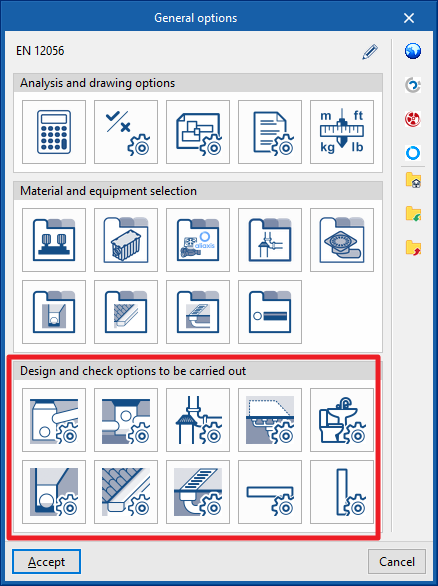
Configuring the design and check options to be carried out on the drainage system
Under the "Installation" tab in the "Sanitary Systems" section, within the "General options" of the "Project" group on the main toolbar, you can configure the "Design and check options" for the following elements of the drainage system:

- Supply connection points
- Inspection box
- Fittings
- Drainage areas
- Downloads
- Drainage pipes
- Gutters
- Longitudinal drains
- Horizontal pipes
- Vertical pipes
These criteria and lists of options must be defined for each type of element before it is selected and added to the model.
If you use the "Import settings" option, located to the right of the "General options" panel, you can automatically generate this data for various national and international standards. Similarly, you can import data from different manufacturers by clicking on the options displaying their logos.
The remaining options in the right-hand column allow you to import and export the complete settings from the "General options" panel to files on your hard drive, as well as to select a file containing default values when creating a new project.
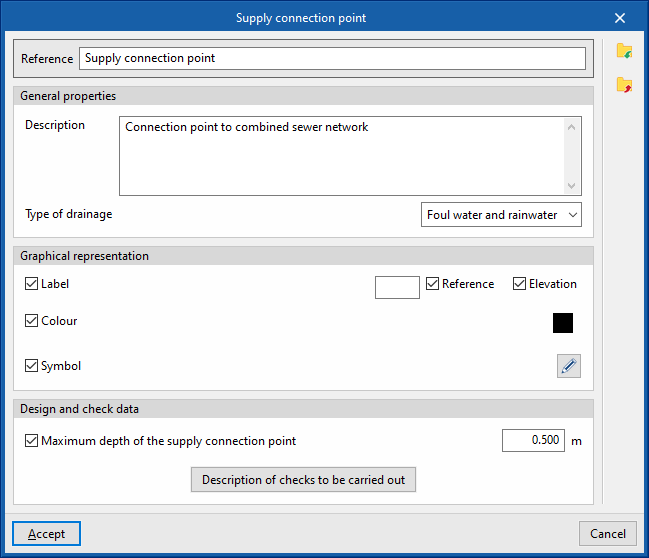
Supply connection points
This allows you to define the supply connection points available in the project. These elements are subsequently added to the model using the "Supply connection point" option in the "Registers" group.
When defining a connection point in this section, the following parameters must be specified:
- Reference
Connection point reference. - General properties
- Description
Description of the supply connection point. - Type of drainage (Sewage / Black water / Grey water / Rainwater / Sewage and rainwater)
- Description
- Graphic representation
- Tag (optional)
- Reference (optional)
- Height (optional)
- Colour (optional)
- Symbol (optional)
- Tag (optional)
- Design and check data
- Maximum depth of the supply connection point (optional)
Enables the maximum depth check for the connection point. - Description of the checks to be carried out
Allows you to enter a description of the checks to be carried out on the element. This text will appear in the reports next to each check.- Maximum depth of the connection point
- Maximum depth of the supply connection point (optional)
Inspection box
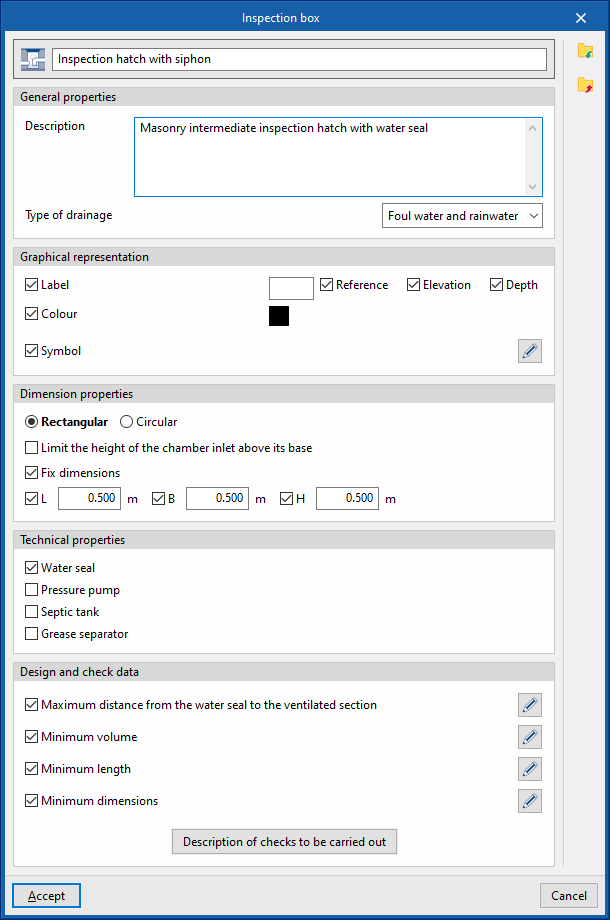
This allows you to define the inspection box available in the project. These elements are subsequently added to the model using the inspection box insertion options in the "Inspection box" group.
When defining a inspection box in this section, the following parameters must be specified:
- Reference
Inspection box reference. The button on the left allows you to change the associated icon if this inspection box is activated in the toolbar. - General properties
- Description
Description of the inspection box. - Type of drainage (Sewage / Black water / Grey water / Rainwater / Sewage and rainwater)
- Description
- Graphical representation
- Tag (optional)
- Reference (optional)
- Height (optional)
- Depth (optional)
- Colour (optional)
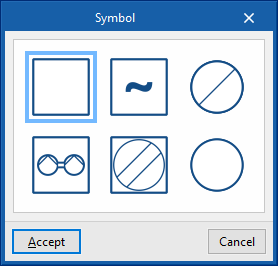
- Symbol (optional)
- Tag (optional)
- Dimension properties
- Rectangular / Circular
Defines the type of inspection box. - Limit the height of the chamber inlet above its base (optional)
Allows you to enter a maximum height for chamber inlets above their base. - Fix dimensions
- Rectangular (L, W, H)
Sets the plan dimensions (L, W) and the height (H) of the rectangular inspection box. - Circular (Diameter, Depth)
Sets the diameter and depth of the circular inspection box.
- Rectangular (L, W, H)
- Rectangular / Circular
- Technical properties
- Water seal (optional)
Allows a water seal to be specified for the component, to indicate that it is a siphon trap or a siphon pot. - Pressure pump (optional)
This option indicates that the chamber is a pumping chamber. When the chamber is subsequently added to the model, a pressure pump defined in the "Pressure pump catalogue" within the "Materials and equipment selection" section of the "General options" is selected. - Septic tank (optional)
- Grease trap (optional)
This option allows you to specify that the chamber is a grease trap. When the chamber is subsequently added to the model, a grease trap defined in the "Catalogue of grease and hydrocarbon separators and bio-filtration systems" within the "Selection of materials and equipment" section of the "General options" is selected. - Excavations (optional)
Allows you to select an inspection box excavation profile defined under "Inspection box", within "Excavations", in the "Design options" section of the "General options". This enables the program to analyse the excavation volumes for the inspection box.
- Water seal (optional)
- Design and check data
- Maximum distance from the water seal to the ventilated section (optional)
This allows you to enable the check for the maximum distance between the hydraulic gate and the ventilated section based on the slope. - Minimum volume (optional)
Allows you to enable the minimum volume check for the inspection box by selecting one of the following calculation expressions:- V = 0.3 × Q
- V = 0.9 × Q / N,
Where N is the number of starts per hour of the pressure pump. - V = Q × t / 4, where
Where t is the time interval.
- Minimum length (optional)
Enables the maximum distance between the hydraulic seal and the ventilated section to be checked based on the depth. - Minimum dimensions (optional)
This option enables the analysis of the minimum dimensions of the inspection box (length and width or diameter) based on the nominal diameter of the outlet sewer, which can be defined when inserting a inspection box element into the model.
- Maximum distance from the water seal to the ventilated section (optional)
Fittings
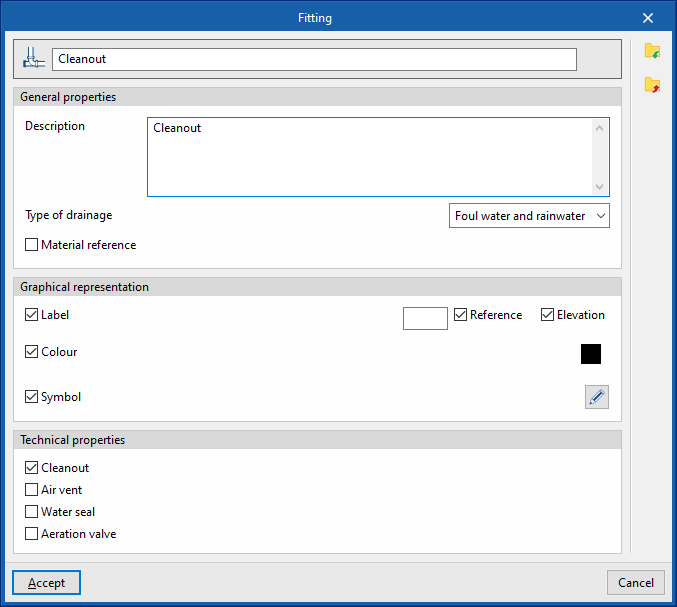
This allows you to define the fittings available in the project, such as cleaning access panels, ventilation outlets and ventilation valves. These elements are subsequently added to the model using the fitting insertion options in the "Access panels" group.
When defining a fitting in this section, you must specify the following parameters:
- Reference
Fitting reference. The button on the left allows you to change the associated icon if this accessory is activated in the toolbar. - General properties
- Description
Description of the fitting. - Type of drainage (Sewage / Black water / Grey water / Rainwater / Sewage and rainwater)
- Material reference (optional)
Allows you to select a material for the fitting defined in the "Fittings catalogue" within the "Materials and equipment selection" section of the "General options".
- Description
- Graphic representation
- Label (optional)
- Reference (optional)
- Elevation (optional)
- Colour (optional)
- Symbol (optional)
- Label (optional)
- Technical properties
This allows you to specify whether the fitting is a cleaning port, an aeration outlet, a hydraulic shut-off valve or an aeration valve.- Cleanout (optional)
- Air vent (optional)
- Water seal (optional)
- Aeration valve (optional)
Drainage areas
This allows you to define the drainage areas available in the project. These elements are subsequently added to the model using the "Drainage area" option in the "Outlets" group.
When defining a catchment area in this section, you must specify the following parameters:
- Reference
Drainage area reference. - General properties
- Description
Description of the drainage area. - Type of drainage (Sewage / Black water / Grey water / Rainwater / Sewage and rainwater)
- Description
- Graphic representation
- Label (optional)
- Reference (optional)
- Area (optional)
- Colour (optional)
- Label (optional)
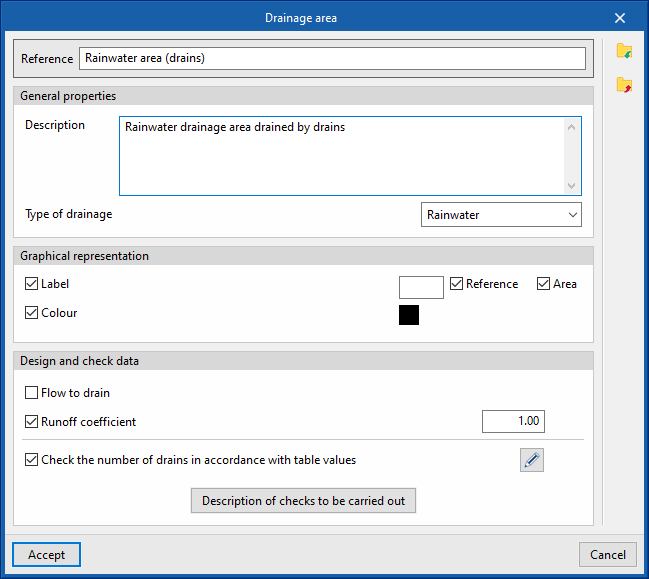
- Design and check data
- Drainage flow rate (optional)
Allows you to specify the drainage flow rate per unit area of the drainage catchment. - Runoff coefficient (optional)
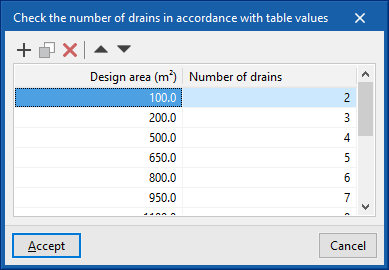
Allows you to apply a runoff coefficient that regulates the volume of water drained by the catchment area. - Check the number of drains against table values (optional)
This allows you to enable a check of the number of drains located in the drainage area based on the projected area. - Description of the checks to be carried
out Allows you to enter a description of the checks to be carried out on the element. This text will appear in the lists next to each check.- Check the number of drains against the values in the table
- Drainage flow rate (optional)
Downloads
This allows you to define the loads available in the project. These elements can then be added to the model using the options in the "Loads" group.
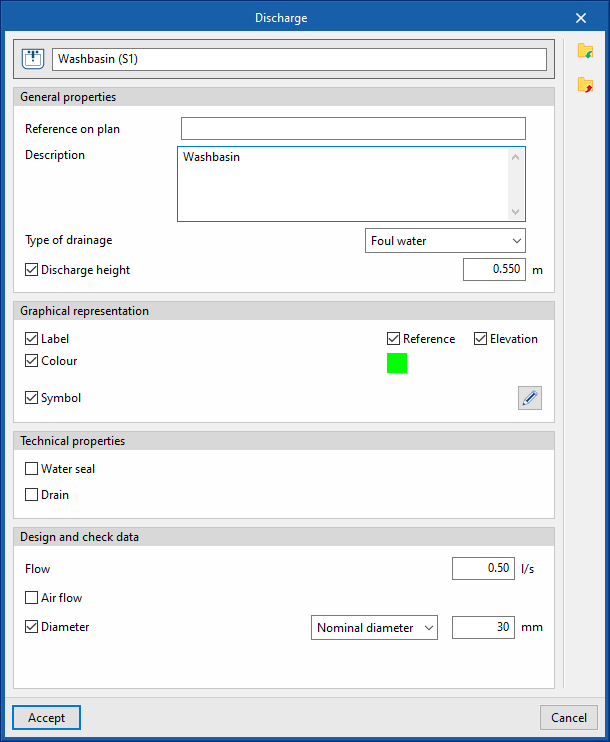
When defining a download in this section, you must specify the following parameters:
- Reference
Download reference. The button on the left allows you to change the associated icon if this download is activated in the toolbar. - General properties
- Reference on the map
- Description
Description of the download. - Type of drainage (Sewage / Black water / Grey water / Rainwater / Sewage and rainwater)
- Discharge height (optional)
Defines a discharge height as a positive value, measured from the point where the element is inserted into the model.
- Graphic representation
- Tag (optional)
- Reference (optional)
- Height (optional)
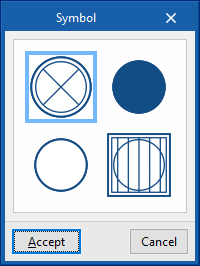
- Colour (optional)
- Symbol (optional)
- Tag (optional)
- Technical properties
- Water seal (optional)
Indicates that the discharge is fitted with a water seal. - Drain (optional)
Allows you to specify that the discharge is a point drain. In this case, you can select a material from those defined in the "General options", under "Selection of materials and equipment", and from the "Drain catalogue".- Material (optional)
- Water seal (optional)
- Design and check data
- Drainage units
: Allows you to specify the number of drainage units associated with the discharge. This option only appears if the "Discharge values defined in drainage units" checkbox is ticked; this can be accessed via the "Calculation options" section of the "General options". - Projected area (optional)
Allows you to override the projected area associated with a discharge defined as a drain. This option only appears if the "Drain" checkbox in this panel is ticked and the "Discharge values defined in drainage units" checkbox, accessible from the "Calculation options" section of the "General options", is ticked. - Flow rate (optional)
Allows you to set the flow rate associated with the discharge. If this option is left disabled, the flow rate can be set when entering each discharge item using the options in the "Discharges" group on the main interface. - Air flow rate (optional)
Allows you to set the air flow rate associated with the discharge. - Diameter (optional)
Allows you to specify the following diameters associated with the discharge.- Nominal diameter
- Outer diameter
- Inner diameter
- Maximum distance between the hydraulic closure and the ventilated section (optional)
This allows you to enable the check for the maximum distance between the hydraulic closure and the ventilated section based on the slope. This option is only available if the "Hydraulic closure" checkbox is ticked in this panel.
- Drainage units
Drainage pipes
This allows you to define the drainage pipes available in the project. These elements can subsequently be added to the model using the "Drainage pipe" option within the "Pipes" group.
When defining a drainage pipe in this section, you must specify the following parameters:
- Reference
Drainage pipe reference. - General properties
- Graphic representation
- Tag (optional)
- Reference (optional)
- Length (optional)
- Earring (optional)
- Diameter (optional)
- Height (optional)
- Colour (optional)
- Tag (optional)
- Design and check data
- Minimum diameter (optional)
Allows you to specify the minimum diameter (nominal, external or internal) of the drainage pipe. - Maximum diameter (optional)
Allows you to specify the maximum diameter (nominal, external or internal) of the drainage pipe. - Minimum slope (optional)
The minimum gradient that the drainage pipe must have to ensure self-cleaning conditions. - Maximum slope (optional)
The maximum permissible gradient that the drainage pipe may have. - Minimum nominal diameter (optional)
Allows you to specify the minimum nominal diameter of the drainage pipe by adding entries to a table based on the degree of impermeability, the pipe’s slope and its layout (underground or along the perimeter of the wall). These details are subsequently specified for each drainage pipe added to the model using the “Drainage pipe” option in the “Pipes” group.- Waterproofing rating / Minimum gradient / Maximum gradient / Nominal diameter (underfloor drains) / Nominal diameter (perimeter wall drains)
- Minimum drag force; Minimum velocity; Maximum velocity; Minimum fill level; Maximum fill level
This set of options allows you to configure the values associated with the hydraulic calculation checks and only appears if the "Hydraulic analysis" option is enabled in the "Design options" section of the "General options". - Description of the checks to be carried out
Allows you to enter a description of the checks to be carried out on the element. This text will appear in the reports next to each check.- "General data" tab (Minimum nominal diameter, Maximum nominal diameter, Minimum gradient, Maximum gradient). This tab only appears if the relevant options are selected in the previous editing panel.
- "Design by tables" tab (Diameter, Slope)
This tab only appears if the "Design by tables" option is enabled in the "Design options" section of the "General options". - "Hydraulic analysis" tab (Drag force, Minimum velocity, Maximum velocity, Minimum water level, Maximum water level, Hydraulic capacity)
This tab only appears if the "Hydraulic analysis" option is enabled in the "Design options" section of the "General options".
- Minimum diameter (optional)
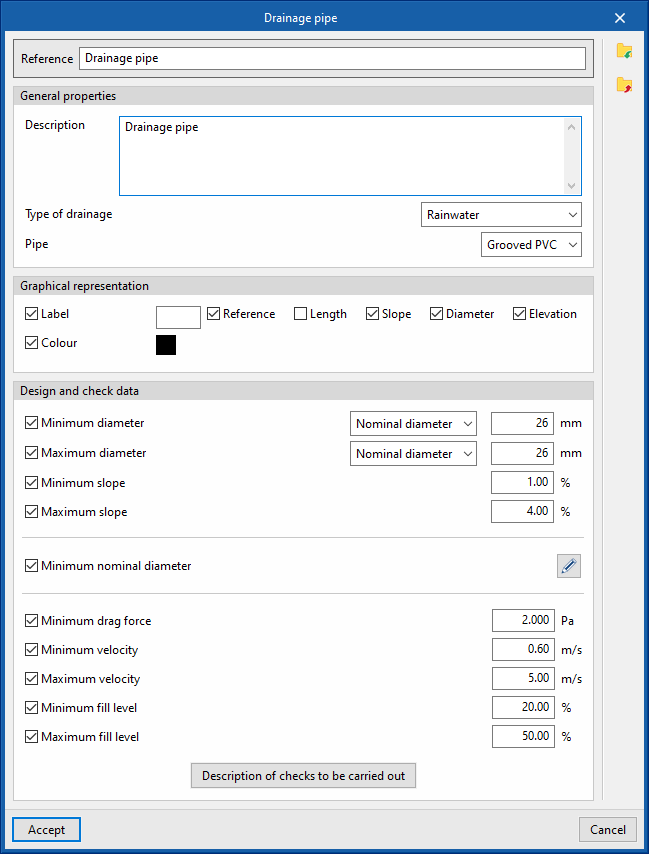
Gutters
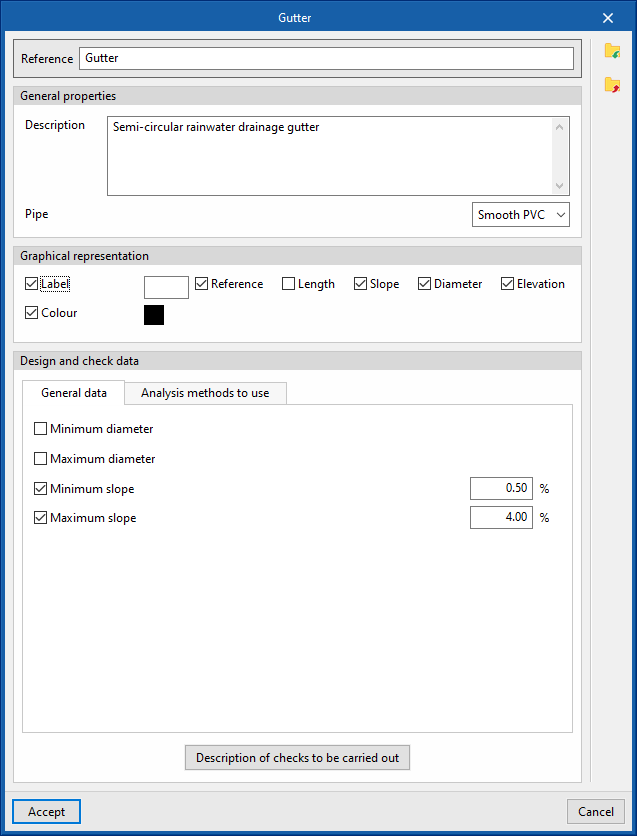
This allows you to define the gutters available in the project. These elements can subsequently be added to the model using the "Gutter" option within the "Pipes" group.
When defining a gutter in this section, you must specify the following parameters:
- Reference
Gutter reference. - General properties
- Description
Description of the gutter. - Piping
Select a material from those listed in the "Gutter catalogue", under the "Materials and equipment selection" section of the "General options".
- Description
- Graphic representation
- Tag (optional)
- Reference (optional)
- Length (optional)
- Slope (optional)
- Diameter (optional)
- Elevation (optional)
- Colour (optional)
- Tag (optional)
- Design and check data
- "General Information" tab
- Minimum diameter (optional)
Allows you to specify the minimum diameter (nominal, external or internal) of the gutter. - Maximum diameter (optional)
Allows you to specify the maximum diameter (nominal, external or internal) of the gutter. - Minimum slope (optional)
The minimum slope that the gutter must have to ensure self-cleaning conditions. - Maximum slope (optional)
The maximum permissible slope that the gutter can have.
- Minimum diameter (optional)
- "Analysis methods to use" tab
- "Design using tables" tab
- Drainage units / Area / Flow
rate
This allows you to define, in a series of tables, the nominal diameter to be used for each value of the number of drainage units, projected area or flow rate of water discharged, and for each gradient value. The program calculates the diameter of the elements based on this configuration if "Design using tables" is selected in the "Design options" section of the "General options".
- Drainage units / Area / Flow
- "Hydraulic analysis" tab
- Minimum head, Minimum velocity, Maximum velocity, Minimum fill level, Maximum fill level
This set of options configures the values associated with the hydraulic analysis checks and only appears if the "Hydraulic analysis" option is enabled in the "Design options" section of the "General options".
- Minimum head, Minimum velocity, Maximum velocity, Minimum fill level, Maximum fill level
- "Design using tables" tab
- Description of the checks to be carried out
Allows you to enter a description of the checks to be carried out on the element. This text will appear in the lists next to each check.- "General data" tab (Minimum nominal diameter, Maximum nominal diameter, Minimum gradient, Maximum gradient). This tab only appears if the relevant options are selected in the previous editing panel.
- "Design using tables" tab (Drainage units / Projected area / Flow rate, Diameter, Gradient)
This tab only appears if the "Design using tables" option is enabled in the "Design options" section of the "General options". - "Hydraulic analysis" tab (Drag force, Minimum velocity, Maximum velocity, Minimum water level, Maximum water level, Hydraulic capacity)
This tab only appears if the "Hydraulic analysis" option is enabled in the "Design options" section of the "General options".
- "General Information" tab
Longitudinal drains
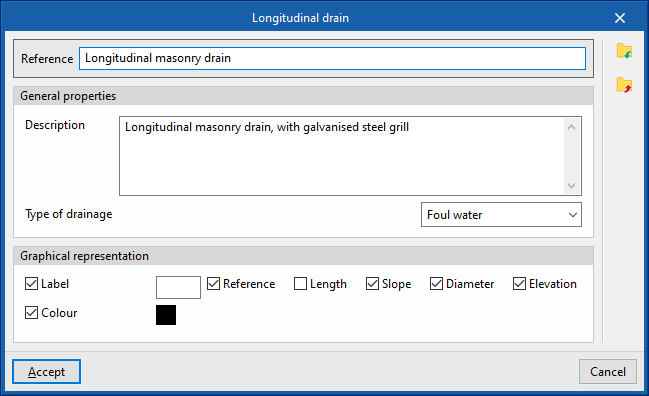
This allows you to define the longitudinal drains available in the project. These elements can subsequently be added to the model using the "Longitudinal drain" option within the "Pipes" group.
When defining a longitudinal drain in this section, the following parameters must be specified:
- Reference:
Reference for the longitudinal drain. - General properties
- Description
Description of the longitudinal drain. - Type of drainage (Sewage / Black water / Grey water / Rainwater / Sewage and rainwater)
- Description
- Graphic representation
- Label (optional)
- Reference (optional)
- Length (optional)
- Slope (optional)
- Diameter (optional)
- Height (optional)
- Colour (optional)
- Label (optional)
Horizontal pipes
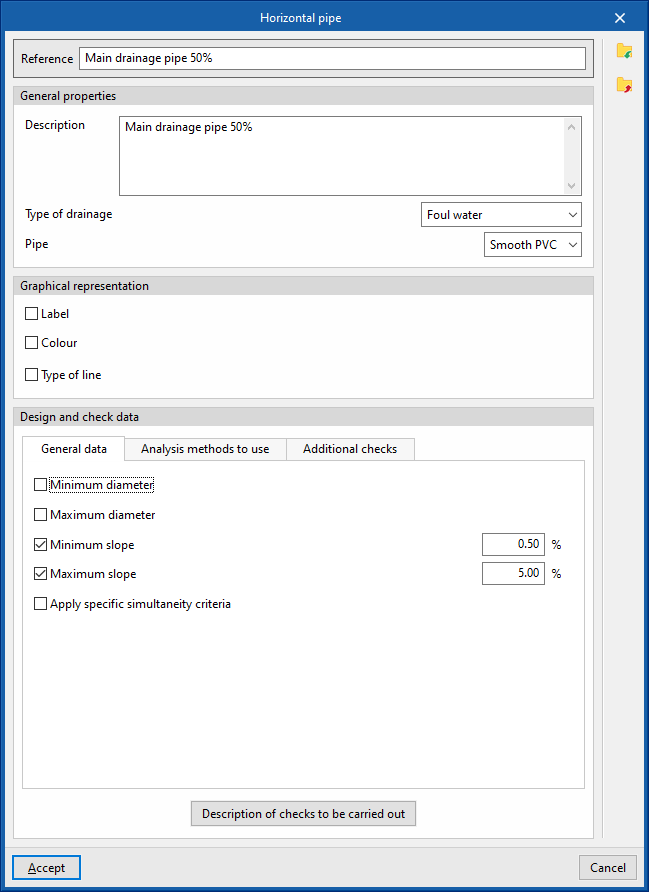
This allows you to define the horizontal pipes in the project. These elements can subsequently be added to the model using the options in the "Pipes" group.
When defining a horizontal pipe in this section, you must specify the following parameters:
- Reference:
Reference for the horizontal pipe. - General properties
- Description
Description of the horizontal pipe. - Drainage type (Sewage / Black water / Grey water / Stormwater / Sewage and stormwater / Ventilation)
Selects the type of drainage. This includes the option to define a ventilation pipe. - Piping
Selects a material from those defined in the "Pipe catalogue" under the "Materials and equipment selection" section of the "General options".
- Description
- Graphical representation
- Label (optional)
- Reference (optional)
- Length (optional)
- Slope (optional)
- Diameter (optional)
- Height (optional)
- Colour (optional)
- Type of line (optional)
- Label (optional)
- Technical properties
- Excavations (optional)
Selects a horizontal pipe excavation profile defined under "Horizontal pipes" within "Excavations" in the "Calculation options" section of "General options". In this way, the program is able to calculate the excavation volumes for the horizontal pipe.
- Excavations (optional)
- Design and check data
- "General data" tab
- Minimum diameter (optional)
Specifies the minimum diameter (nominal, external or internal) of the pipe. - Maximum diameter (optional)
Specifies the maximum diameter (nominal, external or internal) of the pipe. - Minimum slope (optional)
The minimum gradient that the pipe must have to ensure self-cleaning conditions. - Maximum slope (optional)
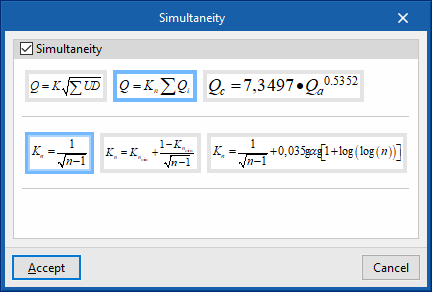
The maximum permissible slope that the pipe can have. - Apply specific simultaneity criteria (optional)
Applies specific simultaneity criteria for the pipeline instead of those defined under "Simultaneity" in the "Design options" section of the "General options".- Q = K (Σ UD)¹/²
This formula allows you to calculate the simultaneous flow rate (Q) based on the sum of discharge units (UD) and the coefficient K. This coefficient can be entered in the box immediately below. The wizard on the right allows you to import default values for the coefficient K for different loadcases involving the use of sanitary appliances. - Q = Kn Σ Q
i This formula allows the total flow rate (Q) to be calculated based on the sum of the instantaneous flow rates (Qi) and the Kn coefficient. This coefficient depends on the number n of outlets, and its calculation formula takes various forms, which are displayed and can be selected in this section. - Qc = 7.3497 × Qa⁰.⁵³⁵²
This formula allows the simultaneous or design flow rate (Qc) to be calculated based on the cumulative flow rate (Qa).
- Q = K (Σ UD)¹/²
- Minimum diameter (optional)
- "Analysis methods to use" tab
- "Table-based sizing" tab
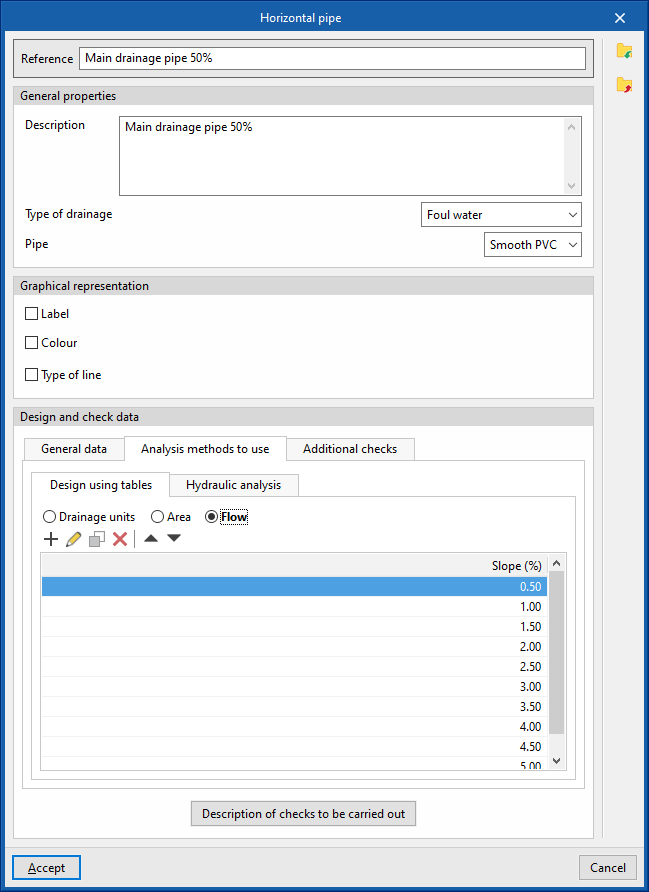
- Drainage units / Area / Flow
rate
Defines, in a series of tables, the nominal diameter to be used for each value of the number of drainage units, projected area or flow rate of water discharged, and for each gradient value. The program calculates the diameter of the elements based on this configuration if "Design using tables" is selected in the "Design options" section of the "General options".
- Drainage units / Area / Flow
- "Hydraulic analysis" tab
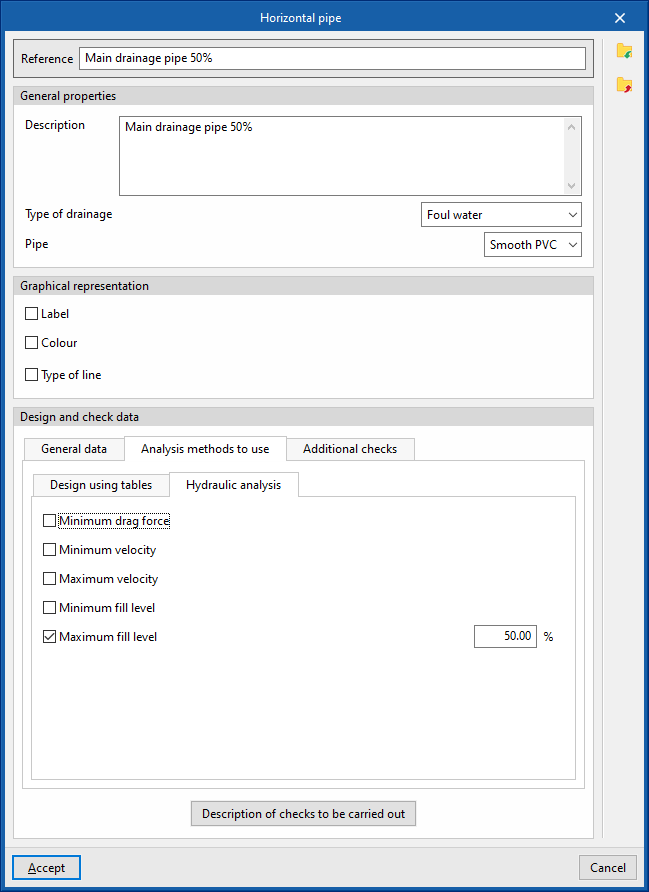
- Minimum head, Minimum velocity, Maximum velocity, Minimum fill level, Maximum fill level (optional)
This set of options sets the values associated with the hydraulic analysis checks and only appears if the "Hydraulic analysis" option is enabled in the "Design options" section of the "General options".
- Minimum head, Minimum velocity, Maximum velocity, Minimum fill level, Maximum fill level (optional)
- "Table-based sizing" tab
- "Additional checks" tab
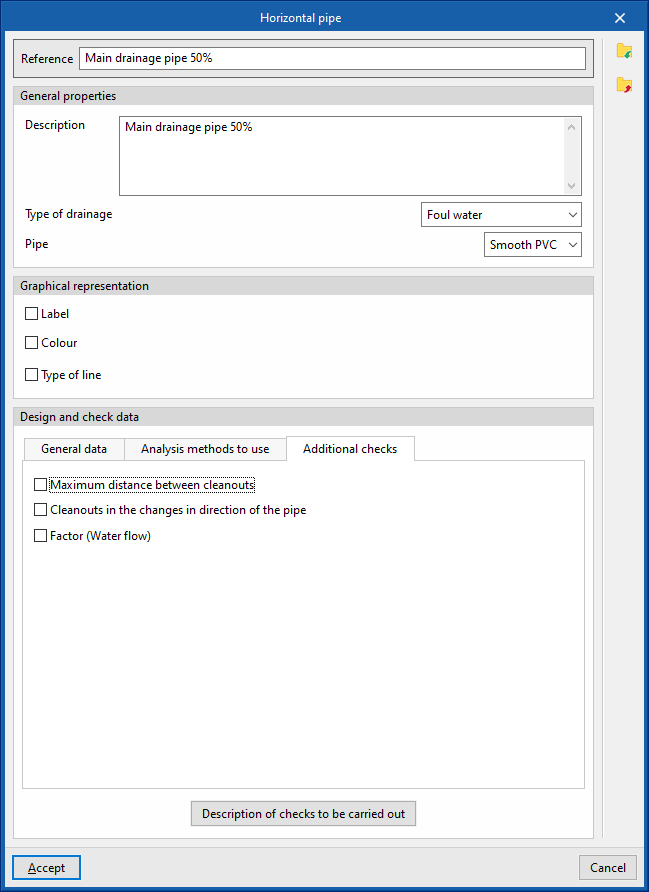
Defines the following additional checks to be carried out on the pipework.- Maximum distance between cleanout (optional)
- Cleanouts in the changes in the direction of the pipe (optional)
- Factor (Water flow) (optional)
- Description of the checks to be carried out
Enters a description of the checks to be carried out on the element. This text will appear in the lists next to each check.- "General data" tab (Minimum nominal diameter, Maximum nominal diameter, Minimum gradient, Maximum gradient). This tab only appears if the relevant options are selected in the previous editing panel.
- "Design using tables" tab (Diameter, Slope)
This tab only appears if the "Dimensioning by Tables" option is enabled in the "Calculation Options" section of the "General Options". - "Hydraulic analysis" tab (Drag force, Minimum velocity, Maximum velocity, Minimum water level, Maximum water level, Slope, Hydraulic capacity)
This tab only appears if the "Hydraulic analysis" option is enabled in the "Design options" section of the "General options".
- "General data" tab
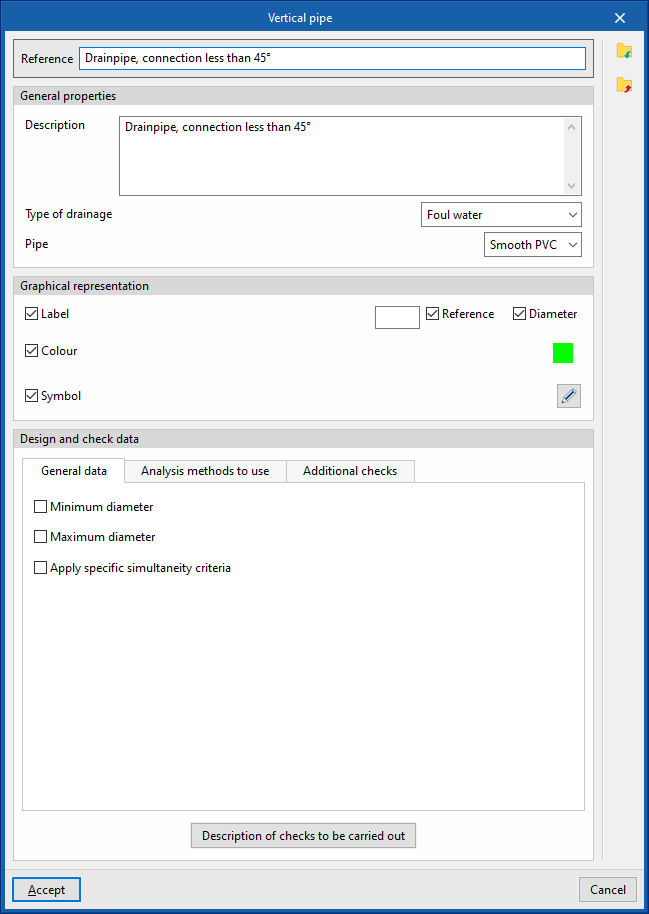
Vertical pipes
Defines the vertical pipes in the project. These elements can subsequently be added to the model using the options in the "Pipes" group.
When defining a vertical pipe in this section, you must specify the following parameters:
- Reference:
Reference for the vertical pipe. - General properties
- Description
Description of the vertical pipe. - Drainage type (Sewage / Black water / Grey water / Stormwater / Sewage and stormwater / Ventilation)
Allows you to select the type of drainage. This includes the option to define a ventilation pipe. - Pipe
Select a material from those defined in the "Pipe catalogue" under the "Materials and equipment selection" section of the "General options".
- Description
- Graphic representation
- Label (optional)
- Reference (optional)
- Length (optional)
- Slope (optional)
- Diameter (optional)
- Height (optional)
- Colour (optional)
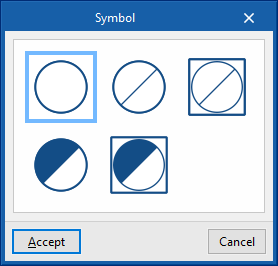
- Symbol (optional)
- Label (optional)
- Design and check data
- "General properties" tab
- Minimum diameter (optional)
Allows you to specify the minimum diameter (nominal, external or internal) of the pipe. - Maximum diameter (optional)
Allows you to specify the maximum diameter (nominal, external or internal) of the pipe. - Apply specific simultaneity criteria (optional)
Allows you to apply specific simultaneity criteria for the pipe instead of those defined under "Simultaneity", which is located within the "Design options" section of "General options".- Q = K (Σ UD)¹/²
This formula allows you to calculate the simultaneous flow rate (Q) based on the sum of discharge units (UD) and the coefficient K. This coefficient can be entered in the box immediately below. The wizard on the right allows you to import default values for the coefficient K for different laodcases involving the use of sanitary appliances. - Q = Kn Σ Q
i This formula allows the total flow rate (Q) to be calculated based on the sum of the instantaneous flow rates (Qi) and the Kn coefficient. This coefficient depends on the number n of outlets, and its calculation formula takes various forms, which are displayed and can be selected in this section. - Qc = 7.3497 × Qa⁰.⁵³⁵²
This formula allows the simultaneous or design flow rate (Qc) to be calculated based on the cumulative flow rate (Qa).
- Q = K (Σ UD)¹/²
- Minimum diameter (optional)
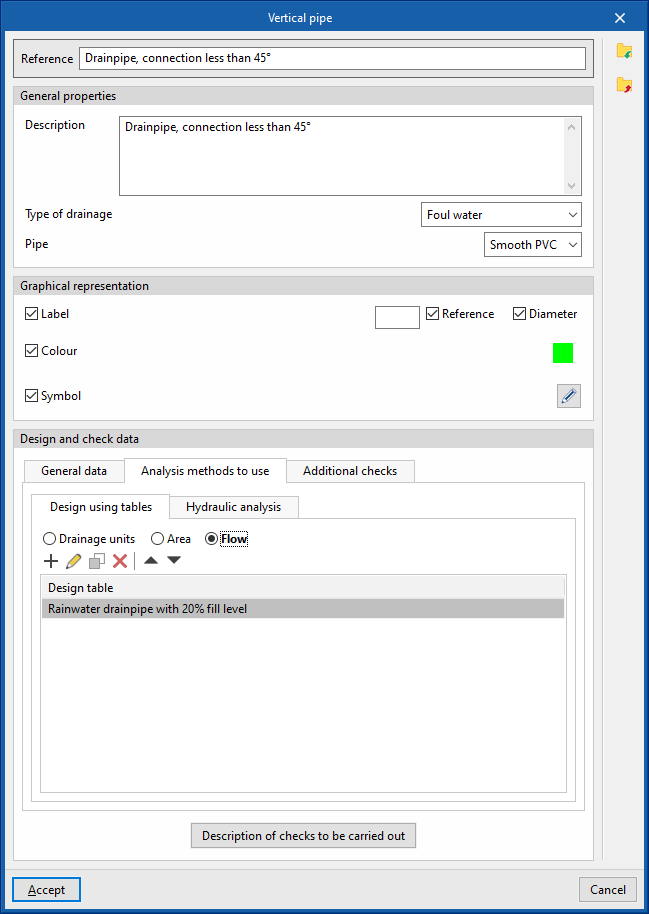
- "Analysis methods to use" tab
- "Design using tables" tab
- Drainage units / Area / Flow rate
This allows you to define, in a series of tables, the nominal diameter for each value of the number of drainage units, projected area or discharged water flow rate, and for each gradient value. The program calculates the diameter of the elements based on this configuration if “Design using tables” is selected in the “Design options” section of the “General options”. It also offers the following additional options:- Maximum number of floors (optional)
Allows you to specify the maximum number of storeys in the vertical pipe. - Fix the maximum number of units in each branch (optional)
This allows you to set the maximum number of drainage units, the maximum projected area or the maximum flow rate of water discharged in each branch.
- Maximum number of floors (optional)
- Drainage units / Area / Flow rate
- "Hydraulic analysis" tab
- Maximum fill level (optional)
This option allows you to set the value used for the maximum fill level check and only appears if the "Hydraulic analysis" option is enabled in the "Design options" section of the "General options".
- Maximum fill level (optional)
- "Design using tables" tab
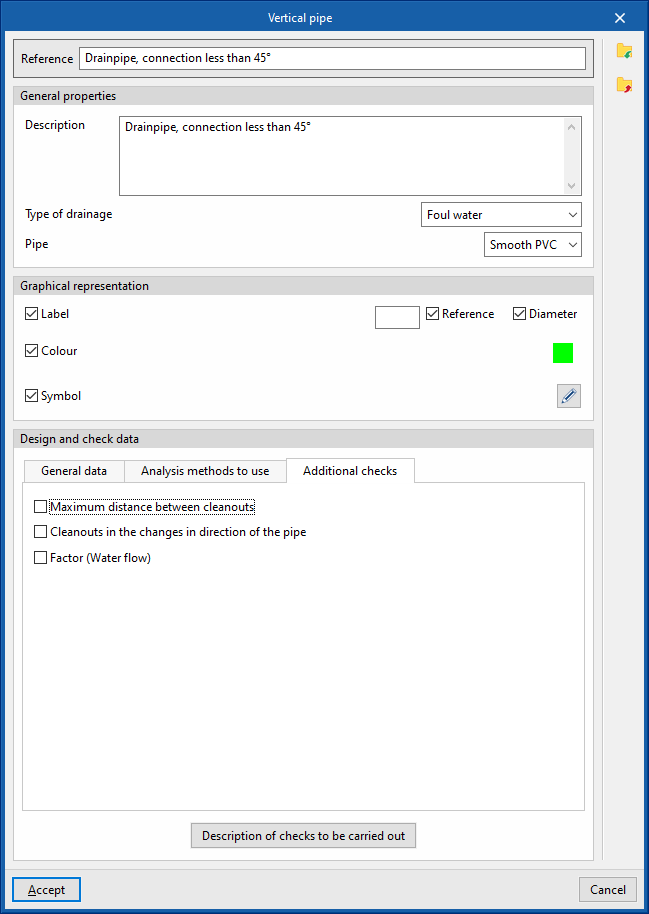
- "Additional checks" tab
Defines the following additional checks to be carried out on the pipe.- Maximum distance between records (optional)
- Records of changes in the direction of the pipe (optional)
- Factor (Water flow) (optional)
- Description of the checks to be carried out
Enters a description of the checks to be carried out on the element. This text will appear in the lists next to each check.- Minimum nominal diameter, Maximum nominal diameter, Fill level, Hydraulic
capacity
These fields only appear if the relevant options are selected in the previous editing panel and the "Hydraulic analysis" option is selected in the "Design options" section of the "General options".
- Minimum nominal diameter, Maximum nominal diameter, Fill level, Hydraulic
- "General properties" tab
Defining the rainfall intensity in the water drainage system project
In the "Installation" tab of the "Sanitary Systems" tab, in the "General options" of the “Project” group of the main toolbar, there are options for defining the rainfall intensity of the water evacuation system:

Rainfall intensity
Defines the rainfall intensity at the project site by entering the following parameters:
- City
- Description
- Rainfall intensity
- Correction factor of the surface area served (optional)
This factor multiplies the surface area the drainage elements cover for the purpose of design by tables, which are defined from "Design and check options to be carried out", under "General options".
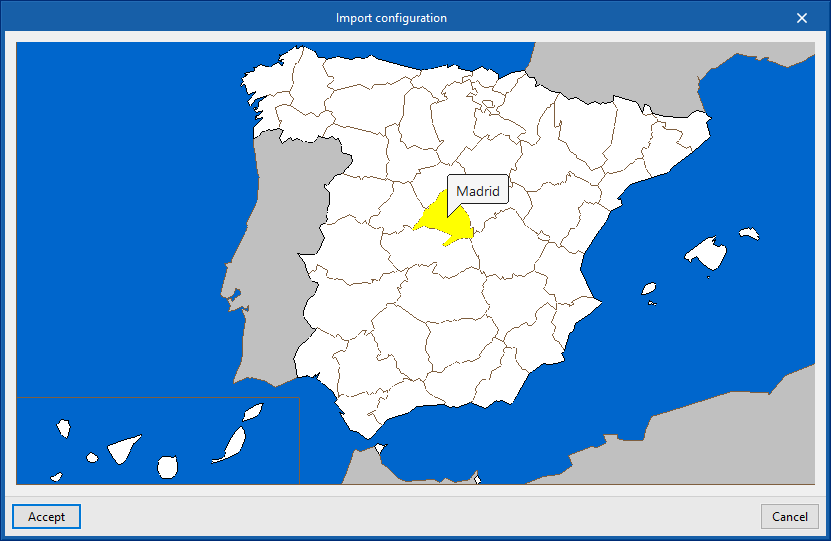
Using the options in the right column, these values can be imported from the predefined data for different countries and regions.
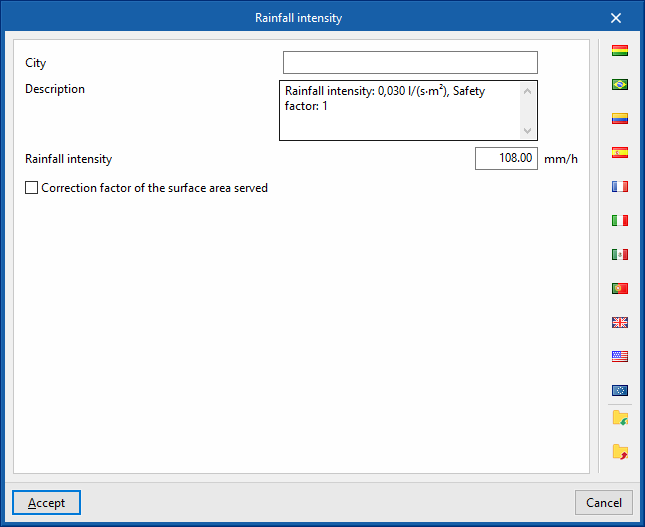
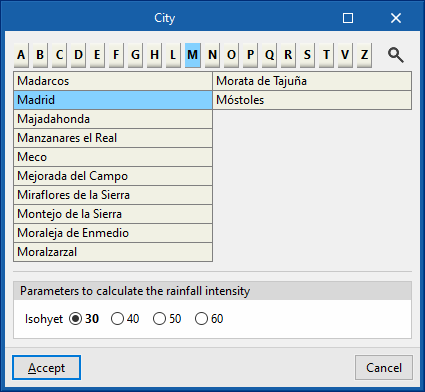
In some cases, users must select the "City" and specify the "Parameters to calculate the rainfall intensity", such as the selection of the "Isohyet", the "Service period" or the "Rainfall duration". Then, the values of the imported parameters can be modified, if desired.
The program obtains the flow of the "Drainage areas" entered with the corresponding option in the "Discharges" group from their projected area and the rainfall intensity defined in this section.
Assigning design options in the design of a water evacuation system
In the "Installation" tab of the "Water Systems" tab, in the "General options" of the "Project" group of the main toolbar, there is an option for assigning the design options of the water evacuation system in the project:

Design options
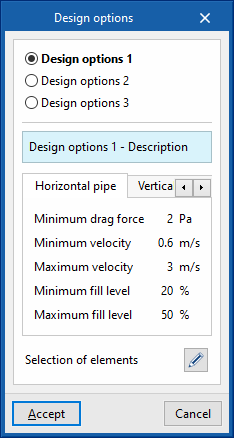
Selects one of the sets of design options previously defined in "Design options" under "General checks" in the "General options" and assigns them globally to the desired element types.
In the window that appears when clicking on this option, a set of design options is selected and the parameters defined therein are reported for the following categories of elements:
- Horizontal pipes
- Vertical pipes
Then, the "Selection" option is used to access a table showing the currently defined parameters. Here, users tick the box to the left of each element type where they wish to assign the selected set of design options. The program will modify the design parameters of these types after accepting this window.
Defining floor plans in the water evacuation system project
In the "Installation" tab of the "Water Systems" tab, in the "General options" of the "Project" group of the main toolbar, there is an option for defining the floor plans the water evacuation system in the project:

Floor plans
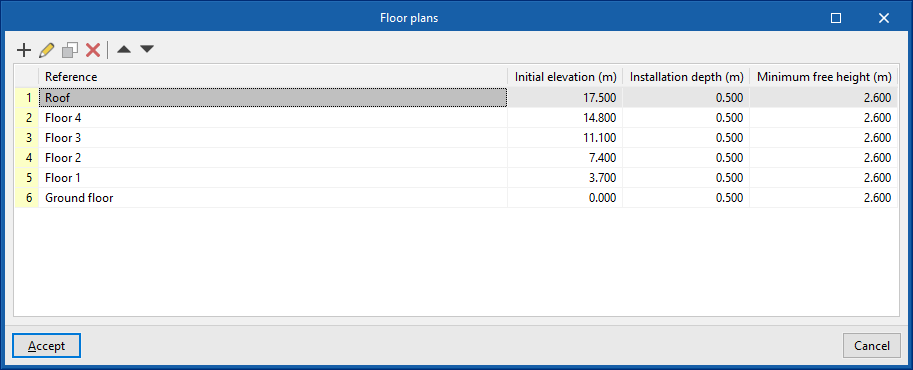
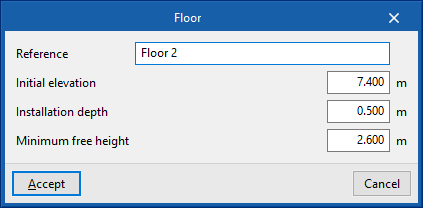
Defines the floor plans of the water evacuation system in a table. The options at the top allow users to add, edit, copy, delete or rearrange the floor plans.
- Reference
Floor plan reference. - Initial elevation
Elevation of the floor plan with respect to the project's origin of coordinates. - Installation depth
Minimum depth at which the elements of the water evacuation system of the selected floor plan are located. - Minimum free height
Minimum free height to be respected between the level of the selected floor plan and the elements of the water evacuation system on the floor plan immediately above it.
With the data defined here and when subsequently entering the elements of the water evacuation system in the model, the program will automatically assign the information in the "Plan" section of its editing panel, according to their arrangement in the space.
Groups of floors
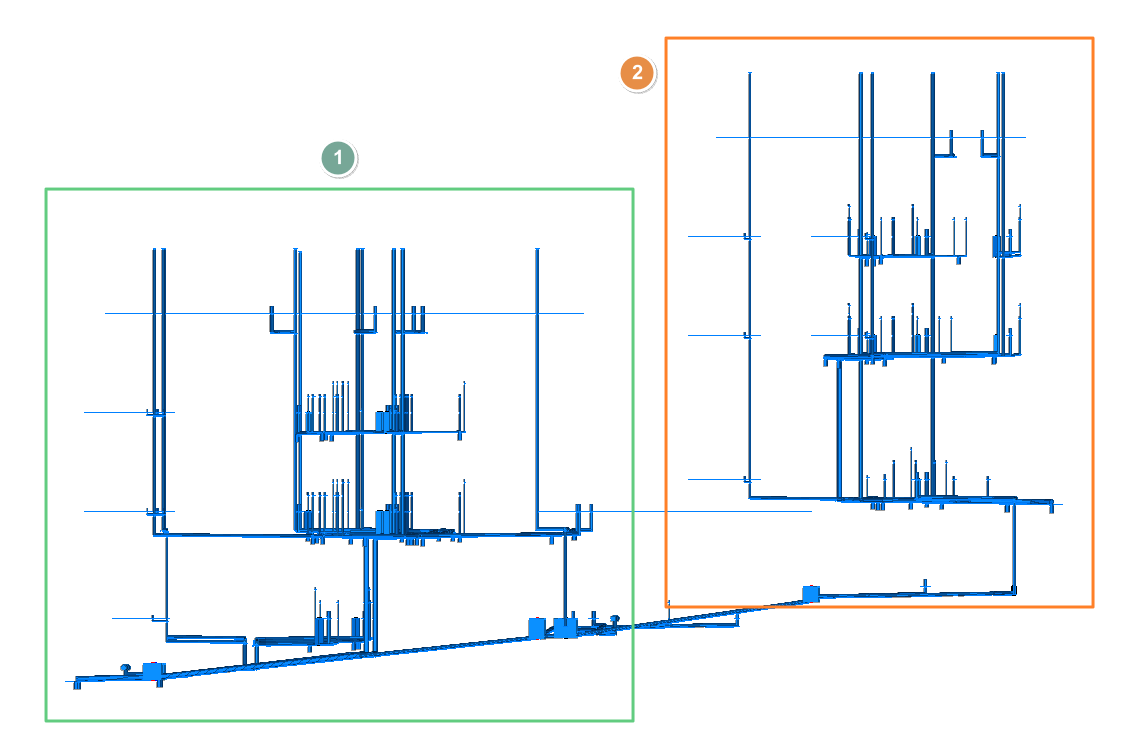
Groups of floors make it easier to work with the program if the project presents special situations, such as the following:
- The project consists of several separate buildings or blocks that have different floor levels.
- The installation consists of several independent parts located at different heights.
In these cases, the differences in level between floors may be very small or insignificant, which could affect the height or level information for one part of the installation due to the proximity of floors belonging to other areas of the project.
To avoid these problems, groups of floors are defined and assigned so that the elements in one group ignore the floors in other groups. Thanks to floor groupings, you can continue to enter all the necessary floors at the appropriate heights and enter the elements of the installation on the corresponding floor.
Defining groups of floors
Groups of floors are defined from the "Floor plans" option in the "Project" group.
When entering or editing each floor, you must select the floor "Group" to which it belongs from the drop-down menu.
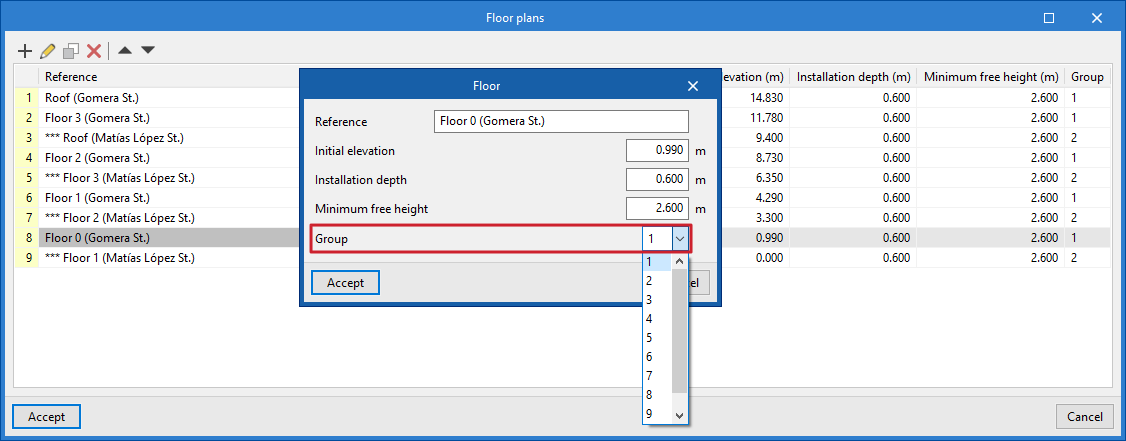
Assigning groups of floors
Groups can be assigned to system elements in several ways:
- When entering an element into the model, the program will assign it to a floor and automatically to the group to which that floor belongs.
- The floor group to which an element is assigned can be viewed or edited by using the "Edit" option and accessing the "Floor" tab in its editing panel.
- Finally, the "Assign" option in the "Edit" group can be used and the "Group" box can be ticked to modify the group assigned to the set of elements selected in the work area.
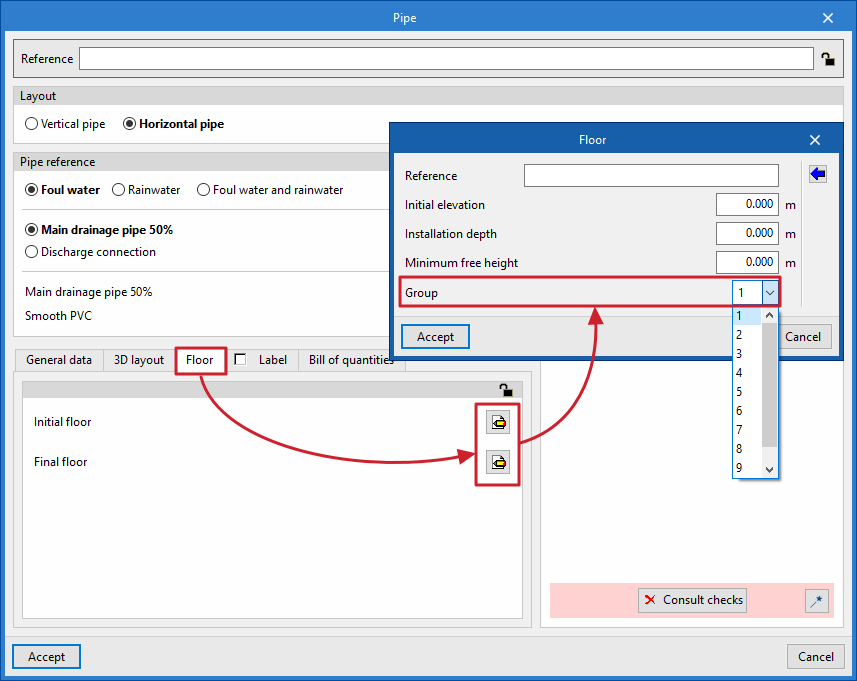
Viewing groups of floors
The parts of the installation corresponding to the different groups of floors can be viewed by colour from the corresponding options in the "Layer settings" panel.
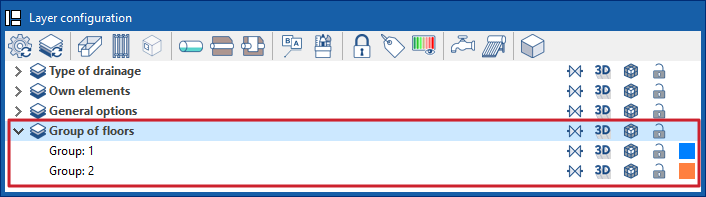
Coordination between consumptions and discharges in water supply and evacuation systems
In the "Installation" tab within the "Water Systems" tab, in the "Consumption" group of the main toolbar, there is an option that can be used to coordinate consumption and discharges in the water supply and evacuation systems:

This feature is equivalent to the one found under the "Installation" tab of the "Sanitary Systems" tab in the "Discharges" group of the main toolbar:

Clicking on the option opens a window that displays a table with three columns:
- Link
- Consumptions
- Discharges
The consumption associated with each discharge can be defined in the program by selecting it in each of the entries in the table. This way, when a consumption is entered in the "Water Systems" tab, the associated discharge is automatically entered in the "Sanitary Systems" tab, and vice versa, when a discharge is entered in the "Sanitary Systems" tab, the associated consumption is automatically entered in the "Water Systems" tab.
If the "Link" checkbox is ticked, the associated consumption and discharge will remain linked for editing operations such as moving them. Thus, moving the consumption will also move the discharge.
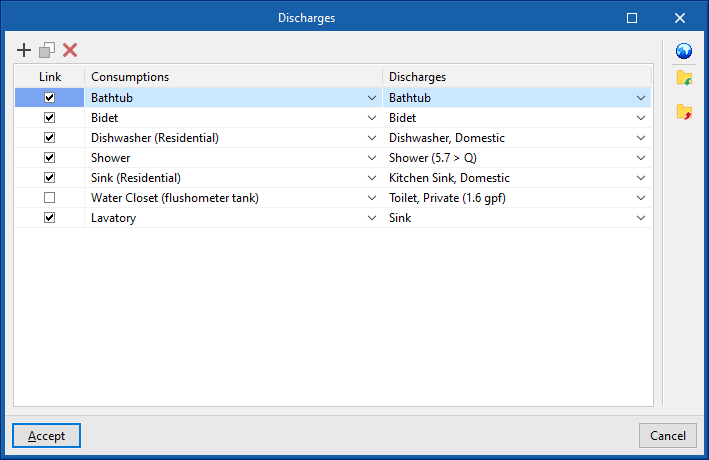
With the "Configuration" option in the top right corner, the consumption and discharge settings for different countries or environments can be loaded automatically.
Inserting supply connection points in water evacuation systems
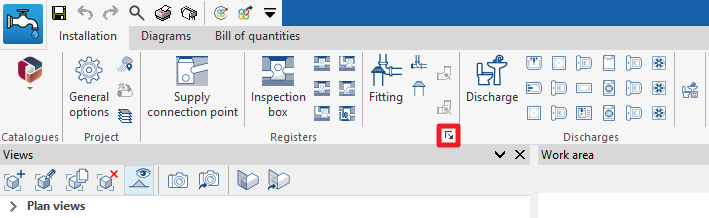
In the "Installation" tab under the "Sanitary Systems" tab, in the "Records" group of the main toolbar, there is an option for entering the connection points of the water evacuation system:

Supply connection point
Inserts the connection points of the water evacuation system.
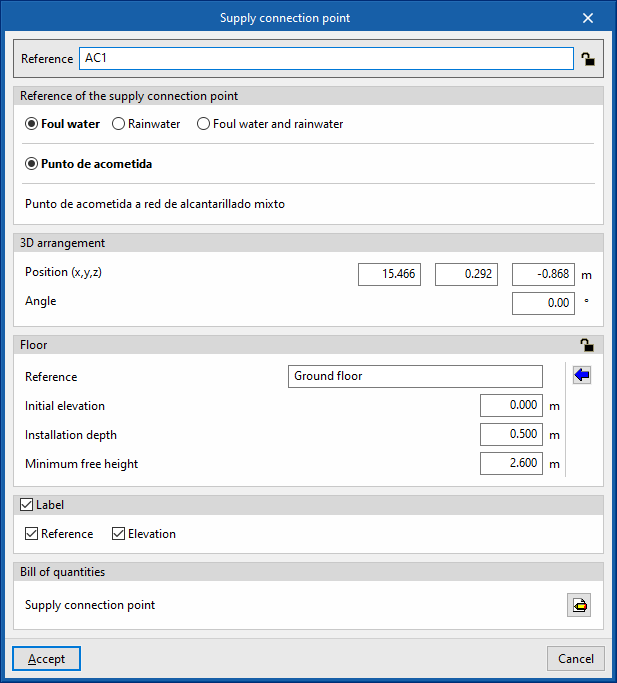
When entering or editing a supply connection point, the following parameters can be configured. Some parameters only appear if the "Simplified entry" option, which can be found in the "Design options" of the "General options", is deactivated:
- Reference (Lock/Unlock)
Element reference. This value can be locked or unlocked. If unlocked, the program will create or modify the reference when updating results. - Supply connection point reference
Selects the type of supply connection point by its reference and according to the type of evaluation assigned to each one. These types can be created and edited in the "Design and check options to be carried out" section, accessed from the "General options" of the "Project" group. - 3D layout
Defines the position and angle of the element. This section only appears when editing a previously entered element.- Position (x, y, z)
- Angle
- Floor (Lock/Unlock)
Defines the floor data assigned to the element. This section only appears when editing a previously entered element. If this section is unlocked, the program can modify this data, which is generated according to the layout of the element in the model. Using the wizard available on the right, the data of a floor plan defined in the "Floor plans" section of the "Project" group can be imported.- Reference
- Initial elevation
- Installation depth
- Minimum free height
- Label (optional)
Manages the information visible in the element's label.- Reference (optional)
- Elevation (optional)
- Bill of quantities
Controls the generation of the element's bill of quantities by means of filters.- Supply connection point
- Consult checks
Used to consult and list the checks carried out on the element, if they have been defined in the type of supply connection point selected.
These options are the same as those available in the section "Design and check options to be carried out", which is accessed from the "General options" of the "Project" group.
Entering inspection boxes in water evacuation systems
In the "Installation" tab under the "Sanitary Systems" tab, in the "Records" group of the main toolbar, there is an option for entering the inspection boxes of the water evacuation system:

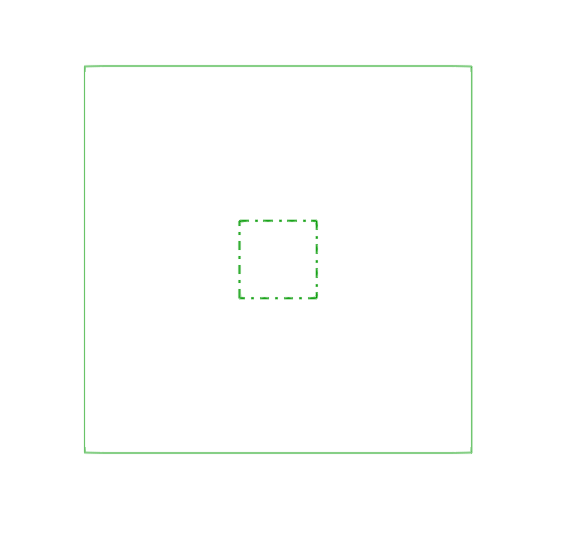
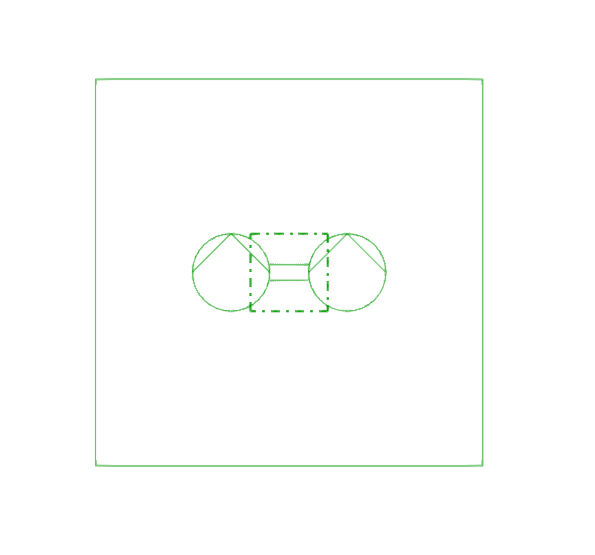
Inspection box
Inserts an inspection box into the water evacuation system, including intermediate inspection boxes, manholes, catch basins, inspection hatches at drainpipe end, pumping manholes, grease separators or floor traps.
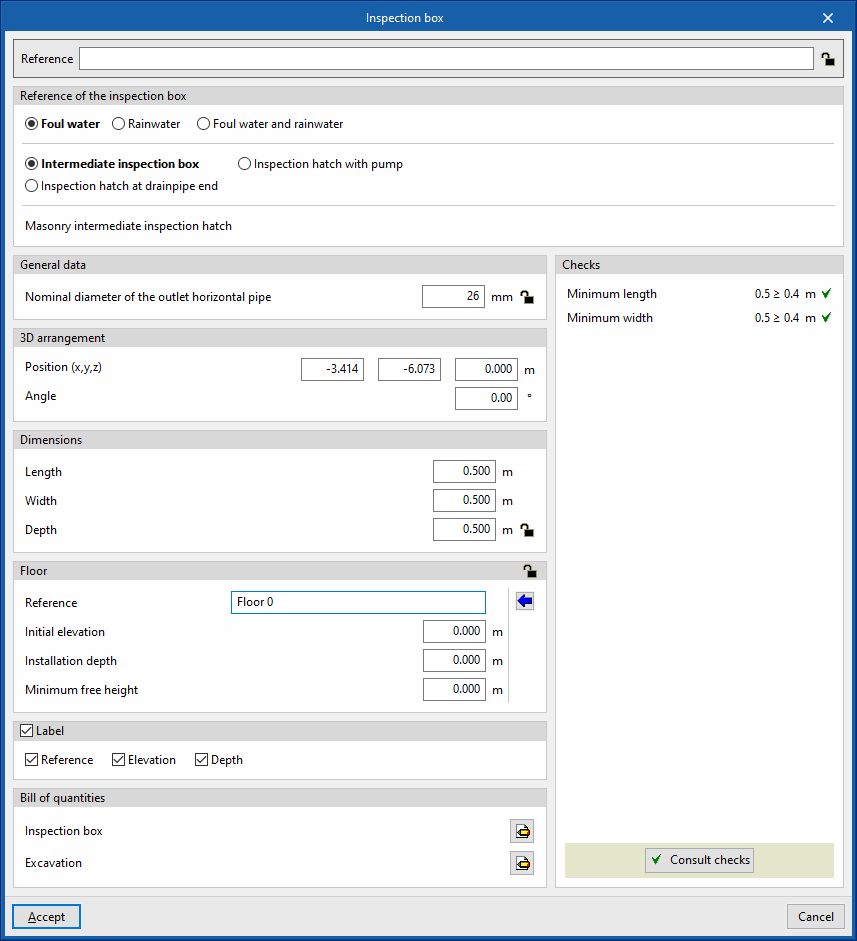
When entering or editing an inspection box, the following parameters can be configured. Some parameters only appear if the "Simplified entry" option, which can be found in the "Design options" of the "General options", is deactivated:
- Reference (Lock/Unlock)
Element reference. This value can be locked or unlocked. If unlocked, the program will create or modify the reference when updating results. - Inspection box reference
Selects the type of inspection box by its reference and according to the type of drainage assigned to each one. These types can be created and edited in “Inspection box”, which can be accessed from the "Design and check options to be carried out" section, in the "General options" of the "Project" group. - General data
- Nominal diameter of the outlet horizontal pipe (Lock/Unlock)
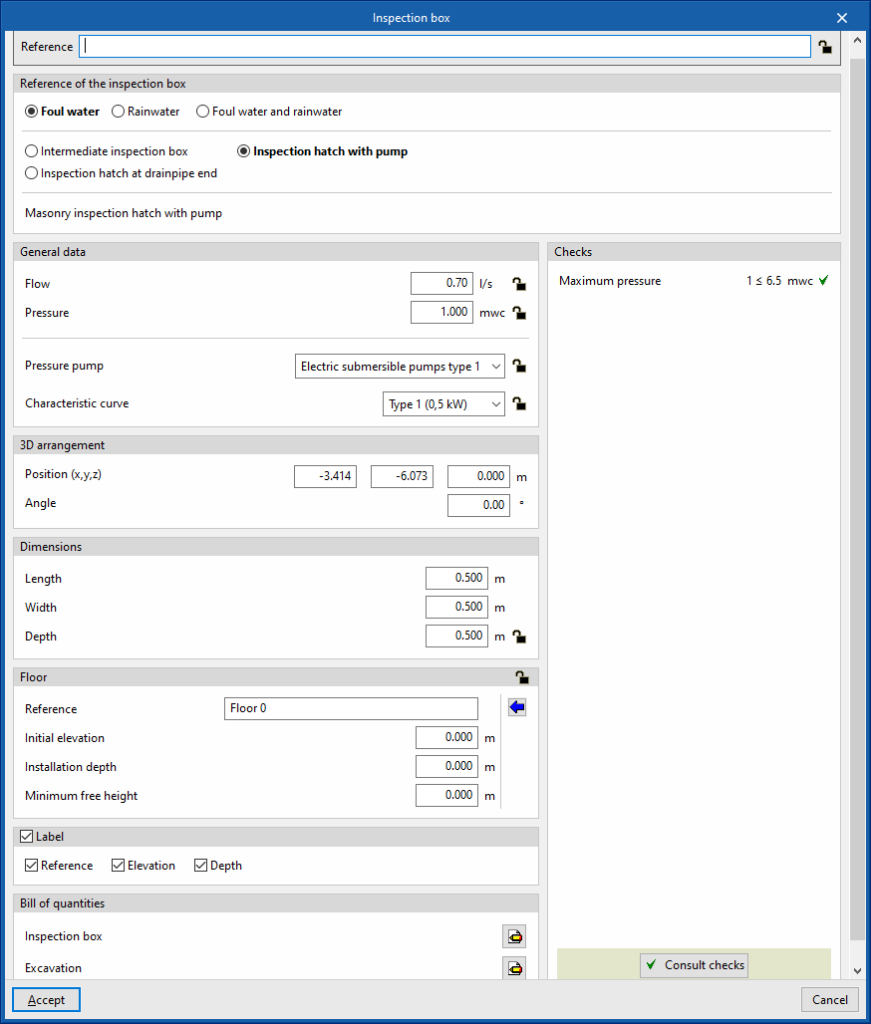
If the "Minimum dimensions" checkbox in the inspection box type is activated, the program calculates the required minimum dimensions of the inspection box (length and width or diameter) based on the nominal diameter of the outlet horizontal pipe of the inspection box. This value can be locked or unlocked. If it is unlocked, the program can change the value when updating results. - In sump pumps:
The following parameters appear if the "Pressure pump" checkbox is activated in the selected inspection box type:- Flow (Lock/Unlock)
- Pressure (Lock/Unlock)
- Pressure pump (Lock/Unlock), Characteristic curve (Lock/Unlock)
Selects the pressure pump and the characteristic curve from those available in the "Pressure pump catalogue", which can be accessed from the "Materials and equipment selection" section of the "General options".
- In grease separators:
The following parameters appear if the "Grease separator" checkbox is activated in the selected inspection box type:- Flow (Lock/Unlock)
- Pressure (Lock/Unlock)
- Grease separator (Lock/Unlock)
Used to choose the series and model of the grease separator among those available in the "Catalogue of grease and hydrocarbon separators and bio-filtration systems", accessible from the "Material and equipment selection" section of the "General options".
- Nominal diameter of the outlet horizontal pipe (Lock/Unlock)
- 3D layout
Defines the position and angle of the element. This section only appears when editing a previously entered element.- Position (x, y, z)
- Angle
- Dimensions
Inserts the dimensions of the inspection box, if the "Set dimensions" checkbox for the selected inspection box type is unchecked.- In circular inspection boxes:
- Diameter
- Depth (Lock/Unlock)
- In rectangular inspection boxes:
- Length
- Width
- Depth (Lock/Unlock)
- In circular inspection boxes:
- Excavation
Defines the volume of excavation associated with the inspection box. This section only appears if the "Excavations" checkbox is activated in the selected inspection box type. If this value remains unchecked, the program can calculate it with the excavation section selected in the type of inspection box.- Excavation (Lock/Unlock)
- Floor (Lock/Unlock)
Defines the floor data assigned to the element. This section only appears when editing a previously entered element. If this section is unlocked, the program can modify this data, which is generated according to the layout of the element in the model. Using the wizard available on the right, the data of a floor plan defined in the "Floor plans" section of the "Project" group can be imported.- Reference
- Initial elevation
- Installation depth
- Minimum free height
- Label (optional)
Manages the information visible in the element's label.- Reference (optional)
- Elevation (optional)
- Depth (optional)
- Bill of quantities
Controls the generation of the element's bill of quantities using filters.- Inspection box
- Excavation
- Consult checks
Used to consult and list the checks carried out on the element, if they have been defined in the type of supply connection point selected.
These options are the same as those available in the section "Design and check options to be carried out", which is accessed from the "General Inspection boxes with a checked box will be available as additional quick-access options in this tool group. This allows users to enter the desired inspection boxes more quickly.
Entering and generating fittings in water evacuation systems
In the "Installation" tab under the "Sanitary Systems" tab, in the "Records" group of the main toolbar, there are options for entering fittings in the water evacuation system:

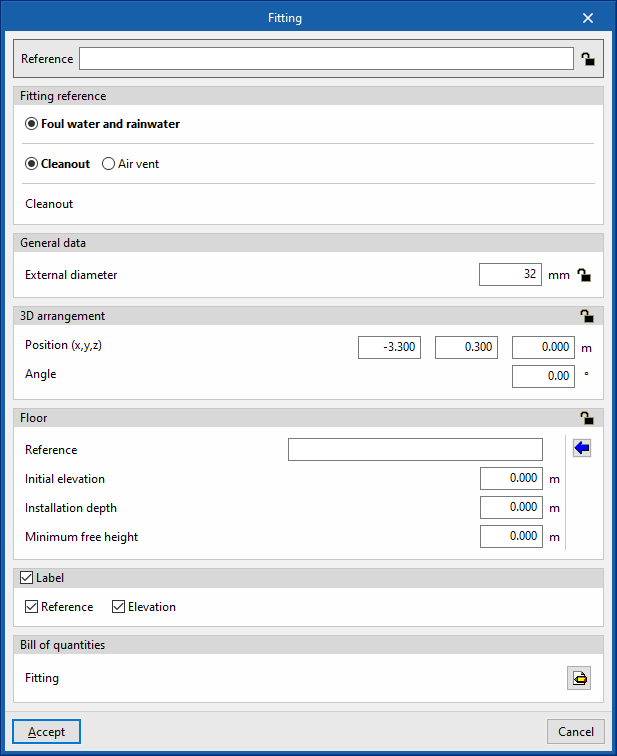
Fitting
Enters fittings into the water evacuation system, such as clean-outs, air vents, water seals or aeration valves.
When entering or editing a fitting, the following parameters can be configured. Some parameters only appear if the "Simplified entry" option, which can be found in the "Design options" of the "General options", is deactivated:
- Reference (Lock/Unlock)
Element reference. This value can be locked or unlocked. If unlocked, the program will create or modify the reference when updating results. - Inspection box reference
Selects the type of fitting by its reference. These types can be created and edited in “Fittings” in the "Design and check options to be carried out" section in the "General options" of the "Project" group. - General data
- External diameter (Lock/Unlock)
This value can be locked or unlocked. If unlocked, the program will create or modify the reference when updating results.
- External diameter (Lock/Unlock)
- 3D layout
Defines the position and angle of the element. This section only appears when editing a previously entered element.- Position (x, y, z)
- Angle
- Floor (Lock/Unlock)
Defines the floor data assigned to the element. This section only appears when editing a previously entered element. If this section is unlocked, the program can modify this data, which is generated according to the layout of the element in the model. Using the wizard available on the right, the data of a floor plan defined in the "Floor plans" section of the "Project" group can be imported.- Reference
- Initial elevation
- Installation depth
- Minimum free height
- Label (optional)
Manages the information visible in the element's label.- Reference (optional)
- Elevation (optional)
- Bill of quantities
Controls the generation of the element's bill of quantities using filters.- Fitting
These options are the same as those available in the section "Design and check options to be carried out", which is accessed from the "General options" of the "Project" group.
Fittings with a checked box will be available as additional quick-access options in this tool group. This allows users to enter the desired fittings more quickly.
Automatically generating fittings
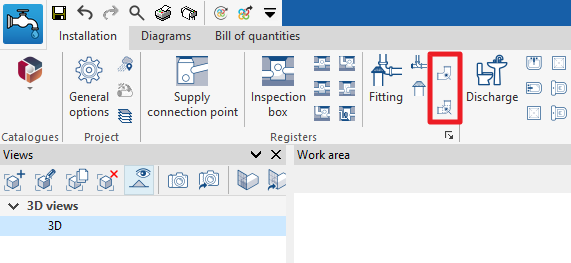
The program offers two features for the automatic generation of fittings at pipe joints (e.g. elbows or tees):
- The first option generates fittings at the joints of all the pipes in the job.
- The second option generates fittings at the pipe joints selected by the user.
After using any of these tools, the program reports the number of intersections where a fitting has been generated. From here, users can edit or delete the fittings created in the process if they wish to do so.
For these options to be available, the corresponding boxes must be activated in "Fittings" found in “Generation” under “Design options” in the “General options”. From here it is also possible to configure the type of fitting associated with each type of pipe joint.
Entering discharges in water evacuation systems
In the "Installation" tab of the "Sanitary Systems" tab, in the "Discharges" group of the main toolbar, there are options for entering the discharges in the evacuation system:

Discharge
Allows a discharge to be inserted into the evacuation system, such as washbasins, showers, bathtubs, toilets, bidets, kitchen sinks, sinks, dishwashers, washing machines or drains.
When entering or editing a discharge, the following parameters can be configured. Some parameters only appear if the "Simplified entry" option, which can be found in the "Design options" of the "General options", is deactivated:
- Discharge reference
Selects the type of discharge by its reference. These types can be created and edited in “Discharges” in the "Design and check options to be carried out" section in the "General options" of the "Project" group. - General data
- Design area (Lock/Unlock)
Defines the design area associated with the discharge. Only appears if the type of discharge selected is a "Drain" and the "Design area" box is unchecked. In that case, it is possible to enter the value here. If this value is unlocked, the program can modify it when updating results, taking the data from the drainage area entered in the model where the discharge is located. - Flow (Lock/Unlock)
Defines the flow rate associated with the discharge. Only appears if the "Flow rate" checkbox in the selected discharge type is deactivated. In that case, the value can be entered here. The program can change this value when updating results if it is unlocked. - Discharge height
Defines the height of the discharge with respect to the height of the insertion point of the element in the model. Only appears if the "Height of discharge" checkbox in the selected discharge type is deactivated. In this case, the value can be entered here.
- Design area (Lock/Unlock)
- 3D layout
Defines the position and angle of the element. This section only appears when editing a previously entered element.- Position (x, y, z)
- Angle
- Floor (Lock/Unlock)
Defines the floor data assigned to the element. This section only appears when editing a previously entered element. If this section is unlocked, the program can modify this data, which is generated according to the layout of the element in the model. Using the wizard available on the right, the data of a floor plan defined in the "Floor plans" section of the "Project" group can be imported.- Reference
- Initial elevation
- Installation depth
- Minimum free height
- Label (optional)
Manages the information visible in the element's label.- Reference (optional)
- Elevation (optional)
- Bill of quantities
Controls the generation of the element's bill of quantities using filters.- Discharge

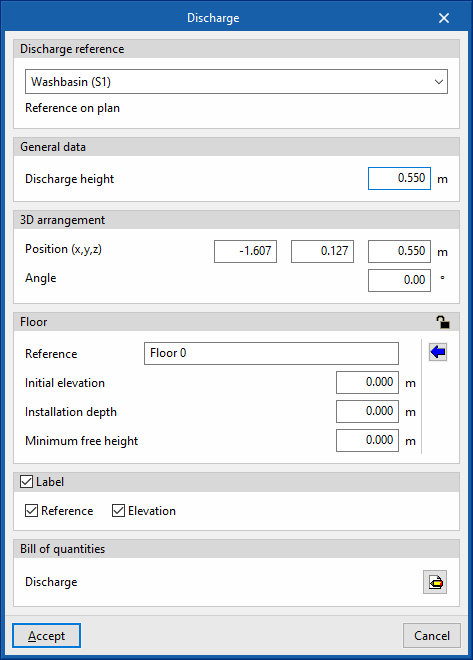
These options are the same as those available in the section "Design and check options to be carried out", which is accessed from the "General options" of the "Project" group.
Discharges with a checked box will be available as additional quick-access options in this tool group. This allows users to enter the desired discharges more quickly.
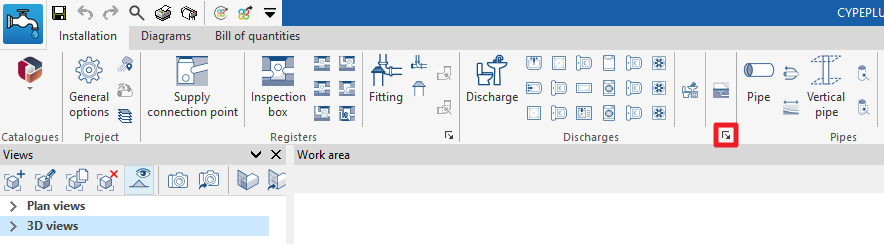
Entering drainage areas in the water evacuation system
In the "Installation" tab of the "Sanitary Systems" tab, in the "Discharges" group of the main toolbar, there are options for entering the discharges in the evacuation system:

Drainage area
Inserts a drainage area in the water evacuation system, both for wastewater and rainwater.
Drainage areas are defined by drawing their polygonal outline in the model. Subsequently, elements such as drains, drainage pipes, gutters or longitudinal drains are entered to collect the flow associated with the projected area of the drainage areas on which they are located. It is also possible to modify the "Rainfall intensity" from the corresponding option in the "Project" group.
When entering or editing a drainage area, the following parameters can be configured. Some parameters only appear if the "Simplified entry" option, which can be found in the "Design options" of the "General options", is kept deactivated:
- Reference
Element reference. This value can be locked or unlocked. If unlocked, the program will create or modify the reference when updating results. - Discharge reference
Selects the type of discharge by its reference. These types can be created and edited in “Discharges” in the "Design and check options to be carried out" section in the "General options" of the "Project" group. - General data
- Number of drains (Lock/Unlock)
Defines the number of sinks associated with the drainage area. This only appears if the "Check the number of drains in accordance with table values" box in the selected drainage area type is checked. If this value is unlocked, the program can modify it when updating results, taking the data from the drains located in the model over the drainage area. - Design area (Lock/Unlock)
Defines the design area. If this value is unlocked, the program can modify it when updating results, taking the data from the area of the polygonal contour drawn on the model.
- Number of drains (Lock/Unlock)
- Floor (Lock/Unlock)
Defines the floor data assigned to the element. This section only appears when editing a previously entered element. If this section is unlocked, the program can modify this data, which is generated according to the layout of the element in the model. Using the wizard available on the right, the data of a floor plan defined in the "Floor plans" section of the "Project" group can be imported.- Reference
- Initial elevation
- Installation depth
- Minimum free height
- Label (optional)
Manages the information visible in the element's label.- Reference (optional)
- Area (optional)
- Consult checks
Consults and lists the checks carried out on the element, if defined in the selected drainage area type. - Design
This feature, accessed by clicking on the button in the bottom right-hand corner, is used to automatically design the parameters considered in the drainage area editing panel so that they comply with the defined checks.

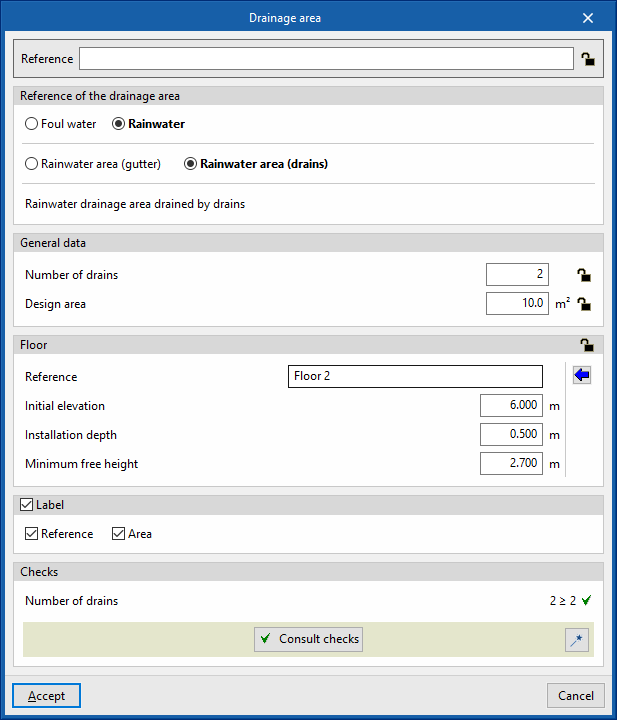
These options are the same as those available in the section "Design and check options to be carried out", which is accessed from the "General options" of the "Project" group.
Entering drainage areas in the water evacuation system
In the "Installation" tab of the "Sanitary Systems" tab, in the "Pipes" group of the main toolbar, there are options for inserting drainage pipes, gutters and longitudinal drains into the drainage system:

Pipe
Inserts a pipe into the drainage system in any position, horizontally or vertically, either for rainwater and/or wastewater drainage or for ventilation.
When entering or editing a pipe, the following parameters can be configured. Some parameters only appear if the "Simplified entry" option, which can be found in the "Design options" of the "General options", is kept deactivated:
- Reference
Element reference. This value can be locked or unlocked. If unlocked, the program will create or modify the reference when updating results. - Layout (Horizontal / Vertical)
Defines whether the pipe layout is horizontal or vertical. - Pipe reference
Selects the type of pipe by its reference and according to the type of drainage assigned to each one and the selected layout. These types can be created and edited in “Horizontal pipes / Vertical pipes” which can be accessed in the “Project” group when selecting “General options” and then "Design and check options to be carried out". - General data
Defines the element's general data. Some of these values can be locked or unlocked. If a value is locked, it is not modified when updating the results and remains unchanged.- Nominal diameter / External diameter / Internal diameter (Lock/Unlock)
Selects and defines the diameter of the pipe. - Drainage units (Lock/Unlock)
Defines the number of drainage units associated with the gutter. This option only appears if the "Discharge values defined in drainage units" checkbox is activated in the "Design options" of the "General options", and if "Drainage units" is selected in the "Design using tables" tab, within the "Analysis methods to use" of the pipe type chosen. - Design area (Lock/Unlock)
Defines the design area associated with the pipe. This option only appears if the "Discharge values defined in drainage units" checkbox is activated in the "Design options" of the "General options". If this value is unlocked, the program can modify it when updating results. - Gross flow (optional) (Lock/Unlock)
Defines the flow rate of the pipe and enables the "Hydraulic analysis" checks. - Simultaneity (Lock/Unlock)
Defines the simultaneity coefficient of the pipe. - Main span (optional) (Lock/Unlock)
Used to consider the pipe as a main span. The main spans are the main elements of the installation and impose the elevation and layout of the rest of the pipes that are connected to them. This option only appears in horizontal pipes. - Consider the pipe as a vertical pipe span (optional)
Used to consider the pipe as a vertical pipe span, deactivating the checks associated with the type of horizontal pipe selected. This option only appears in vertical pipes. - Consider the pipe as a horizontal pipe span (optional)
Used to consider the pipe as a horizontal pipe span, deactivating the checks associated with the type of horizontal pipe selected. This option only appears in horizontal pipes.
- Nominal diameter / External diameter / Internal diameter (Lock/Unlock)
- 3D layout
Defines the 3D layout of the element. This section only appears when editing a previously entered element.- In vertical pipes
In these pipes, the program provides a table that directly enters the absolute spatial coordinates X, Y and Z of the points on the polygonal line defining the axis of the element. - In horizontal pipes
In these pipes, the program provides a number of options for defining the 3D layout of the element:- Without restrictions
Directly enters the absolute X, Y and Z spatial coordinates of the points on the polygonal line defining the axis of the element. - By slope
Defines the 3D layout of the element by entering the on plan coordinates of the points through which it passes, the initial coordinate of the first point and the slope of the element. If the values for initial elevation and slope are unlocked, the program can adjust them when updating results.- Initial elevation (Lock/Unlock)
Defines the initial elevation of the element. - Slope (Lock/Unlock)
Defines the slope of the element. - Points
Defines the absolute X and Y plan coordinates of the points on the polygonal line defining the axis of the element.
- Initial elevation (Lock/Unlock)
- Without restrictions
- In vertical pipes
- Floor (Lock/Unlock)
Defines the data of the “Initial floor” and “Final floor” assigned to the pipe. This section only appears when editing a previously entered element. If this section is unlocked, the program can modify this data, which is generated according to the layout of the element in the model. Using the wizard available on the right, the data of a floor plan defined in the "Floor plans" section of the "Project" group can be imported.- Reference
- Initial elevation
- Installation depth
- Minimum free height
- Label (optional)
Manages the information visible in the element's label.- In vertical pipes
- Reference (optional)
- Diameter (optional)
- In horizontal pipes
- Reference (optional)
- Length (optional)
- Slope (optional)
- Diameter (optional)
- Elevation (optional)
- In vertical pipes
- Bill of quantities
Controls the generation of the element's bill of quantities using filters.- In vertical pipes
- Vertical pipe
- In horizontal pipes
- Horizontal pipe
- Excavation
- In vertical pipes
- Consult checks
Used to consult and list the checks carried out on the element, if defined in the selected drainage area type. - Design
This feature, accessed by clicking on the button in the bottom right-hand corner, is used to automatically design the parameters considered in the drainage area editing panel so that they comply with the defined checks.
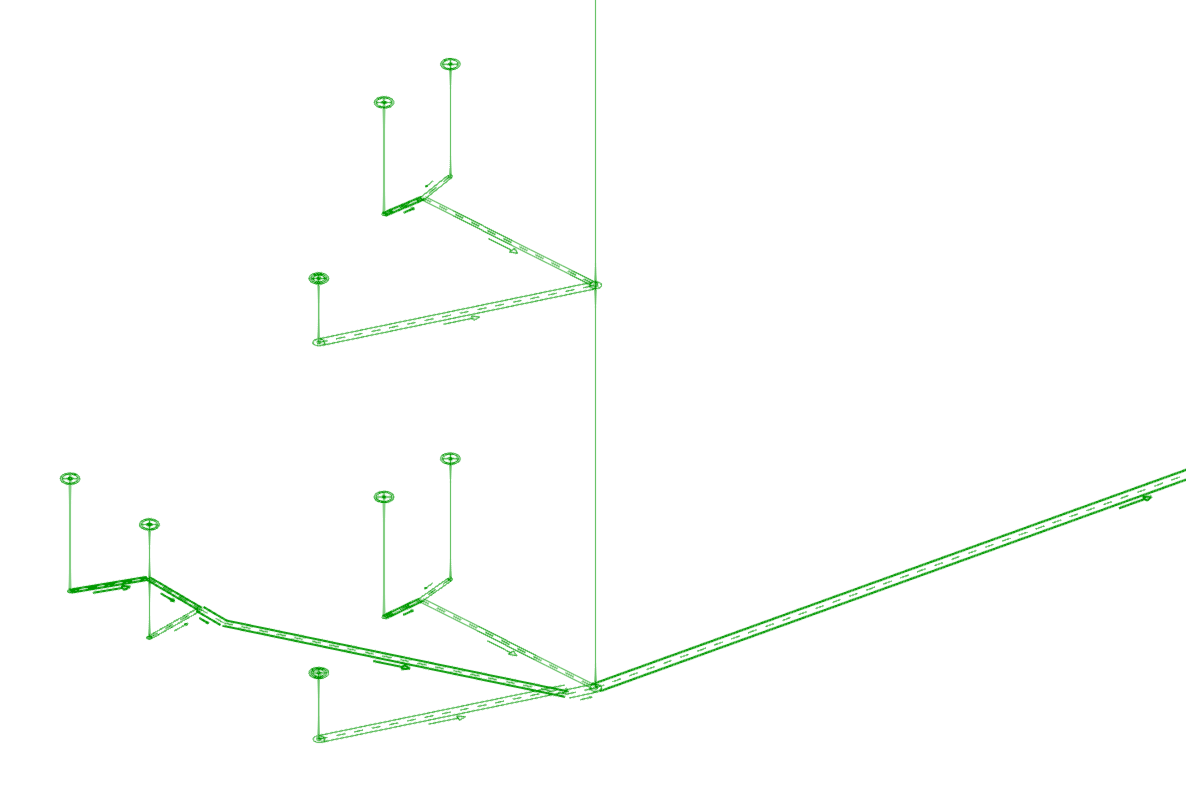
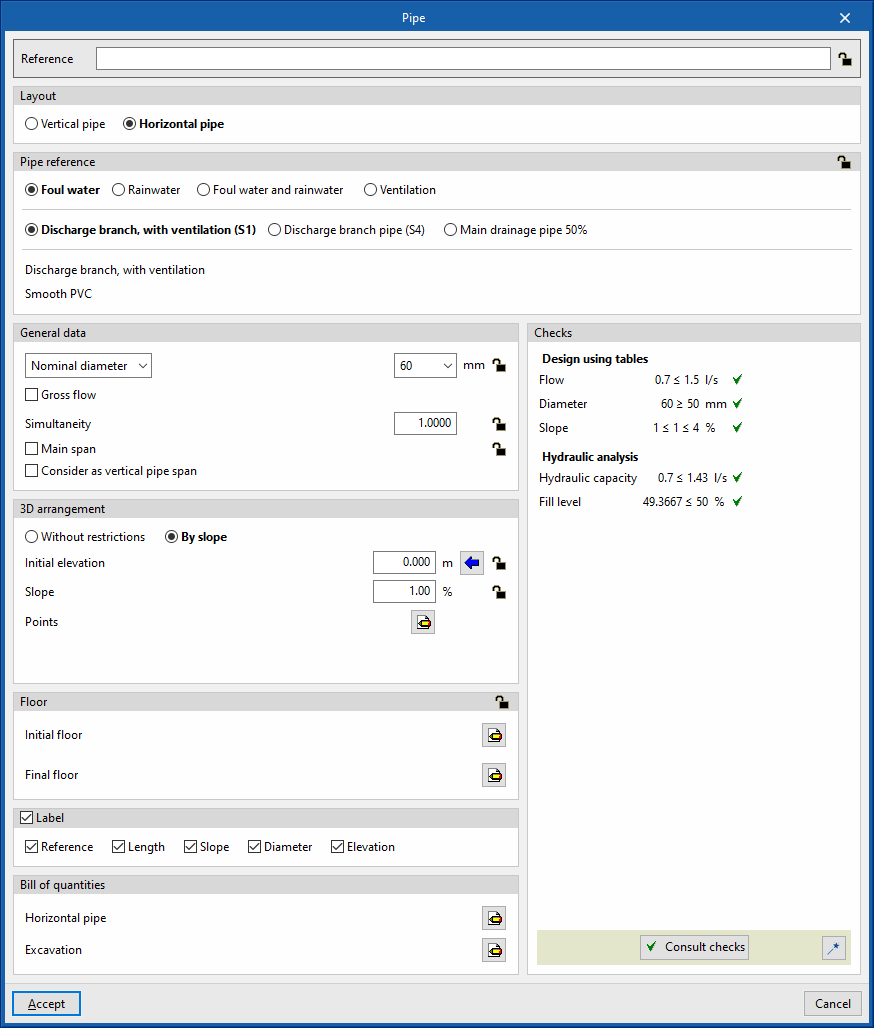
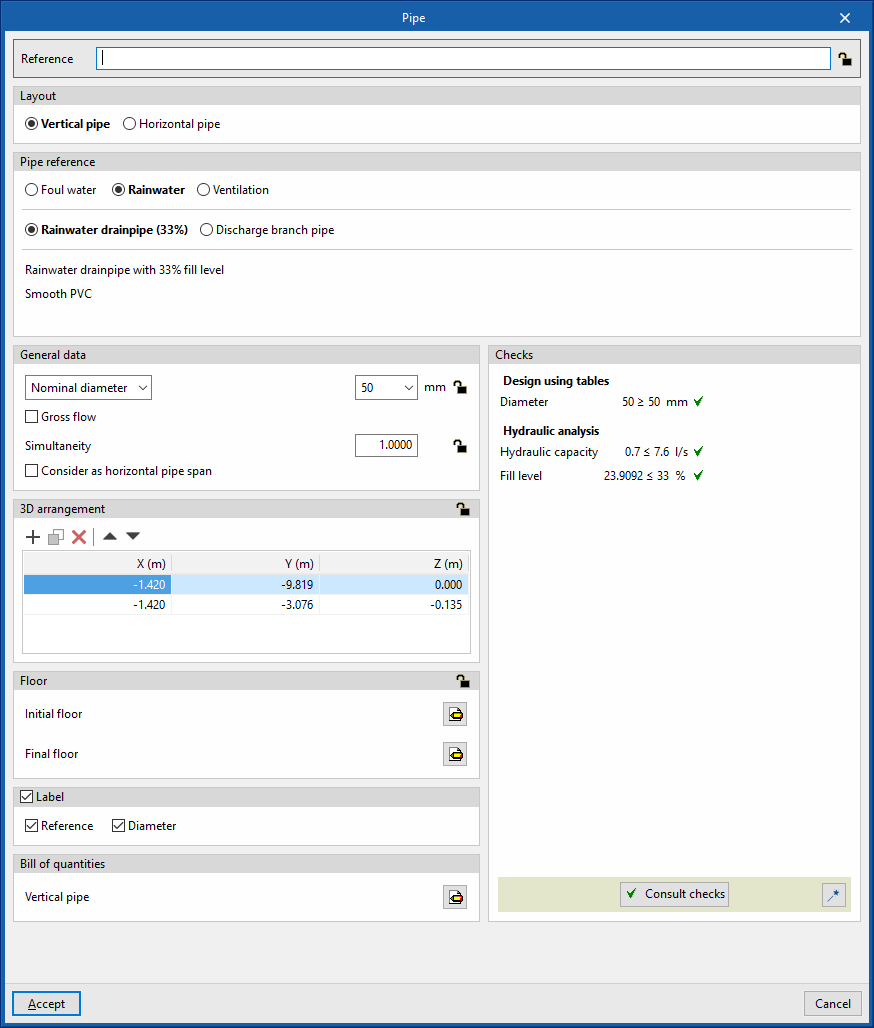
When inserting a horizontal pipe into the model, the program displays the "Enter span" dialogue box, which has the following options:
- By slope
Directly defines the value of the slope of the span. Then, the points defining the span in plan are entered in the model. The program will select "By slope" in the "3D layout" section of the span editing panel and will fill in the "Slope" value, without locking it. If it is kept unlocked, when designing the program this value can be modified according to its configuration parameters and the layout of the span in the installation.- Slope
- By slope that is conditioned by the previous element
This defines the span by slope without specifying its value. Then, the points defining the span in plan are entered in the model. The program will select "By slope" in the "3D layout" section of the span editing panel and will fill in the "Slope" value conditionally to the previous span. If it is kept unlocked, when designing the program, this value can be modified according to its configuration parameters and the layout of the span in the installation. - Without restrictions
Used to freely enter the points defining the span in the space. The program will select ‘No restrictions’ in the ‘3D layout’ section of the span editing panel.
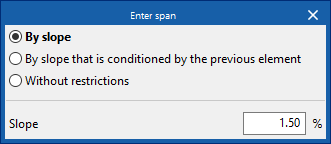
Therefore, in the case of horizontal pipes, the program will use the slope parameters defined in the "Analysis methods to be used" tab and, within this, in "Design by tables", within the defined configuration (from "General options" and in the "Design options and checks to be carried out" section, accessing "Horizontal pipes") for each type of pipe entered. This tab appears if the "Design by tables" option is activated in the "General options" (by accessing the "Analysis and design options" and then "Analysis options"). It will also apply the minimum and/or maximum slope criteria defined in the "General data" tab, available in the same window for each type of pipe.
The value of the slope may also vary depending on the layout of the span in the system, to accommodate other spans imposed by the geometry of the system.
Creating intersections
The program has two tools to manage the connections or intersections between vertical pipes and horizontal pipes:
- Create intersection between a vertical pipe and a horizontal pipe
Selects a specific vertical pipe and a horizontal pipe and creates the intersection between them. - Create intersections between vertical pipes and all pipes in contact with them
Automatically creates all intersections between the vertical pipes in the model and the horizontal pipes in contact with them.
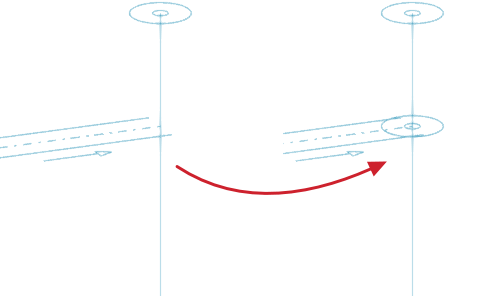
Changing the direction of the flow
Changes the direction of flow of a span in the drainage system.
For spans entered with the "Pipe" option, the default flow direction is defined according to the order of insertion of points. The flow direction can be displayed by means of a symbol next to the middle part of the span.
For spans entered with the "Vertical pipe" option, the default flow direction is downward. If necessary, this option can be used to achieve an upward flow direction. In the latter case, the program displays a symbol indicating the flow direction over the middle part of the span.
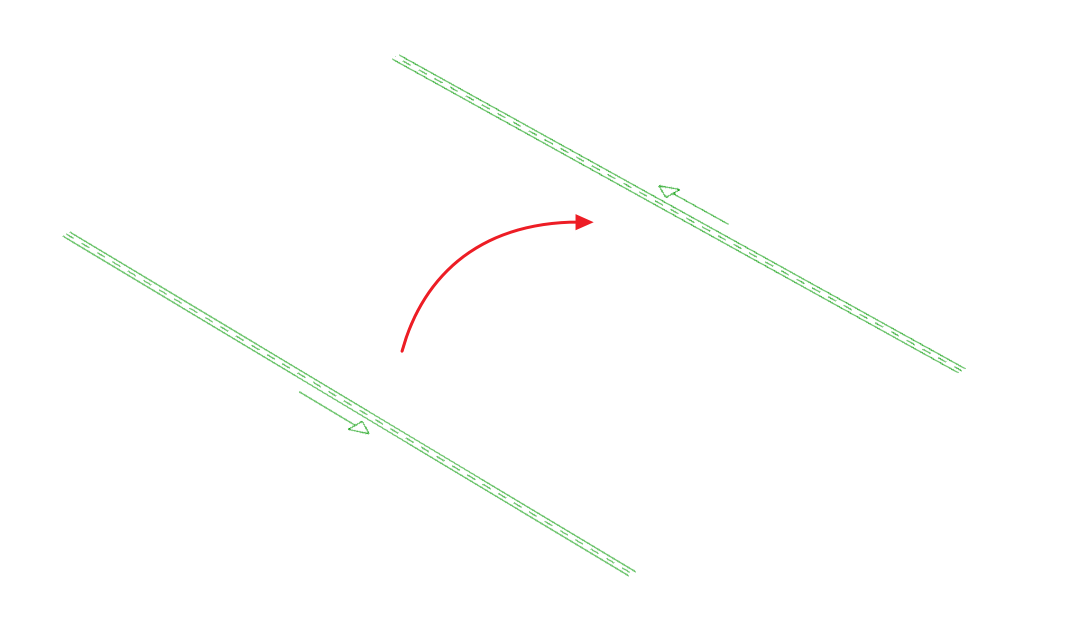
Longitudinal
Used to display the longitudinal section of the excavation in several consecutive spans of the water drainage system, after selecting the starting and end points or spans of the desired section in the model.
To be able to use this option, the "Excavations" option must be activated in the "Design options" of the "General options", where the excavation sections available for the inspectio boxes and horizontal pipes can be defined. Then, these excavation sections are assigned to the horizontal pipes defined in "Design and check options to be carried out", in the "General options", and used in the model.
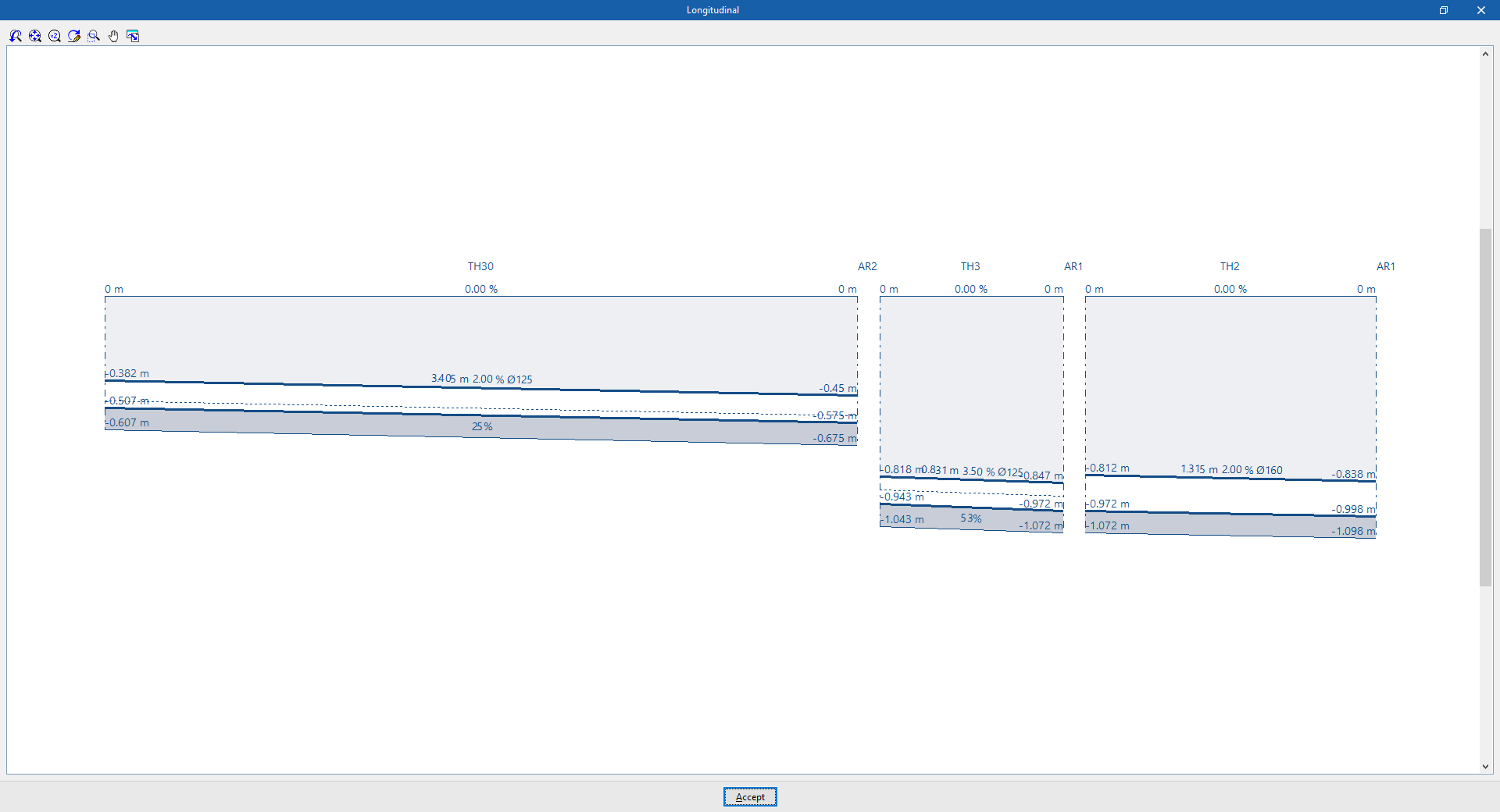
Vertical pipe
Allows a vertical pipe to be inserted into the water drainage system, either for rainwater and/or wastewater drainage or for ventilation.
By clicking on this option, the program can be used to define the characteristics of the vertical pipe by means of an editing panel identical to the one that appears when using the "Piping" option, in the event that the "Vertical pipe" type is selected in this panel.
Then, when a vertical pipe is inserted in the model, the program displays the "Vertical pipe" dialogue box, where the level associated with the "End point" of the pipe is defined, together with a "Displacement" above the indicated level, expressed in positive or negative values.
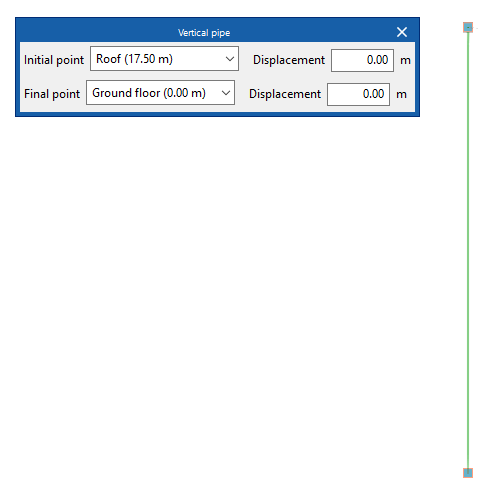
Generating vertical pipes
The program offers two utilities for the automatic generation of vertical pipes connecting other elements (such as pipes or discharges) previously laid out in the model.
- The first option generates the vertical pipes at all points of the job where possible.
- The second option generates the vertical pipes between the elements selected by the user, if possible.
After using any of these tools, the program reports the number of horizontal pipes generated. From here, the pipes created in the process can be edited or deleted, if desired.
This tool only generates a vertical pipe between two elements located at different heights if their ends, or points where the connecting vertical pipe is to be placed, have the same plan coordinates.
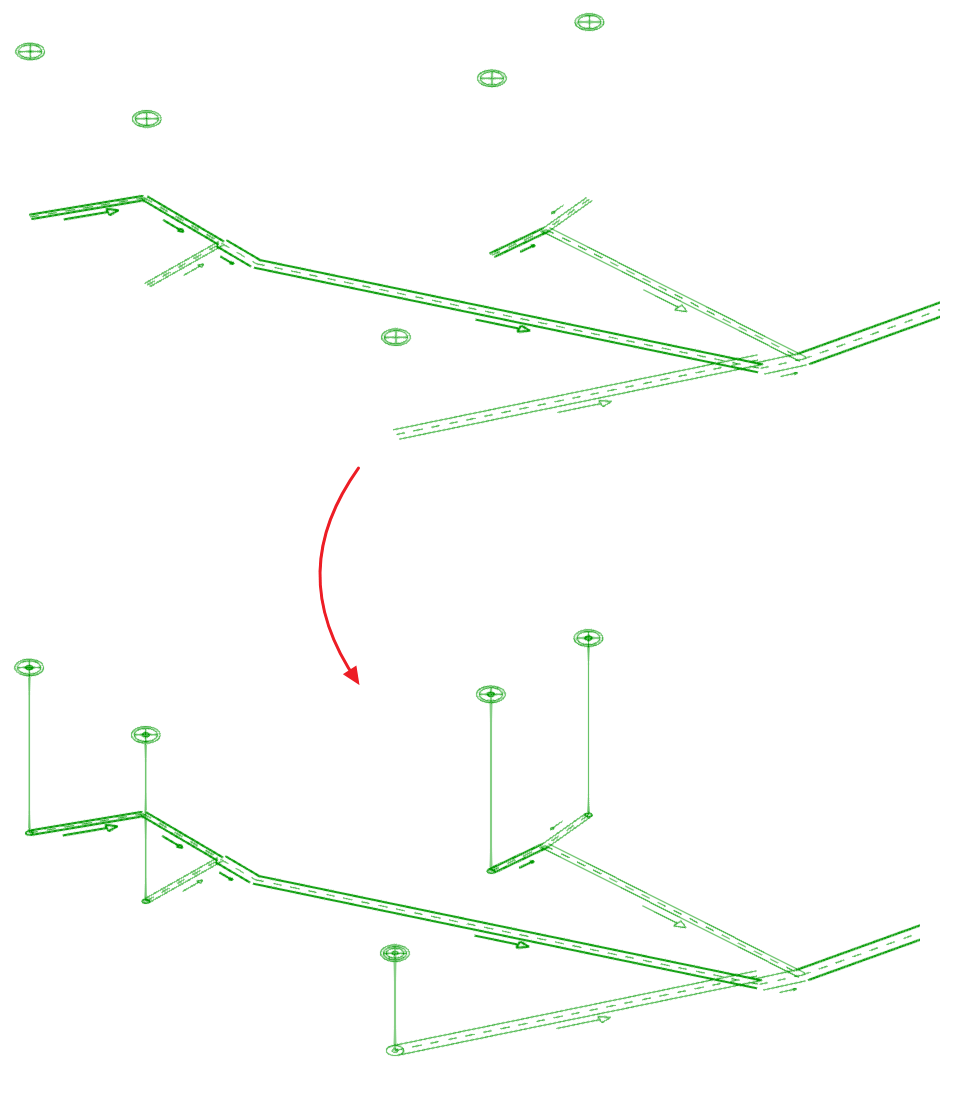
These options are equivalent to those available in "Design and check options to be carried out" under "General options" in the "Project" group.
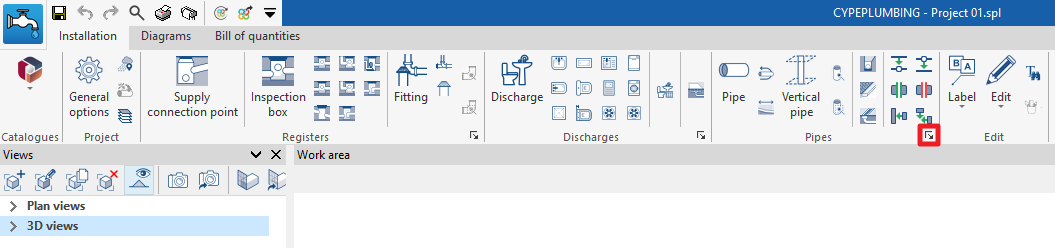
Entering drainage areas in the water evacuation system
In the "Installation" tab of the "Sanitary Systems" tab, in the "Pipes" group of the main toolbar, there are options for inserting drainage pipes, gutters and longitudinal drains into the drainage system:

The drainage pipes, gutters and longitudinal drains allow the collection of the flow associated with the design area of the drainage areas where they are located, which are entered using the "Drainage area" option in the "Discharges" group. A drainage area must be entered for each drainage pipe, gutter or longitudinal drain type element in the model.
Drainage pipe
Inserts a drainage pipe in the water evacuation system.
When entering or editing a drainage pipe, the following parameters can be configured. Some parameters only appear if the "Simplified entry" option, which can be found in the "Design options" of the "General options", is kept deactivated:
- Reference
Element reference. This value can be locked or unlocked. If unlocked, the program will create or modify the reference when updating results. - Drainage pipe reference
Selects the type of drainage pipe by its reference. These types can be created and edited in “Drainage pipes” in the "Design and check options to be carried out" section in the "General options" of the "Project" group. - General data
Defines the element's general data. Some of these values can be locked or unlocked. If a value is locked, it is not modified when updating the results and remains unchanged.- Nominal diameter / External diameter / Internal diameter (Lock/Unlock)
Selects and defines the diameter of the drainage pipe. - Design area (Lock/Unlock)
Defines the design area associated with the drainage pipe. This option only appears if the "Discharge values defined in drainage units" checkbox is activated in the "Design options" of the "General options". If this value is unlocked, the program can modify it when updating results, taking the data from the projected area value of the drainage area where the drainage pipe is located. - Flow (optional) (Lock/Unlock)
Defines the flow rate of the drainage pipe and enables the "Hydraulic analysis" checks. - Impermeability grade
Used to define the impermeability grade in order to carry out the design of the element using tables. The program has an aid on the right which allows users to consult the minimum degree of impermeability required for walls and floors depending on the presence of water and the permeability coefficient of the ground. This option only appears if the "Minimum nominal diameter" checkbox is activated for the type of drainage pipe selected. - Type of installation (Underground / Along wall perimeter)
Selects whether the drainage pipe is laid under the floor or on the perimeter of a wall to be able to carry out the design of the element by means of tables. This option only appears if the "Minimum nominal diameter" checkbox is activated in the type of drainage pipe selected.
- Nominal diameter / External diameter / Internal diameter (Lock/Unlock)
- 3D layout
Defines the 3D layout of the element. This section only appears when editing a previously entered element. - Floor (Lock/Unlock)
Defines the floor data assigned to the element. This section only appears when editing a previously entered element. If this section is unlocked, the program can modify this data, which is generated according to the layout of the element in the model. Using the wizard available on the right, the data of a floor plan defined in the "Floor plans" section of the "Project" group can be imported.- Reference
- Initial elevation
- Installation depth
- Minimum free height
- Label (optional)
Manages the information visible in the element's label.- Reference (optional)
- Length (optional)
- Slope (optional)
- Diameter (optional)
- Elevation (optional)
- Bill of quantities
Controls the generation of the element's bill of quantities using filters.- Drainage pipe
- Consult checks
Consults and lists the checks carried out on the element, if defined in the selected drainage area type. - Design
This feature, accessed by clicking on the button in the bottom right-hand corner, is used to automatically design the parameters considered in the drainage area editing panel so that they comply with the defined checks.
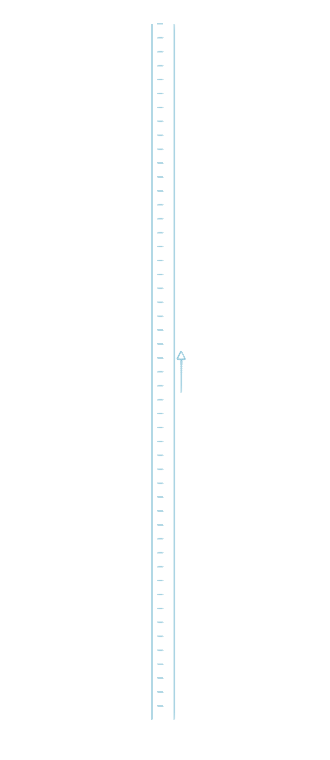
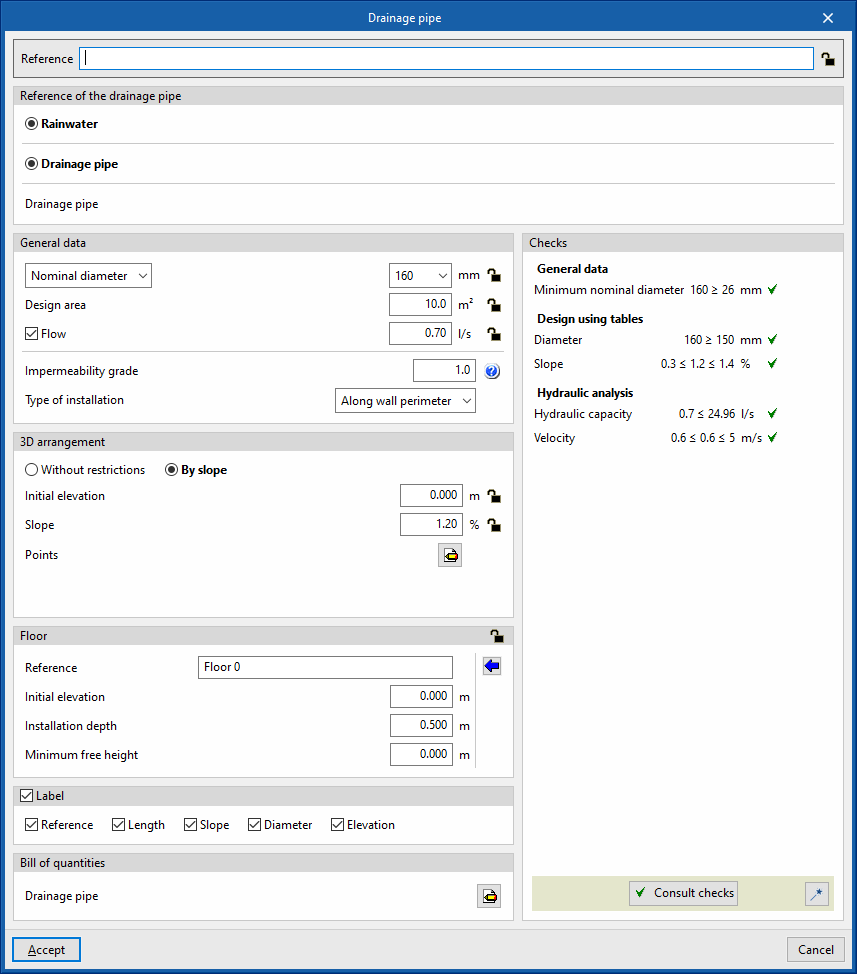
Gutter
Inserts a gutter into the water evacuation system.
When entering or editing a gutter, the following parameters can be configured. Some parameters only appear if the "Simplified entry" option, which can be found in the "Design options" of the "General options", is deactivated:
- Reference
Element reference. This value can be locked or unlocked. If unlocked, the program will create or modify the reference when updating results. - Gutter reference
Selects the type of gutter by its reference. These types can be created and edited in “Gutters” in the "Design and check options to be carried out" section in the "General options" of the "Project" group. - General data
Defines the element's general data. Some of these values can be locked or unlocked. If a value is locked, it is not modified when updating the results and remains unchanged.- Nominal diameter / External diameter / Internal diameter (Lock/Unlock)
Selects and defines the diameter of the gutter. - Drainage units (Lock/Unlock)
Defines the number of drainage units associated with the gutter. This option only appears if the "Discharge values defined in drainage units" checkbox is activated in the "Design options" of the "General options" is activated and if "Drainage units" is selected in the "Dimensioning by tables" table, under "Analysis methods to use", in the selected gutter type. If this value is unlocked, the program can modify it when updating results, taking the data from the projected area value of the drainage area where the gutter is located. - Design area (Lock/Unlock)
Defines the design area associated with the gutter. This option only appears if the "Discharge values defined in drainage units" checkbox is activated in the "Design options" of the "General options" is activated and if "Drainage units" is selected in the "Dimensioning by tables" table, under "Analysis methods to use", in the selected gutter type. If this value is unlocked, the program can modify it when updating results, taking the data from the projected area value of the drainage area where the gutter is located. - Flow (optional) (Lock/Unlock)
Defines the flow rate of the gutter.
- Nominal diameter / External diameter / Internal diameter (Lock/Unlock)
- 3D layout (Lock/Unlock)
Defines the 3D layout of the element. This section only appears when editing a previously entered element.- Without restrictions
Directly enters the absolute X, Y and Z spatial coordinates of the points on the polygonal line defining the axis of the element. - By slope
Defines the 3D layout of the element by entering the on plan coordinates of the points through which it passes, the initial coordinate of the first point and the slope of the element. If the values for initial elevation and slope are unlocked, the program can adjust them when updating results.- Initial elevation (Lock/Unlock)
Defines the initial elevation of the element. - Slope (Lock/Unlock)
Defines the slope of the element. - Points
Defines the absolute X and Y plan coordinates of the points on the polygonal line defining the axis of the element.
- Initial elevation (Lock/Unlock)
- Without restrictions
- Floor (Lock/Unlock)
Defines the floor data assigned to the element. This section only appears when editing a previously entered element. If this section is unlocked, the program can modify this data, which is generated according to the layout of the element in the model. Using the wizard available on the right, the data of a floor plan defined in the "Floor plans" section of the "Project" group can be imported.- Reference
- Initial elevation
- Installation depth
- Minimum free height
- Label (optional)
Manages the information visible in the element's label.- Reference (optional)
- Length (optional)
- Slope (optional)
- Diameter (optional)
- Elevation (optional)
- Bill of quantities
Controls the generation of the element's bill of quantities using filters.- Gutter
- Consult checks
Consults and lists the checks carried out on the element, if defined in the selected drainage area type. - Design
This feature, accessed by clicking on the button in the bottom right-hand corner, is used to automatically design the parameters considered in the gutter editing panel so that they comply with the defined checks.

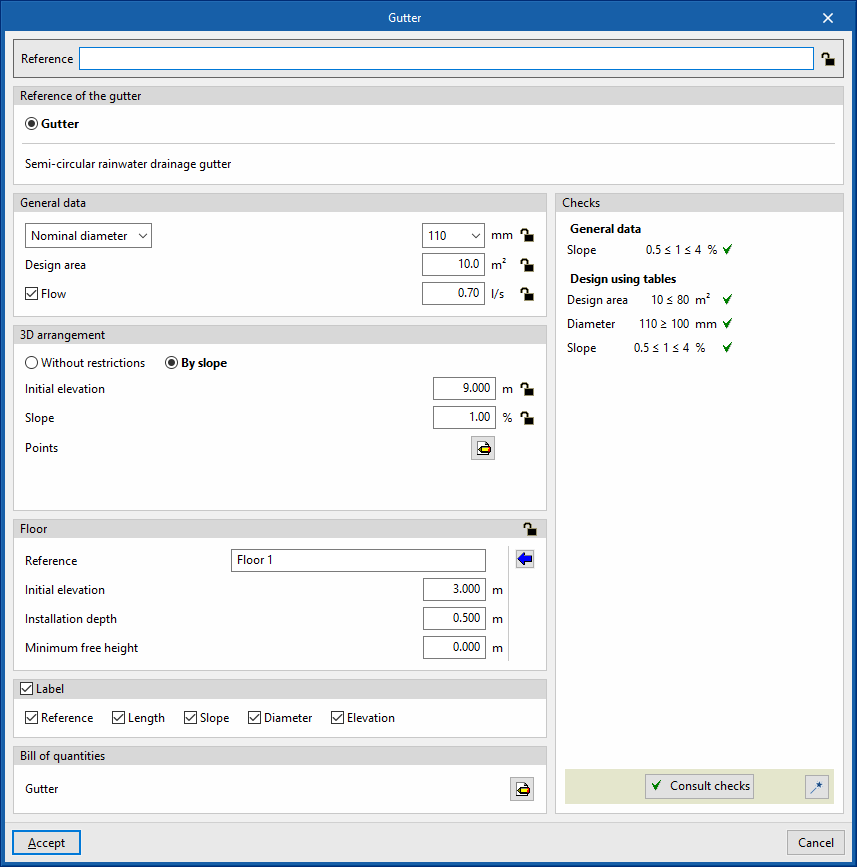
Longitudinal drain
Inserts a longitudinal drain in the water evacuation system.
When entering or editing a longitudinal drain, the following parameters can be configured. Some parameters only appear if the "Simplified entry" option found in the "Design options" of the "General options" is kept deactivated:
- Reference
Element reference. This value can be locked or unlocked. If unlocked, the program will create or modify the reference when updating results. - Longitudinal drain reference
Selects the type of longitudinal drain by its reference. These types can be created and edited in “Gutters” in the "Design and check options to be carried out" section in the "General options" of the "Project" group. - General data
Defines the element's general data. Some of these values can be locked or unlocked. If a value is locked, it is not modified when updating the results and remains unchanged.- Type (Lock/Unlock)
Selects the type of material corresponding to the longitudinal drain. These materials can be created and edited in the "Longitudinal drains catalogue", in the "Material and equipment selection" section of the "General options" of the "Project" group. - Dimensions (Lock/Unlock)
Selects the dimensions of the longitudinal drain from those available in the type selected in the previous section. - Design area (Lock/Unlock)
Defines the design area associated with the longitudinal drain. This option only appears if the "Discharge values defined in drainage units" checkbox, found in the "Design options" of the "General options", is activated. If this value is unlocked, the program can modify it when updating results, taking the data from the design area value of the drainage area where the longitudinal drain is located. - Flow (optional) (Lock/Unlock)
Defines the flow rate of the longitudinal drain.
- Type (Lock/Unlock)
- 3D layout (Lock/Unlock)
Defines the 3D layout of the element. This section only appears when editing a previously entered element.- Without restrictions
Directly enters the absolute X, Y and Z spatial coordinates of the points on the polygonal line defining the axis of the element. - By slope
Defines the 3D layout of the element by entering the on plan coordinates of the points through which it passes, the initial coordinate of the first point and the slope of the element. If the values for initial elevation and slope are unlocked, the program can adjust them when updating results.- Initial elevation (Lock/Unlock)
Defines the initial elevation of the element. - Slope (Lock/Unlock)
Defines the slope of the element. - Points
Defines the absolute X and Y plan coordinates of the points on the polygonal line defining the axis of the element..
- Initial elevation (Lock/Unlock)
- Without restrictions
- Floor (Lock/Unlock)
Defines the floor data assigned to the element. This section only appears when editing a previously entered element. If this section is unlocked, the program can modify this data, which is generated according to the layout of the element in the model. Using the wizard available on the right, the data of a floor plan defined in the "Floor plans" section of the "Project" group can be imported.- Reference
- Initial elevation
- Installation depth
- Minimum free height
- Label (optional)
Manages the information visible in the element's label.- Reference (optional)
- Length (optional)
- Slope (optional)
- Diameter (optional)
- Elevation (optional)
- Bill of quantities
Controls the generation of the element's bill of quantities using filters.- Longitudinal drain
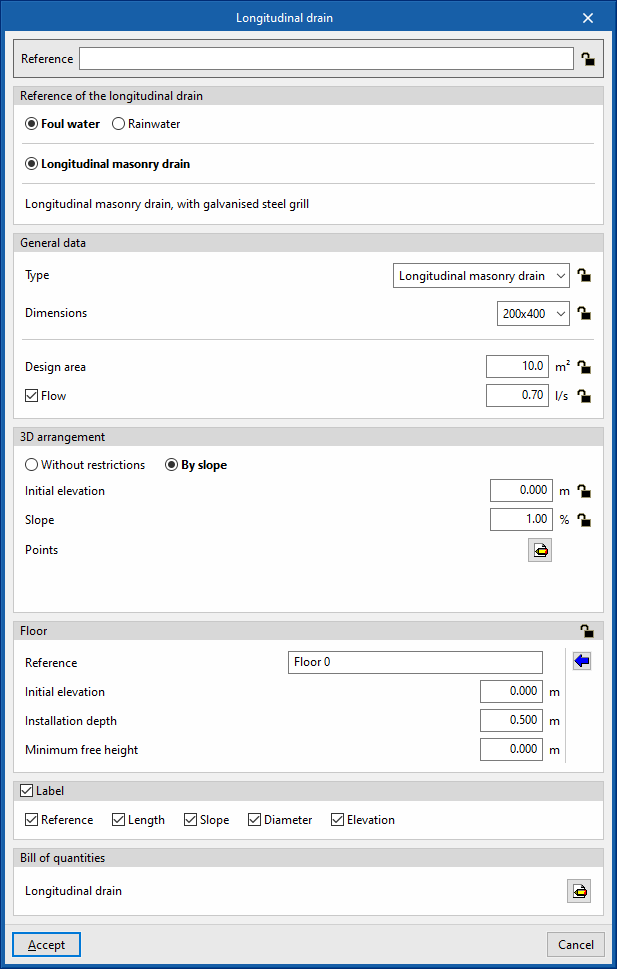
These options are the same as those available in the section "Design and check options to be carried out", which is accessed from the "General options" of the "Project" group.
Editing tools
In the "Edit" section of the main toolbar on the "Installation" tab, within the "Water Systems", "Sanitary Systems" or "Solar Systems" tabs, you will find the following tools:



Edit
The options in this menu allow the following editing operations to be carried out on the elements of the system entered in the model:
 | Edit | Edits the parametric properties of the selected element in the model. |
 | Delete | Deletes a previously entered element. |
 | Move element | Moves an element or a node of an element. |
 | Move a group of elements | Moves a group of elements. |
 | Rotate element | Rotates an element about the "x", "y" or "z" axis. |
 | Rotate a group of elements | Rotates a group of elements. |
 | Copy | Creates a copy of one or more elements. |
 | Assign | Assigns the parametric properties of the selected element to other elements. |
 | Symmetry (copy) | Copies a selection of elements with symmetry with respect to a vertical plane defined by two points. |
 | Symmetry (move) | Moves a selection of elements with symmetry about a vertical plane defined by two points. |
 | Copy onto another floor plan | Creates a copy of the selected elements in the desired floor plans. This feature is only available on floor plans. |
 | Add points | Adds intermediate points along the pipes. The pipe remains a single, undivided element. |
 | Delete points | Deletes intermediate points on pipes. The pipe remains as a single, undivided element. |
 | Join | Joins two pipes into a single pipe, creating a connecting section if necessary. The resulting pipe takes on the properties of the first pipe selected when this option is used. |
 | Split | Splits a pipe in two at the selected point. |
 | Measure lengths on plan | Measures lengths and angles between points defined in the model. If a closed outline is selected, it also indicates the area. |
 | Projection | Switches to the plan projection (XY plane) in the work area. |
Label
The options in this menu allow you to perform the following operations on the tags of the elements:
 | Move tag in 2D mode | Moves the selected tag on the element's floor plan. |
 | Move tag in 3D mode | Moves the selected tag in the 3D space. |
 | Move tag to the initial point | Returns the tag of the selected element to the initial point. |
 | Show/hide tag | Shows or hides the line linking the tag to the selected element it refers to. |
 | Place or remove the reference line of the tag | Shows or hides the line linking the tag to the selected element it refers to. |
 | Rotate tag | Rotates the tag over its position. |
 | Tag | Edits the composition of the labels of different categories of elements and the size of the text. |
Notes
The options in this menu allow you to insert the following drawing elements into a floor plan:
| Note: |
|---|
| You can enable or disable the display of these elements using the "Editing resources" option in the "Layer settings" panel, which is located by default on the left-hand side of the main interface. |
 | Elevation | Enters an elevation between two selected points, indicating the line colour, line thickness, and text size. |
 | Line | Inserts a line between two selected points, indicating its colour and thickness. |
 | Text | Enter a text and a reference line, indicating its colour, the line thickness and the text size. |
 | Text box | Enters a left-aligned, right-aligned or centred text box, indicating the colour and size of the text, the properties of the frame and the background fill. |
 | Arc | Enters an arc and, optionally, its radius, indicating the line colour, line thickness and text size. |
 | Circle | Enters a circle and its radius or diameter, optionally, indicating the line colour, line thickness, and text size. |
 | Rectangle | Enters a rectangle and, optionally, its area, indicating the line colour, line thickness and text size. |
 | Area | Enters a dotted polygon and, optionally, its area, indicating the line colour, line thickness, and text size. |
 | Polyline | Inserts a polyline by points, indicating its colour and thickness. |
 | Edit | Edits the properties of the selected drawing resource. |
 | Move | Moves the selected drawing resource or parts of it. |
| Copy | Creates a copy of one or more drawing resources. |
 | Assign | Assigns the properties of one drawing resource to others. When you select a drawing resource, any resources with the same properties are highlighted in orange. |
| Move a group of elements | Moves a group of elements. |
| Rotate a group of elements | Rotates a group of elements. |
| Symmetry (move) | Moves a selection of elements with symmetry about a vertical plane defined by two points. |
| Symmetry (copy) | Copies a selection of elements with symmetry with respect to a vertical plane defined by two points. |
 | Delete | Deletes a previously entered element. |
Search
Searches for an element by entering a text with its full reference or part of its reference.
- Only whole word (optional)
If this box is checked, only the elements that match the entered text in full will be searched for.
When doing this, the program locates the element in the model by means of magenta lines in the main directions of the space and an enveloping volume of the same colour.
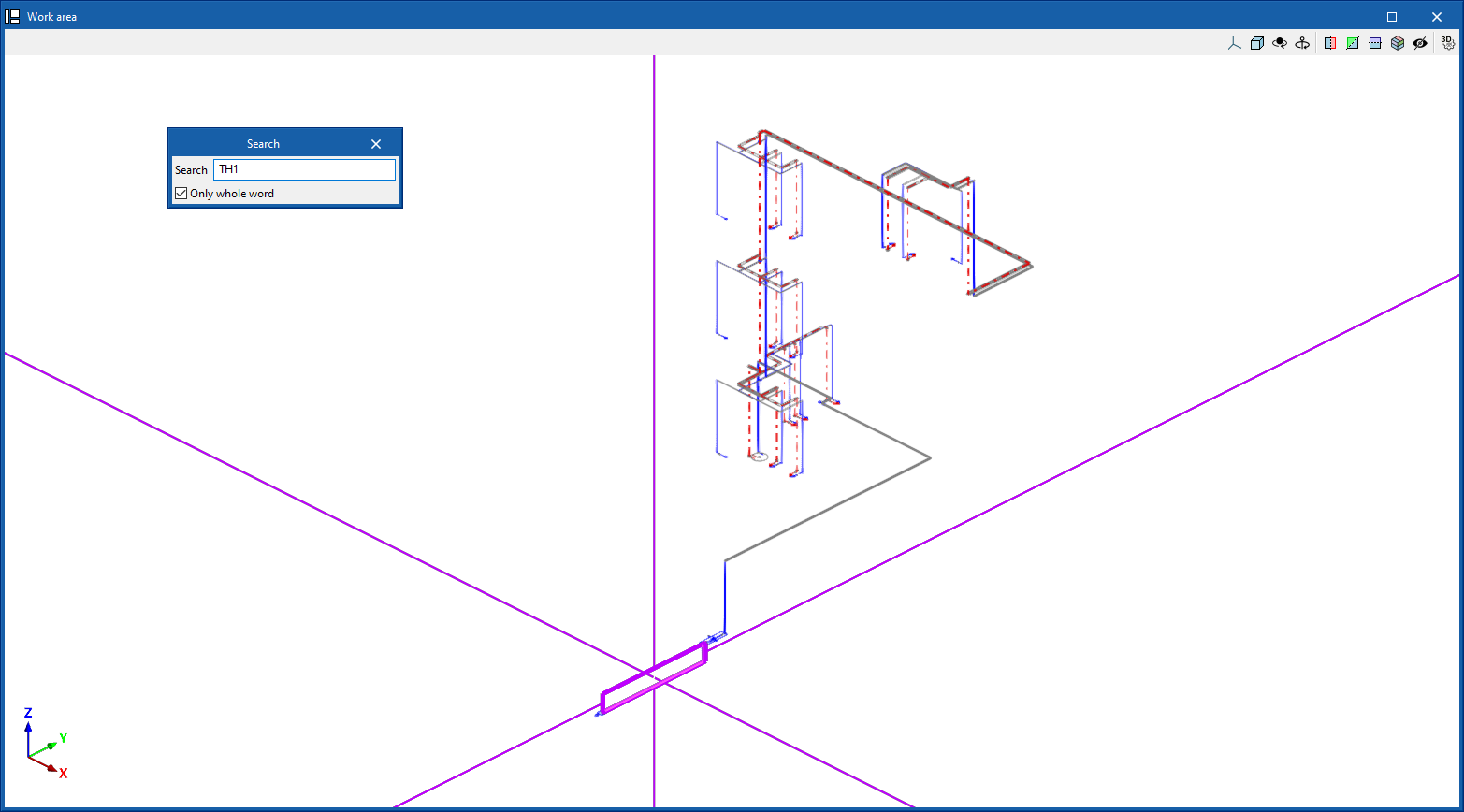
Lock
This option allows you to lock or unlock various definition parameters for model elements so that the program keeps them unchanged when updating results.
This can be done for the selected items in the workspace or, if the following box is ticked, for all items in the installation:
- Apply to the entire installation (optional)
The settings available for locking or unlocking are as follows:
- Reference (optional)
- Criteria (optional)
- Pipe diameter (optional)
- Thermal insulation diameter (optional) (under the "Water Systems" and "Solar Systems" tabs)
- Elevation (optional)
The icon on the right allows you to choose whether to lock or unlock each of the selected settings.
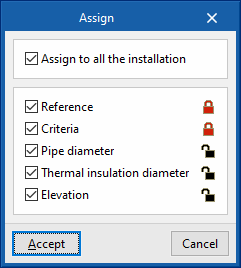
| Nota: |
|---|
| These settings can also be locked or unlocked in the edit panel for each element. |
Viewing locked items
The "View locked items" option in the "Layer configuration" panel on the left-hand side highlights model elements in the workspace in yellow if any of the parameters mentioned in the previous option are locked, making them easier to locate.
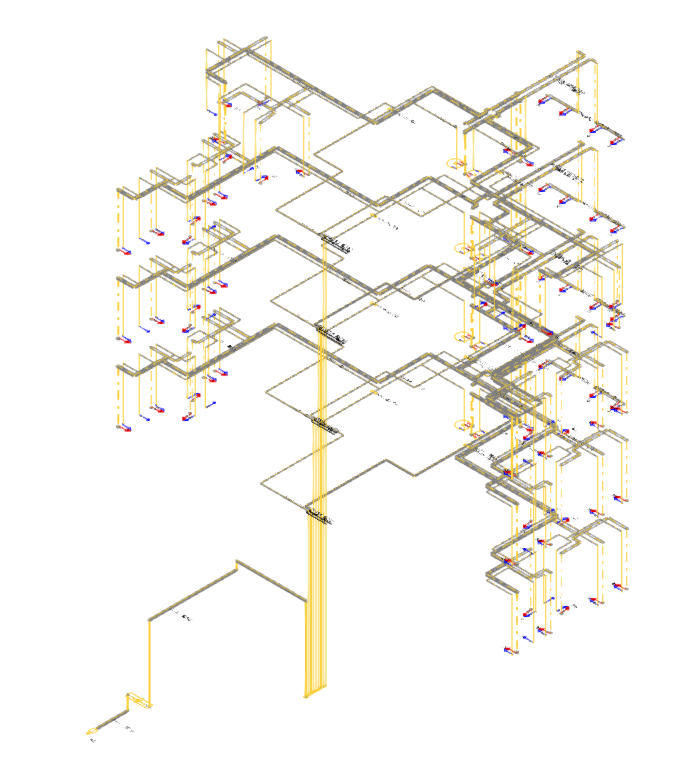
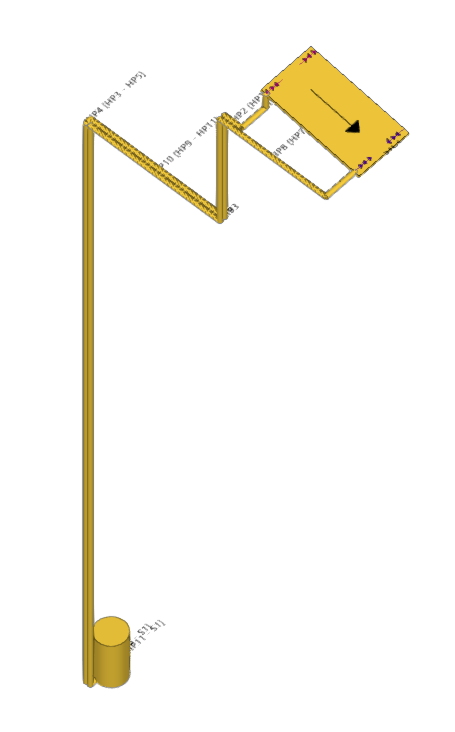
Bill of quantities
The "Bill of quantities" option opens a menu containing the following tools:
- Filter
Opens a filter manager where you can create filters on the left-hand side and assign them to the desired system components on the right-hand side. - Add
Creates a filter and applies it to the selected items in the workspace. - Delete
Removes the filter assignment from the selected items in the workspace. If the filter assignment is removed from all items, the filter is deleted. - Edit
Edit the filter settings for the selected item in the workspace.
Displaying elements with filters applied
The "Show filters" option in the "Layer settings" panel on the left-hand side displays the model elements, colour-coding them according to the filter to which they are assigned.
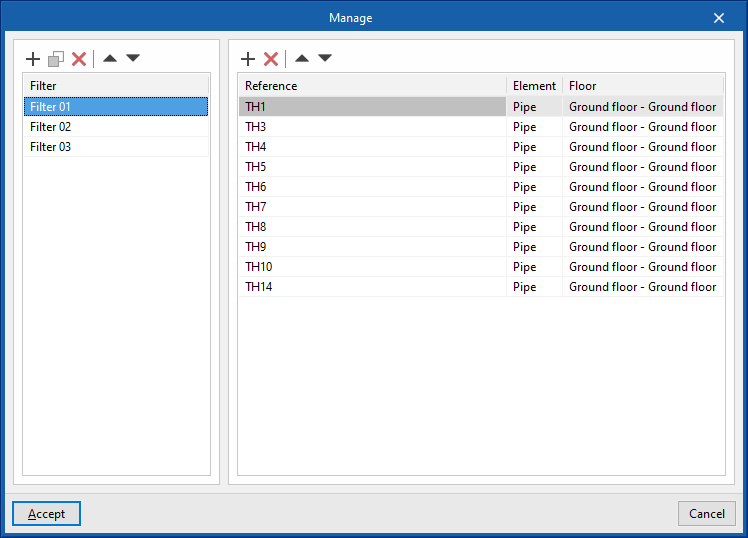
| Note: |
|---|
| Filters can also be created and assigned in the edit panel for each element. Filters created and assigned to elements allow for greater control over the bill of quantities generation process. |
Layers
In the "Edit" section, the program offers the following two controls relating to the model’s layers.
The first button allows you to "Update layer settings based on the elements entered in the model". This option is equivalent to the one available in the "Layer settings" panel on the left-hand sidebar.
The second button can be used to create and manage "Customised layers". Clicking this button opens a menu with the following options:
- Create
Creates a new custom layer by entering a "Reference". - Edit
Edits the "Reference" of the currently selected custom layer. - Copy
Duplicates the currently selected custom layer. - Delete
Deletes the currently selected custom layer. - Add elements
Selects elements from the model and assigns them to the custom layer selected in the pop-up window’s drop-down menu. To facilitate this operation, you must first select a category of elements in which those elements are visible. - Delete elements
Deletes the assignment of the selected elements from the model to the custom layer selected in the layer list.
You can select, configure, hide and/or control the display of "Customised layers" from the relevant section of the "Layer settings" panel in the left-hand sidebar.
Check
Keeping this option activated highlights the elements in the system where a warning or error has occurred in relation to their insertion or editing by means of an incident system, as in the case of disconnected elements, when they were inserted in the model. The descriptive message of said warning or error is displayed by hovering the cursor over each warning or error.
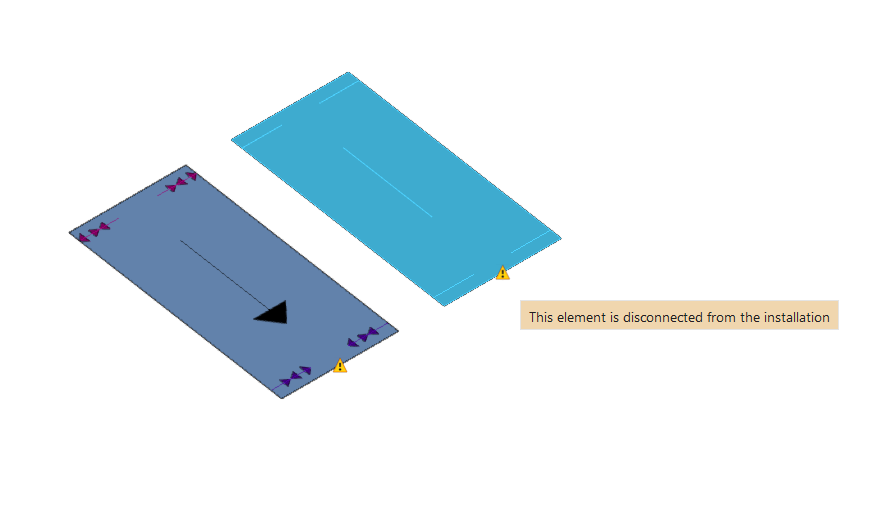
Analysing, checking and designing the water evacuation system
In the "Installation" tab of the "Sanitary Systems" tab, in the "Calculation" group of the main toolbar, there are options for analysing, checking and designing the elements in the water evacuation system:

The program carries out the analysis of the network according to the selected standard or the customised configuration used, carrying out the relevant checks; it carries out the analysis of the installation tree, calculating gross and simultaneous flows with the possibility of configuring simultaneity, and it calculates and graphically represents the most unfavourable and most favourable spans in the system.
Update results
This option allows users to analyse the system and check whether the parameters calculated in the elements of the water evacuation system are within the permitted ranges, depending on the configuration defined in the "Design and check options to be carried out" section, within the "General options".
During the process, the information of the elements in the system, such as references or parameters that are not locked in the editing panel of each element, is also generated or updated.
The result is a straightforward display with error or warning messages on the elements that have a problem in the check, as well as a detailed report by consulting the check section on each element.
Design
This option is used for analysing the system and launching the automatic design process of the elements in the water evacuation system.
The program will try to modify the dimensions of the elements in the system to comply with the analysis checks according to the defined configuration. The checks defined in the "Design and check options to be carried out", in the "General options", are taken into account.
The system is designed automatically, optimising the space occupied by the pipe in the free height of the floor and the volumes of excavation.
Consult the checks carried out
This option is used to open and consult the list of detailed checks that have been carried out on each element in the system.
This report includes information with the reference and/or description of the element, together with a table showing a description of each "Check" carried out, the limit and calculated "Values", and the "Status" of compliance.
This tool is equivalent to the "Consult checks" option, accessible from the editing panel of each element.
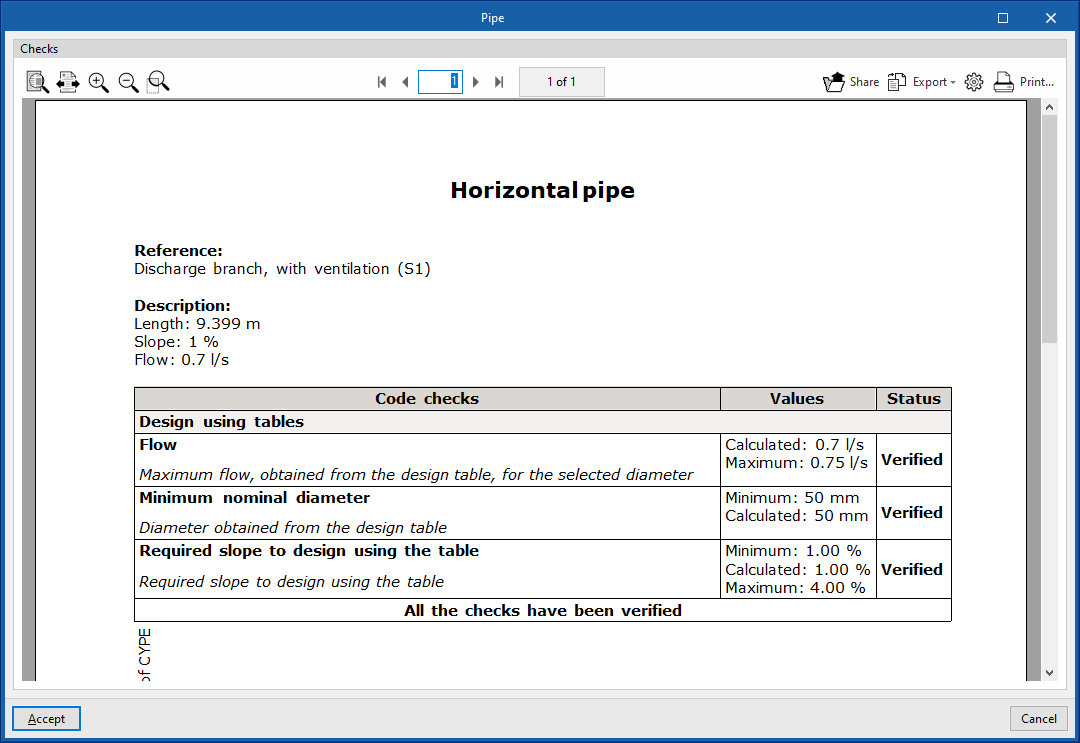
Show/Hide design issues
Activating this option highlights the elements of the system in which there has been a warning or error related to the design checks by means of an incident system, such as possible non-compliance with codes. Hovering the cursor over each incident displays the message describing the warning or error.
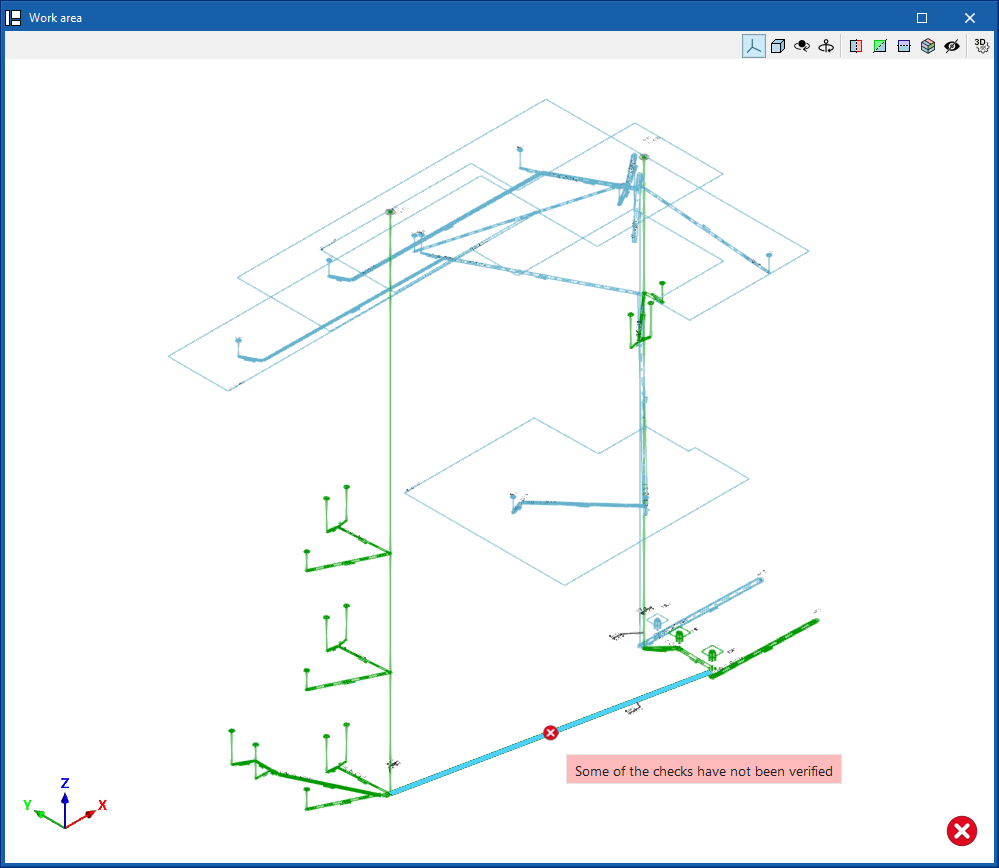
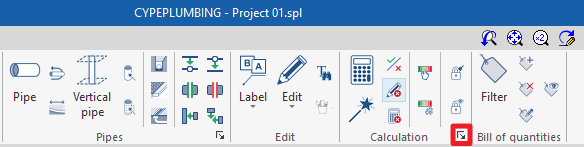
Graphical analysis of the results of the water supply system
In the "Installation" tab of the "Water Systems" tab, in the "Calculation" group of the main toolbar, there are options for graphically analysing the calculation results of the water supply system:

Viewing the graphical analysis of results
This first option is used to select the magnitude involved in the hydraulic analysis of the system to be analysed from among those available. In the "Work area", the program draws the analysis results of the calculation of the elements in the water supply system using a colour scale, making it easier to analyse them.
The magnitudes available in the graphical analysis of results are as follows:
- Gross flow
- Flow
- Simultaneity
- Inlet pressure
- Pressure loss of the span
- Velocity
- Thermal insulation thickness
- Linear heat flow
- Hot water temperature
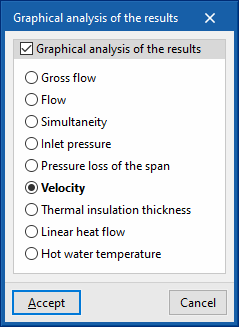
To update the results information, the model must be re-analysed.
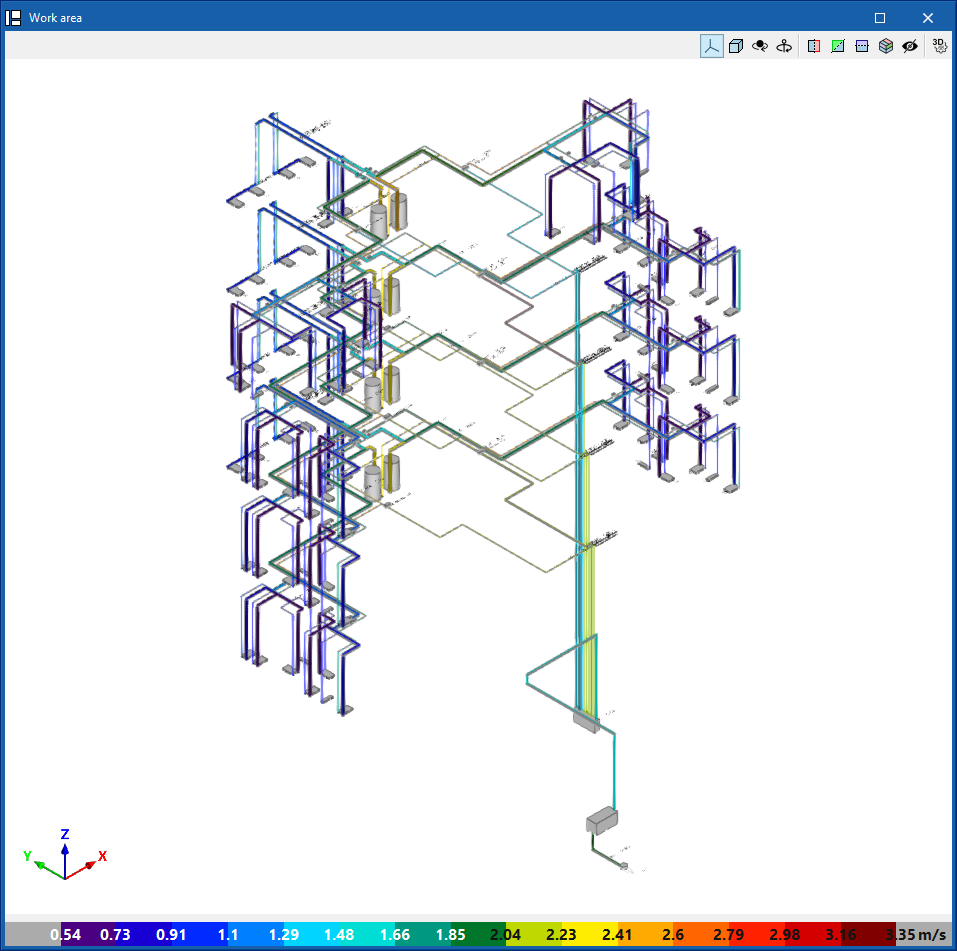
Editing the graphical analysis of results
In the graphical analysis of results, the program displays the minimum and maximum values obtained in the analysis for each magnitude in the whole system by default. However, in the dialogue box that opens with this second option, the colour scale can be adjusted by specifically entering the minimum and maximum values for each of the following magnitudes:
- Gross flow (Minimum, Maximum)
- Flow (Minimum, Maximum)
- Simultaneity (Minimum, Maximum)
- Inlet pressure (Minimum, Maximum)
- Pressure loss of the span (Minimum, Maximum)
- Velocity (Minimum, Maximum)
- Thermal insulation thickness (Minimum, Maximum)
- Linear heat flow (Minimum, Maximum)
- Hot water temperature (Minimum, Maximum)
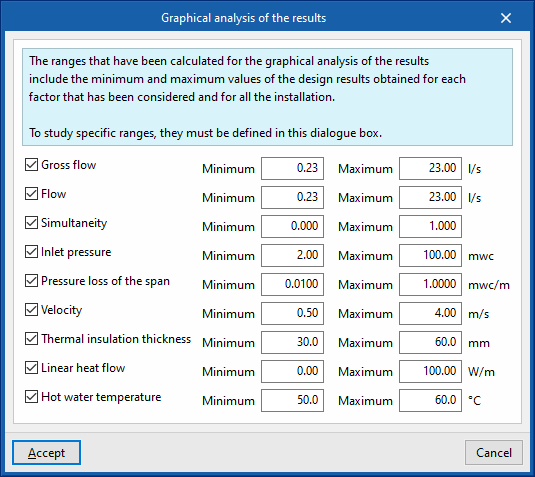
Output results from the water evacuation system
View results on screen
After carrying out the analysis, the program displays the results in the tooltip or informational text that appears when the cursor hovers over an element in the system, as well as the compliance of the checks carried out on it. To do this, the "Show information texts" option in the top right-hand toolbar must be ticked.
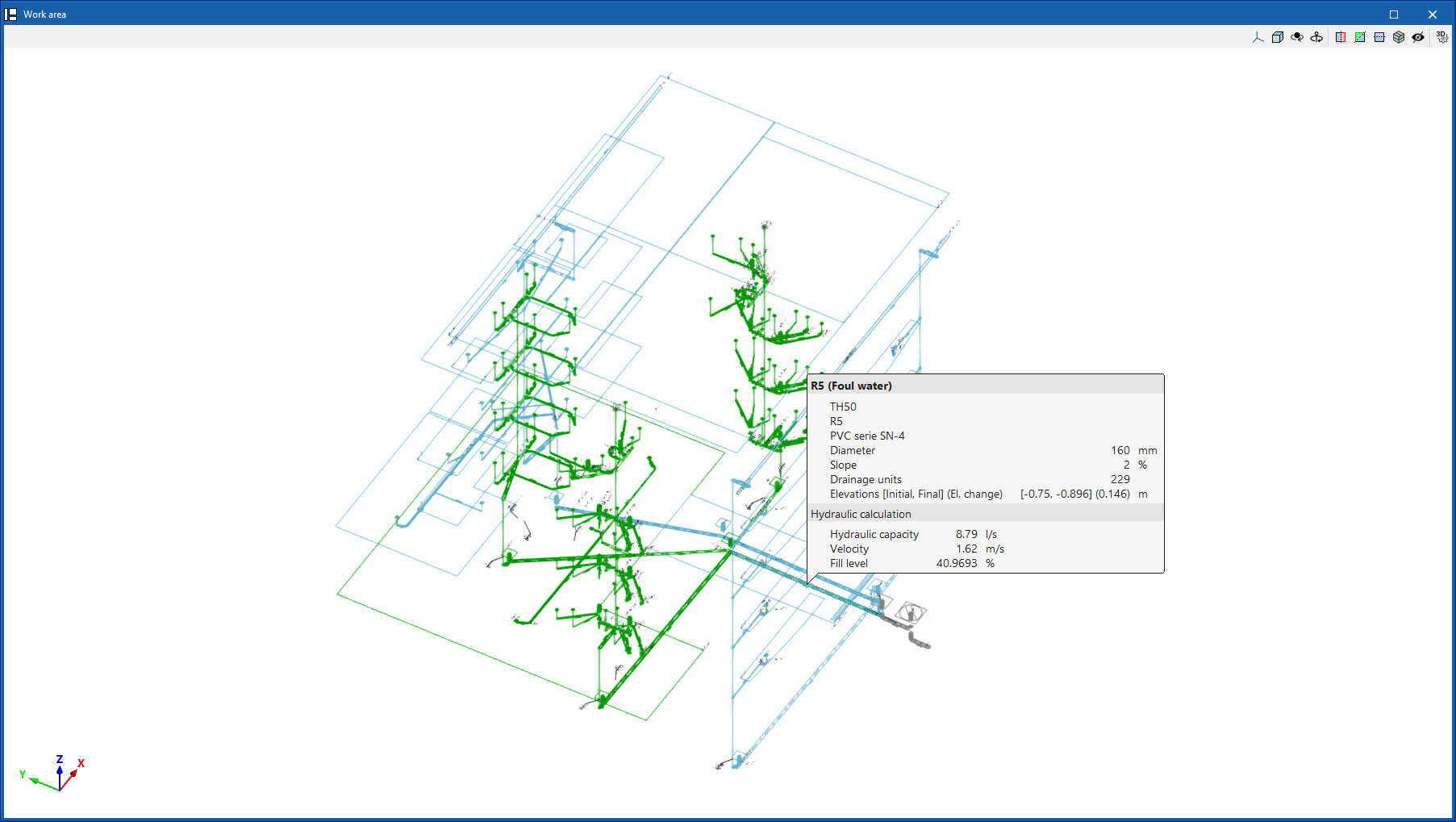
Check reports per element
In the editing panel of each element, the specific check report can be consulted via the "Consult checks" option.
This report includes information with the reference and/or description of the element, together with a table showing a description of each "Check" performed, the limit and calculated "Values", and the "Status" of compliance.
This tool is equivalent to the "Consult the checks that have been carried out" option, which can be accessed from the "Calculation" group in the top toolbar.
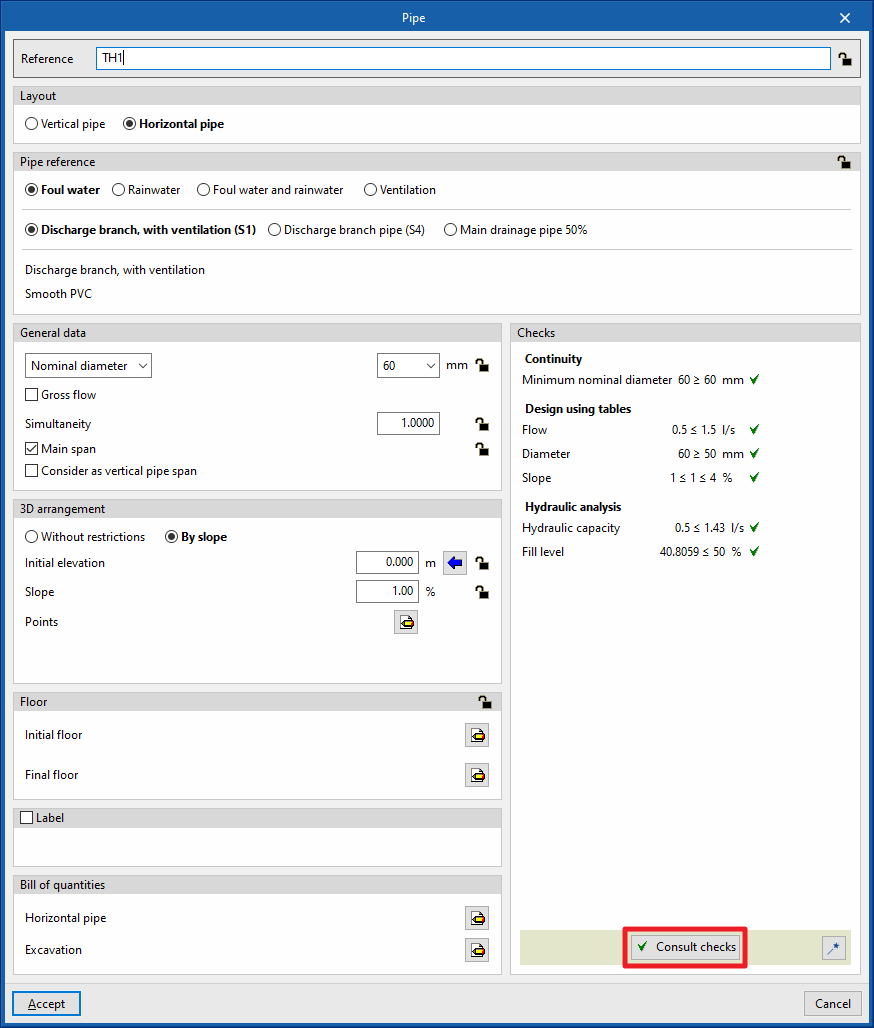
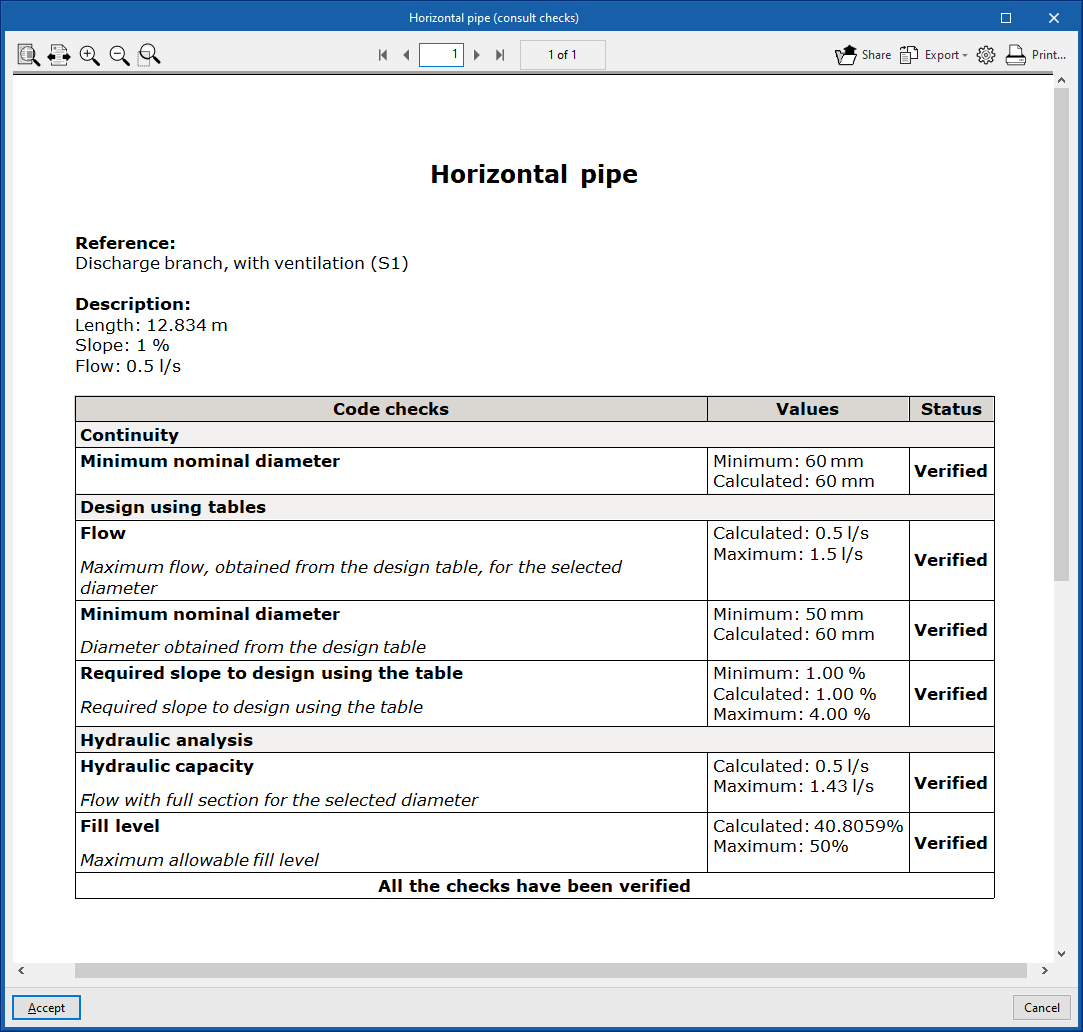
Graphical analysis of results
By means of the "Graphical analysis of results" option in the "Analysis" group in the top toolbar, the calculated values of different magnitudes are displayed by colouring the elements of the water evacuation system.
By default, the program displays the minimum and maximum values of each factor obtained in the analysis for the entire system. However, the colour scale can be adjusted according to the specific ranges of minimum and maximum values defined in the corresponding dialogue box.
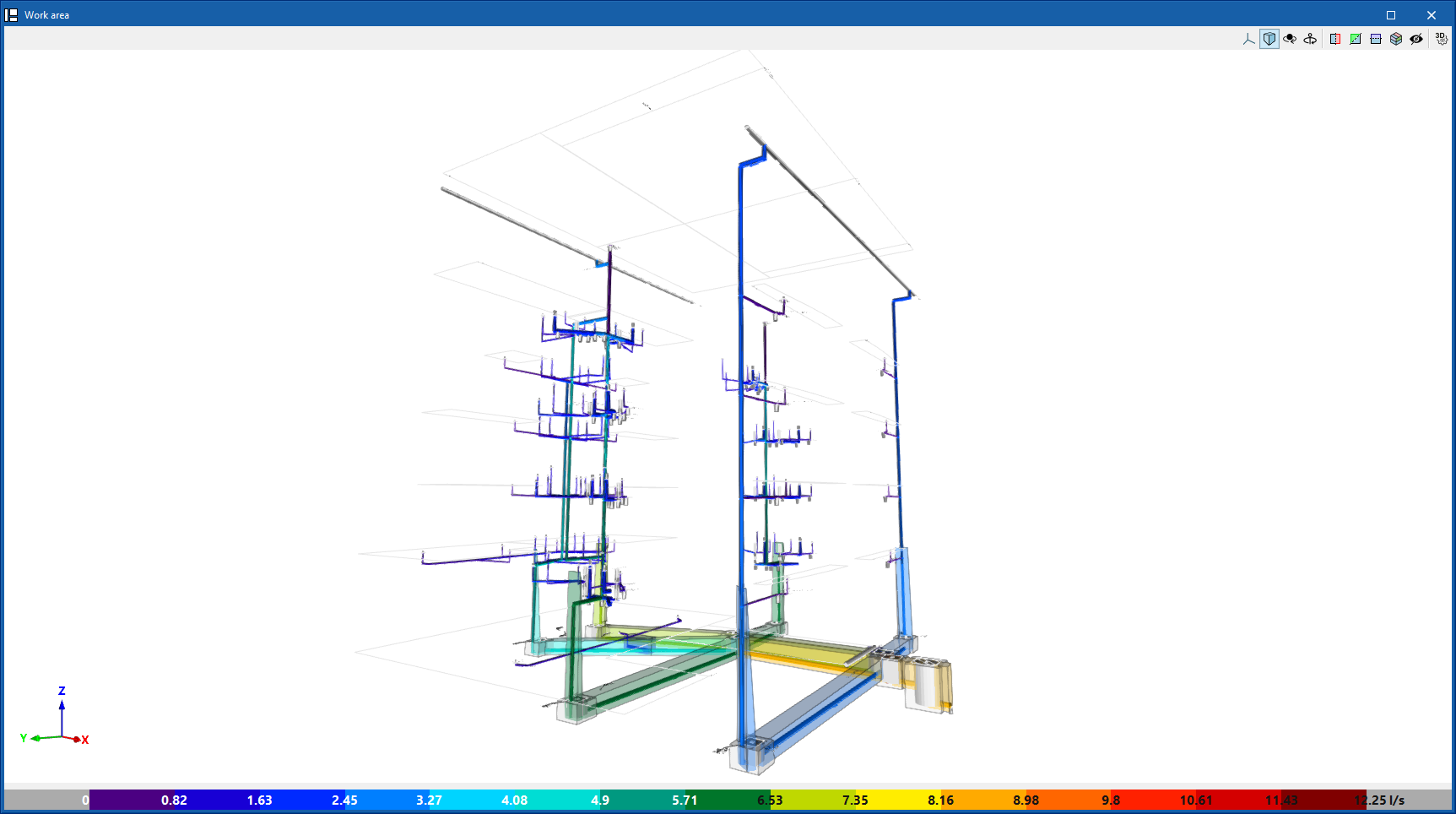
Reports
The program allows users to print the following reports directly from the printer or to generate HTML, PDF, TXT, RTF or DOCX files.
The reports are obtained via the "Reports" option in the top left-hand area of the interface.
The following reports are available for both the "Wastewater network" and the "Rainwater network":
- Design criteria
Displays a report with the expressions and calculation criteria of the water evacuation system. The following sections are included:- Formulation of horizontal pipe design
- Formulation of vertical pipe design
- Reference, description and entered data for the design and checking of each element type
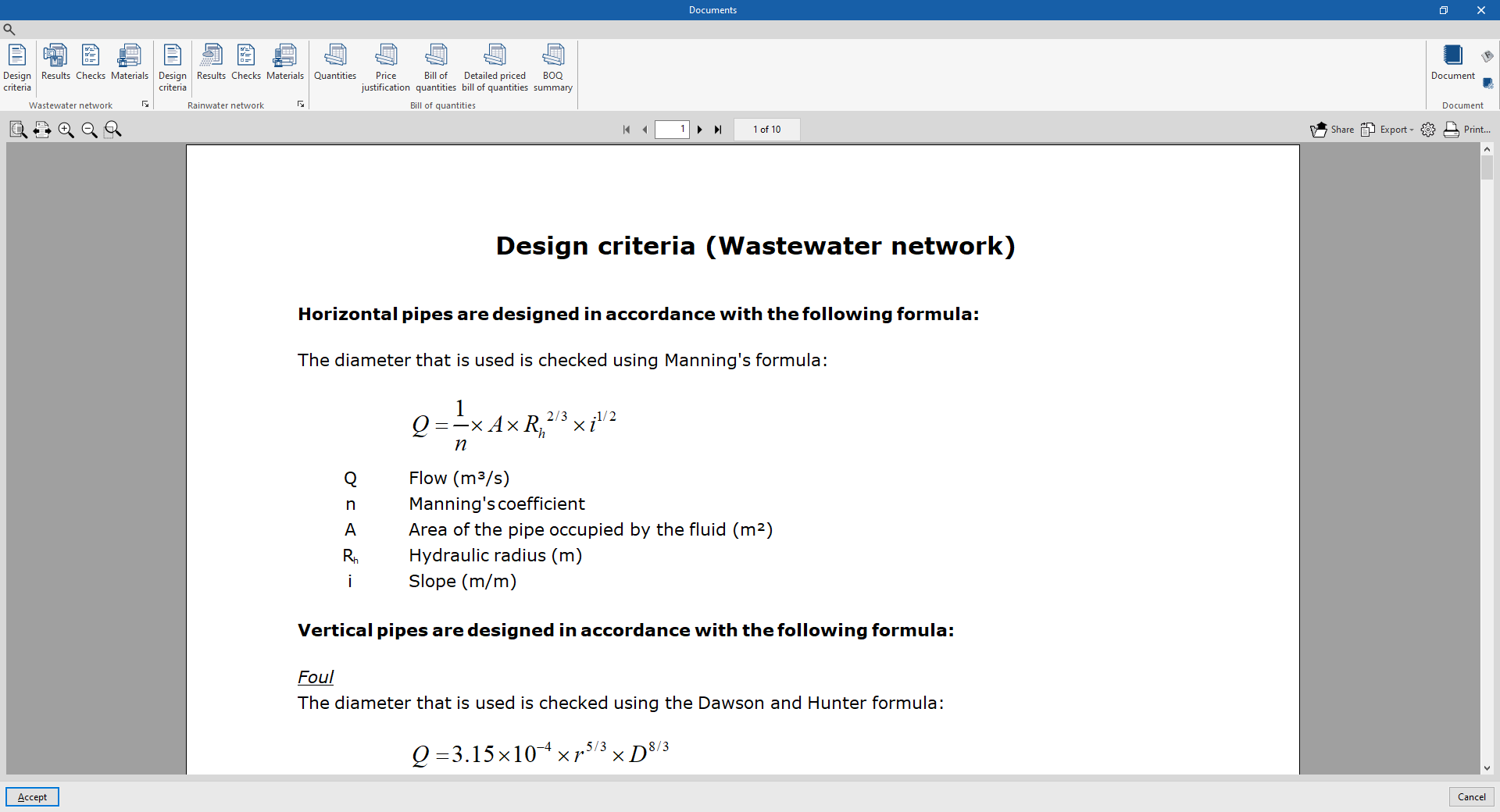
- Results
Displays a report with the calculation results of the water evacuation system, sorted into tables for each type of element.
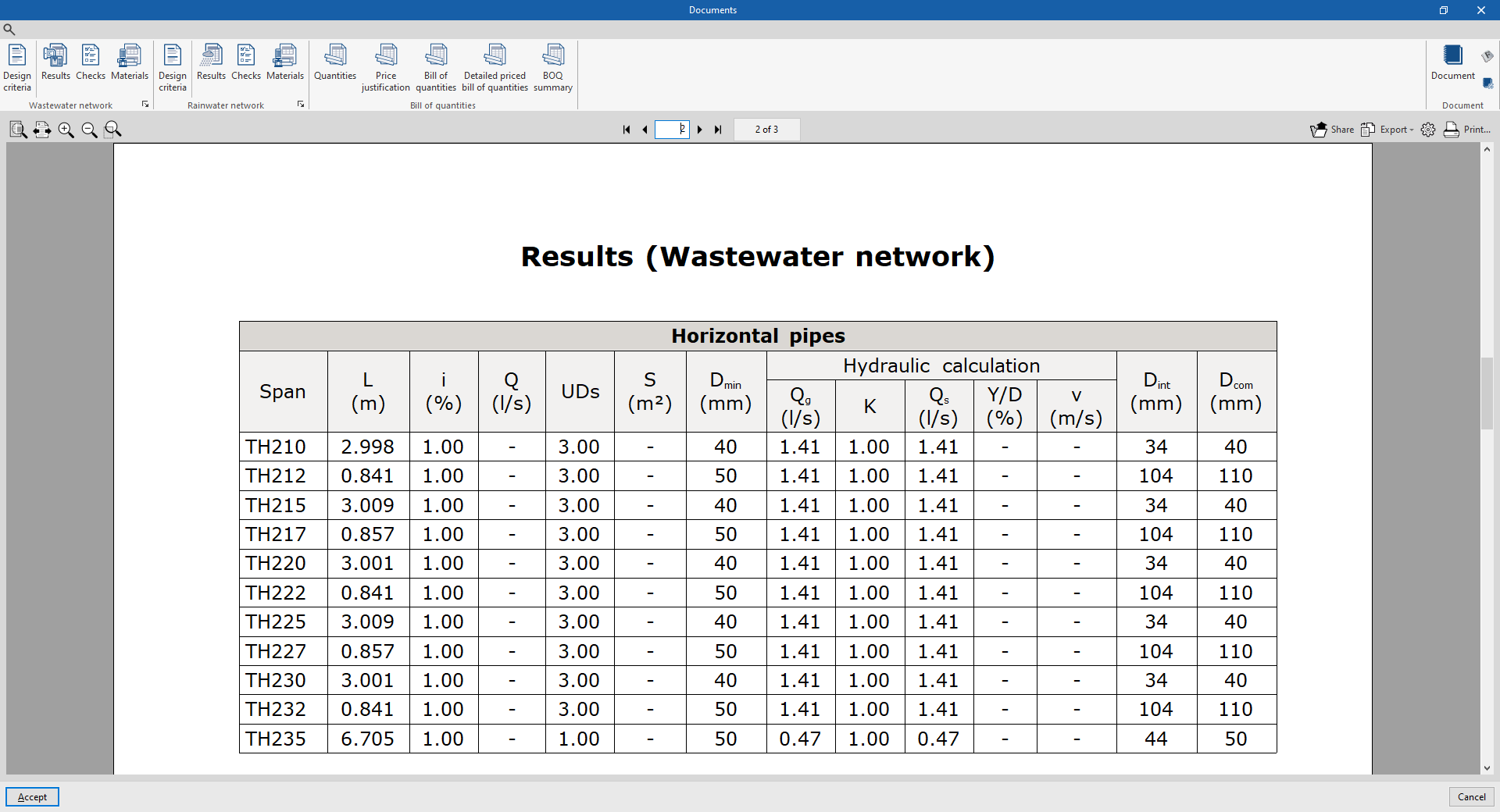
- Checks
Displays the report of detailed checks for each of the elements in the system.
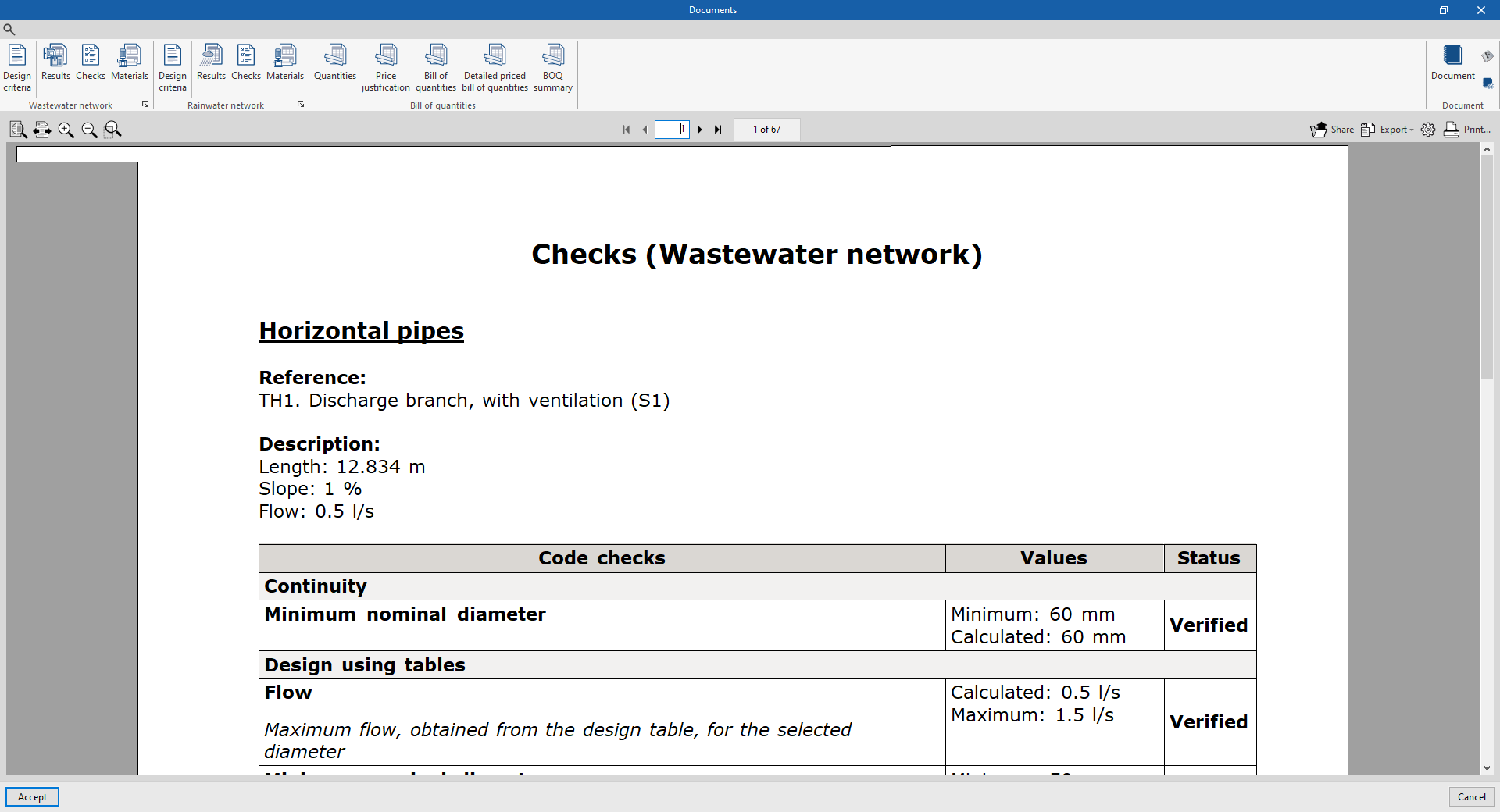
- Materials
Displays the report of detailed checks for each of the elements in the system.
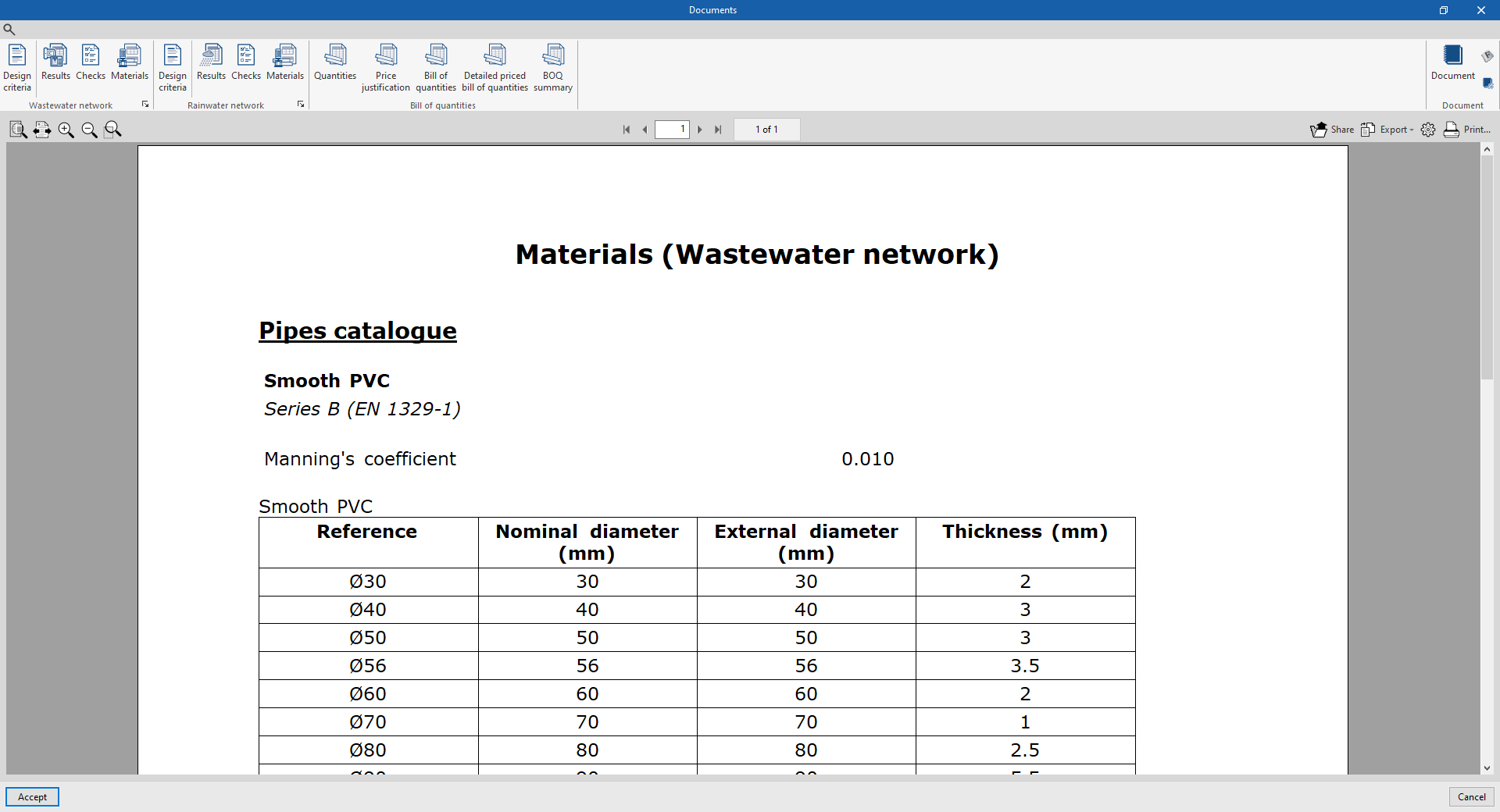
- Bill of quantities
This section allows you to print the following reports with the information entered in the "Bill of quantities" tab:- Quantities
- Price justification
- Bill of quantities
- Detailed priced bill of quantities
- BOQ summary

Document configuration
To create documents that incorporate the information of several selected reports together, use the options in the right-hand section on document configuration. The following data can be configured for each document:
- Title
- Description
- Page header (optional)
- Project; Location; Developer; Autor; Date
- Reports to be included
The "Document" option is used to print the document created.
The "Document styles" can also be modified using the corresponding option.
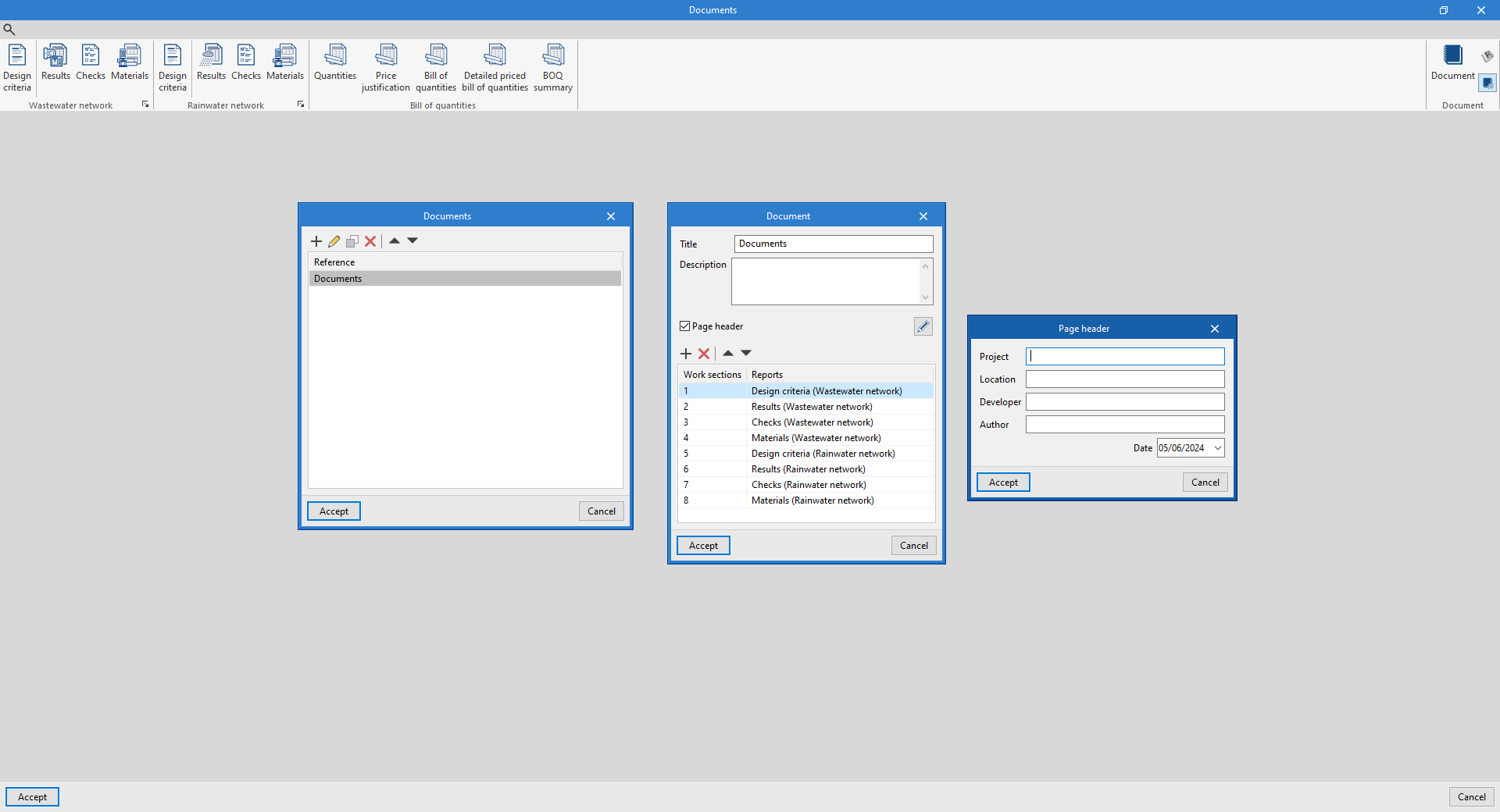
Drawings in DWG, DXF or PDF format
The program allows users to print the job drawings on any graphic peripheral configured on the computer, or to create DWG, DXF or PDF files.
The following options can be configured when editing the drawing:
- Selection of categories of elements to be included in the drawing (Foul water, Black water, Grey water, Rainwater, Foul water and rainwater, Ventilation, Main span, Spaces, Editing resources)
- Keys by drawing / Keys by building
- Symbols (optional) (Reference, Type of drainage, Symbol)
- Pipe (optional) (Reference, Description)
- Pressure pump (optional) (Reference, Description)
- Discharge (optional) (Drawing reference, Reference, Description, Dimensions, Type of drainage, Symbol)
- Inspection box (optional) (Drawing reference, Reference, Description, Dimensions, Type of drainage, Symbol)
- Collection system (optional) (Reference, Quantity, Detail)
- Pipe (optional) (Drawing reference, Reference, Diameter) (Reference, Pipe, Type of drainage, Type of line)
- Options
- Show scale (optional)
- Display DXF (optional)
- Include .glTF files in drawings (optional)
- Generate vector images (optional)
- Resolution (96 dpi / 150 dpi / 300 dpi / 600 dpi)
- Diagrams (optional)
- Selection of 2D or 3D views to be drawn
- Scale
- Details
The drawings can be obtained via the "Drawings" option at the top left of the program's general interface.
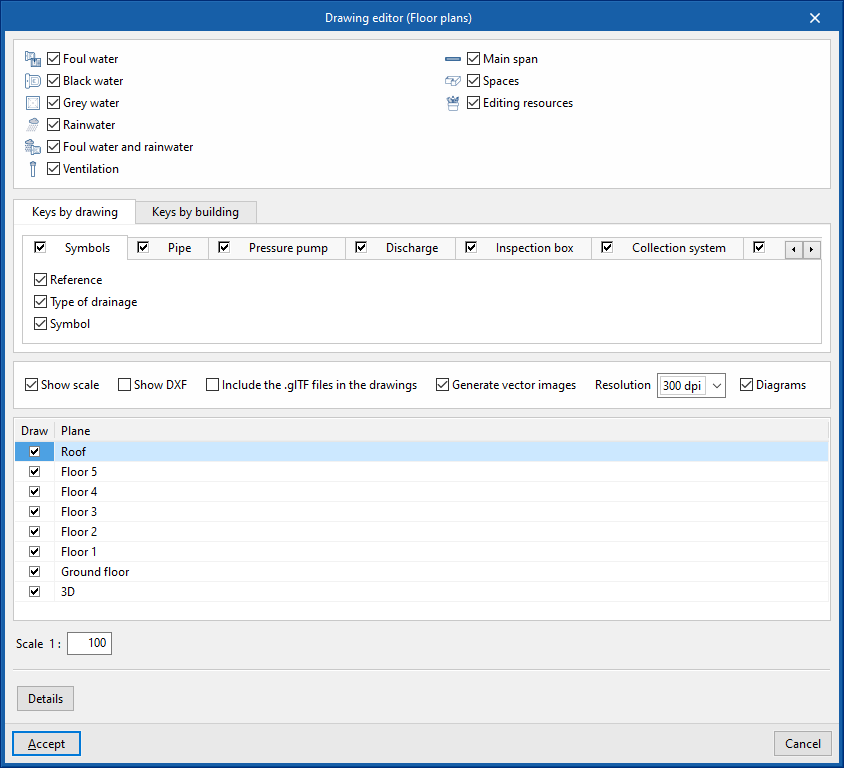
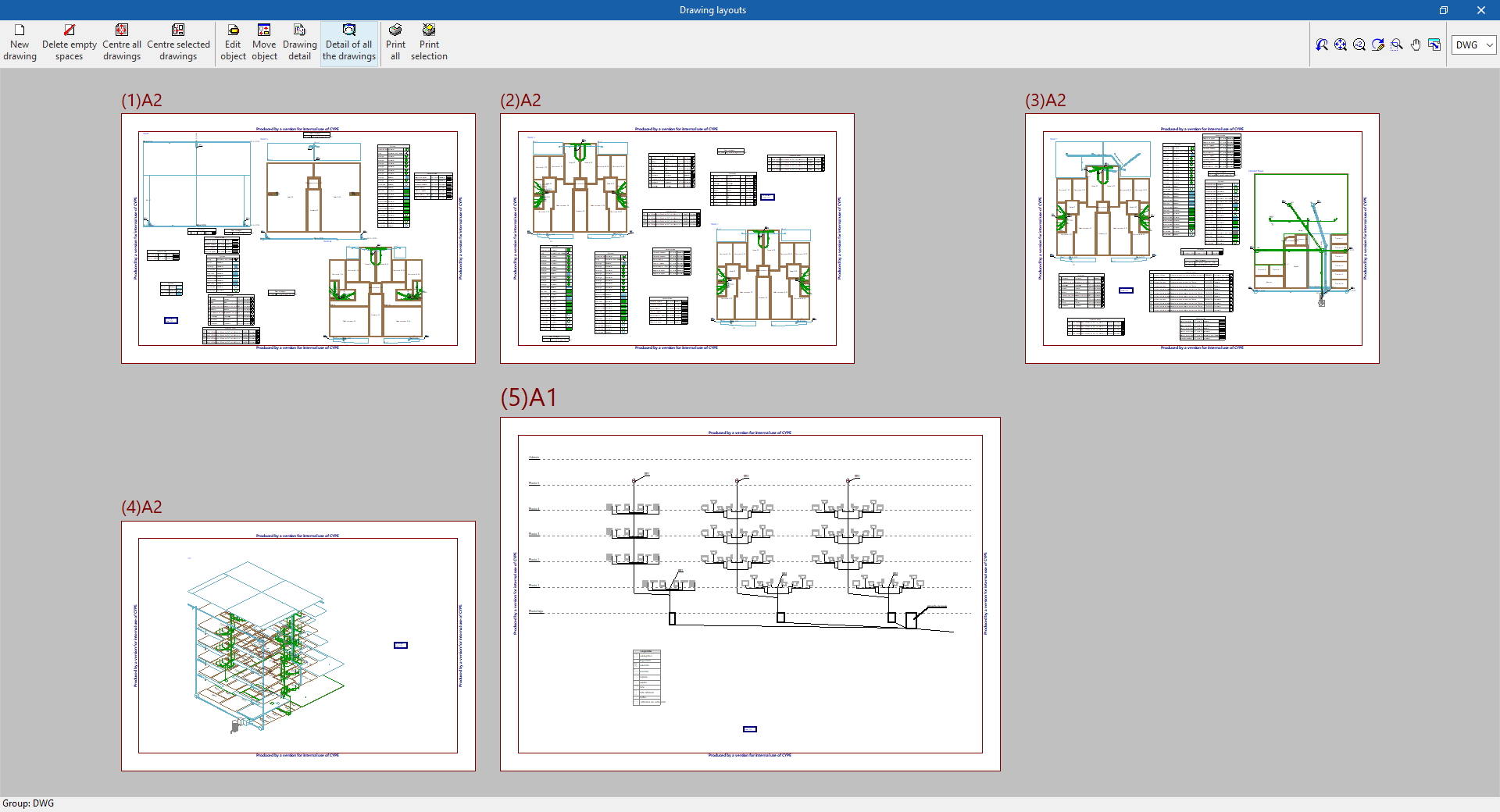
Results of the "Bill of quantities" tab
When completing the job in the "Bill of quantities" tab, the following documents can be obtained from the program:
- Exporting the budget in FIEBDC-3 format (BC3)
- Bill of quantities reports (in HTML, PDF, TXT, RTF or DOCX format)
GLTF file compatible with BIMserver.center
When a project is exported to the BIMserver.center platform, a 3D model is automatically exported in GLTF format for the integration of the installation model in the Open BIM project, allowing it to be displayed:
- on the online platform;
- in the BIMserver.center app for iOS and Android;
- in virtual reality and augmented reality;
- in other CYPE programs.
Integration into the BIMserver.center platform
Many of CYPE's programs are connected to the BIMserver.center platform and allow collaborative work to be carried out via the exchange of files in formats based on open standards.
Please note that, to work on BIMserver.center, users can register on the platform free of charge and create a profile.
When accessing a program connected to the platform, the program connects to a project in BIMserver.center. This way, the files of the projects that have been developed collaboratively in BIMserver.center are kept up to date.

| More information: |
|---|
| For further details related to using CYPE software via the BIMserver.center platform, please click on this link. |
Options available in CYPEPLUMBING
In the "BIMserver.center" group of the main toolbar of the "Installation" tab, either within the "Water Systems" tab or within the "Sanitary Systems" tab, there are features requires for using CYPEPLUMBING together with other BIMserver.center tools.



Update
Updates information contained in models previously imported into the project or imports new models if desired.
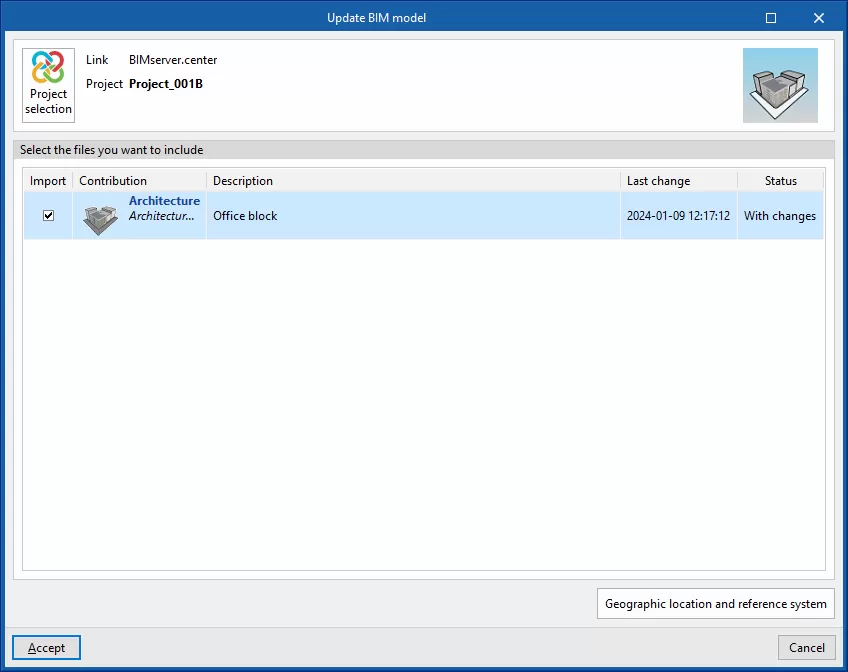
Share
Exports the information of the model developed with CYPEPLUMBING to BIMserver.center to share it with other users, including its 3D representation, the analysis reports, the bill of quantities and the system drawings.
During the export process, users can define the information related to the identification of the files to be exported and select the information to be exported from each of the tabs in the program,"Water Systems", "Sanitary Systems", "Layout" and "Digital Model":
- Name
- Description
- Water Systems / Sanitary Systems / Solar Systems (optional)
You can select the installations and documents to be exported.- Document (optional)
- Bill of quantities reports (optional)
- Bill of quantities (FIEBDC-3) (optional)
- Layout (optional)
- Configuration (optional)
You can select the sheets to be exported from those available and configure the properties of their export.
- Configuration (optional)
- Digital Model
- Configuration (optional)
You can select the detailed models to be exported from those available.
- Configuration (optional)
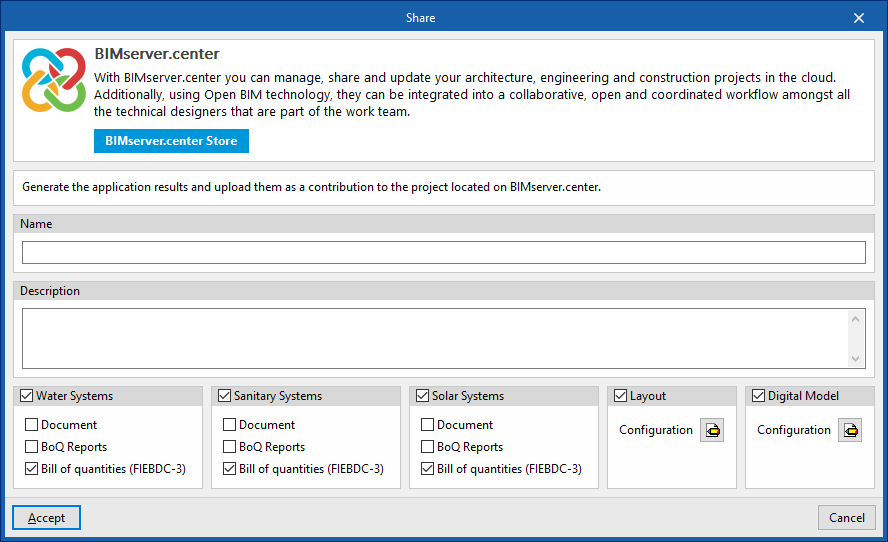
Importing and sharing files
On the far right-hand side of the main toolbar of the "Installation" tab, either within the “Water Systems” tab or within the "Sanitary Systems" tab, are the tools for importing and sharing files with water supply or water evacuation system information:


These features make it possible for several users to work on different files simultaneously. When the data entry is finished, the information in the files can be dumped and collected in a single file using these options.
Import
Imports a PLW file with the information of the water supply system (in the "Water Systems" tab) or a PL file with the information of the water evacuation system (in the ‘Sanitary Systems’ tab).
When using this option, the "Import (Water Systems)" or “Import (Sanitary Systems)” window opens, with the following options:
- Select file
Selects a file from the extensions mentioned above and specifies its path. - Delete the information from the existing file (optional)
Activates or deactivates the elimination of the information of the file on which the import is carried out, including the geometry of the existing elements in the system and the options defined in the configuration of the job.
After accepting, the program loads the geometry of the elements in the system saved in the imported file at the same coordinates as in the original file.
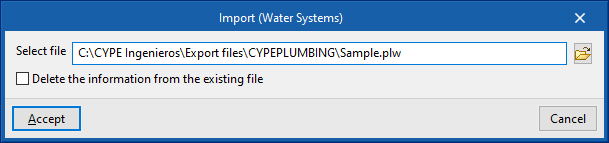
Share
Generates a PLW file with the information of the water supply system (in the "Water Systems" tab) or a PL file with the information of the water evacuation system (in the "Sanitary Systems" tab) and saves it in the specified path.
When using this option, the "Share (Water Systems)" or "Share (Sanitary Systems)" window opens, with the following option:
- Select directory
Selects the directory where the file will be saved.
After clicking "Accept", the program generates a file in the specified directory with the same name as the CYPEPLUMBING job and with one of the previously mentioned extensions.
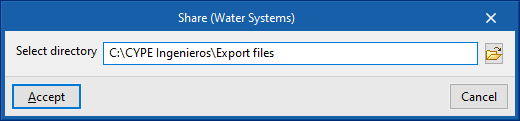
Layer configuration
Within the "Installation" tab of the "Water Systems", "Sanitary Systems" or "Solar Systems" sections, the options that control the display and selection of elements belonging to the model’s various layers are located in the "Layer configuration" panel, which is positioned by default on the left-hand side of the interface.
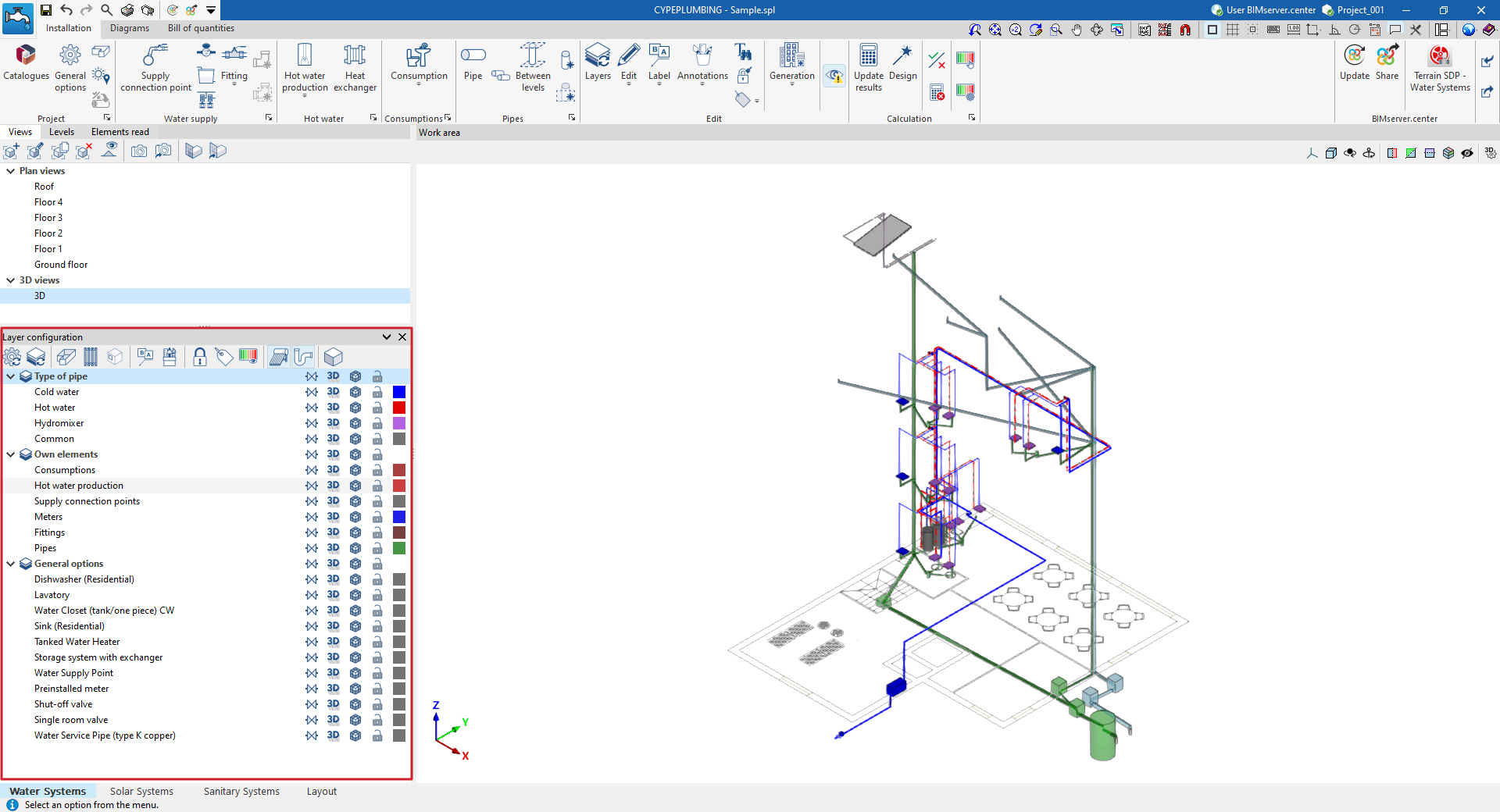
In addition, the options on the top toolbar of this panel allow you to update the settings for the layers displayed and their colours, control the display of spaces, slats and openings, labels and editing tools, locked elements or those with filters applied, view the graphical analysis of results, activate the display of installations entered in the other tabs of the program, or access the 3D view.
These features are described below.
 | Updates the colours in the layer settings based on the information entered for the different element types in the "General options" section, within the "Project" group. |
 | Updates the layer settings based on new elements added to the model (for example, by displaying or adding the layer corresponding to the category of the newly added element). |
 | Toggle the display of all areas of the BIM model that have been read and imported into the program in all views. |
 | Enables or disables the display in all views of horizontal or vertical pipe runs defined using the options in the "Generation" menu. |
 | Enables or disables the display of doors or openings from the BIM model that have been imported into the program in all views. |
 | Toggle the display of installation element labels in all views. |
 | Enables or disables the display in all views of annotations entered using the tools in the "Annotations" menu of the "Edit" panel. |
 | Highlight the locked items using the "Lock" option in the "Edit" section of the top toolbar. |
 | Highlight the items assigned to filters using the options in the "Bill of quantities" menu, within the "Edit" section of the top toolbar. |
 | This allows you to view a graphical analysis of the results of the last analysis. |
 | Enables or disables the display of water supply system components entered in the "Water Systems" tab (in the "Sanitary Systems" and "Solar Systems" tabs). |
 | Enables or disables the display of solar thermal system components entered in the "Sanitary Systems" tab (in the "Water Systems" and "Sanitary Systems" tabs). |
 | Toggle the display of the water drainage system components entered in the "Solar Systems" tab (in the "Water Systems" and "Solar Systems" tabs). |
 | This allows you to open a 3D viewer in a separate window displaying elements imported from the BIM model alongside the model’s own elements. |
Tools in the "3D view" group
In the "3D view" group of the main toolbar of the "Installation" tab, either in the "Water Systems" tab or in the "Sanitary Systems" tab, the following tools can be found:


3D view
This opens a 3D viewer where the elements read from the BIM model and the elements entered in the different tabs of the program are displayed together.
Visibility
This isolates the display of the elements selected in the work area in all views of the model, hiding the rest.
Redraw
This displays all elements in the model in all views, undoing the operation performed by the "Visibility" option.
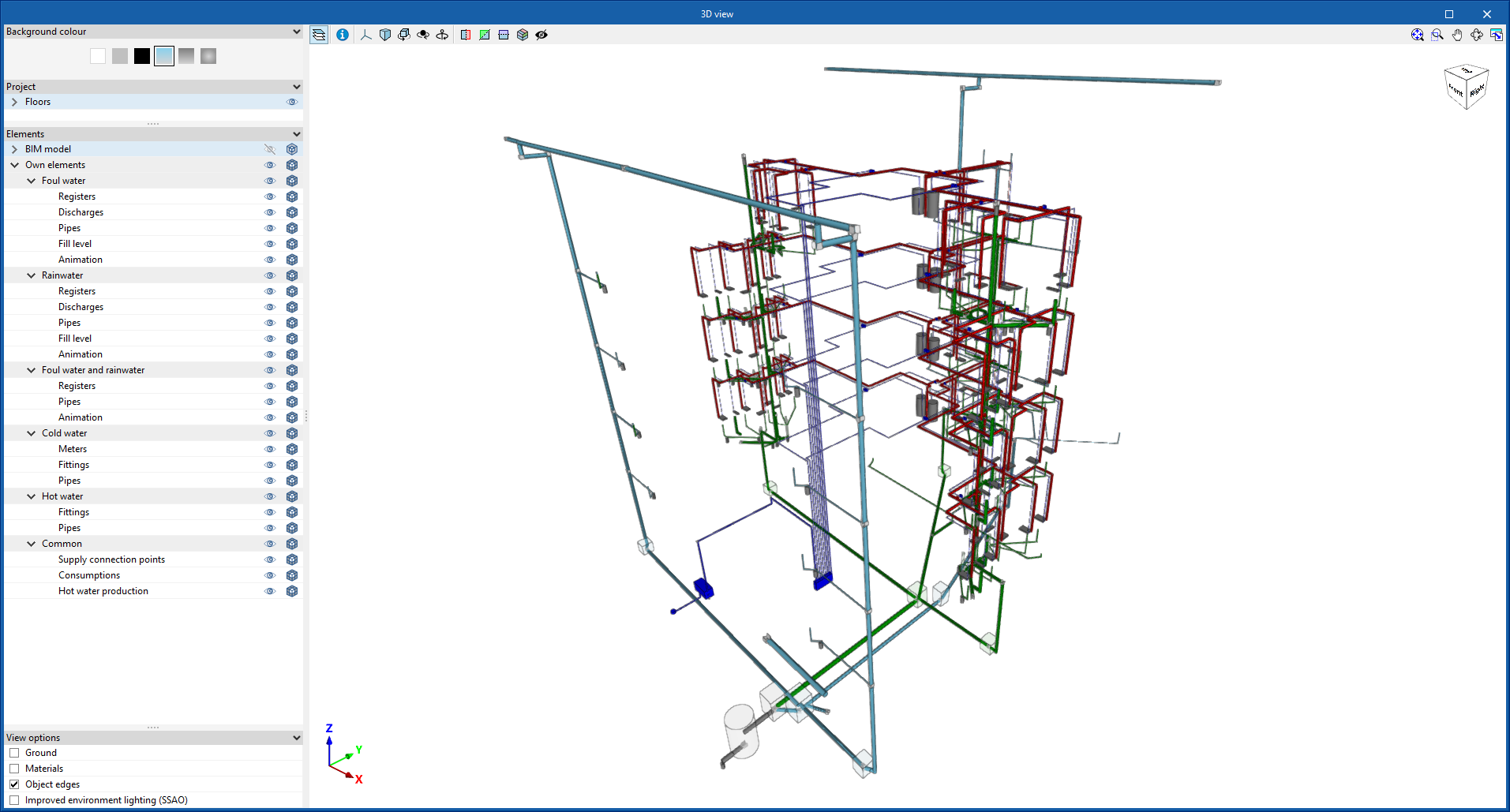
Generating and creating diagrams of the water evacuation system
The "Diagrams" tab, available at the top of the "Sanitary Systems" tab, allows users to automatically generate diagrams of the water evacuation system from the model information developed in the "Installation" tab, or to create them manually using the available drawing tools:
- To create the diagrams from scratch, the sheets of the required formats are first created using the options on the left-hand side. Then the elements in the diagram are entered in the work area on the right-hand side using the options in the top toolbar.
- To generate the diagrams automatically, the "New" option at the top is used. Then, the user is free to modify the generated diagrams on the work area by using the options in the top toolbar as well.
Composite diagrams can be selected in this tab to be printed together with the rest of the job drawings using the corresponding options.
Diagram management
The diagrams of the water evacuation system are composed on sheets of different formats. The tools for creating and managing diagrams are located on the left-hand side of the interface.
The following features can be configured when creating or editing a diagram:
- Reference
- Description
- Paper size
The available paper sizes can be configured under "General options". - Orientation (Horizontal / Vertical)
- Scale factor (%)
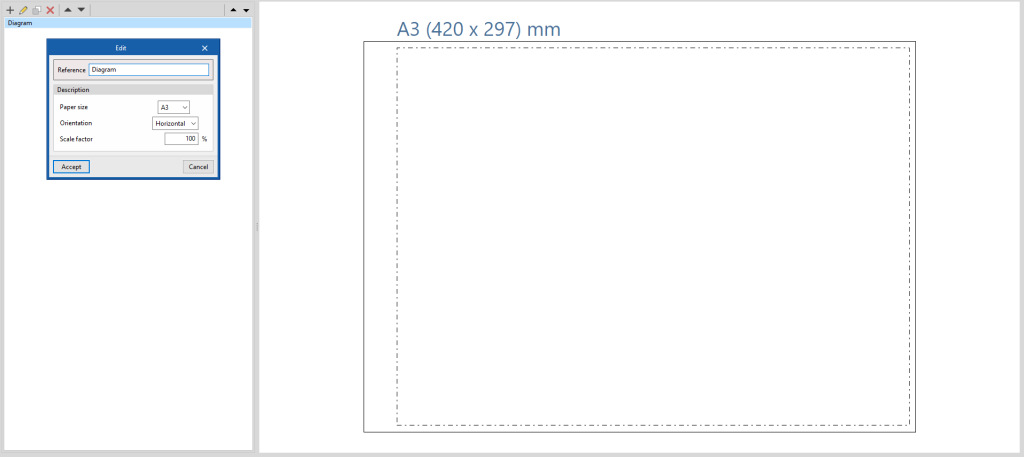
Options in the "Project" group
In the "Project" group of the top toolbar, the program includes the following features:
General options
Used to configure the paper formats and types of table available, the units of measurement, and the graphic representation of the elements in the water supply system diagrams, defining their colour and symbols (generic or customised).
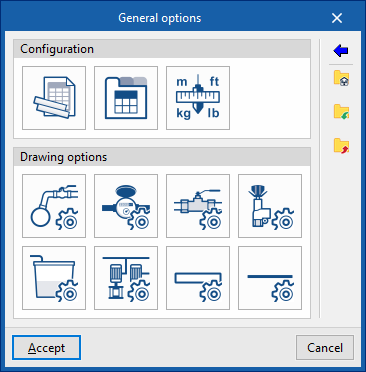
Paper size
Defines the available paper sizes entering the following parameters:
- Reference
- Description
- Width
- Height
- Top margin
- Bottom margin
- Right margin
- Left margin
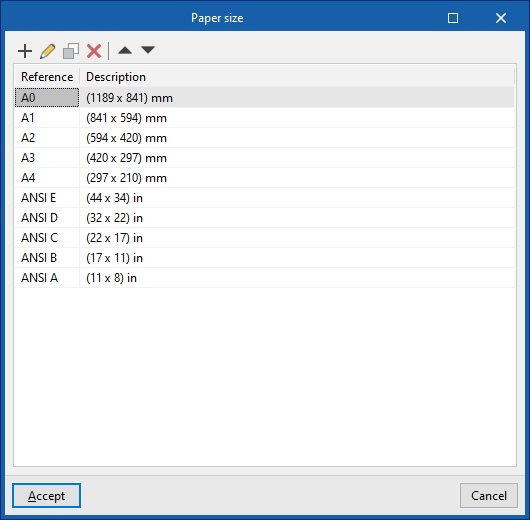
User table
Defines and edits the type of table.
When creating a table type, it can be "Generic", indicating the number of rows and tables and filling in the content of its cells in a free editor, or a "Key" type, in which case it is an "Automatic generation" can be carried out according to the elements arranged in the diagram.
The table types defined here can be used later when entering tables in the diagram via the "User tables" option in the top toolbar.
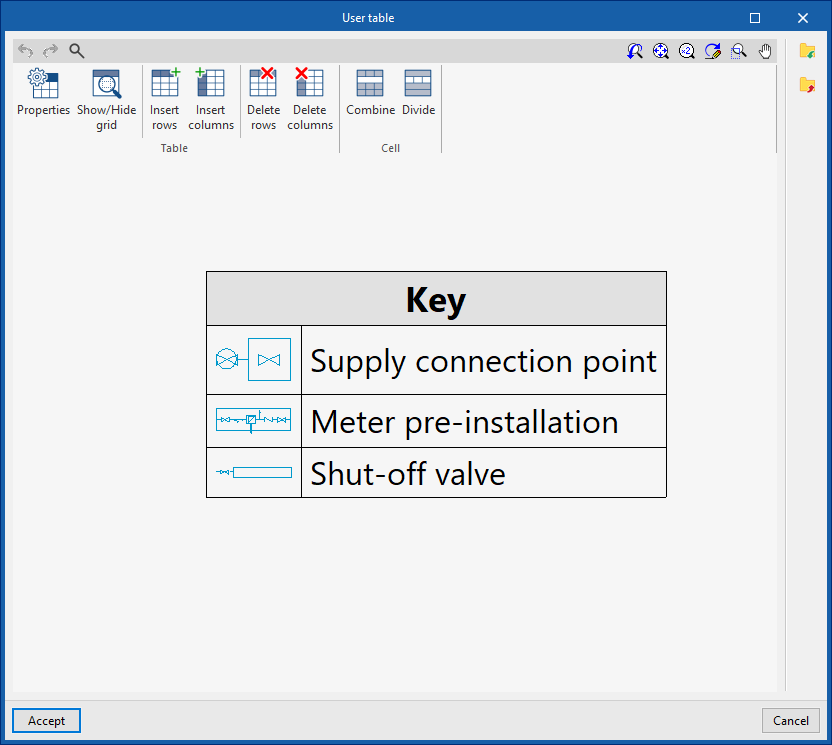
Units
Defines the units of the indicated magnitudes.
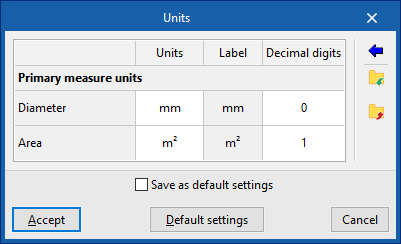
Drawing options
These options are used to define types of representation of the elements of the water supply system diagram, which can then be selected when entering these elements using the options in the "Diagram" group.
- Supply connection point, Meter, Pressure limiting valve, Tank, Booster set
- Reference
- Graphical representation
- Type selection
Selects the type of element from those available: - Colour
- Symbol (optional)
Selects a "Generic" or "Personalised" symbol from those previously created with the tools in the "Symbols" option.
- Type selection
- Pipes, Reference lines
- Reference
- Graphical representation
- Colour
Sets the colour of the line. - Symbol
Sets the style of the line.
- Colour
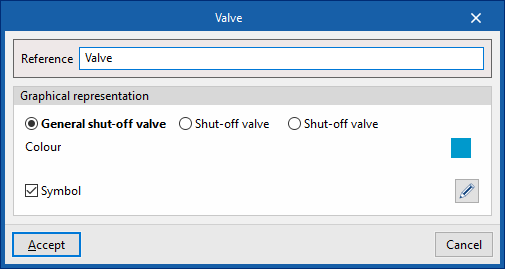
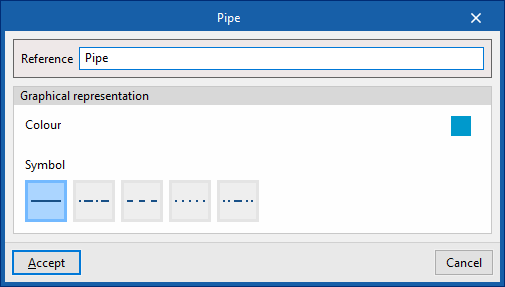
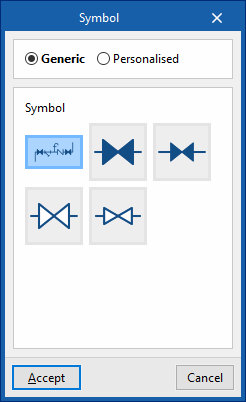
Symbols
Creates custom symbols using a drawing editor or imports symbols contained in DXF, DWG or DWF files saved on disk. These symbols can be selected in the settings defined for each element under "General options".
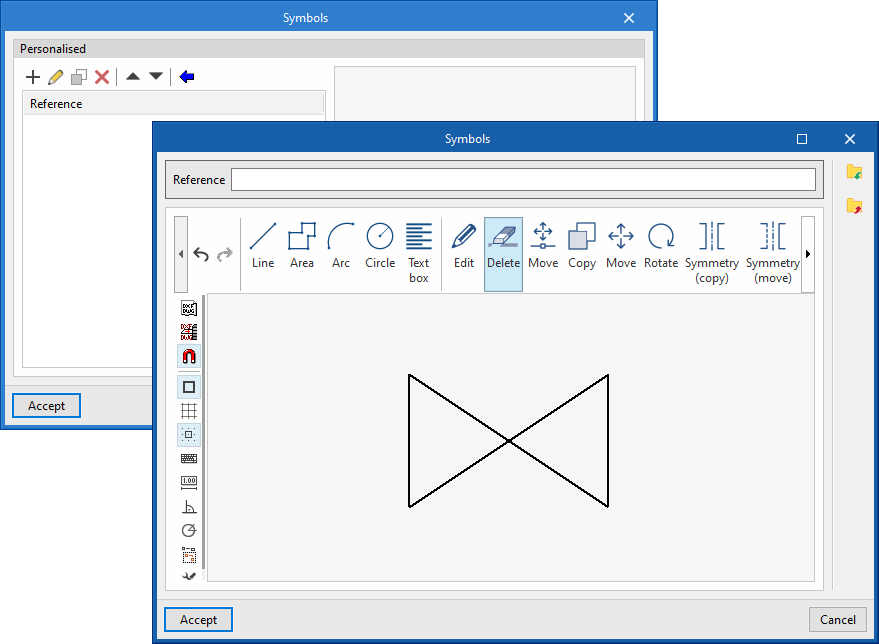
Options in the "Diagram" group
In the "Diagram" group of the top toolbar, the program includes the following tools:
Update results
Updates the information available for generating new diagrams with the analysis results.
New
Automatically generates the diagram of the water supply system if the model contains the appropriate information:
- In systems with more than one user, the program generates two diagrams, one from the supply connections to the meter assembly and the other from the assembly to the shut-off valve.
- In systems with one user, the program generates a diagram from the supply connection to the shut-off valve.
The diagrams generated can be modified later using the tools available at the top.
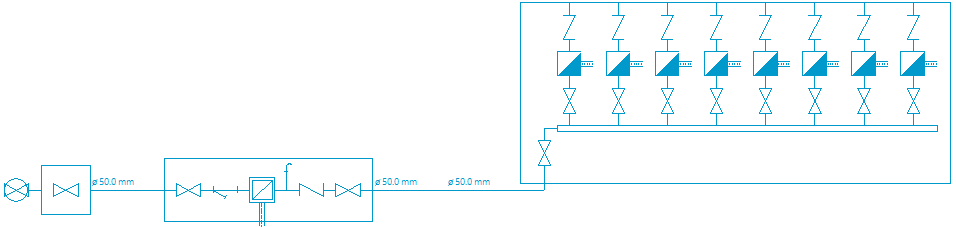
Diagrams generated for a multi-user system

Diagram generated for a single-user system
Tools for entering diagram elements
These options allow users to freely enter the elements of the diagram of the water supply system, defining the following parameters:
- Supply connection poin
- Reference
- Meter
- Reference
- Drawing options
- Shut-off valve
- Reference
- Drawing options
- Pressure limiting valve
- Reference
- Drawing options
- Tank
- Referencia
- Drawing options
- Description
- Number of tanks in parallel
- Booster set
- Reference
- Drawing options
- Description
- Number of pumps
- Pipe
- Reference
- Drawing options
- Description
- Diameter
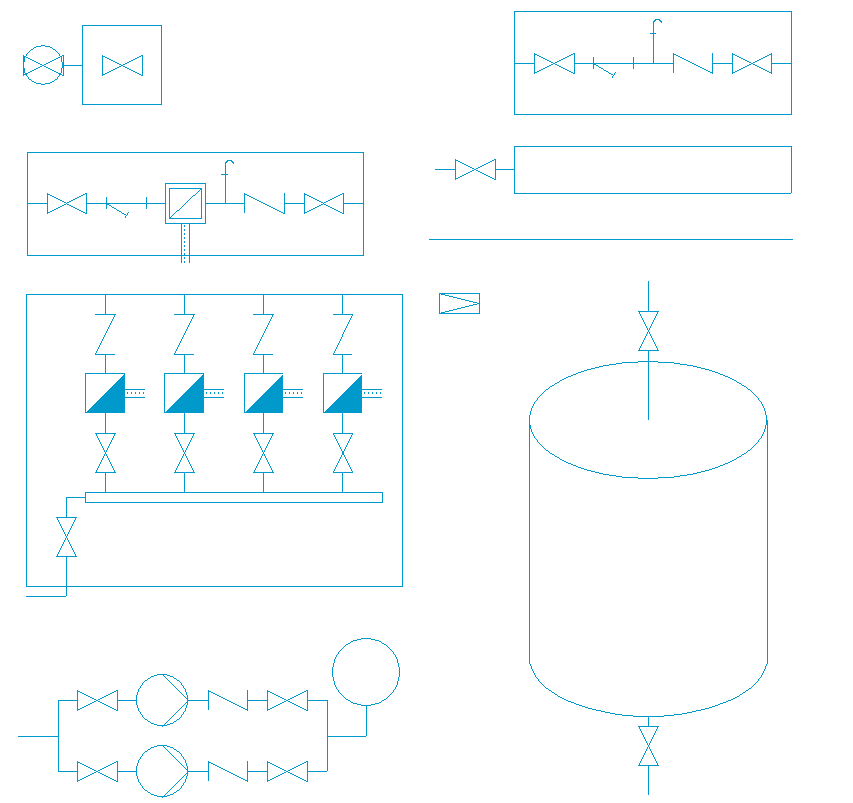
Reference line
Enters a reference line. These lines can be used to specify the layout of the elements in the diagram on the different floors of the building.

User tables
Inserts legends or tables with complementary information in the diagrams.
When creating a table, it can be "Generic", specifying the number of rows and tables and filling in the content of its cells in a free editor, or "Legend" type, where "Automatic generation" is possible depending on the elements arranged in the diagram.
Table types can also be managed via the corresponding option in the "General options".
Options in the "Edit" group
Editing tools
The options in this menu allow the following editing operations to be carried out on the elements in the system diagram:
| Edit | Edits the parametric properties of the selected element in the model. |
| Copy | Creates a copy of one or more elements. |
| Move element | Moves an element or a node of an element. |
| Move a group of elements | Moves a group of elements. |
| Delete | Deletes a previously entered element. |
| Rotate | Rotates an element. |
| Symmetry (copy) | Copies a selection of elements with symmetry about a vertical plane defined by two points. |
| Symmetry (move) | Moves a selection of elements with symmetry about a vertical plane defined by two points. |
| Measure lengths on plan | Measures lengths and angles between points defined in the model. If a closed outline is selected, it also indicates the area. |
| Asignar | Asigna las propiedades paramétricas del elemento seleccionado a otros elementos. |
Drawing tools
The options in this menu allow the following drawing resources to be entered:
| Elevation | Enters an elevation between two selected points, indicating the line colour, line thickness, and text size. |
| Line | Inserts a line between two selected points, indicating its colour and thickness. |
| Text | Enters a text and a reference line, indicating its colour, the line thickness and the text size. |
| Text box | Enter a left-aligned, right-aligned or centred text box, indicating the colour and size of the text, the properties of the frame and the background fill. |
| Arc | Enter an arc and, optionally, its radius, indicating the line colour, line thickness and text size. |
| Circle | Enter a circle and, optionally, its radius or diameter, indicating the line colour, line thickness, and text size. |
| Rectangle | Enter a rectangle and, optionally, its area, indicating the line colour, line thickness and text size. |
| Area | Enter a dotted polygon and, optionally, its area, indicating the line colour, line thickness, and text size. |
| Polyline | Inserts a polyline by points, indicating its colour and thickness. |
| Edit | Edit the properties of the selected drawing resource. |
| Delete | Deletes the selected drawing resources. |
| Move | Moves the selected drawing resource or parts of it. |
| Assign | Assigns the properties of a drawing resource to others. When selecting a drawing resource, resources with the same properties are highlighted in orange. |
Table of contents
Complete your tour of CYPEPLUMBING by exploring the other sections available:
