
Tools in the "Drawings" tab
The "Drawings" tab within the "Code compliance" interface creates and edits the drawings for the building's thermal envelope.
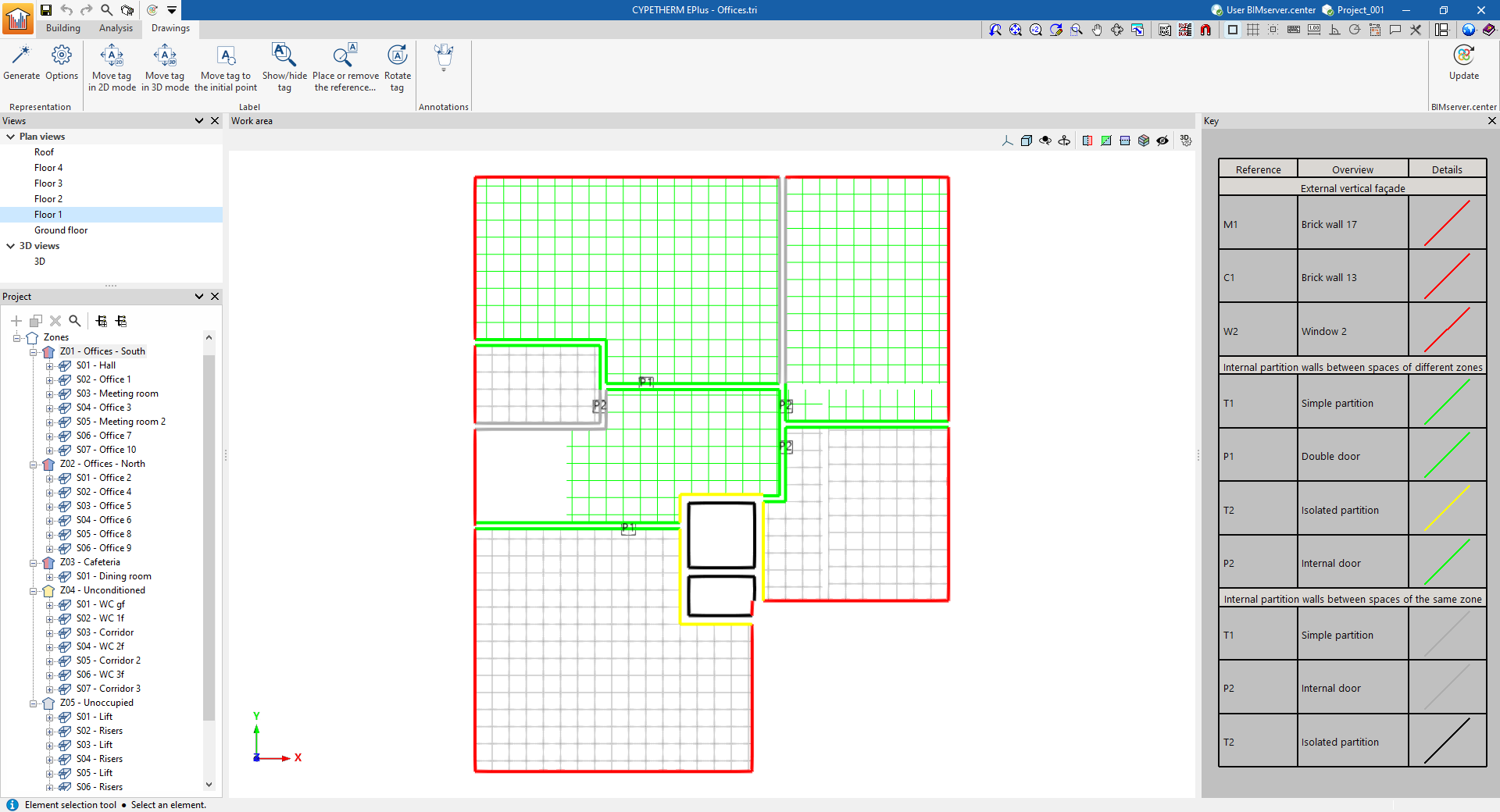
Floor plans are generated automatically from the BIM model. You can also import and view templates in DXF/DWG format from the BIM model using the "DXF-DWG Templates" button on the top toolbar.
This tab features an interface comprising the following sections:
Views
In this area, which is located by default at the top of the left-hand side, you can select the view to be displayed in the workspace (floor plans, 3D views, elevations, etc.). Views can be created and edited in the section of the same name on the "Building" tab.
Project
This area, located at the bottom of the left-hand side, features a navigation tree where you can select the zones, spaces, structural elements and openings that make up the building. In the workspace, the program highlights in orange the model elements associated with the level selected in the tree.
Work area
The work area, located at the centre of the interface, is a three-dimensional environment where the model is displayed according to the selected view. The elements of the envelope are coloured according to the key provided.
Key
In this area, on the right-hand side, the map key is displayed, showing the "Details" of the graphic representation used for each feature, its "Reference" and its "Description".
The top toolbar contains the following features:
"Representation" section

- Generate
Generates the construction drawings.
- Options
Manages the label and colour of model elements in the drawings.- "Label" tab
Edits the label text, its symbol, the text size and colour for each element of the model:- Façade
- Party wall
- Partition wall
- Curtain wall
- Basement wall
- Slab-on-ground
- Overhang
- Floor slab
- Roof
- Plane thermal bridge
- Door
- Glazed opening
- "Colour" tab
Changes the display colour of model elements according to their category:- External vertical cladding
- Underground walls
- Internal partition walls between spaces of different zones
- Internal partitions between spaces of habitable and non-habitable zones
- Internal partitions between spaces of the same zone
- Floors slabs in contact with the outside
- Slab-on-ground floors
- Internal floor slabs between spaces of different zones
- Internal floor slabs between spaces of habitable and non-habitable zones
- Internal floor slabs between spaces of the same zone
- "Label" tab
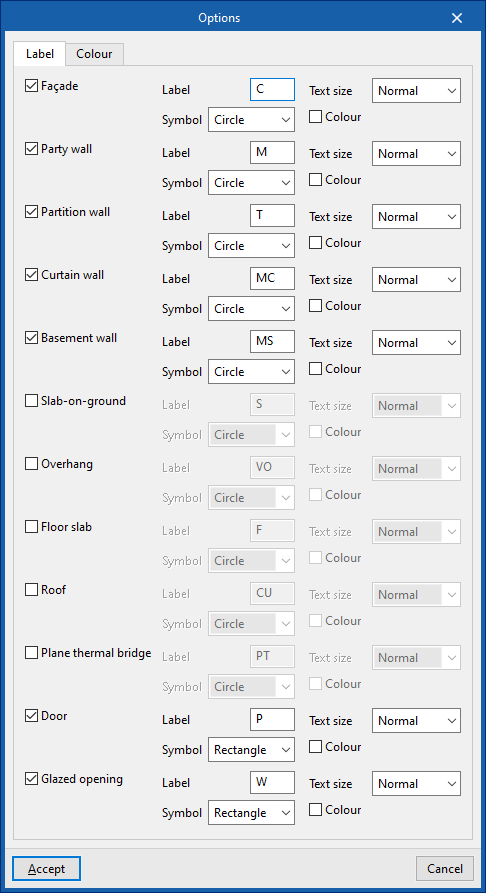
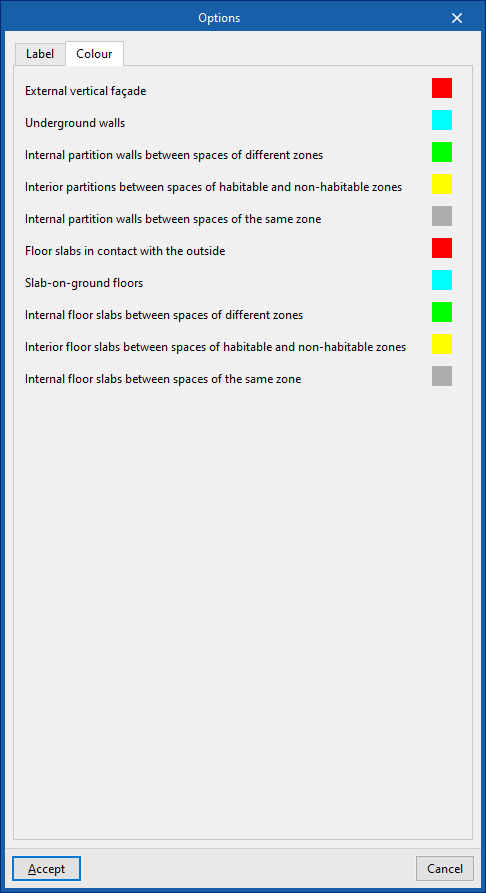
If necessary, once the drawings have been generated, clicking on each element in the work area opens an editing window where you can modify its properties and those of its label.

"Label" group

The options in this section allow you to perform the following editing operations on the labels generated for the model elements:
 | Move label in 2D mode | Moves the selected label on the element's floor plan. |
 | Move label in 3D mode | Move the selected tag in three-dimensional space. |
 | Move the label to the inital point | Resets the label of the selected item to its default value. |
 | Show/hide label | Shows or hides the label of the selected item. |
 | Place or remove the label reference line | Shows or hides the line linking the label to the selected element to which it refers. |
 | Rotate label | Rotates the label. |
"Notes" group

The options in this group allow you to insert the following drawing elements:
 | Elevation | Enters a dimension between two selected points, specifying the colour and line weight, as well as the text size. |
 | Line | Inserts a line between two selected points, specifying its colour and thickness. |
 | Text | Enters some text and a reference line, specifying the colour, line thickness and text size. |
 | Text box | Inserts a text box that is left-aligned, right-aligned or centred, specifying the text colour and size, the border properties and the background fill. |
 | Bow | Enters an arc and, if you wish, its radius, specifying the line colour and thickness and the text size. |
 | Circle | Enters a circle and, if you wish, its radius or diameter, specifying the line colour and thickness and the text size. |
 | Rectangle | Draws a rectangle and, if you wish, its area, specifying the line colour and thickness and the text size. |
 | Area | Enters a polygon using points and, if you wish, its area, specifying the line colour and thickness and the text size. |
 | Polyline | Draws a polyline using points, specifying its colour and line weight. |
 | Edition | Edits the properties of the selected drawing object. |
 | Delete | Deletes the selected drawing resources. |
 | Move | Moves the selected drawing object or parts of it. |
 | Assign | Assigns the properties of one drawing resource to others. When you select a drawing resource, any resources with the same properties are highlighted in orange. |
| Note: |
|---|
| Drawings created and edited in the "Drawings" tab can be printed later using the "Drawings" option at the top of the interface or via the "Drawings" option in the "File" menu. |
Integration into the BIMserver.center platform
Many of CYPE's programs are connected to the BIMserver.center platform and allow collaborative work to be carried out via the exchange of files in formats based on open standards.
Please note that, to work on BIMserver.center, users can register on the platform free of charge and create a profile.
When accessing a program connected to the platform, the program connects to a project in BIMserver.center. This way, the files of the projects that have been developed collaboratively in BIMserver.center are kept up to date.

| More information: |
|---|
| For further details related to using CYPE software via the BIMserver.center platform, please click on this link. |
Options available in CYPETHERM EPlus
The "BIMserver.center" section of the main toolbar contains the features needed to use the program in conjunction with other BIMserver.center tools:



Update
The "Update" button, located in the "BIMserver.center" section of the toolbar on the "Building" and "Drawings" tabs, allows you to synchronise changes made to the BIM model.
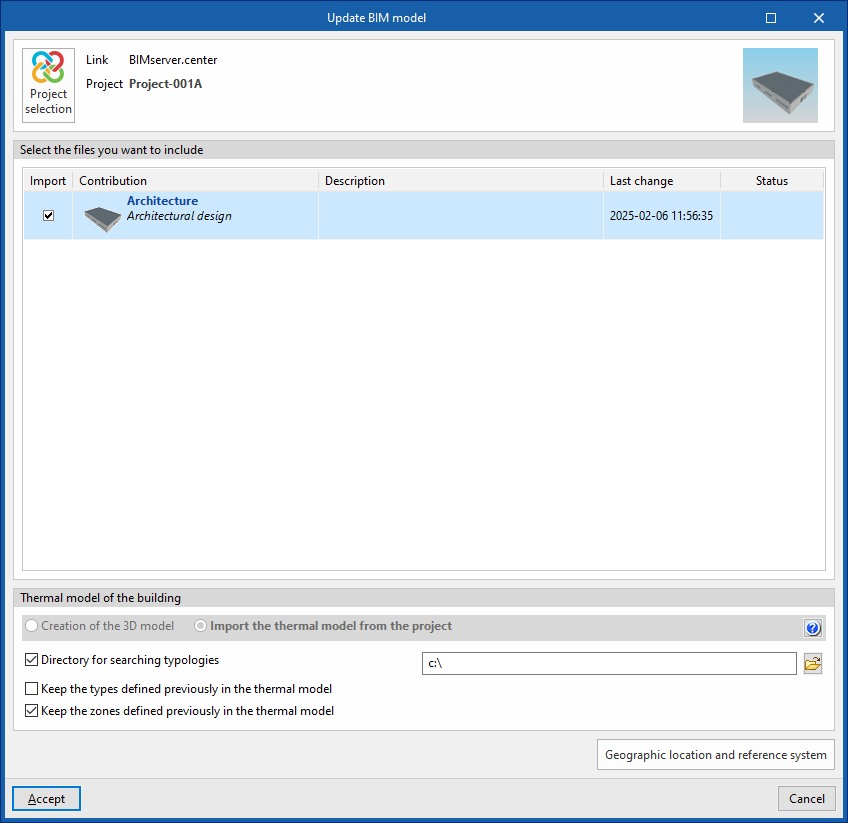
Clicking on it brings up the "Update BIM Model" panel. Here, ticking the "Import" box updates the information contained in the models previously imported into the project, or allows you to import new models if desired.
At the bottom of the window, the "Building thermal model" section will be greyed out, as it cannot be modified once the project has been created. If you need to change this setting, you will need to create a new project.
In addition, where applicable, the program offers the following options at the bottom.
- Directory for searching types (optional)
When this option is enabled, you can select a directory on the hard drive where the typology library files are stored. This allows you to import typology libraries previously created in other projects and exported to that directory, and automatically assign them to the spaces, elements and openings in the imported model. To do this, the references of the typologies in the selected directory must match the references of the element types in the imported model. - Retain the types previously defined in the thermal model (optional)
- Retain the zoning previously defined in the thermal model (optional)
| Note: |
|---|
| To make the most of the Open BIM workflow, it is recommended that changes to model elements be made in the software in which they were originally created. To ensure the model is synchronised correctly and to be able to use the "Edge processing" tool, elements imported from the BIM model must retain their reference (their name). |
Share
Once the energy simulation has been carried out, the results can be exported to the platform to be shared with the team working on the linked BIM project. This helps to consolidate the building project by adding further information to it.
To share the results from CYPETHERM EPlus and include them alongside the linked BIM model, use the "Share" option, which is available in the "BIMserver.center" section of the toolbar on the "Energy simulation" tab.
The program allows you to enter a name and a description for the contribution generated by the application:
- Name
- Description
- Save a copy of the project
If this option is enabled, a compressed file in CYP format containing the model data at the time of export will be saved. This backup copy is saved in a folder named after the project with the extension _bak, located in the directory where the project is stored (by default, C:\CYPE Ingenieros\Proyectos\CYPETHERM EPlus\projectname_bak). Each time the "Share" option is used with this option selected, a new backup file in CYP format will be generated in this folder.
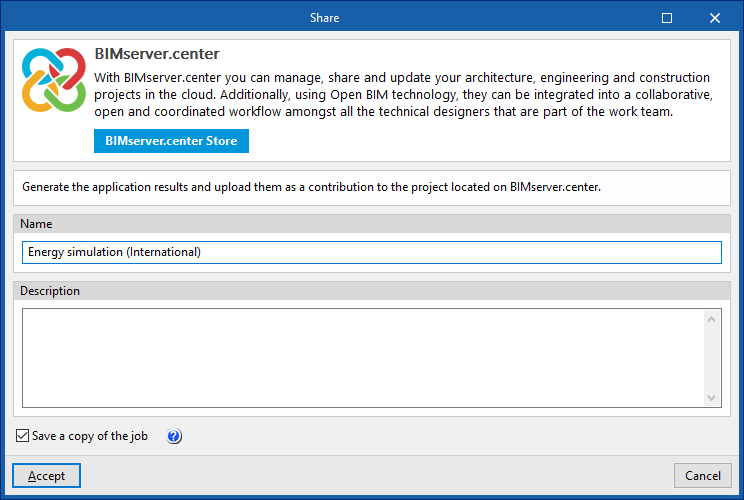
Table of contents
Complete your tour of CYPETHERM EPlus by exploring the other sections available:
