"Energy simulation" tab interface
The "Energy simulation" tab, accessible from the bottom of the program interface, lets you run an energy simulation of the building modelled in the other tabs and obtain the analysis results.
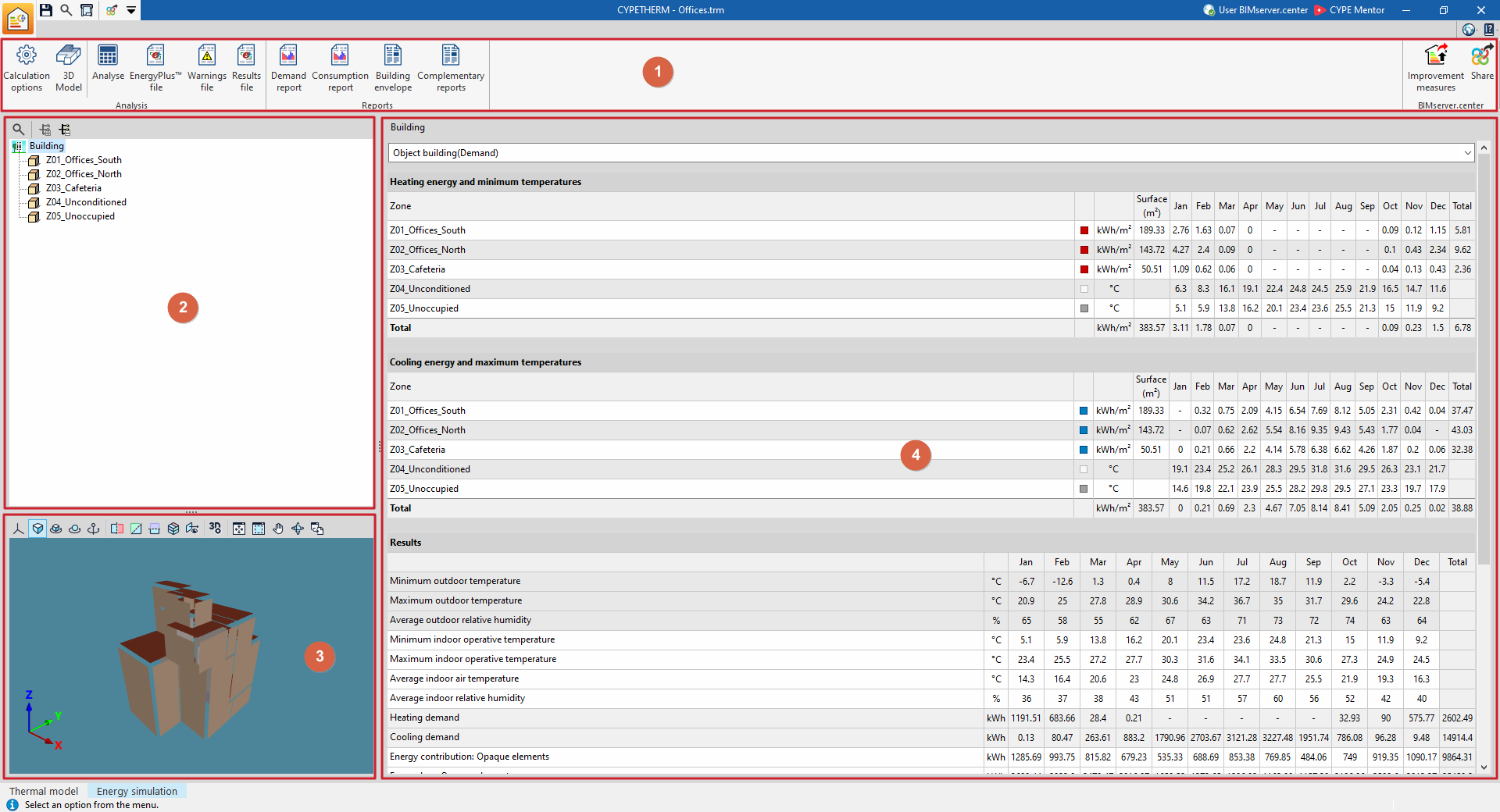
This tab features an interface with the following areas:
1. Toolbar
The top toolbar contains functions for configuring and performing the analysis, as well as for retrieving files and lists of results.
2. Diagram of the building’s thermal zones
Located at the top of the left-hand side and shows the building’s thermal zones.
3. 3D model viewer
Located at the bottom of the left-hand side and displays the building model sent to the analysis engine; it is also accessible via the "3D model" button.
4. Main results display area
Located in the central area on the right and displays the results for the section selected in the diagram, whether this is the entire building or a thermal zone.
The simulation results are shown in detail on a month-by-month basis, according to the selection made in the diagram.
The drop-down menu at the top allows you to view the results of the various simulations carried out (demand or consumption).
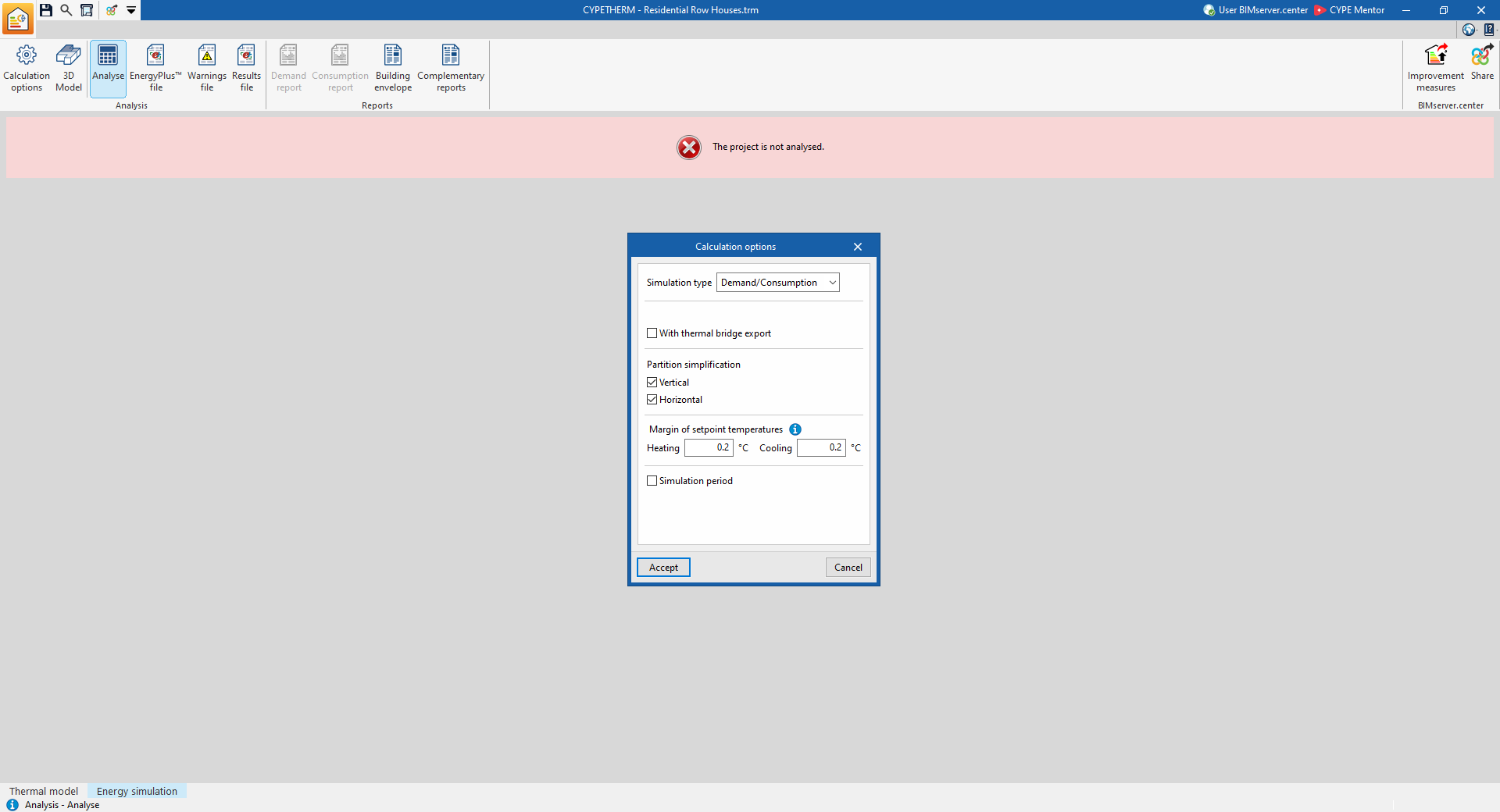
If the project has not been analysed, a message will appear on screen stating this ("The project is not analysed."). Once the project has been analysed, the results will be displayed in the main window, and the option for generating the reports will be highlighted.
Tools in the "Calculation" group in the "Energy simulation" tab
The "Calculation" section of the top toolbar on the "Energy simulation" tab contains the following options:

Calculation options
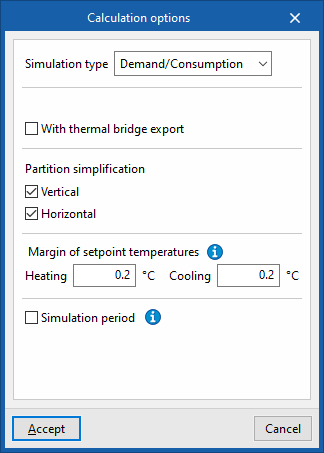
This lets you set the following options to configure the simulation:
- Simulation type:
- Demand
Simulate the building without the HVAC systems. - Demand/Consumption
Carry out two simulations of the building – one with the HVAC systems and one without.
- Demand
- With analysis by space (optional)
This option appears when "Demand" is selected as the simulation type. It simulates the building by considering the rooms individually, rather than grouping them into defined thermal zones. - With thermal bridge export (optional)
Includes thermal bridges in the simulation. - Partition simplification
These options simplify the building’s analysis model, thereby significantly reducing simulation time whilst maintaining the accuracy of the results. The simplification involves reducing the number of surfaces that make up the model.- Vertical (optional)
This option removes the internal vertical partitions within a single zone, replacing them with their thermal inertia. - Horizontal (optional)
This option, in a second step, rejoins the floor slabs.
- Vertical (optional)
- Setpoint temperature range Hours during which the air temperature in the building’s spaces falls outside the heating or cooling setpoint temperature range, by more than the specified values, shall be counted as hours outside setpoint.
- Heating
- Cooling
- Simulation period (optional)
By default, if this option is not selected, the building will be simulated for a full year, from 1 January to 31 December. This option should only be selected if you wish to specify a different simulation period. In that case, the "Start" and "End" dates of the simulation must be specified.
3D model
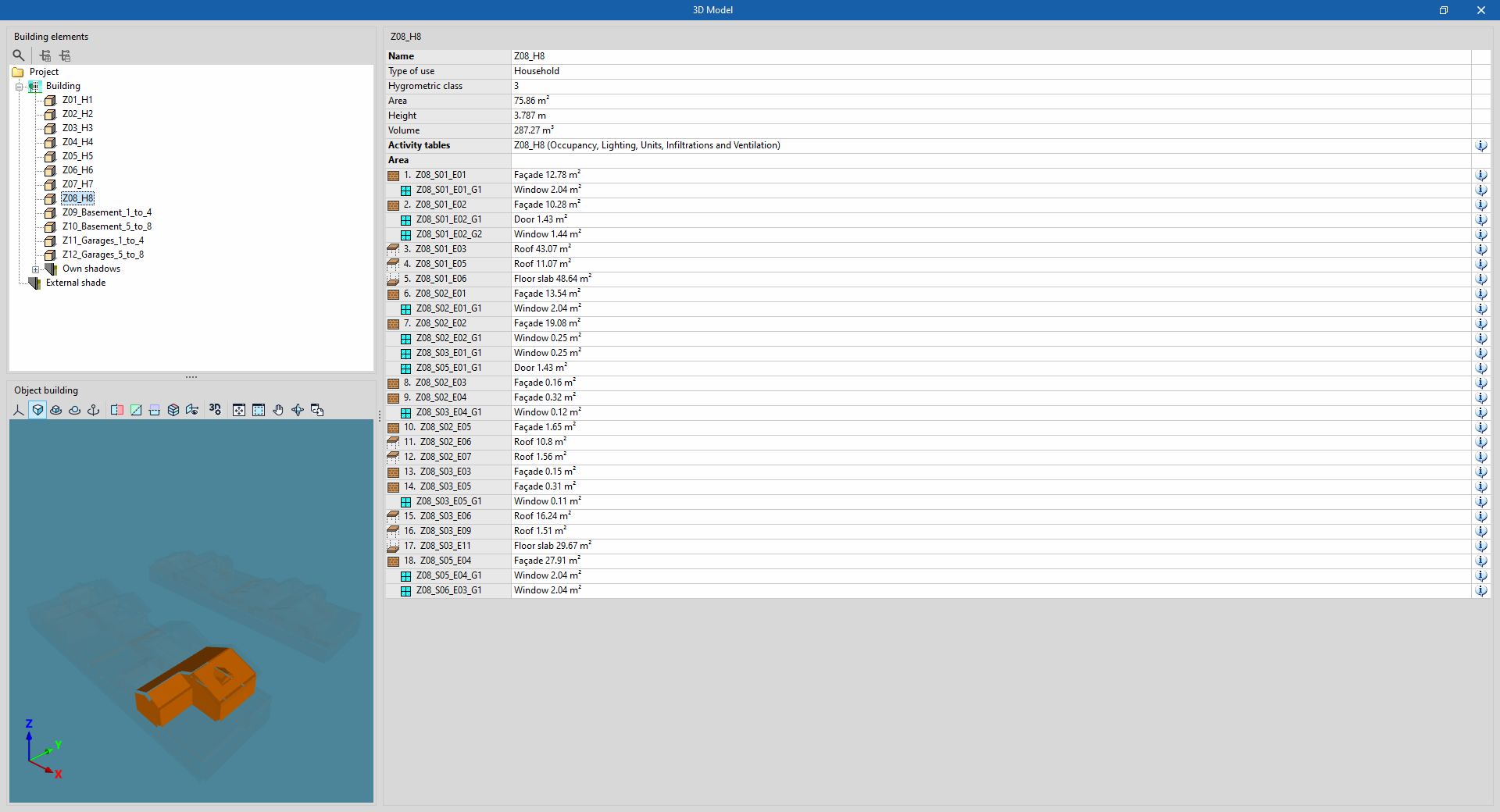
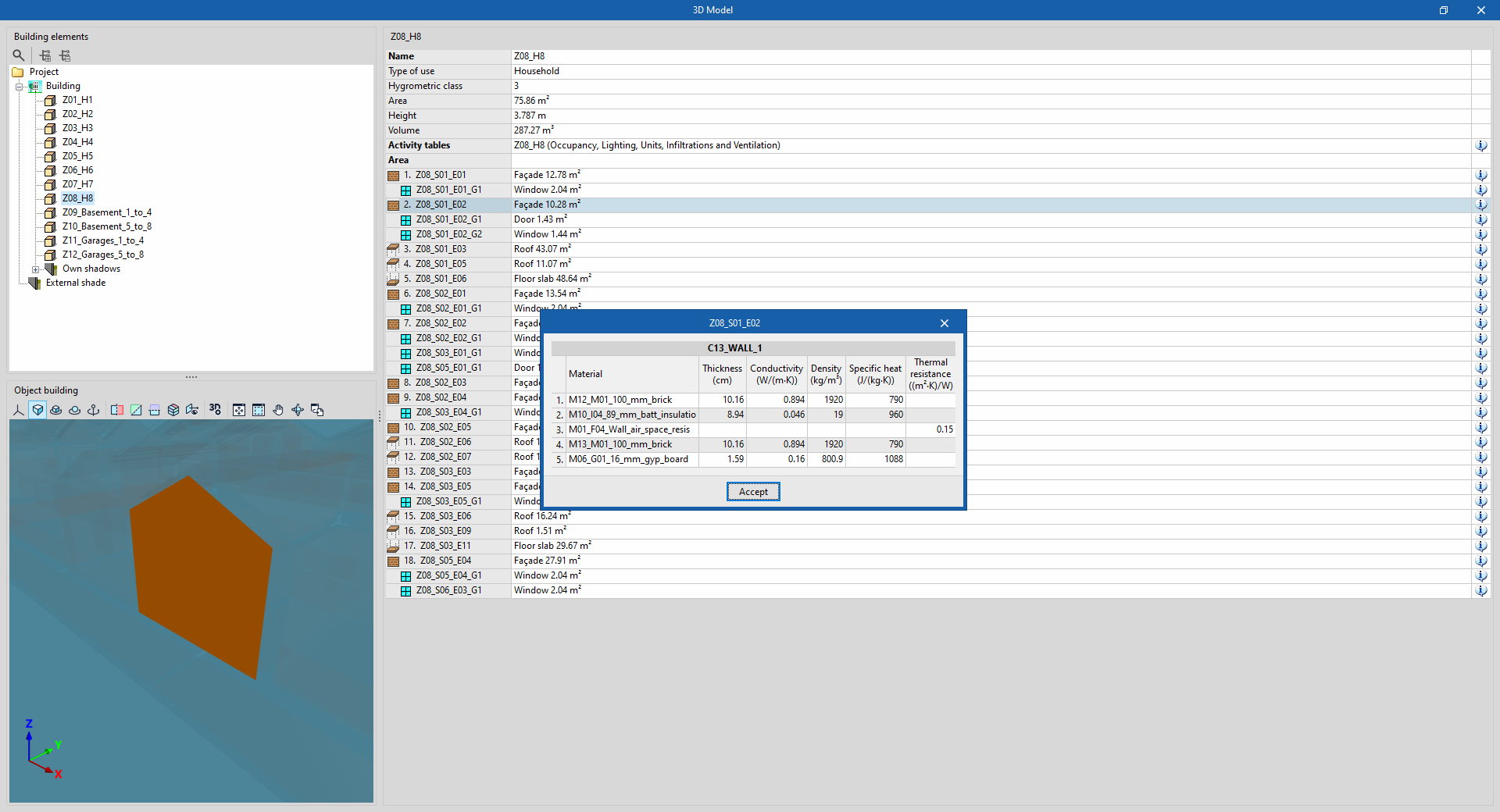
Displays the elements of the building’s analysis model. This BEM (Building Energy Model) is the one used in the simulation with the analysis engine, and is created from the definitions in the "Building" tab, which were in turn imported from the BIM model.
On the left-hand side is the "Building elements" tree, which includes zones, self-shadows and remote shadows.
When you select an item in the tree, it is highlighted in orange in the 3D view at the bottom, which corresponds to the representation of the "Object building".
On the right-hand side, there is a table showing information about the selected level. You can view the properties of each element in the model by clicking on the information button to the right of each row in the table.
Analyse
The "Analyse" option runs the energy simulation and generates the results and reports:
- First, the program lets you change the "Calculation options" in a window similar to the one that appears when you click on this option.
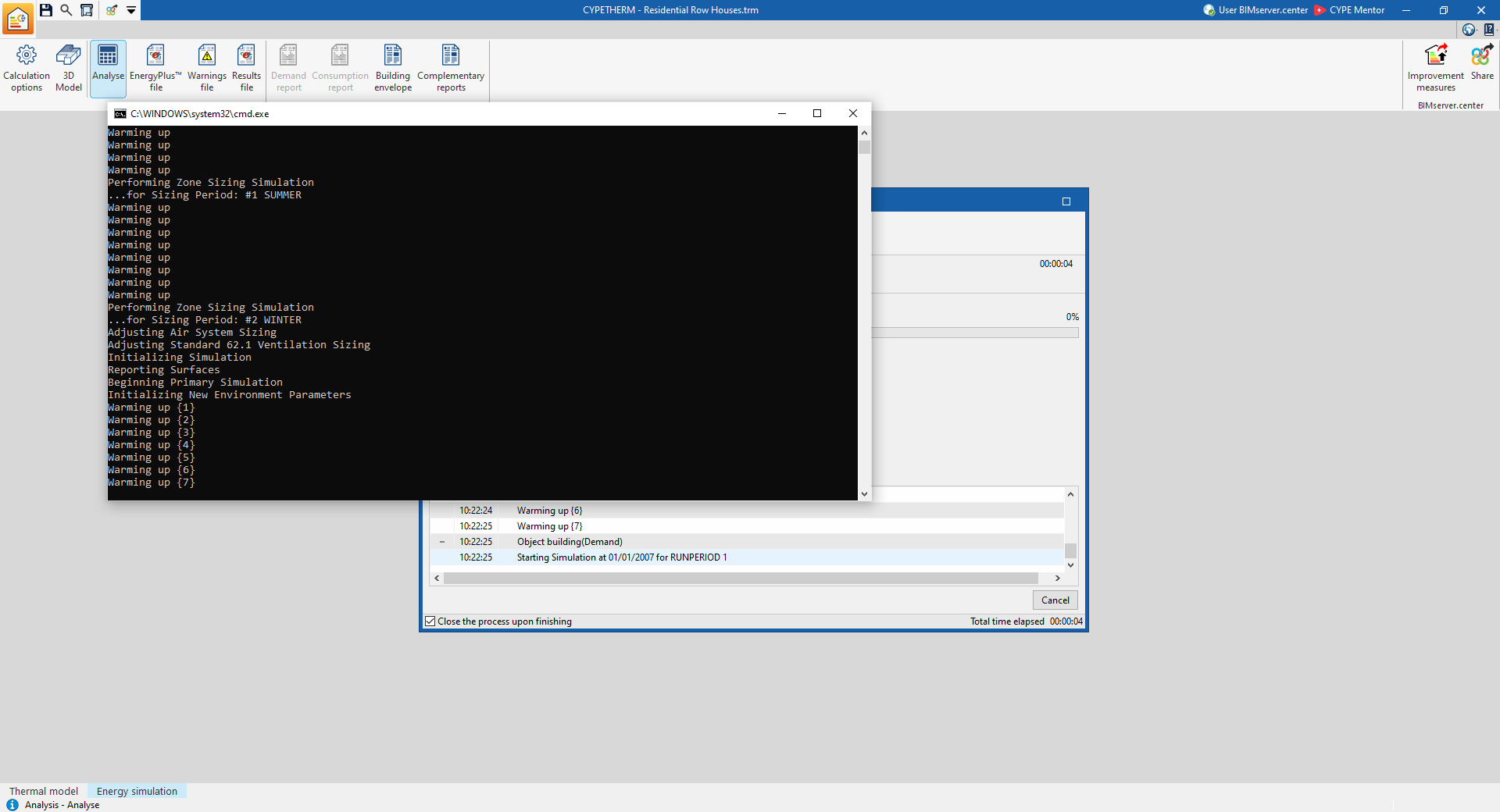
- A console window will then open, in which you can monitor the calculation process.
- Once the process is complete, the console windows close automatically and the calculation results can be viewed on screen.
| Note: |
|---|
| Whenever you switch tabs, you must click the "Analyse" button to regenerate the reports. The simulation will only run if the settings on the "Building" or "Systems" tabs have resulted in changes to the input data file for the analysis engine. |
Results output in the "Energy simulation" tab
Viewing results on screen
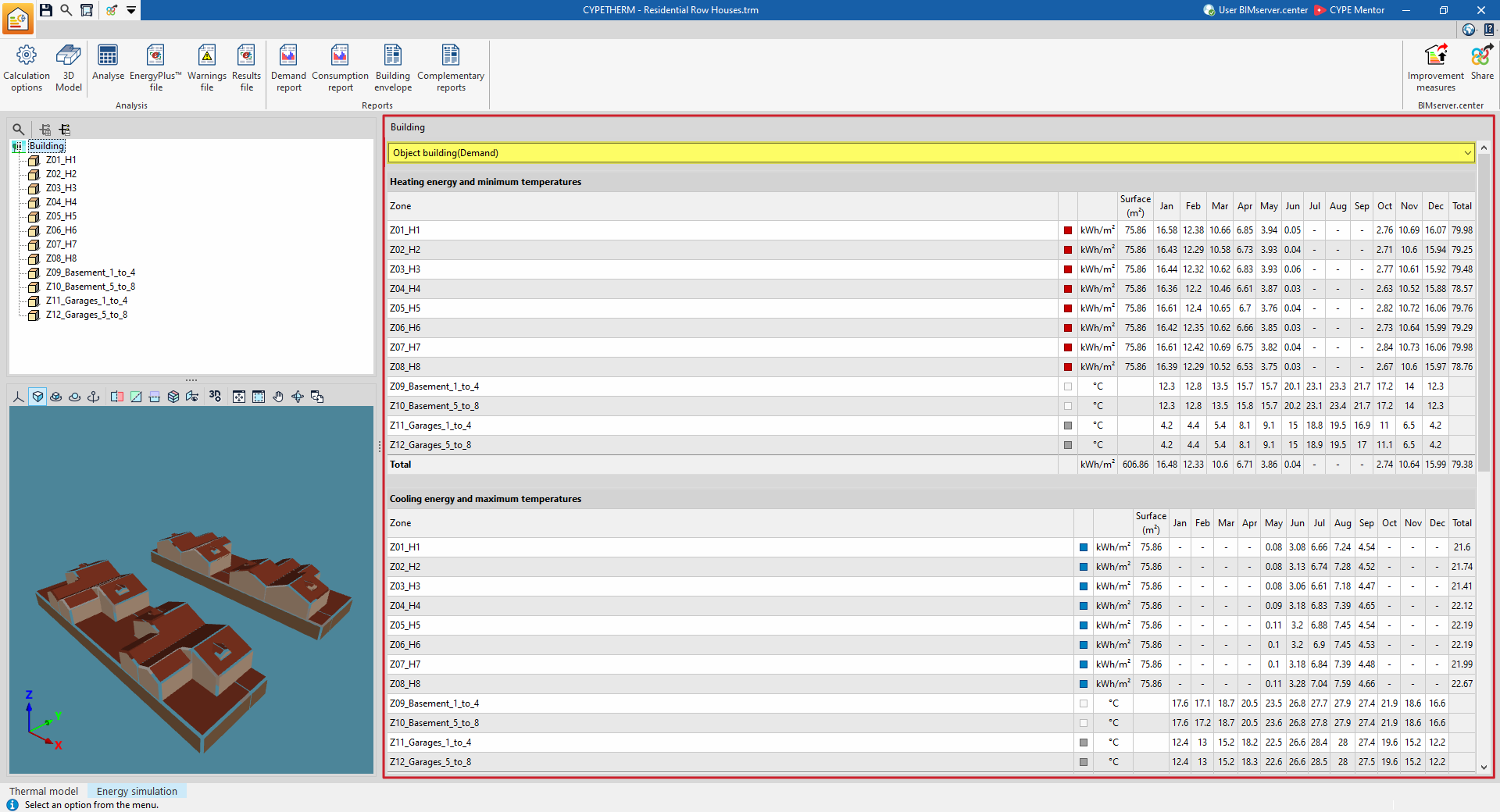
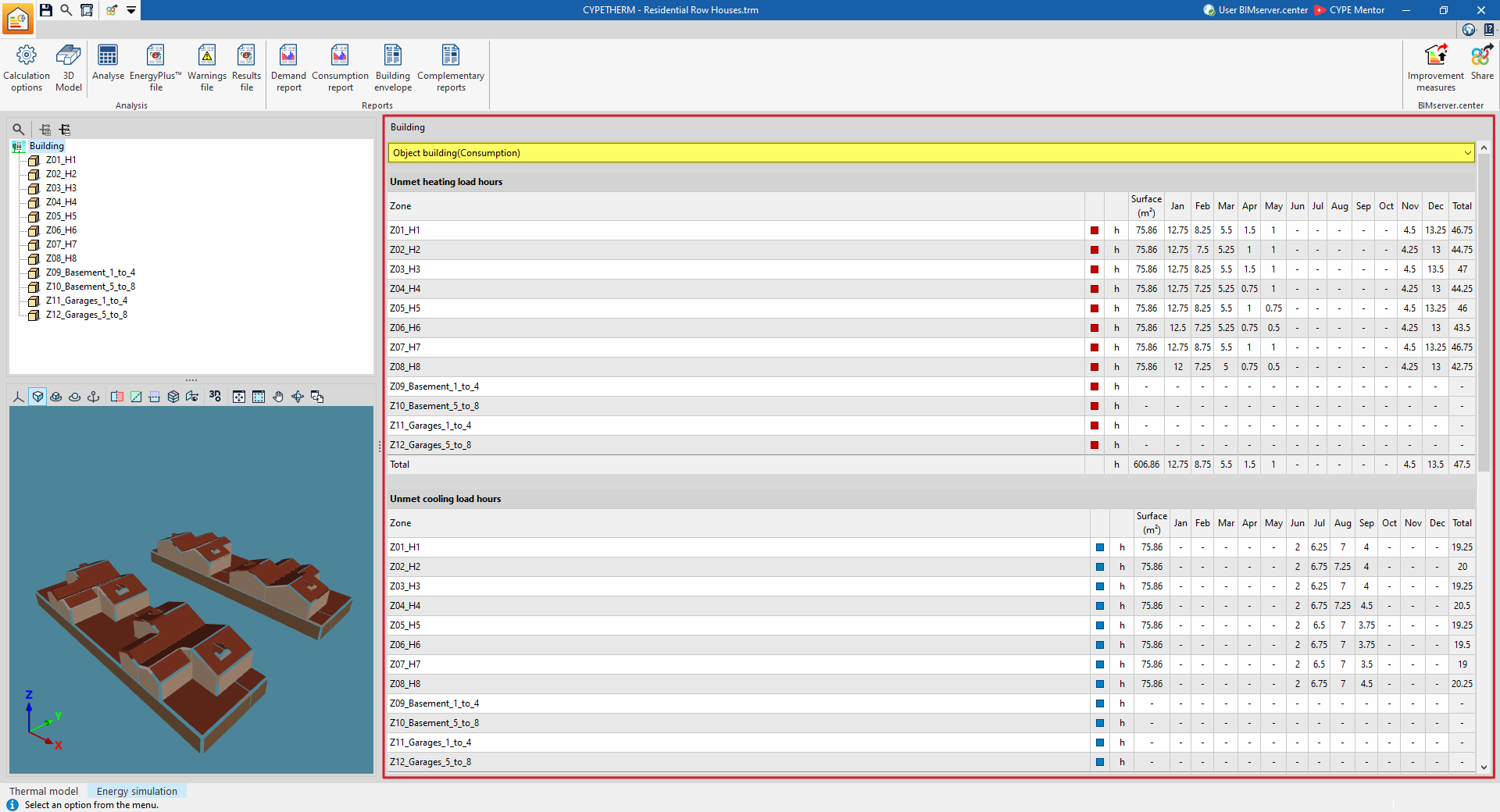
Once the analysis has been carried out, the program lets you view the simulation results on screen within the main display area of the "Energy simulation" tab.
The results for the section selected in the side diagram are displayed, whether this is the entire building or a thermal zone. You can view the simulation results in detail on a month-by-month basis, depending on the selection made in the diagram.
The drop-down menu at the top lets you view the results of the various simulations carried out (demand or consumption).
Reports
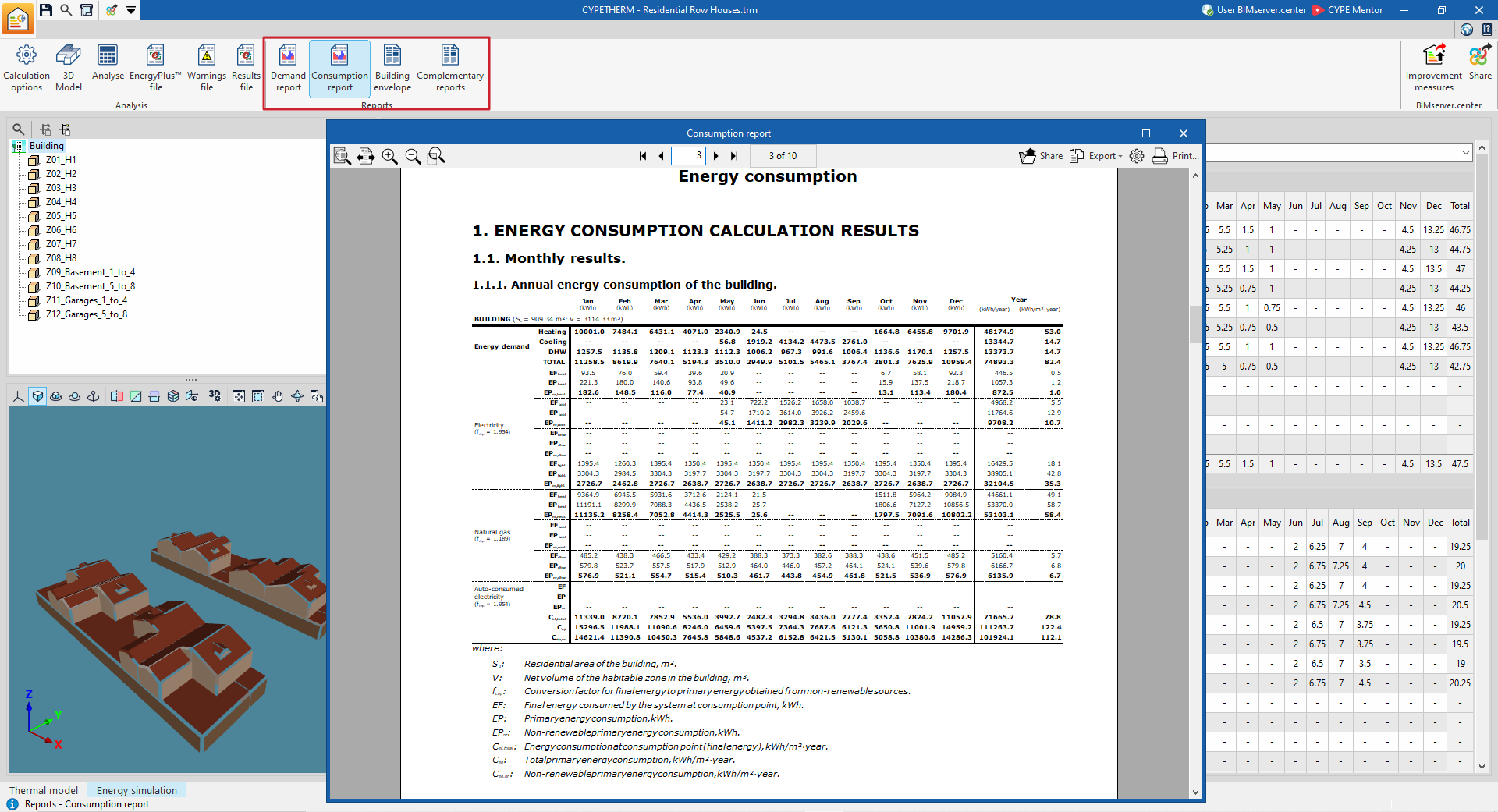
Using the options in the "Reports" section of the main toolbar on the "Energy simulation" tab, you can generate the following reports. The program lets you print them directly or generate HTML, PDF, TXT, RTF or DOCX files containing their content:
- Demand report
- Consumption report
- Building envelope
- Supplementary reports:
- Description of materials and building elements
- Condensation
- Linear thermal bridges
- Internal comfort
- Calculation of the reduction factor
Drawings
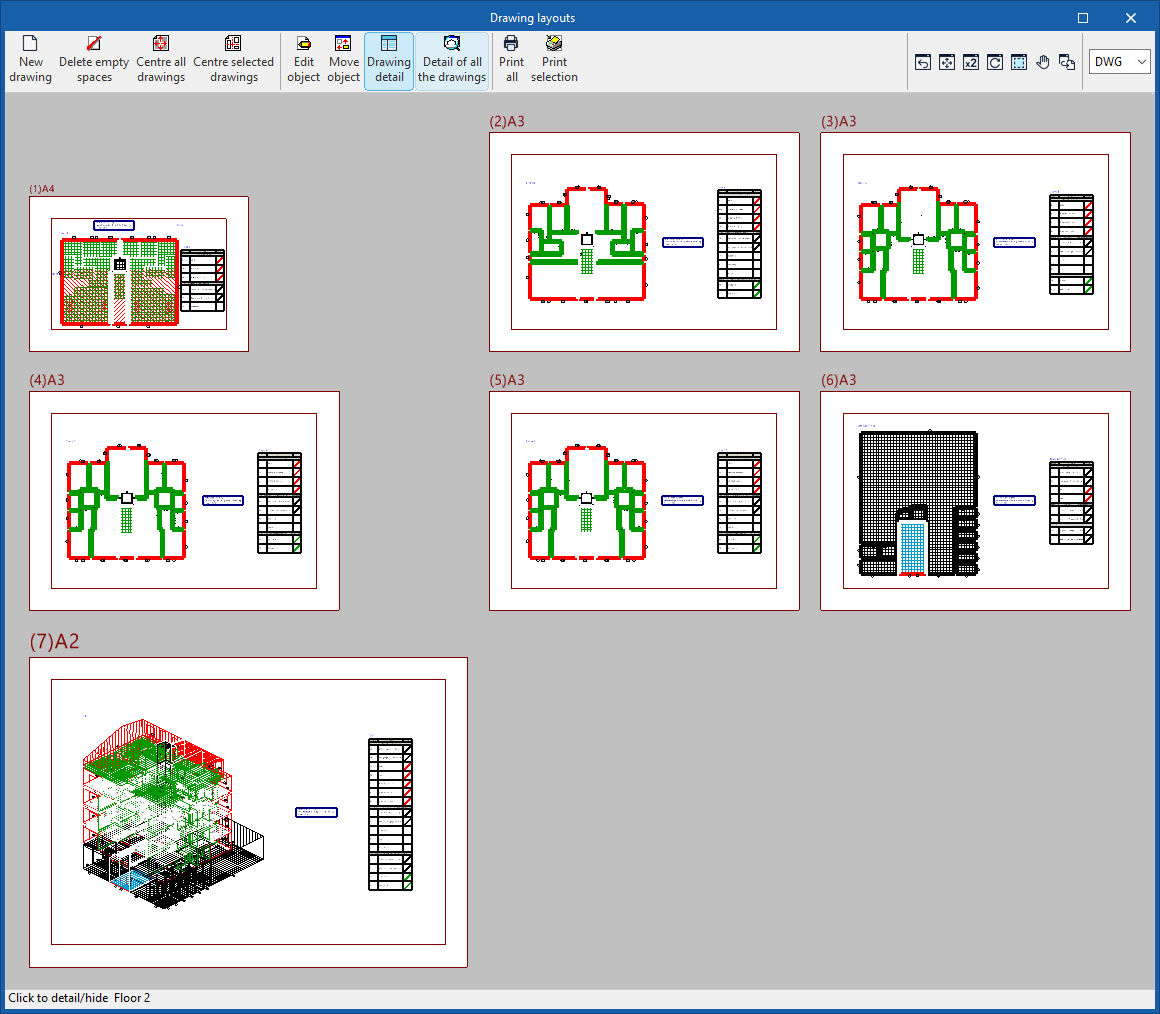
The program lets you print the drawings displayed in the "Floor plans" tab on any printer configured on your computer, or to create DWG, DXF or PDF files.
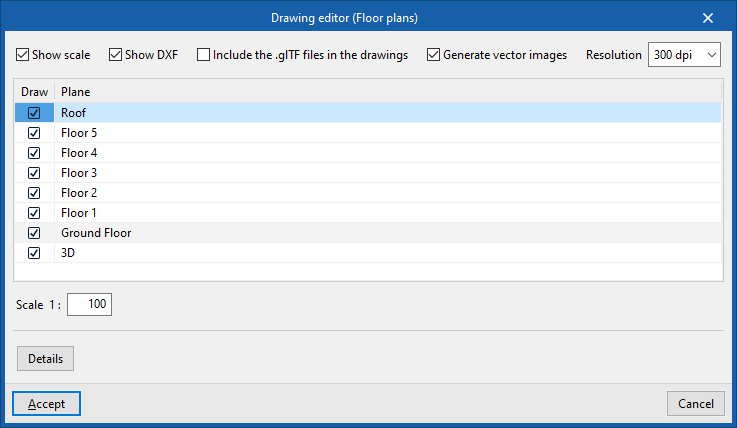
The map editing feature lets you configure the following options:
- Show scale (optional)
- Show DXF (optional)
- Include .glTF files in the drawings (optional)
- Generate vector images (optional)
- Resolution (96 dpi / 150 dpi / 300 dpi / 600 dpi)
- "Plan" to "Draw"
- Scale
- Details
You can access the plans via the "Drawings" option at the top of the interface or via the "Drawings" option in the "File" menu.
EnergyPlus™ files
Using the relevant options in the "Calculation" section of the main toolbar on the "Energy simulation" tab, you can generate the following files, which are related to the EnergyPlus™ analysis engine integrated into the program:
- EnergyPlus™ file
- Warnings file
- Results file
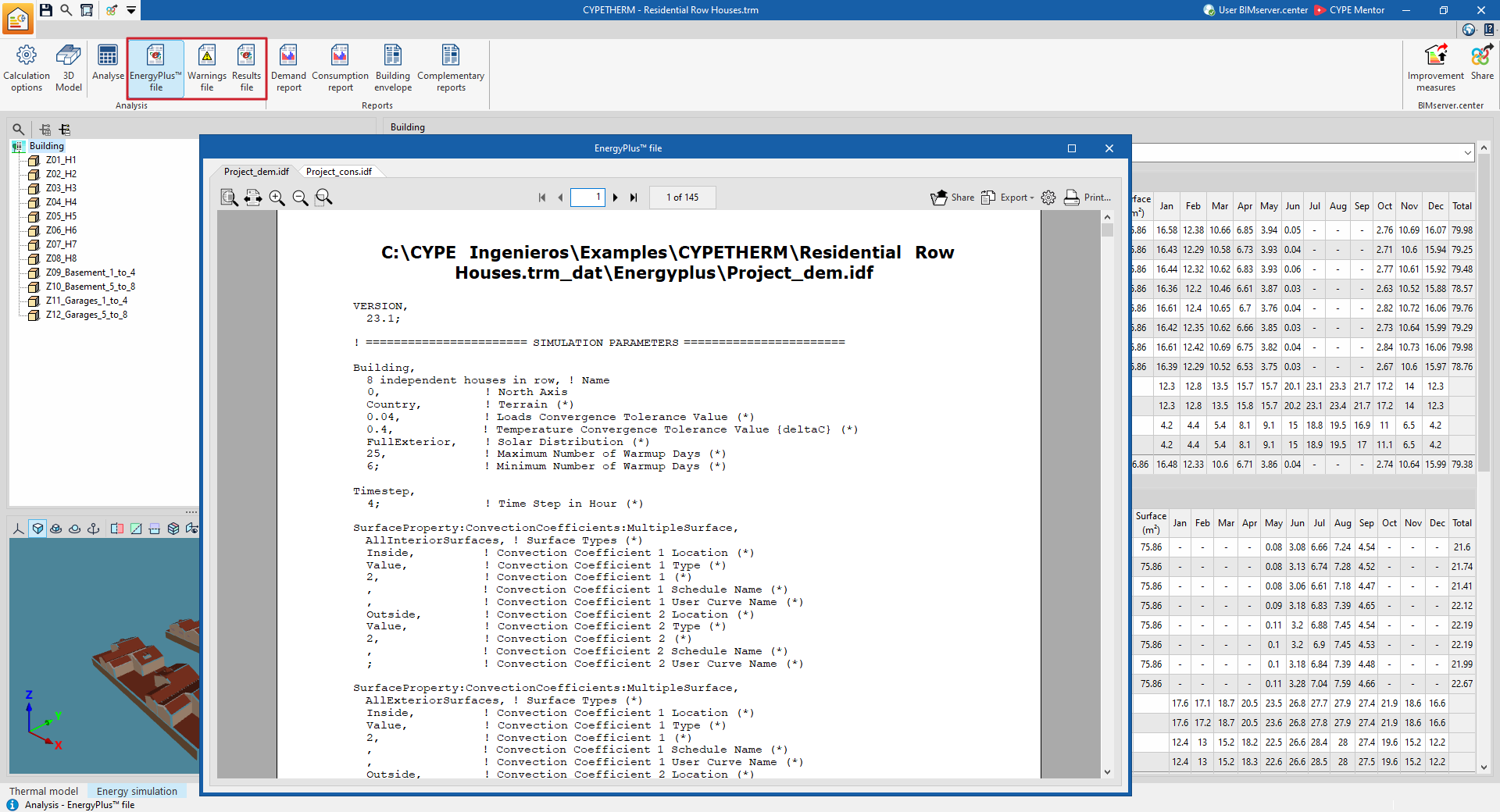
EnergyPlus™ files
The "Analysis" section of the top toolbar on the "Energy simulation" tab contains the options that let you view the contents of the EnergyPlus™ files generated by the program:

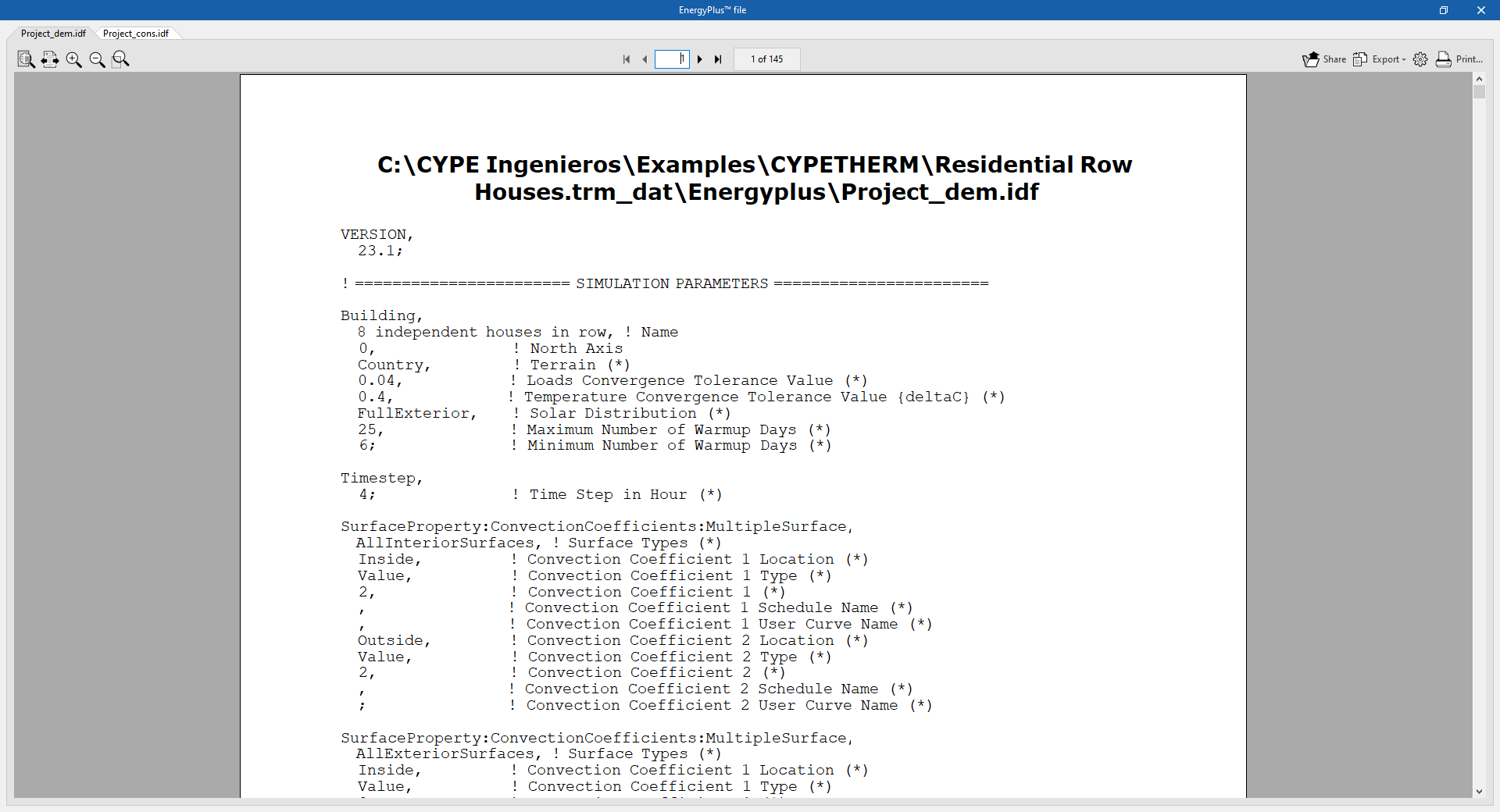
EnergyPlus™ file
Displays the data input files with the .idf extension to the EnergyPlus™ analysis engine. The location of each file is shown in the viewer’s header:
- The Project_dem.idf file contains the data for the "Demand" simulation.
- The Project_cons.idf file contains the data for the "Consumption" simulation.
Warnings file
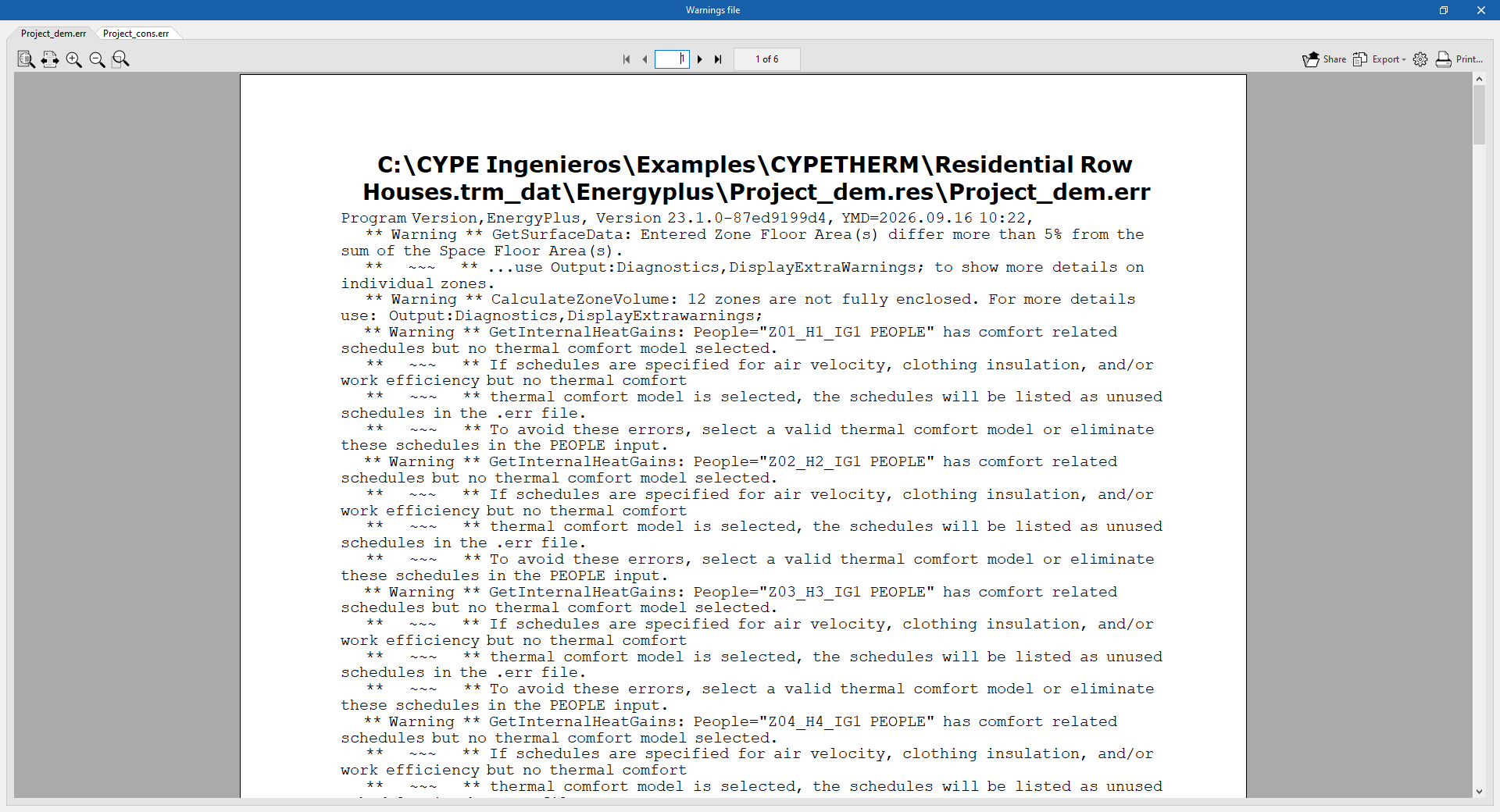
Displays the .err files containing warnings and errors generated by the EnergyPlus™ analysis engine. The location of each file is shown in the viewer’s header. If the simulation has been interrupted due to an error in the analysis engine, the contents of this file will be displayed on screen.
- The Project_dem.err file contains the data from the "Demand" simulation.
- The Project_cons.err file contains the data from the "Consumption" simulation.
Results file
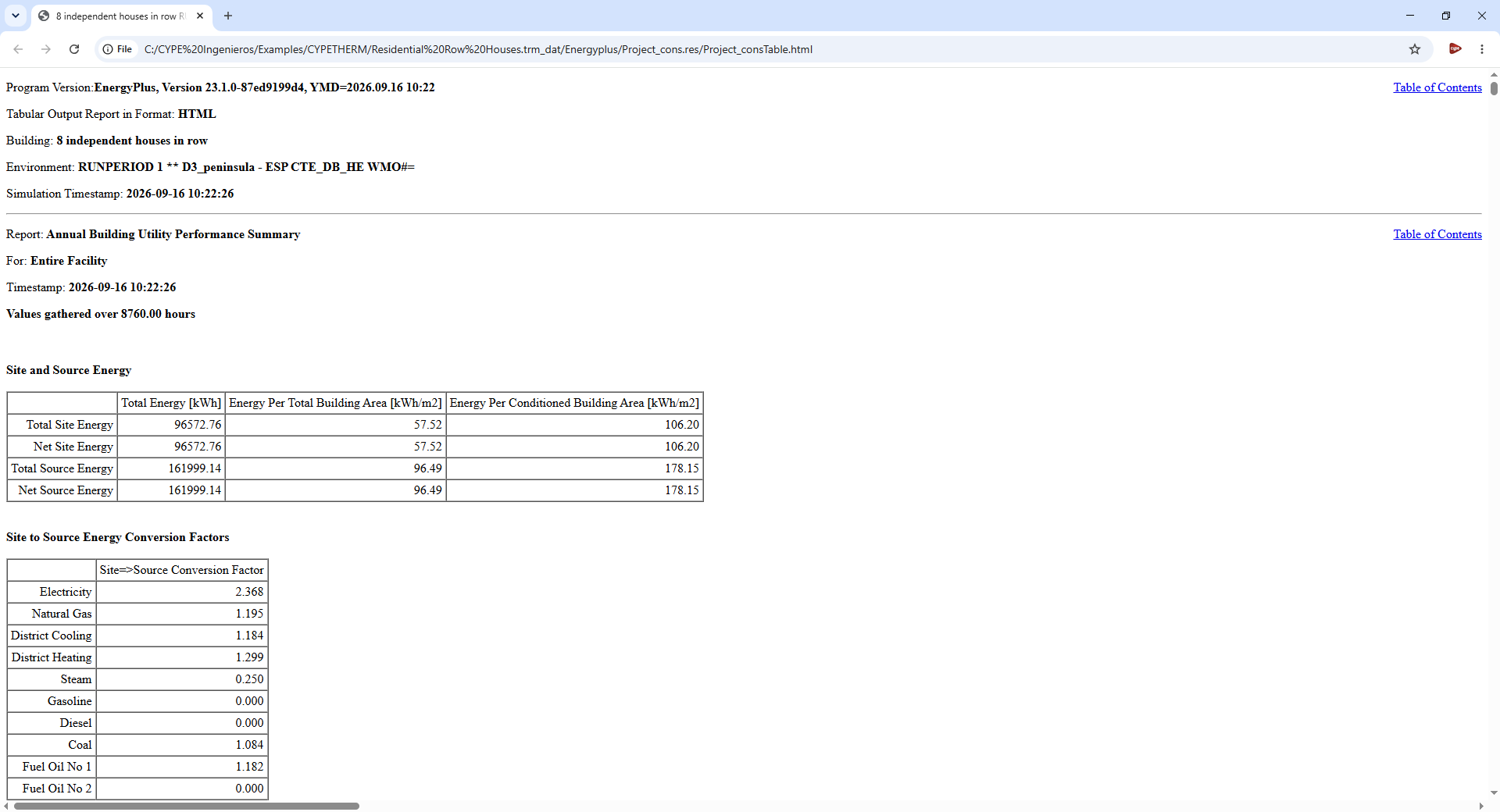
Opens the results files in HTML format generated by the EnergyPlus™ analysis engine for each simulation (demand and consumption).
- The Project_demTable.html file contains the data for the "Demand" simulation.
- The file Project_consTable.html contains the data for the "Consumption" simulation.
| Note: |
|---|
| Once the analysis has been completed, these generated files can be found in the data folder associated with the project. By default, this is located at the following path: C:/CYPE Ingenieros/Projects/CYPETHERM/project_name.trm_dat/ |
Reports in the "Energy simulation" tab
The "Reports" section of the top toolbar on the "Energy simulation" tab contains options for viewing the reports generated by the program, which include reports of analysis results and the definitions entered.

The available reports are as follows:
Demand report
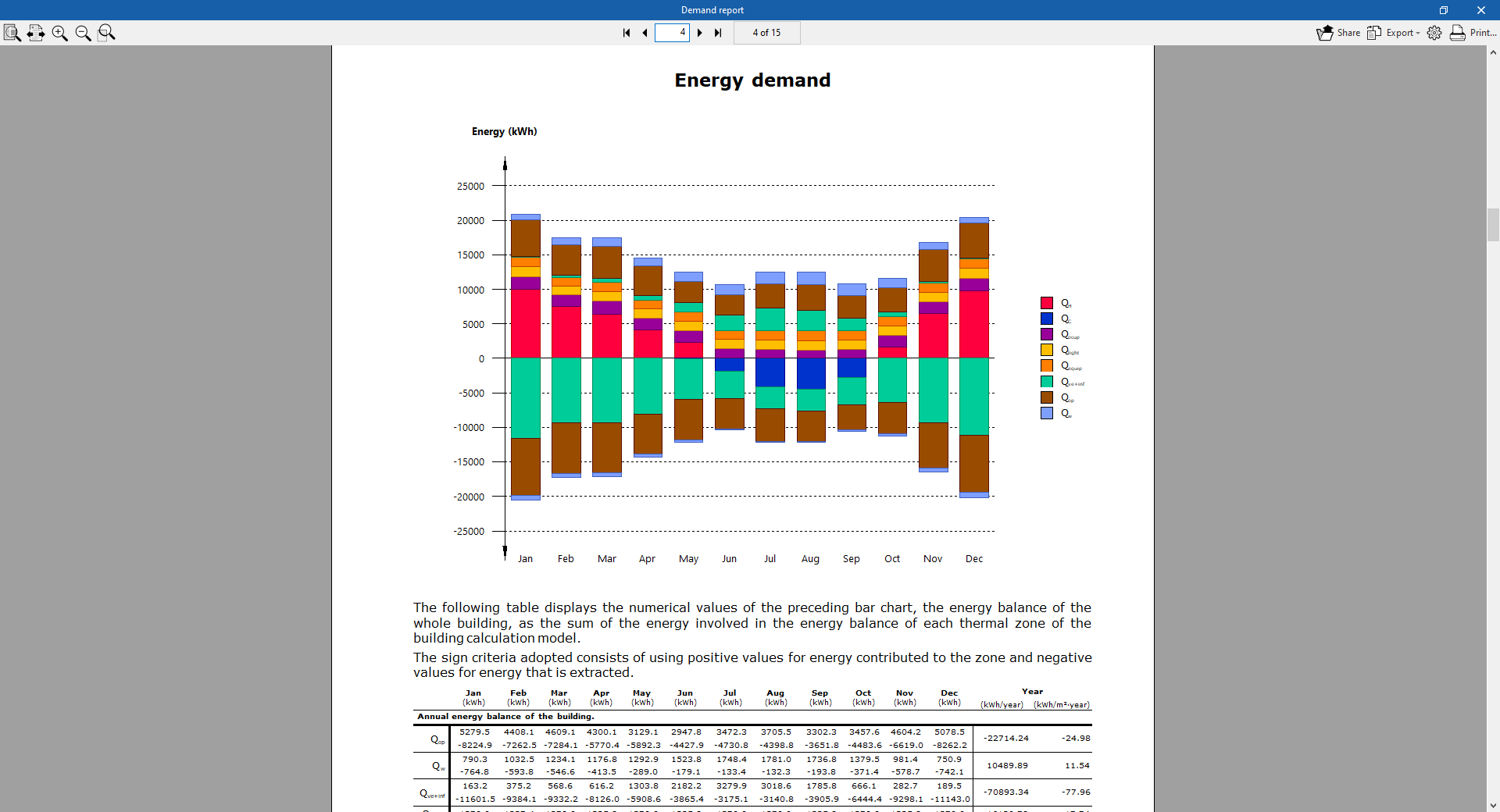
This contains the results of the "Demand" simulation. It provides results for the building’s energy demand for heating and cooling, broken down by thermal zone. The results of the building’s energy balance and its annual energy and power demand are presented graphically.
Consumption report
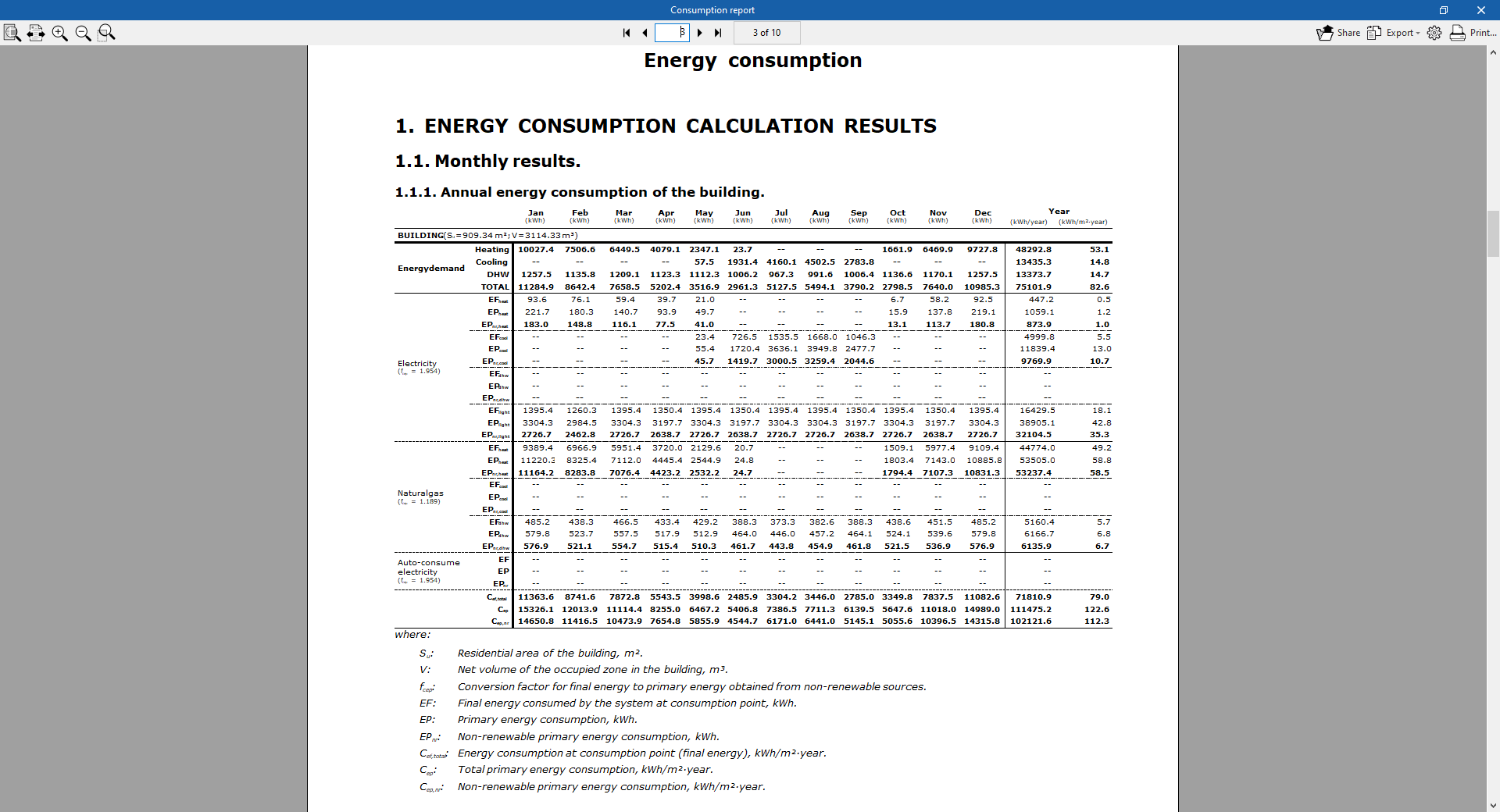
This section contains the results of the "Consumption" simulation. It provides data on the building’s energy consumption for heating, cooling and domestic hot water, categorised by the type of final energy consumed.
Building envelope
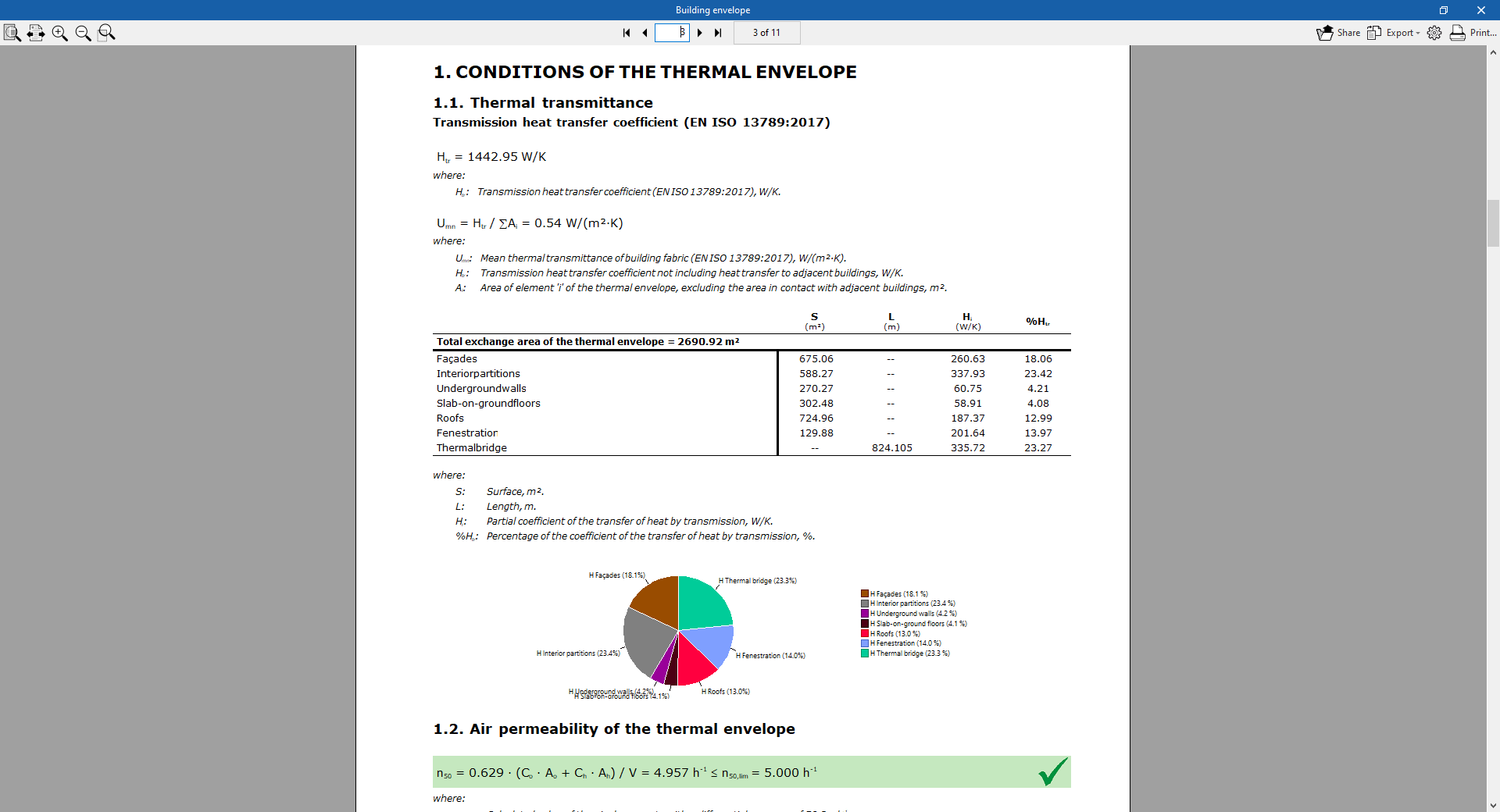
Contains the results for the heat transfer coefficient by transmission, calculated in accordance with standard EN ISO 13789:2017, and for the air permeability of the thermal envelope. A breakdown by component is provided, and the thermal transmittance (U) value for each component is compared with the limit value set by the user.
Supplementary reports
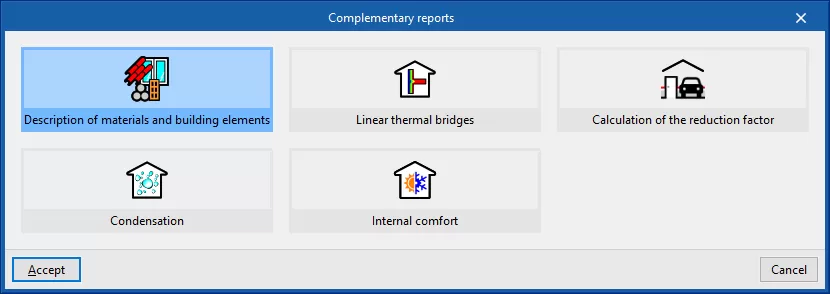
This option lets you view and print the following supplementary reports:
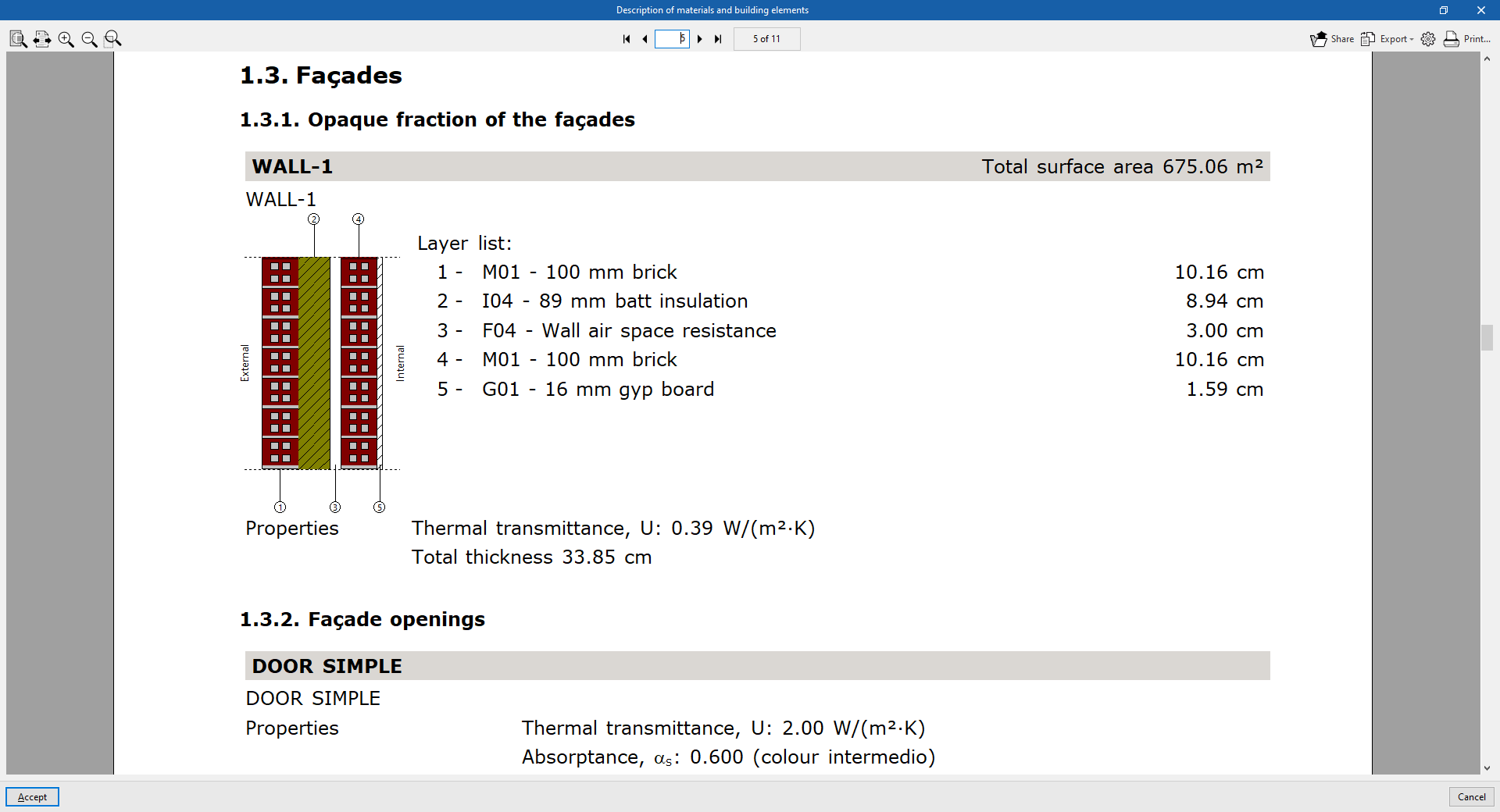
Description of materials and building elements
The various elements present in the building are shown, together with their materials, quantities, transmission coefficients, etc. The building envelope system (external walls, floors, roofs and openings) and the compartmentalisation system (vertical partitions and floor slabs) are specified.
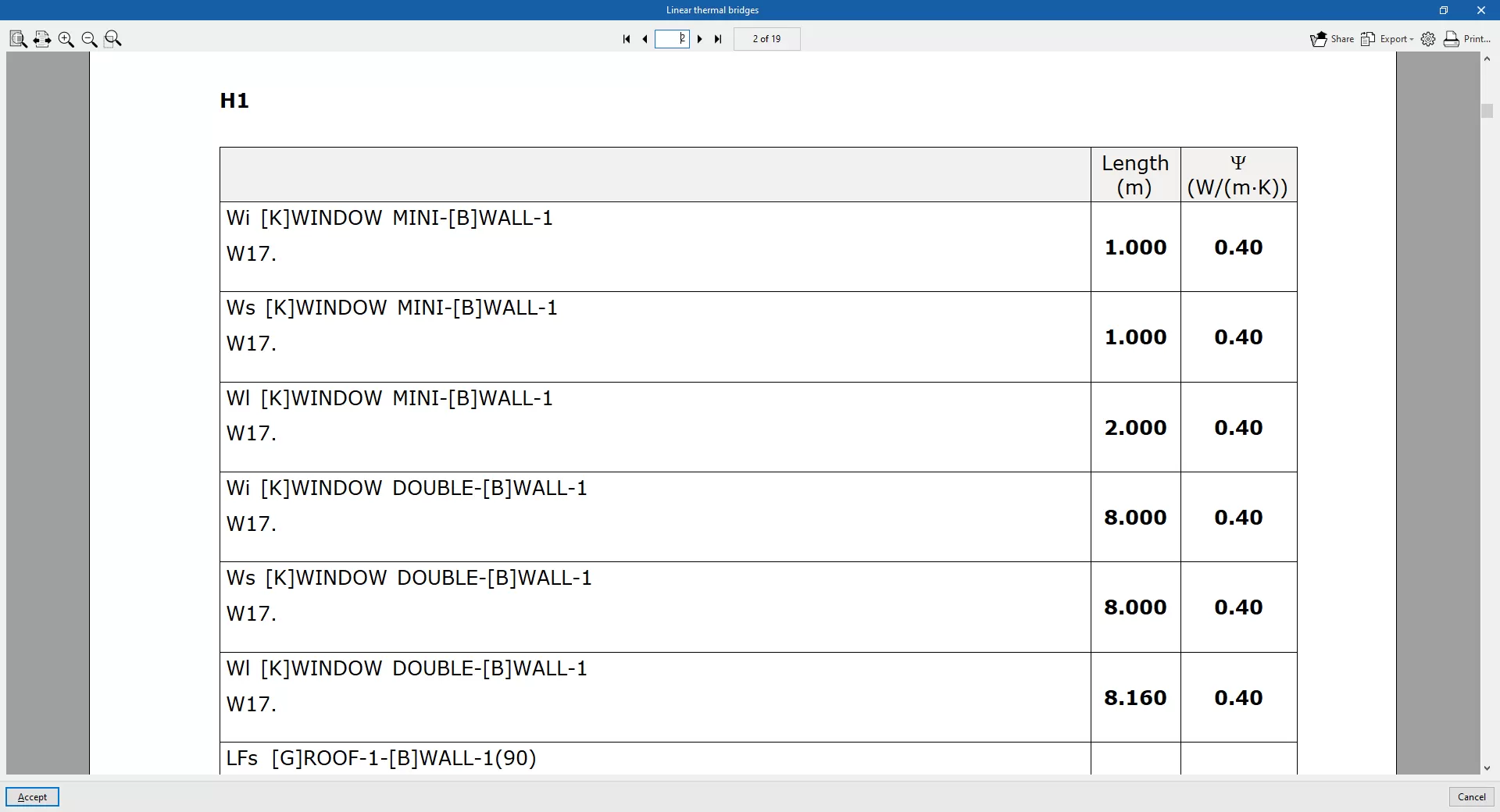
Linear thermal bridges
The thermal bridges identified in each zone and their characteristics are listed below.
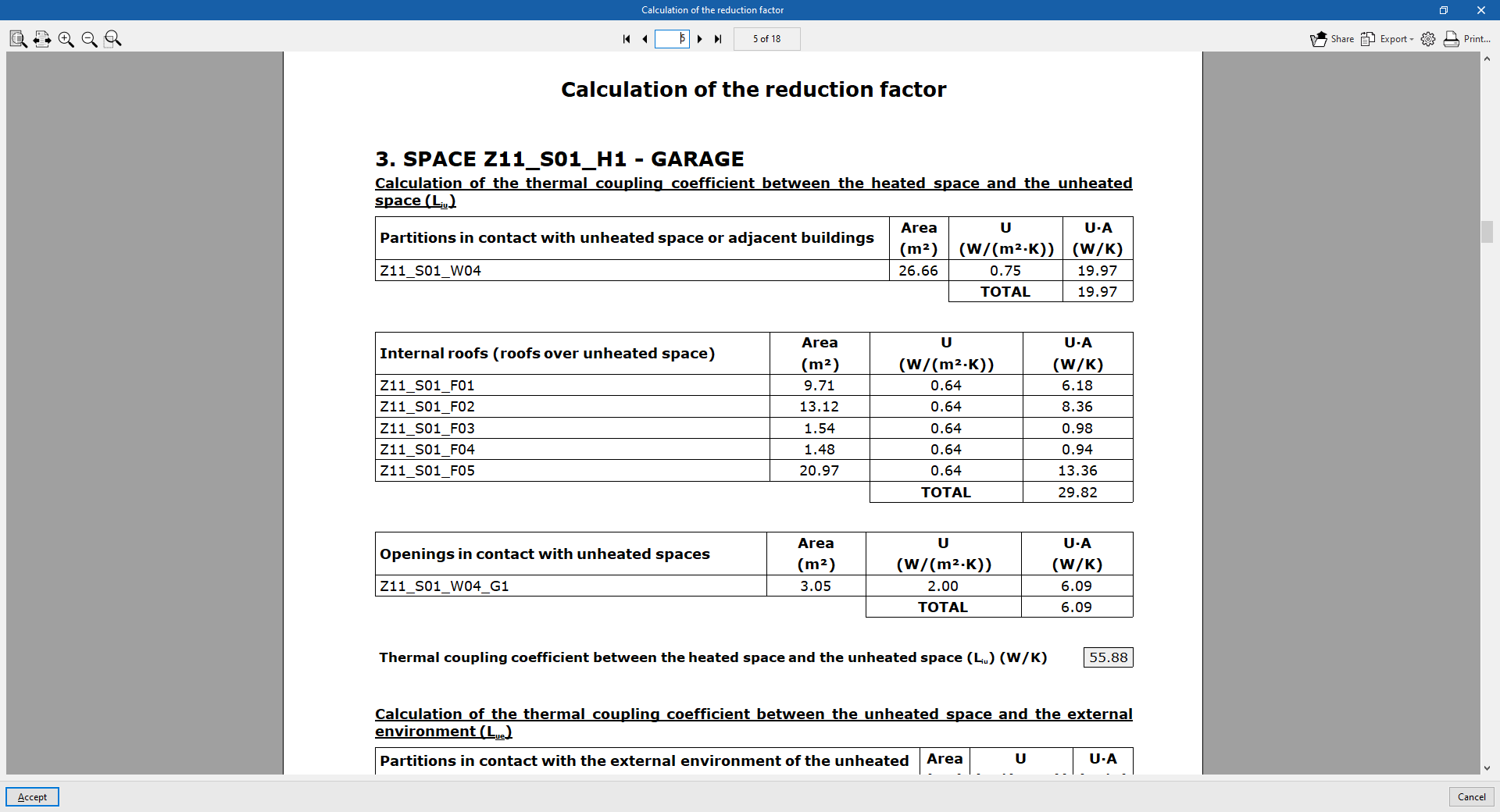
Calculation of the reduction factor
Sets out the methodology and detailed results of the calculation of heat transfer to the unheated and uncooled spaces of the building in accordance with standard EN ISO 13789:2017. These results are used in the calculation of the heat transfer coefficient by conduction in the "Building envelope" section.
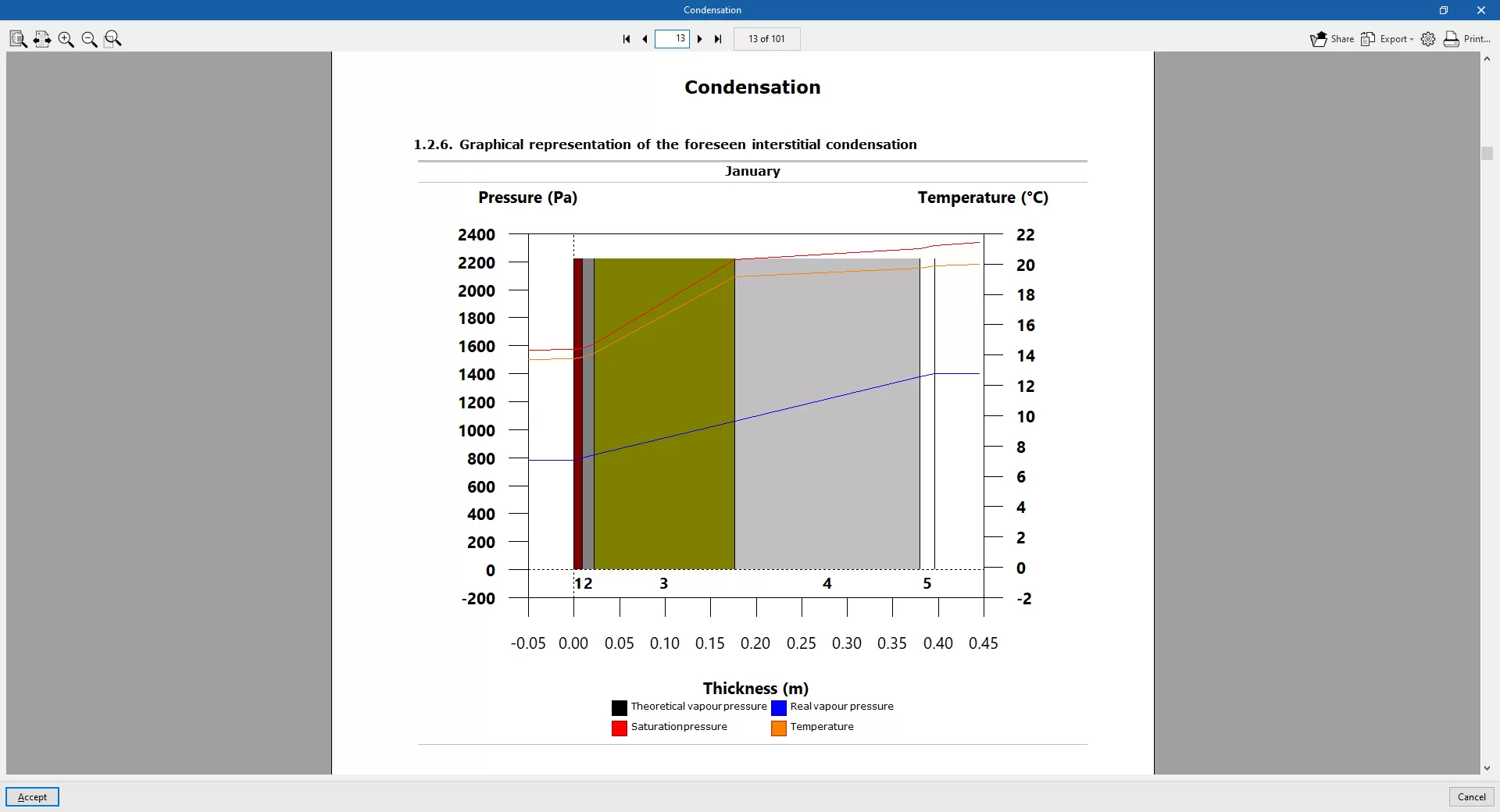
Condensation
This report is available if the option "Check for the existence of surface and interstitial condensation in accordance with ISO 13788" has been selected under "General parameters" (on the "Building" tab).
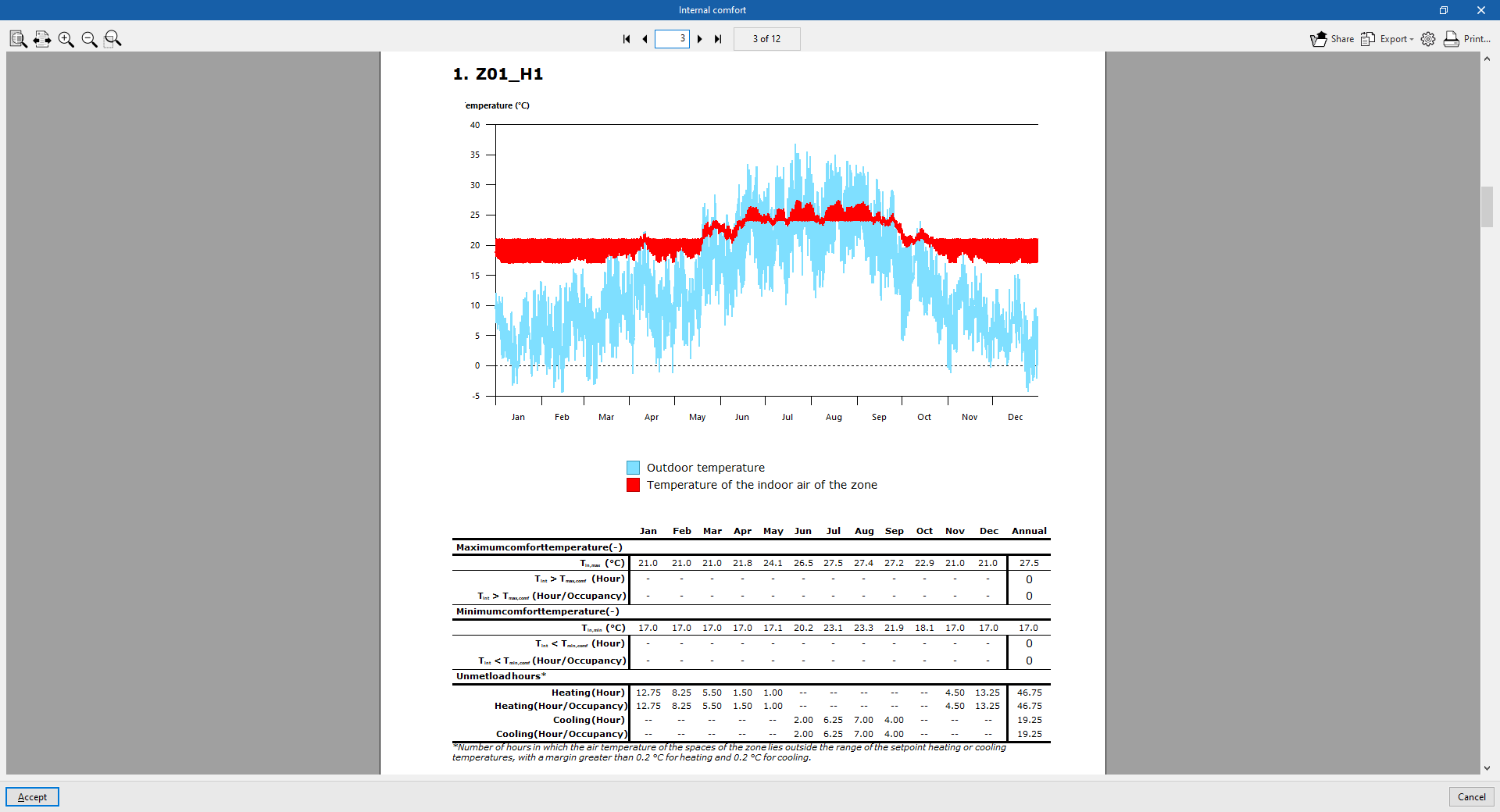
Interior comfort
The report uses graphs and tables to show how the indoor temperature in each zone has changed over time, comparing it with the outdoor temperature. It records the number of hours during which the defined indoor comfort temperature is exceeded in each zone and the number of hours spent outside the setpoint.
The results for the indoor air temperature in each zone and the outdoor air temperature, for every hour of the year, are exported to a .csv file located in the "_dat" directory associated with the program file. The numerical values in this file correspond to those shown graphically in the "Indoor comfort" report.
The default path for this file is C:\CYPE Ingenieros\Projects\CYPETHERM\project_name.trm_dat\Energyplus\Project_cons.res\Zone air temperatures.csv
Document viewer options
The document viewer, which appears when any report is displayed, has the following options at the top:
- Share
Share the selected document online. The document will be stored on a server in PDF format and a link will be generated to access it. Only people who have this link will be able to access the file. - Export
Save the document in various formats, including PDF, DOCX, TXT, HTML and RTF. - Print
Send the document to the printer to print it directly, using the page settings selected via the button with the cog icon ("Print settings").
Integration into the BIMserver.center platform
Many of CYPE's programs are connected to the BIMserver.center platform and allow collaborative work to be carried out via the exchange of files in formats based on open standards.
Please note that, to work on BIMserver.center, users can register on the platform free of charge and create a profile.
When accessing a program connected to the platform, the program connects to a project in BIMserver.center. This way, the files of the projects that have been developed collaboratively in BIMserver.center are kept up to date.

| More information: |
|---|
| For further details related to using CYPE software via the BIMserver.center platform, please click on this link. |
Options in the "BIMserver.center" group in the "Energy simulation" tab
The "BIMserver.center" section of the main toolbar on the "Energy simulation" tab contains the following features, which are required to use the program in conjunction with other BIMserver.center tools:

Improvement measures
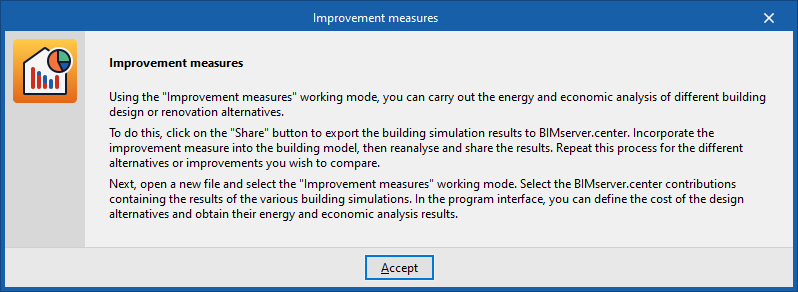
This option provides access to information on the procedure for carrying out a study of improvement measures using the program. The procedure is as follows:
- Open a CYPETHERM project by selecting "Energy simulation" as the project type and model the first design option for the building. This project must be linked to a specific project on BIMserver.center.
- Once you have carried out the analysis, click on "Share" and generate an initial submission with the results of that first design option.
- Make a copy of the model (from the "File" menu, select "Save as"). This model will remain linked to the same BIMserver.center project. In the copy, make the necessary changes to the model to create the second design option for the building (for example, increasing the thickness of the thermal insulation, changing the type of windows or modifying the systems).
- Once you have carried out the analysis, tap "Share" again to generate a second submission with the results for the second design option.
- Steps 3 and 4 must be repeated for each of the other design alternatives, if any, thereby generating a set of contributions to the BIMserver.center project.
- Finally, open a new CYPETHERM project by selecting "Improvement measures analysis" as the project type, link it to the same BIMserver.center project to which the previous results were exported, and select the relevant data sets to import their data.
Share
Once the energy simulation has been carried out, the simulation results can be exported to the platform to be shared with the team working on the linked BIM project. This helps to consolidate the building project by adding information to it.
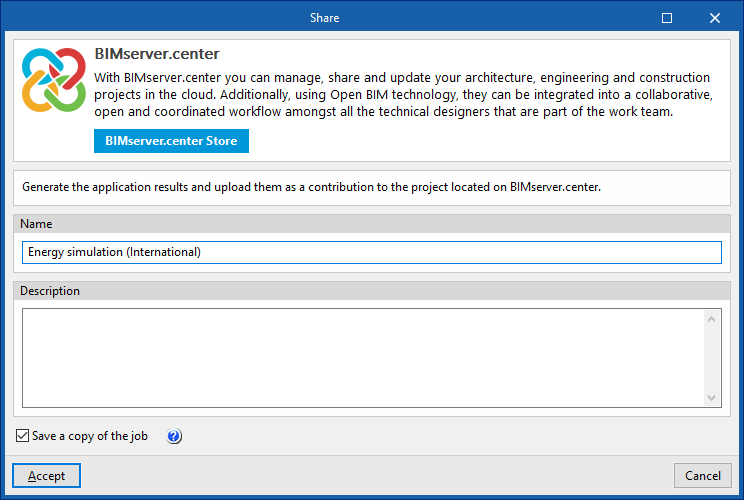
To share the results of the energy simulation carried out using CYPETHERM and include them alongside the linked BIM model, use the "Share" option, available in the "BIMserver.center" group on the toolbar of the "Energy simulation" tab.
The program lets you enter a name and a description for the contribution generated by the app:
- Name
- Description
- Save a copy of the project
If this option is enabled, a compressed file in CYP format containing the model information at the time of export will be saved. This backup copy is saved in a folder named after the project, with the extension _bak, located in the directory where the project is stored (by default, C:\CYPE Ingenieros\Projects\CYPETHERM \projectname_bak). Each time the "Share" option is used whilst this option is ticked, a new backup file in CYP format will be generated in this folder.