Introduction
The MedBIM - Revit Plugin is a CYPE plug-in that is installed in Autodesk Revit and generates a quantity extraction file and links the Revit model to a bill of quantities from Arquimedes.
The "Bill of quantities of BIM models" module, enables the direct connection between Arquimedes and Revit, which allows users to assign to an element of the BIM model a code of an item belonging to the work section structure of Arquimedes, and to obtain the quantities for an existing bill of quantities or for a new one.
Installation
The CYPE add-in for Revit must be installed on the same computer where Revit is installed. Please note that the LT version of Revit does not support the installation of any add-ins.
The add-in can be installed:
- From the MedBIM-Revit Plugin installer located in the Management group of the CYPE program menu (from revision 2022.g onwards).
- If the version of Arquimedes is 2021.c or later, the installation is also carried out manually from the Arquimedes program. Specifically, via the "Installation status of the CYPE add-in in Revit" option, which can be accessed from the "File" menu by selecting "Connection with Revit". Clicking this option displays the "Installation status of the CYPE add-in in Revit" dialogue box, showing the different versions of Revit installed on the machine from which Arquimedes is being run. This option is recommended to ensure that the plug-in is installed on the correct device.
- If the version of Arquimedes is earlier than version 2021.c, the installation is also carried out automatically when opening the Arquimedes program. The installation of the Arquimedes plug-in for Revit is automatically run on all versions of Revit installed on the machine from which the Arquimedes program was launched.
| Note: |
|---|
| The MedBIM-Revit plugin is compatible with Revit versions 2015 to 2026. |
MedBIM - Revit Plugin features
- Integration into the Revit environment through its ribbon's "Add-ons" tab.
- Simultaneous work with Revit, Archimedes and the "Bills of quantitities of BIM models" module. Users can work with two monitors.
- Full interaction between Revit, Arquimedes and any of its modules.
- Reading of Revit model information (categories, families, types, specimens, system and user parameters, etc.). Tab area for conveniently selecting information associated with categories, types and specimens, rooms, materials and phases. Data sorting and filtering in columns. Location of specimens by ID and visually, highlighting and isolating them in the BIM model once located.
- Starting from the Revit model and with the "Bills of quantitities of BIM models" module, measurement in Arquimedes on an open bill of quantities, on an existing but not open job; or creation of a new bill of quantities starting from the BIM model. New items can be added at any time.
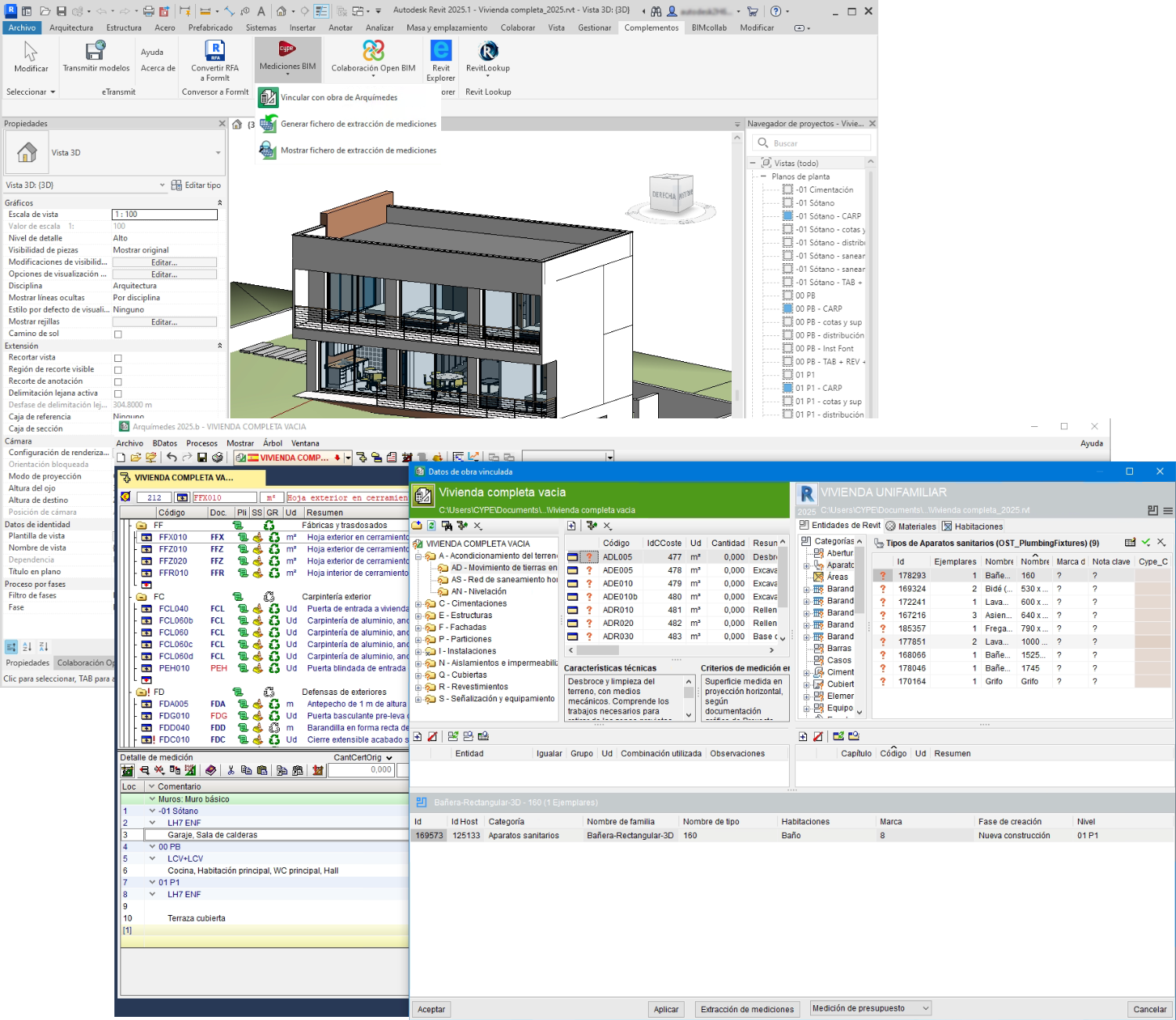
- Automatic assignment of items to entities of the BIM model if they contain the code of a bill of quantities item to be measured in the "Key note" parameter. The plugin can be used to have template Revit models with the entities associated with items in an Arquimedes reference database by means of the "Key note" parameter, thus reducing the subsequent manual assignment work.
- Quantities by Revit model entities and by materials. It also allows early cost estimation by rooms, or groups of items for a specific room.
- Assignment of several items to a type to obtain their measurements. For example, the "Basic wall" type can be assigned the items "Interior partition sheet of ceramic brick masonry for cladding", "Plaster coating" and "Plastic paint on interior walls of plaster or plasterboard".
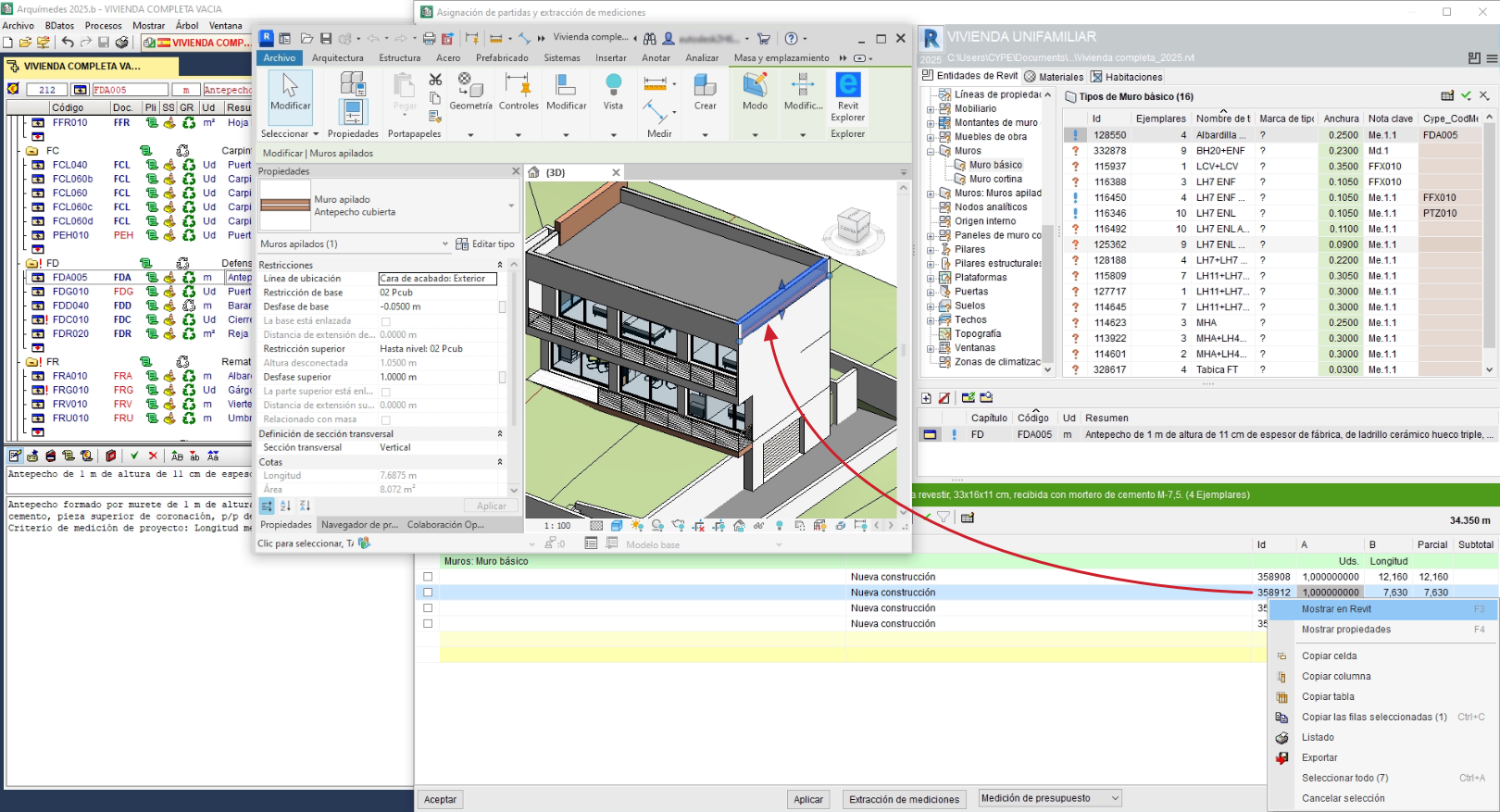
- Identification in the Revit model of the elements of the selected quantities lines.
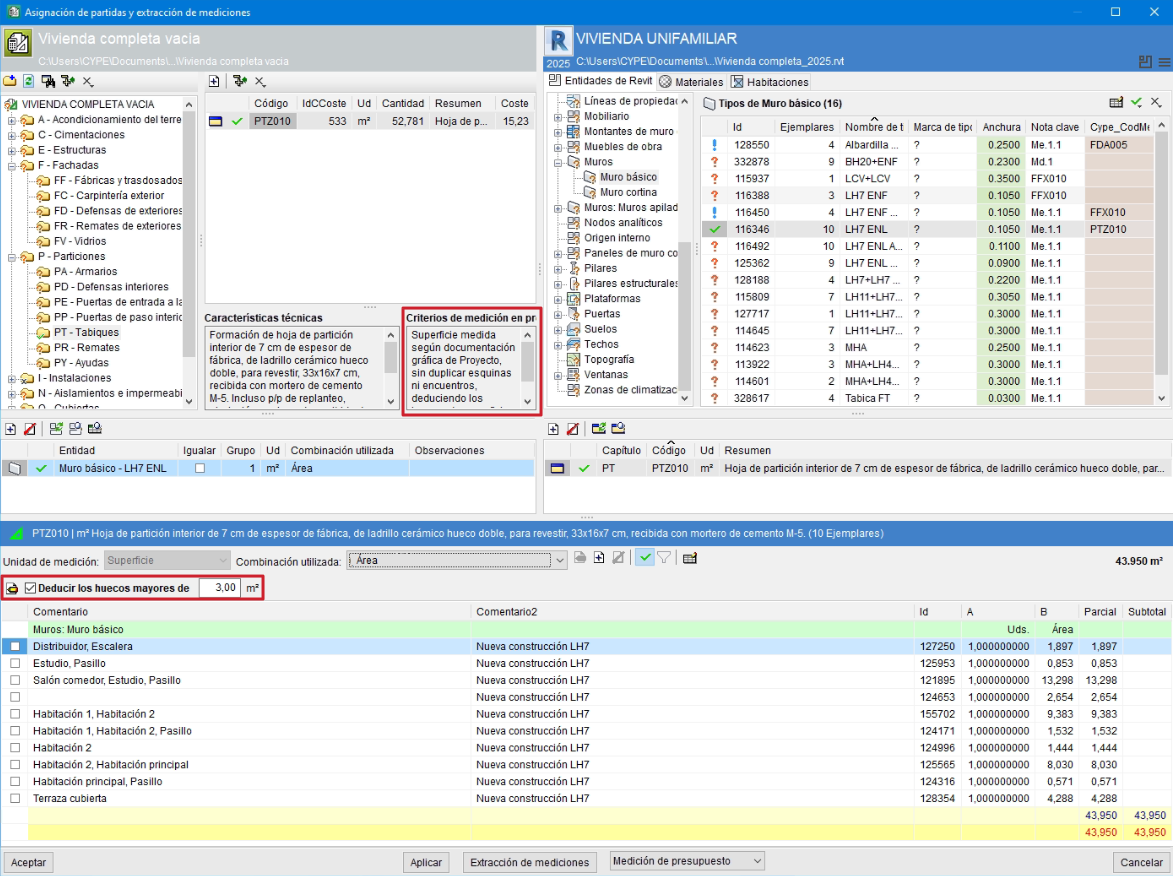
- Assigning items from the CYPE Cost Database to the Revit model. When the job units are from the CYPE Cost Database, the quantity criteria are displayed for deduction in the quantity. Revit provides quantity lines for discounting openings. If the area for discounting openings is specified based on the quantity criteria in the project, those lines that meet the criteria will be discounted. It takes into account both the deduction of openings in surfaces and the deduction of excesses.
- Linking several jobs or several Revit projects to the same Arquimedes bill of quantities. It is common practice to have several Revit models linked to the same bill of quantities: architecture, structures and MEP systems. In this case, the Arquimedes "Consolidation of bills of quantities" module is essential, as it allows the work sections and items of the bill of quantities obtained by the CYPECAD, Detailed priced bill of quantities estimators and Budget generators programs to be combined in a single bill of quantities. This saves time and work, and minimises errors or omissions of items.
- Automatic detection of the quantity unit when assigning an item to the BIM model element and assigning the most appropriate combination of dimensions to obtain the quantity lines per item. The combination used to obtain the quantities can be changed to a user combination. Comments for the quantity lines can also be edited.
- Customisation of the formula to obtain the quantities. Users can change how the quantities of a specific category are calculated according to their criteria, even by using formulas.

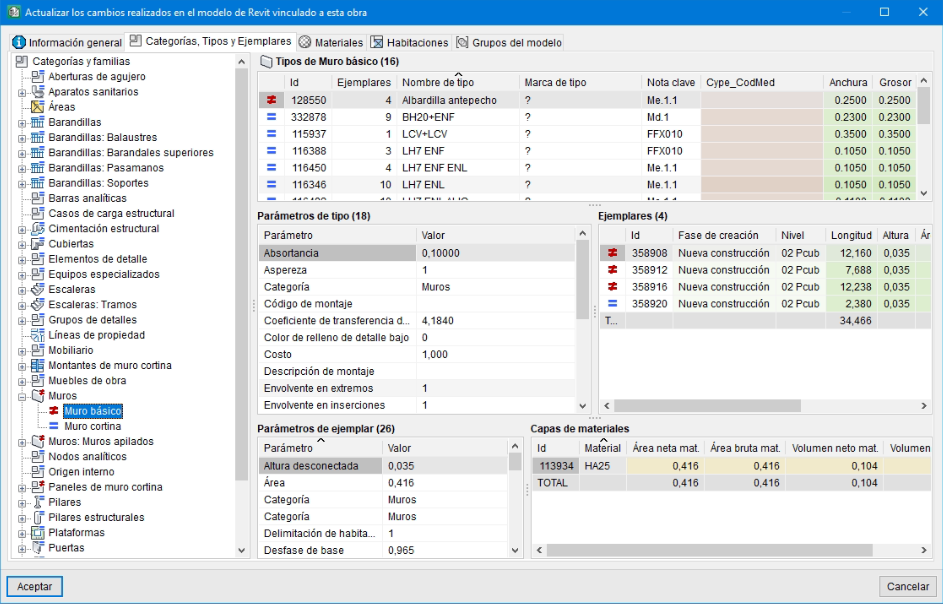
- With change control, identification of "Categories", "Types" and "Specimens" that have changed after extracting the quantities, and differentiation in the bill of quantities of the quantity lines from the Revit model from the user's quantity lines.
- After exporting or extracting the quantities, the Revit license is free. The company is not obliged to have a license assigned to the person carrying out the quantities, as there is no need to work with Revit.
- The person carrying out the quantities does not need to be familiar with Revit. With a few hours of training, you can understand what a Revit BIM model looks like and manage it with Arquimedes.
- There is no need to carry out the quantities in Revit, as what you get is the Revit model to be able to work with it. Therefore, there is no need to be on the same network to share the central file of the project.
Direct connection between Revit and Arquimedes to obtain quantities from a BIM model
The MedBIM – Revit plugin allows you to obtain quantities from a Revit BIM model and, thanks to the "Bills of quantities of BIM models" module, incorporate them into an Arquimedes bill of quantities.
The measurement can be incorporated into a new Arquimedes bill of quantities or into an existing one (pre-designed bill of quantities). The two scenarios are presented below:
- No prior bill of quantities exists
The project modelled in Revit is linked to a new Arquimedes project, which, in turn, will be associated with the CYPE Cost database or with any other database that Arquimedes can read. In Arquimedes, the items representing each element modelled in Revit are introduced and linked. The measurement is generated using the information extracted from the Revit model. In this way, the bill of quantities structure in Arquimedes is gradually formed.
If there are construction elements with keynotes that match the item codes of the associated database, these are automatically entered into the bill of quantities, linked to the corresponding construction element, and their quantities generated.
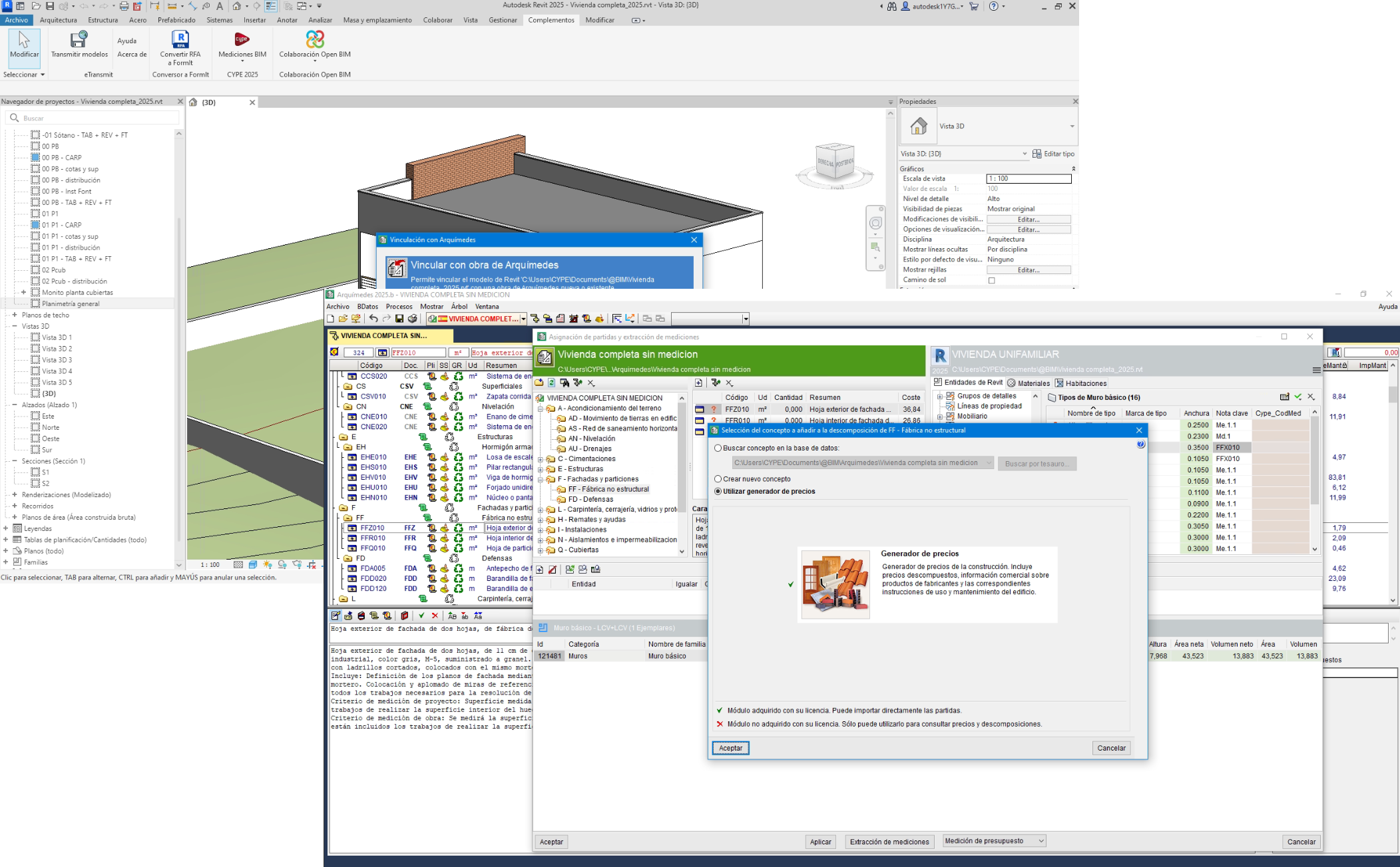
- A prior bill of quantities exists
The Revit project is linked to a prior bill of quantities and its items are related to each element modelled in the BIM program. This generates the measurement for each item with the information extracted from the Revit model.
If there are construction elements with keynotes that match the code of certain items in the bill of quantities, these are automatically linked. If the keynote code does not exist in the bill of quantities but does exist in the associated database, it is automatically added to the bill of quantities, linked to the corresponding construction element, and its measurement is generated.
Normally, the prior bill of quantities (also called the pre-designed bill of quantities) is the one used to inform the developer and obtain the property feasibility study. Once linked to the project modelled in Revit, it can be modified or completed with new items if there are elements modelled in Revit that were not foreseen in that bill of quantities; or conversely, elements present in the prior bill of quantities but not yet modelled may be modified or added in Revit. In this way, the Revit model also minimises omissions and item-related errors.
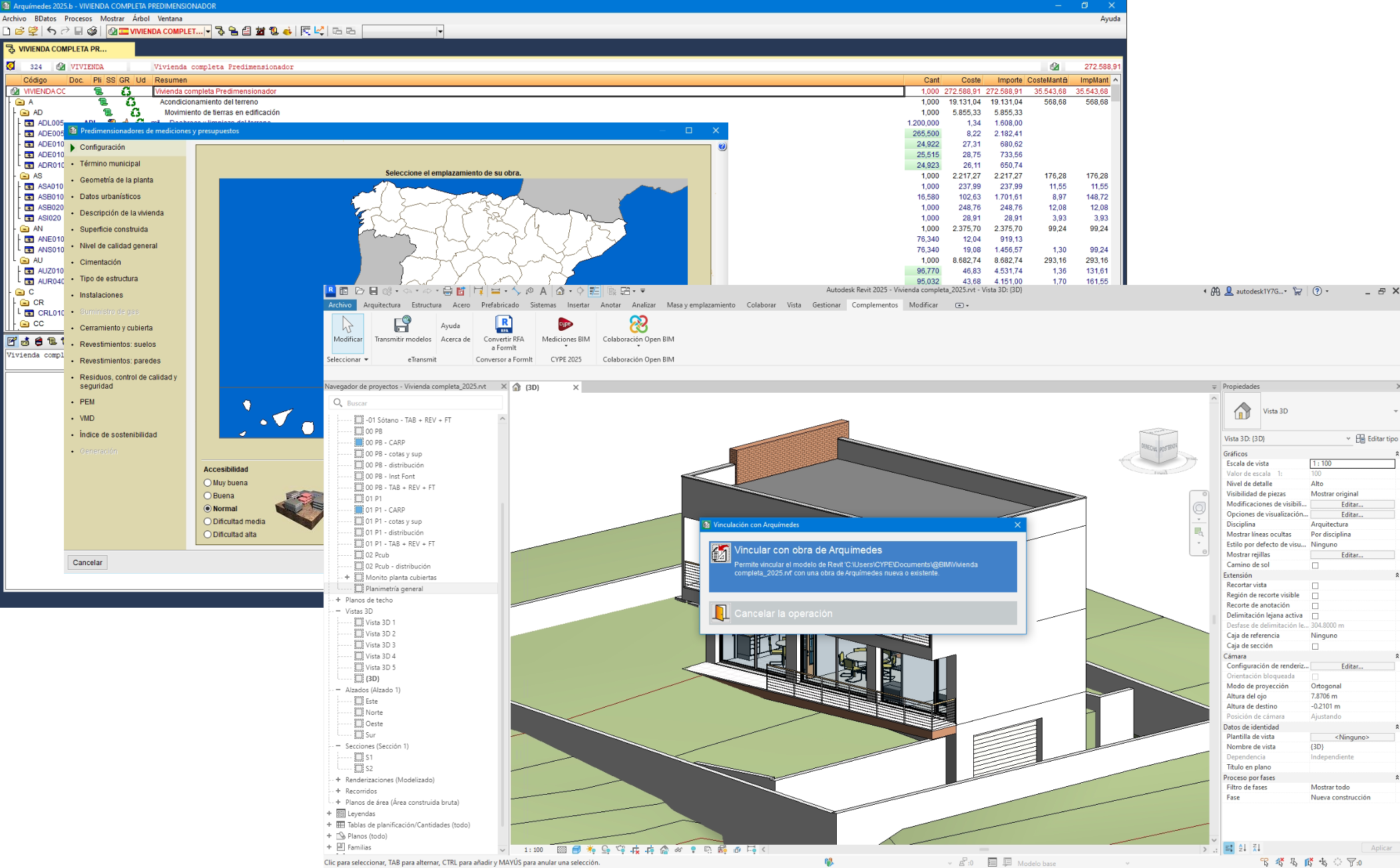
Furthermore, considering that a building project may be generated using several Revit projects (architecture, structures, services), these can be linked to the same Arquimedes bill of quantities using the Arquimedes "Consolidation of bills of quantities" module.
Obtaining the quantities from the Revit BIM model
The process of obtaining the quantities in Arquimedes from the Revit BIM model can be started in two ways, which will differ in the use of the Revit license:
Option 1: After modelling the project in Revit, a file is generated and imported from Arquimedes to extract the quantities
In this case, the Revit license is only required until this file is generated. When the file is imported from Arquimedes, the license for Arquimedes and the "Bill of quantities of BIM models" module is required. To use the CYPE Cost Database and other Arquimedes modules the corresponding licences must also be obtained.
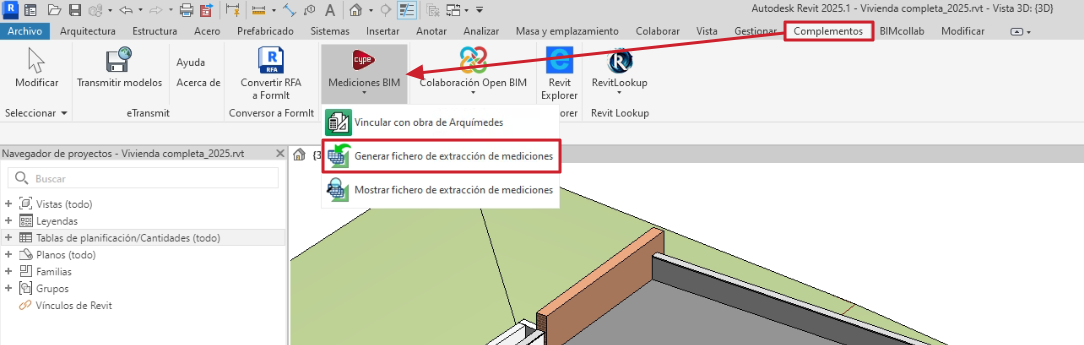
The file is generated using the "Generate quantities extraction file" option in the Revit "Complements" tab. It will have the same name as the Revit job but with a .mcsv extension and will be created in the directory where the Revit job is located. The "Show quantities extraction file" option displays the generated files.
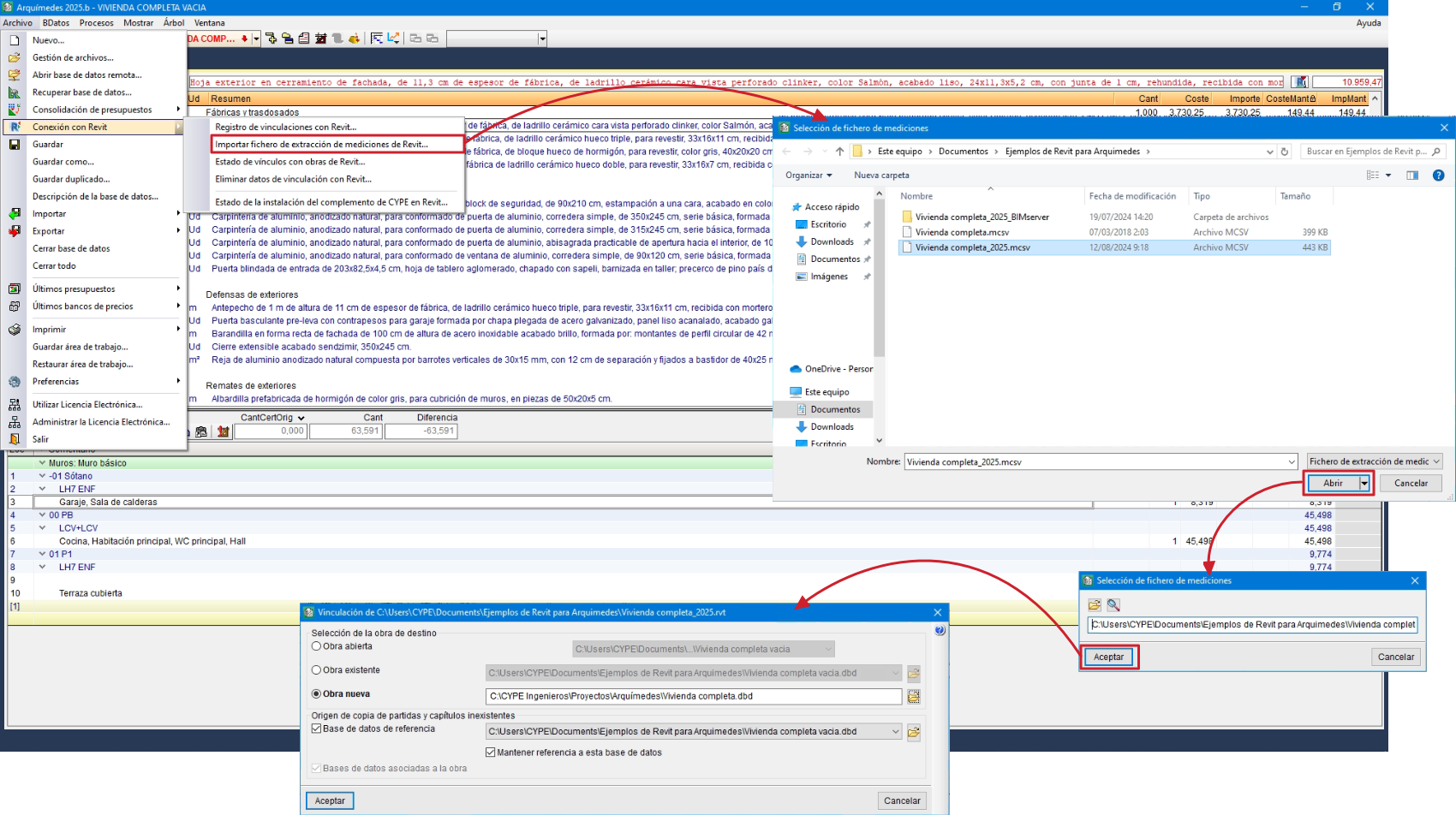
To import the .mcsv file from Arquimedes and extract the quantities from the Revit model, the "Import Revit quantities extraction file" option is used, which can be accessed from the "File" menu, "Connection with Revit".
Option 2: After modelling in Revit, from this same program the job is linked to an Arquimedes bill of quantities to extract the quantities
In this case, the licenses for Revit, Arquimedes and the "Bills of quantities of BIM models" module must be available at the same time. To use the CYPE Cost Database and other Arquimedes modules the corresponding licenses are also required.
The "Link with Arquimedes job" option in the Revit "Complements" tab must be used. This option opens the "Link to Arquimedes" dialogue box, the options for which vary:
- If no Arquimedes bill of quantities has been previously linked, the "Link with Arquimedes job" and "Cancel operation" will be displayed.
- If there is already a previous link, the "Update changes carried out in Revit, in Arquimedes", "Link with Arquimedes job" and "Cancel the operation" options will be displayed.
After linking, users can work in Revit, Arquimedes and the "Assign items and quantity extraction" window simultaneously.

Both modes, initiated with the Revit options "Generate quantities extraction file" or "Link with Arquimedes job", present the dialogue box "Linking of [Revit model path]", in which an Arquimedes job is linked to another Revit job; and then the dialogue box "Assign items and quantity extraction", in which the whole process of assigning items to Revit building elements and extracting the quantities of each of them is carried out.
Linking jobs from Revit and Arquimedes
The two procedures described above in "Obtaining the quantities from the Revit BIM model" introduce the "Linking from (Revit model path)" dialogue box. In it, the Arquimedes bill of quantities to which the quantity extracted from Revit is to be transferred and the databases from which the items and work sections that do not exist in the bill of quantities are to be copied are selected. The selected bill of quantities can be:
- A job that is open in Arquimedes
To do this, users select the open bill of quantities to which they are going to add the quantities from Revit. - A job that exists but is not open
Users look for the bill of quantities to which the Revit quantities are going to be incorporated from a path.
This option and the previous one are perfect when you have a pre-design of the bill of quantities prior to the project. - Create a new job
A new bill of quantities is generated in Archimedes with the information obtained from the cost estimation made by Revit (codes of items associated to "Types") and with the help of a database associated to the bill of quantities, which includes all the necessary information for its construction (work sections, items, units, yields, prices, etc.).
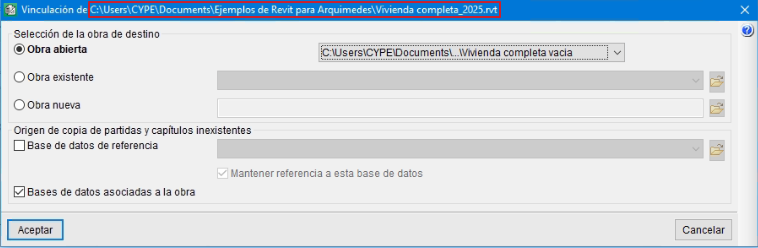
This dialogue box also indicates the "Copy origin of inexistent items and work sections". This way, when the Revit job from which the quantities are extracted contains key notes with codes of items that are not defined in the Arquimedes bill of quantities, this part of the configuration establishes in which databases the items should be searched for in order to copy them to the job.
- The first place to look will be the reference database, which should be the same as the one being used in the connection with Revit to associate codes to the building elements.
- If it is not found there, or if the name of the reference database is simply not provided, the program can search for the items among the databases associated with the job. As the items are located, the program reconstructs the work section structure of the source database.
"Assign items and quantity extraction" dialogue box
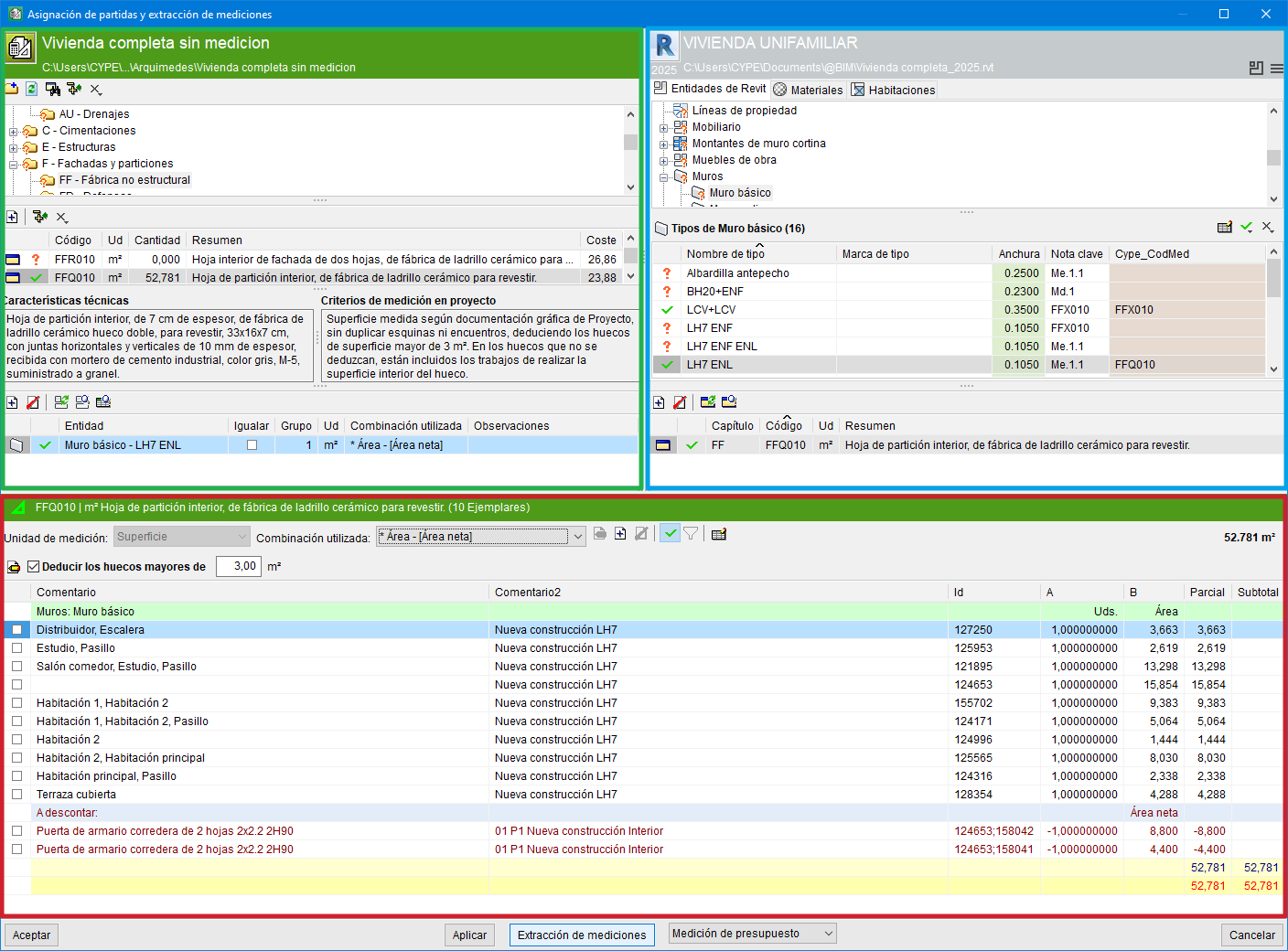
After linking an Arquimedes estimate to a Revit project, if Arquimedes is not currently open, the CYPE plug-in in Revit opens it. Then, the "Assign items and quantity extraction" dialogue box appears. The quantities contained in the Revit model elements can be extracted using this dialogue box.
Work environment
This dialogue box is divided into two main parts, which are framed in green and blue in the image; and a third part, framed in red, which contains the quantity detail table.
- Green part
The green part shows the chapter and line item structure of the bill of quantities linked to the Revit model. From here users can link entities of the Revit model to bill of quantity items. This tree is updated every time there is a change in the work section structure in the "Breakdown tree" window of the Arquimedes budget linked to the Revit model. - Blue part
The blue part uses tabs to display Revit model elements ("Revit entities", "Materials" and "Rooms"). From here it is possible to link budget items to Revit model entities. - Quantity detail table
The lower part of the dialogue box shows the quantity detail table assigned to the selected item in the green area. As long as the item has not been linked to the entity, when hovering over the Revit entity in the blue area, the lower part will not show the detail, but the list of copies of the selected entity.
Between the "Accept" and "Cancel" command buttons in the dialogue box, there are two further buttons to "Apply" changes and to "Extract quantities".
Panel configuration
You can configure the display of the "Assignment of items and extraction of quantities" dialogue box to make it easier for the user to connect with the Revit model according to their preferences or monitor types.
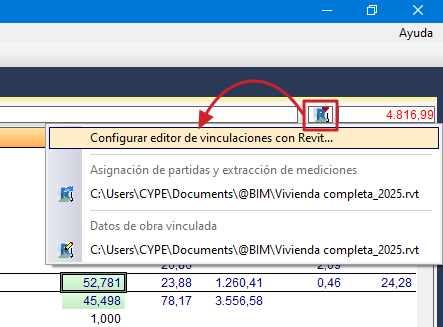
To access the configuration of the link editor with Revit, you must select the "Extraction of measurements" button located in the "Breakdown tree" window in Arquímedes and choose the option "Configure link editor with Revit".
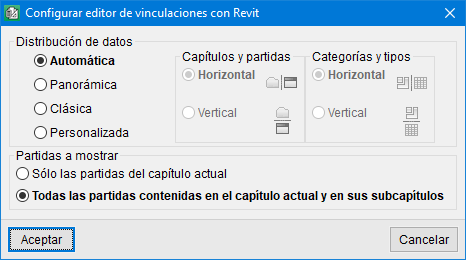
You can choose between four display types:
- Automatic
This option is activated by default. With it, data distribution is based on the aspect ratio of the monitor being used (width × height). - Panoramic
- Classic
- Customised
The user decides how to distribute the data.
Adding new work sections and items
In the green part, from the toolbar of the chapters area, it is possible to add a new work section to the work section structure of the bill of quantities with the "New work section" button (1). In the dialogue box that appears, filling in at least the "Code" and "Summary" fields is required.
To create a sub-work section within an existing work section, simply go to that work section and use the "New work section" option (1).
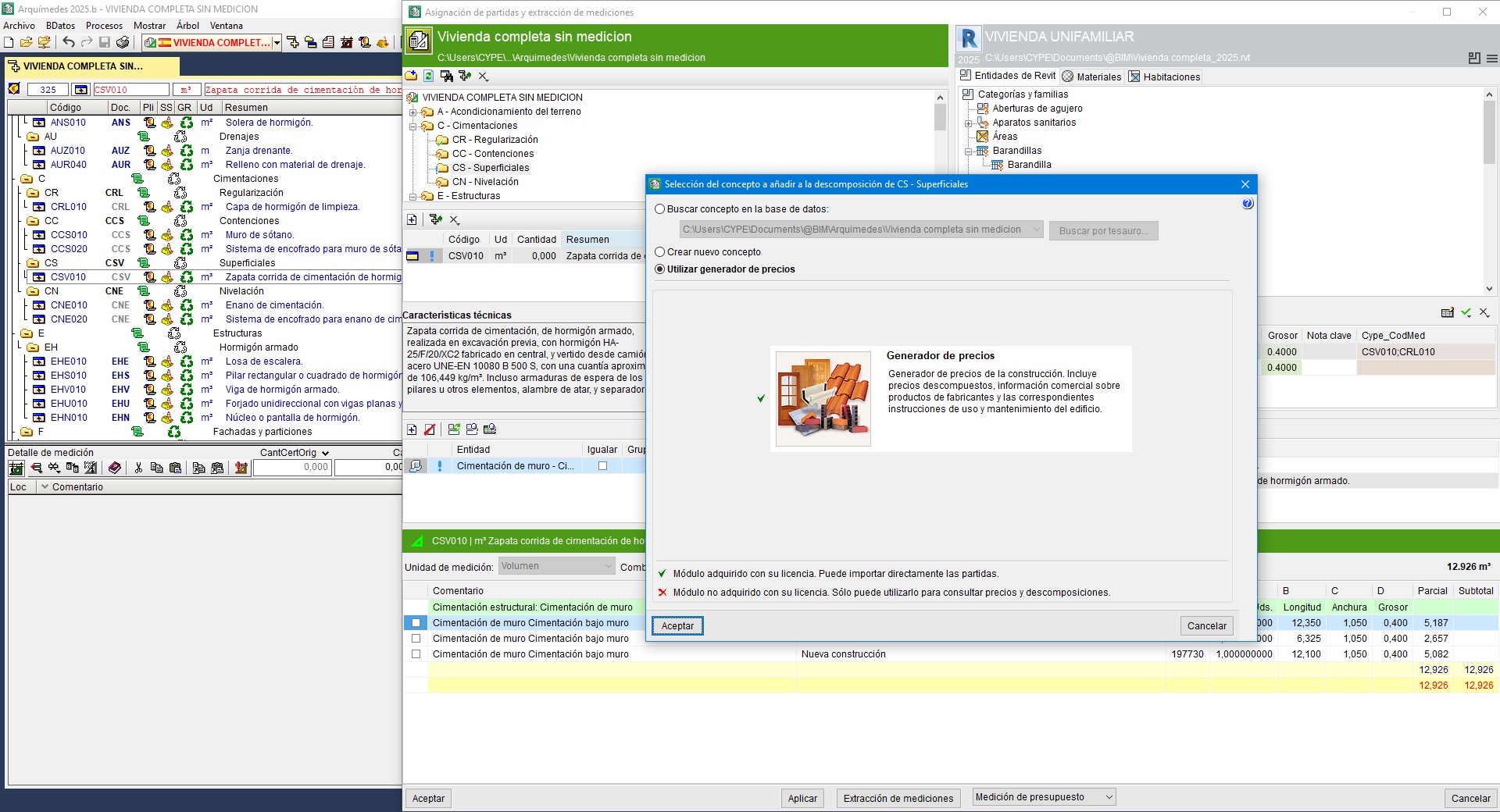
Then, a new item can be added, within a work section or sub-work section, with the "Add new item to the report" button (2) in the toolbar of the items area. From the dialogue box shown, "Selection of the concept to add to the breakdown of %s", the following is possible:
- Add an item from an open database, using the "Search in" option.
- Create a new line item type concept (with breakdown or lift), from the "Create new concept" option.
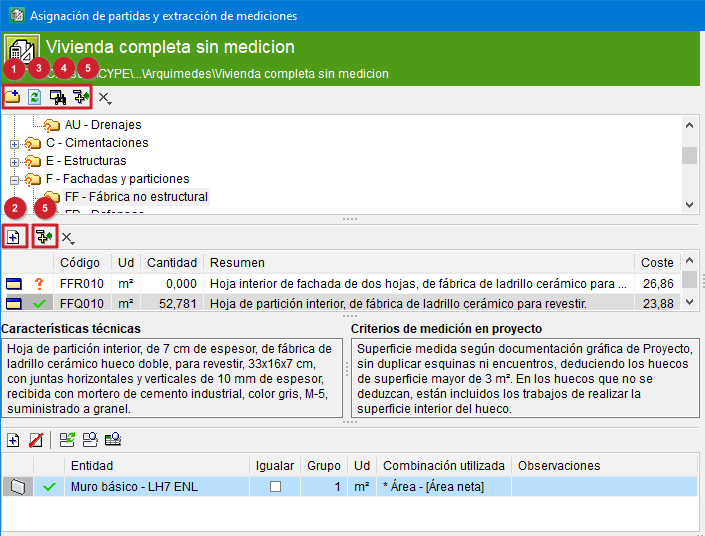
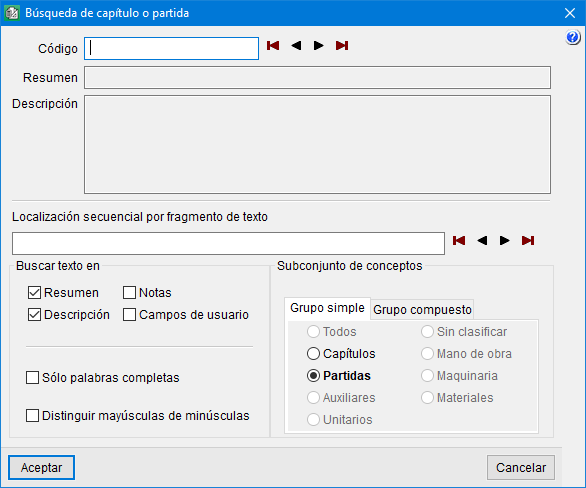
To locate a work section or a line, simply click on the "Search work section or item" button (4) on the toolbar in the chapters area. From the "Search for work section or item" dialogue box that appears, users can search for the item by:
- Code
By entering it in the corresponding field and pressing any of the buttons on the right. - Sequential location by text fragment
By typing the complete words or only an initial part of them separated by spaces.
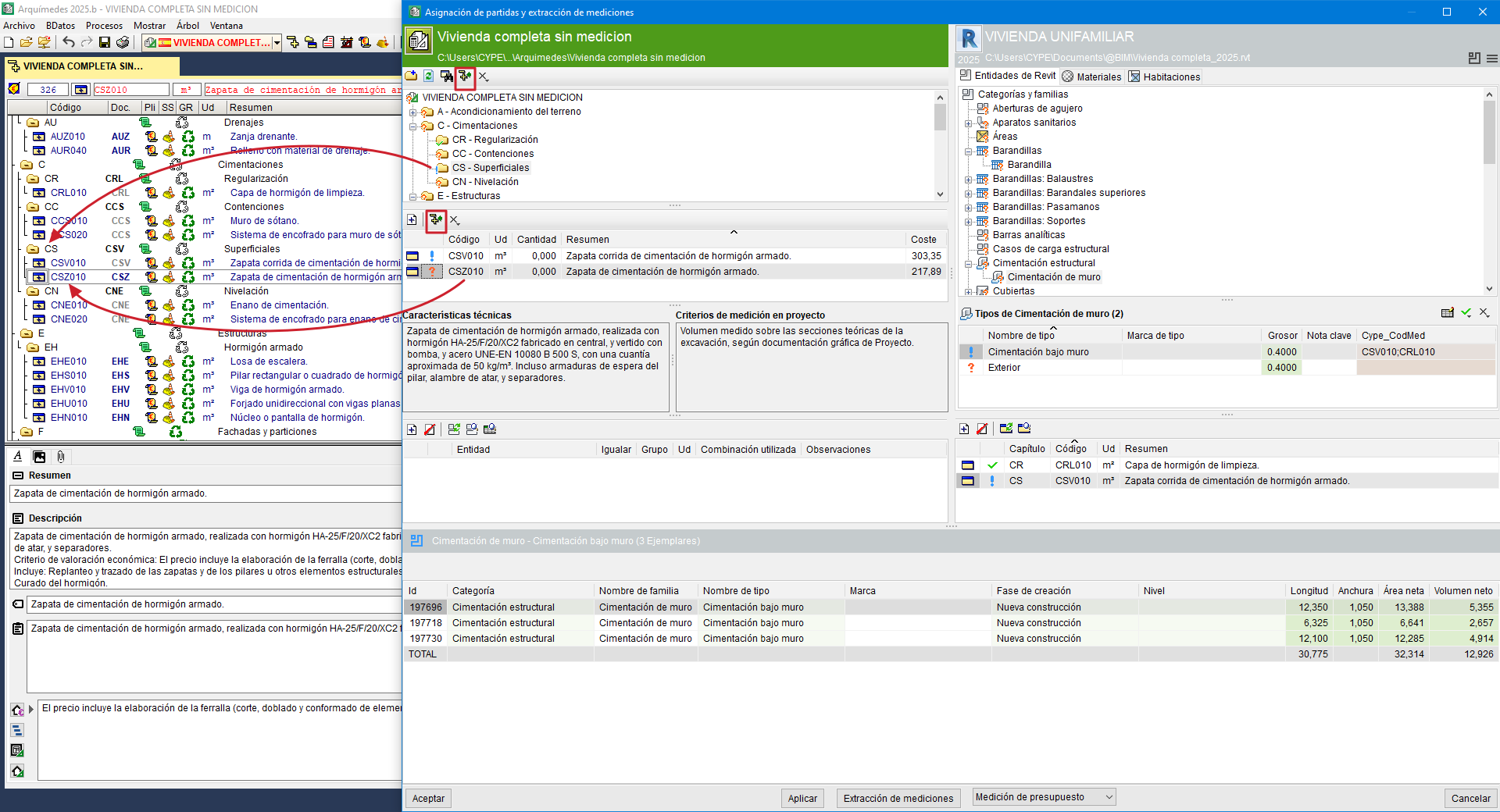
Finally, the "Show in "Breakdown tree" window" button (5), located on both toolbars, is used to locate the work section or line item selected in the "Assign items and quantity extraction" dialogue box in the Arquimedes "Breakdown tree" window.
Linking Revit model entities to bill of quantity items
Quantities can be extracted or updated from the green part by linking entities in the Revit model to bill of quantities items.
In this part, below the description of the selected item, the toolbar offers the following options:
- Add a new element to the report (1)
Links a Revit entity from one of the tabs in the blue part to an item in the chapter tree in the green part. After selecting both the entity and the item, click this button, which will make the linked entity appear in the list below. - Remove selected item from the report (2)
Removes a linked entity from the lower list. - Replace entity (3)
Selects an entity already linked to an item and change it to another entity by selecting it from the entities on the tabs in the blue part. - Locate linked entity (4)
Selects an entity already linked to a line item and position on it in the corresponding Revit entities tab in the blue part.
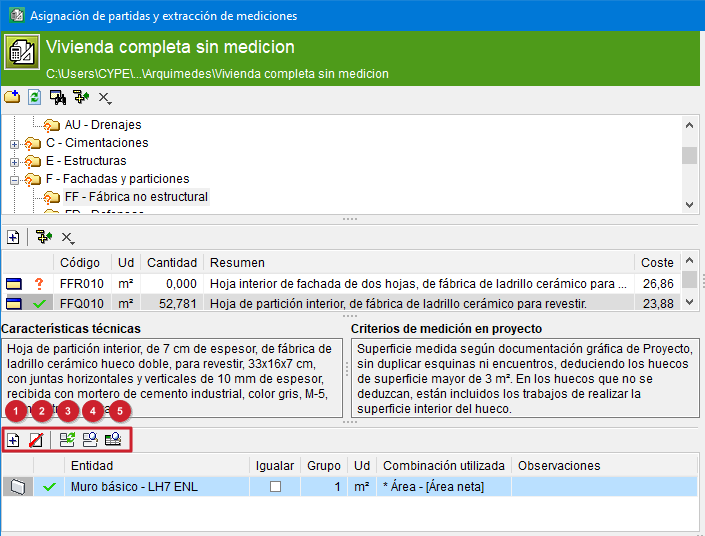
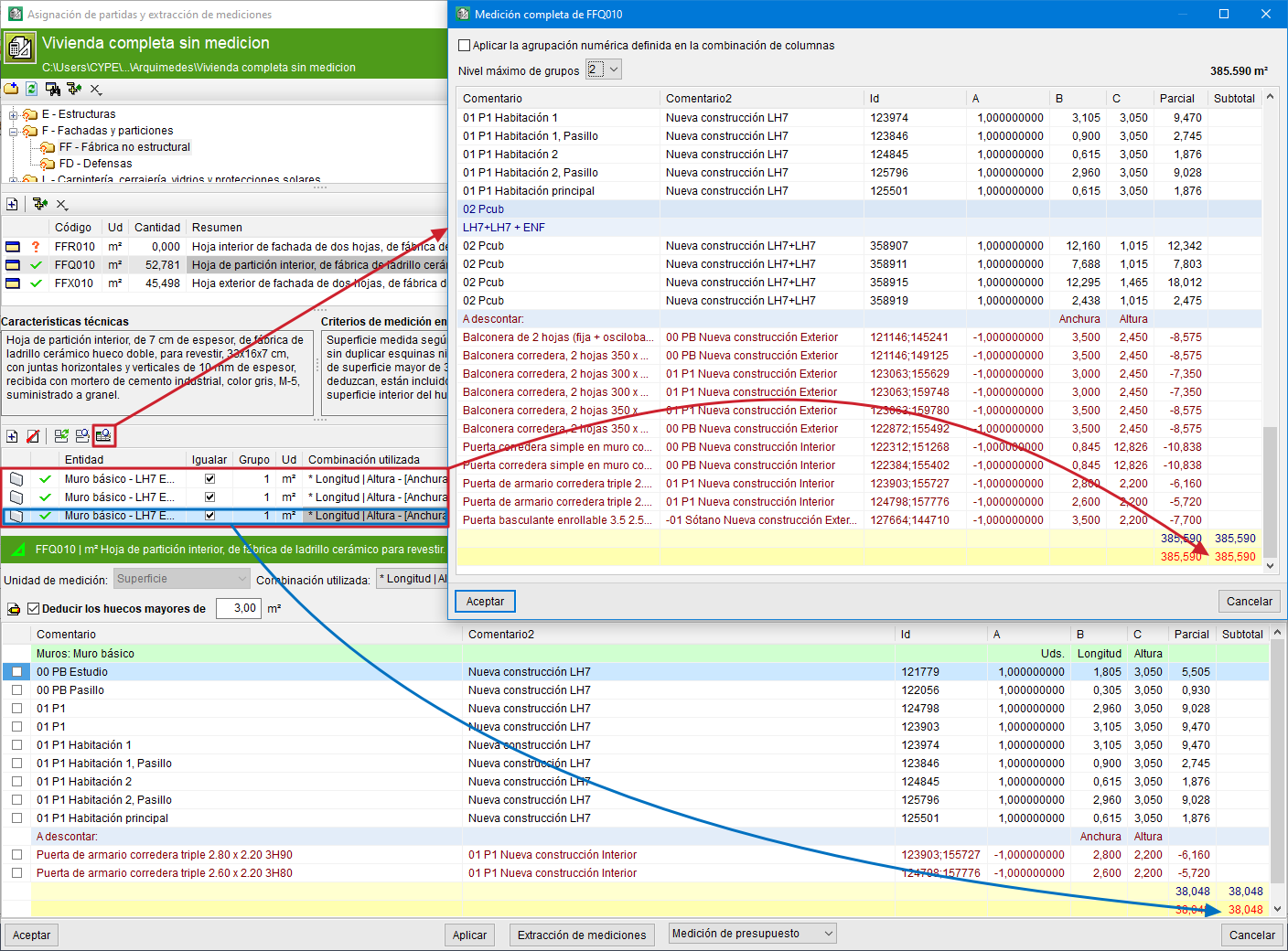
- Show complete quantities (5)
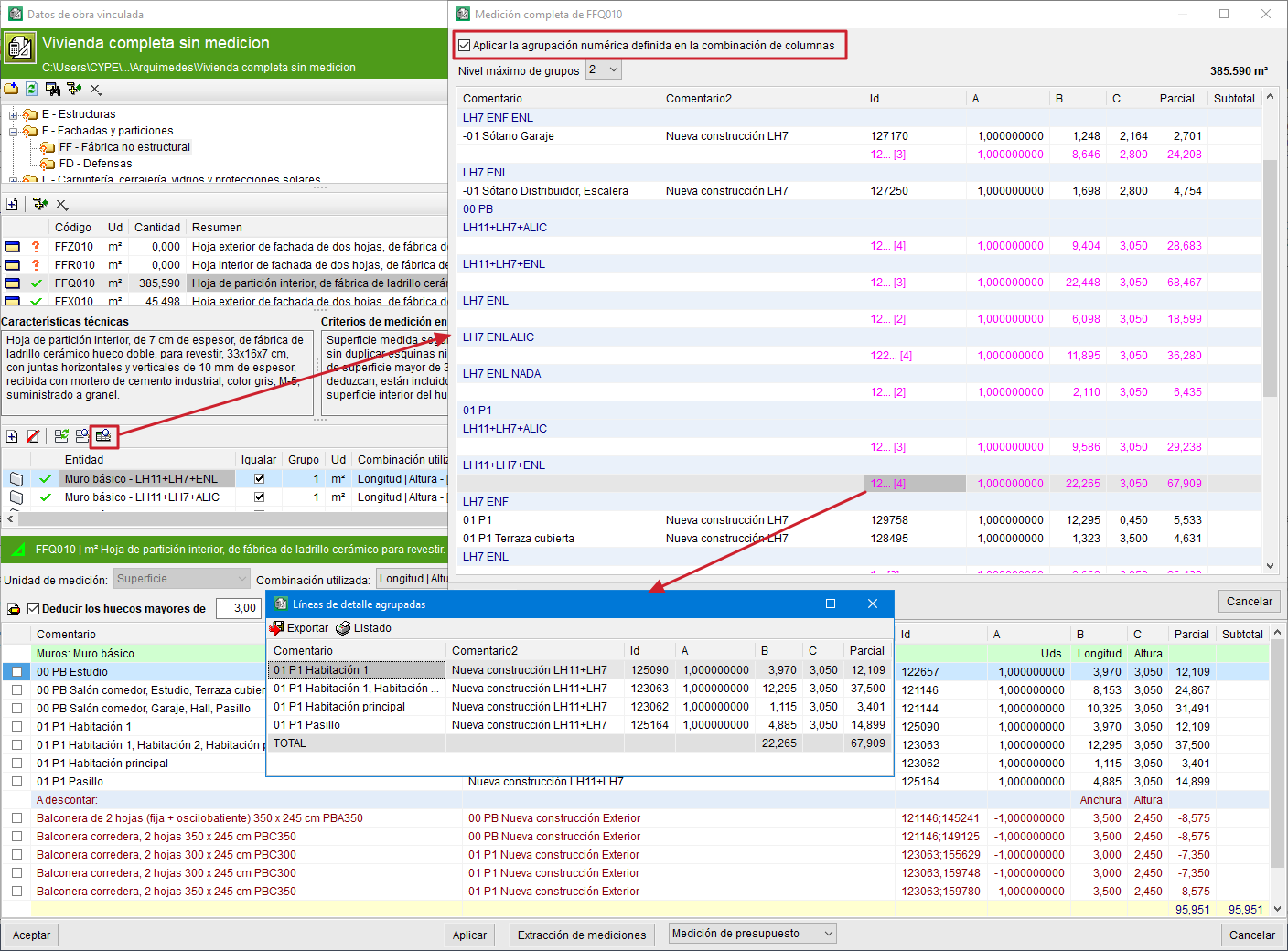
This enables users to visualise how the quantities would look like if they were extracted, without having to extract the quantities and leave the "Assign items and quantity extraction" dialogue box.
The "Group quantities lines" option complements this option for grouping quantities lines, which can be found in detail in the "Options to simplify the number of detail lines" section..
Linking bill of quantities items to entities in the Revit model
From the blue part, the quantities can be extracted or updated by linking bill of quantities items to entities in the Revit model.
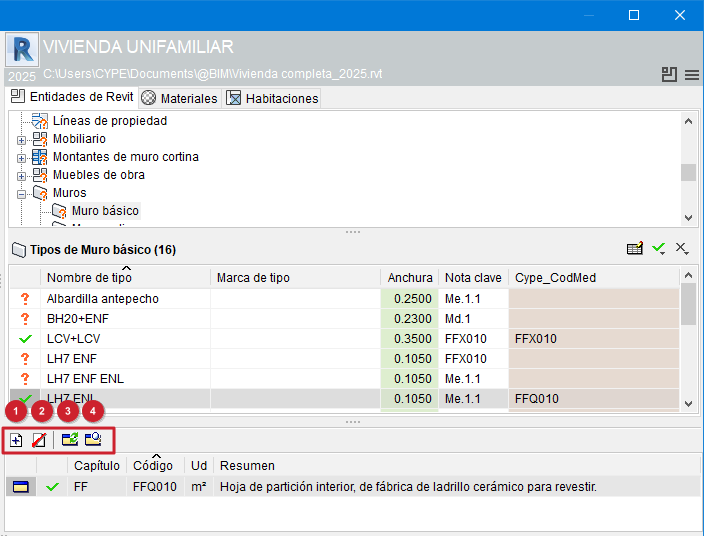
In this part, just below the list of Revit model elements, the toolbar offers the following options:
- Add new item to the report (1)
Links an item from the chapter tree in the green part to a Revit entity from one of the upper tabs in the blue part. After selecting both the line item and the entity, this button must be clicked, which will make the linked line item appear in the list below. - Remove selected item from the report (2)
Removes a linked item from the lower list. - Replace entity (3)
Selects an item already linked to a Revit entity and changes it to another line item by selecting it from the line items in the green part. - Locate linked entity (4)
Selects an item already linked to a Revit entity and places it on the list of items in the green part.
Quantity details table
In the lower part of the "Assign items and quantity extraction" dialogue box, the quantity detail table assigned to the selected item in the green part is displayed.
- If an item has not been linked to a Revit entity, when hovering over the Revit entity in the blue part, the lower area does not show any detail.
- For the quantity detail to be displayed, there must be a link between the item and the Revit entity and the item must contain a recognised unit of measurement (pc, m, m2, m3, kg, etc.).
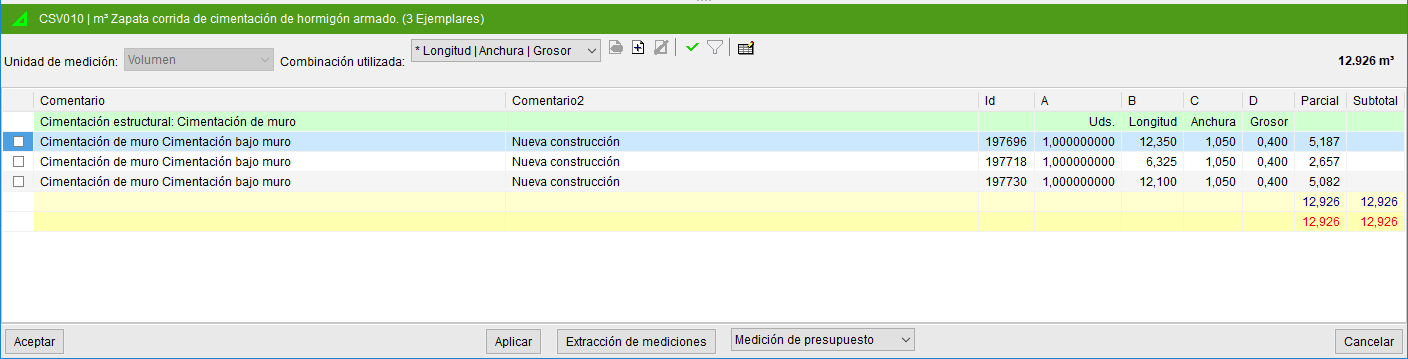
Each quantity line in the quantity table for each item corresponds to an "Instance". The "Id" column uniquely identifies them.

In the configuration area of the quantities table, the "Quantity units" section is displayed. This is obtained by reading the quantity units contained in the item linked to the Revit entity.
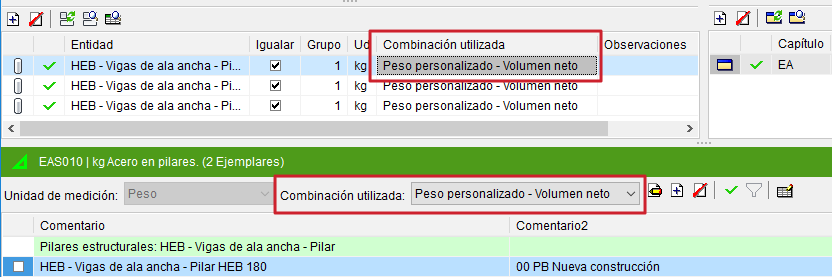
A combination of parameters is used to obtain the quantities from the Revit entity. The selection in the drop-down menu "Combination used" depends on the quantities units to be used. For example, to measure surfaces, combinations such as "Area" or "Length x Height" can be used; for volumes, options such as "Volume" or "Net Area x Width" can be used; and for weights, the "Density x Volume" formula can be used.
From "Combination used", a default combination can be selected or, via the icons on the right, a new one can be added, edited or deleted.
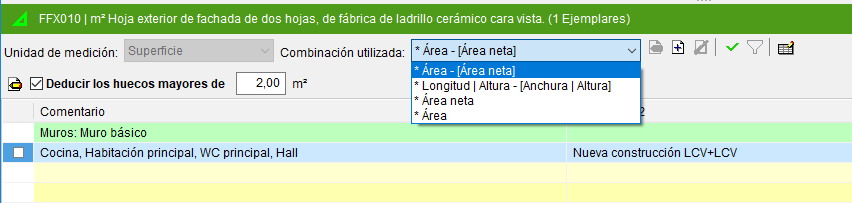
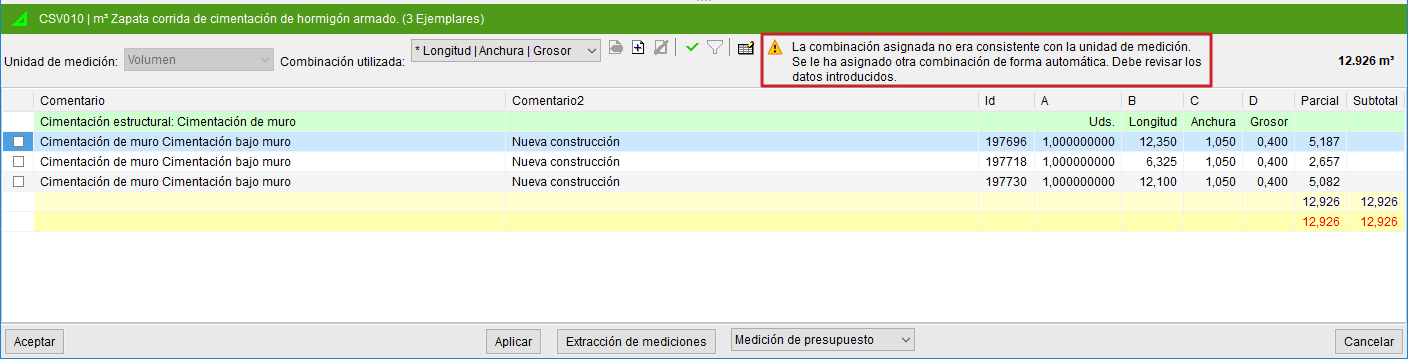
If the quantities of an item cannot be extracted directly, a suitable parameter combination must be defined. The program will display a warning with a yellow warning symbol  in the quantities table.
Add a new quantity combination
You can always define a new combination using the "Add combination" button located to the right of the "Combination used" drop-down list. After pressing this button, the "Selection of parameters for obtaining the quantity" dialogue appears, consisting mainly of two tables:
- The table on the left initially contains the parameters associated with the Revit model entity.
- The table on the right contains the parameters used in the quantity combination.
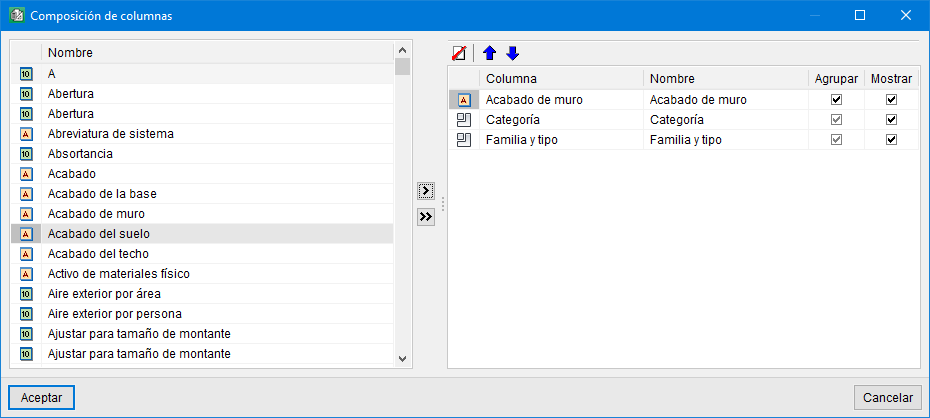
To add new parameters to be used in the quantity combination, simply select the desired parameter in the table on the left (you may choose an existing one or create a new one), select the column where it will be applied in the table on the right, and press the ">" button.
At the bottom of the "Selection of parameters for obtaining the quantity" dialogue, the quantity detail table for the selected item is displayed. This table allows you to preview the changes introduced before accepting the combination.
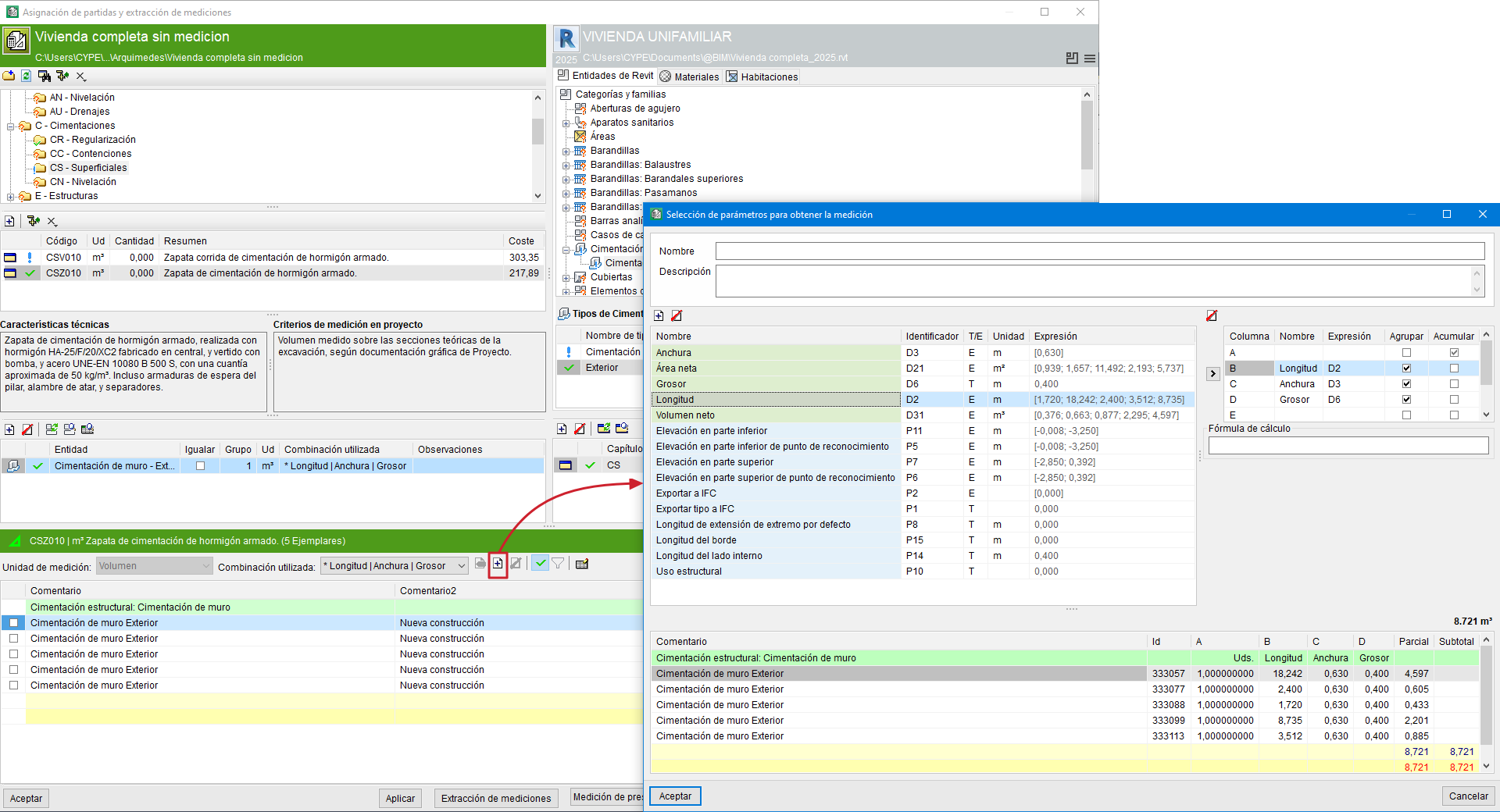
To help identify the user combinations used in the extraction of quantities, there are the "Name" and "Description" fields in the "Selection of parameters for obtaining the quantity" dialogue.
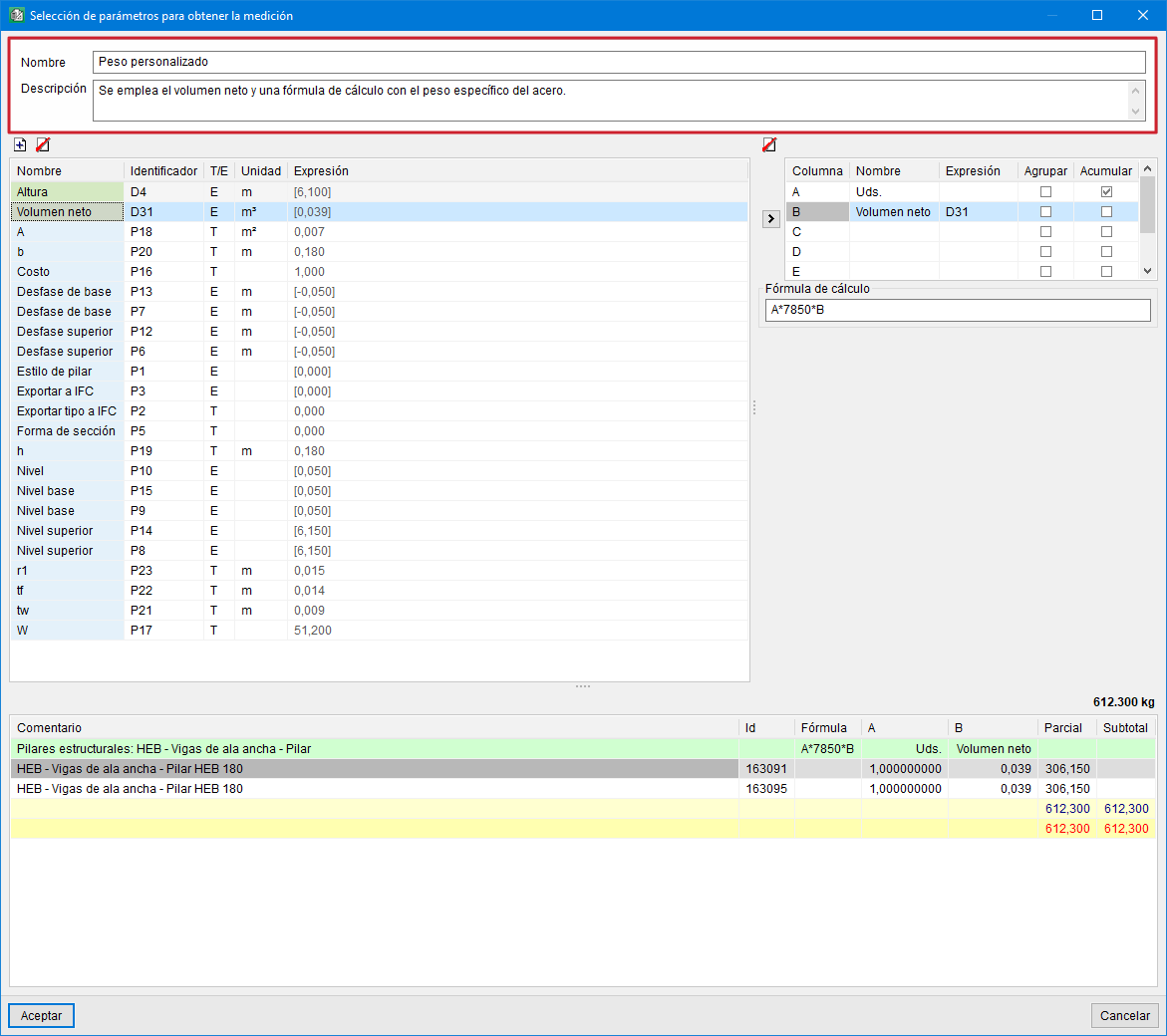
Option for defining the "To deduct" quantity in instances
In the "Selection of parameters for obtaining the quantity" dialogue, the "To deduct" tab is included. This only appears when openings to be deducted have been defined in the Revit model. Here you can define the parameters that will be used in creating the quantity table to be deducted, and it allows rules to be included by means of logical expressions.
In this way, there are more possibilities for obtaining the quantities of the instances, taking into account, for example, the quantities to be deducted for opening reductions.
Example:
With this option it is possible to deduct openings using more than one rule. Thus, openings larger than 4 m² could be deducted in façade or partition (basic wall) quantities, and if the opening is between 2 m² and 4 m², only half of the opening would be deducted. To do this, the logical function IF(logical_expression, true_value, false_value) is entered in the column containing the identifier with the opening area. For the example given, it would appear as follows:IF(D21<2,0,IF(D21<4,D21/2,D21)).
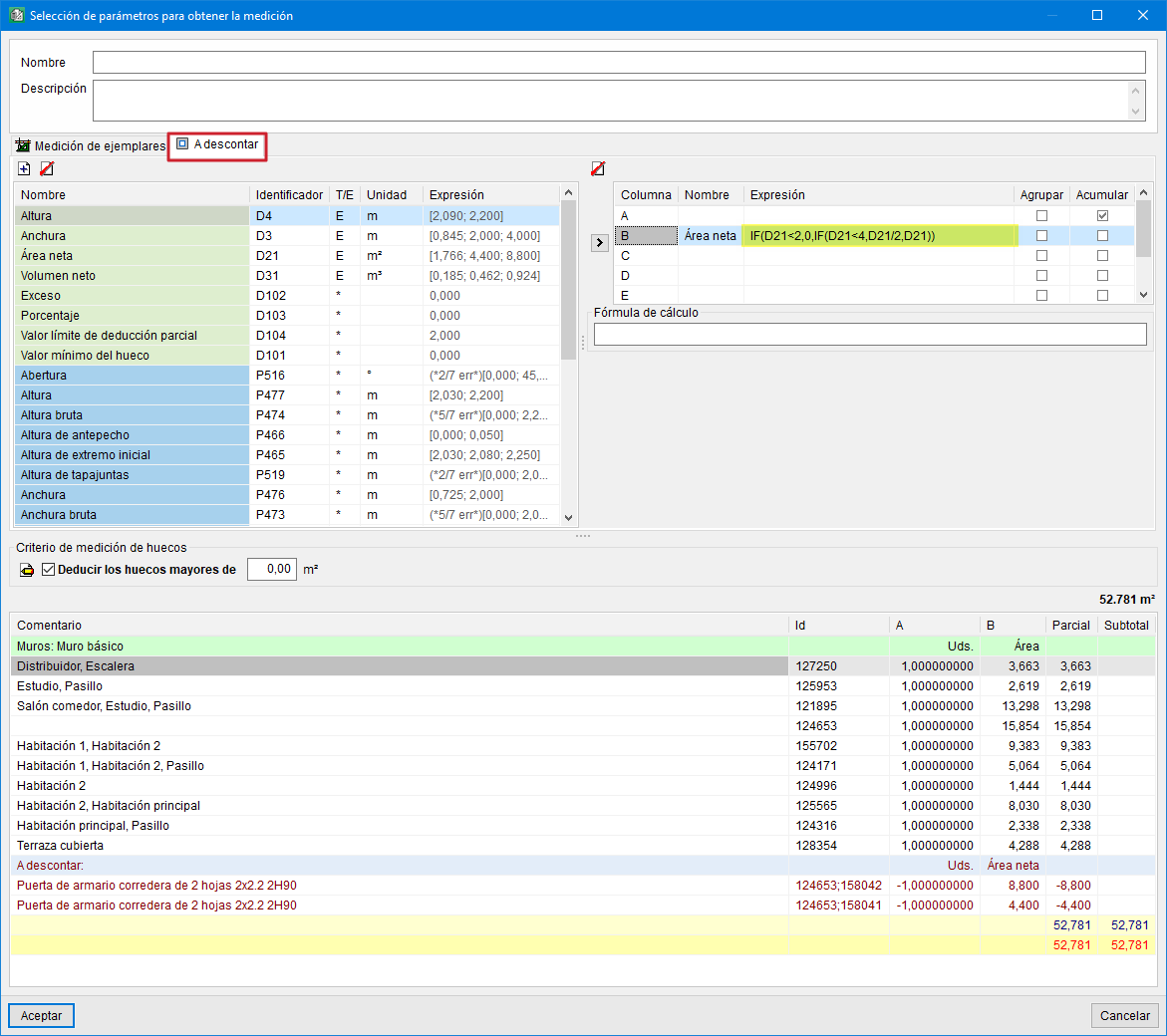
Quantity criterion for openings
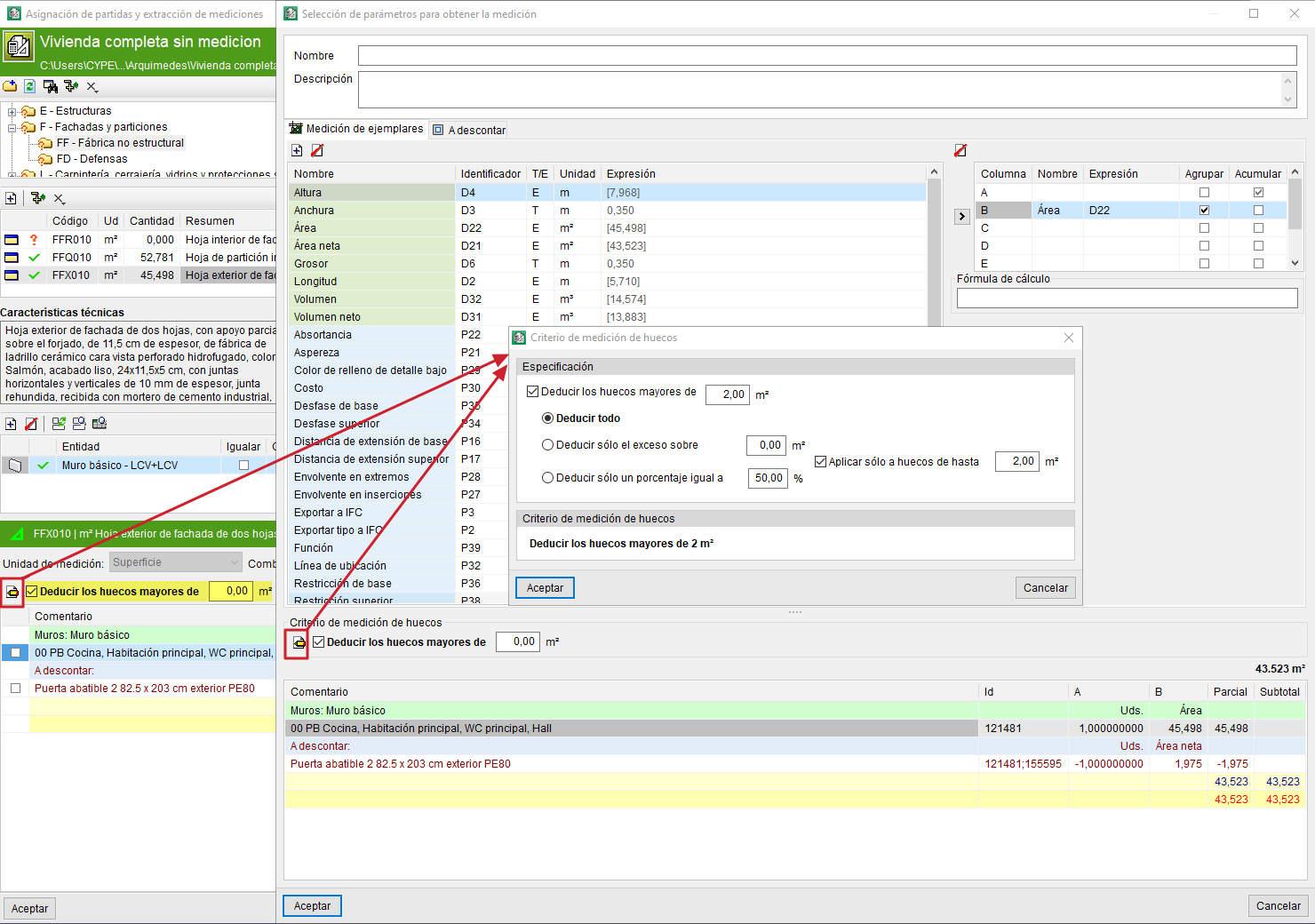
It is possible to "Deduct openings greater than" a given area from the quantity detail table using a selection box located beneath "Unit of measurement", specifying the desired area
In addition, "Quantity criterion for openings" provides access to editing the opening quantity criteria in a panel with the same name. This button is available both in the main "Assignment of items and extraction of quantities" dialogue and in the "Selection of parameters for obtaining the quantity" dialogue, and offers the following options:
- Deduct all openings greater than a given area.
- Deduct only the excess over a given area of openings.
You can also deduct only the excess over a given area between two values, and the total of openings greater than a given area. - Deduct only a given percentage of the openings.
For example, deduct only a portion (normally 50%) of the openings smaller than a given value, and deduct the full amount if they exceed that value.
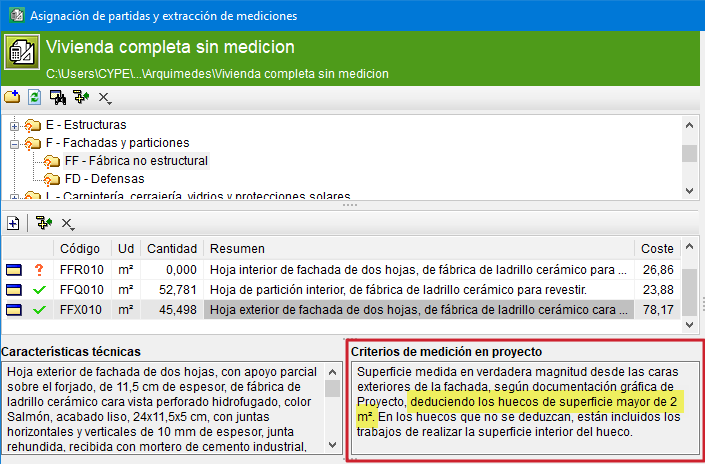
If the assigned item comes from the CYPE Cost Database, the project quantity criterion can be seen in the green section, just below the selection of the assigned item in the items section. If the area for deducting openings is indicated according to the project quantity criterion, those lines that meet the criterion will be deducted.
Use of the same combination in links for entities of the same family
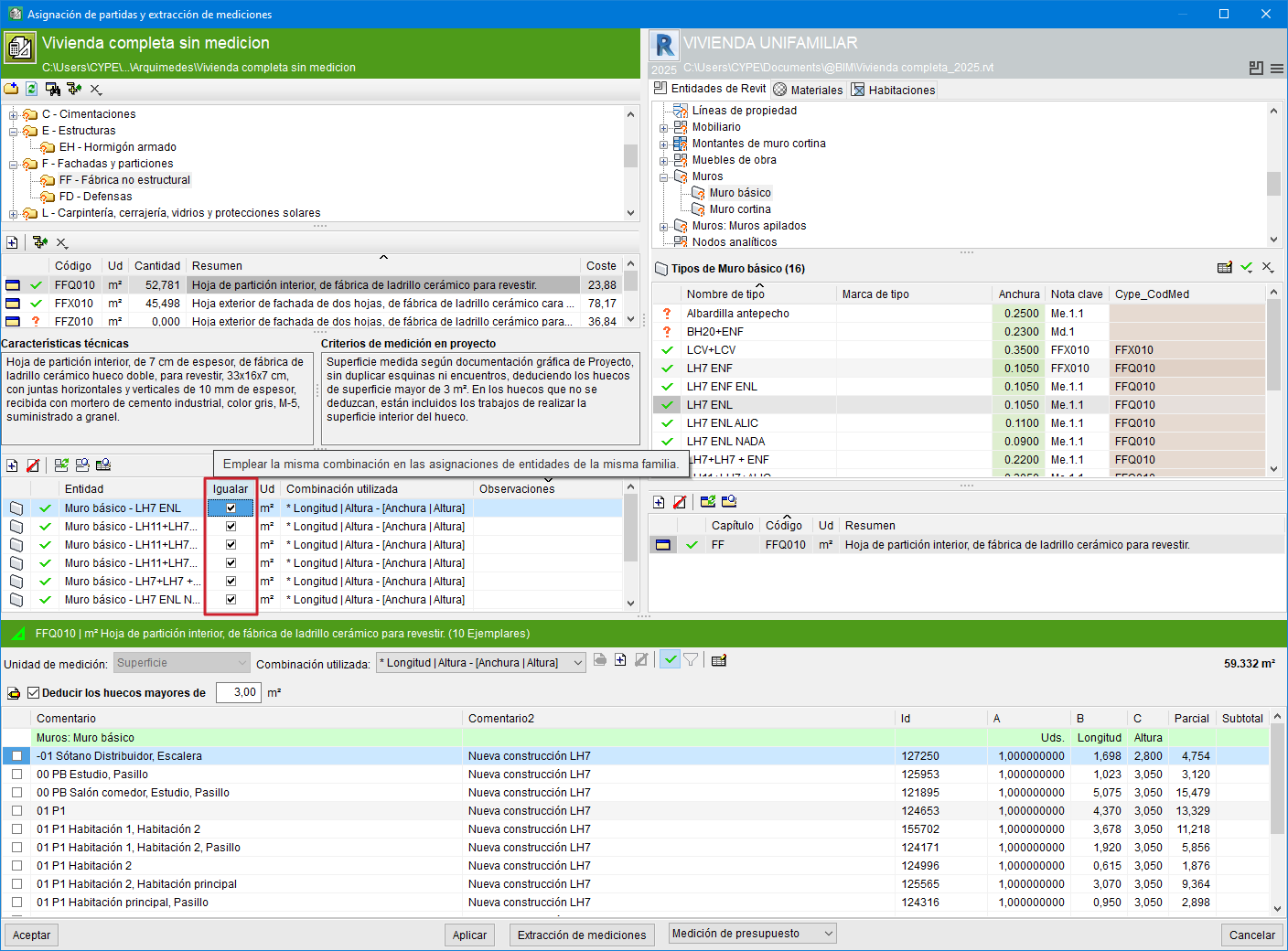
When more than one link of several types from the same family is made to the same budget item from the "Assignment of items and quantity extraction" dialogue, the "Match" column allows the same combination to be used in links for entities of that family.
The measurement criteria for multiple entity links to a single item can be matched. Changing one of them applies to all links for that item. If the project already had different criteria (measurement combinations) for the same item, the program does not combine them, but only does so if any are modified.
All the entities ("Types") linked to one item will have the same measurement criteria, as they refer to the same item.
Formation of comments in quantity tables
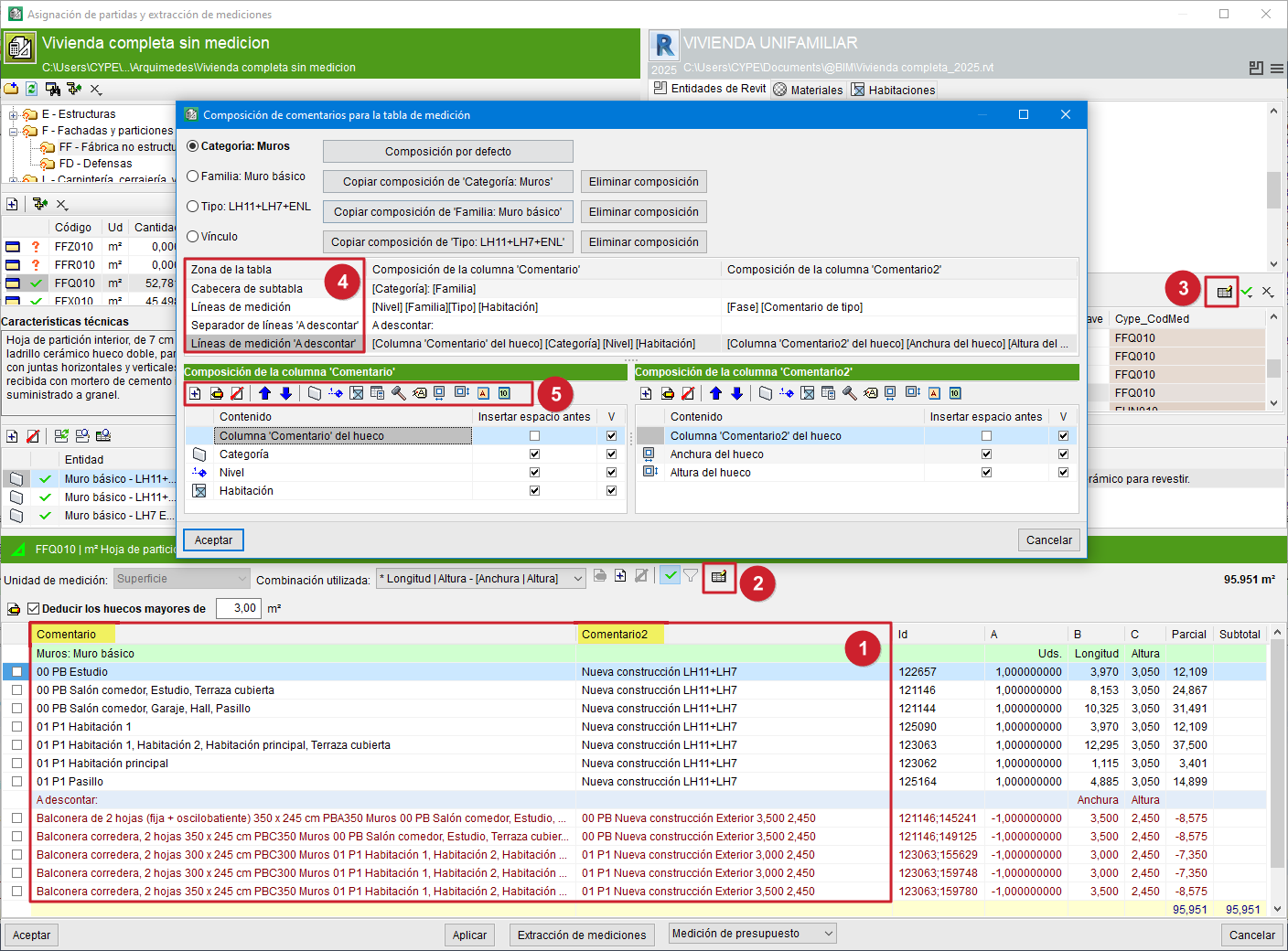
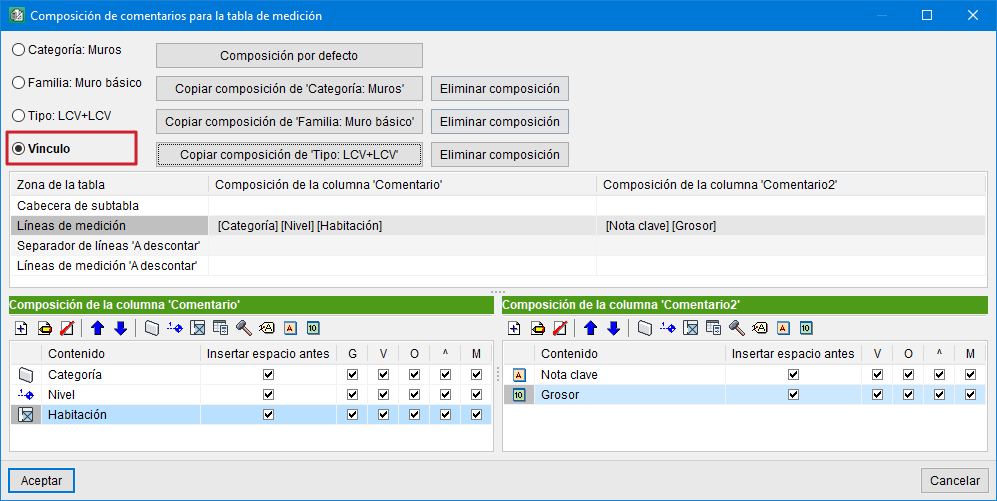
The quantity tables in Arquimedes admit two types of comments: the "Comment" and "Comment2" columns or fields (1).
These comments can be configured using the "Edit comments" button, located both in the configuration area of the quantity detail table (2) and in the selection area for "Types", "Materials" or "Rooms" (3).
After pressing this button, the "Comment composition for the quantity table" dialogue appears. From here, the comments for the table area can be constructed (4):
- Subtable header
- Quantity lines
- ‘To deduct’ line separator
- ‘To deduct’ quantity lines
Here it is possible to view the compositions of the "Comment" and "Comment2" columns simultaneously, which allows both comments to be compared. In addition, this dialogue provides default compositions using information from the "Category", "Family" or "Type" of the instances in the quantity extraction, which facilitates the composition of comments.
From the toolbar in this dialogue (5) it is possible to "Add", "Edit" or "Delete" a comment, as well as change its order of appearance (up and down blue arrows). It is also possible to add new elements of the following types:
- Category name
- Level name
- Rooms (useful in the quantity extraction of floors or ceilings, doors, windows, furniture, sanitary ware, etc.)
- Creation phase name
- Demolition phase name
- Text label
- Alphanumeric parameter (such as key note, manufacturer, etc.)
- Numerical field (such as area, volume, etc.)
- Opening width or opening height (available only in ‘To deduct’ quantity lines)
If the quantities of the item are obtained by linking a material from the "Materials" sheet, the comments can be composed using information from the material category or from the material itself.
If the assignment of items is carried out from the "Rooms" sheet, the formation of comments is simplified as shown in the third image of this section.
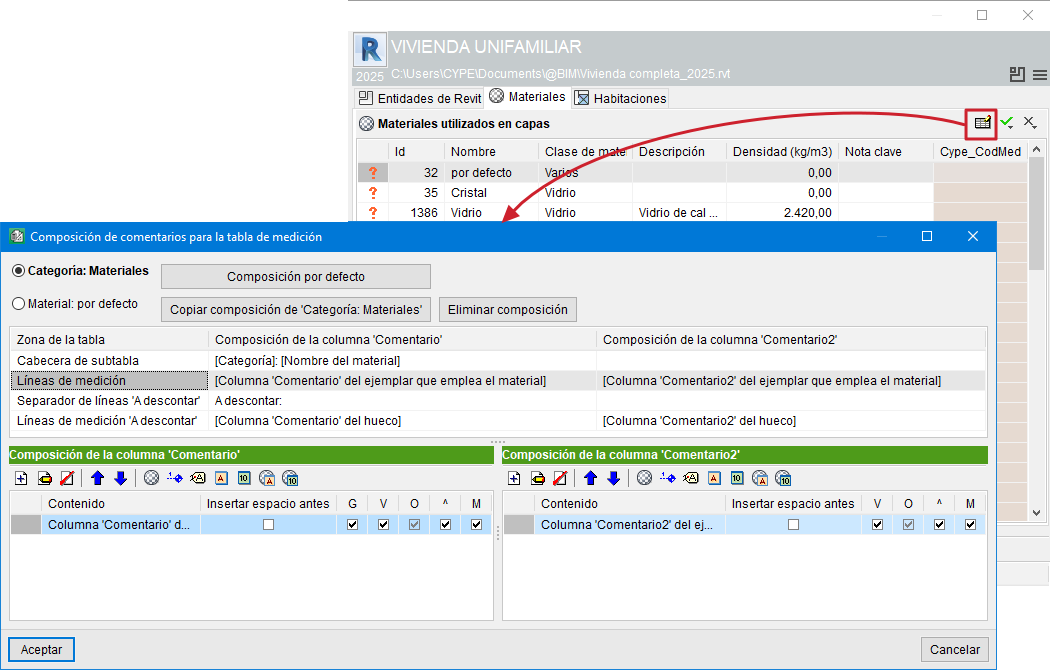
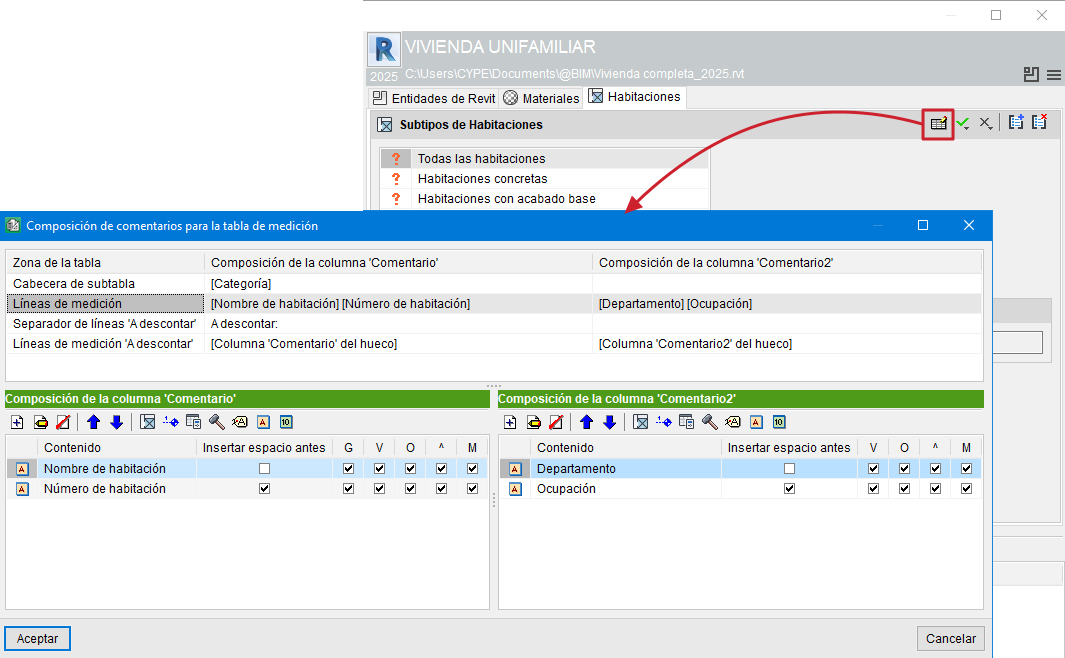
The "Link" option in the "Comment composition for the quantity table" dialogue refers to the entity–item link (the assignment between the Revit entity and the Arquímedes item). This link has a combination for extracting quantity lines and, among other things, two comment compositions (one for each comment column, "Comment" and "Comment2"). If the "Link" option is activated, it is possible to customise each of these comment compositions for that link, so that it does not affect any other link.
Entity–item links are unique. Therefore, if comments are customised for the link and the "Link" option is activated, this change affects only that specific entity–item link or assignment.
Omitting quantity for instances
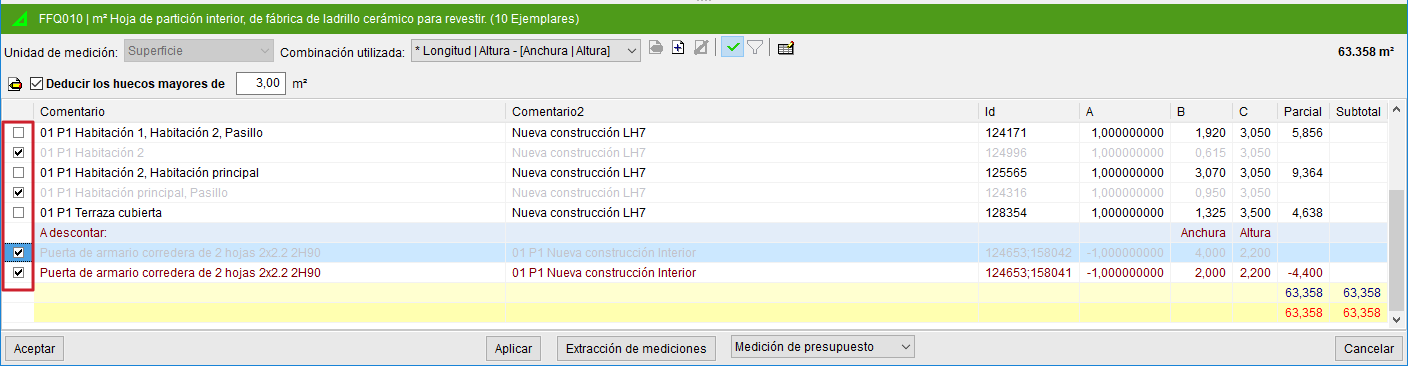
It is possible to mark the instances that you do not wish to include in the quantity for a given item. This tool complements other existing tools for filtering and defining what you want to quantify.
The option to mark instances to exclude them from the quantity becomes available once a Revit element has been linked to an item and the appropriate extraction combination has been selected or created. In the quantity detail table that is generated, you can mark the instances of each line that you do not wish to quantify using a check box located at the beginning of each quantity detail line.
Options for simplifying the number of detail lines
To simplify the number of detail lines shown in the quantity tables when generating the quantity extraction from the "Assignment of items and quantity extraction" dialogue, the following processes are available:
- Grouping detail quantity lines originating from Revit
The grouping of detail quantity lines is carried out after assigning to the items the types corresponding to the Revit elements.
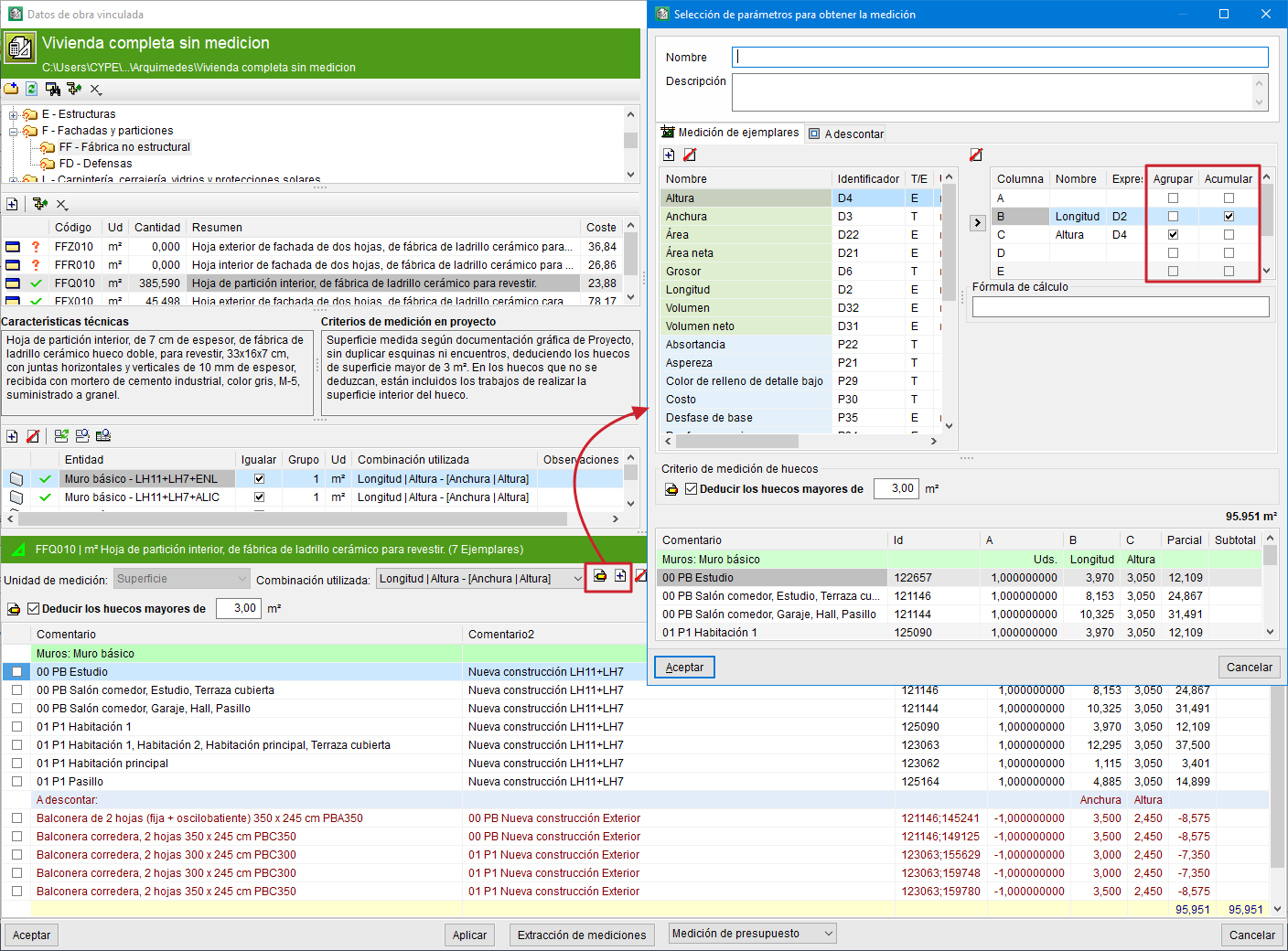
This grouping is defined from the "Assignment of items and quantity extraction" dialogue, by creating or editing a combination (the "Add" or "Edit" buttons located to the right of the "Combination used" drop-down list). In the dialogue that opens ("Parameter selection for obtaining the quantity"), identical dimensions can be grouped or accumulated in columns "A", "B", "C", "D" or "E" by activating the values in the "Group" and "Accumulate" columns respectively.
This operation can be carried out both in the "Quantity by instances" tab and in the "To deduct" tab.
- Grouping quantity lines
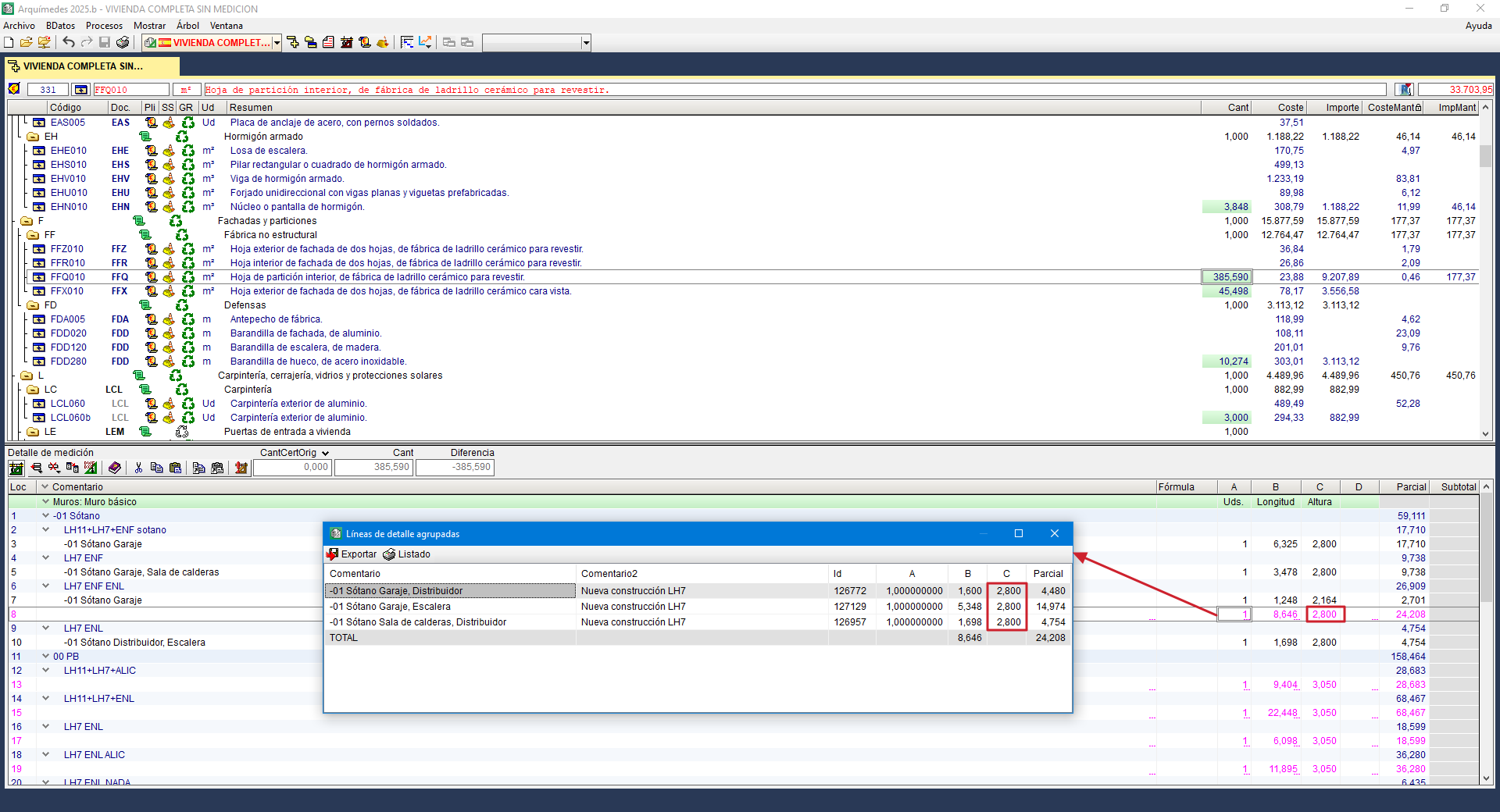
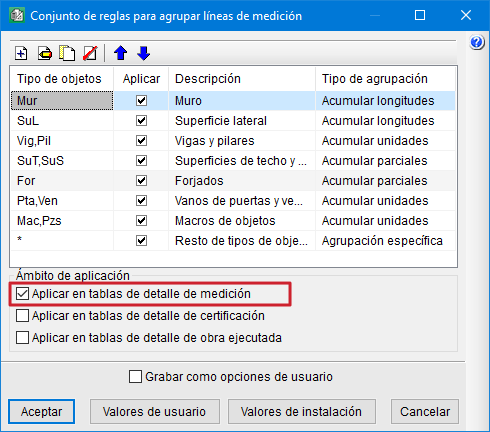
The "Group quantity lines" option in Arquímedes (menu "View", "Configuration") complements the "Apply the numerical grouping defined in the column combination" option for grouping quantity lines originating from the Revit model extraction.
If in the dialogue that opens ("Set of rules for grouping quantity lines") the "Apply in quantity detail tables" check box is not activated, the quantity detail lines will not be displayed grouped, even if grouping criteria have been defined.
This dialogue allows rules to be defined for grouping the detail lines of the quantity tables (on screen, when printing, or when exporting). The grouping of quantity detail lines applies to those imported from CAD/BIM files, to those imported from BC3 files, and to those entered manually.
- Quantity groups in quantity tables originating from Revit
The creation of quantity groups in quantity tables originating from Revit is based on a process of sorting and classifying according to the content of the comment of the quantity lines that make up each quantity table.
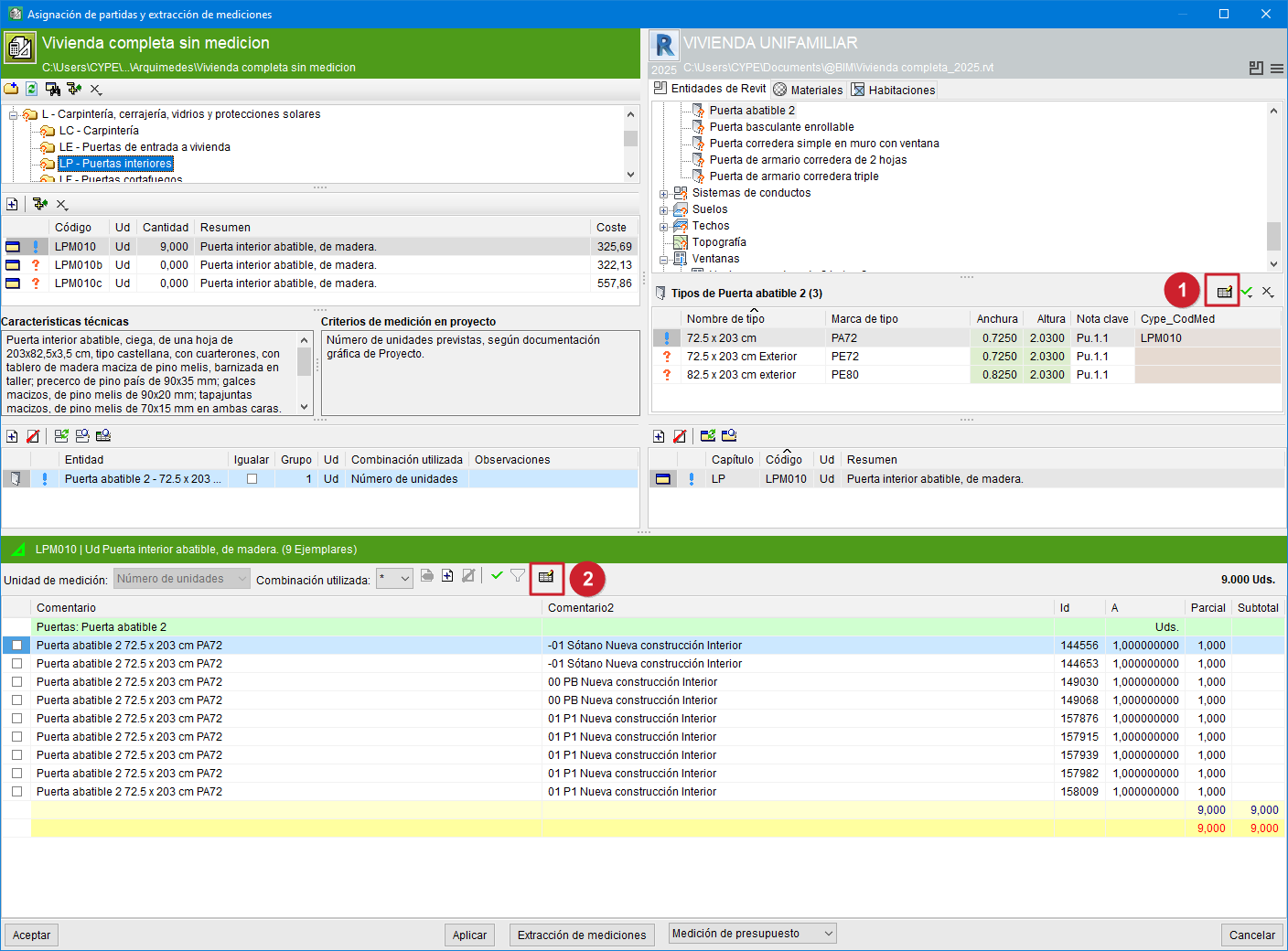
To organise and simplify the information extracted from Revit quantities, there are options accessible by pressing the "Comment composition for the quantity table" button in the selection area for "Types" or "Materials" (identified in the side image with the red number "1"), or from the configuration area for quantity tables (identified with the red number "2").
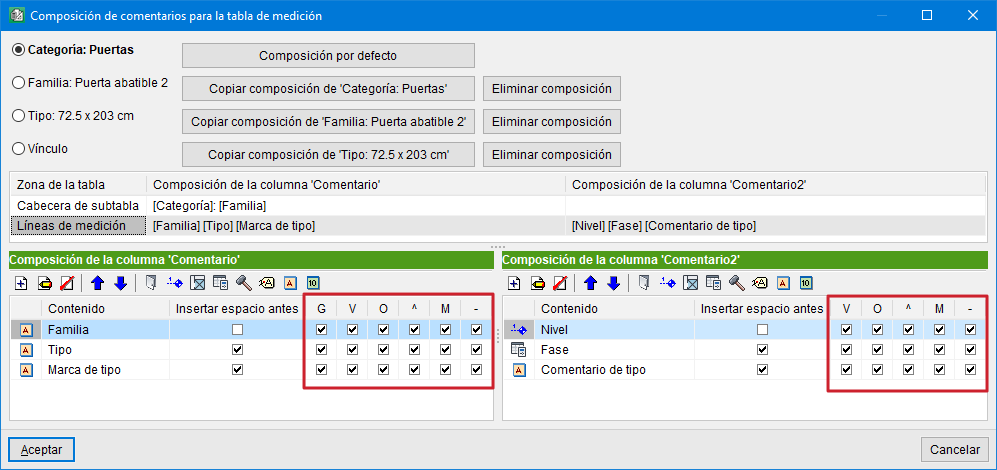
These options are:- Group header (column G)
Allows groups to be created within the quantity table; that is, to group quantity lines by comment. - Visible (column V)
Allows the information in the "Content" column to be shown in the quantity table. - Sort (column O)
Allows the detail lines to be sorted alphanumerically in the quantity table by comment. - Ascending order (column ^)
Allows alphanumerical sorting in ascending order in the quantity table by comment. If not activated, the sorting will be in descending order, provided the "Sort" option in column "O" is activated. - Visible in material quantity (column M)
When quantities are obtained by material, the formation of the comment for the quantity lines uses information provided by the material instance itself as well as by the instance that uses that material. Hence the possibility of making the material quantity visible. - Visible in ‘to deduct’ quantity lines (column -)
When openings are quantified, the formation of the comment for the quantity lines uses information from the opening instance itself as well as from the instance containing that opening. Hence the possibility of making the opening quantity visible.
- Group header (column G)
Show instance properties
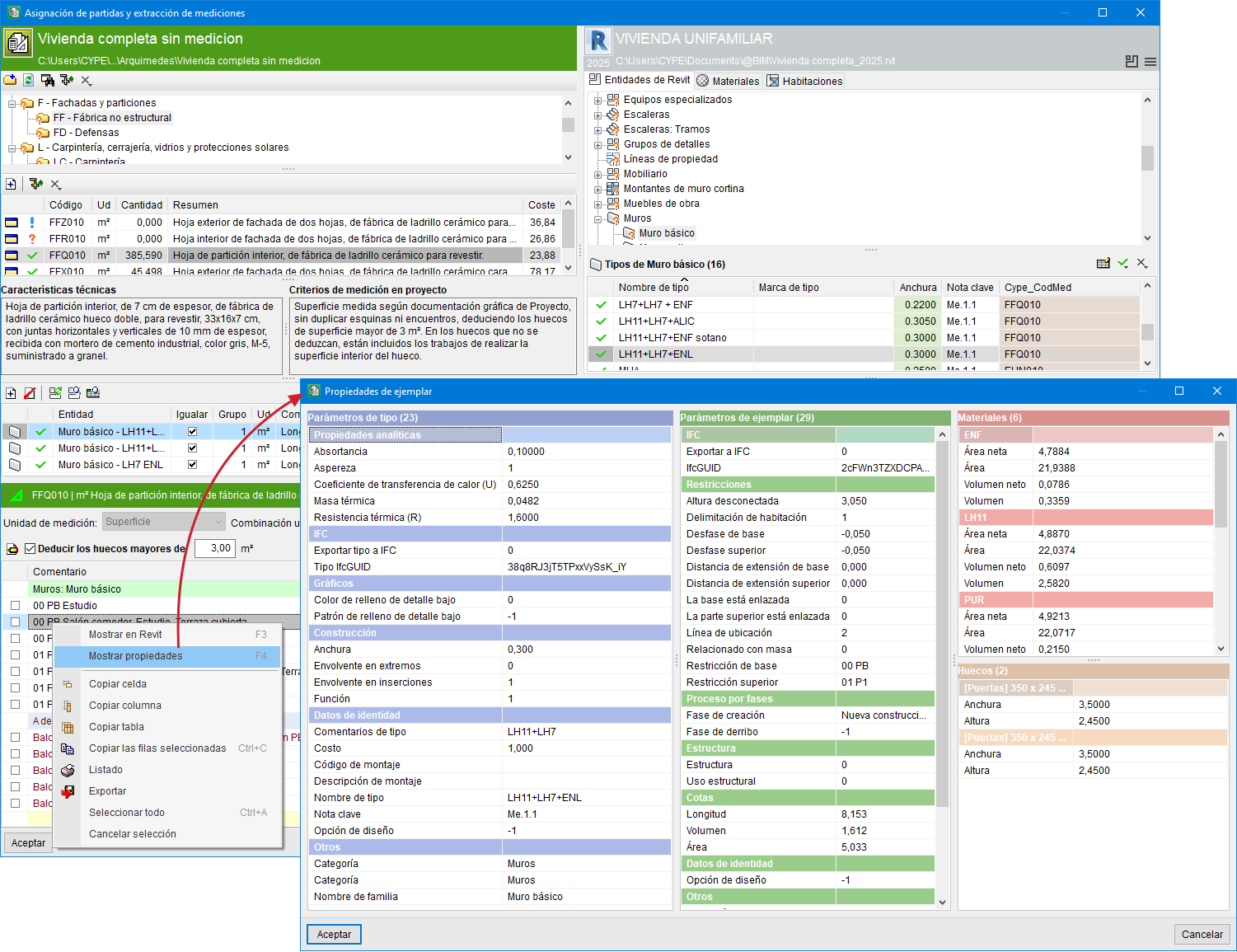
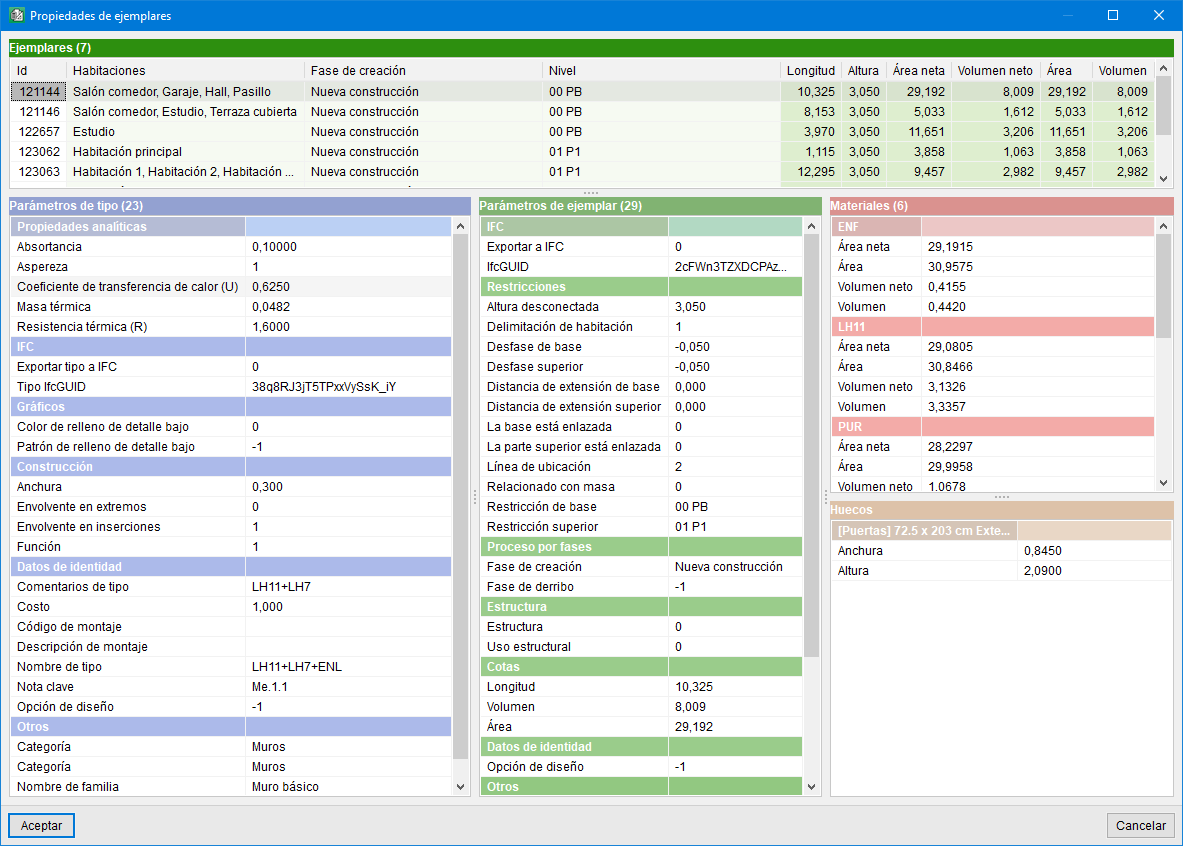
The option "Show properties" displays all the information for an instance in a specific window, making it easier to locate the information.
This option appears in a contextual menu when the right mouse button is clicked on an instance or on a type from the dialogue "Assignment of items and extraction of measurements".
In the first of the following images, the properties of the selected instance can be seen, and in the second, the properties of the instances belonging to the selected type.
Show selected instances in Revit
Each Revit instance is uniquely identified in Arquimedes by an ID, which is exclusive to each Revit project. To avoid duplicates in Arquimedes when there are linked Revit projects, the acronym of the source project name is added to the instance ID to ensure its unique identification.
To show the selected instances in Revit from the dialogue "Assignment of items and extraction of quantities", there are several ways to do so:
Option 1
By right-clicking on any of the rows in which an instance appears, a contextual menu similar to the one shown in the image is displayed, with the "Display the selected instances in Revit", "Display the instances of the selected types in Revit" or "Show in Revit" options.
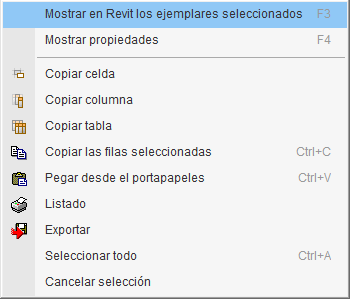
If Revit is open and the project is linked to the Arquimedes budget, clicking on the option "Show in Revit" locates and displays in Revit the selected instance or instances for checking and review.
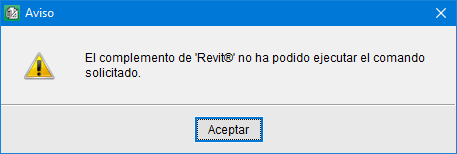
If, when clicking on the option "Show in Revit", a window appears with the warning "The Revit add-in could not execute the requested command", or a similar message, this may be due to several reasons:
- Revit is not open at that moment (and the program cannot open it). Revit must be kept open while using the option "Show in Revit".
- The Revit project linked to the Arquimedes project has been moved, so its link (path or directory) cannot be found. You must indicate the new location of the Revit project from Arquimedes by accessing "File", "Connection with Revit", "Status of links with Revit projects" and using the option "Change Revit model location".
- The version of Revit indicated in the dialogue "Assignment of items and extraction of quantities" does not match the version of Revit currently installed on the machine. The link between the Revit project and the Arquimedes project must be updated again from the "Add-ins" tab in Revit.
Option 2
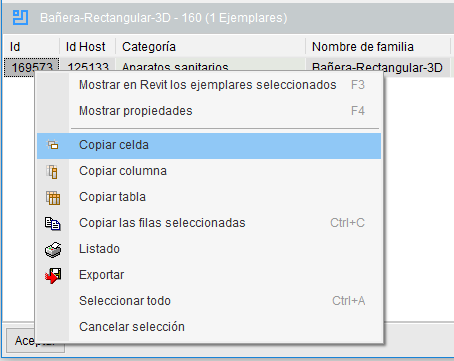
Another way to show the selected instances in Revit is to right-click on any instance ID and select the contextual menu option "Copy cell".
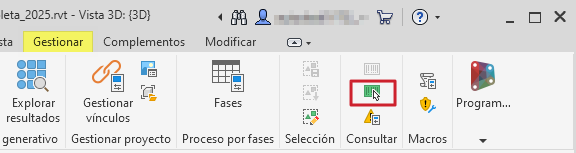
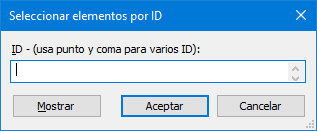
With this information copied to the Windows clipboard, open Revit with the project linked to Arquimedes and show the instance by using the option "Select by ID" on the "Manage" tab.
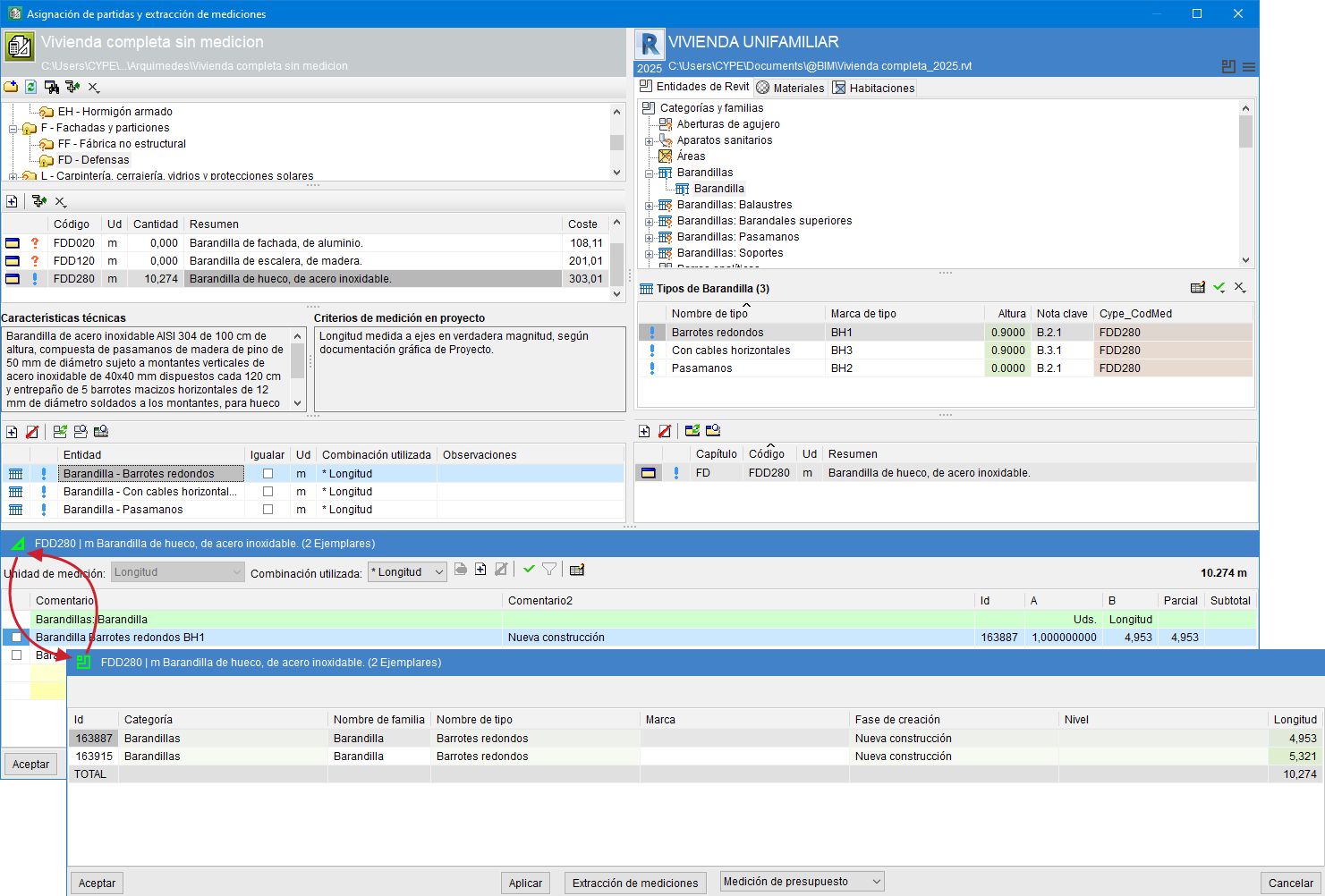
Display states of the quantity detail and instance list
In the dialogue box "Assignment of items and extraction of quantities", when clicking on the header of the quantity detail table or on the header of the instance table, the displayed tables alternate:
- In the Arquimedes workflow (green area), three tables or display states alternate if the item is assigned to an entity:
- Quantity detail of the entity’s instances
Takes into account any filters that may be applied. - List of the entity’s instances
Possible filters are not applied. - List of instances of the entity selected in Revit entities
Another display state of the instance list.
- Quantity detail of the entity’s instances
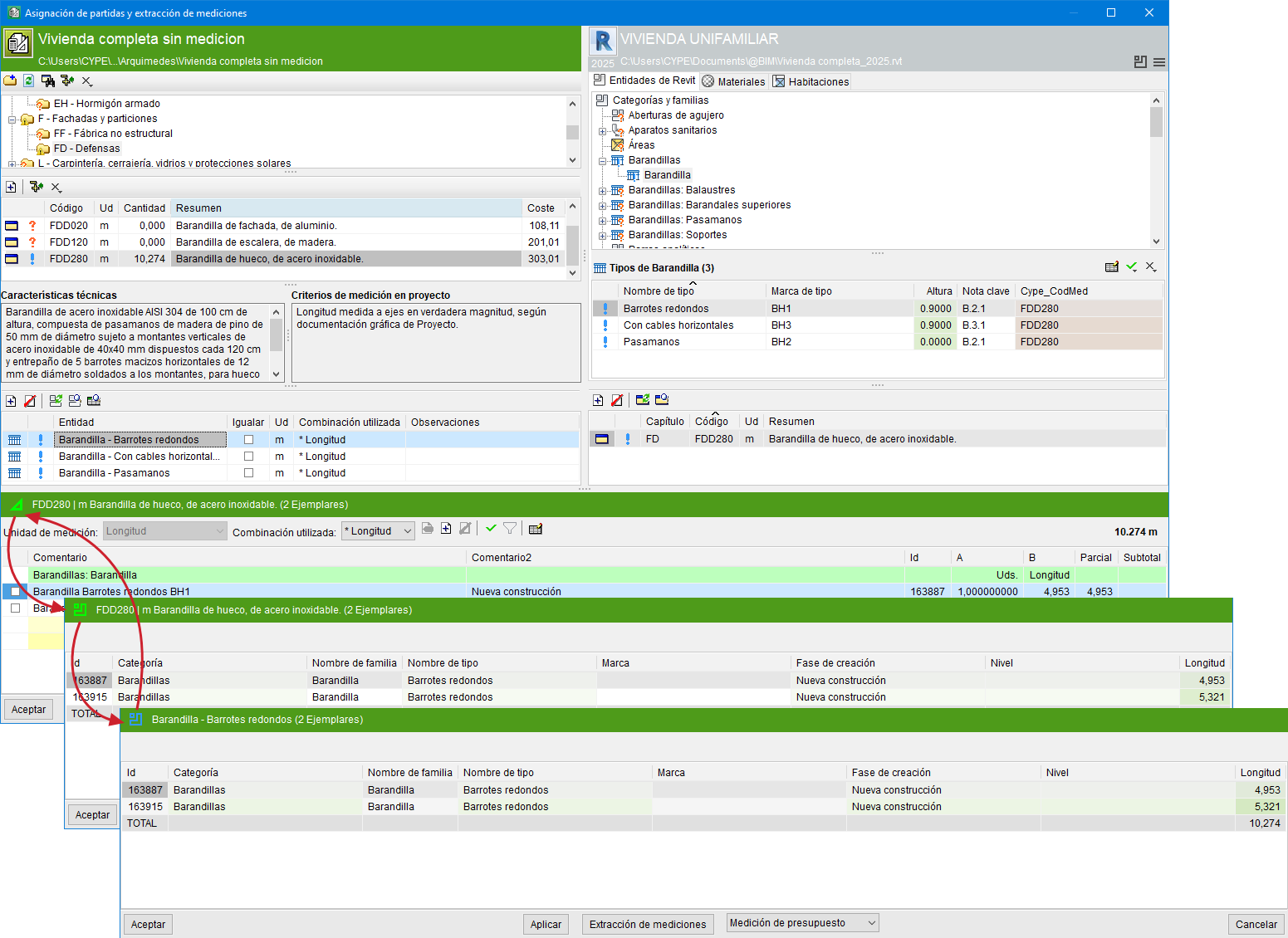
- In the Revit workflow (blue area), two states alternate if the item is assigned to an entity:
- Quantity detail of the entity’s instances
Takes into account any filters that may be applied. - List of the entity’s instances
Possible filters are not applied.
- Quantity detail of the entity’s instances
You can change states successively by clicking on the header.
Error checks in the extraction of quantities from Revit
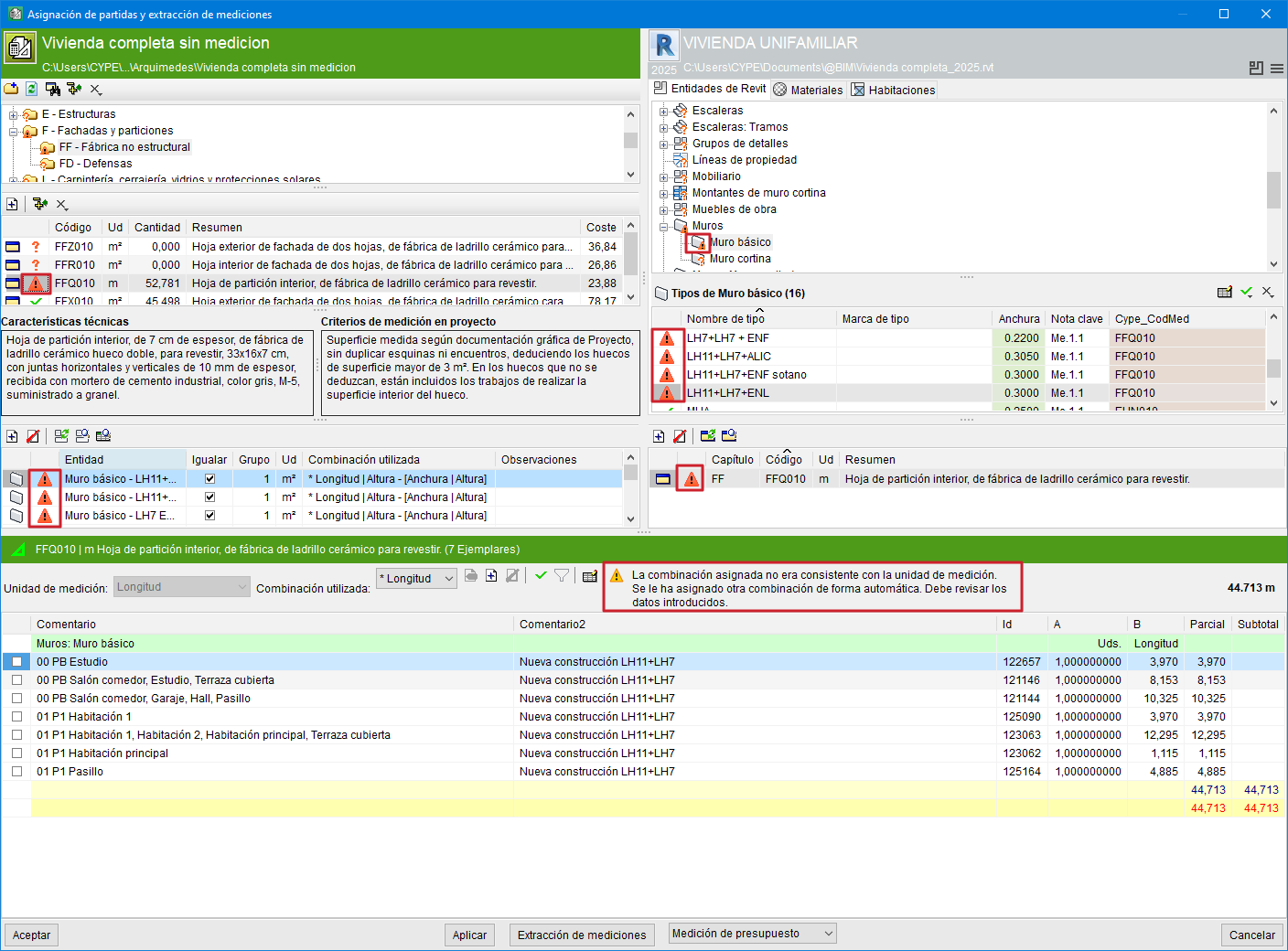
With the aim of minimising errors in the extraction of quantities from the BIM elements of a Revit model, when an error is detected, both the item and the linked Revit entity are marked with a red warning symbol  and a warning message is displayed.
The warnings that may appear as a result of the checks carried out are:
- The assigned combination was not consistent with the unit of measurement. Another combination has been assigned automatically. You must review the data entered.
This situation is usually due to the user having modified the unit of measurement of the item in Arquímedes after having extracted its quantity from Revit. In this case, Arquímedes automatically assigns another parameter combination. The user must review it and click the "Verify" button located in the configuration area of the quantity detail table if they wish to verify it.
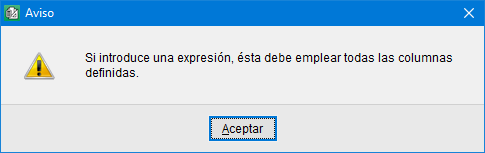
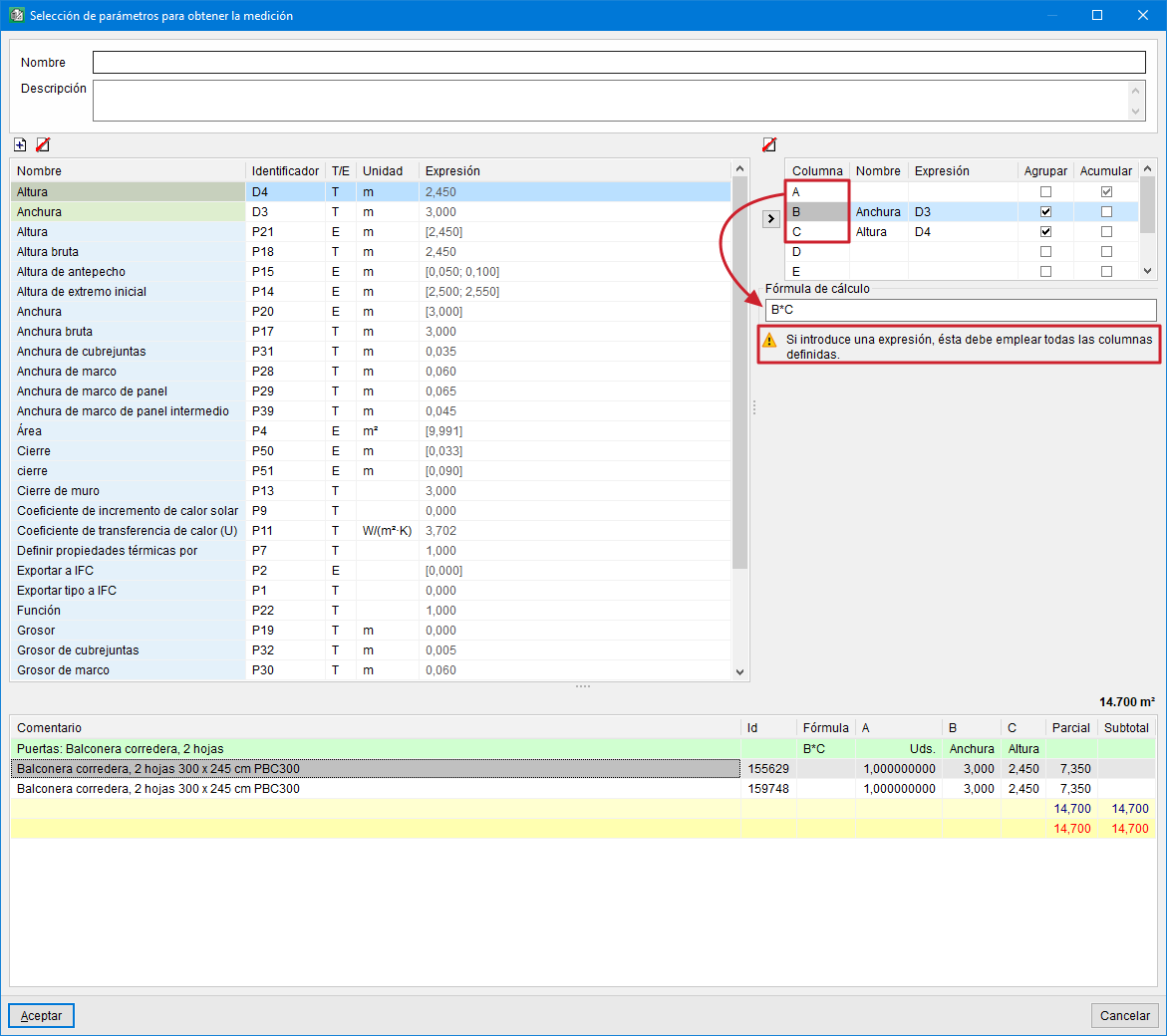
- If you enter an expression, it must use all the defined columns.
This may appear when defining the calculation formula for the user combination in the quantity extraction. If the formula is incorrect, when clicking the "Accept" command button in the dialogue "Selection of parameters to obtain the quantity", a warning is shown and the creation of that user combination is prevented until it is corrected.
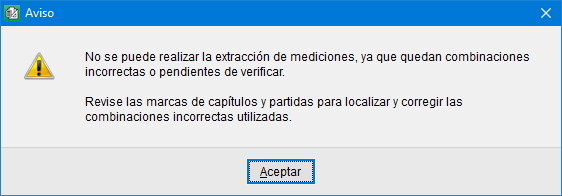
- "The quantity extraction cannot be carried out, as there are incorrect combinations or combinations pending verification"
When clicking the "Quantity extraction" button, it is also checked whether there are any incorrect combinations or combinations pending verification, and the quantity extraction is not allowed until all incorrect combinations have been reviewed. These combinations are marked with the red warning symbol in the chapters and in the items so that they can be easily located.
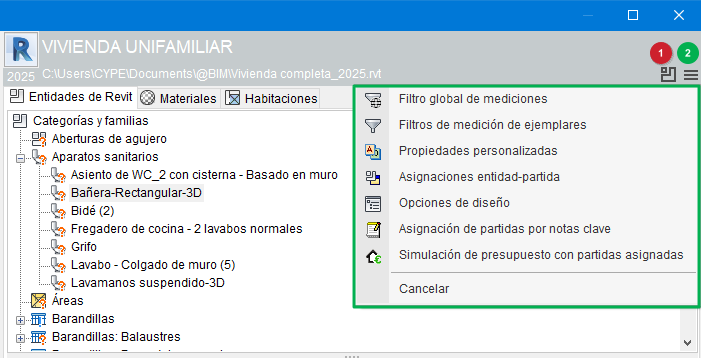
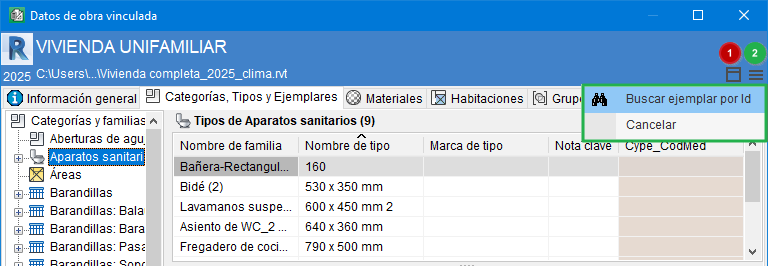
Dialogue and options toggle buttons

- Dialogue toggle button
To make it easier to toggle between the dialogues "Item assignment and quantity take-off" and "Linked project data", this button (identified in the adjacent image with the red number 1) is available in both dialogues. The F7 key also performs the same function of switching between the two dialogues. - Options button
This button (identified in the image with the green number 2) is the access point to the different options in each of these dialogues:
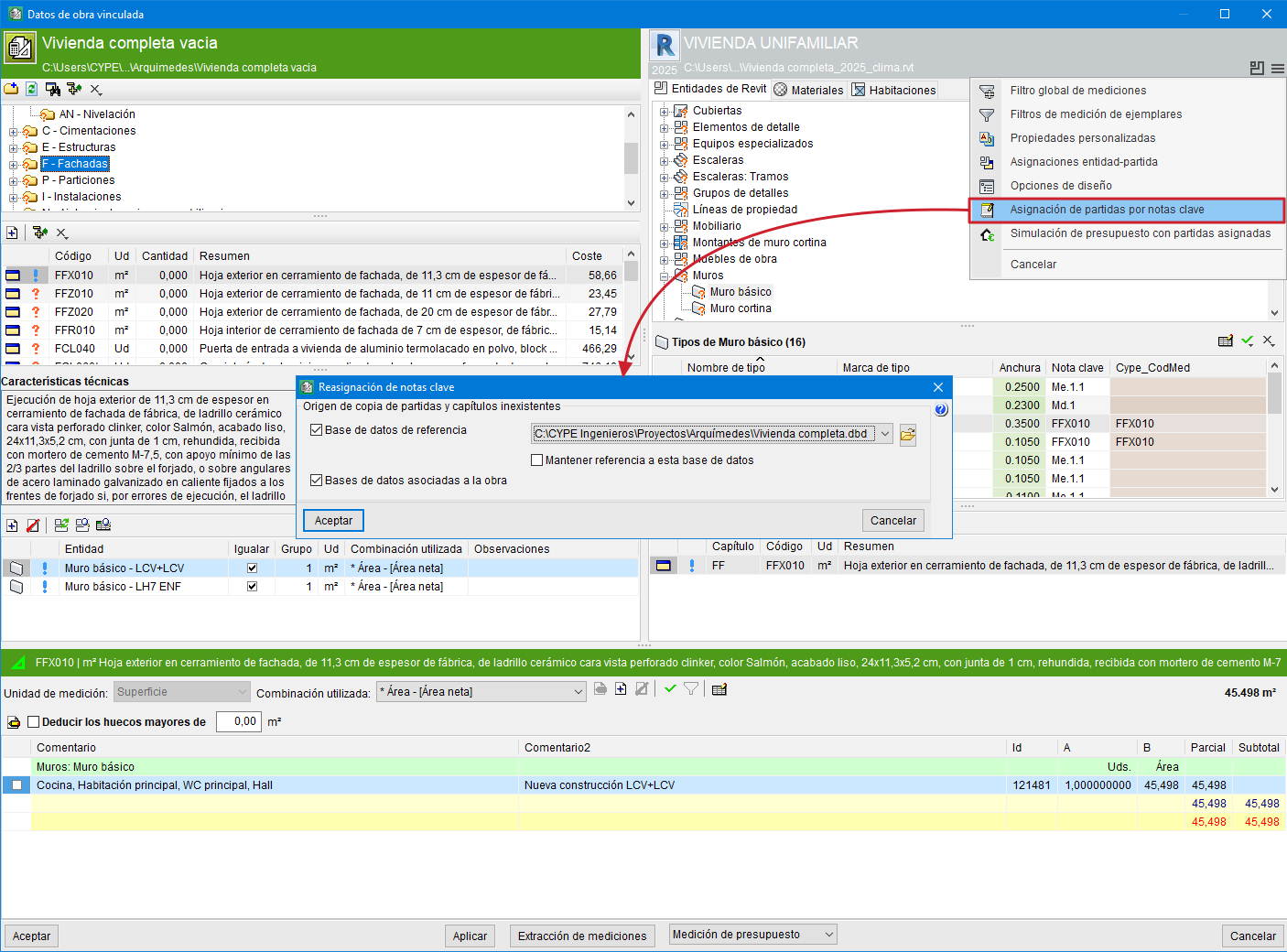
- In the "Item assignment and quantity take-off" dialogue, the button allows access to the "Global measurement filter", "Design options" and "Item assignment by keynotes", among others.
- In the "Linked project data" dialogue, the button allows access to the option "Search instance by Id".
- In the "Item assignment and quantity take-off" dialogue, the button allows access to the "Global measurement filter", "Design options" and "Item assignment by keynotes", among others.
Quantity filters
Quantity filters allow you to obtain quantities for items assigned to entities only from the phases, categories, levels, or assignments (entity-item) in Revit that you want to measure.
You can set various types of filters:
Global quantity filter
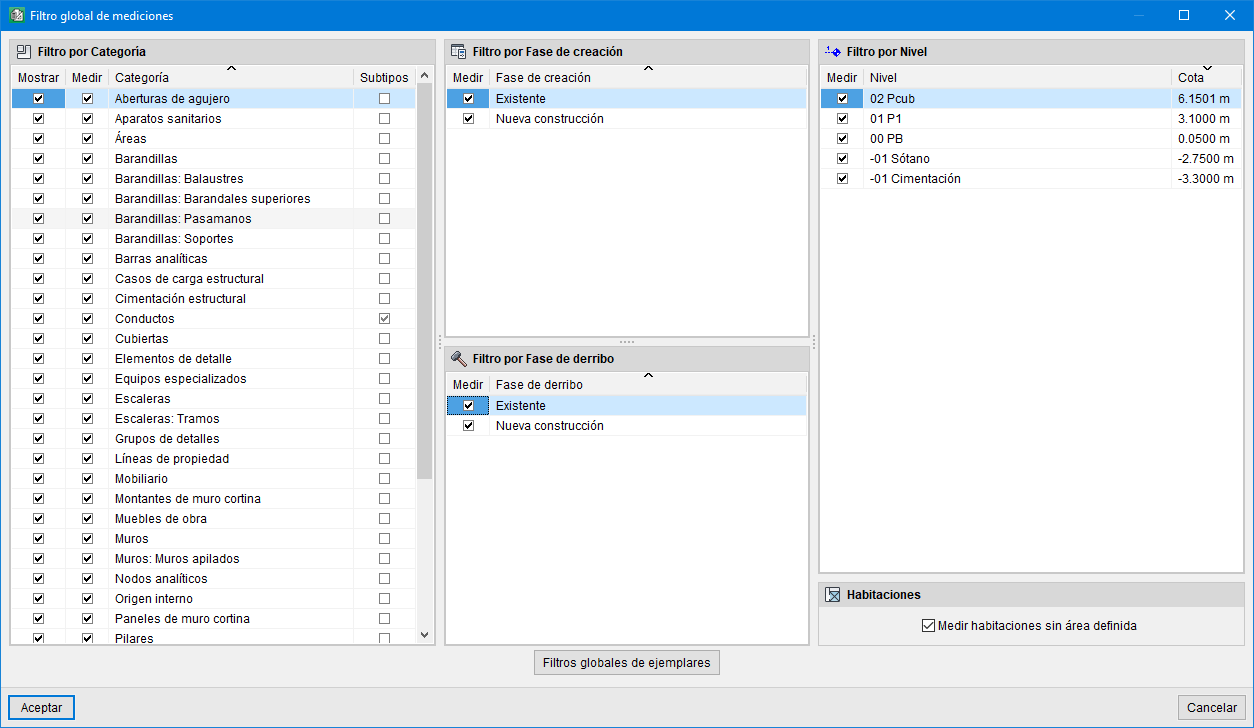
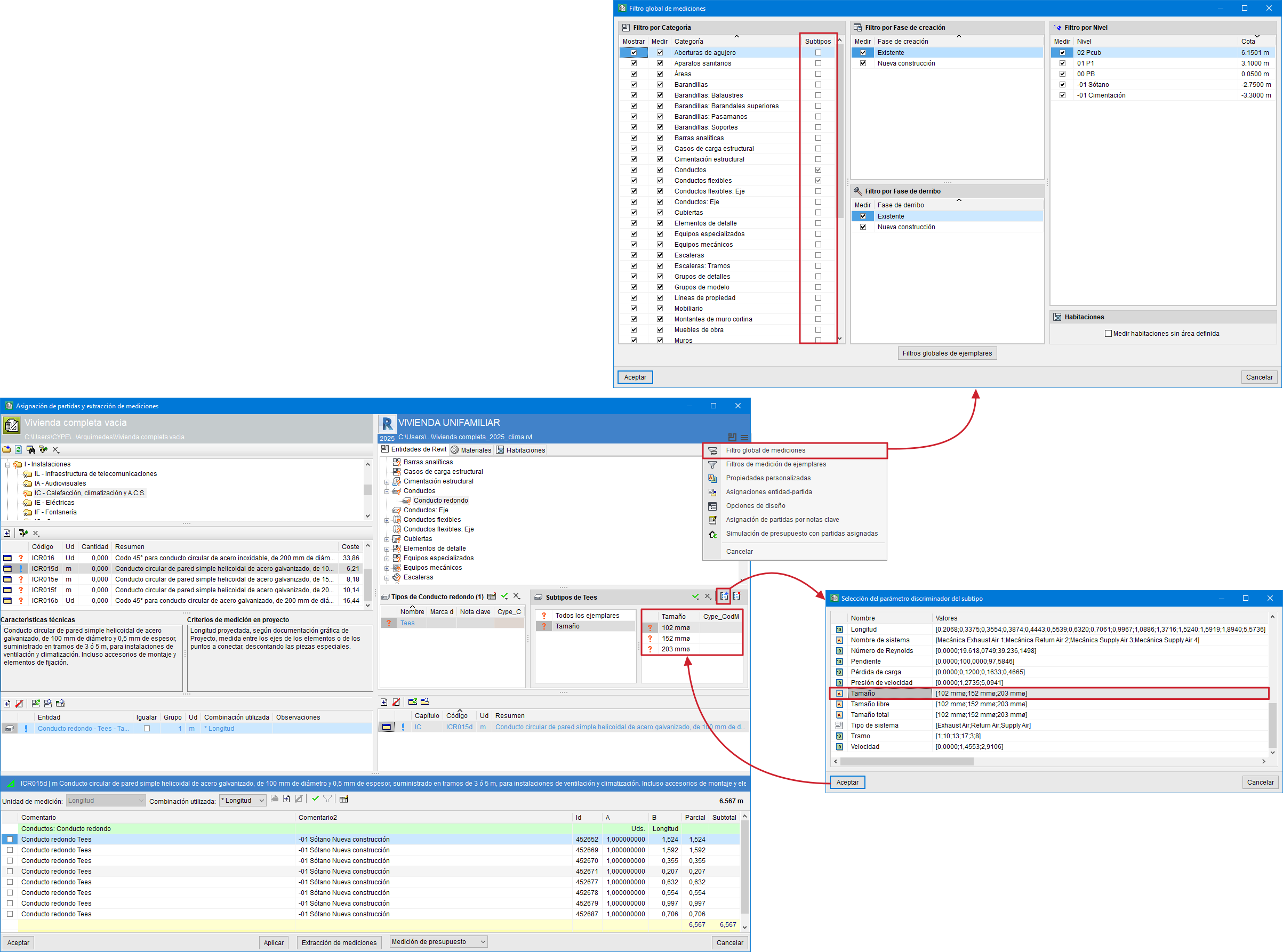
This filter is created using the "Global quantities filter" option in the drop-down menu that appears when you click the Options button in the "Assign items and quantity extraction" dialog box. Within this filter, you will find several filtering options:
- Show
This column allows you to select the categories you want to display in the "Assign items and quantity extraction" dialogue box. - Measure
This column allows you to select the categories, phases (both construction and demolition), and levels you want to measure when you click the “Extract quantities” button. - Measure rooms without a defined area
This option allows you to measure only those rooms defined in the Revit BIM model that have dimensions. - Global instance filters
With this option, you can filter instances that you want to measure and that meet certain conditions. This way, you can obtain a partial bill of quantities using only the filtered measurement lines. - Subtypes
This column allows you to define a subtype such as "Ducts", "Flexible ducts", "Pipes", "Tubes", etc., by specifying a distinguishing parameter (by clicking the "New subtype" button), to link their instances by grouping them into sets that share the same value for that parameter.
Note: The "New Subtype" button is located next to the Type selection in the blue section; it is only visible for the types "Ducts", "Flexible ducts", "Pipes", "Tubes", etc.
Filters for quantities by assignment
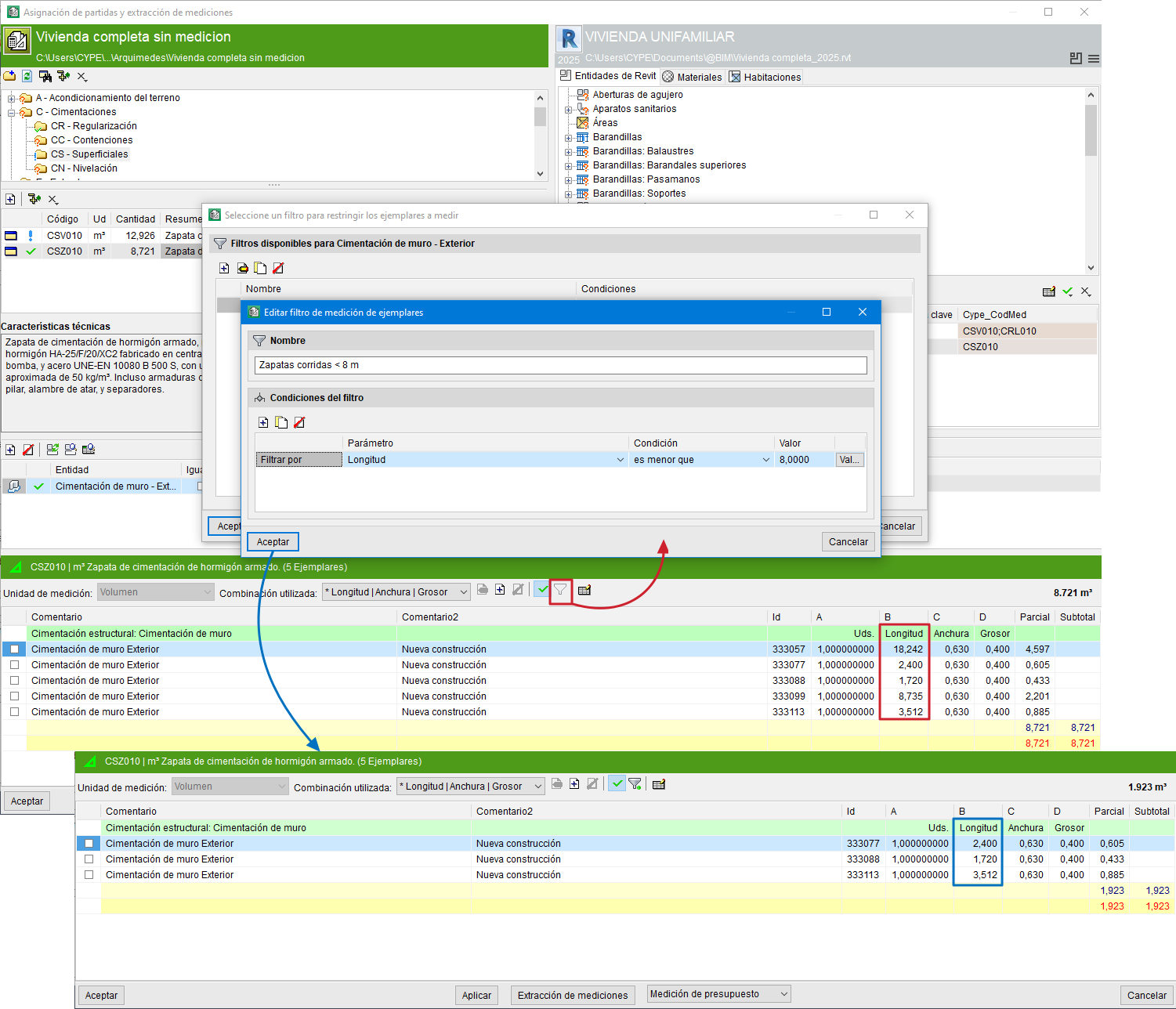
Assignment filters allow you to obtain quantities only for those instances that meet certain conditions. Filters created by assigning items to entities are organised by category. Filters of this type are created based on instance parameters.
Once an item has been assigned to a Revit entity or vice versa, you can filter by assignments.
If, for example, you wish to filter by the "Length" parameter to select instances shorter than 8 m, click the filter button (located in the configuration area of the quantity details table). Selecting this will open the "Select a filter to limit the instances to be measured" dialogue, from which you can add a "New instance quantity filter", assigning it a name and defining its conditions. Upon confirming the changes, the quantity details table will display only those instances that meet the applied filter. Once added, you can edit, disable or delete the filter using the same button.
Instance quantity filters
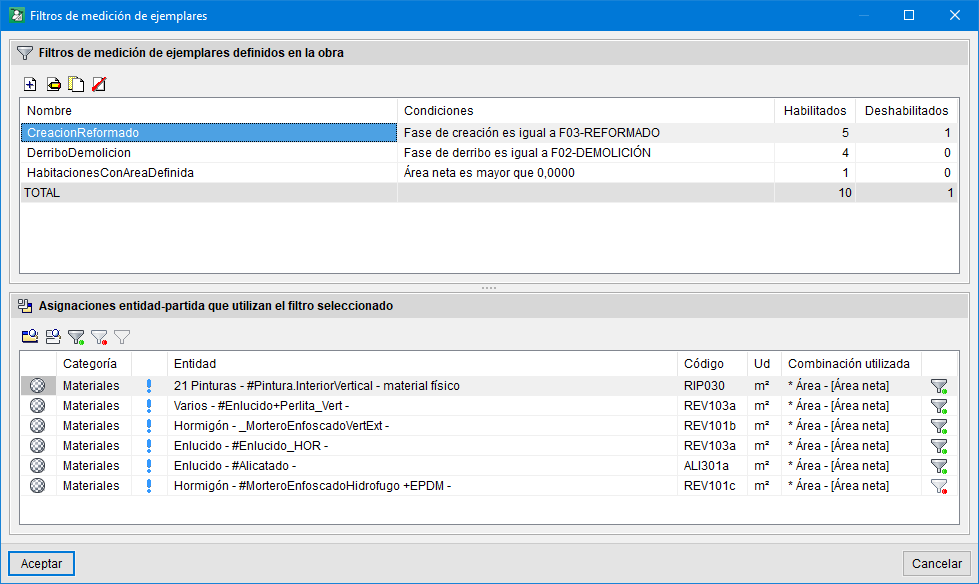
To manage all the defined filters, you can use the "Instance quantity filters" option in the drop-down menu that appears when you click the options button in the "Assign items and quantity extraction" dialogue box. In this dialogue box, you can:
- Enable, disable and remove existing filters.
- View the entity-item mappings that use the selected filter.
- Create filters, edit them or delete them if they are not in use.
Custom properties
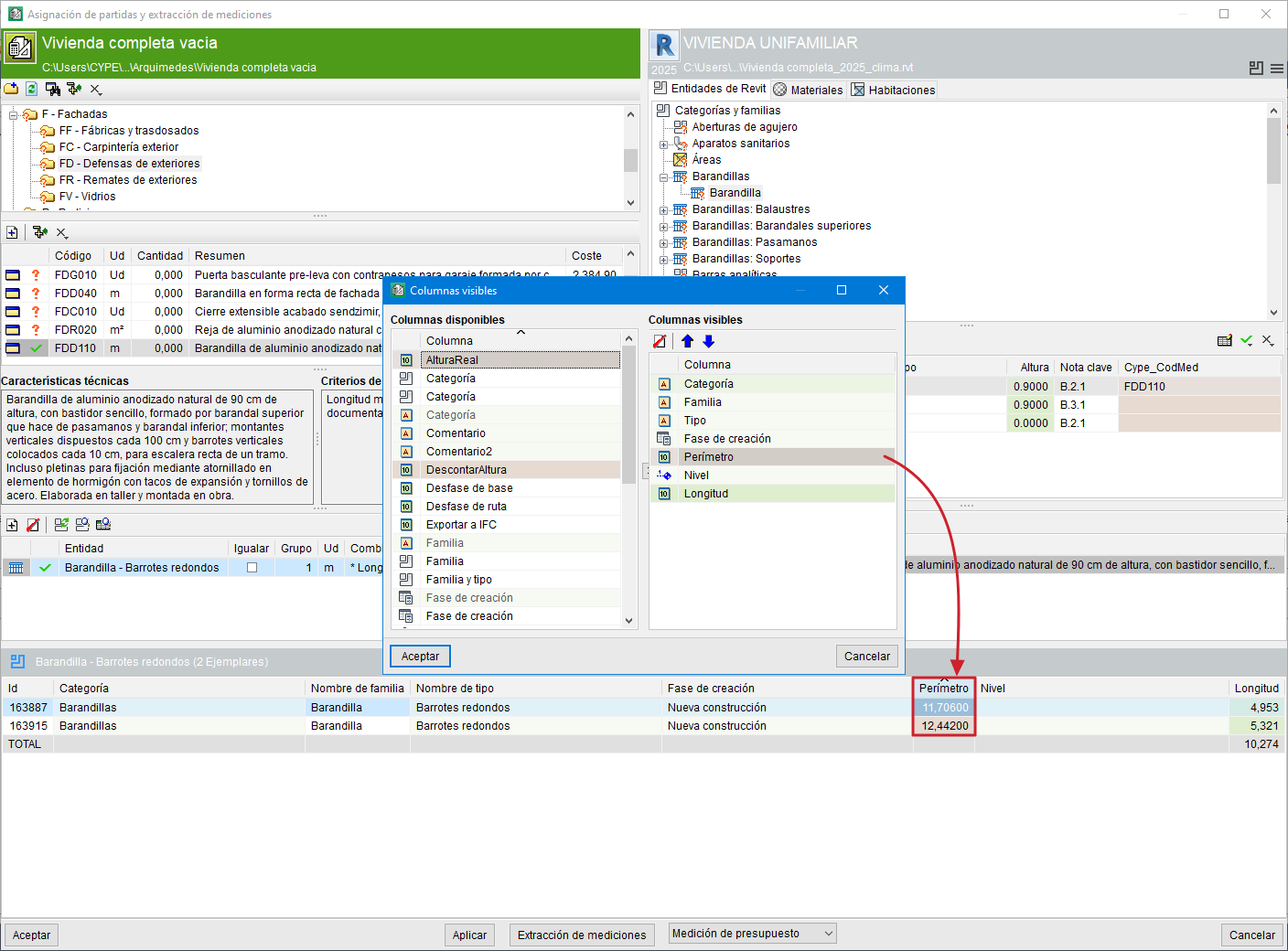
To obtain greater benefit from quantity take-off from the Revit BIM model, it is possible to create "Custom properties". Custom properties are similar to Revit project parameters, but they can be created and modified in Arquimedes and are applied to all categories. These custom properties can be applied to types or to instances.
This tool is accessed from the options button in the "Item assignment and quantity take-off" window.

The definition of "Custom properties" can be shared between the different linked Revit projects within the same Arquímedes project (but not their values).
Custom properties can be used in:
- Combinations used to obtain quantity take-off details.
- Measurement filters.
- Subtype discriminators.
Custom properties can be displayed and their values modified in:
- The columns of instance lists.
- The type and instance properties window.
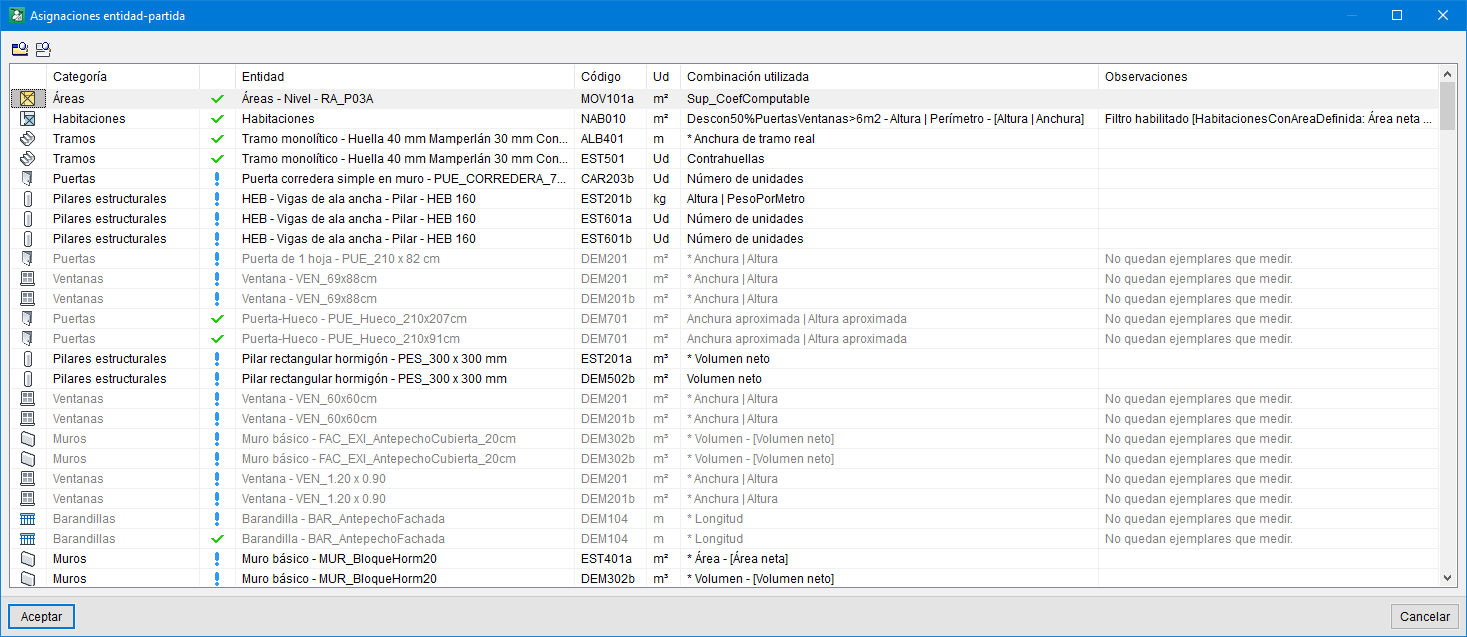
Entity-job item assignments
To make it easier to locate the assignments between Revit entities and the bill of quantities items linked to the Revit BIM model, a list of all defined element-item assignments is displayed. In this list, you can locate the entity or item for the selected assignment.
The "Entity-job item assignments" option can be accessed via the options button in the "Assign items and quantity extraction" window.
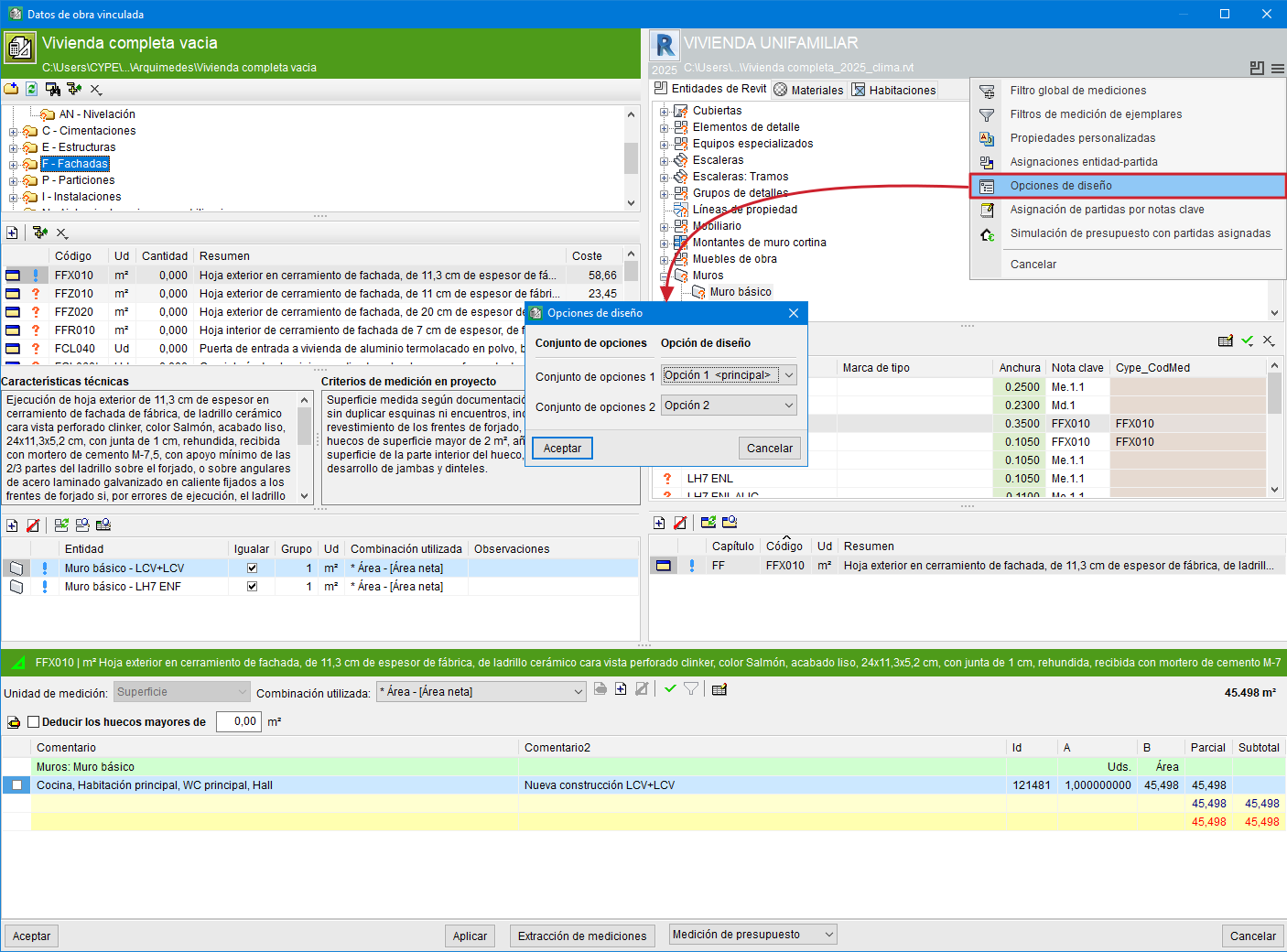
Design options
"Design options" consist of design alternatives which, as they always work in a single model, save a huge amount of work.
For example, it allows you to create two or more proposals in parallel to show clients various alternatives. Therefore, this tool allows you to measure only those Revit elements belonging to the design options selected in the Revit model. Furthermore, it is possible to extract different quantities based on the measurement options created in the Revit model to obtain different measurement valuations or bills of quantities.
In the "Assign items and quantity extraction" dialogue box, the options button allows you to access the "Design options" to select the set of design options to be used in the quantity extraction to create the bill of quantities.
Note:
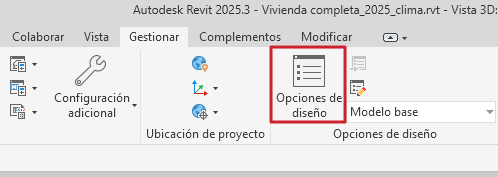
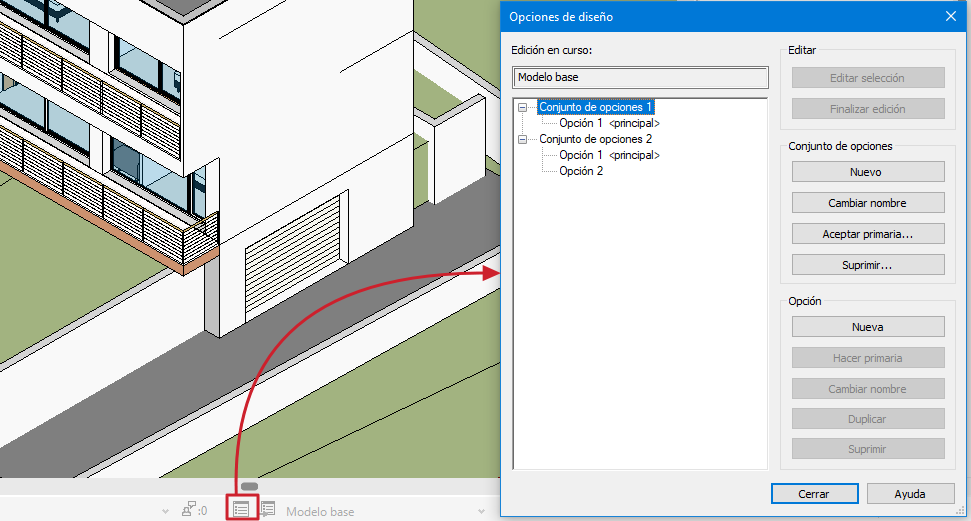
"Design options" are only available if the Revit model has design options created. These options can be added in Revit via "Manage" by clicking "Design options", or from the bottom bar by clicking the "Design options" button.
Assigning items by key codes
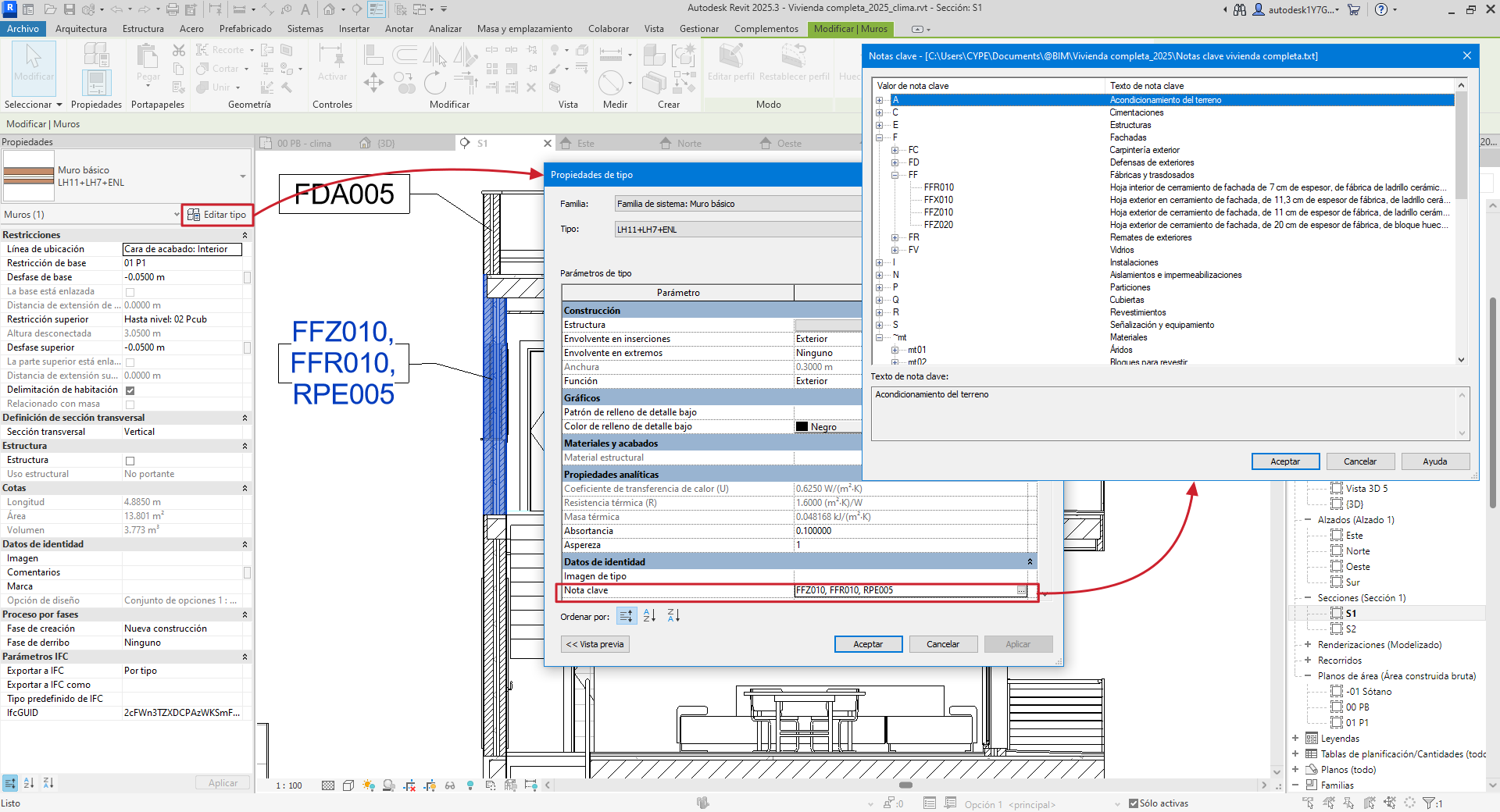
If a Revit entity, for example, a "Type", has a "Key note" assigned to it that contains the code of an item in the target Arquimedes project, and furthermore the item has a known unit of measurement defined, in this case the item is automatically assigned to the type (Revit entity) and the item automatically has the measurement.
The CYPE_CodMed parameter allows you to view the item assigned for the measurement, whether it is a type, a material, a room or one of the categories without types (areas, property lines, topography, etc.).
If "Key notes" with item codes are defined in the Revit model (for the purpose of assigning a Revit model type to an item), the first time the Revit model is linked to an Arquimedes project, you are prompted to specify the source for copying non-existent items and work sections. Thus, after importing the Revit model, the types that have a key note locatable in the Arquimedes project (or in the database referenced or associated with the Arquimedes project) will be assigned to the item indicated in the key note.
The "Assign items by key notes" button, accessible via the options button in the "Assign items and extract quantities" window, allows you to assign to an item a Revit model type defined in a key note (provided the linking process between the Revit model and the Arquimedes project has already been completed).
Best practice:
In Revit, you can create a template project to use as a starting point for other projects where the element types already include key notes. This way, when creating a new project, quantities can be extracted more easily and quickly.
Option to link more than one item code to the key note of a type in Revit for reading in Arquimedes
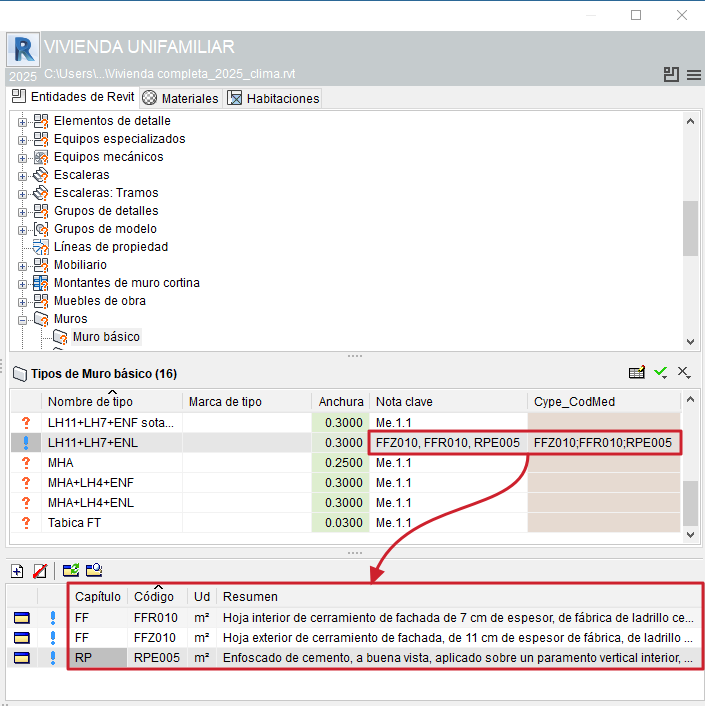
If a Revit model contains a type with more than one item code in its key note, separated by a comma (‘,’), semicolon (‘;’) or colon (‘:’), Arquimedes reads each item code and assigns it to the Cype_CodMed field (provided the item code exists in the bill of quantities linked to the Revit model in Arquimedes).
Bill of quantities simulation with assigned items
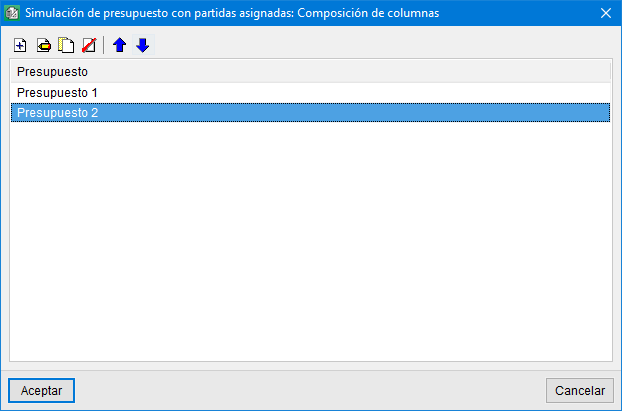
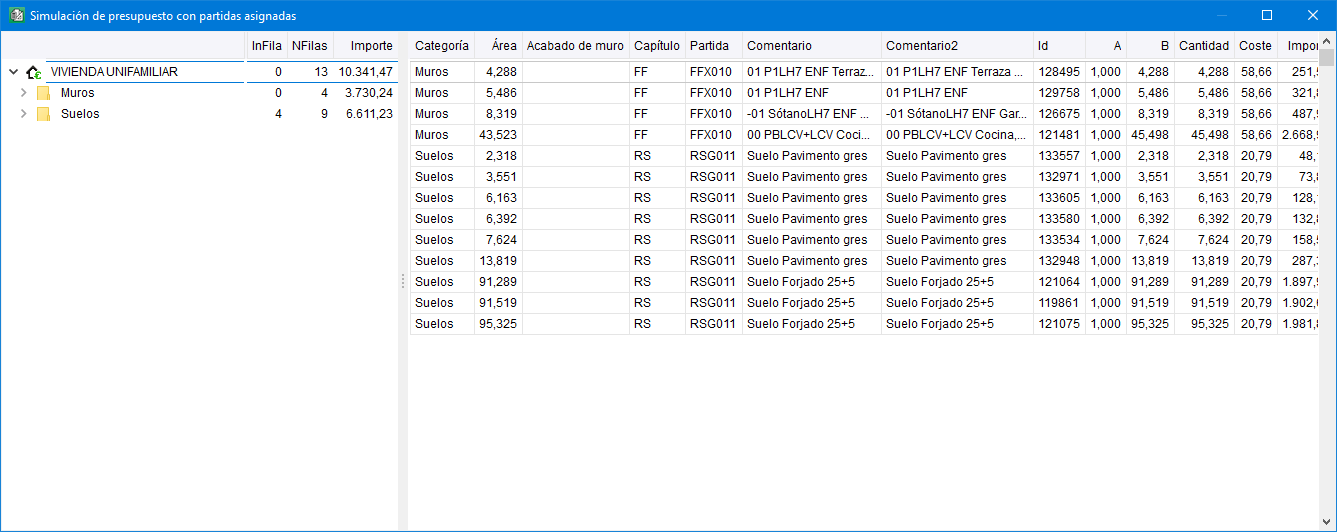
Using the "Bill of quantities simulation with assigned job items" tool (options button in the "Assign items and quantity extraction" window), it is possible to create multiple bill of quantities configurations, for example, to carry out a partial bill of quantities analysis.
Each bill of quantities configuration can use any parameter from the project and any user-defined property. These parameters act as work sections for creating the bill of quantities. In this way, the main Arquimedes bill of quantities can be broken down according to the values of a parameter or a user-defined property. For example, you could obtain bills of quantities for the different phases of a development or project.
The "Bill of quantities simulation with assigned job items" tool only works with items that are assigned to Revit entities.
More information:
The contents of the "Bill of quantities simulation with assigned job items" window can be copied and pasted into a spreadsheet. To copy it, simply right-click on the column header and select the relevant option.
Selecting the type of quantity table
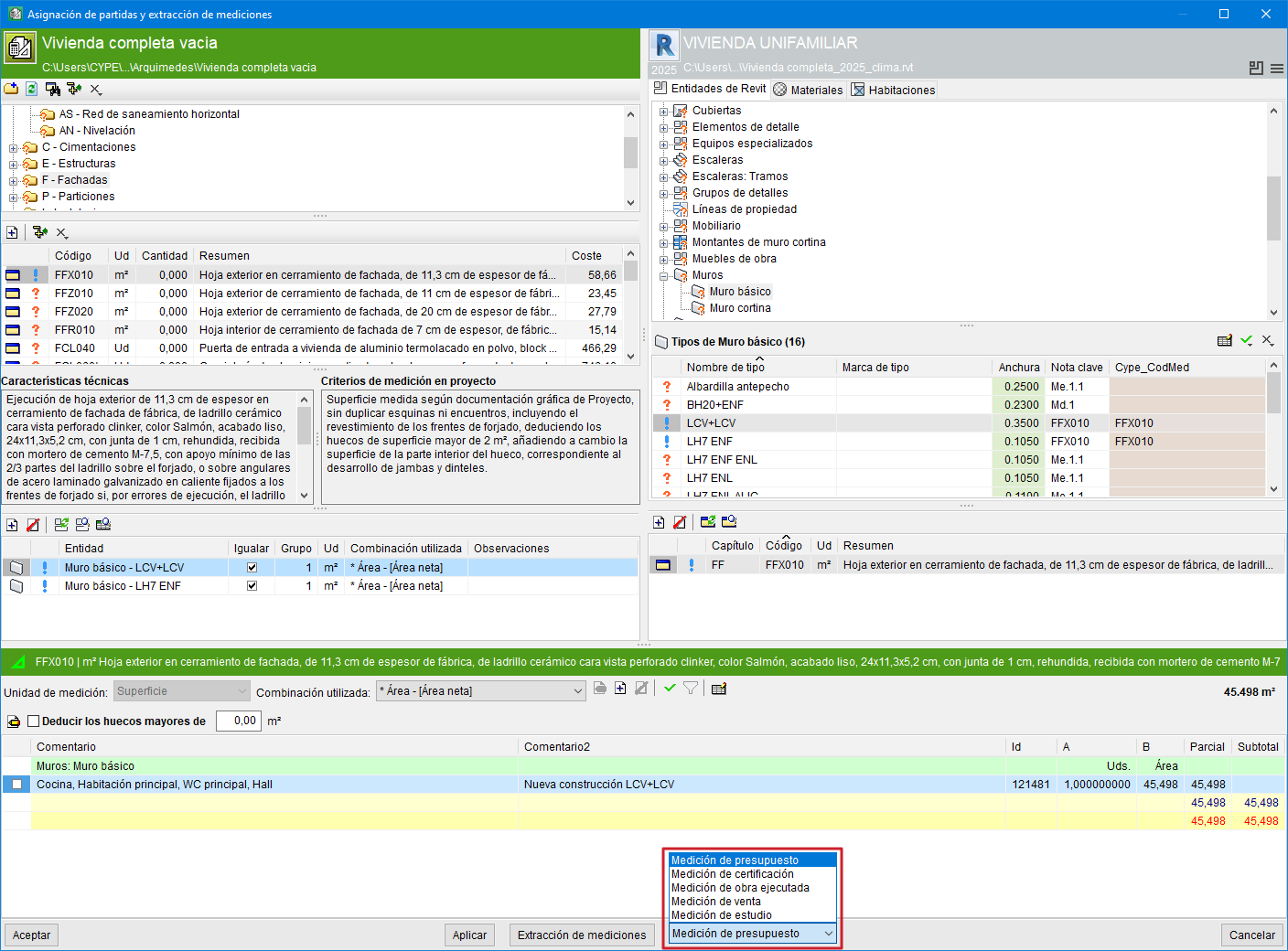
Next to the "Extract quantities" button, a drop-down menu appears that can select the type of quantities table where the quantities extraction is to be carried out.
For example, if the quantity is to be extracted for a certification table, it should be noted that quantity extractions are not cumulative, but partial (the contents of the quantity in the "Assign items and quantity extraction" window are always dumped to the quantity tables). Therefore, this table provides a partial quantity in progress and not at source. In other words, this certification has not been closed. The same happens if the quantity is extracted for the completed job table.
"Linked job data" dialogue box
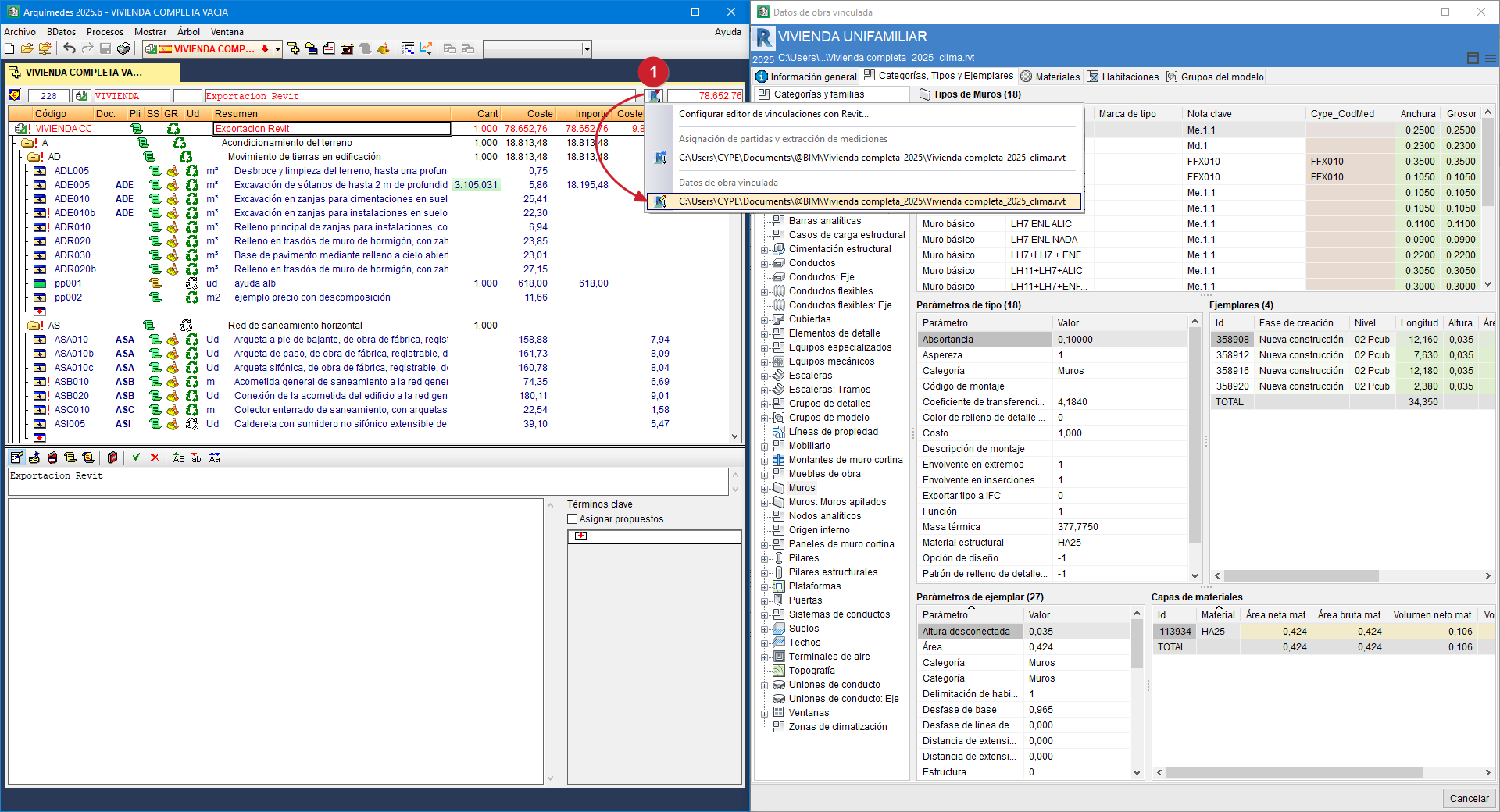
The "Linked job data" dialogue box allows you to view information about the Revit model. The information is organised into tabs and tables to help you locate the entities in the Revit model linked to the bill of quantities.
This dialogue box is displayed from Arquimedes by right-clicking on the icon (marked with the red number "1" in the image on the side) in the "Cost breakdown structure" window, in a project that has a linked Revit model, and selecting the "Linked job data" option. This dialogue is also displayed via the dialogue toggle button from the "Assign items and quantity extraction" dialogue.
At the top of the dialogue, the name and path of the Revit project from which the model information is to be obtained are displayed. To the right of this is the options button, from which you can access the "Search instance by Id" option.
Contents of the tabs
The "Linked job data" dialogue box consists of five tabs containing the Revit elements and data required to obtain the quantities for the items.
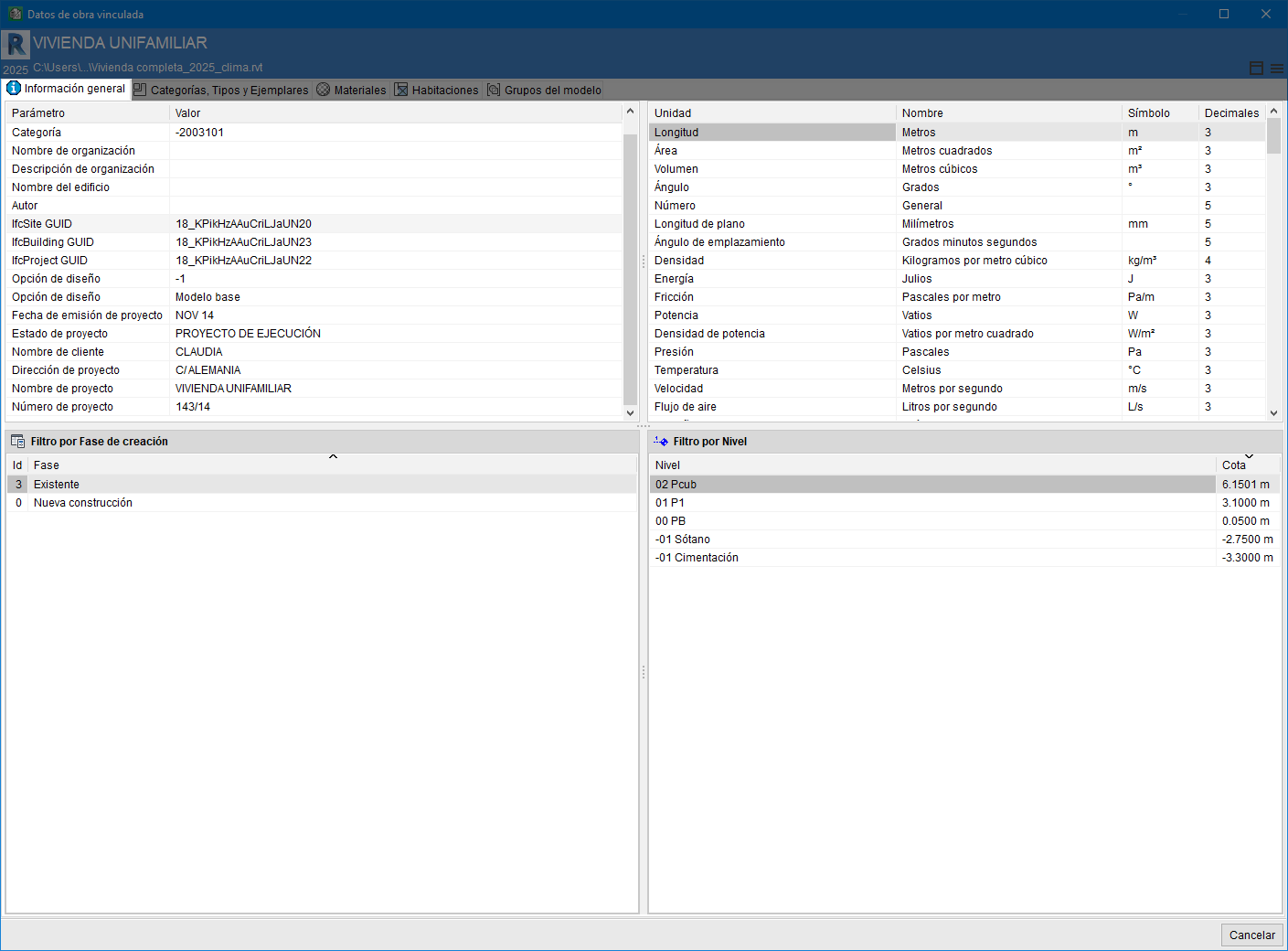
General information
This tab shows the Revit project details:
- Parameters, with their respective values.
- Phases defined in the Revit model.
- Units, including name, symbol and the number of decimal places used.
- Levels, indicating the elevation associated with each floor of the project.
Categories, types and examples
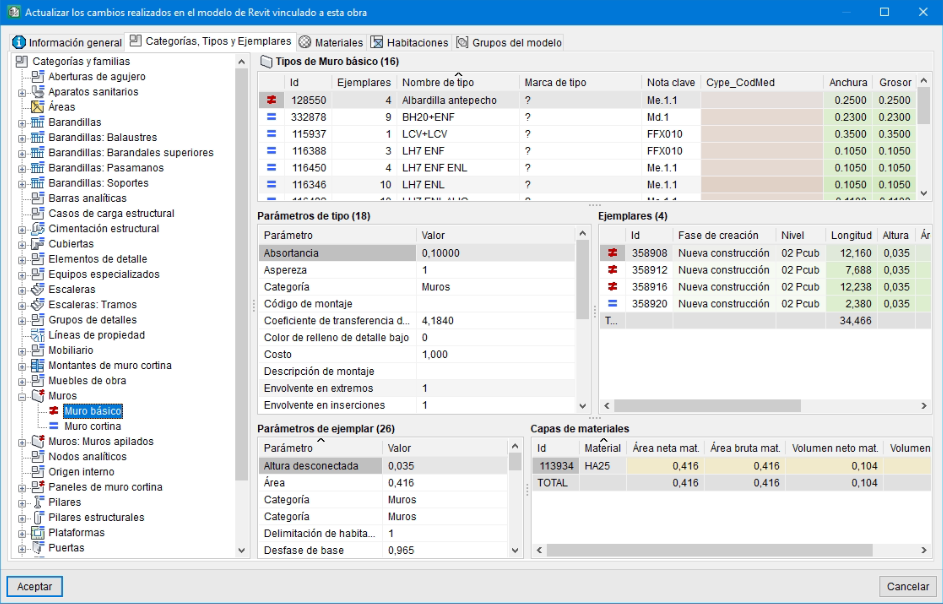
This tab is divided into two parts: on the left are the Revit elements, organised into a tree structure with categories and families. The first level represents the categories; the second level, the families. When you hover over the root section "Categories and families", a table appears showing the number of families, types and instances contained in each category of the Revit model. This information provides an overview of the size of the Revit project in terms of the BIM elements it contains.
When you hover the mouse over a category in the Revit element tree, all the types and instances of all the families comprising that category are displayed.
However, when you hover the mouse over a family in the Revit element tree, only the parameters (properties) of the types and instances of the selected family are displayed on the right-hand side of the dialogue box.
The types are located at the top of this area. Here you can view the type parameter values. Type parameter values or calculated values obtained using other system parameters are highlighted in green for simplicity. The remaining parameters contain data entered by the user. The CYPE_CodMed parameter, shown in red, is a parameter specific to the MedBIM - Revit Plugin, used to display the item codes associated with a type for quantities.
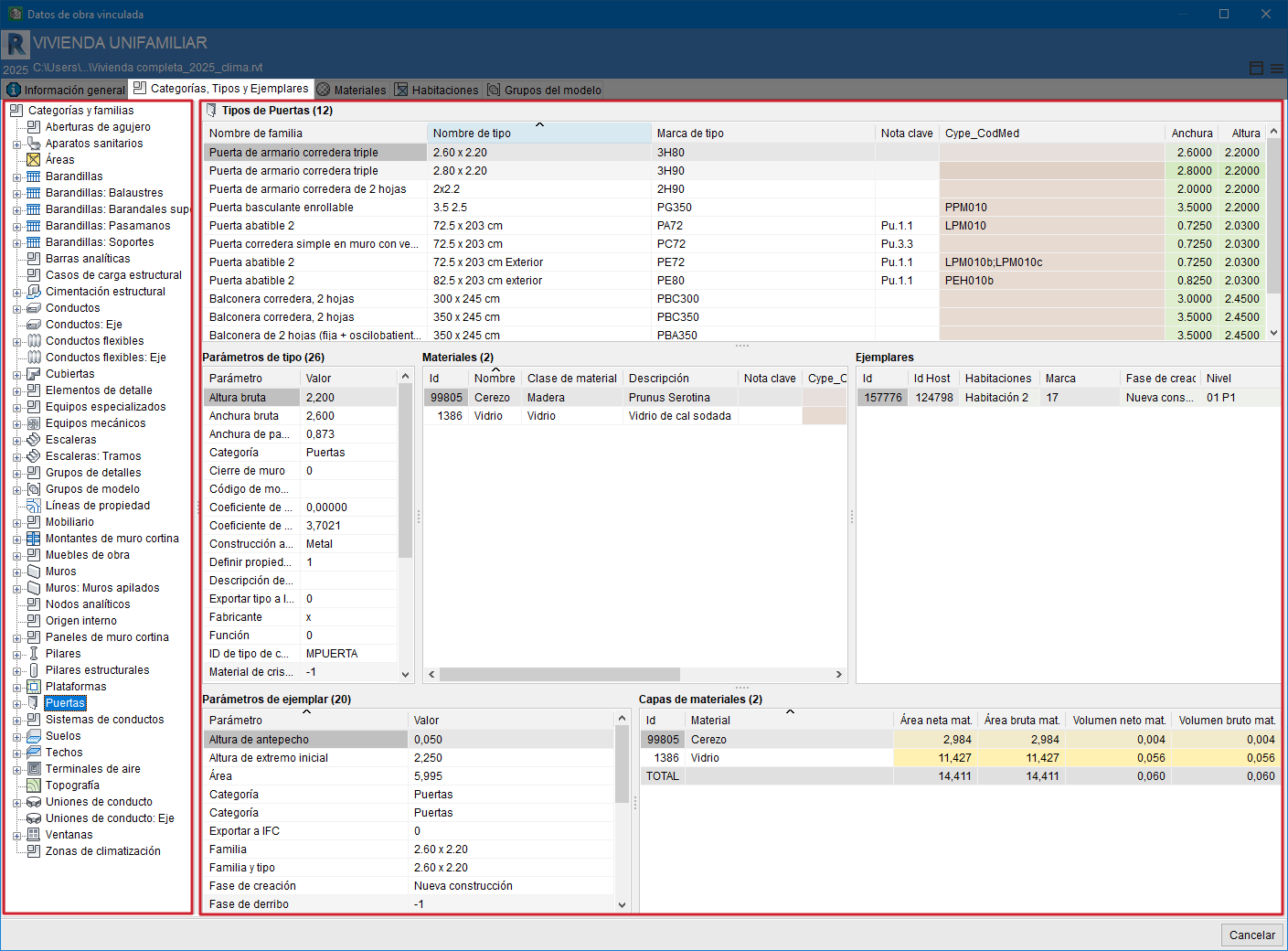
For each type selected in the type table, various tables appear below the type table:
- The first table on the left contains the "Type parameters".
- To the right of that table is another table containing the "Materials".
- And the last table in that row shows the "Instances" of each type.
- The first of the tables below contains the "Instance parameters", which may be system or user parameters.
- The second table is displayed if the selected type contains "Holes".
- And the third and final table shows the "Material layers" of which the various instances are composed. Materials may be common to a type. The parameters for each material are displayed. The yellow colour indicates that these are material parameters.
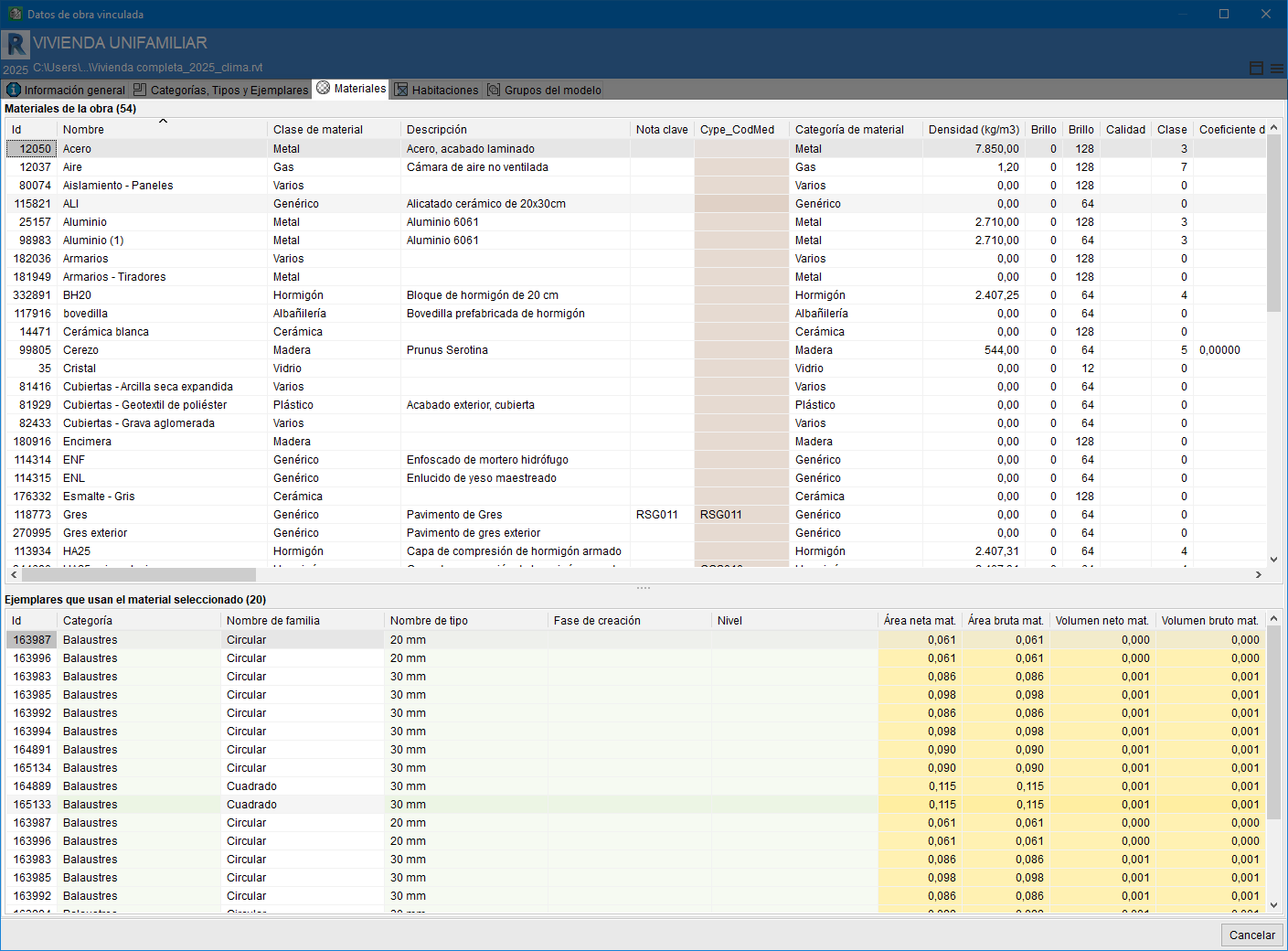
Materials
This tab is divided into two sections. The top table lists the materials in the Revit model, categorised and sorted by their ID. This section contains the material parameters. The bottom section of the "Materials" tab displays the table "Instances using the selected material". The table lists, sorted by their ID, the instances that are assigned to a material along with its various parameters.
Habitaciones
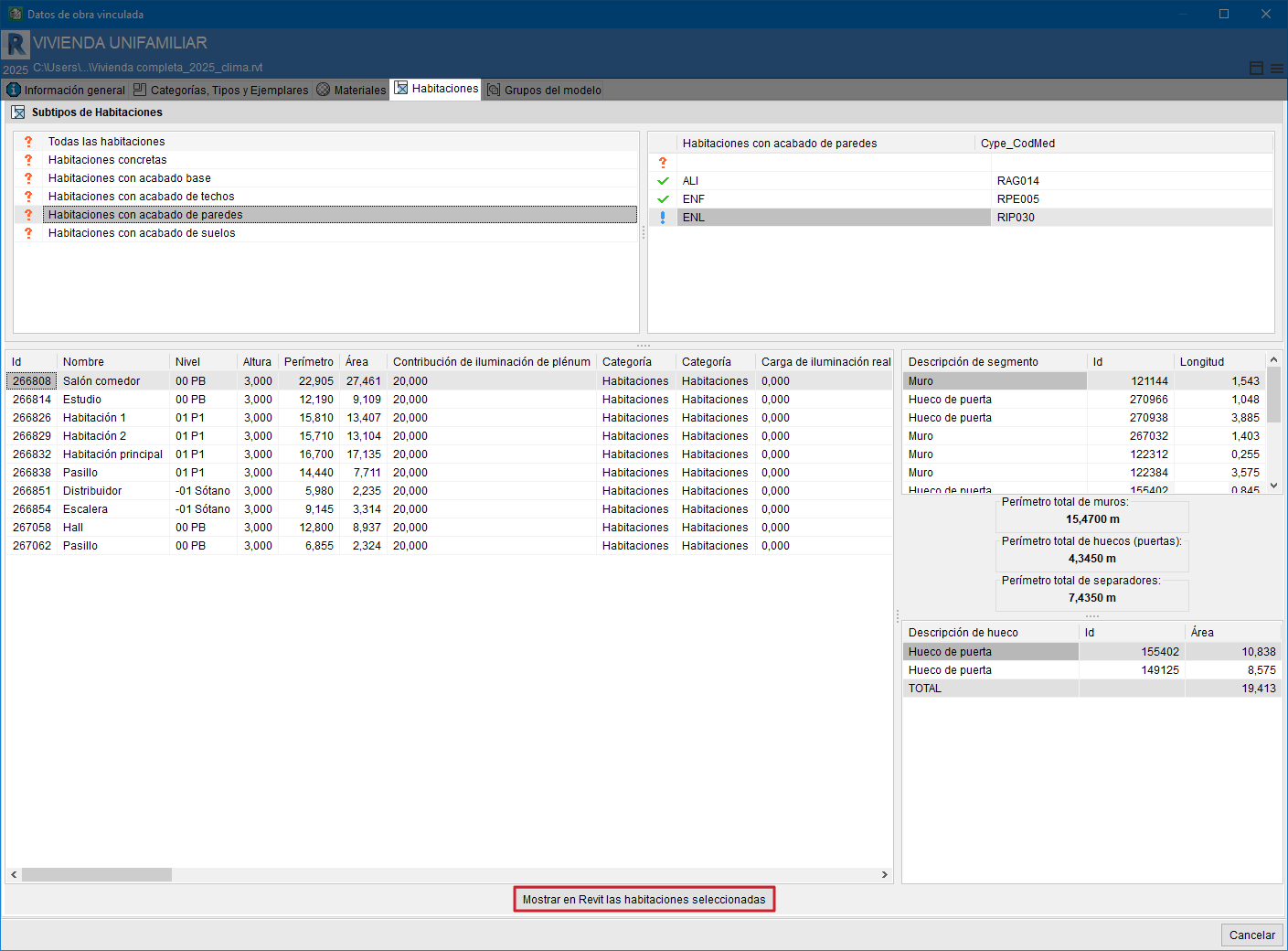
This tab is divided into three sections. The top section allows you to select the room group to view any links between items and rooms via the Cype_CodMed field. The bottom section contains two tables with the rooms’ parameter data. In the table on the left, the rooms are listed by their ID and their respective parameters. The table on the right shows the walls, openings and partitions that form part of the selected room, along with their ID and respective parameters.
From this tab, you can obtain a report of rooms with their areas and perimeters to view the finishes for floors, ceilings and walls.
The "Display selected rooms in Revit" button allows you to identify the selected room in Revit.
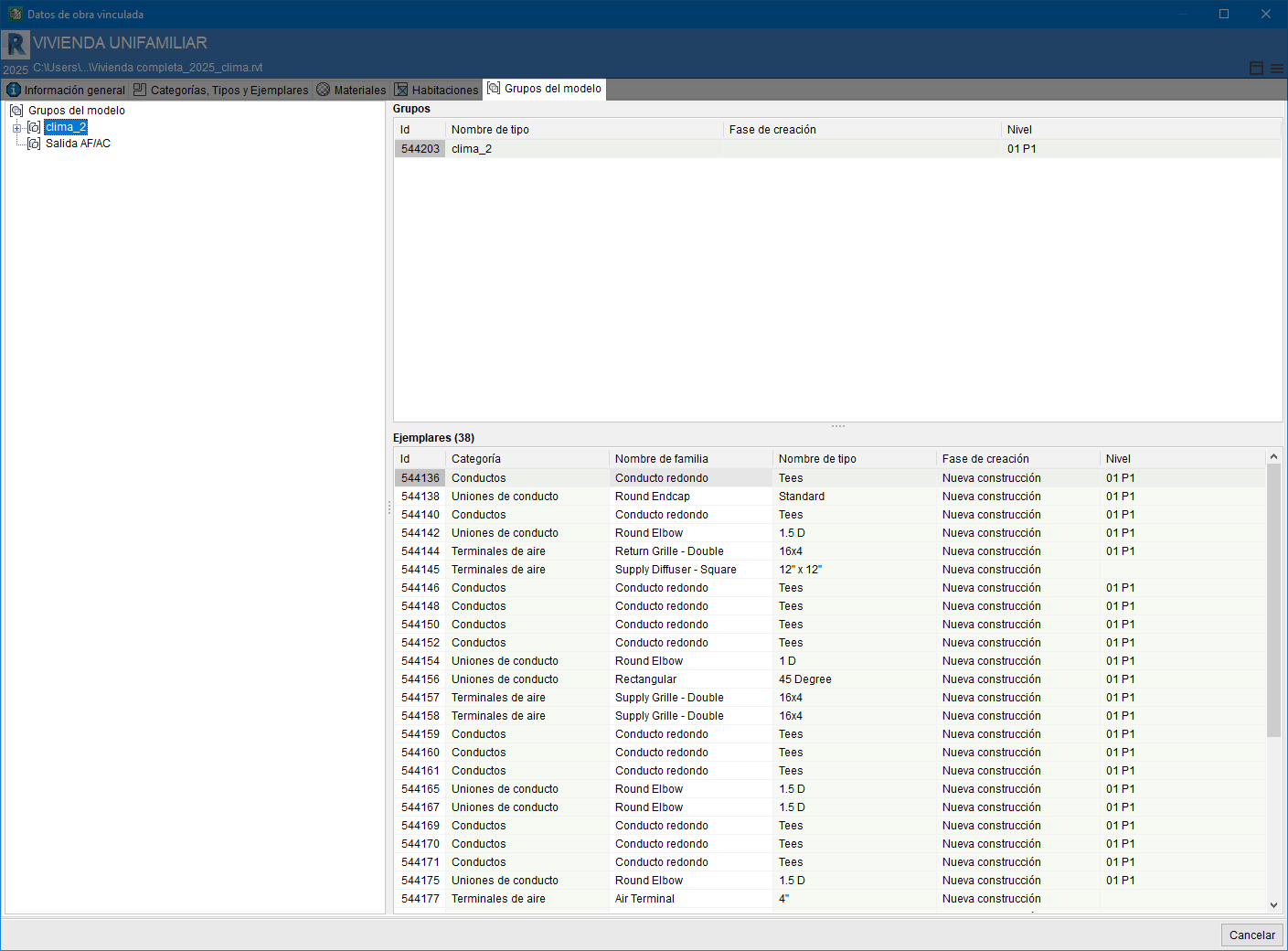
Model groups
This tab is divided into two sections: on the left are the Revit groups, organised in a tree structure. In the top right-hand corner, you will find information about the "Groups" created in Revit, sorted by their ID. At the bottom, the "Instances" and other details for the selected group are displayed.
Display in Revit
When you right-click on any of the rows in the type and item tables, a context menu appears with the options shown in the image on the right.
If Revit is open and the project linked to the Arquimedes bill of quantities is open, clicking on the "Display the instances of the selected types in Revit" or "Display the selected instances in Revit" options, respectively, will locate and display the selected instance or instances in Revit for checking and review.
More information:
You can find more information about this option in the section "Display the selected instances in Revit".
Tracking changes
The "Update changes carried out in the Revit model linked to this job" dialogue box allows you to update changes to the model, identifying new, deleted and modified elements, whilst keeping data from Revit separate from data entered or altered by the user in the quantities.
When a Revit model is linked to an Arquimedes bill of quantities, if you subsequently work in Revit making changes to the model (for example, modifying the dimensions of various building elements or deleting or creating new building elements), the information in the Revit model will change and cause changes to various parameters of instances, types and even families and categories. In such cases, if the Revit model information is updated again by linking or importing the Revit model’s .mcsv file into the Arquimedes bill of quantities, the change tracking feature highlights the modifications by marking the categories, families, types and instances that have changed.
The markers are as follows:
 Unmodified entity
- Modified entity
 New entity
 Deleted entity
 Unmodified entity
 Modified entity
 New entity
 Deleted entity
When you double-click on a Revit element (type, instance, material or room) marked with the modified element symbol (), the "Differences in (…)" dialogue box appears. Parameters that have changed are highlighted in red.
Options for working with the Revit model within the Arquimedes environment
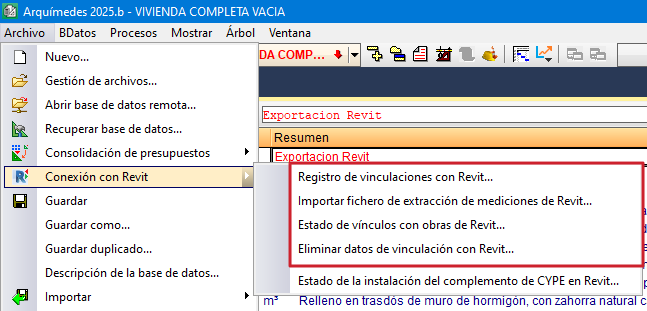
If any of the projects currently open in Arquimedes are linked to a Revit model, the options under "Connect to Revit" in the "File" menu allow you to retrieve information and work with the Revit model to extract or update its quantities.
Registering links with Revit
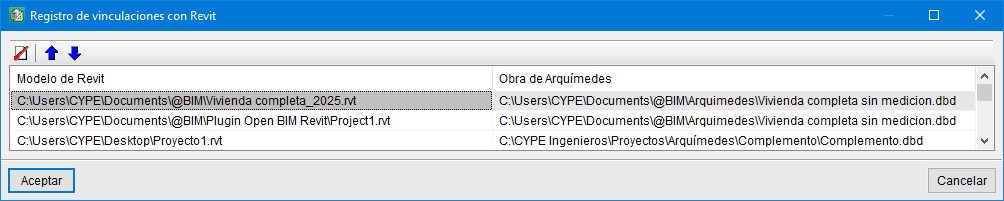
When any of the projects open in Arquimedes is linked to a Revit model, the "Revit link log" option displays a list of Revit models linked to Arquimedes projects.
You can remove the selected link using the "Delete selected element from the list" button.
Import a file containing quantities extracted from Revit
When you click on the "Generate quantities extraction file" option in the "Revit Add-ins" tab, a file is created with the same name as the Revit project, with the .mcsv extension. This file is located in the same directory as the Revit project, contains all the information from the BIM model and can be imported by the person carrying out the bill of quantities in Arquimedes. Therefore, you do not need to have the Revit program installed.
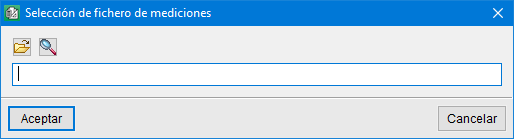
To import the .mcsv file into Arquimedes and extract the quantities from the Revit model, click on the "Connect to Revit" option in the File menu, then on "Import Revit quantities extraction file" and locate the .mcsv file.
When clicking "Accept", the "Assign items and extract quantities" dialogue box will appear.
Status of links to Revit projects
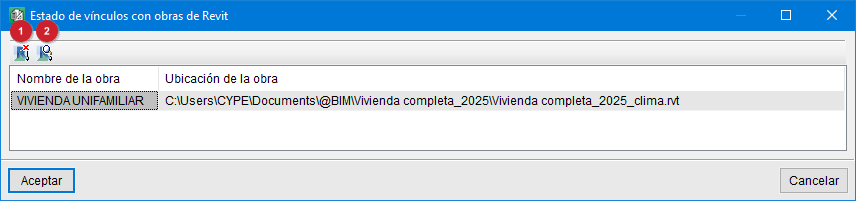
When any of the open bill of quantities in Arquimedes is linked to a Revit project, the "Status of links to Revit projects" option—accessed via the "File" menu by selecting "Connection with Revit"—displays the location of the Revit project or projects linked to the current Arquimedes project.
If the user duplicates or moves the Revit project, they can relink it to an Arquimedes bill of quantities using the "Change the location of the Revit model" button (1).
The "Unlink Revit job" button (2) removes the link between the Revit model and the Arquimedes bill of quantities.
Removing linking data from Revit
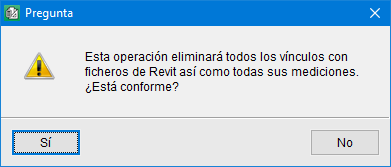
To remove the link information to Revit models from the selected project, use the "Delete Revit link data" option, which can be accessed via the File menu and then by selecting "Connection with Revit". This operation removes all links to Revit files.
A shortcut for extracting or updating quantities when a Revit model has been linked to an Arquimedes bill of quantities is to open the "Assign items and extract quantities" dialogue by clicking on the "Quantity extraction" icon, located at the top of the "Cost breakdown structure" window in Arquimedes.
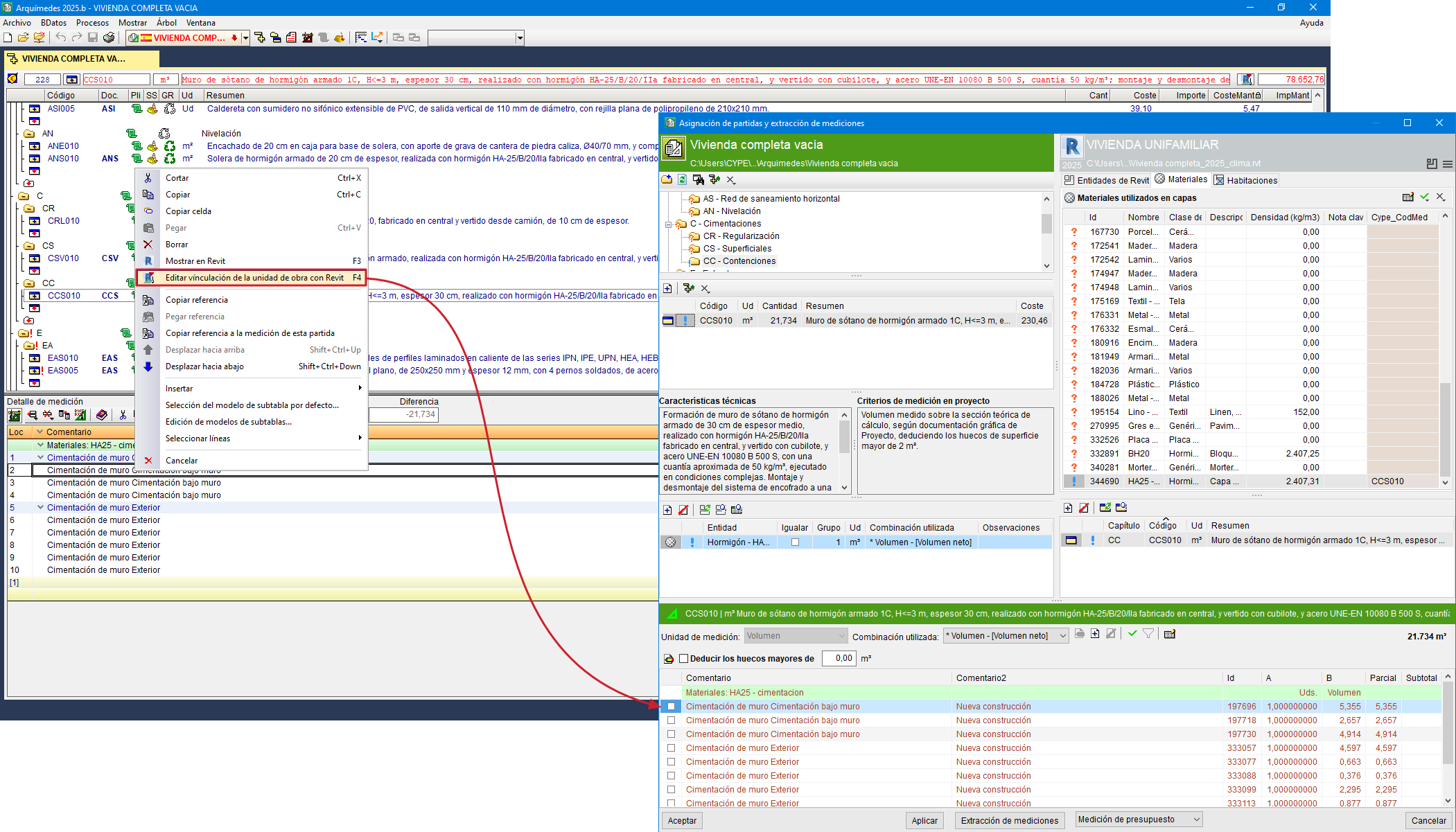
Edit the link between the item and Revit from a quantity table
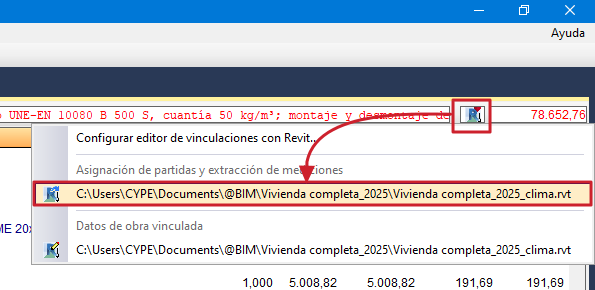
The "Edit link between the item and Revit" option is found in a context menu that appears when you right-click on a quantity line in the "Cost breakdown structure" window. This option displays the instance corresponding to the selected quantity line in Revit, making it easier to locate.
Report of items with Revit quantity extraction
The "Job items with quantities extracted from Revit" option, which can be accessed via the "List" menu by selecting "Other concepts", allows you to view on screen the items for which quantities have been obtained from a quantity take-off file generated by the MedBIM - Revit plugin.