Dockable window system
The dockable window system lets users customise their workspace to suit their needs.
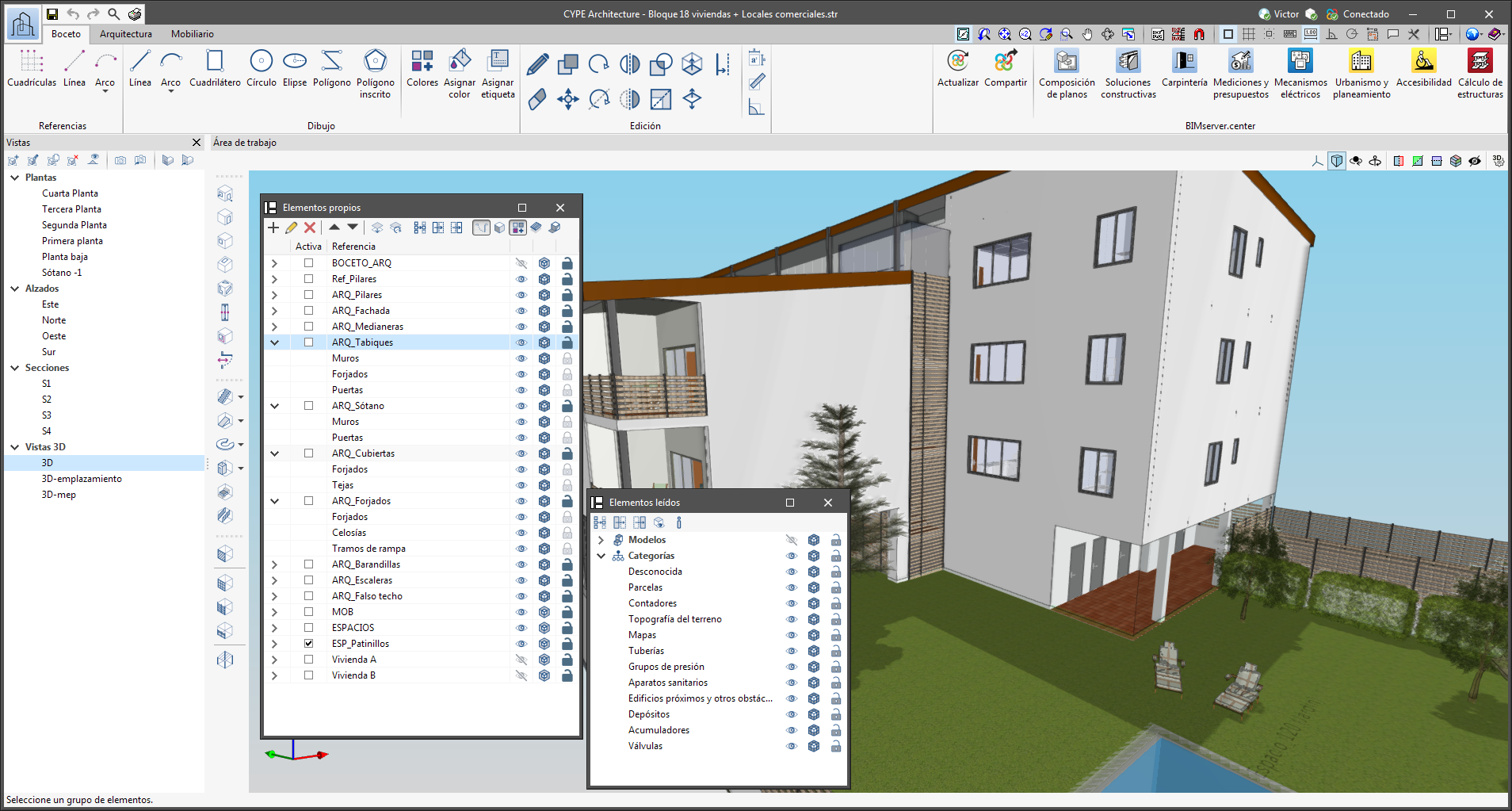
Dockable windows can be moved and resized. They can float, be docked within the main app window, or be dragged out of it and even moved to another monitor.
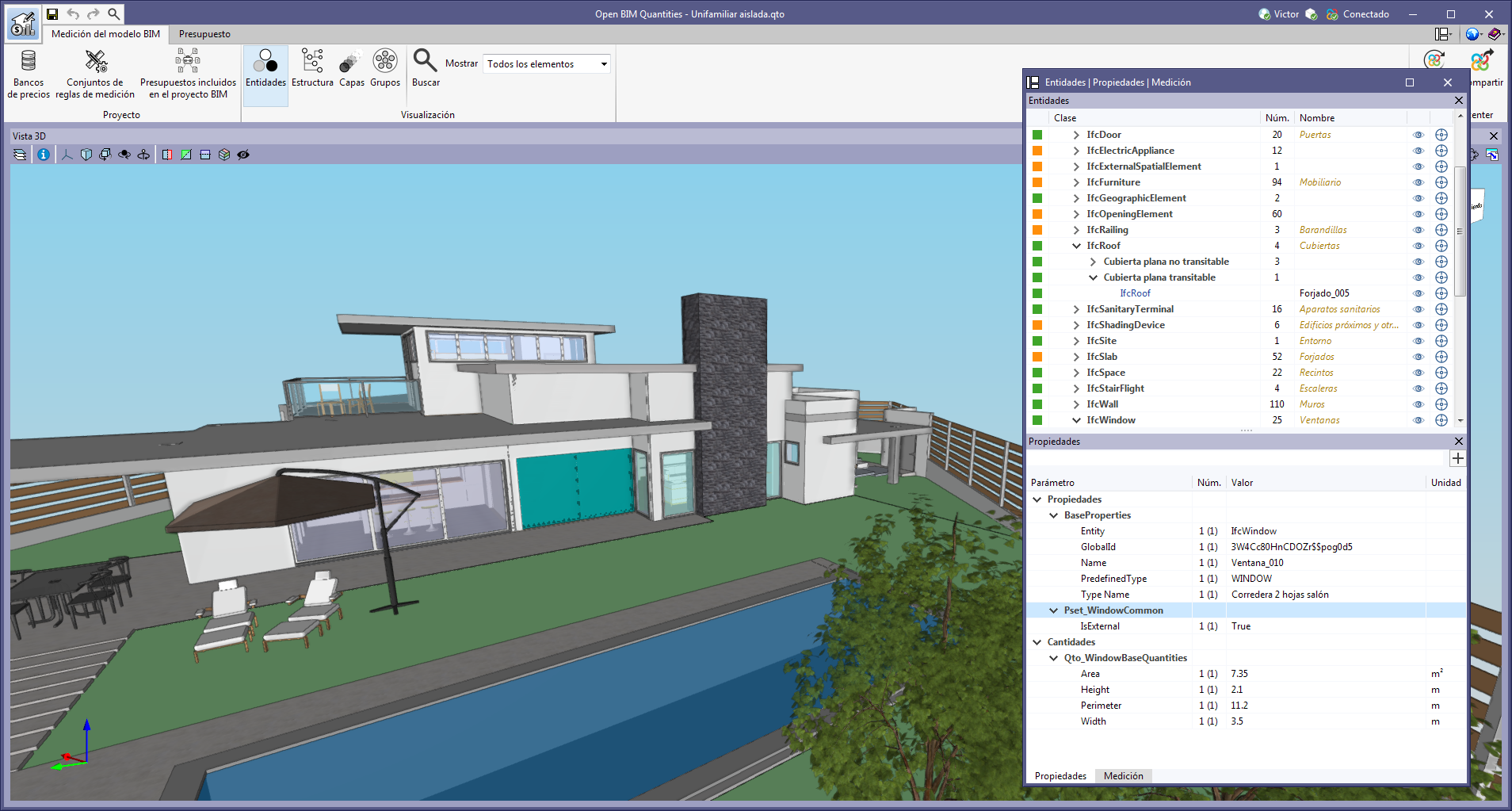
- Move windows
A docked window can be moved by clicking on the title bar at the top of the window and dragging it.
When dragging a dockable window, several visual aids are displayed to make its relocation easier. Next to the cursor, a text box appears containing the title of the dockable window being moved. Whenever the cursor approaches the edge of another window, a box appears showing a preview of the space it would occupy.
A window can be left as a floating window without docking it to another window, and it is also possible to dock windows within a floating window. Holding down the CTRL key can prevent a floating window from being docked while it is being moved.
- Group windows
Several windows in the same space can be grouped by dragging one window to the top left-hand corner or to the bottom left-hand corner of another window. When this is carried out, tabs will appear at the bottom or top of the group, allowing users to alternate between the grouped windows. If the tabs are at the bottom, the title of the group of windows corresponds to the active window. On the other hand, if the tabs are at the top, they will be used as the title.
- Show/Hide windows
The icon to close the window can be found in the top right-hand corner of each dockable window.
To manage the display of the dockable windows in the user interface, a "Window" button ( ) has been added to the app environment, next to the "General settings" button (icons on the top right-hand side of the program). By clicking on it, a drop-down menu appears with the available dockable windows, and users are able to change their status. In addition, there is the "Reset window layout" option, which allows users to restore the default workspace.
In some cases, such as the "Work area" in apps with a 3D environment, the window cannot be hidden. In these cases, the icon for closing the window is not displayed, and in the "Window" menu, the "Work area" will be locked.
 ) has been added to the app environment, next to the "General settings" button (icons on the top right-hand side of the program). By clicking on it, a drop-down menu appears with the available dockable windows, and users are able to change their status. In addition, there is the "Reset window layout" option, which allows users to restore the default workspace.
- Collapse windows
When several dockable windows are arranged vertically, an icon is displayed next to the close icon, which allows each window to be expanded or collapsed. When the window is collapsed, it will return to its previous size.
The window layout and display settings are saved when closing the app.
Please note that not all the floating windows in an app can be dockable windows. In order to tell them apart, the  icon has been added to the title bar of windows that are dockable.
The floating window environment also includes the "Bill of Quantities" tab in all programs that have this tab.