Mapping files
Applications with the "Bill of quantities" tab use "Mapping files" together with the "Cost database" in a project, in order to establish the relationship between the elements of the model, defined in the "Installation" tab, and the concepts from the database.
Mapping to resources
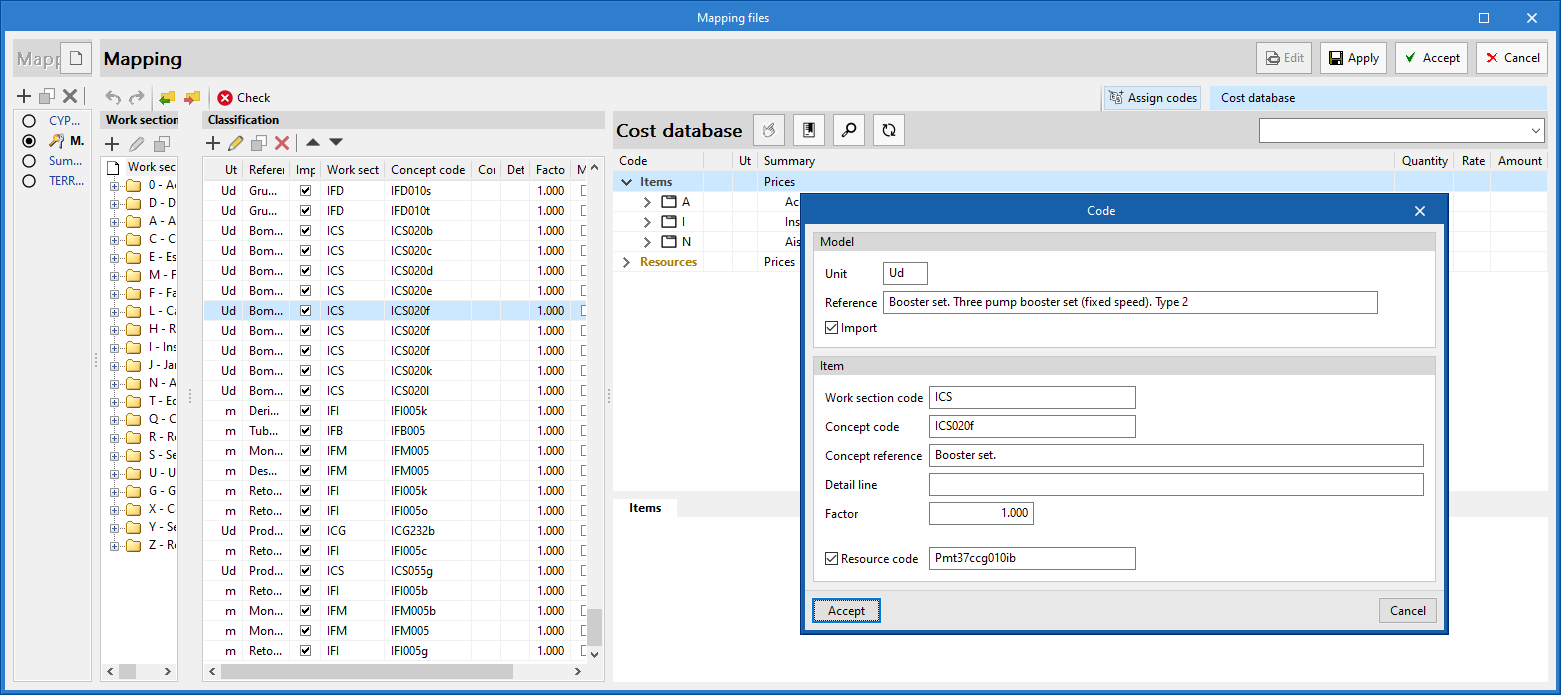
From the "Mapping" option in the "Project" group of the main toolbar, users must map the elements of the model to the resources of an item.
When editing the mapping file, we find the "Resource code" option when modifying a component in the "Classification" list. By activating this option, we can specify the resource code on which the quantity of the element in the model will be mapped. This will be added to the breakdown of the described concept via the "Concept code" and "Concept reference" fields.
If the resource specified in the mapping file is a cost breakdown in the associated cost database, only the unit components of this breakdown shall be assigned to the concept.
Mapping by code assignment
Another way to map the elements of the model is by assigning codes from the reference cost database.
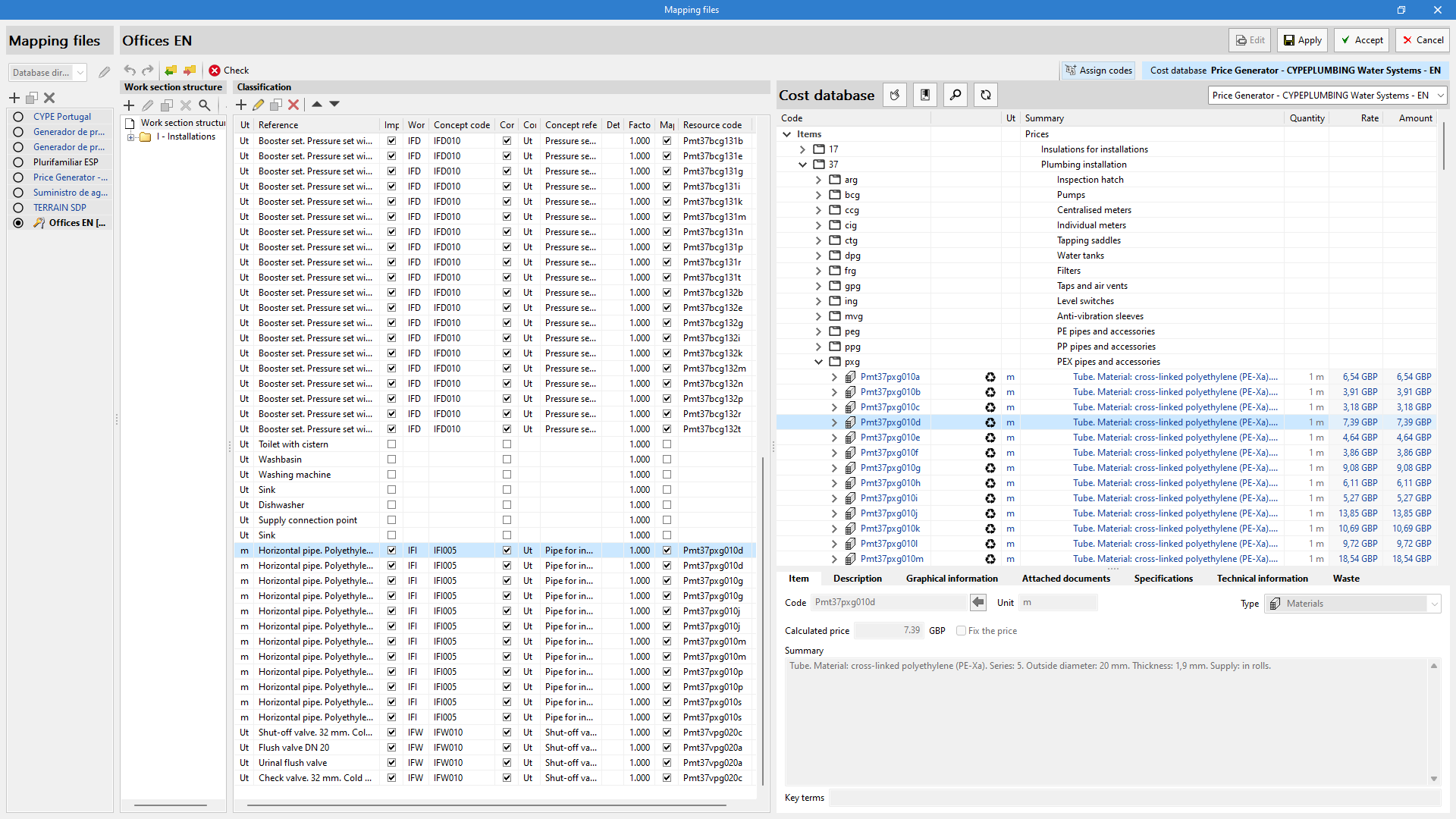
To relate codes easily, the reference cost database can be viewed from the "Mapping files" window. By clicking on the "Assign codes" option in the top right corner, a panel will open on the right-hand side of the window, which needs to be expanded from the row of dots.
Users can change the reference cost database from the drop-down menu, as well as "Synchronise", "Search", assign the work section structure of the cost database or override the properties of the item.
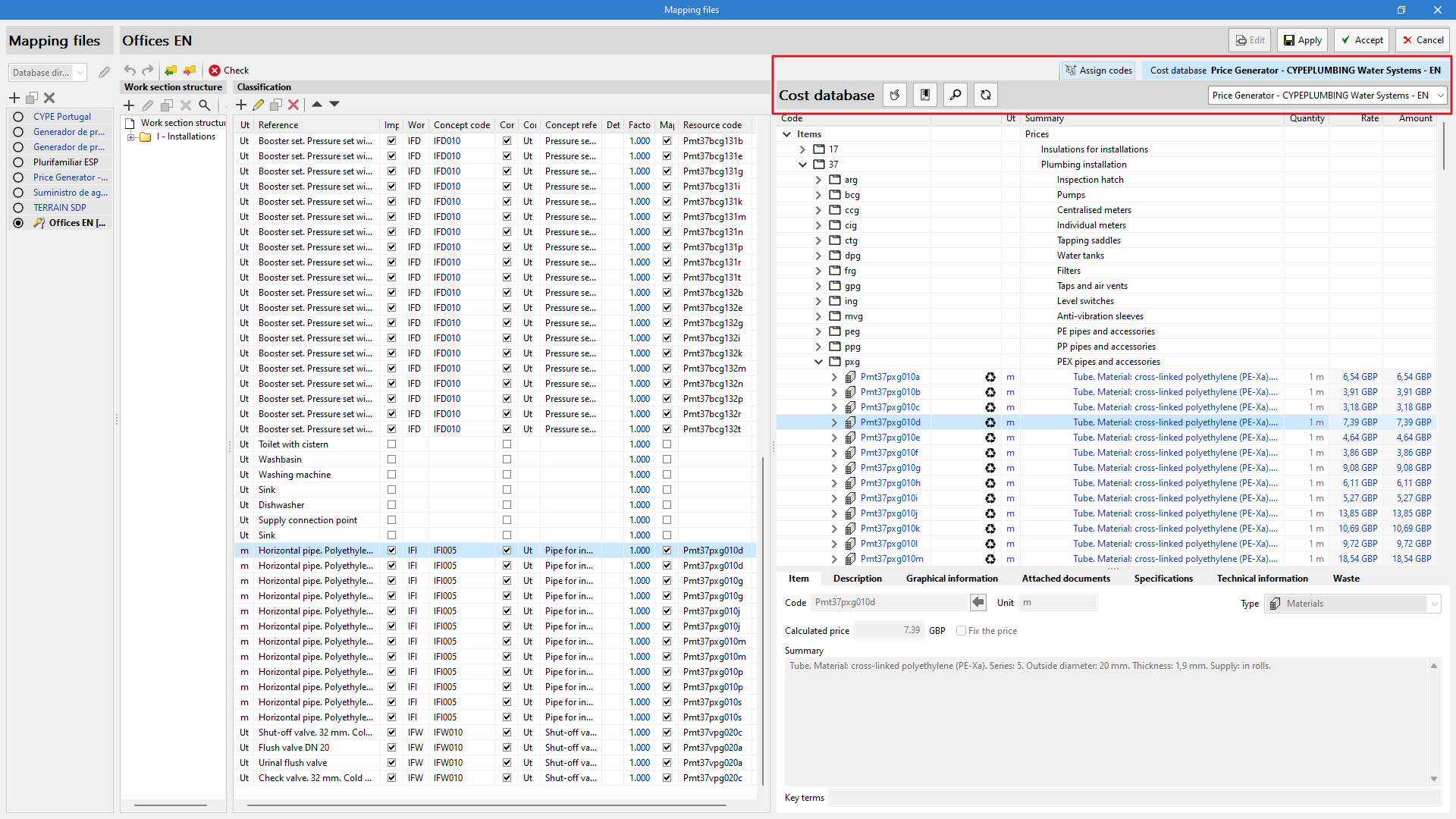
By selecting the concept from the "Classification" and the "Item" from the cost database, codes can automatically be assigned with the "Assign" tool, located in the top tool bar of "Assign codes".
Managing databases
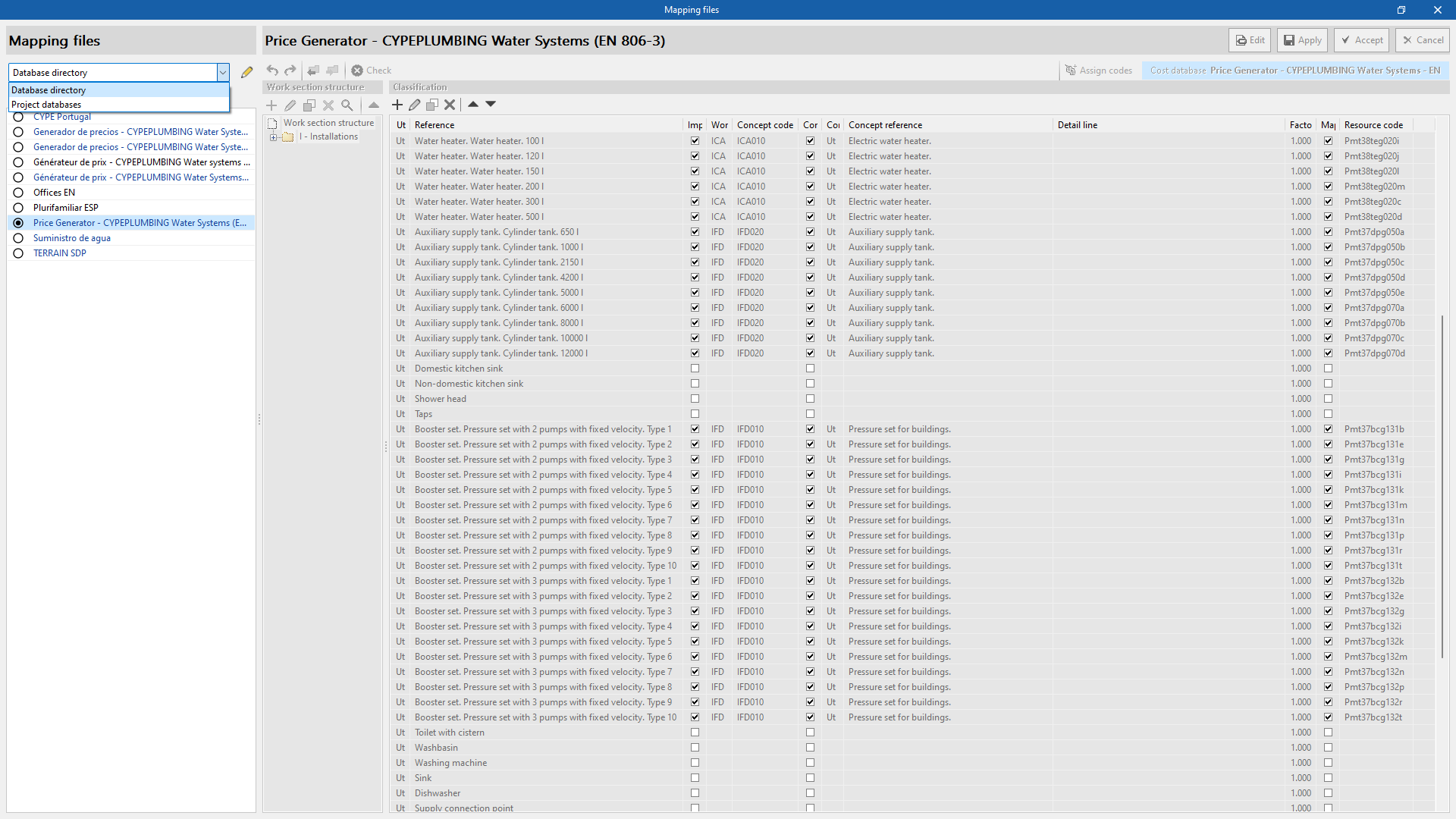
The "Mapping files" databases can be managed in two different locations, which can be toggled via a drop-down menu:
- Database directory
A directory containing the databases is provided. This facilitates the use of databases shared by several users. - Project databases
The databases are saved together with the project in the application. When compressed from the "File" menu in the application, the databases will be included in the CYP file generated. This way, the project can be shared with the databases used to obtain the bill of quantities.