
Obtaining reports
Once the data that makes up a bill of quantities (work sections, items, quantities, etc.) has been entered, different types of reports can be generated.
In Arquimedes, reports are organised into customisable report templates, which extract information from the open database.
Document text styles
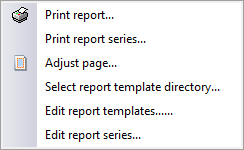
Configures the styles of the documents. The characteristics of each style can be linked to those of the default font style, indicating whether it has the same or different font "Size", or unlinked, to define them independently.
- Type of selected letter
Sets the default font:- Font style
- Font size
- Colour
- Line spacing (0.7 lines / Single / 1.5 lines / Double)
- Page header
Sets the style used in the document's page header. The format can be set to bold, italic or underlined, and the alignment can be changed. The following editing panel can also be accessed:- Header configuration
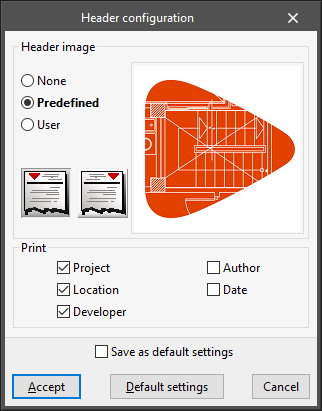
Sets the image and the data to be printed in the page header:- Header image
- None / Predefined / User defined
- Image on the left / Image on the right
- Header image
- Header configuration
- Text body
Configures the style used in the text body of documents. The alignment can be changed. - Page footer
Sets the style used in the footer of documents. The formatting can be set to bold, italic or underlined, and the alignment can be changed. - Style of the different chapter levels
Configures the style used in the different levels of chapters, both in their "Table of contents" and in their "Contents". Using the "Copy from" option, the style defined in each level is copied to any other level. The style of one level can also be linked to the style defined in another level. Also, using the "Numbering" option, users can select the heading numbering system. The available levels are as follows:- Front cover
- Level 1
- Level 2
- Level 3
- Level 4
- Level 5
Report templates
These are sets of data that determine how information should be presented when printing specific data from a database, whether it be a bill of quantities or a cost database.
Arquimedes provides a set of report templates that are installed by default in the directory: C:\Users\USER\AppData\Roaming\CYPE Ingenieros\VERSION\arquimedes\pl (where USER corresponds to the user account logged in to Windows and VERSION to the program version). User-created templates, meanwhile, are saved by default in: C:\Users\USER\AppData\Roaming\CYPE Ingenieros\VERSION\Arquimedes\pl_usr
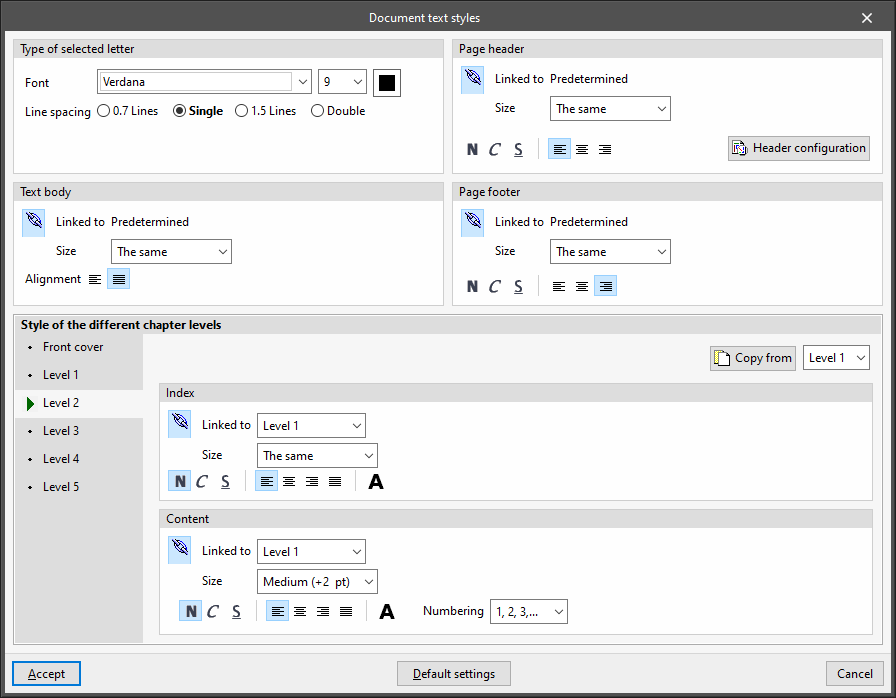
These templates can be accessed via the "Print report" or "Print series of reports" options, located in the "Print" section of the "File" menu, as well as via the "Print current database" button on the program’s main bar.
| Note: |
|---|
| When you click the "Print current database" button, the program opens the print dialog box for the active item (for example, a quantity, a document or a specification sheet) and automatically displays the reports associated with that type of information. |
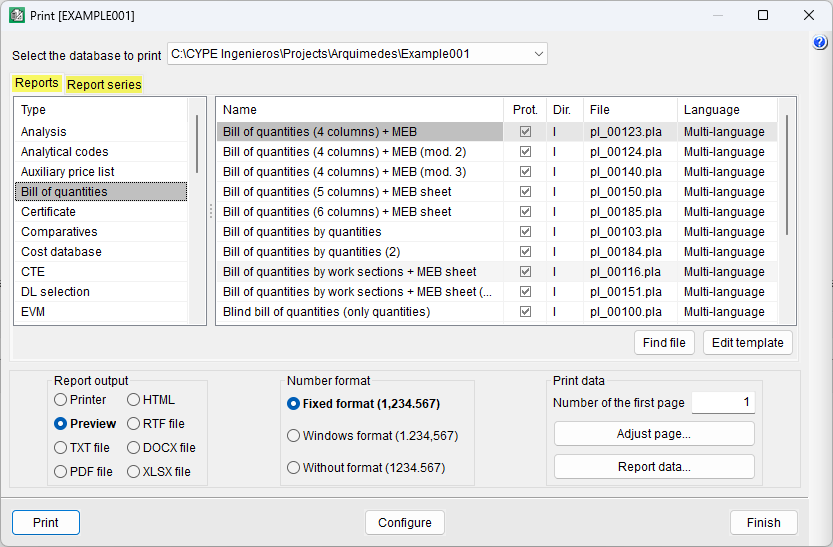
The templates are organised into two tabs: "Reports" and "Reports series".
The following types are included under "Reports":
- Quantities
- Bill of quantities
- Specifications
- Cost database
- Summary
- Certificate
- Comparatives
- References
- Analytical codes
"Report series" are a sequence of grouped reports (grouped templates) that allow you to print a set of reports in a single operation.
| More information: |
|---|
| The following link lists the report and report series templates available by default in the Arquimedes installation. |
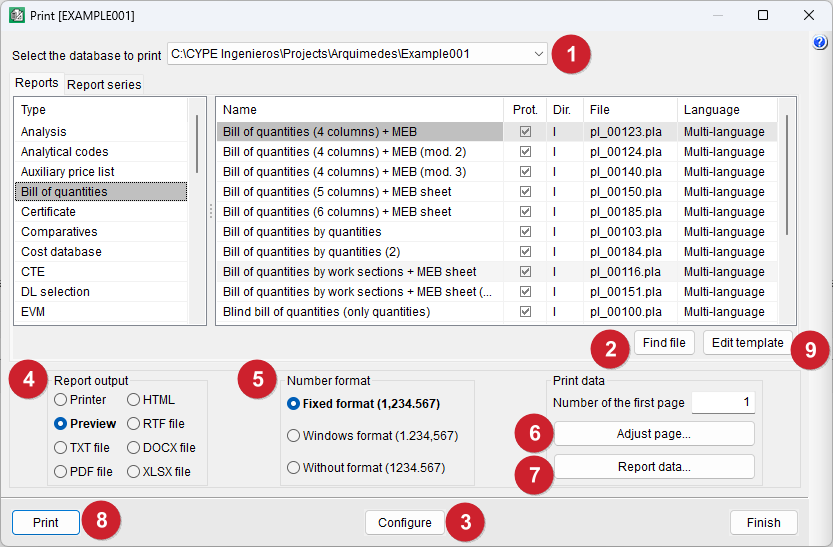
Steps for printing or exporting a specific report or series of reports
- Firstly, in the "Print" dialog box, you can select the database to be printed from those currently open.
- Secondly, you need to locate the desired report or set of reports. You can use the "Find file" button to search by the name of the report template file.
- (Optional) Using the "Configure" button at the bottom of the dialog box, or via "Select report template directory" in the "Print" section of the "File" menu, you can change the location where the program searches for report templates and report series, including both those installed by the program and those created by the user. It also allows you to display only the installation templates, only the user templates, or both at the same time.
- Once the report or series of reports has been located and selected, you must specify the output type. By default, a preview is selected. You can also print directly to a printer or export to PDF, DOCX, HTML, RTF, XLSX and TXT formats.
- Next, when selecting the number format, it is best to use "Fixed format", so that the numbers are printed with the same presentation format as used in the program windows.
- The "Page setup" button allows you to select and configure the printer to be used, as well as specify the margins, scale and page divisions. This tool is also found in the "Print" section of the "File" menu and is equivalent to the "Printer" option available in other CYPE programs, sharing the same feature.
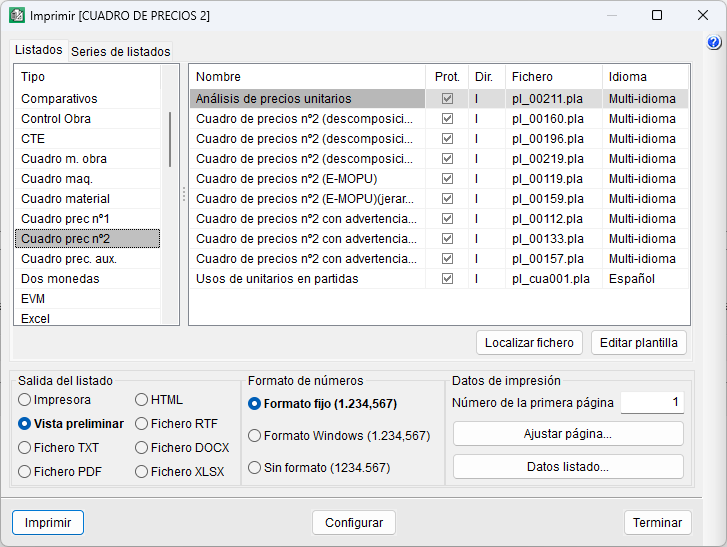
- The "Report data" button allows you to access the pre-signature data, company details, client details, project details and the user logo settings. It also allows you to configure the options for reports of the "Price list nº 2" type.
- Finally, click the "Print" button in the dialog box.
- (Optional) Templates can be configured via the "Edit template’ button.
- (Optional) To create a new template, select the "Edit report templates" option from the "Print" section of the "File" menu. The "Open report template" dialog box will appear, showing all available report templates; then, click the "New template" button.
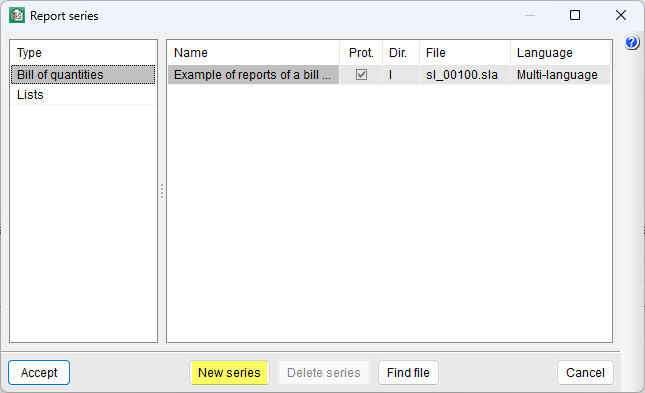
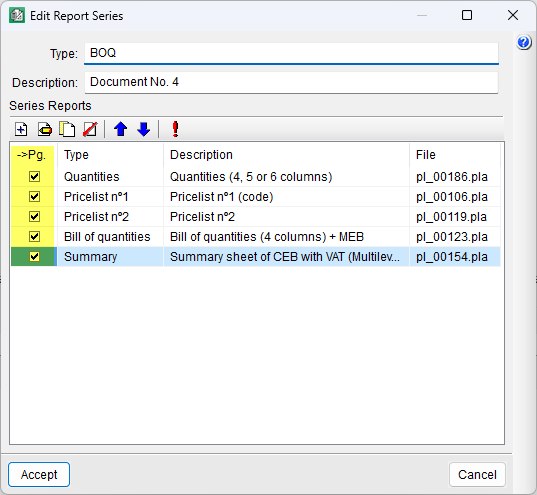
Sequence for creating a new series of reports
- First, click on the "Edit report series" option in the "Print" section of the "File" menu. In the dialog box that appears, you can choose to edit a report series or create a new one.
- To create a new report series, click the "New report series" button; a new dialog box will open where you can enter the name and description, and add the templates that will form the template group for the new report series.
- The drop-down menu in the "->Pg." column allows for consecutive page numbering across all documents selected in this column.
Analytical codes
Arquimedes allows you to generate bill of quantities reports by cost centre code. This means that, regardless of the bill of quantities work section structure, you can generate reports based on the work section structure of another database (bill of quantities or cost database) provided that the item exists in the reference database (and the codes match).
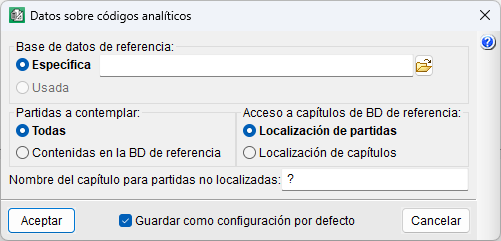
To do this, you must use the "Analytical codes" templates and define the following details regarding analytical codes:
- Reference database
Choose between using the work section structure of the auxiliary database currently in use in the bill of quantities (which will normally be a cost database), or using a different database. - Items to contemplate
Choose between listing only the items contained in the reference database, or all items. If the latter is selected and the bill of quantities contains items not belonging to the referenced database, these will be included in a separate work section, initially unnamed unless a name is entered in "Name of the work section for items not located". - Access to reference database work sections
Choose the item location, respecting the original work section structure of the reference database, or the work section location, which assigns items based on the relationship between their code and existing work sections, searching for progressive code matches (for example, from "ABCD.1" to "ABCD", "ABC", etc.).
How to prepare a Pricelist No. 2
Arquimedes enables you to generate the "Price List No. 2" correctly by including partial payment concepts in the breakdown of the cost items. This document is required to assess the various stages of completion of the items in the event that work is suspended.
Partial payments
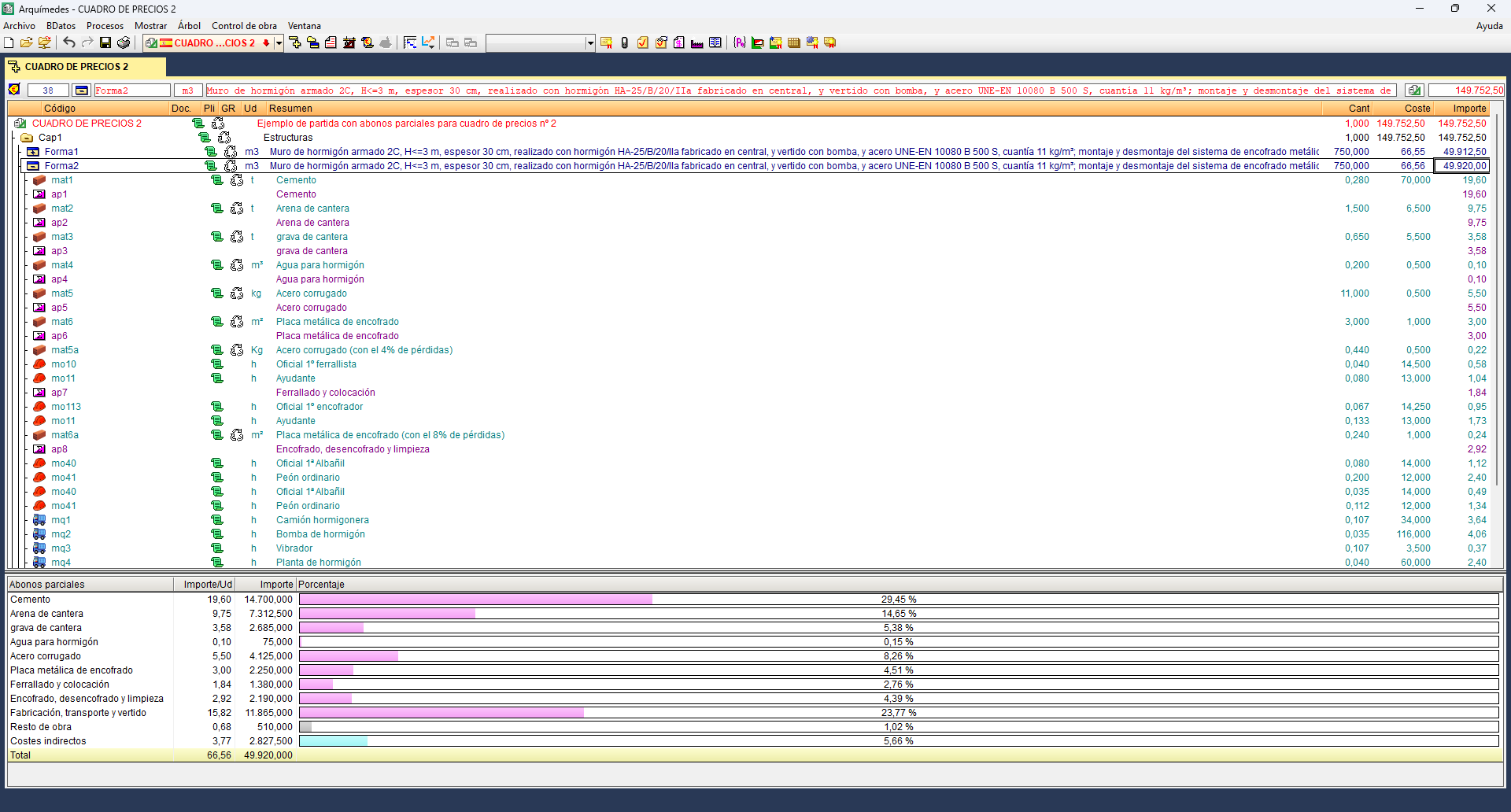
When a construction project is put on hold, there may be items that have not yet been started, have been completed, or have been partially completed. For the latter, the project designer must anticipate the possible stages of completion and their valuation; this is achieved by defining partial payments in the breakdown of the item.
Partial payments are special concepts that do not affect the price of the item in which they are included. Their purpose is to break down the execution of the items for their correct classification and valuation in "Pricelist No. 2".
Each partial payment concept accumulates the amount of the items situated above it in the breakdown, up to the next partial payment, if any.
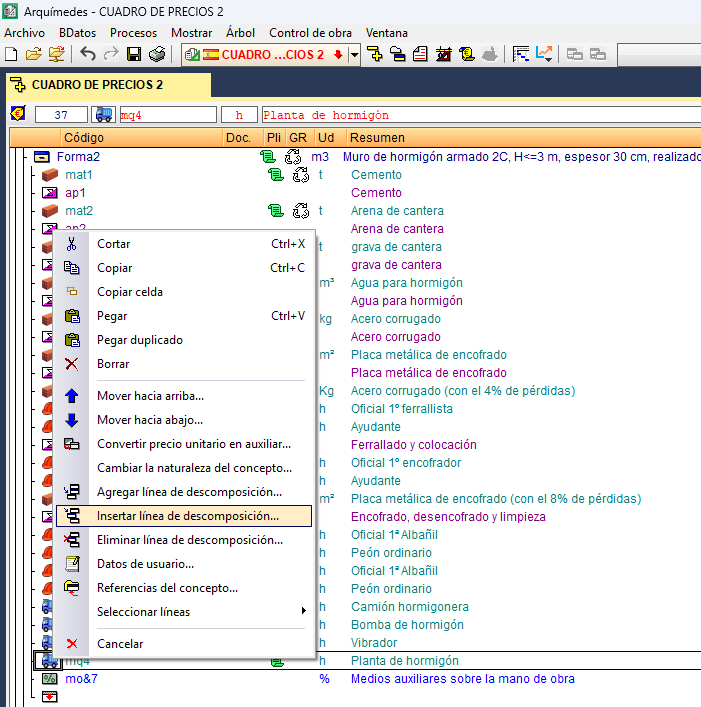
To insert a partial payment concept, you must expand the breakdown of the item to which you wish to add it, from the "Cost breakdown structure" window. Next, right-click on the item line immediately above the position where you wish to insert the new concept and select the "Insert breakdown line" option from the context menu.
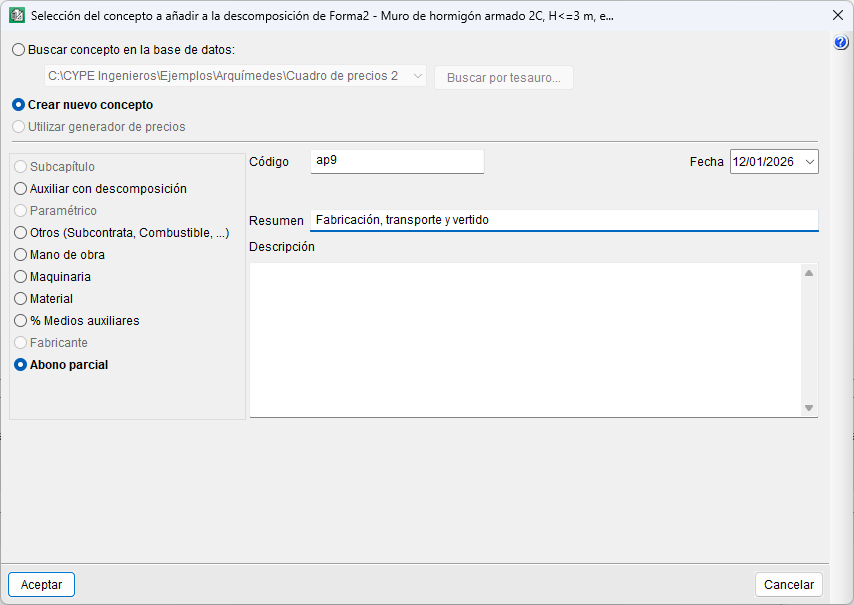
In the "Selection of the concept to add to the breakdown of..." dialog box, you must tick "Create new concept" and "Partial payment", specifying at least its code and description.
Partial payment concepts can be used to represent:
- Materials stockpiled on site.
- Labour and machinery used in the works.
- Auxiliary resources used in support of the labour force.
- In exceptional cases, soft costs (these are normally calculated separately).
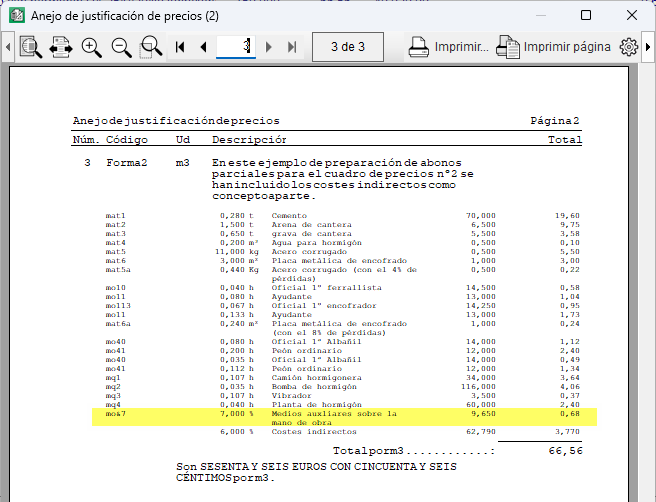
For ancillary costs, the symbol "&" is used within the code. It works in a similar way to the "%" symbol, except that it only applies up to the preceding "&". An example would be "mo&7", which represents the percentage of ancillary costs relative to labour costs.
| Note: |
|---|
| Concepts are unique within the database; if their text or summary is modified, the change affects all items where they are used. To avoid this, different concept codes must be used. |
Obtaining Pricelist No. 2
Once the partial payments have been defined, the document is generated using report templates of the type "Preliminary Table No. 2" via the "Print" option. The inclusion of partial payments does not affect the other reports, as they are only interpreted by this type of table.
If partial payments are not defined, when printing a report of the "Preliminary Table No. 2" type, Arquimedes automatically generates partial payments for labour, machinery, materials and other works (based on the breakdown of the items and their auxiliary prices). However, this result is not equivalent to a breakdown prepared specifically for this purpose. The process cannot be fully automated, as each item has different execution conditions.
| Best practice: |
|---|
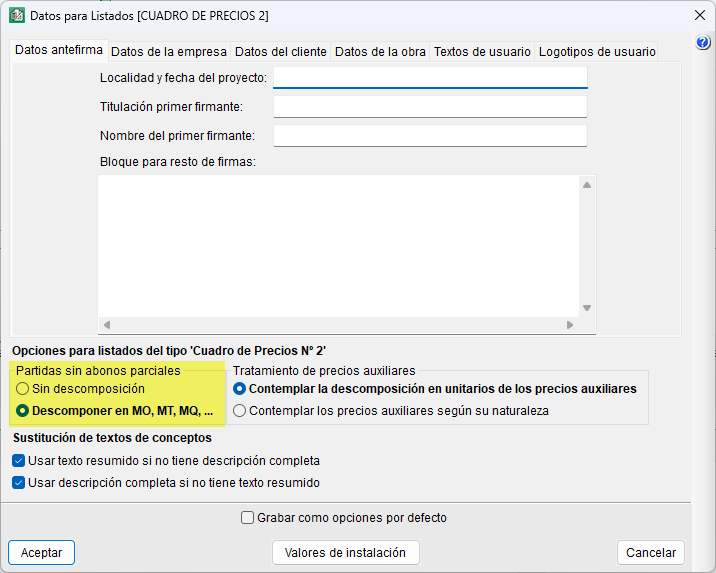
| In the "Data for reports" dialog box (under the "View" menu, "Settings"), there is a section where you can specify whether you wish to print the items without partial credits (from users), "Without breakdown", or grouped by labour, materials, machinery, etc. |
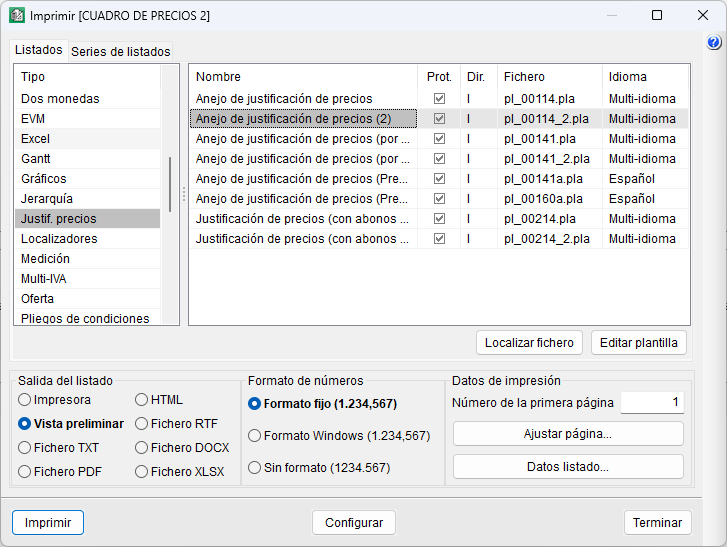
If ancillary costs associated with labour have been included in partial payments, the "‘Price Justification Annex (2)" report, "pl_00114_2.pla" file of the "Price justification" type, must be used to ensure correct price justification; this transfers those amounts to the end of the item.
Printing view content
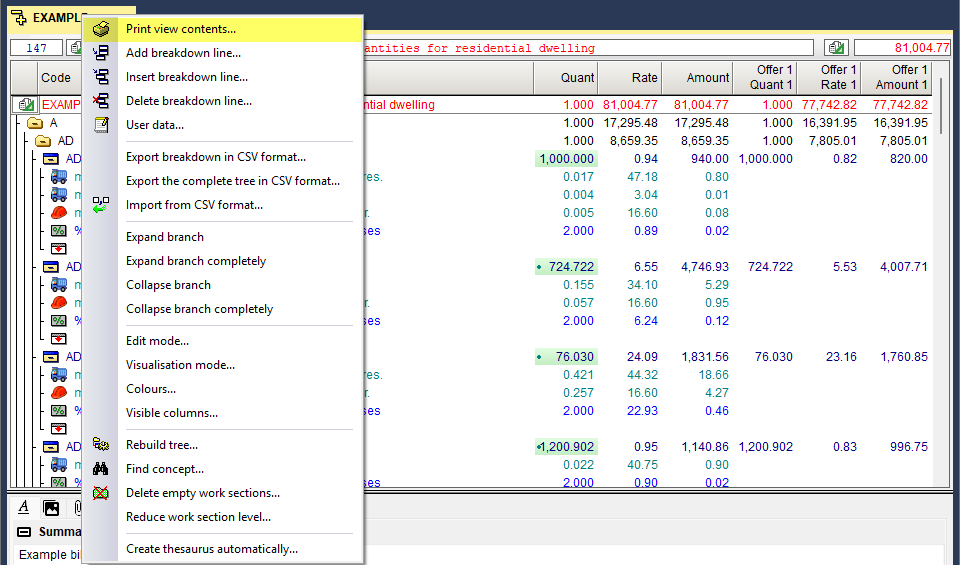
You can easily print the information displayed in the workspace of the "Cost breakdown structure" or "List of concepts" windows, using the column layout visible on screen, without needing to create or modify an existing report template.
This can be accessed from the "Tree" or "List" menus via the "Print view contents" option, or by right-clicking on the relevant tab.
The dialog box offers different settings depending on the active view:
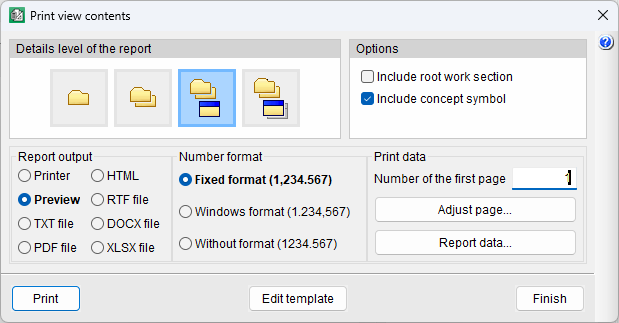
- From "Cost breakdown structure"
This allows you to specify the level of detail to be printed: only top-level work sections, all work sections, all work sections with their items, or all work sections with their items and unit concepts. You can also include the root work section’s content and the concept type symbol.
- From "List of concepts"
Allows you to print with or without column dividers, include a summary with a totals row, and display the concept type symbol.
The program automatically generates a report template based on the current view, which can be modified to suit the user's preferences.
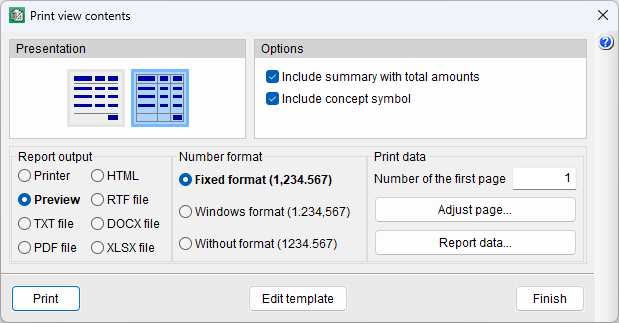
Table of contents
Complete your overview of Arquimedes by exploring the other sections available:
