

Defining load cases for modal analysis
Loadcases for modal vibration analysis can be entered and edited using the following option, which is available in the "Modal" section of the top toolbar, within the "Analysis" tab (under the "Structure" tab).

Loadcases
The "Loadcases" option allows you to define the load cases for the modal analysis.
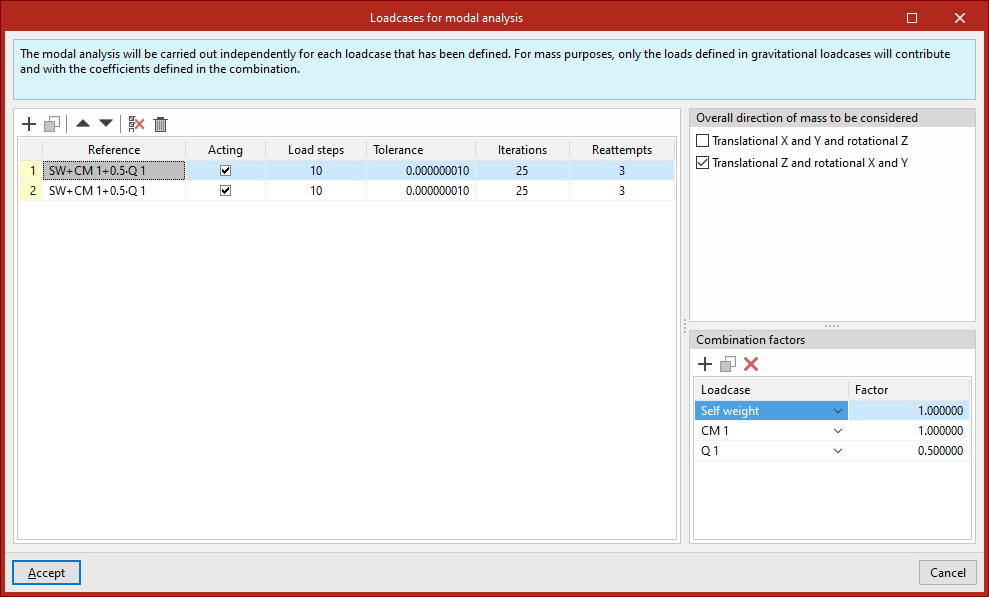
Clicking this opens the "Loadcases for modal analysis" window. These load cases must be added to the list on the left using the options on the top toolbar. Each case is defined as follows:
- The "Reference" is generated automatically based on the loadcases and combination factors defined below;
- Indicate whether the case is "Active" or not by ticking the relevant box;
- The number of "Load steps", the "Tolerance" value, the number of "Iterations" used in the analysis, and the number of "Reattempts" are defined.
Next, on the right-hand side, for each loadcase entered in the list, you must define the following:
- The "Overall direction of mass to be considered" is specified as follows:
- "Translational X and Y and rotational Z"
- and/or "Translational Z and rotational X and Y";
- At the bottom, the "Combination factors" are defined by entering the value for the "Factor" for each "Loadcase" of the model selected from the drop-down menu.
| Note: |
|---|
| Modal vibration analysis is performed separately for each of the load cases defined in this dialogue box. For mass purposes, only the loads defined in gravity load cases will be taken into account, and they will be applied using the coefficients defined in the combination. |
Modal analysis: "Analysis" option
The modal vibration analysis is configured and run using the following option, available in the "Modal" section of the top toolbar, within the "Analysis" tab (under the "Structure" tab).

Analysis
The "Analysis" option allows you to run the modal analysis.
To do this, the combinations for the modal analysis must have been defined using the previous option in the group.
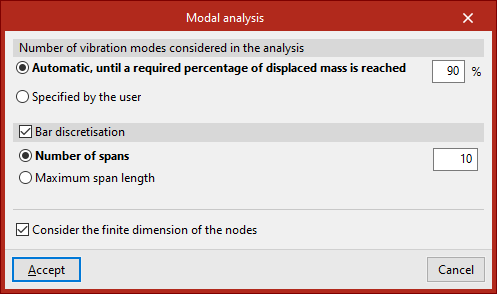
Clicking on this option opens the "Modal analysis" window, which allows you to configure the following options:
- The "Number of vibration modes considered in the analysis", which can be:
- "Automatic, until a required percentage of the mass has been displaced",
- or "User-specified".
- The program also allows you to enable "Bar discretisation" by ticking the relevant box. This can be defined as follows:
- specifying a "Number of sections",
- or by entering the value for "Maximum section length".
- Finally, you can "Take into account the finite dimension of the nodes" by selecting the last option.
The results of the modal analysis can be viewed using the two options in this section, "Vibration modes" and "Report", which will become available once this analysis has been completed.
Display of modal analysis results by vibration mode
The results of the modal vibration analysis can be displayed on screen using the following option, which is available in the "Modal" section of the top toolbar, within the "Analysis" tab (under the "Structure" tab).

Vibration modes
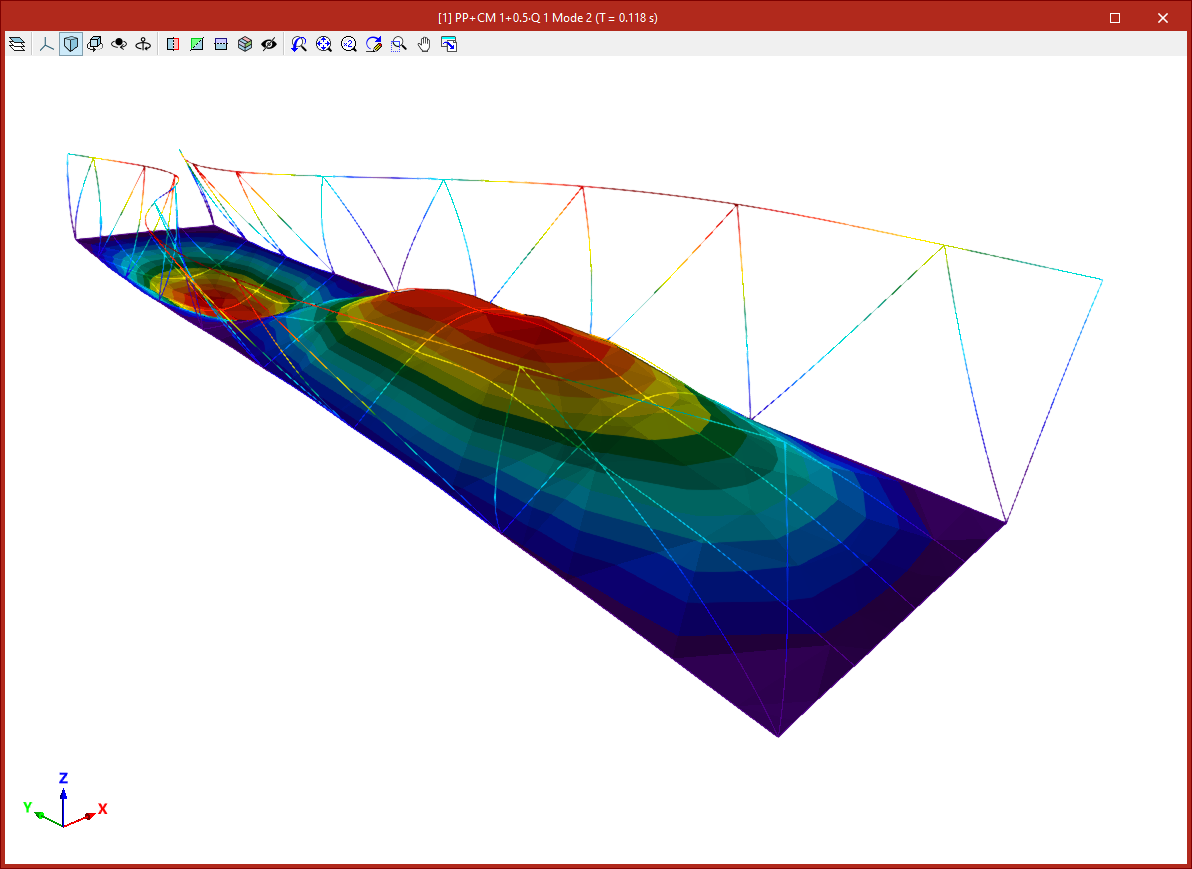
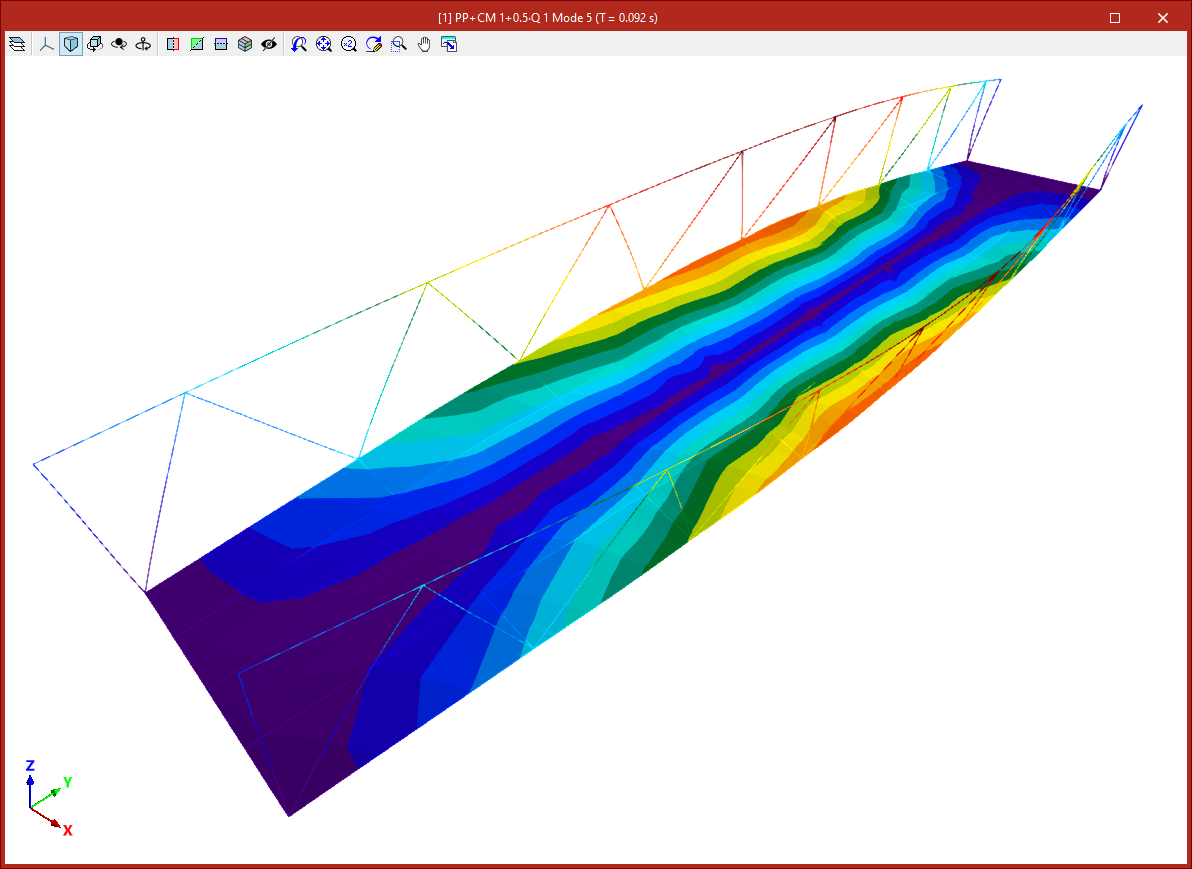
Once the analysis has been carried out, the "Vibration modes" option allows you to view the results of the modal analysis graphically on screen for each defined loadcase and each vibration mode, including animations.
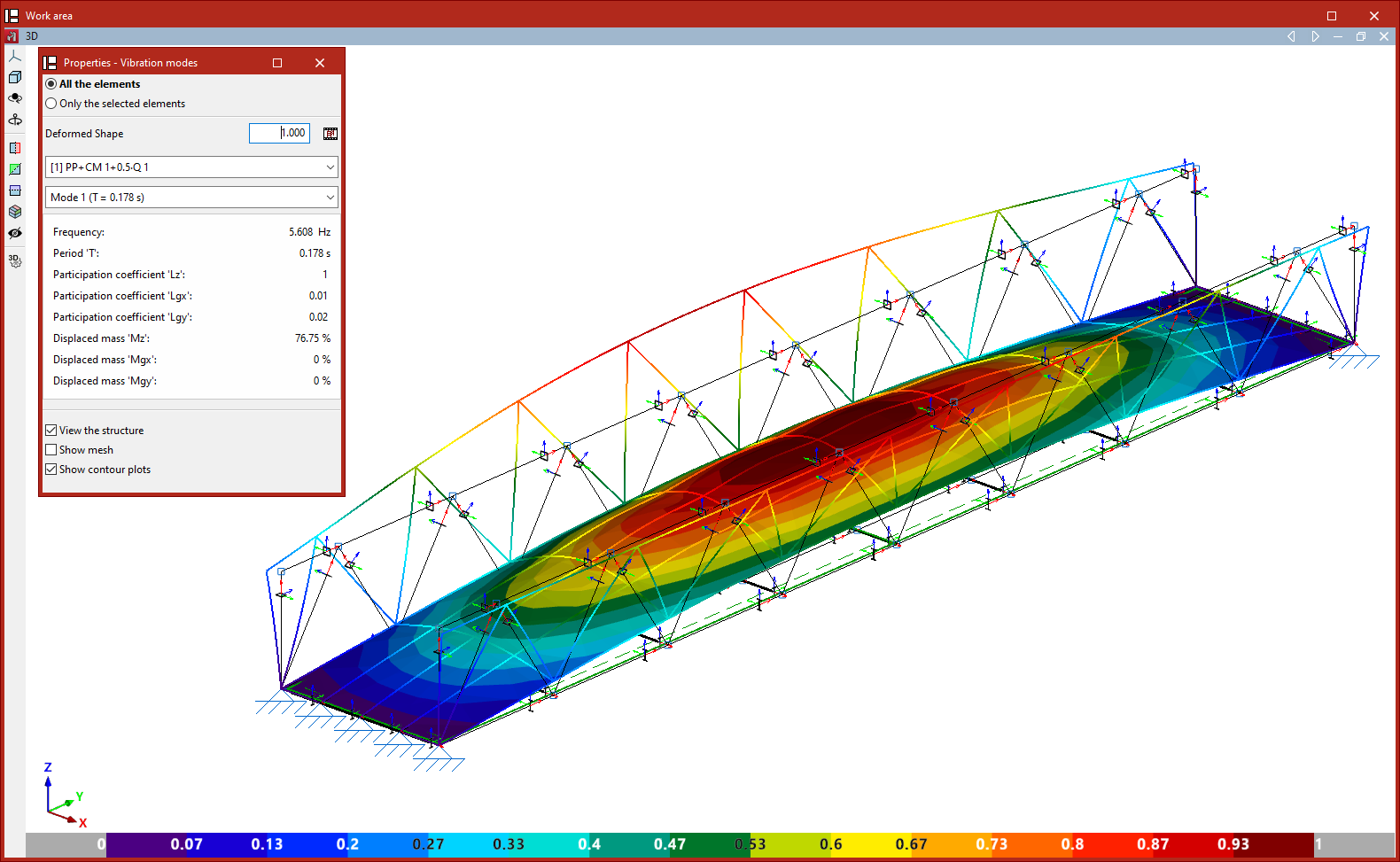
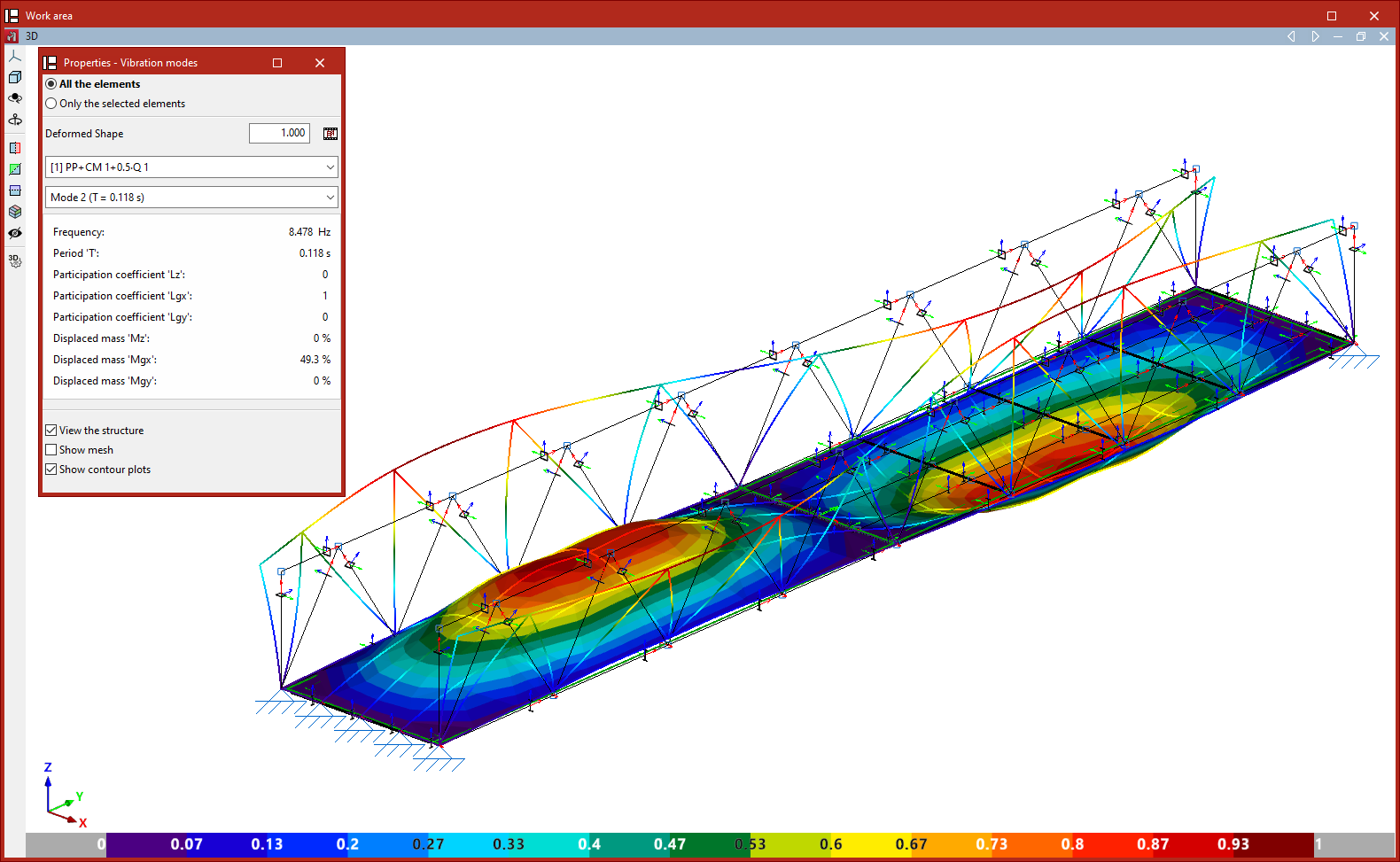
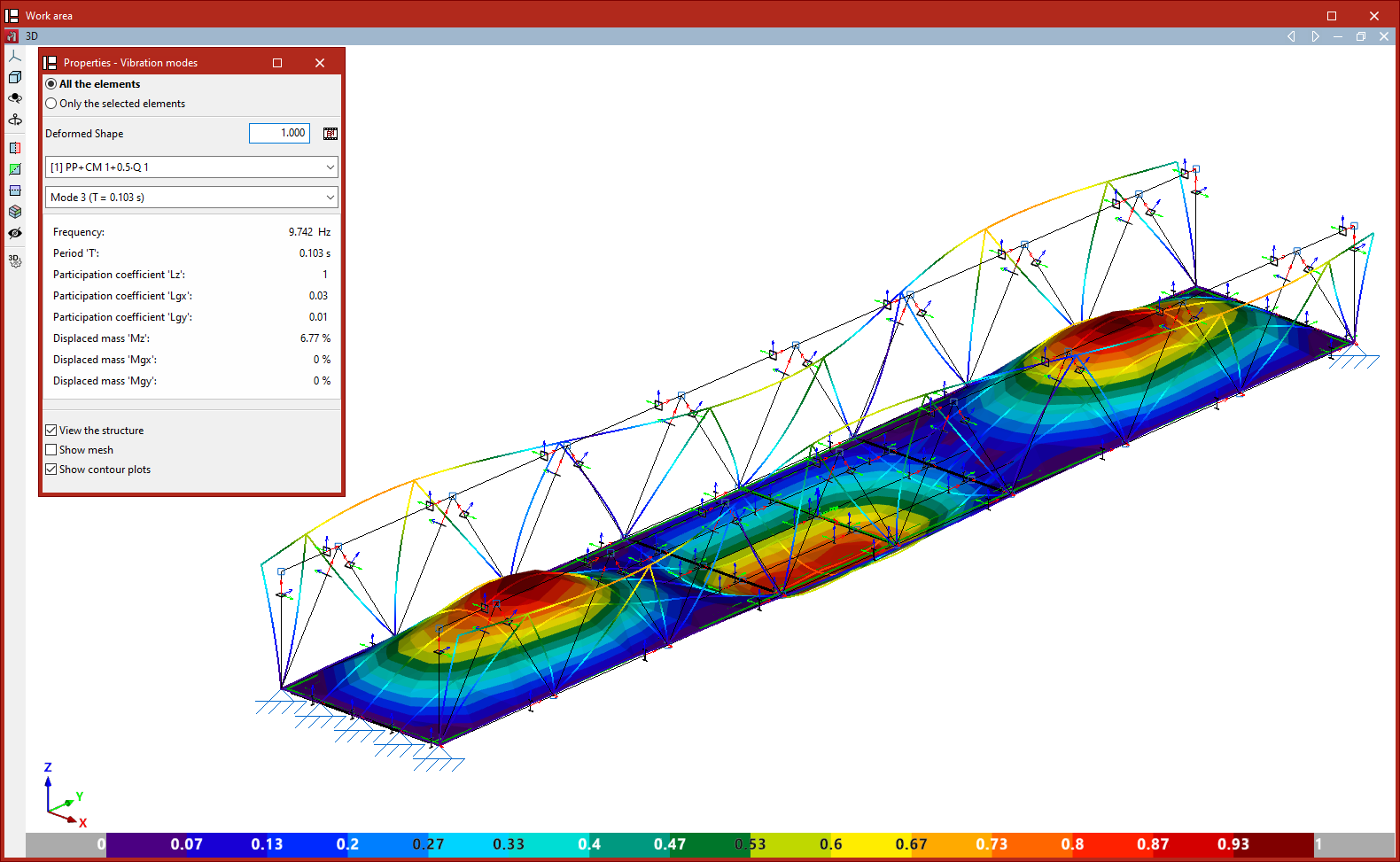
In the "Properties - Vibration modes" window that appears, you can configure how the results are displayed.
First, you must specify whether you wish to view "All the elements" or "Only the selected elements"; in the latter case, you must select the elements in the template by clicking on them with the left mouse button.
Next, a factor is defined for the "Deformed shape" view. Next to this, the button allows you to view an "Animation" of the selected loadcase and vibration mode.
The following two drop-down menus allow you to select the loadcase and vibration mode you wish to view.
The table below shows the values obtained when analysing various parameters for the selected loadcase and vibration mode, such as:
- the frequency,
- the period,
- the participation coefficients in the analysis directions,
- and the percentages of displaced mass in the directions of analysis.
Finally, the "View structure" option allows you to overlay the structure view in the workspace alongside the deformed view.
If the model includes shells, the "Show mesh" and "Show contour plots" checkboxes also appear, allowing you to visualise the mesh elements and display the analysed contour plots using a colour gradient.
Animations
Obtaining the modal analysis report
The list of results from the modal vibration analysis can be obtained using the following option, available in the "Modal" section of the top toolbar, within the "Analysis" tab (under the "Structure" tab).

Modal analysis report
The results can be generated as a "Report" after performing the modal analysis using this option.
The following values are shown in a table below for each vibration mode:
- "Frequency",
- the period ("T"),
- the contribution coefficients in the directions of analysis (Lx, Ly, Lz, Lgx, Lgy, Lgz),
- and the percentages of mass displaced in the analysis directions (Mx, My, Mz, Mgx, Mgy, Mgz).
The final row shows the percentages of total tonnage corresponding to the sum of the percentages by mode.
In this list, the most significant percentages of mobilised mass are highlighted in blue for easy identification. This makes it possible to check more efficiently whether the structure’s dynamic behaviour falls within the generally accepted safety and comfort thresholds.
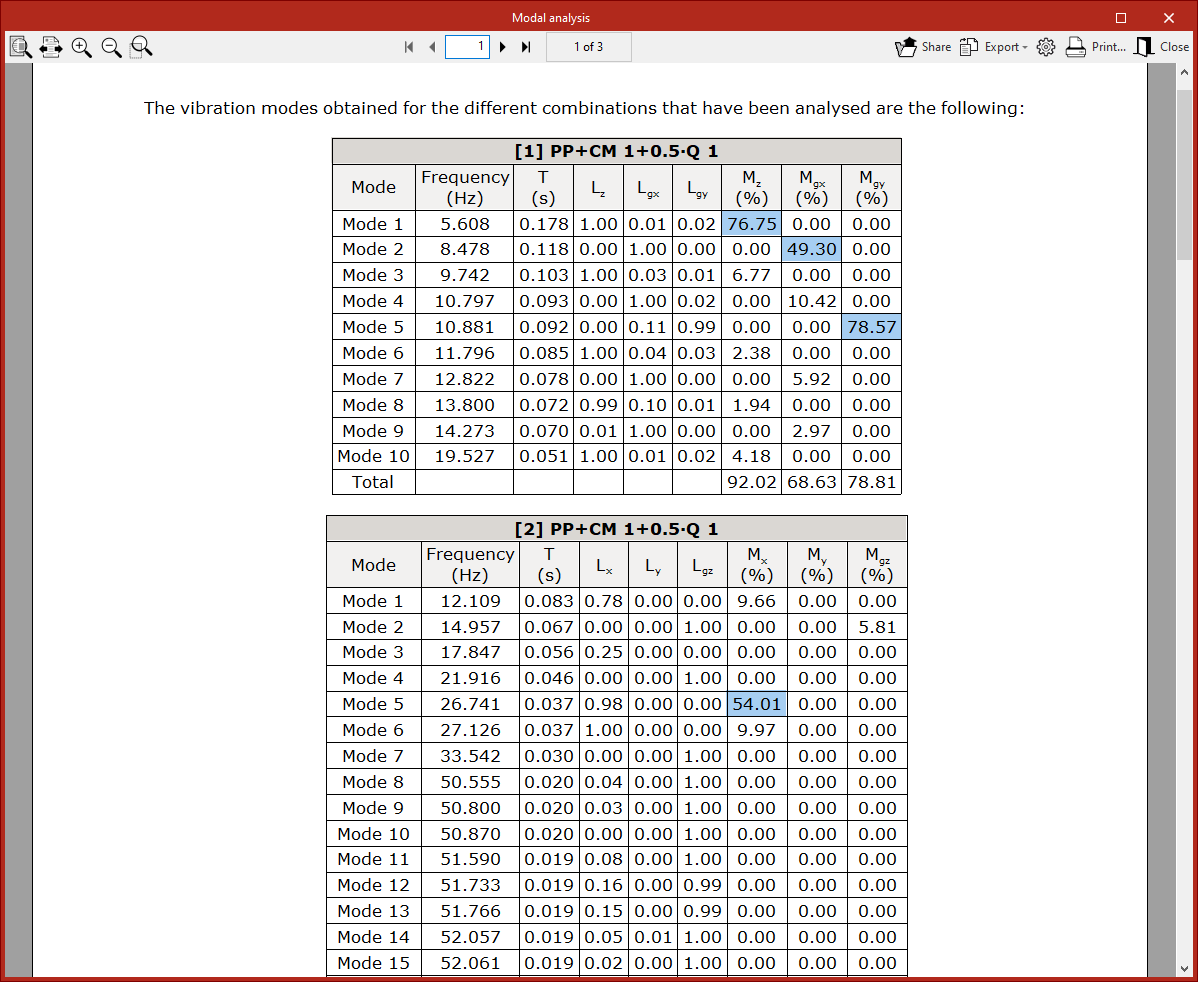
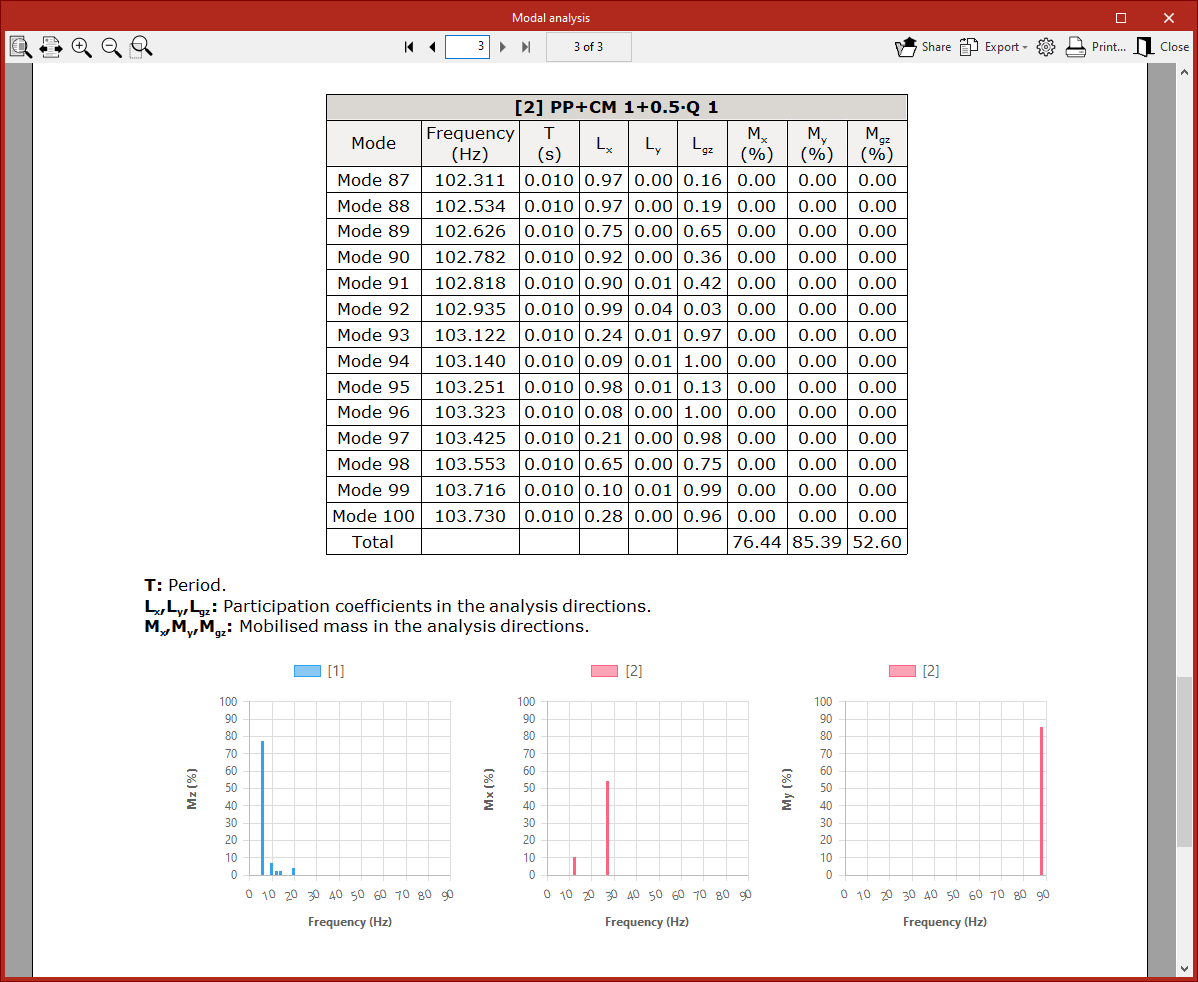
Table of contents
Complete your CYPE 3D journey by exploring the other available sections:
- Introduction
- Start: creating new projects, workflows, and examples
- Setting the work environment
- Setting the job data
- Defining the structure’s geometry
- Editing the properties of structural elements
- Entering and editing loads on the structure
- Designing and analysing connections
- Analyses, checks, and results
- Defining and editing reinforcement
- Designing and analysing foundation
- Printing documents and exporting data
