
Minimum computer requirements for installing and running CYPE software
The minimum requirements, and particularly the recommended requirements, for the correct operation of operating systems available on the market generally exceed those required to install and run CYPE software:
| Component/system | Requirement |
| Processor | Intel Celeron Intel i3, i5, i7 or i9 AMD X2 AMD A8/A10 or FX series AMD Ryzen and Threadripper |
| Operating system | Please see this link. |
| RAM | A minimum of 8 gigabytes (GB) is recommended for Windows 7, 8.1 or 10. However, 32-bit operating systems only support a maximum of 4 GB. |
| Monitor | Minimum resolution of 1366 x 768 pixels and 16-bit colour. |
| Free hard disk space | For installation: The amount of free disk space required depends on the type of installation to be carried out, as you can install either CYPE Menu and the programs it contains, CYPE Menu. Full Installation, or individual programs separately. The initial screens of the installation process will inform you of the minimum free space required for the installation you have selected. You’ll need about 30 GB of free disk space to install the most commonly used programs. This may vary depending on the version you install. *If you need to install a large number of programs and don’t need the latest available version, consider installing CYPE Menu. Full installation, as it requires less free disk space than installing CYPE Menu and the programs within it consecutively, or installing the programs individually. For the programs to run The amount of free hard-disk space required for the programs to run can vary considerably and depends on the size and number of projects to be stored on the hard disk. *Project sizes can range from just a few MB for a small CYPECAD project or a small Arquimedes bill of quantities to over 1 GB for large CYPECAD projects or CYPE Connect files. |
| USB port | Required to fit the safety key if it is a physical one. |
| Network card and TCP/IP protocol | These are required for Internet access to the electronic licenses and software linked to BIMserver.center, and if you are using a network adapter. |
| Mouse | Compatible with Microsoft technologies. |
| Graphics or video card | 100% compatible with OpenGL 3.3 or later, to ensure that the 3D graphics in CYPE programs work correctly. For this reason, NVIDIA (GeForce) or AMD graphics cards are generally recommended. We also recommend installing the latest driver update for your graphics card. In some cases, the laptop manufacturer may modify these drivers to ensure compatibility, meaning that the drivers provided with the graphics card itself will not work. If this is the case, we recommend visiting the computer manufacturer’s website and updating the graphics card drivers from there. Please refer to this link to find out how to select a high-performance GPU for CYPE programs on Windows. |
Example
The devices currently available on the market far exceed all the specified requirements. Nevertheless, the following configuration is provided as an example, corresponding to a device that achieved good results in terms of processing times according to tests carried out by CYPE:
- Processor: Intel i7, 12MB cache
- Memory: 16 GB DDR4 2400
- Storage: M.2 PCIe SSDs
- Operating system: Windows 10
- Graphics card: NVIDIA GeForce GTX 1050
Multiprocessor computing
On computers equipped with multiple parallel processors, users can significantly reduce the time taken for programs to perform calculations by using the relevant modules.
You can find more information about these modules and a comparative study showing the calculation times with and without their use at this link.
CYPE's software does not rely on the GPU for calculations, except in certain processes related to our virtual reality technologies. In these cases, an NVIDIA GeForce GTX 1060 graphics card or higher is recommended. Otherwise, the recommended requirements for optimal performance of these technologies are as described above.
Selecting a high-performance GPU for CYPE software on Windows
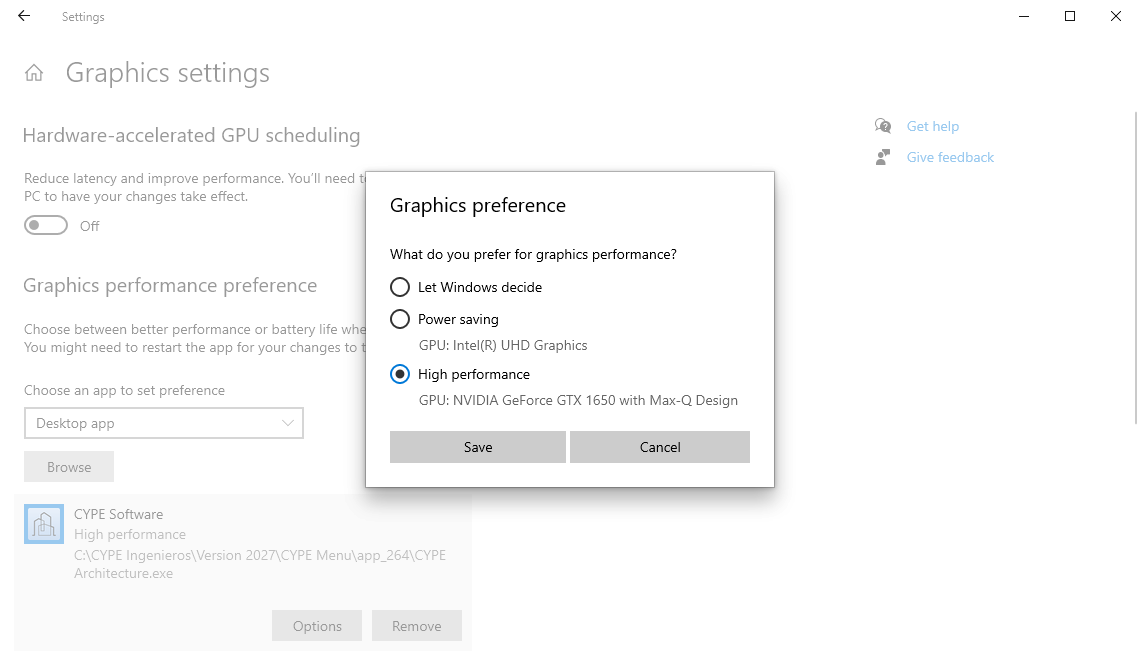
The general procedure for configuring graphics in Windows is set out below. This can be used to enable the high-performance GPU for CYPE software, thereby resolving certain issues that may arise whilst using the program.
- Type "Settings" into the Windows search bar, then go to "System", "Display" and "Graphics settings".
- In "Graphics performance preference", under the "Choose an app to set preference" section, select "Desktop app" and click "Browse". Locate the CYPE program’s executable file (for example, C:\CYPE Ingenieros\Version 2027\CYPE Menu\app_264\CYPE Architecture.exe) and click "Add". You will need to do this for each executable file of the programs you wish to use. For further information on the file and folder structures of CYPE programs, please see this link.
- Click on "Options" in each added app. In the "Graphics preference" window, select the "High Performance" GPU and click "Save".
Operating systems compatible with CYPE software
CYPE can guarantee that its software will run on the following operating systems:
- Microsoft® operating systems
- Windows 11
- Windows 10
- Windows 8 (up to version 2025.d of CYPE software)
- Windows 7 (up to version 2025.d of CYPE software)
- Windows Vista (up to version 2020.d of CYPE software)
- Windows Server 2022
- Windows Server 2019
- Windows Server 2016
- Windows Server 2012 (up to version 2025.d of CYPE software)
- Windows Server 2008 (up to version 2025.d of CYPE software)
In versions 2025.a and later, the operating system must be 64-bit, as no 32-bit programs are available from version 2025.a onwards.
In versions 2024.f and earlier, when installing programs from the CYPE main menu, with the exception of Windows 11, Windows 10 and Windows Server 2012, all other operating systems can be either 32-bit or 64-bit.
The programs available on BIMserver.center are 64-bit. A 64-bit operating system is required to install them.
- Apple® operating systems
- Please follow this link.
Running CYPE software on your Mac
CYPE software is guaranteed to work with the Microsoft® operating systems listed at this link. However, for Apple® Mac® computers, some apps allow operating systems other than those specifically designed for them to be installed on these machines (for example, VMware Fusion, Parallels Desktop, etc.).
Therefore, to work with CYPE software on your Mac, please consider the following:
- Use one of the apps that allow you to install a Microsoft operating system compatible with CYPE software on a Mac.
- The apps you use to install the Microsoft operating system (those mentioned above or any others available on the market) must:
- Be compatible with your Mac.
- Support your graphics card's compatibility with OpenGL 3.3.
Even if the virtualisation program specifies that it is compatible with OpenGL 3.3, some of its features may not work due to the different possible configurations between your computer’s hardware specifications and the virtualisation software.
To install any of these applications for virtualising Windows on a Mac, and to check whether your Mac is compatible, please refer to the manufacturer's specifications for the virtualisation software.
- You must have an electronic license. CYPE does not provide support for the use of physical licenses on Mac computers.
Network settings for running CYPE software
How CYPE programs work with electronic licences and network dongles
Access to the permissions stored in the user licence for CYPE programs via a network is facilitated by TCP/IP. CYPE programs communicate with the server using an IP address and a port number.
The server must be running and listening on a machine that is accessible to the clients.
CYPE programs query the server (IP address + port) for permission to use a program or module, and if they receive confirmation from the server, they will run without any issues.
If there is no confirmation or the response is negative, an error will be displayed.
Electronic licences
IP addresses
The address used to handle requests for versions 2024 and later of the programs is a single address with multiple IP addresses, and is as follows:
- licserver.cype.com
Previously, the IP addresses of the CYPE servers handling client requests were as follows:
- servidortemporales.cype.es (currently IP 77.230.222.59)
- servidortemporales2.cype.es (currently IP 51.75.207.194)
- servidortemporales3.cype.es (currently IP 51.75.73.233)
As well as the addresses listed above, you may need to enable communication with the following addresses associated with BIMserver.center in order to download and install the software:
These are the main addresses that need to be set up:
- bimserver.center
- api.bimserver.center
- apis.bimserver.center
- apicache.bimserver.center
- downloads.bimserver.center
- files.bimserver.center
- files1.bimserver.center
- files2.bimserver.center
There are other addresses, such as the following:
- backup.bimserver.center
- community.bimserver.center
- corporate.bimserver.center
- developers.bimserver.center
- dictionary.bimserver.center
- education.bimserver.center
- storage.bimserver.center
- store.bimserver.center
- sync.bimserver.center
- obsdb.cype.com
Ports
In versions 2023.f and later, a direct connection is made to the electronic licence server via a secure internet connection, just like any web browser, using HTTPS (port 443). Port 30333 is no longer used, so there is no need to open it.
In versions 2023.e and earlier, the port used is 30333 (TCP), so this port must be opened to ensure the program works properly.
Technical considerations
The CYPE program installed on the user’s computer will request authorisation from the CYPE server and, upon receiving confirmation from the server, the user will be able to proceed.
If there are interruptions in the connection and no response is received, or if the appropriate permission is not available, the app cannot be used.
If a proxy is used, the packets returned by the server must be routed to the computer awaiting the response. If that response does not arrive, it will not work.
The CYPE program establishes a connection with the CYPE servers by using an email address and a password.
Several licences may share the same email address and password, so you will be able to choose which one to use when logging in.
The last email address and password used are saved; in other words, if nobody has used the licence since the last time the computer was used, it will automatically log in to that licence when the computer is switched on, without the need to re-enter the email address or password.
The electronic licence stays valid for a period of seven days from the last time the user had an internet connection and logged in. This means you could work for a week without an internet connection following that last connection and authentication.
With electronic licences, there is an administrator who can change the email address and password for the licences, amongst other options. Where necessary, you can also contact the CYPE team to restrict the source IP addresses, so that even if a user knows the password, they cannot use it on computers other than those selected by the administrator.
Network hardware lock
The Network hardware lock server will handle requests using these configurable default ports: 30333 TCP, 30334 UDP and 30335 TCP/UDP. The timeout and the number of retries are also configurable. Further information is available here.
All users of CYPE software whose devices can access the computer on which the Network hardware lock server is installed, and who have the configured ports open, will have access to the licences stored on the network hardware lock and will therefore be able to use the purchased software as normal (up to the maximum number of users for that network hardware lock).
A virtual private network provides a stable working environment provided the connection is reliable.
Using the program with Citrix, Terminal Server or similar software
Due to the way it works, it can be used with network or electronic licences. In other words, provided that clients can access the server and obtain the necessary permissions, there will be no problem. User data is stored in the user profile, which, in virtual machines, will be unique and distinct for each user. Multiple users cannot use the same profile on the server simultaneously.
Initial information. Table of contents
Please refer to the following general information to familiarise yourself with CYPE's software and start working with it:
- Access
- Basic installation
- Advanced installation
- Getting started
