Selecting a high-performance GPU for CYPE software on Windows
The general procedure for configuring graphics in Windows is set out below. This can be used to enable the high-performance GPU for CYPE software, thereby resolving certain issues that may arise whilst using the program.
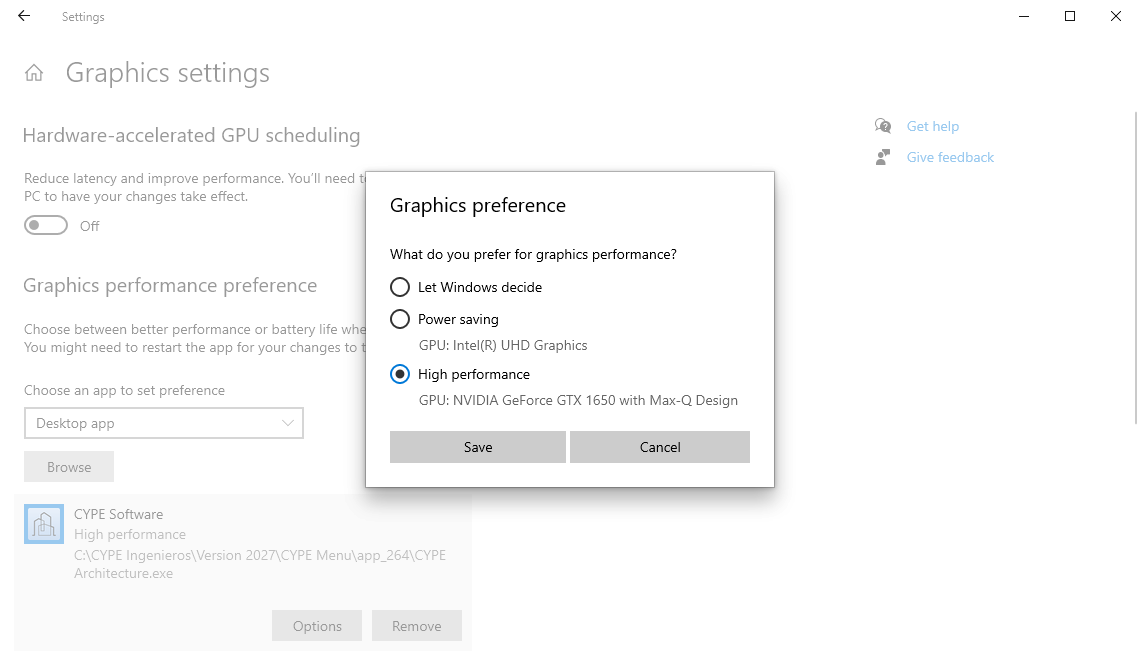
- Type "Settings" into the Windows search bar, then go to "System", "Display" and "Graphics settings".
- In "Graphics performance preference", under the "Choose an app to set preference" section, select "Desktop app" and click "Browse". Locate the CYPE program’s executable file (for example, C:\CYPE Ingenieros\Version 2027\CYPE Menu\app_264\CYPE Architecture.exe) and click "Add". You will need to do this for each executable file of the programs you wish to use. For further information on the file and folder structures of CYPE programs, please see this link.
- Click on "Options" in each added app. In the "Graphics preference" window, select the "High Performance" GPU and click "Save".