"Thermal loads" tab interface
The "Thermal loads" tab, accessible from the bottom of the program interface, lets you run the thermal load analysis for the building modelled in the other tabs and view the results of the analysis.
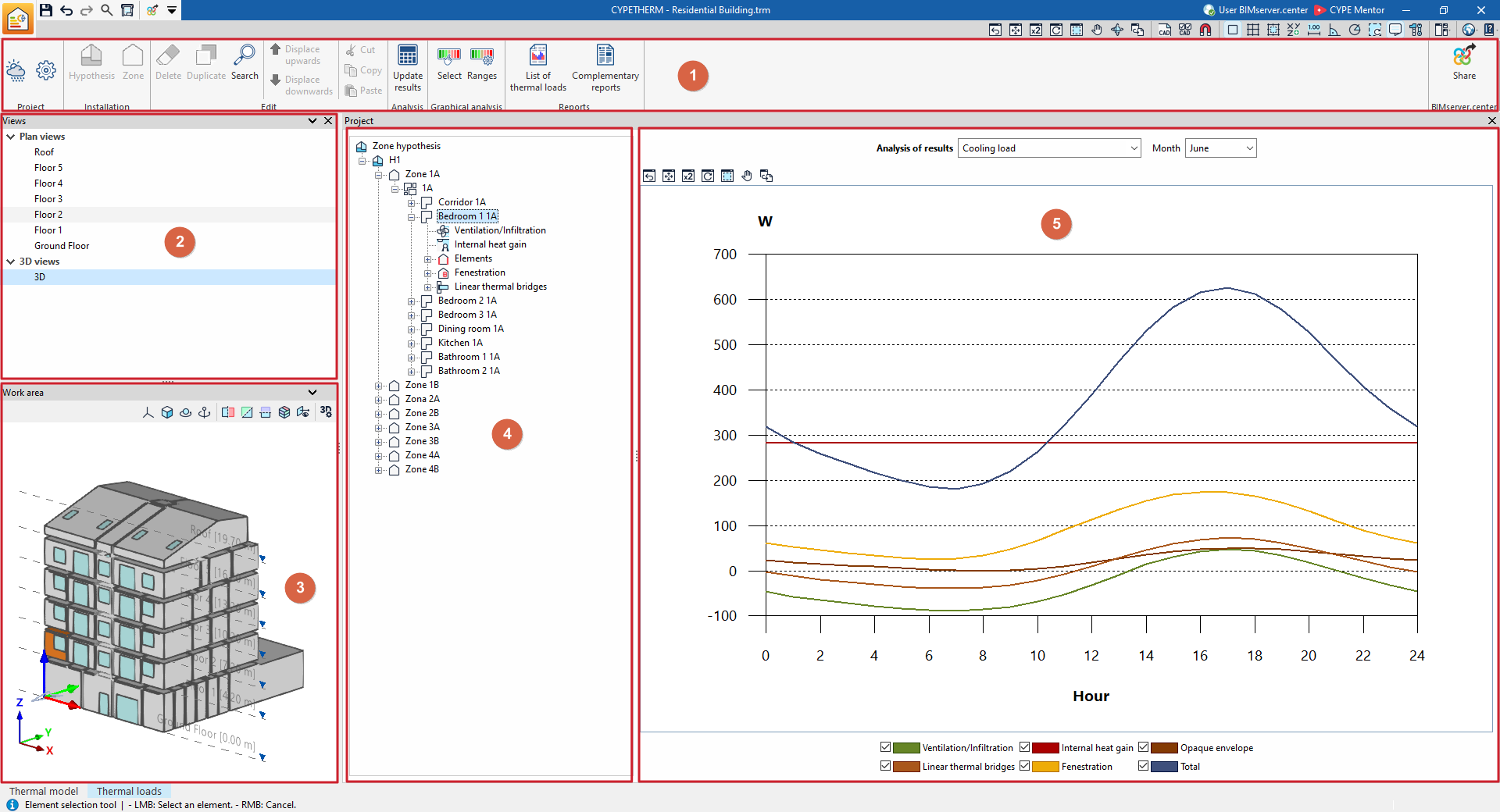
This tab features an interface comprising the following areas:
1. Toolbar
The top toolbar contains tools for configuring and performing calculations, as well as for retrieving files and lists of results, and for sharing the information obtained from the program with the BIMserver.center project.
2. View management
Located at the top of the left-hand sidebar, it provides tools for creating and managing model views.
3. 3D model viewer
The "Workspace" at the bottom of the left-hand sidebar displays a three-dimensional view of the project according to the selected view and highlights the selected element in the tree.
4. Project tree diagram
Located in the central area, it displays the navigation tree for the zoning scenarios, groups of spaces, areas and elements that make up the project.
5. Main results display area
Located on the right, once the calculation has been carried out, it displays the detailed results for the section selected in the diagram, whether this is a group of spaces, a single space or an element within a space.
Defining location data in the "Thermal loads" tab
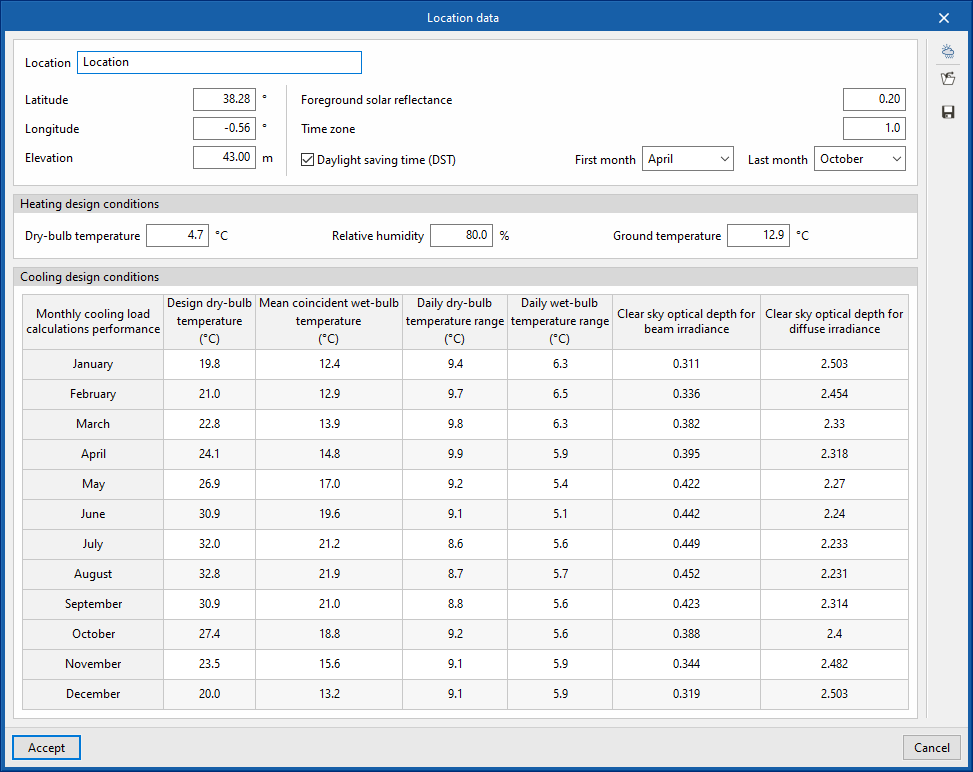
Project location data is defined using the "Location data" option in the "Project" section of the top toolbar in the "Thermal loads" tab.

The data available for configuration are as follows:
- Location
- Latitude
- Longitude
- Elevation
- Foreground solar reflectance
- Time zone
- Summer Time (DST) (optional)
- First month
- Last month
- Heating design conditions
Set the data required for calculating heating loads:- Dry temperature
- Relative humidity
- Ground temperature
- Cooling design conditions
View the data required to calculate monthly cooling loads. By clicking on any cell in the table, you can change the value of each parameter for each month:- Design dry-bulb temperature
- Mean coincident wet-bulb temperature
- Daily dry-bulb temperature range
- Daily wet-bulb temperature range
- Clear sky optical depth for beam irradiance
- Clear sky optical depth for diffuse radiance
Automatic data import
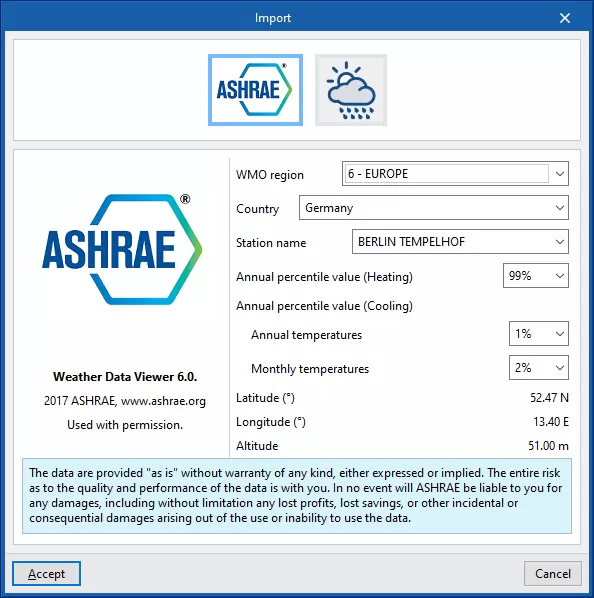
The "Import" option in the top right-hand corner of the "Site data" window lets you automatically import data from various climate databases. These include the following:
ASHRAE Weather Data Viewer 6.0
The climate data required for the calculation can be imported from ASHRAE’s Weather Data Viewer 6.0 climate database, which contains 8,118 stations located around the world. Solar radiation data is calculated using ASHRAE’s Clear-sky Solar Radiation model.
- WMO region
- Country
- Station name
- Annual percentile value (Heating) (99.6% / 99%)
- Annual percentile value (Cooling)
- Annual temperatures (0.4% / 1% / 2%)
- Monthly temperatures (0.4% / 2% / 5%)
- Latitude
- Longitude
- Altitude
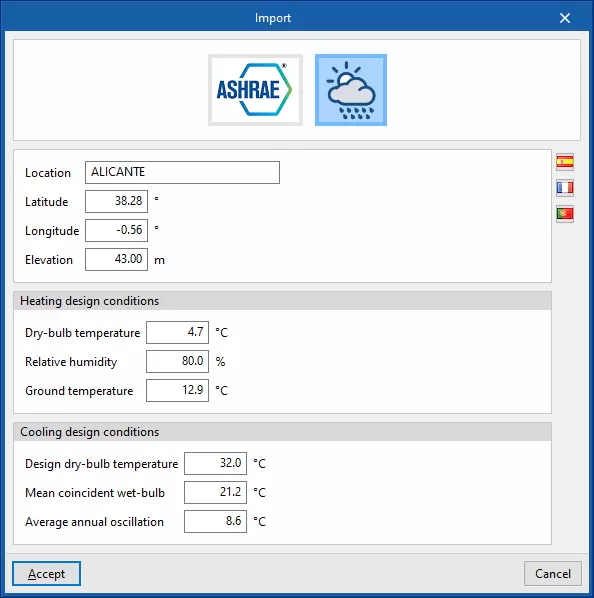
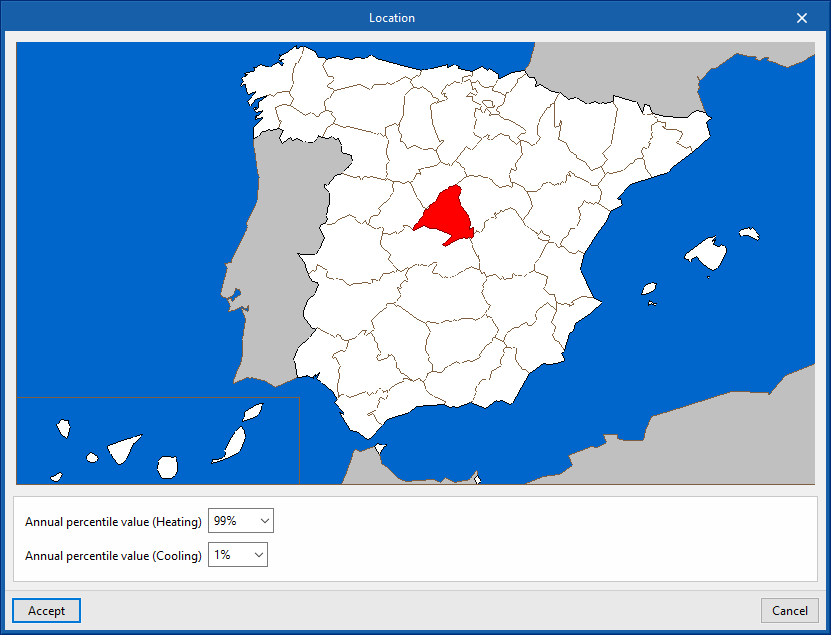
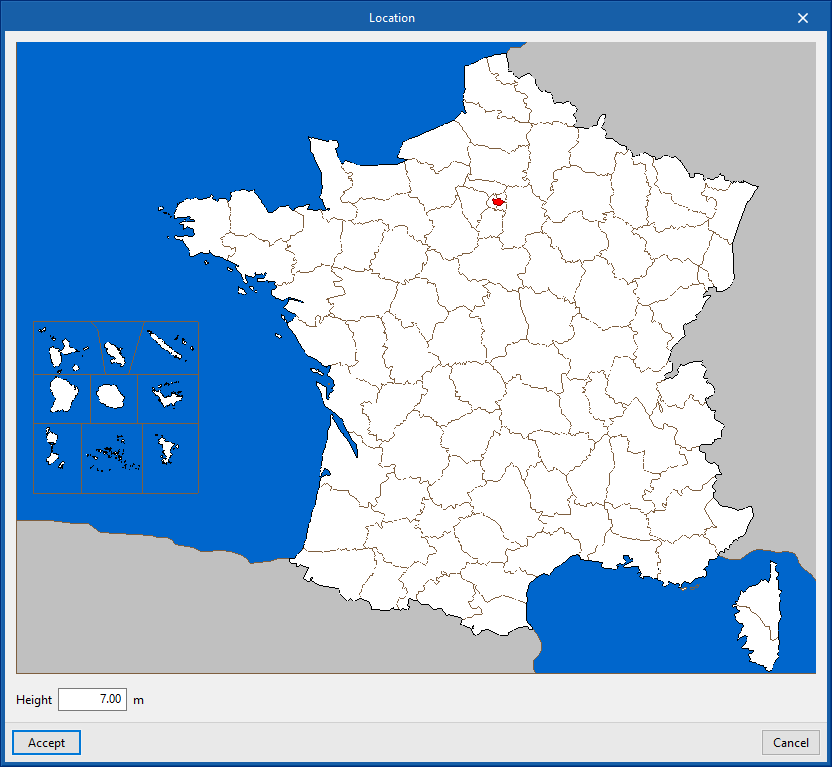
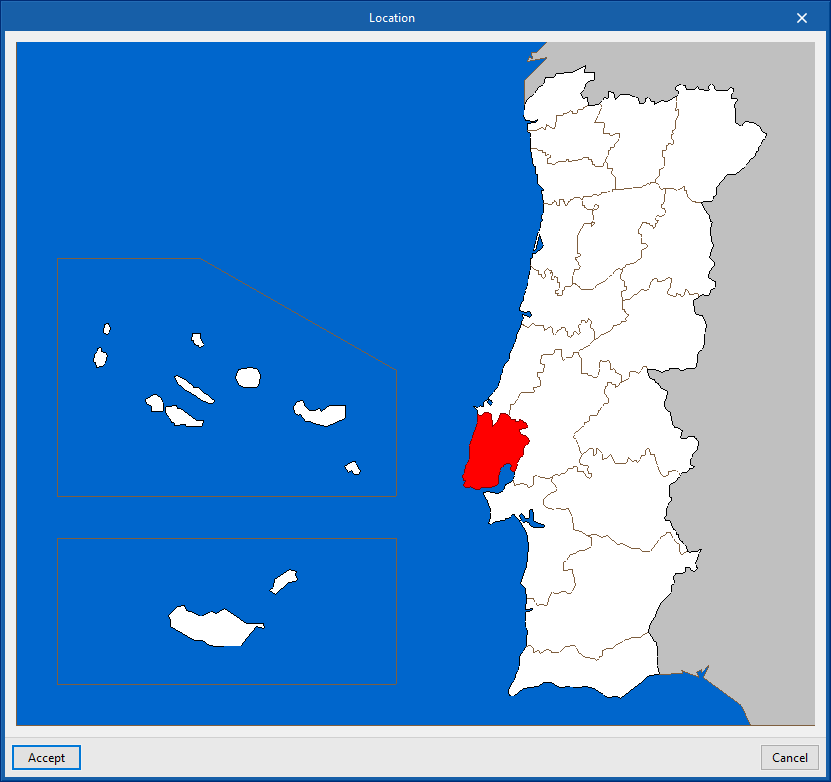
Data import for Spain, France and Portugal
This data is sourced from various reference standards for the countries mentioned. By clicking on the options with the flag symbols on the right, you can specify the exact location of the project within each of these countries. Once you confirm, the following details will be filled in:
- Location
- Latitude
- Longitude
- Altitude
- Heat design conditions
- Dry temperature
- Relative temperature
- Ground temperature
- Cooling design conditions
- Design dry-bulb temperature
- Mean coincident wet-bulb
- Average annual oscillation
Configuring the calculation options in the "Thermal loads" tab
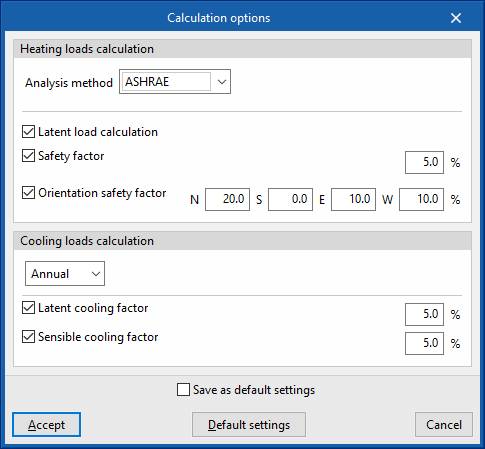
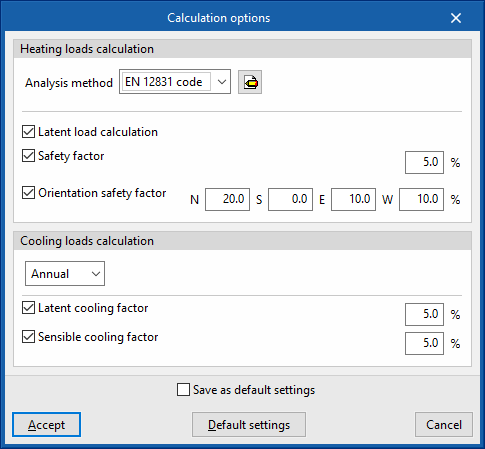
The "Calculation options" can be configured in the "Project" section of the top toolbar on the "Thermal loads" tab.

The available options are as follows:
Heating loads calculation
- Analysis method
- ASHRAE
When this option is selected, the program uses ASHRAE’s Radiant Time Series Method (RTSM) to calculate heating loads. - Standard EN 12831
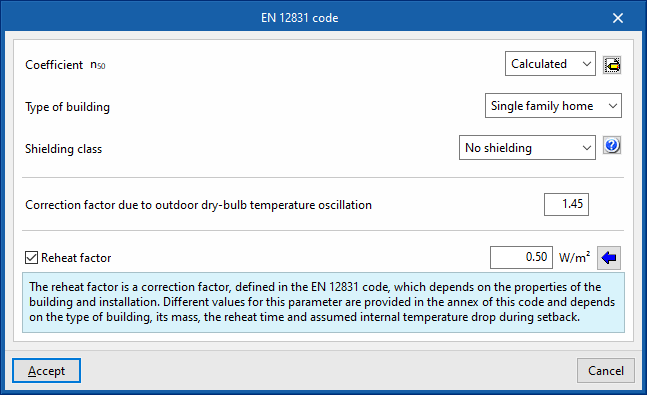
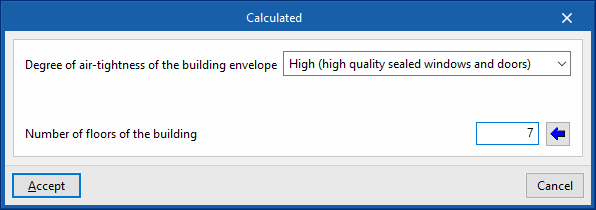
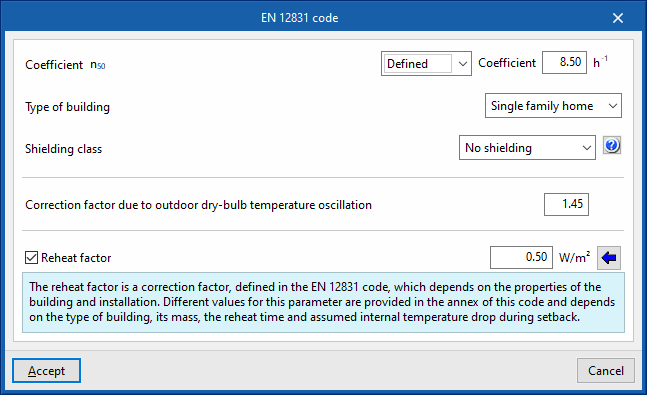
When this option is selected, heating loads are calculated in accordance with standard EN 12831. In this case, the following parameters must be defined:- n50 coefficient
- Defined
- Calculated
- Air-tightness rating of the building envelope
- High (high-quality insulation for doors and windows)
- Medium (double-glazed windows, standard insulation)
- Low (single-glazed windows, no insulation)
- Air permeability of the building envelope at 4 Pa
- Number of floors in the building
- Air-tightness rating of the building envelope
- Type of building (Detached house / Residential / Offices / Hotel / Restaurant / Educational / Healthcare / Other uses)
- Protection class (No protection / Moderate protection / High protection)
- Correction factor due to outdoor dry-bulb temperature oscillation
- Reheating factor (optional)
The reheating factor is a correction factor, defined in EN 12831, which depends on the characteristics of the building and the installation. The annexes to this standard propose different values for this parameter depending on the building type, its mass, and the assumed reheating time and rate of internal temperature drop during shutdown. By clicking on the button on the right, you can define these parameters and import the associated value for the reheating factor:- Reheating time (hours)
- Interior temperature drop
- Building mass (High / Medium / Low)
- n50 coefficient
- ASHRAE
- Latent load calculation (optional)
- Safety factor (optional)
- Orientation safety factor (optional) (N, S, E, W)
Cooling loads calculation
- Annual / Monthly
- Latent cooling factor (optional)
- Sensible cooling factor (optional)
Defining hypotheses and zones in the "Thermal loads" tab
The zone hypothesis and the zones included in each hypothesis must be defined to calculate thermal loads. This is done using the tools in the "Installation" group on the top toolbar of the "Thermal loads" tab.

The available options are as follows:
Hypothesis
This option lets you add a zone hypothesis to the project.
When adding a zone hypothesis, you must provide the following information:
- Reference
Reference to the zone hypothesis.
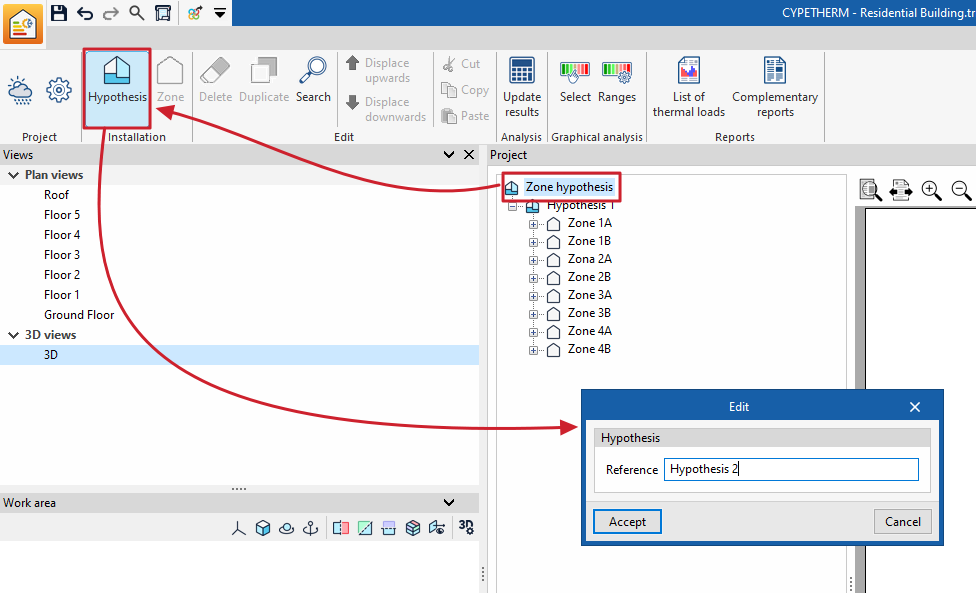
Each zone hypothesis lets you create a specific number of thermal zones within the building and assign the desired rooms to each of these zones.
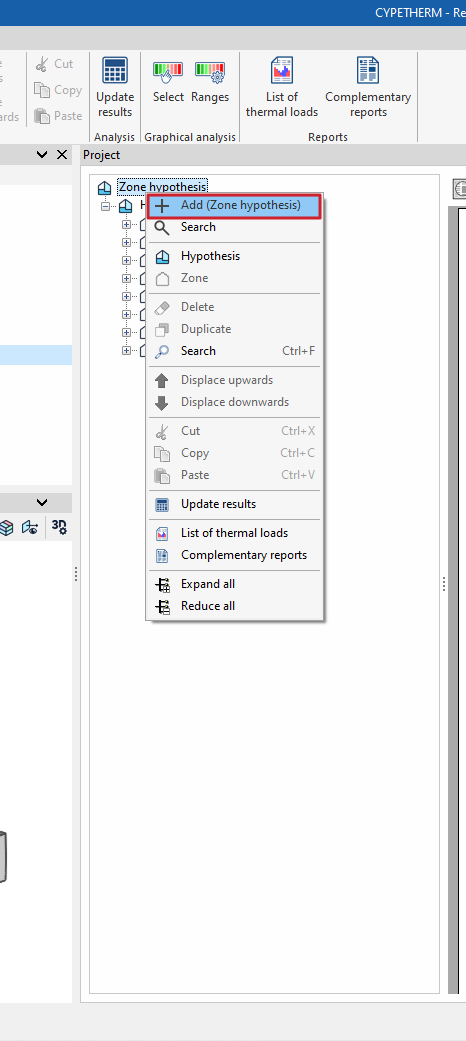
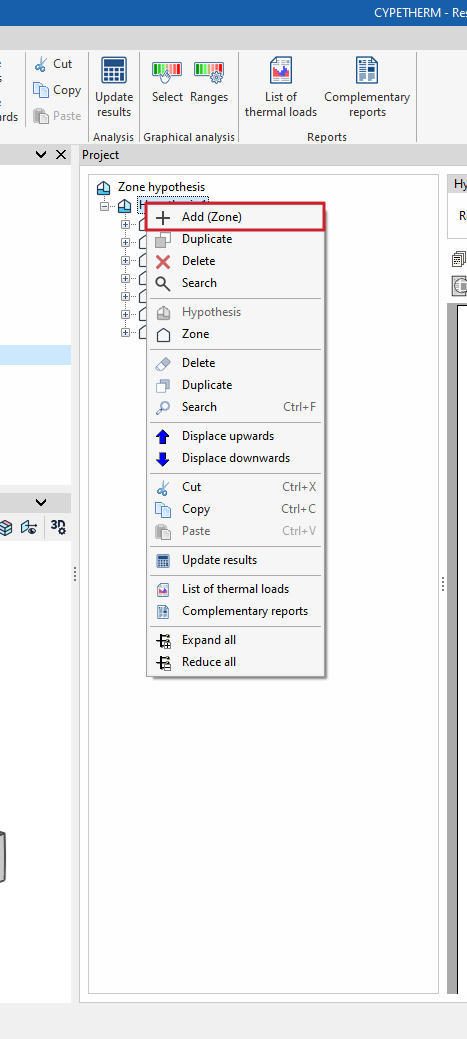
Hypotheses can also be added in the "Project" navigation tree by right-clicking on the base level and selecting "Add (Zone hypothesis)".
| Note: |
|---|
| The availability of several zone hypotheses lets you group spaces into zones in various ways, so that calculations for different hypotheses of the building’s actual use can be carried out within the same file. For example, in a two-storey office building, one hypothesis might involve two zones – one per floor – if they are used independently, whilst a second hypothesis might involve a single zone covering both floors if they are used jointly. |
Area
This option allows you to add an area within the selected zone hypothesis.
When entering a zone, you must provide the following details:
- Reference
Reference for the zone. - Selecting rooms
In this section, you must select the spaces in the project that are to be assigned to that zone. You can only select spaces that have not previously been included in other zones within the same hypothesis.
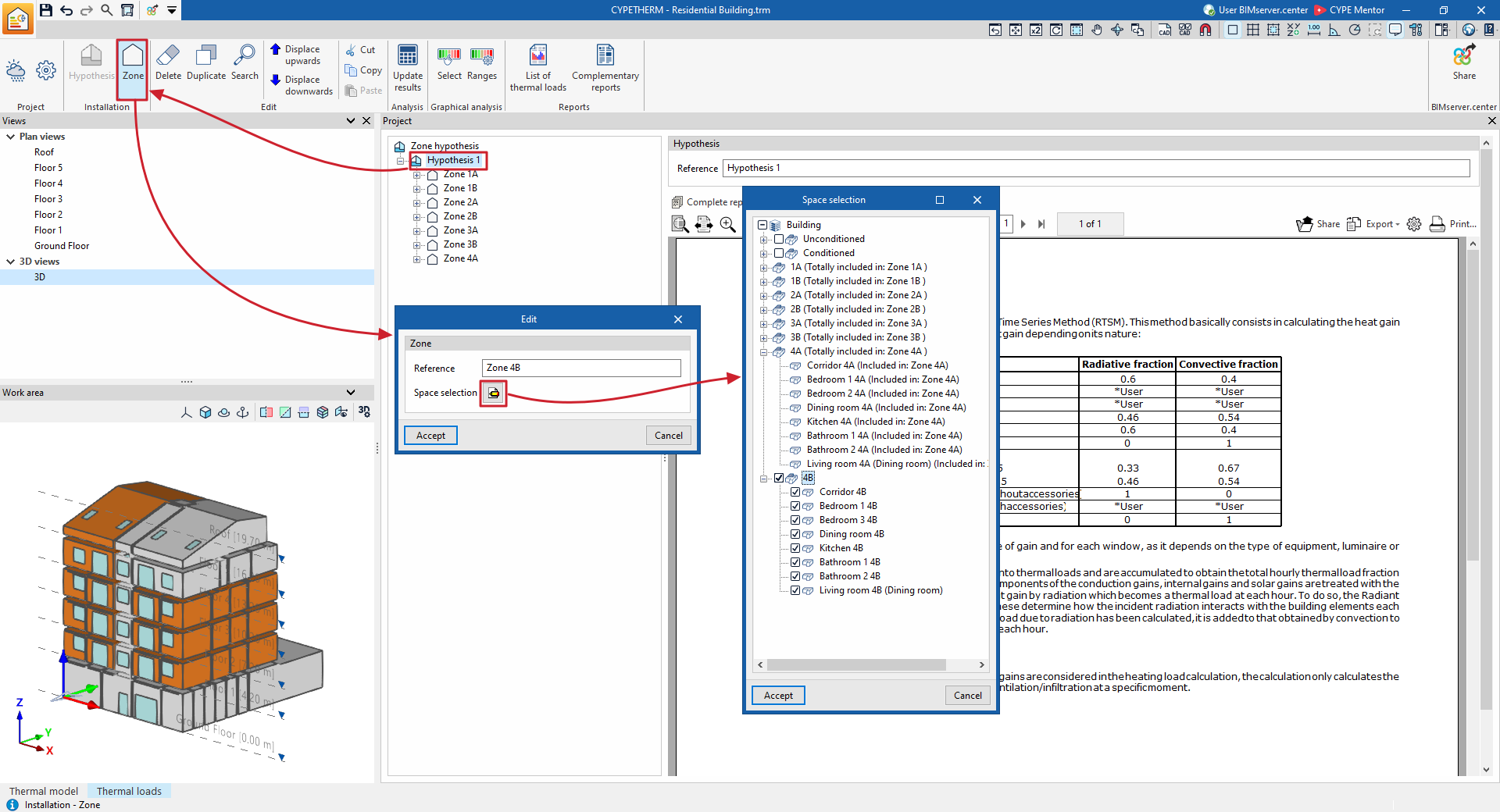
Zones can also be added to the "Project" navigation tree by right-clicking on the level corresponding to a hypothesis and selecting "Add (Zone)".
| Note: |
|---|
| A thermal zone is a group of spaces that share similar characteristics in terms of definition and/or use. Defining them enables the simultaneous thermal load to be calculated, which can be used to determine the required power output from a heating system to cover that group of spaces. For example, in a residential block, each flat may constitute a thermal zone. In addition to the flat zones, we would need to add another thermal zone comprising the building’s communal areas. In the case of two spaces belonging to different zones, the program will consider the average temperature between the space’s internal temperature and the external temperature at that moment in its calculation. Meanwhile, for two spaces within the same zone but with different temperatures, what varies is the adjacent temperature, which in this case no longer corresponds to the outside temperature. |
Calculating and updating results in the "Thermal loads" tab
You can analyse thermal loads or update analysis results following any changes to the model using the "Update results" tool in the "Analysis" section of the top bar, available on the "Thermal loads" tab.

To run the thermal load analysis, the thermal model must have been completed in the "Thermal model" tab, and the zone hypotheses and zones must have been defined, along with the site data and analysis options, in the "Thermal loads" tab.
Refresh results
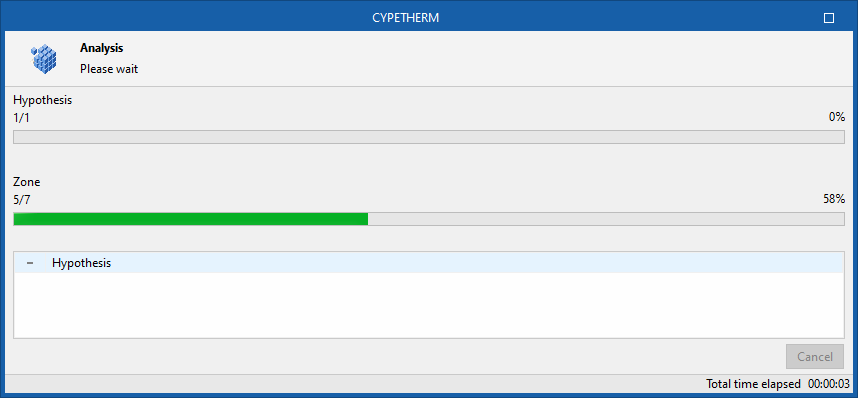
When you use this tool, the program displays a window providing information on the calculation process, which will be carried out in accordance with the selected methodology.
Once you have finished, you can view the analysis results by selecting the various elements in the project tree, which is located by default on the left-hand side of the "Project" panel.
Graphical analysis of results in the "Thermal loads’ tab
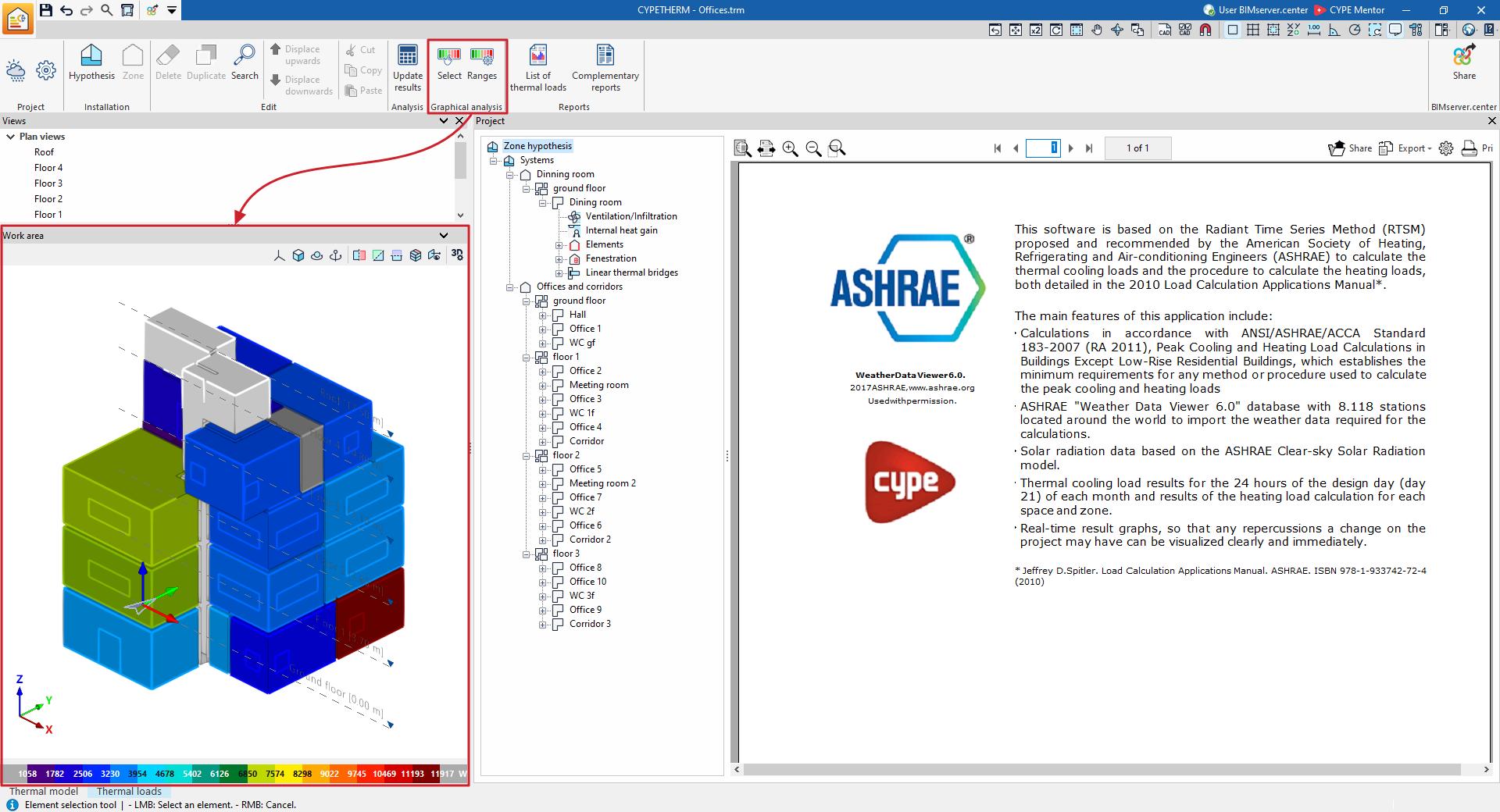
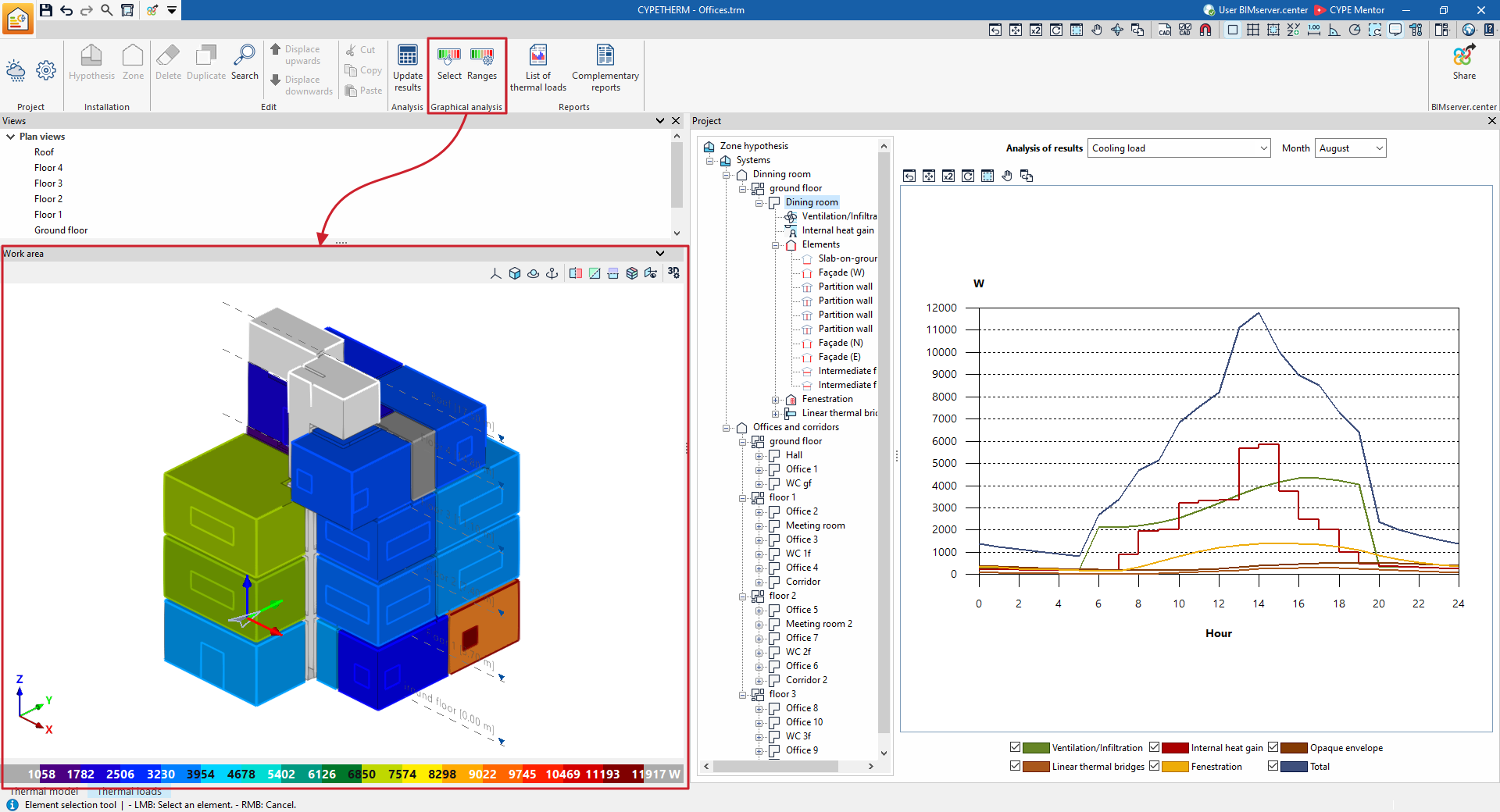
Using the options in the "Graphical analysis of results" group on the main toolbar of the "Thermal loads" tab, you can view the calculated thermal load values in the "Work area" view, which is located by default in the bottom right-hand corner.

The zones or spaces are coloured according to the value associated with each one in the selected quantity, and a colour scale is displayed as a legend.
Select
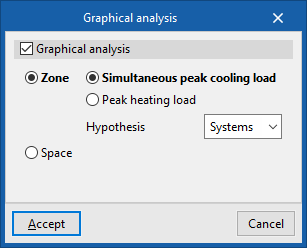
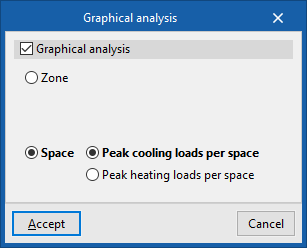
Using the "Select" option, you can enable and configure the display of the graphical analysis of results:
- Graphical analysis (optional)
Display the graphical analysis of results in the workspace.- Zone
When this option is selected, the graphical analysis is displayed by zone.- Simultaneous peak cooling load / Peak heating
load
This is where you select the unit used in the colour-coded display of the values. - Hypothesis
Select the zoning hypothesis to be represented.
- Simultaneous peak cooling load / Peak heating
- Space
When this option is selected, the graphical analysis is displayed by spaces.- Peak cooling loads per space / Peak heating loads per space
This is where you select the unit used in the colour-coded display of the values.
- Peak cooling loads per space / Peak heating loads per space
- Zone
Ranks
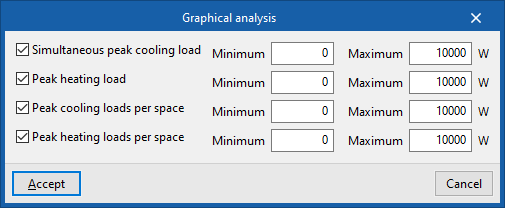
By default, the program displays the minimum and maximum values for each parameter obtained from the analysis for the entire building. However, the colour scale can be adjusted in the dialog box that appears when you click on the "Ranges" option, which allows you to specify specific ranges of minimum and maximum values for each parameter:
- Simultaneous peak cooling load (optional) (Minimum, Maximum)
- Peak heating load (optional) (Minimum, Maximum)
- Peak cooling loads per space (optional) (Minimum, Maximum)
- Peak heating loads per space (optional) (Minimum, Maximum)
Thermal load report and supplementary reports (the "Thermal loads" tab)
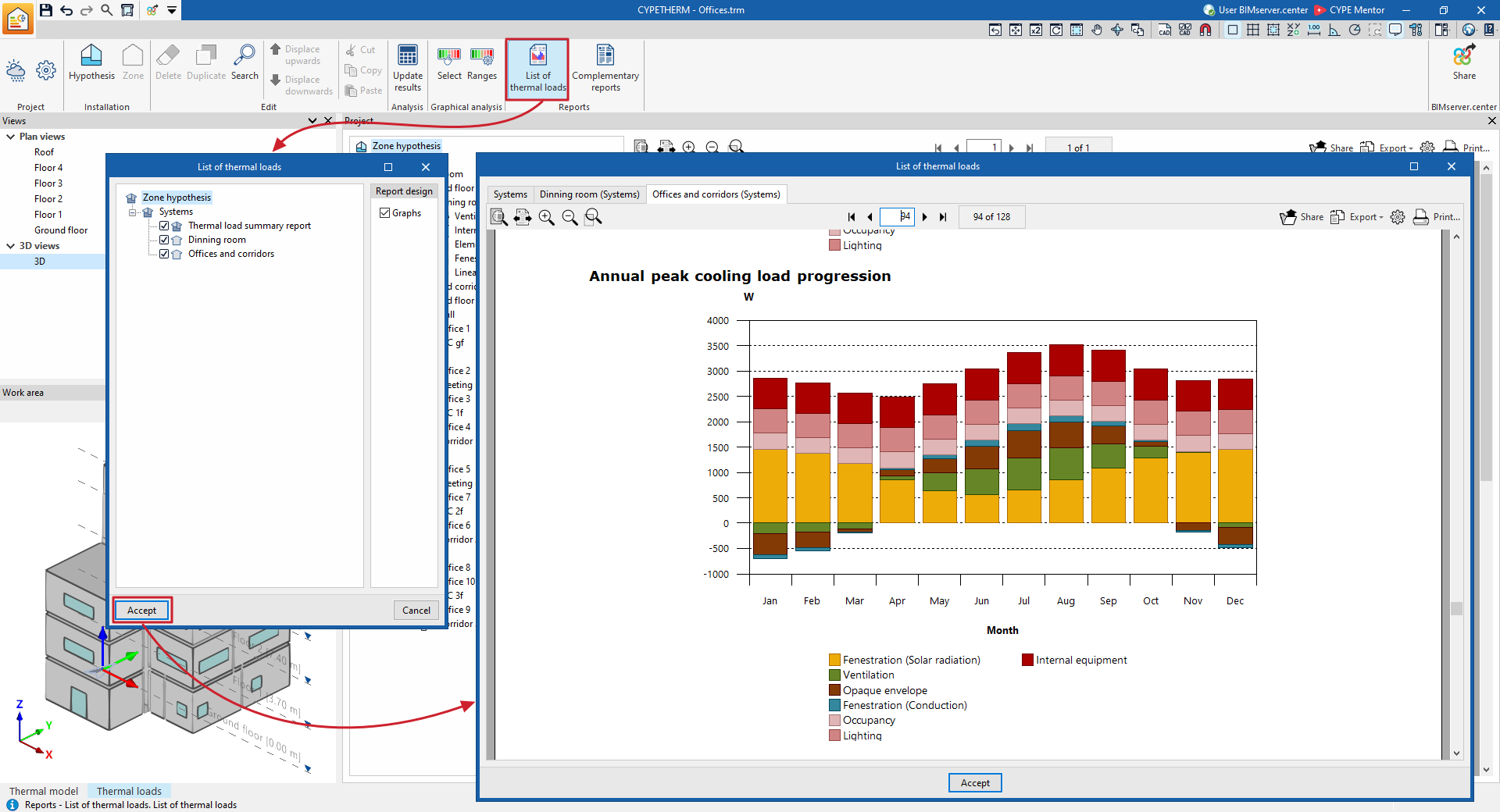
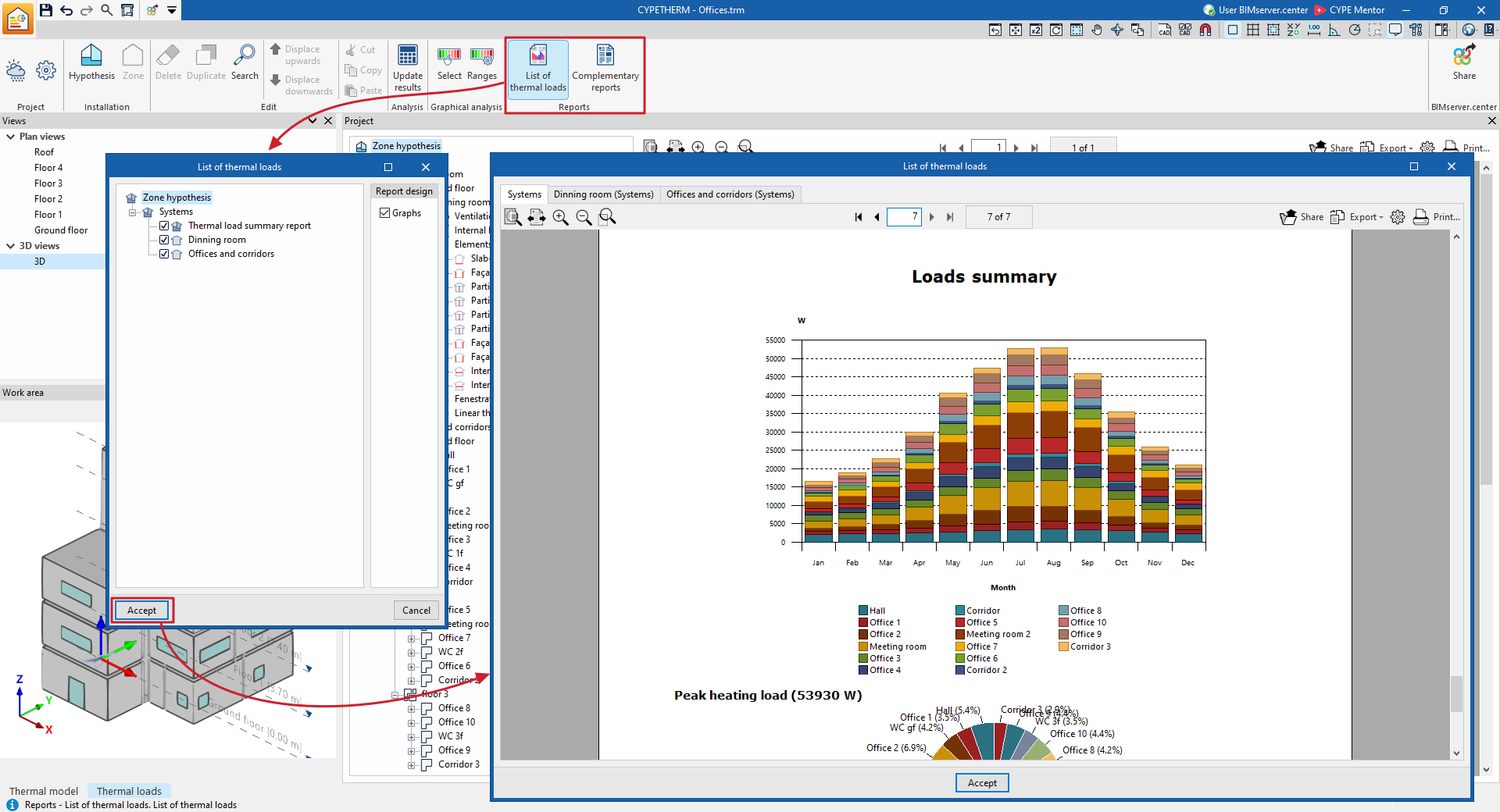
Using the options in the "Reports" section of the main toolbar on the "Thermal loads" tab, you can generate the reports shown below. The program lets you print them directly or generate HTML, PDF, TXT, RTF or DOCX files containing their content.

Thermal load report
The program lets you select the hypothesis and the zones you wish to list, as well as to specify whether you wish to include the load graphs. Once confirmed, a display is generated across several tabs showing the various cooling and/or heating thermal load reports, which include the calculated data for each of the hypotheses and selected zones, and for each of the associated spaces.
Supplementary reports
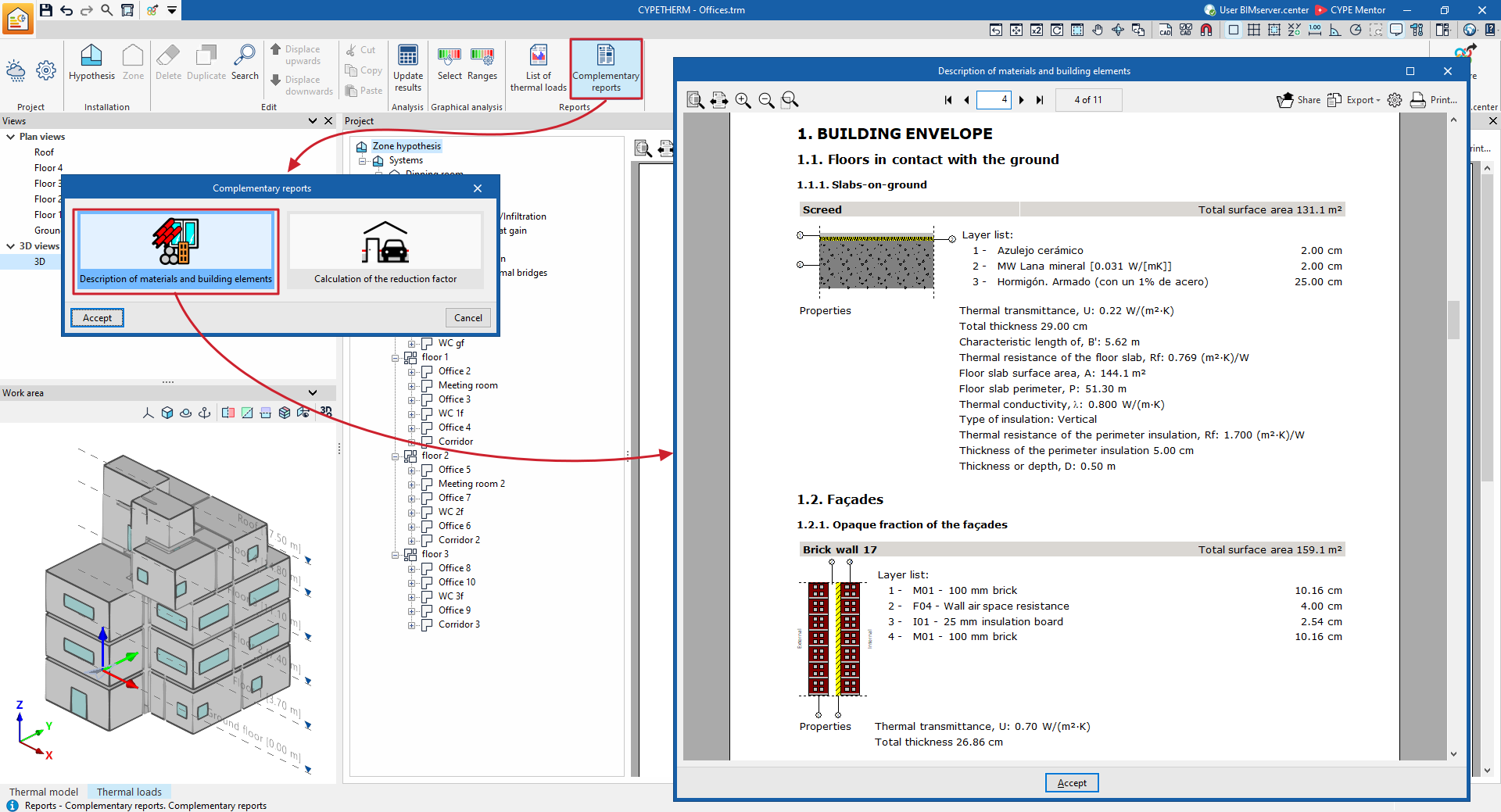
The supplementary reports provided by the program are as follows:
- Description of materials and structural elements
This report provides a description of the structural elements that make up the building envelope and the partitioning system (such as floors in contact with the ground, façades, roofs, and vertical and horizontal internal partitions), including a definition of the layers of materials from which they are composed.
It also lists the technical characteristics of the materials used, such as their density, thermal resistance, thermal conductivity and specific heat.
The program uses the ISO 6946, ISO 10077, ISO 13370 and ISO 10456 standards in compiling this data.
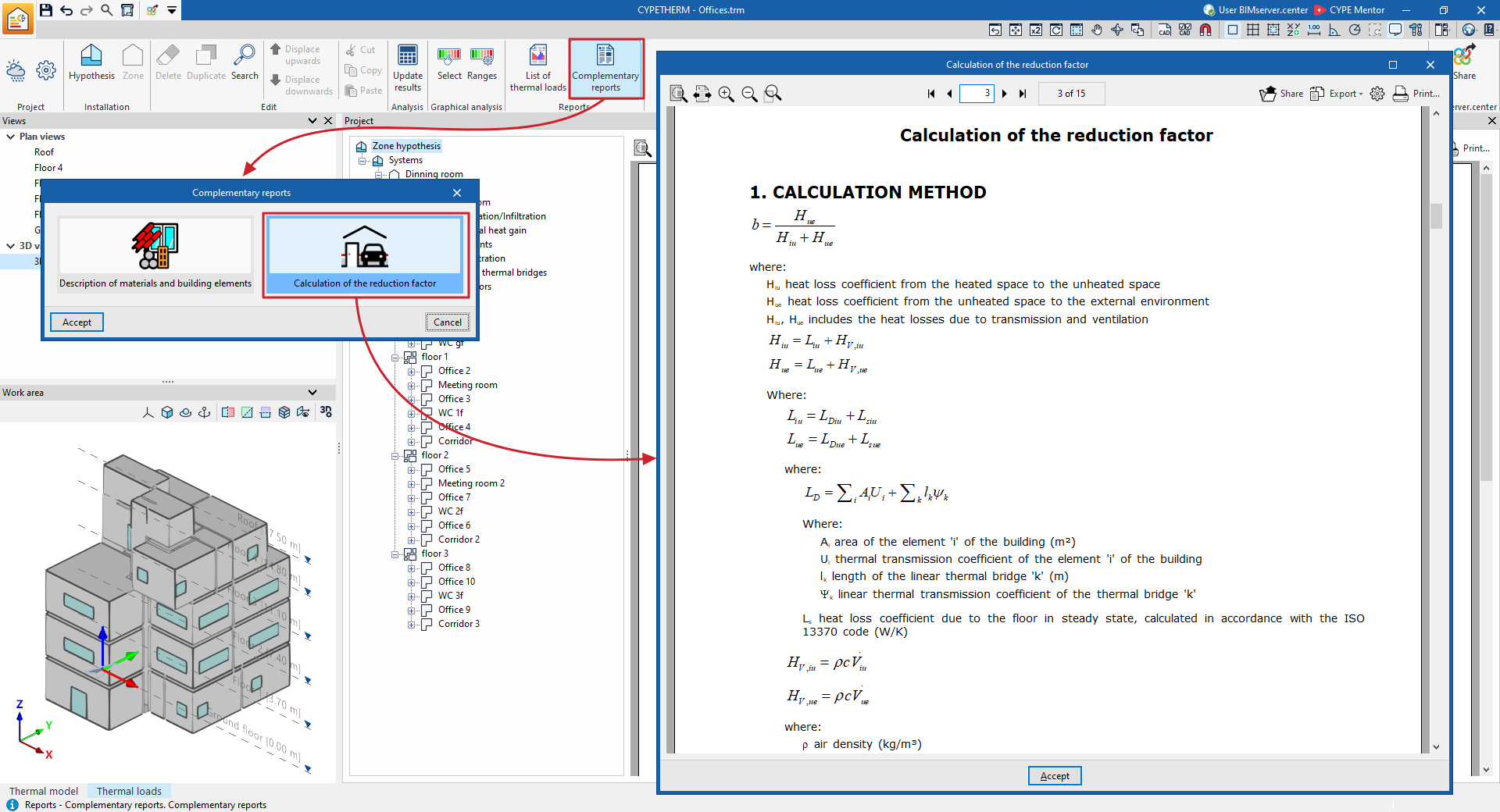
- Calculation of the reduction
factor
This report describes the calculation of the reduction factor b, which governs heat losses from heated spaces to the outside via unheated spaces, in accordance with ISO 13789, as well as the calculated values for each space.
Viewing information in the project tree in the "Thermal loads" tab
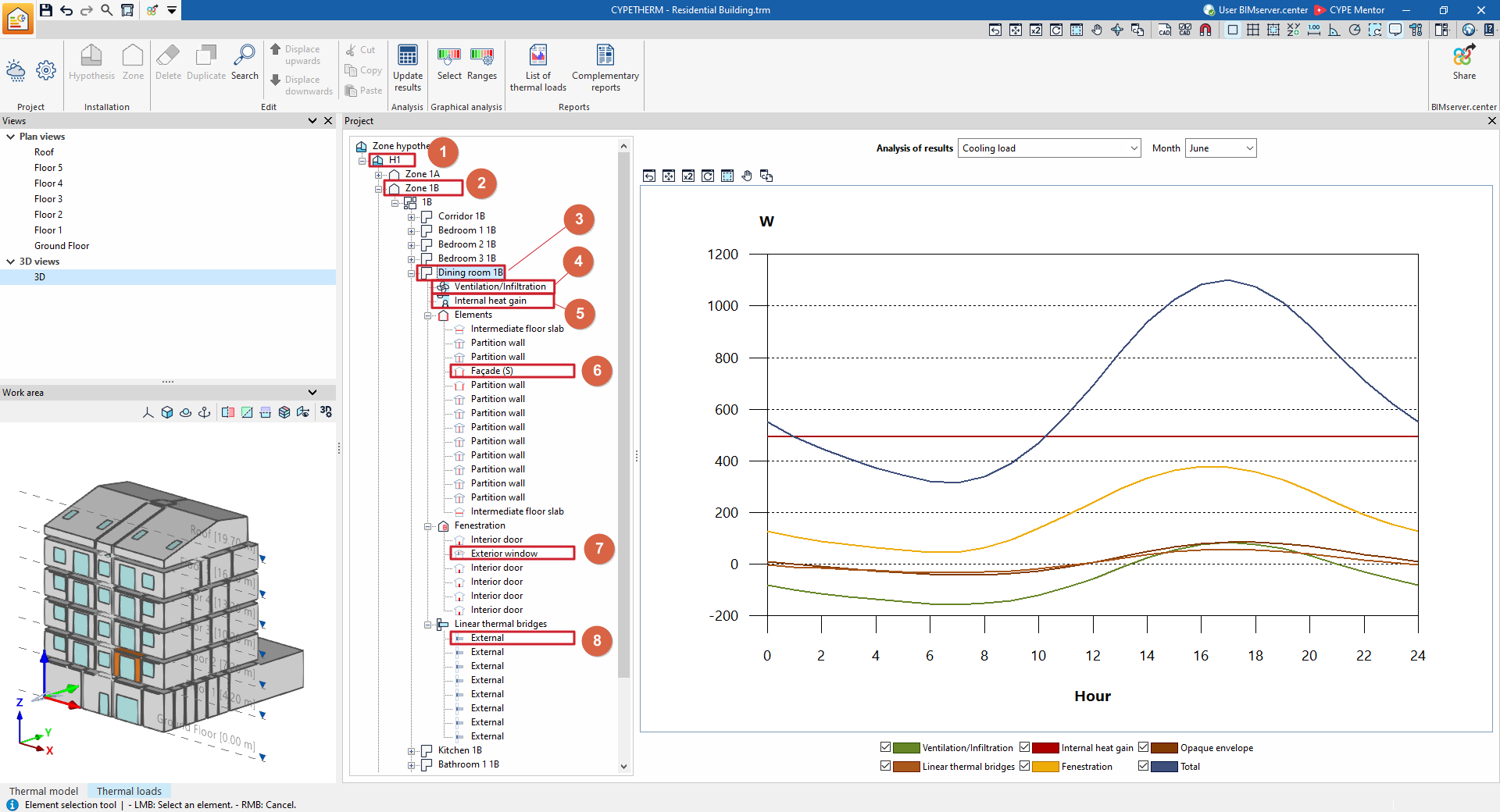
On the left-hand side of the "Project" panel interface, under the "Thermal loads" tab, you will find the project element tree. This tree is organised according to the various defined zone hypotheses, which include the zones with their assigned spaces and, within each space, the ventilation and infiltration data, internal heat gains, and the calculated data for the associated elements, openings and linear thermal bridges.
When you click on each level in the tree on the right-hand side, the program displays information about the relevant part or component of the project and its analysis results. This information is updated and can be viewed after calculating the building’s thermal loads using the "Update results" option in the top toolbar.
The information available at each level of this tree is as follows:
- Information at the "Hypothesis" level
- Information at the "Zone" level
- Information at the "Space" level
- Information on ventilation/infiltration in the building
- Information on internal heat gain within the building
- Information on the space's elements
- Information on the space's openings
- Information on the space's linear thermal bridges
Information at the "Hypothesis" level
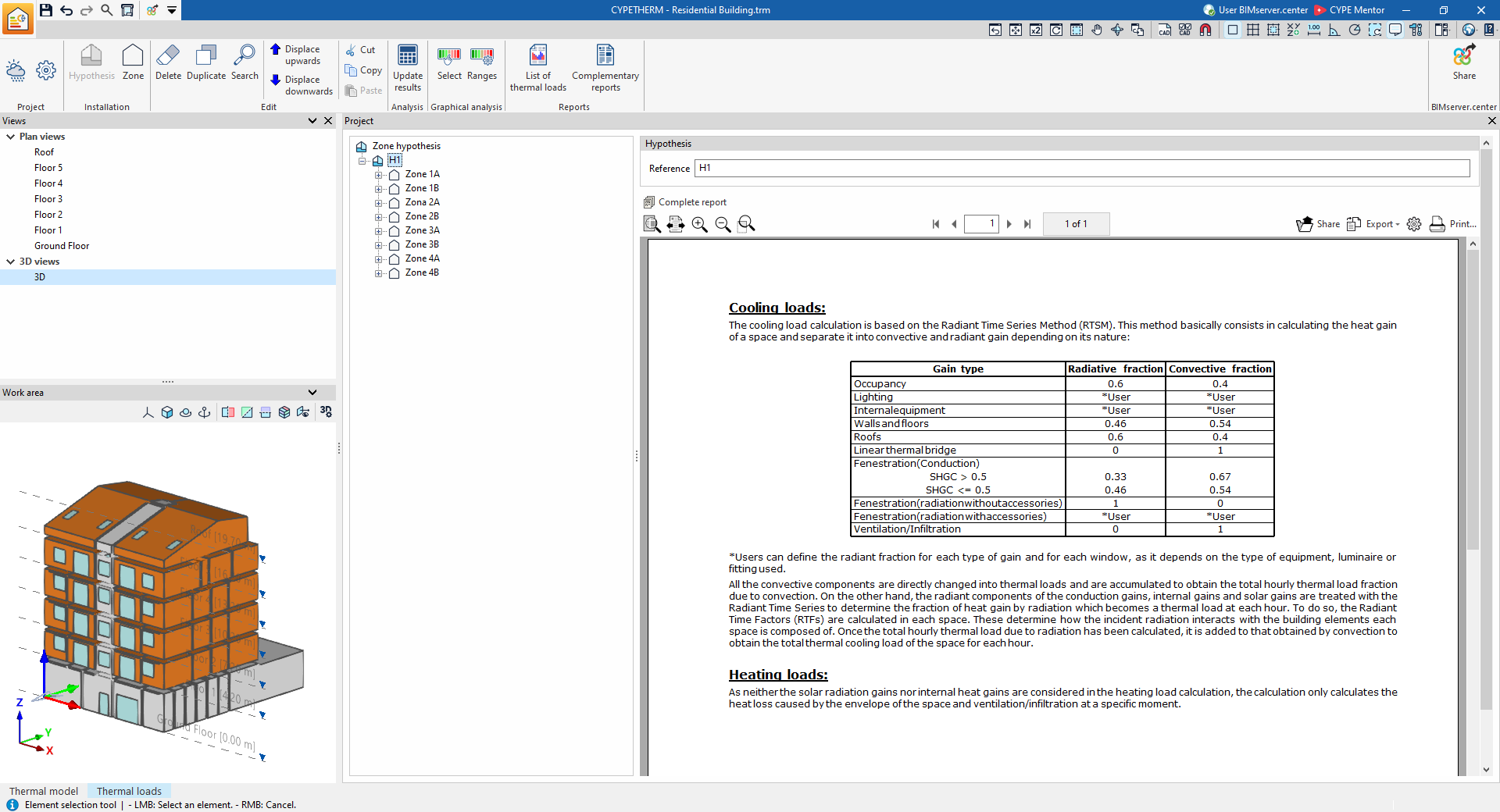
If a zone hypothesis is selected in the tree, the program displays an information box on the right-hand side of the interface with details of the method used to analyse thermal loads.
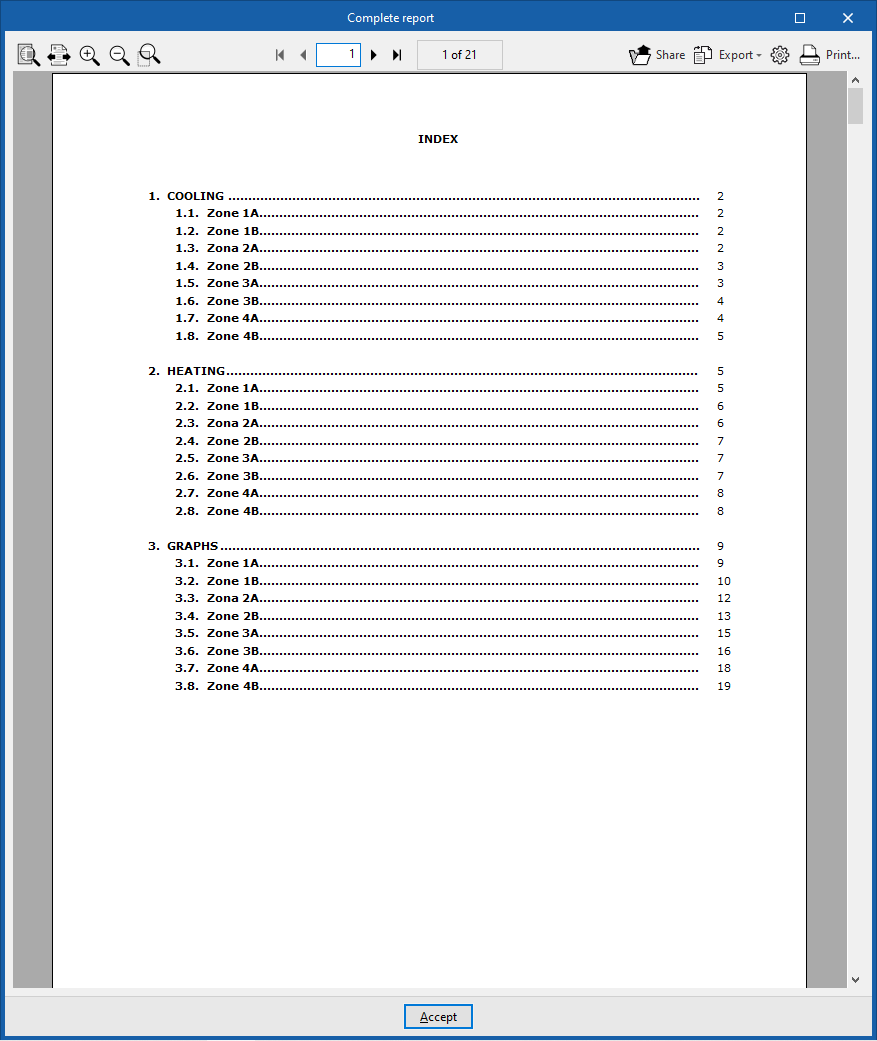
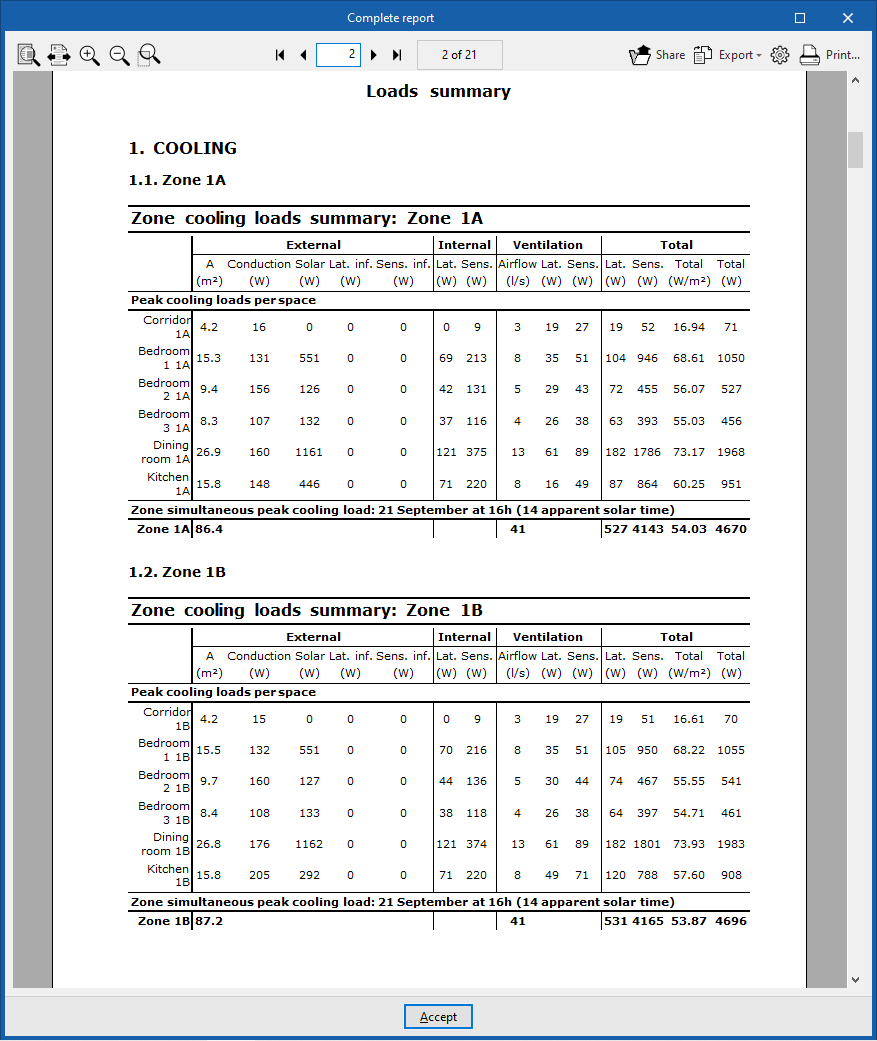
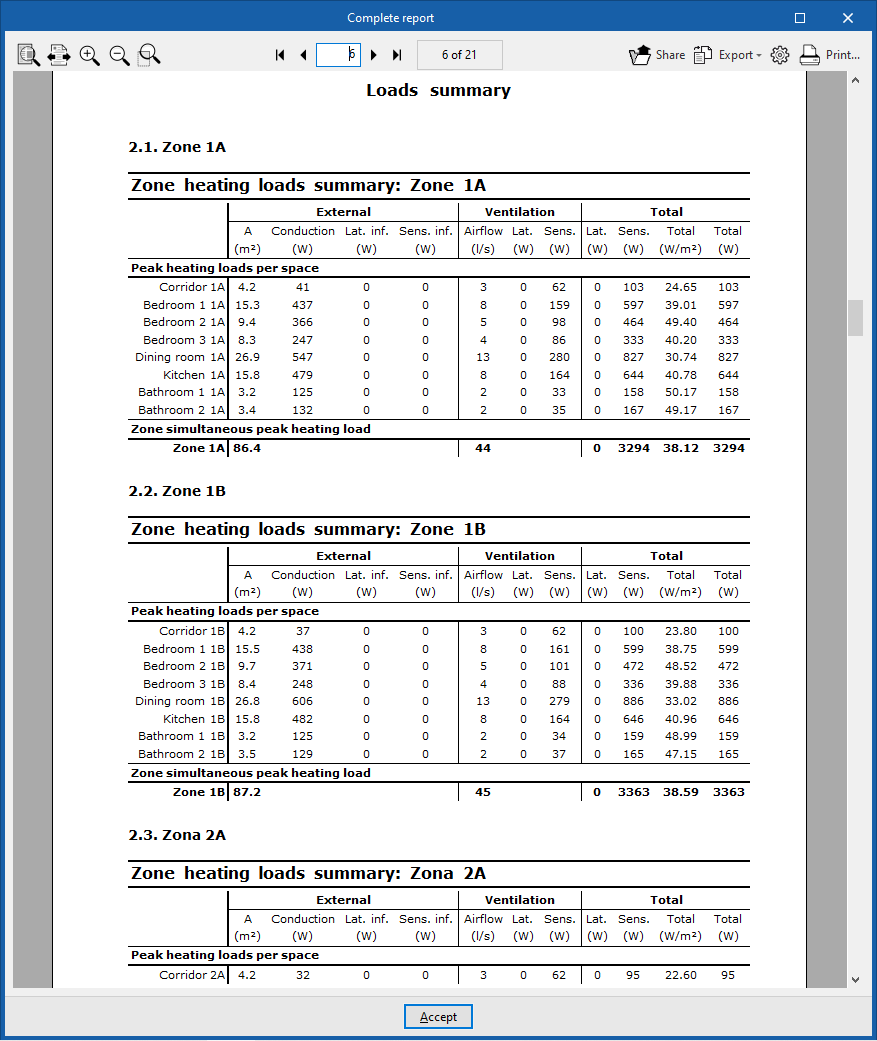
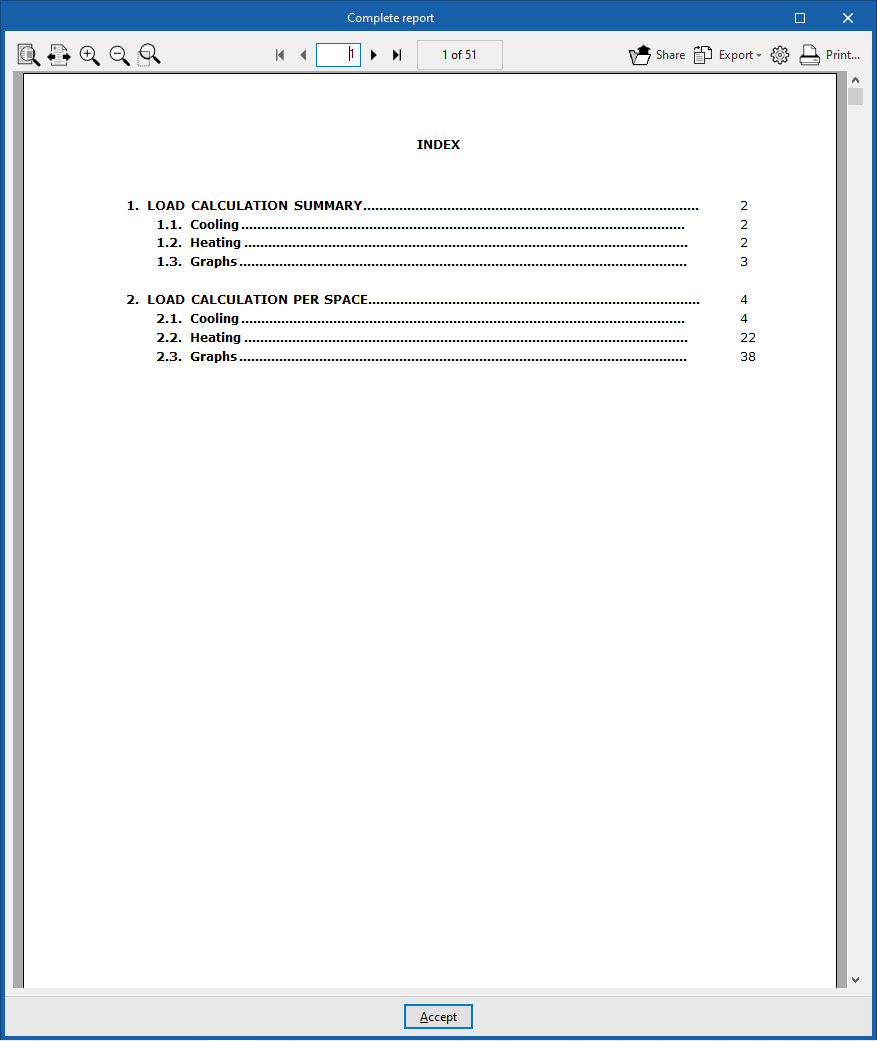
Furthermore, using the "Complete report" option, you can generate a "Thermal load report" for all the zones defined in the selected hypothesis, which contains the following information:
- Cooling
- Summary of the zone’s cooling loads (External, Internal, Ventilation, Total)
- Peak cooling loads per space
- Zone simultaneous peak cooling load
- Summary of the zone’s cooling loads (External, Internal, Ventilation, Total)
- Heating
- Summary of heating loads for the area (External, Ventilation, Total)
- Peak heating loads per space
- Peak cooling loads per space
- Summary of heating loads for the area (External, Ventilation, Total)
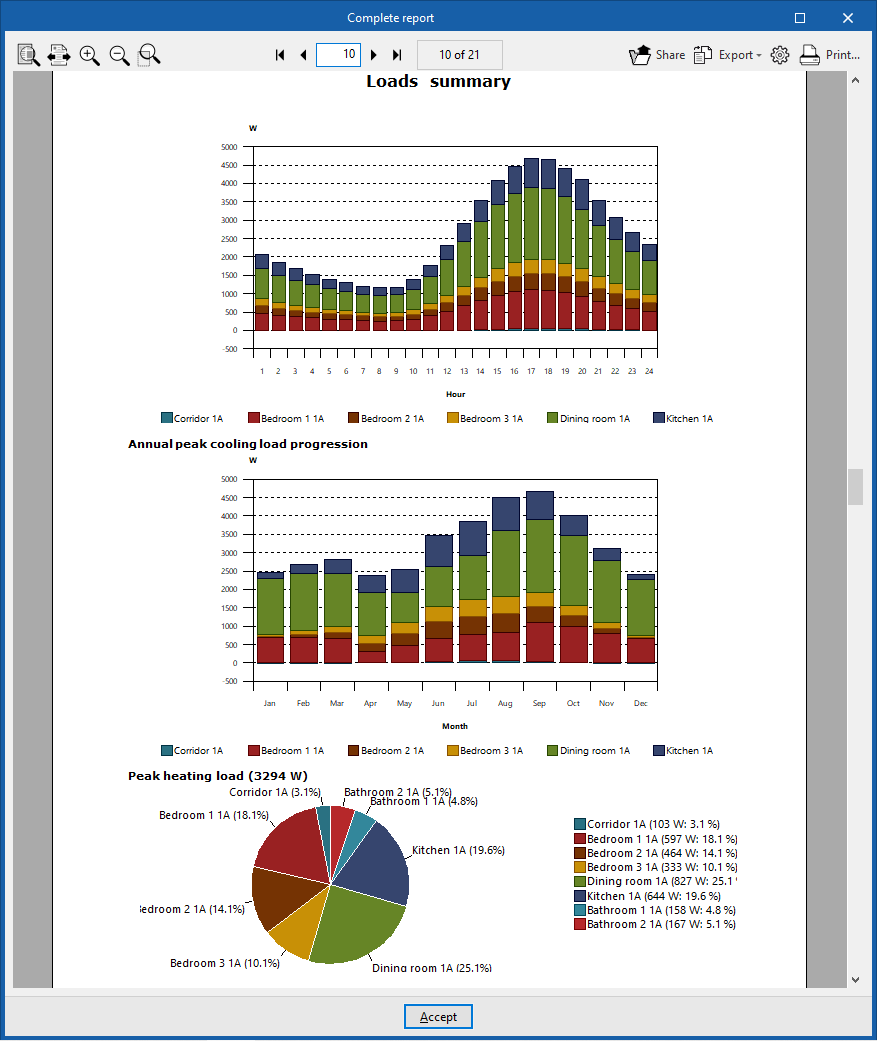
- Graphs
- Simultaneous peak cooling load
- Hourly peak cooling load progression
- Annual peak cooling load progression
- Peak heating load
Information at the "Zone" level
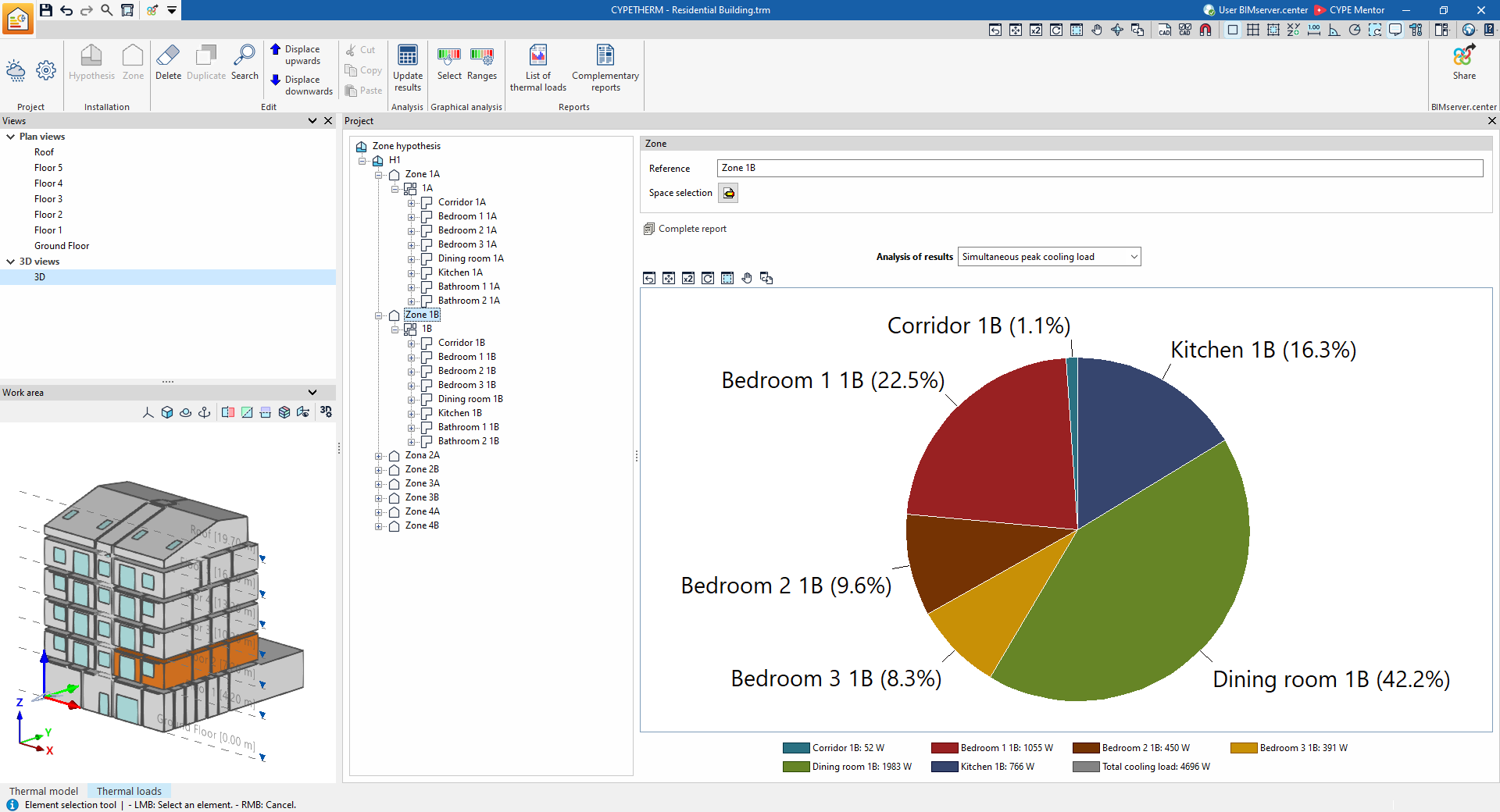
If a zone is selected in the tree, the program displays the "Results analysis" drop-down menu, which allows the following information to be displayed on the right-hand side of the program interface, depending on the selection made:
- Time of peak simultaneous cooling load
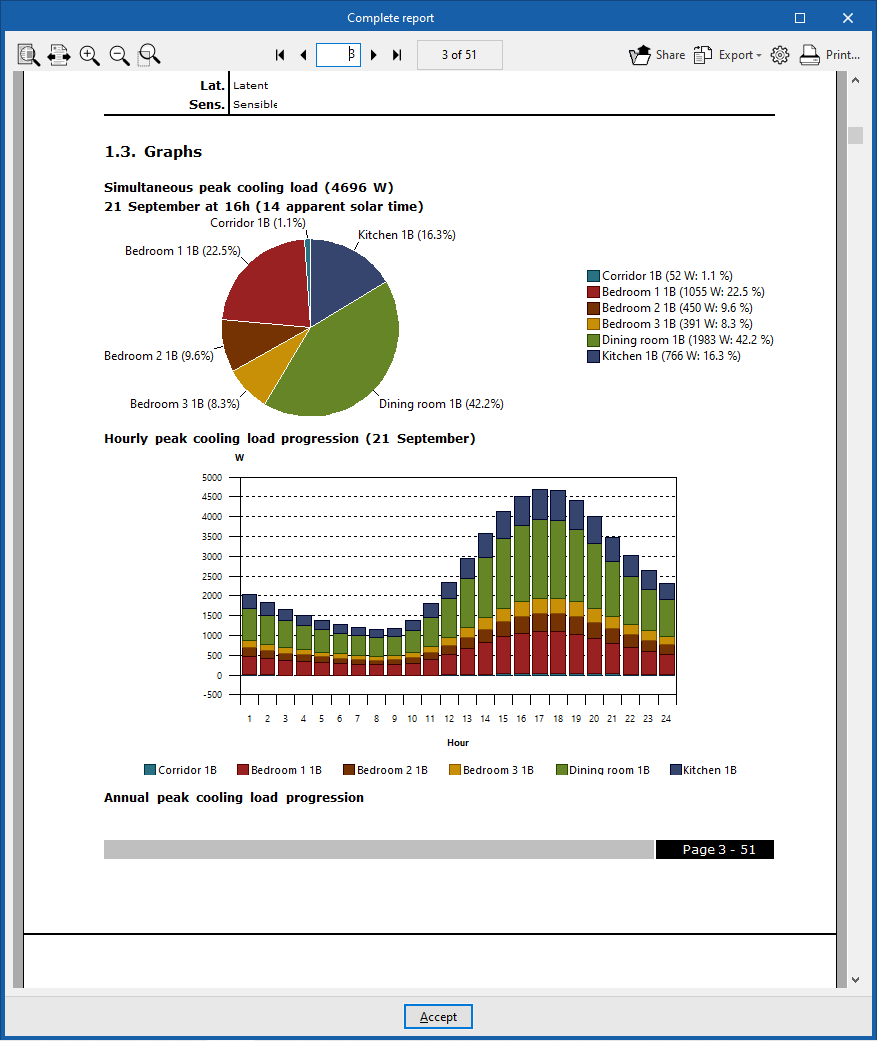
Displays a pie chart showing the absolute values of cooling heat loads and the percentage contribution of each space to the total cooling heat load for the zone.
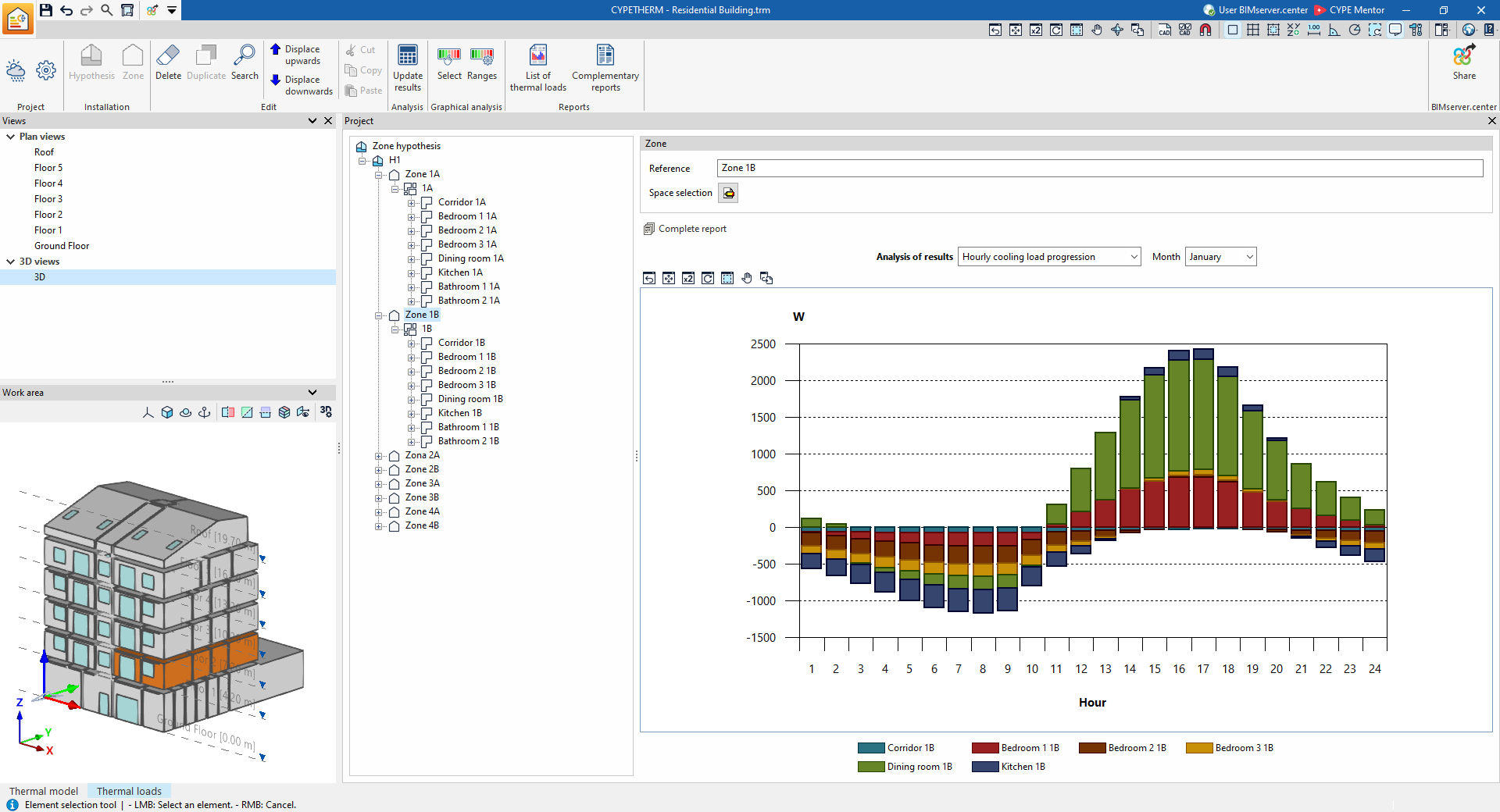
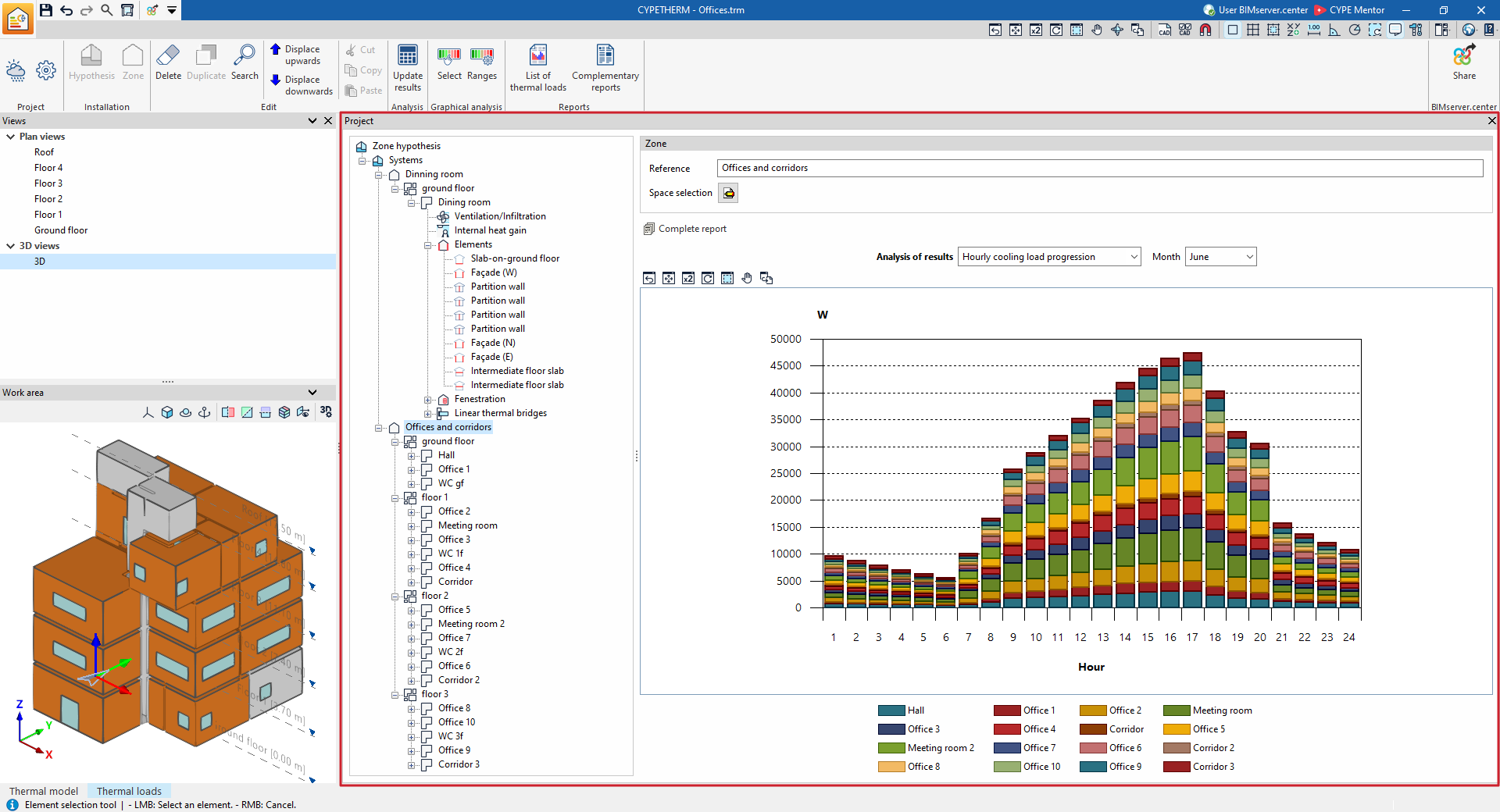
- Hourly cooling load progression (for each month)
Displays a bar chart showing the values, broken down by space and aggregated by the hour, of the cooling loads for the spaces in the area.
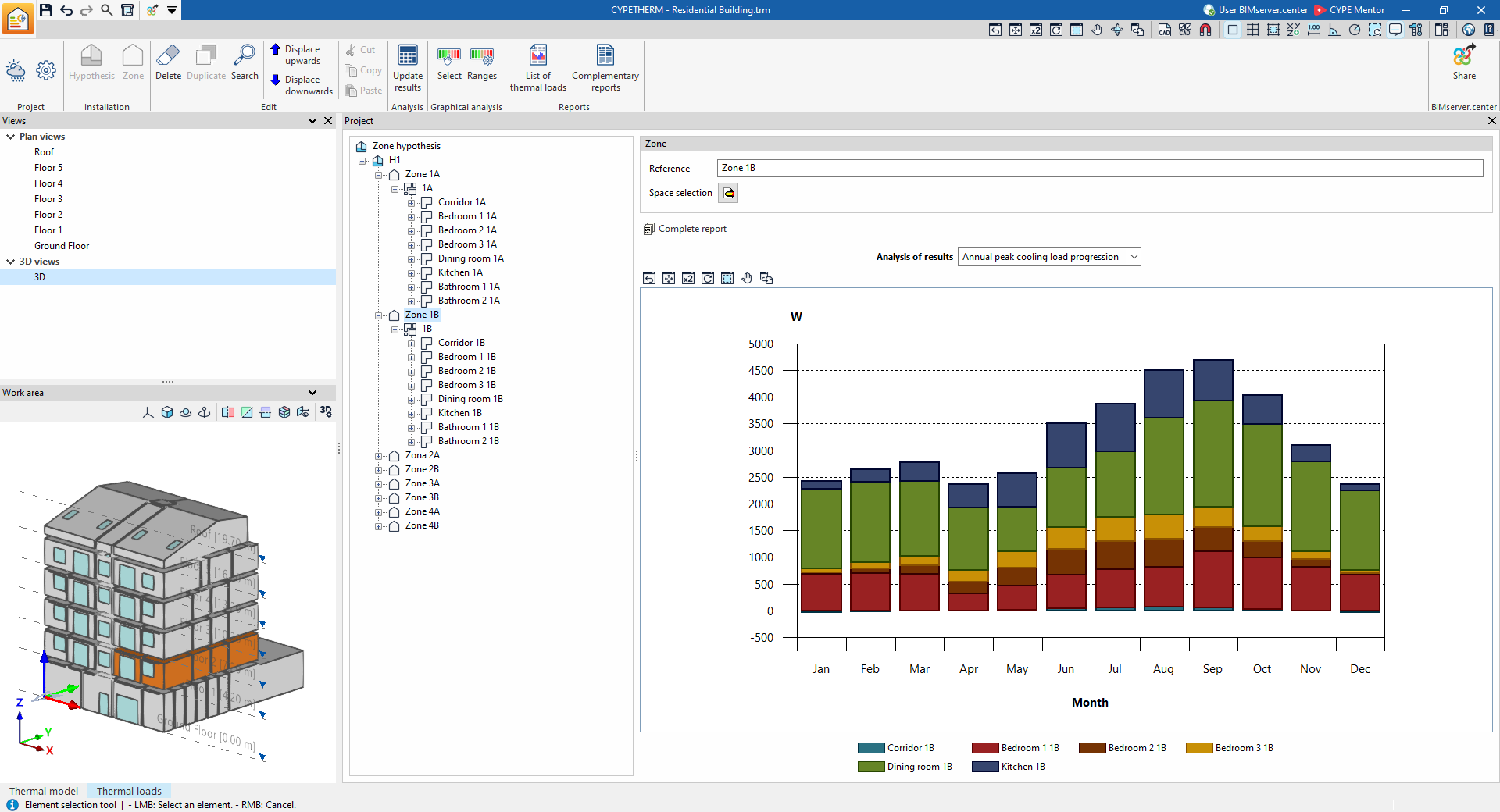
- Annual peak cooling load progression
Displays a bar chart showing the values, broken down by space and aggregated by month, of the cooling loads for the spaces in the zone.
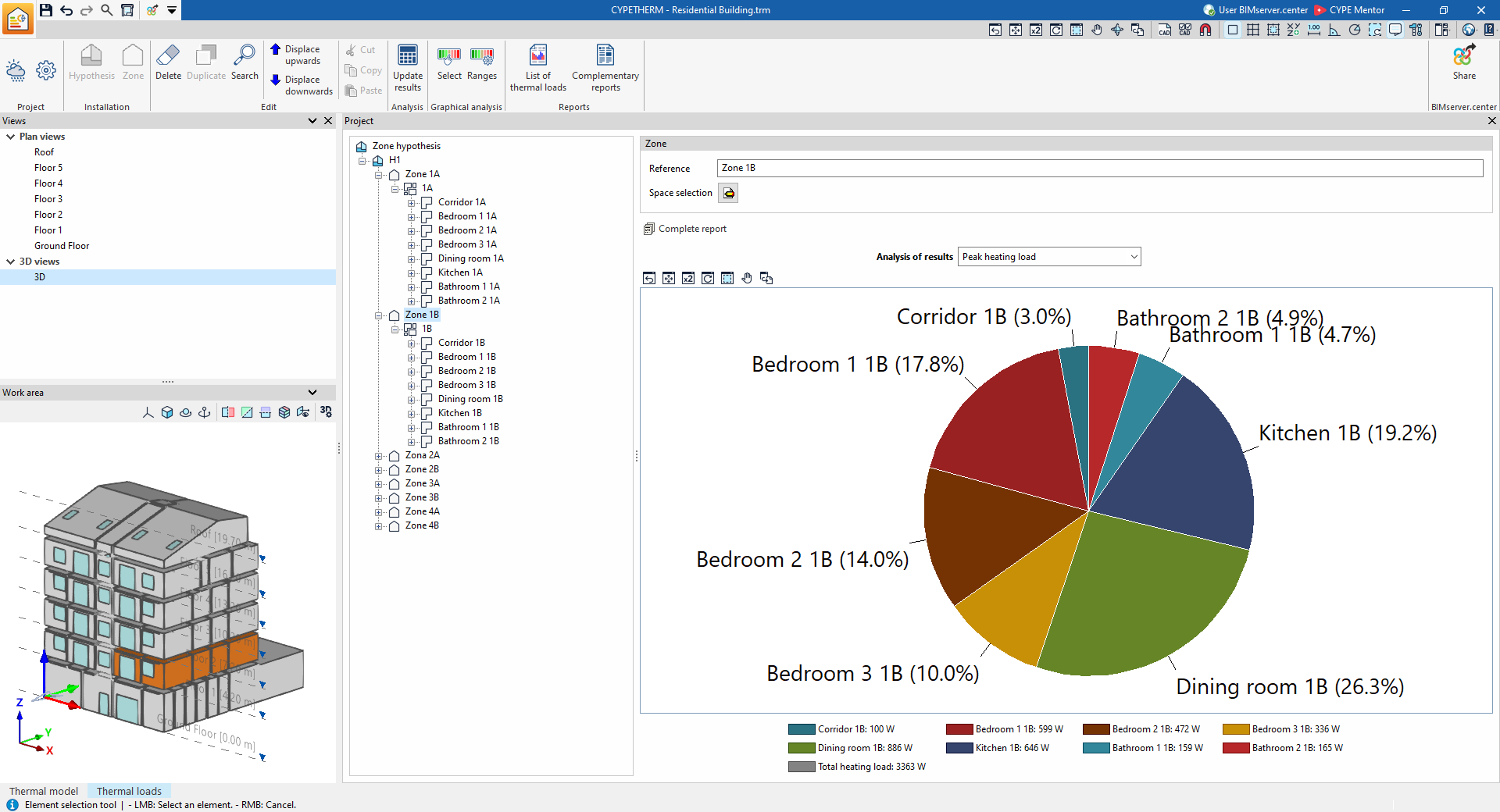
- Maximum heating load Displays a pie chart showing the absolute values of the heating thermal loads and the percentage contribution of each space to the total heating thermal load for the area.
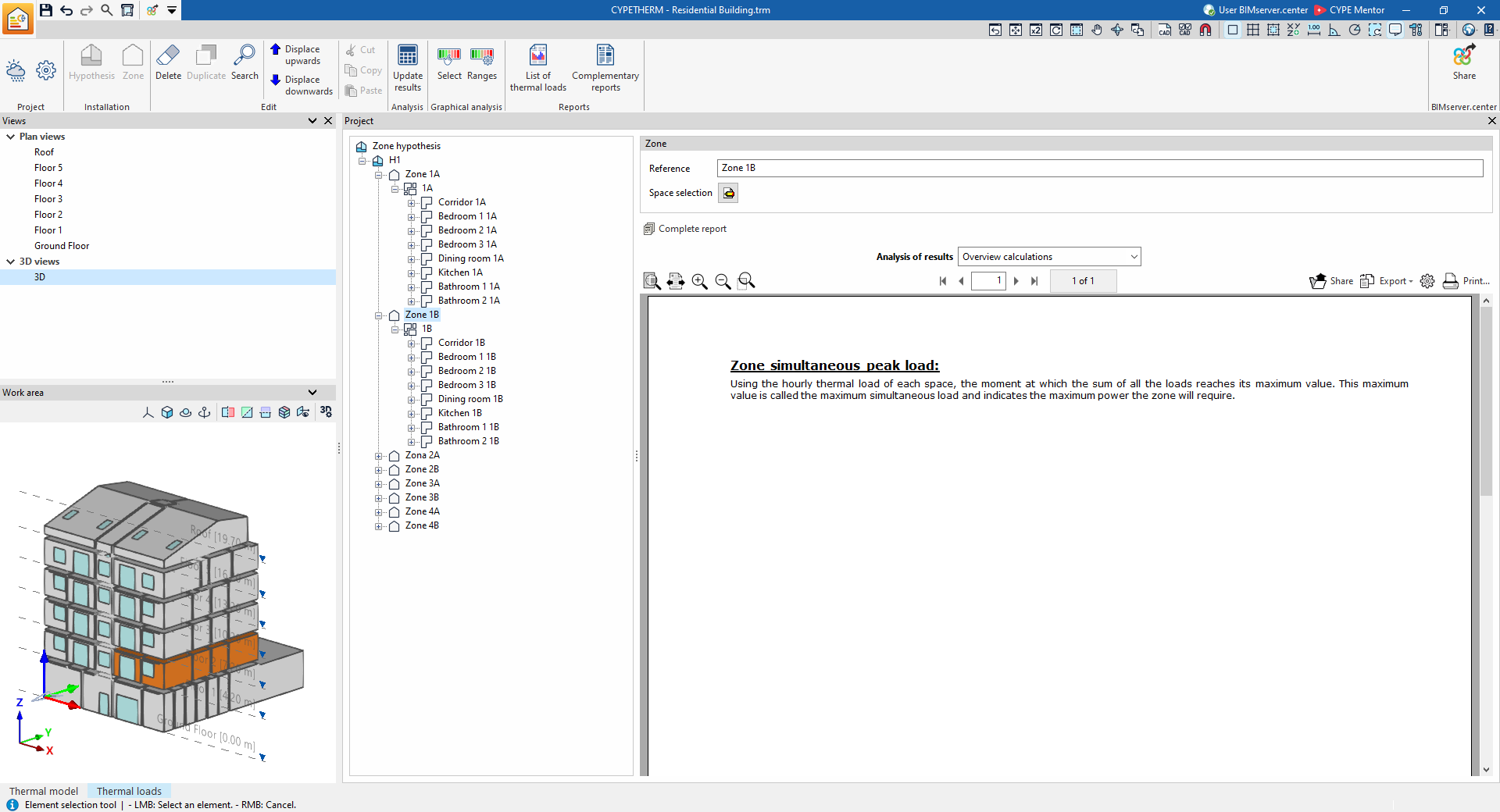
- Overview calculations
Displays an informative text with details on how the maximum simultaneous load for the zone is calculated.
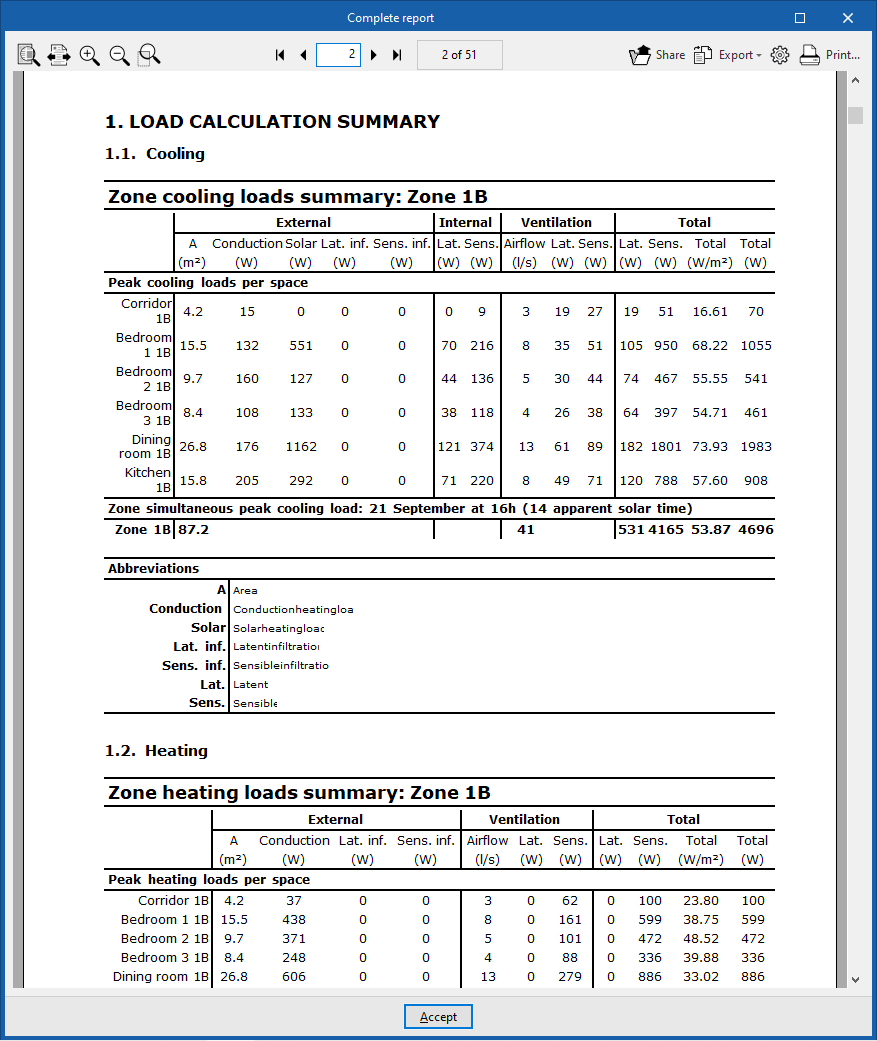
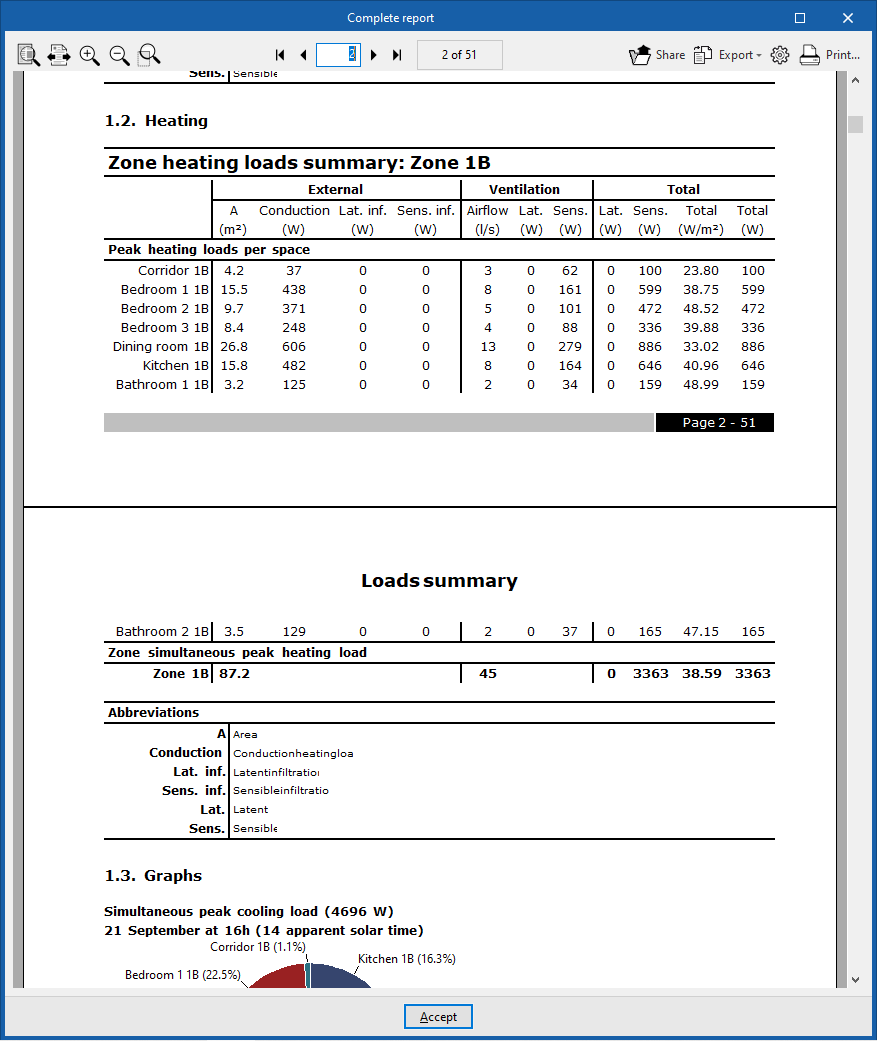
Furthermore, using the "Complete report" option, you can generate a "Thermal load report" for both the selected area and all the spaces within it, which contains the following information:
- Load calculation summary (by zone)
- Refrigeration
- Zone cooling loads summary (External, Internal, Ventilation, Total)
- Peak cooling loads per space
- Zone simultaneous peak cooling load
- Zone cooling loads summary (External, Internal, Ventilation, Total)
- Heating
- Zone heating loads summary (External, Ventilation, Total)
- Peak heating loads per space
- Zone simultaneous peak heating load
- Zone heating loads summary (External, Ventilation, Total)
- Graphs
- Simultaneous peak cooling load
- Hourly peak cooling load progression
- Annual peak cooling load progression
- Peak heating load
- Refrigeration
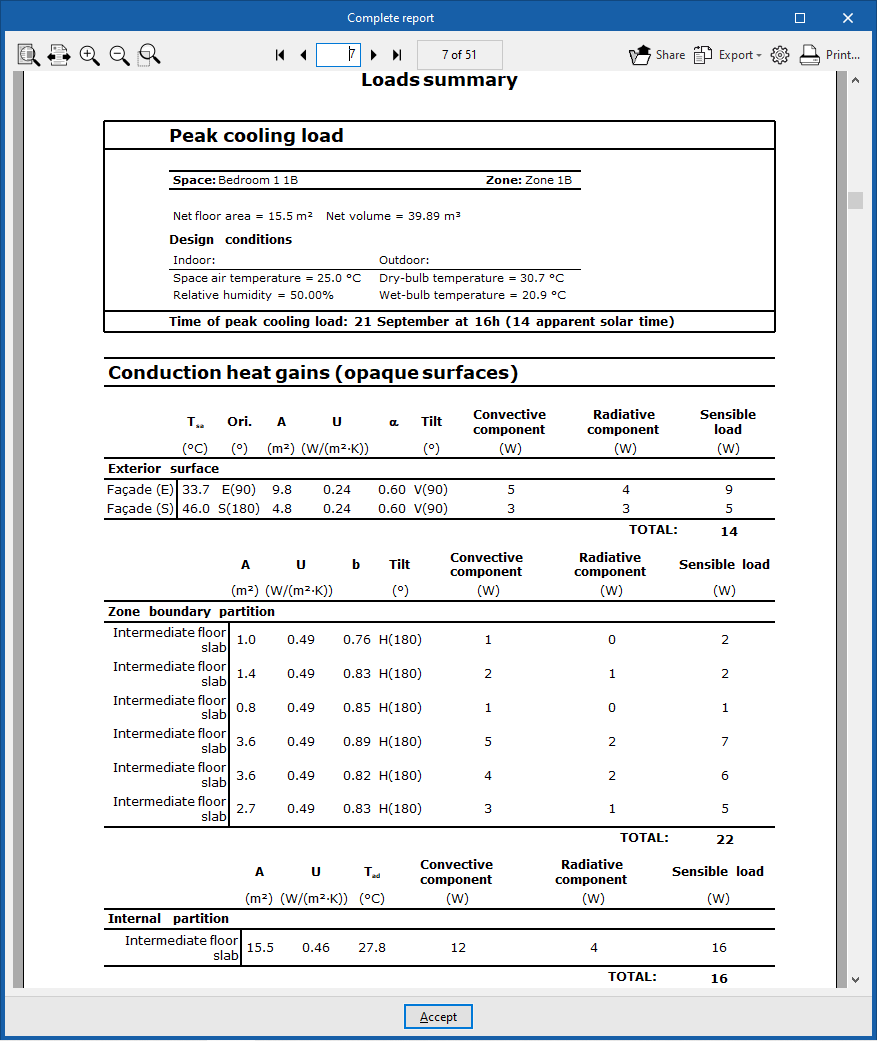
- Load calculation summary (by space)
- Refrigeration
- Peak cooling load
- Conduction heat gains (opaque surfaces)
- Conduction heat gains (openings)
- Internal heat gains
- Ventilation and infiltration heat gains
- Total cooling load
- Peak cooling load
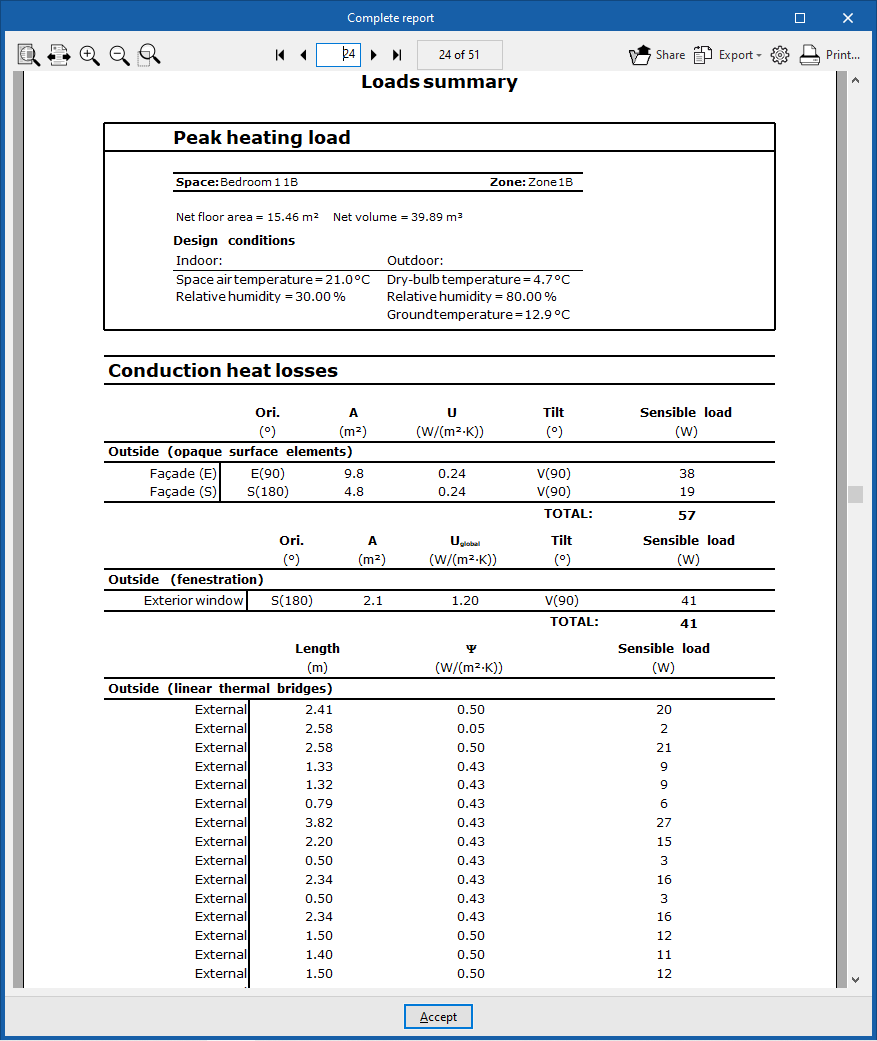
- Heating
- Peak heating load
- Heat losses due to conduction
- Conduction heat losses
- Ventilation and infiltration heat losses
- Total heating load
- Peak heating load
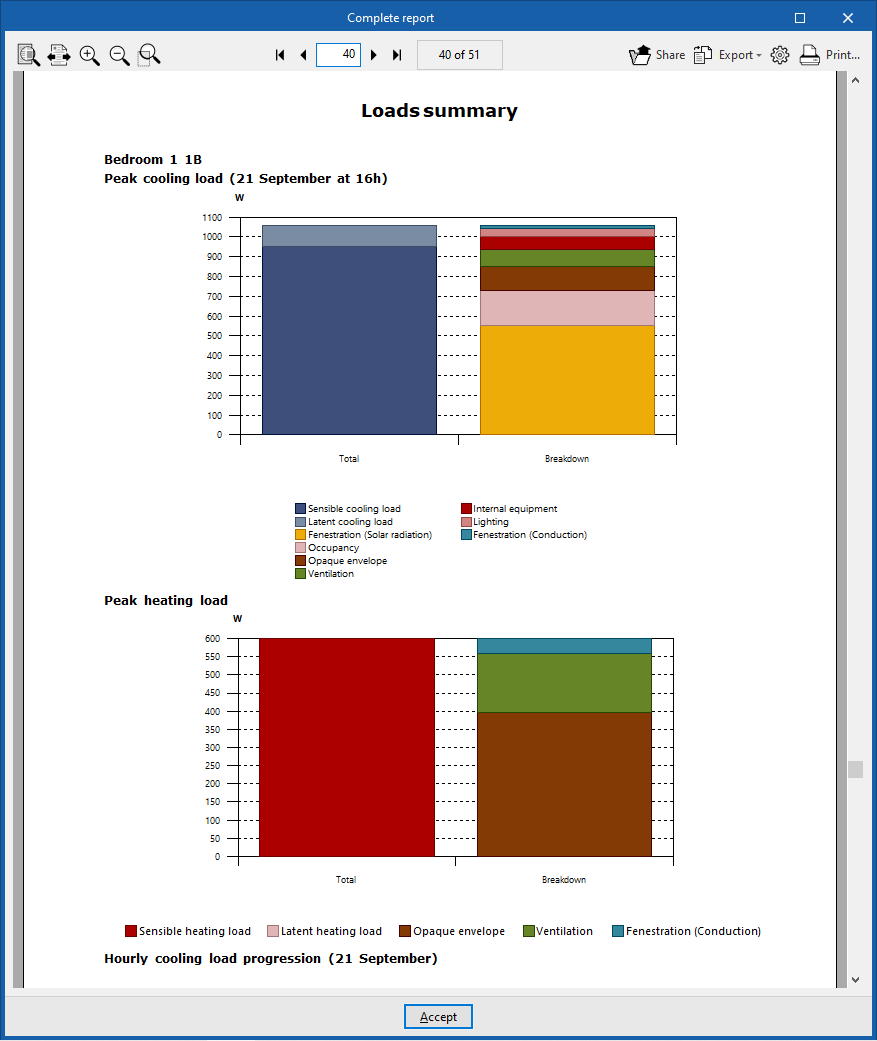
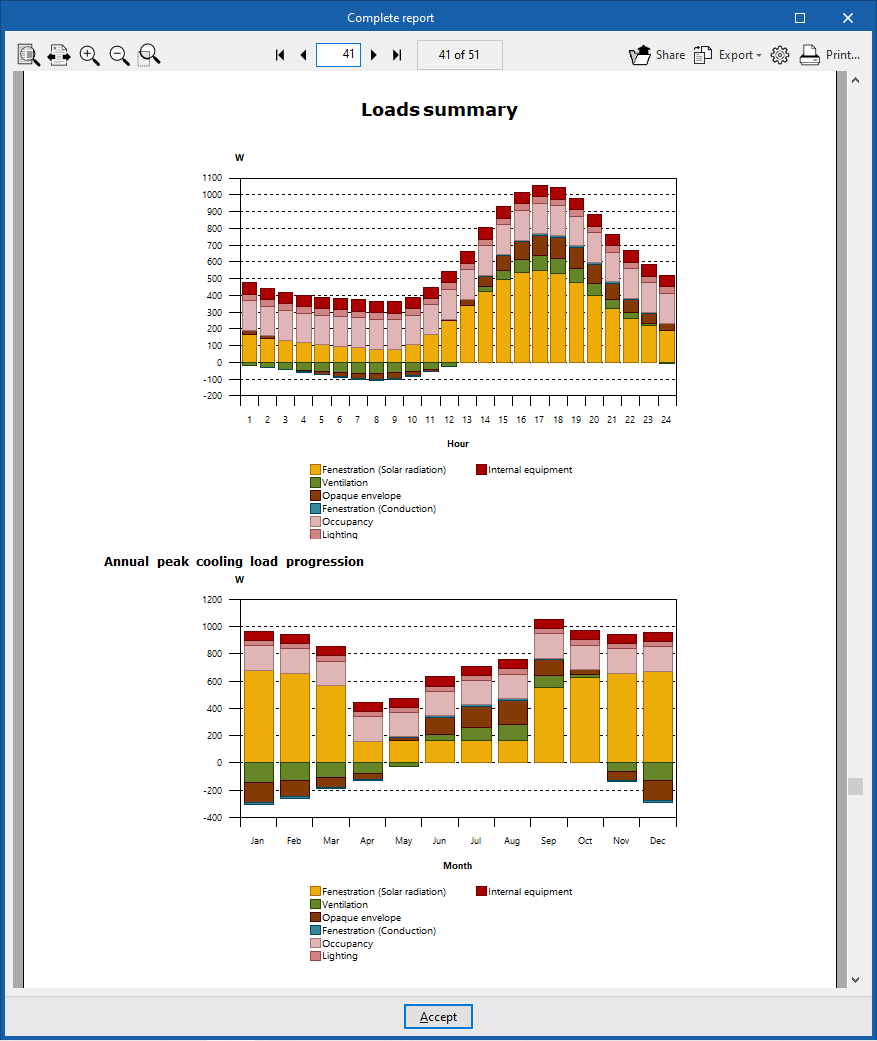
- Graphs
- Peak cooling load
- Peak heating load
- Hourly cooling load progression
- Annual peak cooling load progression
- Refrigeration
Information at the "Space" level
If a space is selected in the tree, the program displays the "Results analysis" drop-down menu, which allows the following information to be displayed on the right-hand side of the program interface, depending on the selection made:
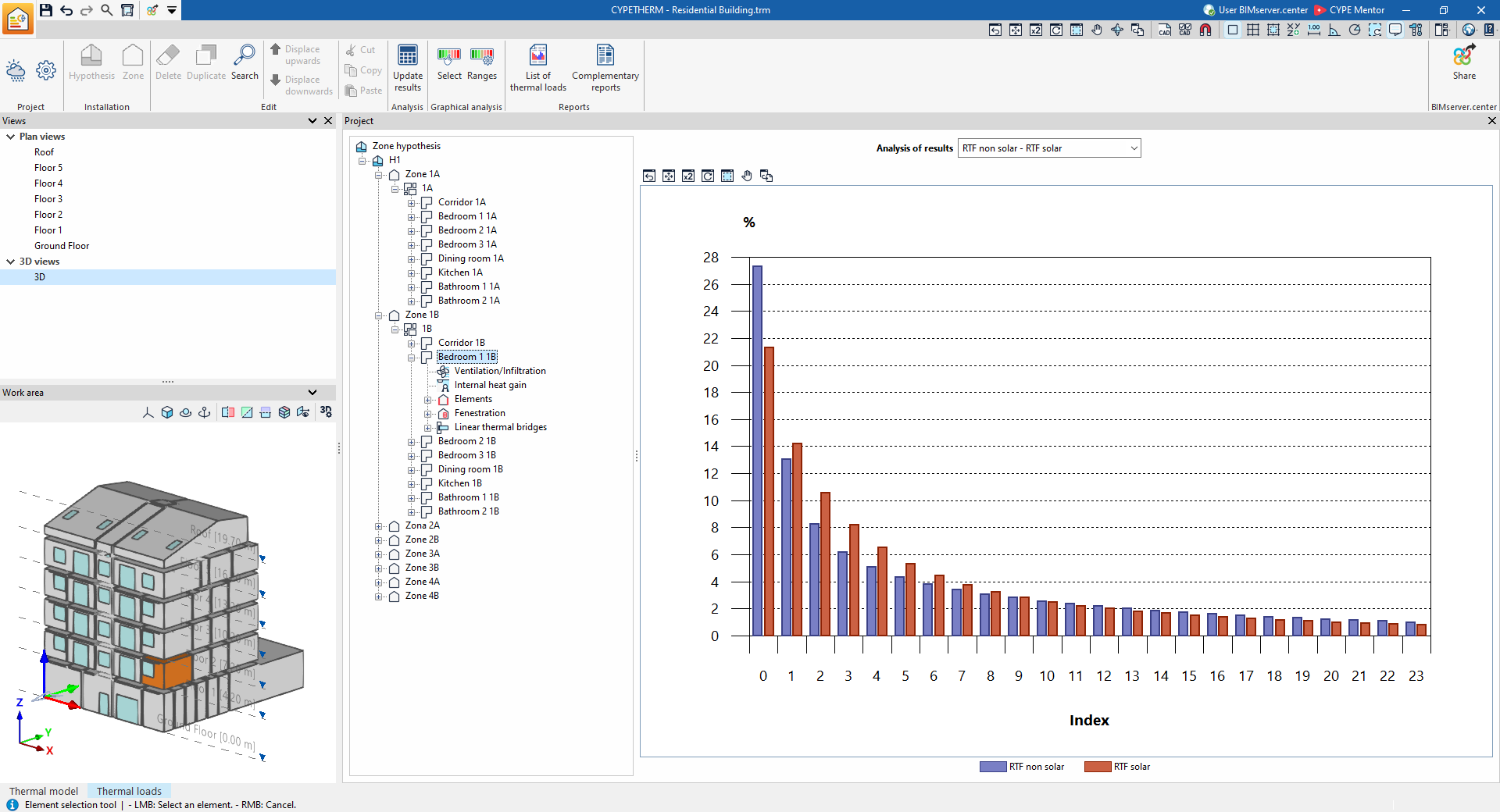
- Non-solar RTF – Solar RTF
Displays a bar chart showing the values (%) of the RTF indices obtained in the analysis.
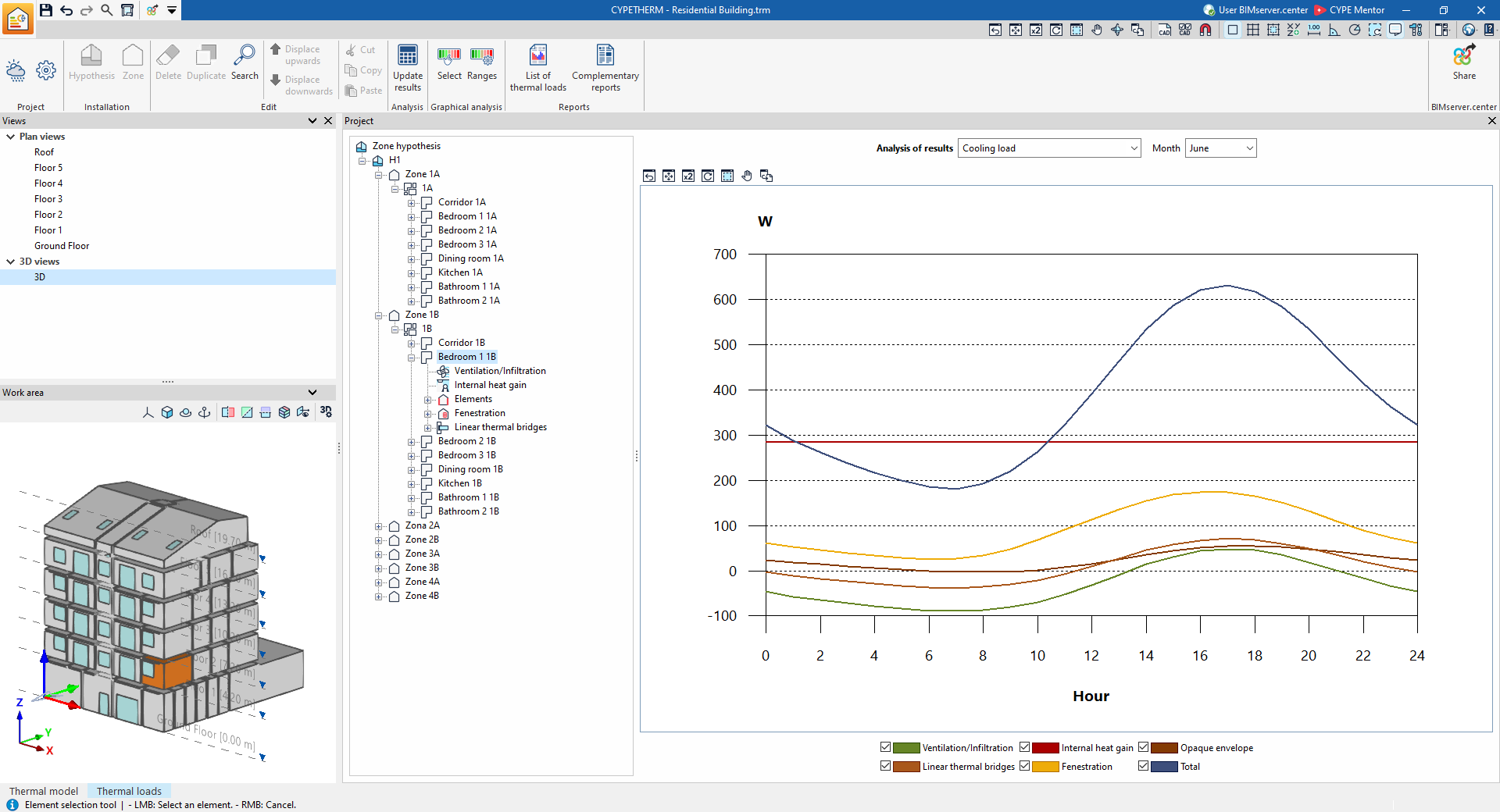
- Cooling load (for each month)
Displays a line chart showing the breakdown of the building’s cooling thermal loads for each month.
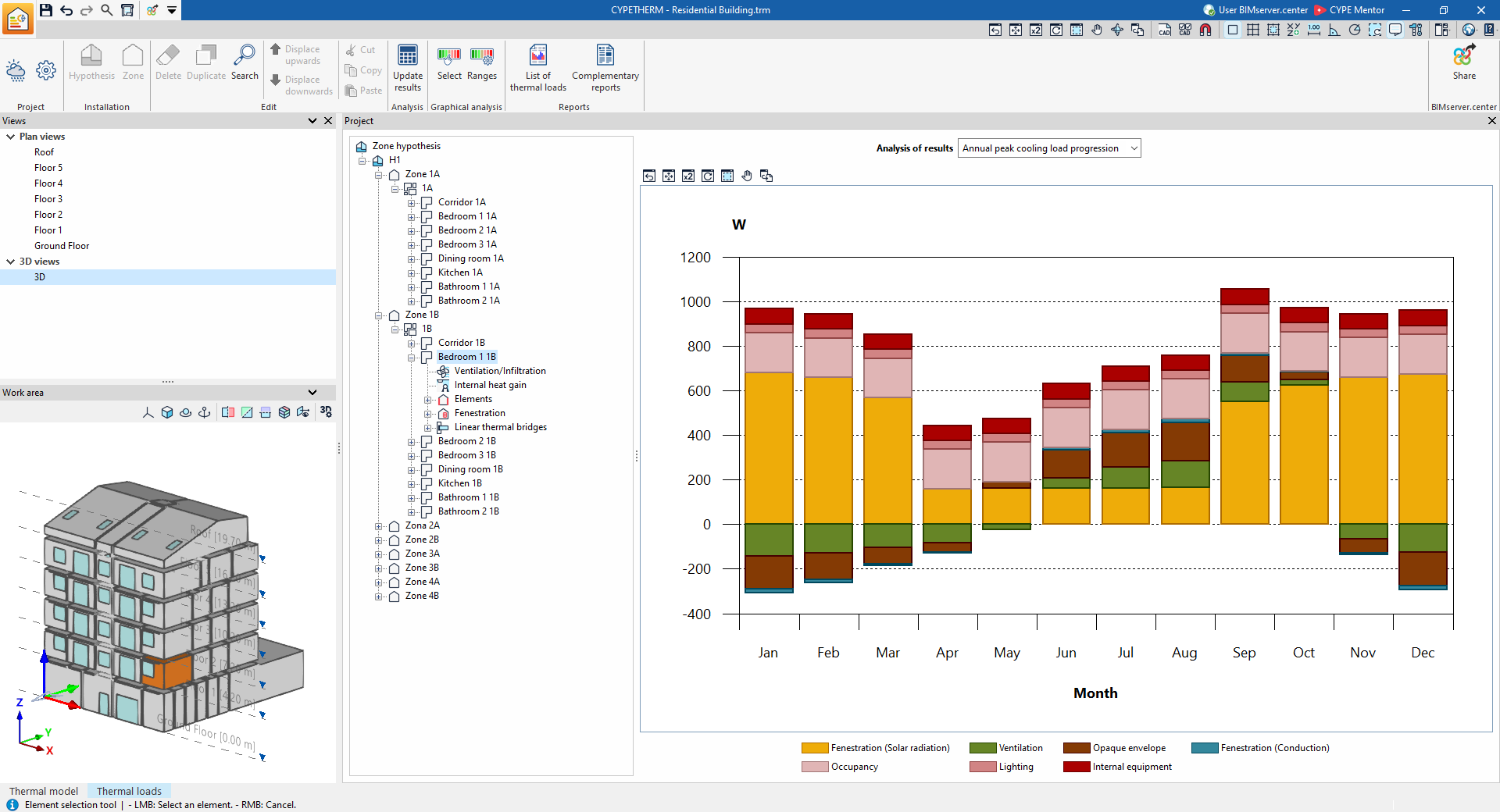
- Annual peak cooling load progression
Displays a bar chart showing the breakdown of the premises’ cooling heat loads, grouped by month.
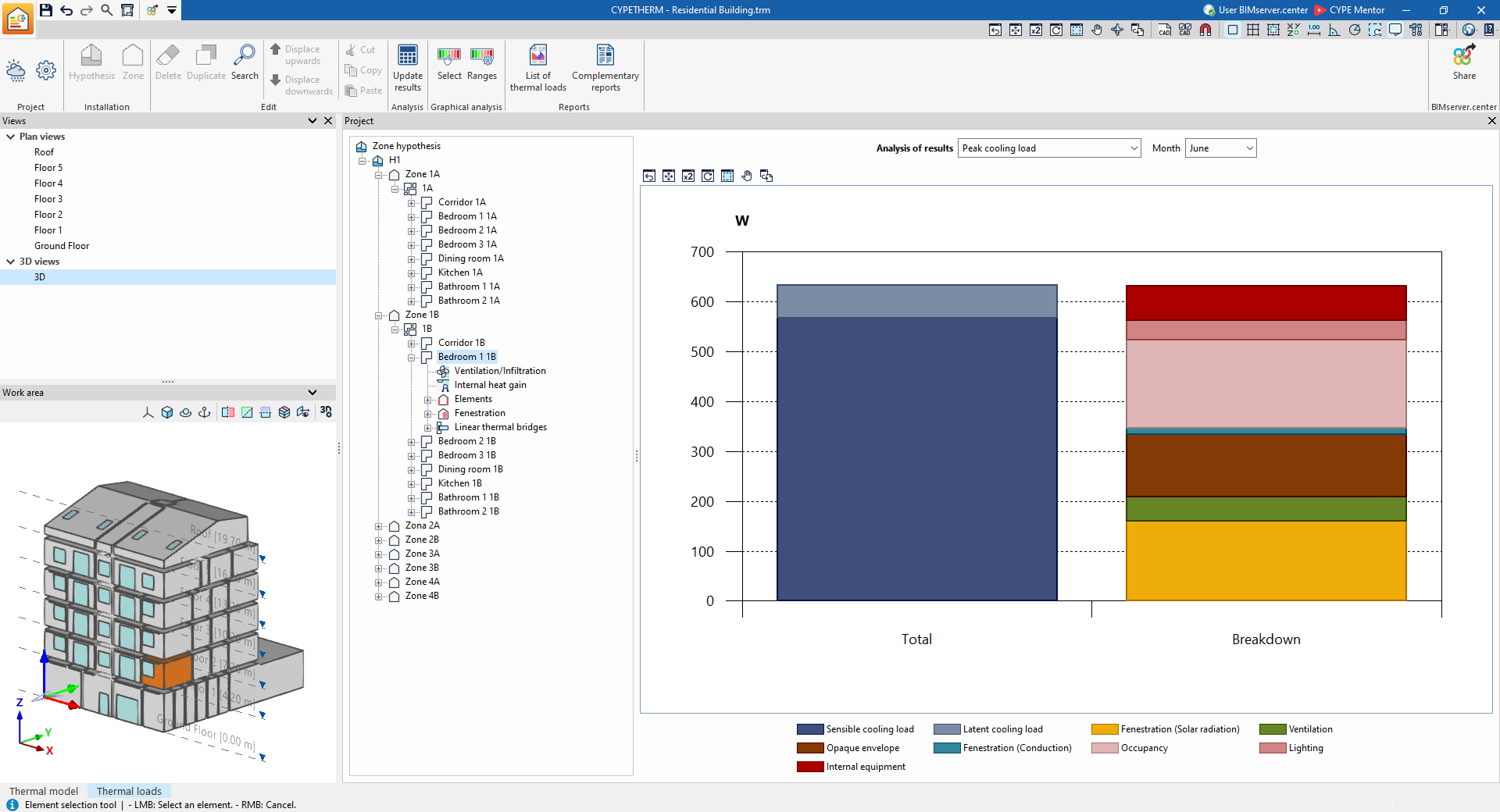
- Time of peak cooling load
Displays a bar chart showing the total value and the sum of the breakdown of the space’s cooling loads for each month.
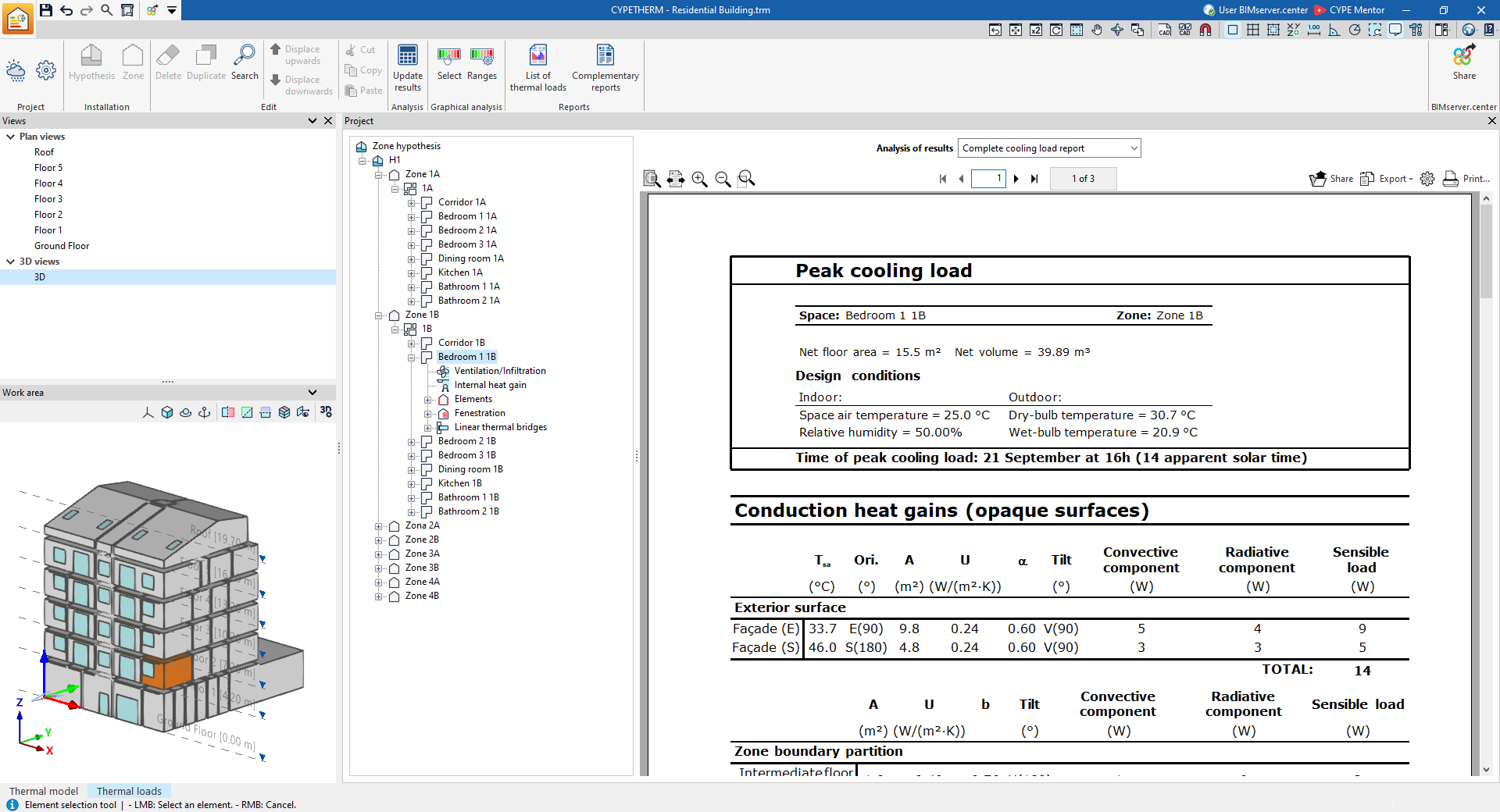
- Complete cooling load report
Displays the report on the premises’ cooling heat loads, which includes the following data:- Time of peak cooling load
- Conduction heat gains (opaque surfaces)
- Conduction heat gains (openings)
- Internal heat gains
- Ventilation and infiltration heat gains
- Total cooling load
- Time of peak cooling load
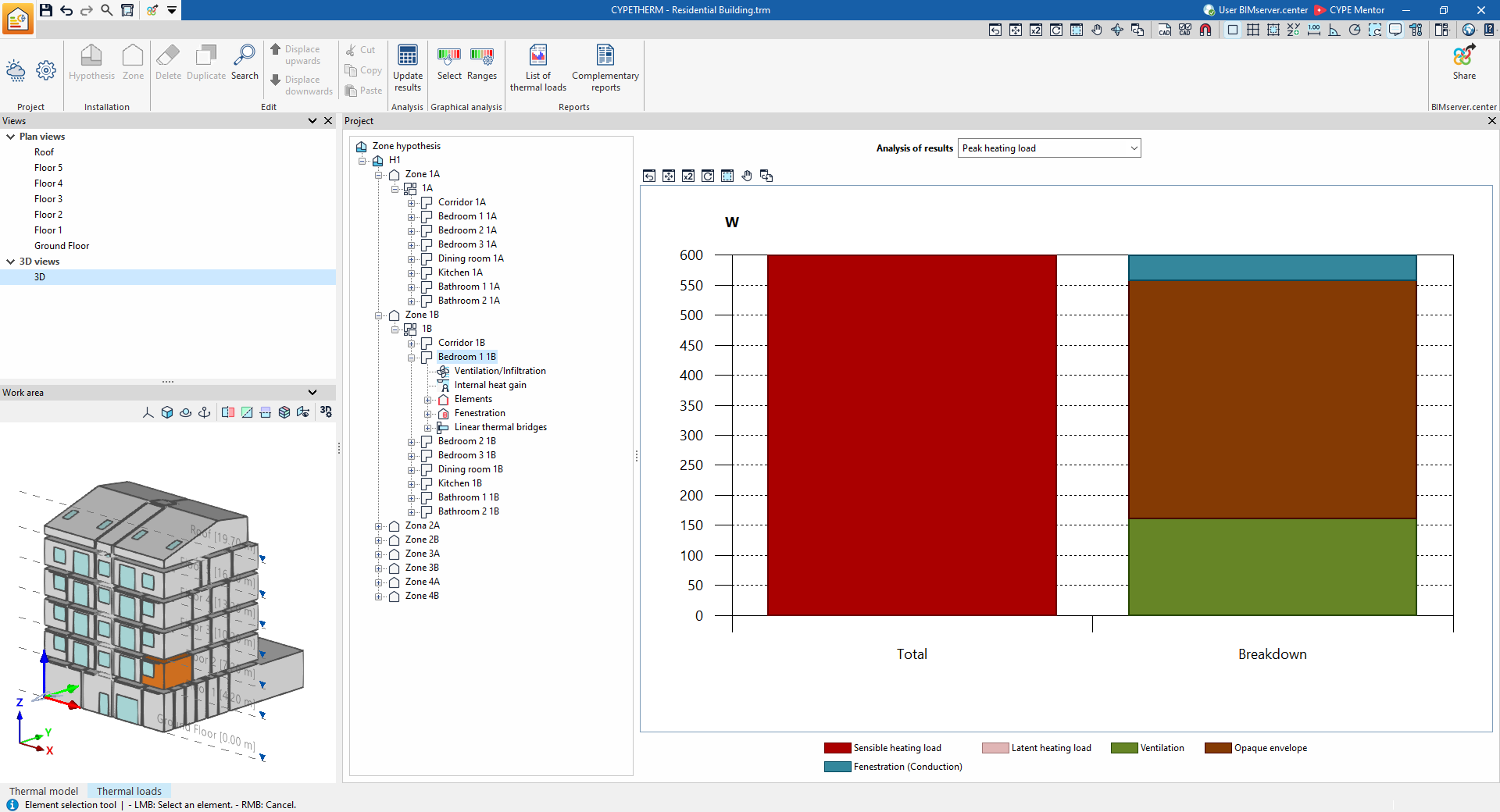
- Peak heating load
Displays a bar chart showing the total value and the sum of the individual heating load values for the space.
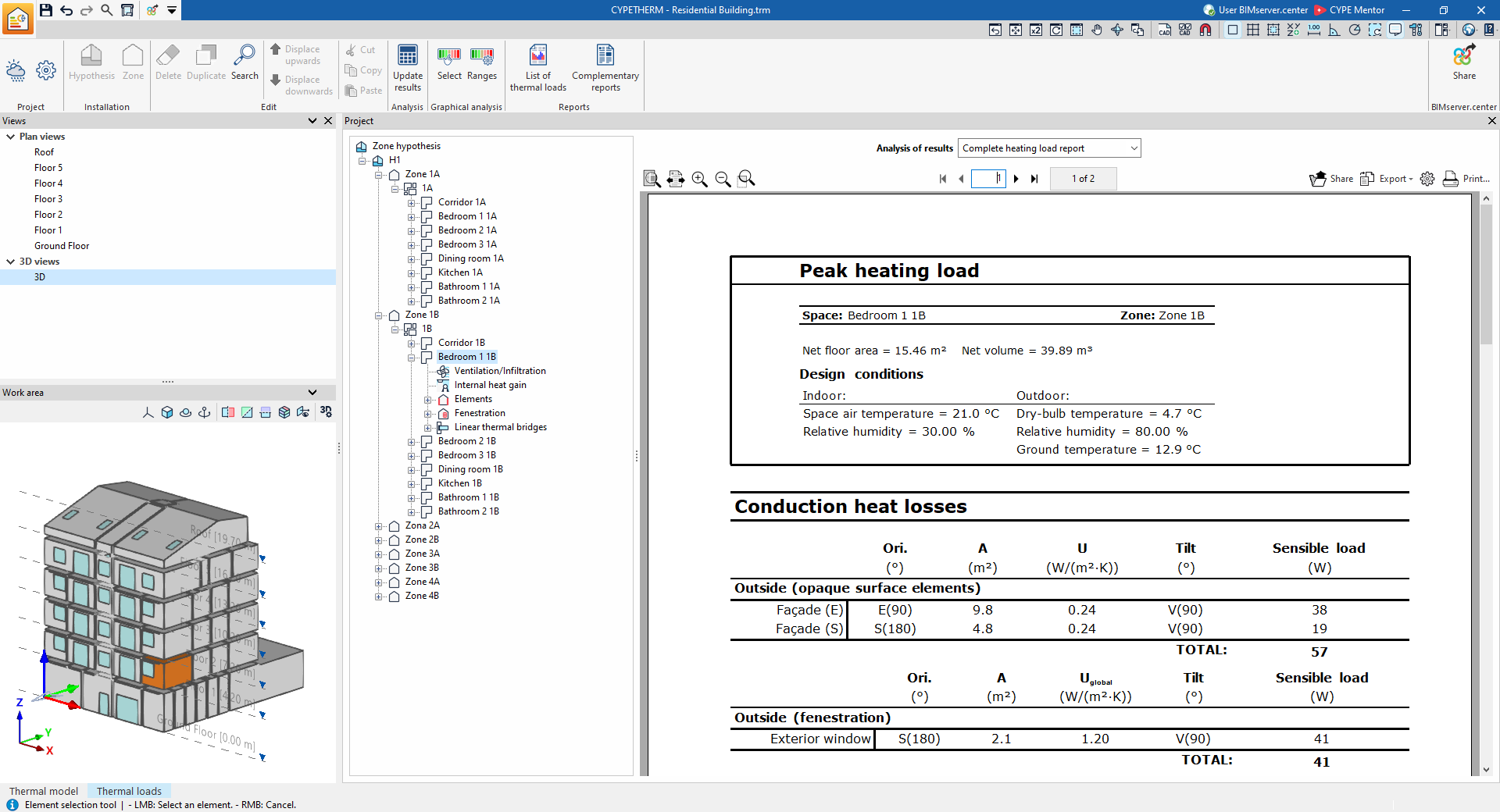
- Complete heating load report
Displays the report on the premises’ heating thermal loads, which includes the following data:- Maximum heating load
- Conduction heat losses
- Ventilation and infiltration heat losses
- Total heating load
- Maximum heating load
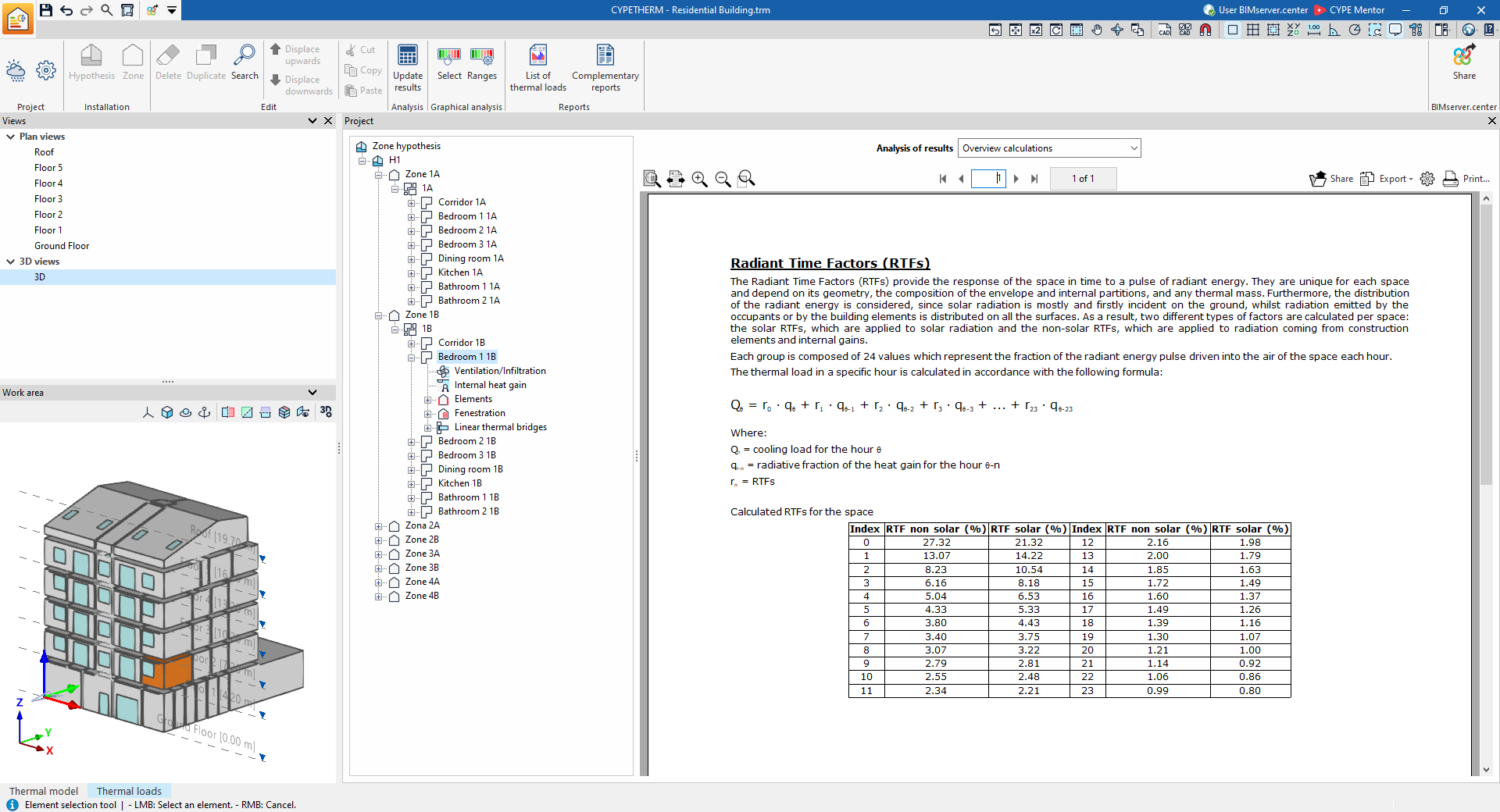
- Overview calculations
Displays an informative text with details on the calculation of radiant time factors (RTF) within the space.
Information on ventilation/infiltration in the building
If a space is selected in the tree and the "Ventilation/Infiltration" level is then selected, the program displays the "Results analysis" drop-down menu, which allows the following information to be displayed in the central part of the program interface, depending on the selection made:
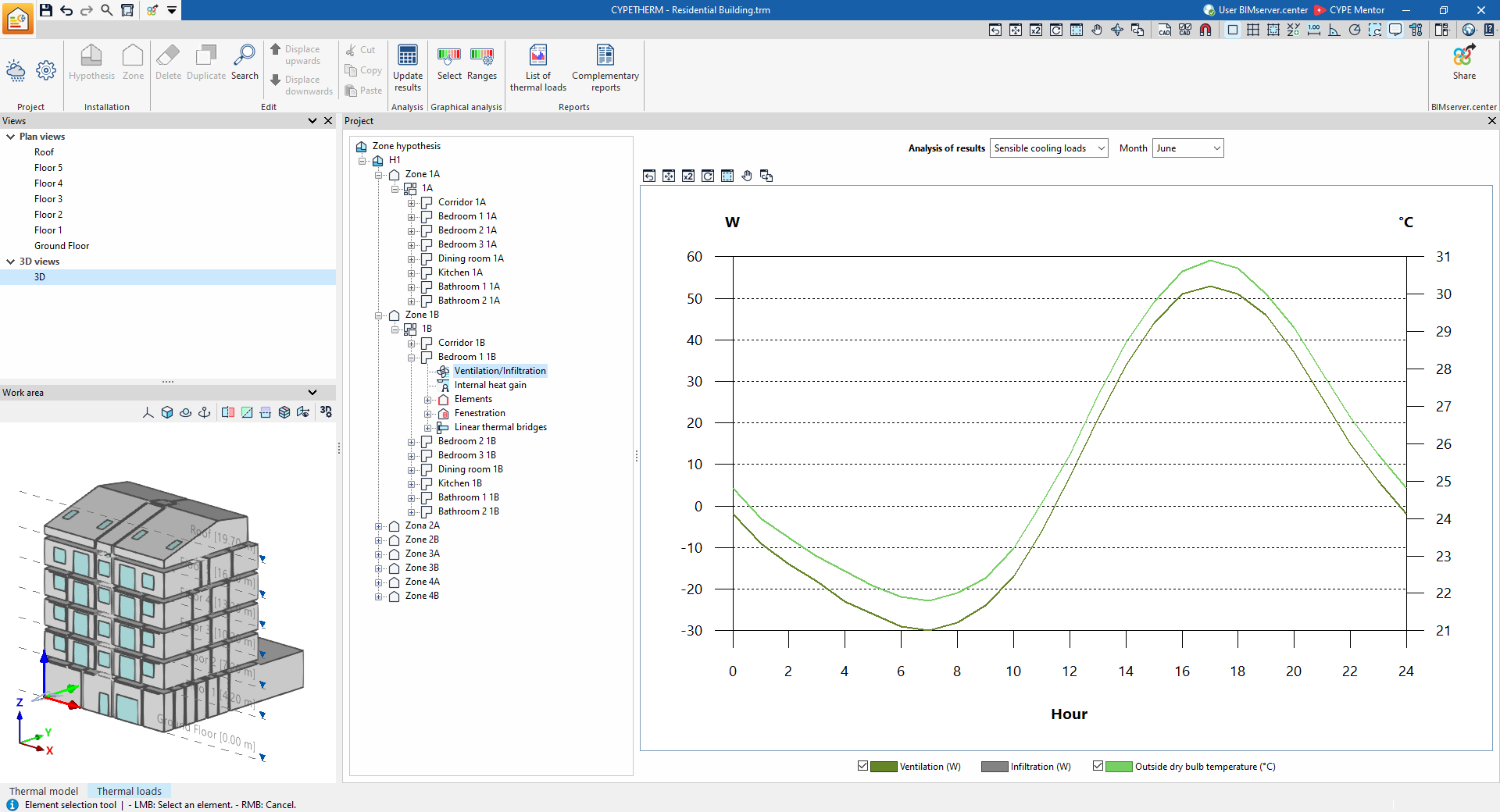
- Sensible cooling loads
Displays the hourly trend in sensible cooling loads due to ventilation and air infiltration, as well as the dry-bulb outdoor temperature, for the selected month.
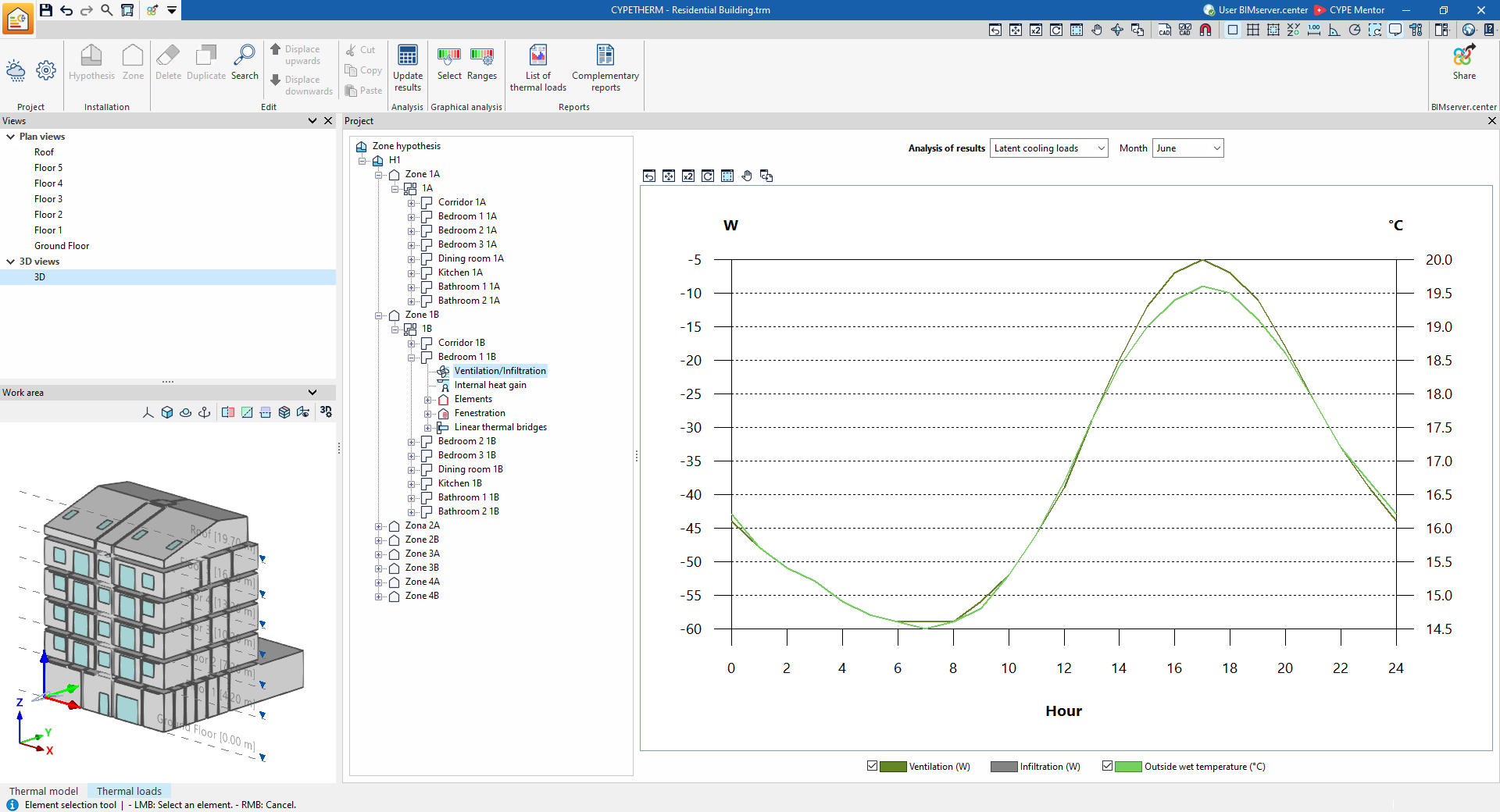
- Latent cooling loads
Shows the hourly trend in latent cooling loads caused by ventilation and air infiltration, as well as the wet-bulb temperature, for the selected month.
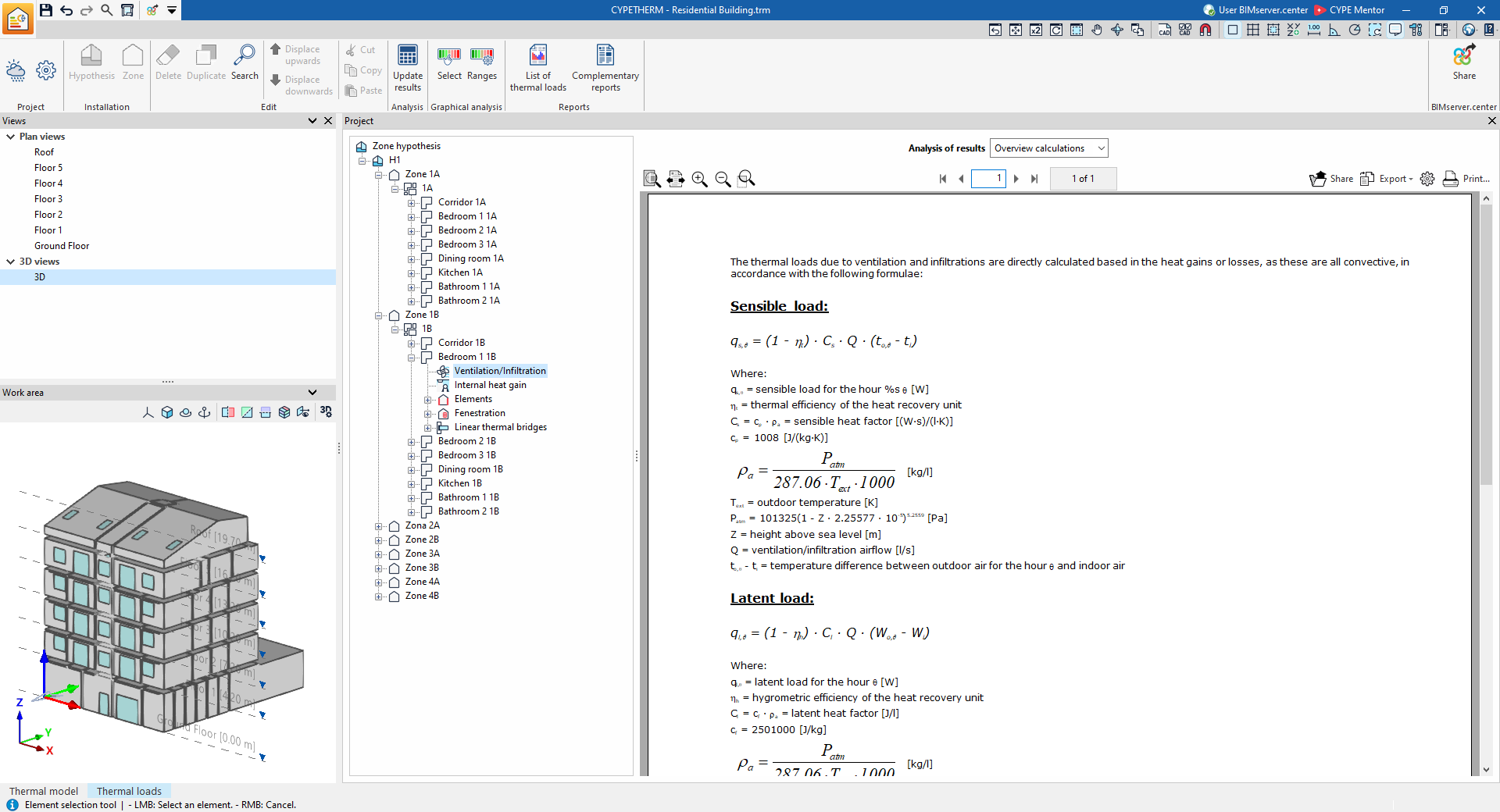
- Overview calculations
Displays an informative text with details on the calculation of sensible and latent heat loads resulting from ventilation and air infiltration.
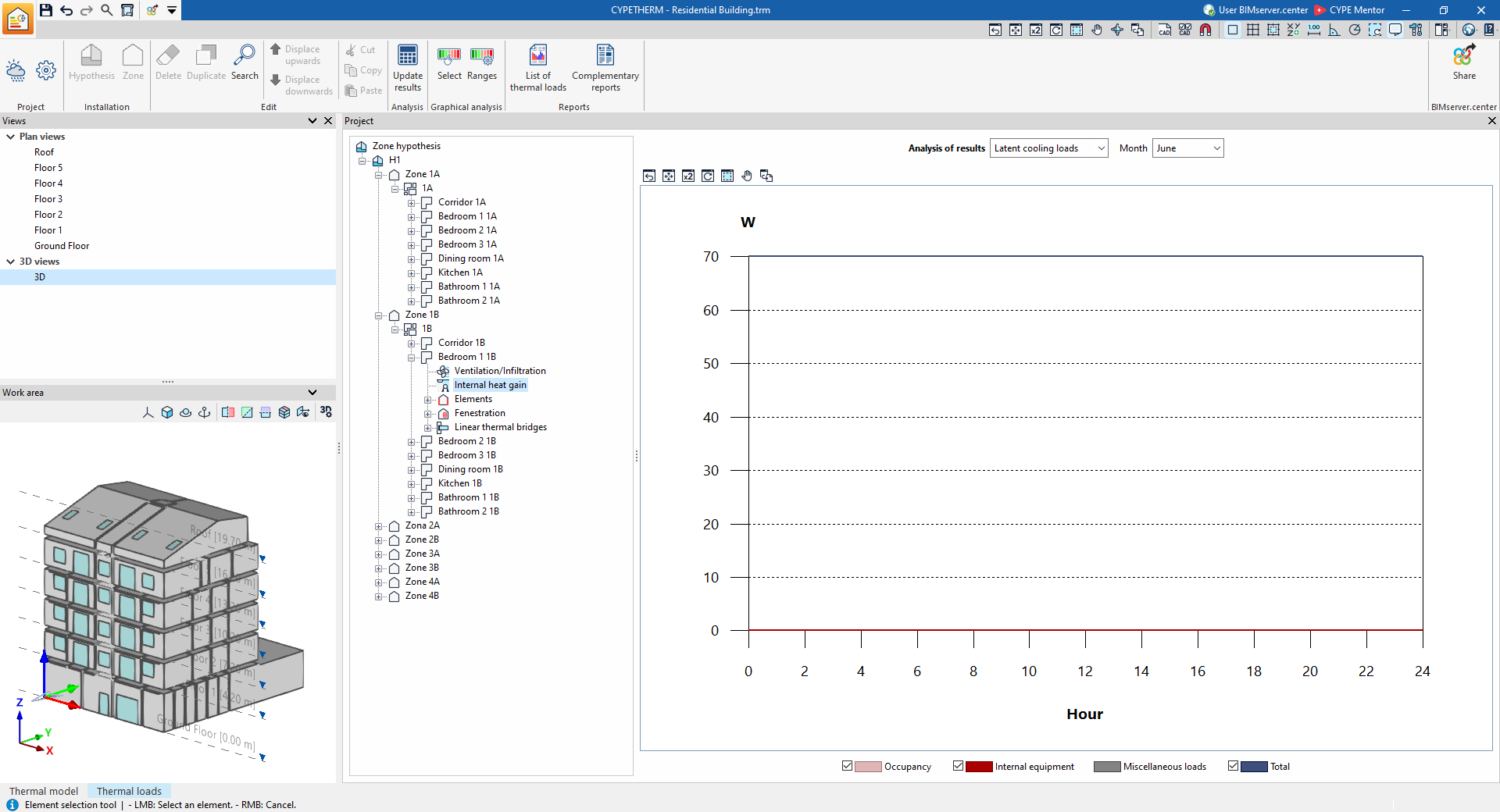
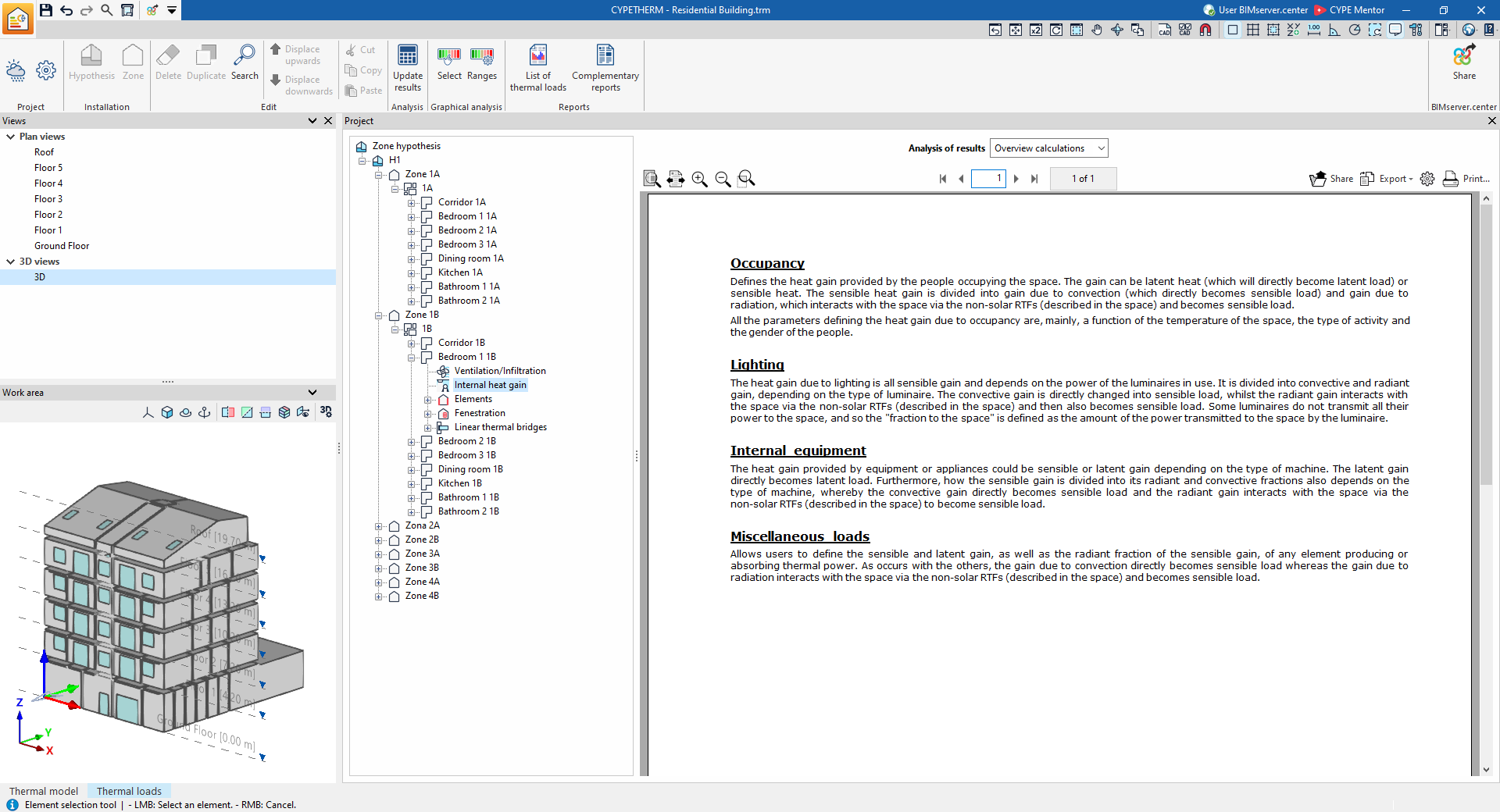
Information on internal heat gain within the building
If a space is selected in the tree and the "Internal heat gain" level is then selected, the program displays the "Results analysis" drop-down menu, which allows the following information to be displayed in the central part of the program interface, depending on the selection made:
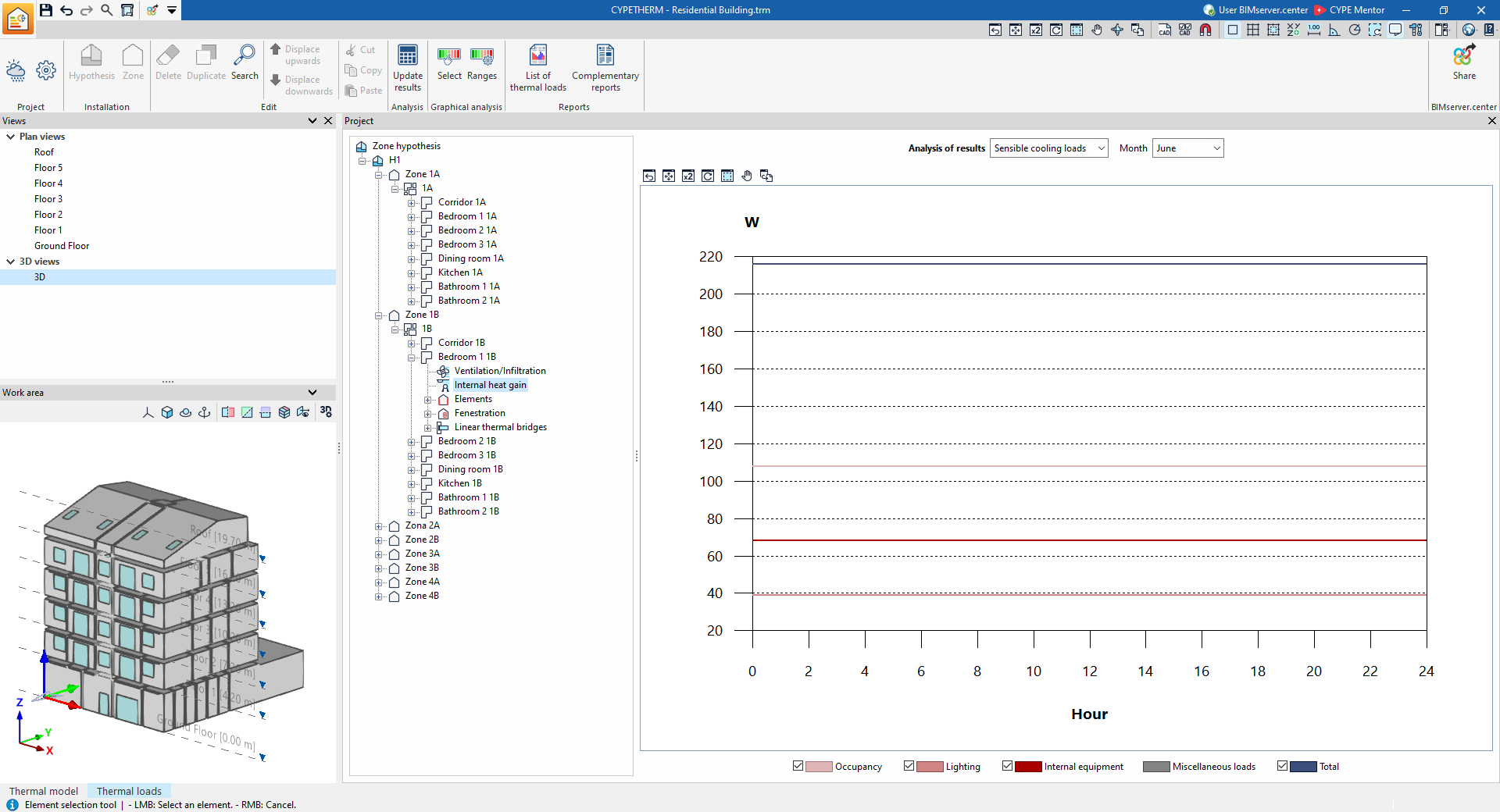
- Sensitive cooling loads
Shows the hourly trend in sensitive cooling loads attributable to occupancy, lighting, internal equipment and other loads, as well as the total sensitive loads, for the selected month.
- Latent cooling loads
Shows the hourly trend in latent cooling loads resulting from occupancy, internal equipment and other loads, as well as the total latent loads, for the selected month.
- Overview calculations
Displays an informative text with details on the calculation of internal heat gains.
Information on the space's elements
If a space is selected in the tree and the "Elements" level is then selected, the program displays an information box with details on the calculation of cooling and heating loads in the building elements.
If, after expanding the "Elements" level, a specific element is selected in the tree, the program displays the "Results analysis" drop-down menu, which allows the following information to be displayed in the central part of the program interface, depending on the selection made:
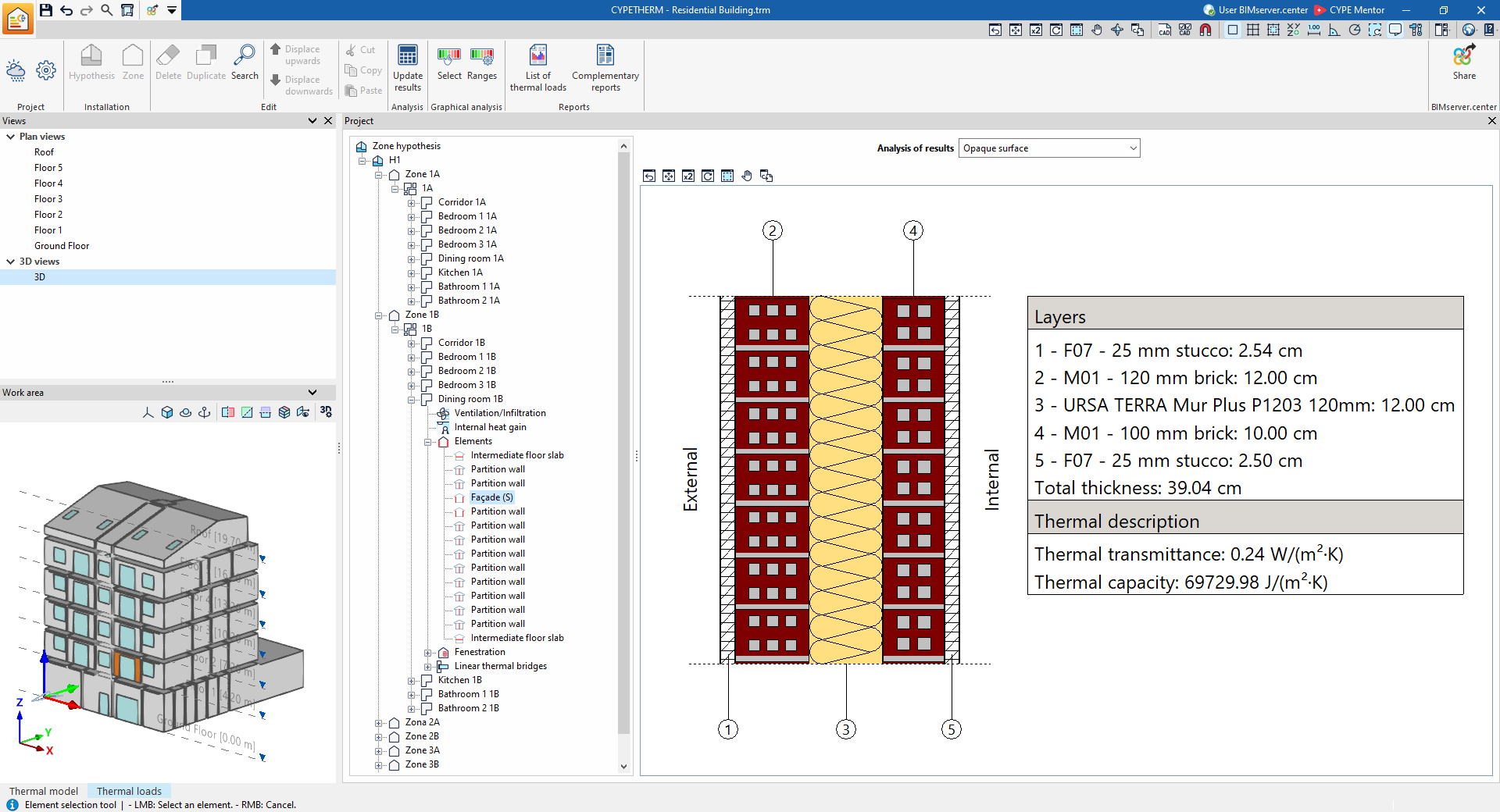
- Opaque element
Displays the construction details of the selected building element, including the layers of materials it comprises, its total thickness, and the parameters describing its thermal properties, such as thermal transmittance and thermal capacity.
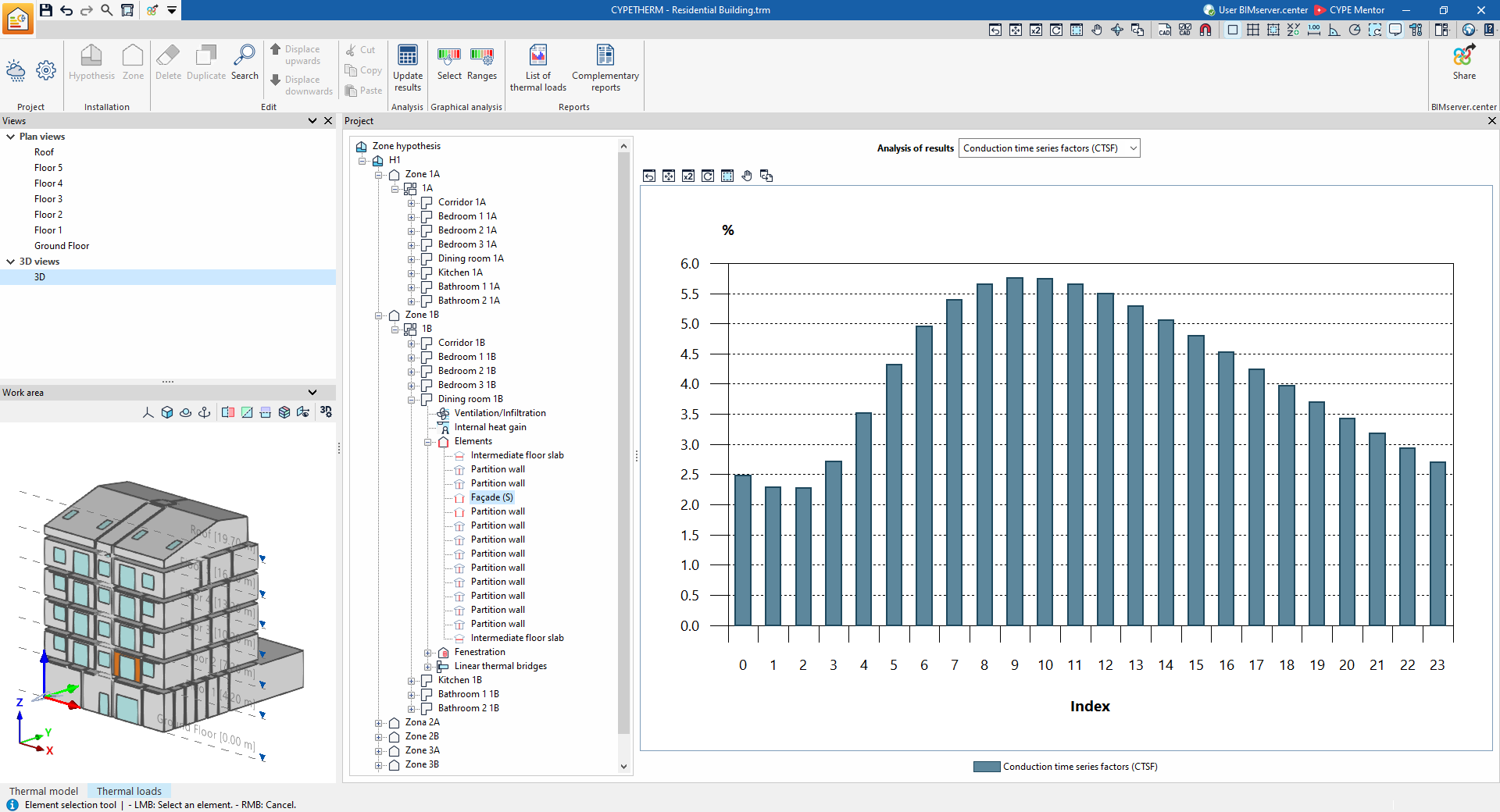
- Conduction Time Series Factors (CTSF)
Displays a bar chart showing Conduction Time Series Factor (CTSF) values (%) obtained from the calculation.
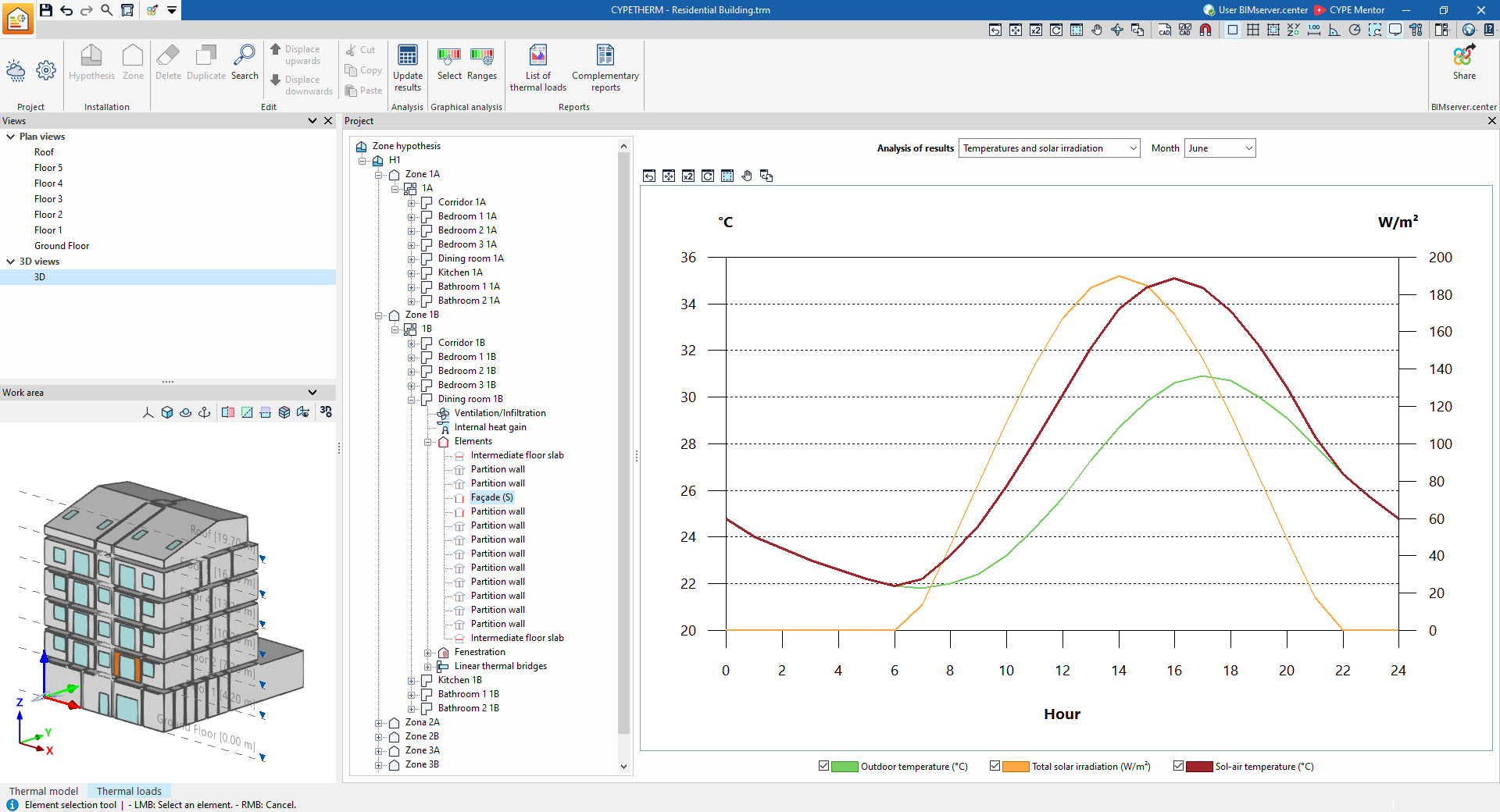
- Temperatures and solar radiation
Displays the hourly changes in outdoor temperature, sun-to-air temperature and total solar radiation for the selected month.
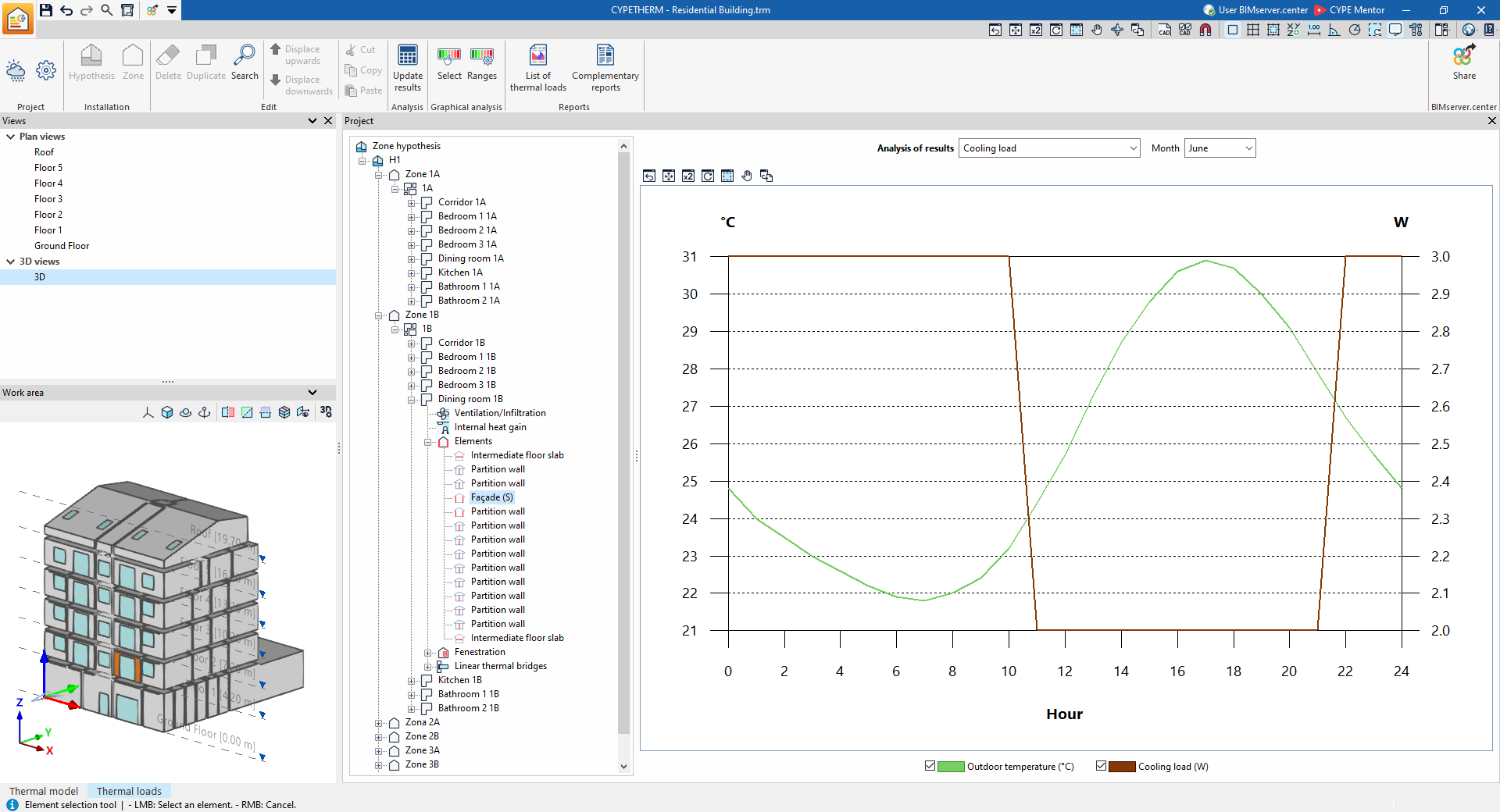
- Cooling load
Displays the hourly trend in cooling load and outdoor temperature for the selected month.
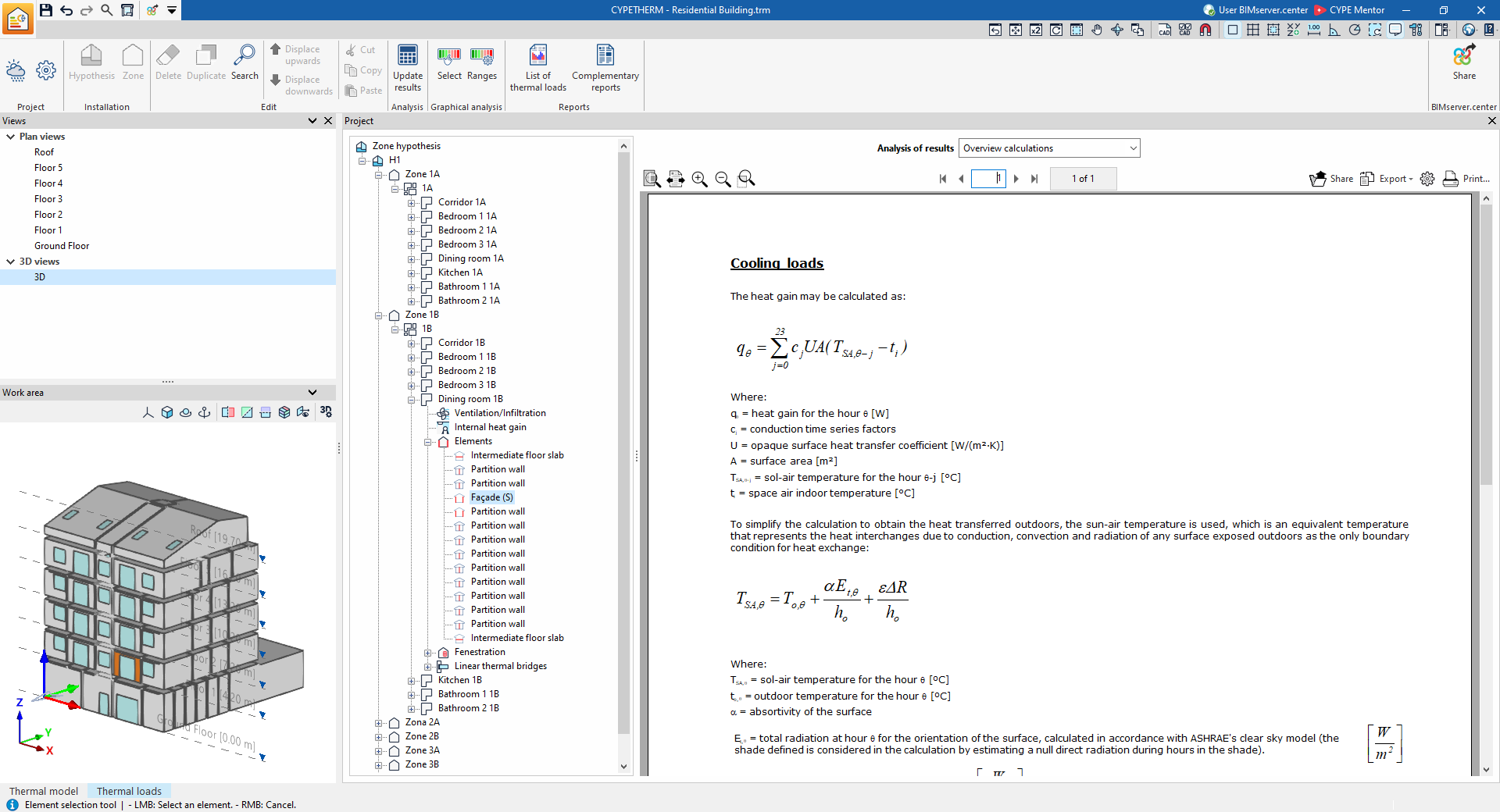
- Overview calculations
Displays an informative text with details on the calculation of cooling loads, including the calculation of the sun-air temperature, the conduction time series factors (CTSF), and the heating loads through the element.
Information on the space's openings
If a space is selected in the tree and the "Openings" level is then selected, the program displays an information message with details on the calculation of cooling and heating loads in the openings.
If, after expanding the "Openings" level, a specific opening is selected in the tree, the program displays the "Results analysis" drop-down menu, which allows the following information to be displayed in the central part of the program interface, depending on the selection made:
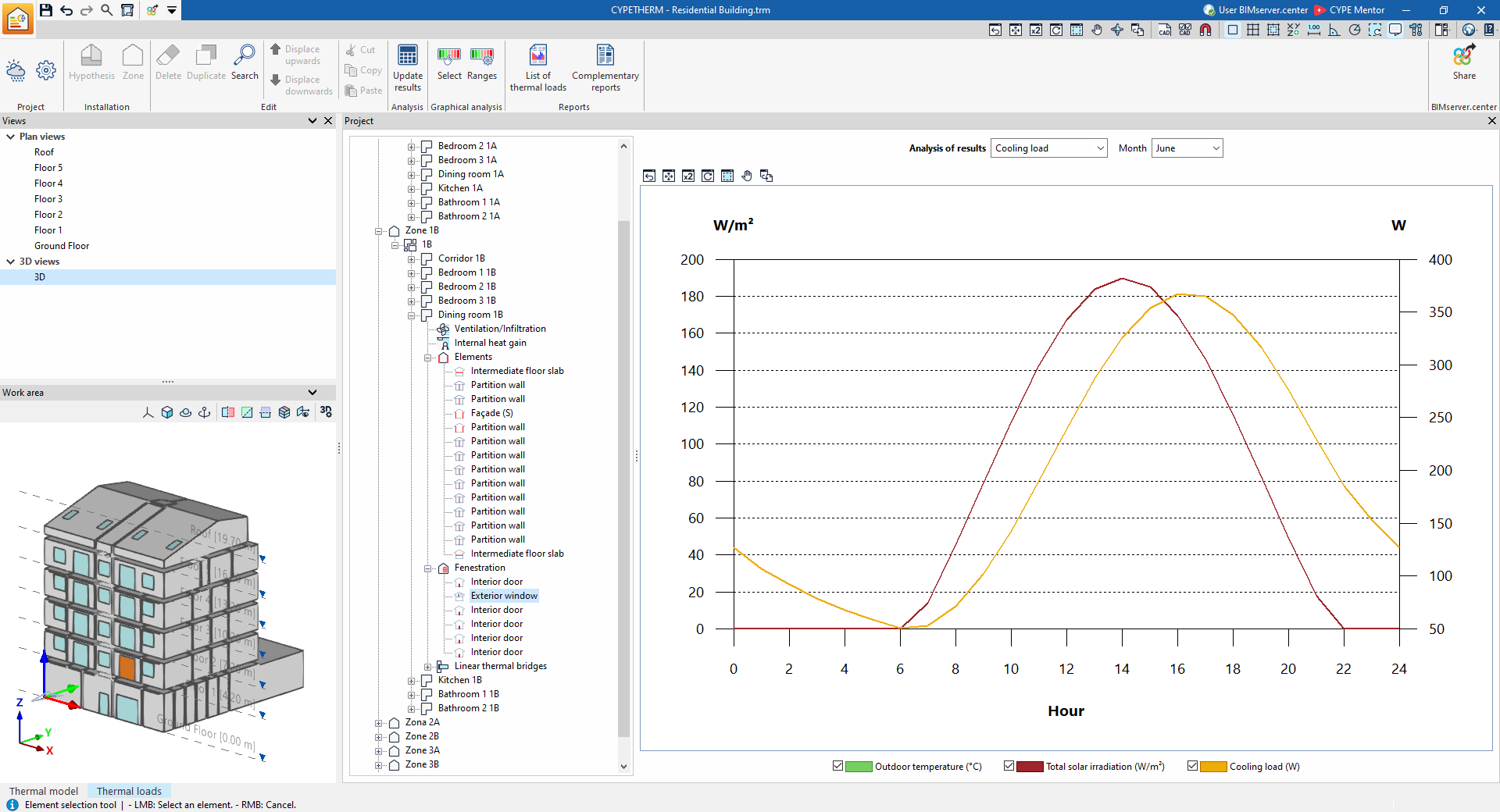
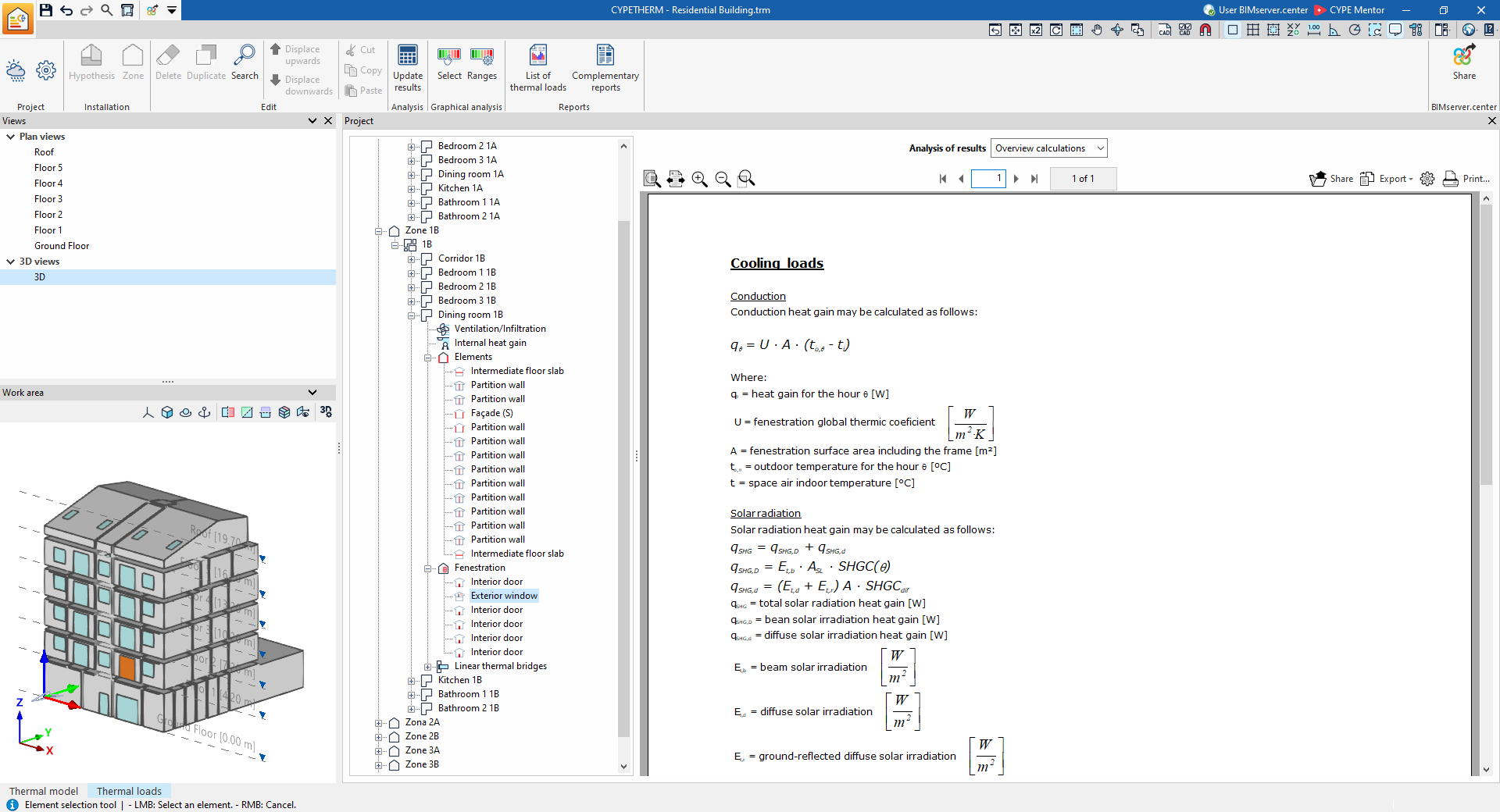
- Cooling load
Displays the hourly trends in cooling load, total solar radiation and outdoor temperature for the selected month. - Overview calculations
Displays an informative text with details on the calculation of cooling loads, including the calculation of heat gains due to conduction and solar radiation, and of heating loads through the opening.
Information on the space's linear thermal bridges
If a space is selected in the tree and the "Linear thermal bridges" level is then selected, the program displays an information box with details on how linear thermal bridges are considered in the load calculation.
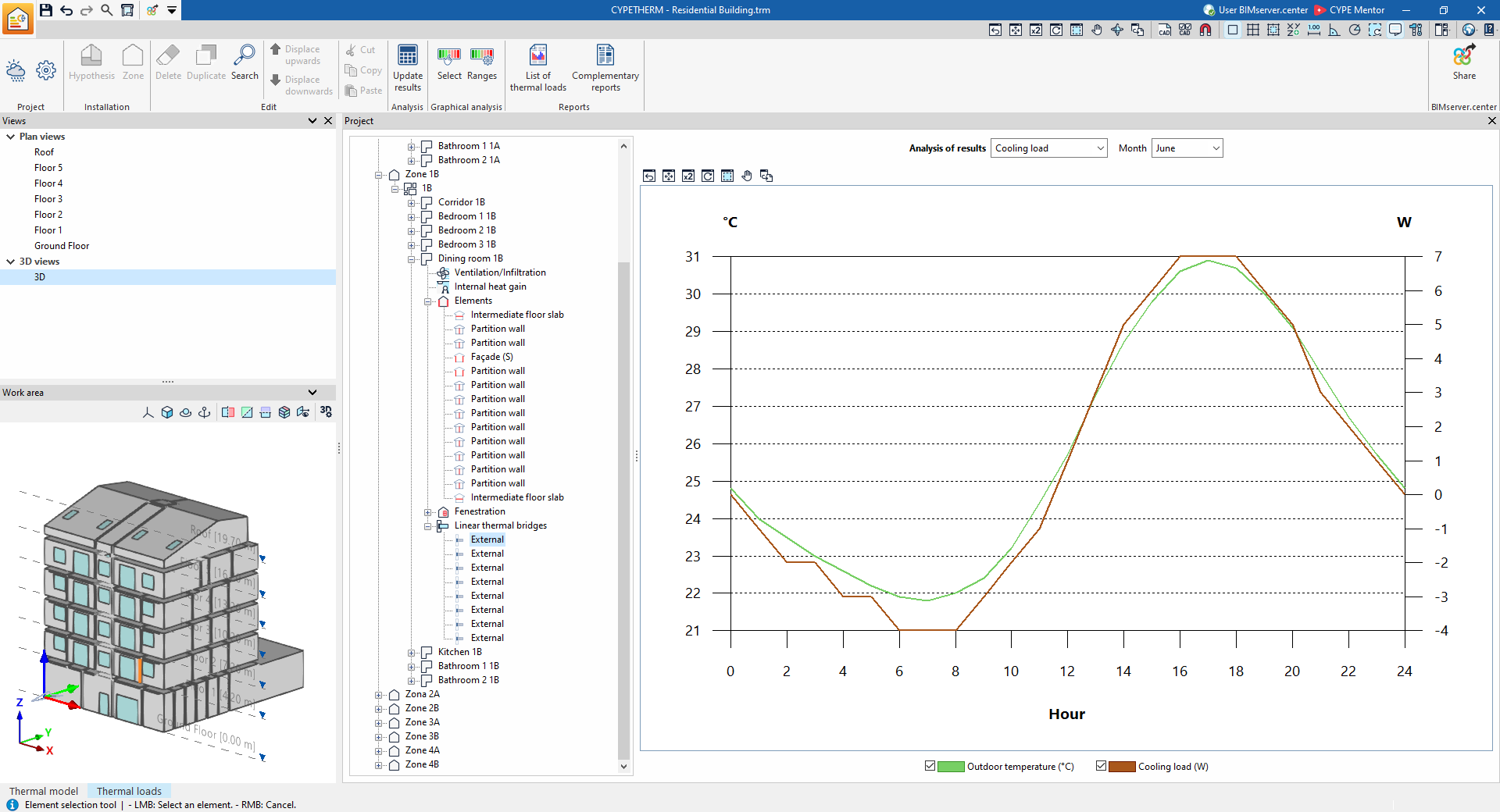
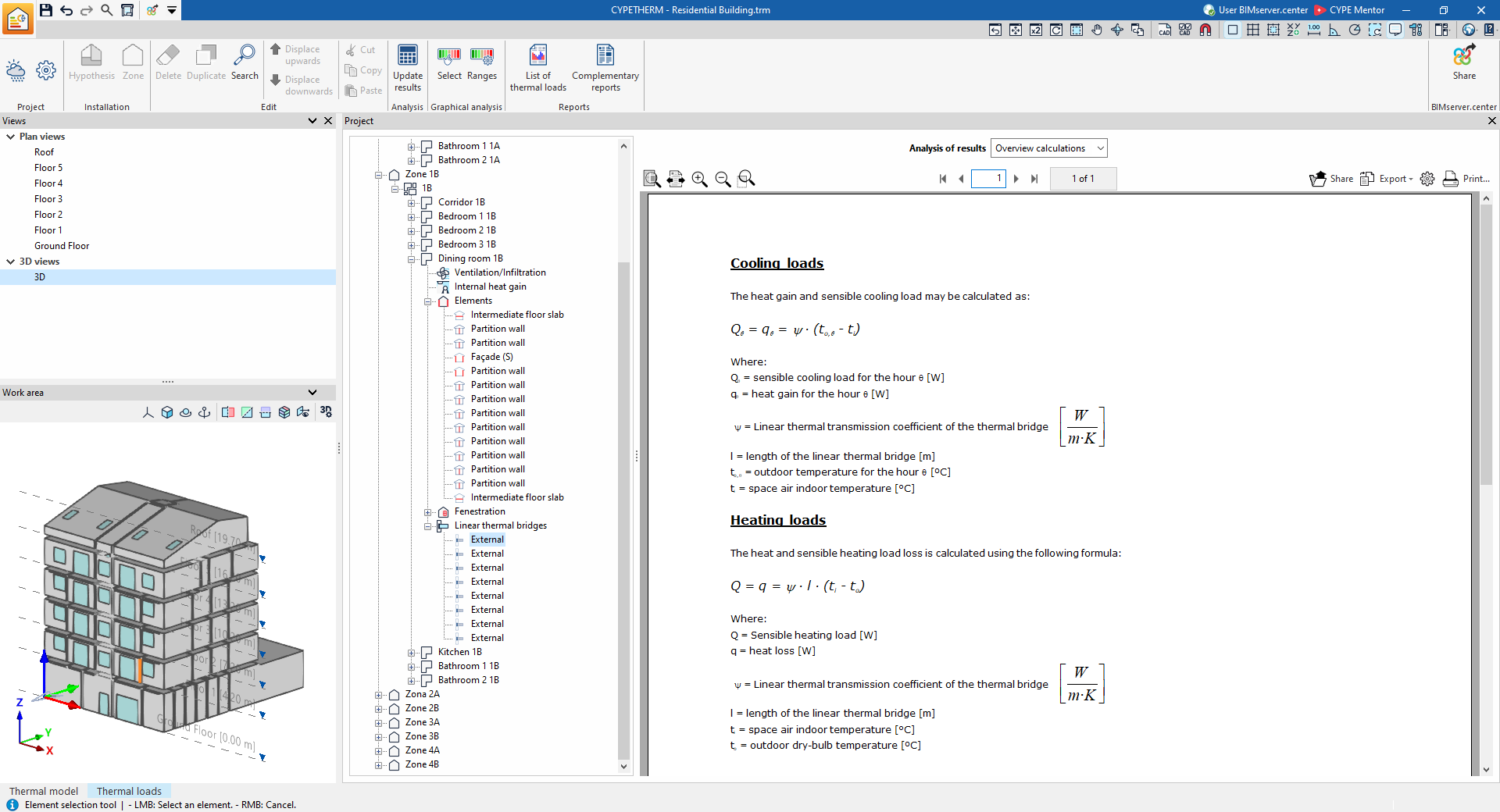
If, after expanding the "Linear thermal bridges" level, a specific linear thermal bridge is selected in the tree, the program displays the "Results analysis" drop-down menu, which allows the following information to be displayed in the central part of the program interface, depending on the selection made:
- Cooling load
Displays the hourly trend in the cooling load and the outdoor temperature for the selected month. - Overview calculations
Displays an informative text with details on the calculation of cooling and heating loads via the linear thermal bridge.
Results output in the "Thermal loads" tab
Viewing results on screen
Viewing results in the project tree
Once the calculation has been carried out, the program allows the results to be viewed on screen within the project tree under the "Thermal loads" tab, including the cooling and/or heating thermal loads for the zones, rooms and each of the associated building elements, as well as a range of information such as graphs and descriptive text explaining the calculation methodology used.
Graphical analysis of results
Using the options in the "Graphical analysis of results" group on the main toolbar of the "Thermal loads" tab, you can view the calculated thermal load values in the "View" panel, which is displayed by default in the bottom-right-hand corner. The zones or compartments are colour-coded, and a colour scale is displayed as a legend.
Reports
The program lets you print the following reports directly or generate HTML, PDF, TXT, RTF or DOCX files containing their content:
Reports by hypothesis and zone
The program generates reports on the results for the zone hypotheses and zones, including the data calculated for all the areas included in each of them. To do this, select the relevant level in the project tree on the "Thermal loads" tab – either "Hypothesis" or "Zone" – and click on the "Supplementary reports" option.
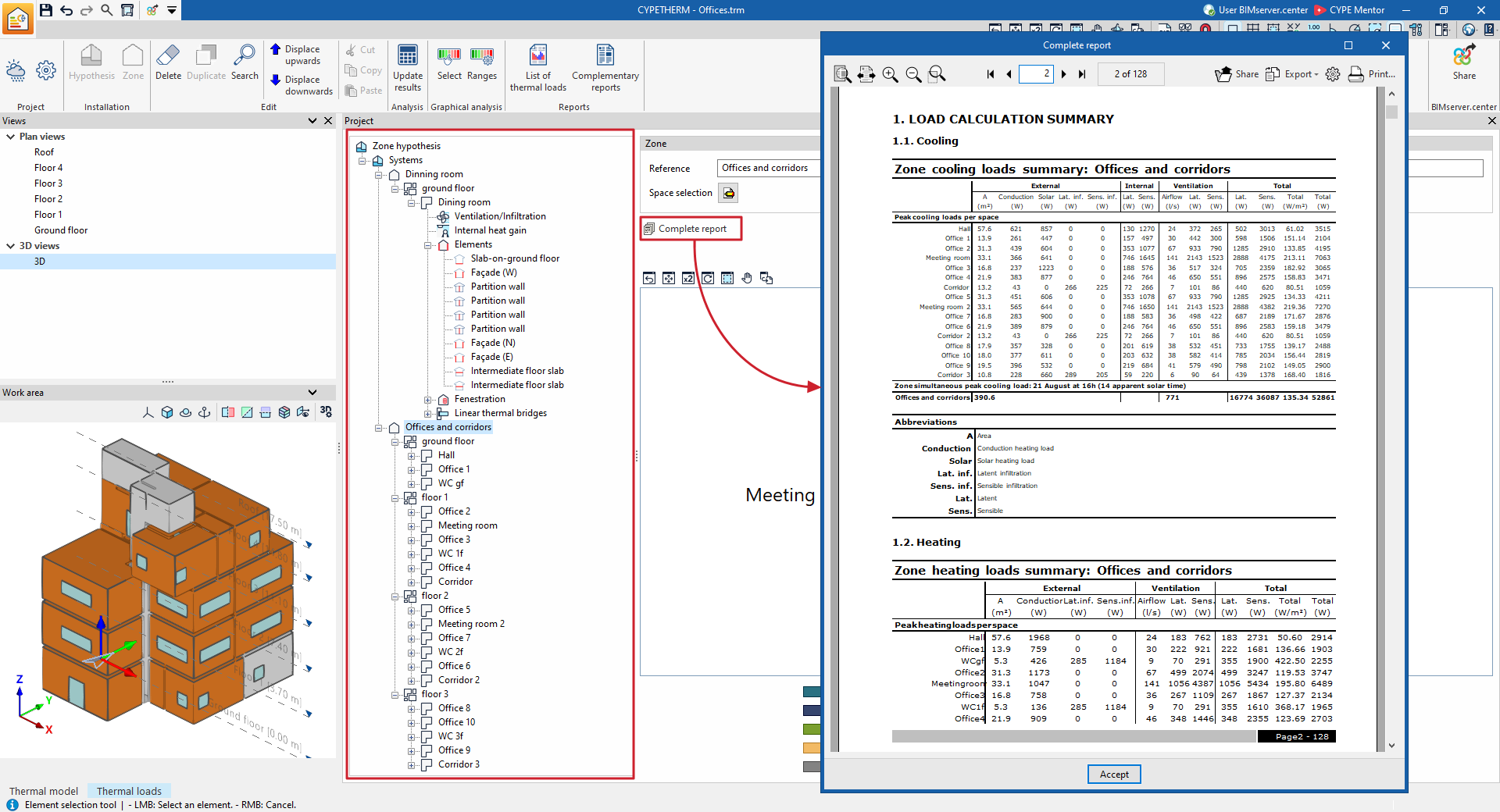
Thermal load report and supplementary reports
Using the options in the "Reports" section of the main toolbar on the "Thermal loads" tab, you can generate the thermal load report and supplementary reports.
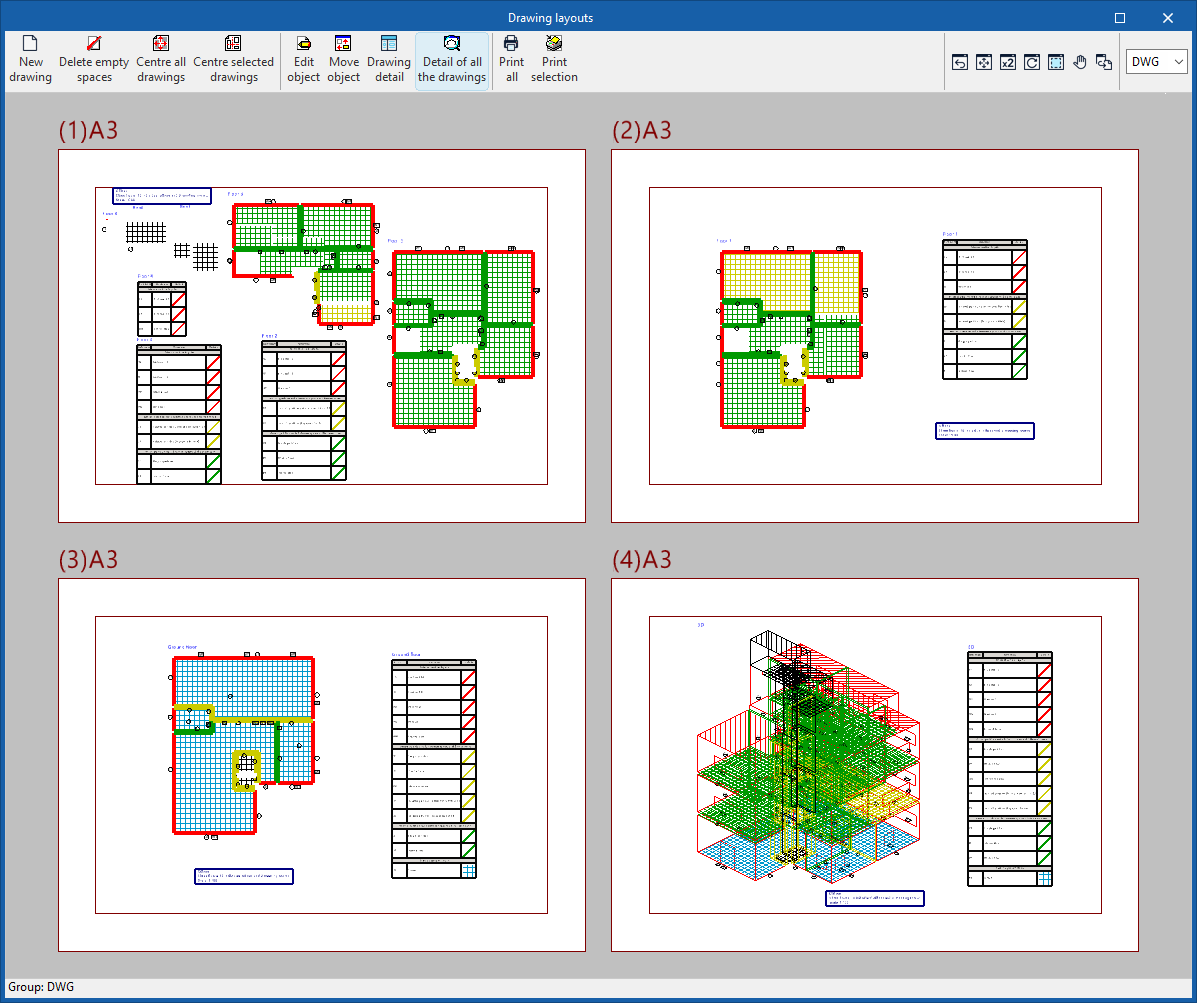
Drawings in DWG, DXF or PDF format
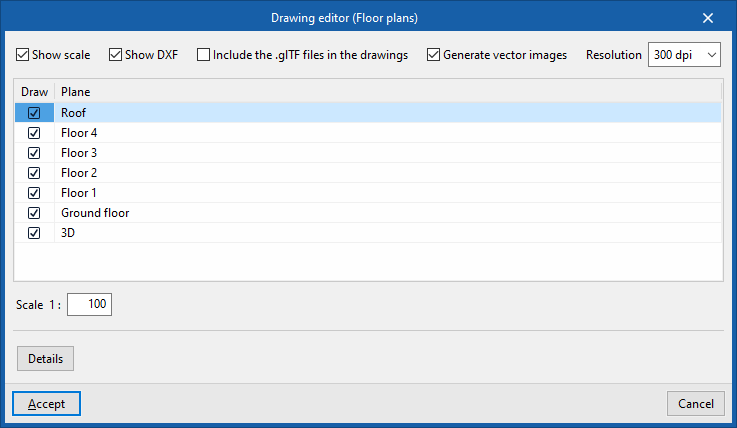
The program lets you print the project drawings on any graphics device set up on your computer, or to create DWG, DXF or PDF files.
The map editing function lets you configure the following options:
- Show scale (optional)
- Show DXF (optional)
- Include the .glTF files in the drawings (optional)
- Generate vector images (optional)
- Resolution (96 dpi / 150 dpi / 300 dpi / 600 dpi)
- "Draw" "Plane"
- Scale
- Details
Drawings can be accessed via the "Drawings" option at the top of the interface or via the "Drawings" option in the "File" menu, which can be accessed from any tab in the program.
Integration into the BIMserver.center platform
Many of CYPE's programs are connected to the BIMserver.center platform and allow collaborative work to be carried out via the exchange of files in formats based on open standards.
Please note that, to work on BIMserver.center, users can register on the platform free of charge and create a profile.
When accessing a program connected to the platform, the program connects to a project in BIMserver.center. This way, the files of the projects that have been developed collaboratively in BIMserver.center are kept up to date.

| More information: |
|---|
| For further details related to using CYPE software via the BIMserver.center platform, please click on this link. |
Options in the "BIMserver.center" group in the "Thermal loads" tab
In the "BIMserver.center" group of the main toolbar in the "Thermal loads" tab, you will find the feature required to share the program’s results with other tools linked to the BIMserver.center project.

Share
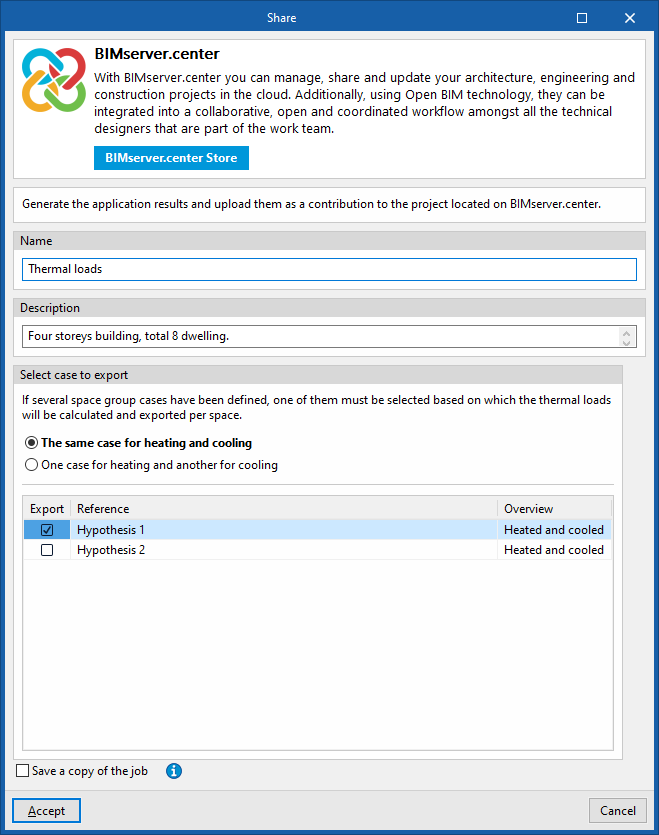
Export the information from the model created using CYPETHERM to BIMserver.center so that you can share it with other users.
During the export process, you can specify details relating to the identification of the files to be exported and select the information you wish to export.
- Name
- Description
- Select case to export
If several space grouping cases have been defined, you must select one of them, based on which the thermal loads per room will be calculated and exported. You can select one of the following:- The same case for heating and cooling
- One case for heating and another for cooling
- Save a copy of the job
If this option is enabled, a compressed file in CYP format containing the model information at the time of export will be saved. This backup copy is saved in a folder named after the project, with the extension _bak, located in the directory where the project is stored (by default, C:\CYPE Ingenieros\Proyectos\CYPETHERM \projectname_bak). Each time the "Share" option is used whilst this option is ticked, a new backup file in CYP format will be generated in this folder
This way, the app’s results are generated and uploaded as a contribution to the project hosted on BIMserver.center for subsequent import into other programs.