Update history​​

CYPE Accessibility

As of version 2026.b, project files are automatically associated with the corresponding CYPE app in the Windows environment. This means that you simply double-click on the file to open it directly in the appropriate program, without having to select it manually. This improvement streamlines the workflow and provides a smoother and more efficient user experience.

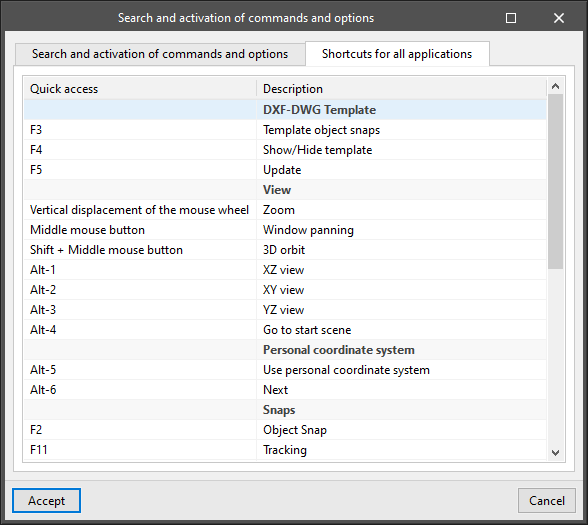
As of version 2025.d, the interaction during the insertion of elements in the app's workspace has been improved. For those elements that the app allows to be rotated once inserted (Rotate element tool), it is now possible to rotate them in 90-degree intervals on the Z-axis by simply pressing the space bar on the keyboard before inserting them.

This feature allows for greater accuracy and speed when positioning components within the model, avoiding the need for subsequent adjustments.

The following modifications have been made to the availability of the applications from the CYPE Menu.

New:

  • CYPEHVAC Schematics

  • ELODIE by CYPE (Only in the CYPE Menu in French)

Deleted:

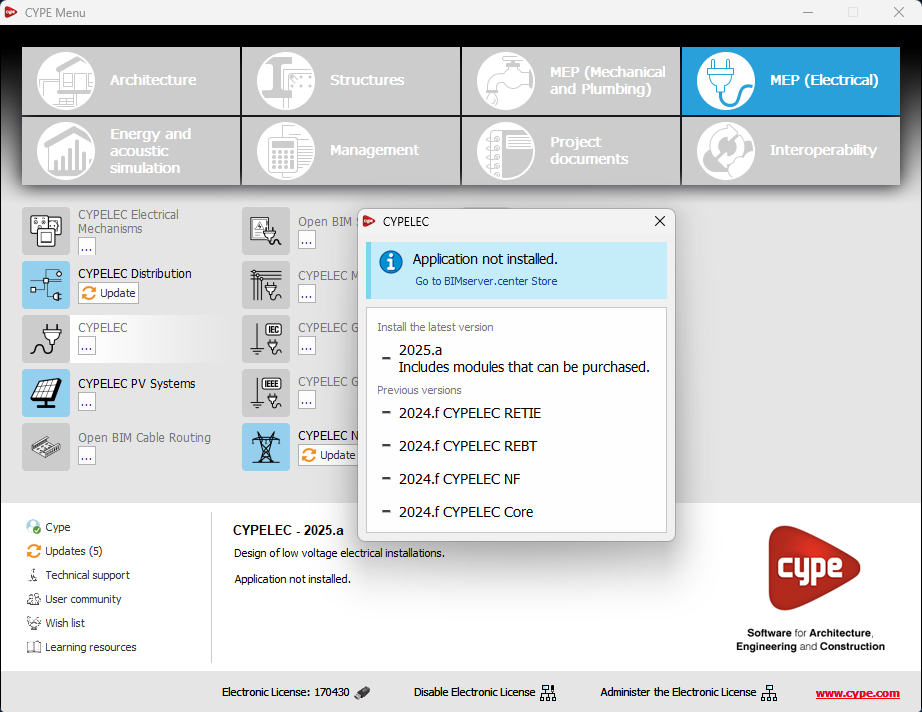
  • CYPELEC Core, CYPELEC REBT, CYPELEC NF and CYPELEC RETIE. They are joined together in a single program called CYPELEC.

  • CYPESOUND CTE, CYPESOUND NRA, CYPESOUND RRAE, CYPESOUND DRAPDE. They are integrated into CYPESOUND.

  • CYPEURBAN. Available for download and installation from the BIMserver.center platform.

  • IFC Uploader. New contributions can now be created directly from the project page on the BIMserver.center platform.

  • CYPEFIRE FDS Viewer. CYPEFIRE FDS can be used to view FDS simulations.

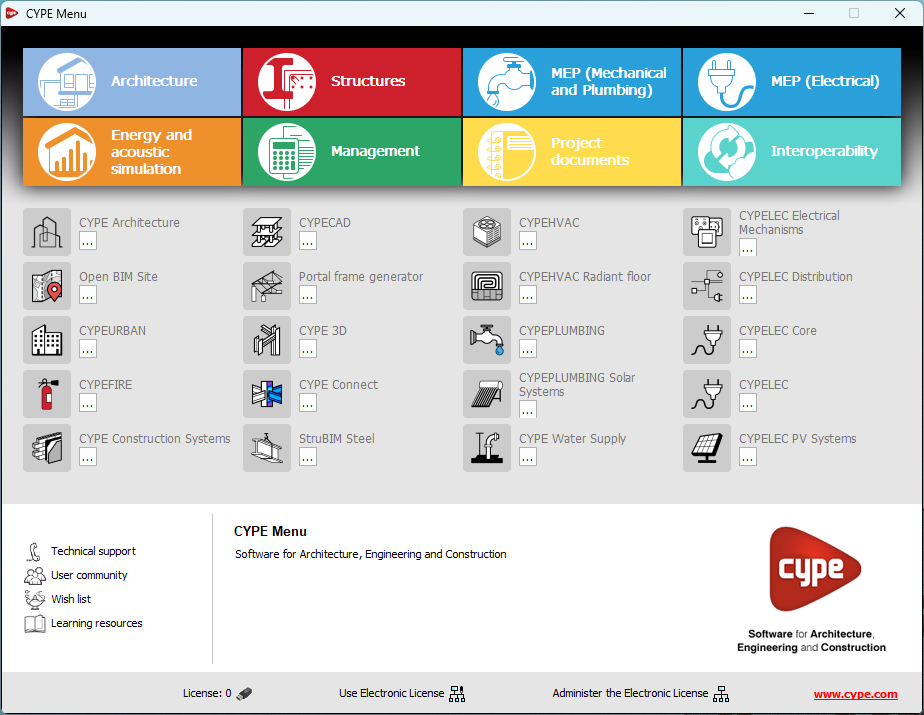
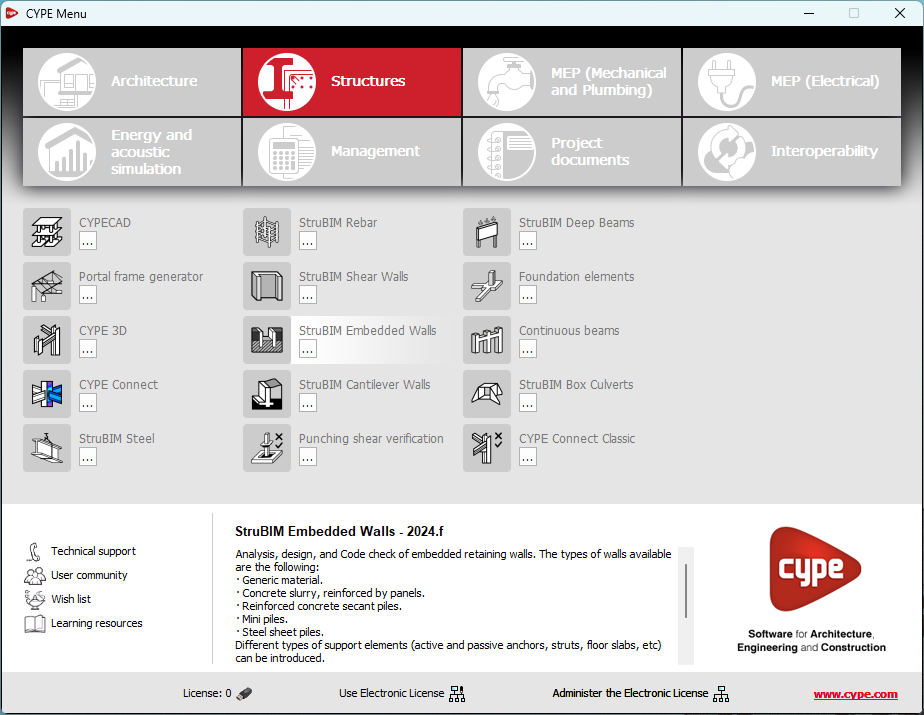
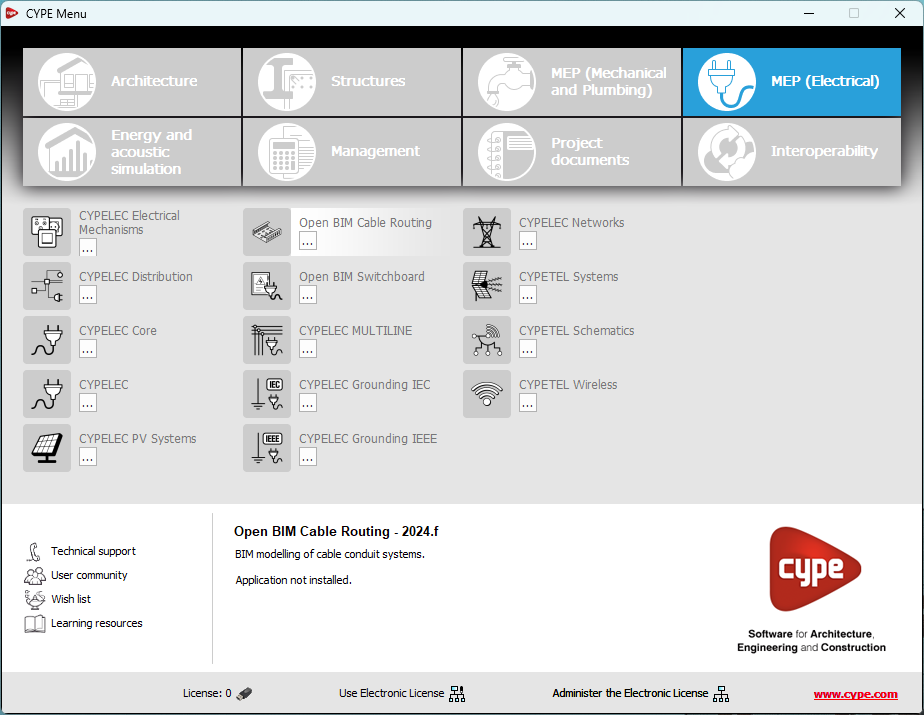
In version 2025.a, CYPE Menu (which can now be downloaded exclusively from the BIMserver.center platform) has new program groups.

  • Architecture
  • Structures
  • MEP (Mechanical and Plumbing)
  • MEP (Electrical)
  • Energy and acoustic simulations
  • Project management
  • Project documents
  • Interoperability

Most of the CYPE applications are sorted into these groups. In previous versions, most of these applications could only be downloaded as single applications from the BIMserver.center platform.

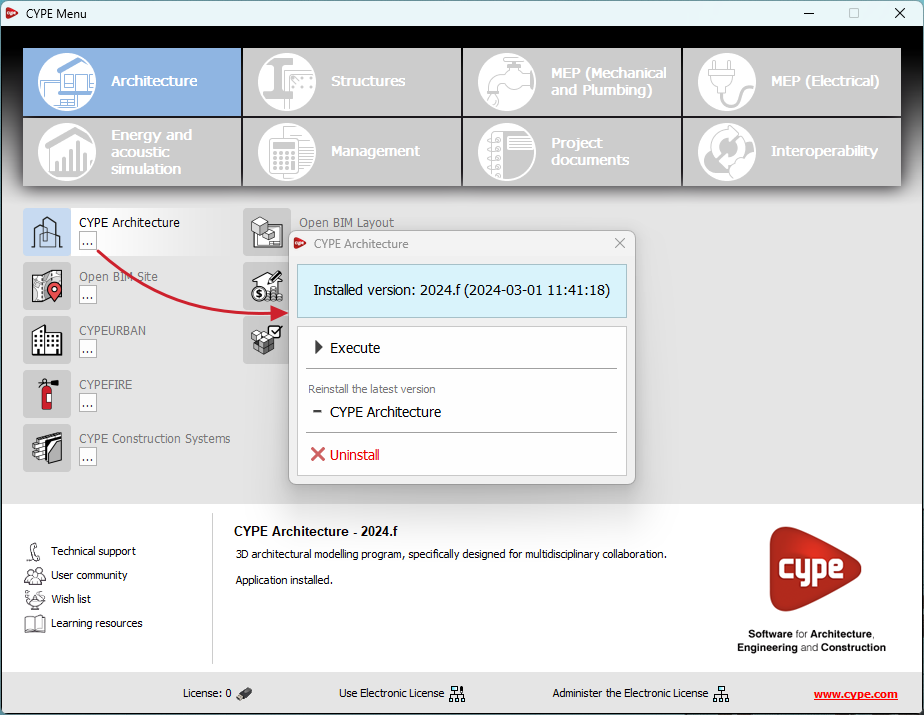
By downloading and installing CYPE Menu, users will only have the CYPE programs menu installed, but none of the applications included in it will be downloaded or installed. Initially, each of the icons representing the CYPE Menu applications appears in a box with a grey background. When clicking on any of them for the first time (or on the button under the application's name), a contextual menu will appear allowing users to download and install the latest version of that application or an earlier version if available. Earlier versions (from 2024 onwards) will be available for those programs that include paid modules. Normally, free applications will only allow the latest version of these programs to be installed. Any installed version of any application can be uninstalled.

When an application has been installed, by clicking on the button under its name, the context menu that appears includes the "Uninstall" option.

More information on this program menu can be found in the FAQ "How to download and install programs from CYPE’s general menu".

The CYPE Menu download of versions before 2025 (with the applications included) is still available in the download area of the CYPE website.

As of version 2025.a, the CYPE program menu can only be downloaded from the BIMserver.center platform.

The CYPE Menu application was already available from version 2024.b on the BIMserver.center platform. Now, in version 2025.a, the advantages of CYPE Menu compared to previous versions, which were downloaded from the download area of the CYPE website, are as follows:

  • As of version 2024.b
    • Once CYPE Menu has been installed, the applications it contains will be installed from this new menu when they are opened for the first time.

  • As of version 2024.f
    • CYPE Menu allows users to manage the updates of the applications it contains.

  • As of version 2025.a
    • New program groups and many CYPE applications that could only be downloaded directly from BIMserver.center are included.
    • The version of each application to be installed can be selected (from version 2024 onwards).
    • Previously installed applications can be uninstalled.

Further information on the new features can be found in the following new features of CYPE Menu version 2025.a.

In the download area of the CYPE website, the download of the program menu for versions prior to 2025.a (in 64-bit and 32-bit) will still be available. In this download area, there is also a link to the BIMserver.center platform "Store" for downloading the 2025.a version of "CYPE Menu".

As a result of these changes, the 32-bit version of the CYPE Menu is no longer available in version 2025.a. As of 18 February 2019 (version 2019.f), the CYPE programs have been running on 64-bit systems. Since then, only the classic CYPE menu could be installed on 32-bit systems. All other applications (downloadable from the BIMserver.center platform) only worked on 64-bit systems. We believe that 32-bit programming is no longer feasible to take advantage of the superior performance of 64-bit processors and operating systems. Users who still want to use certain 32-bit CYPE programs (those available in the "CYPE Menu" prior to version 2025.a) must install a version prior to 2025.a from the download area of the CYPE website, but will not be able to upgrade their programs to later versions. Please refer to our FAQ question "Which version should I download, 64-bit or 32-bit?" for more information on the 32-bit and 64-bit versions.

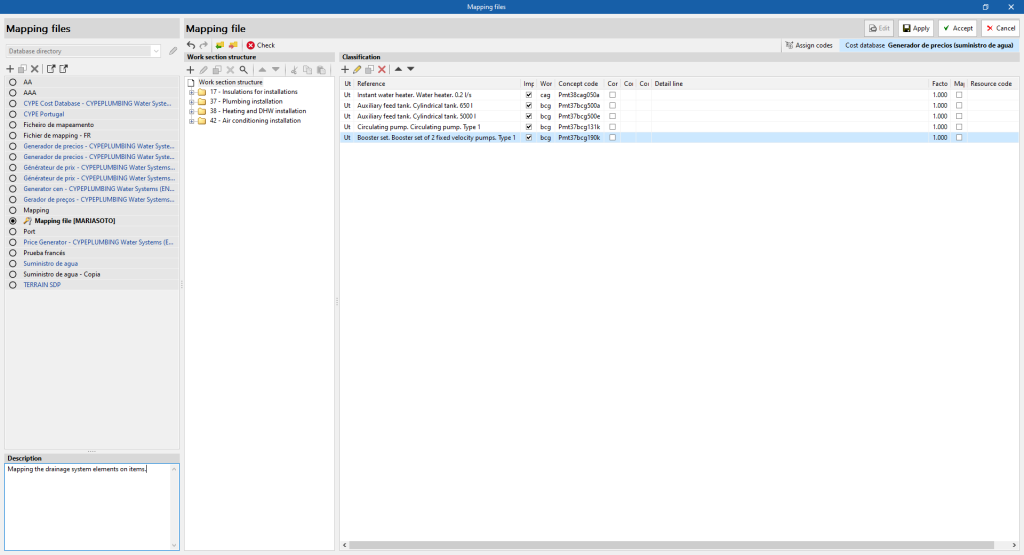
A new "Description" field has been added in the editing window of a "Mapping file" allowing a descriptive text to be associated with the set.

This allows users to provide information on the content or use of the set without the limitations of the "Name" field.

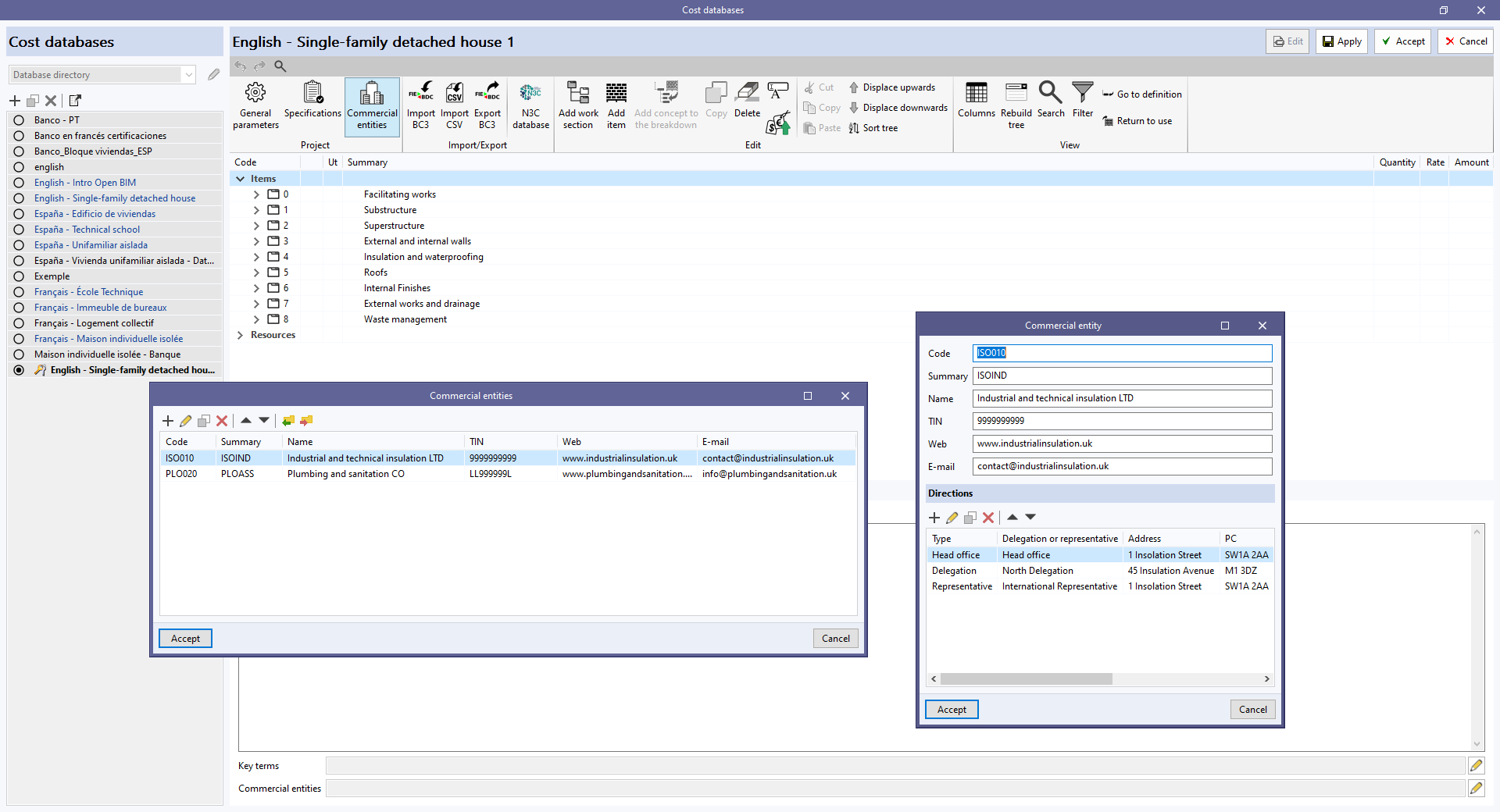
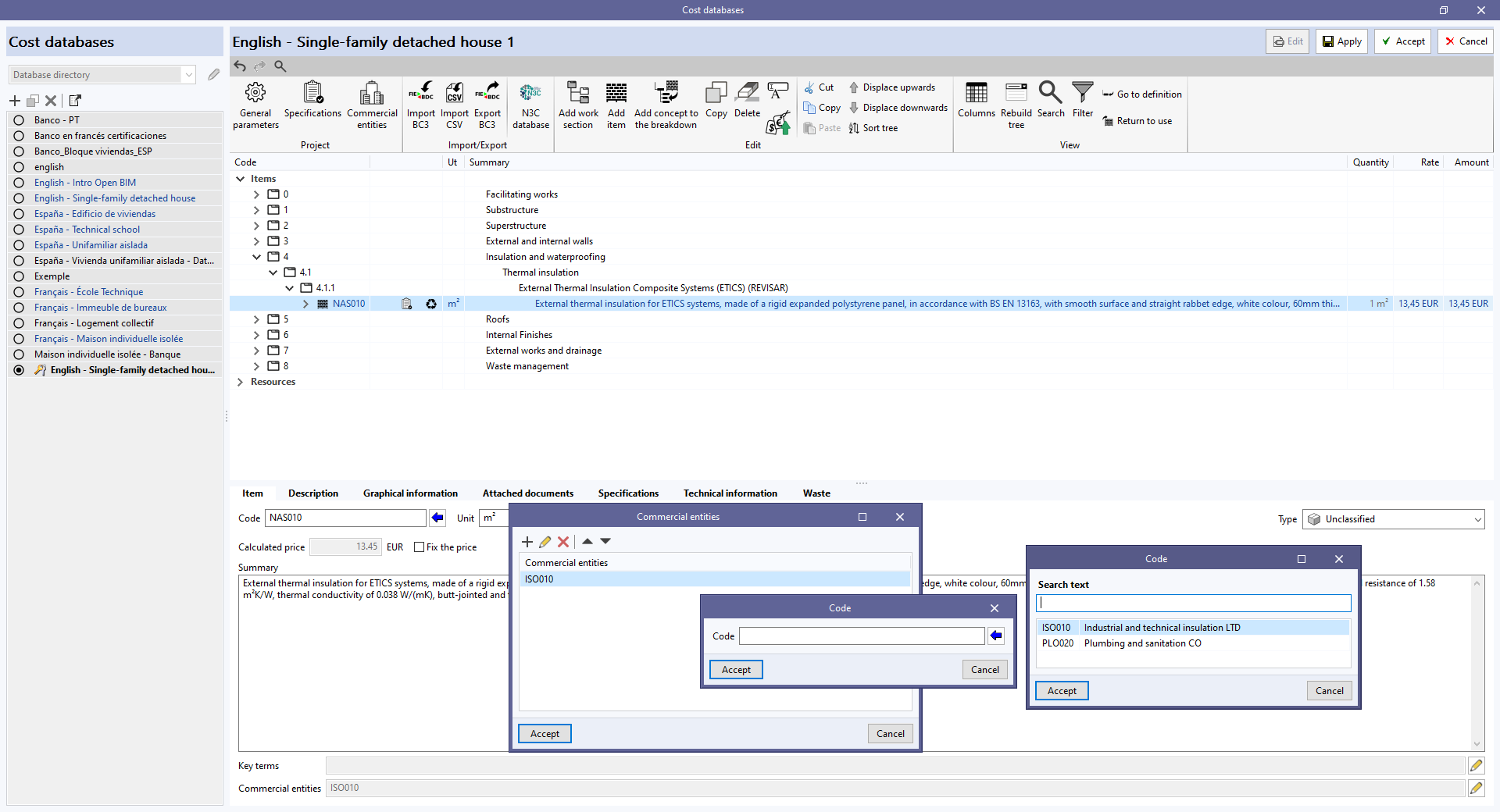
As of version 2024.f, the "Bill of quantities" tab allows commercial information to be entered in the "Project cost database" or a "Cost database".

For this purpose, the "Commercial entities" button has been added to the toolbar in the management window of both elements.

By clicking on it, a menu is displayed where it is possible to define the data of the commercial entities involved in the project or the cost database.

Furthermore, to allow commercial entities to be associated with concepts, the "Commercial entities" field has been added to the editing panel for work sections and items.

Commercial entities are part of the standard database interchange format for the FIEBDC-3 construction database (.bc3). Therefore, this information can be imported and exported using the tools in the "Bill of quantities" tab for managing BC3 files.

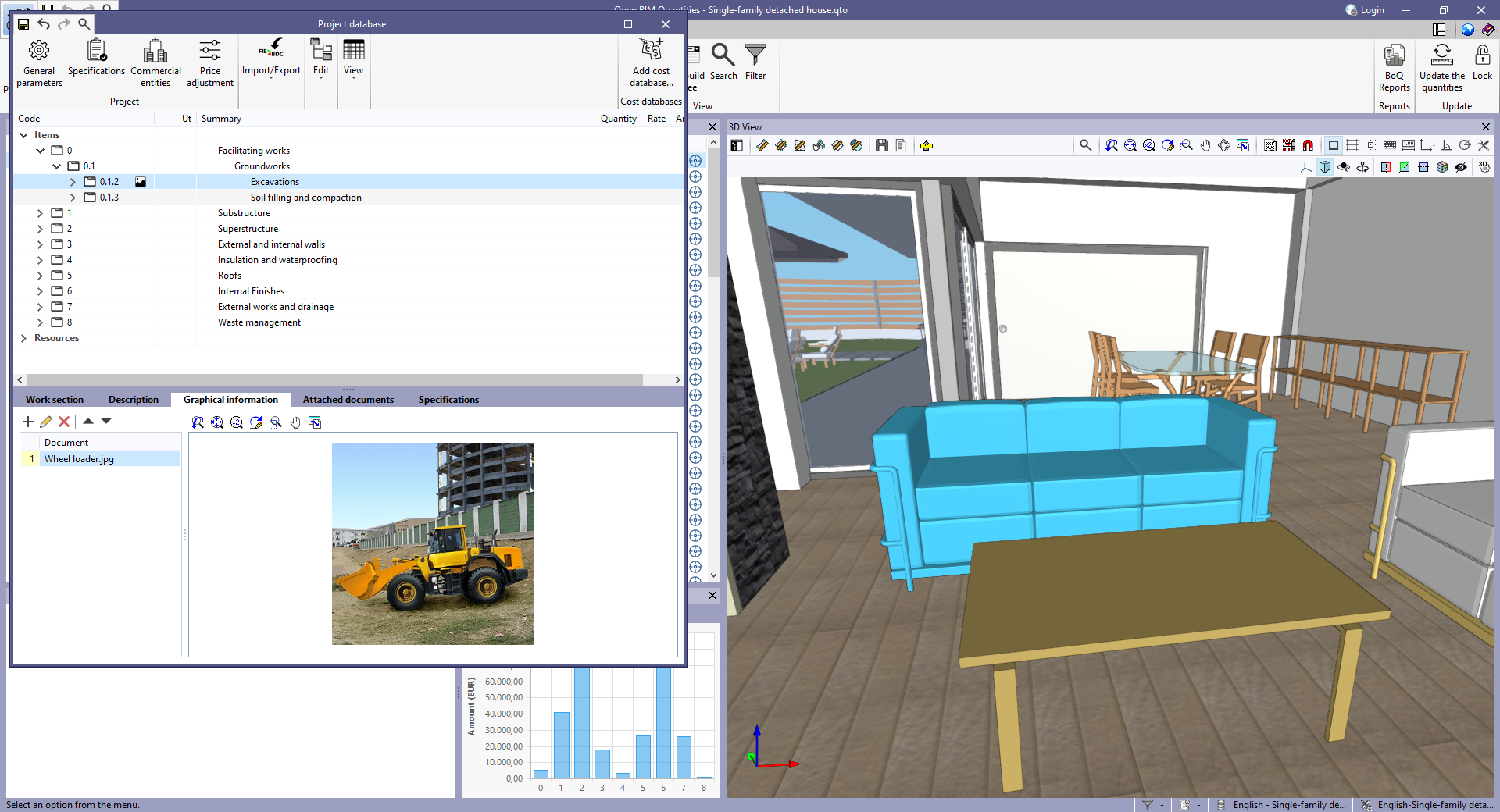
As of version 2024.f, the work sections of a bill of quantities or a cost database can have more information associated with them. For this purpose, the following tabs have been added to the editing panel of a work section displayed within the management menu of the "Project cost database" or of a "Cost database":

  • Description
  • Graphical information
  • Attached documents

In previous versions, this data could only be associated with "Items".

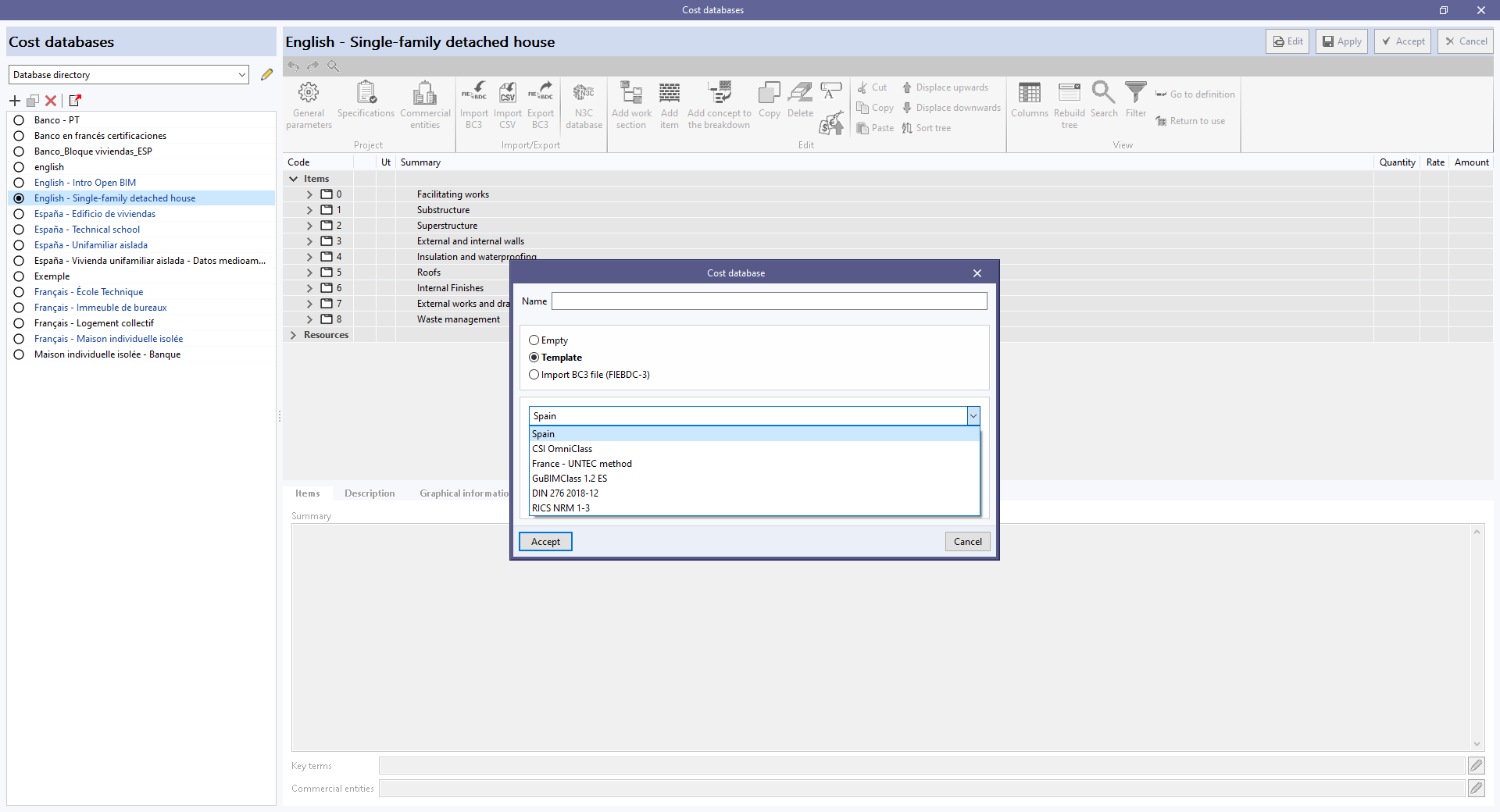
As of version 2024.f, the window for creating a "Cost database" includes the "Template" option.

When selected, users can create a cost database with an initial work section structure.

The following configurations are currently available:

  • Spain
  • CSI OmniClass
  • France – UNTEC method
  • GuBIMClass 1.2 ES
  • DIN 276 2018-12
  • RICS NRM 1-3

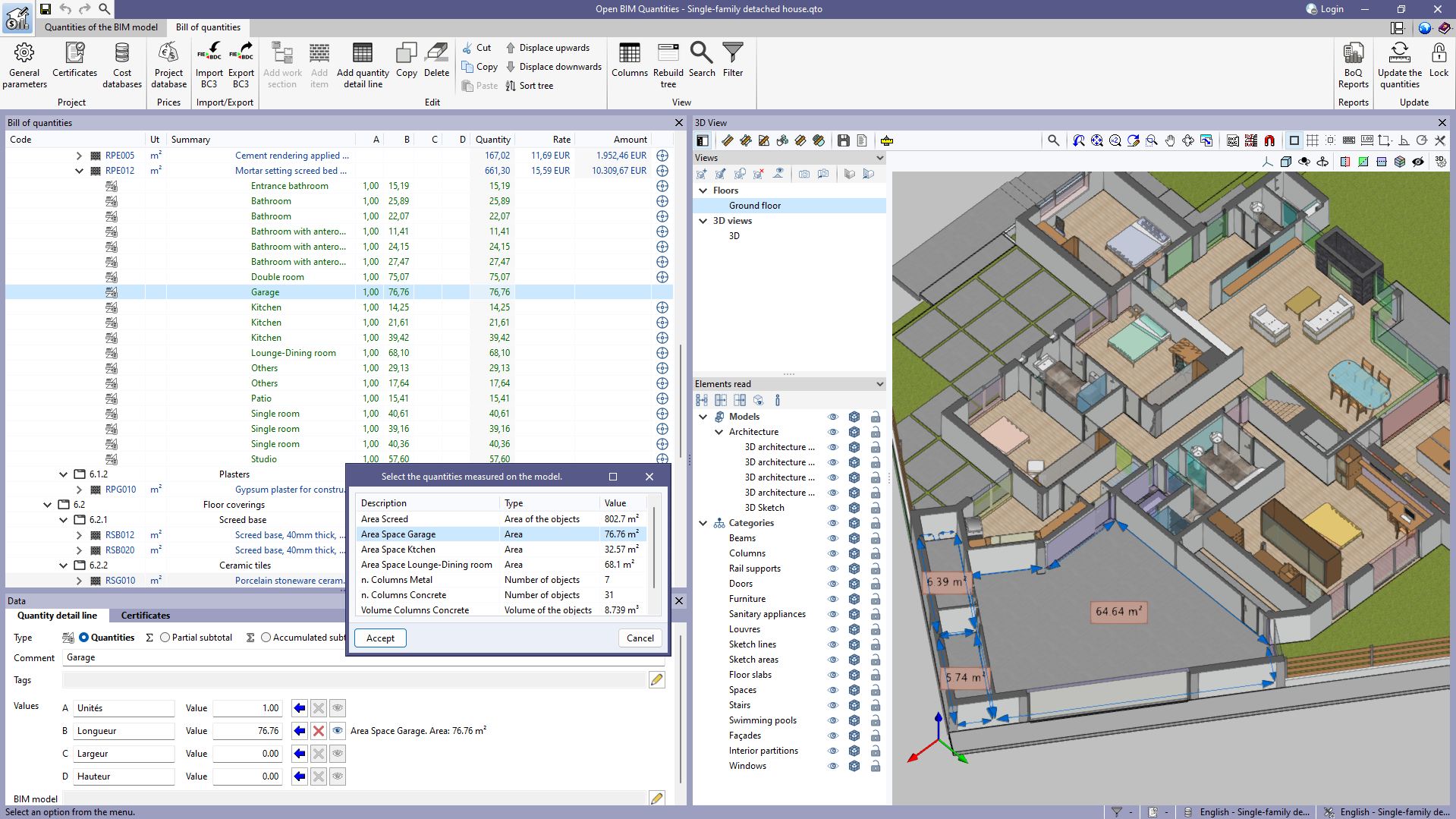
In version 2023.d, the "Quantities on the 2D/3D model" were implemented in the applications that have a "Bill of quantities" tab. This tool has now been enhanced in order to allow users to save quantities measured on the 3D view so that they can be used in several quantity detail lines. To this end, the "Save the current quantities" option has been added to the toolbar of the 3D view. By clicking on it, a window is displayed where a description for the quantity can be entered before saving it. In order to display the list of saved quantities, the "Measurements carried out on the model" option has also been added. This option displays a list of the measurements taken, showing the description, type of measurement (length, area, angle, etc.) and value for each one.

The "Assign the quantities measured on the model to the variable" option, which appears next to each variable in a quantity detail line, has changed the way it works as a result of this new feature. In previous versions, clicking on it assigned the last measurement taken on the 3D view, whereas now the "Measurements carried out on the model" list is displayed to select the saved quantity to be used.

Additionally, next to each variable linked to a quantity on the model, the description, type of measurement (length, area, angle, etc.) and value of the selected measurement can be viewed. Also, the "Delete the link between the variable and the quantities measured on the model" and "View the quantities measured on the model in the 3D view" options have been added. The first option allows users to remove the link between the value of the variable and the quantities measured on the model. The second option allows users to display the representation of the assigned measurement in the 3D view. If this option is used on another variable or if another element is selected in the "Bill of quantities" window, this representation will no longer be displayed.


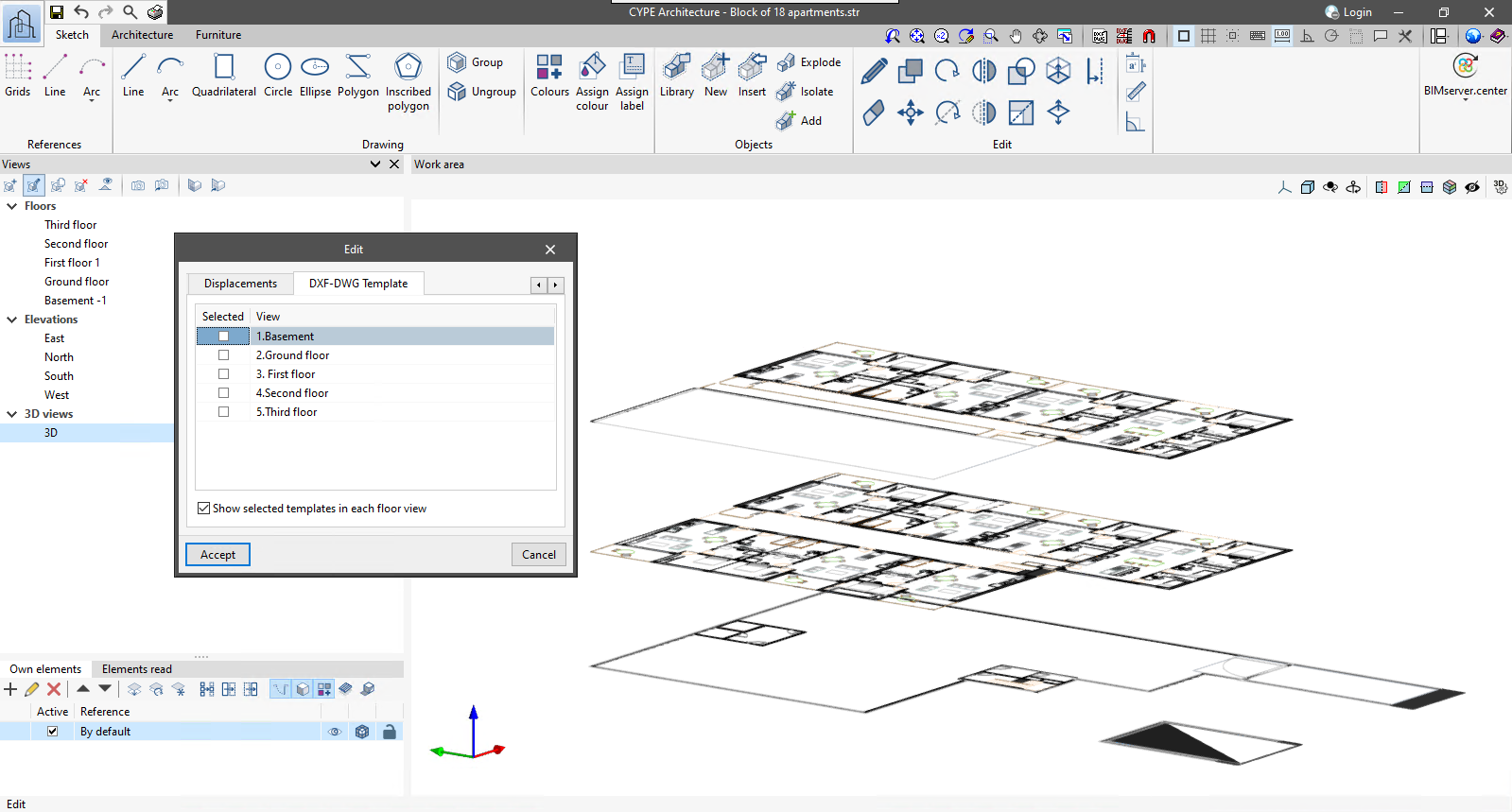
For 3D views defined within applications with a 3D working environment, the "Show selected templates in each floor view" option has been added. When activated, the templates visible in each of the floor views will be displayed in the 3D view in the dimension corresponding to these views.