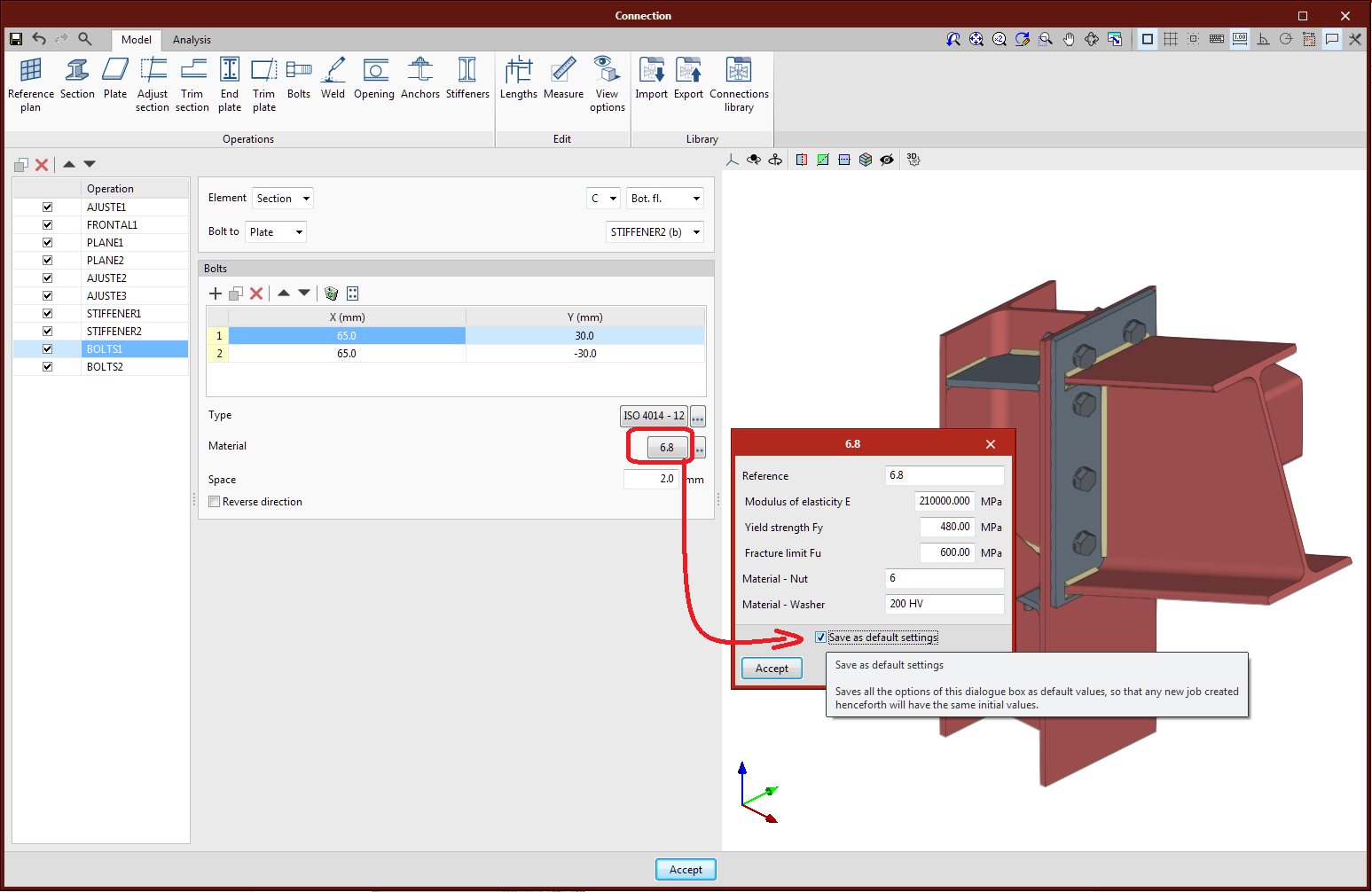
The dialogue boxes for editing the data of plate, bolt and electrode materials include the "Save as default options" option. As soon as they are saved, each new operation will be created with this default data. This option allows users to automatically fill in data that is often common to a connection or a project, with no need to define them each time.
Update history​​
CYPE Connect
Save default options for plate, bolt and electrode materials
- Published on
- 2022.b
Design model for prestressed bolts
The analysis of bolted connections with prestressed bolts has been added. Up until version 2022.b, the design model for prestressed bolts and ordinary bolts did not change, although the sliding resistance check was carried out for prestressed bolts, in accordance with the selected code.
The prestressed bolts will no longer transmit shear forces through the support of the bolts on the plate and will be transmitted by means of the friction between them along with the transmission through the perimeter of the hole. The simplified model used allows the deformation in the support areas of the connected elements to be minimised.
Assigning the placement of bolts as prestressed or ordinary is data attached to the bolt series, it can additionally be edited directly in the data panel of the bolt series in each operation. In the libraries added by default to the program, there are prestressed bolt series.
- For the "Europe" library is series "EN 14399-3"
- For "USA" libraries is series "F3125 (PT)"
- Published on
- 2022.b
New operation for adding stiffeners
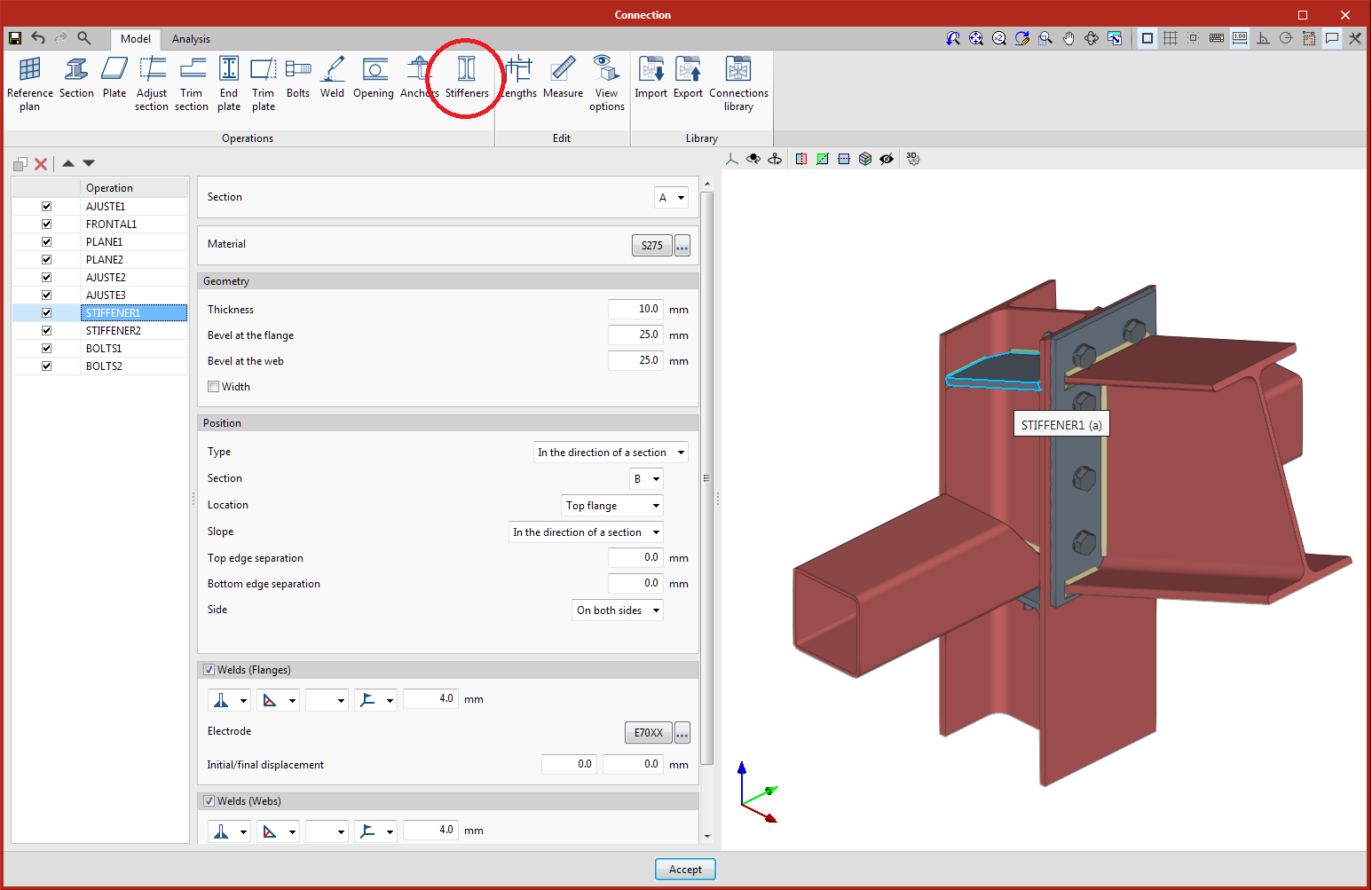
A specific operation has been added for adding stiffeners to I-shaped and U-shaped cross sections. This operation adds the stiffeners and their welds to a section in a position that is relative to the flanges from another section and relative to the section’s local reference system. Options are included for selecting the side, slope, dimensions, etc.
- Published on
- 2022.b
Analysis with code AISC 360-16 (LRFD)
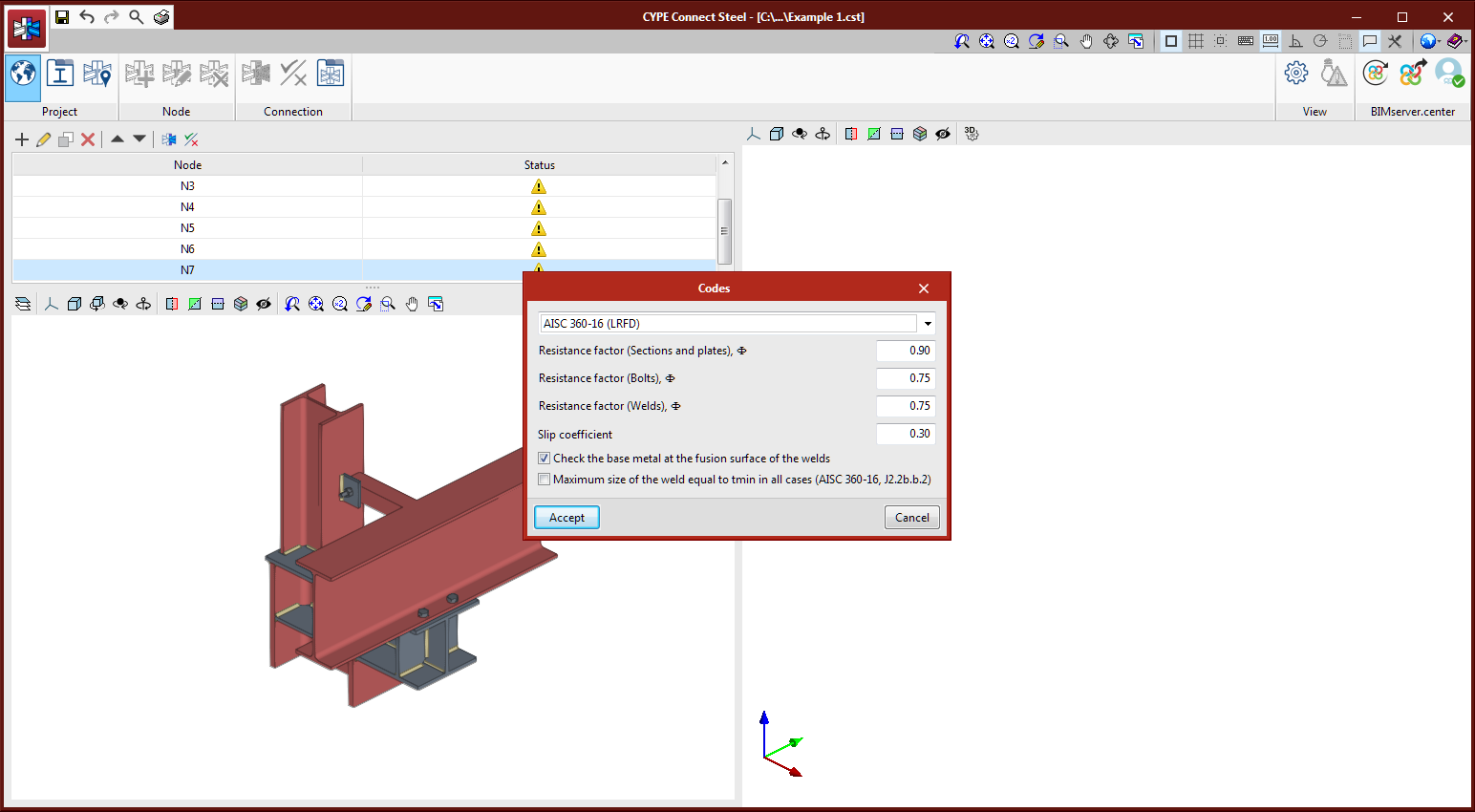
The AISC 360-16 (LRFD code has been implemented for analysing connections in accordance Eurocode 3 and Spanish code EAE.
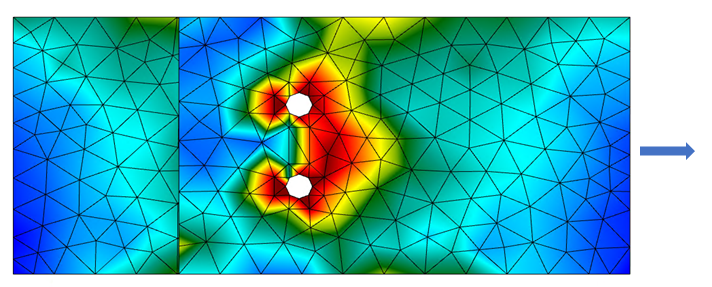
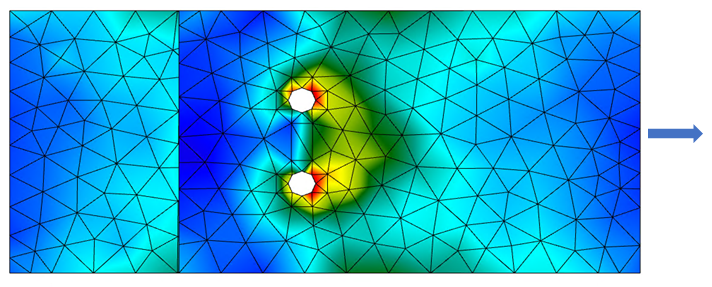
Specific resistance checks and the layout of prestressed bolts, ordinary bolts and welds have been implemented. For plates, the program will verify that the equivalent Von Mises deformation value does not exceed 5% (EN1993-1-5, Annex C, Section C.8, Note 1).
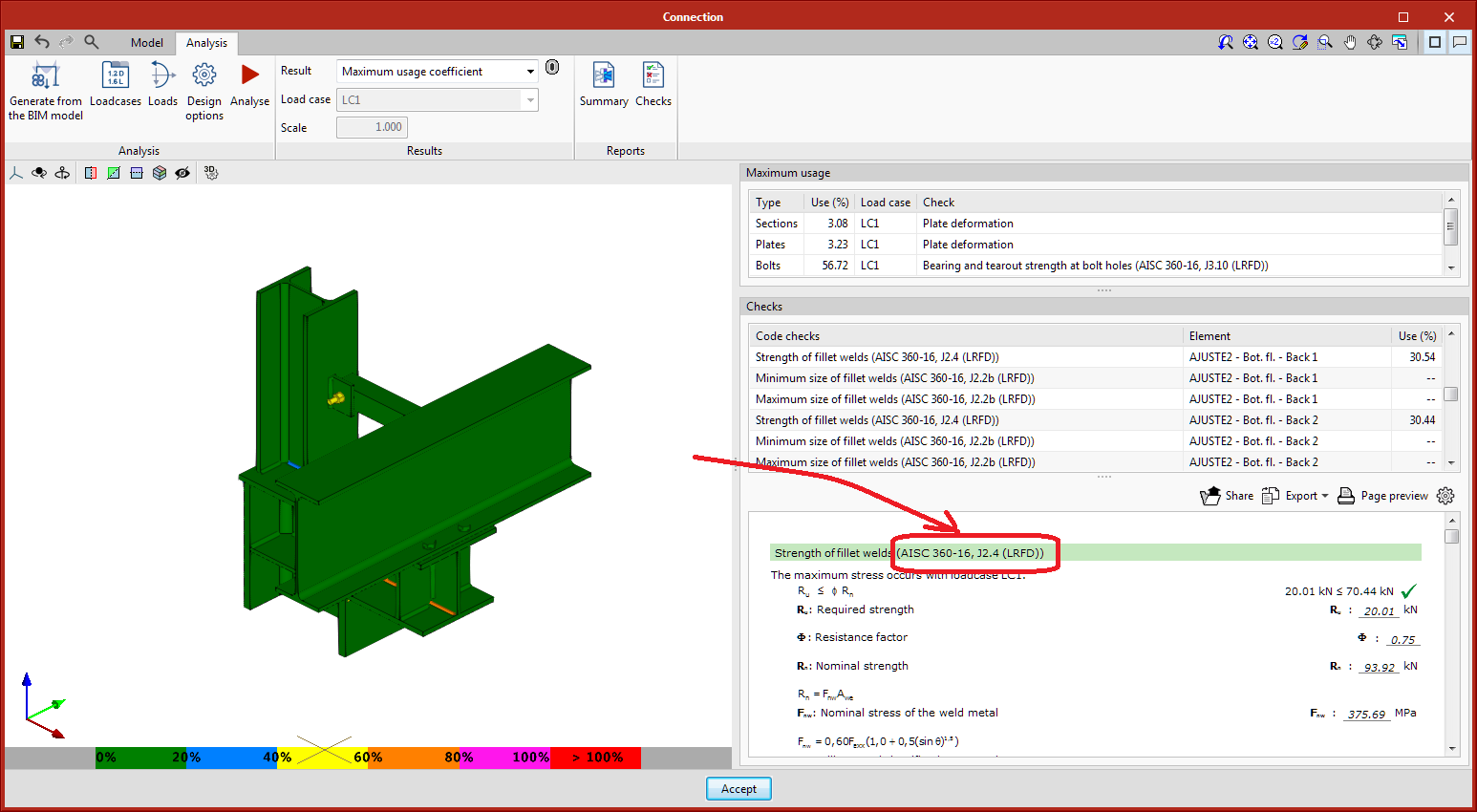
The detailed checks will show the code’s reference article.
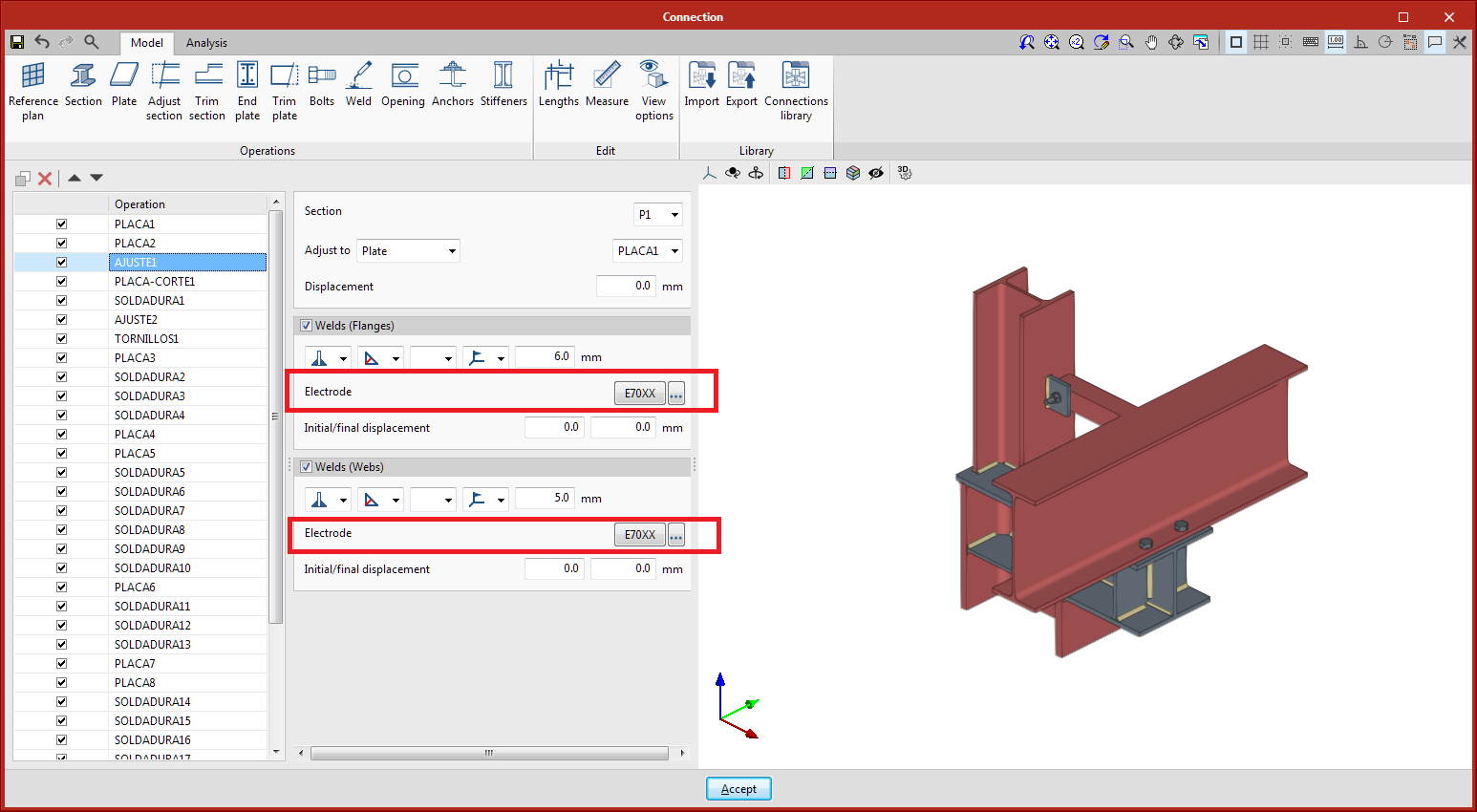
As of version 2022.b, welds will include an electrode material selection. This is carried out because the resistance check for fillet welds compares the required strength of the chord with the filler metal resistance. For codes where the filler metal is assumed to have a higher resistance than the plates to be joined (Eurocode 3 and EAE 2011), this selection will only be for documentation purposes and the selection may be left empty.
- Published on
- 2022.b
Implementation. ANSI/AISC 360-16 (LRFD)
Specification for Structural Steel Buildings (2016).
Implemented in CYPE Connect Steel and StruBIM Steel. In the previous version (2022.a), this code was already implemented in CYPECAD and CYPE 3D.
- Published on
- 2022.b
Clip volume

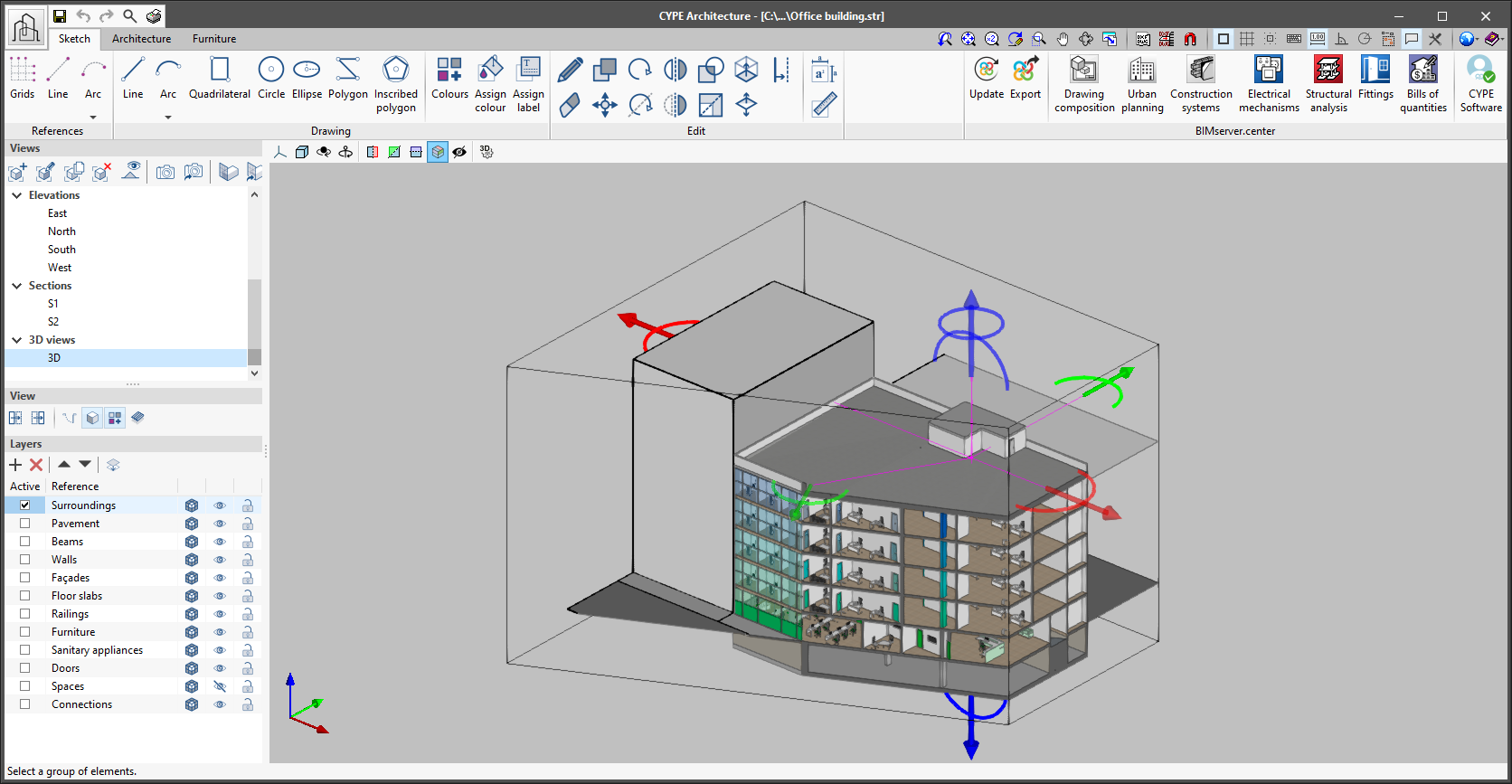
As of version 2022.b, applications with 3D drawing surroundings allow a viewing volume to be defined from the geometric envelope of the scene content. The arrows allow the viewing volume to be adjusted by moving their faces and the arches allow the viewing volume to be adjusted by means of 6 clips planes.
- Published on
- 2022.b
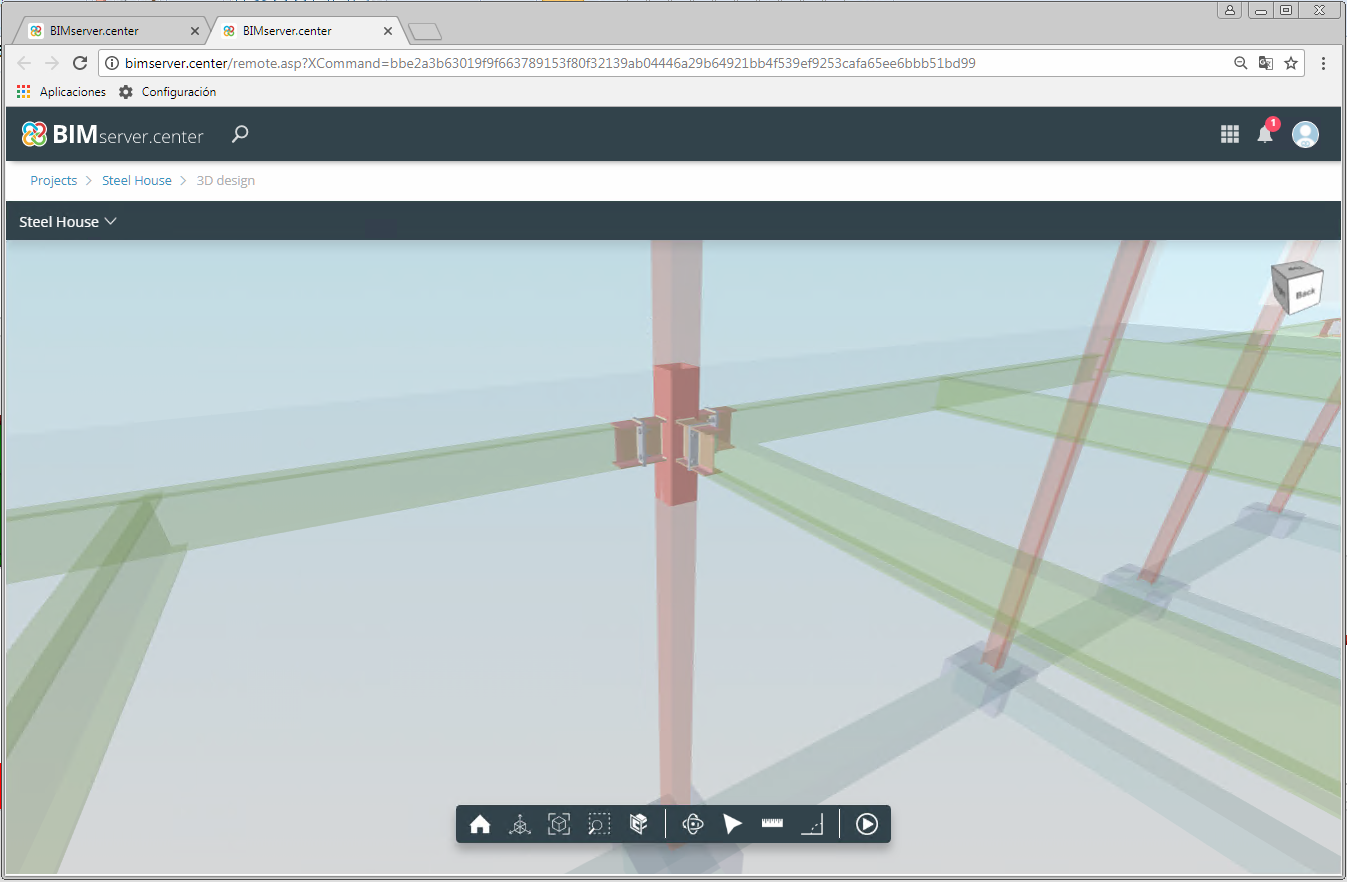
Exporting connections to the BIM model
- Published on
- 2022.a
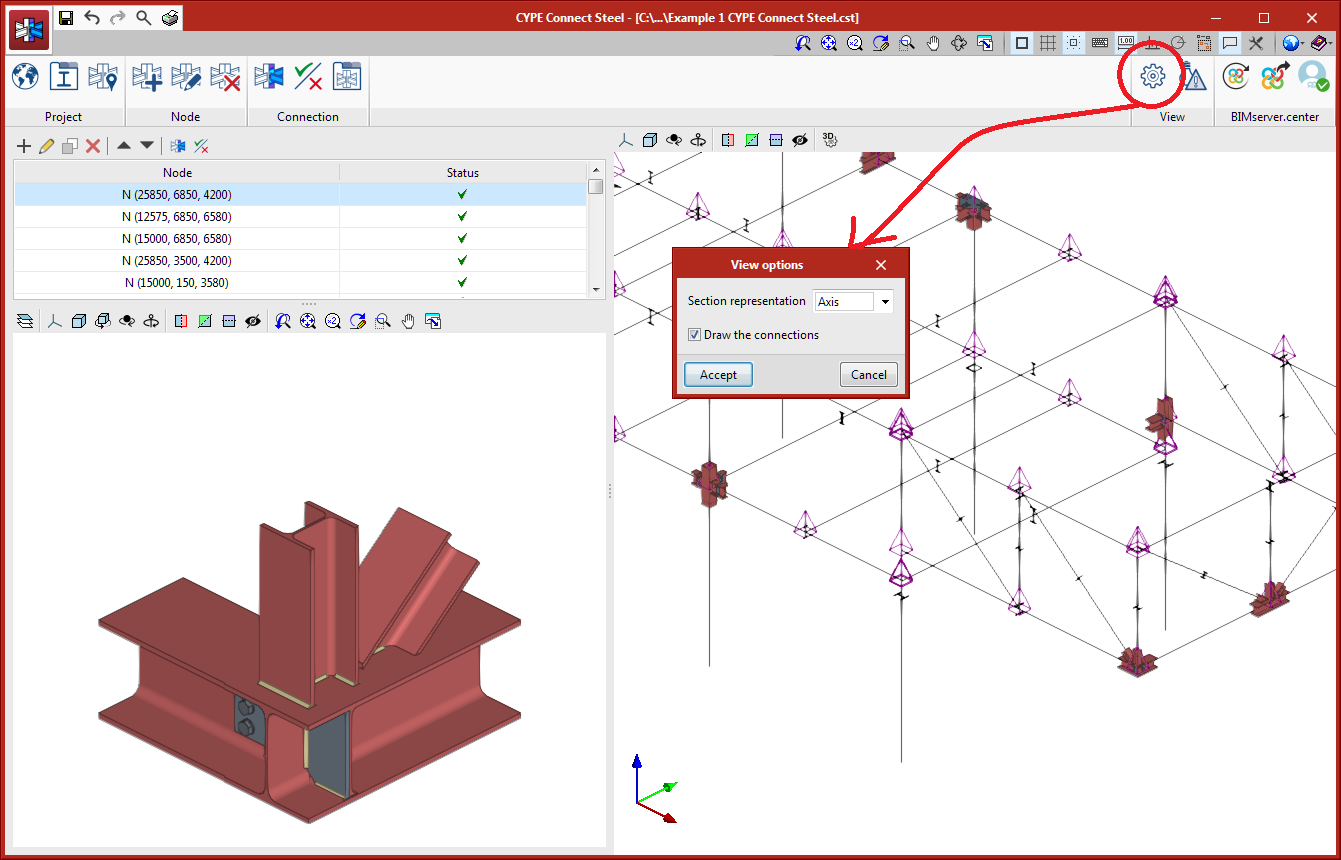
Viewing options
- Published on
- 2022.a
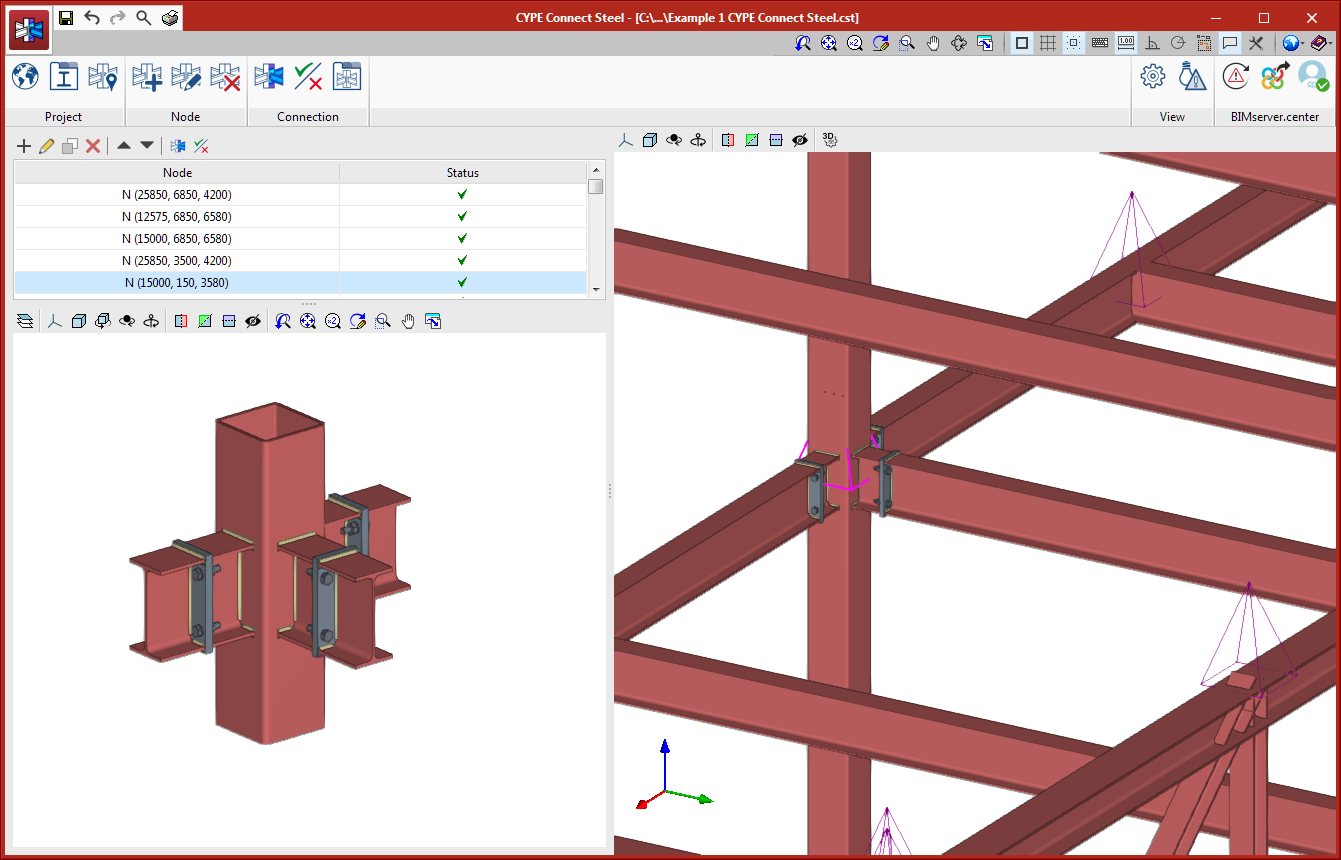
Node management in the 3D view of the structure
Up until version 2022.a, the program automatically generated nodes when the project had been created by importing from a structure in IFC format.
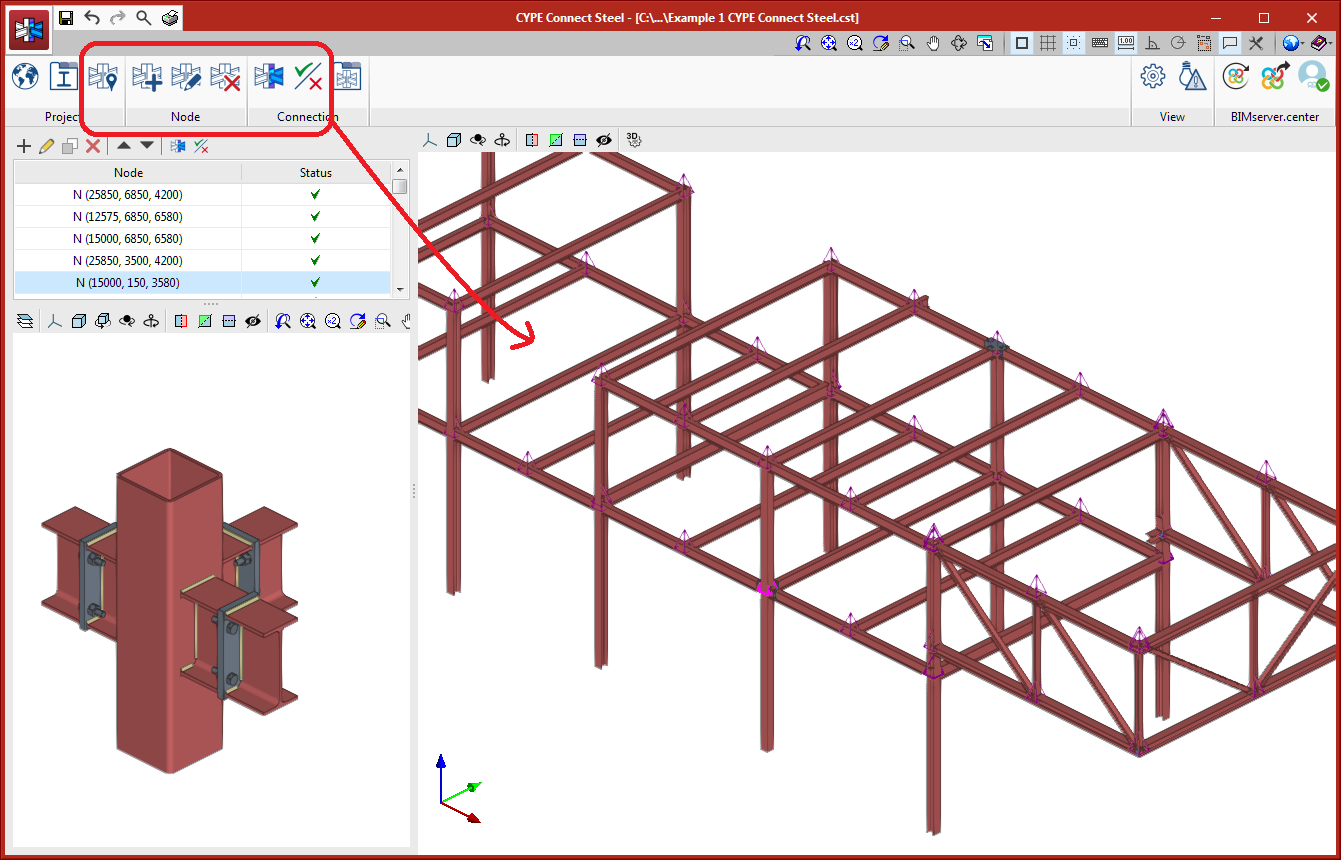
In version 2022.a, node management from the 3D view of the structure has been added. The following tools have been added to the top bar of options.
- Create a node by selecting sections in the 3D view.
- Edit the selected node in the 3D view.
- Delete the selected node in the 3D view.
- Edit the selected connection in the 3D view.
- Coordinates of the positions of the nodes. This option allows nodes to be located in the space.
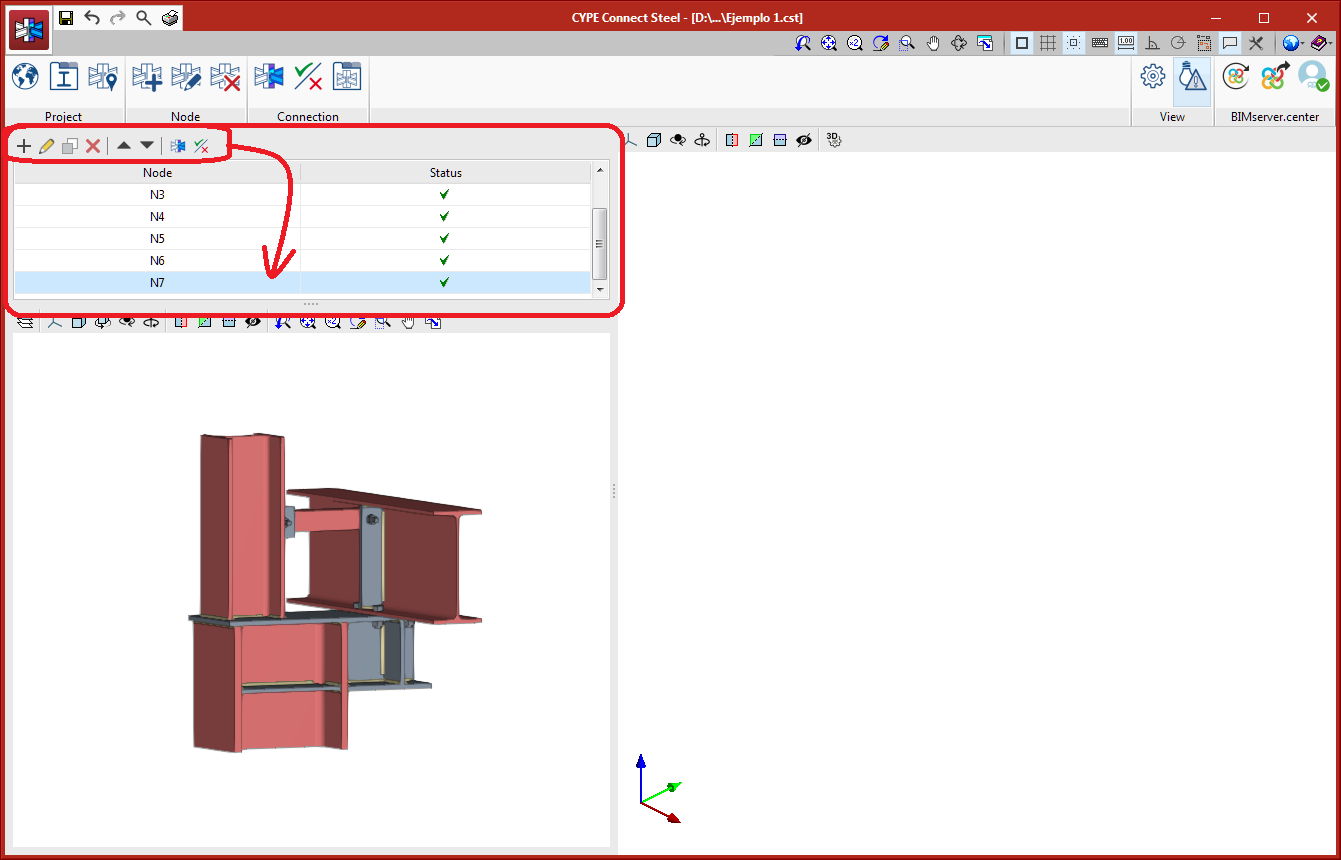
The 3D view of the node selected from the node list will be displayed in the lower-left window. If a structure has been imported, it will be shown in the window on the right.
The nodes in the list on the left are managed from the bar of options immediately above it.

- Published on
- 2022.a
Optimisation of analysis time
- Published on
- 2022.a
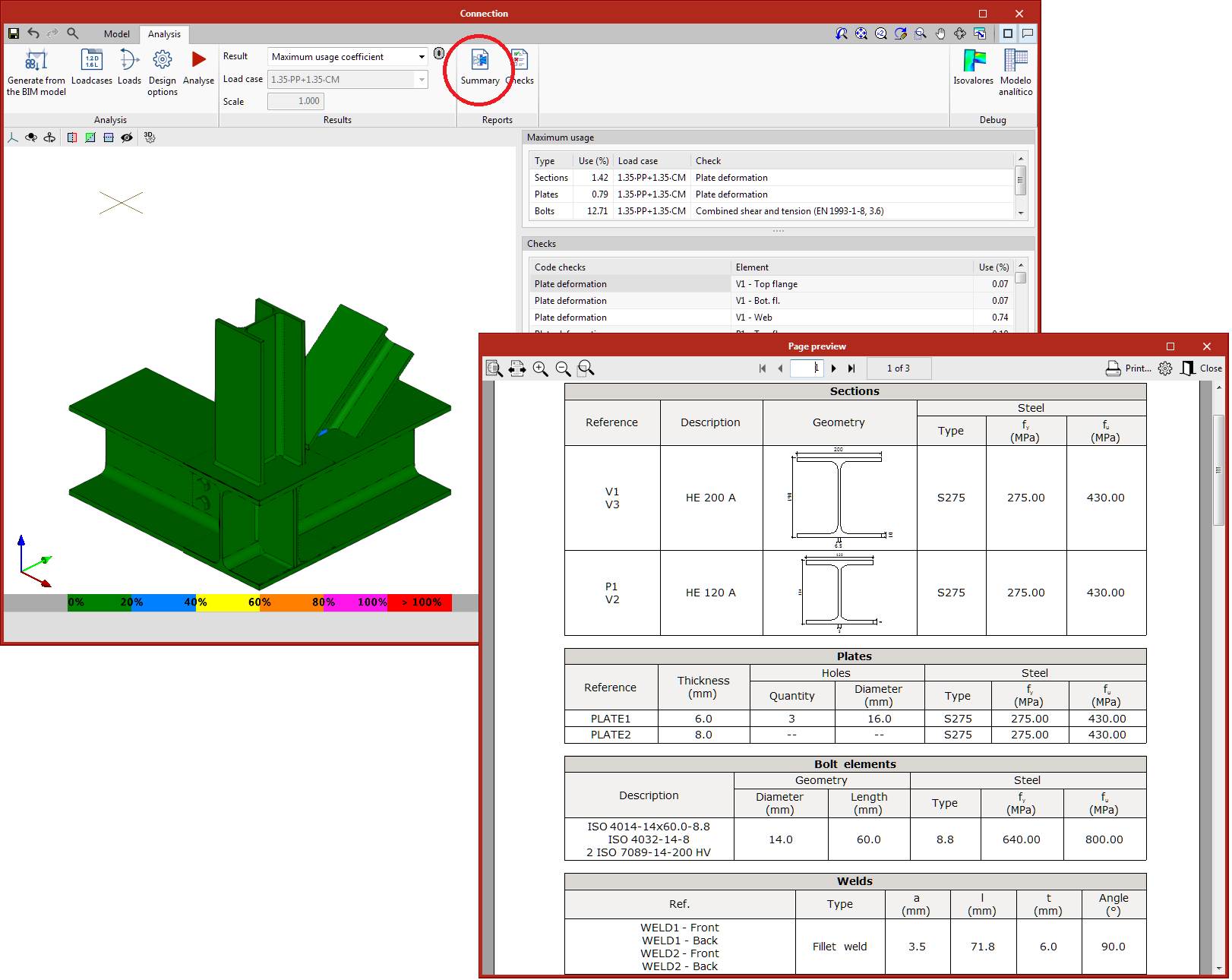
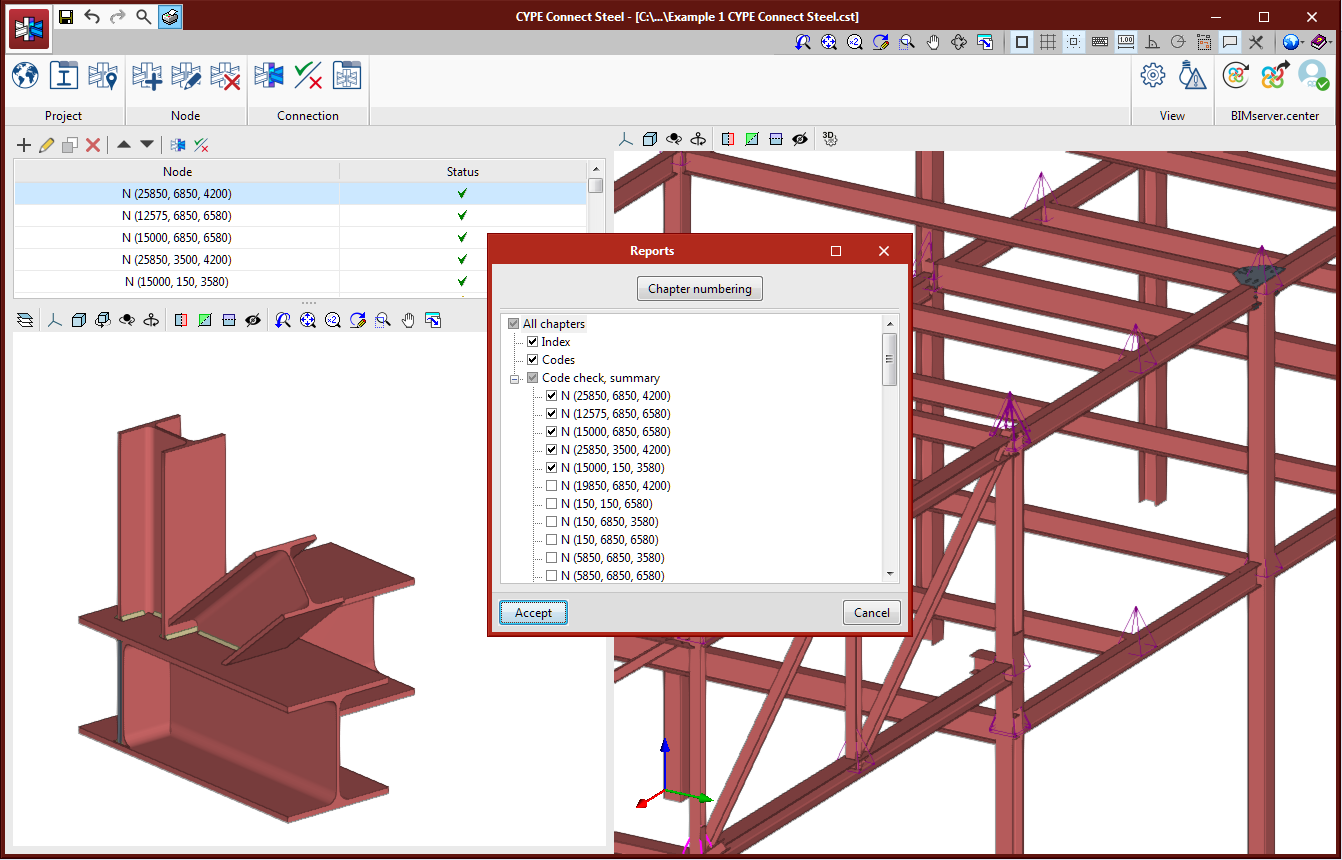
Connection summary report
The connection summary report has been added. Connection elements, section loads, or the checks of sections, plates, fillet butt welds, and bolts can be displayed in a summarised form in this report.
- Published on
- 2022.a
Connections library
In version 2022.a, a connection library has been added, allowing users to save defined connections so they can be applied to other nodes of the same or other jobs. This library is common to CYPE Connect Steel and StruBIM Steel.
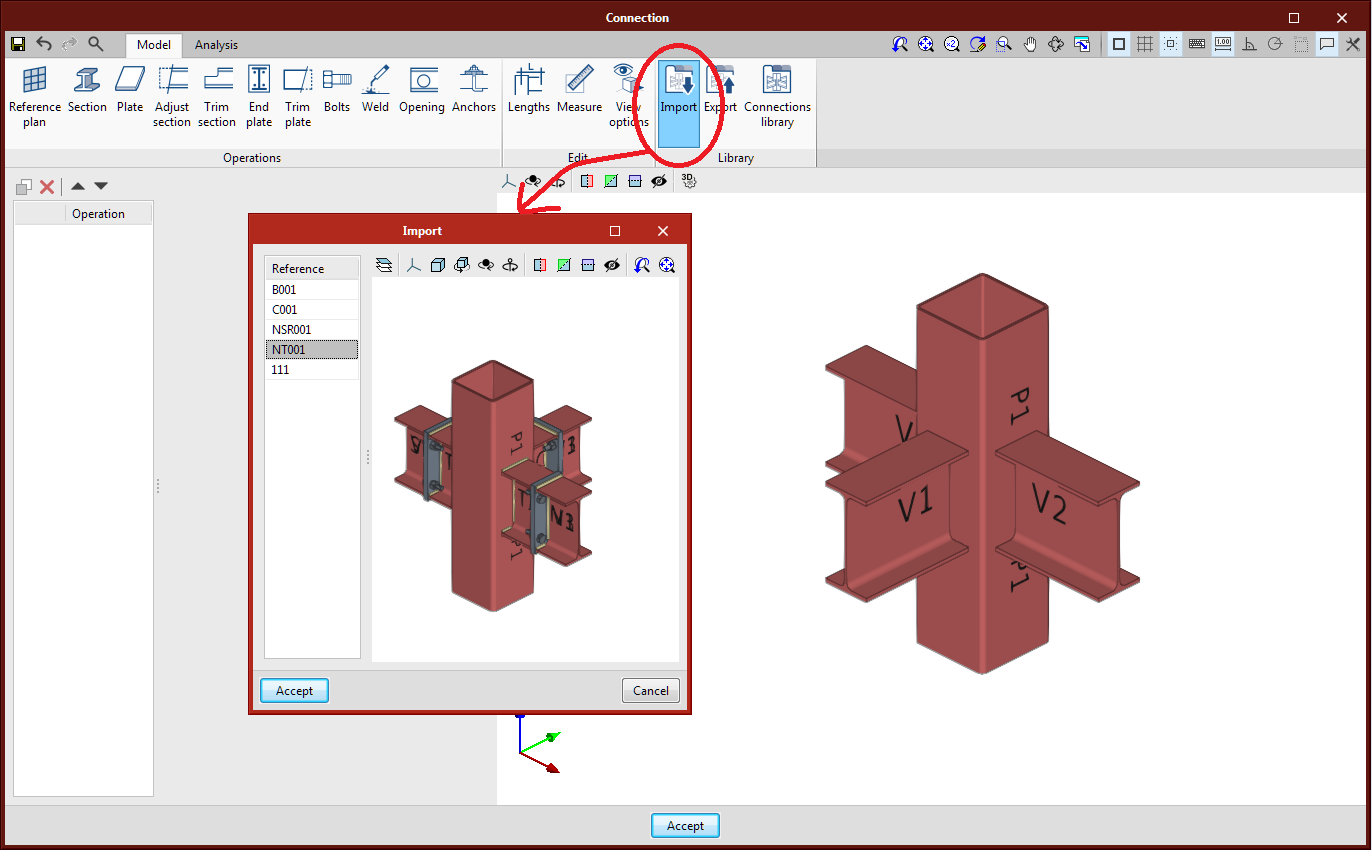
From the connection editing panel, users will have access to the added options: Import from library, Export to library and Connections library.
- Import from library
This tool allows users to import the list of operations from a connection from the library.
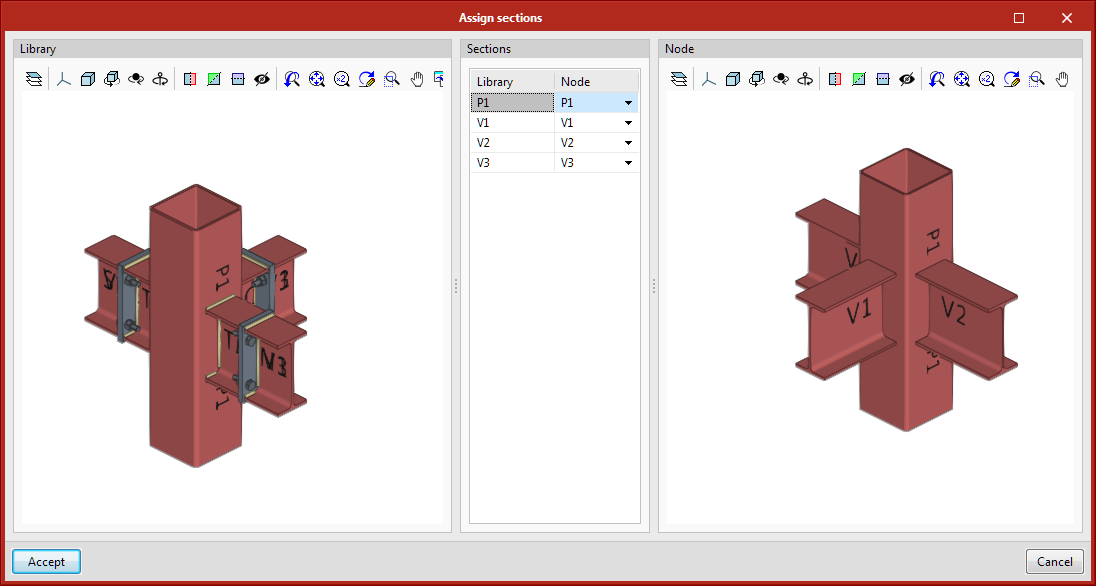
- When importing, if the section layout is not identical to the one saved in the connection, users will be asked to match the sections of the library with the sections of the current node.
- Export to library
Allows a connection to be saved in the job’s connection library. By clicking on "Export", the program will request users to define the reference to save it in the job library.
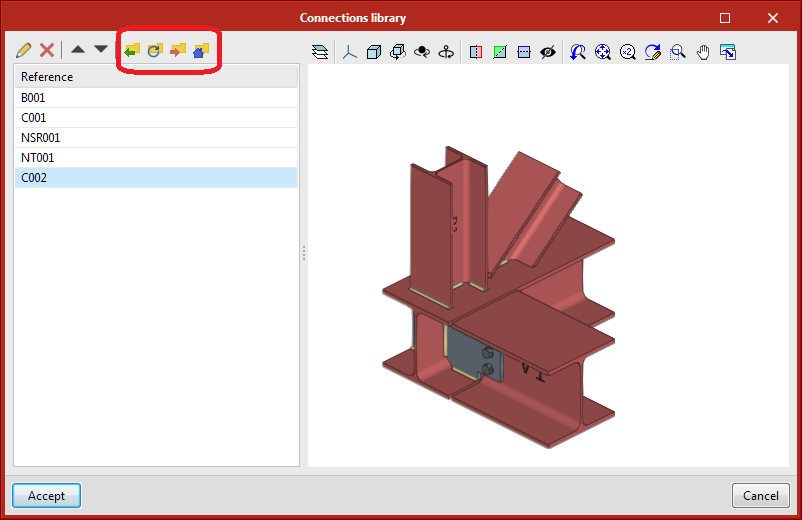
- Connections library
The connections saved in the library will be available for use in the job itself. To save the connections in this library in the drive and to be able to use them in other projects, share them between CYPE Connect Steel and StruBIM Steel, or share them with other computers, users must click on "Export the element to a file".
The management of this library works in the same way as the other libraries. The following options related to the management of this library are shown at the top:- Import the elements saved in the drive to the project
- Update the elements used in the project
- Export the element to a file
- File selection with initial values for the creation of a new job
- Published on
- 2022.a