Appearance
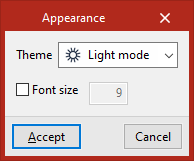
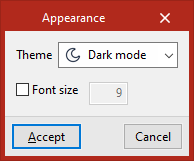
The "Appearance" option allows you to switch between "Light mode" and "Dark mode".
You can also check the relevant box to change the "Font size" used in the app.
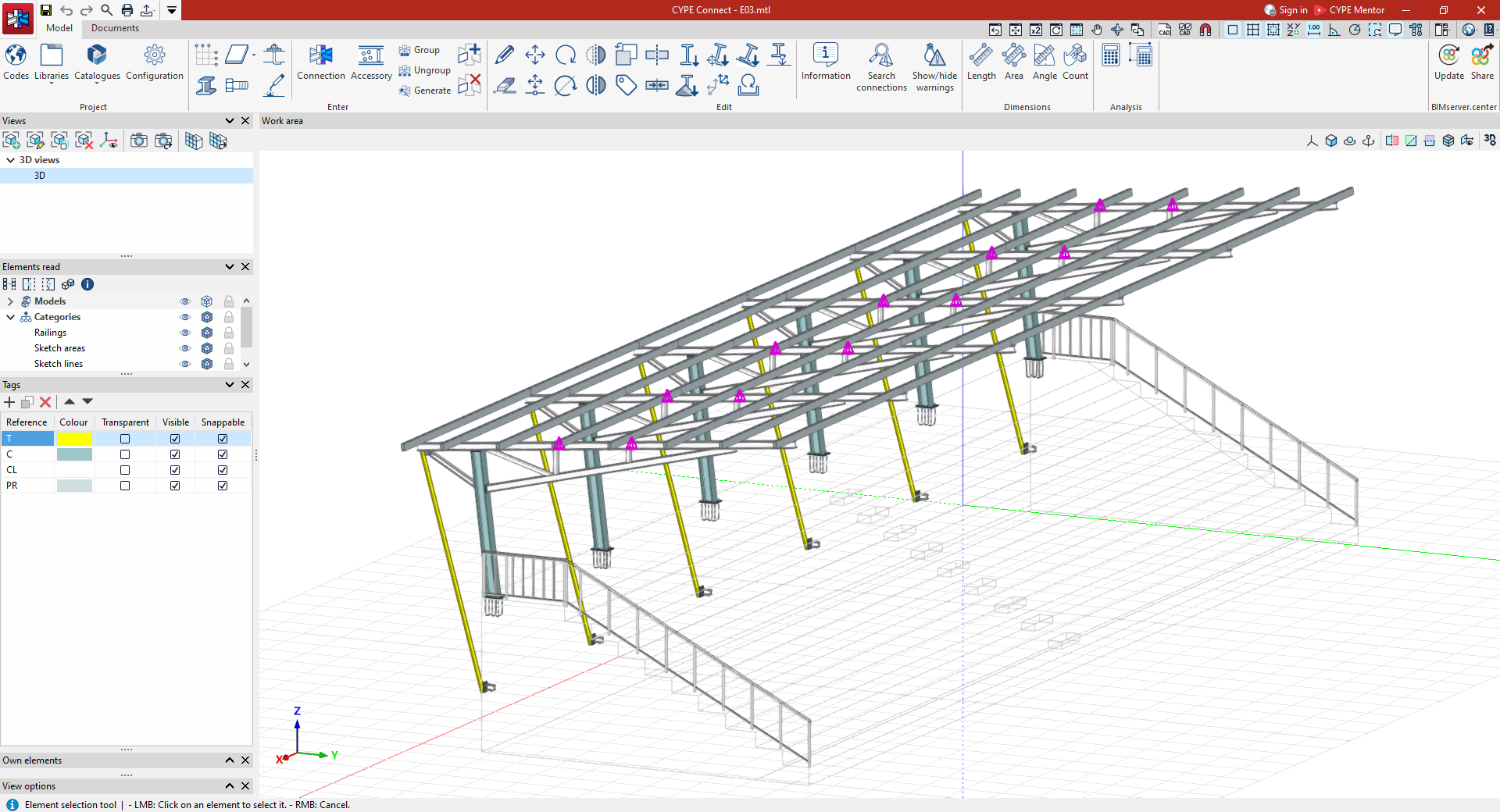
- Light mode features an interface with a light background—white or very light grey—and dark text. It creates a brighter feel and is generally more readable in brightly lit environments.
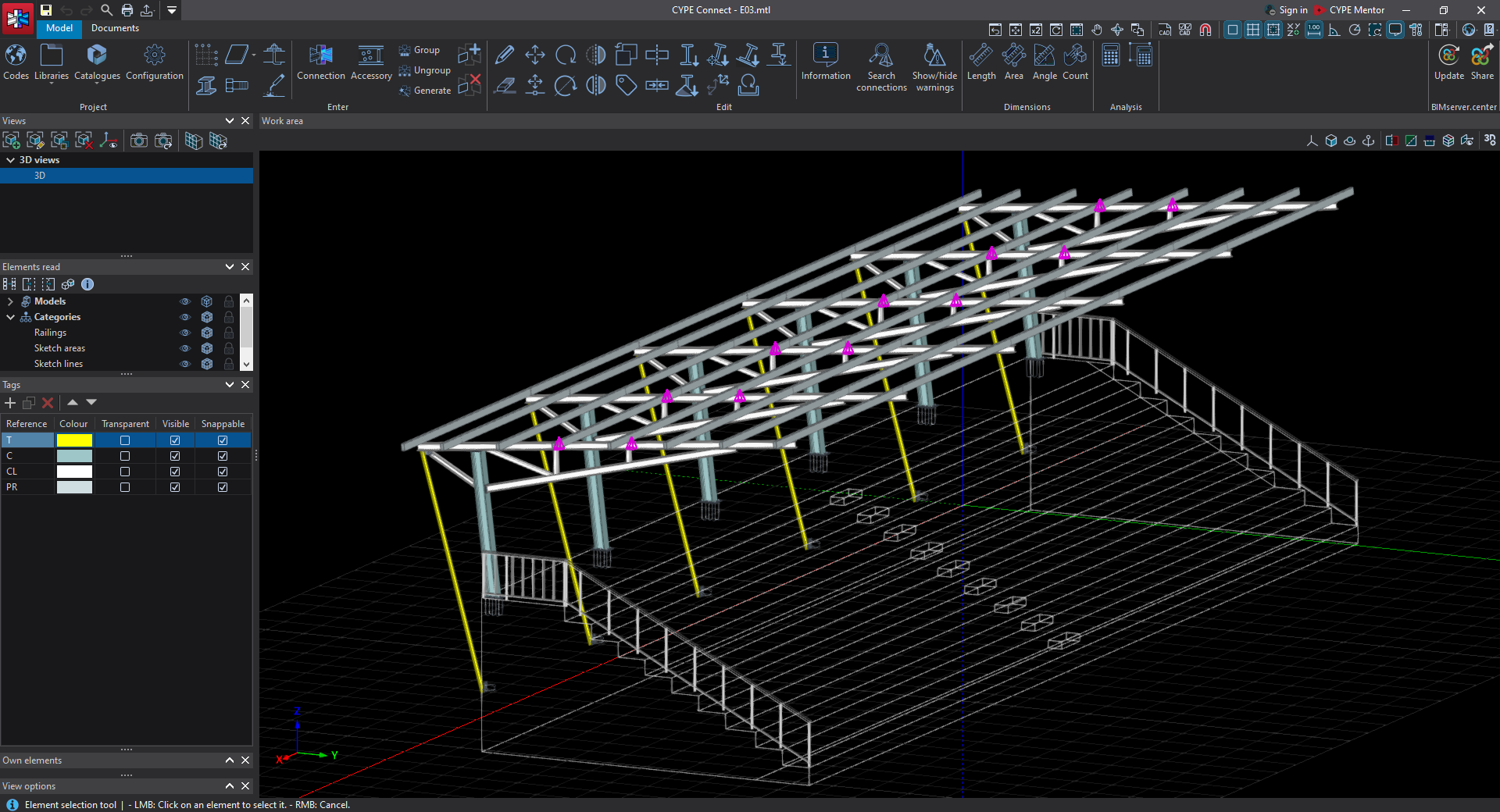
- Dark mode features an interface with a dark background—black or dark grey—and light text. It reduces screen brightness and can make it easier to work for long periods, helping to reduce eye strain, particularly in dimly lit environments.
This option can be found in the "Settings" panel on the initial interface that appears when you open each program, as well as in the "Settings" menu located at the top right of the programs’ main interface. The "Background colour" of the workspace can also be changed using the corresponding option in this same window or menu.
To apply the changes, you must close and reopen the program. Please note that the appearance settings are shared across all programs; therefore, any changes made in one will automatically apply to the others when they are launched.