Update history​​

CYPELEC

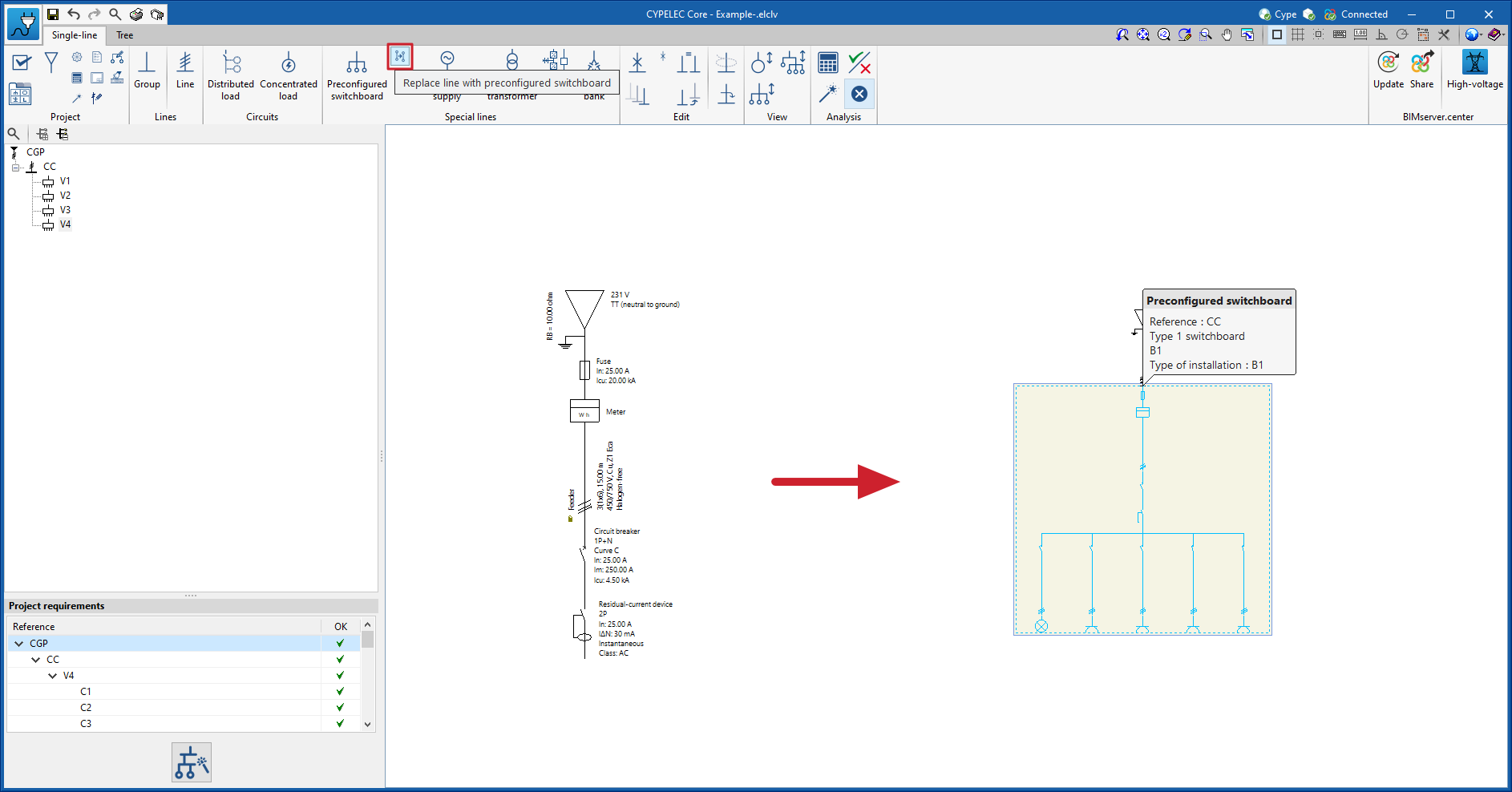
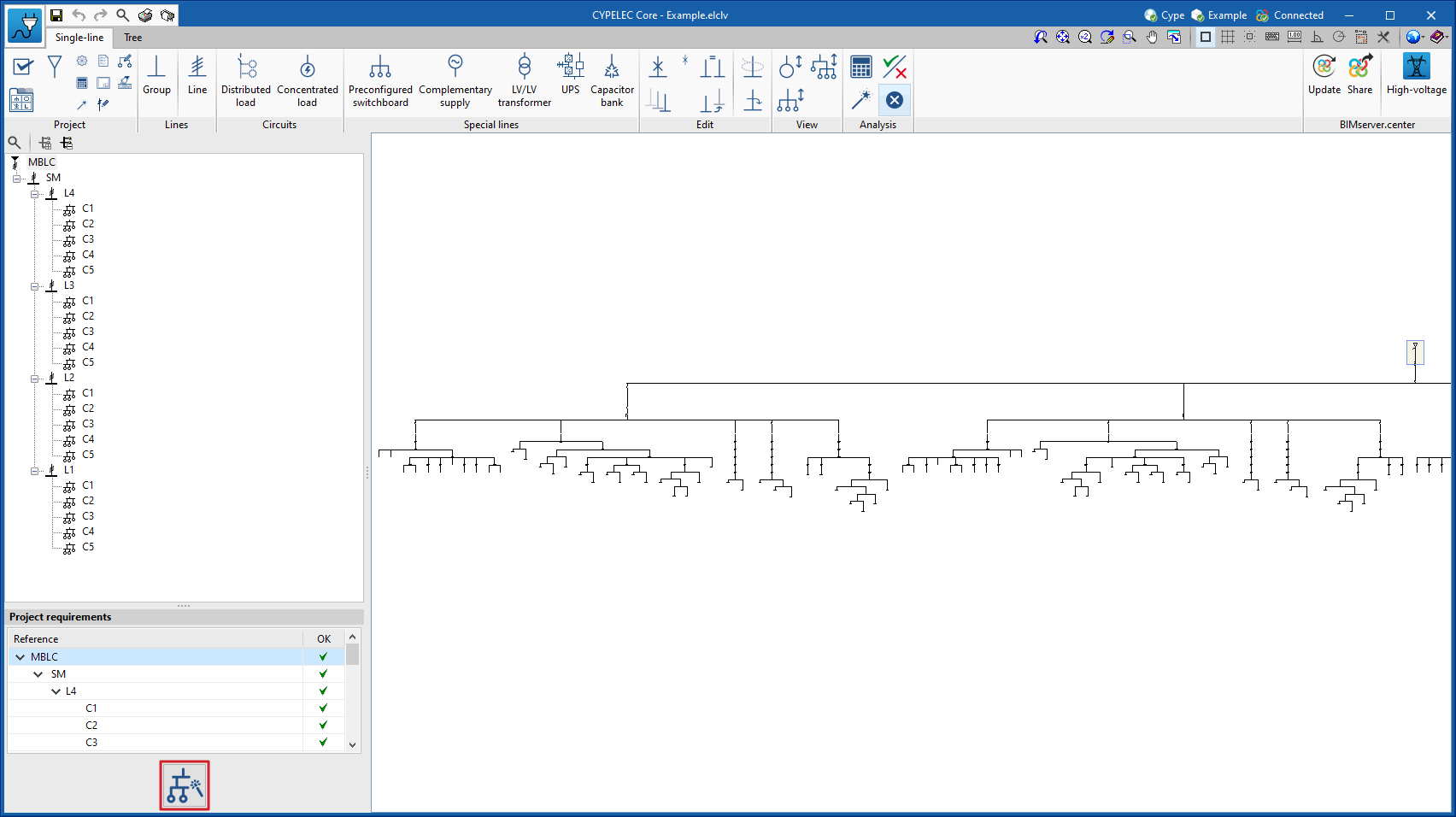
It is now possible to replace any line in the single-line diagram with a preconfigured switchboard in the program, such as the switchboard of a standard dwelling.

This tool is particularly useful when importing from the CYPELEC Distribution program, in which solely the feeder has been incorporated, and the single-line diagram is to be completed with repeated switchboards.

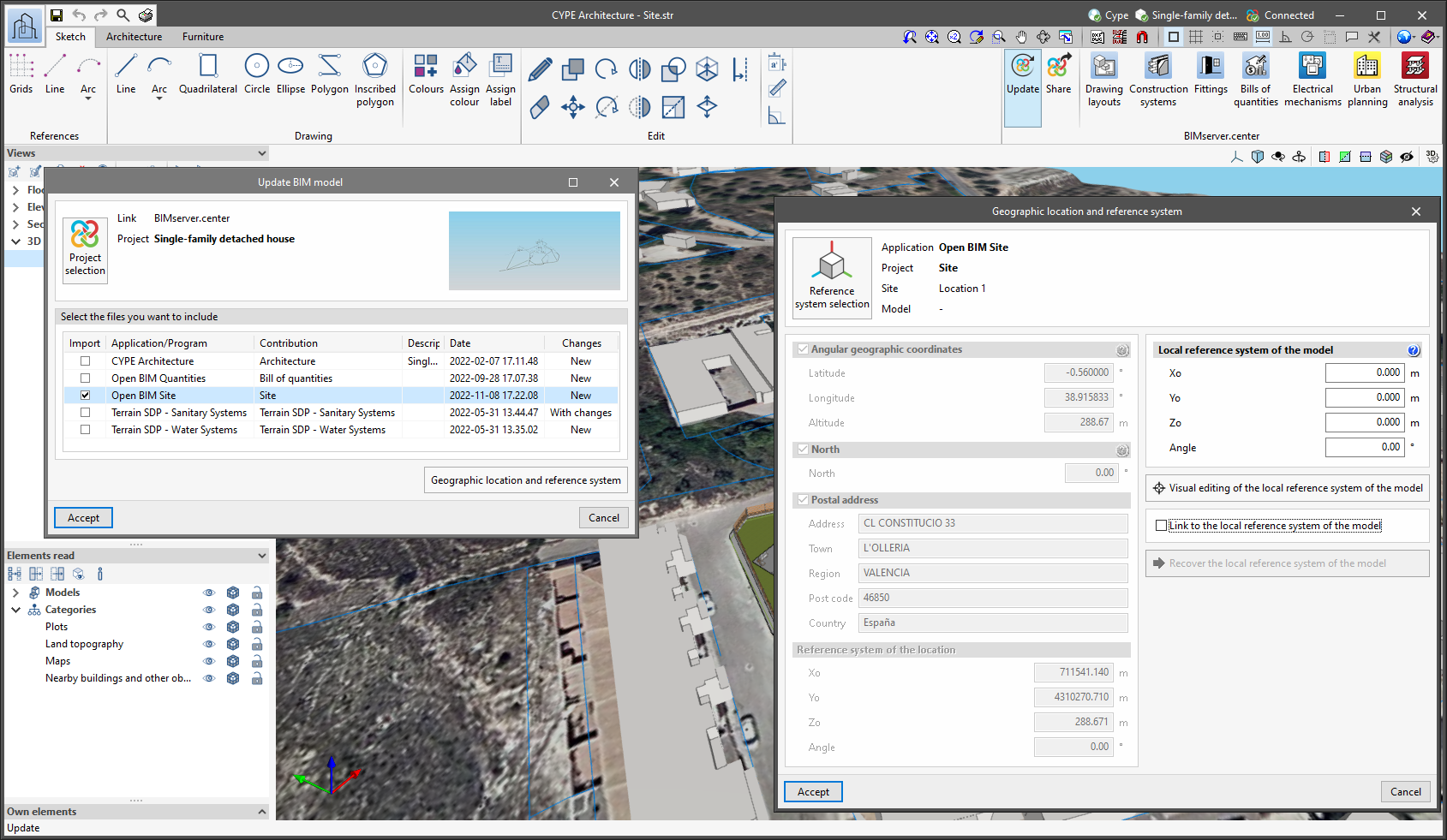
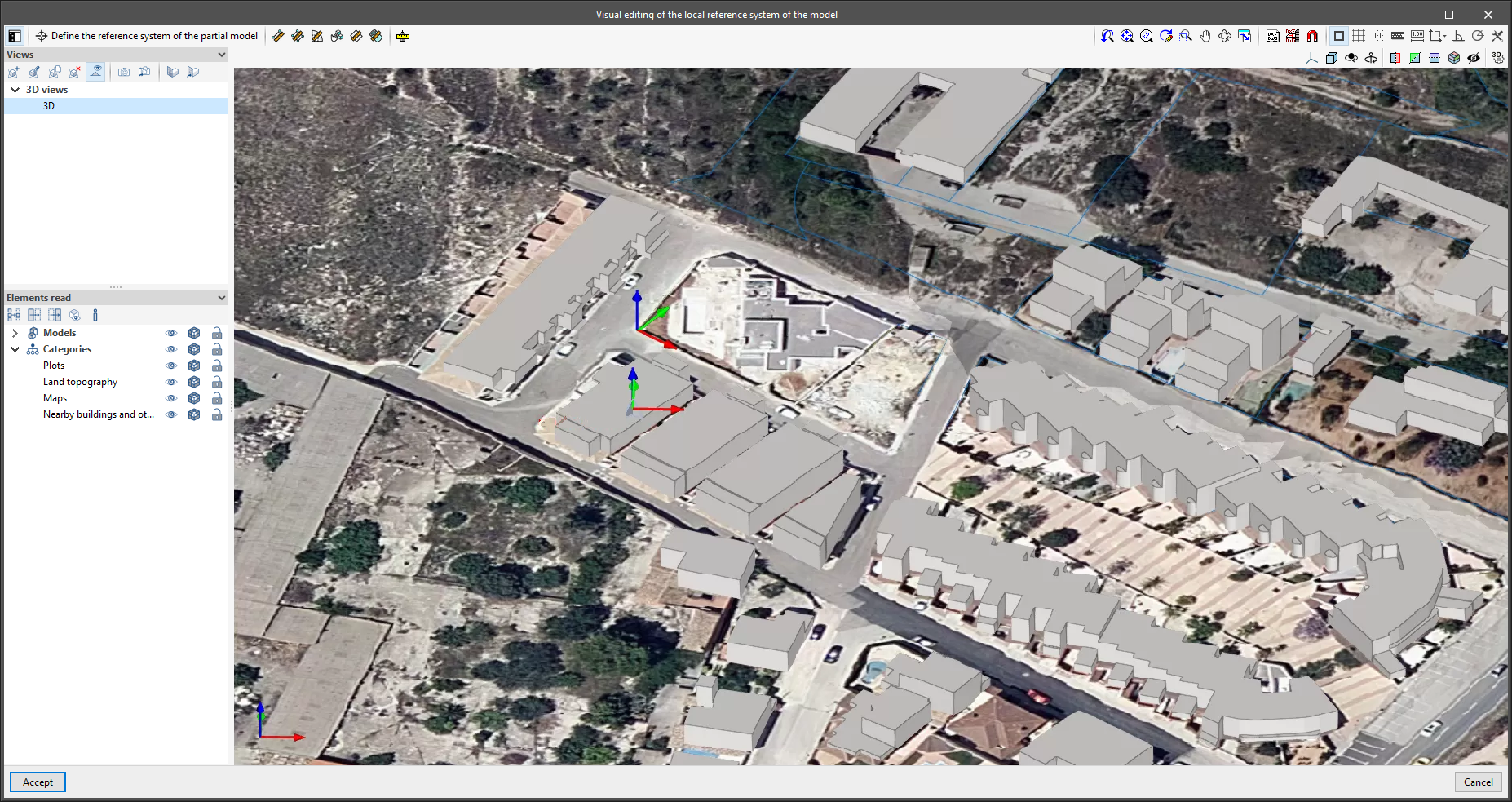
Since version 2022.a, the applications integrated within the Open BIM workflow via the BIMserver.center platform include a tool for managing project reference systems. This option is available from the configuration window that appears when linking or updating a BIMserver.center project via the "Geographic location and reference system" option. As of version 2023.d, the applications now allow users to run a graphical environment where they can visually define a reference system for their model. To do this, the "Geographic location and reference system" window now contains the "Visual editing of the local reference system of the model" option.

From the "Visual editing of the local reference system of the model" window, the origin and orientation of the reference system of the model can be indicated in the workspace with the "Define the reference system of the partial model" tool. Both the axes of the reference system of the model, which we have just entered and the axes of the reference system of the site can be viewed in the workspace. The latter appears with a "Site" tag.

To make it easier to define the reference system, the 3D models corresponding to the BIMserver.center project contributions selected during the linking process are displayed. The management of the visibility and object snaps of these models is carried out from the "Elements read" menu in the left sidebar of the window. The "Views" menu can also be found in the same options bar, from which different types of 2D and 3D views of the model can be generated. These tools can already be found in several CYPE applications. For more information on how they work, please refer to the User’s Manual for the 3D work environment tools available in CYPE applications.


Apart from 3D models, 2D drawings or plans can also be imported from CAD files (".dxf", ".dwg", ".dwf") or images (".jpeg", ".jpg", ".bmp", ".png", ".wmf", ".emf", ".pcx"). These files and object snaps are managed through the "DXF-DWG Template" and "Template object snaps" options accordingly.

Once the editing is complete, the coordinates and orientation of the reference system of the model with respect to the reference system of the site are moved to the corresponding fields in the "Geographic location and reference system" window.

As of version 2023.d, all applications with a "Bill of quantities" tab now have a new set of tools that allow users to measure the work area. More specifically, the following options have been added:

  • Measure length
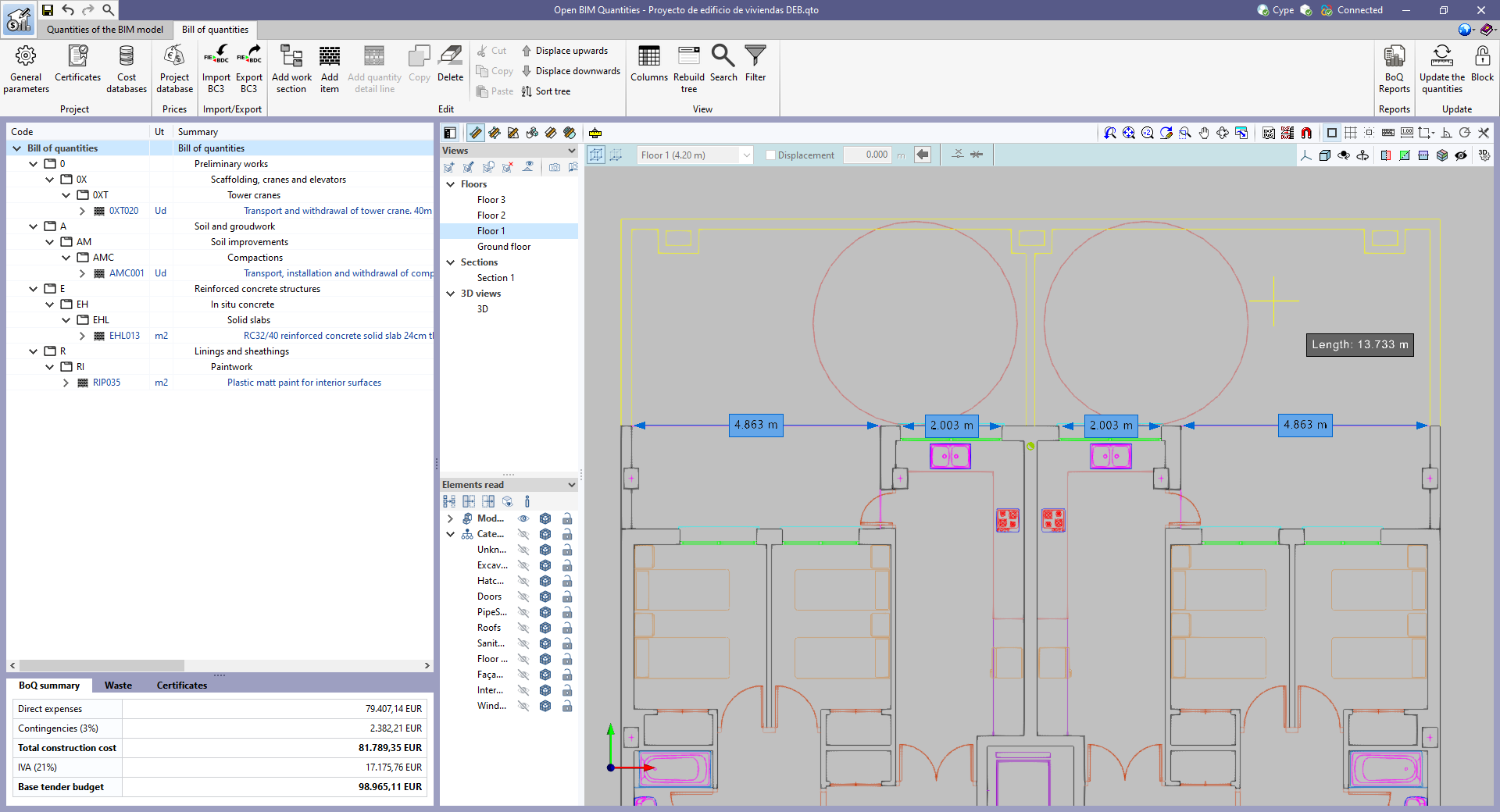
    The distance between points inserted in the work area can be measured. Several segments can be entered and the application will calculate the sum of the lengths of each one.
  • Measure area
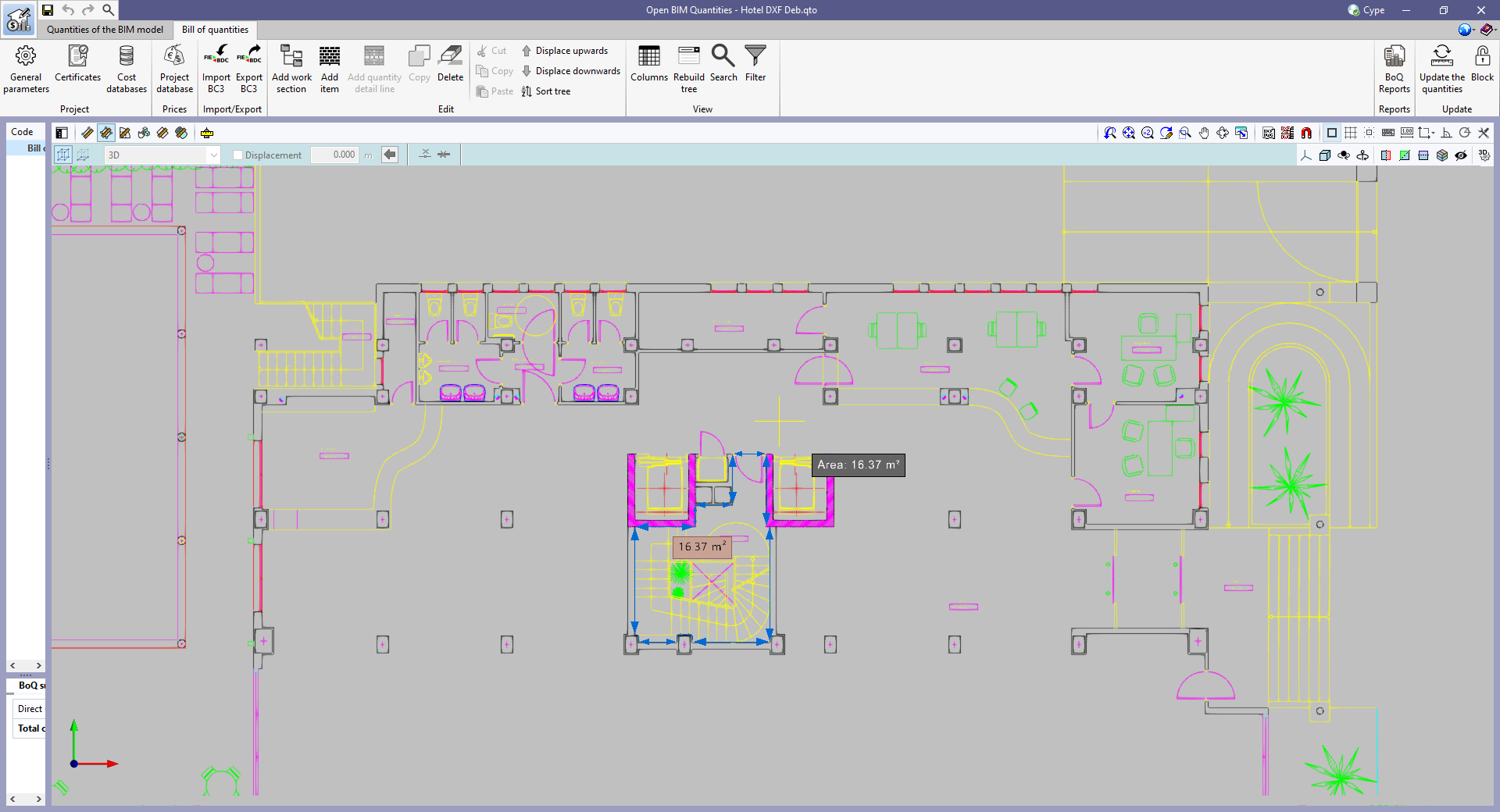
    The area of a polygon defined by points inserted in the work area can be measured. Several polygons can be entered and the application will calculate the sum of the areas of each one.
  • Measure angle
    The three-point angle inserted in the work area can be measured. Several angles can be defined and the application will calculate the sum of them.
  • Count the number of objects
    The number of selected 3D model objects can be counted.
  • Measure the area of objects
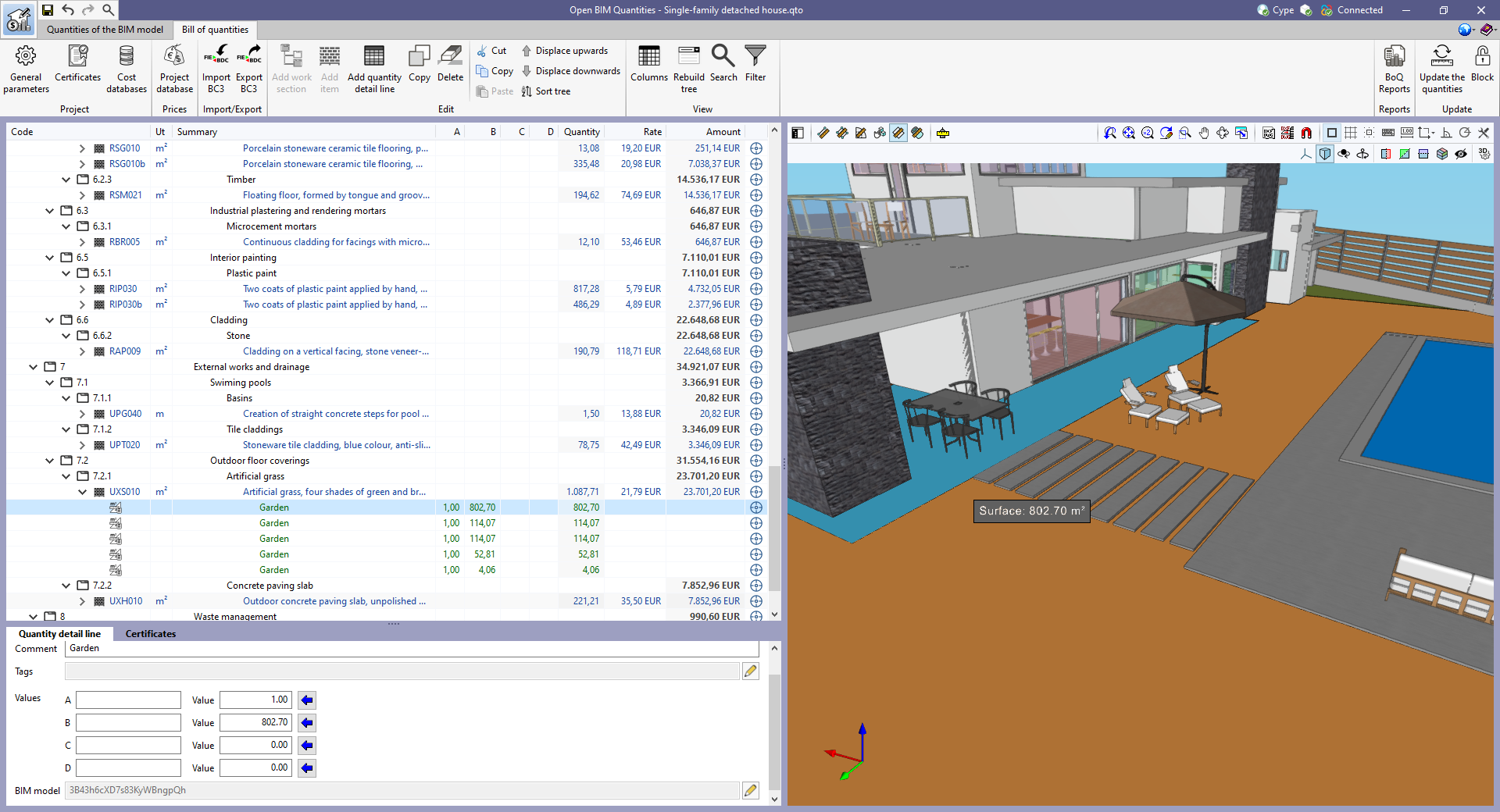
    The total area of the selected 3D model objects can be measured.
  • Measure the volume of objects
    The total volume of the selected 3D model objects can be measured.

In order to make it easier to measure the quantities of the model, the work area has been modified to incorporate the 3D work environment tools that are already available in other CYPE Open BIM applications:

  • Defining views
    Different types of 2D and 3D views of the model can be generated from the "Views" panel in the sidebar of the work area.
  • Elements read
    The visibility and object snaps of model components can be controlled from the "Elements read" panel in the sidebar of the work area.
  • Inserting components
    When entering a measurement in the work area, the application provides a toolbar to make it easier for users to interact with the environment.

As well as measuring the 3D model, this new set of tools can be used to take measurements on plans or 2D drawings imported from CAD files (".dxf", ".dwg", ".dwf") or images (".jpeg", ".jpg", ".bmp", ".png", ".wmf", ".emf", ".pcx"). These files and the object snaps are managed through the "DXF-DWG Templates" and "Template object snaps" options respectively.

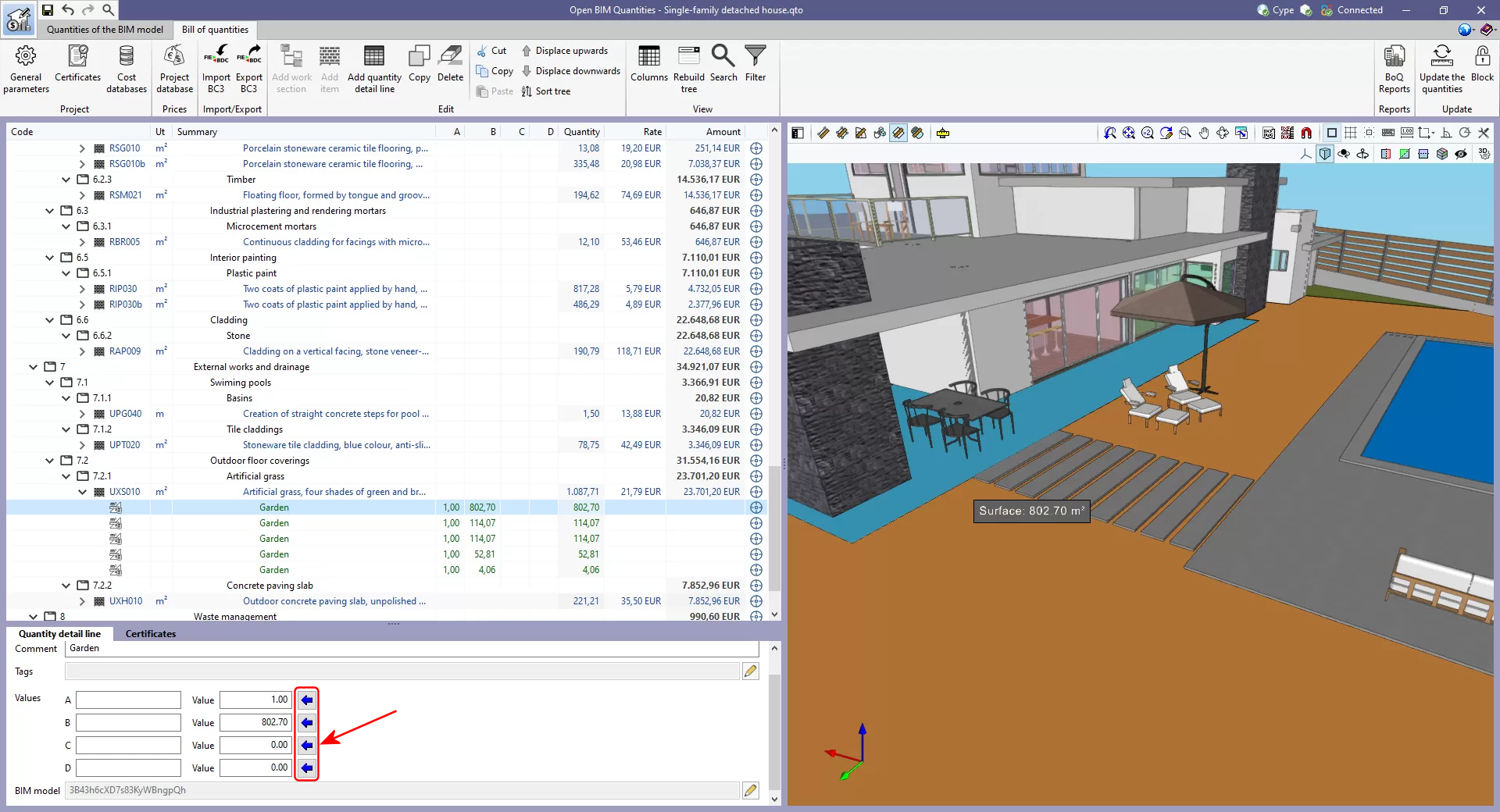
In order to use the measurements in the project's bill of quantities in a simple way, a button with a blue arrow has been added to the editing panel of the detail lines next to the editing window of each variable (A, B, C and D). Clicking it will assign the value of the measurement made on the work area to the variable.

The option to "Zoom" into the 3D model element has been added in the following cases:

  • "Quantities of the BIM model" tab in Open BIM Quantities
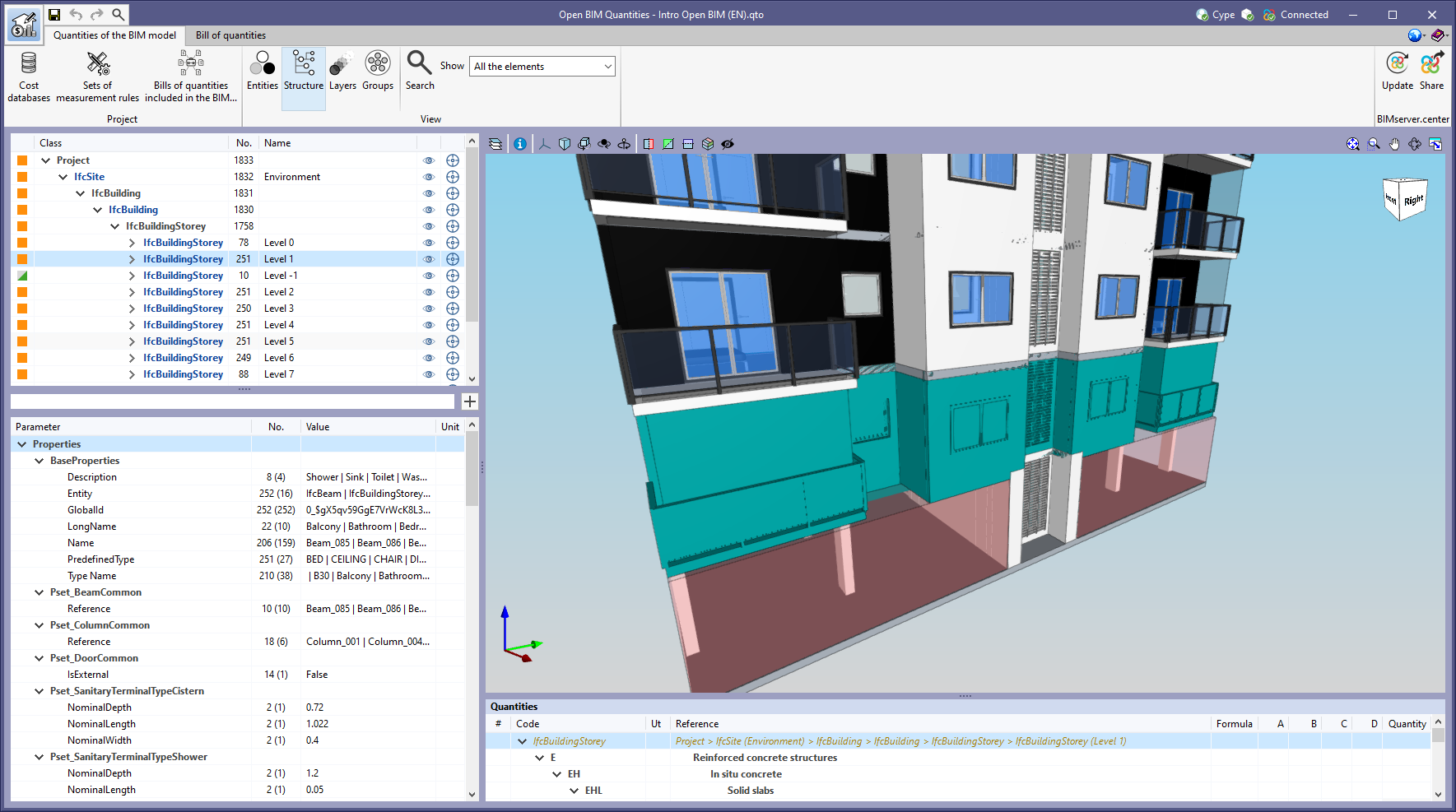
    In previous versions, users could frame a component of the IFC model in the 3D view. The same can now be done for the different groups of elements (types, entities, structure, layers and groups).
  • "Bill of quantities" tab in applications
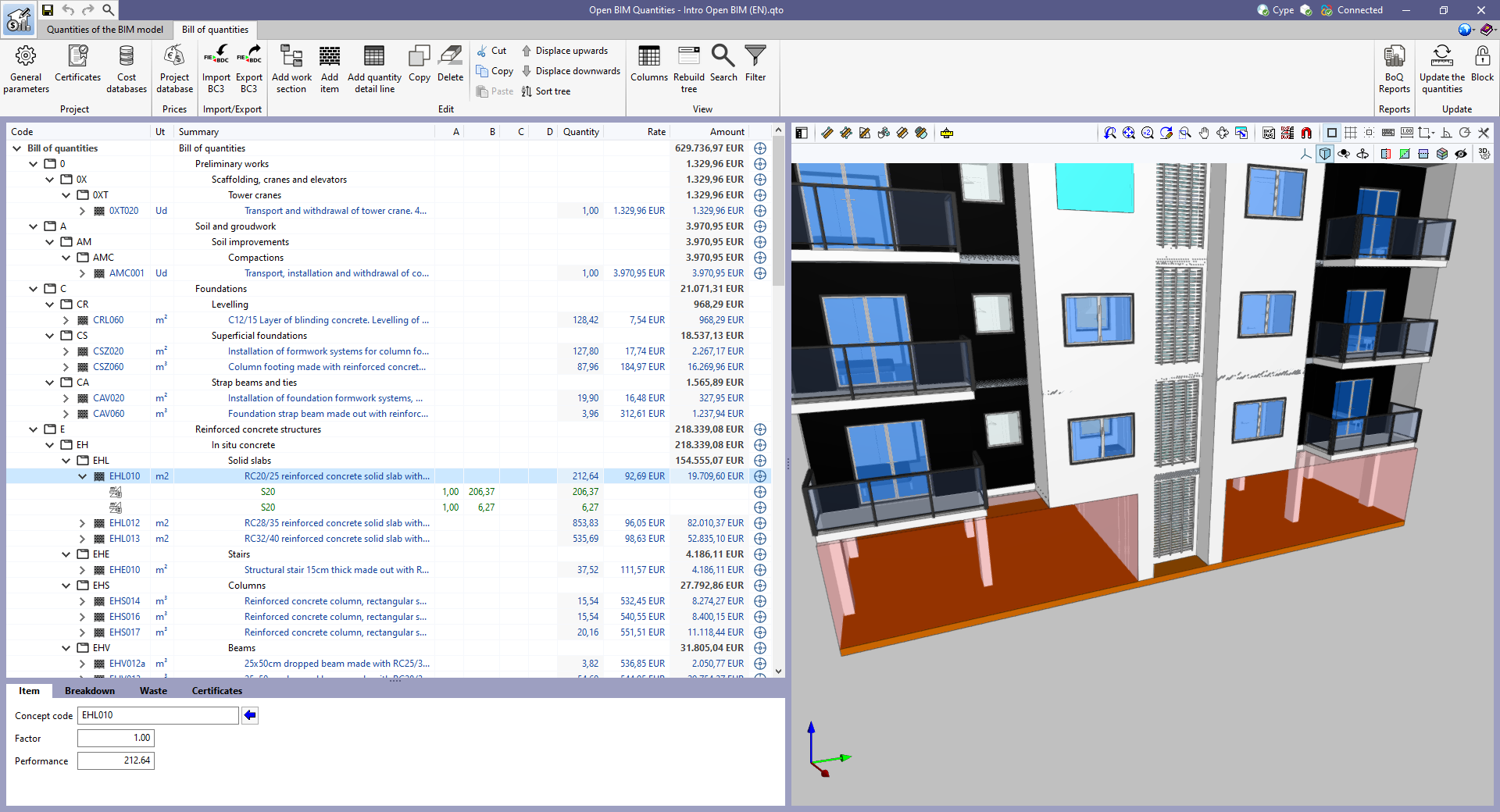
    In previous versions, users could frame the elements used in a quantity detail line of the bill of quantities in the 3D view. The same can now be done for items and work sections.

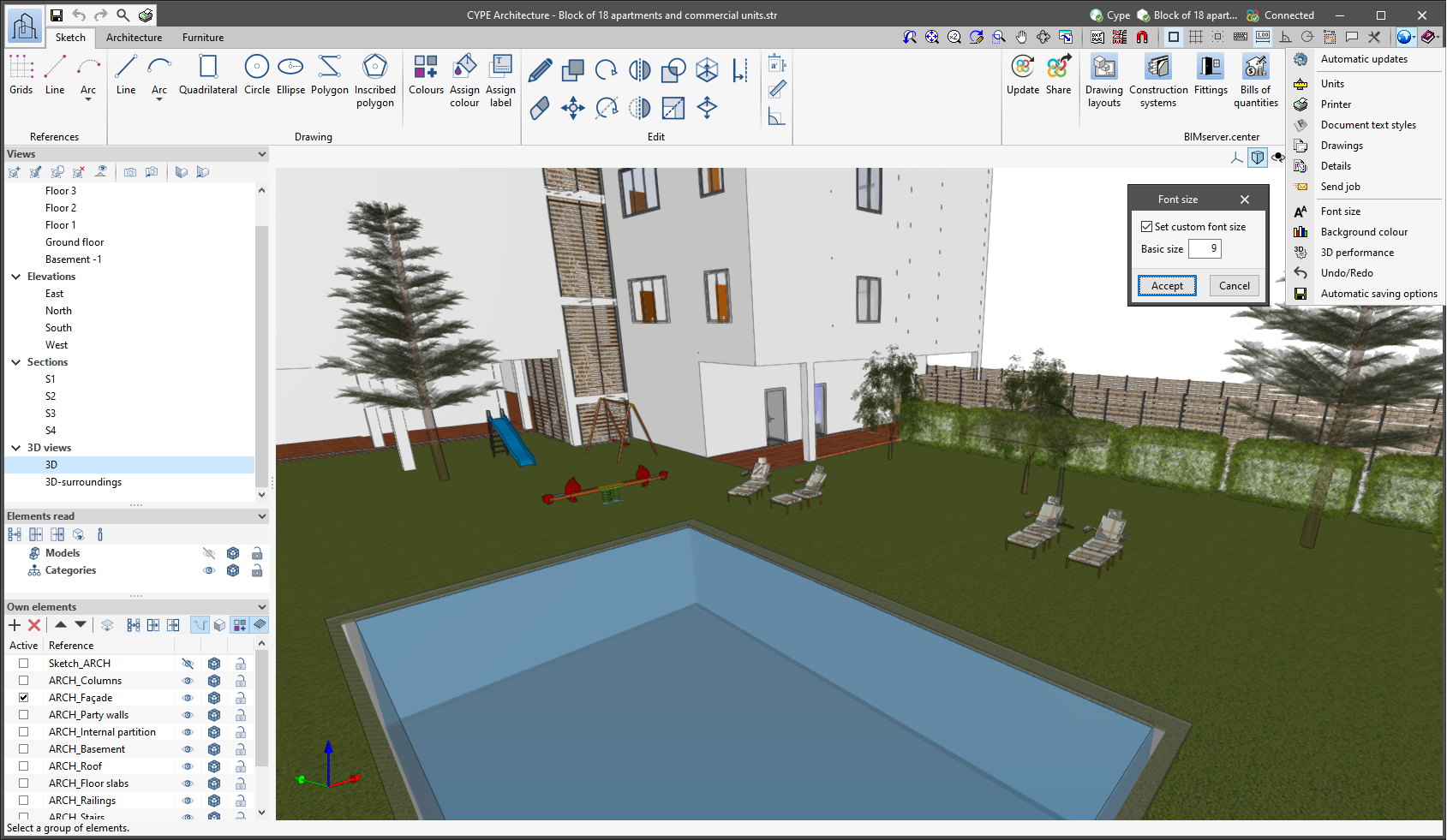
The "Font size" option has been added to the general configuration menu of the applications. This tool allows users to increase or decrease the basic size of the font used in the user interface of the programs. Thanks to this implementation, the accessibility of the applications has been improved while also ensuring the correct visibility of the content on devices with different screen resolutions.
To enter a "Basic size" the "Set custom font size" option must be checked. The size users can enter is the application's basic font size. Any other font sizes that may exist in the program's interface will be automatically modified proportionally according to the change in the basic size.

It is important to note that, as this is a common parameter, its modification will affect all installed CYPE tools.

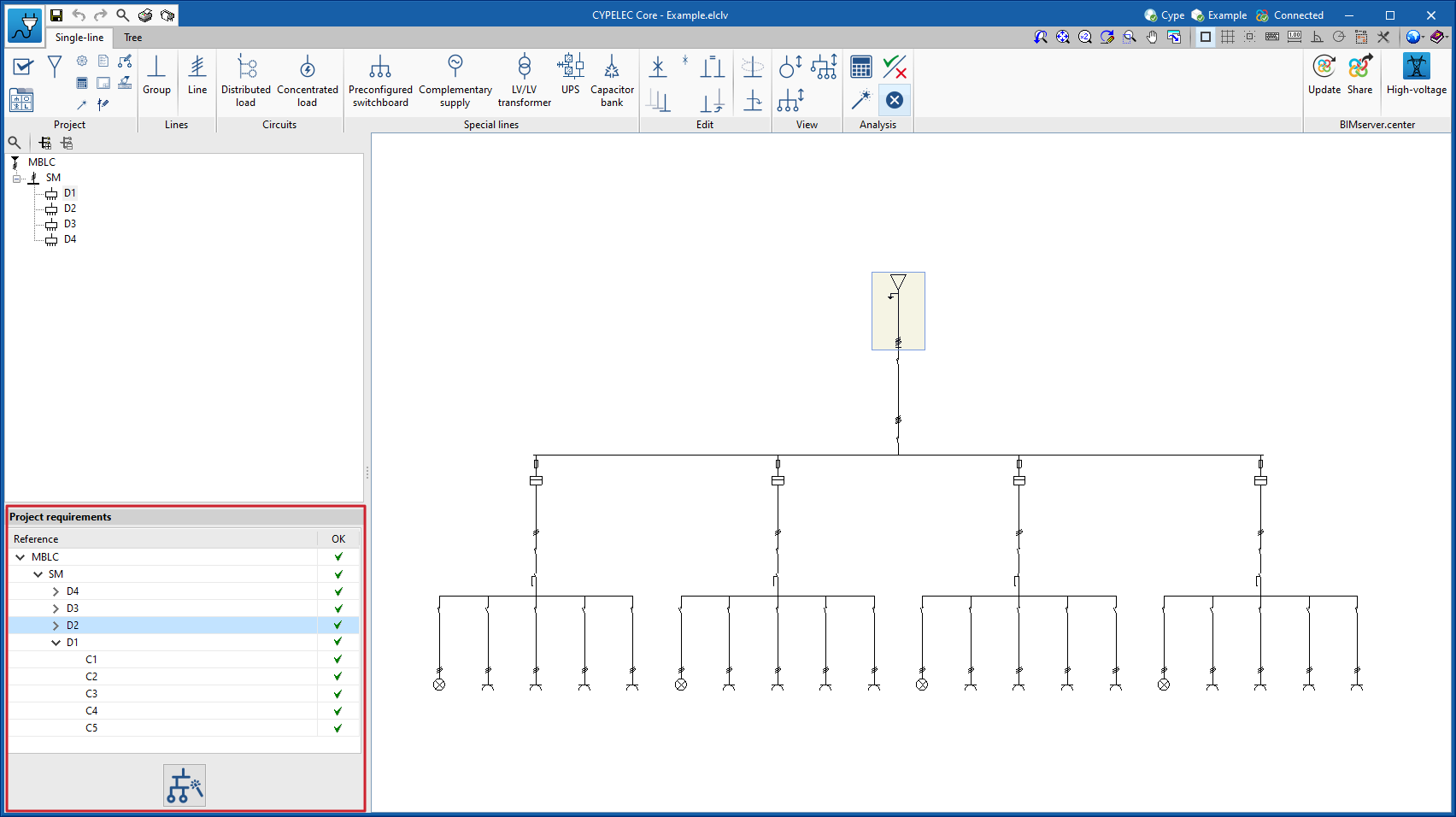
If project requirements are generated from the information that may exist in the BIM project (see the new feature from this version 2023.b "Import and checking of the specifications from the CYPELEC Distribution program"), a receiver is added that automatically imports the diagram.

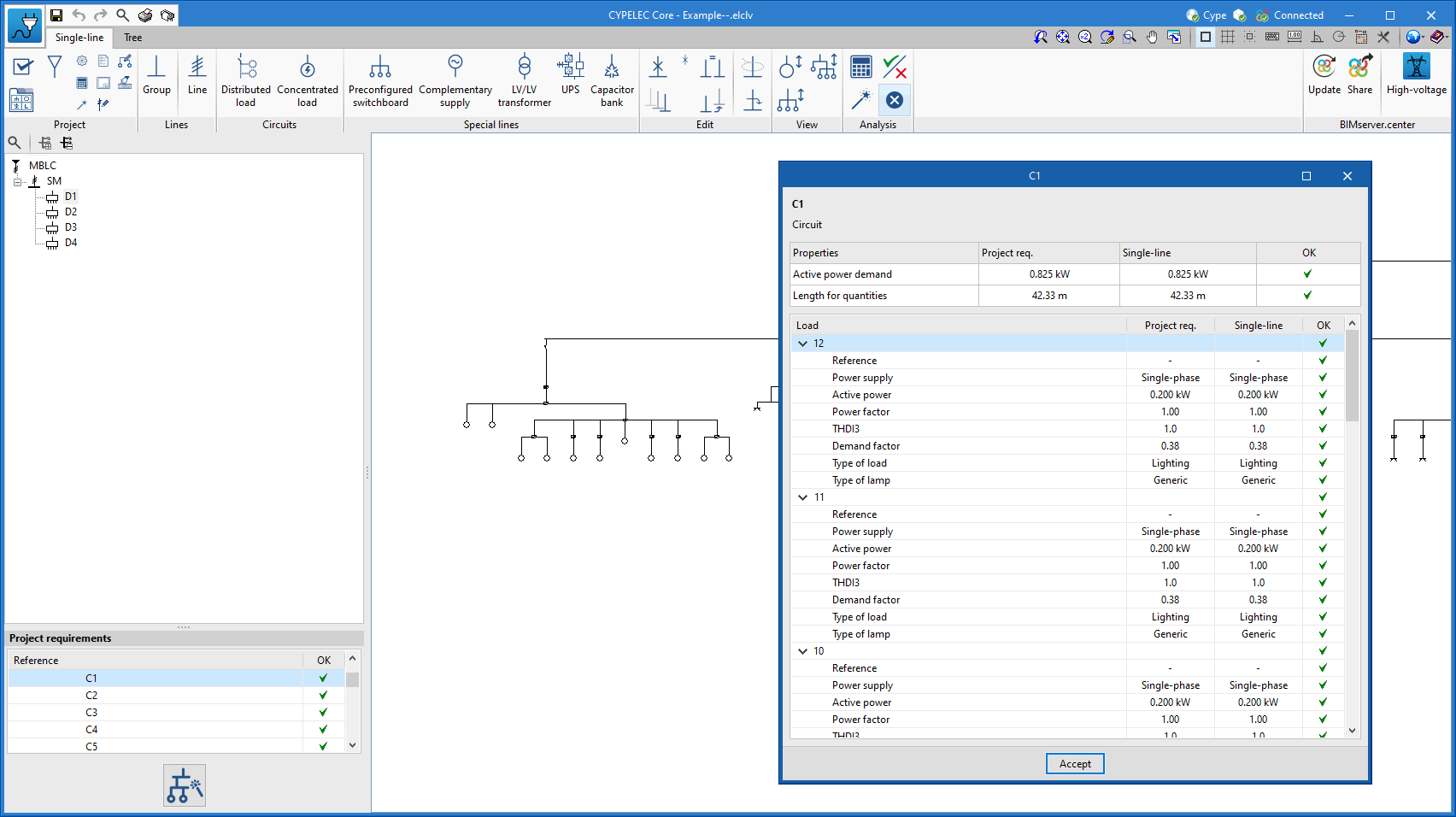
Should the BIM project contain electrical distribution information provided by the CYPELEC Distribution program, this information will be processed by CYPELEC CORE so that this program shows the electrical project specifications to be met in the left-hand margin of the work area.

Compliance with these project requirements is based on the verification of the following points:

  • The connection hierarchy of the wiring diagram must be followed so that all lines and circuits are defined and connected according to the imported diagram.

  • The requirements must be met for each of the lines and circuits. As a result, there are three possible scenarios:
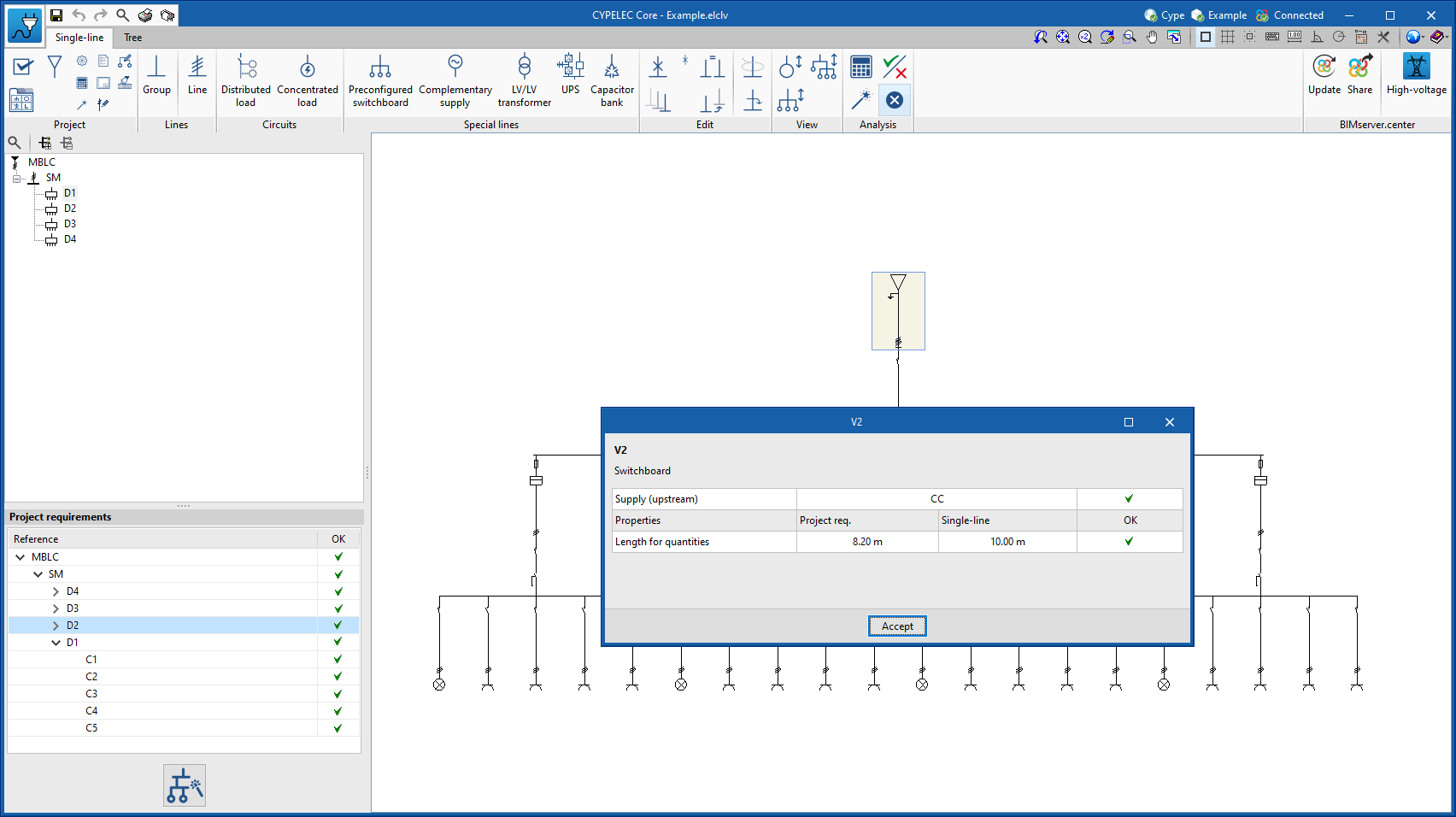
    • The measuring length must be met for lines belonging to feeders and supply lines to switchboards or sub-switchboards.
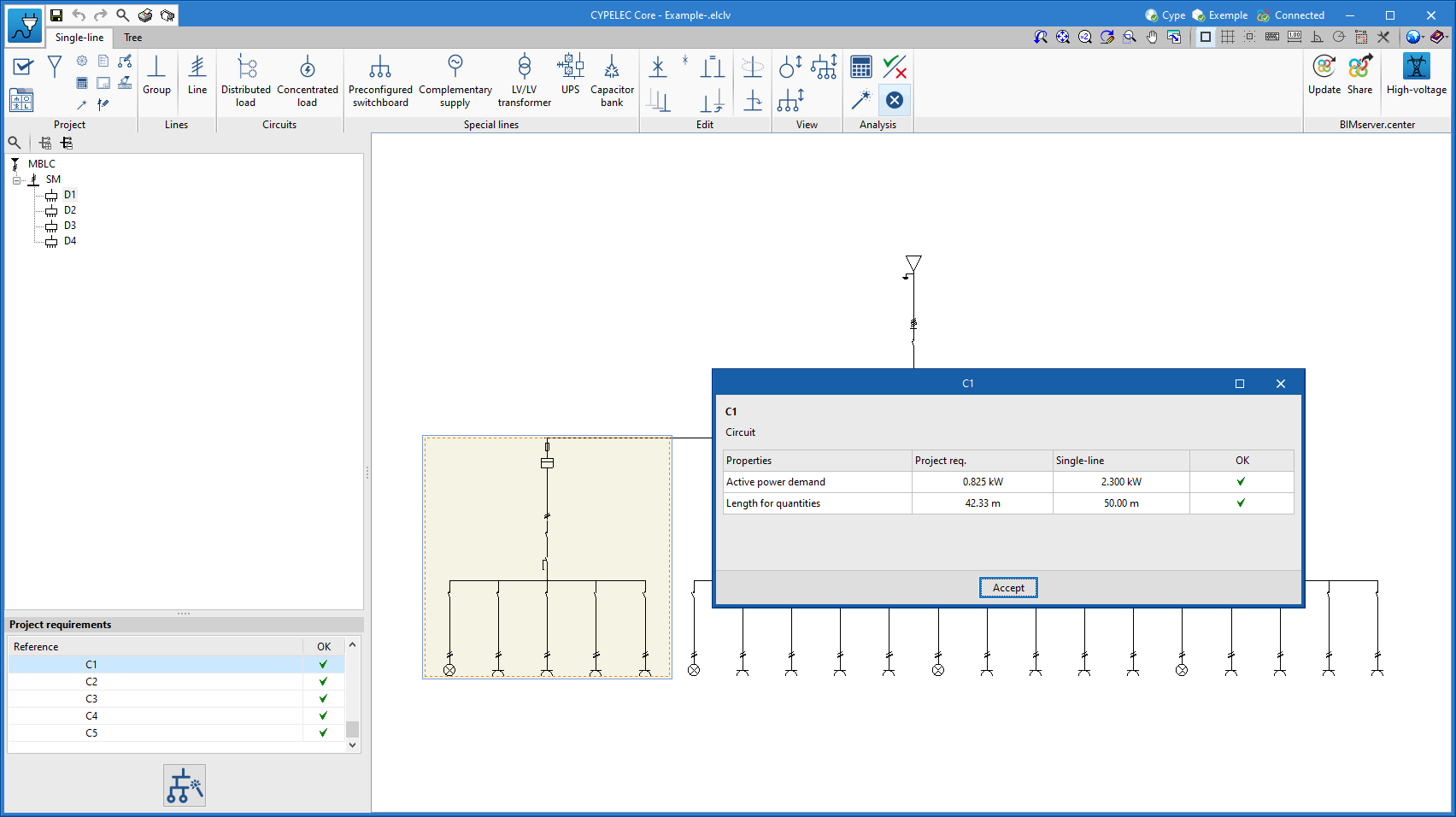
    • If a circuit belongs to a switchboard and a circuit with a concentrated load is chosen, the total active power demand of the circuit and the measuring length must be met.
    • If a circuit belongs to a switchboard and a circuit with distributed load is chosen, the definition and distribution of each of the loads along the supply circuit must be met, in addition to the active power demand and measurement length, and the electrical properties of each of the loads must be met for each of them.

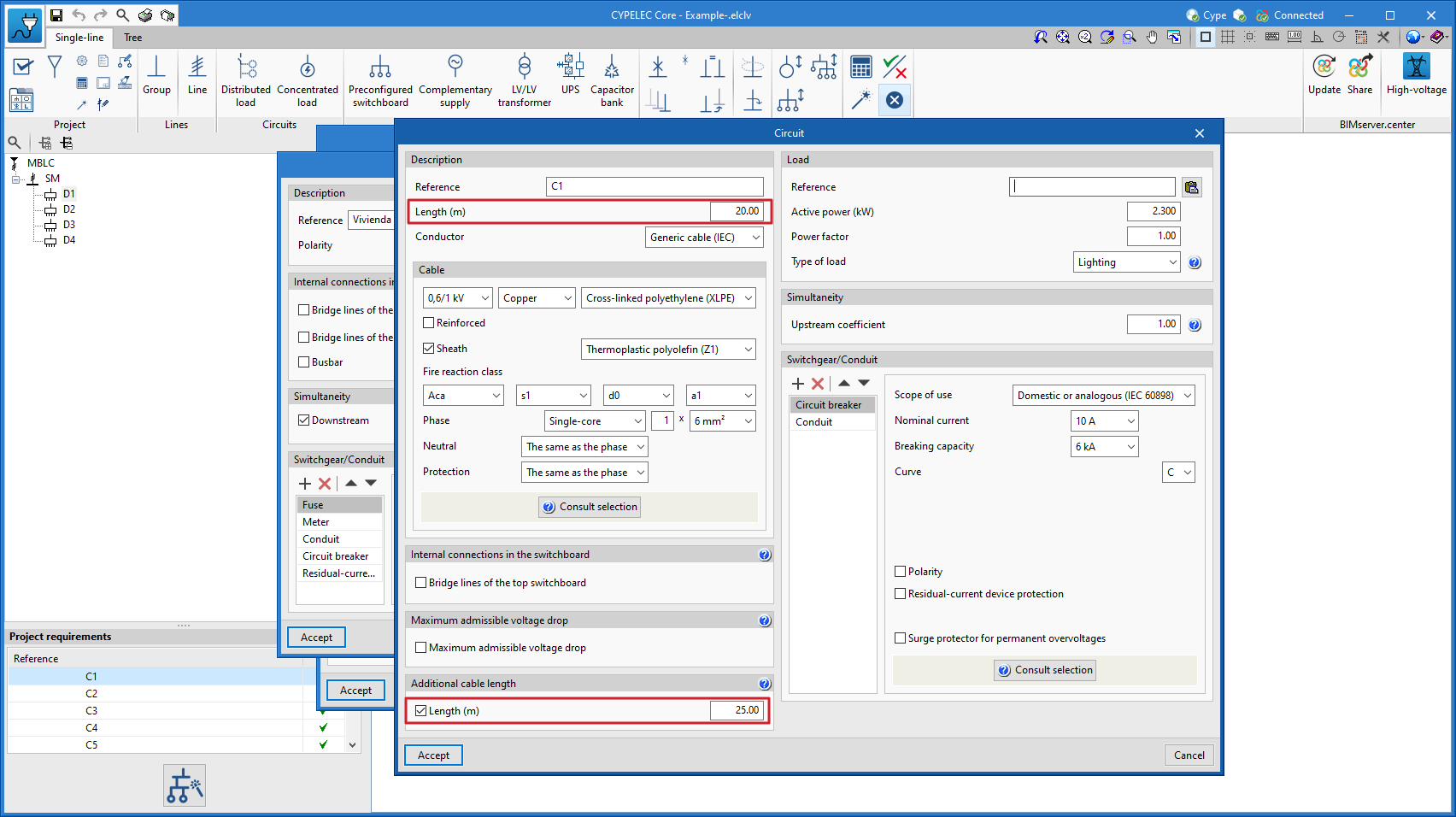
It is worth mentioning that in order to meet the requirement of the measurement length of a circuit, the sum of the design length plus the sum of the additional length must be equal to or greater than the required length. Both lengths are present in the edit panel of a circuit as shown in the following image.

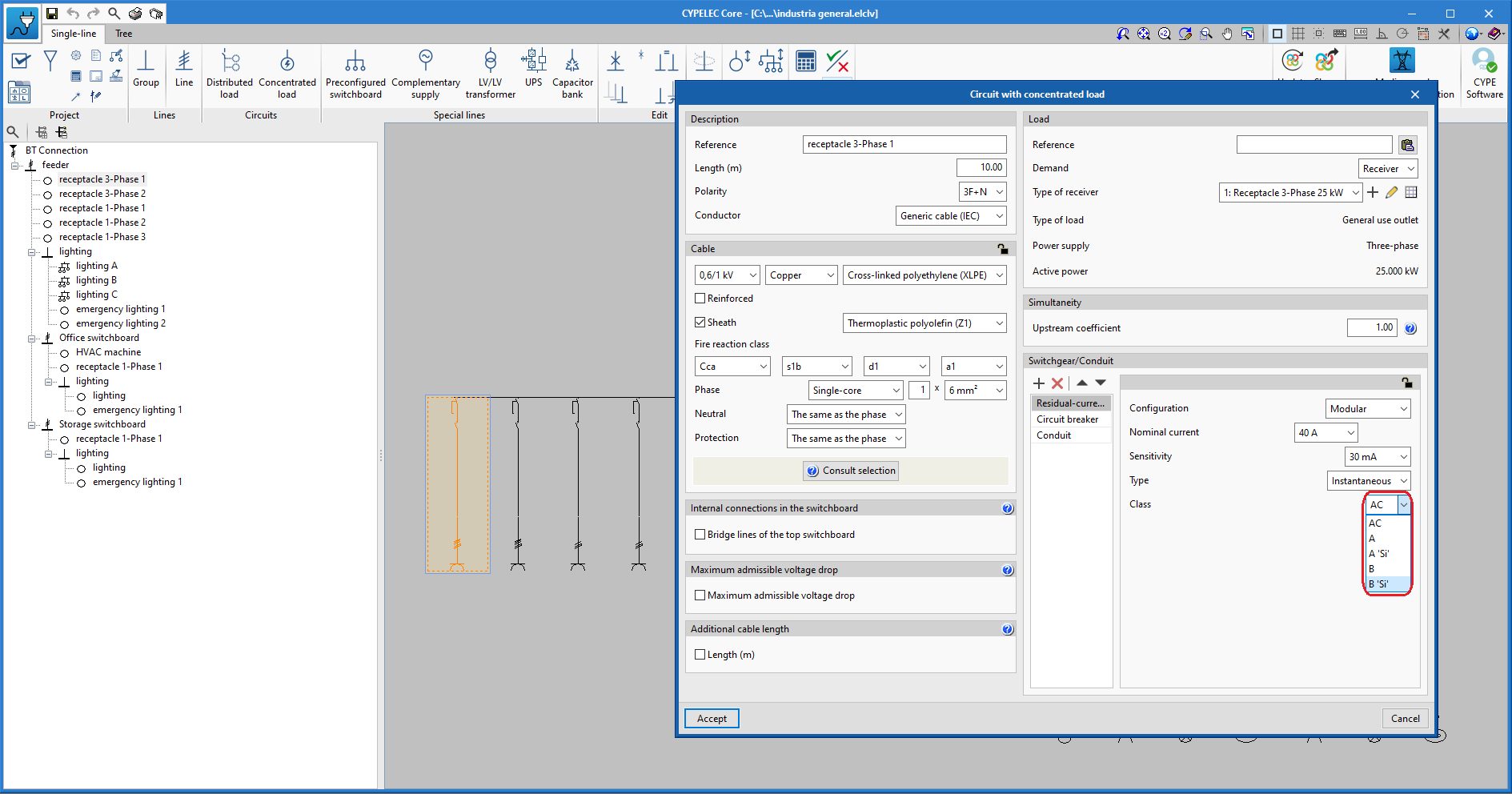
Class selection for residual-current devices has been expanded. The new added classes are class B and class B-SI (Super Immunised).

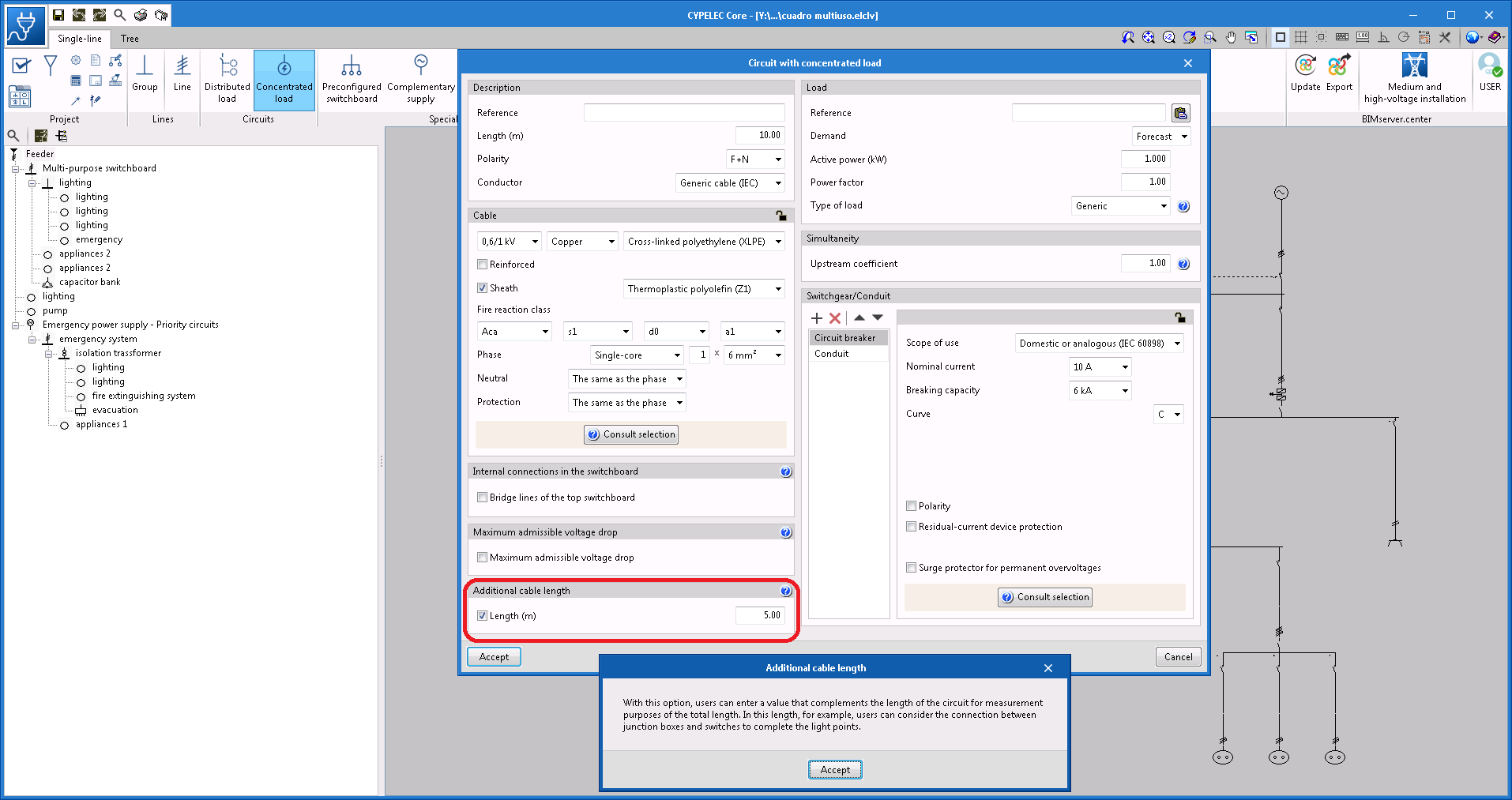
When editing any type of circuit that can be defined in a single-line diagram, the possibility of entering additional cable length is included. This length may include, for example, the connection between junction boxes and switches to complete the lighting points or branches that the circuit may include in its installation that may not have been considered for the cable design, but which have been taken into account for its total bill of quantities.

The total quantities of the cable are displayed in the material schedule report.


Version 2021.g of CYPE’s programs is a closing version of the 2021 version.

As well as the new features and improvements expressly indicated in each version of CYPE software, process optimisation involving internal updates for all our programs is normally included. In each revision, all programs are systematically checked and changes are made to improve their performance, therefore, we recommend that our users (in this case those of v.2021) always update their version to the latest one, regardless of the country for which they are using CYPE software or the language in which it is installed.

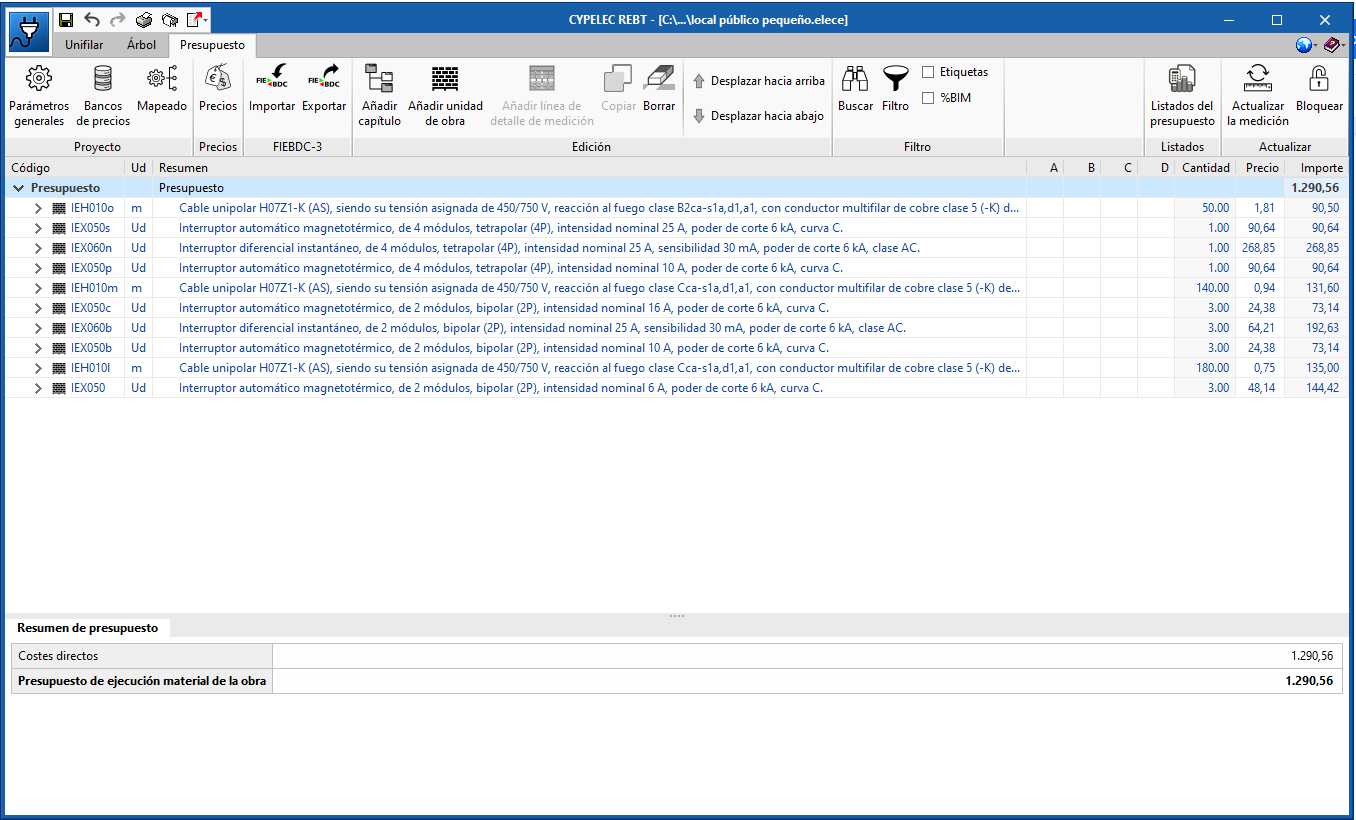
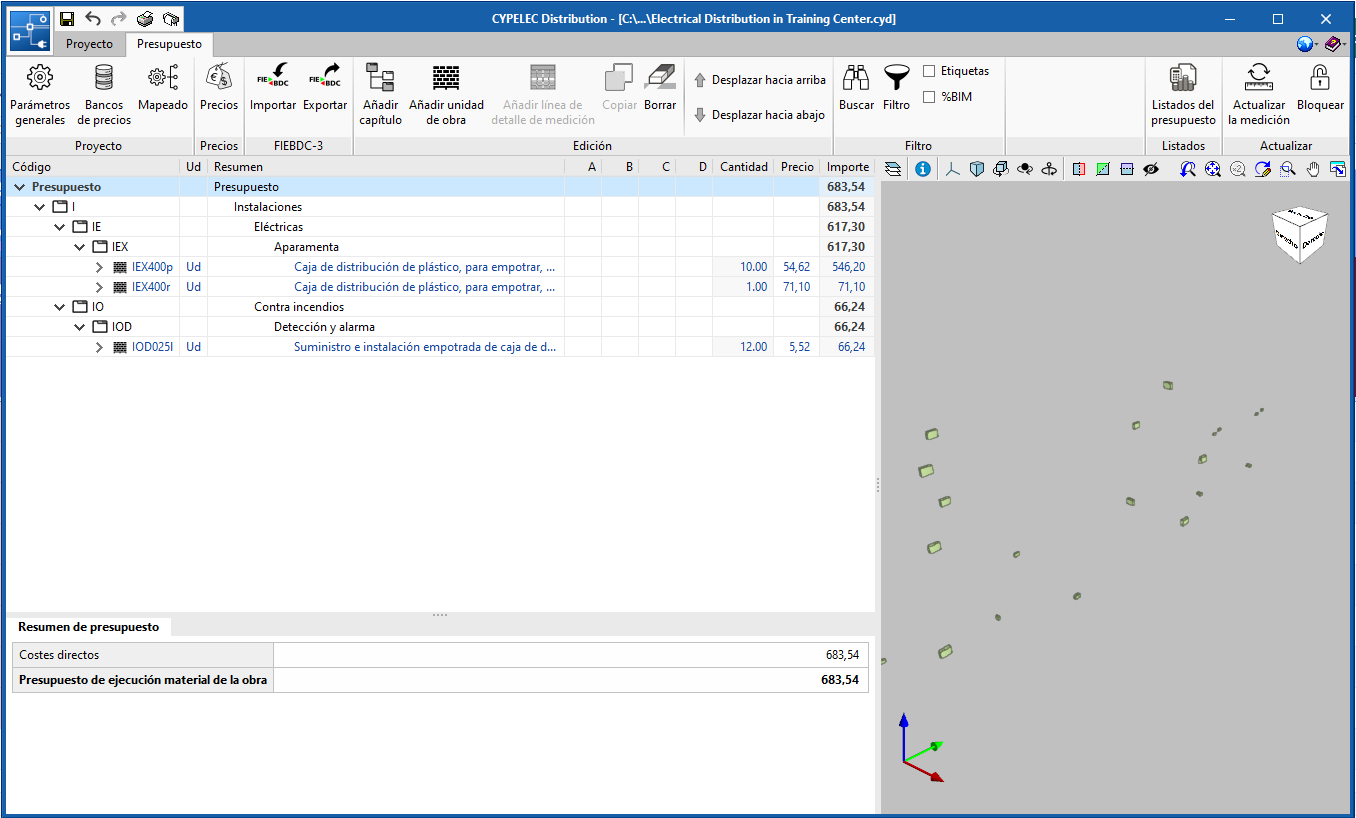
The “Bill of quantities” tab has been included in the four programs (CYPELEC REBT, CYPELEC RETIE, CYPELEC NF and CYPELEC Distribution). Now, users have tools to generate and manage the bill of quantities of the elements that have been entered.

More information in “Bill of quantities” tab in project phase Open BIM applications.

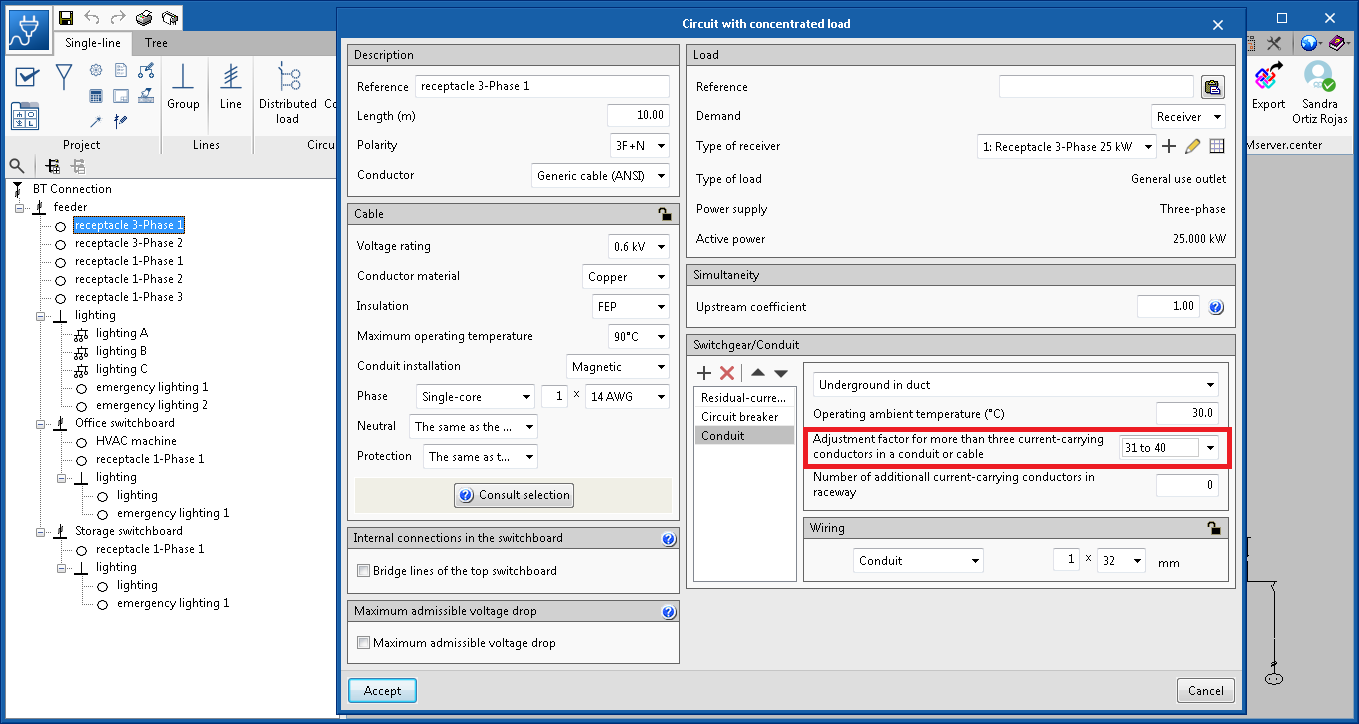
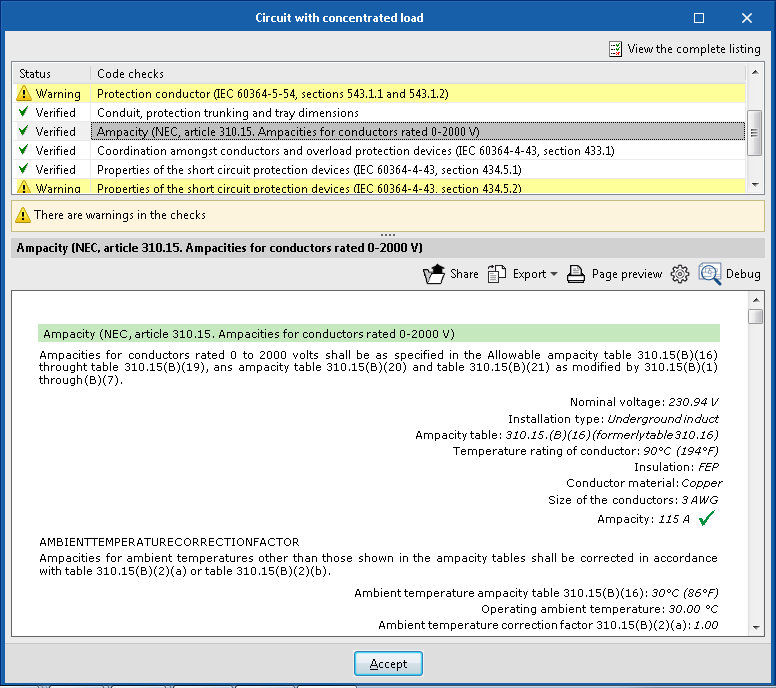
If users are designing an installation that follows the ANSI standard, it is now possible to edit the number of current-carrying conductors in the same conduit, with the aim to adjust the correction factor of the ampacity of the cable in accordance with table 310.1(B)(3)(a) of the NEC code (National Electrical Code).

This selection will be reflected in the justification report of the ampacity of the cable.