Update history​​

CYPEPLUMBING

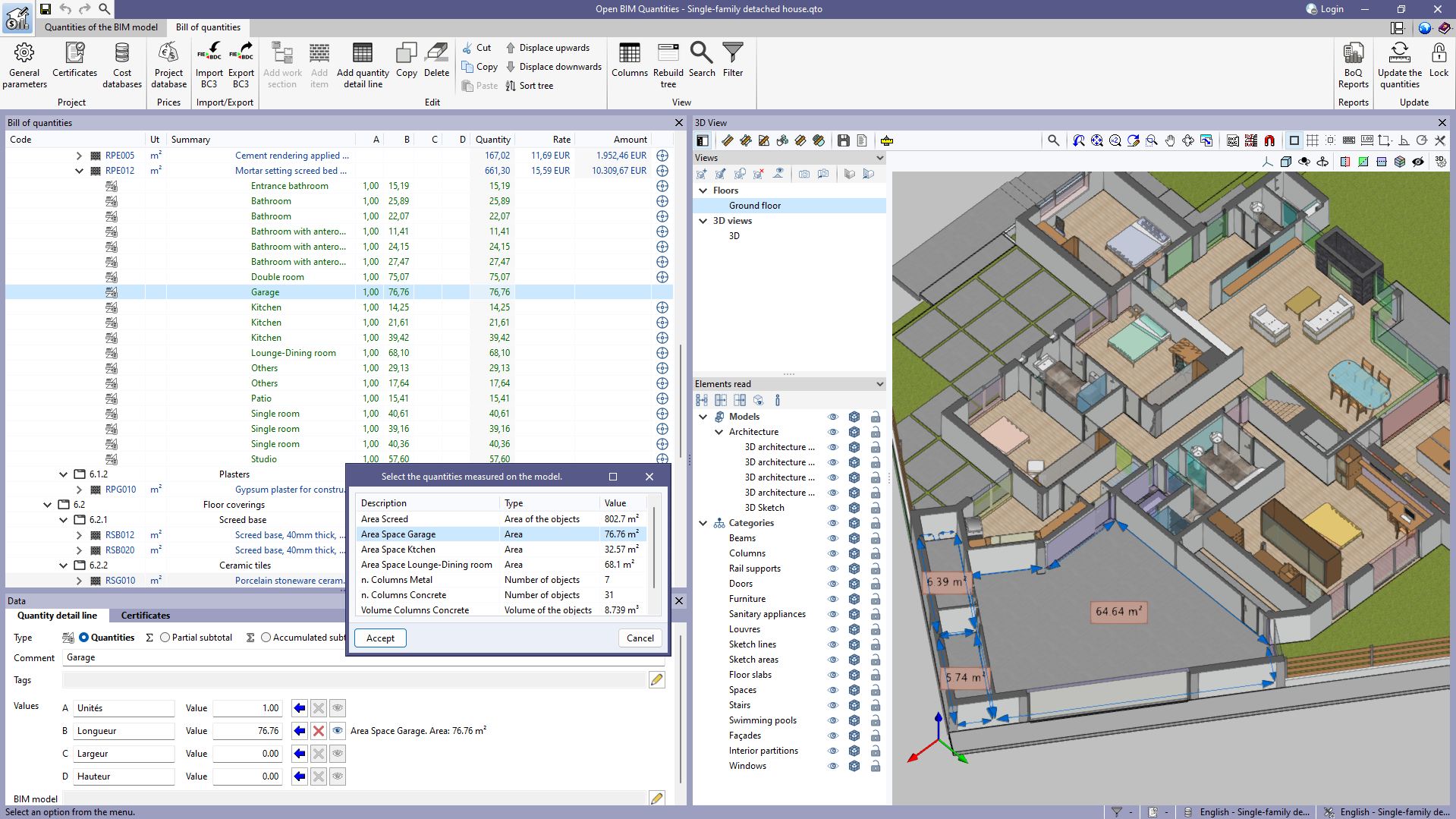
In version 2023.d, the "Quantities on the 2D/3D model" were implemented in the applications that have a "Bill of quantities" tab. This tool has now been enhanced in order to allow users to save quantities measured on the 3D view so that they can be used in several quantity detail lines. To this end, the "Save the current quantities" option has been added to the toolbar of the 3D view. By clicking on it, a window is displayed where a description for the quantity can be entered before saving it. In order to display the list of saved quantities, the "Measurements carried out on the model" option has also been added. This option displays a list of the measurements taken, showing the description, type of measurement (length, area, angle, etc.) and value for each one.

The "Assign the quantities measured on the model to the variable" option, which appears next to each variable in a quantity detail line, has changed the way it works as a result of this new feature. In previous versions, clicking on it assigned the last measurement taken on the 3D view, whereas now the "Measurements carried out on the model" list is displayed to select the saved quantity to be used.

Additionally, next to each variable linked to a quantity on the model, the description, type of measurement (length, area, angle, etc.) and value of the selected measurement can be viewed. Also, the "Delete the link between the variable and the quantities measured on the model" and "View the quantities measured on the model in the 3D view" options have been added. The first option allows users to remove the link between the value of the variable and the quantities measured on the model. The second option allows users to display the representation of the assigned measurement in the 3D view. If this option is used on another variable or if another element is selected in the "Bill of quantities" window, this representation will no longer be displayed.


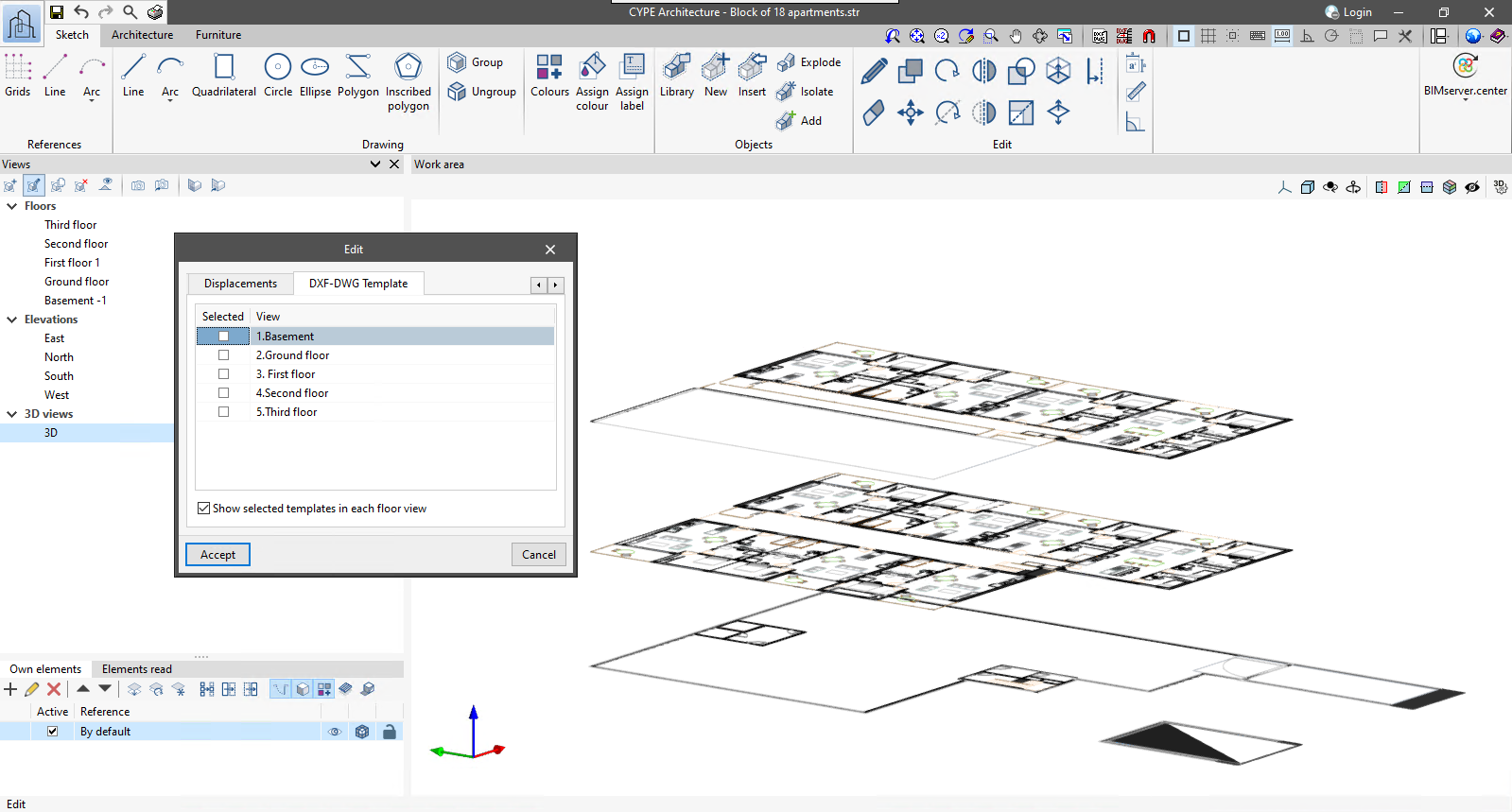
For 3D views defined within applications with a 3D working environment, the "Show selected templates in each floor view" option has been added. When activated, the templates visible in each of the floor views will be displayed in the 3D view in the dimension corresponding to these views.

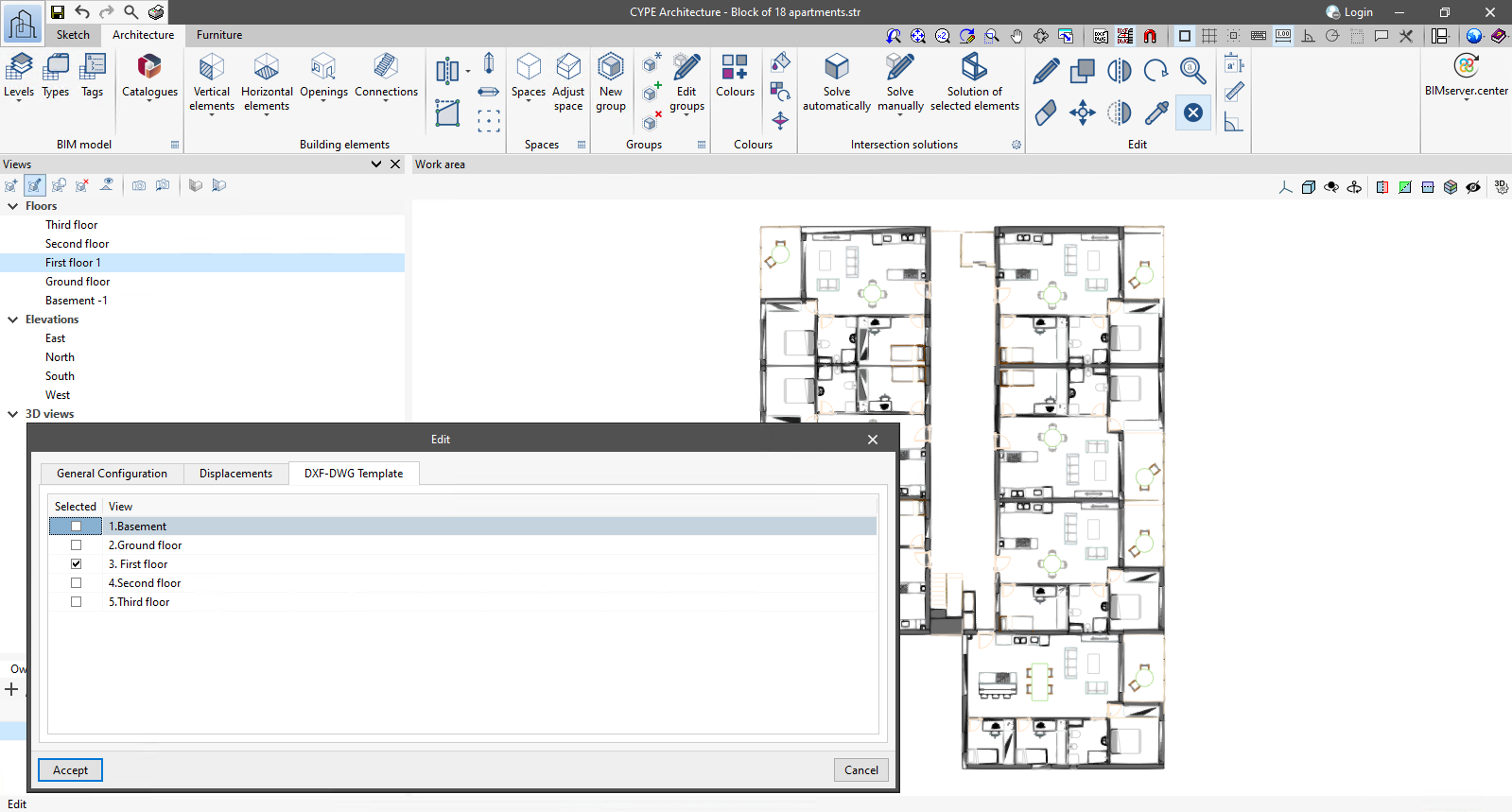
As of version 2024.c, applications with a 3D working environment can manage the visibility of templates from the view configuration panel. For this purpose, the "DXF-DWG templates" tab has been added, where a list of all the templates imported into the project is displayed together with a checkbox to indicate which ones should be shown in the view.

As of version 2024.b, applications with the "Element selection tool" (this tool was implemented in version 2021.e) have the ability to move the selected model components with the arrow keys on the keyboard. The elements shall be moved on the work plane of the active view in the direction of the arrow key. Whenever the arrow is pressed, the distance that is displaced is constant, so zooming will make it larger or smaller.

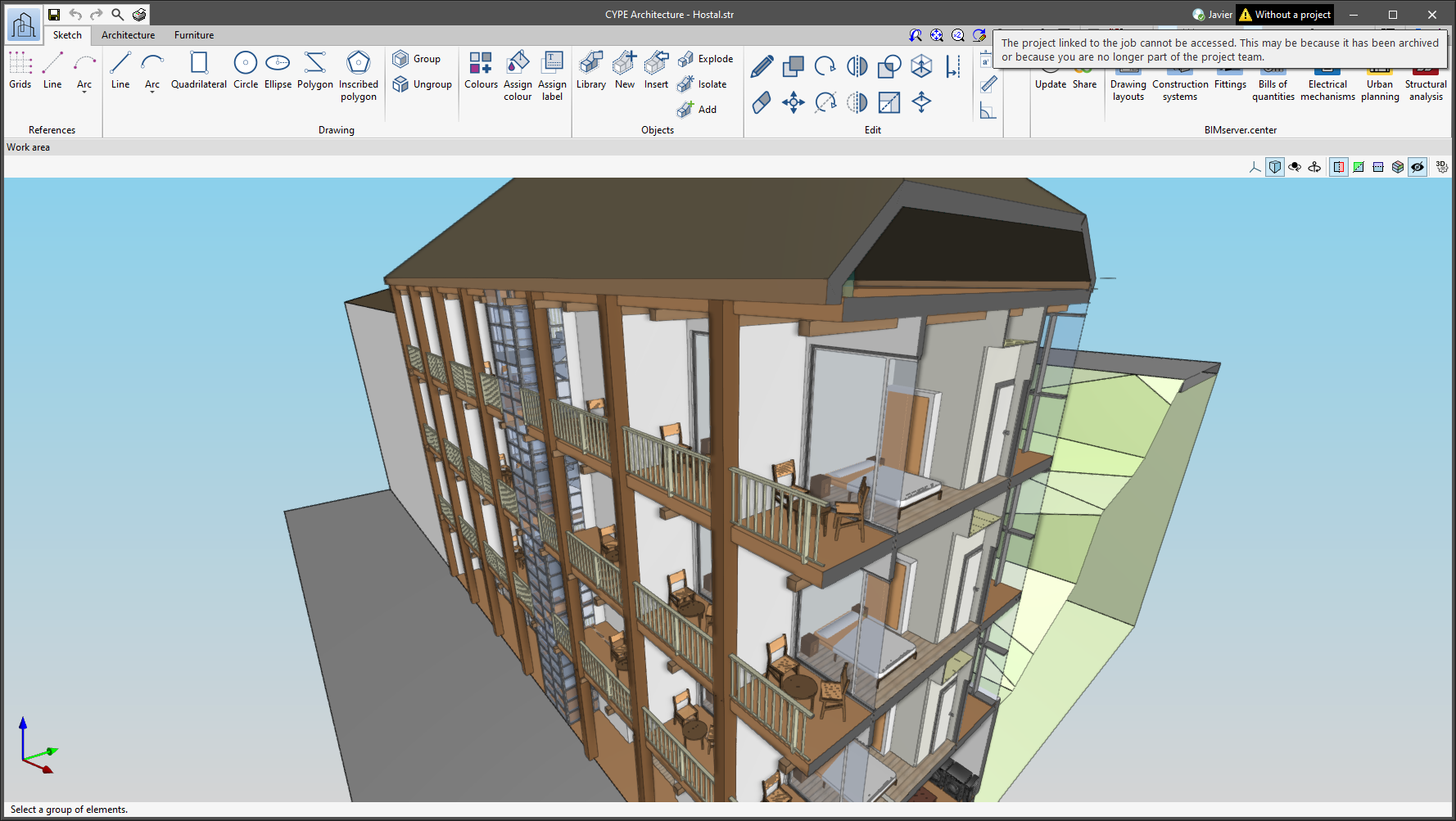
The status information bar of the BIMserver.center project is located at the top right of the window of the programs included in the Open BIM workflow. This bar has been available in the applications since version 2022.e and shows a warning icon when there is a problem with the connection to the project, as well as other things. Now, in version 2024.b, users can obtain more information about the warning by hovering the mouse cursor over the icon.

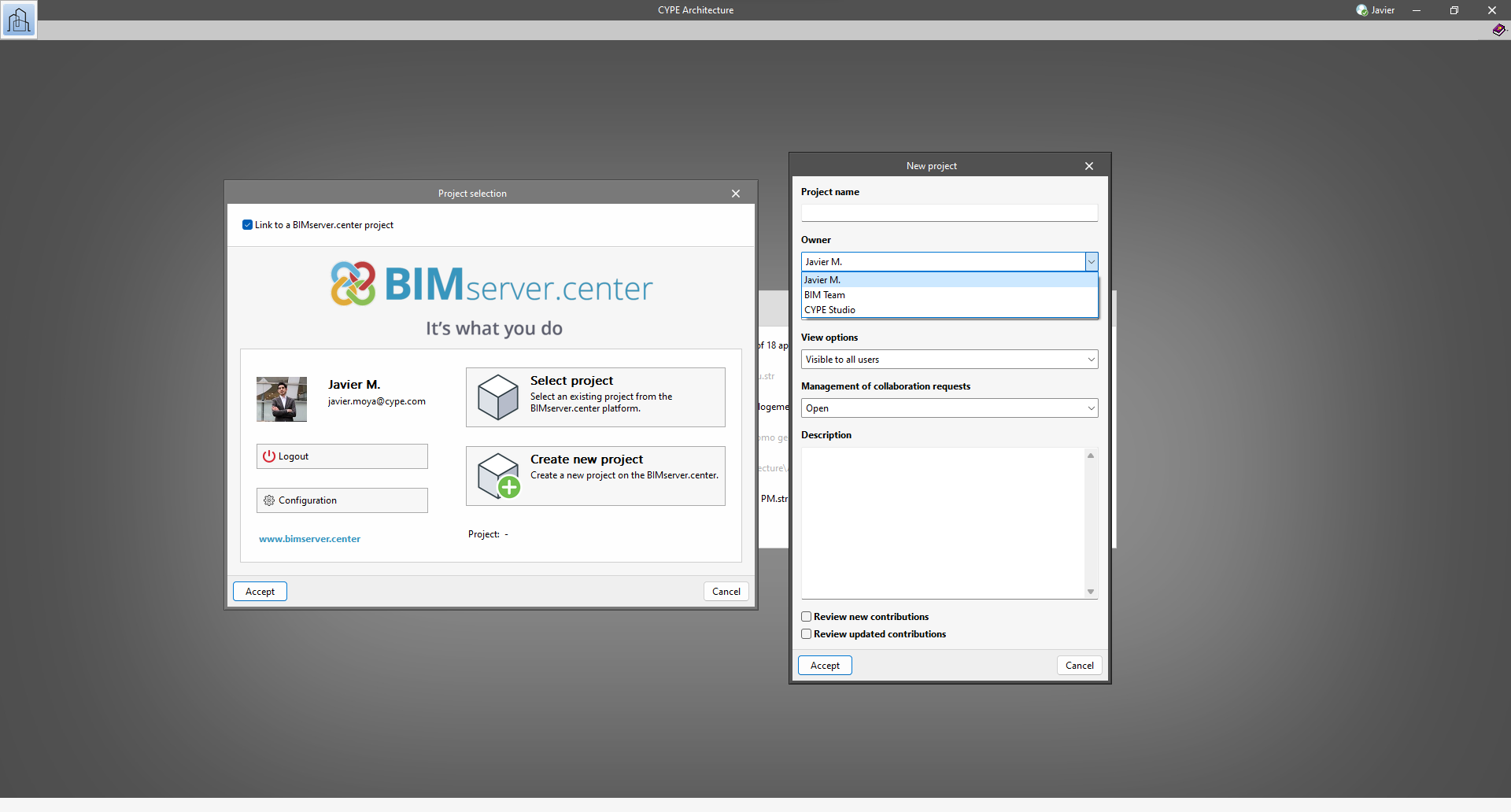
As of version 2024.b, users can create projects associated with a "BIMserver.center Corporate" account from all CYPE applications included in the Open BIM workflow. To do this, the "Owner" field has been added to the window for creating a new project. This is a drop-down menu that includes, as one of the available options, the logged-in BIMserver.center user name along with the "BIMserver.center Corporate" accounts to which it has access. When selecting the user name as the owner, the project will be associated with this personal account, as was the case in previous versions. On the other hand, if a BIMserver.center Corporate account is selected, the project will be associated with that account.

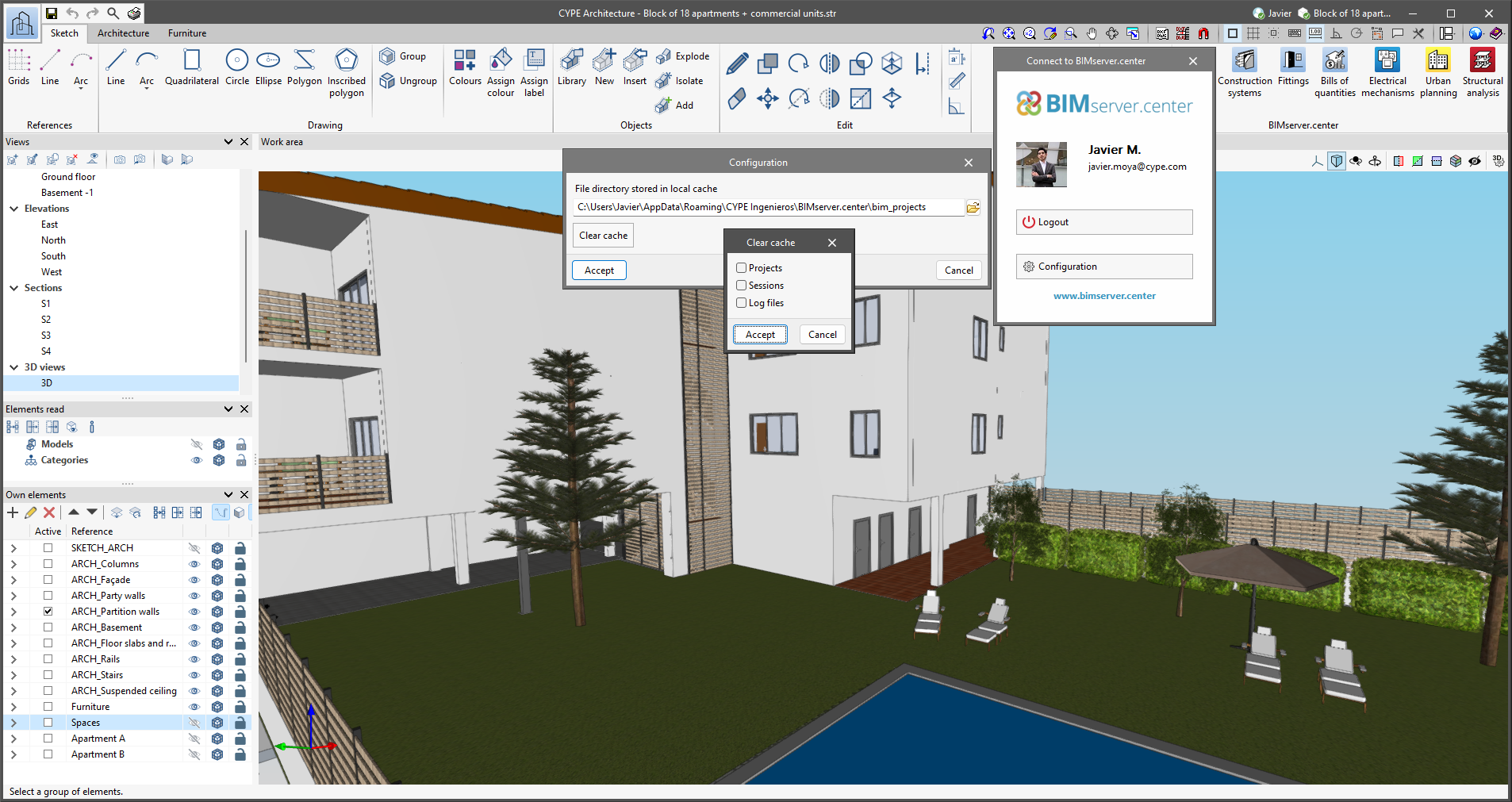
The "Clear cache" button has been added to the CYPE applications included in the Open BIM workflow in the "Configuration" dialogue box that opens with the following sequence of commands: Select any of the options in the "BIMserver.center" tool group > "Configuration" option in the dialogue box that appears. When clicking on "Clear cache", the following options are displayed:

  • Projects
    Deletes projects, contributions and documents downloaded from the platform that are in the "File directory stored in local cache".

  • Sessions
    Deletes the data of any active sessions. This action will require applications to be re-authorised to access BIMserver.center.

  • Log files
    Deletes transaction logging from applications with BIMserver.center.

In previous versions, file paths used by applications were limited to a maximum length of 256 characters. This restriction is not specific to CYPE tools but is set by default in the Windows file system. As of version 2024.b, CYPE applications can bypass the restriction and allow the use of an extended path length for a maximum total path length of 10,000 characters. This eliminates the problems caused by the default limit and allows users to work with long access paths.

This improvement is particularly useful when working on projects with a complex directory structure or with long file names. By allowing longer paths, CYPE applications offer greater flexibility in file organisation.

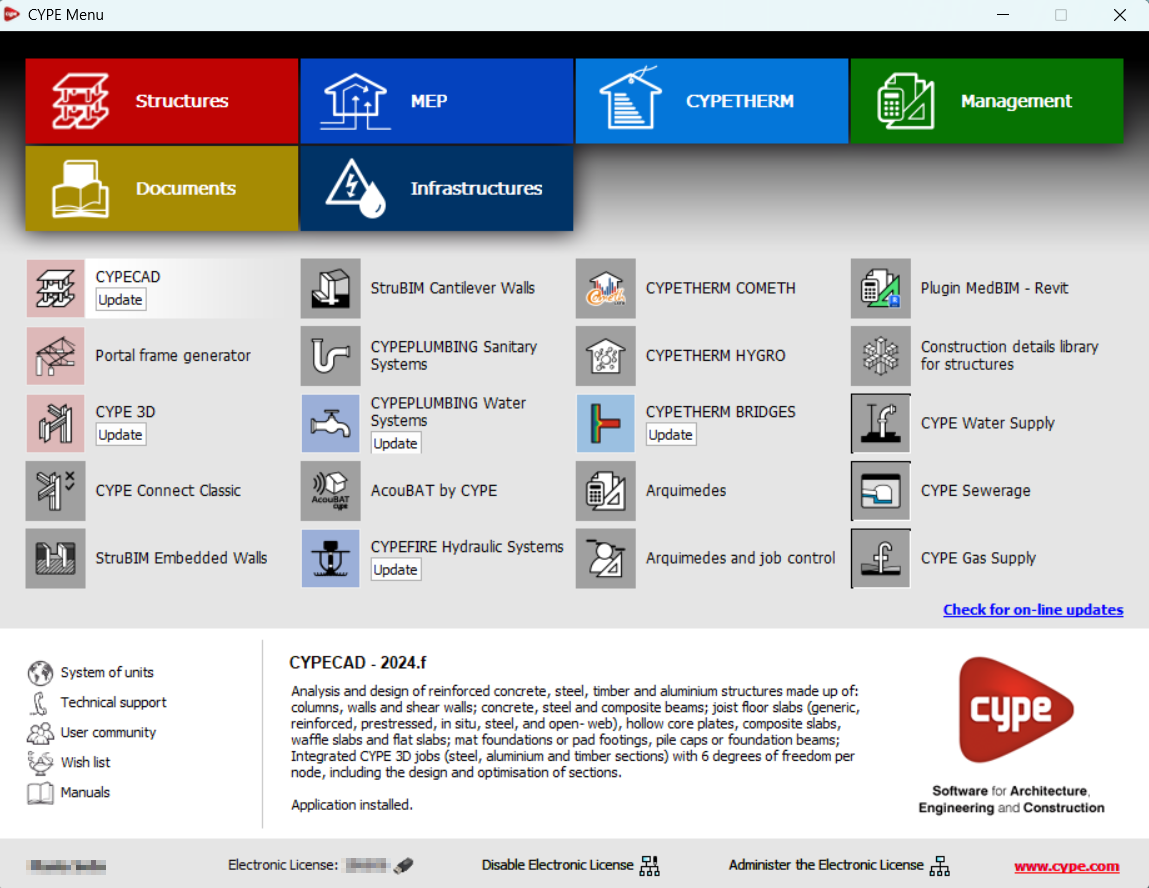
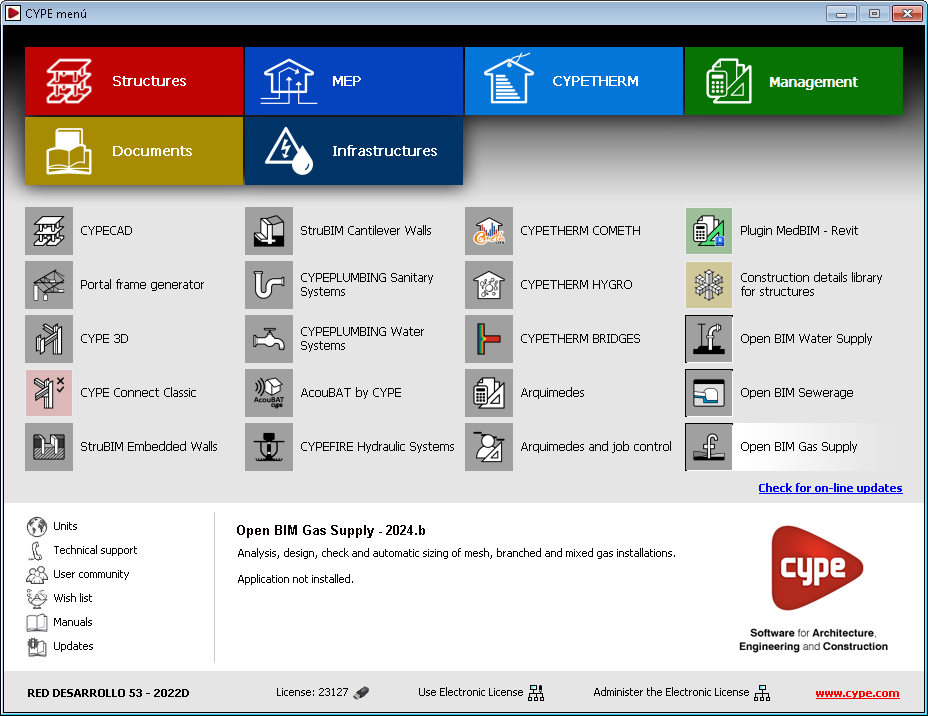
As of version 2024.b, the classic menu of CYPE programs has a downloadable version available from the BIMserver.center platform Store.

This new classic menu downloaded from BIMserver.center includes the same applications and layout as the version available from the download area of the CYPE website, but with some differences.

When installing the BIMserver.center menu, only those applications that are not available for individual download in BIMserver.center will be included in the installation. The other applications in the BIMserver.center menu (those that can be downloaded individually from the BIMserver.center Store) can be downloaded and installed when they are opened for the first time from this new menu.

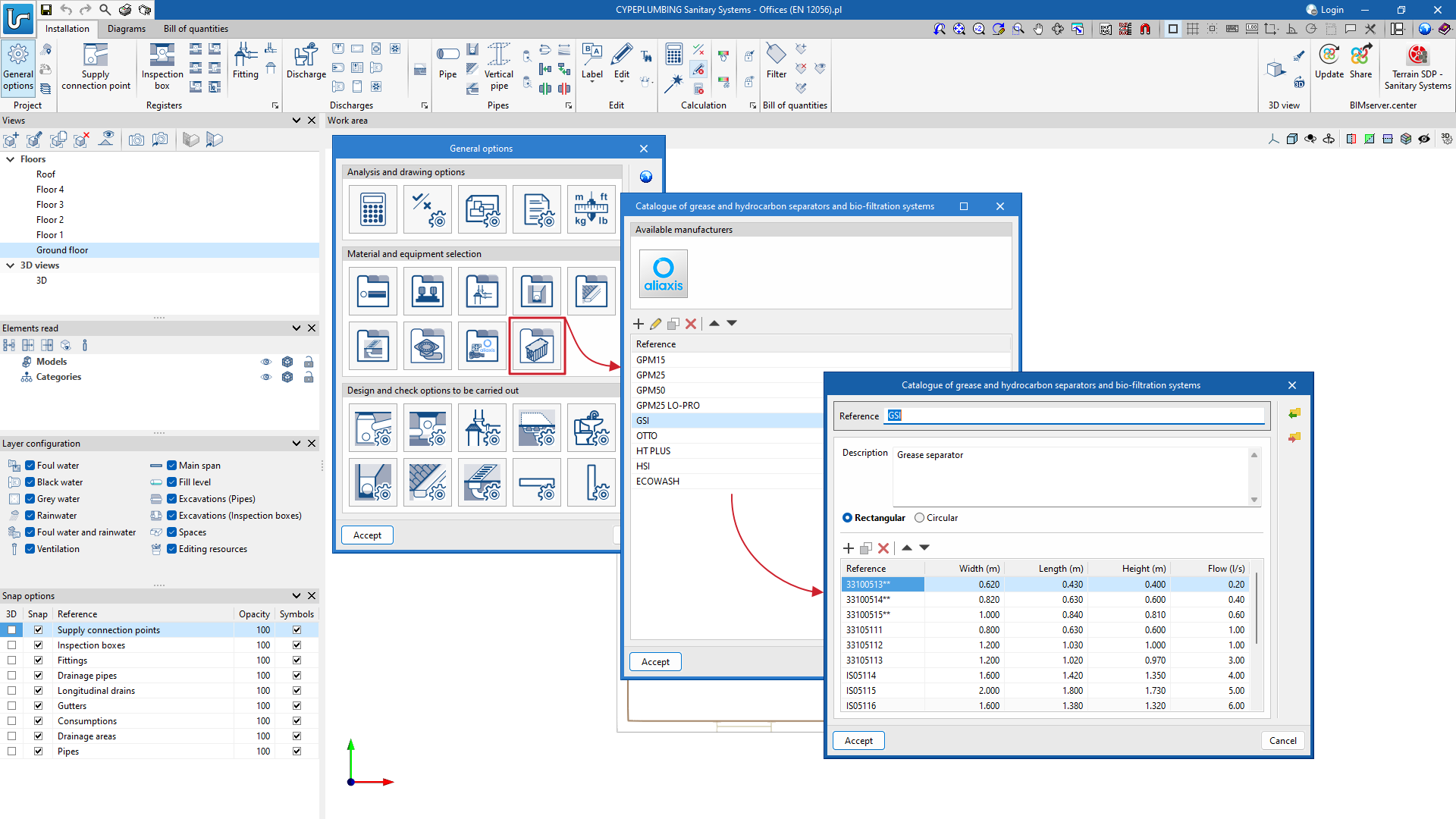
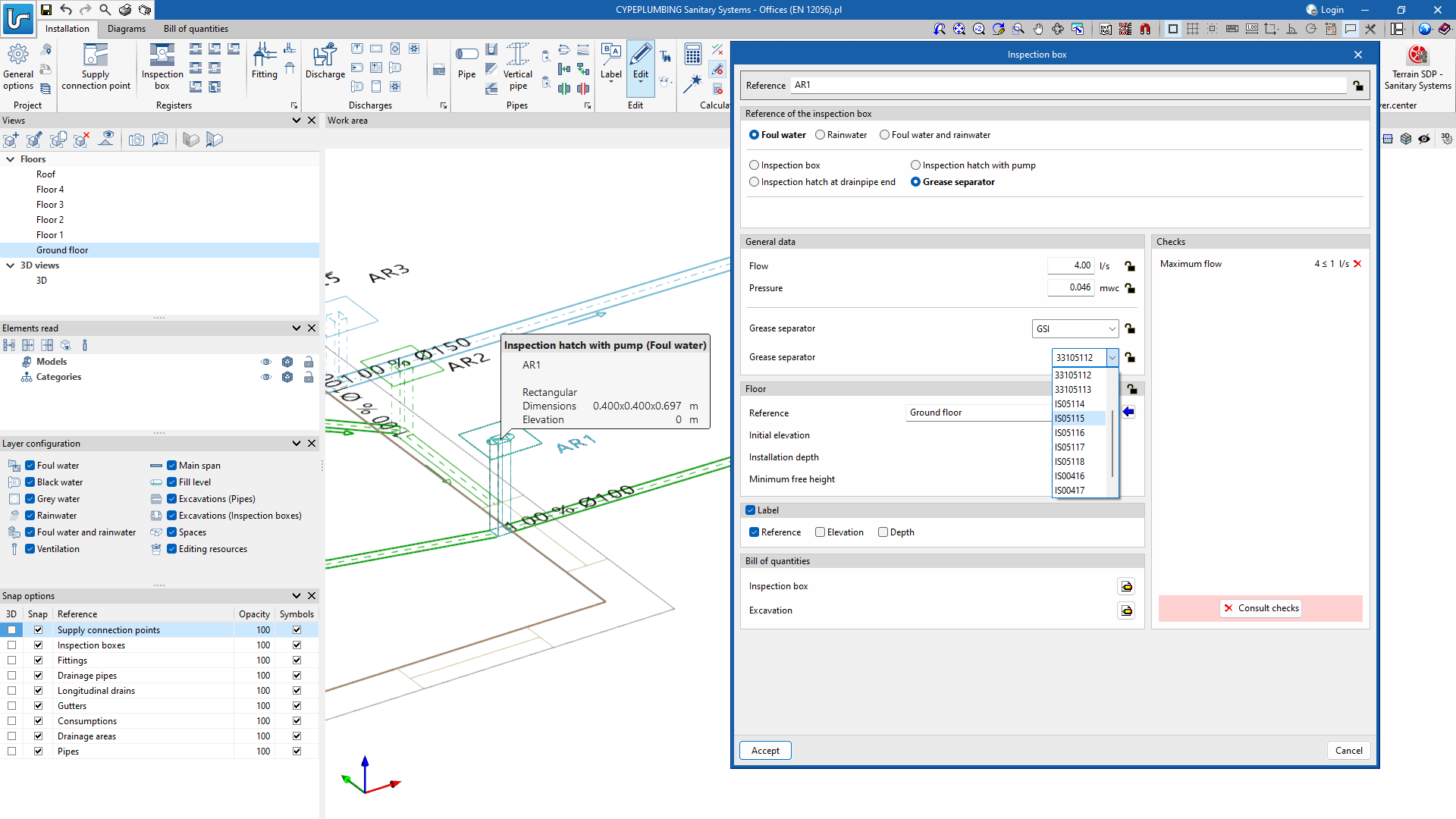
CYPEPLUMBING Sanitary Systems version 2024.b allows users to enter inspection hatches with grease separators, hydrocarbon separators and biofiltration systems.

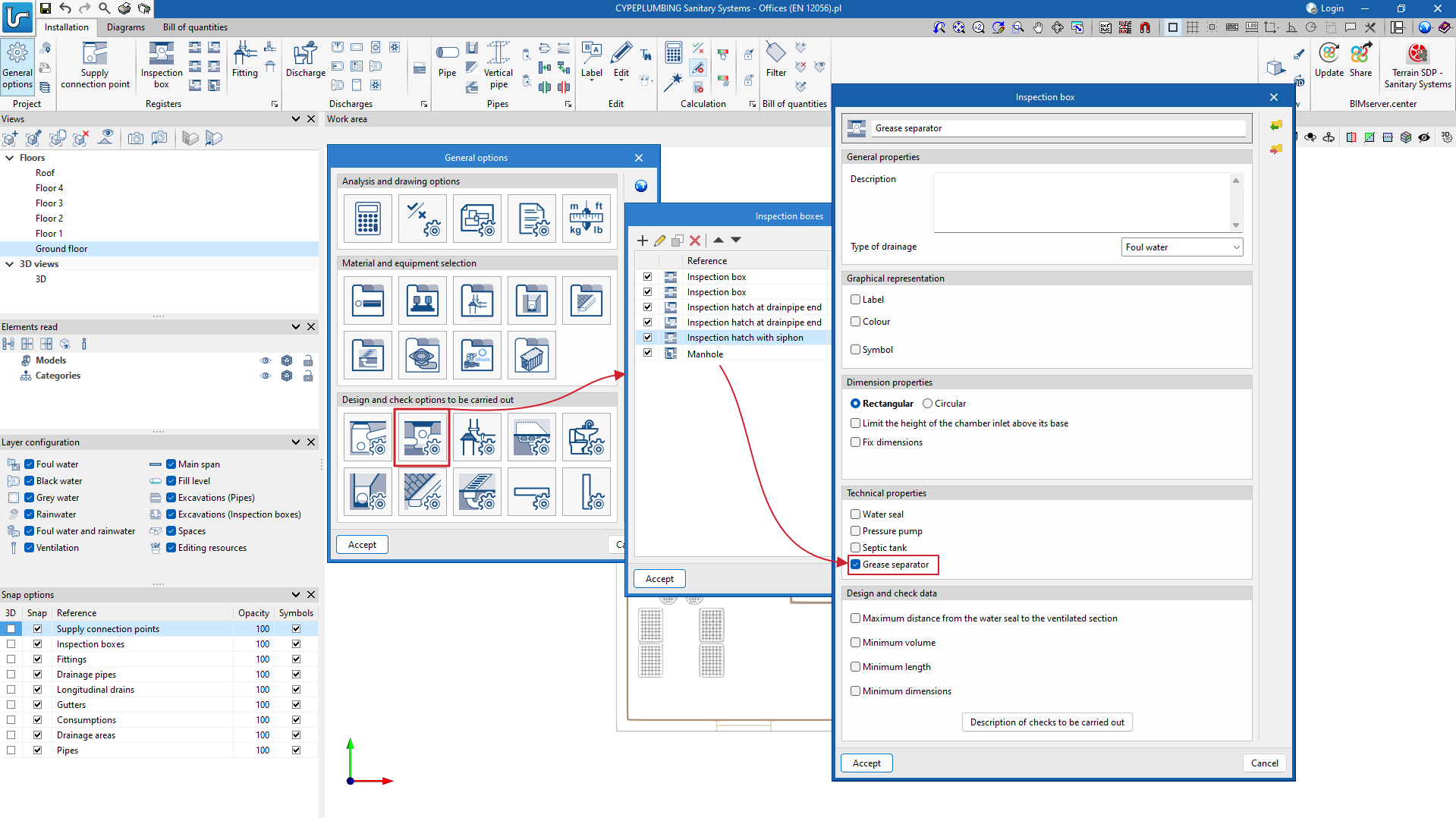
The program also checks these elements. To do this, users must activate the "Grease separator" option ("Technical properties" section) in "Design and check options to be carried out".

If the above-mentioned option has been activated for a type of inspection hatch, once the grease separator inspection hatch has been entered into the project (the same type can be entered in several places in the system), the program checks that each inspection hatch entered can withstand the calculated flow rate at the point where it was installed.

In previous versions, the program allowed users to create a catalogue of "Aeration valves" by defining the interior and exterior diameters of these elements. Now, in version 2024.b, users can also specify the admissible air flow rate for each valve.

Furthermore, in version 2024.b, the Aliaxis aeration valve catalogue has been incorporated, where all the characteristics of its air admittance valves are predefined.

The program now also checks whether aeration valves need to be entered.

To do this, users must activate the "Aeration valves" option in "General options" > "General checks".

Furthermore, the "Factor (Water flow)" has to be defined in "General options" > "Vertical pipe" for each pipe the user wants to check.