Tools for drawing views
The group of tools for drawing views is located in the top right-hand corner of the interface and allows users to control the drawing views on the screen.

The following options are available:
- Previous window (Ctrl + P)
Restores the previous drawing view to the current view.
- Full window (Ctrl + W)
Displays the entire drawing. The same action can be performed by double-clicking on the middle mouse button.
- Zoom out 2X
Enlarges the view of the drawing to twice the size of the drawing compared to the "Full window" option.
- Redraw (Ctrl + R)
Redraws the current view of the drawing without changing its size.
- Highlight zoom (Ctrl + M)
Zooms in and out by clicking on the drawing. To do this, a window is drawn to adjust the view to the set size. The mouse wheel can also be used, where the zoom level can be increased or decreased to zoom in or out.
- Window panning (central mouse button)
Changes the position of the drawing. To do this, after activating the option, left-click on the screen and, holding down the button, move the cursor. The central mouse button can also be pressed and, while holding it down, it can be dragged. Once this is done, press this option again to deactivate it and continue with the previously used option.
- 3D orbit (Shift + central mouse button)
Rotates the scene around the rotation pivot. To do this, after activating the option, left-click on the screen and hold down the mouse button to move the cursor. Alternatively, the "Shift" key and the central mouse button can be pressed and, while holding them down, dragged. Once a rotation has been carried out, press this option again to deactivate it and continue with the previously used option.
The 3D orbit behaviour depends on the options marked in the top toolbar of the work area:- If the "Rotation about a point" option is activated, the point under the cursor will be used as the rotation pivot.
- If the "Rotation about the camera" option is activated, the scene rotates around the vertical axis of the camera.
- Otherwise, the pivot shall be analysed considering the visible elements in the scene.
- Print the current view
Prints the current view displayed in the work area or generate a file with the drawing in a graphical format. If the current view contains a template, this template will also be included in the drawing.
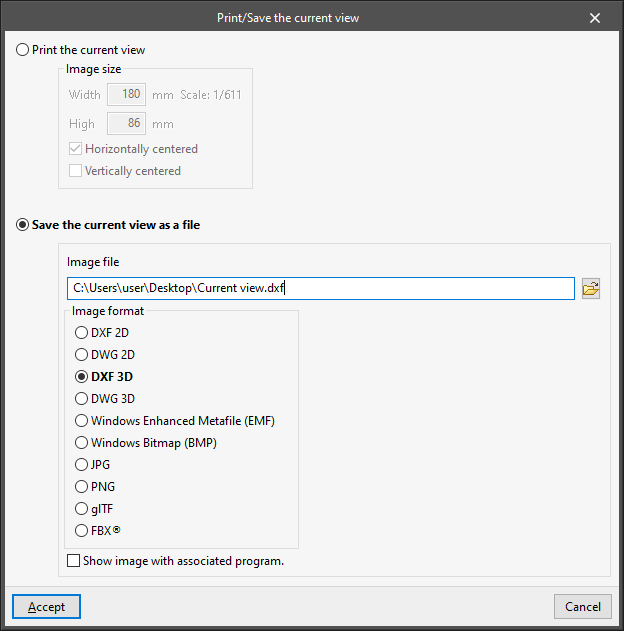
When using this tool, the "Print/Save current view" window opens with the following options:- Print the current view
Prints the current view displayed in the work area after configuring the following settings:- Image size
- Width
- High
- Horizontally centred (optional)
- Vertically centred (optional)
- Image size
- Save the current view as a file
Generates a file with the drawing in the selected graphic format.- Image file
Configures the path where the file will be saved. - Image format
Selects the file format.- DXF 2D
- DWG 2D
- DXF 3D
- DWG 3D
- Windows Enhanced Metafile (EMF)
- Windows Bitmap (BMP)
- JPG
- PNG
- glTF
- FBX©
- Show image with associated program (optional)
Opens the file generated with the program associated with the selected format.
- Image file
- Print the current view