Capturing and sharing screenshots
You can capture a screenshot of any screen in CYPE’s software and share it online via a private link, which you can then provide or publish wherever you wish. Only people who have this link will be able to view the screenshot.
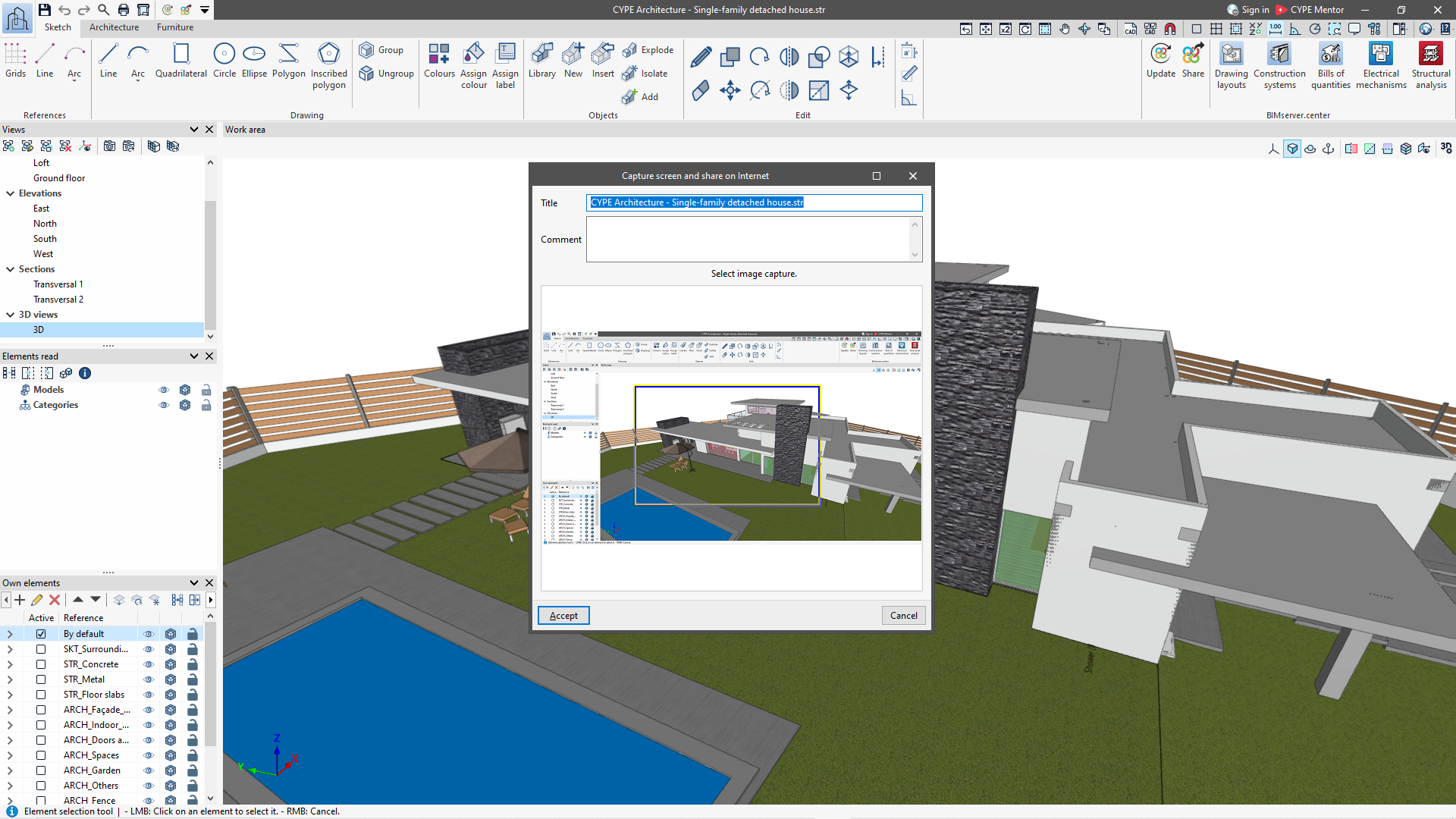
1. To capture a screenshot, press the F12 key on the keyboard whilst one of the CYPE programs is the active window on the computer.
2. The "Capture a screenshot and share it online" dialogue box will then appear, showing the screenshot and allowing you to add a title and a comment.
In this dialogue box, you can also select only a portion of the captured screen for publication. To do this, simply use the left mouse button to select the two opposite corners of the rectangle enclosing the desired area.
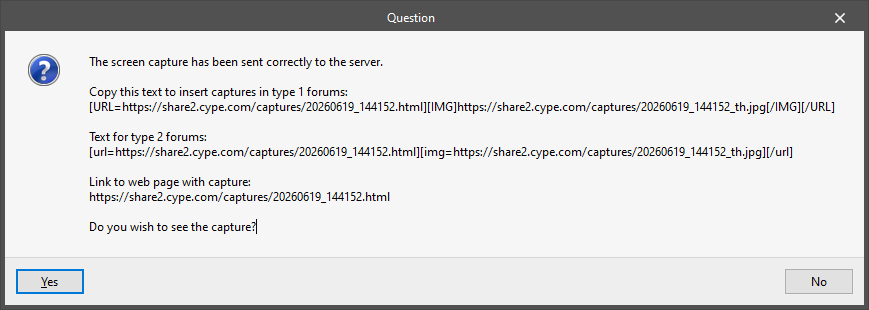
3. Once the dialogue box has been accepted, the program displays a separate window offering users two types of URL so that they can post the screenshots on different forums. Depending on where you want to post the URL, you will need to use one or the other.
The same window also displays the link that allows you to access the published screen from any web browser.
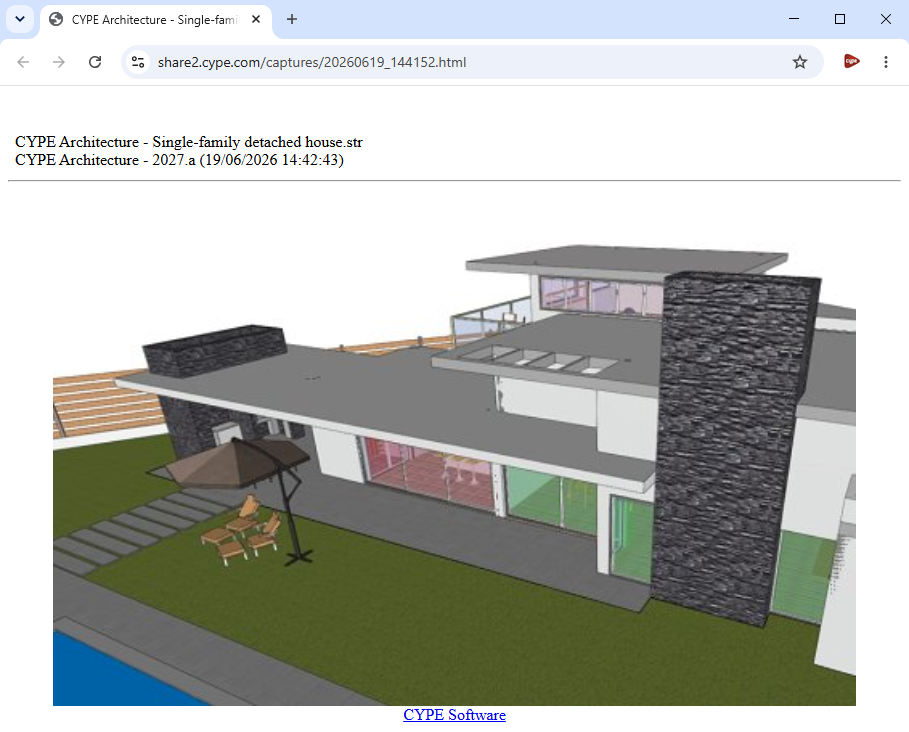
4. If you wish to view the published screen, select "Yes" to access the link via your browser. You can copy and paste it to share the CYPE program screen with whoever you wish. The image is hosted on a server and will only be accessible to those who have the link.
In the directory for each version, C:\Users\username\AppData\Roaming\CYPE Ingenieros\v20XX\cypecad (previously C:\usr\cype\cypecad), a file named links.txt is generated, containing links to the published screens. This file also contains links to projects that have been published using the "Share" option.