Account management options
On the left-hand side of the myCYPE interface, there is a side menu containing the following options:
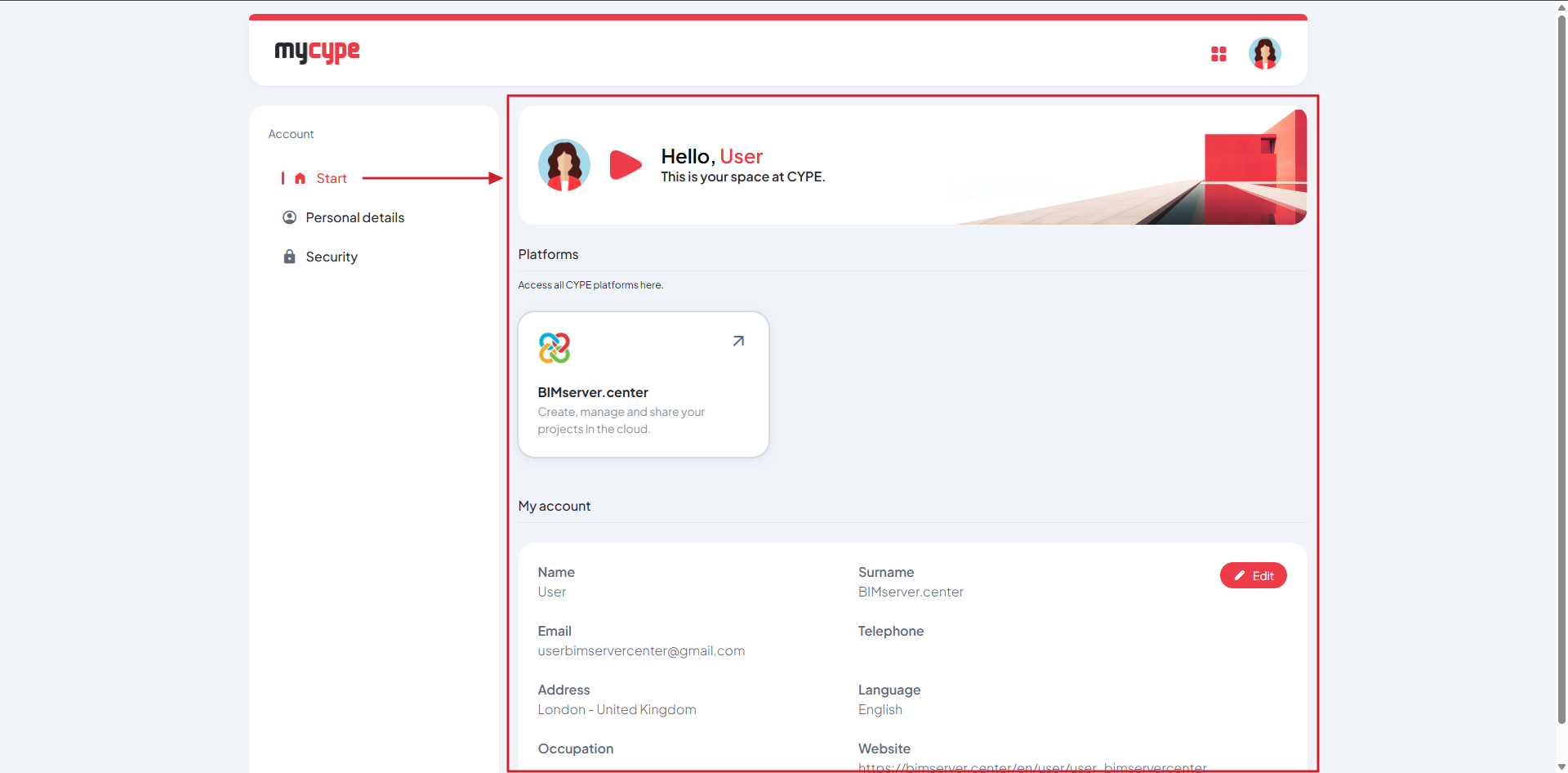
Start
The "Start" button takes you to myCYPE's main dashboard, where you can:
- Quickly access the available CYPE platforms (shortcuts)
- View an overview of your account information
- Directly edit your personal details
This is myCYPE's home page: it's where you can access all the platforms and key account information.
More information
You can also access the various platforms via the "myCYPE platforms" icon located at the top right of the interface.
Personal details
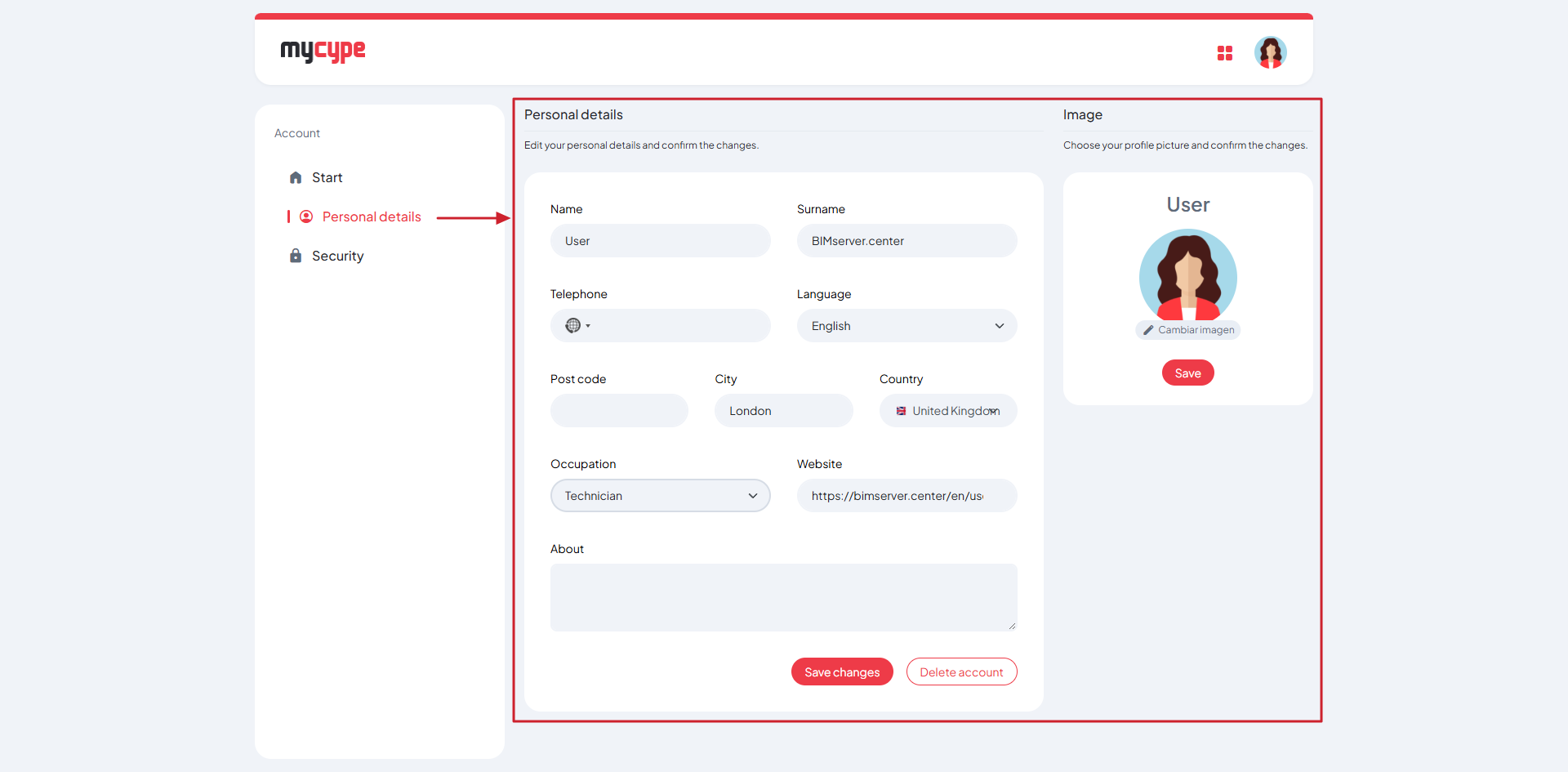
The "Personal details" button lets you access and manage your account details. In this section, you can view and edit information such as:
- Name and surname
- Phone number
- Language
- Address
- Occupation
- Website
- Additional information
There is also a section for managing your profile picture, so you can add or change the photo associated with your account.
Please note
Any changes made in this section must be confirmed by clicking the "Save changes" button for them to be applied correctly.
Account security
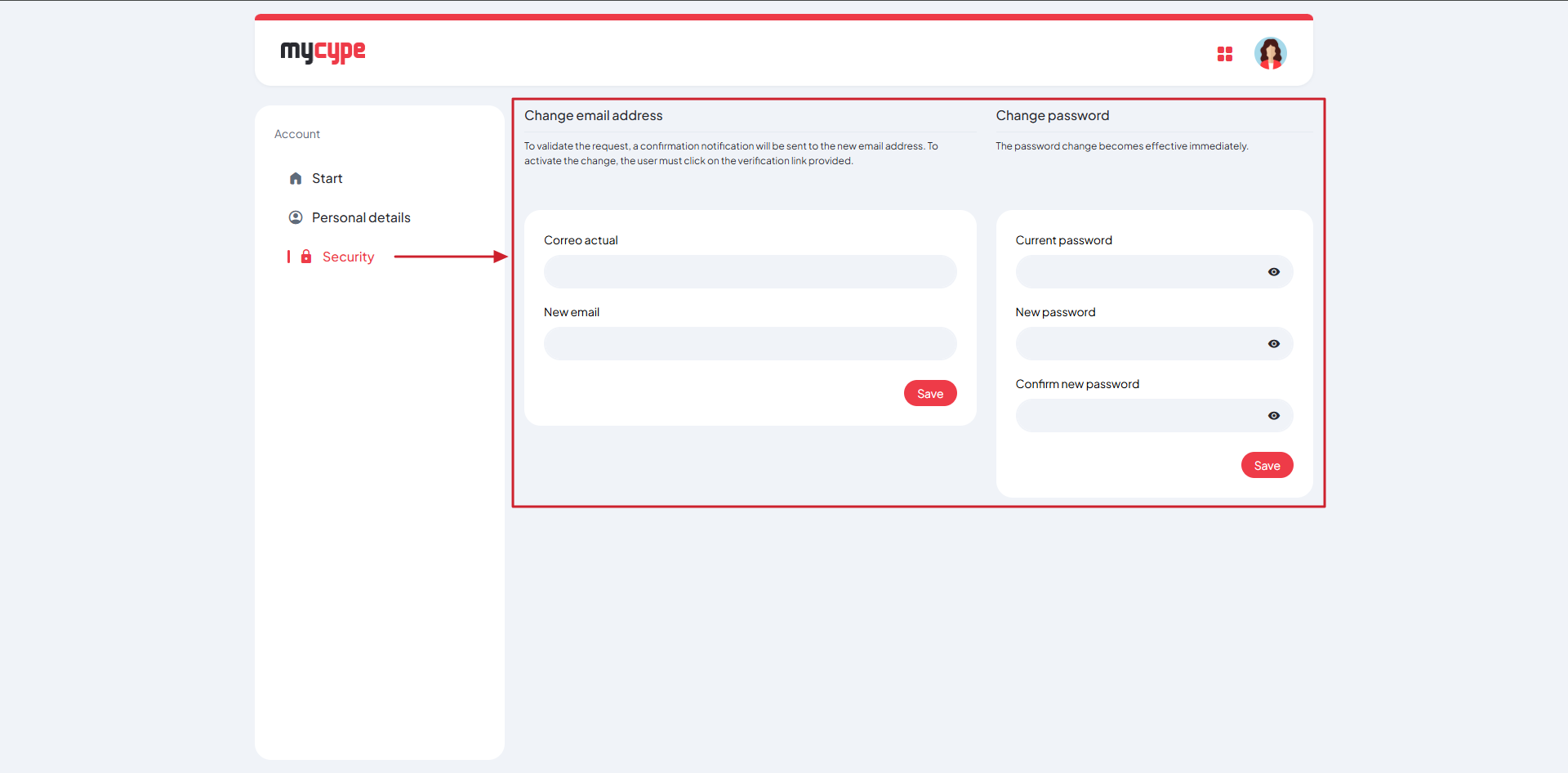
The "Security" button takes you to your account’s security settings. In this section, you can change your registered email address and password.
Changing your email address: the request must be confirmed via a verification link sent to the new email address.
Changing your password: changes are applied immediately following confirmation.
Best practice
Use a strong password and update your login details regularly to enhance your account security.