Start screen
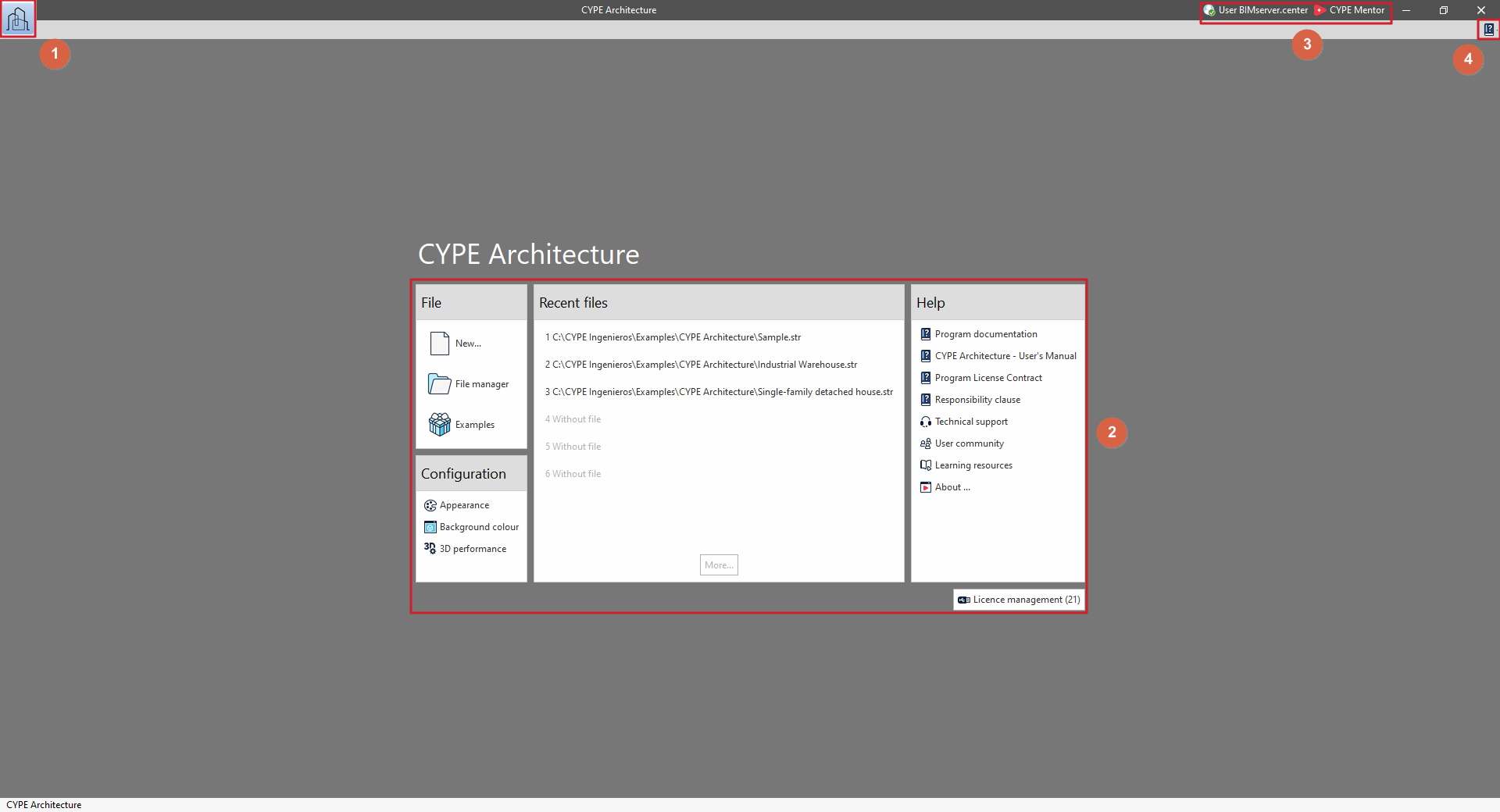
The default interface or start screen of CYPE programs appears when the app is opened and features the following options and menus:
- "File" menu (1)
Create, open or save projects and access the file manager. - Central area access points (2)
The panels in the central area allow you to do the following:- In the "File" section on the left, you can create and open a "New" file, open "File manager" to search for files, or load the "Examples".
- In the "Settings" section, you can change the "Appearance", "Background colour" or "3D performance".
- In the "Recent files" section, in the centre of the screen, the path to the most recently opened files is displayed; clicking on each one will open that file.
- The options in this menu are displayed in the "Help" section on the right.
- This section also displays a notification that a new version of the program is available, where applicable.
- Finally, the "Licence management" option allows you to open the relevant panel, where you can activate and view the permissions for the licence currently in use.
- Tools in the top-right-hand corner (3)
Check the connection to BIMserver.center and access CYPE Mentor. - "Help" menu (4)
Access the help menu options.