

"Building" tab interface
The "Building" tab, accessible from the top of the "Thermal model" panel, lets you define the building’s spaces, structural elements, openings and linear thermal bridges, as well as their location and other general project details.
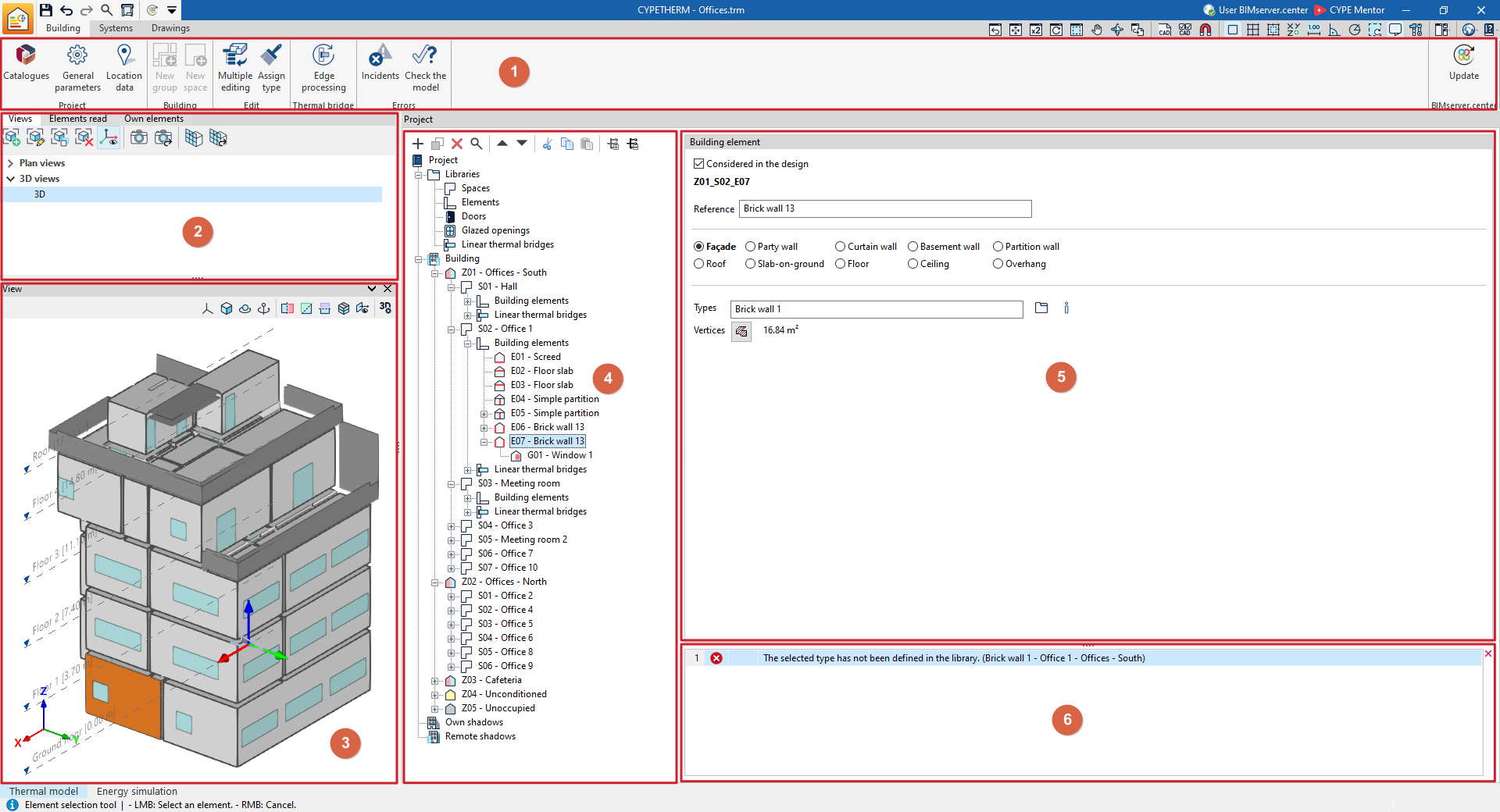
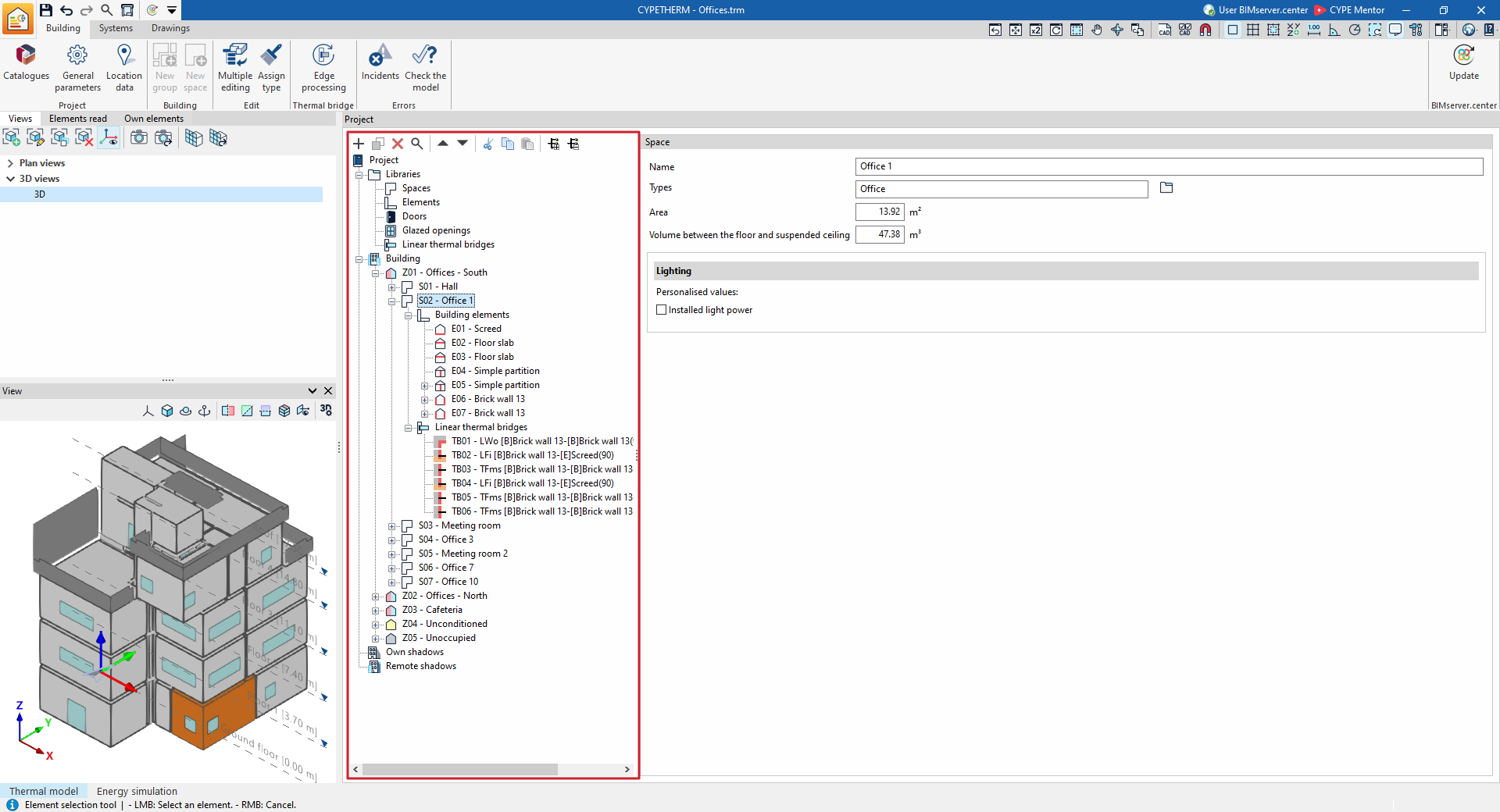
This tab features an interface comprising the following areas:
Toolbar (1)
The top options bar contains tools for downloading and updating manufacturers’ catalogues, configuring general project parameters and location data, accessing the wizards for editing and assigning groups, zones and building elements, as well as the edge processing tool, to check the model and to update project information on BIMserver.center.
Managing views, read elements and own elements (2)
These panels, located in the various tabs at the top of the left-hand side, let you carry out the following actions:
- Manage the views of the 3D model
- Control the display of the elements read from the models incorporated into the BIMserver.center project
- Control the display of the elements specific to the program’s thermal and analytical models
View (3)
Located at the bottom of the left-hand sidebar. Lets you view the 3D model of the building, as well as the position of the selected element in the tree or in the main area. It also lets you select elements directly by clicking on their graphical representation.
Project tree diagram (4)
Located in the centre. It includes the following:
- In the "Libraries" section
The libraries for "Spaces", "Structural elements", "Doors", "Glazed openings" and "Linear thermal bridges". - In the "Building" section
A navigation tree where you can select the zones or groups and the areas, the building elements and linear thermal bridges that make up the building, as well as, where applicable, self-shadows and remote shadows.
Main editing area (5)
In this area, located on the right, you can edit the elements selected in the tree, including:
- The libraries for "Spaces", "Structural elements", "Doors", "Glazed openings" and "Linear thermal bridges"
- The properties of each "Zone", "Space", "Structural element", "Opening" or "Linear thermal bridge" in the building individually.
Issue viewer (6)
Appears at the bottom of the main editing area and displays any warnings or errors encountered whilst the template is being checked.
Managing manufacturers’ catalogues
In the "Project" section of the main toolbar on the "Building" tab, you will find the option to manage manufacturers’ product catalogues so that they can be incorporated into the project:

Catalogues
The "Catalogues" option lets you download manufacturers’ catalogues via the connection to the Open BIM Database, making it easier to enter data into the program for project development.
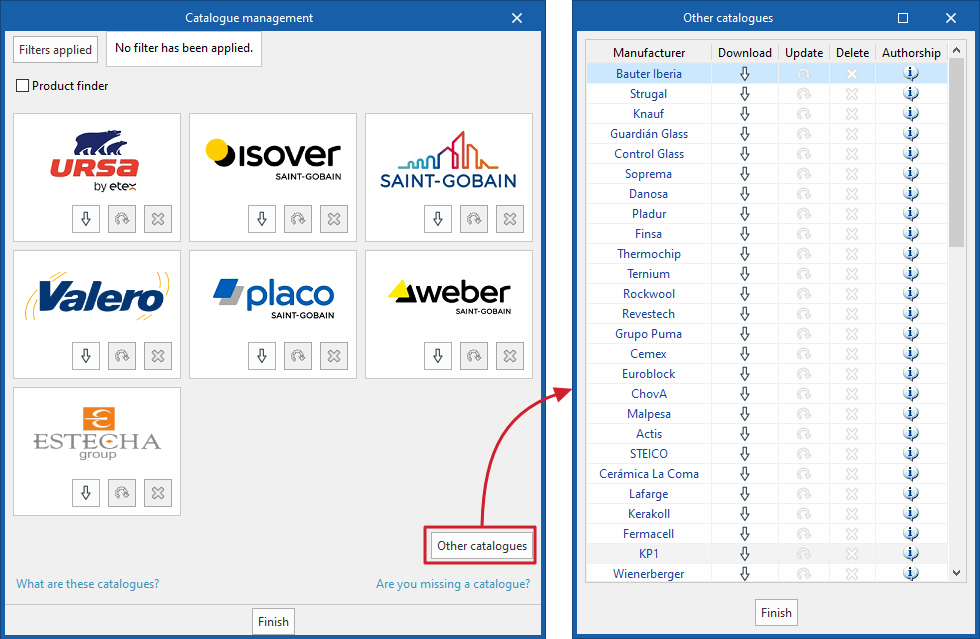
Clicking on this option opens a window showing the available manufacturer catalogues. Furthermore, clicking on the "Other catalogues" option displays a more extensive list of available manufacturers.
Using the "Filters applied" option, you can apply filters by item "Category" (for example, "Vapour barriers", "Solid materials", complete "Construction solutions" or "Glazing"), by "Language" and by "Country", to display only those manufacturers that offer product catalogues with these characteristics.
The following options are displayed for each manufacturer:
- Download
Download the manufacturer’s catalogue. The products in the catalogue will be available in the project. In the download window, you can carry out the "Catalogue selection" and, if required, view the "Contents" of the selected catalogue. You must also read and accept the "Responsible declaration", which states that the accuracy of the analysis data or the availability of the products in these catalogues cannot be fully guaranteed; therefore, you should always use them under your own supervision and responsibility. - Update
Update the catalogue for the selected manufacturer to the latest version, deleting the version previously downloaded to the project. - Delete
Delete the catalogue for the selected manufacturer. The products in the catalogue will no longer be available in the project.
| Note: |
|---|
| Products from the downloaded catalogues can be selected when defining the libraries of elements in the project tree. |
Configuring the general project parameters
If you select the "Energy simulation" project type, the following option appears in the "Project" section of the main toolbar on the "Building" tab, allowing you to configure the general project parameters:

General parameters
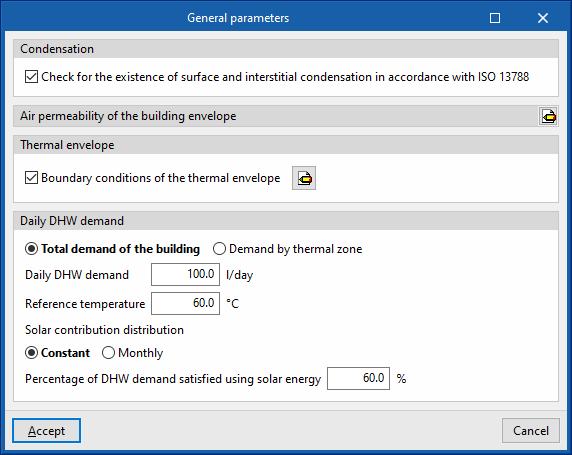
In the "General parameters" window, which opens when you click on this option, the following general building details are defined:
- Condensation
The program includes an optional feature to check for surface and interstitial condensation in accordance with standard EN ISO 13788, providing results for each construction solution. If this option is enabled, the energy simulation will not be permitted unless the condensation checks are passed.- Check for the existence of surface and interstitial condensation in accordance with ISO 13788 (optional)
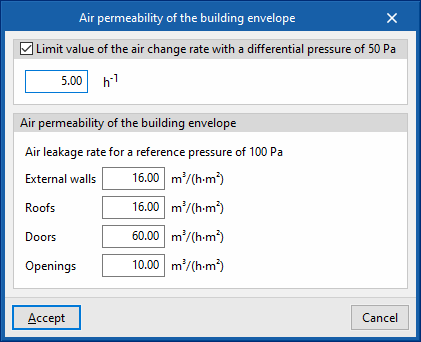
- Air permeability of the building envelope
The air permeability values of the various types of opaque elements and openings that make up the building envelope are defined. You can define a limit value for the air change rate at a differential pressure of 50 Pa (n50), which will be compared with the value calculated for the building in the "Building envelope" report.- Limit value of the air change rate with a differential pressure of 50 Pa (optional)
- Air permeability of the building envelope (external walls, roofs, doors, openings)
This section allows you to enter the air permeability at a reference pressure of 100 Pa for the selected elements.
- Thermal envelope
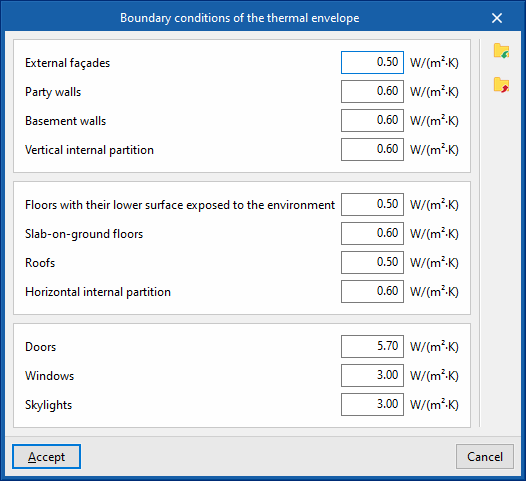
The program includes, as an optional feature, the checking of thermal transmittance (U) limit values for different types of building elements. These values can be defined in this section. If any of the components of the building’s thermal envelope exceed the set limit, a warning will appear when you click the "Check model" button.- Thermal envelope boundary conditions (optional)
External façades, Party walls, Basement walls, Vertical internal partition, Floors with their lower surface exposed to the environment, Slab-on-ground floors, Roofs, Horizontal internal partitions, Doors, Windows, Skylights.
- Thermal envelope boundary conditions (optional)
- Daily DHW demand
The program lets you define the domestic hot water (DHW) demand using a single value for the entire building, or to define a value for each heating zone.- Total demand of the building
Enter a single demand value for the entire building.- Daily DHW demand
- Reference temperature
- Solar contribution distribution (Constant / By month)
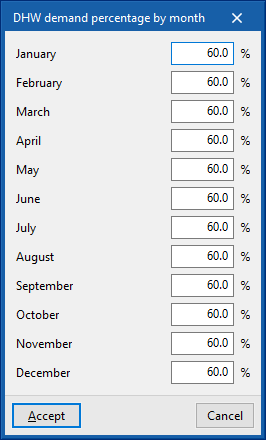
- Percentage of DHW demand satisfied using solar energy
- Demand by thermal zone
If this option is selected, the parameters relating to DHW are specified for each of the building’s heating zones, which can be selected and edited in the building element tree, in the "Project" panel.
- Total demand of the building
Configuring location data
If you select the "Energy simulation" project type, the following option is available in the "Project" section of the main toolbar on the "Building" tab, allowing you to configure the location data:

Location data
When you click on this option, the "Location data" window opens, which provides details of the climate at the location where the building is located.
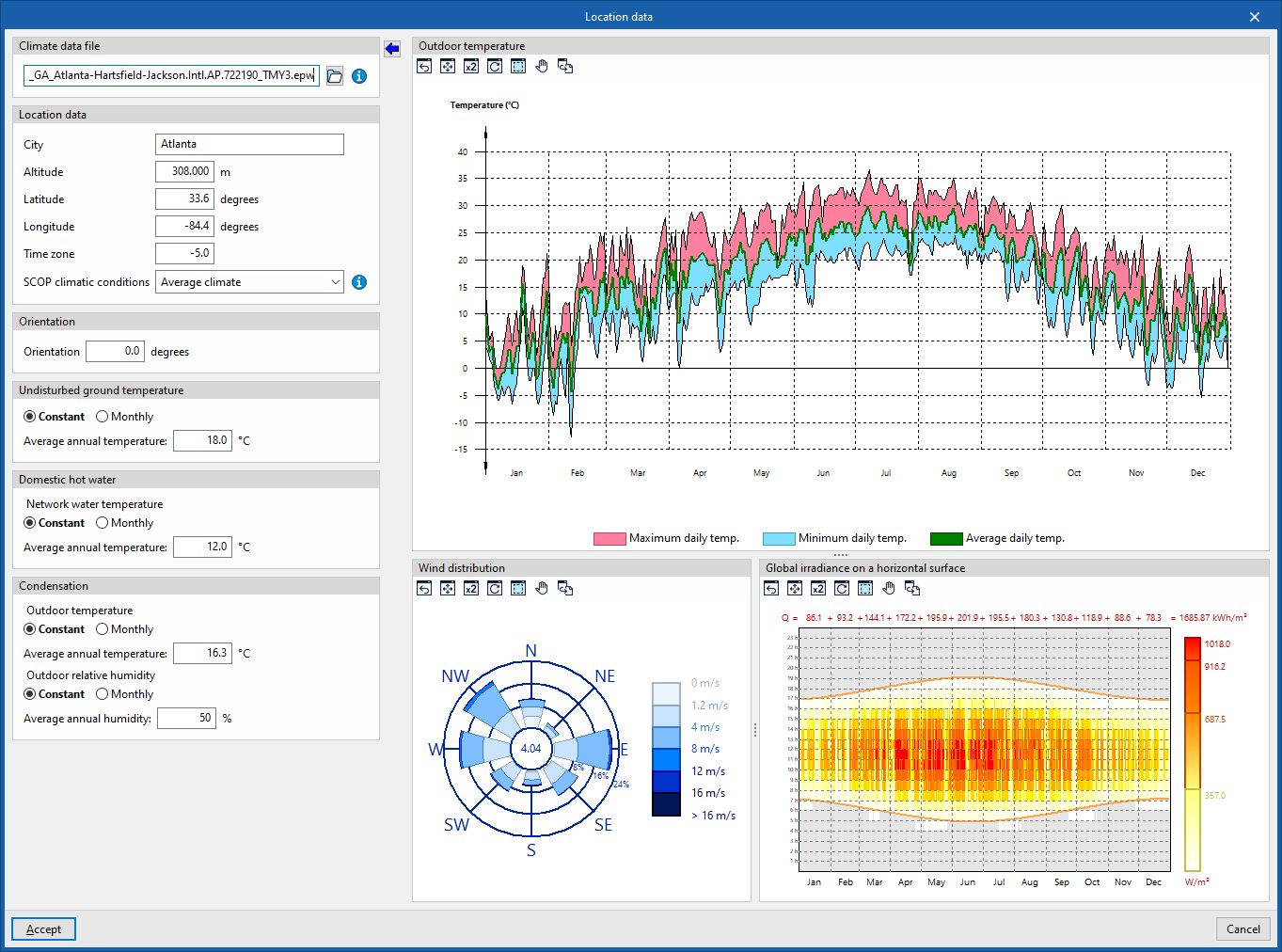
The energy simulation will be carried out using the climate data file indicated in the "Climate data file" section, located in the top-left corner of this panel:
- Climate data file
Specify the location of the climate data file in EPW (EnergyPlus Weather Format) corresponding to the building’s location. Climate data files in .epw format for over 2,100 locations worldwide are available free of charge on the official EnergyPlus™ website (energyplus.net/weather).
The "Import the values from the selected climate data file" wizard lets you enter the information contained in that file into the panel.
The following data can be entered by importing climate files or adjusted at a later stage:
- Location data
- Location, Altitude, Latitude, Longitude, Time zone
This data is for information purposes and is used in the preparation of results reports. In the energy simulation, these parameters are automatically read from the climate data file with the .epw extension. - SCOP climatic conditions (Warm climate / Moderate climate / Cold climate)
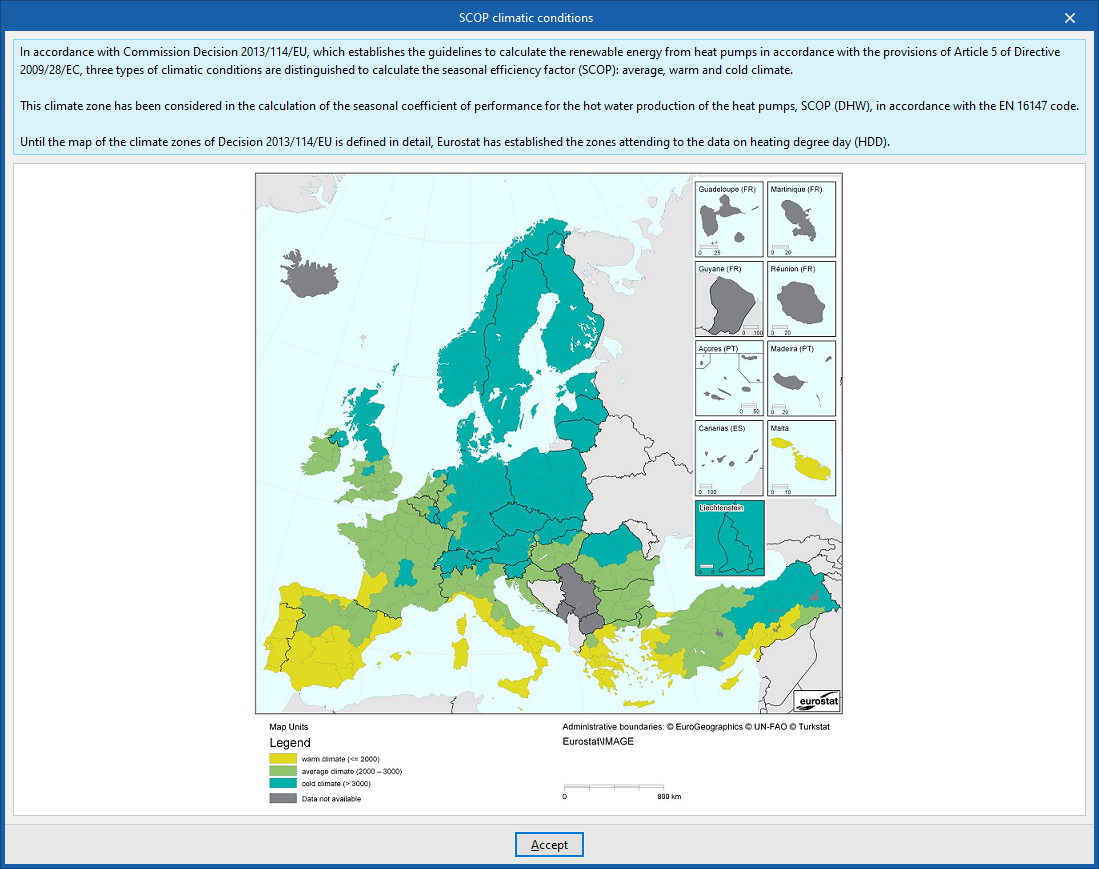
Select the climatic conditions based on the building’s location. On the right, the program provides assistance in selecting the climate corresponding to the region where the project is located, according to Eurostat. This selection influences the calculation of the average seasonal DHW production output (SCOPDHW) for heat pump systems.
- Location, Altitude, Latitude, Longitude, Time zone
- Orientation
Rotate the building. The direction of north is shown in the "View" panel and on the "Drawings" tab by means of the arrow in the bottom left-hand corner. - Undisturbed ground temperature
The ground temperature (unaffected by environmental conditions) is defined as a constant value for the whole year or on a monthly basis. These values are used in the calculation of heat losses to the ground.- Constant (Average annual temperature) / By month (Temperature by month)
- Domestic hot water
The temperature of the mains water is defined, either as a constant value for the whole year or on a monthly basis. These values are used in the calculation of the energy required to produce domestic hot water (DHW).- Constant (Average annual temperature) / By month (Temperature by month)
- Condensation
The outdoor temperature and humidity values to be used for checking for condensation are defined. Constant values can be defined for the whole year or on a monthly basis.- Outdoor temperature
- Constant (Average annual temperature) / By month (Temperature by month)
- Relative external humidity
- Constant (Average annual humidity) / By month (Humidity by month)
- Outdoor temperature
The graphs showing outdoor temperature, wind distribution and solar radiation on the right-hand side of this panel reflect the data from the selected climate data file:
- Outdoor temperature
Daily maximum, daily minimum and daily average temperatures for a given year from the selected climate data file. - Wind distribution
Wind speed in the cardinal and intercardinal directions, based on the selected climate data file. - Global irradiance on a horizontal surface
Global irradiation on a horizontal plane for different times of day and different days in a given year from the selected climate data file.
Managing views, read elements and own elements
The various elements of the project can be viewed via the following panels located on the left-hand side of the program’s main interface, which are visible in both the "Building" and "Systems" tabs:
- Views
- Elements read
- Own elements
- View
Each of these is set out below:
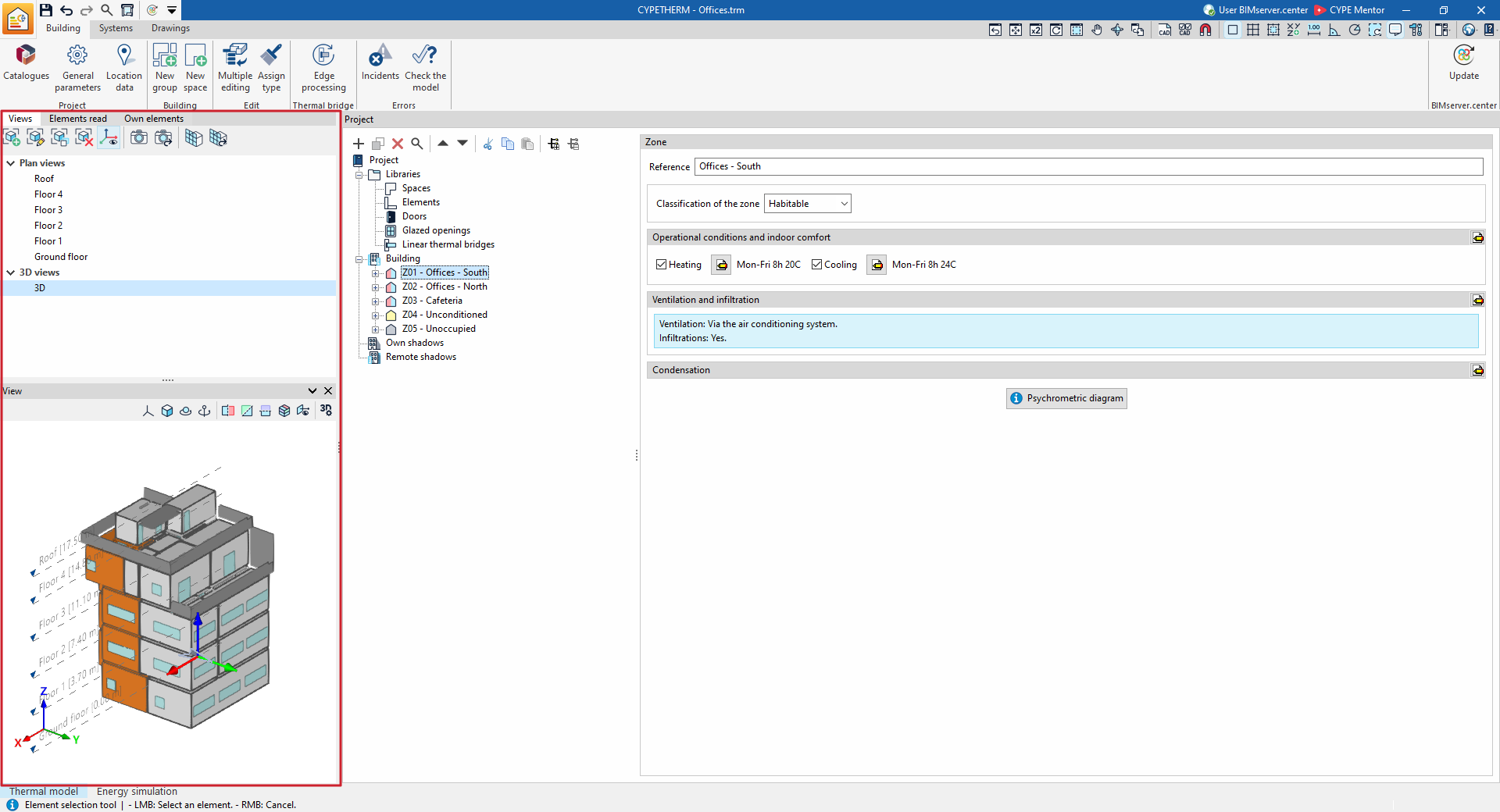
View management
This panel, as in other CYPE programs, provides access to various "Views" to facilitate navigation and the model definition process, such as plan views or three-dimensional views.
Floor plans are generated automatically from the floor plans created in the "3D model" tab when using the "Geometric model" option. They are also generated automatically from the BIM model data if the "Import thermal model from the project" option has been selected when creating a new project.
In any case, you can use this panel to set up and create additional views if necessary.
| Further information: |
|---|
| The view management system is a feature common to several CYPE tools. You can find further information via the following link. |
The view selected in this panel will be displayed in the "View" window, which is located by default in the bottom left-hand corner of the interface.
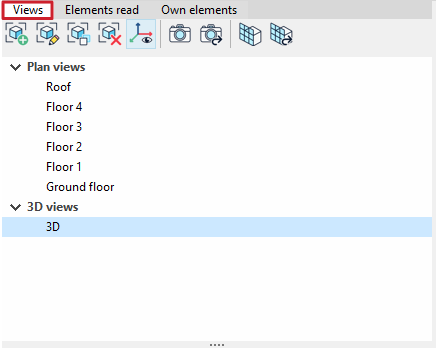
Managing elements
The "Read elements" panel lets you control the visibility (in the "View" panel) of the various models that make up an Open BIM project developed on the BIMserver.center platform and which have been imported into CYPETHERM (for example, the original architectural model). This way, the elements from these external models can be displayed for reference purposes.
There are two ways to manage the visibility of these models:
- In the "Models" drop-down menu, you can filter the various imported .ifc models and sub-models (such as ‘Architectural Model’ or ‘Spaces’).
- In the "Categories" drop-down menu, you can filter the categories of elements found in the imported models, following the IFC schema classification ("Roofs", "Façades", "Floor slabs", "Interior partitions", "Doors", "Spaces", "Windows", etc.).
On the right, the options for managing the visibility of read elements can be used to:
- Toggle the visibility of elements in the workspace (using the "Visible" option).
- Change the "Display mode" of the elements by choosing between normal view, transparent view or wireframe view.
- Lock the "Snap" fields so that they cannot be captured or selected during the various data editing processes.
From the top bar in this section, you can also:
- Using the "Isolate selection" option, you can left-click in the "View" to select a number of elements so that they remain visible; when you right-click, any elements that have not been selected will be hidden.
- From the "Hide" option, you can select a number of elements in the "View" using the left mouse button so that, when you click the right mouse button, they are hidden.
- Selecting "Show all" reverses the actions mentioned above.
- From the "Appearance" menu, you can switch the display between "Normal drawing" and "Monochrome drawing".
- Finally, using "BIM Information", you can click on an element to open a window displaying its parameters and values.
Managing own elements
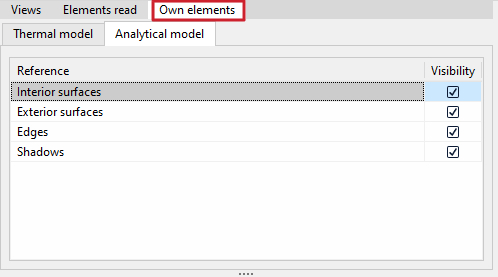
The "Own elements" panel allows you to control the visibility and/or snap (in the ‘View’ panel) of the own elements that make up the CYPETHERM model.
Two tabs are displayed:
- In the "Thermal model" tab, for each of the following categories, you can enable "Snap", set its "Visibility", and change its "Colour" and "Opacity":
- Surfaces
- Linear thermal bridges
- Gaps
- Shadows
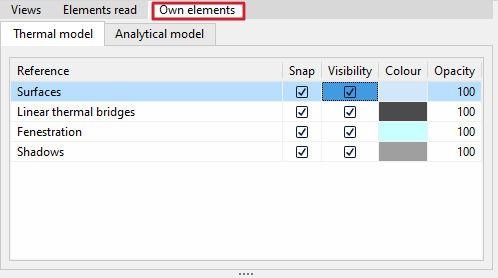
- On the "Analytical model" tab, you can enable "Visibility" for each of the following categories:
- Interior surfaces
- Exterior surfaces
- Edges
- Shadows
| Note: |
|---|
| The thermal model contains information on the building’s thermal behaviour (including the thermal properties of the building elements or the thermal characteristics of the spaces). The analytical model contains information from the analysis of solids and surfaces that is required for the calculation (such as the junctions between surfaces, or the relationships between edges and the elements that comprise them). These models are generated by using the "Geometric model" option in the "3D model" tab, or by selecting the "Import thermal model from the project" option when creating a new project. To import the model from the BIMserver.center project, you must use a program capable of generating analytical models, such as IFC Builder or Open BIM Analytical Model. |
View
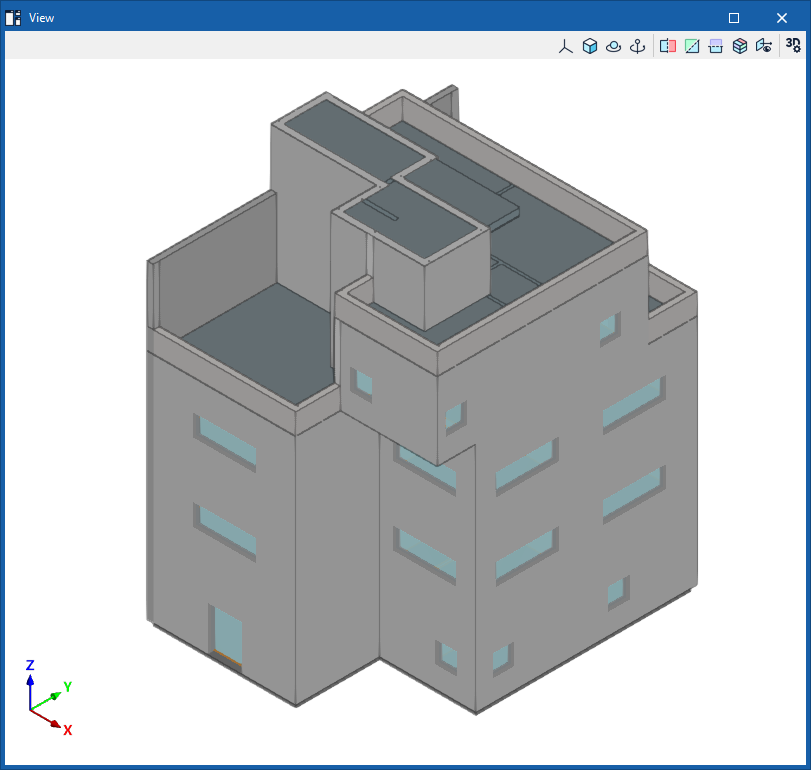
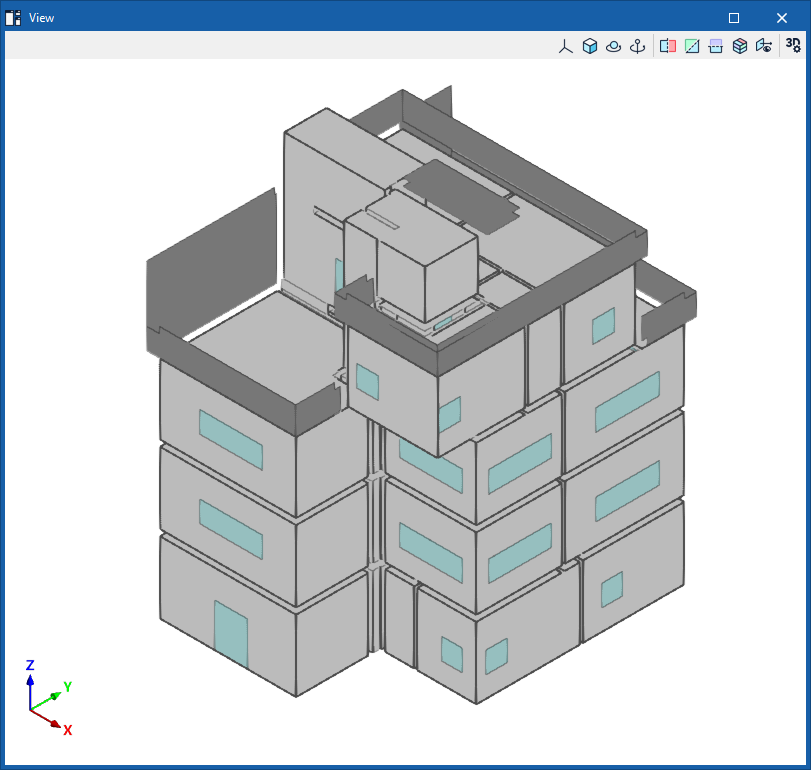
The "View" panel, at the bottom left of the interface, displays the "Read-in elements from external models and/or the "Own elements" of the CYPETHERM model, depending on the settings specified in the relevant panels, and depending on the 2D or 3D view selected in the "Views" panel.
The selection and display of items in the "Project" tree and in the "View" pane are coordinated:
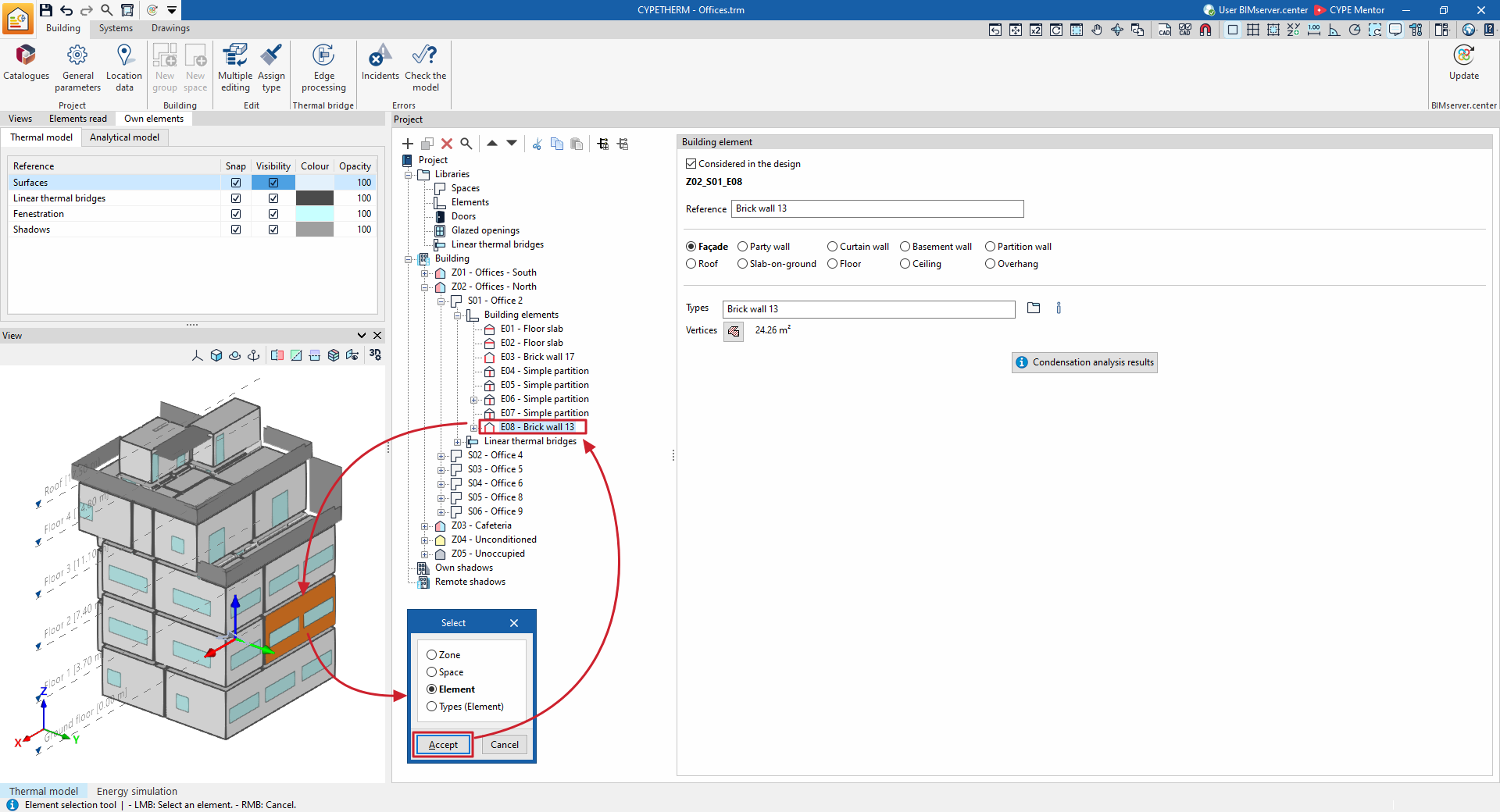
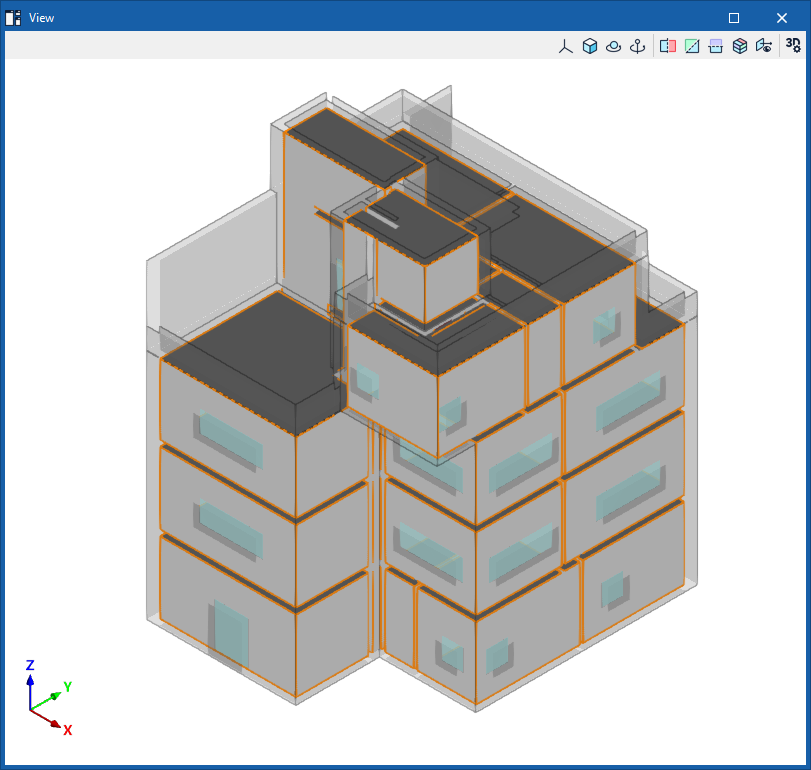
- The elements selected in the "Project" tree are highlighted in orange in the "View" (for example, a zone, a room or a specific structural element).
- Furthermore, if you left-click on a point on the model in the "View", the program opens a pop-up window where you can "Select" the "Zone", the "Enclosure", the "Element" or the "Type (Element)" to which the component highlighted in the view belongs. Doing so will expand the "Project" tree to the relevant level and select the component within it.
| More information: |
|---|
| In the top toolbar of the "View" panel, the program offers a range of tools for controlling the visibility of the 3D model, which are common to other views in CYPE programs and let you carry out operations such as changing the projection, rotating the view or creating sections. |
Project tree diagram ("Building" tab)
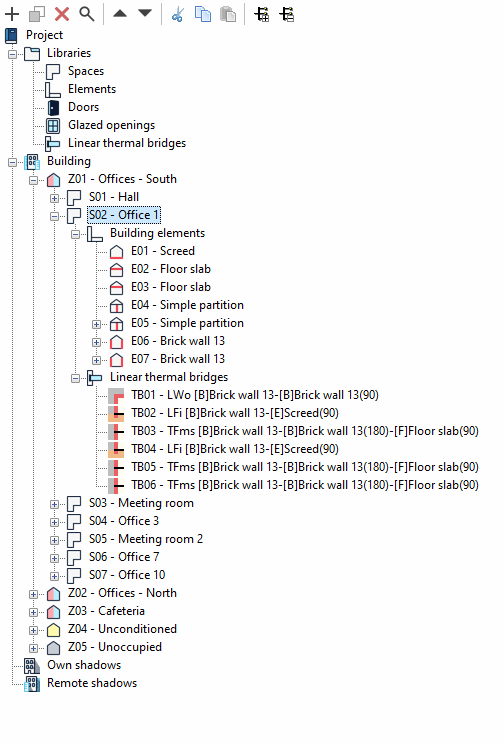
In the "Building" tab, under the "Project" section, the program displays the model’s tree structure.
This tree view consists of the following branches, which can be expanded or collapsed:
- Libraries
In the library, you can enter the types of building areas and structural elements (façades, party walls, partition walls, curtain walls, basement walls, roofs, overhangs, intermediate floor slabs and screeds), doors, glazed openings (such as windows and skylights) and linear thermal bridges within the building.- Spaces
- Elements
- Doors
- Glazed openings
- Linear thermal bridges
- Building
This section allows you to define the building’s thermal model, structured into zones and compartments. The compartments that make up each zone are entered here. For each compartment, the structural elements and linear thermal bridges that form part of it are defined:- Zone
- Space
- Building elements
- Linear thermal bridges
- Space
- Zone
- Own shadows (in the "Energy simulation" project type)
This refers to building surfaces that do not form part of the enclosures but which may cast shadows on façades and roofs, such as balcony slabs or parapets. - Remote shadows (in the "Energy simulation" project type)
The surfaces of remote obstacles that may cast shadows on the building are defined.
Library management tools
The "Libraries", which can be accessed from the tree view in the "Project" panel, under the "Building" tab, contain descriptions of the types of elements that can be used in the building model.
The available element libraries are as follows:
- Spaces
- Building elements
- Openings
- Linear thermal bridges
Each library type may be "In use" or not, depending on whether or not it is associated with any of the elements in the "Building" tree, which organises the components of the building model.
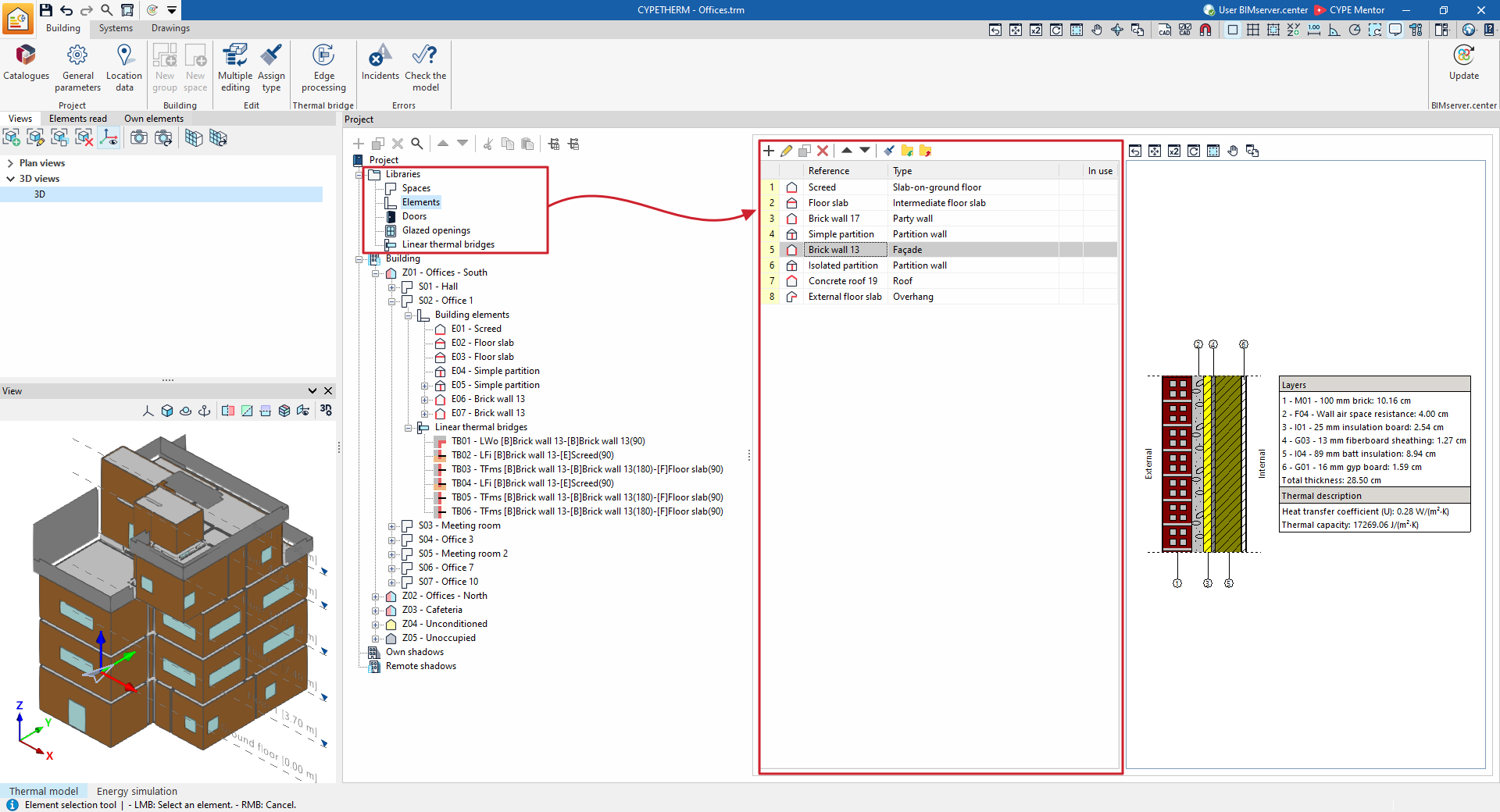
The elements in each library are created and managed using the tools at the top of the list, which are described below.
Managing elements in library lists
Elements are organised into lists across multiple windows within the program. The library lists offer the following options for managing and editing elements:
 | Add | Add a new element to the list. |
 | Edit | Open the edit panel for the selected element. |
 | Copy | Duplicate the selected element, adding a copy to the list. |
 | Delete | Remove the selected element from the list. |
 | Move the selected element of the list up one position | Swap the position of the selected element in the list with that of the previous element. |
 | Move the selected element of the list down one position | Swap the position of the selected element in the list with that of the element following it. |
 | Assign | Assign the properties of the selected element to other elements in the list. |
Importing and exporting library elements to files on disc
Using libraries lets you define elements in the current project and save them to disk for use in other projects. The options relating to this feature are as follows:
 | Import the elements saved in the drive to the project | Imports the elements saved on the hard drive into the project, adding them to the list. If the element (with the same reference) already exists in the project, its data will be replaced. |
 | Export the element to a file | Export the selected element to a file so that it can be imported later. |
| Note: |
|---|
| When importing or updating the BIM model, you can define a "Directory for searching for element types". If this directory contains CYPETHERM element files whose references match those of the elements in the model, the program will automatically import these element types and their properties into the project library. |
Space library ("Building" tab)
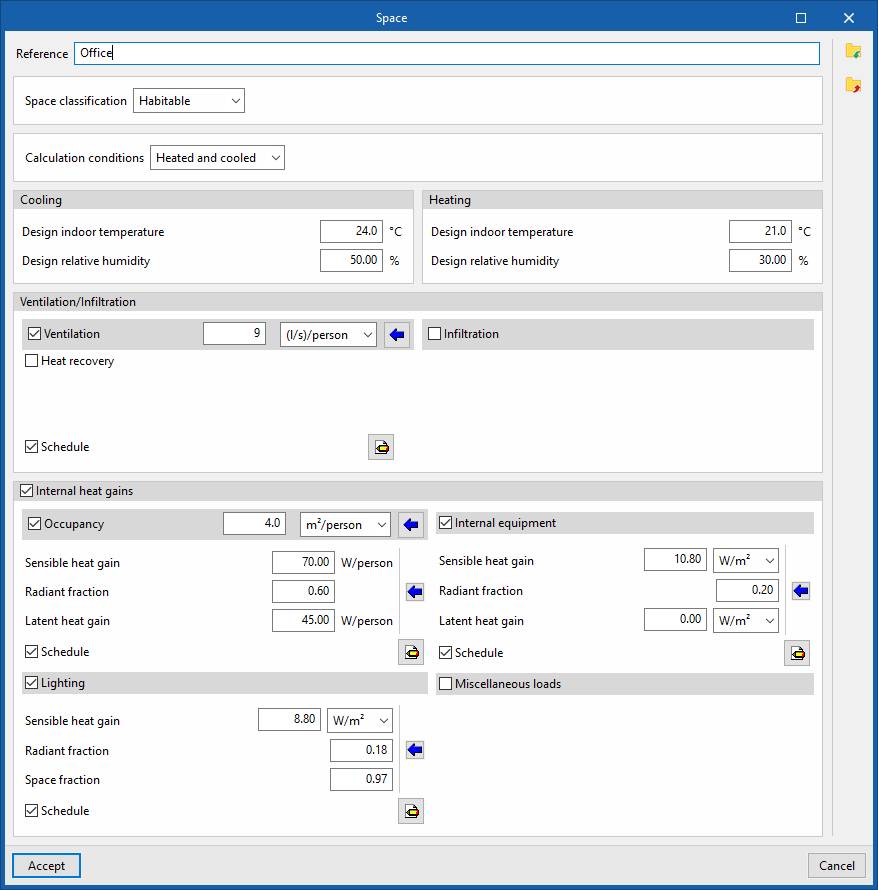
Defining the characteristics of the spaces in the project library is necessary to classify them as habitable or non-habitable and to specify the parameters for ventilation, lighting, occupancy, and internal fittings that affect the program's analyses.
The tools for managing the model’s room libraries can be found on the "Building" tab and, within the "Project" tree view, in the "Libraries" section, after selecting the "Spaces" level.
Entries can be exported to files on the hard drive with the .bib933 extension.
The parameters used to define each room in the library depend on the type of project chosen:
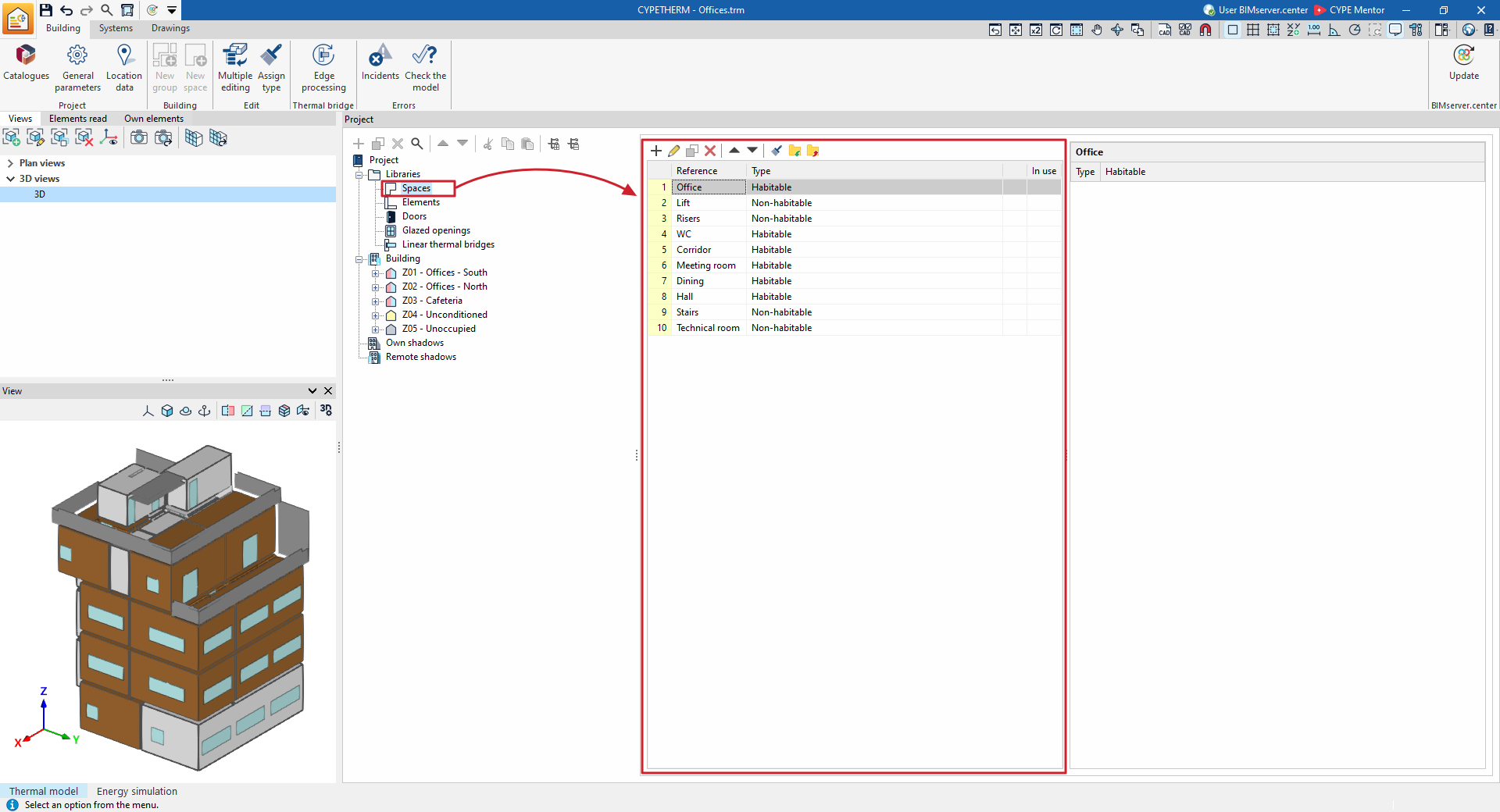
Defining spaces for building energy simulation
The concepts defined for each type of building relate to internal heat gains. Depending on the type of internal heat gains present, two types of buildings are distinguished:
Habitable spaces
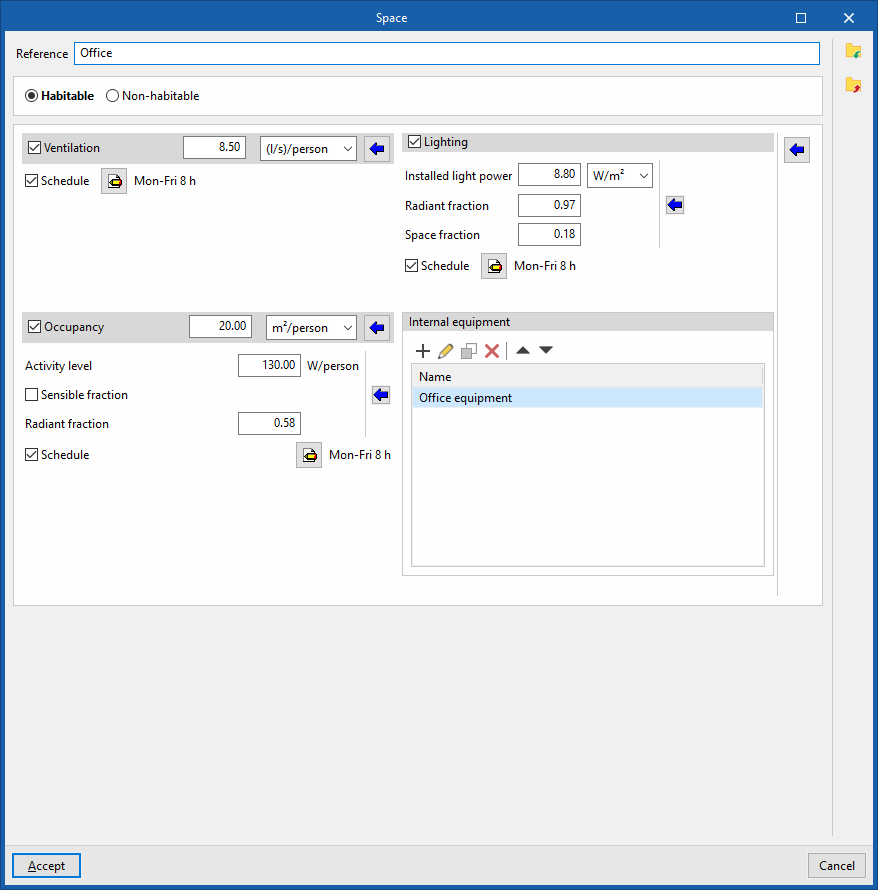
Habitable spaces are indoor spaces intended for use by people. For these spaces, you can specify the ventilation rate, the installed lighting power, the occupancy and activity levels, and the installed power of the internal equipment.
Each of these concepts can be defined by a nominal value and a schedule, which adjusts this nominal value throughout the year by applying a percentage. If no schedule is defined, the nominal value will be considered constant throughout the year.
The definition of habitable spaces involves setting the following parameters:
- Building classification: Habitable
- Ventilation (optional)
- Schedule (optional)
- Lighting (optional)
- Installed light power
- Radiant fraction
- Motion to the House
- Schedule (optional)
- Occupation (optional)
- Activity level
- Sensible fraction (optional)
- Radiant fraction
- Schedule (optional)
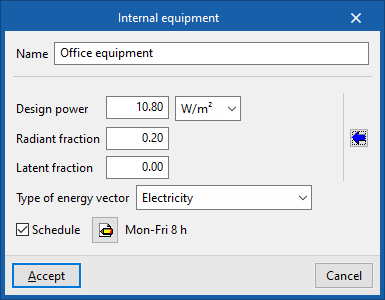
- Internal equipment: In this table, you can add entries for internal equipment with the following characteristics:
- Design power
- Radiant fraction
- Latent fraction
- Type of energy vector
- Schedule (optional)
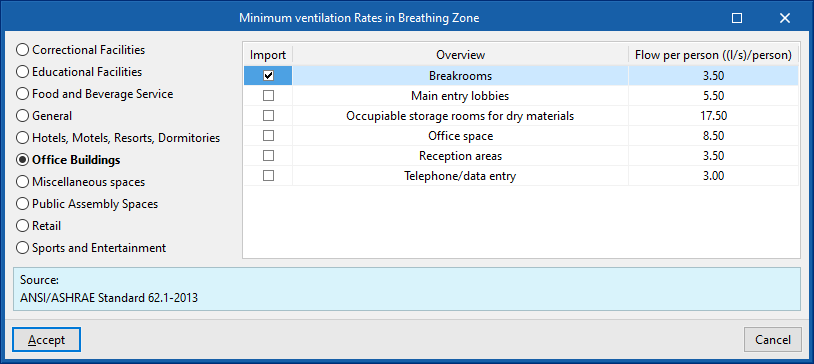
To the right of each of these concepts, there is a series of help buttons that enable the automatic import of values based on the use of the building and other parameters, drawn from the references cited in various sources:
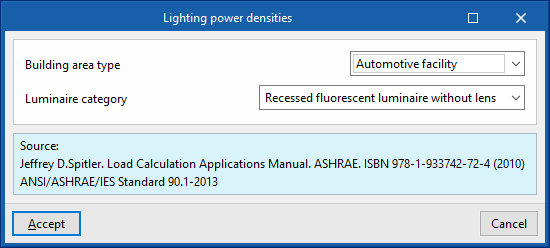
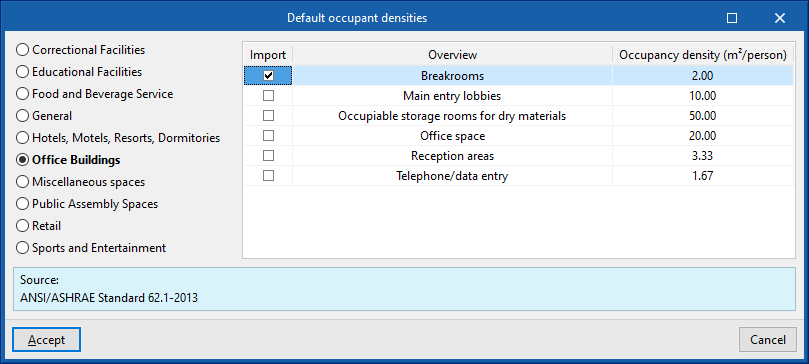
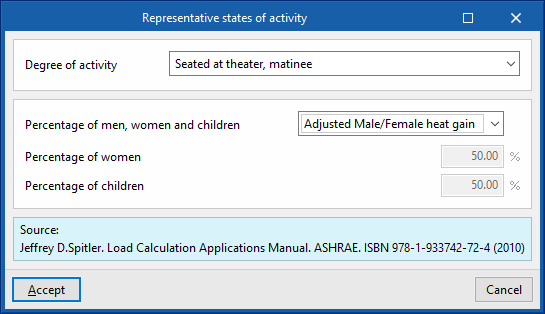
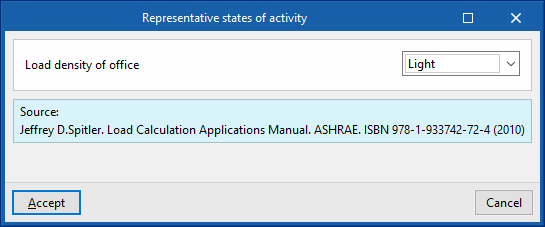
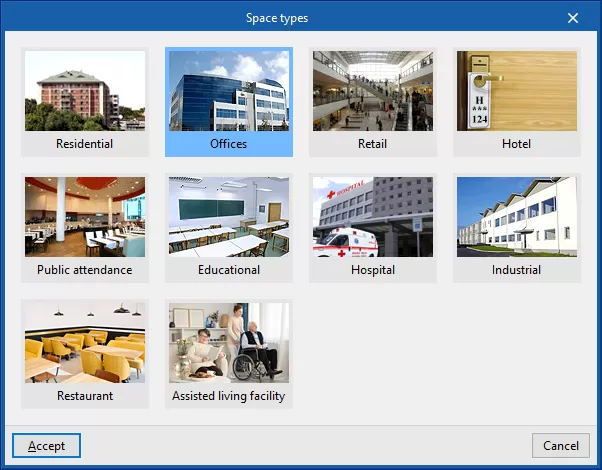
In addition, to the right of the panel is another wizard that covers the four concepts ("Ventilation", "Occupancy", "Lighting" and "Internal fittings") and provides values for the entire space. The "Space types" offered by this wizard are:
- Residential
- Offices
- Retail
- Hotel
- Public attendance
- Educational
- Hospital
- Industrial
- Restaurant
- Assisted living facility
Non-habitable spaces
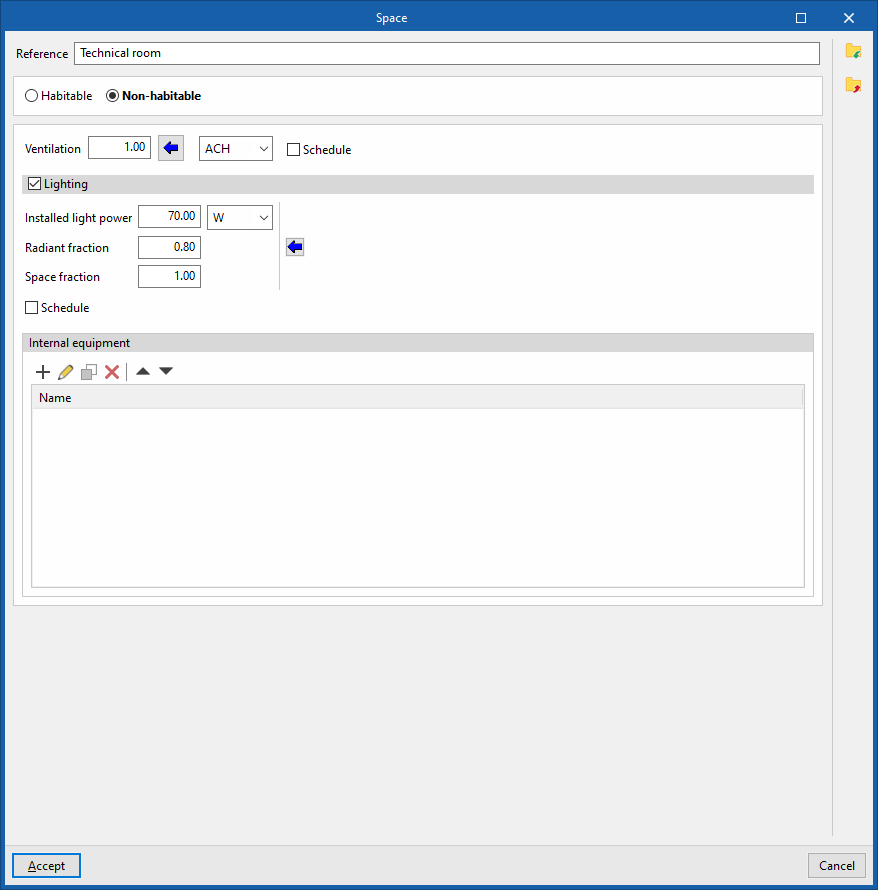
Non-habitable spaces are indoor spaces that are not intended for permanent human occupation. Consequently, these are spaces that do not require climate control (such as a garage, a storage room or a plant room, for example). For these spaces, you can specify the ventilation flow rate, the installed lighting power and the installed power of the internal equipment.
As with habitable spaces, each of these concepts can be defined by a nominal value and a schedule, which adjusts this nominal value throughout the year by applying a percentage. If no schedule is defined, the nominal value will be considered constant throughout the year.
The definition of non-habitable spaces involves setting the following parameters:
- Building classification: Non-habitable
- Ventilation (optional)
- Schedule (optional)
- Lighting (optional)
- Installed light power
- Radiant fraction
- Space fraction
- Schedule (optional)
- Internal equipment
In this table, you can add entries for internal equipment with the following characteristics:- Rated power
- Radiant fraction
- Latent fraction
- Type of energy vector
- Schedule (optional)
Defining spaces for the calculation of thermal loads
Non-habitable spaces
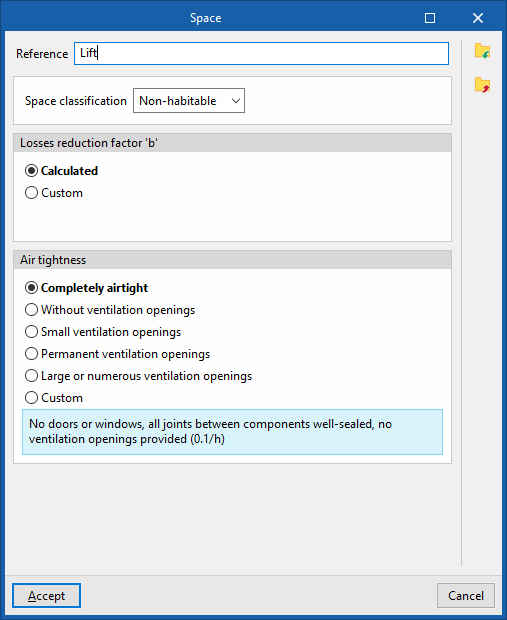
The definition of non-habitable spaces involves setting the following parameters:
- Space classification: Non-habitable
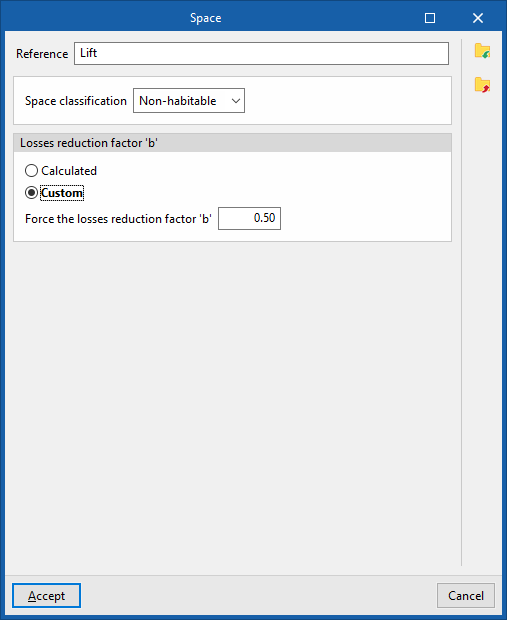
- Loss reduction factor 'b'
Define the loss reduction factor ‘b’, which regulates heat transfer from habitable spaces to the outside via non-habitable spaces.- Calculated
- Custom
- Force the loss reduction factor 'b'
- Airtightness level (if the "Loss reduction factor 'b'" is "Calculated")
The airtightness level is defined based on the number of air changes per hour in the room:- Completely airtight (0.1/h)
- No ventilation openings (0.5/h)
- Small ventilation openings (1/h)
- Permanent ventilation openings (3/h)
- Large or multiple ventilation openings (10/h)
- Custom
- Outdoor air exchange rate (h⁻¹)
Habitable spaces
The definition of habitable spaces involves setting the following parameters:
- Space classification: Habitable
- Calculation conditions (Heated and cooled / Cooling only / Heating only)
- Cooling
- Design indoor temperature (or maximum comfortable indoor temperature, if the space is heated only)
- Design relative humidity
- Heating
- Design indoor temperature (or maximum comfort indoor temperature, if the space is cooled only)
- Design relative humidity
- Ventilation/Infiltration
- Ventilation (optional)
- Heat recovery (optional)
- Thermal efficiency (optional)
- Hygrometric efficiency (optional)
- Schedule (optional)
- Heat recovery (optional)
- Infiltration (optional)
- By "Flow" / Calculation in accordance with standard EN 12831
- With no ventilation only (optional)
- Ventilation (optional)
- Internal heat gains (optional)
- Occupation (optional)
- Sensible heat gain
- Radiant fraction
- Latent heat gain
- Schedule (optional)
- Internal heat gains (optional)
- Sensible heat gain
- Radiant fraction
- Latent heat gain
- Schedule (optional)
- Lighting (optional)
- Sensible heat gain
- Radiant fraction
- Latent heat gain
- Schedule (optional)
- Other loads (optional)
- Sensible heat gain
- Radiant fraction
- Space fraction
- Schedule (optional)
- Occupation (optional)
Defining schedules
Defining schedules for energy simulation
Schedules in energy simulation enable the pattern of variation, usage or activation of different resources or aspects of the project to be defined across the hours of the day, the days of the week and the months of the year.
Factors that can influence schedules include variations in ventilation, lighting, occupancy and the internal fit-out of the spaces, the profile of heating and/or cooling setpoint temperatures in each thermal zone, the activation profile of solar shading devices, the operational conditions governing air infiltration in the zones, and the hourly profile defining the values of certain system parameters.
Schedules can be viewed by enabling or selecting the "Schedules" option found in the definition panels for the various aspects mentioned, and then clicking on the edit button that appears next to it.
| Note: |
|---|
| For example, when editing the schedule for an office building, you can specify a usage rate of less than 100 per cent during break times (indicating lower occupancy) or, in the schedule for a school, specify the months when there is no activity. If a schedule is not defined for a particular aspect, the program will assume 100 per cent usage for every hour of every day of the year. |
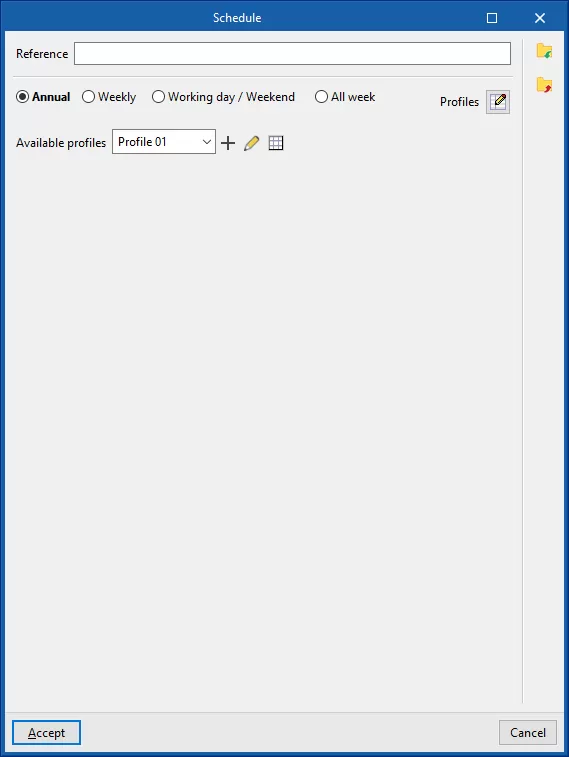
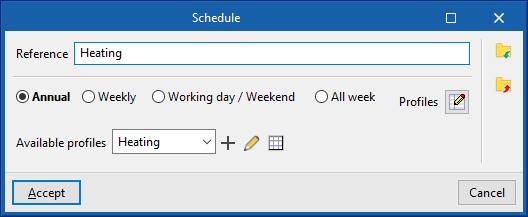
In the window for editing a schedule, you can modify the following details:
- Reference
Schedule reference.
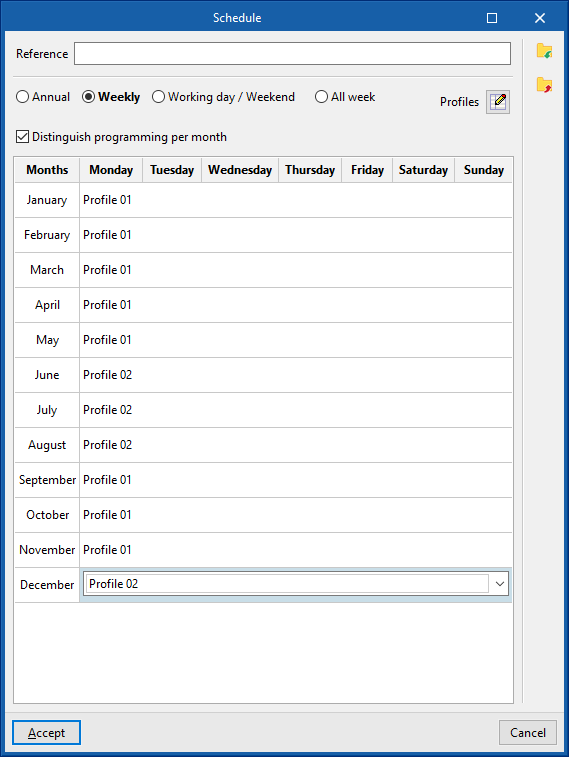
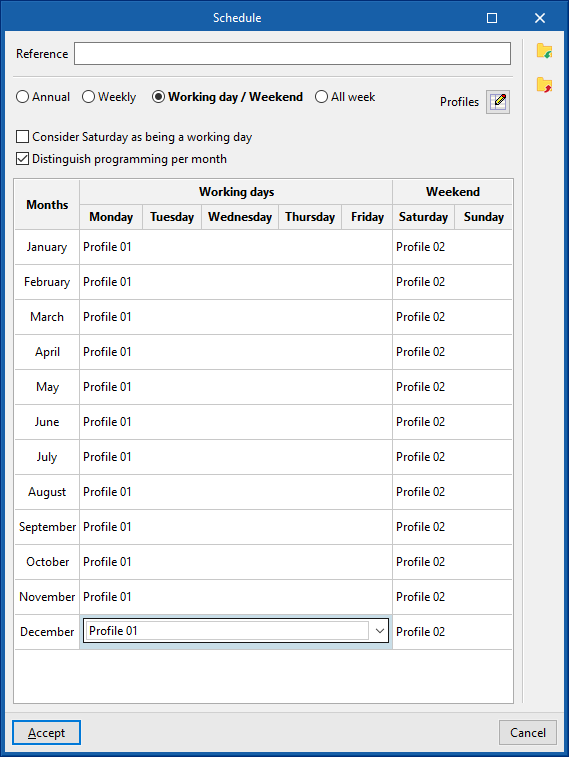
- Schedule type
- Annual
Select a schedule for the whole year. - Weekly
Select a schedule for the whole week. If the "Differentiate scheduling by month" box is ticked, you can select a schedule for the whole week of each month of the year. - Weekdays / Weekends
Select one schedule for weekdays and another for weekends. You can "Treat Saturday as a working day" by ticking the relevant box. If you tick the "Distinguish programming per month" box, you will be able to select one schedule for weekdays and one for weekends for each month of the year. - All week
Select a different schedule for each day of the week. If you tick the "Distinguish programming per month" box, you will be able to select a schedule for each day of the week in each month of the year.
- Annual
In order to be selected, the available schedules must first be defined using the "Schedules" button on the right.
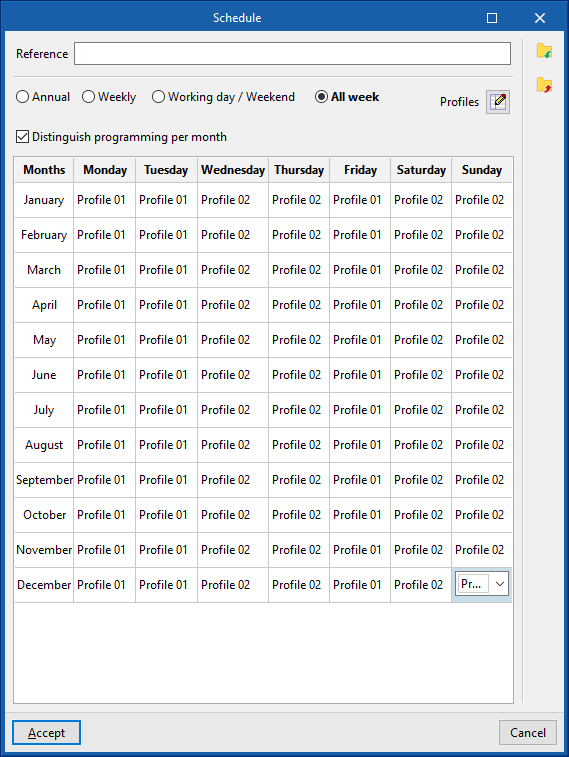
Available schedules
When creating or editing each available schedule, the following details must be entered:
- Reference
Reference for the available schedule. - Schedule definition
- Off
The feature will be disabled. - The feature will be enabled. In some cases, you can specify the "Value" of the activation percentage.
- By the hour
This section lets you define an hourly schedule, specifying a value for each of the 24 hours of the day, whether this is a schedule between 0 and 100 per cent, the activation status (On/Off) or a specific temperature value. To do this, tap the corresponding point on the graph to set the value, the activation status or the desired schedule for each hour.
- Off
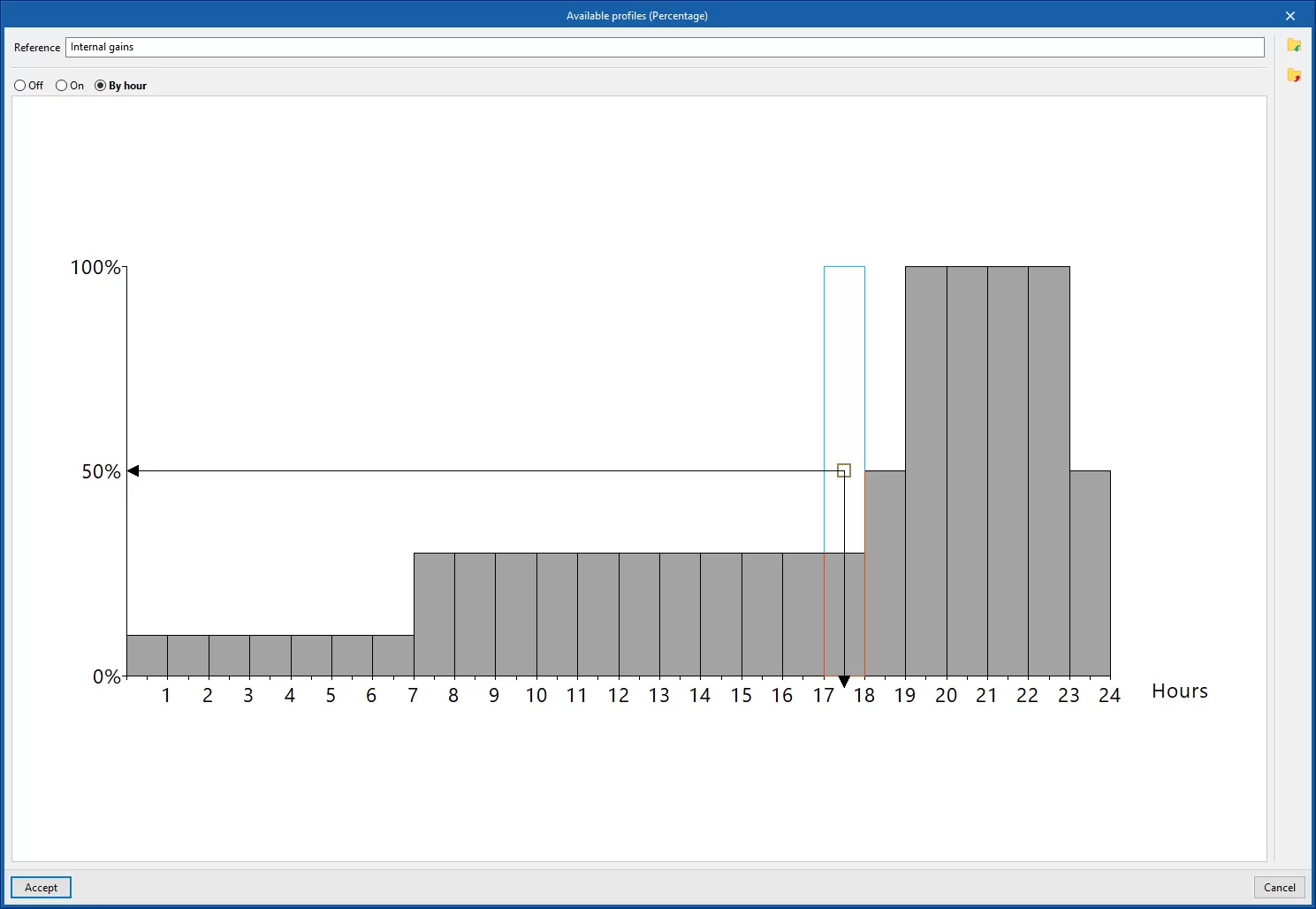
You can import and export the schedules you have created to files on your hard drive using the relevant options on the right-hand side of the panel.
Defining schedules for the calculation of thermal loads
Schedules used in the calculation of thermal loads make it possible to define the pattern of variation, usage or activation of different resources or aspects of the project every month or throughout the hours of the day for each month of the year.
When defining areas for the calculation of thermal loads, by ticking the "Schedules" box in each section, the program lets you enter a "Reference" and then define a schedule for each "Month" by ticking the corresponding box.
For each month, you can set a "Constant" percentage value or a "Daily schedule" by selecting the desired option from the "Type" drop-down menu.
If "Constant" is selected, enter the percentage in the "Value" column.
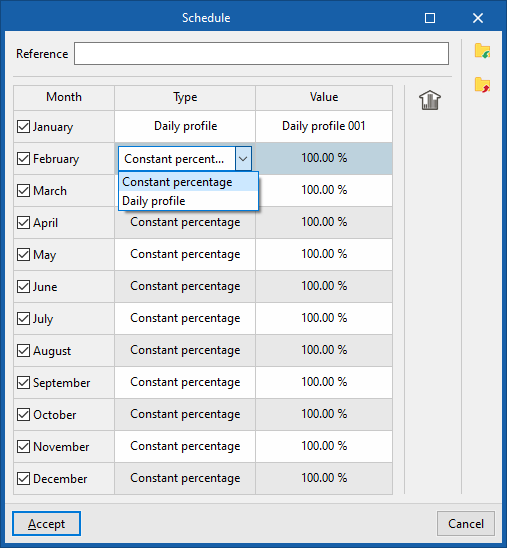
If you select a "Daily schedule", you will need to click the button on the right to access the list of available daily profiles.
When creating or editing each daily schedule in the list, you set a percentage for each of the 24 hours of the day by marking points on the graph.
Once this has been defined, you must select the desired daily schedule from the "Value" column.
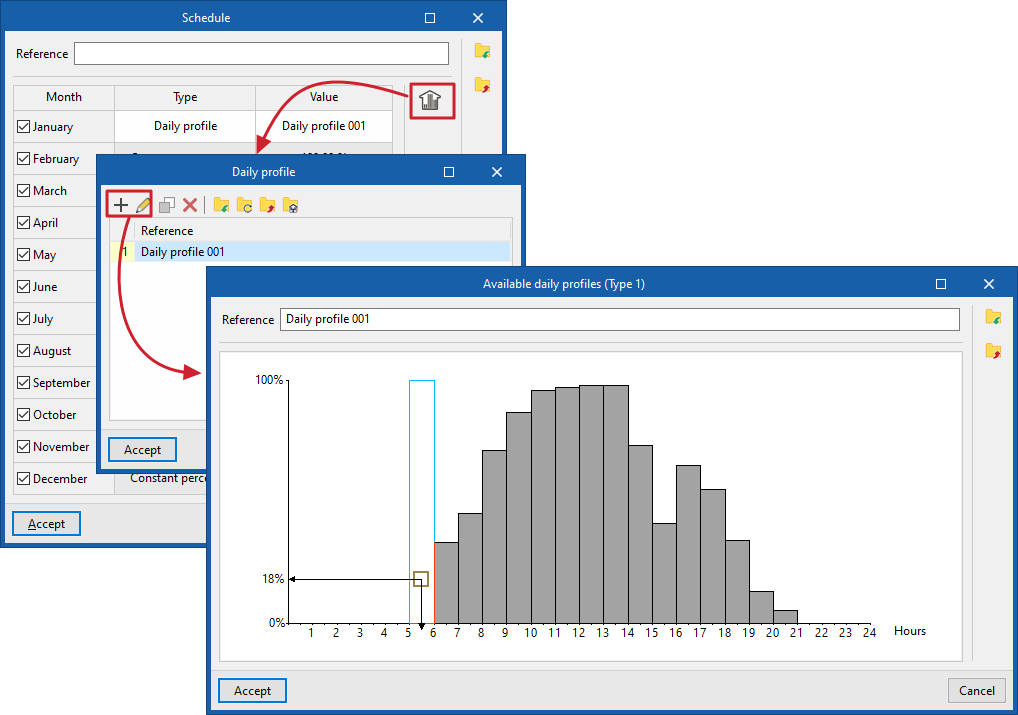
Building elements library (the "Building" tab)
The definition of building elements in the thermal model libraries is necessary to specify the data relating to their thermal behaviour, including the ability to specify the composition of material layers and the technical characteristics of each one, such as thermal conductivity or thermal resistance. This data can be entered manually or by referring to various catalogues and reference standards containing predefined materials, and will influence the calculations performed by the program.
The model’s library of building elements can be found on the "Building" tab and, within the tree structure in the left-hand side panel of the "Project" definition, under the "Libraries" section, after selecting the "Elements" level.
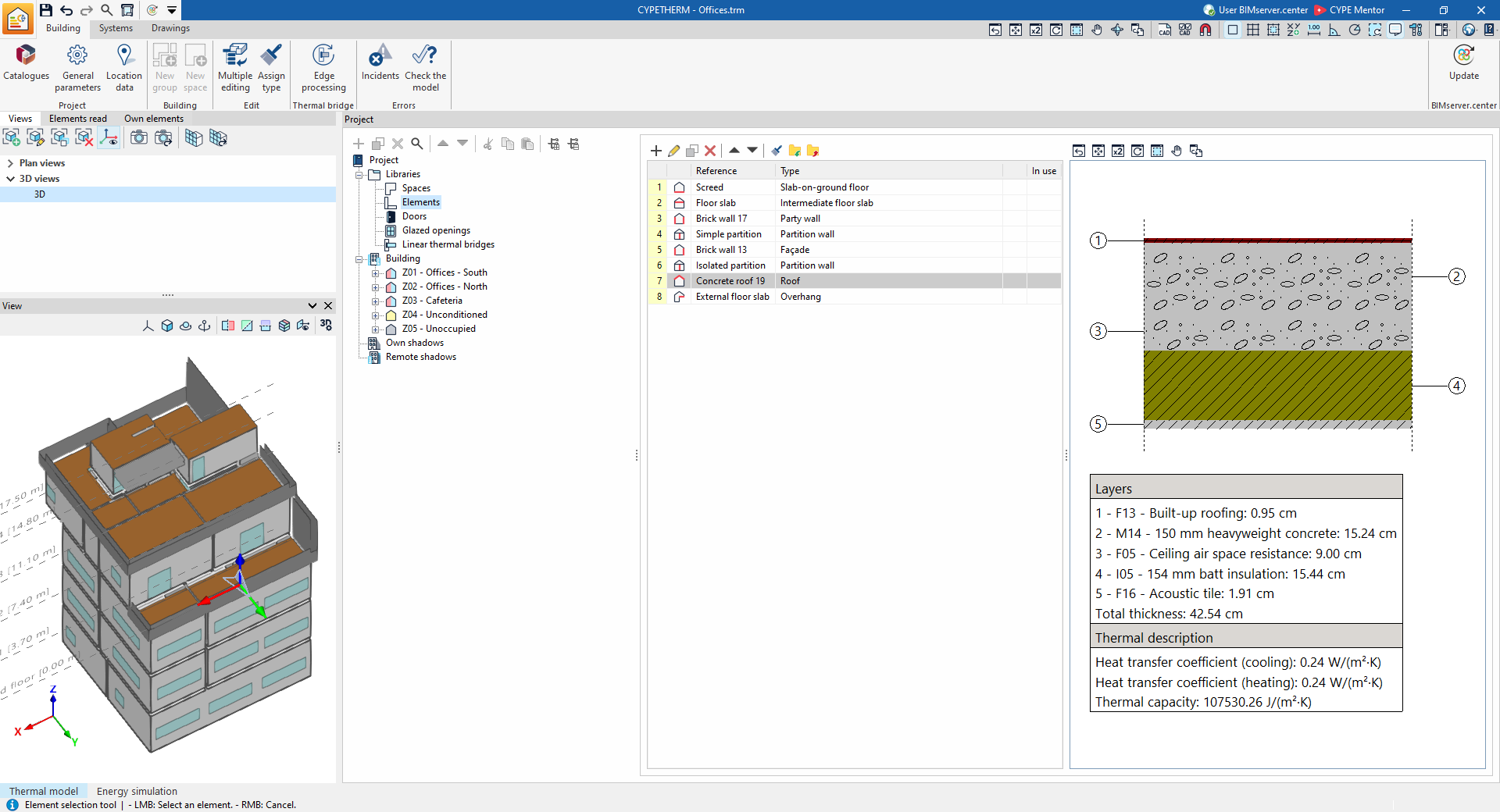
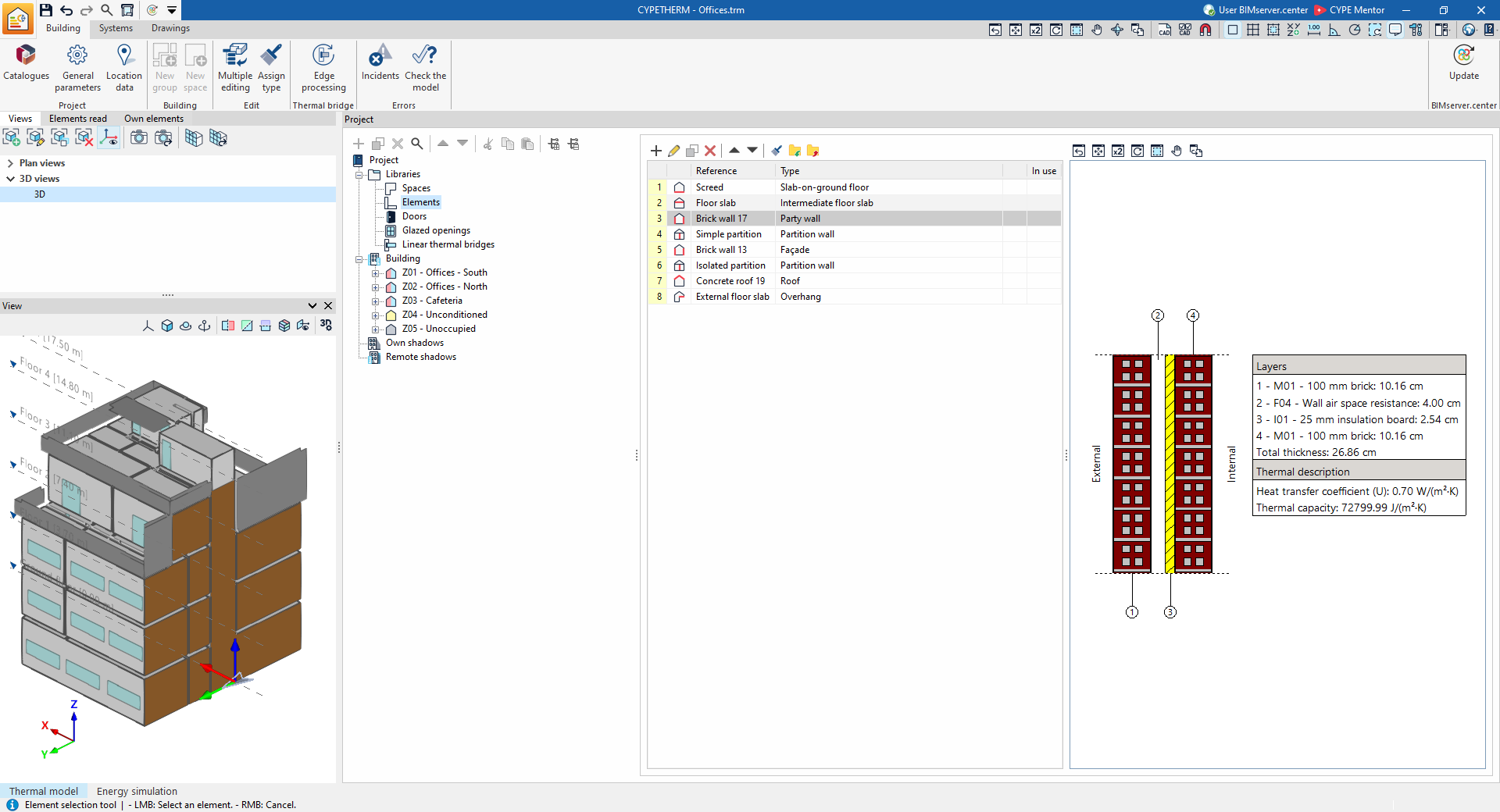
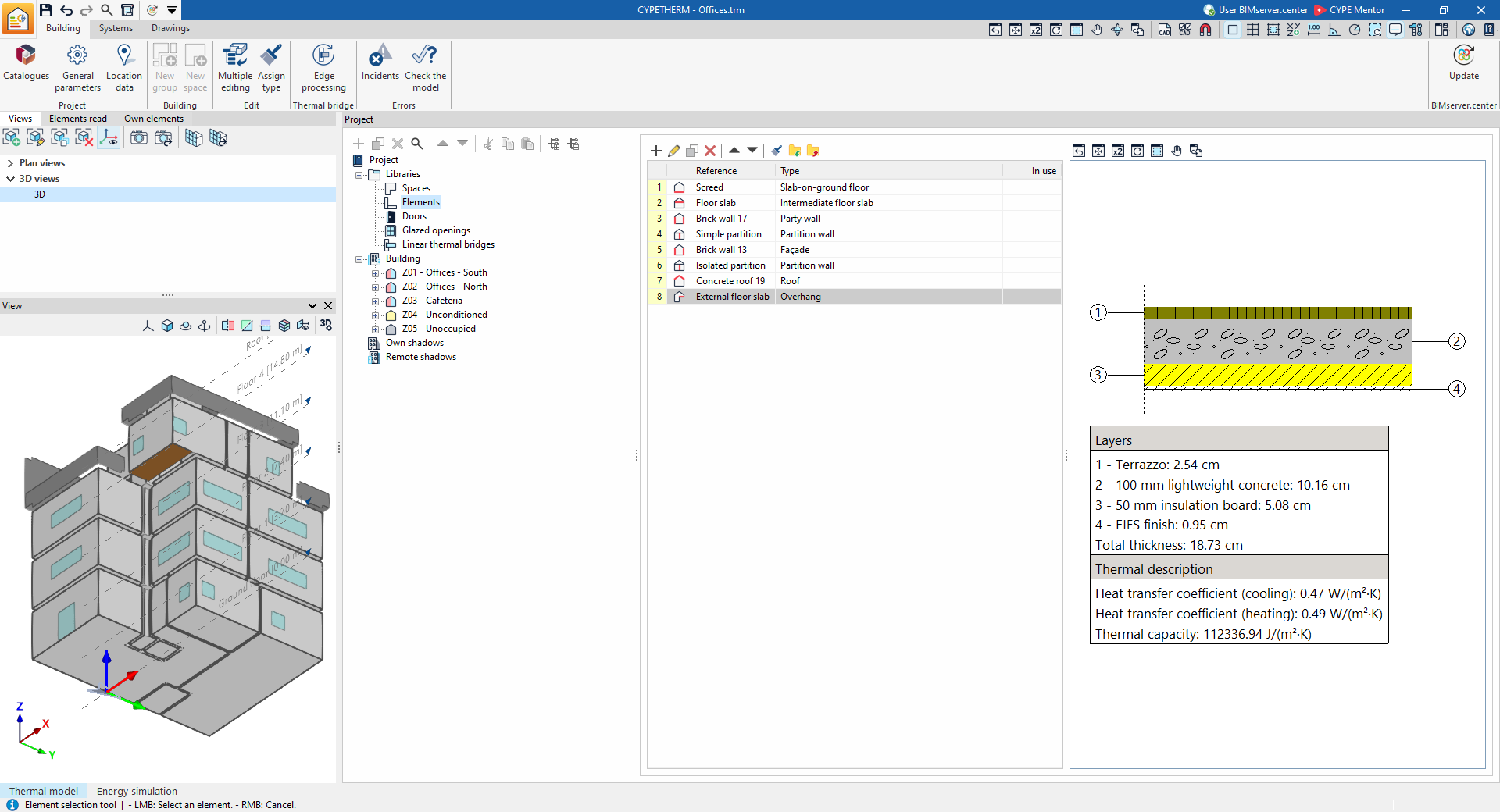
When you select each type of building element from the list, the program will highlight the elements associated with that type in orange in the model’s "View". Furthermore, to the right of the "Project" panel, it will display a table showing their properties or, if entered by layers, the construction details of the element’s cross-section, the "Layers" that make it up and the values for its "Thermal characterisation".
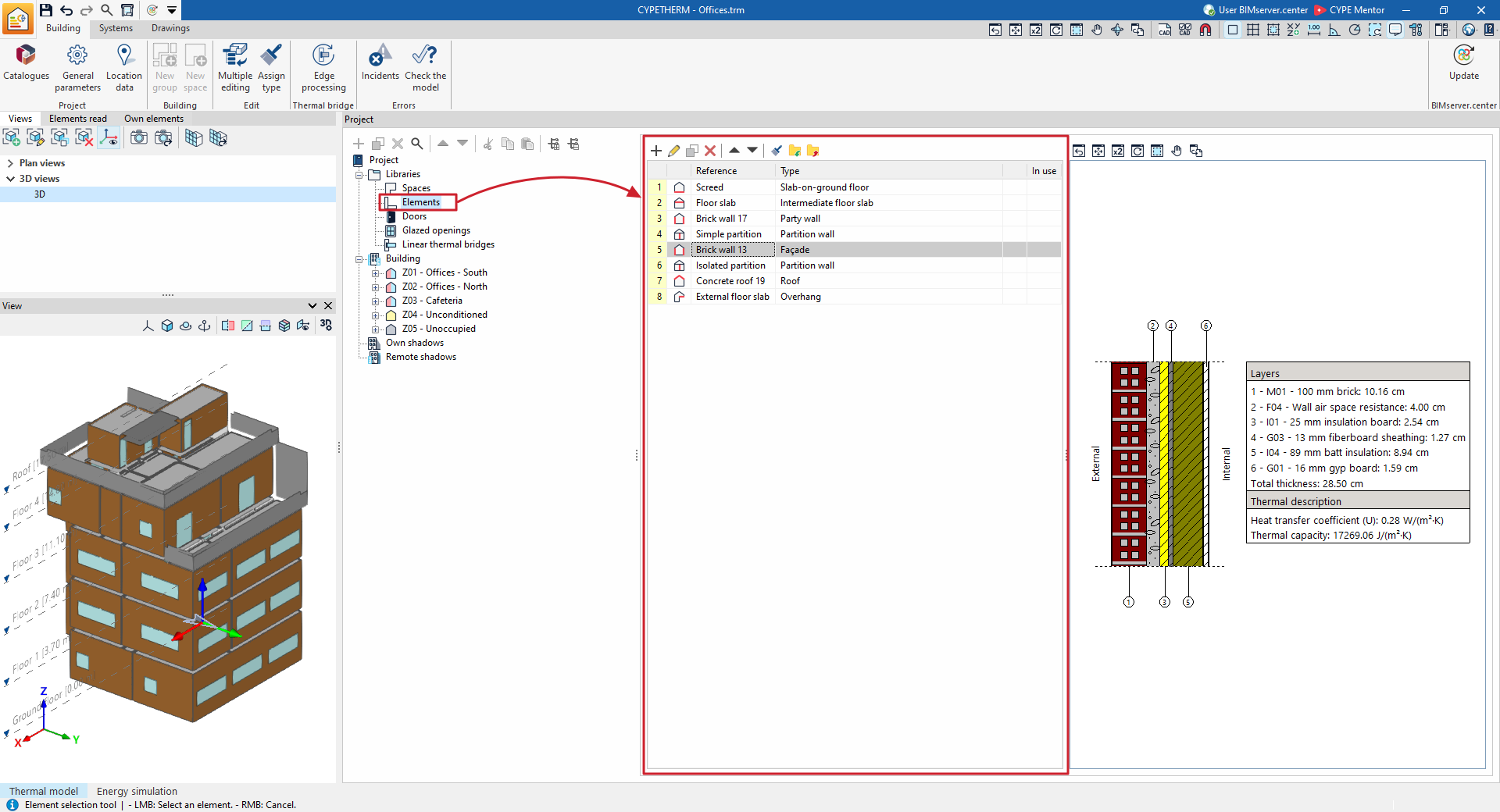
Types of building elements
The building elements of the building are classified into the following types:
- Façade
Vertical external walls in contact with the outside environment. - Party wall
Vertical external walls in contact with the spaces of another building. In the energy simulation, the outdoor ambient temperature conditions are taken into account, without exposure to the sun or wind (boundary enclosure). - Partition wall
Vertical internal partitions. These are installed to divide the interior of the building into different areas. - Curtain wall
A vertical glazed external wall. This type of building element allows solar radiation to pass through. All other types of building elements are considered to be completely opaque. - Basement wall
External walls in contact with the ground, used to construct floors below ground level (basements). - Roof
Upper external walls in contact with the outside environment. - Cantilevered
Enclosures that are in contact with the outside at the bottom. - Intermediate floor slab
Horizontal internal partitions between one floor and the next, i.e. the floors of each intermediate storey of the building. - Slab-on-ground floor
Horizontal structures in contact with the ground. This includes the floor slabs themselves and sanitary floor slabs.
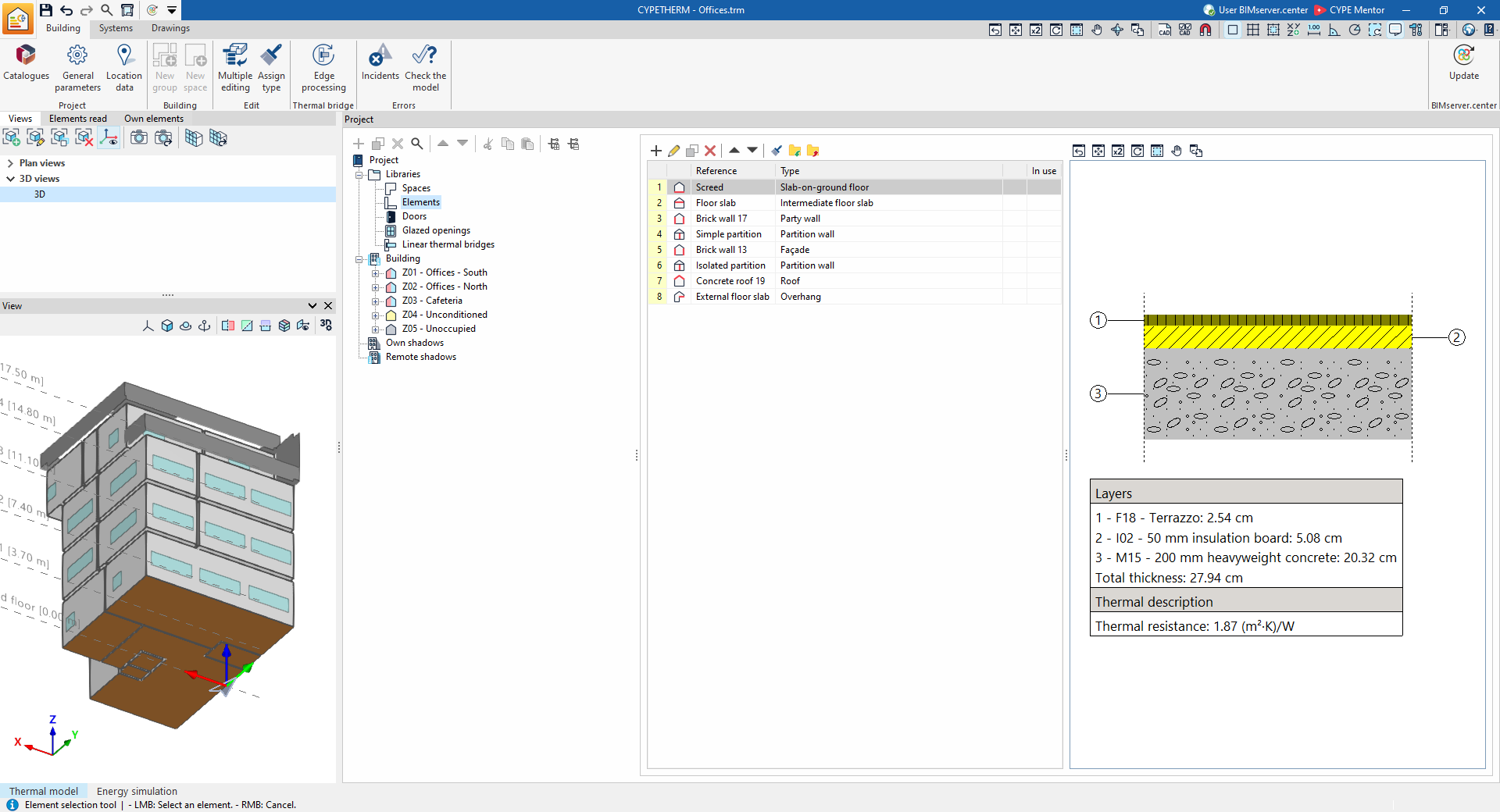
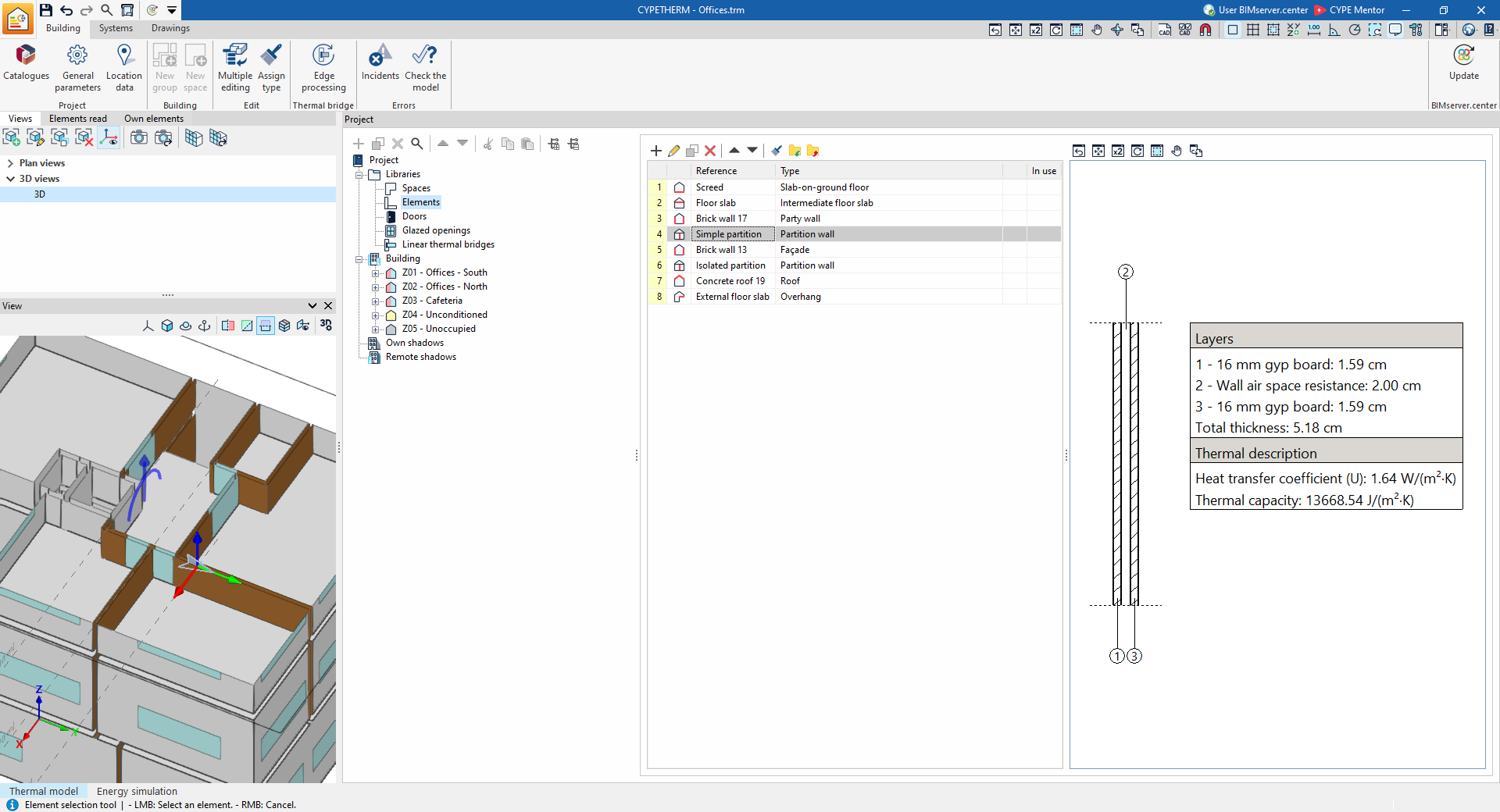
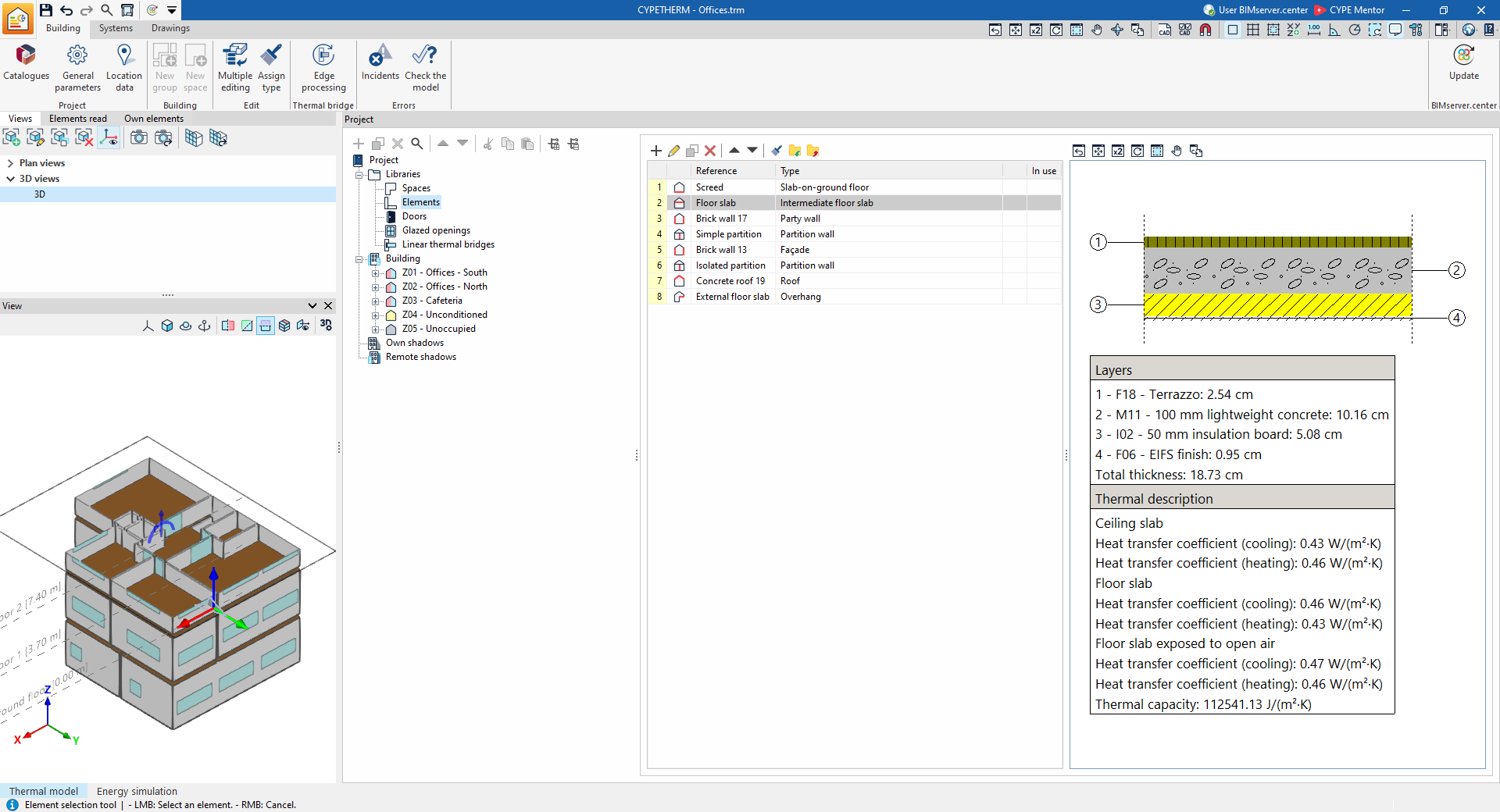
General definition of building elements
When adding or editing a building element type in the library, a window opens in which you must configure the following parameters:
- Element type (Façade / Party wall / Partition wall / Curtain wall / Basement wall / Roof / Cantilever / Floor slab / Floor slab)
- Reference
Reference to the type of building element. - Description
Descriptive text detailing the type of building element. - Layer-by-layer definition / Simplified
definition
Specify whether the element's thermal properties are defined by entering data for each of the material layers of which it is composed, or via a simplified definition. - Point thermal bridges, Linear thermal bridges (in the "Thermal loads" project type)
Define point and/or linear thermal bridges associated with the type of building element.
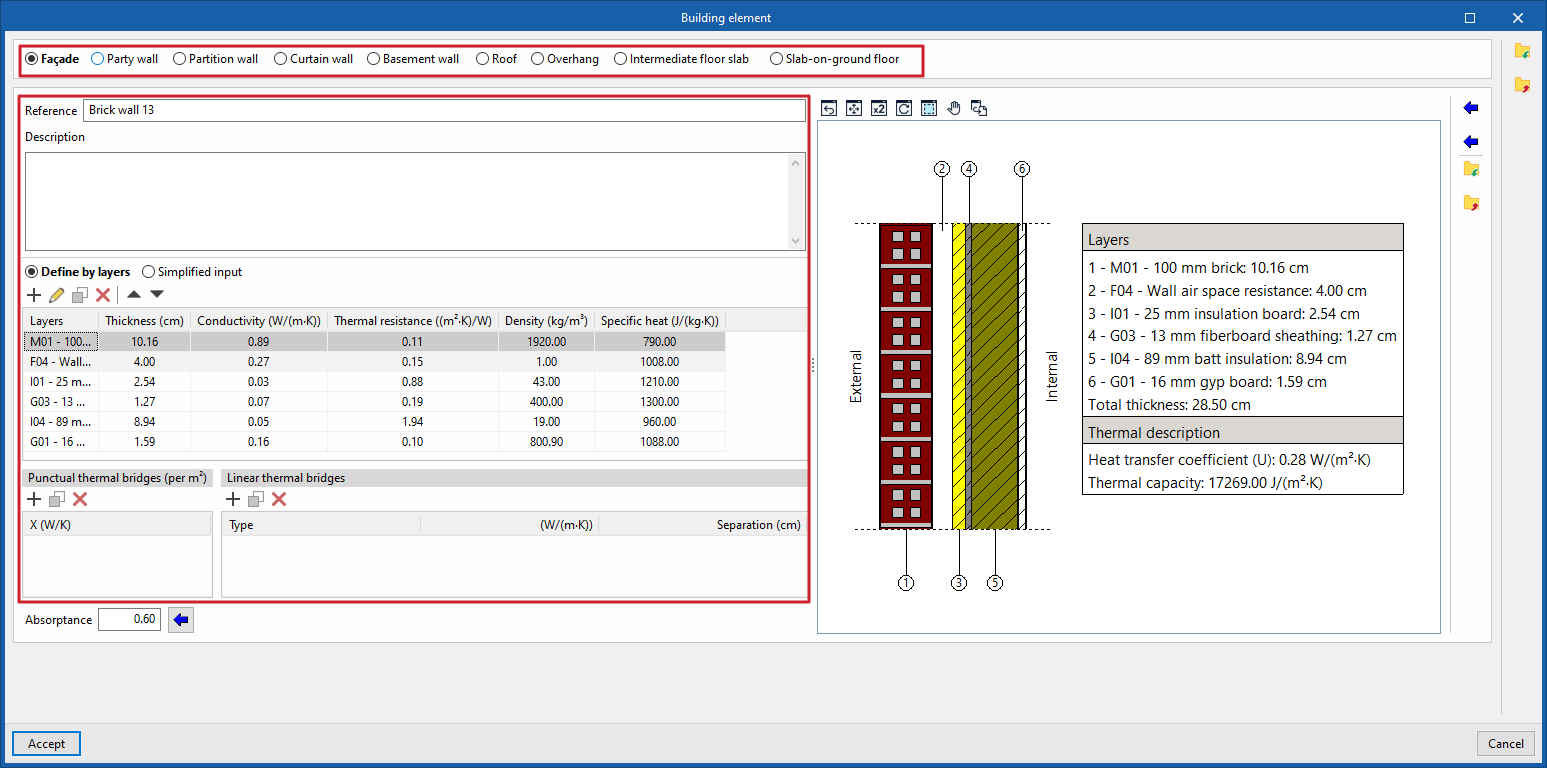
Specific options for defining building elements
When defining types of building elements, the following specific options may appear, depending on the type of element selected:
- Absorptance (for elements of the "Façade", "Party wall", "Partition wall","Roof","Cantilever" or "Floor slab" type)
The absorptance ranges from 0 to 1. A single value for the absorptance of the building element is specified, which must correspond to the outer layer (on which solar radiation falls). You can import the value using the wizard available on the right:- Import absorption coefficient
The value of this coefficient is lower for light-coloured surfaces and higher for dark-coloured surfaces.
- Import absorption coefficient
- Adiabatic (optional) (for "Partition wall" type elements)
The element is treated as completely adiabatic. Consequently, there is no heat transfer through this element. - Soil thermal conductivity (for "Basement wall" or "Floor slab" elements). The thermal conductivity of the ground varies depending on its type. You can import the value using the wizard on the right:
- Import typical values. The lowest values correspond to gravel and silt; sand yields intermediate values, whilst rock yields the highest values.
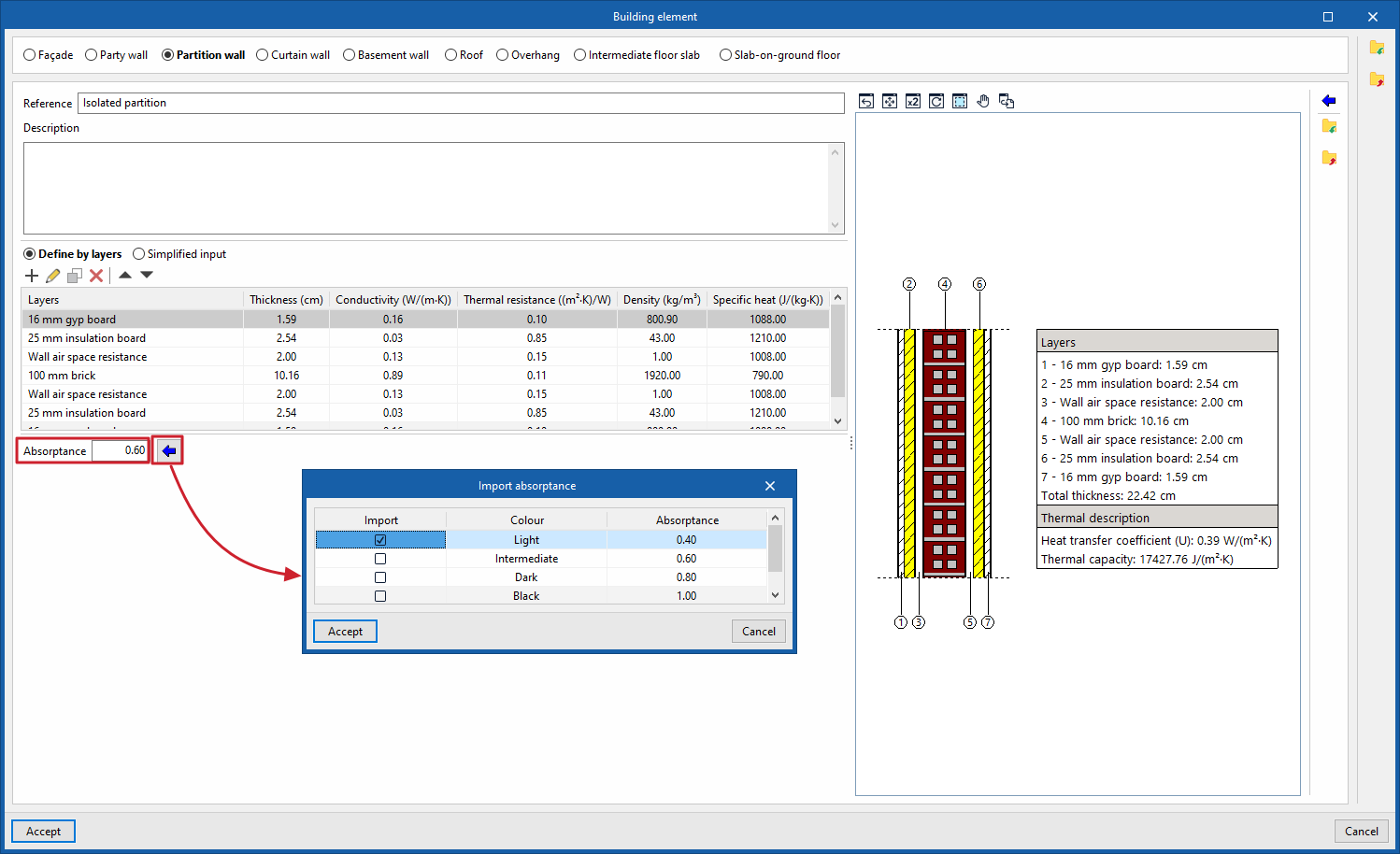
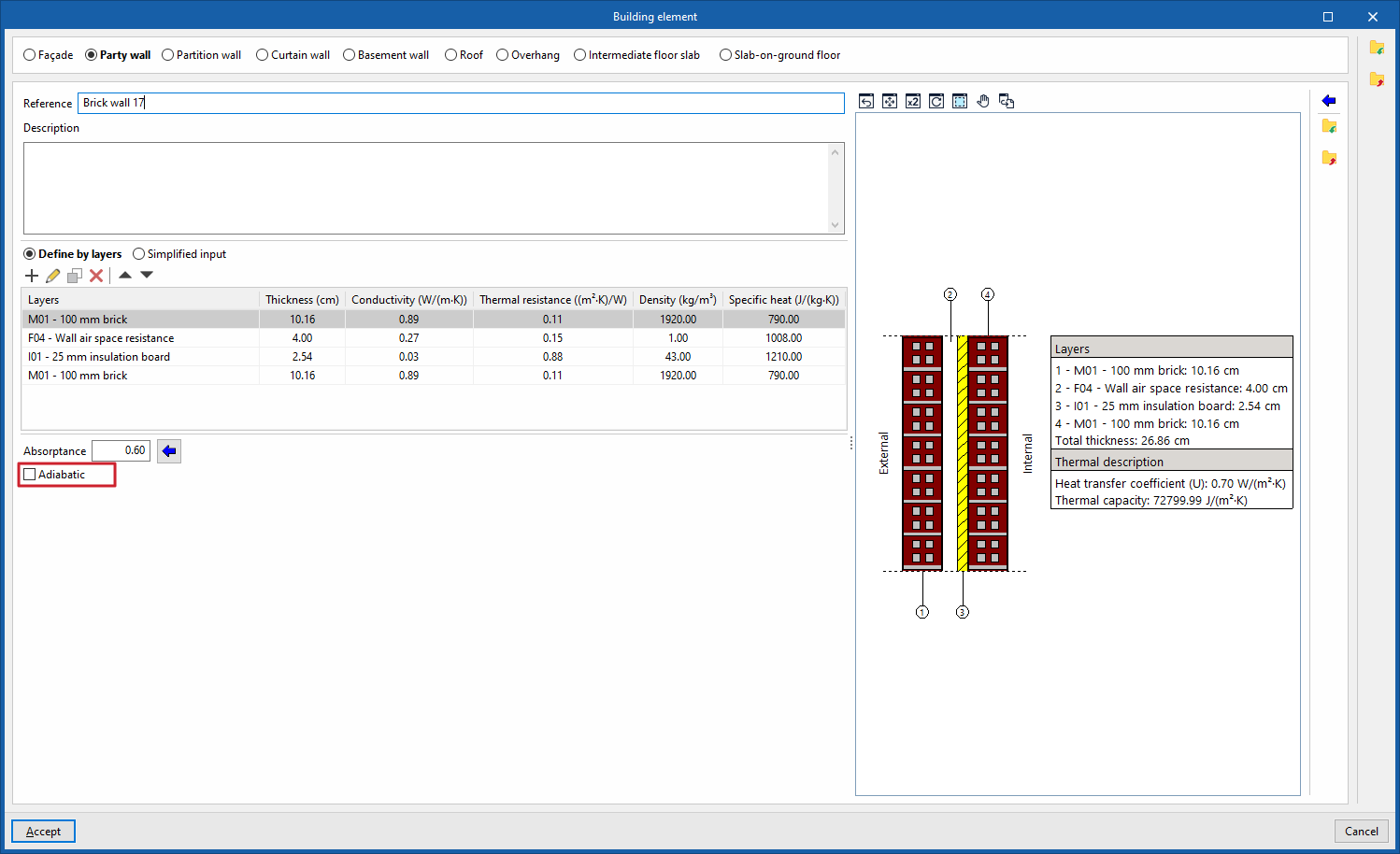
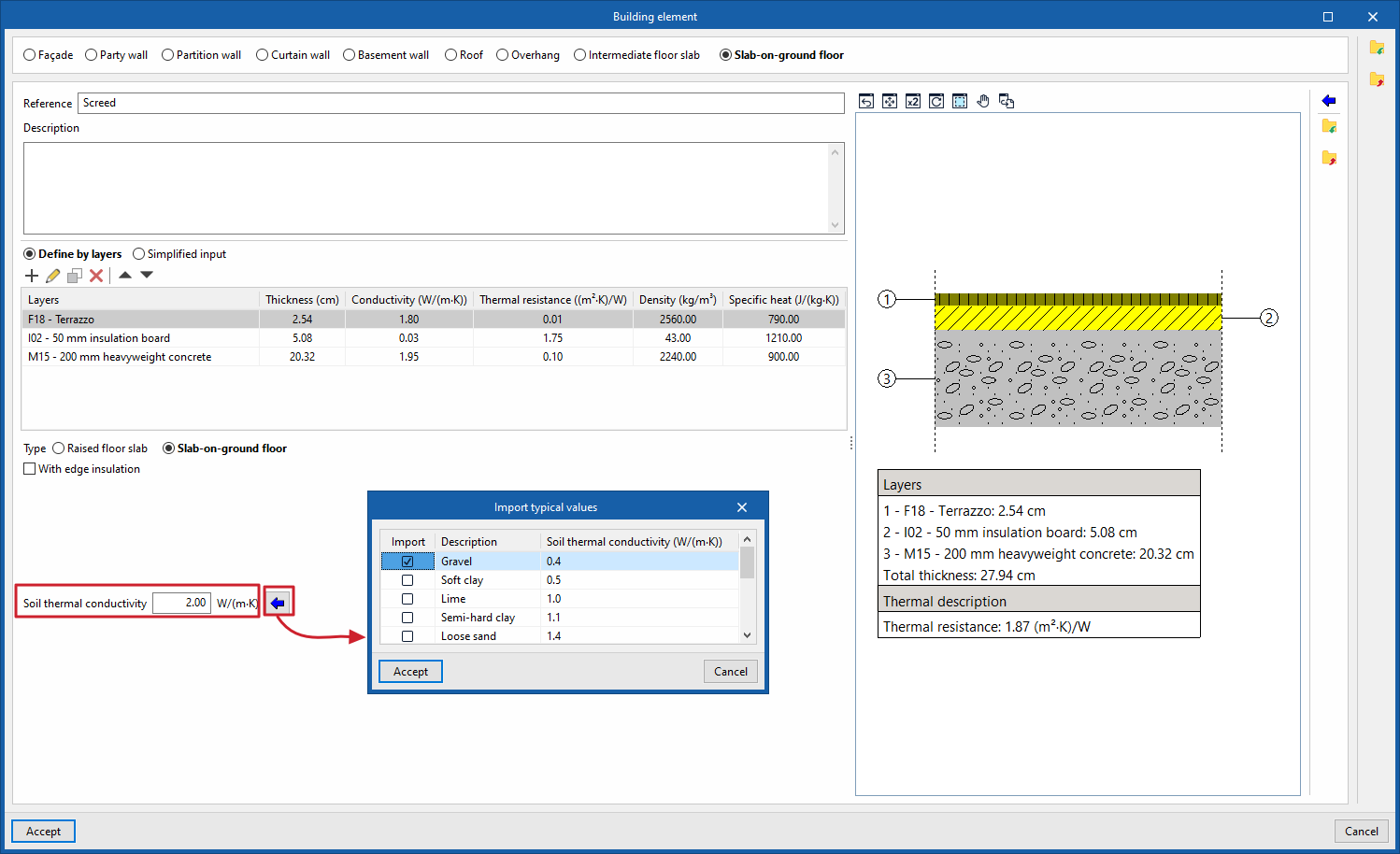
Specific options for designing slab-on-ground floors and raised floor slabs
"Slab-on-ground" type elements allow the following characteristics to be defined:
Slab-on-ground floors
In the case of slab-on-ground floors, you can add perimeter insulation and define its characteristics:
- With peripheral insulation (optional)
- Type of insulation (Vertical / Horizontal)
- Thermal resistance
- Thickness
- Thickness or depth
- Thermal conductivity of the ground
- You can enter this directly or click the button on the right to "Import thermal conductivity based on soil type".
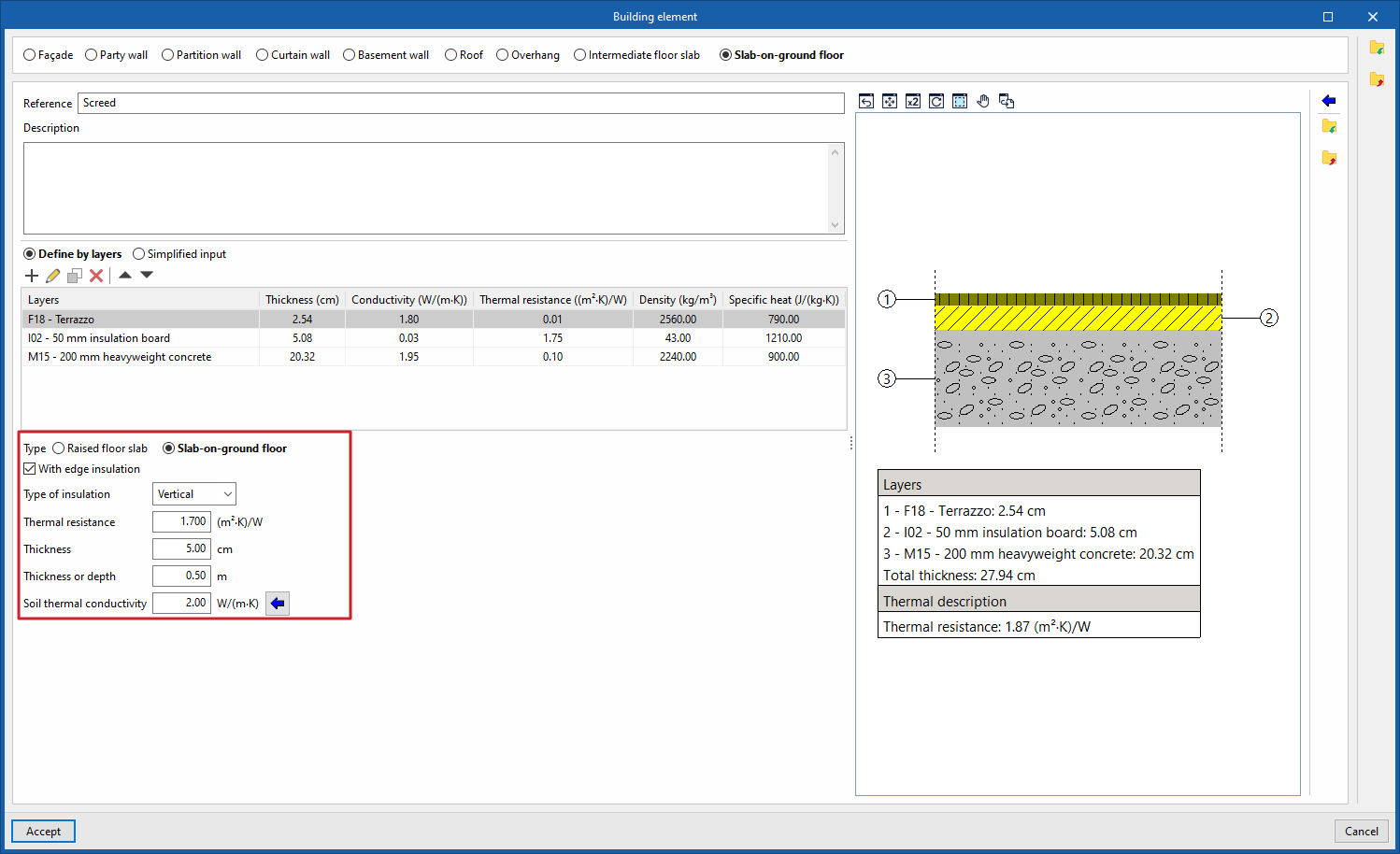
Raised floor slabs
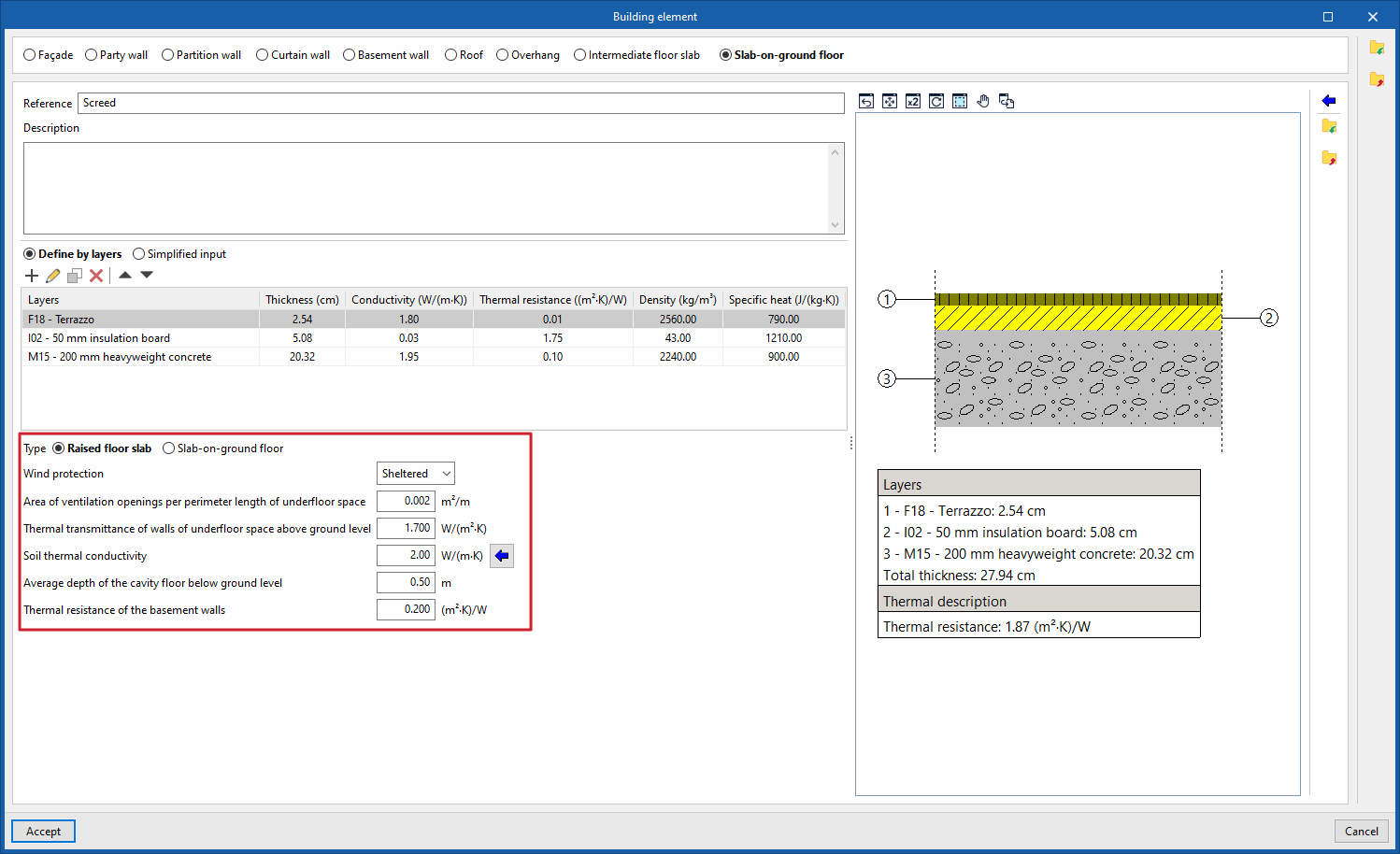
Raised floor slabs are defined in the program as a specific type of floor slab. When you select "Ventilation slab", the program allows you to enter information about the cavity beneath the slab and other details such as the following:
- Wind protection (Sheltered / Moderate / Exposed)
- Area of ventilation openings per perimeter length of underfloor space
- Thermal transmittance of walls of underfloor space above ground level
- Soil thermal conductivity
- Average depth of the cavity floor below ground level
- Thermal resistance of the basement walls
Importing and exporting construction systems and building element parameters
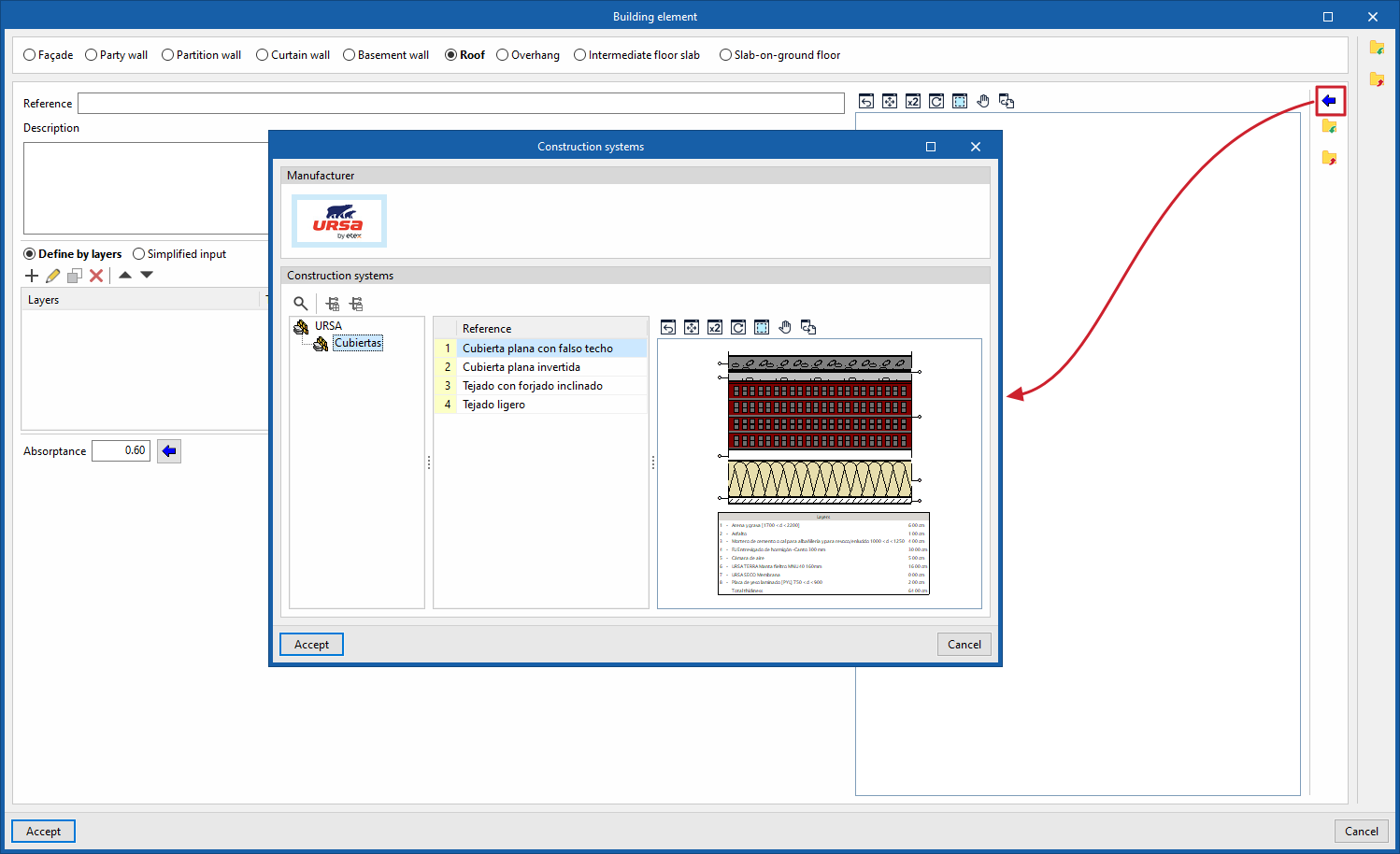
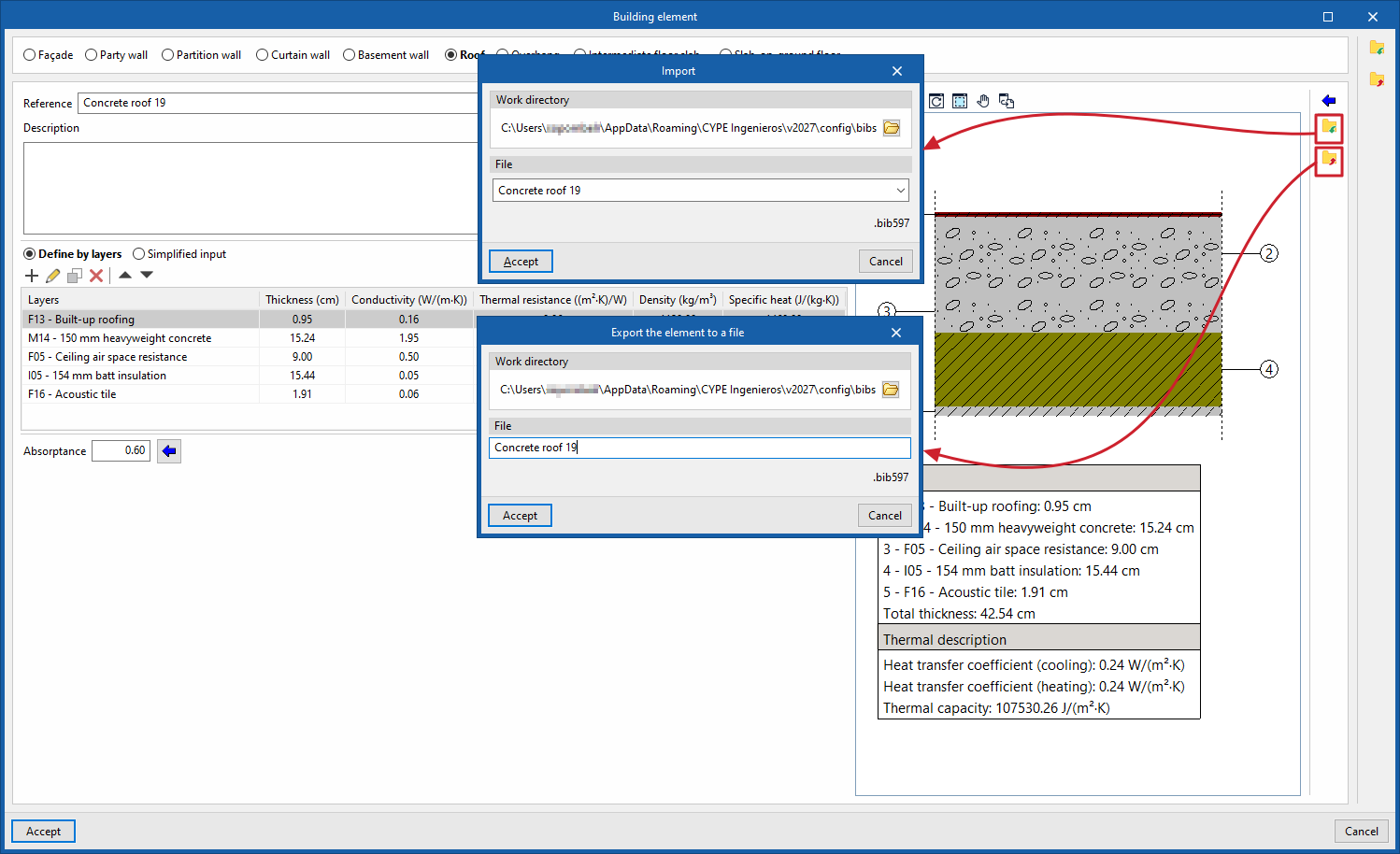
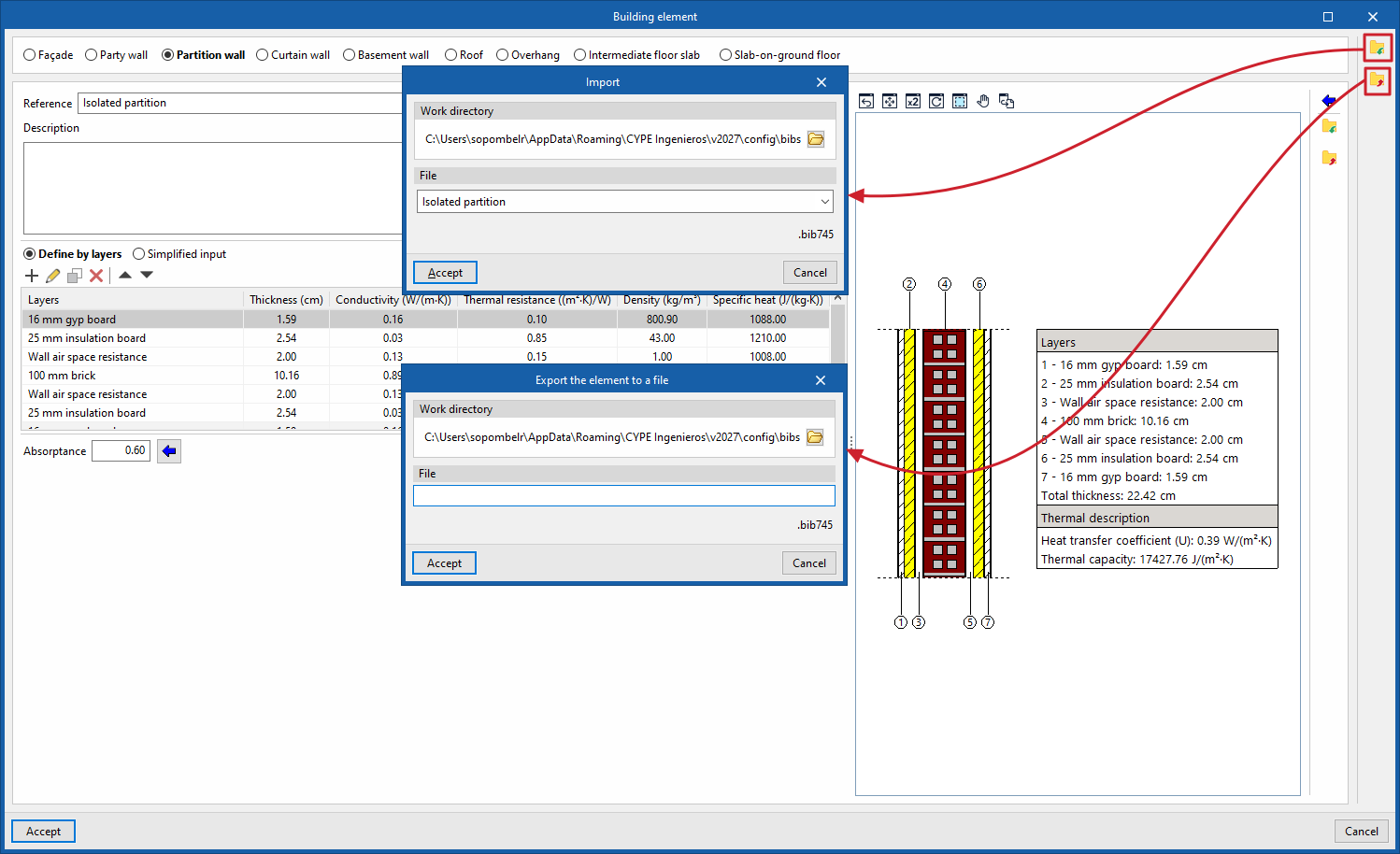
The options in the right-hand column of the window allow you to do the following:
- Building solutions
Import data for complete building systems from one of the manufacturers listed in the Open BIM Database (downloaded via the "Catalogues" option on the main interface) by selecting the catalogue and the desired product.
- Import / Export (parameters)
Import and export the parameters that define the building element to .bib597 files on disc, including the layer-based definition or the numerical properties of the simplified definition, but not the type. This allows you to transfer this data from one element type to another, for example, from a façade to a roof.
- Import / Export (types)
Import and export the complete type of the building element to .bib745 files on the hard drive. When importing them into another element, the type will be loaded from the information stored in the file, along with the other properties.
Point and linear thermal bridges in different types of structural elements
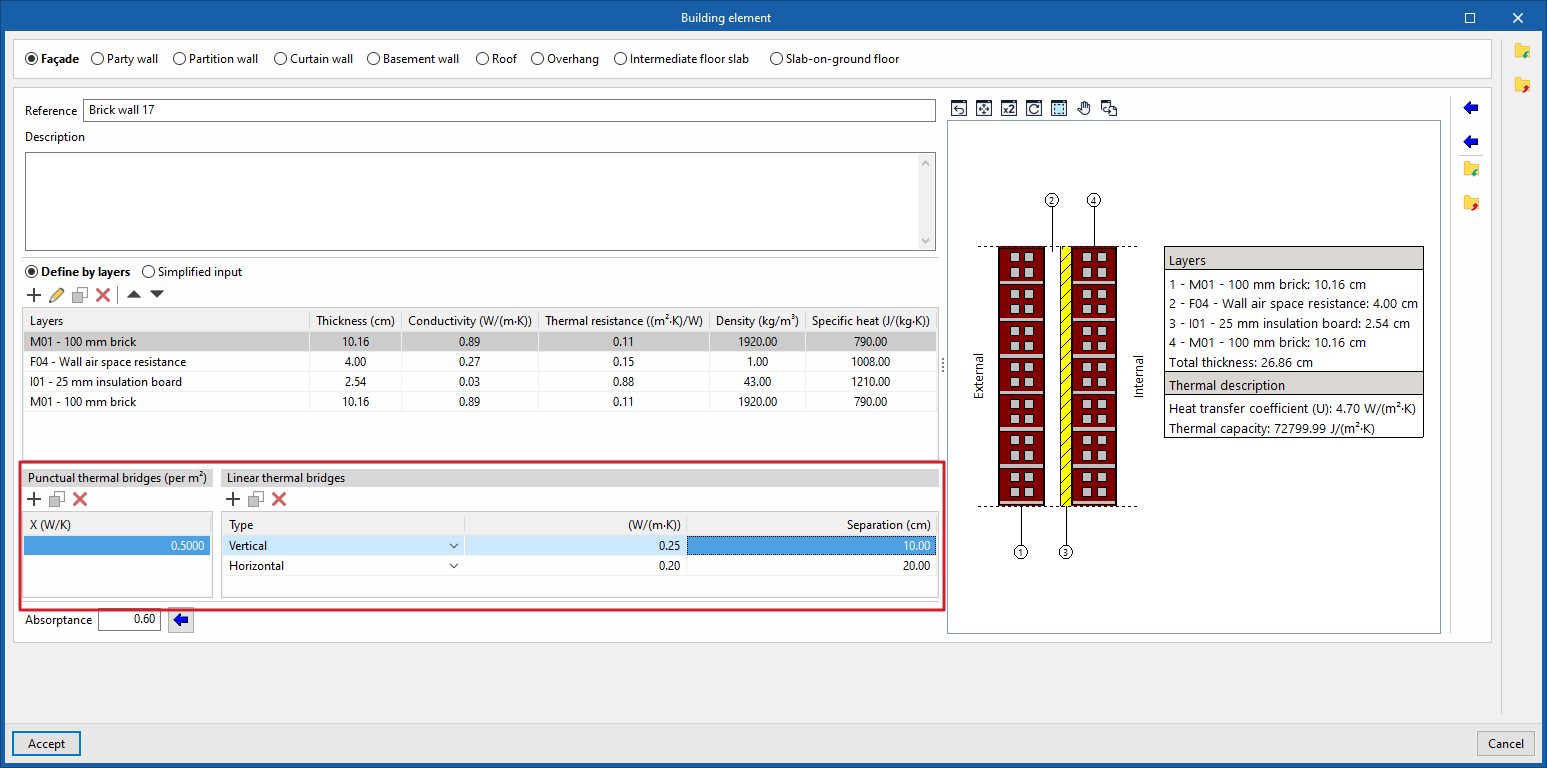
In the building element libraries, if the "Thermal loads" project type has been selected, the following sections appear when defining an opaque building element type:
- Point thermal bridges (per m²)
Specify the presence of point thermal bridges per unit area of the element, and their localised thermal transmittance value (in “X (W/K)”).
- Linear thermal bridges
Specify the presence of linear thermal bridges across the surface of the element, in the "Horizontal" or "Vertical" direction, their linear thermal transmittance value (in "(W/(m·K))"), and their "Separation".
| Note: |
|---|
| These sections make it possible to take the additional presence of these thermal bridges into account numerically, without the need to include them in the model’s geometry or to use "Edge processing". |
Defining building elements by layers of materials
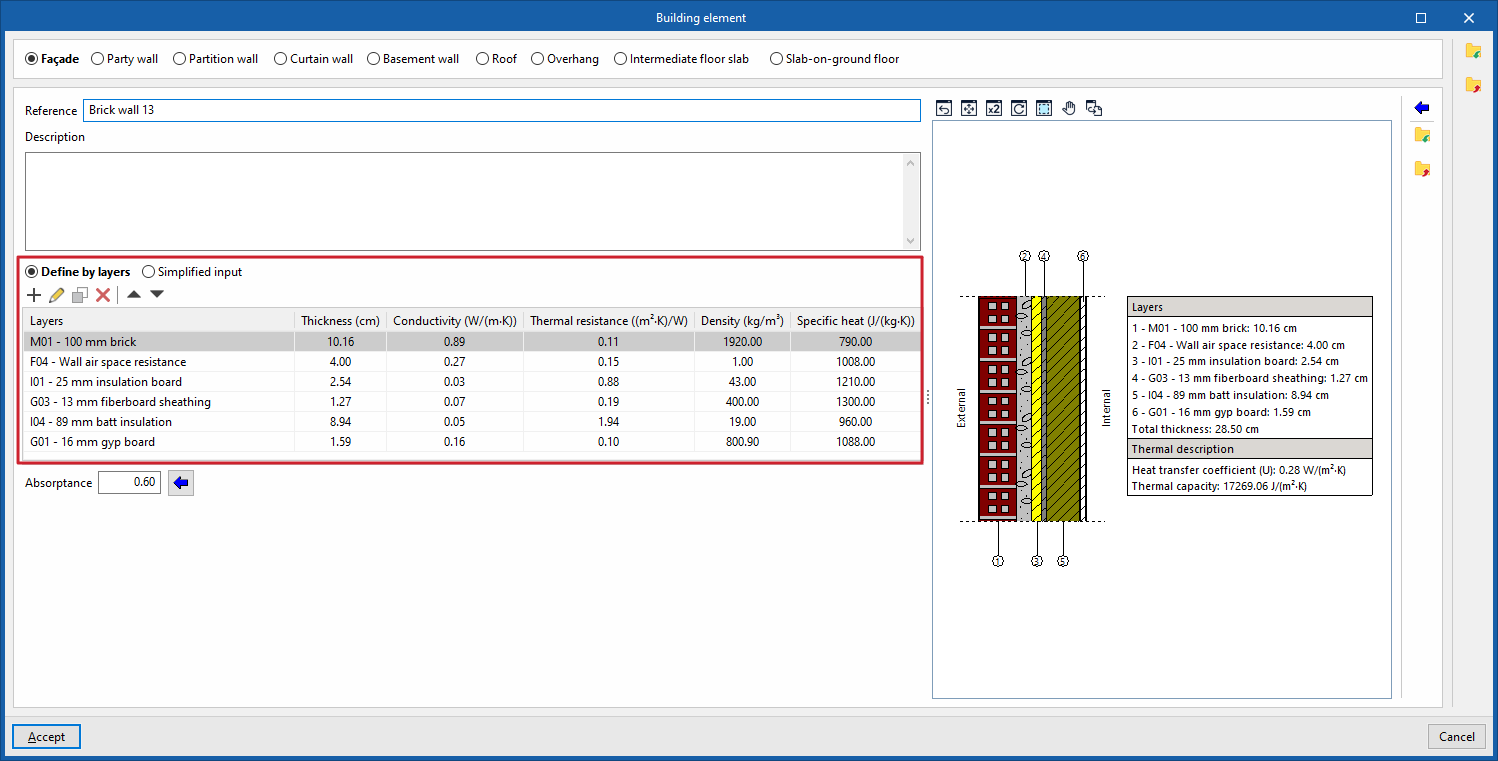
In the building element libraries, if an element is defined by layers (by selecting the "Define by layers" option), the program displays a table in which you can add, edit, copy, delete or reorder the material layers that make up the element.
The layers of materials that make up the building envelope are defined in order, from the outside in for vertical building envelopes (walls), and from top to bottom for horizontal building envelopes (floors).
Defining materials
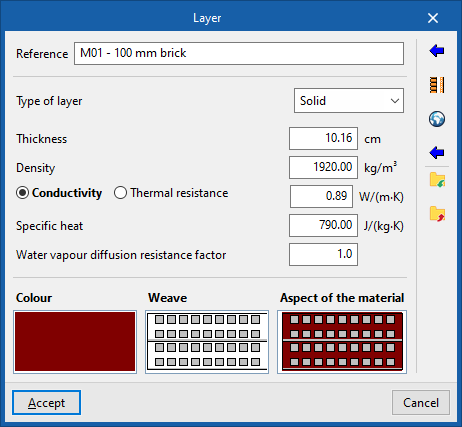
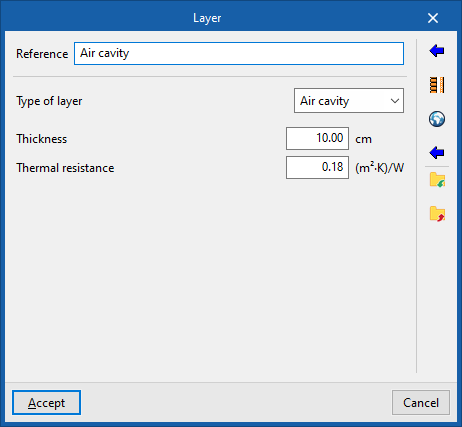
The materials used in opaque enclosures are classified as solid materials, air cavities (including ventilated ones) and vapour barriers. The thermal properties of each material must be defined according to the "Type of layer".
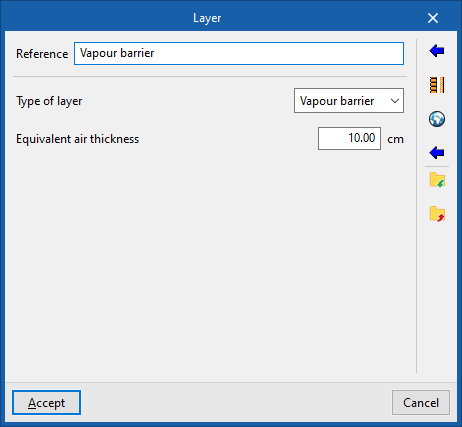
Therefore, when adding a layer of material, you must specify the following parameters in the "Layer" window:
- Reference
Reference for the material layer. - Layer type
Select whether the layer is solid, an air cavity or a vapour barrier.- Solid
- Thickness
- Density
- Conductivity / Thermal resistance
- Specific heat
- Water vapour diffusion resistance factor
- Air cavity
- Thickness
- Thermal resistance
- Vapour barrier
- Equivalent air thickness
- Solid
- Colour / Pattern / Aspect of the material
Adjust the visual representation of the layer’s material.
| Note: |
|---|
| You can model any set of material layers (for example, a new construction system for which a technical data sheet containing general information is available) as a single layer by determining and entering the "Thickness", "Density" and, alternatively, the "Thermal conductivity" or "Thermal resistance" of the set, as well as estimating its "Specific heat". The value for the "Water vapour diffusion resistance factor" is exceptionally high in impermeable materials, which act as vapour barriers, and very low in all others. |
Importing materials from catalogues
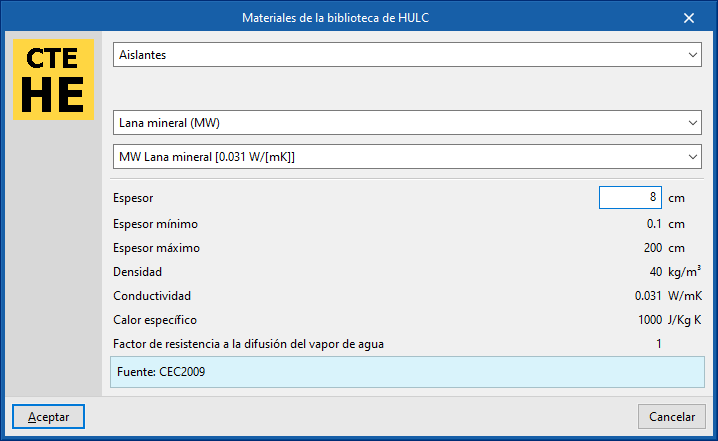
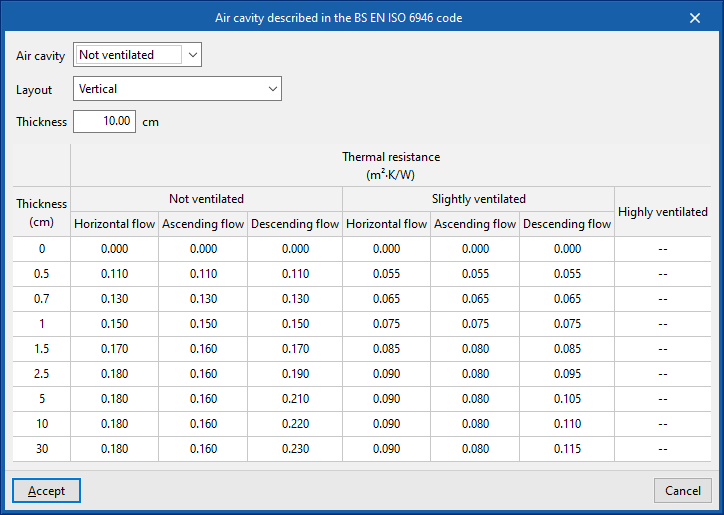
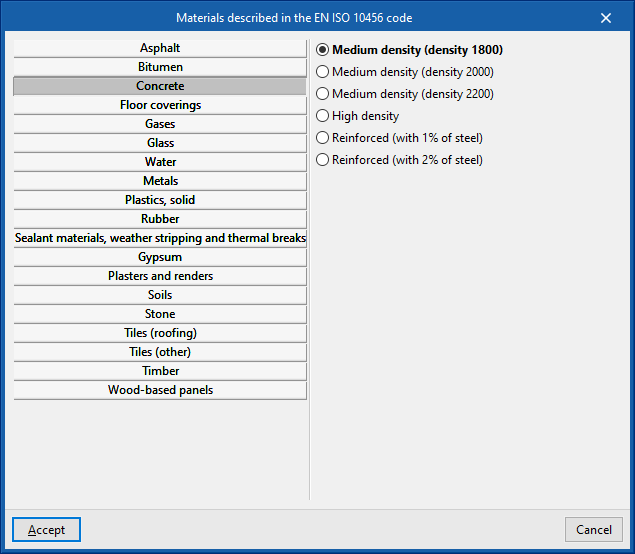
The options in the right-hand column of the definition window for each material layer allow you to automatically import material data based on information provided by various catalogues and standards, such as the following:
- Materials
Import material data from one of the manufacturers in the Open BIM Database (downloaded via the "Catalogues" option in the main interface) by selecting the catalogue and the desired product. - Materials from the HULC library
- Inflatable chamber as described in the UNE-EN ISO 6946 standard
- Materials described in the UNE-EN ISO 10456 standard (under the "Thermal loads" project type)
- Materials described in the EN ISO 10456 standard
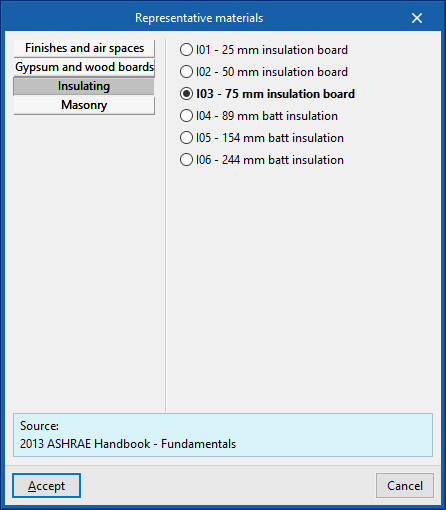
- Representative materials (2013 ASHRAE Handbook – Fundamentals)
- Concrete floor systems (for "Thermal loads" project type)
Importing materials into files on disk
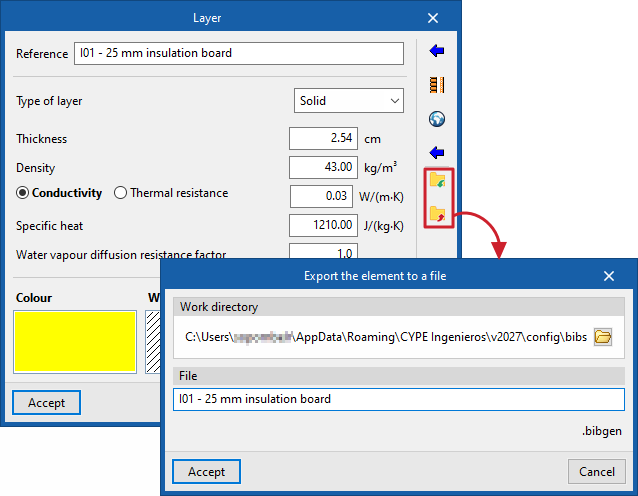
In addition, there are options in the right-hand column of the "Layer" window that let you import and export the defined material data to .bibgen files on the hard drive.
Simplified definition of structural elements
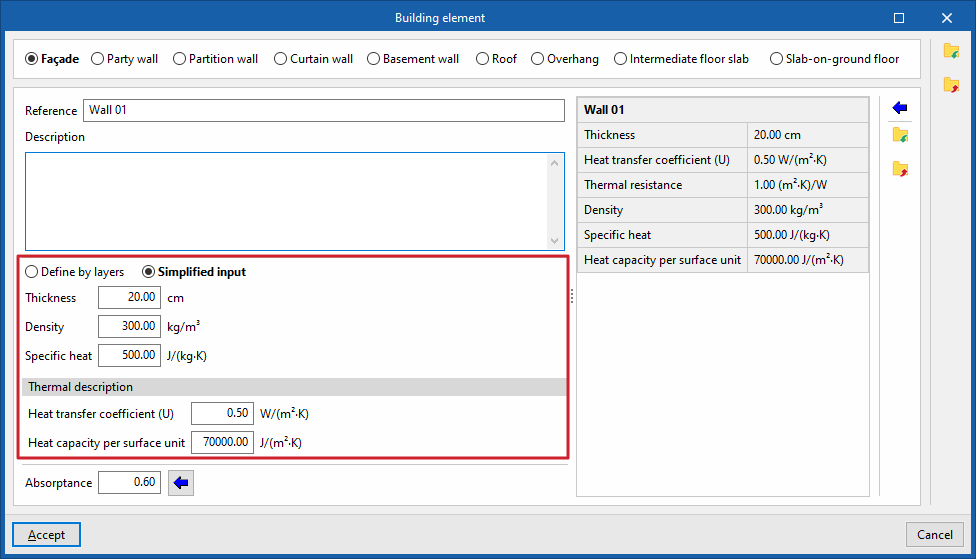
In the building element libraries, the "Simplified definition" of an element type involves entering its overall thermal properties. This is useful if the layer-by-layer data is not known, if these properties are available, or if they have been calculated outside the program.
- Simplified definition
- Thickness
- Density
- Specific heat
- Thermal description
- Heat transfer coefficient
- Heat capacity per surface unit
| Note: |
|---|
| The "Heat capacity per surface unit" property does not feature in the energy simulation and is used solely for the purposes of compiling the results reports. |
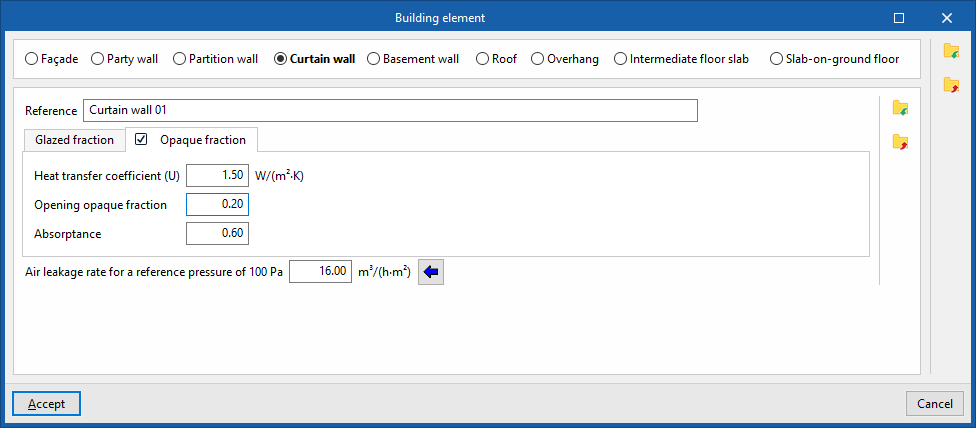
Defining curtain walls
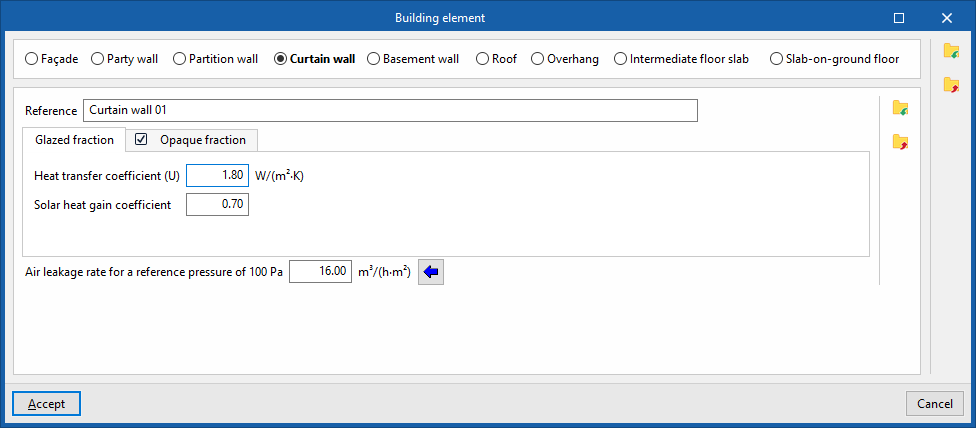
In the building element libraries, "Curtain wall" elements let you simulate glazed openings by entering data for both the glazed fraction and, optionally, the opaque fraction:
- Reference
Curtain wall type reference. - "Glazed fraction" tab
- Heat transfer coefficient (U)
The thermal transmittance value of the glazed section. - Solar heat gain coefficient
- Heat transfer coefficient (U)
- "Opaque fraction" tab (optional)
- Heat transfer coefficient (U)
The heat transfer coefficient value of the opaque portion. - Opening opaque fraction
This parameter lets you define the proportion of opaque elements covering the total surface area of the curtain wall, as a ratio. - Absorptance
- Heat transfer coefficient (U)
- Air leakage rate for a reference pressure of 100 Pa (in the "Energy simulation" project type)
The options on the right can be used to "Import" and "Export" these settings to .bib687 files on your hard drive.
| Note: |
|---|
| In the "3D Model" tab, a curtain wall is entered as a "Façade". It must then be defined in the element library on the "Building" tab using the "Curtain wall" type. |
Door libraries ("Building" tab)
The definition of the doors’ characteristics in the project’s libraries is necessary in order to specify the data relating to their thermal performance.
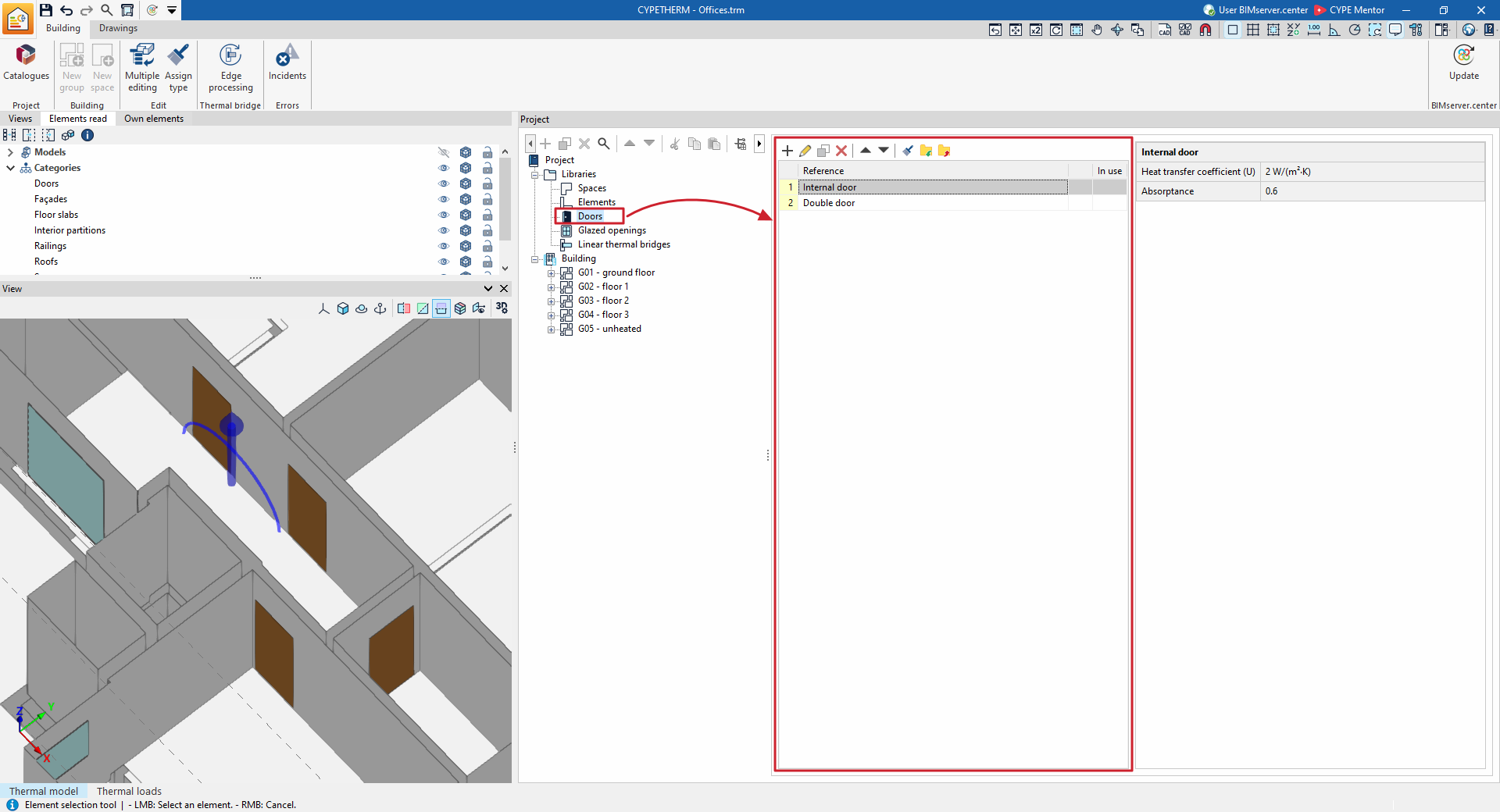
The model’s door library can be found on the "Building" tab and, within the tree structure in the left-hand side panel of the "Project" definition, under the "Libraries" section, by then selecting the "Doors" level.
When you select each door type from the list, the program will highlight the doors associated with that type in orange in the model’s "View". It will also display a table showing their properties to the right of the "Project" panel.
Defining doors
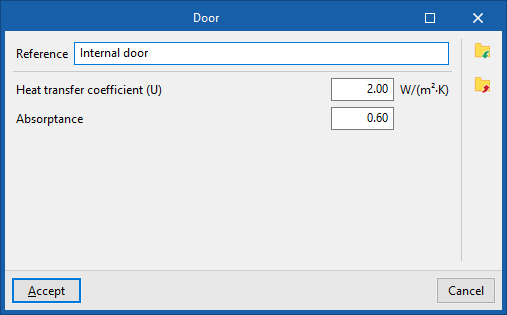
When adding or editing a door type in the library, a window opens in which you need to configure the following parameters:
- Reference
Door type reference. - Heat transfer coefficient (U)
Thermal transmittance of the door in the units shown. - Absorptance
The absorptance ranges from 0 to 1. This coefficient is lower for light-coloured surfaces and higher for dark-coloured surfaces.
In addition, the options in the right-hand column of the window allow you to do the following:
- Import / Export (settings)
These options let you import and export the door type to .bib07 files on disk.
| Note: |
|---|
| Doors defined in this way are treated as completely opaque elements and can be used to define a variety of types (internal or external doors, entrance gates, garage doors, etc.). If you wish to define a translucent or glazed door, you should use the "Glazed openings" library. |
Glazed openings library (the "Building" tab)
The definition of the characteristics of glazed openings in the libraries of the project is necessary in order to specify the data relating to their thermal performance. This data can be entered manually or by referring to various catalogues and reference standards containing predefined materials, and will affect the calculation performed by the program.
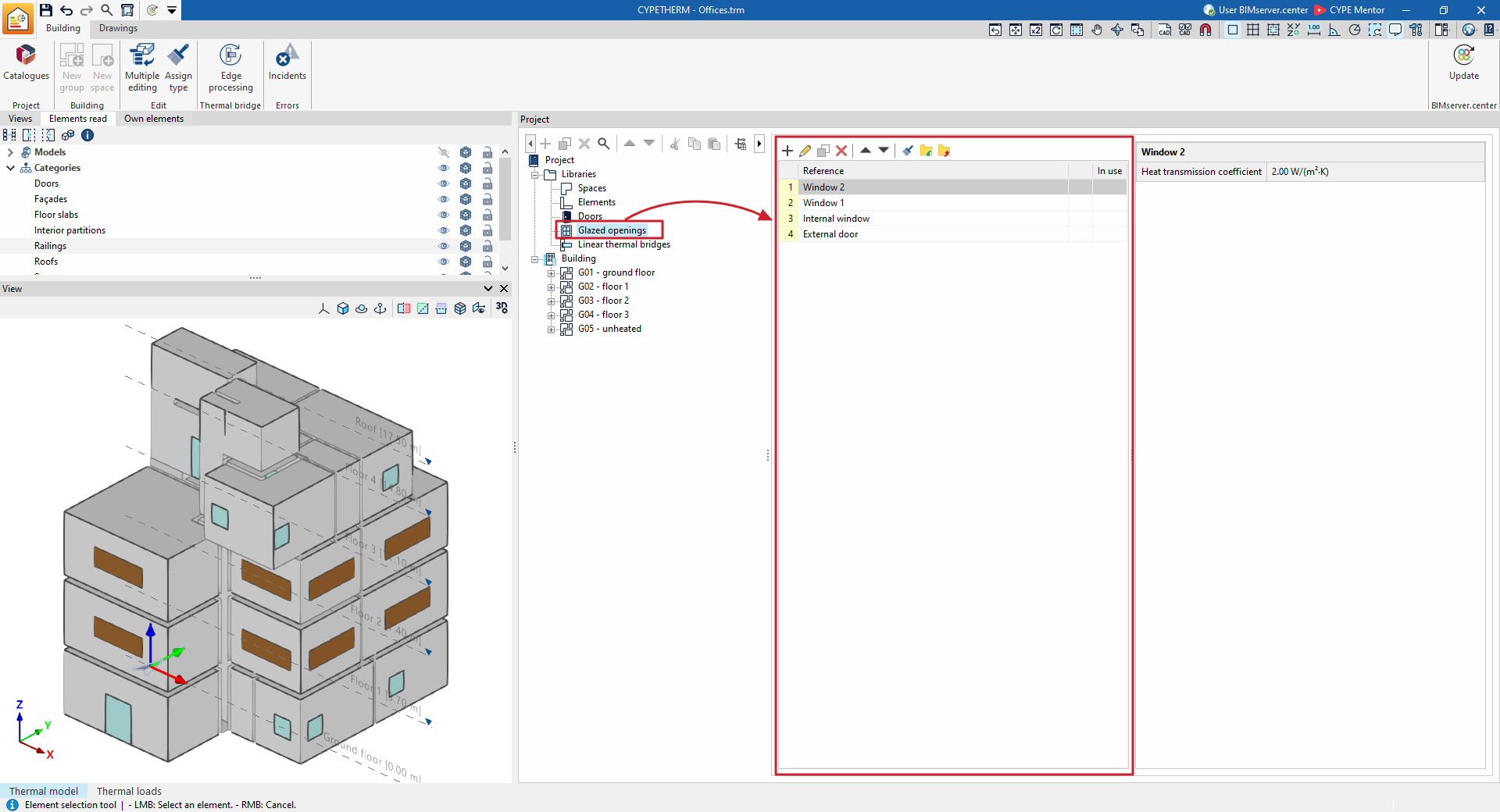
The tools for managing the model’s glazed opening libraries can be found on the "Building" tab and, within the "Project" tree view, in the "Libraries" section, after selecting the "Glazed openings" level.
Glazed openings can be exported to files on the hard drive with the .bib934 extension.
The parameters used to define each glazed opening in the library depend on the type of project selected:
| Note: |
|---|
| "Glazed openings" are translucent openings that allow solar radiation to pass through and are incorporated into building elements such as windows, glazed doors or skylights. The program also lets you define a "Curtain wall" in the "Elements" category. If this type of building element is used, you don't need to add glazed openings to it. |
Defining glazed openings for building energy simulation
If "Energy simulation" has been selected as the project type, the following parameters must be defined for the glazed opening types:
- Reference
Reference for the type of glazed opening. - Air permeability at a reference pressure of 100 Pa.
This value is used to calculate air infiltration and is determined by the class of the joinery. Standard values can be imported using the wizard on the right.
The remaining parameters for the opening are defined in the following tabs:
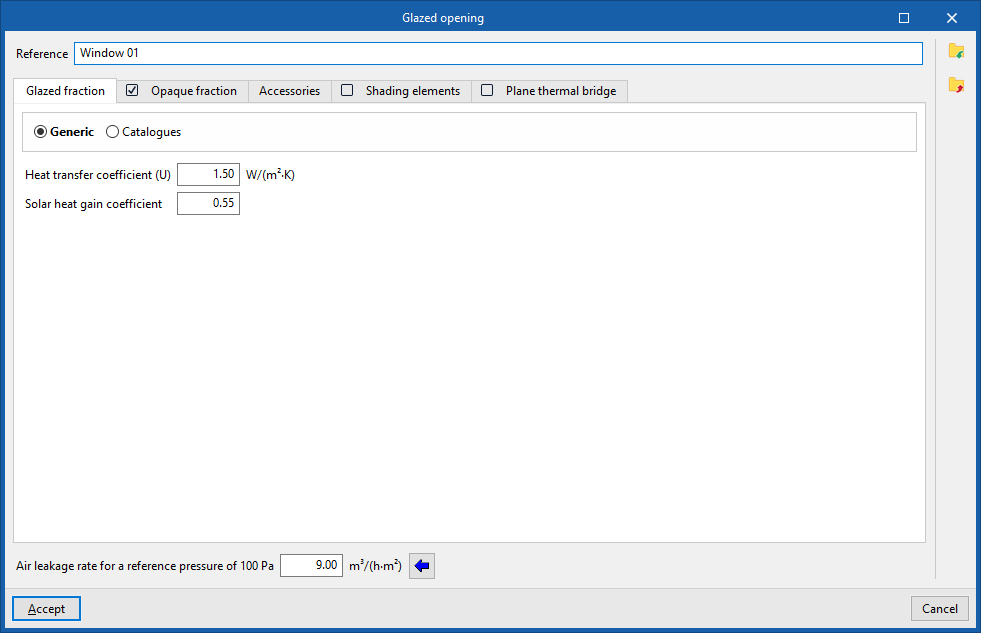
"Glazed fraction" tab
Specify the heat transfer coefficient (U-value) and the solar factor for the opening. If the "Opaque fraction" tab is selected, the values entered in this panel will apply only to the glazed fraction of the opening. Otherwise, they will affect the entire geometry of the opening.
- Generic
Enter the parameters of the glazed fraction directly:- Thermal transmittance (U)
Thermal transmittance of the glazed fraction. - Solar factor
The solar factor of the glazing, or the proportion of solar radiation that the glazing transmits, expressed as a ratio. The lower this factor, the less solar radiation enters the interior.
- Thermal transmittance (U)
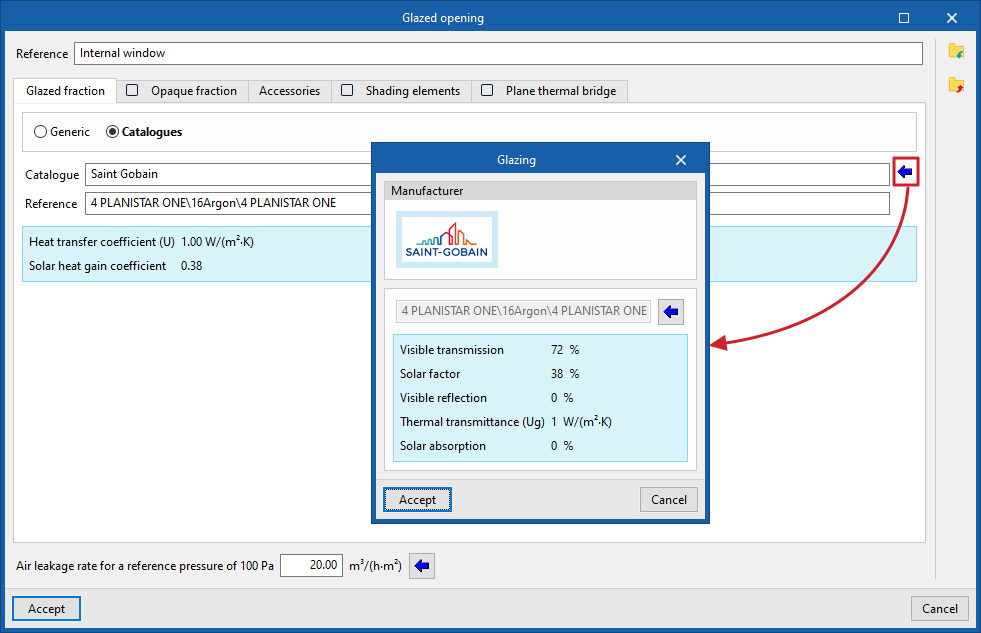
- Catalogues
Import data on the glazed fraction from the glazing products of manufacturers available in the Open BIM Database, which have been previously downloaded via the "Catalogues" option in the main interface.
"Opaque fraction" tab (optional)
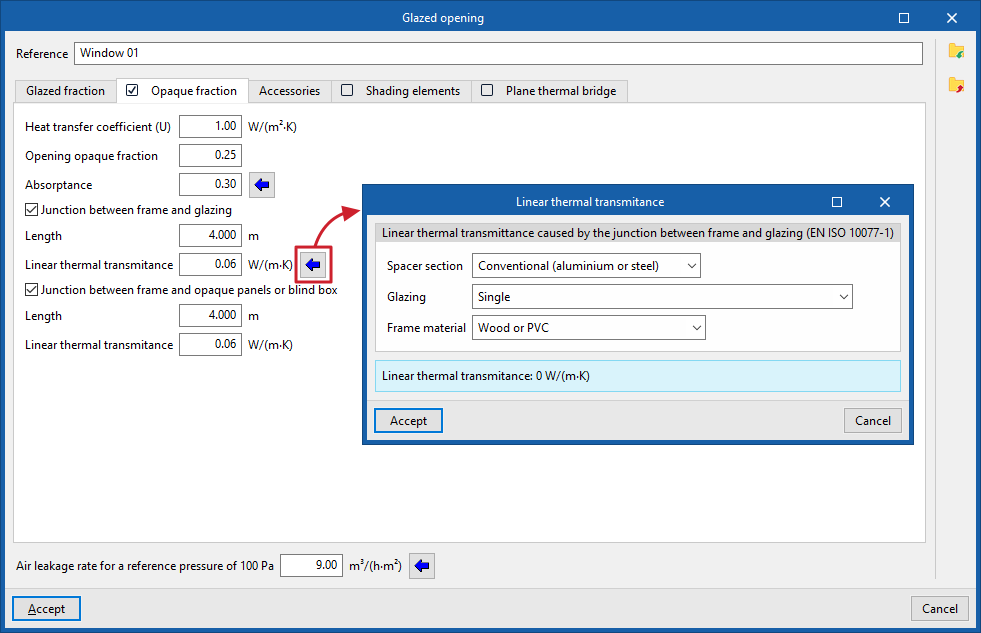
Specify the opaque fraction or frame fraction of the opening and its thermal properties, as well as the presence of thermal bridges caused by the connection between the different parts that make up the opening, which are defined by their length and their linear thermal transmittance.
- Thermal transmittance (U)
Thermal transmittance of the opaque fraction. - Opaque portion of the opening
The proportion of the opening, expressed as a ratio, occupied by the opaque part (frame or joinery). - Absorptivity
The coefficient of absorption of incident radiation by the frame. - Coupling between frame and glazing (optional)
Ticking this box indicates the presence of thermal bridges caused by the coupling between the frame and the glazing.- Length
The length of the thermal bridges between the glazing and the frame. - Linear thermal transmittance
Linear thermal transmittance of thermal bridges between the frame and the glazing. On the right, there is a wizard to help determine this parameter using values from the EN ISO 10077-1 standard.
- Length
- Joint between the frame and opaque panels or roller shutter box (optional)
Ticking this box indicates the presence of thermal bridges caused by the joint between the frame and the opaque panels or the roller shutter box.- Length
The length of the thermal bridges between the frame and the opaque panels or the roller shutter box. - Linear thermal transmittance
Linear thermal transmittance of the thermal bridges between the frame and the opaque panels or the roller shutter box.
- Length
"Accessories" tab
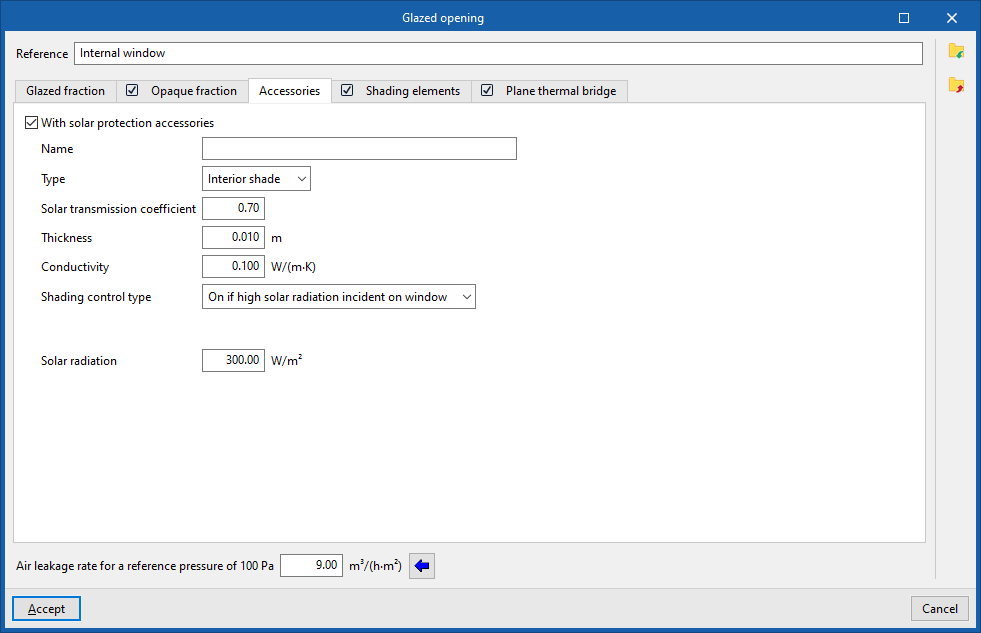
Add external sun protection accessories (roller shutters, slats, shutters, etc.) or internal ones (curtains, blinds, Venetian blinds, etc.) and set how they are activated.
- With solar protection accessories (optional)
- Name
- Type (Internal blind / External blind)
- Solar transmission coefficient
The proportion of solar radiation that passes through the fitting, on a one-to-one basis. - Thickness
- Conductivity
- Shading control type
- Always on
Treat the defined shading as always active at all times of the year. - Always off
Treat the defined shading as if it were always off. - On if schedule allows
Create and edit a schedule for hourly, daily, weekly or monthly use, specifying the times when shading is active or inactive in detail. - On if high solar radiation incident on window
Set a maximum solar radiation value, above which the shading system will be considered active.- Maximum solar radiation
- Always on
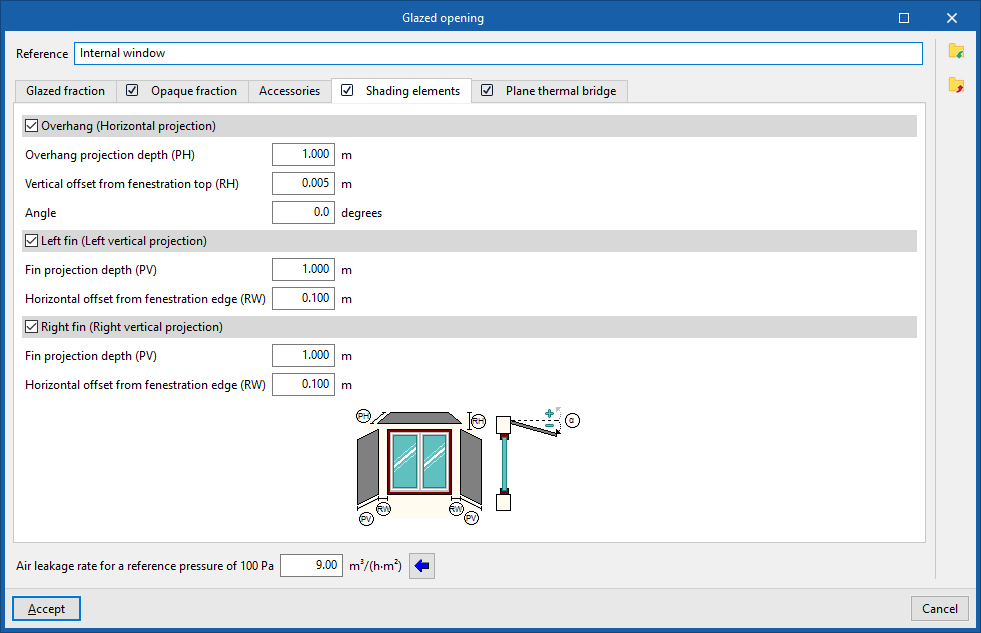
"Shading elements" tab (optional)
Shading elements allow the effect of façade projections – such as recesses, window overhangs or lateral projections that cast shadows over the opening – to be simulated, should they not have been defined in the geometric model, included in the building’s element tree or added to it.
- Overhang (horizontal projection) (optional)
- Overhang projection depth (PH)
- Vertical offset from fenestration top (RH)
- Angle
- Left fin (left vertical projection) (optional)
- Fin projection depth (PV)
- Horizontal offset from fenestration edge (RW)
- Right fin (Right vertical projection) (optional)
- Fin projection depth (PV)
- Horizontal offset from fenestration edge (RW)
The program displays a generic diagram at the bottom showing the layout of the opening and the possible shading elements, which helps to define its parameters.
| Note: |
|---|
| The program can automatically calculate the shadows cast on glazed openings by elements of the building model, as well as by neighbouring buildings and other obstacles, which are recorded in the geometry of the "Building" element tree, its "Own shadows" and "Remote shadows". The options for defining shadow-casting elements on glazed openings allow this data to be entered manually if it cannot be obtained from these other sources of information. |
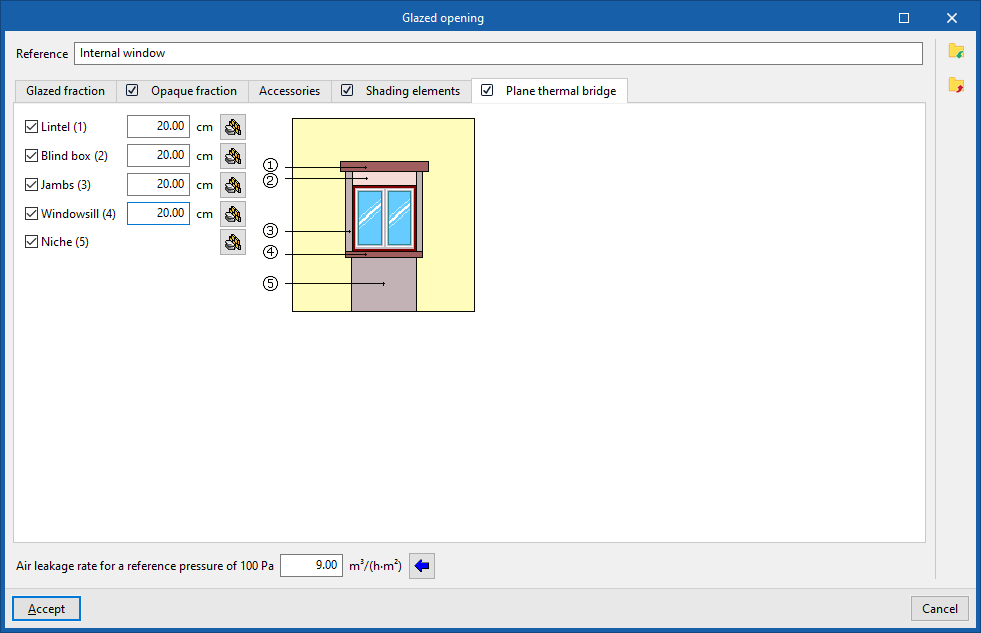
"Plane thermal bridge" tab (optional)
Plane thermal bridges enable the definition of the structural elements that make up the flat surfaces surrounding the opening, where their characteristics differ from those of the structural element in which the opening is situated, in order to take account of heat transfer through them.
By selecting this tab, you can define the several plane thermal bridges available. These are:
- Lintel (optional)
- Blind box (optional)
- Jambs (optional)
- Windowsill (optional)
- Niche (optional)
The program displays a generic diagram on the right-hand side showing the opening and any potential flat thermal bridges, which helps to understand their layout.
For each of these, the width must be specified. This width, together with other details such as the width or height of the recess, will determine the area of the flat thermal bridge. In the case of niches, the plane thermal bridge extends from the floor to the opening.
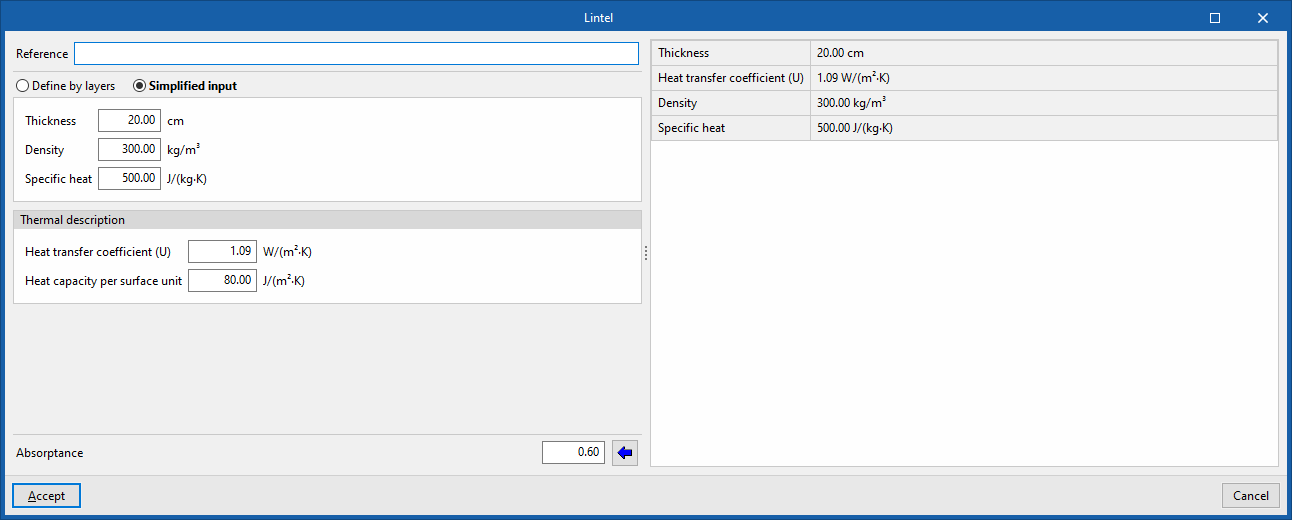
When editing each plane thermal bridge, you can define its characteristics by layers of materials or, in a simplified way, through its overall thermal properties, in the same way as for opaque structural elements:
- Reference
- Define by layers / Simplified definition
- Absorptance
Defining glazed openings for the calculation of thermal loads
If "Thermal loads" has been selected as the project type, the following parameters must be defined for glazed openings:
- Reference
Reference for the type of glazed opening.
The remaining parameters for the opening are defined in the following tabs:
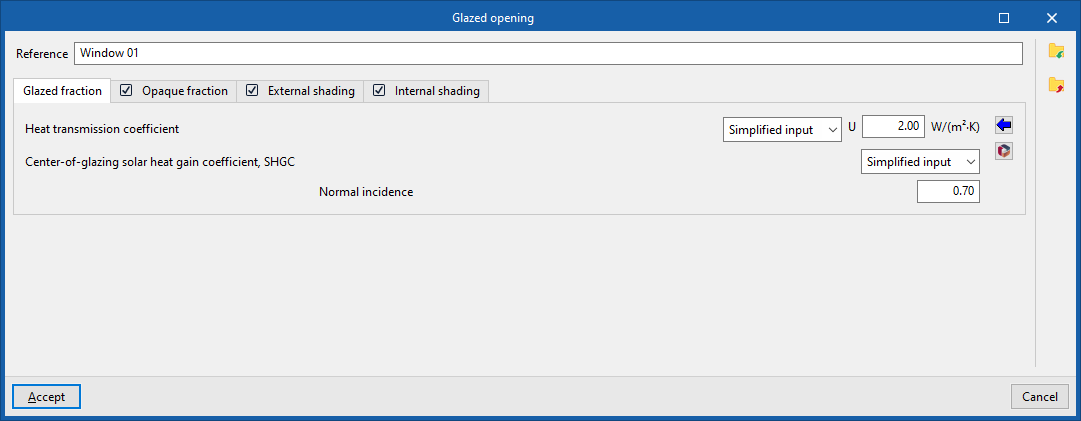
"Glazed fraction" tab
Specify the heat transfer coefficient and the solar factor for the opening. If the "Opaque fraction" tab is selected, the values entered in this panel will apply only to the glazed portion of the opening. Otherwise, they will affect the entire geometry of the opening.
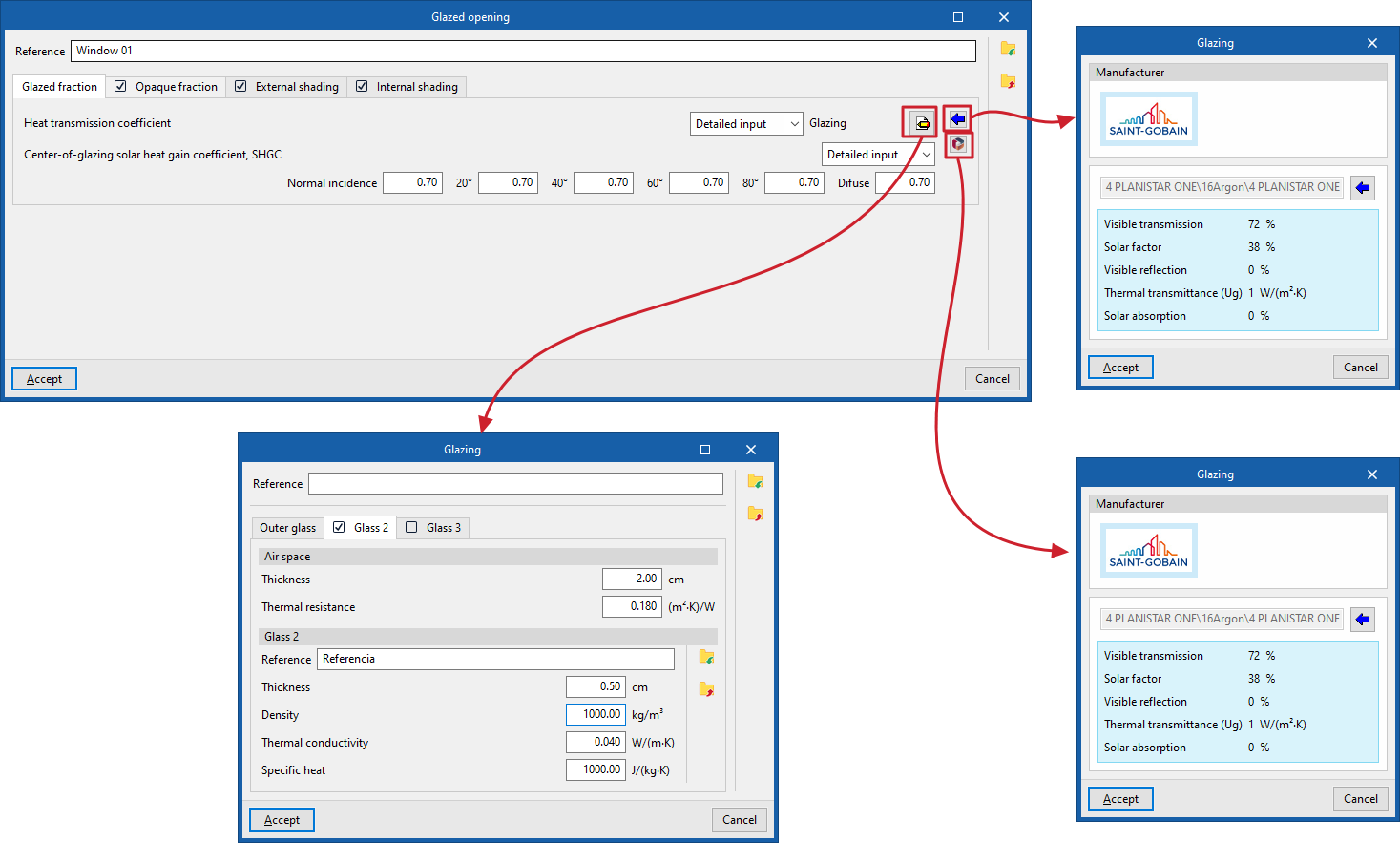
- Heat transmission coefficient
Thermal transmittance of the glazed area. This can be defined in either a simplified or detailed way:- Simplified definition
The transmittance (U) of the glazed section is entered directly. - Detailed definition
Opens a window in which the "Glazing" is defined by entering the following parameters, based on which the transmittance will be calculated automatically.- Reference
Glazing reference. - External glazing
Define single-glazed units. The data for each pane of glass can be imported and exported to .bibgen files on disc.- Reference, Density, Thermal conductivity, Specific heat
- Glass 2 (optional)
Selecting this tab defines double glazing.- Air cavity
- Thickness, Thermal resistance
- Glass 2
- Reference, Density, Thermal conductivity, Specific heat
- Air cavity
- Glass 3 (optional)
Selecting this tab sets triple glazing.- Air cavity
- Thickness, Thermal resistance
- Glass 3
- Reference, Density, Thermal conductivity, Specific heat
- Air cavity
- Reference
- Simplified definition
- Solar heat gain coefficient (SHGC): the solar heat gain coefficient of glazing, or the proportion of solar radiation that the glazing allows through, expressed as a ratio. The lower this coefficient, the less solar radiation enters the building. It can be defined in either a simplified or detailed manner:
- Simplified definition
The data for the "Normal incidence" of radiation on the glazing is entered. - Detailed definition
The data for "Normal incidence" of direct radiation on the glazing is entered for the angles "20°", "40°", "60°" and "80°", and for "Diffuse" radiation.
- Simplified definition
The buttons on the right allow you to download and import glazing data from one of the manufacturers’ catalogues available in the Open BIM Database.
"Opaque fraction" tab (optional)
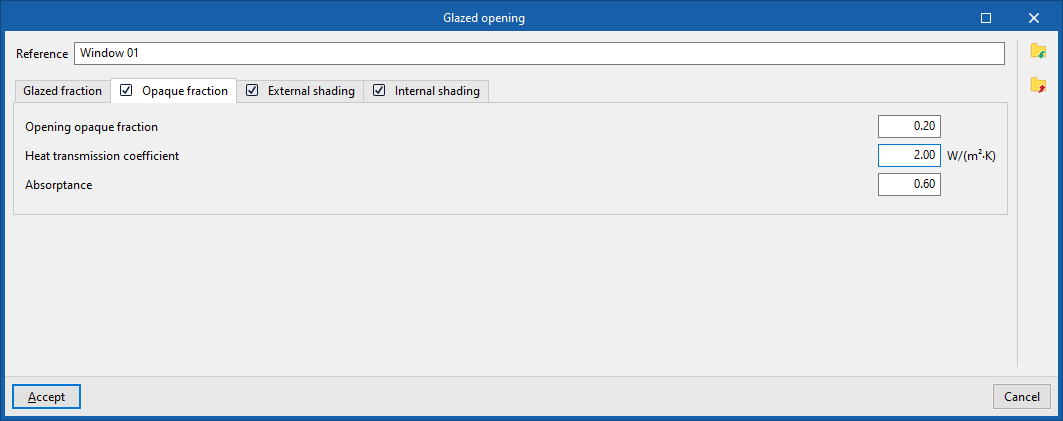
Specify the opaque fraction or frame fraction of the opening and its thermal properties.
- Opaque opening fraction
The proportion of the opening, expressed as a ratio, occupied by the opaque part (frame or carpentry). - Heat transmission coefficient
Thermal transmittance of the opaque portion. - Absorptance
The coefficient of absorption of incident radiation by the frame.
"External shading" tab (optional)
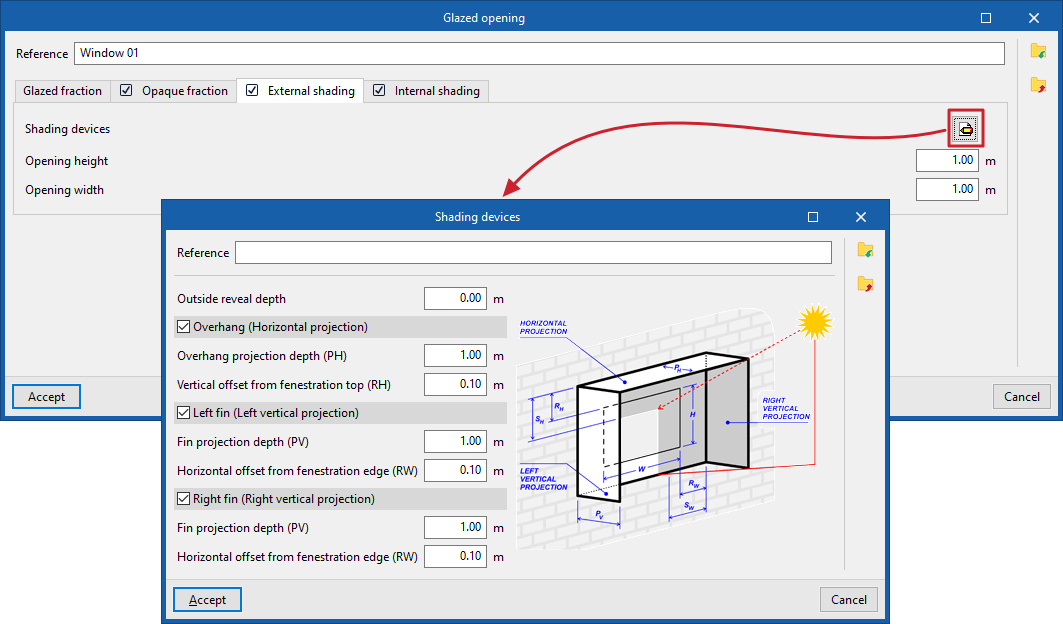
By selecting this tab, you can simulate the effect of façade projections such as recesses, window overhangs or lateral projections that cast shadows over the opening, should they not have been defined in the geometric model, included in the building’s element tree or entered into it.
- Shading devices
The program displays a generic diagram showing the layout of the opening and the possible shading devices, which helps in defining their parameters:- Outside reveal depth
The distance by which the opening is set back from the outer face of the façade cladding. - Overhang (horizontal projection) (optional)
- Overhang projection depth (PH)
- Distance to top edge of opening(RH)
- Left-hand side (vertical projection) (optional)
- Fin projection depth (PV)
- Distance to side edge of the opening (RW)
- Right-hand side (vertical projection) (optional)
- Fin projection depth (PV)
- Distance to side edge of the opening (RW)
- Outside reveal depth
- Opening height
- Opening width
| Note: |
|---|
| The program can automatically calculate the shadows cast on glazed openings by elements of the building model, as well as by neighbouring buildings and other obstacles, which are captured in the geometry of the "Building" element tree, its "Own shadows" and "Remote shadows". The options for defining shadow-casting elements on glazed openings allow this data to be entered manually if it cannot be obtained from these other sources of information. |
"Internal shading" tab (optional)
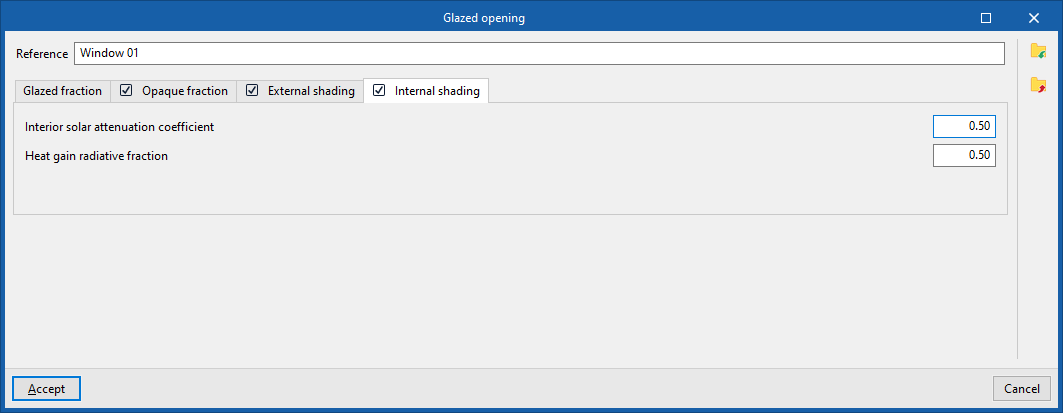
By selecting this tab, you can simulate the effect of shading accessories (such as shutters, blinds, slats, curtains, roller blinds or Venetian blinds) by entering the following parameters.
- Interior solar attenuation coefficient
Reduction in the solar factor of the opening resulting from the use of the fitting. This value must be between 0.10 and 1. - Heat gain radiative fraction
A factor used in the calculation of summer heat loads, representing the proportion of the total energy passing through the component in the form of radiant energy. This value must be between 0.10 and 1.
Linear thermal bridge library (the "Building" tab)
Defining the characteristics of linear thermal bridges in the project libraries lets you specify their details, such as linear thermal transmittance. This data can be entered manually, imported from reference standard catalogues, or calculated using a linear finite element model, and will influence the calculations performed by the program.
The tools for managing the library of linear thermal bridges can be found on the "Building" tab and, within the "Project" tree view, in the "Libraries" section, after selecting the "Linear thermal bridges" level.
Linear thermal bridges can be exported to files on the hard drive with the .bib10 extension.
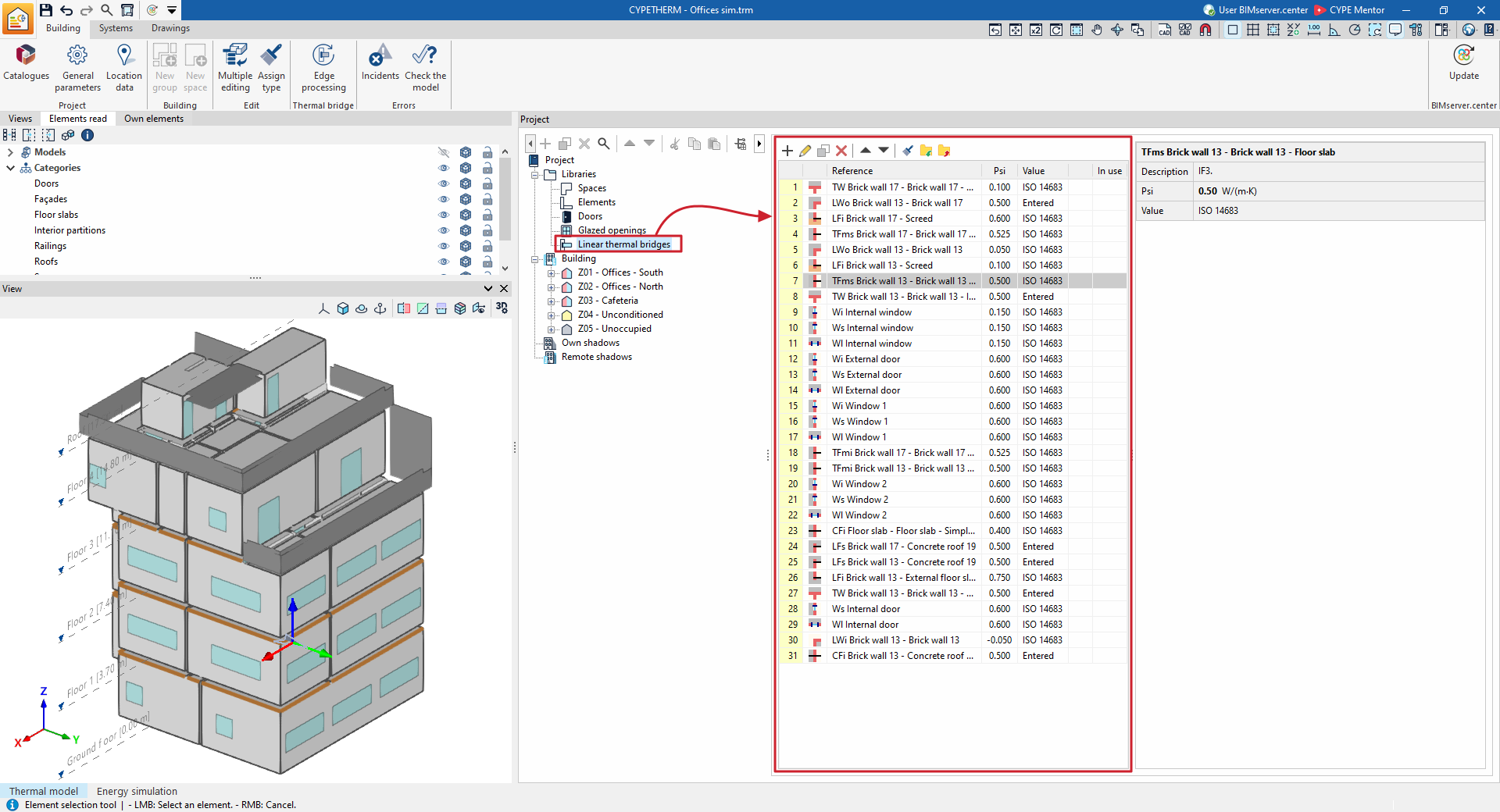
| Note: |
|---|
| Linear thermal bridges can occur at the edges or junctions of the building’s various structural elements, both between themselves and where they meet the ground. In the most common workflows, the types of linear thermal bridges will appear directly in this section after importing BIM models from a BIMserver.center project, when the "Import thermal model from project" option is enabled. Subsequently, to edit and adjust the building’s linear thermal bridges as a whole, use the "Edge processing" option in the toolbar at the top of the "Building" tab. In this way, the program automatically modifies the data for the linear thermal bridge types in accordance with the edge processing configuration parameters. However, you can freely edit or modify a specific type of thermal bridge on a case-by-case basis using the options described in this section. |
Editing types of linear thermal bridges
When creating or editing a thermal bridge type in the library, the program allows you to configure the following parameters:
- Reference
- Type selection (for the "Thermal loads" project type)
The connection types available in this project type are represented by different symbols, which are listed below. - Description
- Psi (W/(m·K))
Linear thermal transmittance. - Value (Undefined / Entered / ISO 14683 / ISO 10211 / CTE DB-HE)
Source of the value. Thermal bridges marked with the "Undefined" option will not be included in the energy simulation. - Meeting type (under the "Energy simulation" project type)
The following meeting types are available for this project type:- Intersection of façade with floor slab
- Meeting between façade and roof
- Intersection of façade with overhang
- Intersection of façade with slab-on-ground
- Projecting corner of the façades
- Incoming corner of the façades
- Window opening
- Column
- Other (not considered in the reference building)
This information can be entered using the assistance buttons on the right, which enable automatic data import, as described in the following section.
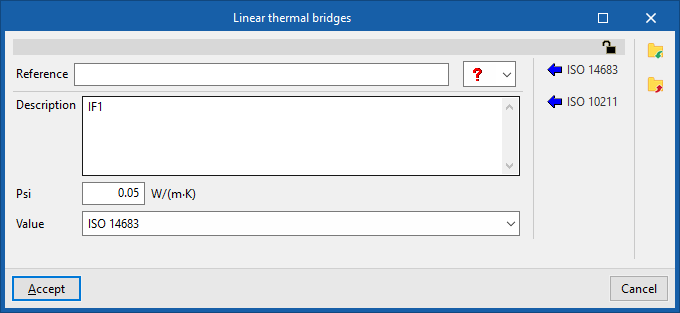
The program also features a padlock icon in the top right-hand corner, which lets you lock or unlock the parameters for the linear thermal bridge type. If the values are locked using this option, the program retains the information entered by the user in this panel and does not modify it during "Edge processing".
Automatic data import
You can automatically import data for linear thermal bridges using the following standards and methods:
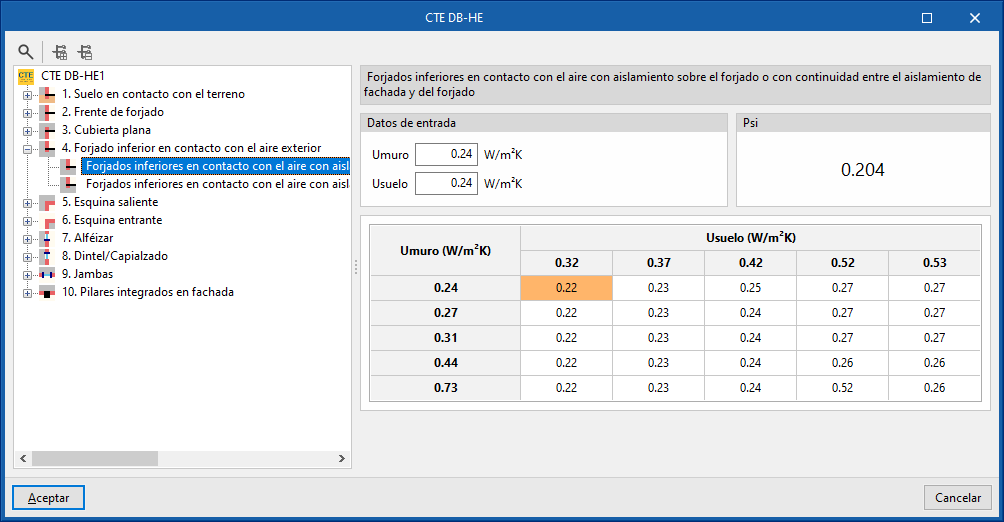
- CTE DB-HE (available in Spanish in the installation)
Import data from the thermal bridge atlas contained in the supporting document DA DB-HE/3 "Thermal Bridges" of the Spanish regulations, with its characterisation based on the construction system.
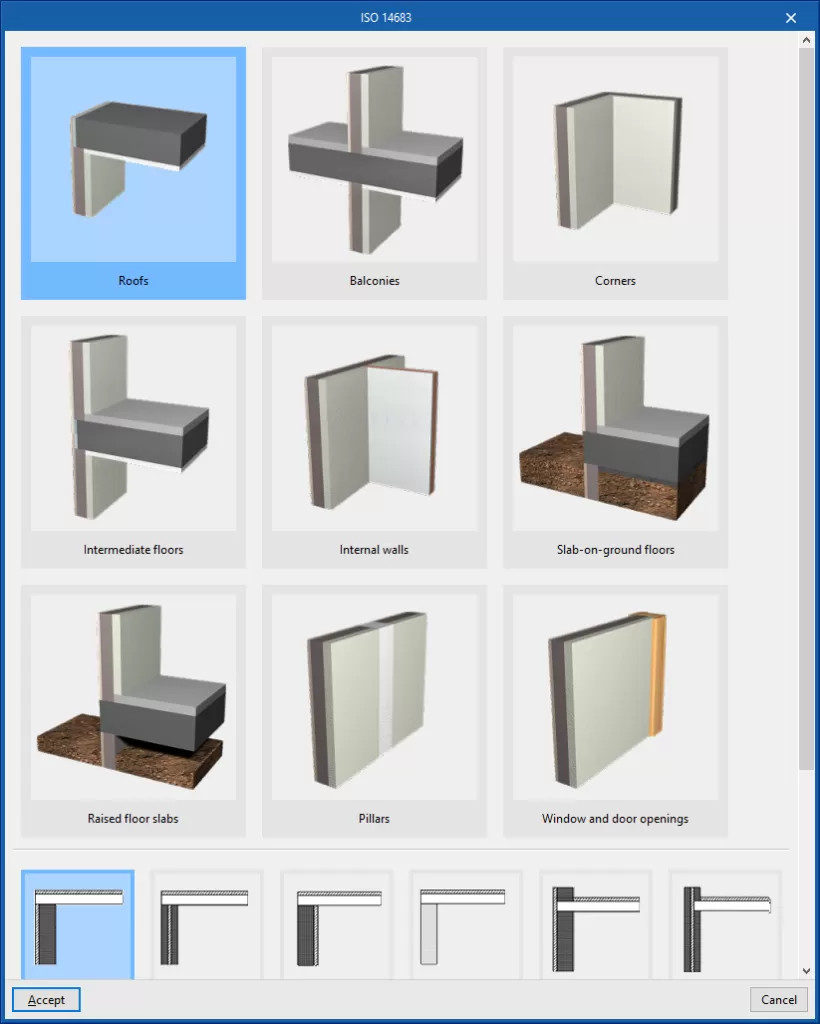
- ISO 14683
Import of thermal bridge data collected in accordance with the various types specified in the ISO 14683 standard.
- ISO 10211
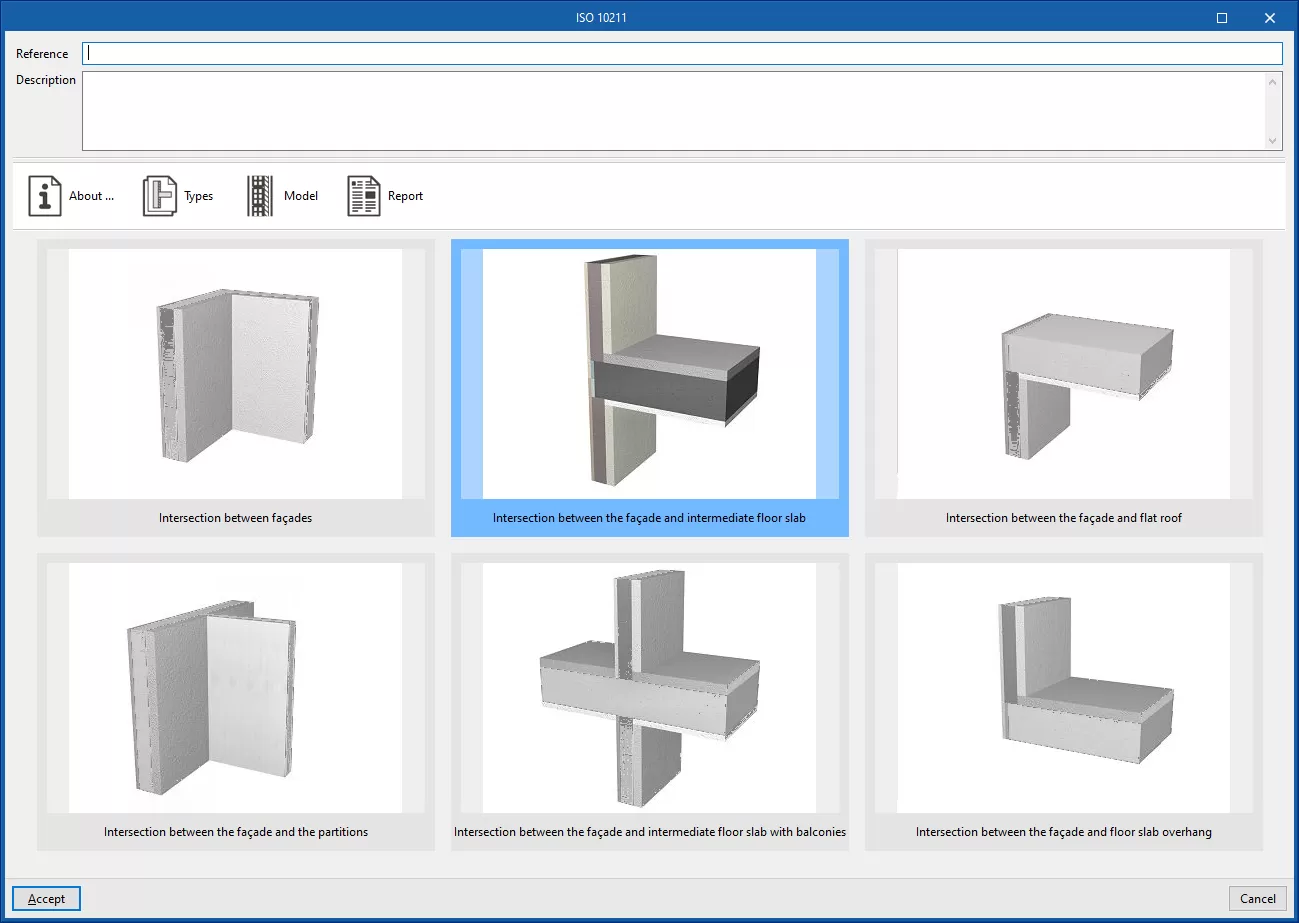
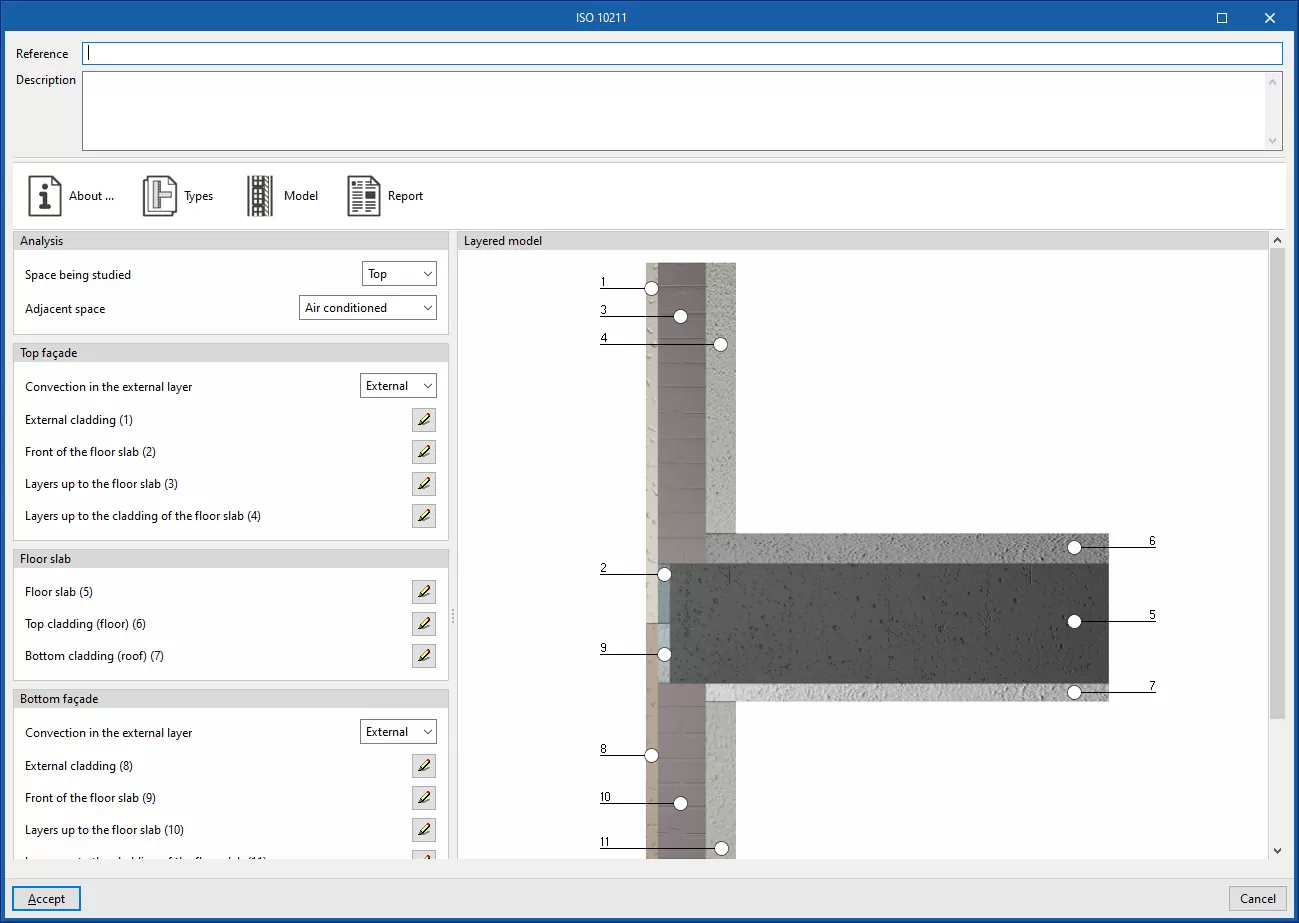
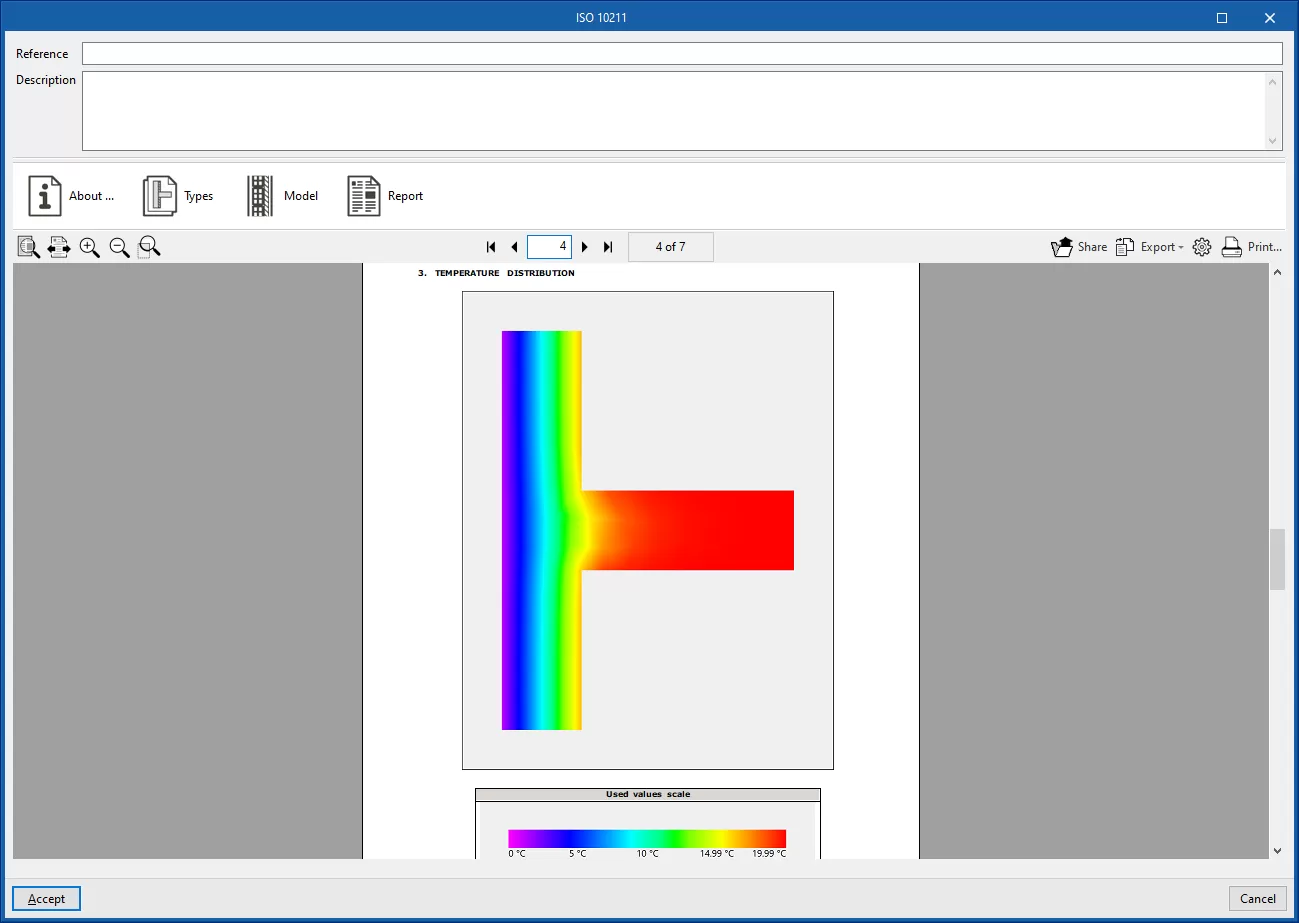
Determine the thermal transmittance of linear thermal bridges using a finite element analysis based on the EN ISO 10211 standard. This method is equivalent to that used by standalone programs such as CYPETHERM BRIDGES. The program displays a wizard with the following tabs:- About...
Informative text on the analysis method used and its implementation in the program. - Type
Select the type of thermal bridge. - Model
Details of the thermal bridge model, based on the definition of the material layers located at each of the positions indicated in the diagram. - Report
Report on the calculation of the linear thermal transmittance of the thermal bridge using the finite element analysis set out in the specified standard.
- About...
Types of intersection
In the library’s list of linear thermal bridges, the various columns show the numbering for each type of bridge, the symbols associated with the type of connection, the "Reference" for the type of linear thermal bridge, the linear thermal transmittance value ("Psi"), and details of the source of its "Value", whether there are any issues with it, and whether it is "In use" in the model or not.
The type of intersection associated with a linear thermal bridge is indicated by one of these symbols, which represent a cross-section or plan view of the intersection and use the following colour code:
- Grey: outdoor environment
- White: interior environment
- Ochre: earth-coloured
- Salmon: wall (enclosure, external wall or internal wall)
- Black: reinforced concrete, slab-on-ground floor, cantilever or column
- Blue: glazed opening
- Dark blue: outline of the opening
| Symbol | Description of the intersection | |
 | Intersection between the external wall and the floor in contact with the ground | |
 | Intersection between the external wall, cantilevered floor slab and external wall [Example: raised floor slabs] | |
 | Intersection between the cantilever, internal wall, internal floor slab and external wall | |
 | Intersection between the cantilever, internal floor slab and external wall | |
 | Intersection between the external floor slab, the building envelope and the cantilevered floor slab | |
 | Intersection between external walls and internal floor slabs [Example: floor slab edges] | |
 | Intersection between external walls, internal floor slab and external floor slab [Example: cantilevered floor slabs on balconies] | |
 | Intersection between the external wall and the roof slab | |
 | Intersection between the roof slab, the building envelope, the internal floor slab and the internal wall | |
 | Intersection between the roof slab, the building envelope and the internal floor slab | |
 | Intersection between walls at a projecting corner | |
 | Intersection between walls at an inward-angling corner | |
 | Intersection between walls (two aligned external walls and an internal wall) | |
 | Intersection between walls (two external walls at a corner and an internal wall aligned with an external wall) | |
 | Intersection between the internal wall and the slab-on-ground floors | |
 | Intersection between internal wall, external wall and cantilevered floor slabs | |
 | Intersection between the external wall and the cantilevered floor slabs | |
 | Intersection between internal wall and cantilevered floor slabs | |
 | Intersection between the internal wall and the roof slabs | |
 | Intersection between the internal wall, external wall and roof slabs | |
 | Intersection between the external wall and the overhang | |
 | Column | |
 | Sill | |
 | Lintel / Headed opening | |
 | Jambs | |
 | Joint not specified by the standard* (symbol "?") *The program assigns this type of joint to a linear thermal bridge when it is unable to classify it as any of the types covered by the standard selected during edge processing. |
Building element tree
On the "Building" level of the diagram on the left-hand side of the "Project" panel, on the "Building" tab, you will find the building elements tree, which describes the structure, organisation and geometric data of all the elements that make up the building model, and which will be used for the analysis.
Tree structure for the "Energy simulation" project type
For energy simulation, the building is divided into one or more thermal zones, which comprise the building’s spaces. A thermal zone consists of a group of spaces that share the same operating temperature conditions.
The building diagram defines the spaces contained within each thermal zone. Optionally, these spaces may be organised into groups. Within each space, the structural elements (such as walls and floor slabs) and associated linear thermal bridges are shown.
The structure is therefore as follows:
- Zone
- (Optional) Group
- Space
- Structural elements
- Linear thermal bridges
- Space
- (Optional) Group
In the "Systems" tab, the terminal units of the air-conditioning system serving the rooms within each zone will be defined at the zone level.
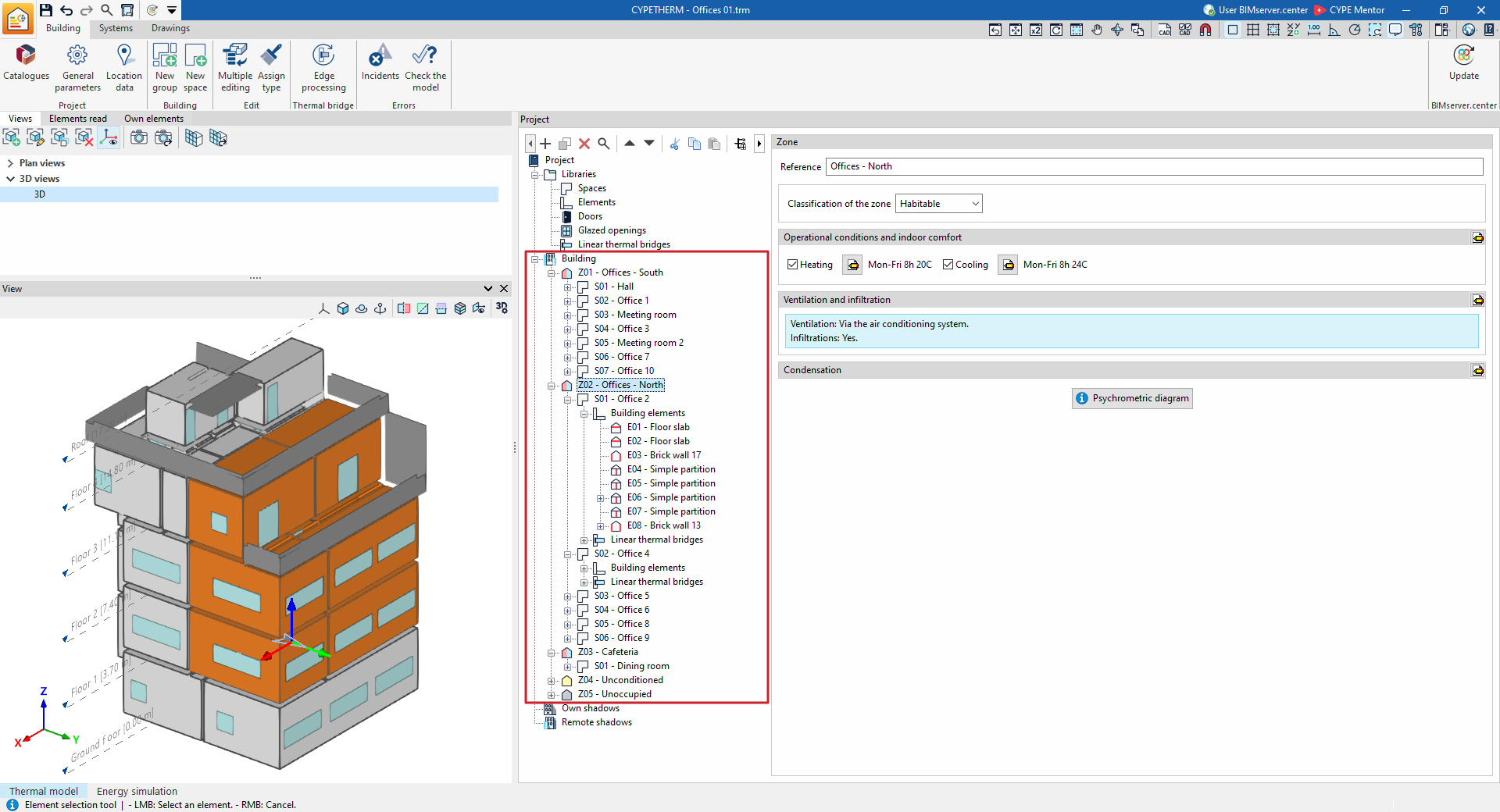
Tree structure for the "Thermal loads" project type
To calculate thermal loads, the building is divided directly into zones, or, optionally, into groups that contain and organise the building’s zones.
In turn, within each space, the structural elements (such as walls and floor slabs) and the associated linear thermal bridges are shown.
The structure is therefore as follows:
- (Optional) Group
- Space
- Structural elements
- Linear thermal bridges
- Space
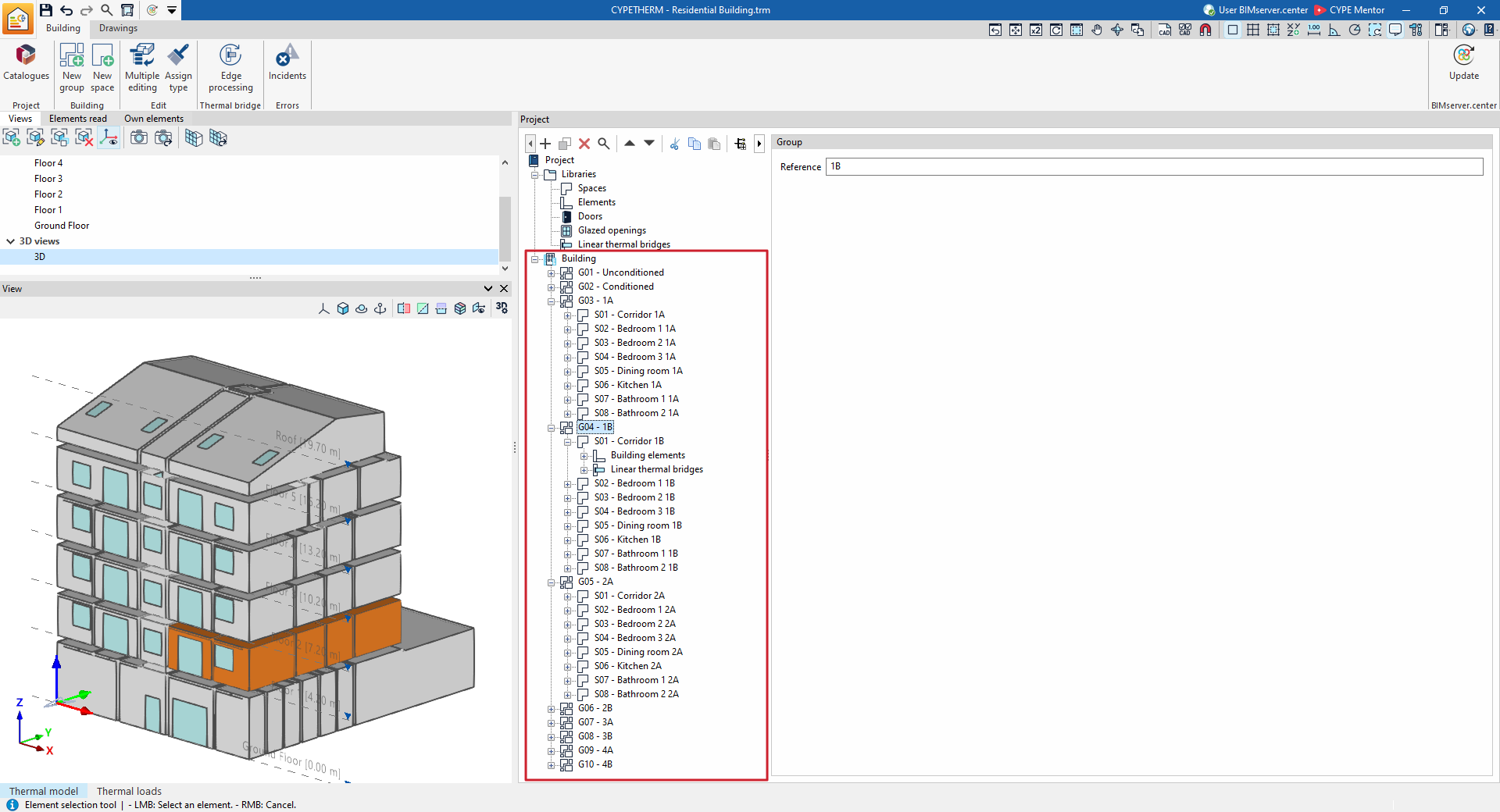
Creating and editing the building tree
The geometry, structure and layout of elements in this tree are imported either from the geometric model when creating a new project or updating project information on BIMserver.center, or from the information defined in the "3D Model" tab.
The elements arranged in this tree – which include enclosures, structural elements, doors, glazed openings and linear thermal bridges – are characterised by the selection of the different element types previously created in the "Libraries".
In any case, you can freely make adjustments to this tree within the program by adding, deleting or editing its components. To do this, you can use the various organisation options listed below.
| Note: |
|---|
| The building model could be created manually by adding elements one by one and entering their details numerically in the tree view on the ‘Building’ tab; however, this workflow is not recommended as it is time-consuming. Instead, we recommend always starting with a geometric model created in a modelling program that allows elements to be added and managed within the space. However, direct editing of the element tree can be useful for making minor adjustments in some cases. |
Options for organising zones, groups and spaces
To organise the building’s existing spaces into different zones or groups, the following tools are available:
- Options in the "Building" and "Edit" groups
- The options in the "Building" section let you create new groups and new spaces.
- Within the "Edit" panel, the "Multiple editing" option provides a wizard for editing, in a single operation, the properties of different types of building elements. Among its features is the ability to assign spaces to different zones or groups and to change their library type. To do this, after clicking "Spaces" in the window that appears, select the elements to which you wish to apply the properties indicated in the "Selection" column, click on the "Group" or "Type" assignment options, and confirm the window.
- Top toolbar in the project tree
This toolbar provides options for:- "Add (Groups)", "Add (Spaces)", "Add (Building elements)" or "Add (Openings)", depending on the selected level.
- "Duplicate", "Delete" or "Search" for elements in the tree.
- "Move up" and "Move down" elements of the diagram, including zones, groups and spaces (these tools also let you move a space from one zone or group to another).
- "Cut", "Copy" and "Paste" elements.
- "Expand all" or "Collapse all" the content of the selected level in the tree.
- Context menu
The context menu that appears when you right-click on a level in the tree allows you to carry out the following operations:- "Add (Groups)", "Add (Spaces)", "Add (Building elements)" or "Add (Openings)", depending on the selected level.
- "Duplicate", "Delete" or "Search" for elements in the tree.
- "Move up" and "Move down" elements in the diagram.
- "Cut", "Copy" and "Paste" elements (for example, you can select a space, click "Cut", navigate to the destination level – be it a specific group or zone – and click "Paste" to move it to that level).
- "Expand all" or "Collapse all" the content of the selected level in the tree.
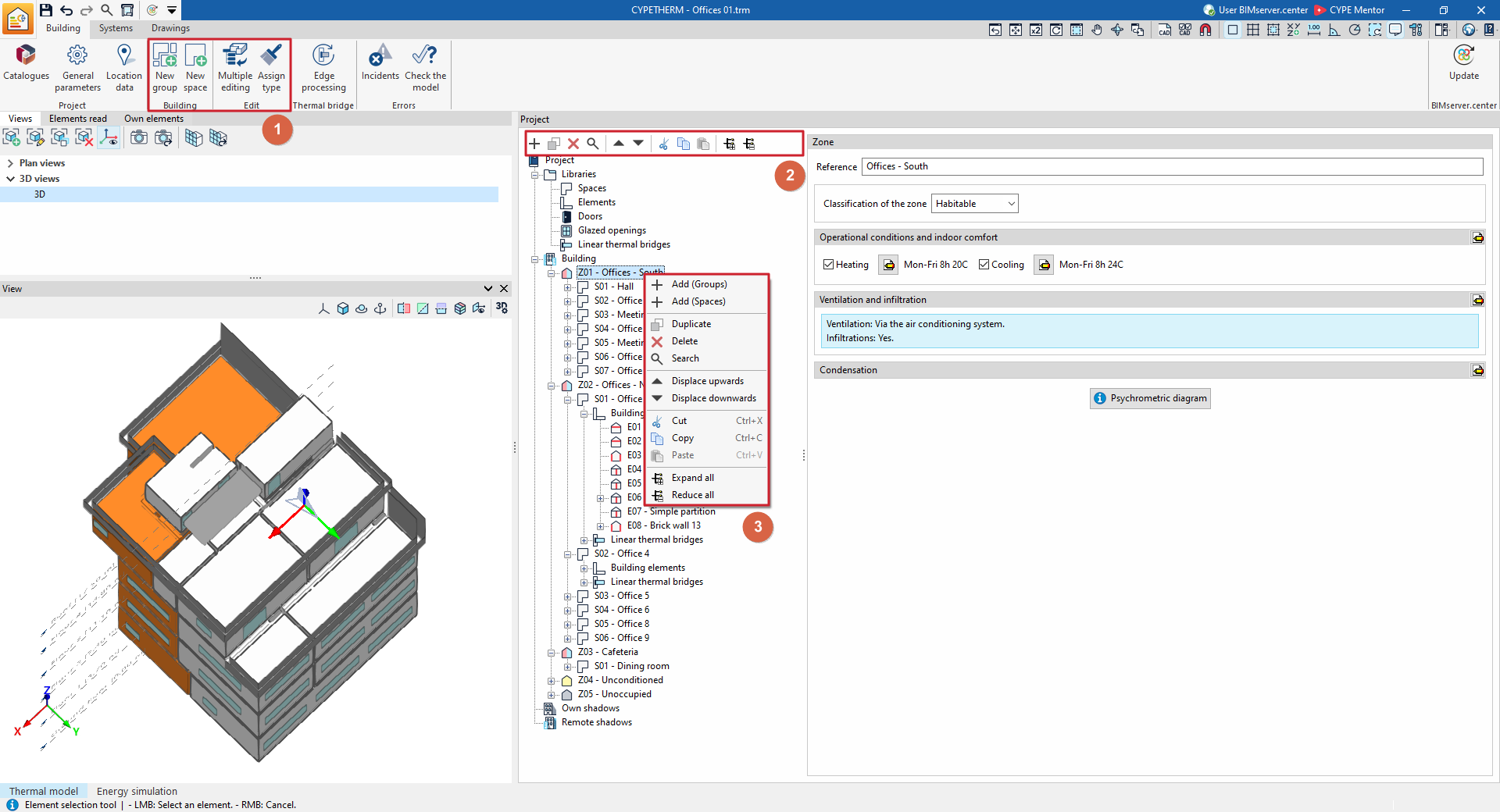
Options in the "Building" group for adding groups and spaces
In the "Building" section, within the main toolbar of the "Building" tab, you will find the following features:

New group
The "New group" option allows you to add groups of venues to the project tree.
Alternatively, you can right-click on the tree level and select the "Add (Groups)" option from the context menu, or use the option of the same name on the top toolbar of the tree.
When using one of these options:
- For the "Energy simulation" project type:
- If the "Building" level is selected in the project tree, the program will generate a "Zone".
- If a "Zone" level is selected, the program will generate a "Group".
- For all types of project:
- If a "Group" is selected, the program will generate a new "Group" that is contained within the previous one. This lets you work with sub-groups.
Each zone or group created using this option will appear empty on the building plan and, where applicable, its properties can be defined in the editing area on the right.
Within each "Group" or "Zone", the premises belonging to that group or zone are then defined.
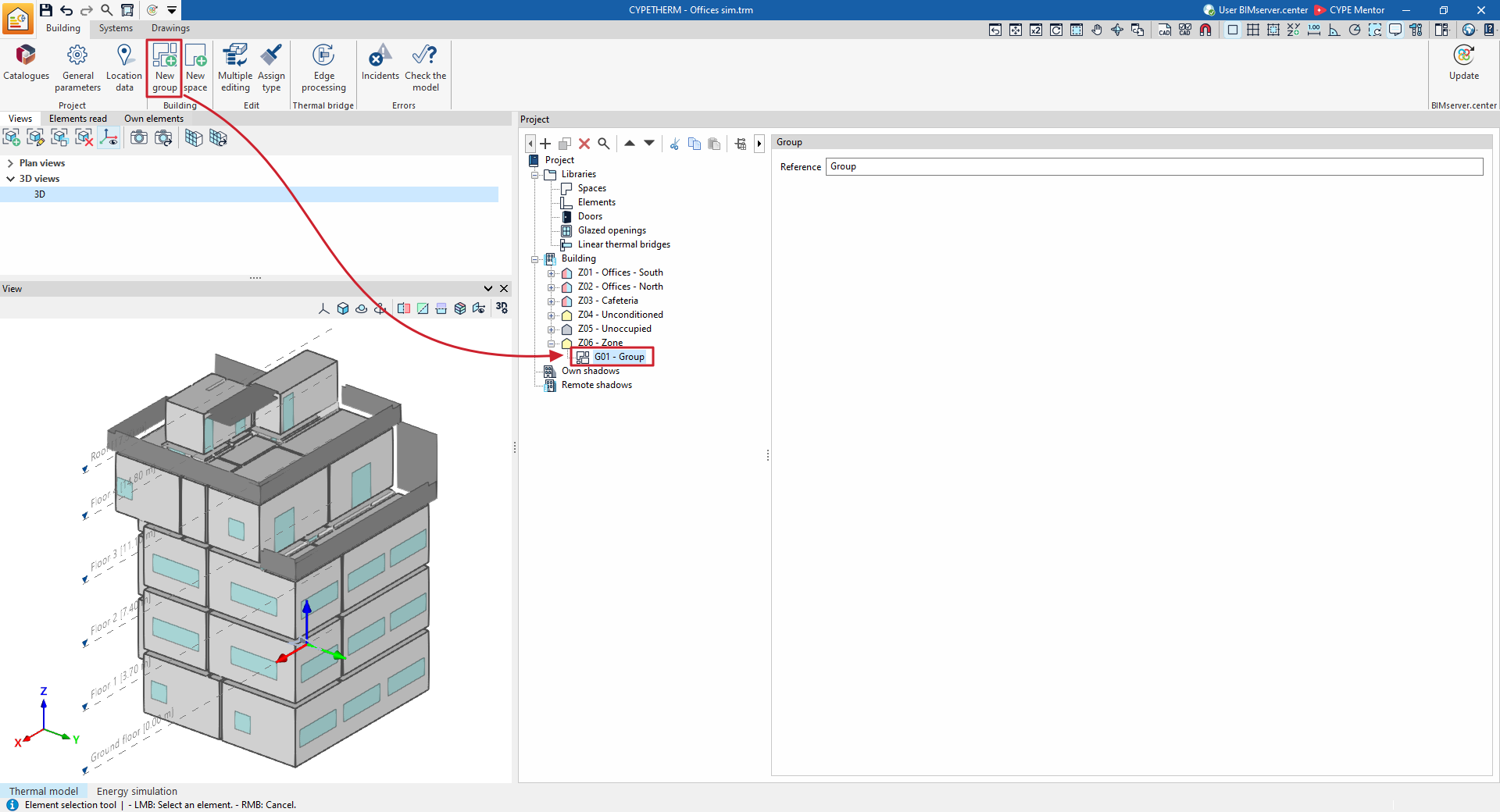
New space
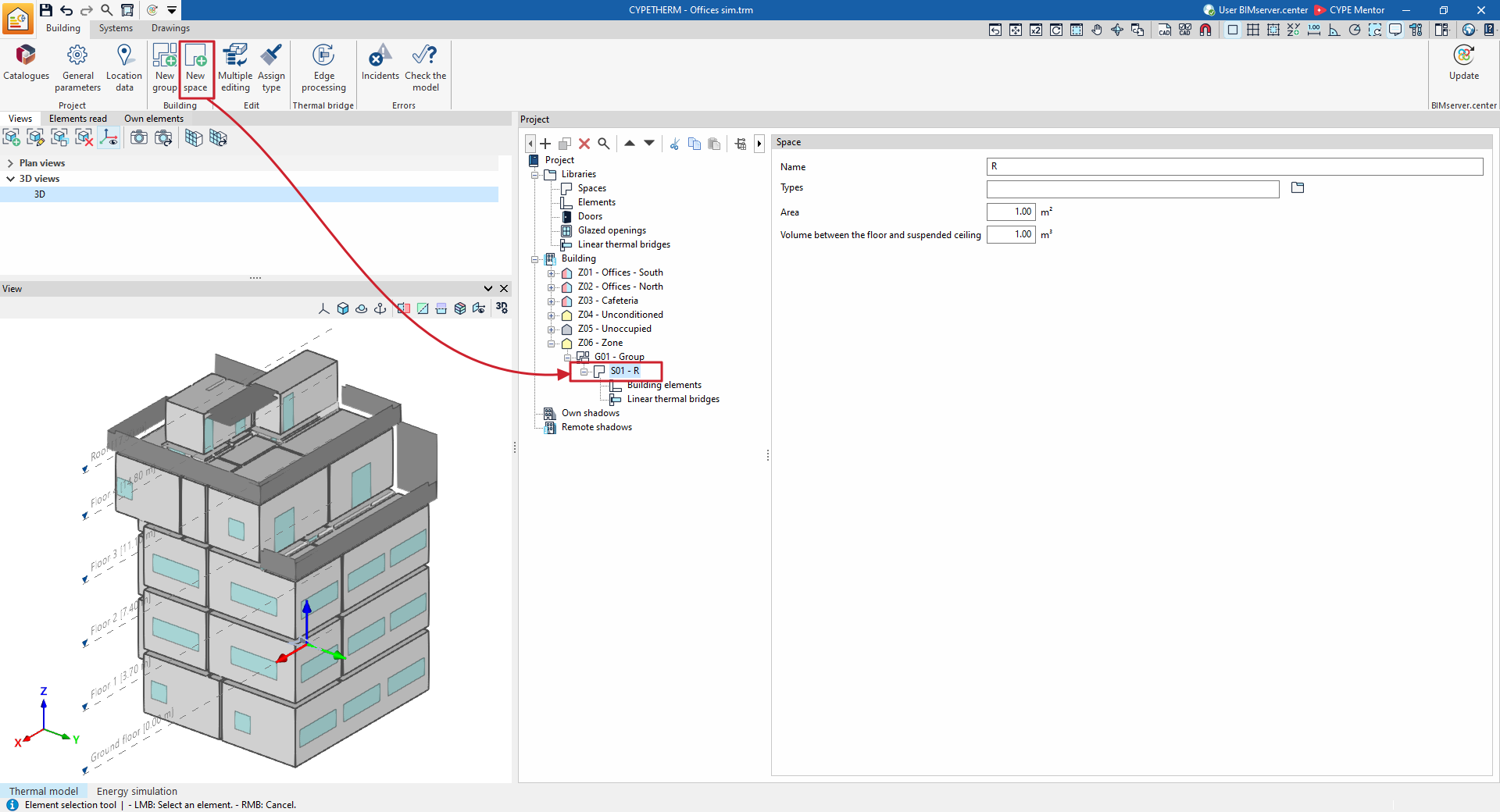
As the building’s spaces and structural elements are imported from the BIM model, you usually will not need to create new spaces; however, the program does have a function for this purpose. To add a new space to the zone, select the "Spaces" section within the area on the building layout and click the "New space" button on the toolbar.
Alternatively, you can right-click on the tree level and use the "Add (Spaces)" option from the context menu.
Each space created using this option will appear empty on the building plan and, where applicable, its properties can be defined in the editing area on the right.
Within each "Space", the corresponding "Building elements" and "Linear thermal bridges" are defined.
Editing thermal zones in the building’s tree structure
In the "Energy simulation" project type, the building will consist of thermal zones.
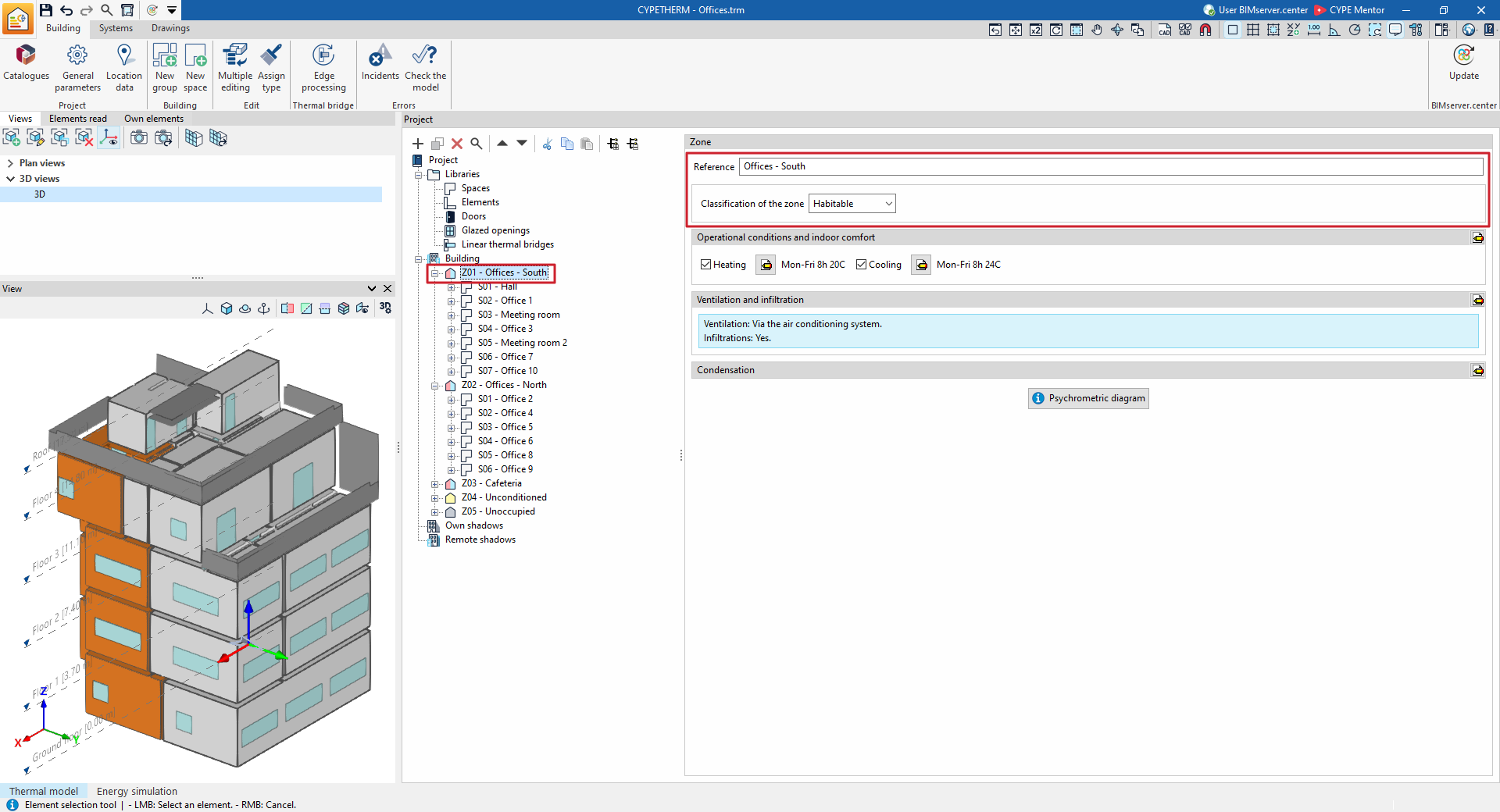
When you select a thermal zone in the tree view on the left-hand side panel of the "Project" panel, under the "Building" tab, it is highlighted in the 3D model viewer and the "Zone" panel is displayed in the main area, where the following zone properties are defined:
- Reference
Zone reference. This parameter can be edited directly. However, the zone identification code (e.g. Z01) is generated automatically and depends on its position in the schema.
- Zone classification (Habitable / Non-habitable / Undefined)
All areas included in the zone must be of the same type (habitable or non-habitable) as that selected from this drop-down menu. In the tree structure:- An area classified as uninhabitable or undefined will be shown with a grey symbol;
- An area classified as habitable will be assigned a coloured symbol depending on its operational conditions:
- Yellow if no setpoint temperature has been defined (unheated living area),
- Red if a heating setpoint is defined,
- Blue if a cooling setpoint is defined.
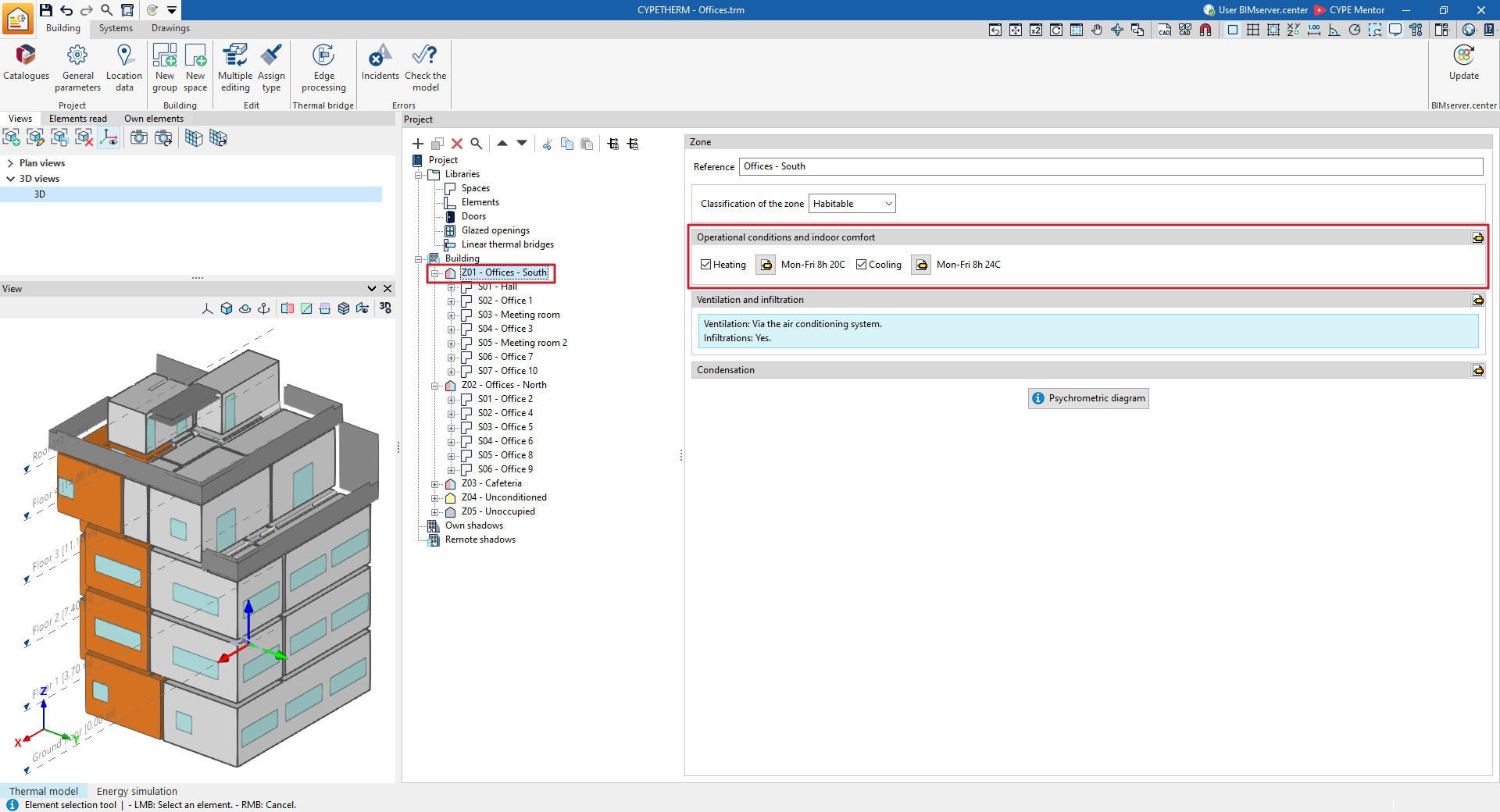
"Operational conditions and indoor comfort" section
Define the operating conditions and comfort temperatures for the thermal zone. All spaces included in the zone share these conditions.
- Heating (optional)
Set the zone’s heating setpoint temperature using an hourly schedule. - Cooling (optional)
Set the zone’s cooling setpoint temperature using an hourly schedule.
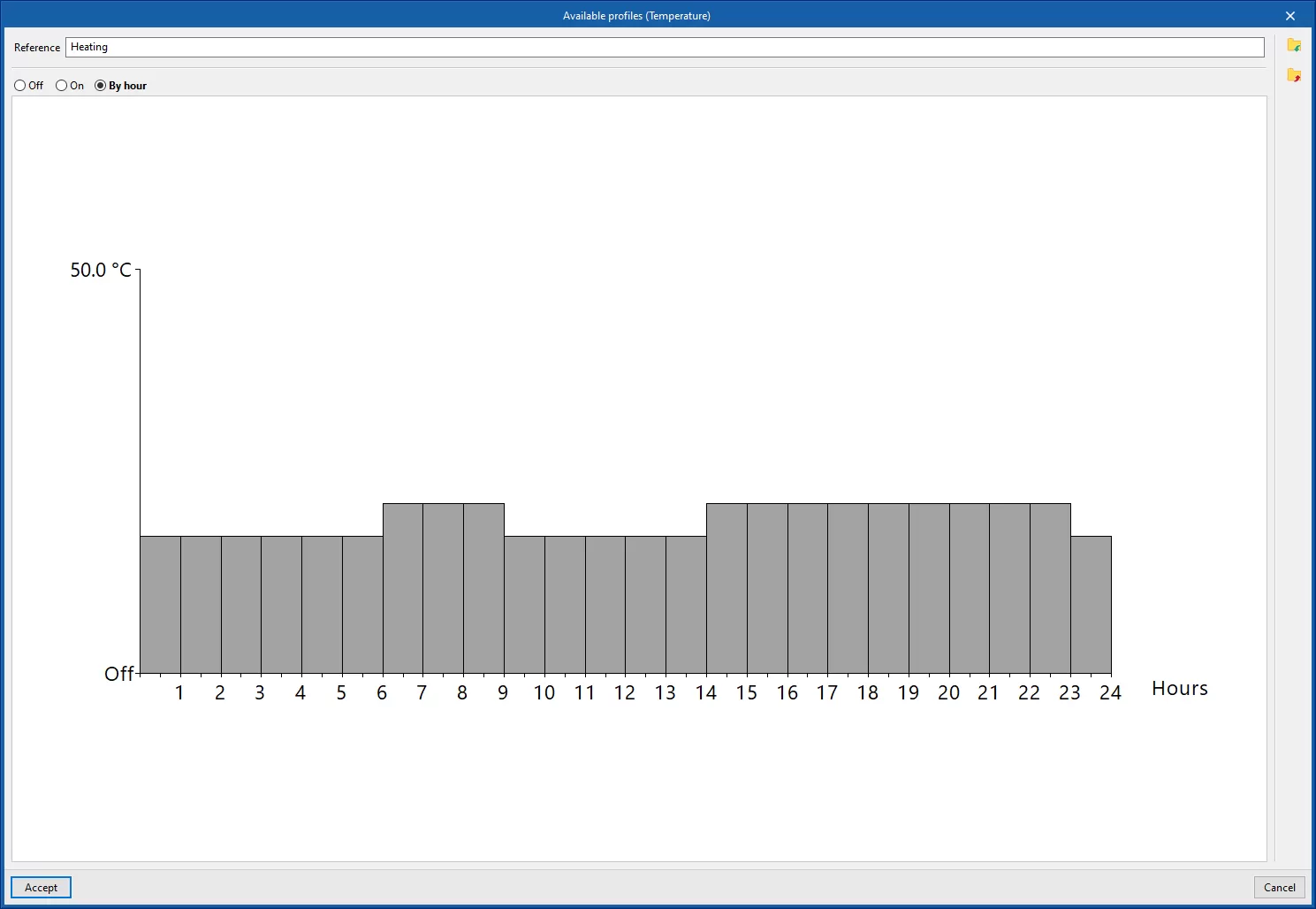
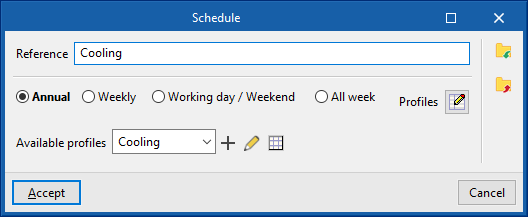
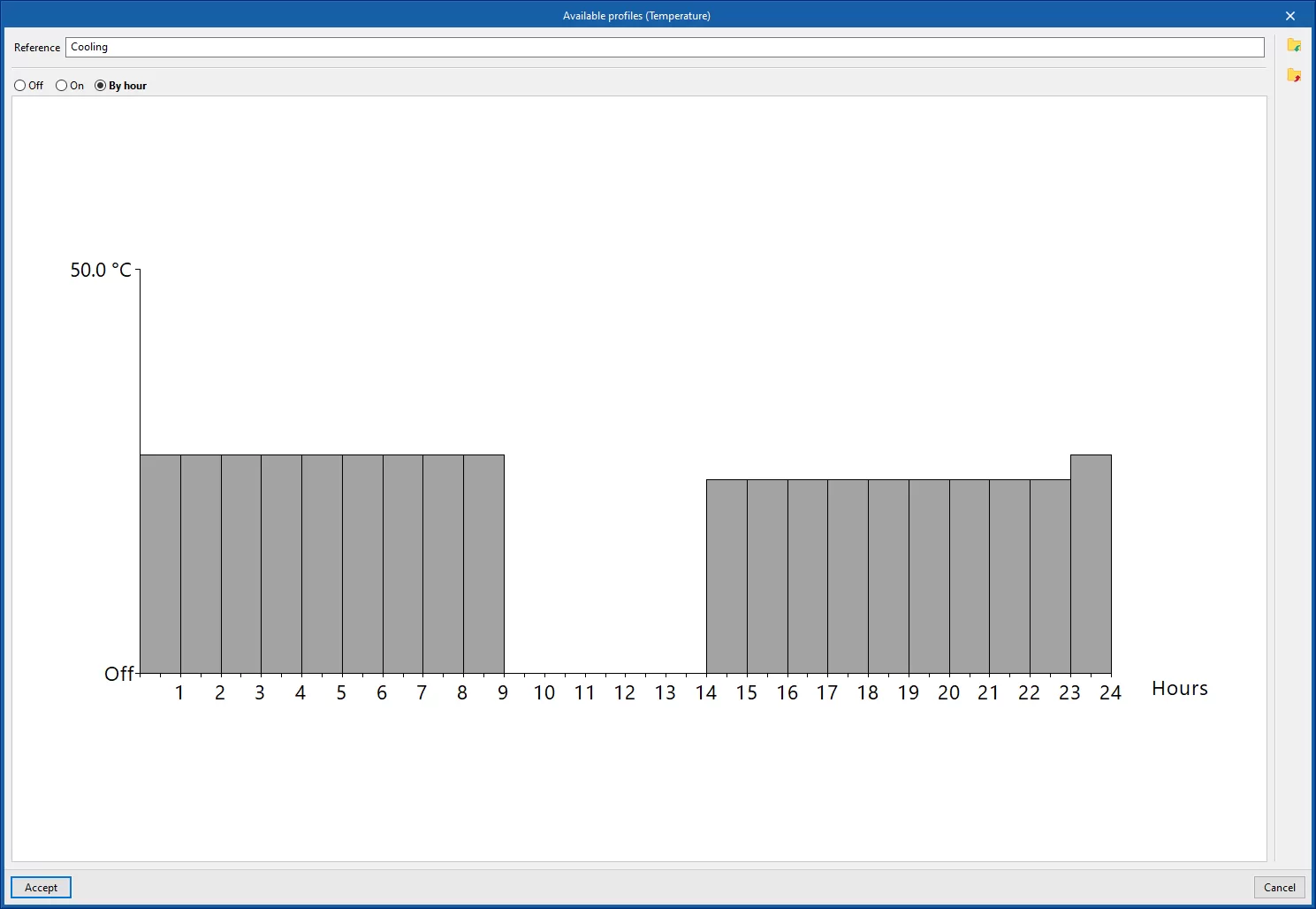
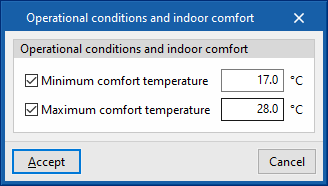
- Editing advanced properties: Using the edit button to the right of the section, you can set a maximum and minimum indoor comfort temperature. These temperature values are used in the "Indoor comfort" report to make comparisons with the indoor temperature of the zone. These comfort temperatures are not taken into account in the EnergyPlus™ simulation.
- Maximum comfort temperature (optional)
- Minimum comfort temperature (optional)
"Ventilation and infiltration" section
This section lets you define the ventilation and air infiltration for the zone.
- Editing advanced properties
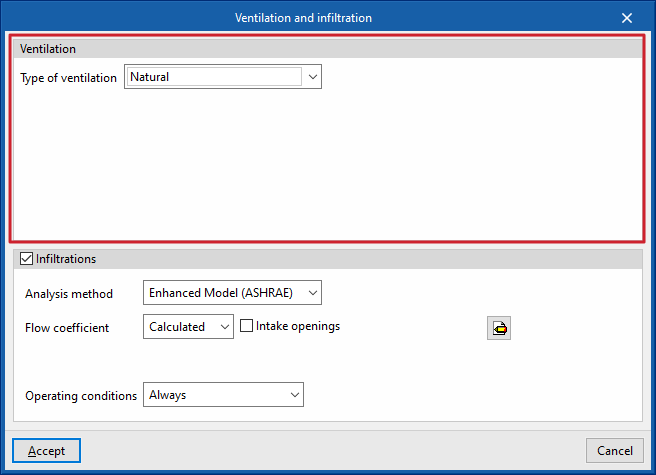
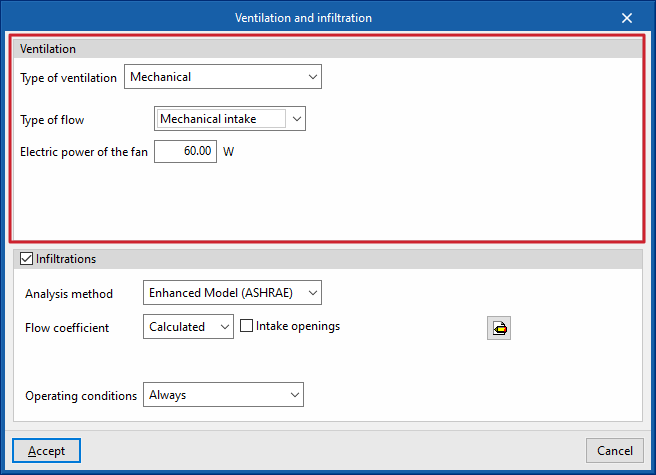
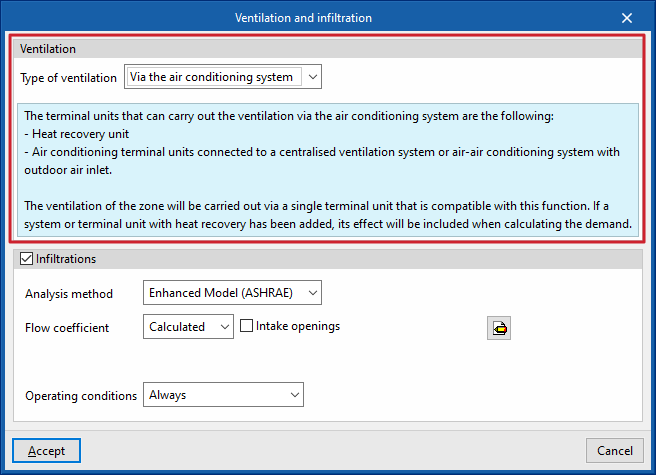
Using the edit button to the right of the section, you can set the following parameters:- Ventilation
The type of ventilation must be specified for all spaces in the zone, choosing from:- Natural
The specified ventilation flow rate enters the rooms in the zone directly. - Mechanical
The characteristics of the fan or fans (dual-flow option) that drive the specified ventilation flow rate in the spaces within the zone are defined:- Flow type (Mechanical intake / Mechanical extraction / Dual flow)
- Fan power consumption
- Via the air-conditioning system
The specified ventilation flow rate for the spaces in the zone will enter via the air-conditioning system specified for and associated with the zone, which must be compatible with this function.
- Natural
- Infiltration (optional)
This section lets you specify the presence of infiltration in each zone, i.e. an unwanted flow of outside air entering the group of spaces. Several options are available for defining this flow, using two analysis methods and different schedules.- Analysis method: Enhanced Model (ASHRAE)
Infiltration rates can be calculated using the specified calculation model. The following parameters must be defined:- Flow coefficient
Select one of the following options:- Defined
The flow coefficient is entered directly. - Calculated
The flow coefficient is calculated using the following data:- Intake openings (optional)
- Area
- Intake openings (optional)
- Defined
- Analysis data
The program can help you define each of these details by clicking on the options on the right.- Stack coefficient
- Pressure exponent (flow rate)
- Wind coefficient
- Safety factor
- Flow coefficient
- Analysis method: Design flow
Directly enter the flow rate resulting from the infiltration. - Operational conditions (Zero ventilation only / Usage profile / Always)
Sets the conditions under which infiltration occurs in the area.
- Analysis method: Enhanced Model (ASHRAE)
- Ventilation
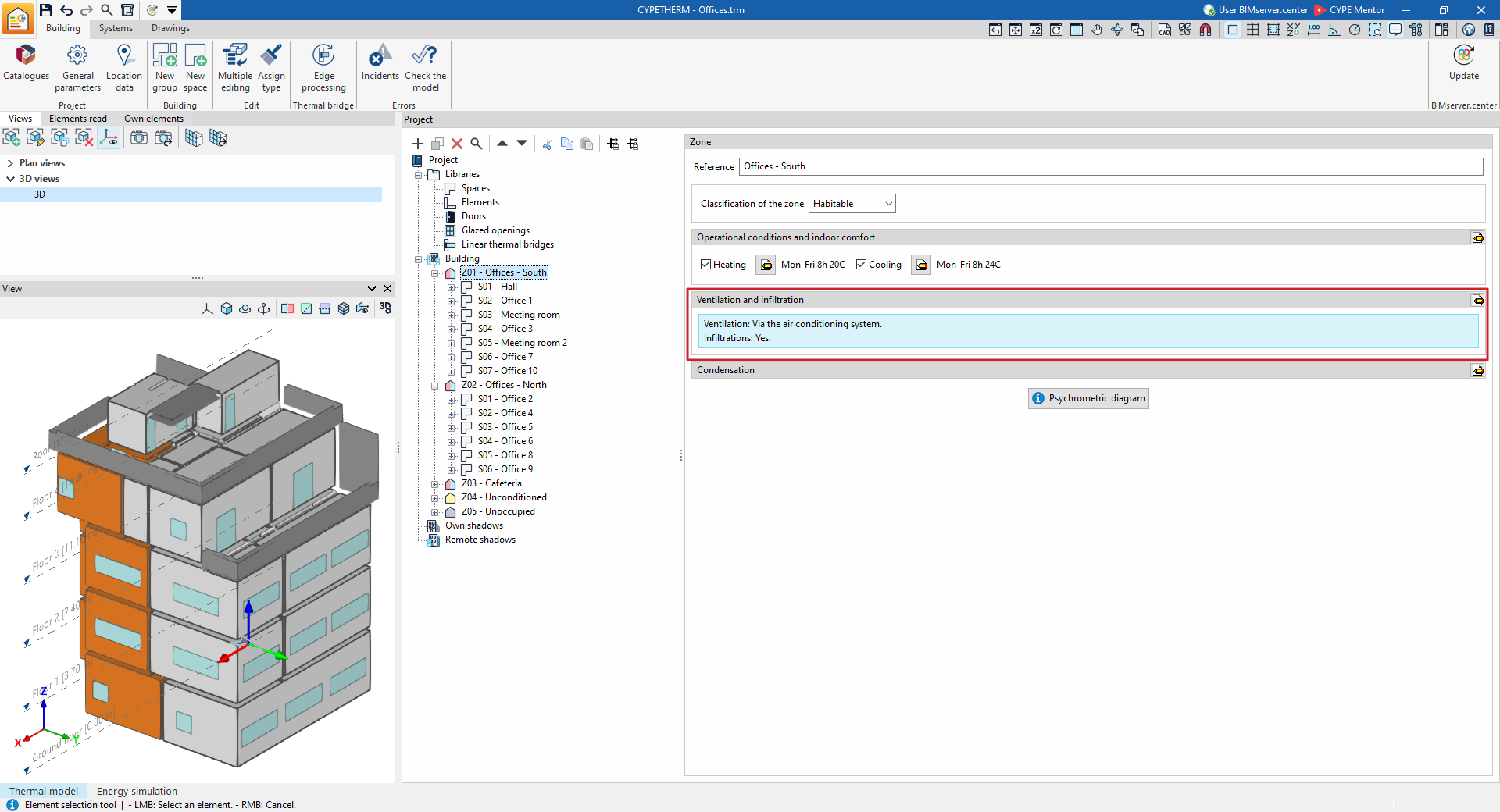
Editing the ventilation:
Editing the infiltrations:
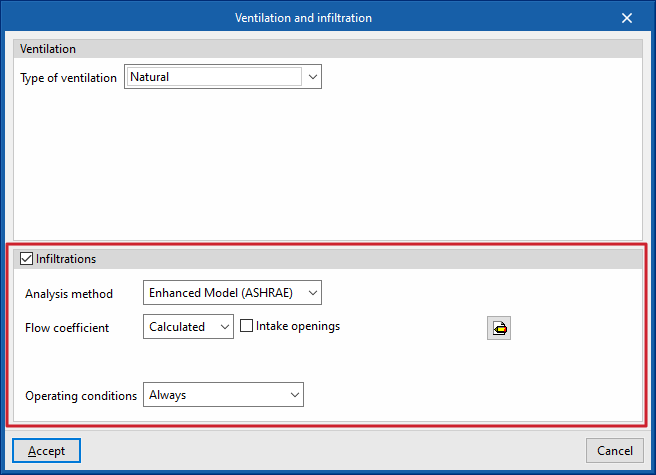
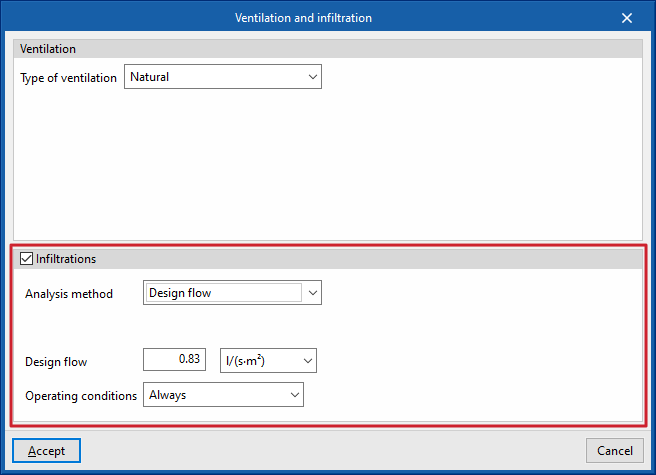
"DHW" section
This section will appear in each heating zone if, under "General parameters", the "Demand by thermal zone" option has been selected within "Daily DHW demand".
The following parameters are then defined according to the domestic hot water demand in each zone of the building. If the "Total building demand" option has been selected, these definitions must be set for the entire building within the "General parameters".
- Daily DHW demand
The volume of domestic hot water (DHW) consumed in the area in a single day. - Editing advanced properties
Using the edit button to the right of the section, you can set the following parameters:- Reference temperature
The production temperature of the DHW volume defined under "Daily DHW demand". - Solar contribution distribution
This defines the percentage of the energy demand for DHW production covered by the building’s solar thermal installation. You can specify a fixed value or a value on a monthly basis.- Constant / Monthly
- Percentage of DHW demand met by solar energy
- Reference temperature
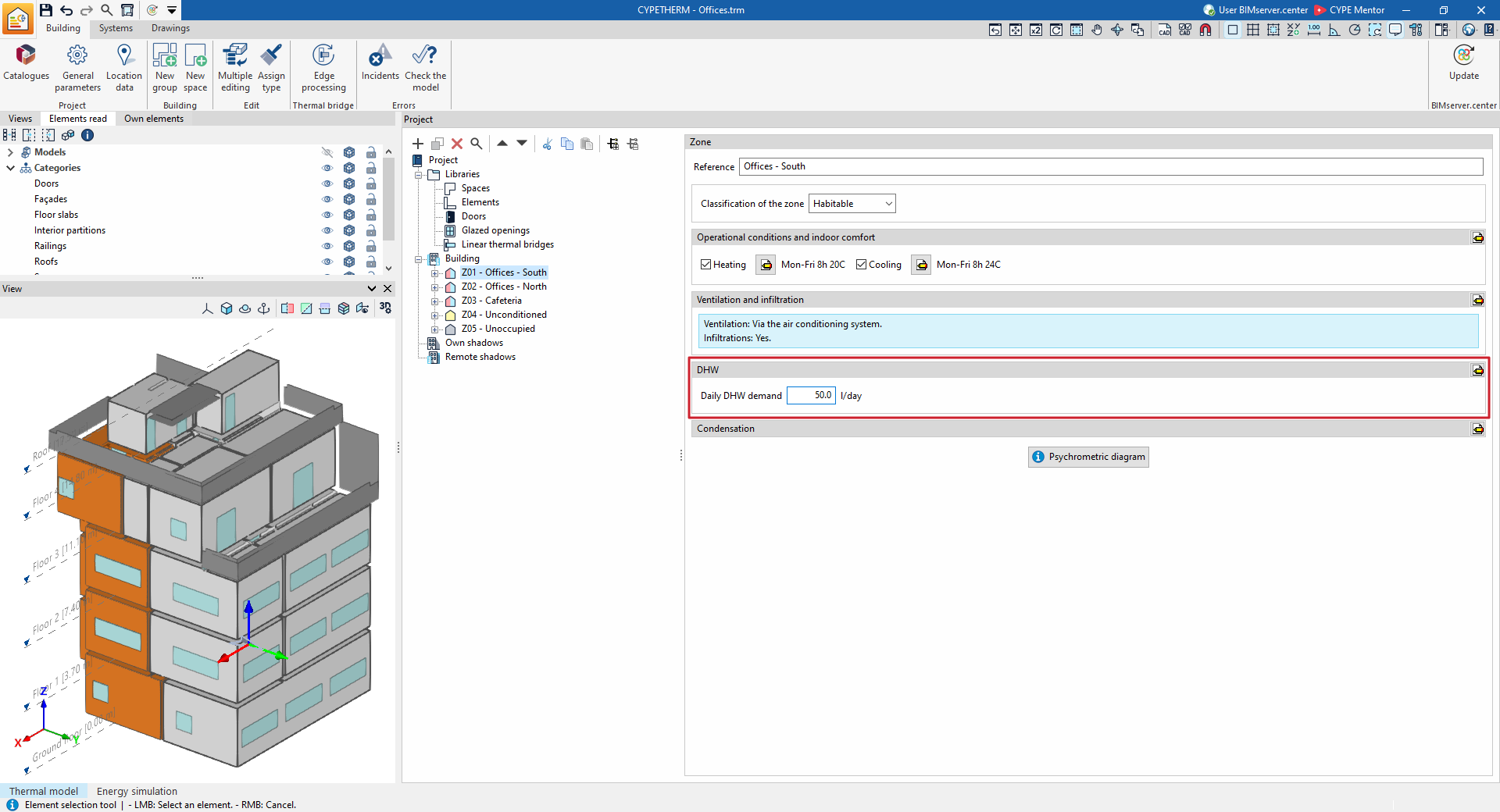
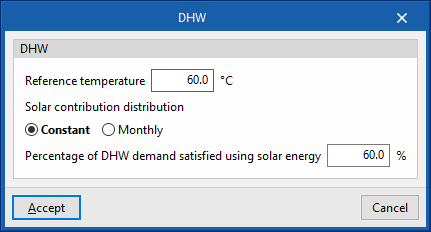
"Condensations" section
This section defines the indoor environment parameters used to check for surface and interstitial condensation, provided this option has been enabled under ‘General parameters’.
- Editing advanced properties
Using the edit button to the right of the section, you can set the following parameters:- Relative internal humidity
- Critical surface humidity
- Internal air temperature during the winter months
- Internal air temperature during the summer months
- Heating period (number of days per month)
- Cooling period (number of days per month)
- Psychrometric diagram
Shows the temperature and humidity points for indoor air (in red) as defined in this section, and for outdoor air as defined in the "Location data" panel.
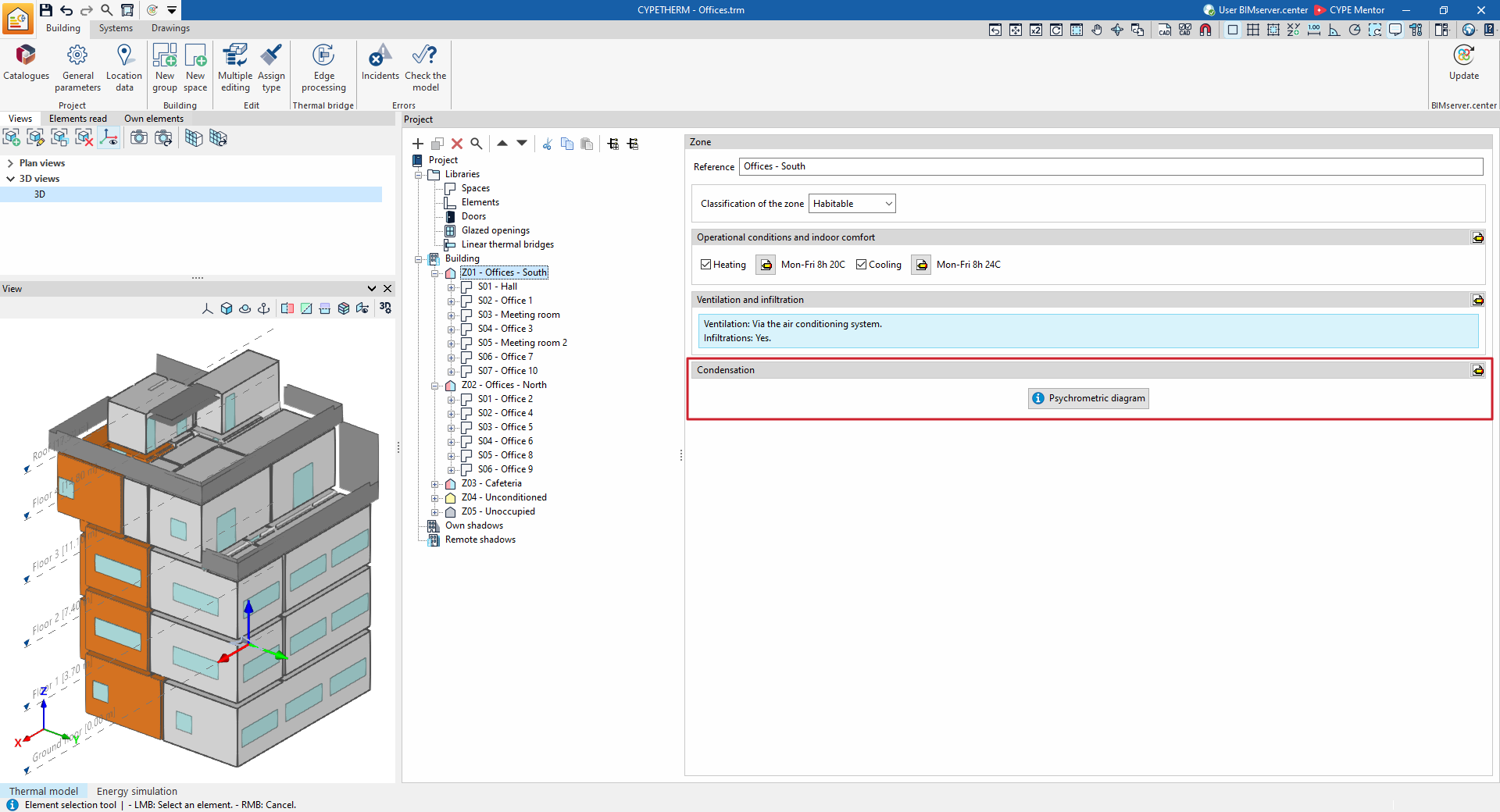
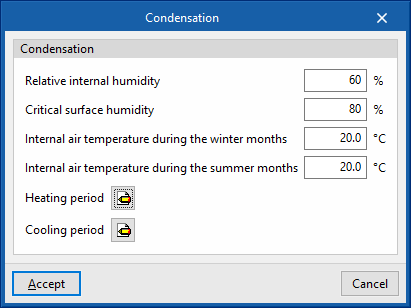
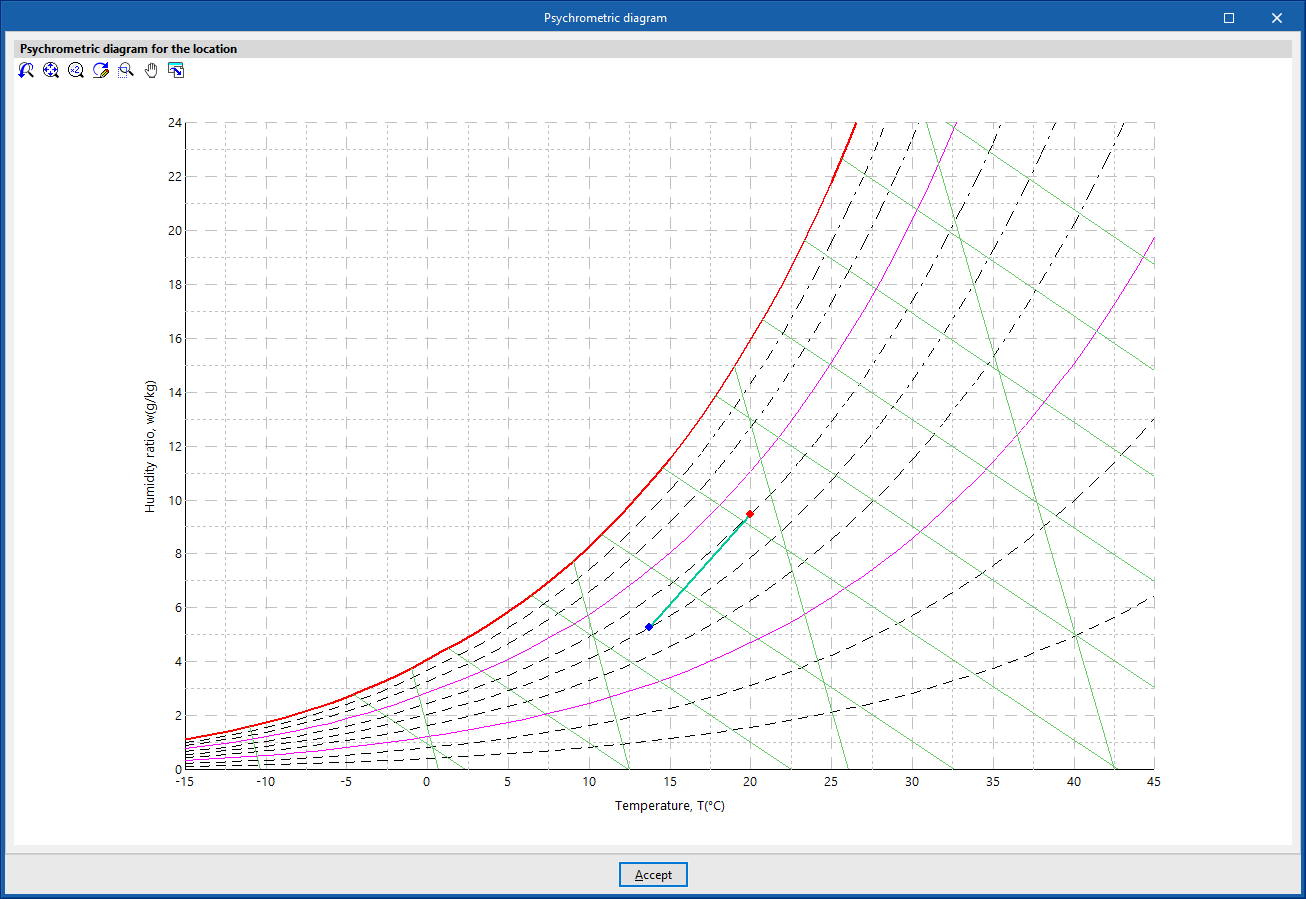
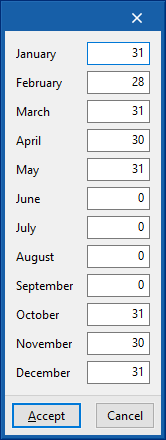
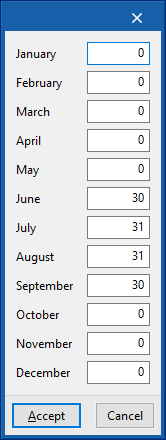
Editing spaces in the building’s tree structure
Within the tree structure in the left-hand side panel of the "Building" tab, under the "Project" panel, the spaces that make up the building are defined, organised optionally into groups (and, in the case of the "Energy simulation" project type, grouped into thermal zones).
The building’s rooms and structural elements are imported from the BIM model or the "3D Model" tab, so the parameters shown in this section will be generated automatically.
When you select a space in the diagram, it is highlighted in the 3D model view and the main editing area appears on the right, where you can define the space’s properties.
A space is defined by the following properties.
- Name
Name of the space. This parameter can be edited directly.
- Type
Enter or select (using the option on the right) the type of space from those available in the library.
- Area
The area of the space. This value is used to calculate the simulation results per unit area. When carrying out an energy simulation, you can define spaces without a floor area ("Area" equal to 0), provided that at least one room in the same thermal zone has an "Area" value greater than 0.
- Volume between the floor and the suspended ceiling
The volume of the space, defined as the space between the floor and the suspended ceiling.
- Installed lighting power (optional)
You can specify an individual value for the installed lighting power for each room. If this option is ticked, the value defined will override that of the corresponding library type. This option will only be available if the selected room type has a lighting load defined (the "Lighting" box is ticked). This data can be imported from the BIM model information.
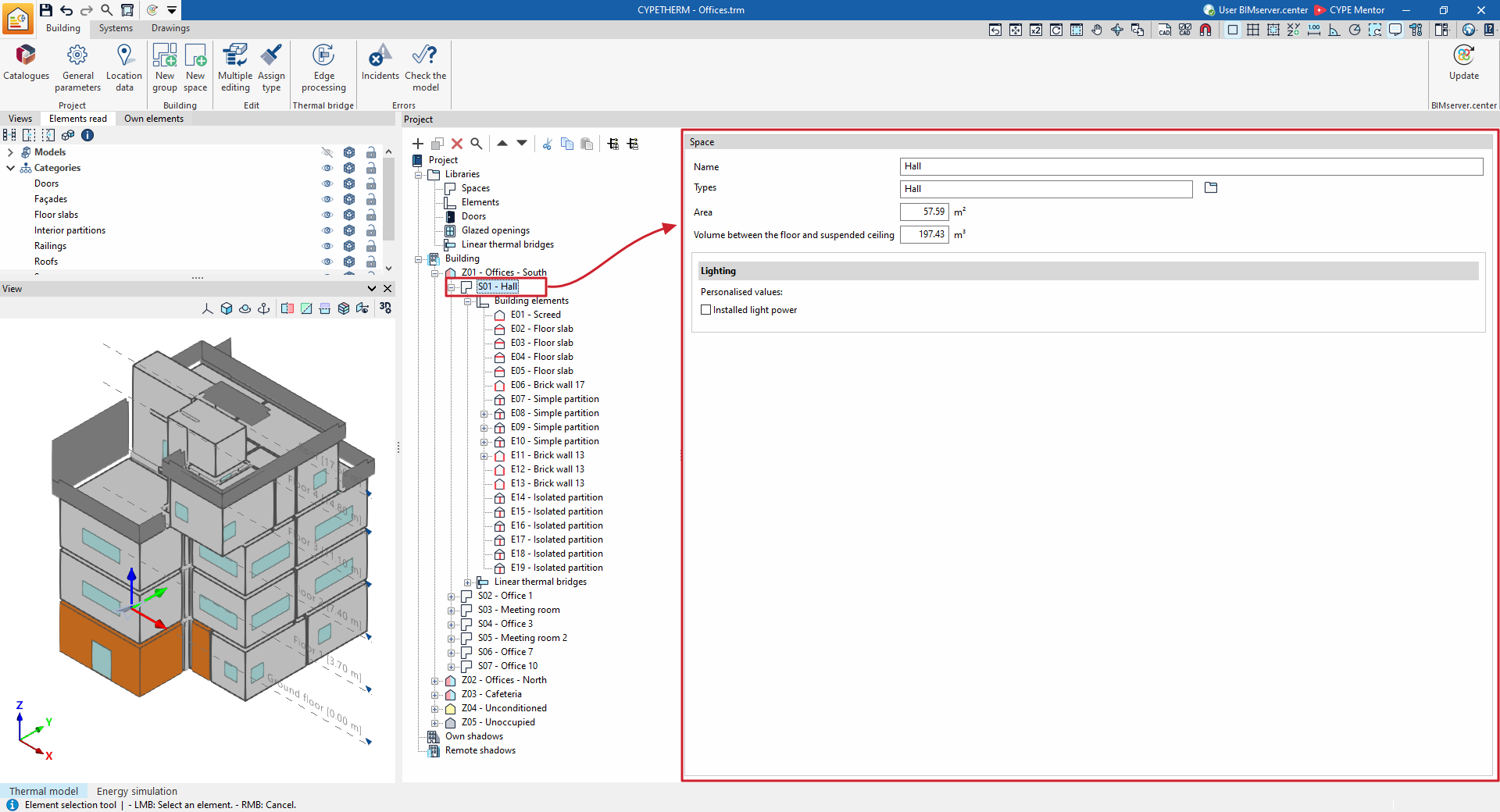
In the building layout, the building elements in each space and the linear thermal bridges associated with that space are shown and defined.
Editing building elements of the space in the building tree
When you select the "Structural elements" level within a room, in the "Project" element tree under the "Building" tab, a table showing the structural elements associated with that room is displayed in the main editing area on the right-hand side.
This table shows various columns containing information on the structural elements of this building, including:
- Its identification code (for example, Z01_S01_E01), which is generated automatically and depends on the position of the structural element in the tree.
- The "Element" type and its symbol.
- The "Reference".
- The selected "Type".
- The element’s "Area".
- The "Adjacency" or adjoining space.
- The number of "Openings" open on the element.
- If there are any issues.
The table features options at the top for adding, editing, copying, deleting or reordering elements in the list.
If you expand the "Structural elements" level in the building tree, sub-levels corresponding to each of the space’s building elements are displayed.
When you select a particular element in the tree, it is highlighted in the 3D model viewer.
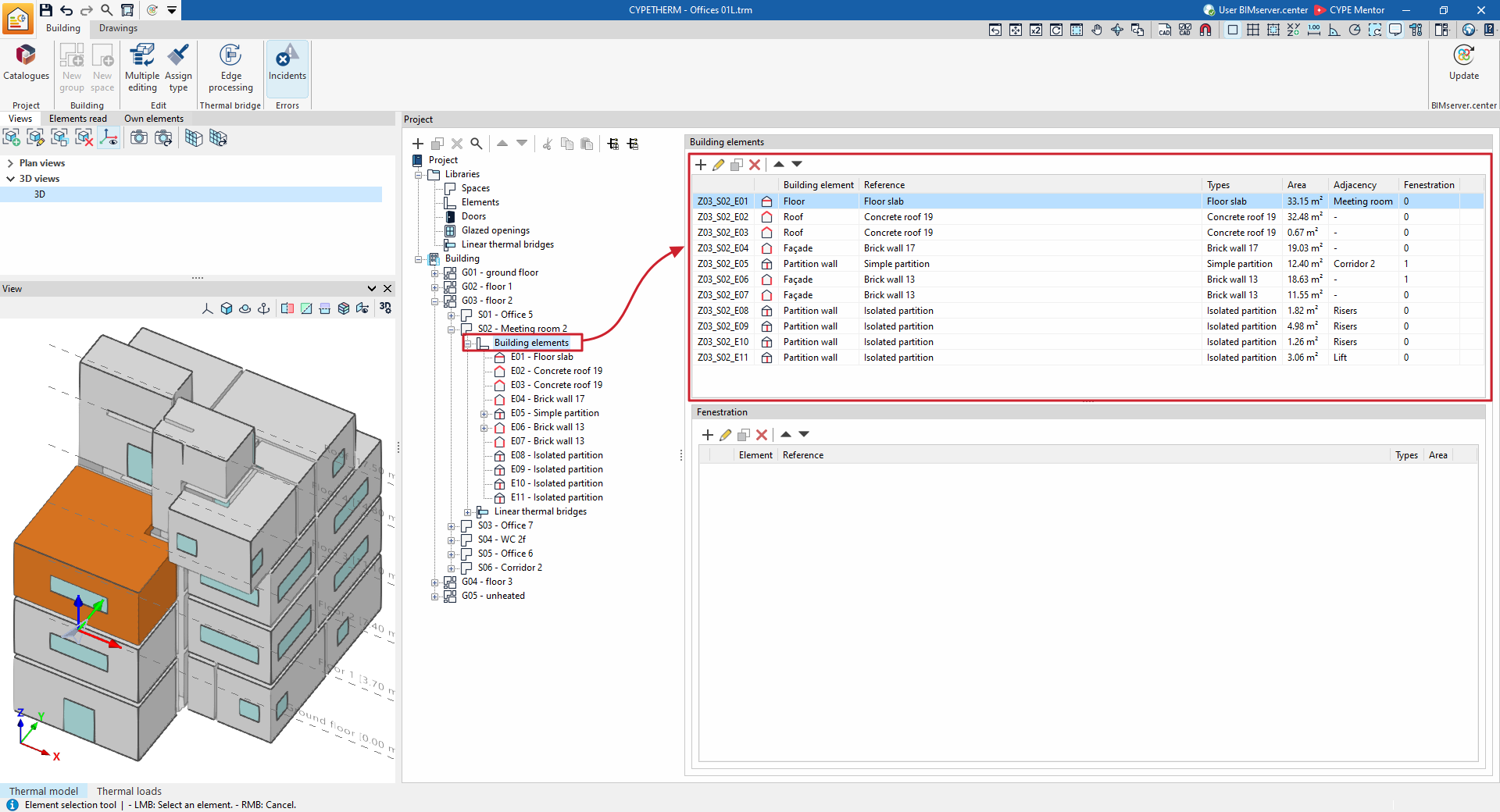
You can edit the properties of each structural element by selecting it in the tree or by editing it in the table.
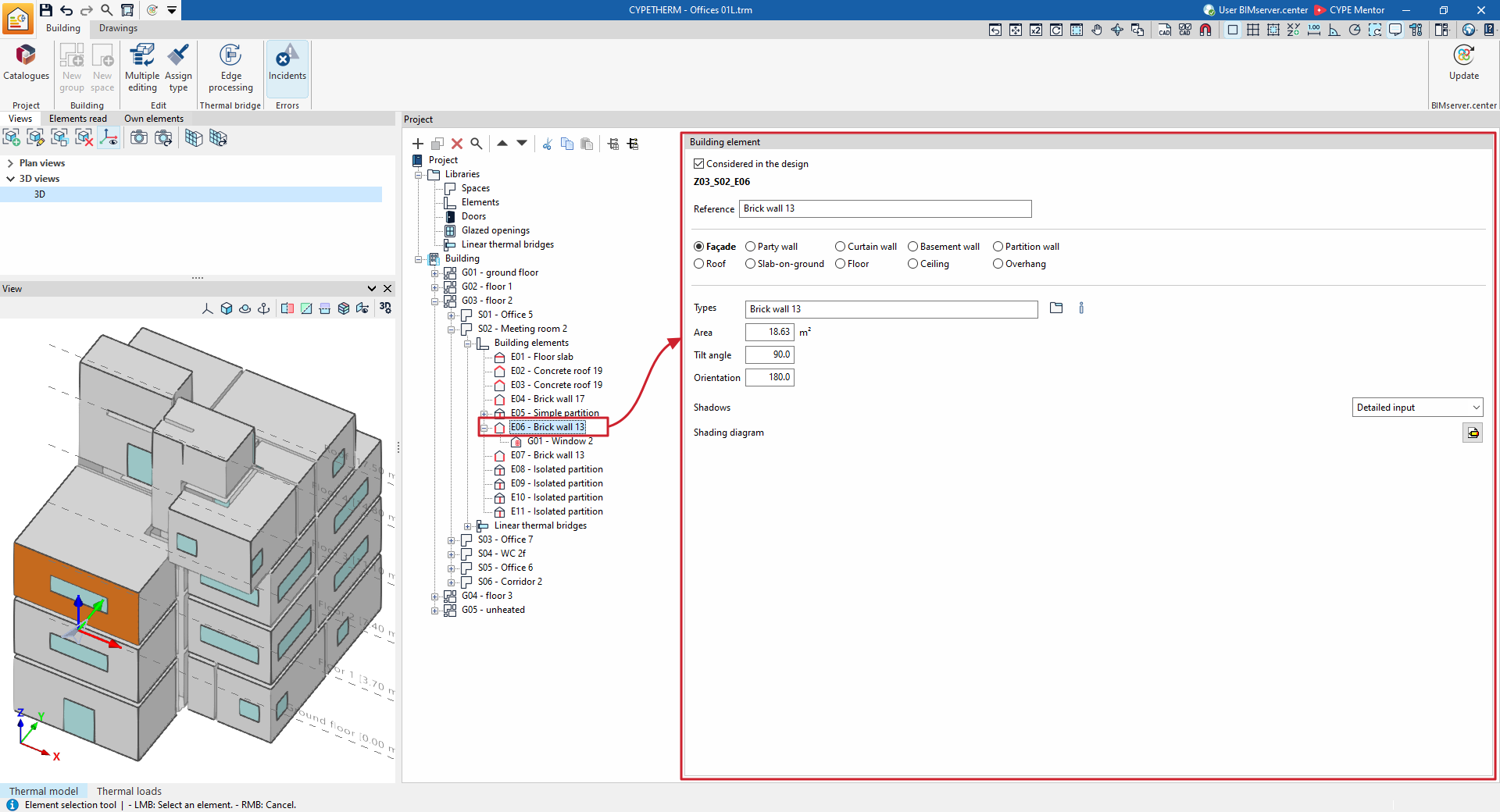
Structural elements are defined by the following characteristics:
- Considered in the design (optional)
By ticking or unticking this option, you can choose to include or exclude the structural element from the analysis performed by the program. When this option is selected, the program allows you to edit the remaining parameters. - Reference
The element’s reference. The program also displays the identification code. - Type
You must define the type of structural element by selecting one of the following options. This sets the conditions on the other side of the element (or boundary conditions):- Façade
A wall in contact with the outside. The conditions of the external environment are taken into account. - Party wall
In the energy simulation, the outdoor ambient temperature conditions are taken into account, with no exposure to the sun or wind (boundary enclosure). If the enclosure has been defined as an adiabatic party wall when editing its type in the library, adiabatic conditions are assumed; in other words, there is no heat transfer through this element. - Curtain wall
A translucent enclosure that allows solar radiation to pass through. The conditions of the external environment are taken into account. - Basement wall
A wall in contact with the ground. Ground conditions are taken into account. - Partition
Wall between rooms. The "Adjacency" must be defined in the following section. - Roof
Flat or pitched roof. External environmental conditions are taken into account. - Slab-on-ground
An element installed on the ground. Ground conditions are taken into account. - Floor
Intermediate slab between spaces, situated on the floor of the space. The "Adjacency" must be defined in the following section. - Roof
Intermediate floor slab between spaces, situated on the floor of the space. The "Adjacency" must be defined in the following section. - Overhang
Forged cantilever. External environmental conditions are taken into account.
- Façade
- Adjacency (for "Partition", "Floor" or "Ceiling" elements)
For partition, floor or ceiling elements, the adjacent enclosure must be defined by selecting one of the following options:- Adiabatic element
An element situated between compartments with the same temperature conditions, meaning that no heat is transferred through it. - Another space
Select the adjacent room from among the rooms defined in the project. In addition, the program offers an option to "Assign the characteristics to the same element present in the adjacent room". - Unknown space
The adjacent space is not defined in the text. It is assumed that the temperature conditions in this unknown space are the same as those of the outside air.
- Adiabatic element
- Type
Enter or select (using the option on the right) the type of structural element from those available in the library. - Area / Vertices
In the "Thermal loads" project type, the area of the element is displayed as a single numerical parameter.
In the "Energy simulation" project type, the area of the element is entered using a polygon defined by its vertices. By clicking on the button that appears, you can view and define the global coordinate points (X, Y, Z) that determine the position and surface area of the element. - Tilt angle / Orientation / Shadows
In the "Energy simulation" project type, these parameters are defined for elements of the "Façade", "Curtain wall", "Roof" and "Cantilever" types. For "Shadows", you can select one of the following options:- No shading
The element is not shaded. - Simplified definition
A value is entered for "Fixed shading percentage". - Detailed definition
Define a shading diagram.
- No shading
- Heat transfer coefficient (optional)
In the "Thermal loads" project type, this parameter can be defined for "Basement wall" elements. - Total floor area / Total floor perimeter (for "Floor" type elements)
- Elevation difference from the ground level (for "Slab-on-ground" type elements and in the "Energy simulation" project type)
- Condensation analysis results (for the "Energy simulation" project type)
This displays the results of the condensation check for the element, provided that this analysis has been enabled, based on the selected element type.
Editing gaps in the building elements of the building tree
When you select the "Structural elements" level within a room, in the "Project" element tree under the "Building" tab, a table showing the structural elements associated with that room is displayed in the main editing area on the right-hand side.
When you select each structural element, you can see the "Openings" defined for it in the table at the bottom of the interface.
This table shows various columns containing information about the openings in that element, including:
- Its identification code (for example, Z01_S01_E01_G04), which is generated automatically and depends on the position of the hole in the tree.
- The "Element" type and its symbol.
- The "Reference".
- The selected "Type".
- The element’s "Area".
- If there are any issues.
The table features options at the top for adding, editing, copying, deleting or reordering elements in the list.
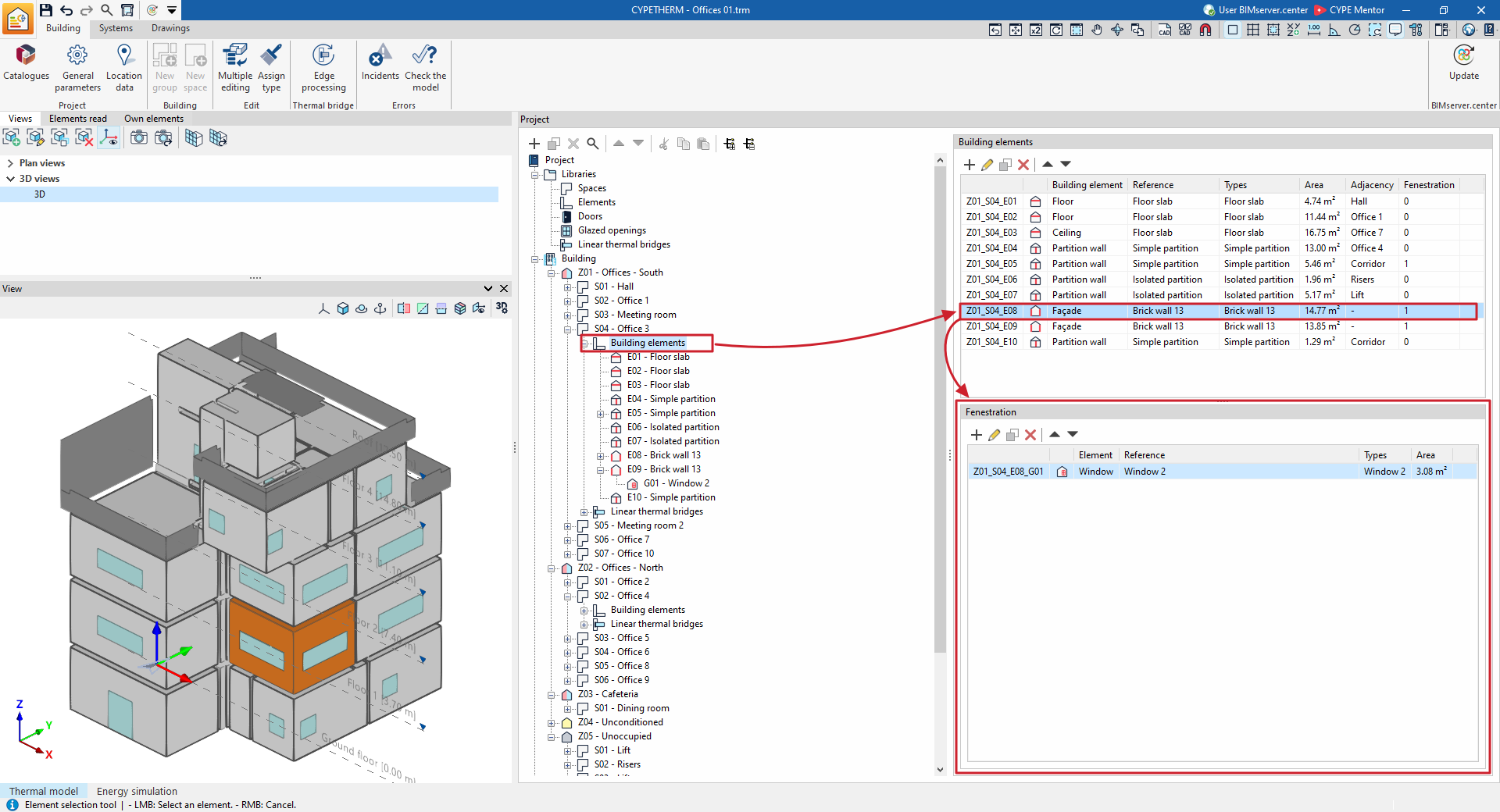
Furthermore, if that structural element is expanded in the building tree, the levels corresponding to the openings in that element are displayed. When a particular opening is selected in the tree, it is highlighted in the 3D model viewer.
By selecting each opening in the tree, or editing each bridge in the table, you can edit their properties. Openings are defined by the following characteristics:
- Considered in the design (optional)
By ticking or unticking this option, you can choose to include or ignore the gap in the analysis performed by the program. When this option is enabled, you can edit the remaining parameters. - Reference
Reference number of the opening. The program also displays the identification code. - Type
You must select one of the following four:- Door
Select a "Type" from those available in the door library. It also requires you to define the "Area" (or the "Vertices") and its "Position" ("External" or "Internal"). If the "Position" is "Exterior", you must specify the "Angle of inclination", the "Orientation" and the "Shadows" affecting the opening. - Window
Select a "Type" from those available in the glazed openings library. This is an opening in vertical elements (external walls, partition walls). It also requires the definition of the "Area" (or the "Vertices") and its "Position" ("Exterior" or "Interior"). If the "Position" is "Exterior", the "Tilt angle", the "Orientation" and the "Shadows" affecting the opening must be specified. - Skylight
Select a "Type" from those available in the glazed openings library. This is an opening in horizontal elements (floor slabs, roofs, cantilevers). It also requires the definition of the "Area" (or the "Vertices") and its "Position" ("Exterior" or "Interior"). If the "Position" is "External", you must specify the "Tilt angle", the "Orientation", whether it is situated on the "Ceiling" or the "Floor", and the "Shadows" affecting the opening. - Openings
Openings represent an opening created directly on the element and do not require the selection of a specific type from the library. They only require the definition of the "Area" (or the "Vertices").
- Door
- Area / Vertices
In the "Thermal loads" project type, the area of the opening is displayed as a single numerical parameter.
In the "Energy simulation" project type, the area of the opening is entered using a polygon defined by its vertices. By clicking on the button that appears, you can view and define the points with global coordinates (X, Y, Z) that determine the position and surface area of the opening. - Shading (in the "Energy simulation" project type)
In the "Shading" section for doors, windows and skylights, you can select one of these three options:- No shading
The gap is not shaded. - Simplified definition
A value is entered for "Fixed shading percentage". - Detailed definition
Define a shading diagram.
- No shading
- Linear thermal bridges
Assign the linear thermal bridges associated with the intersection between the opening and the element containing it. To do this, select the positions of the thermal bridges to be taken into account (at the "Bottom", "Top" and/or "Lateral" edges of the opening) and choose a bridge type for each one.
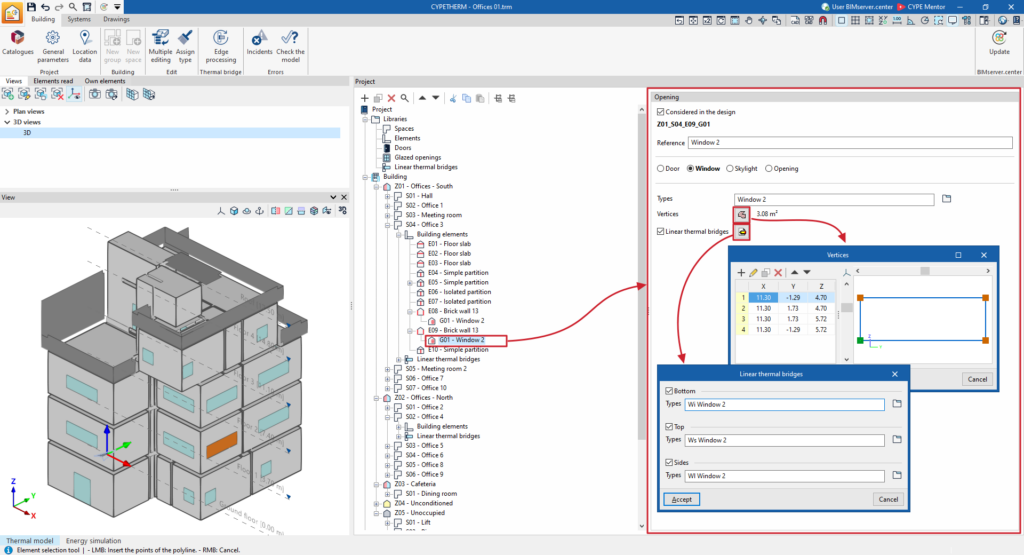
(project type: "Energy simulation")
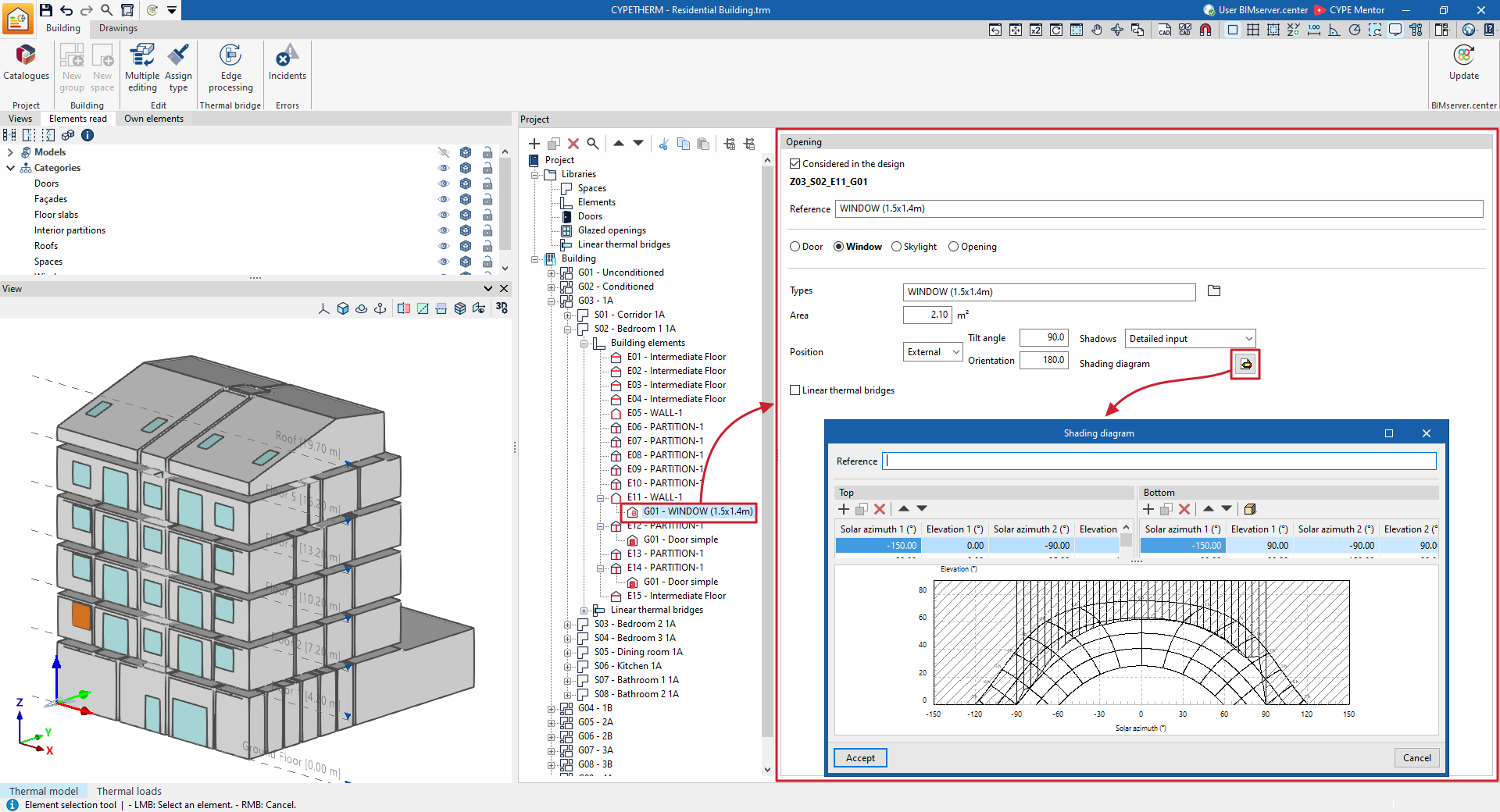
(project type: "Thermal loads")
Defining shading diagrams
Shading diagrams define the shadows cast onto external elements of the thermal model, such as façades, curtain walls, cantilevers and roofs, as well as external doors, windows and skylights.
These diagrams are generated automatically as part of standard workflows, either by modelling the building, neighbouring buildings and other obstacles in the "3D Model" tab, or by linking the job to a BIMserver.center project and by importing BIM models containing the geometry of the building, neighbouring buildings and other obstacles.
In any case, you can view and edit these diagrams by selecting the relevant elements in the project tree on the "Thermal model" tab and then selecting "Detailed definition" from the drop-down menu in the "Shadows" section. In the shading diagram editing window, the program lets you modify the following data:
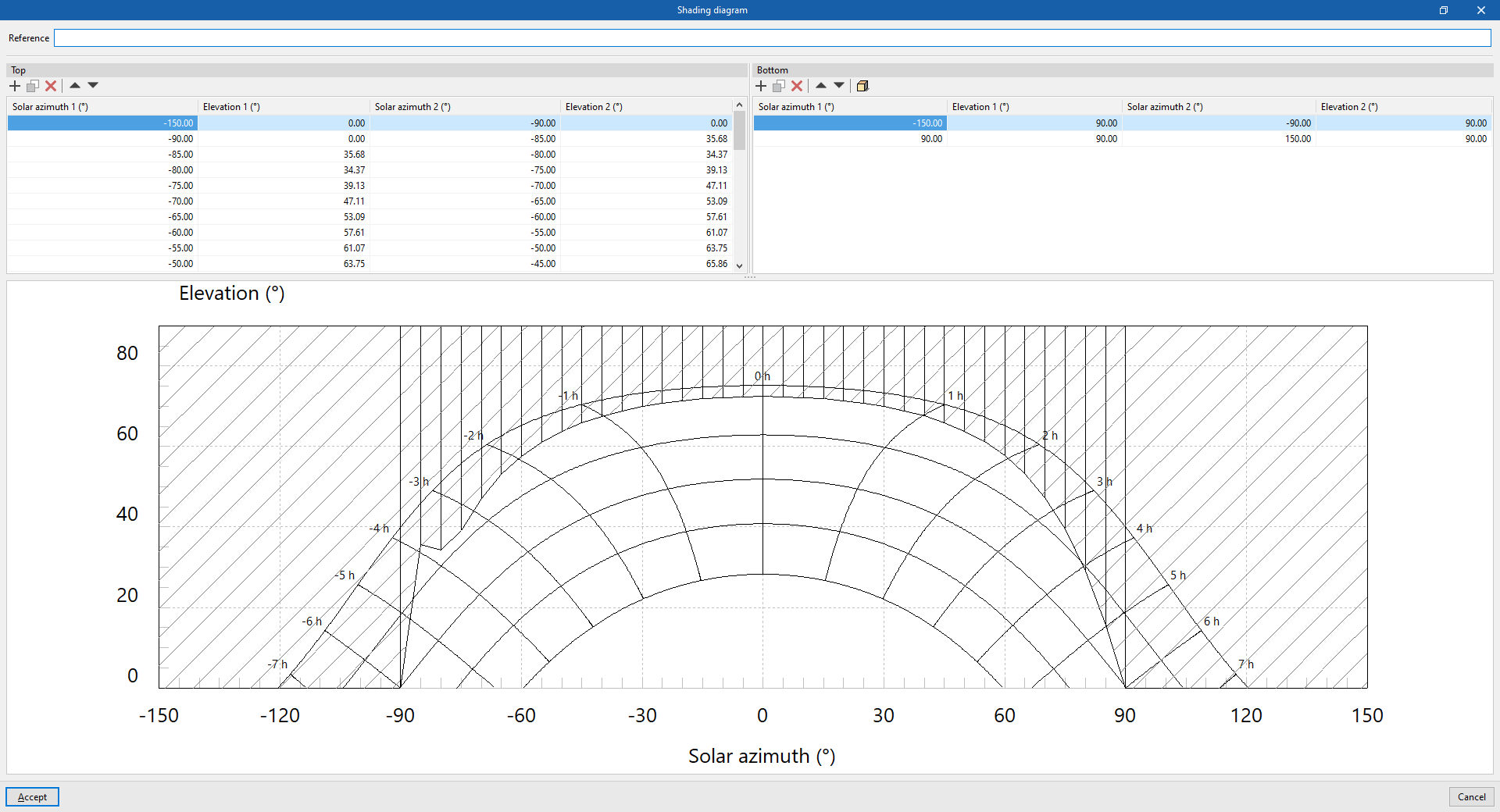
- Reference
Shading diagram reference.
Next, in the shading diagram definition tables, you can view the shadow polygons that have been generated, enter them manually using their coordinates, or generate them using the simplified option:
- Top
Manage shadow polygons aligned with the top elevation (90°). Each shadow polygon is a quadrilateral defined by four points with the following coordinates: Solar azimuth 1, 90°; Solar azimuth 1, Elevation 1; Solar azimuth 2, Elevation 2; and Solar azimuth 2, 90°. These shadow polygons can be used to define the shadows cast by overhangs situated above the element.- Solar azimuth 1 (°)
This value must be between -180° and 180°. - Elevation 1 (°)
This value must be between 0° and 90°. - Solar azimuth 2 (°)
This value must be between -180° and 180°. - Elevation 2 (°)
This value must be between 0° and 90°.
- Solar azimuth 1 (°)
- Bottom
Manage shadow polygons aligned with the lower elevation (0°) or the horizon. Each shadow polygon is a quadrilateral defined by four points with the following coordinates: Solar azimuth 1, 0°; Solar azimuth 1, Elevation 1; Solar azimuth 2, Elevation 2; and Solar azimuth 2, 0°. These shadow polygons can be used to define the shadows cast by buildings or obstacles situated in front of the element.- Solar azimuth 1 (°)
This value must be between -180° and 180°. - Elevation 1 (°)
This value must be between 0° and 90°. - Solar azimuth 2 (°)
This value must be between -180° and 180°. - Elevation 2 (°)
This value must be between 0° and 90°.
- Solar azimuth 1 (°)
Finally, at the bottom, a solar chart is shown, indicating the position of the sun in the sky throughout the year, described in terms of its altitude (or angle above the horizon) and its azimuth (angle relative to the south). The hatched area shows the layout of the defined shadow polygons.
Create a polygon using the simplified option
This option, available on the "Bottom" table toolbar, lets you automatically generate shadow polygons by entering the following parameters, which provide a simplified representation of the geometry of the building or nearby obstacle and its position relative to the element. In addition, a help diagram is displayed to assist with the definition of these parameters.
| Note: |
|---|
| The beam of rays shown in the diagram is drawn from the geometric centre of the element where the shading diagram is being defined. |
- Orientation (South / East / West / North-east / North-west / South-east / South-west)
The orientation of the element for which the shading diagram is being defined. - d
Distance from the object to the nearest building or obstacle. - d1
Distance to the left of the building or nearby obstacle. - d2
Distance to the right of the building or nearby obstacle. - h
Excess height of the building or nearby obstacle, relative to the centre line of the structure. - Points on the resulting shadow polygon (a'1, a'2, d'1, d'2, α1, α2, α3, α4, β1, β2, β3, β4)
These points and angles are calculated automatically when the other parameters are entered in the wizard.
Once you have confirmed, the program generates the corresponding shadow polygons.
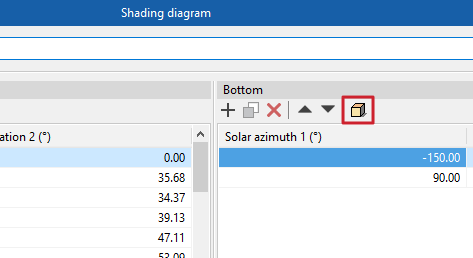
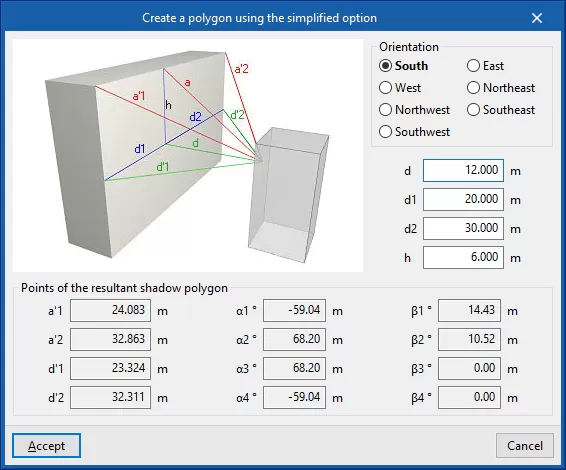
Editing linear thermal bridges in the building tree
When you select the "Linear thermal bridges" level within an enclosure, in the "Project" element tree under the "Building" tab, a table showing the linear thermal bridges associated with that space is displayed in the main editing area on the right.
This table shows various columns containing information about the bridges, including:
- Its identification code (for example, Z01_S01_TB01), which is generated automatically and depends on the position of the bridge in the tree.
- The linear thermal bridge type.
- The bridge’s "Reference".
- The selected "Type".
- The "Length" of the bridge.
- Its linear thermal transmittance (“ψ”).
- The "Adjacent" or adjoining space.
- If there are any issues.
The table features options at the top for adding, editing, copying, deleting or reordering items in the list.
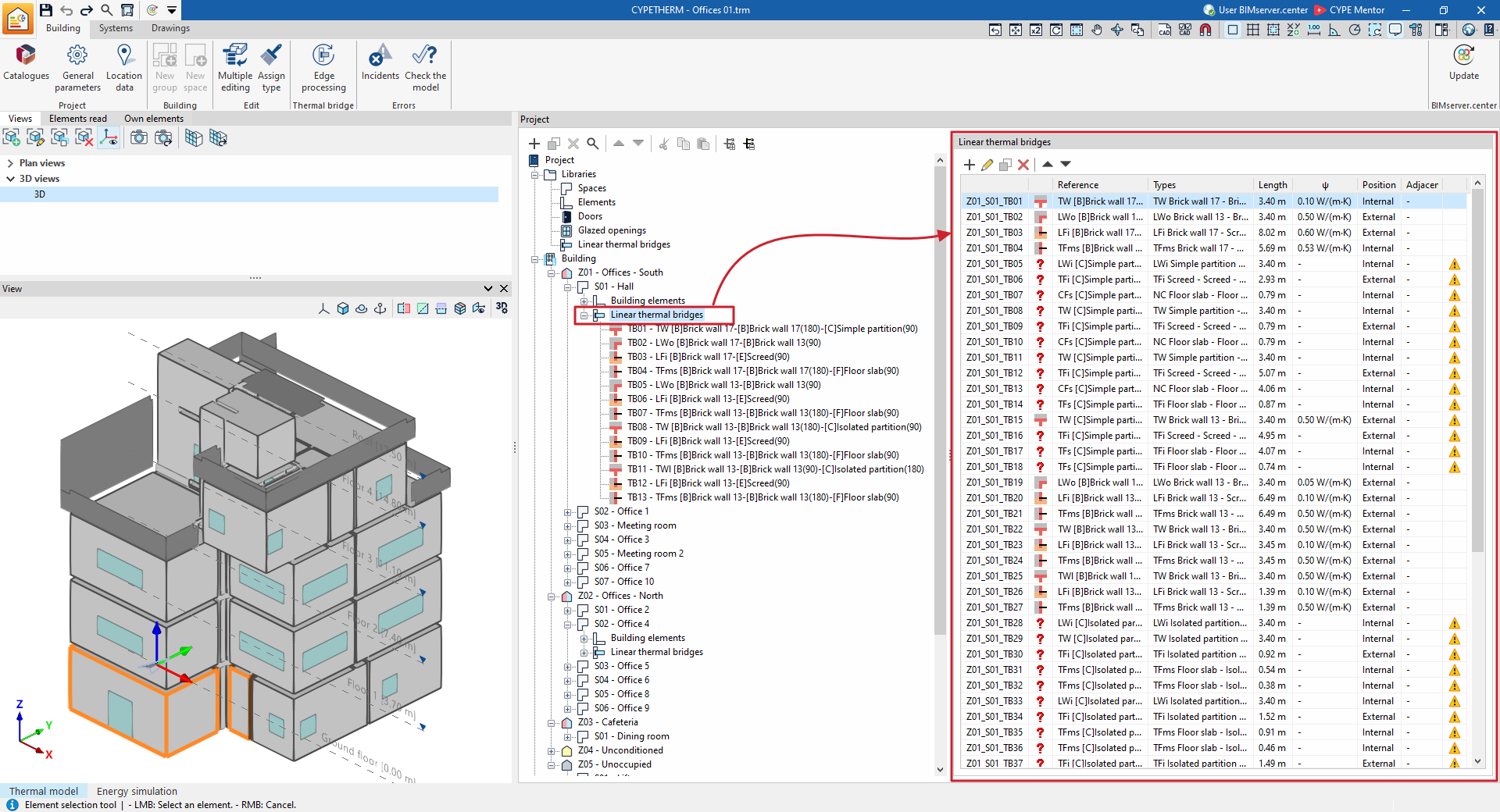
You can edit the properties of each specific thermal bridge by selecting it in the tree or by editing it in the table. Each thermal bridge is defined by the following parameters:
- Considered in the design (optional)
By ticking or unticking this option, you can choose to include or ignore the linear thermal bridge in the analysis performed by the program. When this option is enabled, you can also edit the remaining parameters. - Reference
Reference for the linear thermal bridge. The program also displays the identification code. - Position (External / Internal)
This option is selected to specify whether the enclosure for the linear thermal bridge is external or internal. - Type
Enter or select (using the option on the right) the type of linear thermal bridge from those available in the library. - Length
Length of the linear thermal bridge. - With adjacent space (optional)
Select the adjoining space for internal linear thermal bridges. - btr
A dimensionless value between 0 and 1 that reduces heat loss through the thermal bridge. This parameter appears and can be edited in the program in the case of linear thermal bridges with an "Interior" position and without a defined adjoining space.
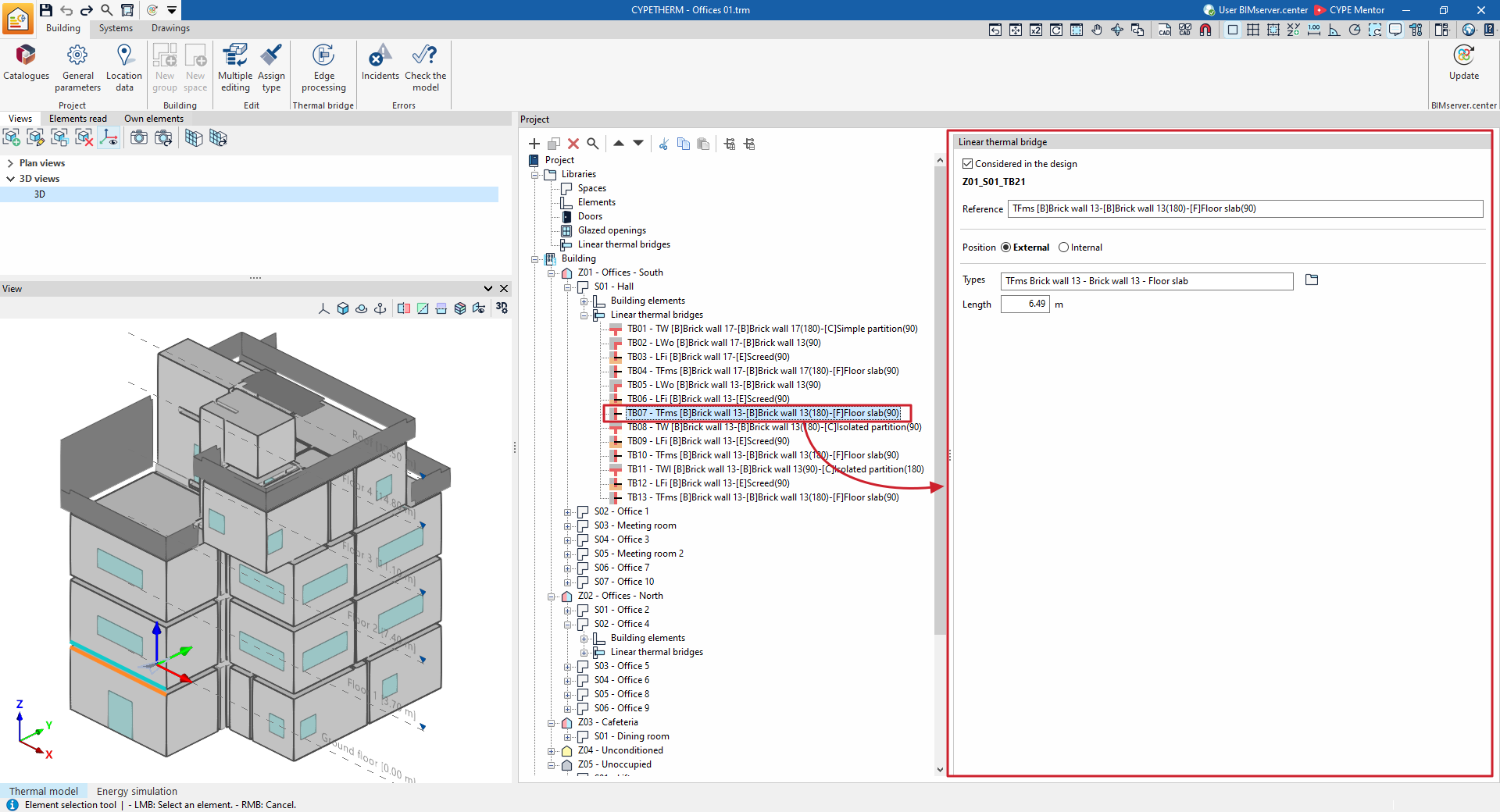
Own shadows and remote shadows
In the "Energy simulation" project type, shadows cast by the building’s own elements and shadows cast by neighbouring buildings or nearby obstacles are imported from the BIM model data or from the information obtained from the "3D Model" tab, and appear in the "Self-shadows" and "Remote shadows" sections of the tree view on the left-hand side of the "Project" panel, under the "Building" tab.
In each of these sections of the diagram, you can view, add, delete and edit the shadows. These elements are defined as planes situated at specific positions in space which will cast shadows onto the building during the energy simulation.
In the list of elements that appears in the main editing area when these sections of the tree are selected, shadows with the box unticked in the "Reviewed" column will not be included in the energy simulation.
Every shadow, whether own or remote, is defined solely by its reference and the vertices of a polygon:
- Reference
The numbered reference for the shadow is assigned automatically and depends on its position in the table. - Vertices
This option lets you view and define the global coordinate points "X", "Y" and "Z" that determine the position and surface of the shadow.
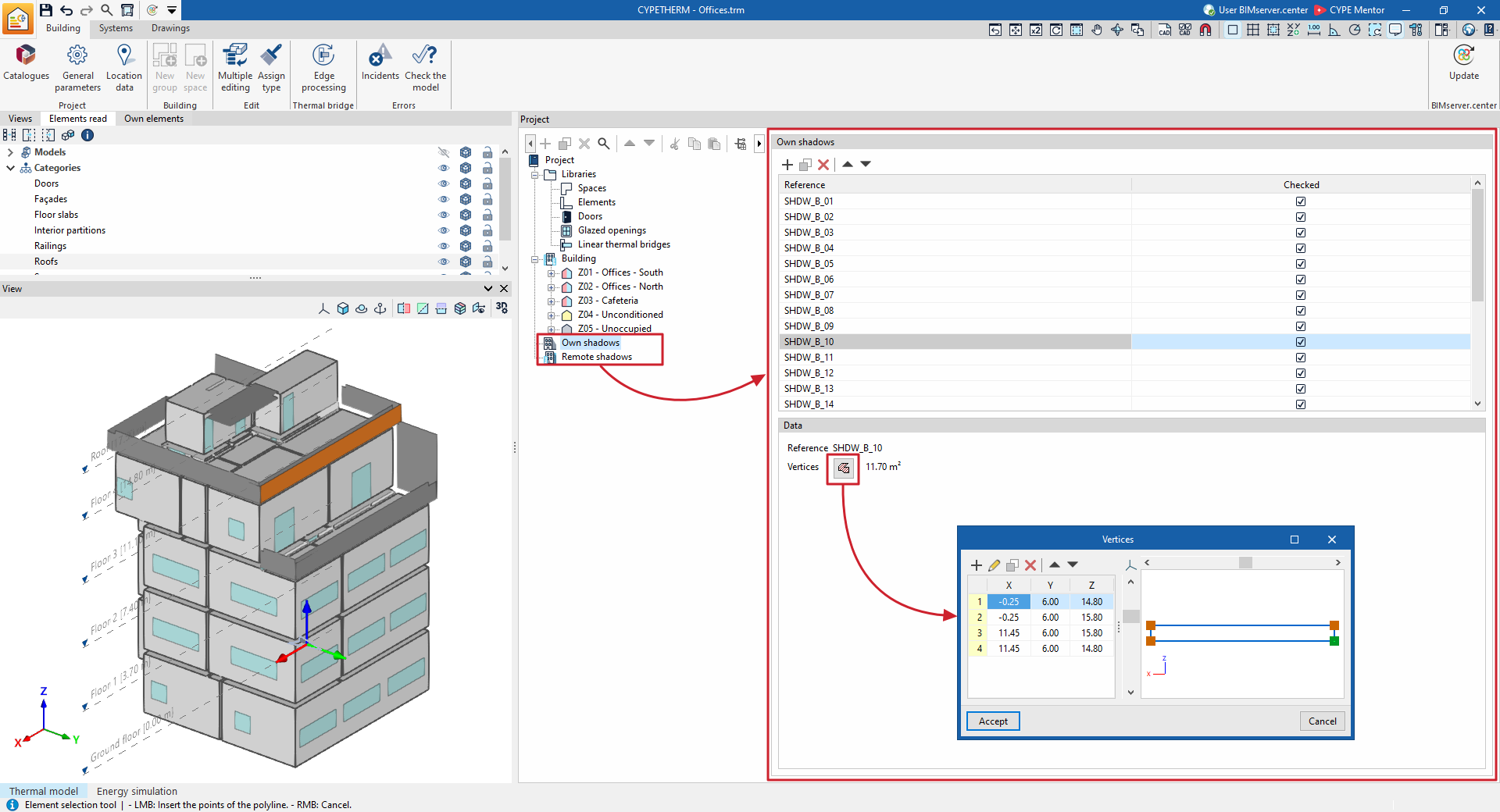
Options in the "Edit" section on the "Building" tab
The options in the "Edit" section of the top toolbar on the "Building" tab let you carry out the following operations on the building’s thermal model:

Multiple editing
The "Multiple editing" option provides a wizard for editing the properties of different types of building elements all at once.
This panel offers different options depending on the type of project selected and the tab that is currently open. The wizard will only apply to the elements of each type selected on the left-hand side of the window.
Multiple editing (project type: "Energy simulation")
The operations that can be carried out using the "Multiple editing" option within the "Building" tab for an "Energy simulation" project type include the following:
Groups
Delete groups and thermal zones, or modify the properties of thermal zones. The groups and zones are displayed in a list on the left.
- The "Delete" option, on the left, lets you delete the selected group or thermal zone.
- To modify the properties of one or more heating zones simultaneously, select the zones in the left-hand side panel. Then, on the right-hand side, specify the properties you wish to assign to those zones.
After confirming, the properties of the selected elements will be changed, or they will be deleted.
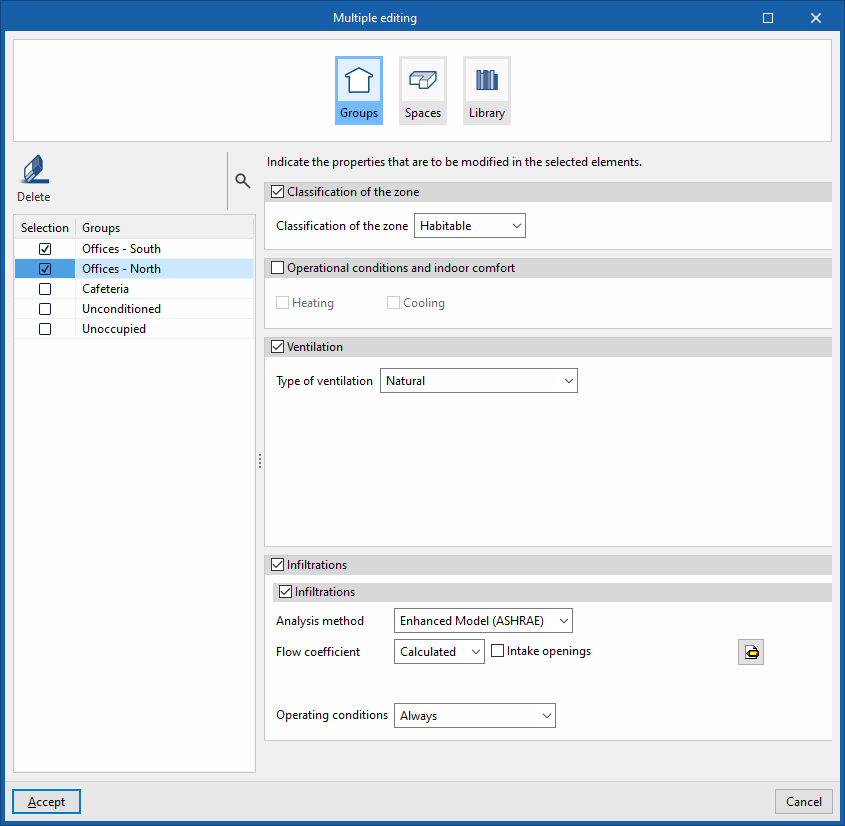
Spaces
Move group spaces and edit their type:
- To move group or zone spaces, select the spaces by ticking them in the left-hand column. Then, click on the "Group" option and choose the group (or zone) to which they are to be assigned.
- To edit the type of spaces, select the spaces by ticking them in the left-hand column. Then, click on the "Type" option and choose the type of space you wish to assign to them from those available in the room library.
After confirming, the spaces will be moved to the specified zone or group and/or their assignment type will be changed.
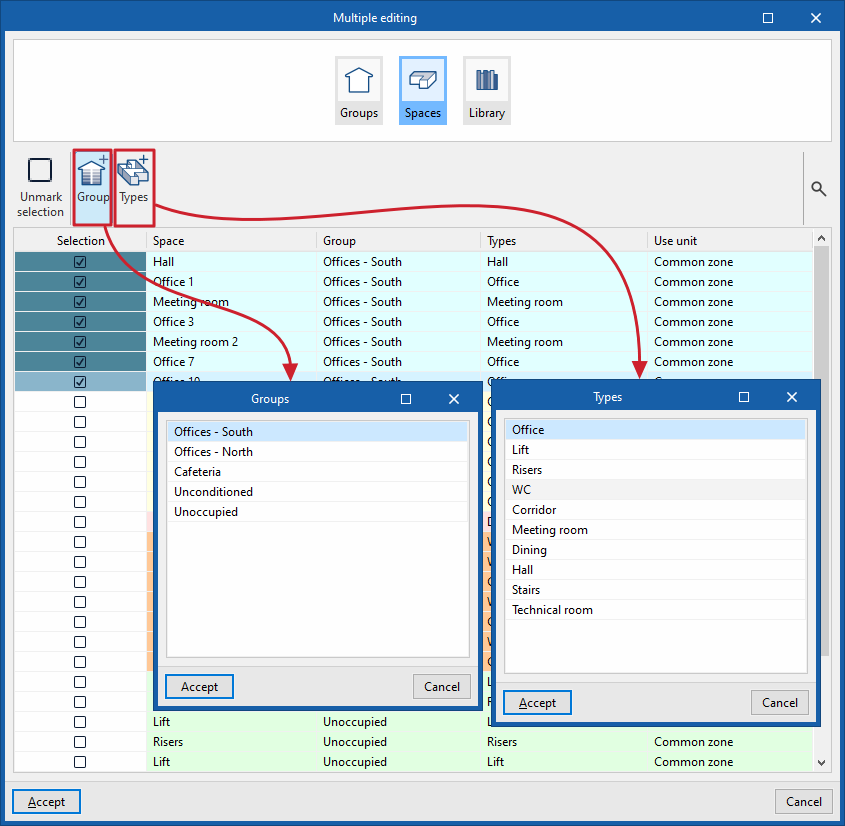
Library
Modify the properties of certain library elements such as "Spaces", "Doors" or "Glazed openings":
- To modify the properties of the elements, select the types you wish to modify by ticking them in the left-hand column. Then, specify on the right-hand side the properties to be assigned to those element types.
After confirming, the properties of the selected element types will be modified.
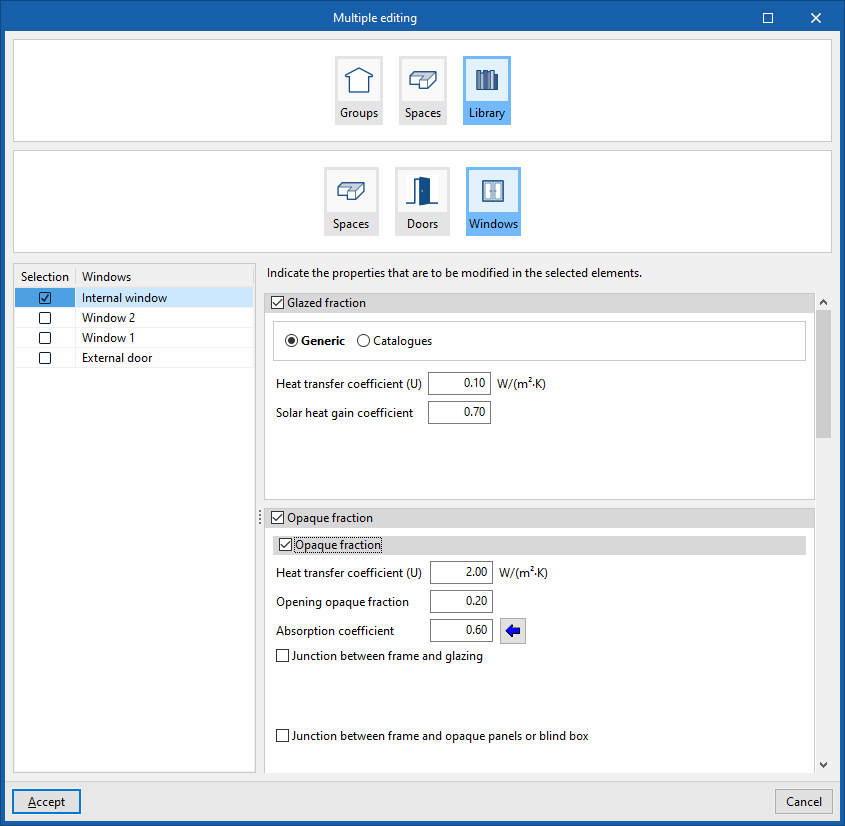
Multiple editing (project type: "Thermal loads")
In the "Thermal loads" project type, the "Multiple edit" option lets you move group spaces and edit their type:
- To move group spaces, select the spaces by ticking them in the left-hand column. Then click on the "Group" option and choose the group to which they are to be assigned.
- To edit the type of spaces, select the spaces by ticking them in the left-hand column. Then, click on the "Type" option and choose the type of space you wish to assign to them from those available in the space library.
After confirming, the spaces will be moved to the specified group and/or their type assignment will be changed.
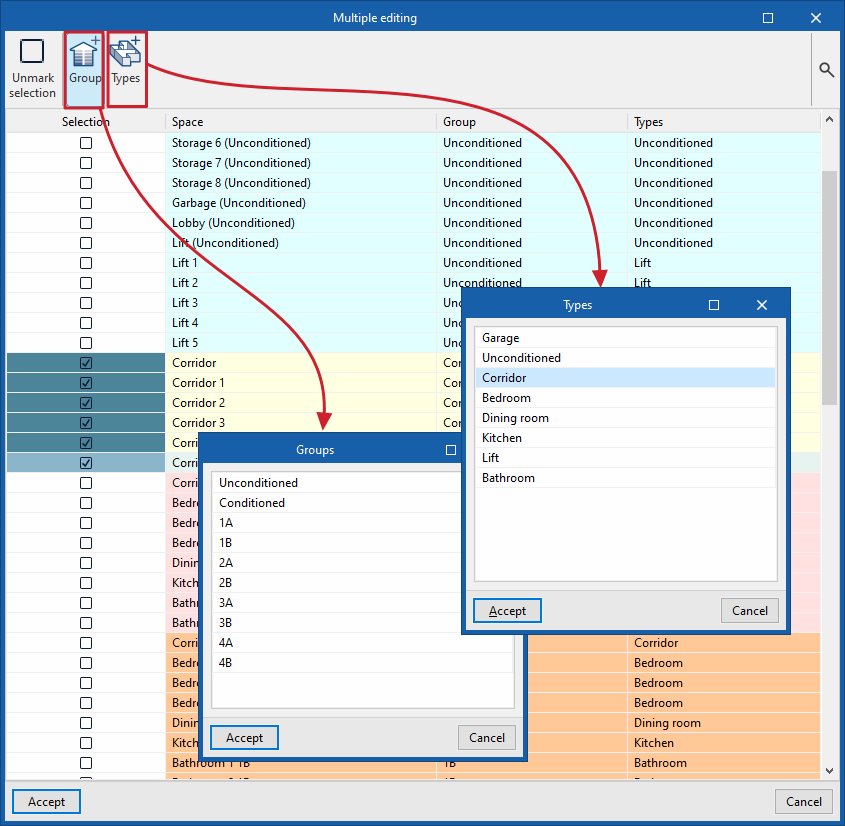
Assign type
The "Assign type" option is a graphical tool that works on the 3D model as follows:
- Click on the "Assign type" option.
- Select an element in the "View" using the left mouse button.
- Finally, use the left mouse button (either one by one or by selecting an area) to select the elements in the "View" to which you wish to apply the same type as the source element.
During this process, elements with the same type applied will be highlighted in orange, whilst those with a different type will be displayed in yellow.
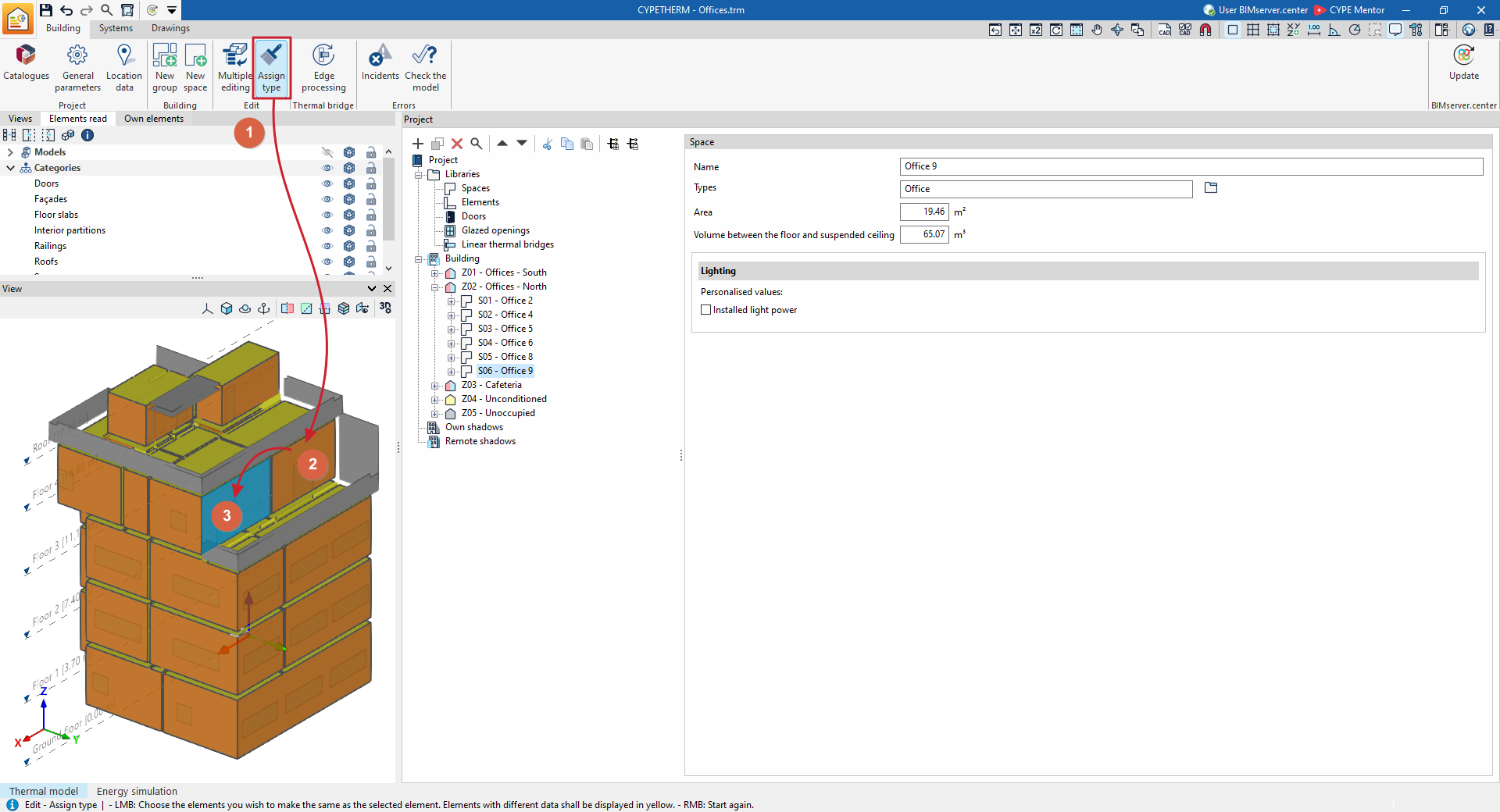
Edge processing
The analysis of linear thermal bridges enables the corresponding linear thermal transmittances to be calculated based on the characteristics of the construction systems adopted. This analysis is carried out taking into account the applicable specifications in accordance with the standard selected for calculating the thermal transmittance of linear thermal bridges.
The model imported during the process of creating a new project or added via the "3D Model" tab focuses on the geometric description of the building. The technical information is entered into the building’s thermal model. Therefore, to detect linear thermal bridges, the program carries out a two-stage process:
| Note: |
|---|
| The IFC4 standard does not cover the concept of linear thermal bridges. CYPE has therefore created an entity so that, when an IFC4 file generated by software such as IFC Builder or Open BIM Analytical Model is imported, the intersections of the structural elements (edges) can be displayed for subsequent processing in CYPETHERM. |
- In the first stage, the building’s edges are imported as purely geometric entities, derived from the intersection of various structural elements. This is done either by generating the building model during the import process of a BIM model containing this information, as found in the BIMserver.center project, or by generating the geometric model from the "3D Model" tab. At this stage, the "Linear thermal bridges" library in the "Building" tab contains all the building’s edges as geometric entities derived from the intersection of the various structural elements. Some of these edges may give rise to linear thermal bridges, so a second step is required.
- In the second stage, through edge processing, linear thermal bridges are identified on the basis of the edges and in accordance with the building’s thermal analysis specifications (zoning, description of spaces, etc.). The program analyses the building and identifies the geometric edges that lie between a habitable space and the exterior, and between a habitable space and a non-habitable space. Not all edges necessarily result in linear thermal bridges.
This process can be carried out at the start of a project and when importing a project, or alternatively by clicking on the "Edge processing" option in the "Thermal bridges" section of the top toolbar on the "Building" tab. To use this tool, the building must be defined without any errors:

When you accept the "Edge processing" window, the program modifies the data relating to "Linear thermal bridges" in the side tree of the "Building" tab, both in the library and in relation to the linear thermal bridges assigned to each room in the tree structure that appears when the "Zones" level is selected. This generates the necessary types and adjusts the linear thermal transmittance value and the category associated with each of the linear thermal bridges.
Edge processing settings
The program analyses the building by identifying the geometric boundaries between a habitable space and the exterior, and between a habitable space and a non-habitable space. Using the configuration options, the characteristics of the main construction systems are selected so that the corresponding thermal transmittances can be calculated.
To do this, in the "Edge processing" window that appears when you select the option of the same name, click on "Settings". This option lets you adjust the following edge processing parameters:
- Code
- Numerical analysis of linear thermal bridges (EN ISO 10211) (optional)
- Manual definition of the linear thermal transmittance coefficient
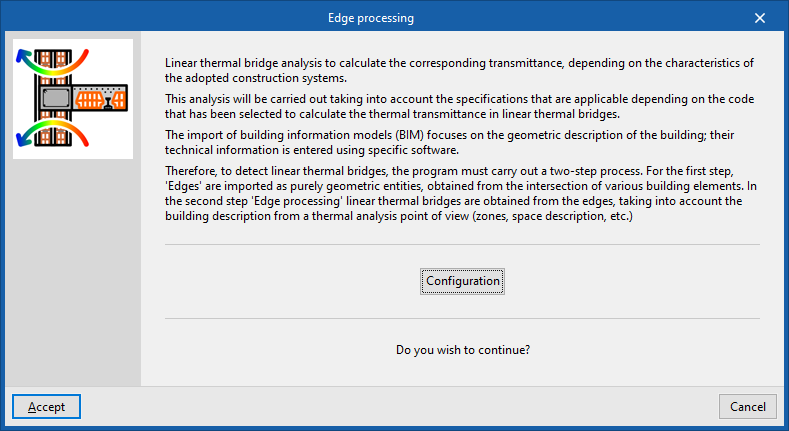
The effects of configuring these sets of parameters are detailed below.
Selecting a code
The "Code" drop-down menu lets you select the reference standard for edge processing. The available standards include the following:
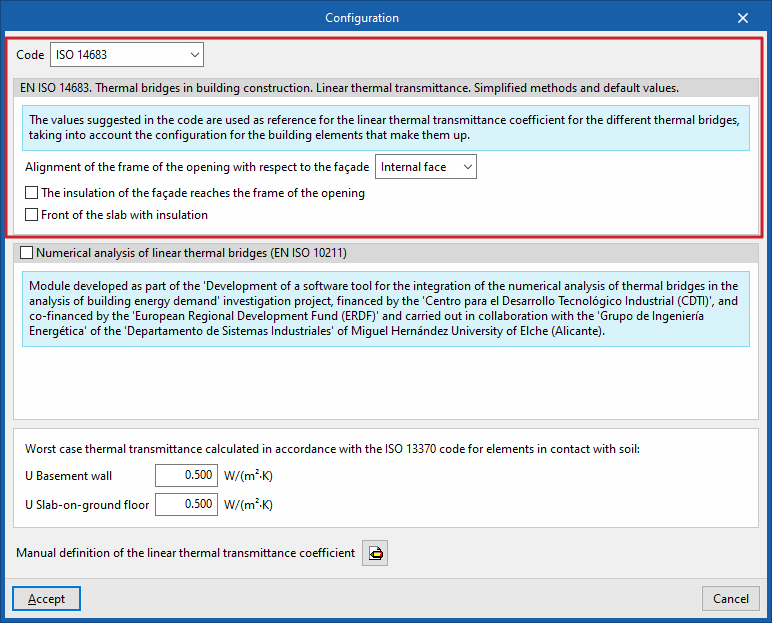
ISO 14683
The following standard may be used as a reference: EN ISO 14683. Thermal bridges in building construction. Linear thermal transmittance. Simplified methods and default values.
The values proposed in this standard for the linear thermal transmittance of the various thermal bridges are used as a reference, taking into account the configuration of the structural elements that make up the thermal bridge.
The options available under this standard are as follows:
- Alignment of the frame of the opening with respect to the façade (Internal face / Centred / External face)
- The insulation of the building envelope extends to the frame of the opening (optional)
- Insulated floor slab face (optional)
ISO 14683 (Italy)
The following standard may be used as a reference: UNI EN ISO 14683. Thermal bridges in buildings. Linear thermal transmittance. Simplified methods and default values.
The options available under this standard are as follows:
- Alignment of the frame of the opening with respect to the façade (Internal face / Centred / External face)
- The insulation of the building envelope extends to the frame of the opening (optional)
- Insulated floor slab face (optional)
DA DB-HE/3 (Spain)
Please use the following standard as a reference: CTE DB HE1. Thermal Bridge Atlas DA DB-HE/3.
The supporting document for the DB-HE Basic Document "Energy Saving" (DA DB-HE / 3) sets out approximate values for linear thermal transmittance for the most common construction systems.
The options available under this standard are as follows:
- Alignment of the frame of the opening with respect to the façade (Internal face / Centred / External face)
- The insulation of the building envelope extends to the frame of the opening (optional)
- Insulated floor slab face (optional)
Th-Bât regulations (France)
Please use the following standard as a reference: Règles Th-Bât. (Booklets 1 and 5).
SCE Manual (Portugal)
Please use the following standard as a reference: SCE. Energy Performance of Residential Buildings.
The options available under this standard are as follows:
- The insulation of the building envelope extends to the frame of the opening (optional)
Numerical analysis of linear thermal bridges (EN ISO 10211)
This section determines the thermal transmittance of linear thermal bridges by solving and post-processing a finite element heat transfer analysis model, based on EN ISO 10211.
This module has been developed as part of the research project "Development of a software tool for integrating the numerical analysis of thermal bridges into the calculation of energy demand in buildings", funded by the Centre for Industrial Technological Development (CDTI), co-funded by the European Regional Development Fund (ERDF), and carried out in collaboration with the Energy Engineering Group of the Department of Industrial Systems at Miguel Hernández University in Elche (Alicante).
| Note: |
|---|
| This feature is identical to that offered by the standalone CYPETHERM BRIDGES app. |
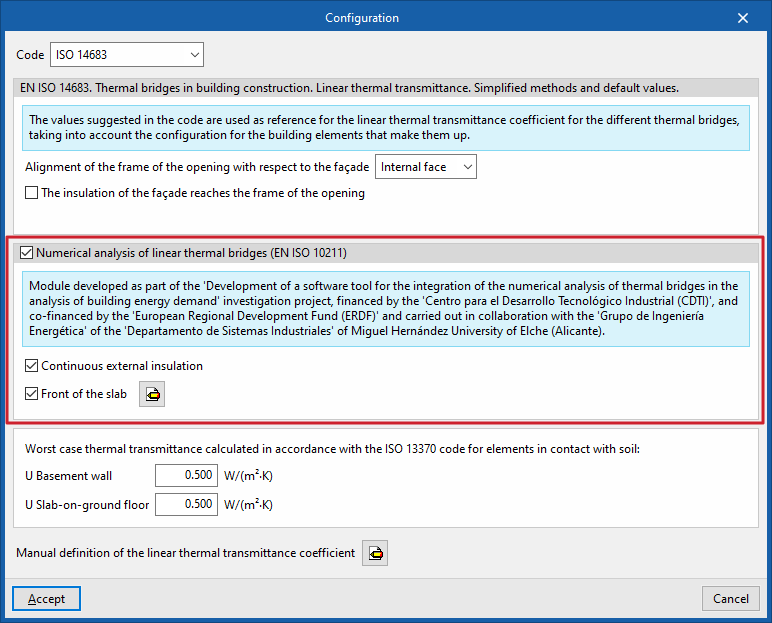
The options available in this section are as follows:
- Continuous external insulation (optional)
- Slab face (optional)
Define the material layers of the slab face by entering their technical characteristics, such as thickness, thermal conductivity, thermal resistance, density and specific heat.
Very poor thermal transmittance calculated in accordance with ISO 13370 for elements in contact with the ground
This section sets out the thermal transmittances of basement walls and floors in contact with the ground:
- U Basement wall
- U Slab-on-ground floor
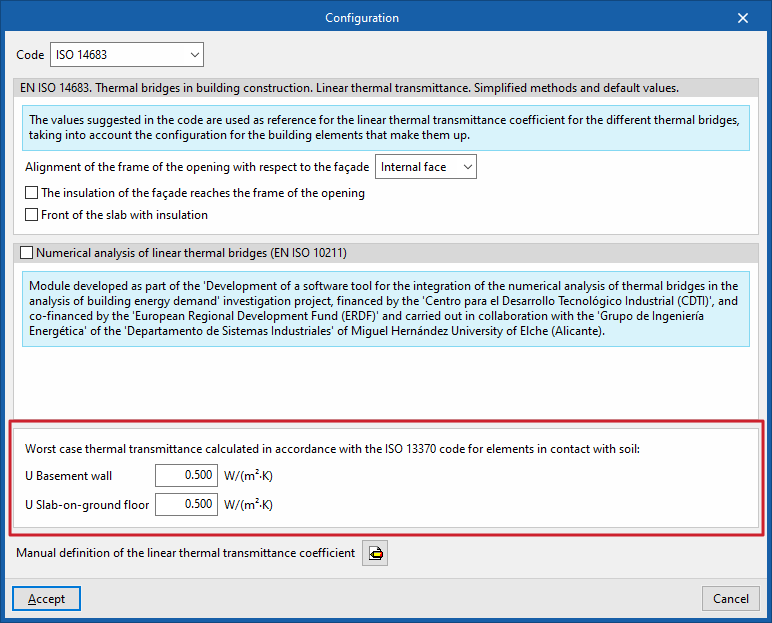
Manual definition of the linear thermal transmittance coefficient
Clicking on the edit button in this section opens the "Manual definition of the linear thermal transmittance coefficient" window, which displays the types of thermal bridges associated with the selected standard.
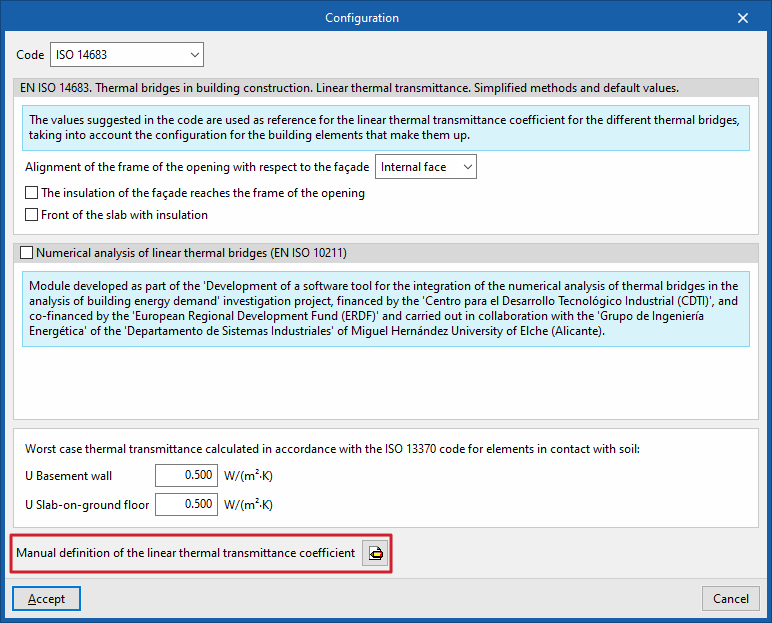
For each type of thermal bridge, by clicking on the edit button on the right, you can choose from the following three options, which allow you to adjust the definition of its linear thermal transmittance:
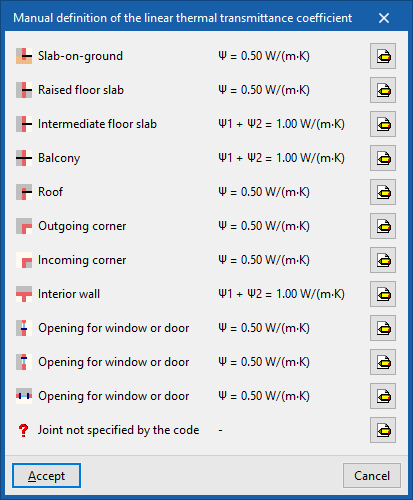
- The thermal characteristics of the selected linear thermal bridge are never
taken into account. - Always
take into account the thermal characteristics defined for the selected linear thermal bridge. The program lets you enter a "Reference", a "Description" and the "Linear transmittance value, ψ" for the type of thermal bridge. - Default value
The thermal characteristics defined for the selected linear thermal bridge will be used in the calculation where it has not been possible to determine them either through numerical analysis (where enabled) or in accordance with the specifications of the reference standard used. Similarly, the program lets you enter a "Reference", a "Description" and the "Linear transmittance value, ψ" for the type of thermal bridge, which will only be used in the case described.
When you select the "Always" or "Default values" options, the program displays data import wizards on the right-hand side, allowing you to import data from various regulatory catalogues or files on your hard drive.
If relevant standards have been selected, the program allows the import of values for linear thermal bridges described in the RT Existant, RT2012 and CTE DB HE1 (2013) standards, as shown on the right.
Linear thermal bridges created in this way can also be imported or exported to .bibgen files on disk using the corresponding buttons.
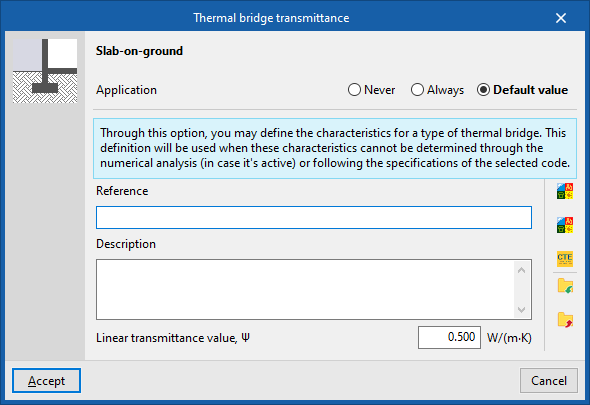
Order of priority for assigning thermal parameter values
The program follows this order of priority when assigning values to the thermal parameters during edge processing:
- Value entered manually using the "Always" or "Never" option
These values can be defined for each type of thermal bridge in the "Settings" window by editing the "Manual definition of the linear thermal transmittance coefficient" section, editing a specific type of thermal bridge and, finally, selecting the "Always" or "Never" option. - Value calculated by numerical analysis of linear thermal bridges
If the "Numerical analysis of linear thermal bridges (EN ISO 10211)" option is selected in the "Settings" window, and only for the types of thermal bridges that are analysed. - Value derived from the reference standard
The reference standard is selected in the "Standard" section of the "Settings" window. - Value entered manually using the "Default value" option
These values can be defined for each type of thermal bridge in the "Settings" window by editing the "Manual definition of the linear thermal transmittance coefficient" section, editing a specific type of thermal bridge and, finally, selecting the "Default value" option.
Options in the "Errors" group in the "Building" tab
The options in the "Errors" section of the top toolbar on the "Building" tab let you carry out the following operations on the building’s thermal model:

Incidents
The "Incidents" option allows you to show or hide warning symbols in the 3D model within the "View" window that relate to elements where an error has occurred. By hovering the cursor over these symbols, you can view a message describing the error.
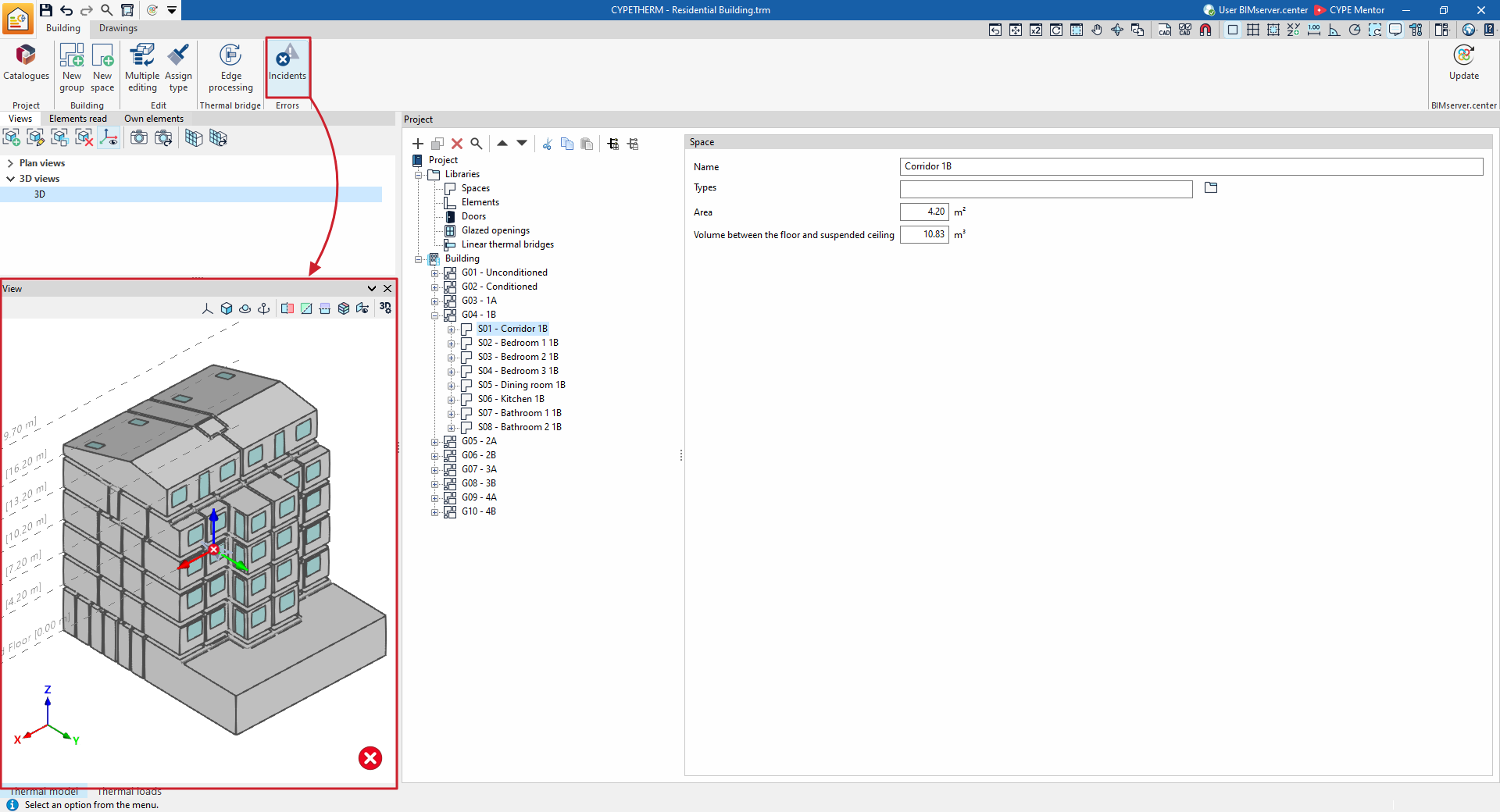
Checking the model
The "Check the model" button is available in the "Energy simulation" project type. When you click it, the program analyses the definitions entered in the project and displays any errors at the bottom of the screen if there are any incorrect or mutually incompatible definitions. If there are definitions that are potentially incorrect but do not cause errors in the calculations, a warning will be displayed.
When you select each error from the list, the program will display the level of the element causing the error.
| Note: |
|---|
| We advise running the model check using this tool in the "Building" tab and rectifying any errors and warnings found before moving on to the "Calculation" tab. Otherwise, the main area of the "Calculation" tab will display the same errors and warnings as those shown when using the "Model check" option on the "Building" tab. These errors must be corrected before proceeding with the model analysis. |
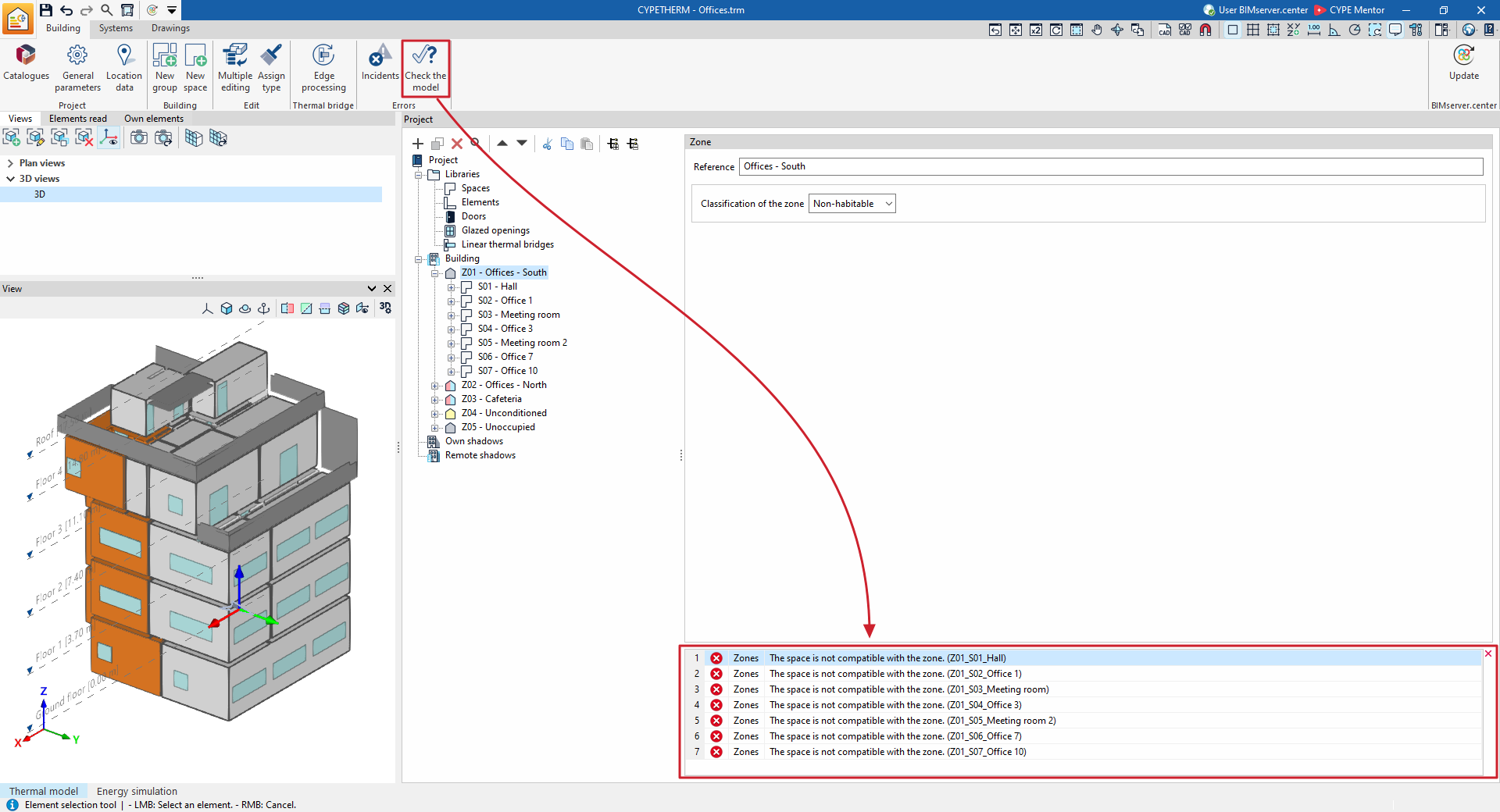
Integration into the BIMserver.center platform
Many of CYPE's programs are connected to the BIMserver.center platform and allow collaborative work to be carried out via the exchange of files in formats based on open standards.
Please note that, to work on BIMserver.center, users can register on the platform free of charge and create a profile.
When accessing a program connected to the platform, the program connects to a project in BIMserver.center. This way, the files of the projects that have been developed collaboratively in BIMserver.center are kept up to date.

| More information: |
|---|
| For further details related to using CYPE software via the BIMserver.center platform, please click on this link. |
Options in the "BIMserver.center" group in the "Building" tab
In the "BIMserver.center" section of the main toolbar on the "Building" tab, you will find the following feature, which is required to use the program together with other BIMserver.center tools:

Update
The "Update" option lets you synchronise changes made to the BIM model, so that they are reflected in CYPETHERM.
Clicking on it brings up the "Update BIM model" panel. Here, by ticking the "Import" box in each row, you can update the information contained in the models previously imported into the project or import new models if required.
- Thermal model of the building
The drop-down menu in this section will be disabled, as this setting cannot be changed once the project has been created. If you need to change this setting, you will need to create a new project.
Furthermore, if the option "Import thermal model from the project" has been selected when creating a new project, the program offers the following options:- Directory for searching by type (optional)
When this option is enabled, you can select a directory on the hard drive where the type library files are stored. This lets you import type libraries previously created in other projects and exported to that directory, and automatically assign them to the spaces, elements and openings in the imported model. To do this, the type references in the selected directory must match the element type references in the imported model. - Keep the types defined previously in the thermal model (optional)
- Keep the zones defined previously in the thermal model (optional)
- Directory for searching by type (optional)
- Location data (if the "Thermal loads" project type has been selected)
- Northern Hemisphere / Southern Hemisphere
Select the hemisphere in which the project is located. - Use the BIM model's location, if defined. (optional)
This enables the generation of shadows on the project’s elements to be completed by incorporating information on site elements (such as neighbouring buildings or nearby obstacles) that are defined in the BIM model.
- Northern Hemisphere / Southern Hemisphere
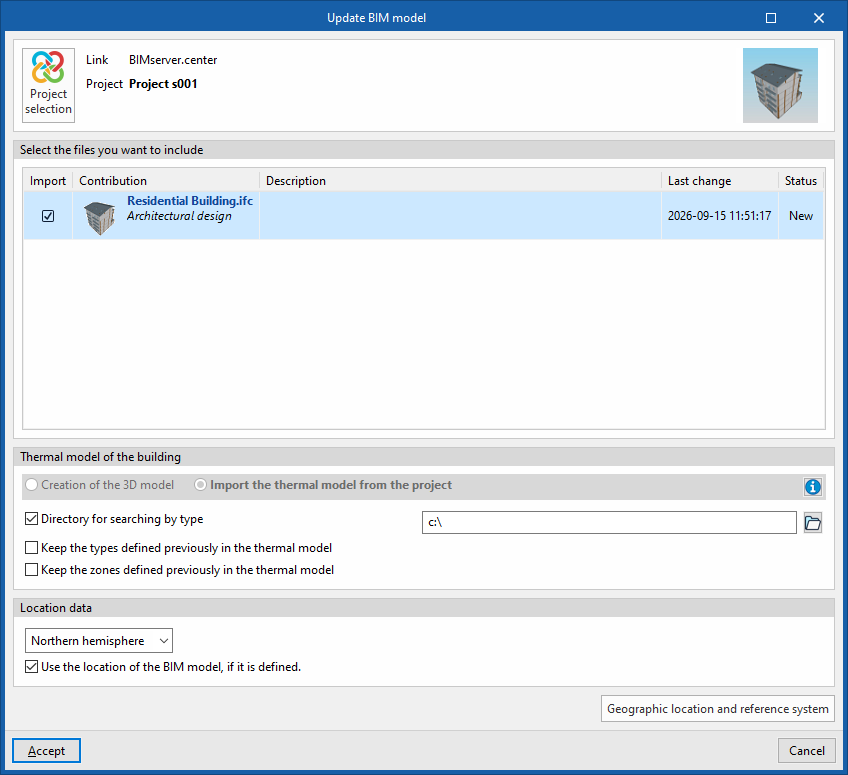
| Best practice: |
|---|
| To make the most of the Open BIM workflow, it is recommended that changes to model elements be made in the software programs in which they were originally created. Furthermore, to ensure the model is synchronised correctly and to be able to use the "Edge processing" tool, elements imported from the BIM model must retain their reference (their name). |
| Note: |
|---|
| The "Share" option, which exports the results obtained using CYPETHERM to the BIMserver.center project, is available on the analysis tab for the selected project type. |
